 BambooForge Labs
Vendor Scorecard: Supplier Performance Rating
Weighted vendor scoring on delivery, fill rate, returns, price and responsiveness, combined into one A/B/C/D grade with a ranked list.
Available for Odoo 16.0, Odoo 17.0, Odoo 18.0, Odoo 19.0, Odoo 20.0. Technical name bambooforge_vendor_scorecard.
Transcript of the walkthrough (Odoo 20)
Vendor Scorecard: Supplier Performance Rating. Weighted vendor scoring on delivery, fill rate, returns, price and responsiveness, combined into one A/B/C/D grade with a ranked list. Late deliveries cost you stockouts and expediting. This app turns your receipt and purchase history into a vendor rating: In the next few minutes: vendor scorecard: supplier performance rating, then quick start, then how scoring works, then reading the results, then tuning the thresholds.
Then what this app deliberately does not do, so you can tell before you buy whether it fits. Everything lives under Vendor Scorecard then Vendors then Scorecards. No Enterprise modules and no external Python libraries are required. Vendor Scorecard: Supplier Performance Rating.
Know which suppliers actually deliver. This app scores every vendor on on-time delivery rate, average delay and purchase spend, grades them A to D, keeps a snapshot of performance over time, and writes the rating back onto the vendor so you can filter and source by reliability. This page is the complete manual. Follow it top to bottom and you can install, run your first scorecard, read the grades, tune the thresholds and fix the common issues without contacting support.
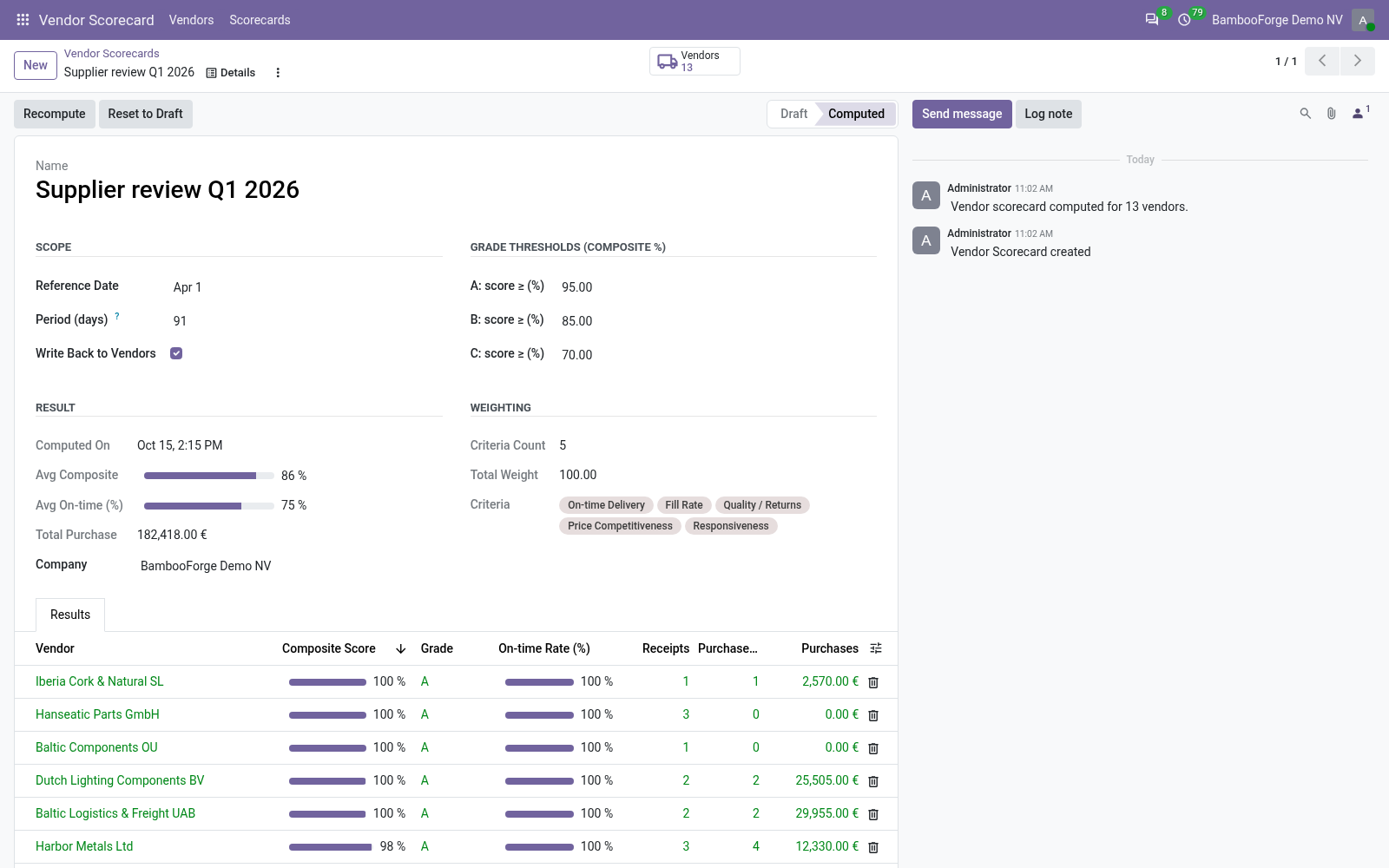
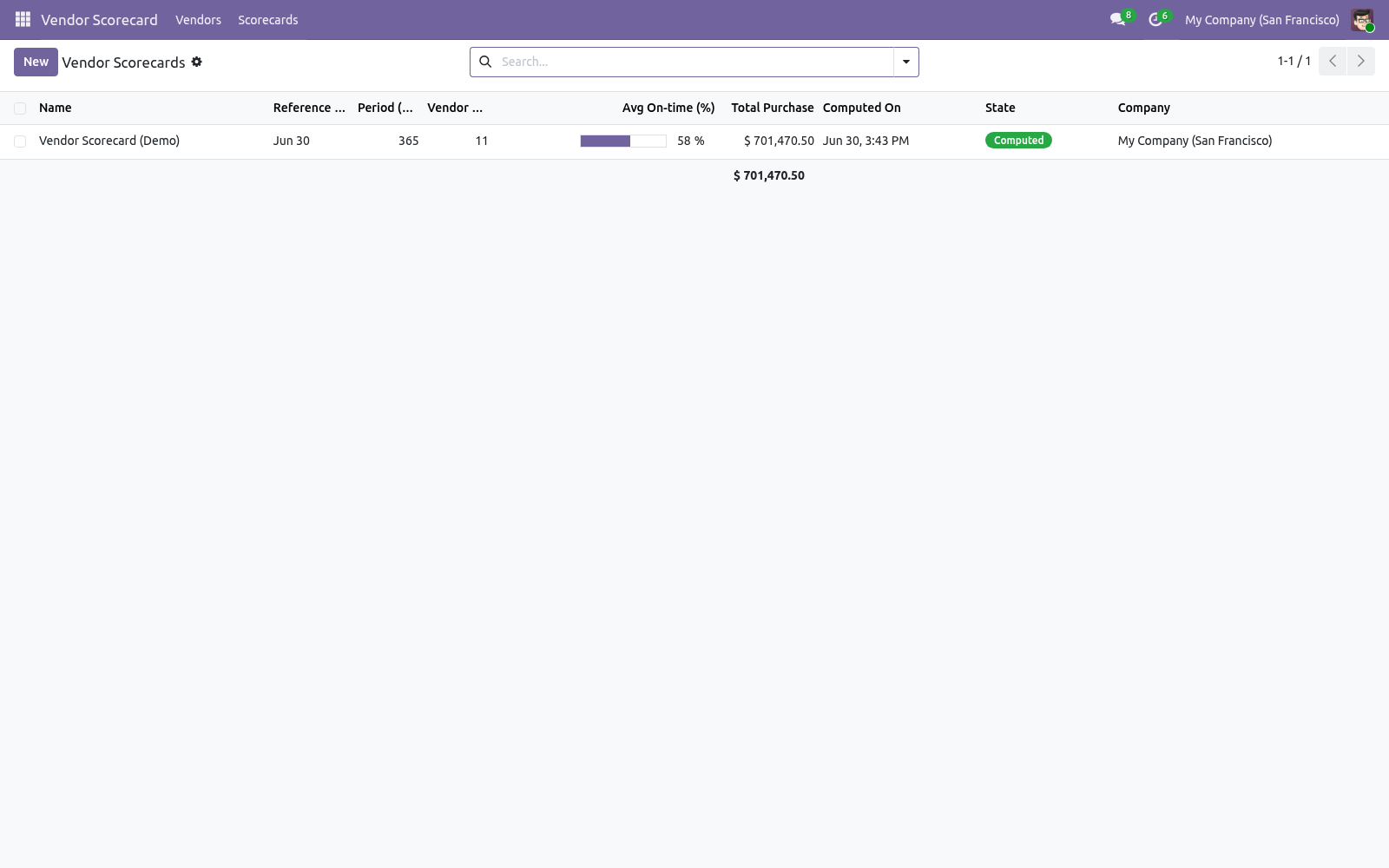
Quick start. 1. Open Vendor Scorecard > Scorecards and click New. 2.
Set the Reference Date and the Period (days) to measure over. 3. Optionally adjust the Grade Thresholds (the on-time percentages for A, B and C). 4.
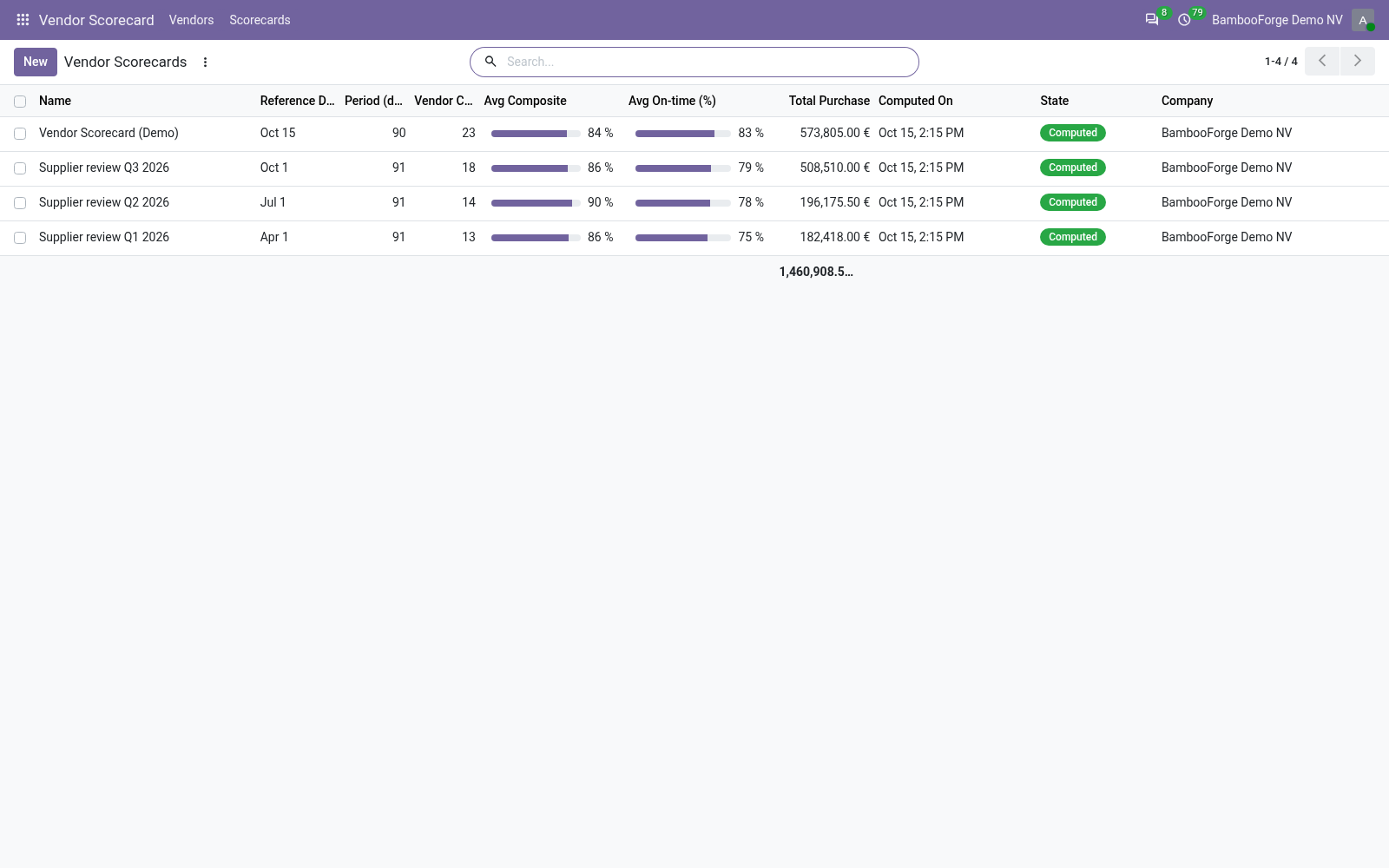
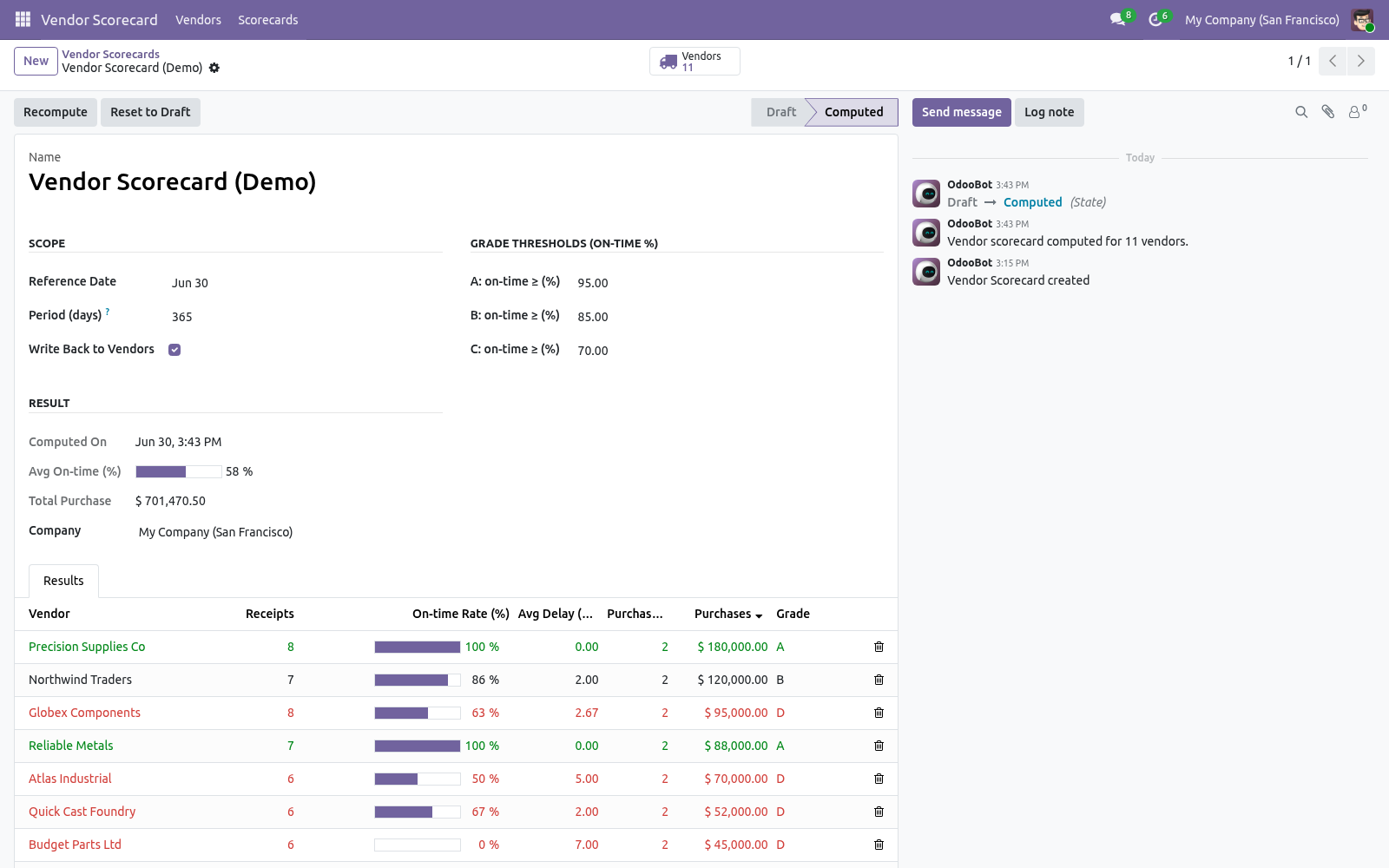
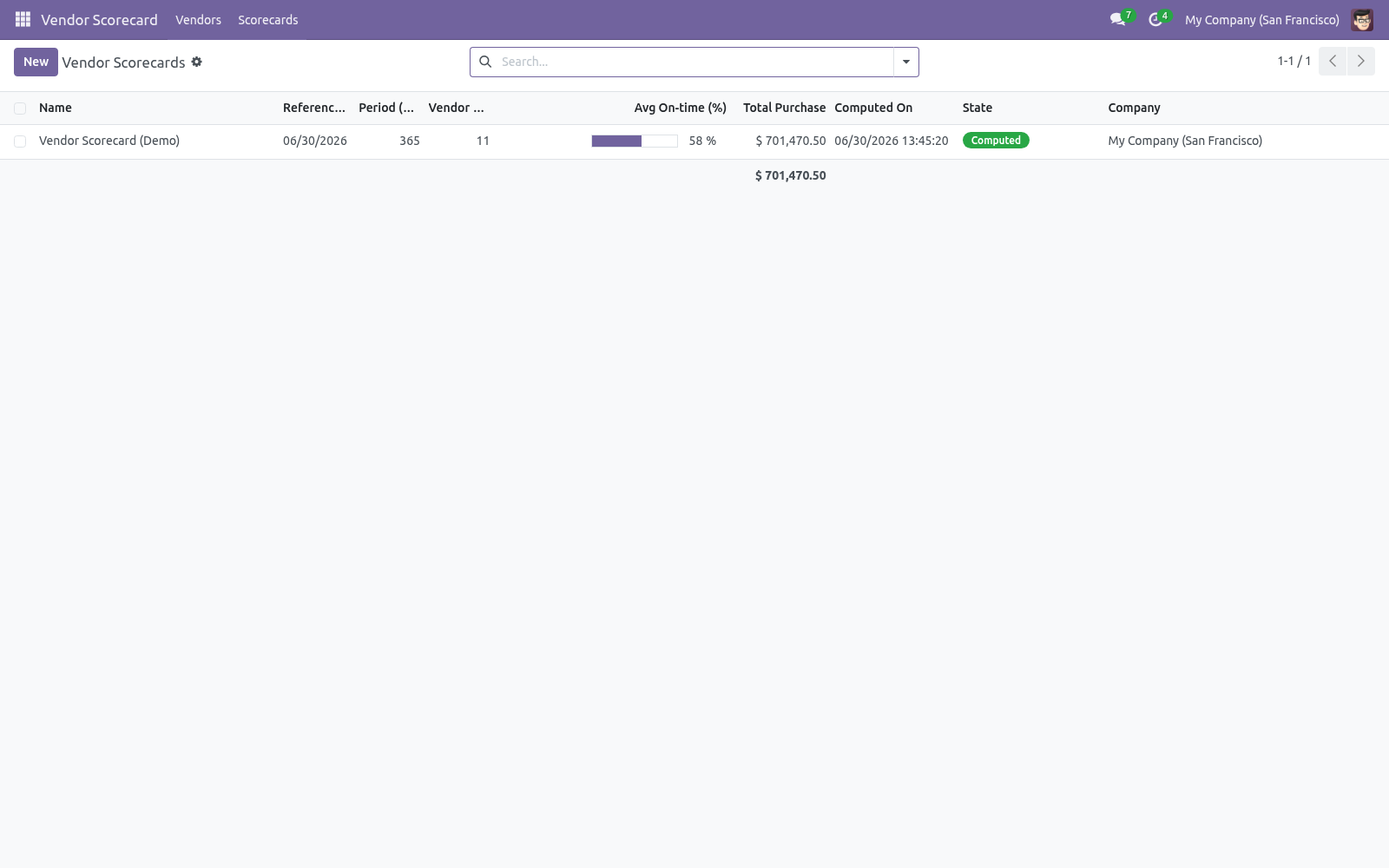
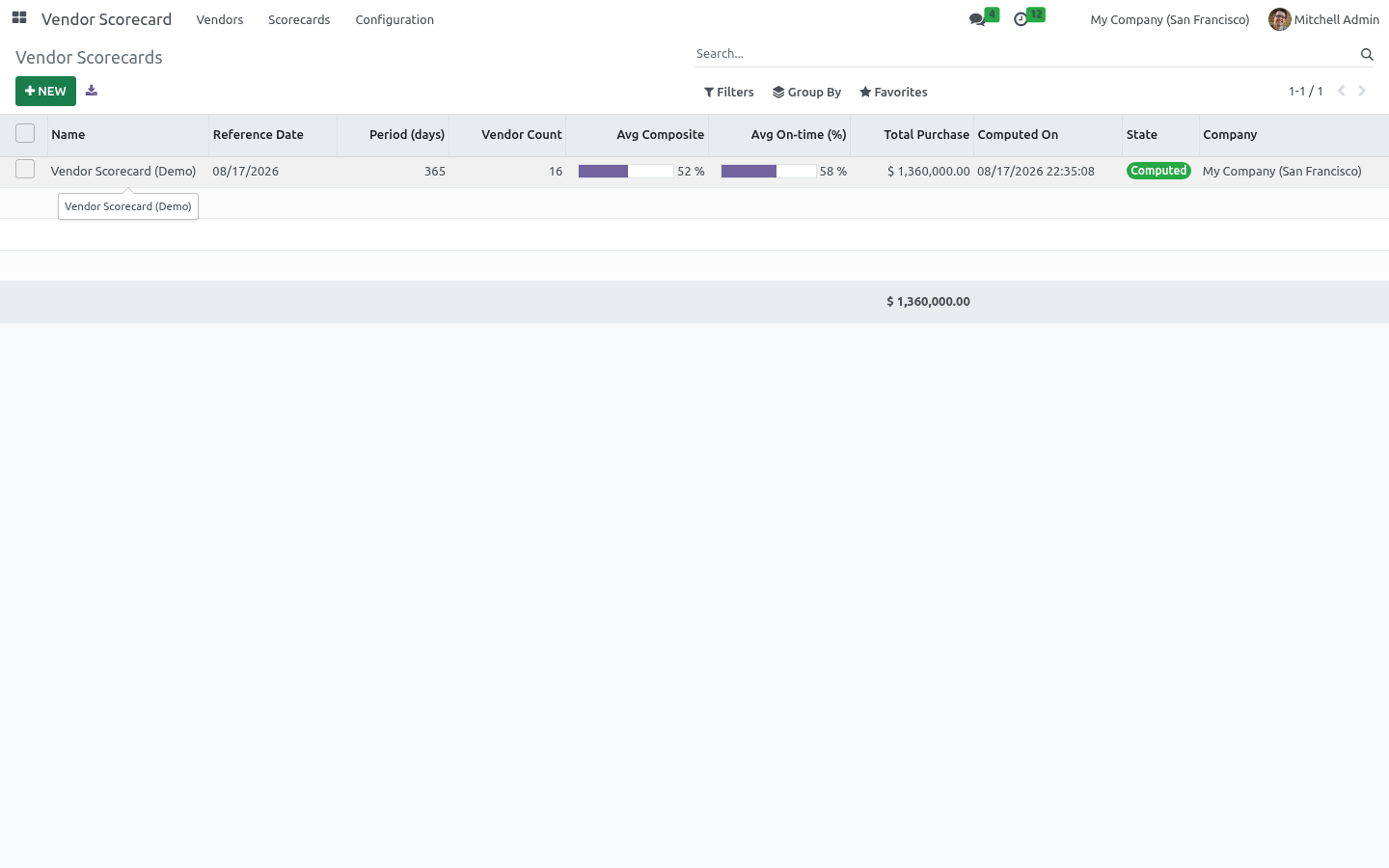
Click Compute. The scorecard switches to Computed, the Vendors stat fills in, and the Result section shows the average on-time rate and total purchase value. Open the Results tab, or Vendor Scorecard > Vendors, to explore. How scoring works.
For each vendor in the period the app looks at: Receipts — completed incoming transfers from that vendor. A receipt is on time when its actual transfer date is on or before its scheduled date. The on-time rate is on-time receipts ÷ total receipts. Average delay — the mean lateness (in days) across the late receipts.
Purchases — the total value of the vendor's confirmed purchase orders in the period, converted to the company currency. The grade comes from the on-time rate: A at or above the A threshold (default 95%), B above the B threshold (85%), C above the C threshold (70%), and D below. Vendors with orders but no receipts yet are listed without a grade. Reading the results.
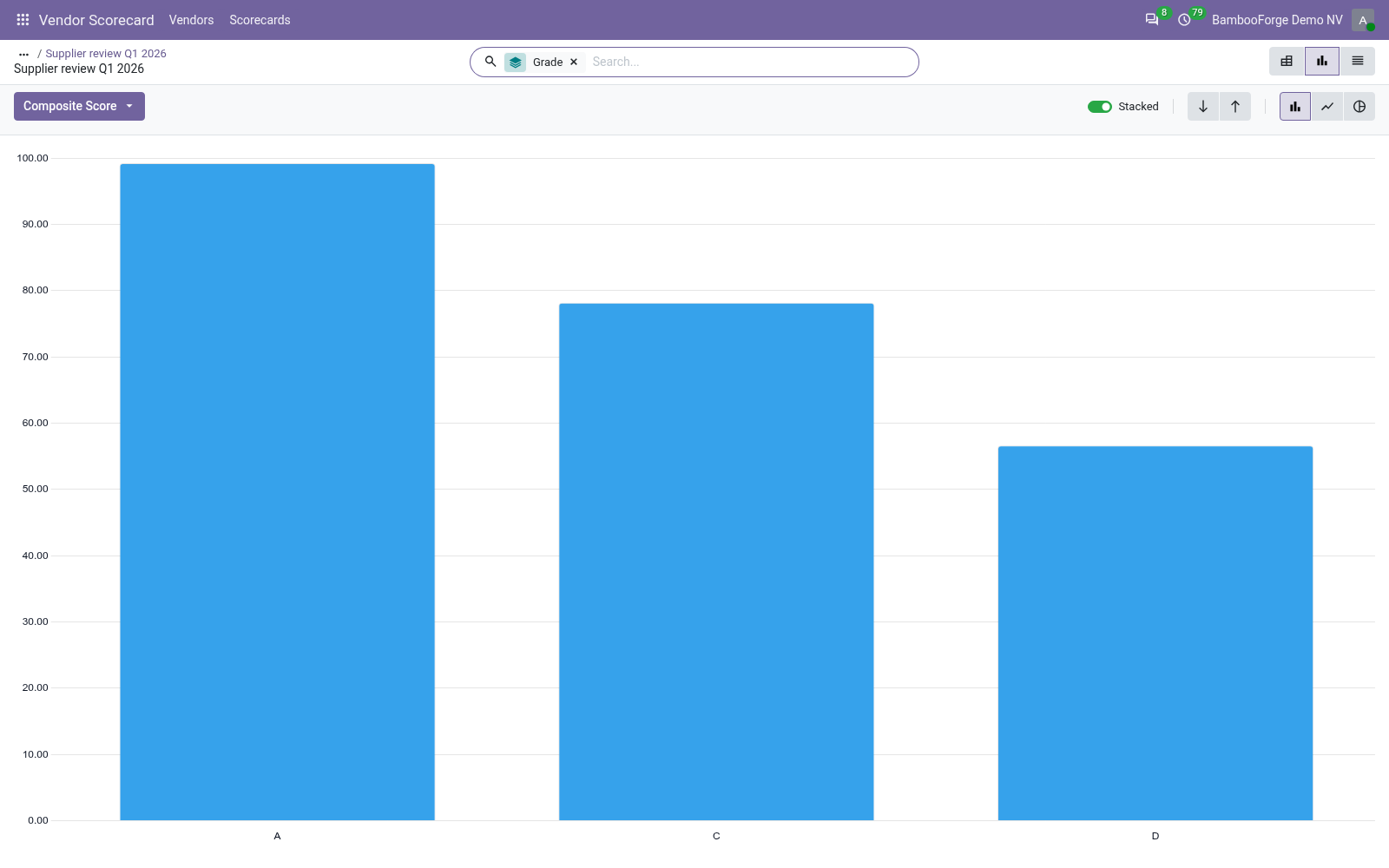
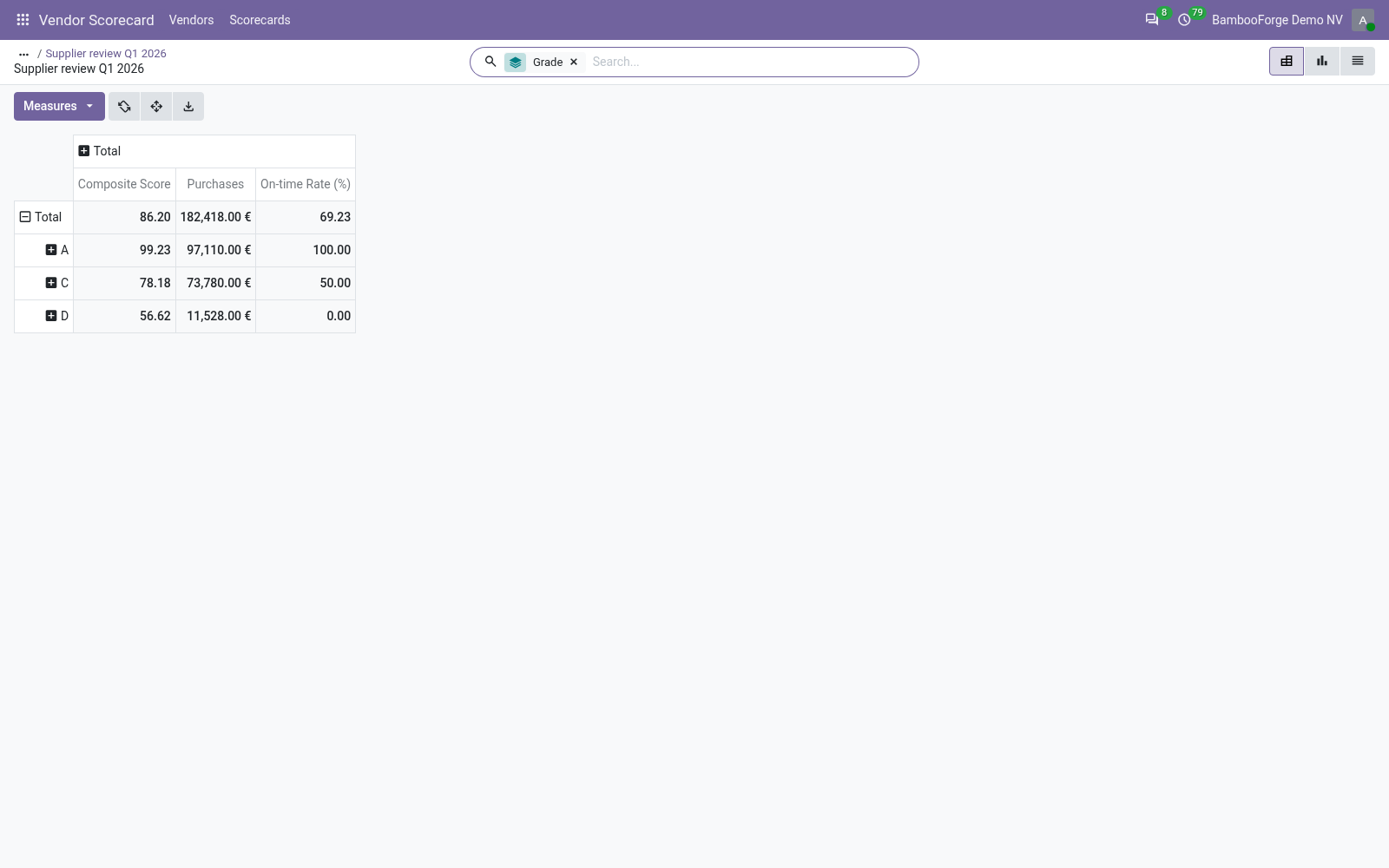
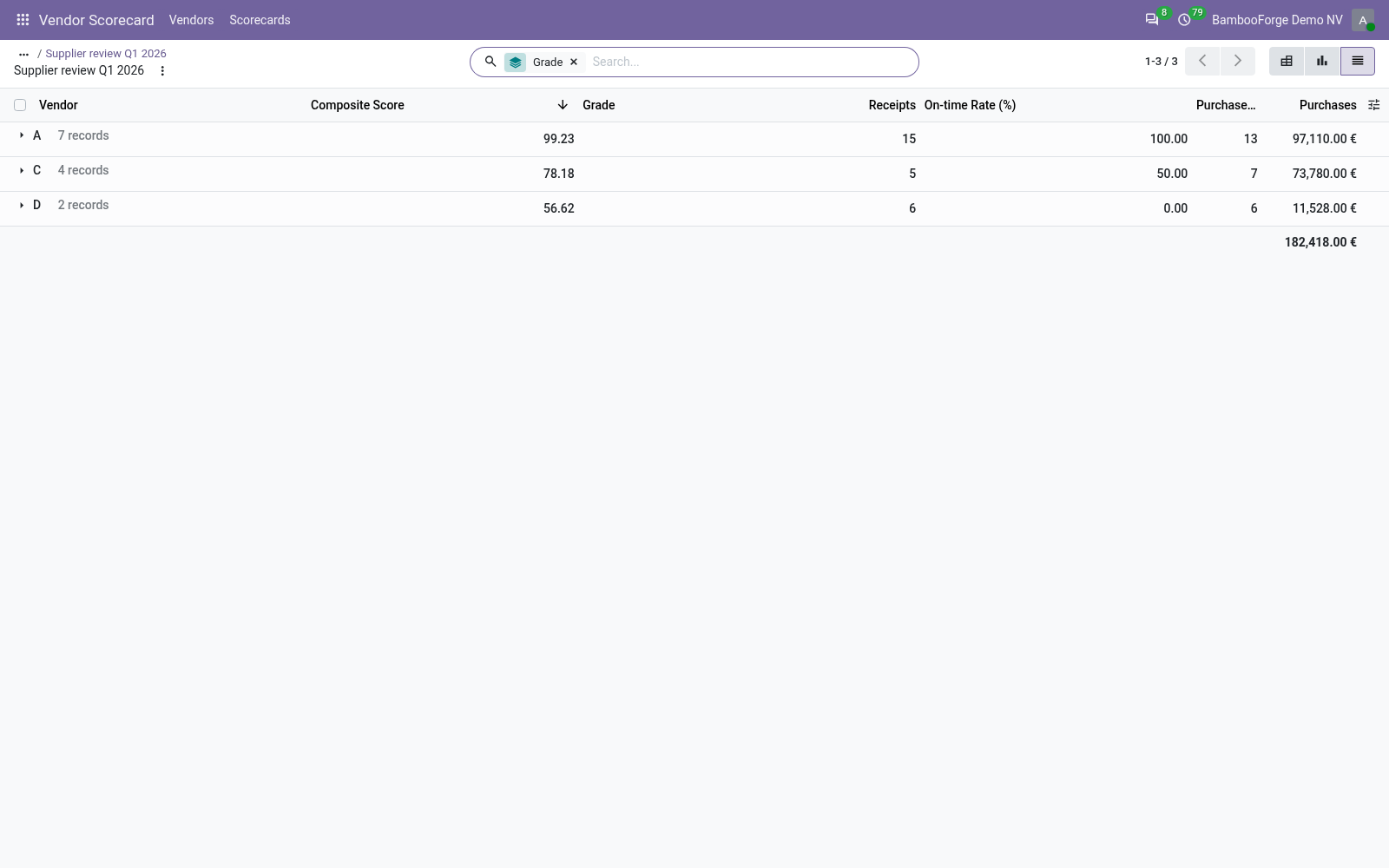
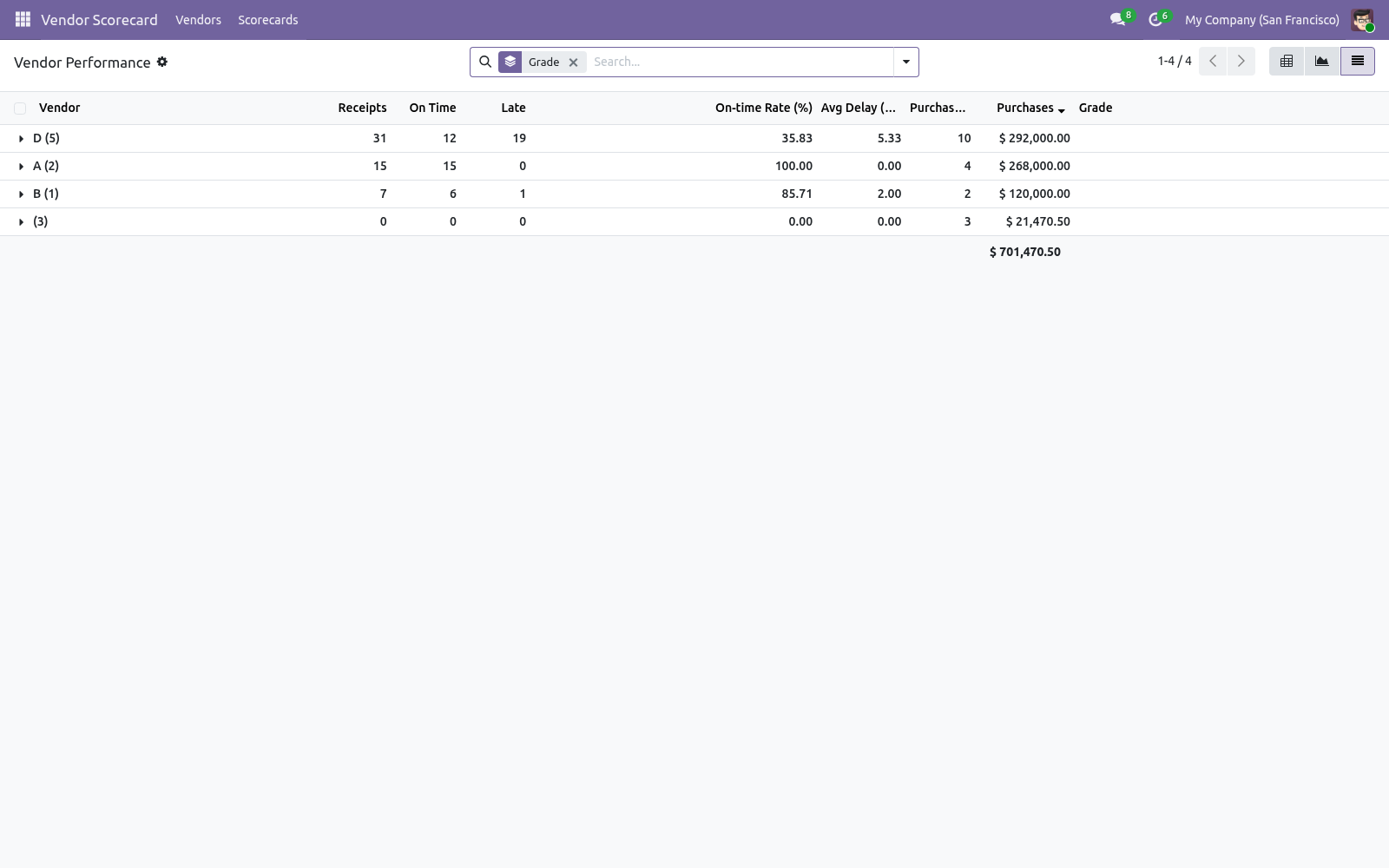
Go to Vendor Scorecard > Vendors for the analytical views: Pivot — vendors grouped by grade, with purchases and on-time rate as measures. "How much do I spend with my unreliable vendors?" in one glance. Graph — on-time rate per vendor. List — every vendor with receipts, on-time rate (as a bar), average delay, order count, spend and grade.
A-grade rows are green, D-grade rows red. Tuning the thresholds. On the scorecard form set the three Grade Thresholds (they must decrease from A to C). A vendor scoring below the C threshold is graded D.
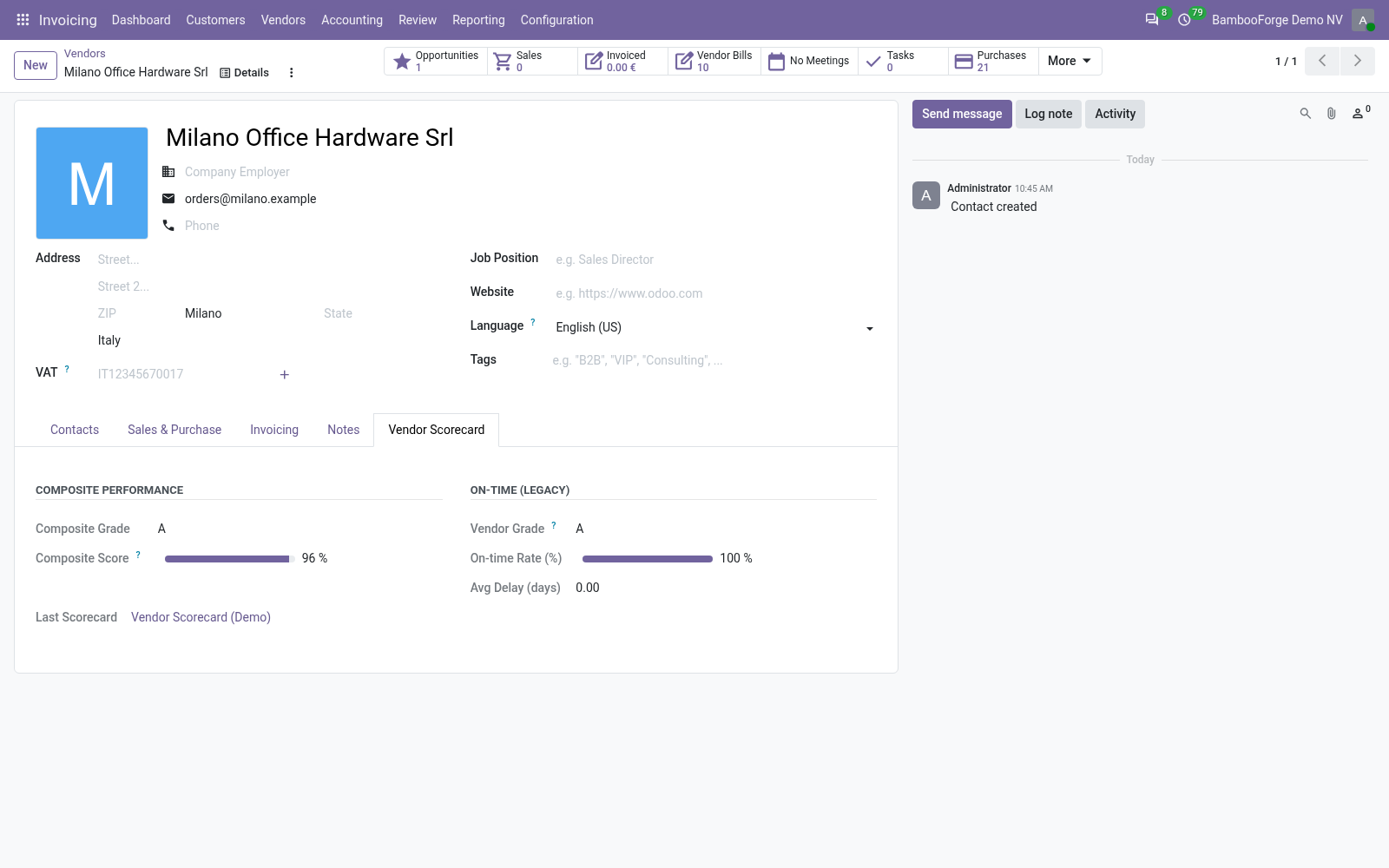
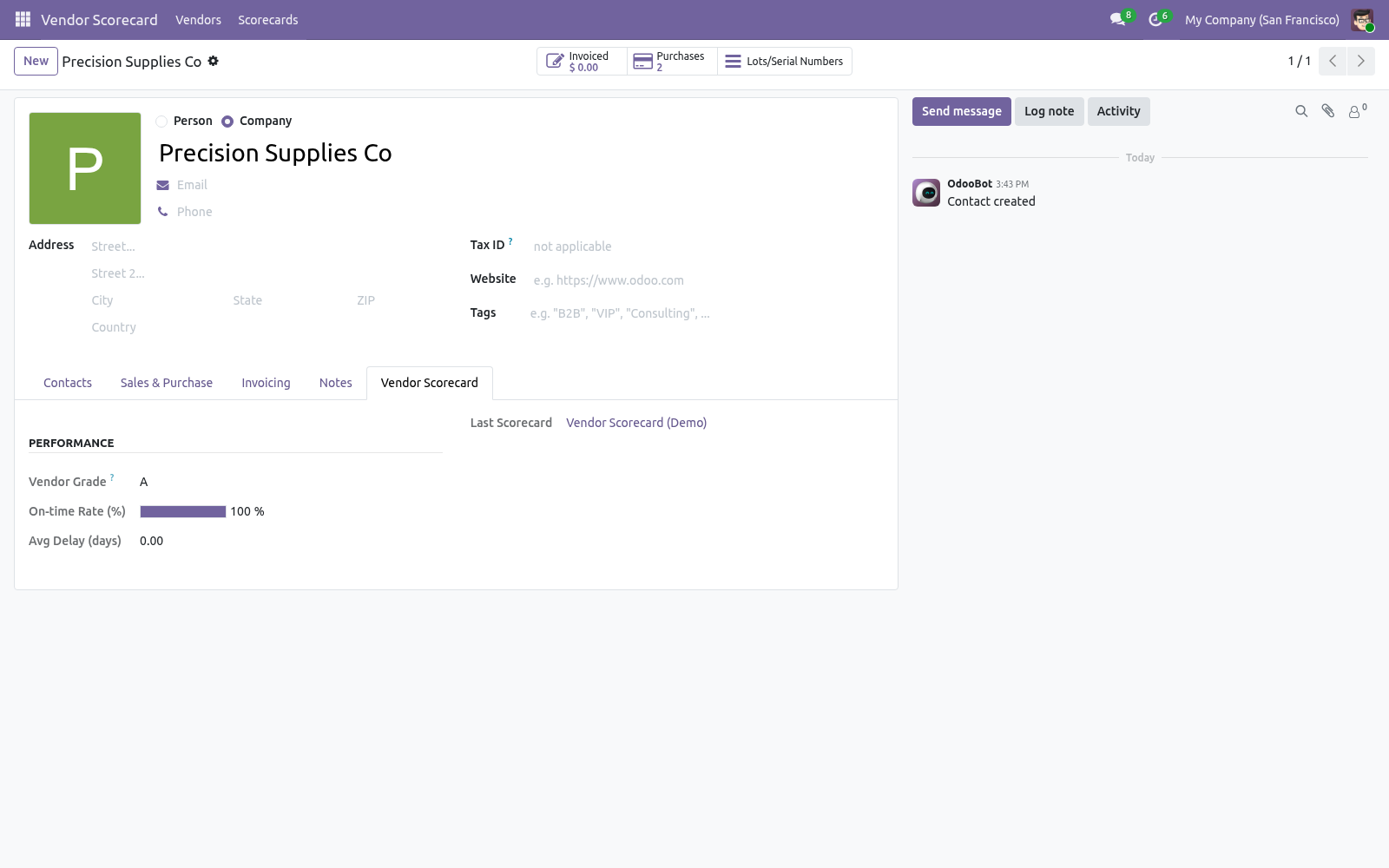
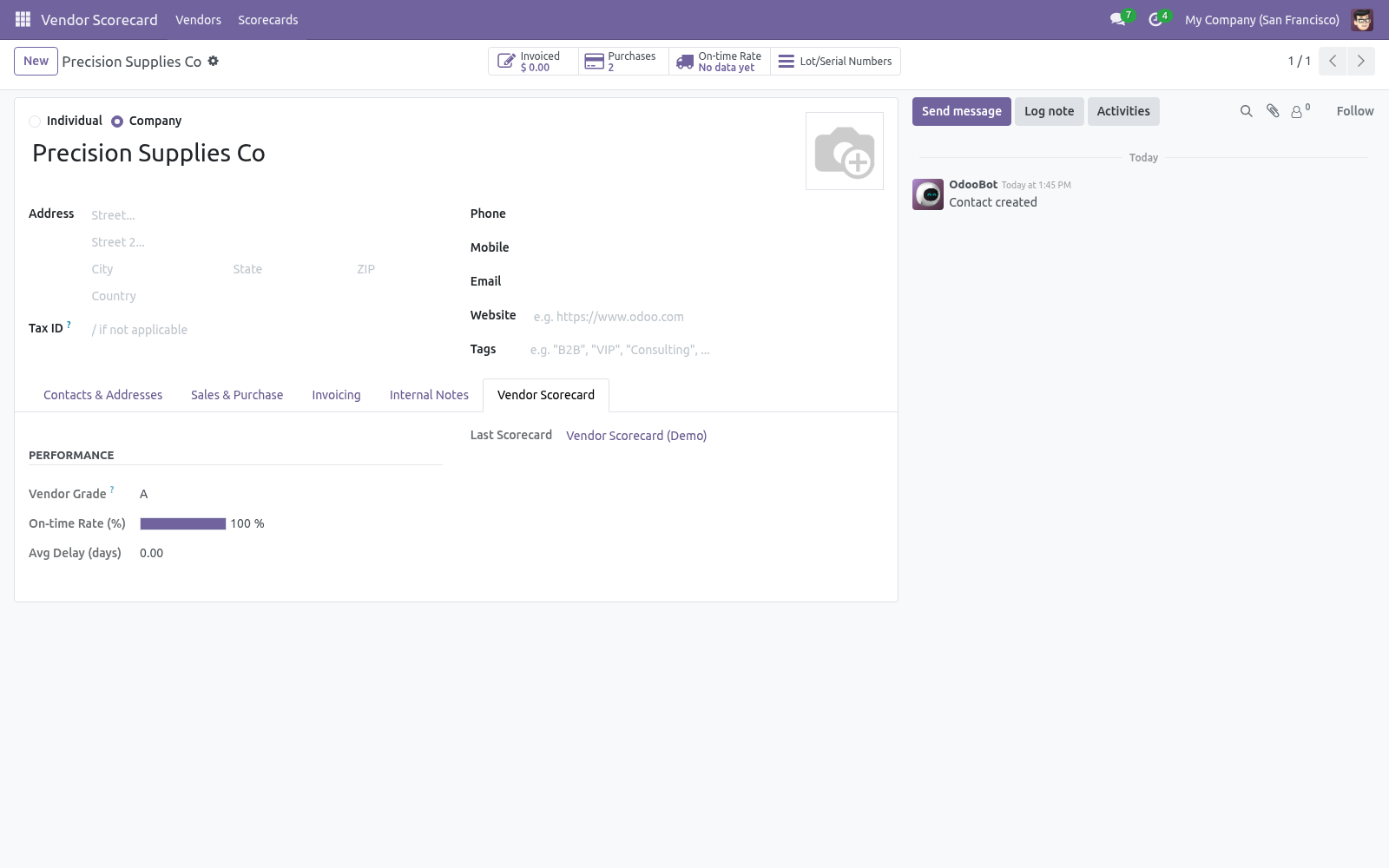
Re-run the scorecard after any change; results update immediately. Acting on the grades. With Write Back to Vendors on, every vendor gets a Vendor Scorecard tab showing its grade, on-time rate and average delay. In the Contacts/Vendors list you can filter to Top Vendors (A) or group by Vendor Grade, then act: shift volume to reliable suppliers, open a conversation with the laggards, or review your safety stock for D-grade vendors.
Automating refreshes. A scheduled action Vendor Scorecard: Recompute Latest ships disabled. Enable it under Settings > Technical > Scheduled Actions to recompute the most recent scorecard per company on a schedule (weekly by default), moving the reference date to today each run. Frequently asked questions.
A vendor has orders but no grade. Grades come from receipts. A vendor with confirmed orders but no completed incoming transfers in the period is listed without a grade until goods arrive. On-time looks wrong.
On time means the receipt's actual transfer date is on or before its scheduled date. Make sure your receipts carry realistic scheduled dates (from the purchase order's promised dates). How we make sure it works. Before every release, 28 automated checks run against this app on Odoo 16, 17, 18, 19 and 20.
Among them: Sub day lateness not truncated to zero. Vendor with no data is na. First run has no history. Fallback when no criteria.
Odoo 20's company timezone is the company's clock. The complete list is in the source you receive. Support. Questions or ideas: support@bambooforge.dev.
The complete manual is at docs dot bambooforge dot dev, the demo database is linked from the store page, and support answers within twenty-four hours. Links are in the description.
Transcript of the walkthrough (Odoo 19)
Vendor Scorecard: Supplier Performance Rating. Weighted vendor scoring on delivery, fill rate, returns, price and responsiveness, combined into one A/B/C/D grade with a ranked list. Late deliveries cost you stockouts and expediting. This app turns your receipt and purchase history into a vendor rating: In the next few minutes: vendor scorecard: supplier performance rating, then quick start, then how scoring works, then reading the results, then tuning the thresholds.
Then what this app deliberately does not do, so you can tell before you buy whether it fits. Everything lives under Vendor Scorecard then Vendors then Scorecards. No Enterprise modules and no external Python libraries are required. Vendor Scorecard: Supplier Performance Rating.
Know which suppliers actually deliver. This app scores every vendor on on-time delivery rate, average delay and purchase spend, grades them A to D, keeps a snapshot of performance over time, and writes the rating back onto the vendor so you can filter and source by reliability. This page is the complete manual. Follow it top to bottom and you can install, run your first scorecard, read the grades, tune the thresholds and fix the common issues without contacting support.
Quick start. 1. Open Vendor Scorecard > Scorecards and click New. 2.
Set the Reference Date and the Period (days) to measure over. 3. Optionally adjust the Grade Thresholds (the on-time percentages for A, B and C). 4.
Click Compute. The scorecard switches to Computed, the Vendors stat fills in, and the Result section shows the average on-time rate and total purchase value. Open the Results tab, or Vendor Scorecard > Vendors, to explore. How scoring works.
For each vendor in the period the app looks at: Receipts — completed incoming transfers from that vendor. A receipt is on time when its actual transfer date is on or before its scheduled date. The on-time rate is on-time receipts ÷ total receipts. Average delay — the mean lateness (in days) across the late receipts.
Purchases — the total value of the vendor's confirmed purchase orders in the period, converted to the company currency. The grade comes from the on-time rate: A at or above the A threshold (default 95%), B above the B threshold (85%), C above the C threshold (70%), and D below. Vendors with orders but no receipts yet are listed without a grade. Reading the results.
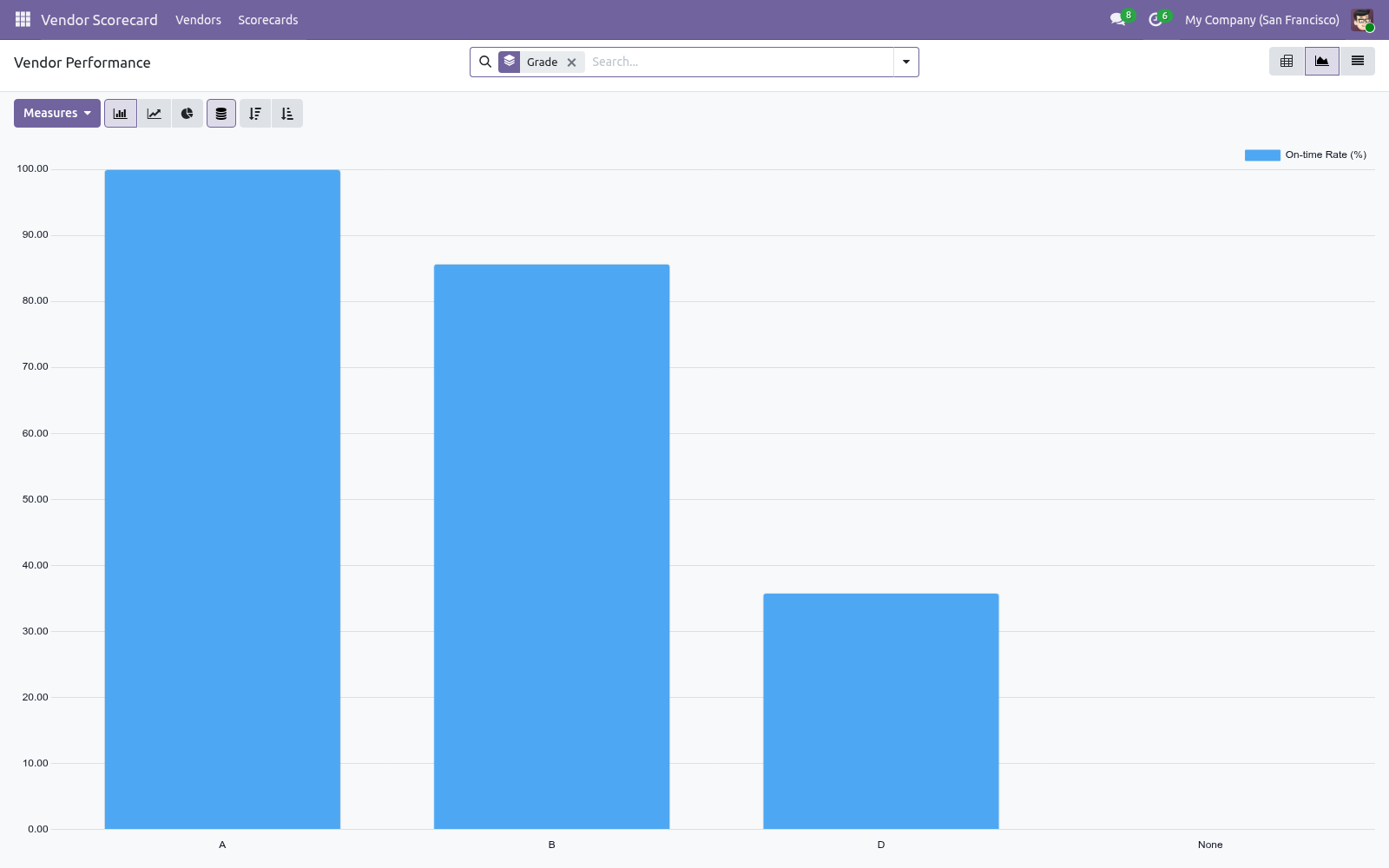
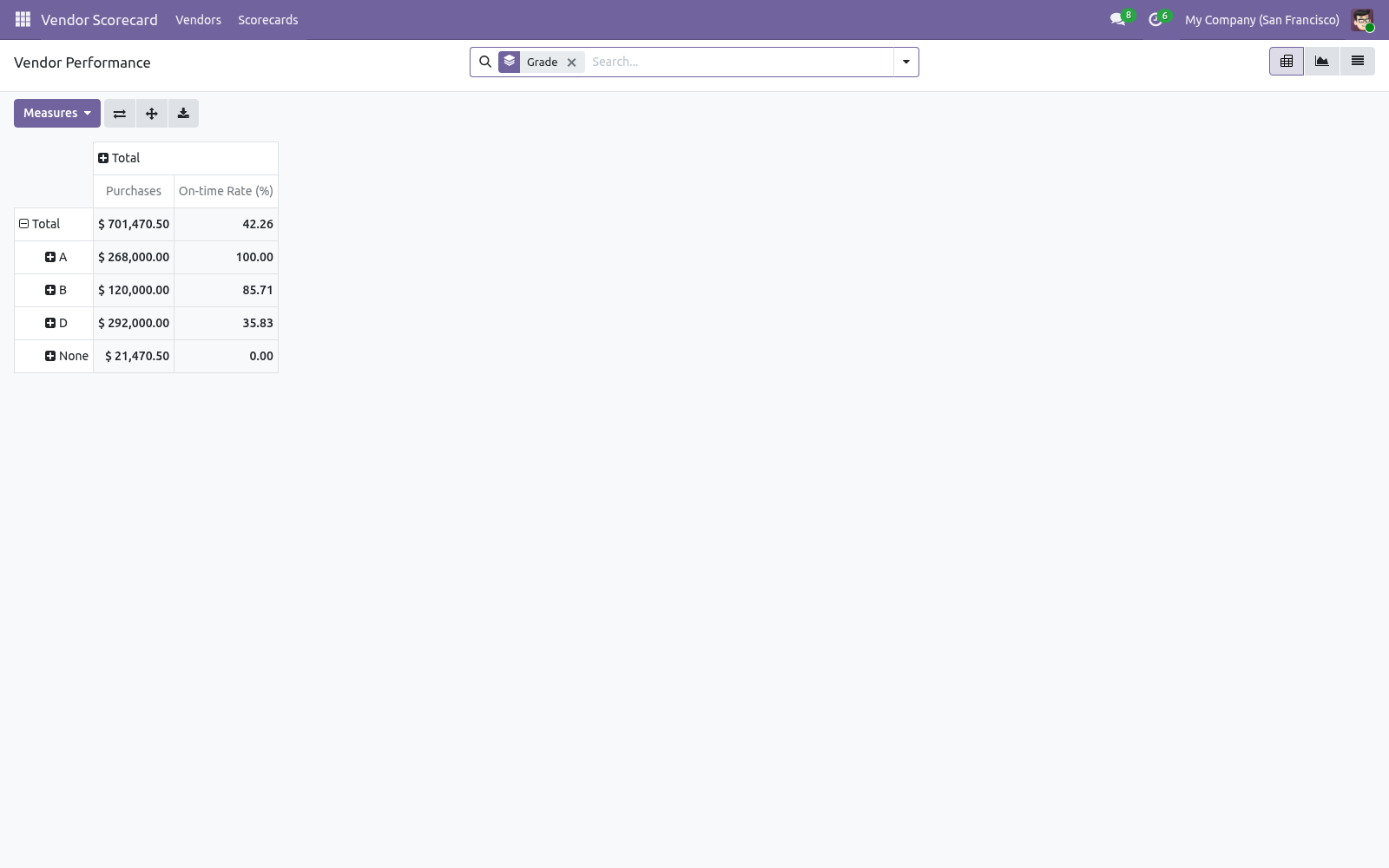
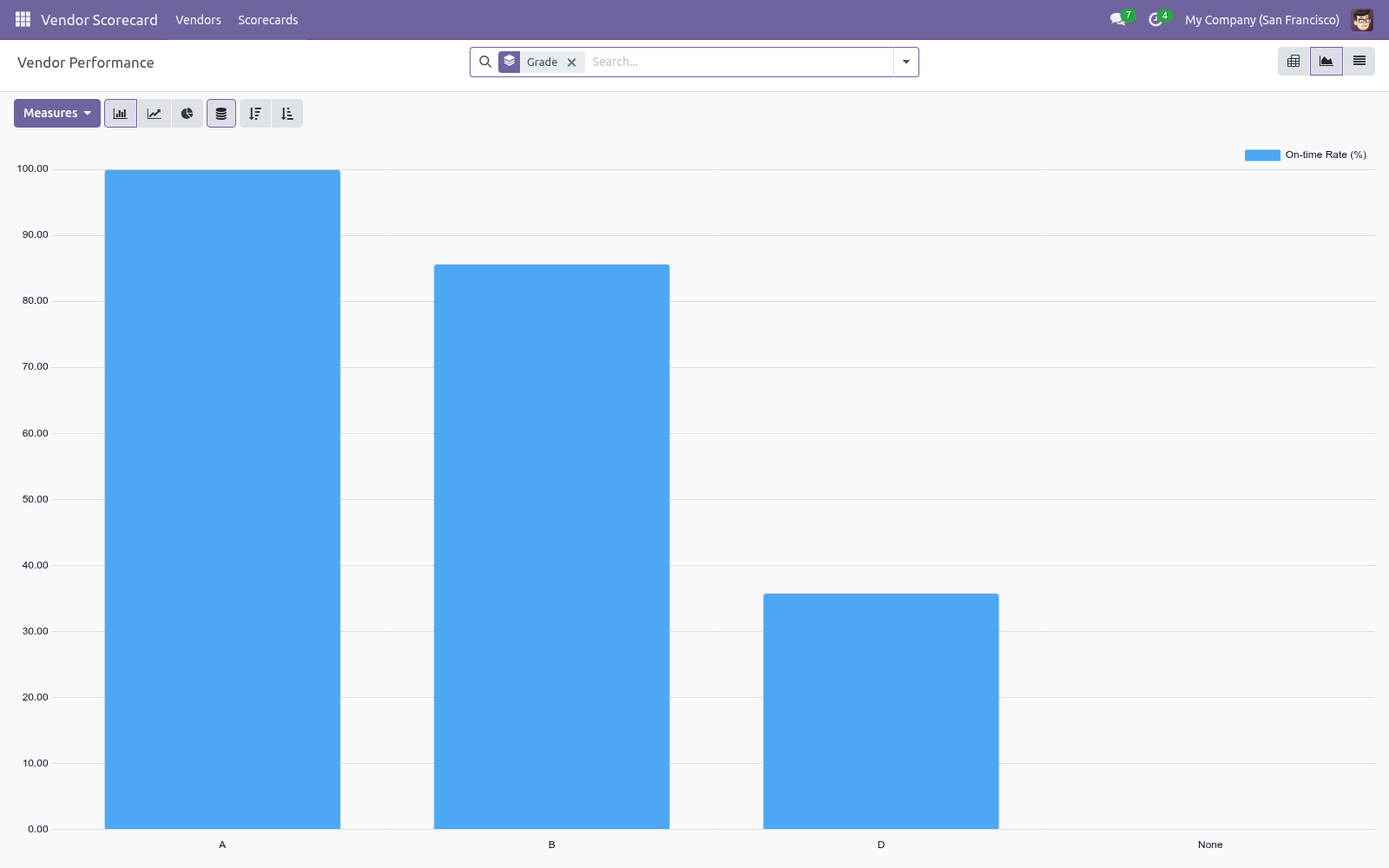
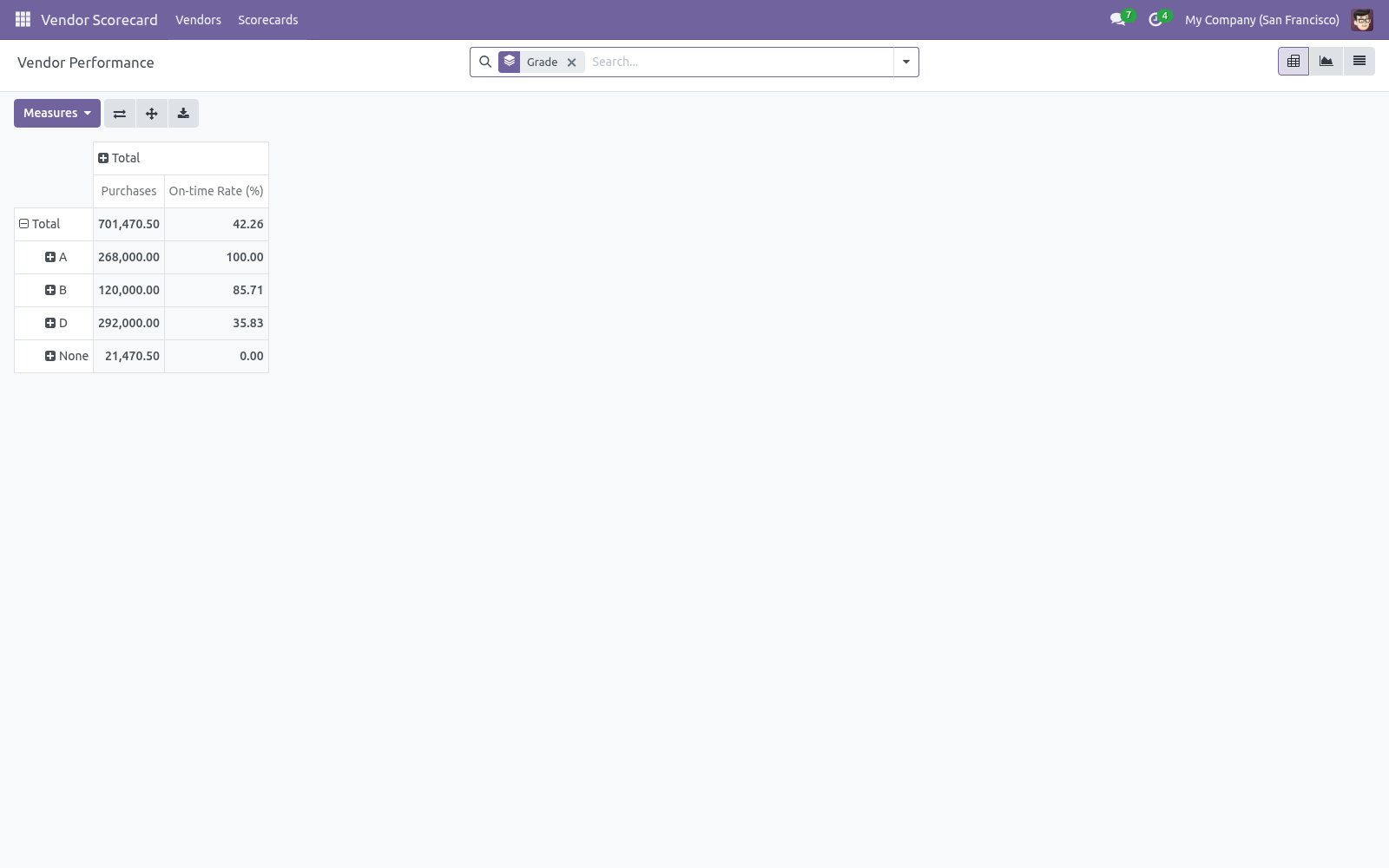
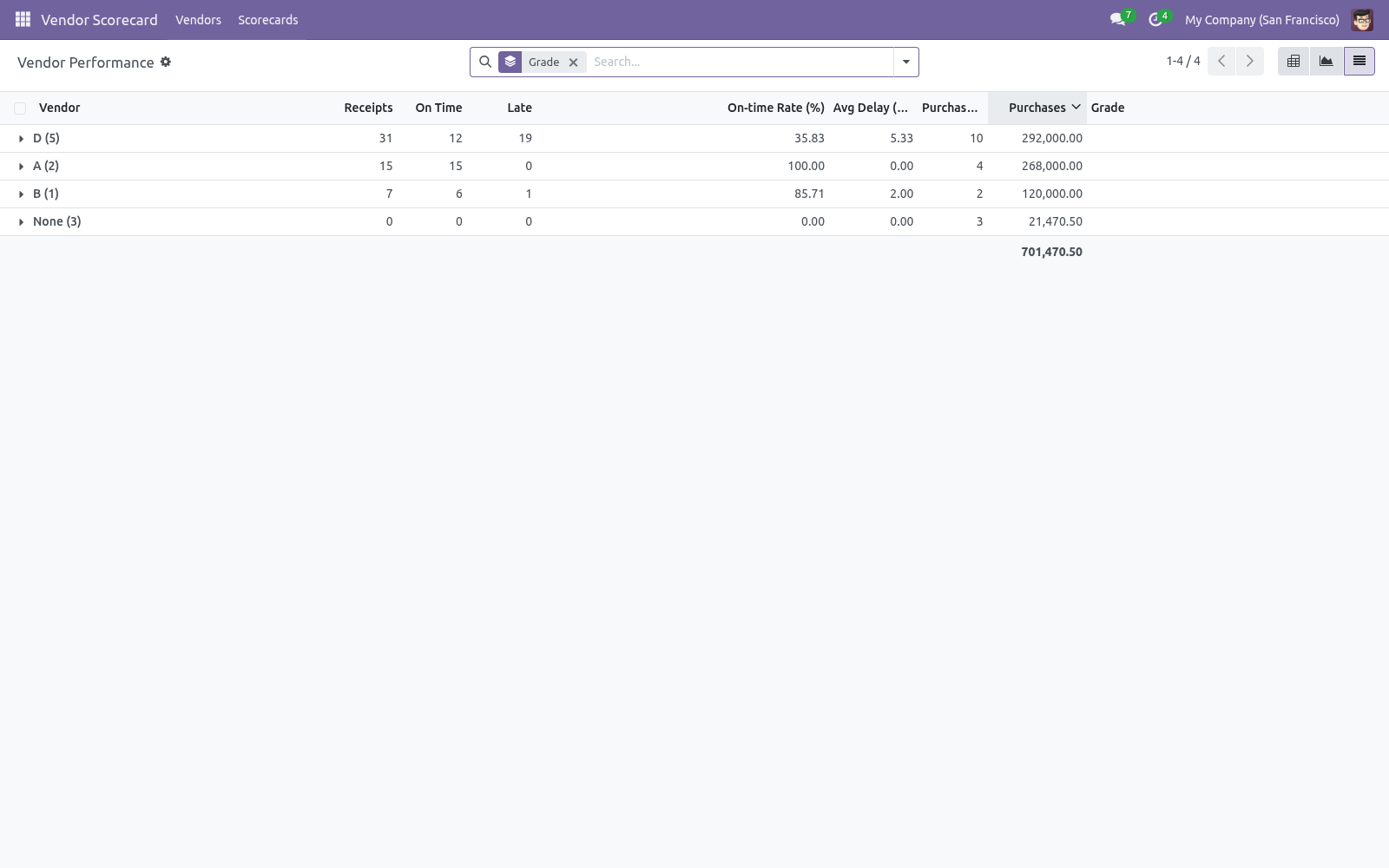
Go to Vendor Scorecard > Vendors for the analytical views: Pivot — vendors grouped by grade, with purchases and on-time rate as measures. "How much do I spend with my unreliable vendors?" in one glance. Graph — on-time rate per vendor. List — every vendor with receipts, on-time rate (as a bar), average delay, order count, spend and grade.
A-grade rows are green, D-grade rows red. Tuning the thresholds. On the scorecard form set the three Grade Thresholds (they must decrease from A to C). A vendor scoring below the C threshold is graded D.
Re-run the scorecard after any change; results update immediately. Acting on the grades. With Write Back to Vendors on, every vendor gets a Vendor Scorecard tab showing its grade, on-time rate and average delay. In the Contacts/Vendors list you can filter to Top Vendors (A) or group by Vendor Grade, then act: shift volume to reliable suppliers, open a conversation with the laggards, or review your safety stock for D-grade vendors.
Automating refreshes. A scheduled action Vendor Scorecard: Recompute Latest ships disabled. Enable it under Settings > Technical > Scheduled Actions to recompute the most recent scorecard per company on a schedule (weekly by default), moving the reference date to today each run. Frequently asked questions.
A vendor has orders but no grade. Grades come from receipts. A vendor with confirmed orders but no completed incoming transfers in the period is listed without a grade until goods arrive. On-time looks wrong.
On time means the receipt's actual transfer date is on or before its scheduled date. Make sure your receipts carry realistic scheduled dates (from the purchase order's promised dates). Support. Questions or ideas: support@bambooforge.dev.
.. BAMBOOFORGE-DOC-APPENDIX (auto-generated: Upgrade/Uninstall/Changelog + bespoke) Where to find it. Everything lives under the top-level Vendor Scorecard app (open to any Purchase / User): Scorecards creates and computes a rating run (also under Purchase > Reporting > Vendor Scorecard); Vendors holds the analytical Vendor Performance pivot, graph, list and form; and Configuration > Criteria & Weights (Purchase / Manager) holds the weighted criteria. The complete manual is at docs dot bambooforge dot dev, the demo database is linked from the store page, and support answers within twenty-four hours.
Links are in the description.
Transcript of the walkthrough (Odoo 18)
Vendor Scorecard: Supplier Performance Rating. Weighted vendor scoring on delivery, fill rate, returns, price and responsiveness, combined into one A/B/C/D grade with a ranked list. Late deliveries cost you stockouts and expediting. This app turns your receipt and purchase history into a vendor rating: In the next few minutes: vendor scorecard: supplier performance rating, then quick start, then how scoring works, then reading the results, then tuning the thresholds.
Then what this app deliberately does not do, so you can tell before you buy whether it fits. Everything lives under Vendor Scorecard then Vendors then Scorecards. No Enterprise modules and no external Python libraries are required. Vendor Scorecard: Supplier Performance Rating.
Know which suppliers actually deliver. This app scores every vendor on on-time delivery rate, average delay and purchase spend, grades them A to D, keeps a snapshot of performance over time, and writes the rating back onto the vendor so you can filter and source by reliability. This page is the complete manual. Follow it top to bottom and you can install, run your first scorecard, read the grades, tune the thresholds and fix the common issues without contacting support.
Quick start. 1. Open Vendor Scorecard > Scorecards and click New. 2.
Set the Reference Date and the Period (days) to measure over. 3. Optionally adjust the Grade Thresholds (the on-time percentages for A, B and C). 4.
Click Compute. The scorecard switches to Computed, the Vendors stat fills in, and the Result section shows the average on-time rate and total purchase value. Open the Results tab, or Vendor Scorecard > Vendors, to explore. How scoring works.
For each vendor in the period the app looks at: Receipts — completed incoming transfers from that vendor. A receipt is on time when its actual transfer date is on or before its scheduled date. The on-time rate is on-time receipts ÷ total receipts. Average delay — the mean lateness (in days) across the late receipts.
Purchases — the total value of the vendor's confirmed purchase orders in the period, converted to the company currency. The grade comes from the on-time rate: A at or above the A threshold (default 95%), B above the B threshold (85%), C above the C threshold (70%), and D below. Vendors with orders but no receipts yet are listed without a grade. Reading the results.
Go to Vendor Scorecard > Vendors for the analytical views: Pivot — vendors grouped by grade, with purchases and on-time rate as measures. "How much do I spend with my unreliable vendors?" in one glance. Graph — on-time rate per vendor. List — every vendor with receipts, on-time rate (as a bar), average delay, order count, spend and grade.
A-grade rows are green, D-grade rows red. Tuning the thresholds. On the scorecard form set the three Grade Thresholds (they must decrease from A to C). A vendor scoring below the C threshold is graded D.
Re-run the scorecard after any change; results update immediately. Acting on the grades. With Write Back to Vendors on, every vendor gets a Vendor Scorecard tab showing its grade, on-time rate and average delay. In the Contacts/Vendors list you can filter to Top Vendors (A) or group by Vendor Grade, then act: shift volume to reliable suppliers, open a conversation with the laggards, or review your safety stock for D-grade vendors.
Automating refreshes. A scheduled action Vendor Scorecard: Recompute Latest ships disabled. Enable it under Settings > Technical > Scheduled Actions to recompute the most recent scorecard per company on a schedule (weekly by default), moving the reference date to today each run. Frequently asked questions.
A vendor has orders but no grade. Grades come from receipts. A vendor with confirmed orders but no completed incoming transfers in the period is listed without a grade until goods arrive. On-time looks wrong.
On time means the receipt's actual transfer date is on or before its scheduled date. Make sure your receipts carry realistic scheduled dates (from the purchase order's promised dates). Support. Questions or ideas: support@bambooforge.dev.
.. BAMBOOFORGE-DOC-APPENDIX (auto-generated: Upgrade/Uninstall/Changelog + bespoke) Where to find it. Everything lives under the top-level Vendor Scorecard app (open to any Purchase / User): Scorecards creates and computes a rating run (also under Purchase > Reporting > Vendor Scorecard); Vendors holds the analytical Vendor Performance pivot, graph, list and form; and Configuration > Criteria & Weights (Purchase / Manager) holds the weighted criteria. The complete manual is at docs dot bambooforge dot dev, the demo database is linked from the store page, and support answers within twenty-four hours.
Links are in the description.
Transcript of the walkthrough (Odoo 17)
Vendor Scorecard: Supplier Performance Rating. Weighted vendor scoring on delivery, fill rate, returns, price and responsiveness, combined into one A/B/C/D grade with a ranked list. Late deliveries cost you stockouts and expediting. This app turns your receipt and purchase history into a vendor rating: In the next few minutes: vendor scorecard: supplier performance rating, then quick start, then how scoring works, then reading the results, then tuning the thresholds.
Then what this app deliberately does not do, so you can tell before you buy whether it fits. Everything lives under Vendor Scorecard then Vendors then Scorecards then Configuration. No Enterprise modules and no external Python libraries are required. Vendor Scorecard: Supplier Performance Rating.
Know which suppliers actually deliver. This app scores every vendor on on-time delivery rate, average delay and purchase spend, grades them A to D, keeps a snapshot of performance over time, and writes the rating back onto the vendor so you can filter and source by reliability. This page is the complete manual. Follow it top to bottom and you can install, run your first scorecard, read the grades, tune the thresholds and fix the common issues without contacting support.
Quick start. 1. Open Vendor Scorecard > Scorecards and click New. 2.
Set the Reference Date and the Period (days) to measure over. 3. Optionally adjust the Grade Thresholds (the on-time percentages for A, B and C). 4.
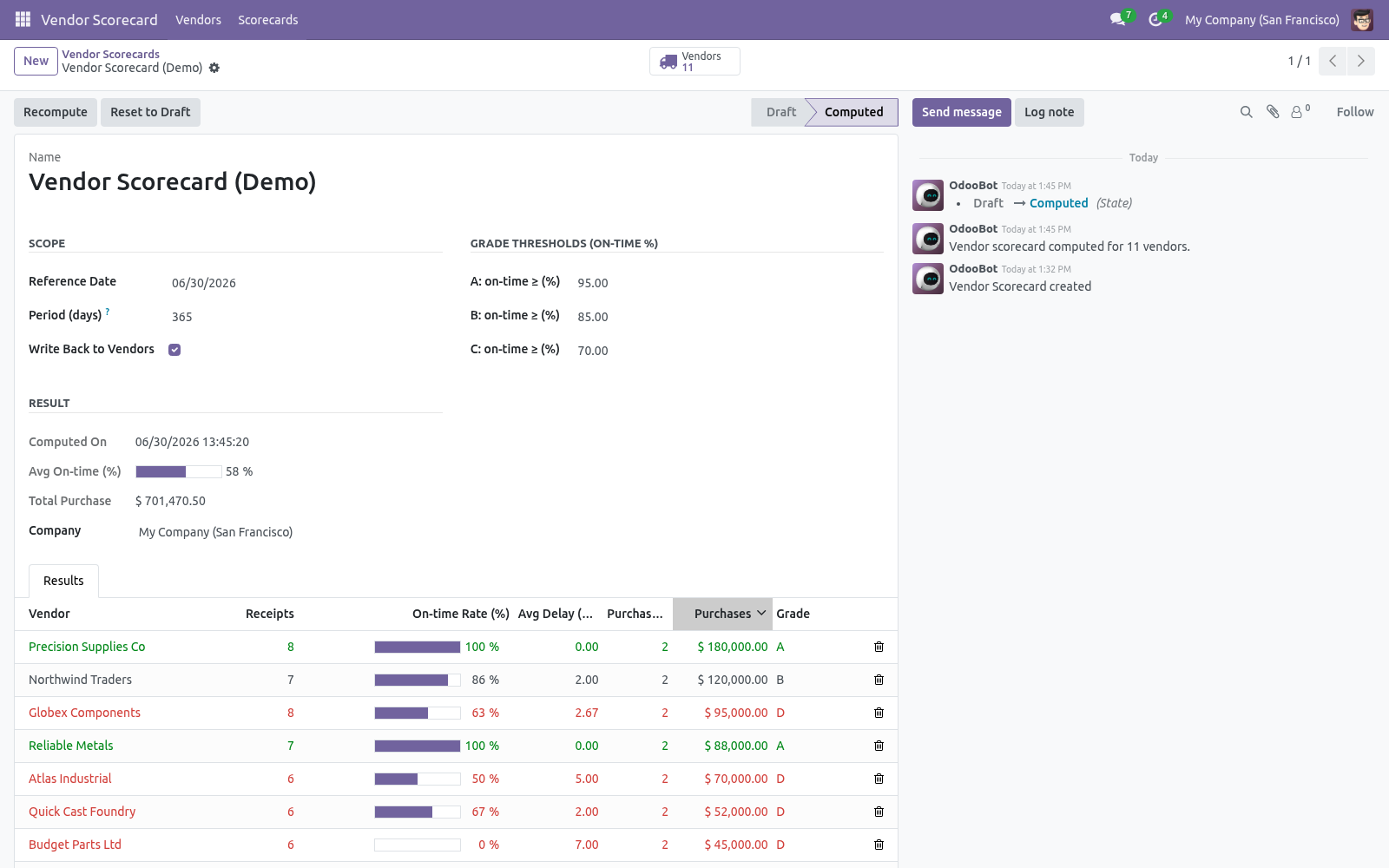
Click Compute. The scorecard switches to Computed, the Vendors stat fills in, and the Result section shows the average on-time rate and total purchase value. Open the Results tab, or Vendor Scorecard > Vendors, to explore. How scoring works.
For each vendor in the period the app looks at: Receipts — completed incoming transfers from that vendor. A receipt is on time when its actual transfer date is on or before its scheduled date. The on-time rate is on-time receipts ÷ total receipts. Average delay — the mean lateness (in days) across the late receipts.
Purchases — the total value of the vendor's confirmed purchase orders in the period, converted to the company currency. The grade comes from the on-time rate: A at or above the A threshold (default 95%), B above the B threshold (85%), C above the C threshold (70%), and D below. Vendors with orders but no receipts yet are listed without a grade. Reading the results.
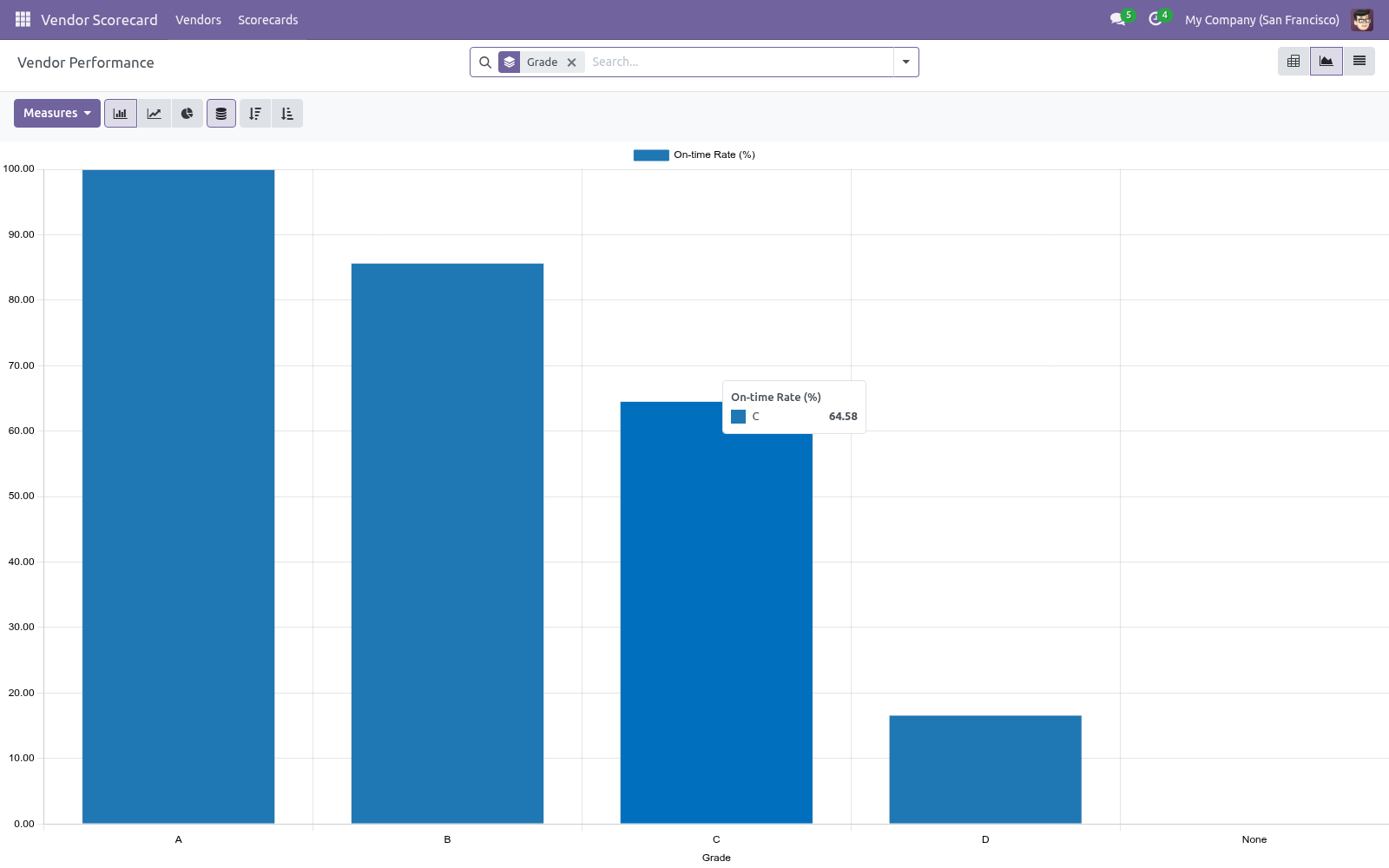
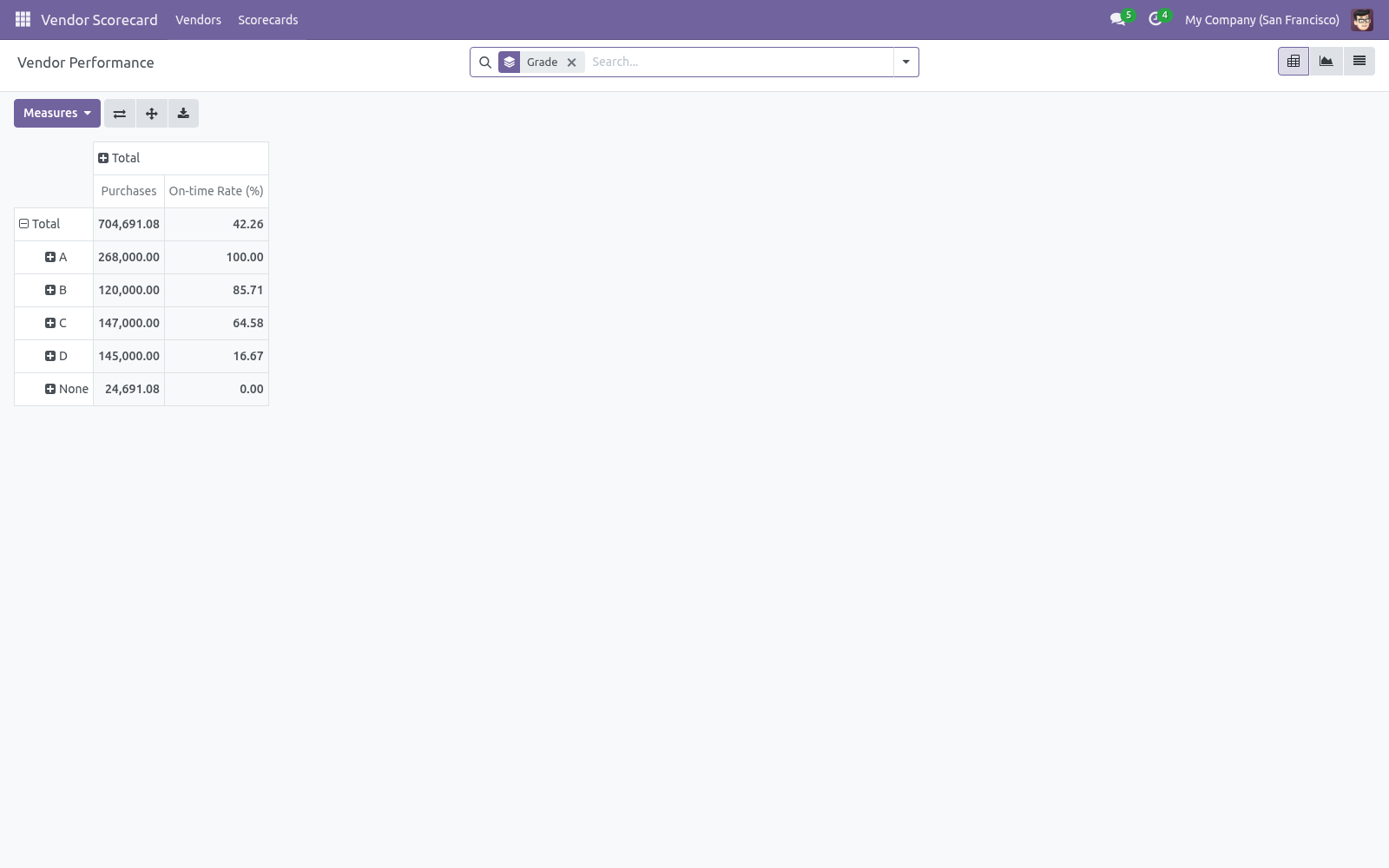
Go to Vendor Scorecard > Vendors for the analytical views: Pivot — vendors grouped by grade, with purchases and on-time rate as measures. "How much do I spend with my unreliable vendors?" in one glance. Graph — on-time rate per vendor. List — every vendor with receipts, on-time rate (as a bar), average delay, order count, spend and grade.
A-grade rows are green, D-grade rows red. Tuning the thresholds. On the scorecard form set the three Grade Thresholds (they must decrease from A to C). A vendor scoring below the C threshold is graded D.
Re-run the scorecard after any change; results update immediately. Acting on the grades. With Write Back to Vendors on, every vendor gets a Vendor Scorecard tab showing its grade, on-time rate and average delay. In the Contacts/Vendors list you can filter to Top Vendors (A) or group by Vendor Grade, then act: shift volume to reliable suppliers, open a conversation with the laggards, or review your safety stock for D-grade vendors.
Automating refreshes. A scheduled action Vendor Scorecard: Recompute Latest ships disabled. Enable it under Settings > Technical > Scheduled Actions to recompute the most recent scorecard per company on a schedule (weekly by default), moving the reference date to today each run. Frequently asked questions.
A vendor has orders but no grade. Grades come from receipts. A vendor with confirmed orders but no completed incoming transfers in the period is listed without a grade until goods arrive. On-time looks wrong.
On time means the receipt's actual transfer date is on or before its scheduled date. Make sure your receipts carry realistic scheduled dates (from the purchase order's promised dates). Support. Questions or ideas: support@bambooforge.dev.
.. BAMBOOFORGE-DOC-APPENDIX (auto-generated: Upgrade/Uninstall/Changelog + bespoke) Where to find it. Everything lives under the top-level Vendor Scorecard app (open to any Purchase / User): Scorecards creates and computes a rating run (also under Purchase > Reporting > Vendor Scorecard); Vendors holds the analytical Vendor Performance pivot, graph, list and form; and Configuration > Criteria & Weights (Purchase / Manager) holds the weighted criteria. The complete manual is at docs dot bambooforge dot dev, the demo database is linked from the store page, and support answers within twenty-four hours.
Links are in the description.
Transcript of the walkthrough (Odoo 16)
Vendor Scorecard: Supplier Performance Rating. Weighted vendor scoring on delivery, fill rate, returns, price and responsiveness, combined into one A/B/C/D grade with a ranked list. Late deliveries cost you stockouts and expediting. This app turns your receipt and purchase history into a vendor rating: In the next few minutes: vendor scorecard: supplier performance rating, then quick start, then how scoring works, then reading the results, then tuning the thresholds.
Then what this app deliberately does not do, so you can tell before you buy whether it fits. Everything lives under Vendor Scorecard then Vendors then Scorecards then Configuration. No Enterprise modules and no external Python libraries are required. Vendor Scorecard: Supplier Performance Rating.
Know which suppliers actually deliver. This app scores every vendor on on-time delivery rate, average delay and purchase spend, grades them A to D, keeps a snapshot of performance over time, and writes the rating back onto the vendor so you can filter and source by reliability. This page is the complete manual. Follow it top to bottom and you can install, run your first scorecard, read the grades, tune the thresholds and fix the common issues without contacting support.
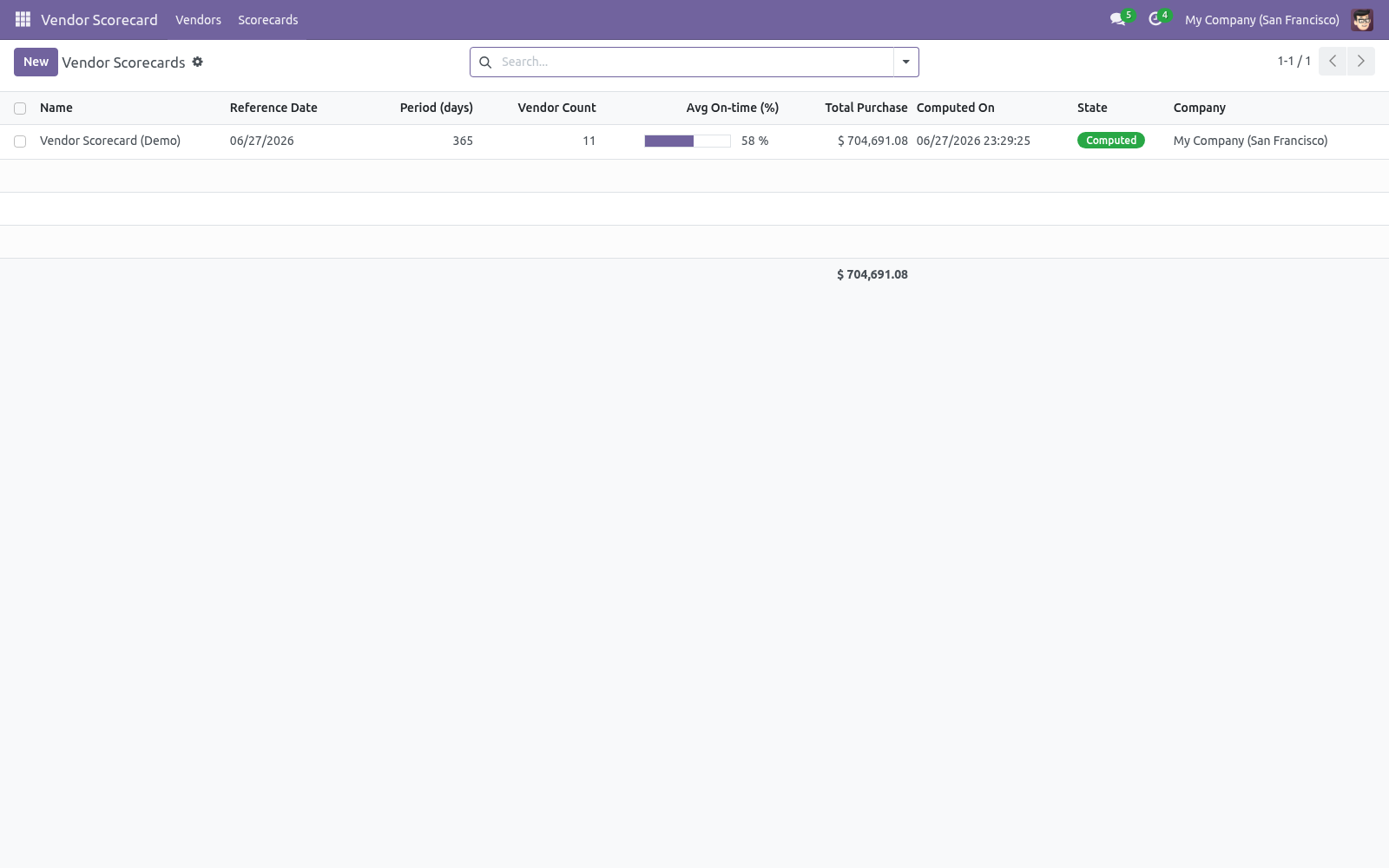
Quick start. 1. Open Vendor Scorecard > Scorecards and click New. 2.
Set the Reference Date and the Period (days) to measure over. 3. Optionally adjust the Grade Thresholds (the on-time percentages for A, B and C). 4.
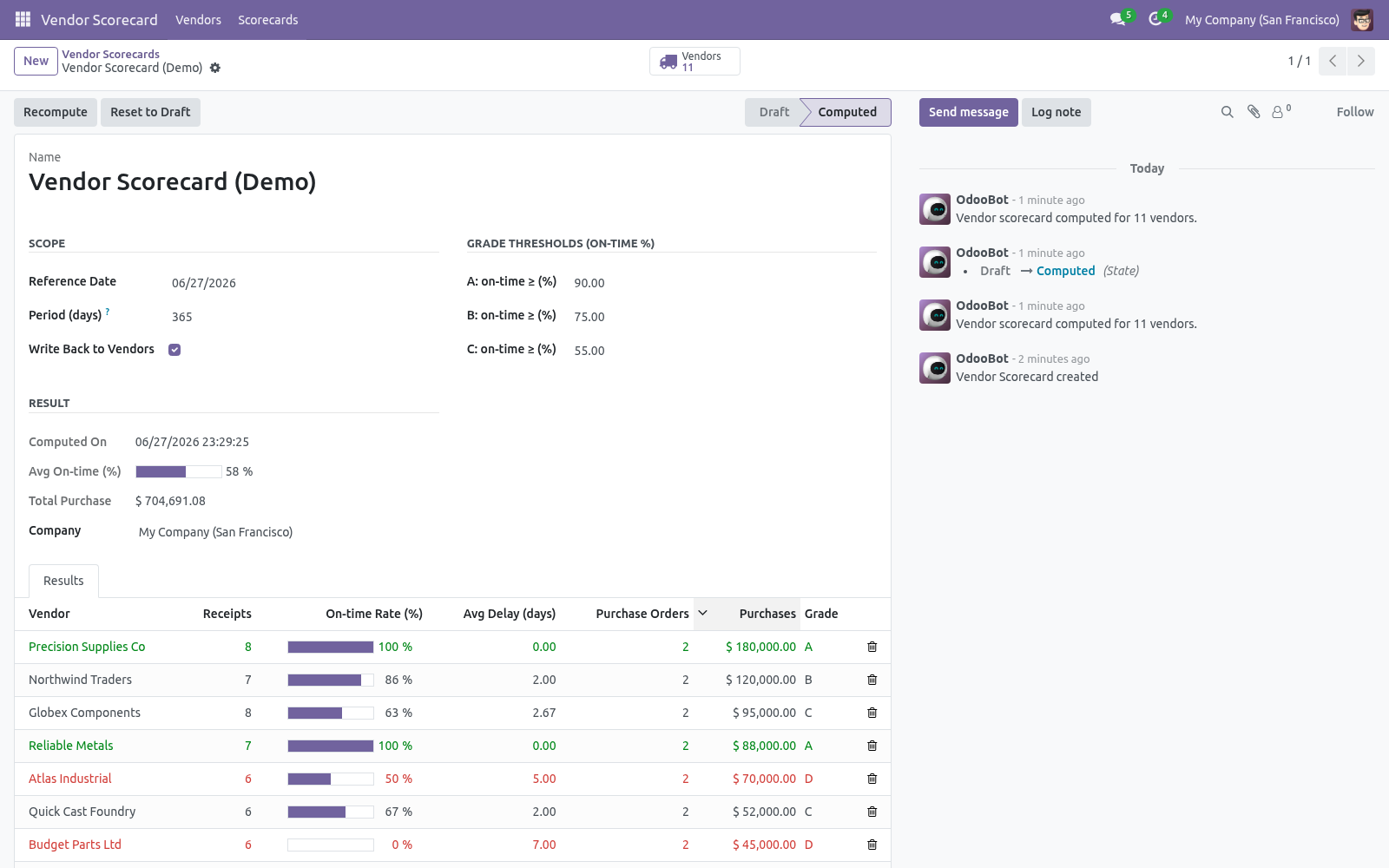
Click Compute. The scorecard switches to Computed, the Vendors stat fills in, and the Result section shows the average on-time rate and total purchase value. Open the Results tab, or Vendor Scorecard > Vendors, to explore. How scoring works.
For each vendor in the period the app looks at: Receipts — completed incoming transfers from that vendor. A receipt is on time when its actual transfer date is on or before its scheduled date. The on-time rate is on-time receipts ÷ total receipts. Average delay — the mean lateness (in days) across the late receipts.
Purchases — the total value of the vendor's confirmed purchase orders in the period, converted to the company currency. The grade comes from the on-time rate: A at or above the A threshold (default 95%), B above the B threshold (85%), C above the C threshold (70%), and D below. Vendors with orders but no receipts yet are listed without a grade. Reading the results.
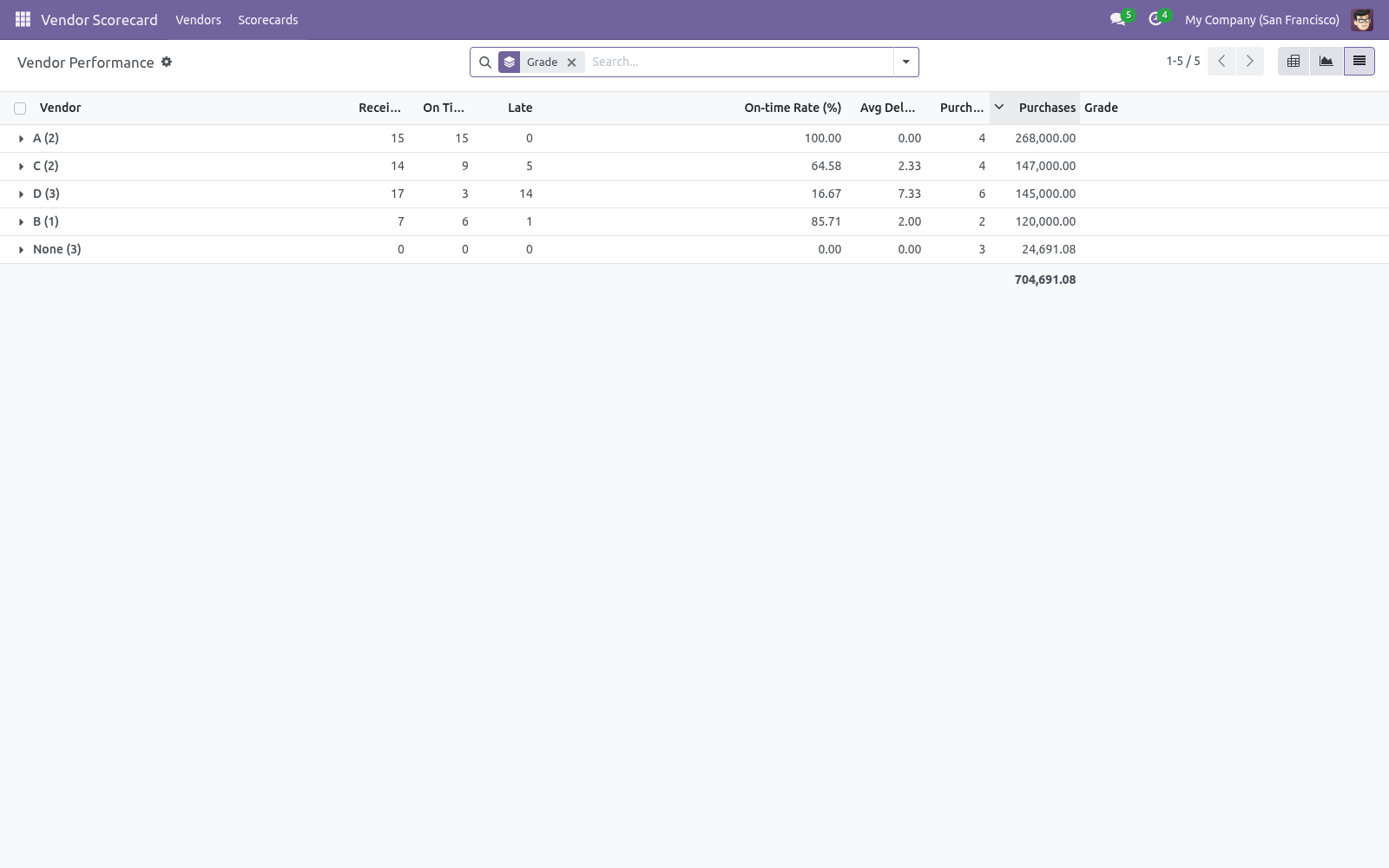
Go to Vendor Scorecard > Vendors for the analytical views: Pivot — vendors grouped by grade, with purchases and on-time rate as measures. "How much do I spend with my unreliable vendors?" in one glance. Graph — on-time rate per vendor. List — every vendor with receipts, on-time rate (as a bar), average delay, order count, spend and grade.
A-grade rows are green, D-grade rows red. Tuning the thresholds. On the scorecard form set the three Grade Thresholds (they must decrease from A to C). A vendor scoring below the C threshold is graded D.
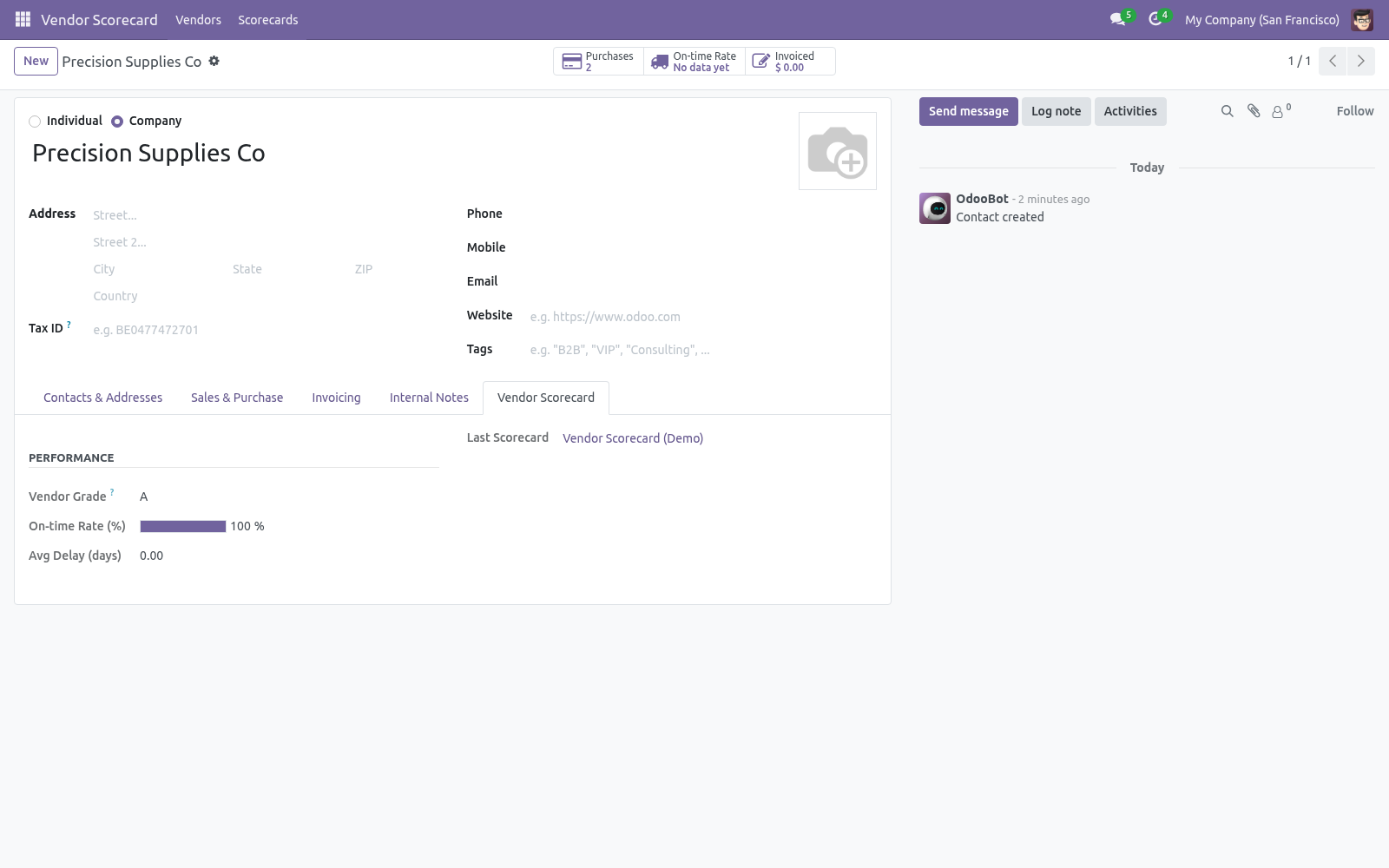
Re-run the scorecard after any change; results update immediately. Acting on the grades. With Write Back to Vendors on, every vendor gets a Vendor Scorecard tab showing its grade, on-time rate and average delay. In the Contacts/Vendors list you can filter to Top Vendors (A) or group by Vendor Grade, then act: shift volume to reliable suppliers, open a conversation with the laggards, or review your safety stock for D-grade vendors.
Automating refreshes. A scheduled action Vendor Scorecard: Recompute Latest ships disabled. Enable it under Settings > Technical > Scheduled Actions to recompute the most recent scorecard per company on a schedule (weekly by default), moving the reference date to today each run. Frequently asked questions.
A vendor has orders but no grade. Grades come from receipts. A vendor with confirmed orders but no completed incoming transfers in the period is listed without a grade until goods arrive. On-time looks wrong.
On time means the receipt's actual transfer date is on or before its scheduled date. Make sure your receipts carry realistic scheduled dates (from the purchase order's promised dates). Support. Questions or ideas: support@bambooforge.dev.
.. BAMBOOFORGE-DOC-APPENDIX (auto-generated: Upgrade/Uninstall/Changelog + bespoke) Where to find it. Everything lives under the top-level Vendor Scorecard app (open to any Purchase / User): Scorecards creates and computes a rating run (also under Purchase > Reporting > Vendor Scorecard); Vendors holds the analytical Vendor Performance pivot, graph, list and form; and Configuration > Criteria & Weights (Purchase / Manager) holds the weighted criteria. The complete manual is at docs dot bambooforge dot dev, the demo database is linked from the store page, and support answers within twenty-four hours.
Links are in the description.
Key facts
- What it is
- Weighted vendor scoring on delivery, fill rate, returns, price and responsiveness, combined into one A/B/C/D grade with a ranked list.
- For
- Purchases
- Odoo versions
- 16.0, 17.0, 18.0, 19.0, 20.0 - Community and Enterprise
- Runs on
- Odoo.sh or Odoo you host yourself - not Odoo Online, which accepts no third-party apps
- Price
- 99 EUR, one-time, on the Odoo Apps Store
- Technical name
- bambooforge_vendor_scorecard
- Not for
- Said before you buy, because it is the half that decides whether the app fits:; Score deliveries that are not done or receipts that are not confirmed.; Share criteria across companies unless Company is left empty.
- Live demo
- https://demo20.bambooforge.dev/odoo/action-bambooforge_vendor_scorecard.vendor_scorecard_line_action
- Manual last updated
- 2026-10-15
Vendor Scorecard: Supplier Performance Rating
Know which suppliers actually deliver. This app scores every vendor on on-time delivery rate, average delay and purchase spend, grades them A to D, keeps a snapshot of performance over time, and writes the rating back onto the vendor so you can filter and source by reliability.
This page is the complete manual. Follow it top to bottom and you can install, run your first scorecard, read the grades, tune the thresholds and fix the common issues without contacting support.
Overview
Late deliveries cost you stockouts and expediting. This app turns your receipt and purchase history into a vendor rating:
On-time delivery rate — the share of receipts that arrived on or before their scheduled date.
Average delay — how many days late the late receipts were, on average.
Purchase volume — total spend and order count per vendor in the period.
Grades A-D — from the on-time rate, against thresholds you set.
Write-back to vendors — grade, on-time rate and average delay stored on the vendor for filtering and sourcing.
Pivot, graph and list of vendor performance, plus snapshots over time.
Requirements
Odoo 20.0.
The Purchase app and inventory receipts (purchase_stock). Installing this app pulls them in automatically.
No Enterprise modules and no external Python libraries are required.
Installation
Copy bambooforge_vendor_scorecard into your addons path.
Update the apps list (Apps > Update Apps List).
Search for Vendor Scorecard and click Install.
A new top-level Vendor Scorecard app appears, and a Vendor Scorecard entry is added under Purchase > Reporting.
Quick start
Open Vendor Scorecard > Scorecards and click New.
Set the Reference Date and the Period (days) to measure over.
Optionally adjust the Grade Thresholds (the on-time percentages for A, B and C).
Click Compute.
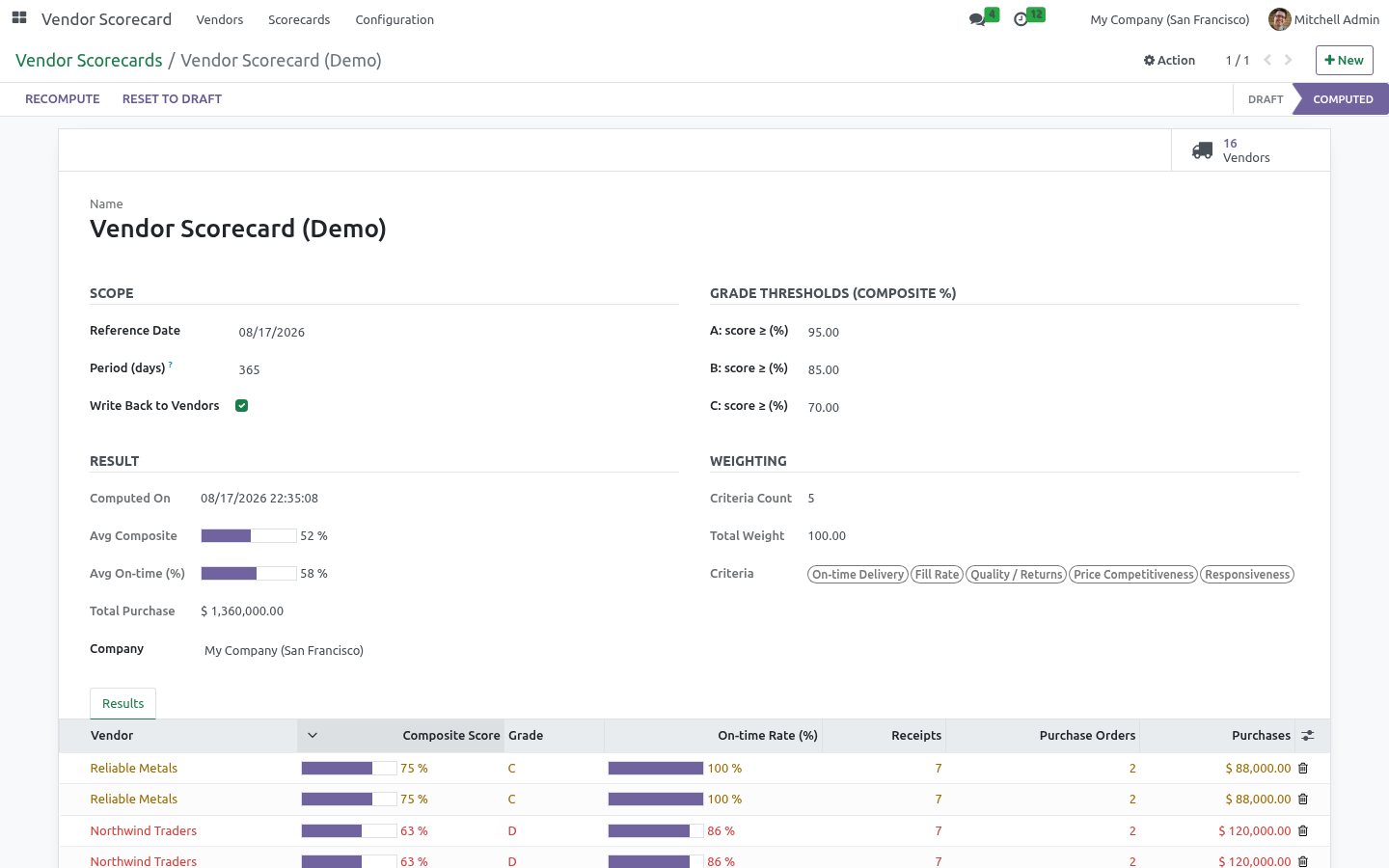
The scorecard switches to Computed, the Vendors stat fills in, and the Result section shows the average on-time rate and total purchase value. Open the Results tab, or Vendor Scorecard > Vendors, to explore.
How scoring works
For each vendor in the period the app looks at:
Receipts — completed incoming transfers from that vendor. A receipt is on time when its actual transfer date is on or before its scheduled date. The on-time rate is on-time receipts ÷ total receipts.
Average delay — the mean lateness (in days) across the late receipts.
Purchases — the total value of the vendor's confirmed purchase orders in the period, converted to the company currency.
The grade comes from the on-time rate: A at or above the A threshold (default 95%), B above the B threshold (85%), C above the C threshold (70%), and D below. Vendors with orders but no receipts yet are listed without a grade.
Reading the results
Go to Vendor Scorecard > Vendors for the analytical views:
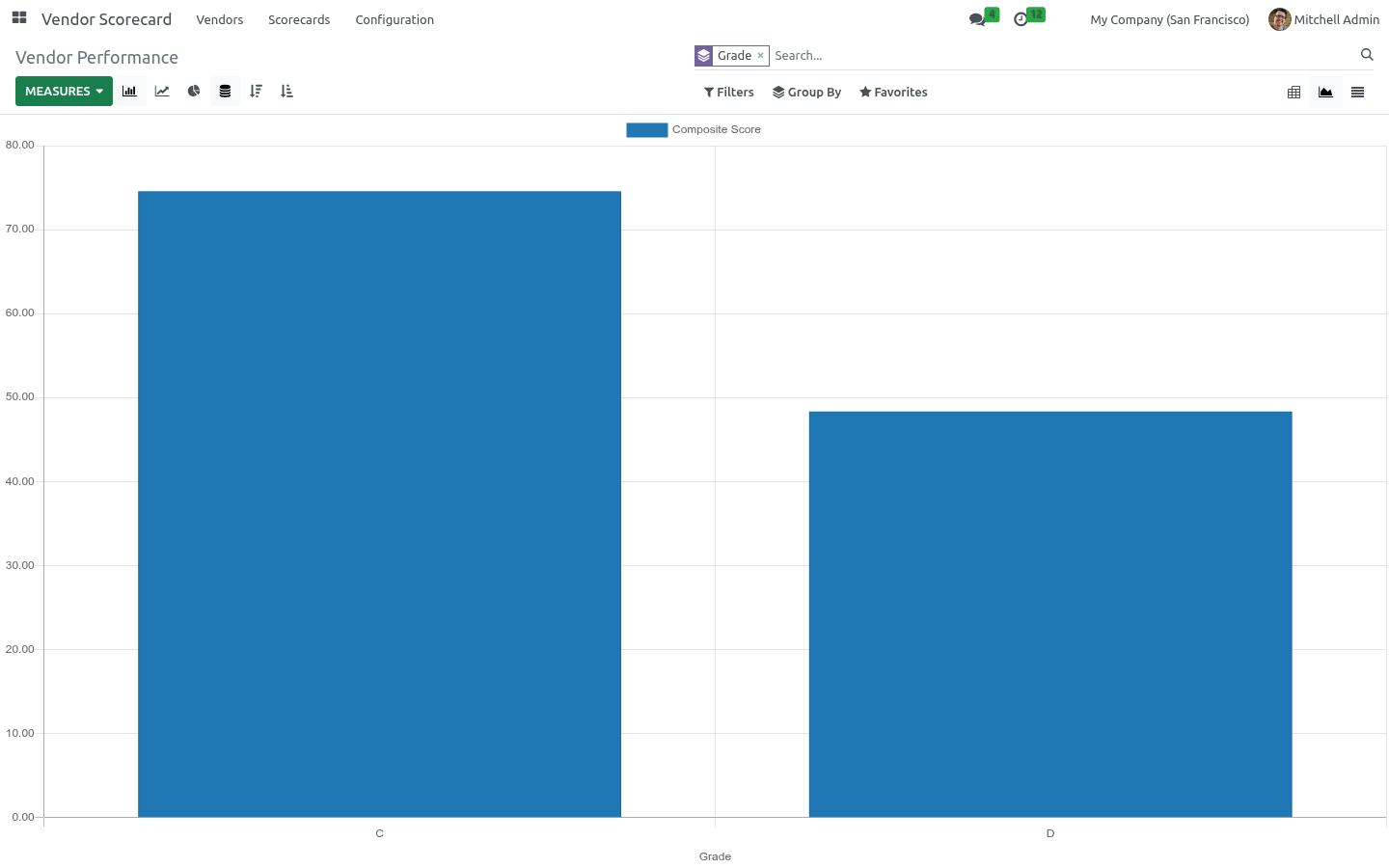
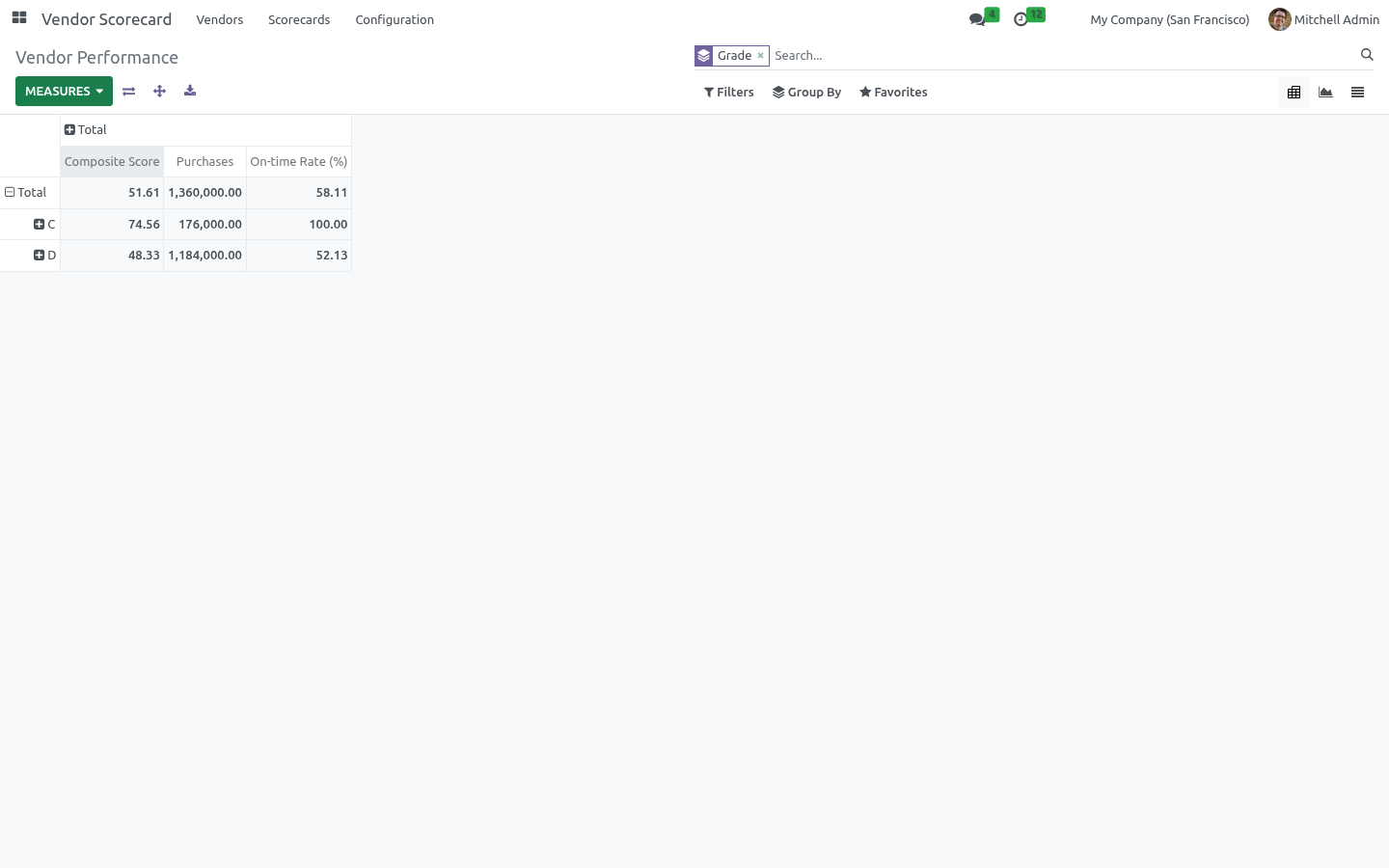
Pivot — vendors grouped by grade, with purchases and on-time rate as measures. "How much do I spend with my unreliable vendors?" in one glance.
Graph — on-time rate per vendor.
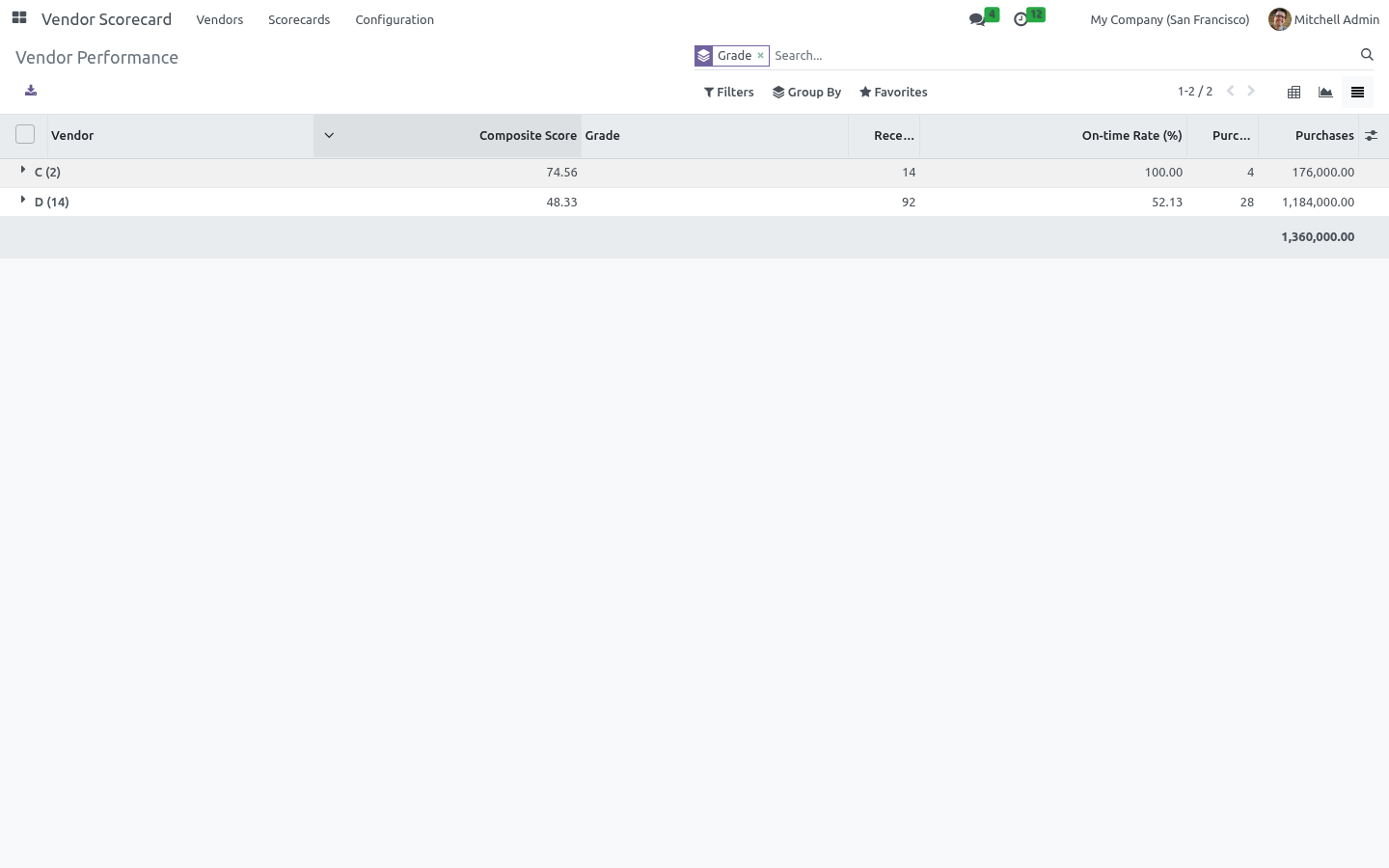
List — every vendor with receipts, on-time rate (as a bar), average delay, order count, spend and grade. A-grade rows are green, D-grade rows red.
Tuning the thresholds
On the scorecard form set the three Grade Thresholds (they must decrease from A to C). A vendor scoring below the C threshold is graded D. Re-run the scorecard after any change; results update immediately.
Acting on the grades
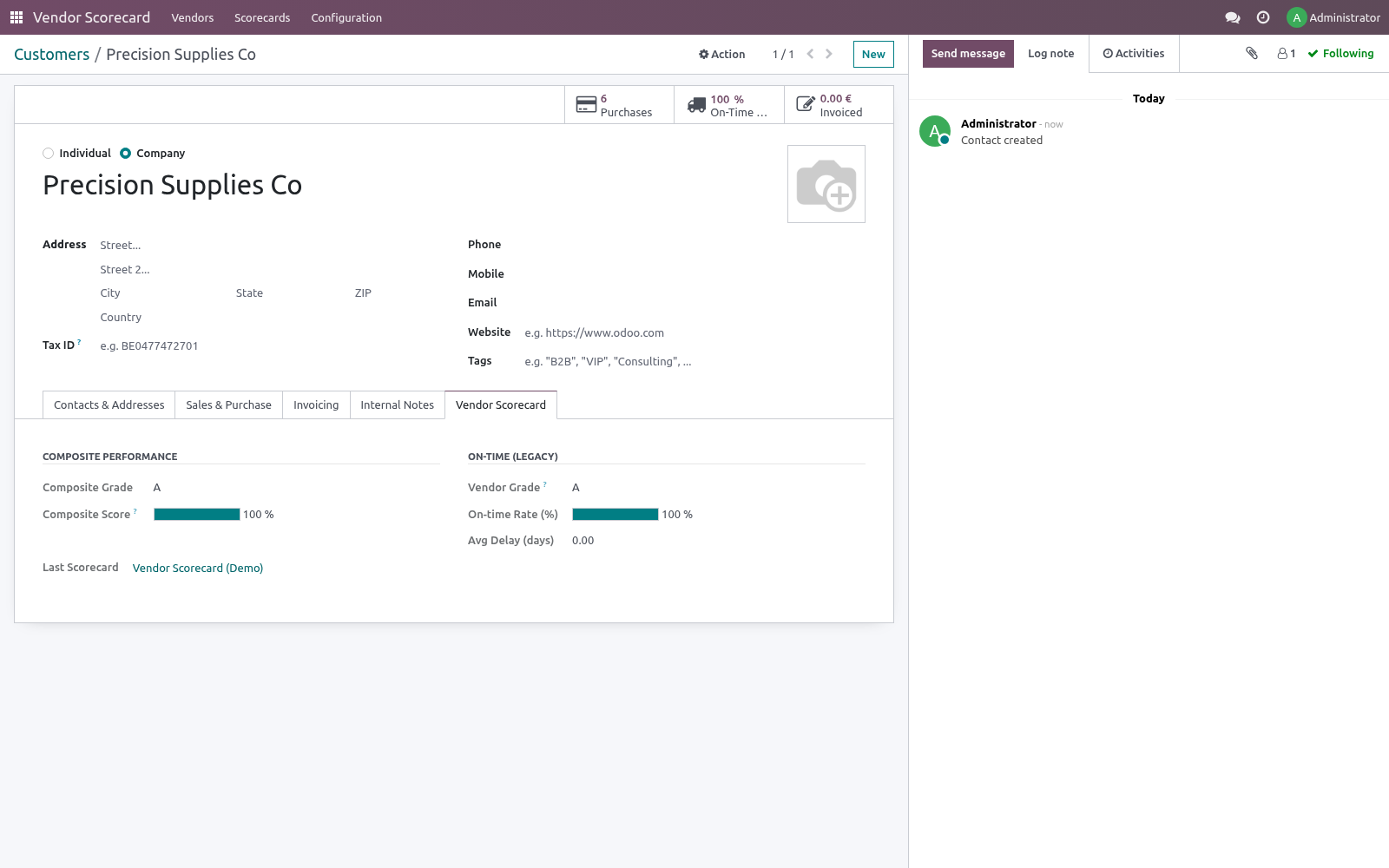
With Write Back to Vendors on, every vendor gets a Vendor Scorecard tab showing its grade, on-time rate and average delay. In the Contacts/Vendors list you can filter to Top Vendors (A) or group by Vendor Grade, then act: shift volume to reliable suppliers, open a conversation with the laggards, or review your safety stock for D-grade vendors.
Automating refreshes
A scheduled action Vendor Scorecard: Recompute Latest ships disabled. Enable it under Settings > Technical > Scheduled Actions to recompute the most recent scorecard per company on a schedule (weekly by default), moving the reference date to today each run.
Frequently asked questions
- A vendor has orders but no grade.
Grades come from receipts. A vendor with confirmed orders but no completed incoming transfers in the period is listed without a grade until goods arrive.
- On-time looks wrong.
On time means the receipt's actual transfer date is on or before its scheduled date. Make sure your receipts carry realistic scheduled dates (from the purchase order's promised dates).
- Spend doesn't match my reports.
Purchases here are the totals of confirmed purchase orders dated within the period, in the company currency. Quotations and cancelled orders are ignored.
- Does it work with multiple companies?
Yes. Each scorecard is scoped to one company and results are kept separate per company.
How we make sure it works
Before every release, 28 automated checks run against this app on Odoo 16, 17, 18, 19 and 20. Among them:
Sub day lateness not truncated to zero.
Vendor with no data is na.
First run has no history.
Fallback when no criteria.
Odoo 20's company timezone is the company's clock.
The complete list is in the source you receive.
Support
Questions or ideas: support@bambooforge.dev.
Usage
Where to find it
Everything lives under the top-level Vendor Scorecard app (open to any Purchase / User): Scorecards creates and computes a rating run (also under Purchase > Reporting > Vendor Scorecard); Vendors holds the analytical Vendor Performance pivot, graph, list and form; and Configuration > Criteria & Weights (Purchase / Manager) holds the weighted criteria.
Criteria and weights
Five shared criteria ship active, each mapped to real purchasing data and normalised so the weights need not total 100:
On-time Delivery (weight 40) — on-time receipts / total completed receipts.
Fill Rate (20) — purchase-order-line quantity received / quantity ordered.
Quality / Returns (20) — quantity returned to the vendor / quantity received.
Price Competitiveness (10) — vendor unit price vs. the quantity-weighted market average for the same product across all vendors.
Responsiveness (10) — RFQ create date to confirmation, in days (max 10).
The last three are lower-is-better. Edit weights, deactivate a criterion, or scope one to a company (leave Company empty to share it). With no criteria active the composite falls back to the on-time rate only, so it stays non-breaking.
Computing and reading a scorecard
Open Scorecards > New, set the Reference Date and Period (days) (default 365 — documents dated inside that window are counted), optionally adjust the composite Grade Thresholds (A greater-or-equal 95, B 85, C 70; below C is D; they must decrease), leave Write Back to Vendors on, and click Compute.
Each criterion's raw metric becomes a 0-100 magnitude; the direction is applied (a lower-is-better metric scores 100 - magnitude); the scores are combined into the composite as a weighted average, with weights renormalised over only the criteria that actually have data for that vendor, so a missing metric never distorts the result. The composite maps to an A-D grade via the thresholds.
Open a result line for the Why this score breakdown — one row per criterion with its Raw value, Score, applied Weight % and Weighted contribution; greyed rows had no data and were excluded. Each rated vendor also gets a Vendor Scorecard tab and can be filtered in Contacts via Top Vendors (A) or grouped by Composite Grade.
Worked example
A vendor with 90% on-time, 95% fill rate, 2% returns, prices 5% above market and a 2-day lead time scores 90 / 95 / 98 / 95 / 80. At default weights the composite is 90*0.4 + 95*0.2 + 98*0.2 + 95*0.1 + 80*0.1 = 92.1 — a grade B vendor. Enable the disabled Vendor Scorecard: Recompute Latest scheduled action to refresh the latest scorecard per company weekly.
What it does not do
Said before you buy, because it is the half that decides whether the app fits:
Score deliveries that are not done or receipts that are not confirmed.
Share criteria across companies unless Company is left empty.
Questions people ask
- Which Odoo versions does it run on?
Odoo 16.0, 17.0, 18.0, 19.0, 20.0, on the series you buy it for; each series is its own listing.
- Community or Enterprise?
Both. It needs no Enterprise app.
- What does it need?
The standard purchase_stock app. No extra Python package.
- Where does it show up?
Under the Vendor Scorecard menu (Vendors, Scorecards).
- Does anything leave my server?
No. It makes no call outside your Odoo server: no telemetry, no licence check, no third-party service.
- What happens if I uninstall it?
Odoo drops the app's own tables and fields; the standard records it worked on (contacts, orders, products) stay as they are.
Troubleshooting
No vendors, or every score is zero
Cause: the period holds no qualifying documents — the composite is built from completed incoming receipts and confirmed purchase orders only. Diagnosis: check Period (days) and Reference Date (the window is the reference date minus the period), and confirm orders are in state Purchase Order (not draft RFQ or cancelled) with their receipts Done. Resolution: widen the period, confirm the orders, validate the receipts, then Recompute.
A criterion is greyed with no contribution
Cause: the vendor had no source data for that measure, so Has Data is unticked and its weight is redistributed. Diagnosis: review the breakdown — common gaps are Fill Rate (needs a Received quantity on the order lines), Quality / Returns (needs returns routed through a done outgoing transfer to a Vendor location) and Responsiveness (needs a confirmation date on the order). Resolution: record the underlying flow — register receipts, process vendor returns as return pickings, confirm RFQs — then recompute.
Composite empty though on-time is shown
Cause: every active criterion lacked data, or all were deactivated or set to weight 0, so no composite could form. Diagnosis: check Weighting on the form — a zero Total Weight means nothing contributes. Resolution: activate at least one criterion with a positive weight, or accept the on-time-only fallback.
Sole-source vendors always score perfect on price
Cause: Price Competitiveness compares a vendor against the market average for the same product; when only one vendor supplies an item its price is the average, so the zero deviation and perfect score are expected. Diagnosis: a Raw of 0 on this criterion for a single-source item is normal, not a bug. Resolution: none needed — the metric becomes meaningful with two or more vendors per product; lower its weight if single sourcing is common.
Grade thresholds rejected on Compute
Cause: thresholds must strictly decrease from A to C and the period must be positive. Diagnosis: the raised UserError names the offending value. Resolution: set A greater than B greater than C (e.g. 95 / 85 / 70) and a positive Period (days).
Result not written back onto the vendor
Cause: Write Back to Vendors was off, or you are viewing a child contact — figures roll up to the commercial (parent) partner. Diagnosis: the Vendor Scorecard tab stays hidden until a result is written. Resolution: enable Write Back to Vendors, recompute, and open the top-level vendor record.
Upgrading & version compatibility
This build targets Odoo 20.0. Each Odoo major series (16.0, 17.0, 18.0, 19.0, 20.0) has its own dedicated build of this module — always install the build that matches your Odoo version. Mixing a build with a different Odoo series is not supported.
Patch upgrades (same series, e.g. 20.0.1.0.0 → later)
Back up your database and filestore first.
Replace the module folder with the newer build.
Restart Odoo with the module updated:
./odoo-bin -c your.conf -u bambooforge_vendor_scorecard -d your_db
Odoo applies any schema/data changes automatically. Your existing records and configuration are preserved.
Cross-version migration (moving to a newer Odoo)
Upgrading Odoo itself is a database migration handled by Odoo's standard upgrade tooling. When you migrate the database to the next Odoo series, install the matching build of this module for that series. Data created by this module carries over with the database migration.
After any upgrade the module's scheduled actions resume on their normal cadence — no manual re-activation is required.
Uninstallation
You can remove this module at any time from Apps → (this module) → Uninstall, or from the command line. Uninstalling is clean and reversible by reinstalling — but note what is and is not deleted.
What is removed
The module's own tables and every record in them (4 models, prefixed vendor.*) — this is the data this module created.
The menus, actions, views and reports this module installed.
Its scheduled actions (cron jobs) — they stop immediately on uninstall.
What is preserved
Your standard Odoo data (partners, products, sales, invoices, inventory moves) is not deleted — this module only reads and annotates it; the underlying records stay.
Attachments and chatter messages on standard records are kept.
As always, take a database backup before uninstalling in production.
Changelog
20.0.1.1.3
Built for Odoo 20: record rules and access rights rewritten onto Odoo 20's single ir.access model, the screens rebuilt on Owl 3, and every icon moved to the icon set Odoo 20 ships.
20.0.1.0.0
Current release for Odoo 20.0. This build includes:
Multi-criteria weighted vendor scoring: on-time delivery, fill rate, returns, price competitiveness and responsiveness combined into one composite grade A/B/C/D, with a per-criterion breakdown and ranked vendor list.
Feature additions and fixes ship as new builds on the Odoo Apps store; this page and the module's version reflect the current published release. Always keep the build matched to your Odoo series (see Upgrading & version compatibility).