 BambooForge Labs
Storefront Theme for eCommerce
A multipurpose eCommerce storefront theme with Fashion, Electronics, Furniture, Organic and Modern Store presets.
Available for Odoo 16.0, Odoo 17.0, Odoo 18.0, Odoo 19.0, Odoo 20.0. Technical name bambooforge_storefront.
Transcript of the walkthrough (Odoo 20)
Storefront Theme for eCommerce. A multipurpose eCommerce storefront theme with Fashion, Electronics, Furniture, Organic and Modern Store presets. BambooForge Storefront is a website theme for Odoo's Website and eCommerce apps. It does not add a new app or a settings screen — instead it restyles the storefront and preloads it with content so a fresh shop looks finished the moment you activate it.
In the next few minutes: storefront theme for ecommerce, then the building blocks, then activate (apply) the theme, then choosing a palette / preset, then customizing. Then what this app deliberately does not do, so you can tell before you buy whether it fits. Storefront Theme for eCommerce. A multipurpose Odoo 20 eCommerce website theme — one cohesive design system that fits fashion, electronics, furniture, organic and modern-store shops.
It ships a designed homepage, ready demo pages, a Categories mega menu, three swappable colour palettes and a set of retail-tuned building blocks, all editable in the standard Website Builder. This page is the complete manual. If you follow it top to bottom you can install the theme, activate it, pick a palette, customize every page in the editor, and fix the common issues without contacting support. The building blocks.
The theme restyles the standard Odoo website snippets rather than inventing new ones, so everything you drag from the Website Builder already matches the theme. The restyled blocks are: Cover, Banner, Product List (the category/collection grid), Three Columns, Features, Process Steps, Numbers, Quotes Carousel, References, Call to Action, and the Thumbnails mega menu. Because they are the standard blocks, anything you already know about the Odoo editor still applies. Activate (apply) the theme.
Installing the module makes the theme available; you still have to apply it to your website: 1. Open the Website app. 2. Go to Configuration ▸ Theme (or Website ▸ Edit ▸ Theme in the builder).
3. Pick BambooForge Storefront and confirm. Odoo applies the theme's styling, enables its sticky header and footer, and loads its homepage, demo pages and mega menu. Choosing a palette / preset.
The theme ships three colour palettes. They are deliberately not the bright coral / cream / acid-green defaults — each is a distinct, brand-grounded retail mood, and all three reuse the same fonts, buttons and spacing so the theme stays cohesive whichever you pick: storefront-1 (Bamboo) is the default. To switch palette: Customizing. Everything in the theme is built from standard snippets and standard website pages, so you customize it entirely from the Website Builder (the Edit button on any page).
Edit a section — hover a block, use the inline toolbar to change text, swap images, re-colour or remove it. Drag the handle to reorder sections. Add a block — click Edit, open the Blocks panel and drag any snippet onto the page. Because the theme restyles the standard blocks, new blocks already match.
Edit the homepage — open the home page and click Edit; replace the hero image, the six category tiles (each links to /shop by default — repoint them at your real product categories), the metrics and the promo banner. Edit the Categories mega menu — in the builder, click the Categories item in the top menu; the mega-menu panel becomes editable in place. Change each tile's image, label and link to your own categories, and edit the "free shipping / shop all" row. Edit the demo pages — open About, Collections or Lookbook and click Edit.
They are ordinary published pages: change the copy and images, or delete a page and its menu link if you don't need it (Website ▸ Site ▸ Pages / Edit ▸ Menu). Edit header, footer and the promo bar — change the logo and menu from the builder; the announcement bar text (free shipping · returns · secure checkout) is part of the layout and editable in the builder like any block. Because the theme only restyles standard Odoo snippets, there are no theme-specific blocks to learn — your existing Odoo editor knowledge carries over. Usage.
After activation your shop has a complete front end. Populate it with your own catalog: Add products — go to Website ▸ eCommerce ▸ Products (or Sales ▸ Products), create your products and publish them. They appear on the Shop page (/shop). Organize the Shop — set product eCommerce Categories so the shop's category filters and your mega-menu links point at real categories.
Wire up the homepage and mega menu — repoint the category tiles and collection links (which all default to /shop) at the categories you created. Keep or trim the demo pages — About, Collections and Lookbook are starting points; edit them to your brand or remove the ones you don't use. Frequently asked questions. Which Odoo versions are supported?
Odoo 20.0, Community or Enterprise. The theme requires the Website eCommerce app. Do I need the eCommerce app? Yes.
The theme depends on website_sale, which is installed automatically with the theme and brings the Website app with it. Support & updates Support: support@bambooforge.dev — answered within 24 hours, setup help included. Refund: report a bug within 2 months of purchase; if it is unresolved within 15 days, you get a full refund. Full source is included.
Updates track the supported Odoo 20 line. Upgrading & version compatibility. This build targets Odoo 20.0. Each Odoo major series (17.0, 18.0, 19.0) has its own dedicated build of this module — always install the build that matches your Odoo version.
Mixing a build with a different Odoo series is not supported. Patch upgrades (same series, e.g. 20.0.1.0.0 → later). 1.
Back up your database and filestore first. 2. Replace the module folder with the newer build. 3.
Restart Odoo with the module updated. 4. Odoo applies any schema/data changes automatically. Your existing records and configuration are preserved.
Now the part most videos leave out: what this does not do. Front-end theme only — it styles the website and eCommerce storefront. It does not add back-office features, payment providers, shipping integrations or new apps. Demo content is a starting point — products, category links and images are samples you replace with your own catalog and photography.
Snippets are restyled standards — the theme does not ship brand-new snippet types; it makes the standard Odoo blocks match the design. Fonts require outbound access — Google Fonts load over the internet; offline servers fall back to a system font. The complete manual is at docs dot bambooforge dot dev, the demo database is linked from the store page, and support answers within twenty-four hours. Links are in the description.

Transcript of the walkthrough (Odoo 19)
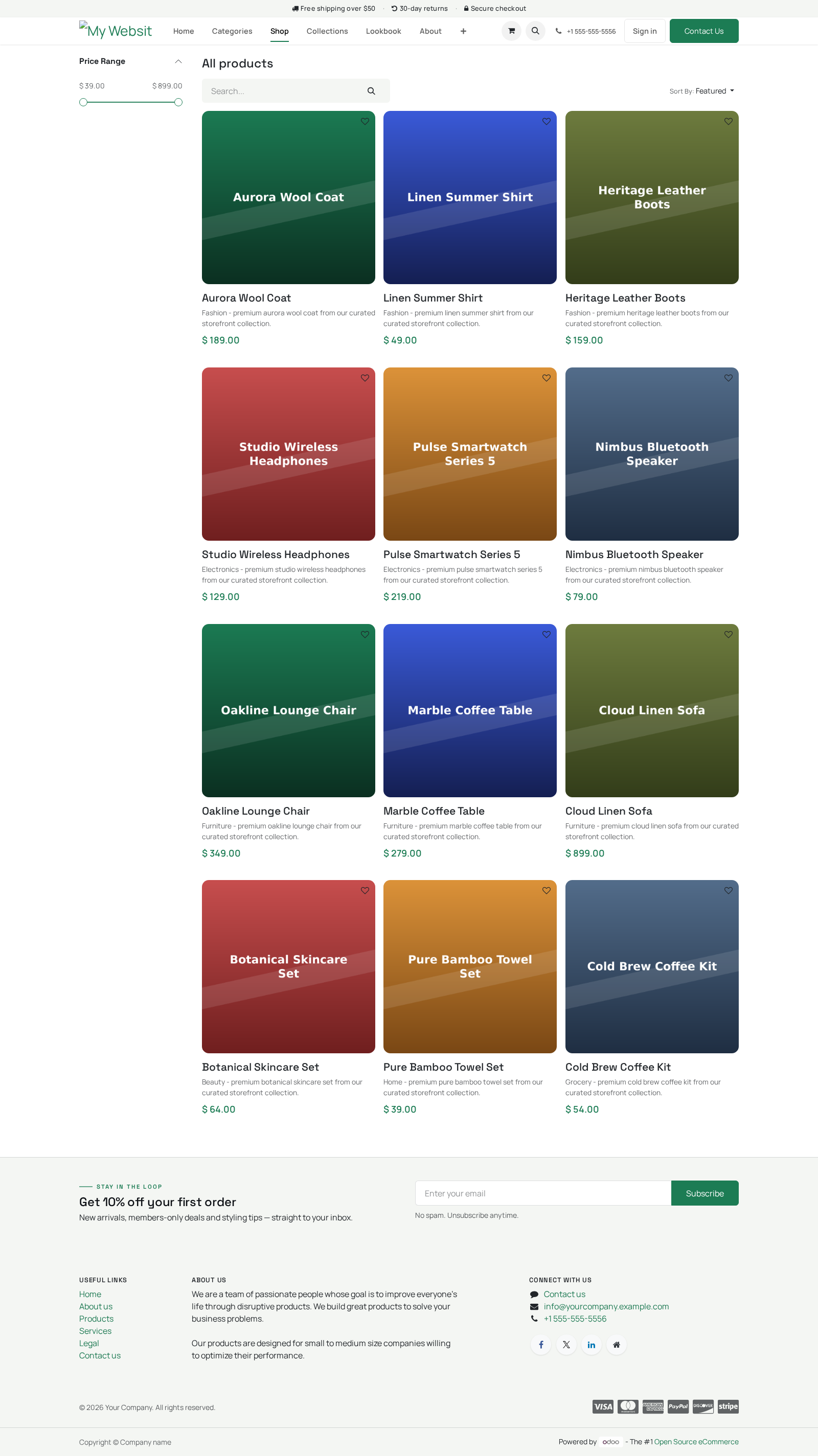
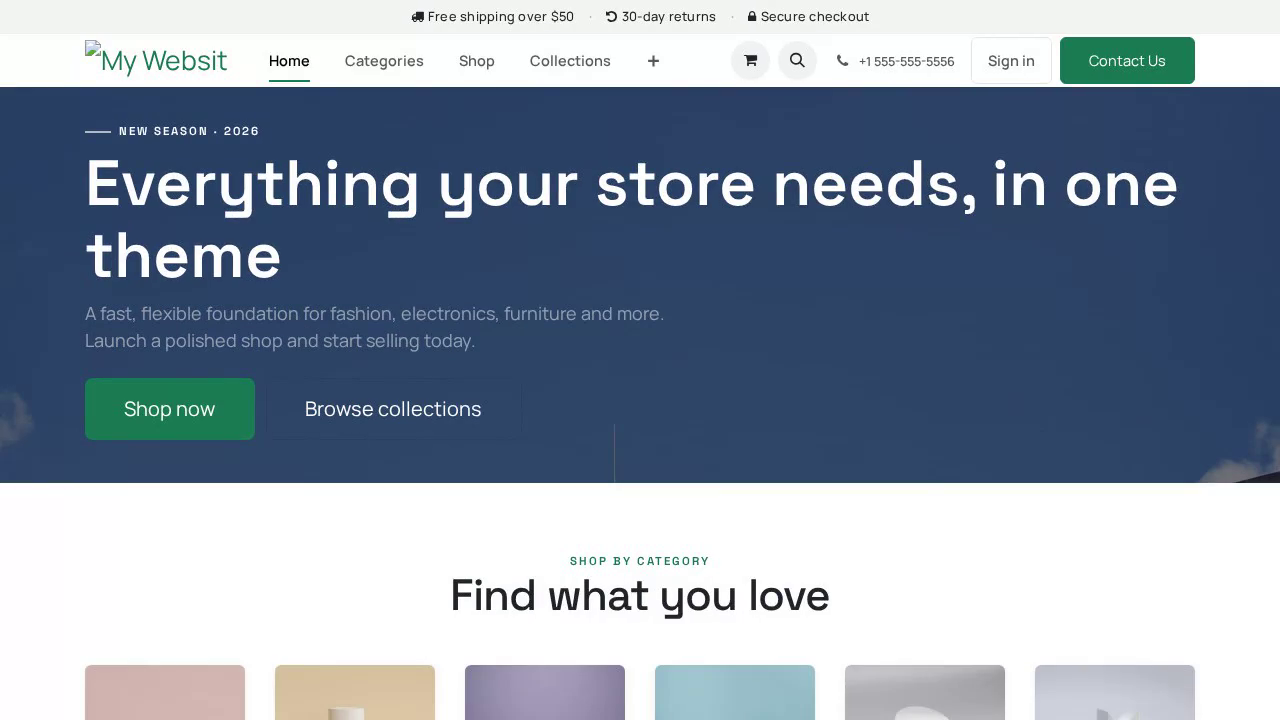
Storefront Theme for eCommerce. A multipurpose eCommerce storefront theme with Fashion, Electronics, Furniture, Organic and Modern Store presets. BambooForge Storefront is a website theme for Odoo's Website and eCommerce apps. It does not add a new app or a settings screen — instead it restyles the storefront and preloads it with content so a fresh shop looks finished the moment you activate it.
In the next few minutes: storefront theme for ecommerce, then the building blocks, then activate (apply) the theme, then choosing a palette / preset, then customizing. Then what this app deliberately does not do, so you can tell before you buy whether it fits. Storefront Theme for eCommerce. A multipurpose Odoo 19 eCommerce website theme — one cohesive design system that fits fashion, electronics, furniture, organic and modern-store shops.
It ships a designed homepage, ready demo pages, a Categories mega menu, three swappable colour palettes and a set of retail-tuned building blocks, all editable in the standard Website Builder. This page is the complete manual. If you follow it top to bottom you can install the theme, activate it, pick a palette, customize every page in the editor, and fix the common issues without contacting support. The building blocks.
The theme restyles the standard Odoo website snippets rather than inventing new ones, so everything you drag from the Website Builder already matches the theme. The restyled blocks are: Cover, Banner, Product List (the category/collection grid), Three Columns, Features, Process Steps, Numbers, Quotes Carousel, References, Call to Action, and the Thumbnails mega menu. Because they are the standard blocks, anything you already know about the Odoo editor still applies. Activate (apply) the theme.
Installing the module makes the theme available; you still have to apply it to your website: 1. Open the Website app. 2. Go to Configuration ▸ Theme (or Website ▸ Edit ▸ Theme in the builder).
3. Pick BambooForge Storefront and confirm. Odoo applies the theme's styling, enables its sticky header and footer, and loads its homepage, demo pages and mega menu. Choosing a palette / preset.
The theme ships three colour palettes. They are deliberately not the bright coral / cream / acid-green defaults — each is a distinct, brand-grounded retail mood, and all three reuse the same fonts, buttons and spacing so the theme stays cohesive whichever you pick: - storefront-1 (Bamboo) Default — the BambooForge brand colour Jade green on a calm cool-light background - storefront-2 (Volt) Electronics / tech Electric indigo on cool grey - storefront-3 (Grove) Organic / home / wellness storefront-1 (Bamboo) is the default. To switch palette: Customizing. Everything in the theme is built from standard snippets and standard website pages, so you customize it entirely from the Website Builder (the Edit button on any page).
Edit a section — hover a block, use the inline toolbar to change text, swap images, re-colour or remove it. Drag the handle to reorder sections. Add a block — click Edit, open the Blocks panel and drag any snippet onto the page. Because the theme restyles the standard blocks, new blocks already match.
Edit the homepage — open the home page and click Edit; replace the hero image, the six category tiles (each links to /shop by default — repoint them at your real product categories), the metrics and the promo banner. Edit the Categories mega menu — in the builder, click the Categories item in the top menu; the mega-menu panel becomes editable in place. Change each tile's image, label and link to your own categories, and edit the "free shipping / shop all" row. Edit the demo pages — open About, Collections or Lookbook and click Edit.
They are ordinary published pages: change the copy and images, or delete a page and its menu link if you don't need it (Website ▸ Site ▸ Pages / Edit ▸ Menu). Edit header, footer and the promo bar — change the logo and menu from the builder; the announcement bar text (free shipping · returns · secure checkout) is part of the layout and editable in the builder like any block. Because the theme only restyles standard Odoo snippets, there are no theme-specific blocks to learn — your existing Odoo editor knowledge carries over. Usage.
After activation your shop has a complete front end. Populate it with your own catalog: Add products — go to Website ▸ eCommerce ▸ Products (or Sales ▸ Products), create your products and publish them. They appear on the Shop page (/shop). Organize the Shop — set product eCommerce Categories so the shop's category filters and your mega-menu links point at real categories.
Wire up the homepage and mega menu — repoint the category tiles and collection links (which all default to /shop) at the categories you created. Keep or trim the demo pages — About, Collections and Lookbook are starting points; edit them to your brand or remove the ones you don't use. Troubleshooting - The theme installed but the site looks unchanged Installing the module only makes the theme available; you must apply it. Open Website ▸ Configuration ▸ Theme and select BambooForge Storefront.
- Snippets / blocks missing or look unstyled The styling assets did not rebuild. Open the site with ?debug=assets in the URL once, or restart Odoo with --dev=assets; in production clear the cache via Settings ▸ Technical ▸ Regenerate Assets Bundles. - A palette change is not applied The colour assets are cached. Re-open the Theme ▸ Colors panel and Save again, then hard-refresh the page (Ctrl/Cmd+Shift+R).
If it persists, regenerate the asset bundles (see above). - Homepage / demo pages did not appear after activation The homepage and the About/Collections/Lookbook pages load when the theme is applied, not merely installed. Re-apply the theme from Configuration ▸ Theme. If you previously edited the home page, Odoo keeps your version.
Frequently asked questions. Which Odoo versions are supported? Odoo 19.0, Community or Enterprise. The theme requires the Website eCommerce app.
Do I need the eCommerce app? Yes. The theme depends on website_sale, which is installed automatically with the theme and brings the Website app with it. Support & updates.
.. BAMBOOFORGE-DOC-APPENDIX (auto-generated: Upgrade/Uninstall/Changelog + bespoke) Support: support@bambooforge.dev — answered within 24 hours, setup help included. Refund: report a bug within 2 months of purchase; if it is unresolved within 15 days, you get a full refund. Full source is included.
Updates track the supported Odoo 19 line. Upgrading & version compatibility. This build targets Odoo 19.0. Each Odoo major series (17.0, 18.0, 19.0) has its own dedicated build of this module — always install the build that matches your Odoo version.
Mixing a build with a different Odoo series is not supported. Now the part most videos leave out: what this does not do. Front-end theme only — it styles the website and eCommerce storefront. It does not add back-office features, payment providers, shipping integrations or new apps.
Demo content is a starting point — products, category links and images are samples you replace with your own catalog and photography. Snippets are restyled standards — the theme does not ship brand-new snippet types; it makes the standard Odoo blocks match the design. Fonts require outbound access — Google Fonts load over the internet; offline servers fall back to a system font. The complete manual is at docs dot bambooforge dot dev, the demo database is linked from the store page, and support answers within twenty-four hours.
Links are in the description.

Transcript of the walkthrough (Odoo 18)
Storefront Theme for eCommerce. A multipurpose eCommerce storefront theme with Fashion, Electronics, Furniture, Organic and Modern Store presets. BambooForge Storefront is a website theme for Odoo's Website and eCommerce apps. It does not add a new app or a settings screen — instead it restyles the storefront and preloads it with content so a fresh shop looks finished the moment you activate it.
In the next few minutes: storefront theme for ecommerce, then the building blocks, then activate (apply) the theme, then choosing a palette / preset, then customizing. Then what this app deliberately does not do, so you can tell before you buy whether it fits. Storefront Theme for eCommerce. A multipurpose Odoo 18 eCommerce website theme — one cohesive design system that fits fashion, electronics, furniture, organic and modern-store shops.
It ships a designed homepage, ready demo pages, a Categories mega menu, three swappable colour palettes and a set of retail-tuned building blocks, all editable in the standard Website Builder. This page is the complete manual. If you follow it top to bottom you can install the theme, activate it, pick a palette, customize every page in the editor, and fix the common issues without contacting support. The building blocks.
The theme restyles the standard Odoo website snippets rather than inventing new ones, so everything you drag from the Website Builder already matches the theme. The restyled blocks are: Cover, Banner, Product List (the category/collection grid), Three Columns, Features, Process Steps, Numbers, Quotes Carousel, References, Call to Action, and the Thumbnails mega menu. Because they are the standard blocks, anything you already know about the Odoo editor still applies. Activate (apply) the theme.
Installing the module makes the theme available; you still have to apply it to your website: 1. Open the Website app. 2. Go to Configuration ▸ Theme (or Website ▸ Edit ▸ Theme in the builder).
3. Pick BambooForge Storefront and confirm. Odoo applies the theme's styling, enables its sticky header and footer, and loads its homepage, demo pages and mega menu. Choosing a palette / preset.
The theme ships three colour palettes. They are deliberately not the bright coral / cream / acid-green defaults — each is a distinct, brand-grounded retail mood, and all three reuse the same fonts, buttons and spacing so the theme stays cohesive whichever you pick: - storefront-1 (Bamboo) Default — the BambooForge brand colour Jade green on a calm cool-light background - storefront-2 (Volt) Electronics / tech Electric indigo on cool grey - storefront-3 (Grove) Organic / home / wellness storefront-1 (Bamboo) is the default. To switch palette: Customizing. Everything in the theme is built from standard snippets and standard website pages, so you customize it entirely from the Website Builder (the Edit button on any page).
Edit a section — hover a block, use the inline toolbar to change text, swap images, re-colour or remove it. Drag the handle to reorder sections. Add a block — click Edit, open the Blocks panel and drag any snippet onto the page. Because the theme restyles the standard blocks, new blocks already match.
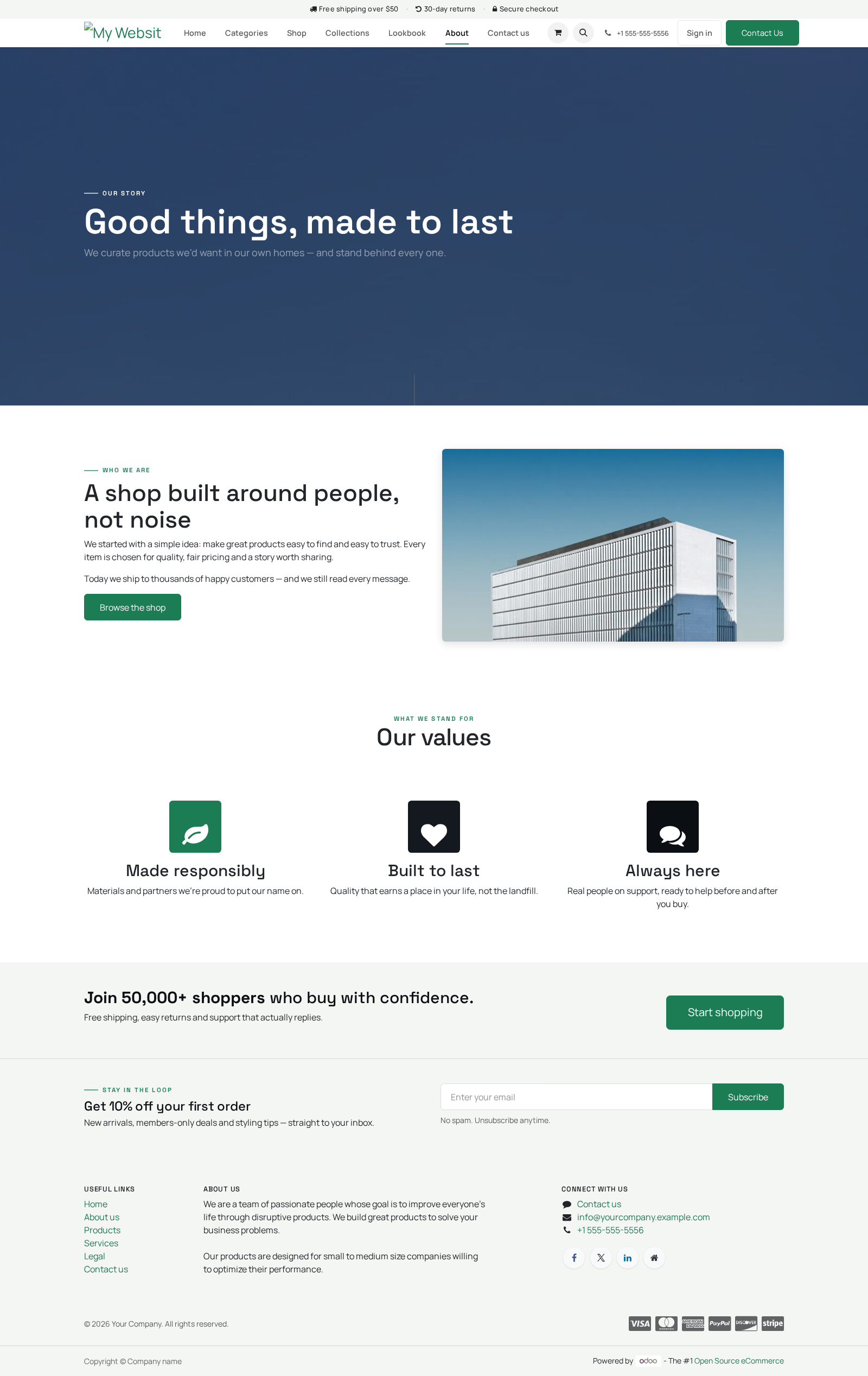
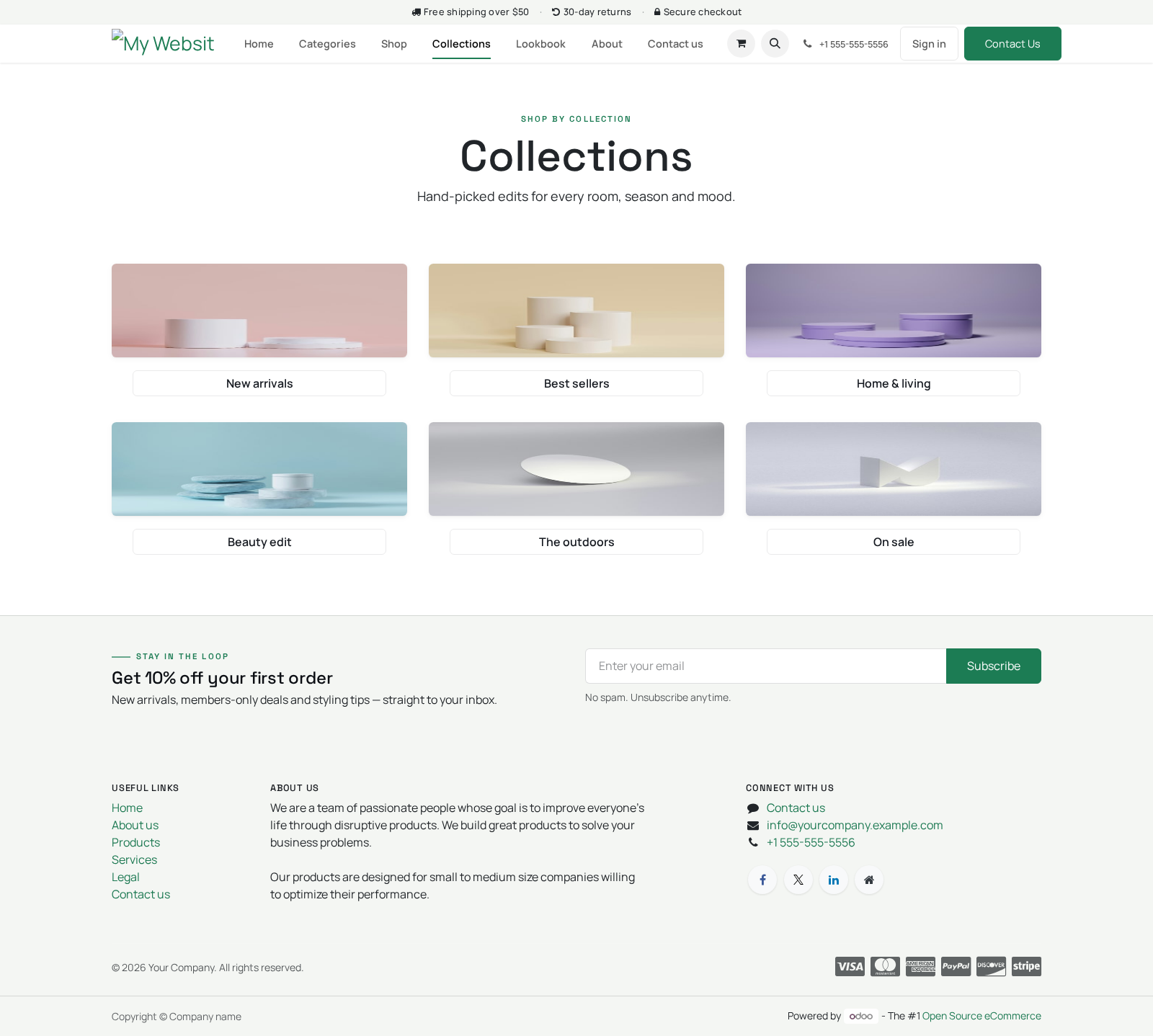
Edit the homepage — open the home page and click Edit; replace the hero image, the six category tiles (each links to /shop by default — repoint them at your real product categories), the metrics and the promo banner. Edit the Categories mega menu — in the builder, click the Categories item in the top menu; the mega-menu panel becomes editable in place. Change each tile's image, label and link to your own categories, and edit the "free shipping / shop all" row. Edit the demo pages — open About, Collections or Lookbook and click Edit.
They are ordinary published pages: change the copy and images, or delete a page and its menu link if you don't need it (Website ▸ Site ▸ Pages / Edit ▸ Menu). Edit header, footer and the promo bar — change the logo and menu from the builder; the announcement bar text (free shipping · returns · secure checkout) is part of the layout and editable in the builder like any block. Because the theme only restyles standard Odoo snippets, there are no theme-specific blocks to learn — your existing Odoo editor knowledge carries over. Usage.
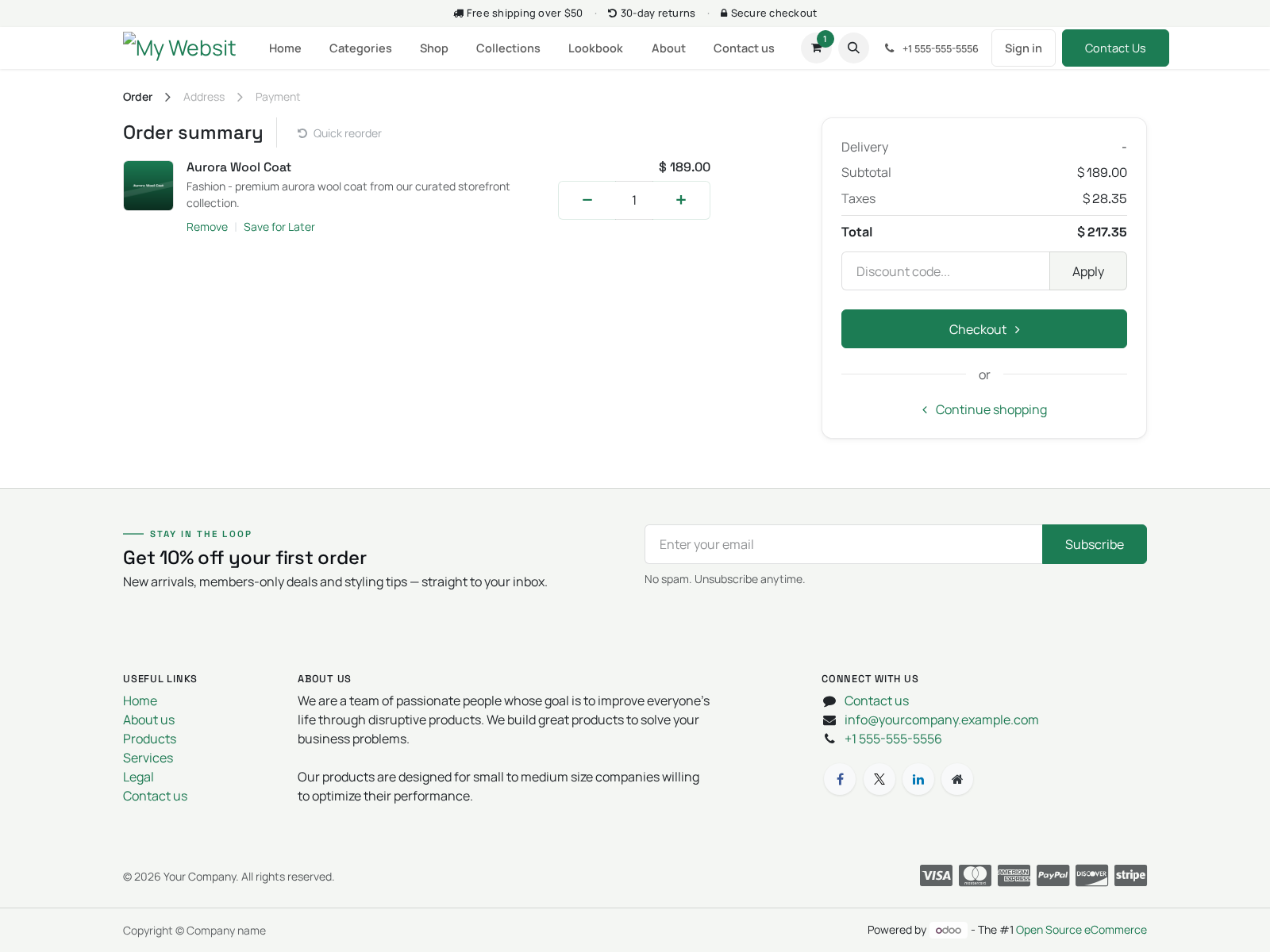
After activation your shop has a complete front end. Populate it with your own catalog: Add products — go to Website ▸ eCommerce ▸ Products (or Sales ▸ Products), create your products and publish them. They appear on the Shop page (/shop). Organize the Shop — set product eCommerce Categories so the shop's category filters and your mega-menu links point at real categories.
Wire up the homepage and mega menu — repoint the category tiles and collection links (which all default to /shop) at the categories you created. Keep or trim the demo pages — About, Collections and Lookbook are starting points; edit them to your brand or remove the ones you don't use. Troubleshooting - The theme installed but the site looks unchanged Installing the module only makes the theme available; you must apply it. Open Website ▸ Configuration ▸ Theme and select BambooForge Storefront.
- Snippets / blocks missing or look unstyled The styling assets did not rebuild. Open the site with ?debug=assets in the URL once, or restart Odoo with --dev=assets; in production clear the cache via Settings ▸ Technical ▸ Regenerate Assets Bundles. - A palette change is not applied The colour assets are cached. Re-open the Theme ▸ Colors panel and Save again, then hard-refresh the page (Ctrl/Cmd+Shift+R).
If it persists, regenerate the asset bundles (see above). - Homepage / demo pages did not appear after activation The homepage and the About/Collections/Lookbook pages load when the theme is applied, not merely installed. Re-apply the theme from Configuration ▸ Theme. If you previously edited the home page, Odoo keeps your version.
Frequently asked questions. Which Odoo versions are supported? Odoo 18.0, Community or Enterprise. The theme requires the Website eCommerce app.
Do I need the eCommerce app? Yes. The theme depends on website_sale, which is installed automatically with the theme and brings the Website app with it. Support & updates.
.. BAMBOOFORGE-DOC-APPENDIX (auto-generated: Upgrade/Uninstall/Changelog + bespoke) Support: support@bambooforge.dev — answered within 24 hours, setup help included. Refund: report a bug within 2 months of purchase; if it is unresolved within 15 days, you get a full refund. Full source is included.
Updates track the supported Odoo 18 line. Upgrading & version compatibility. This build targets Odoo 18.0. Each Odoo major series (17.0, 18.0, 19.0) has its own dedicated build of this module — always install the build that matches your Odoo version.
Mixing a build with a different Odoo series is not supported. Now the part most videos leave out: what this does not do. Front-end theme only — it styles the website and eCommerce storefront. It does not add back-office features, payment providers, shipping integrations or new apps.
Demo content is a starting point — products, category links and images are samples you replace with your own catalog and photography. Snippets are restyled standards — the theme does not ship brand-new snippet types; it makes the standard Odoo blocks match the design. Fonts require outbound access — Google Fonts load over the internet; offline servers fall back to a system font. The complete manual is at docs dot bambooforge dot dev, the demo database is linked from the store page, and support answers within twenty-four hours.
Links are in the description.

Transcript of the walkthrough (Odoo 17)
Storefront Theme for eCommerce. A multipurpose eCommerce storefront theme with Fashion, Electronics, Furniture, Organic and Modern Store presets. BambooForge Storefront is a website theme for Odoo's Website and eCommerce apps. It does not add a new app or a settings screen — instead it restyles the storefront and preloads it with content so a fresh shop looks finished the moment you activate it.
In the next few minutes: storefront theme for ecommerce, then the building blocks, then activate (apply) the theme, then choosing a palette / preset, then customizing. Then what this app deliberately does not do, so you can tell before you buy whether it fits. Storefront Theme for eCommerce. A multipurpose Odoo 17 eCommerce website theme — one cohesive design system that fits fashion, electronics, furniture, organic and modern-store shops.
It ships a designed homepage, ready demo pages, a Categories mega menu, three swappable colour palettes and a set of retail-tuned building blocks, all editable in the standard Website Builder. This page is the complete manual. If you follow it top to bottom you can install the theme, activate it, pick a palette, customize every page in the editor, and fix the common issues without contacting support. The building blocks.
The theme restyles the standard Odoo website snippets rather than inventing new ones, so everything you drag from the Website Builder already matches the theme. The restyled blocks are: Cover, Banner, Product List (the category/collection grid), Three Columns, Features, Process Steps, Numbers, Quotes Carousel, References, Call to Action, and the Thumbnails mega menu. Because they are the standard blocks, anything you already know about the Odoo editor still applies. Activate (apply) the theme.
Installing the module makes the theme available; you still have to apply it to your website: 1. Open the Website app. 2. Go to Configuration ▸ Theme (or Website ▸ Edit ▸ Theme in the builder).
3. Pick BambooForge Storefront and confirm. Odoo applies the theme's styling, enables its sticky header and footer, and loads its homepage, demo pages and mega menu. Choosing a palette / preset.
The theme ships three colour palettes. They are deliberately not the bright coral / cream / acid-green defaults — each is a distinct, brand-grounded retail mood, and all three reuse the same fonts, buttons and spacing so the theme stays cohesive whichever you pick: - storefront-1 (Bamboo) Default — the BambooForge brand colour Jade green on a calm cool-light background - storefront-2 (Volt) Electronics / tech Electric indigo on cool grey - storefront-3 (Grove) Organic / home / wellness storefront-1 (Bamboo) is the default. To switch palette: Customizing. Everything in the theme is built from standard snippets and standard website pages, so you customize it entirely from the Website Builder (the Edit button on any page).
Edit a section — hover a block, use the inline toolbar to change text, swap images, re-colour or remove it. Drag the handle to reorder sections. Add a block — click Edit, open the Blocks panel and drag any snippet onto the page. Because the theme restyles the standard blocks, new blocks already match.
Edit the homepage — open the home page and click Edit; replace the hero image, the six category tiles (each links to /shop by default — repoint them at your real product categories), the metrics and the promo banner. Edit the Categories mega menu — in the builder, click the Categories item in the top menu; the mega-menu panel becomes editable in place. Change each tile's image, label and link to your own categories, and edit the "free shipping / shop all" row. Edit the demo pages — open About, Collections or Lookbook and click Edit.
They are ordinary published pages: change the copy and images, or delete a page and its menu link if you don't need it (Website ▸ Site ▸ Pages / Edit ▸ Menu). Edit header, footer and the promo bar — change the logo and menu from the builder; the announcement bar text (free shipping · returns · secure checkout) is part of the layout and editable in the builder like any block. Because the theme only restyles standard Odoo snippets, there are no theme-specific blocks to learn — your existing Odoo editor knowledge carries over. Usage.
After activation your shop has a complete front end. Populate it with your own catalog: Add products — go to Website ▸ eCommerce ▸ Products (or Sales ▸ Products), create your products and publish them. They appear on the Shop page (/shop). Organize the Shop — set product eCommerce Categories so the shop's category filters and your mega-menu links point at real categories.
Wire up the homepage and mega menu — repoint the category tiles and collection links (which all default to /shop) at the categories you created. Keep or trim the demo pages — About, Collections and Lookbook are starting points; edit them to your brand or remove the ones you don't use. Troubleshooting - The theme installed but the site looks unchanged Installing the module only makes the theme available; you must apply it. Open Website ▸ Configuration ▸ Theme and select BambooForge Storefront.
- Snippets / blocks missing or look unstyled The styling assets did not rebuild. Open the site with ?debug=assets in the URL once, or restart Odoo with --dev=assets; in production clear the cache via Settings ▸ Technical ▸ Regenerate Assets Bundles. - A palette change is not applied The colour assets are cached. Re-open the Theme ▸ Colors panel and Save again, then hard-refresh the page (Ctrl/Cmd+Shift+R).
If it persists, regenerate the asset bundles (see above). - Homepage / demo pages did not appear after activation The homepage and the About/Collections/Lookbook pages load when the theme is applied, not merely installed. Re-apply the theme from Configuration ▸ Theme. If you previously edited the home page, Odoo keeps your version.
Frequently asked questions. Which Odoo versions are supported? Odoo 17.0, Community or Enterprise. The theme requires the Website eCommerce app.
Do I need the eCommerce app? Yes. The theme depends on website_sale, which is installed automatically with the theme and brings the Website app with it. Support & updates.
.. BAMBOOFORGE-DOC-APPENDIX (auto-generated: Upgrade/Uninstall/Changelog + bespoke) Support: support@bambooforge.dev — answered within 24 hours, setup help included. Refund: report a bug within 2 months of purchase; if it is unresolved within 15 days, you get a full refund. Full source is included.
Updates track the supported Odoo 17 line. Upgrading & version compatibility. This build targets Odoo 17.0. Each Odoo major series (17.0, 18.0, 19.0) has its own dedicated build of this module — always install the build that matches your Odoo version.
Mixing a build with a different Odoo series is not supported. Now the part most videos leave out: what this does not do. Front-end theme only — it styles the website and eCommerce storefront. It does not add back-office features, payment providers, shipping integrations or new apps.
Demo content is a starting point — products, category links and images are samples you replace with your own catalog and photography. Snippets are restyled standards — the theme does not ship brand-new snippet types; it makes the standard Odoo blocks match the design. Fonts require outbound access — Google Fonts load over the internet; offline servers fall back to a system font. The complete manual is at docs dot bambooforge dot dev, the demo database is linked from the store page, and support answers within twenty-four hours.
Links are in the description.

Transcript of the walkthrough (Odoo 16)
Storefront Theme for eCommerce. A multipurpose eCommerce storefront theme with Fashion, Electronics, Furniture, Organic and Modern Store presets. BambooForge Storefront is a website theme for Odoo's Website and eCommerce apps. It does not add a new app or a settings screen — instead it restyles the storefront and preloads it with content so a fresh shop looks finished the moment you activate it.
In the next few minutes: storefront theme for ecommerce, then the building blocks, then activate (apply) the theme, then choosing a palette / preset, then customizing. Then what this app deliberately does not do, so you can tell before you buy whether it fits. Storefront Theme for eCommerce. A multipurpose Odoo 17 eCommerce website theme — one cohesive design system that fits fashion, electronics, furniture, organic and modern-store shops.
It ships a designed homepage, ready demo pages, a Categories mega menu, three swappable colour palettes and a set of retail-tuned building blocks, all editable in the standard Website Builder. This page is the complete manual. If you follow it top to bottom you can install the theme, activate it, pick a palette, customize every page in the editor, and fix the common issues without contacting support. The building blocks.
The theme restyles the standard Odoo website snippets rather than inventing new ones, so everything you drag from the Website Builder already matches the theme. The restyled blocks are: Cover, Banner, Product List (the category/collection grid), Three Columns, Features, Process Steps, Numbers, Quotes Carousel, References, Call to Action, and the Thumbnails mega menu. Because they are the standard blocks, anything you already know about the Odoo editor still applies. Activate (apply) the theme.
Installing the module makes the theme available; you still have to apply it to your website: 1. Open the Website app. 2. Go to Configuration ▸ Theme (or Website ▸ Edit ▸ Theme in the builder).
3. Pick BambooForge Storefront and confirm. Odoo applies the theme's styling, enables its sticky header and footer, and loads its homepage, demo pages and mega menu. Choosing a palette / preset.
The theme ships three colour palettes. They are deliberately not the bright coral / cream / acid-green defaults — each is a distinct, brand-grounded retail mood, and all three reuse the same fonts, buttons and spacing so the theme stays cohesive whichever you pick: - storefront-1 (Bamboo) Default — the BambooForge brand colour Jade green on a calm cool-light background - storefront-2 (Volt) Electronics / tech Electric indigo on cool grey - storefront-3 (Grove) Organic / home / wellness storefront-1 (Bamboo) is the default. To switch palette: Customizing. Everything in the theme is built from standard snippets and standard website pages, so you customize it entirely from the Website Builder (the Edit button on any page).
Edit a section — hover a block, use the inline toolbar to change text, swap images, re-colour or remove it. Drag the handle to reorder sections. Add a block — click Edit, open the Blocks panel and drag any snippet onto the page. Because the theme restyles the standard blocks, new blocks already match.
Edit the homepage — open the home page and click Edit; replace the hero image, the six category tiles (each links to /shop by default — repoint them at your real product categories), the metrics and the promo banner. Edit the Categories mega menu — in the builder, click the Categories item in the top menu; the mega-menu panel becomes editable in place. Change each tile's image, label and link to your own categories, and edit the "free shipping / shop all" row. Edit the demo pages — open About, Collections or Lookbook and click Edit.
They are ordinary published pages: change the copy and images, or delete a page and its menu link if you don't need it (Website ▸ Site ▸ Pages / Edit ▸ Menu). Edit header, footer and the promo bar — change the logo and menu from the builder; the announcement bar text (free shipping · returns · secure checkout) is part of the layout and editable in the builder like any block. Because the theme only restyles standard Odoo snippets, there are no theme-specific blocks to learn — your existing Odoo editor knowledge carries over. Usage.
After activation your shop has a complete front end. Populate it with your own catalog: Add products — go to Website ▸ eCommerce ▸ Products (or Sales ▸ Products), create your products and publish them. They appear on the Shop page (/shop). Organize the Shop — set product eCommerce Categories so the shop's category filters and your mega-menu links point at real categories.
Wire up the homepage and mega menu — repoint the category tiles and collection links (which all default to /shop) at the categories you created. Keep or trim the demo pages — About, Collections and Lookbook are starting points; edit them to your brand or remove the ones you don't use. Troubleshooting - The theme installed but the site looks unchanged Installing the module only makes the theme available; you must apply it. Open Website ▸ Configuration ▸ Theme and select BambooForge Storefront.
- Snippets / blocks missing or look unstyled The styling assets did not rebuild. Open the site with ?debug=assets in the URL once, or restart Odoo with --dev=assets; in production clear the cache via Settings ▸ Technical ▸ Regenerate Assets Bundles. - A palette change is not applied The colour assets are cached. Re-open the Theme ▸ Colors panel and Save again, then hard-refresh the page (Ctrl/Cmd+Shift+R).
If it persists, regenerate the asset bundles (see above). - Homepage / demo pages did not appear after activation The homepage and the About/Collections/Lookbook pages load when the theme is applied, not merely installed. Re-apply the theme from Configuration ▸ Theme. If you previously edited the home page, Odoo keeps your version.
Frequently asked questions. Which Odoo versions are supported? Odoo 17.0, Community or Enterprise. The theme requires the Website eCommerce app.
Do I need the eCommerce app? Yes. The theme depends on website_sale, which is installed automatically with the theme and brings the Website app with it. Support & updates.
.. BAMBOOFORGE-DOC-APPENDIX (auto-generated: Upgrade/Uninstall/Changelog + bespoke) Support: support@bambooforge.dev — answered within 24 hours, setup help included. Refund: report a bug within 2 months of purchase; if it is unresolved within 15 days, you get a full refund. Full source is included.
Updates track the supported Odoo 17 line. Upgrading & version compatibility. This build targets Odoo 17.0. Each Odoo major series (17.0, 18.0, 19.0) has its own dedicated build of this module — always install the build that matches your Odoo version.
Mixing a build with a different Odoo series is not supported. Now the part most videos leave out: what this does not do. Front-end theme only — it styles the website and eCommerce storefront. It does not add back-office features, payment providers, shipping integrations or new apps.
Demo content is a starting point — products, category links and images are samples you replace with your own catalog and photography. Snippets are restyled standards — the theme does not ship brand-new snippet types; it makes the standard Odoo blocks match the design. Fonts require outbound access — Google Fonts load over the internet; offline servers fall back to a system font. The complete manual is at docs dot bambooforge dot dev, the demo database is linked from the store page, and support answers within twenty-four hours.
Links are in the description.

Key facts
- What it is
- A multipurpose eCommerce storefront theme with Fashion, Electronics, Furniture, Organic and Modern Store presets.
- For
- Theme/eCommerce
- Odoo versions
- 16.0, 17.0, 18.0, 19.0, 20.0 - Community and Enterprise
- Runs on
- Odoo.sh or Odoo you host yourself - not Odoo Online, which accepts no third-party apps
- Price
- 99 EUR, one-time, on the Odoo Apps Store
- Technical name
- bambooforge_storefront
- Not for
- Front-end theme only — it styles the website and eCommerce storefront. It does not add back-office features, payment providers, shipping integrations or new apps.; Demo content is a starting point — products, category links and images are samples you replace with your own catalog and photography.; Snippets are restyled standards — the theme does not ship brand-new snippet types; it makes the standard Odoo blocks match the design.; Fonts require outbound access — Google Fonts load over the internet; offline servers fall back to a system font.
- Manual last updated
- 2026-10-15
Storefront Theme for eCommerce
A multipurpose Odoo 20 eCommerce website theme — one cohesive design system that fits fashion, electronics, furniture, organic and modern-store shops. It ships a designed homepage, ready demo pages, a Categories mega menu, three swappable colour palettes and a set of retail-tuned building blocks, all editable in the standard Website Builder.
This page is the complete manual. If you follow it top to bottom you can install the theme, activate it, pick a palette, customize every page in the editor, and fix the common issues without contacting support.
Overview
BambooForge Storefront is a website theme for Odoo's Website and eCommerce apps. It does not add a new app or a settings screen — instead it restyles the storefront and preloads it with content so a fresh shop looks finished the moment you activate it.
What it gives you out of the box:
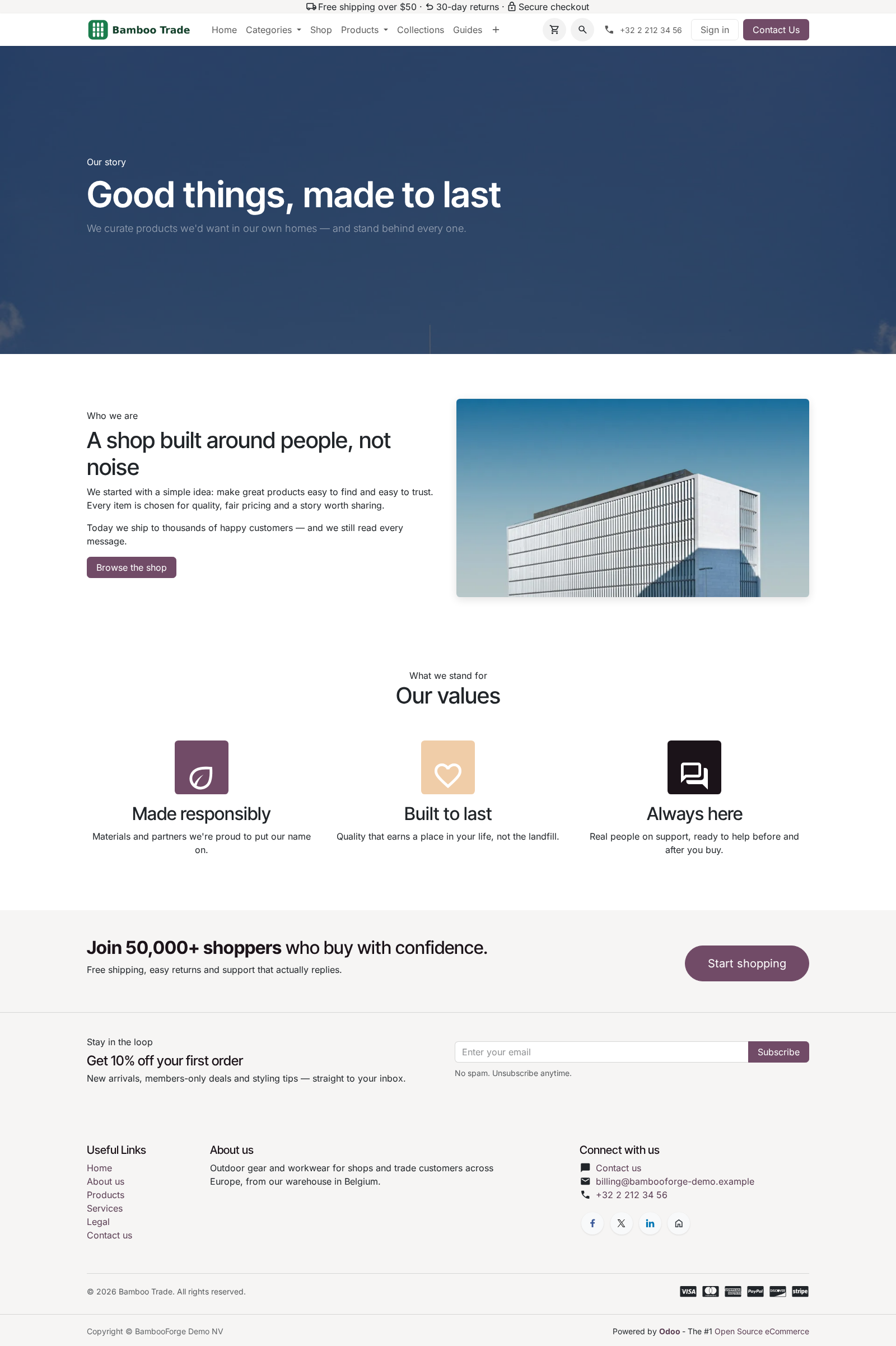
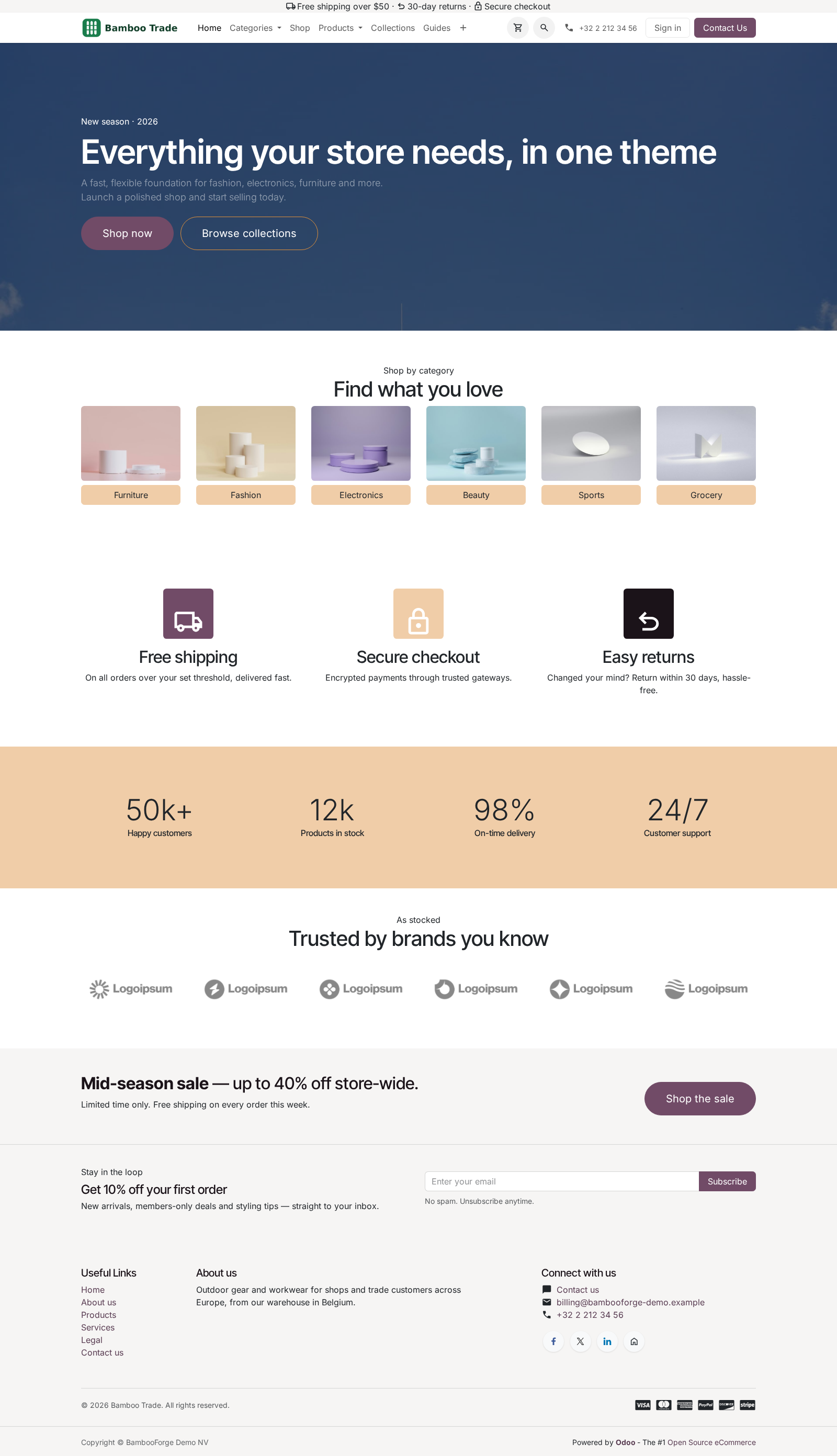
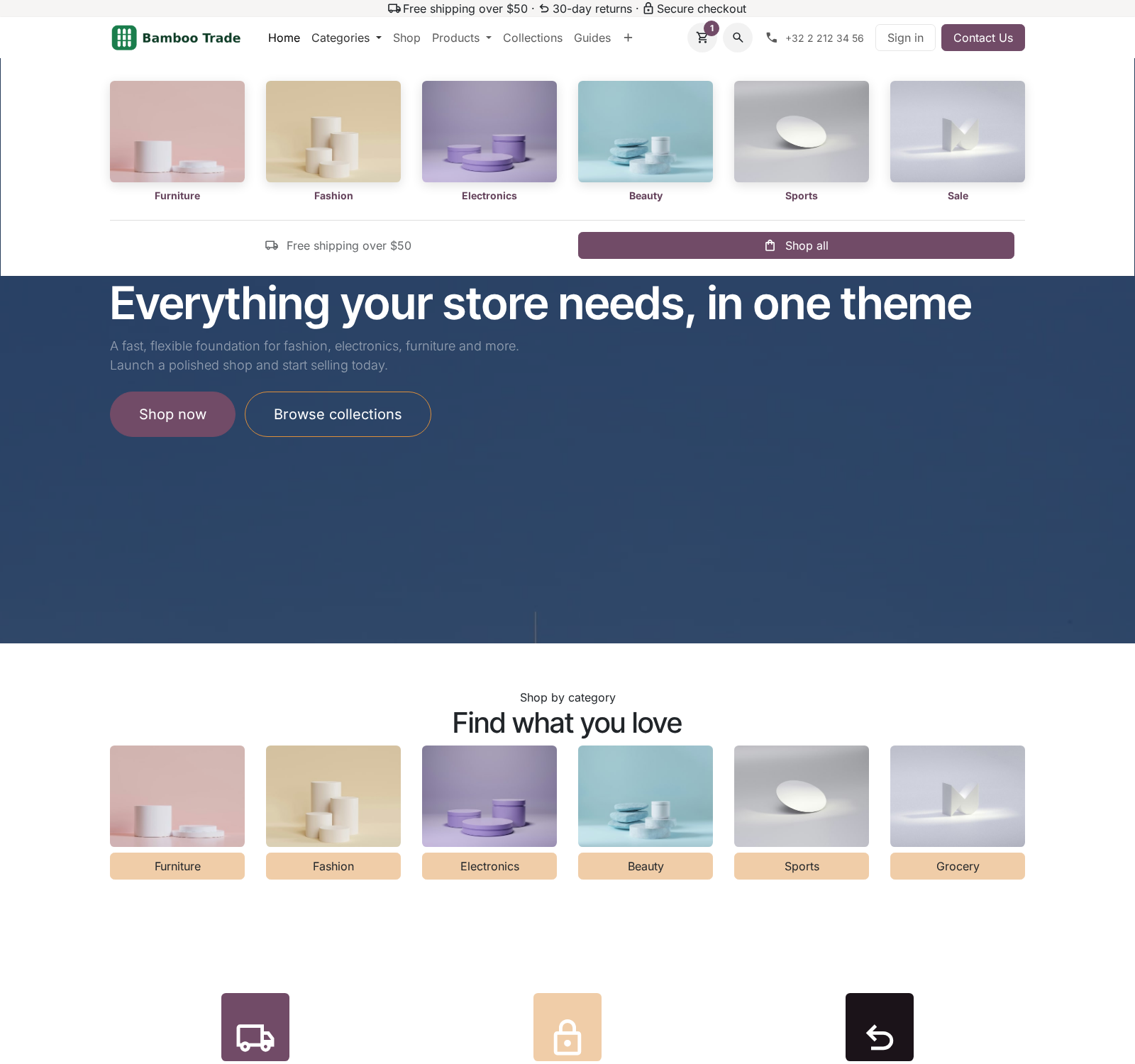
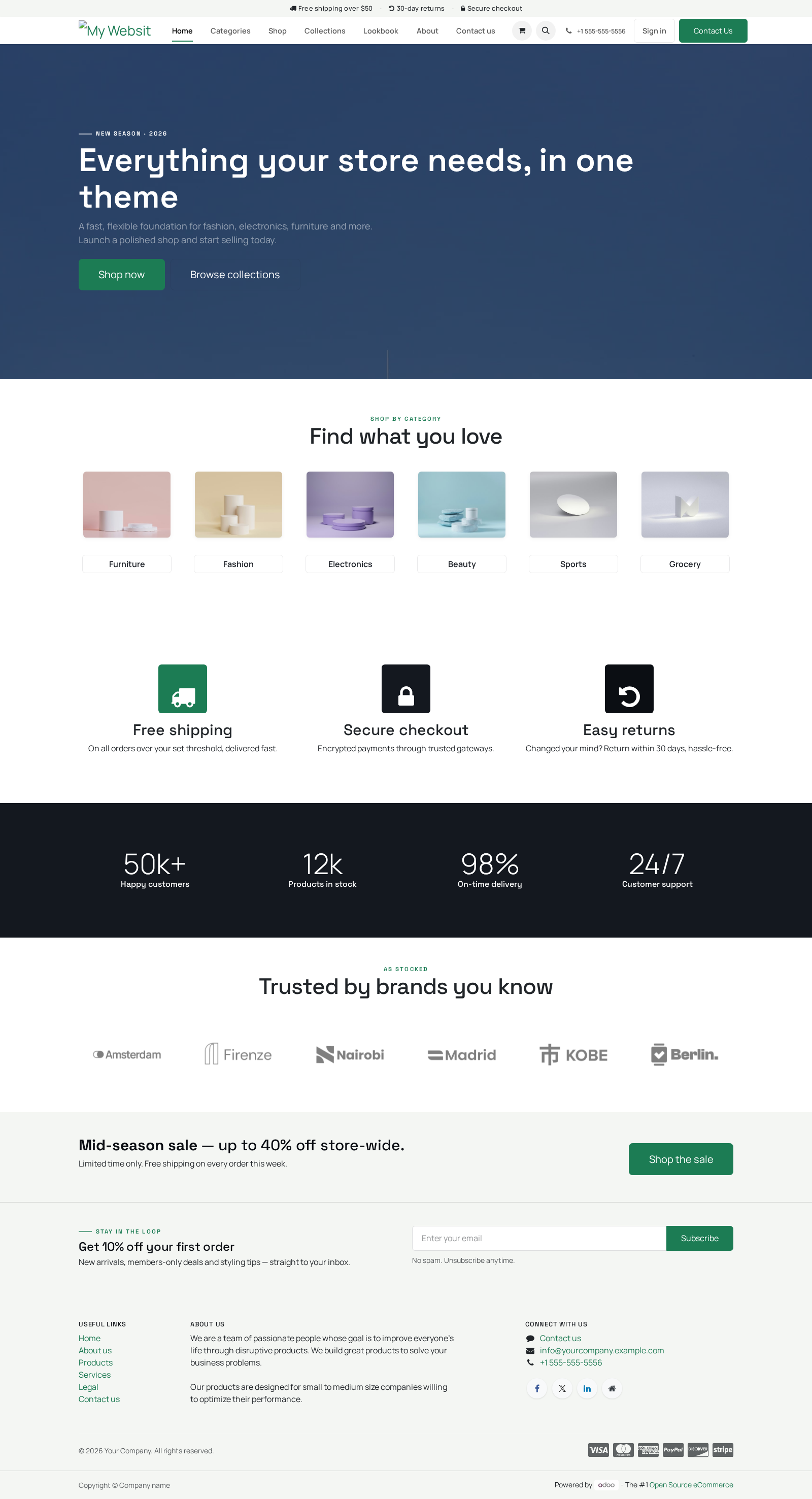
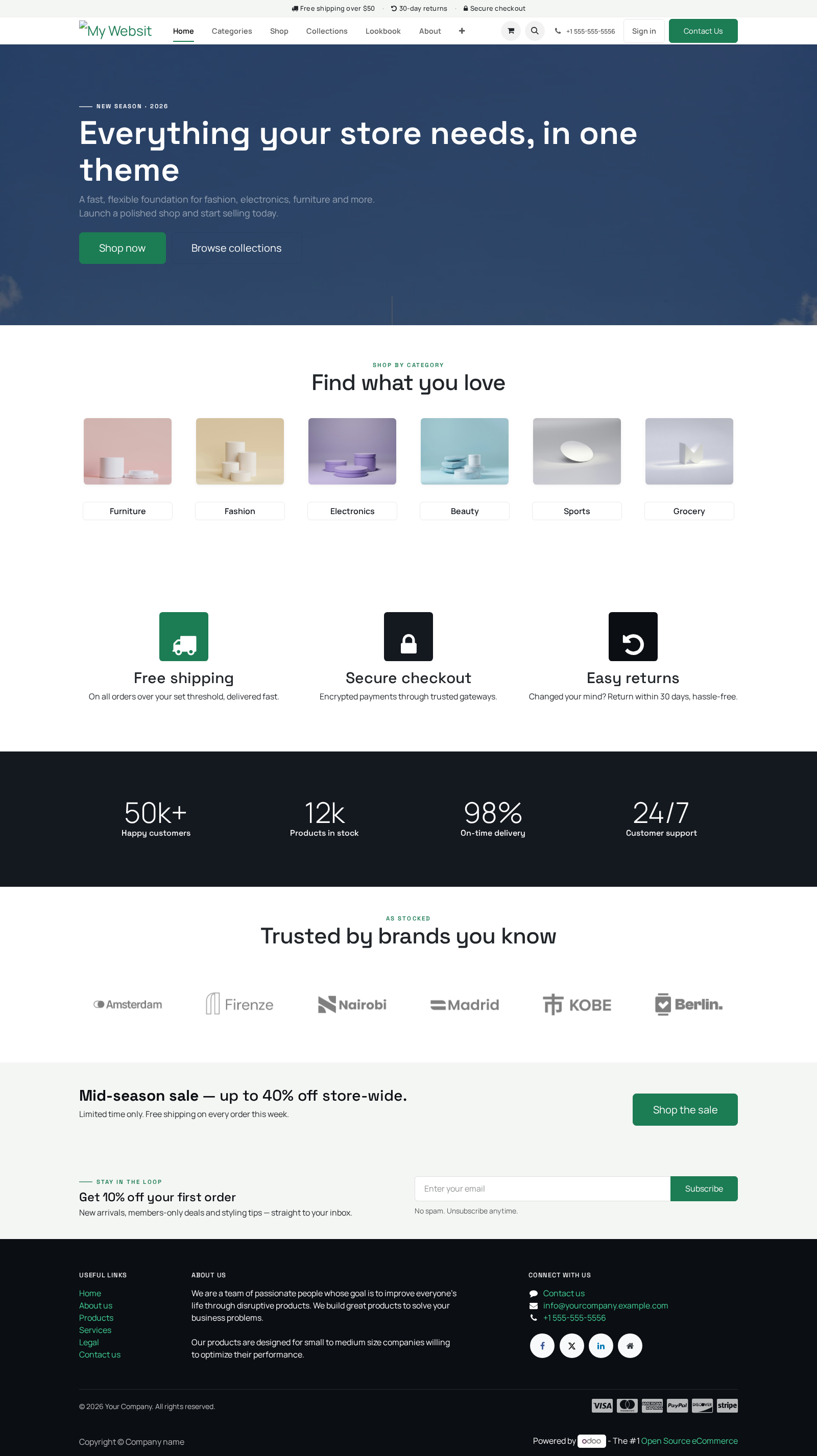
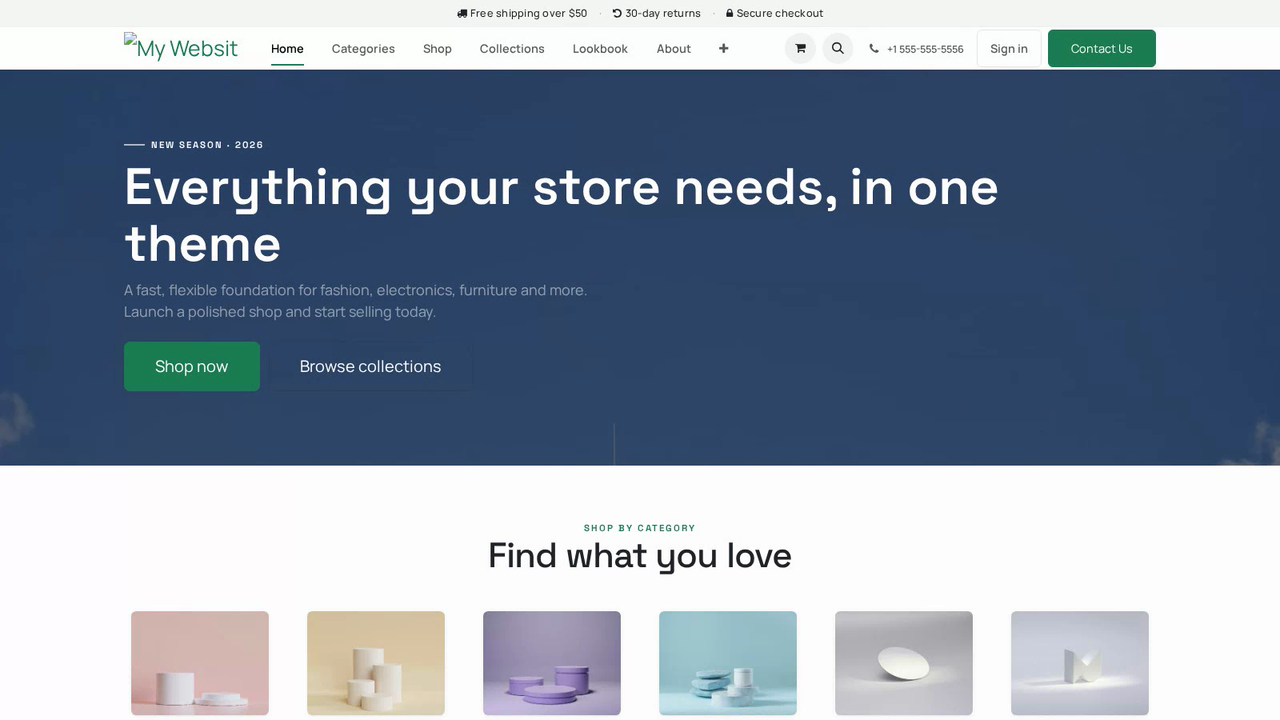
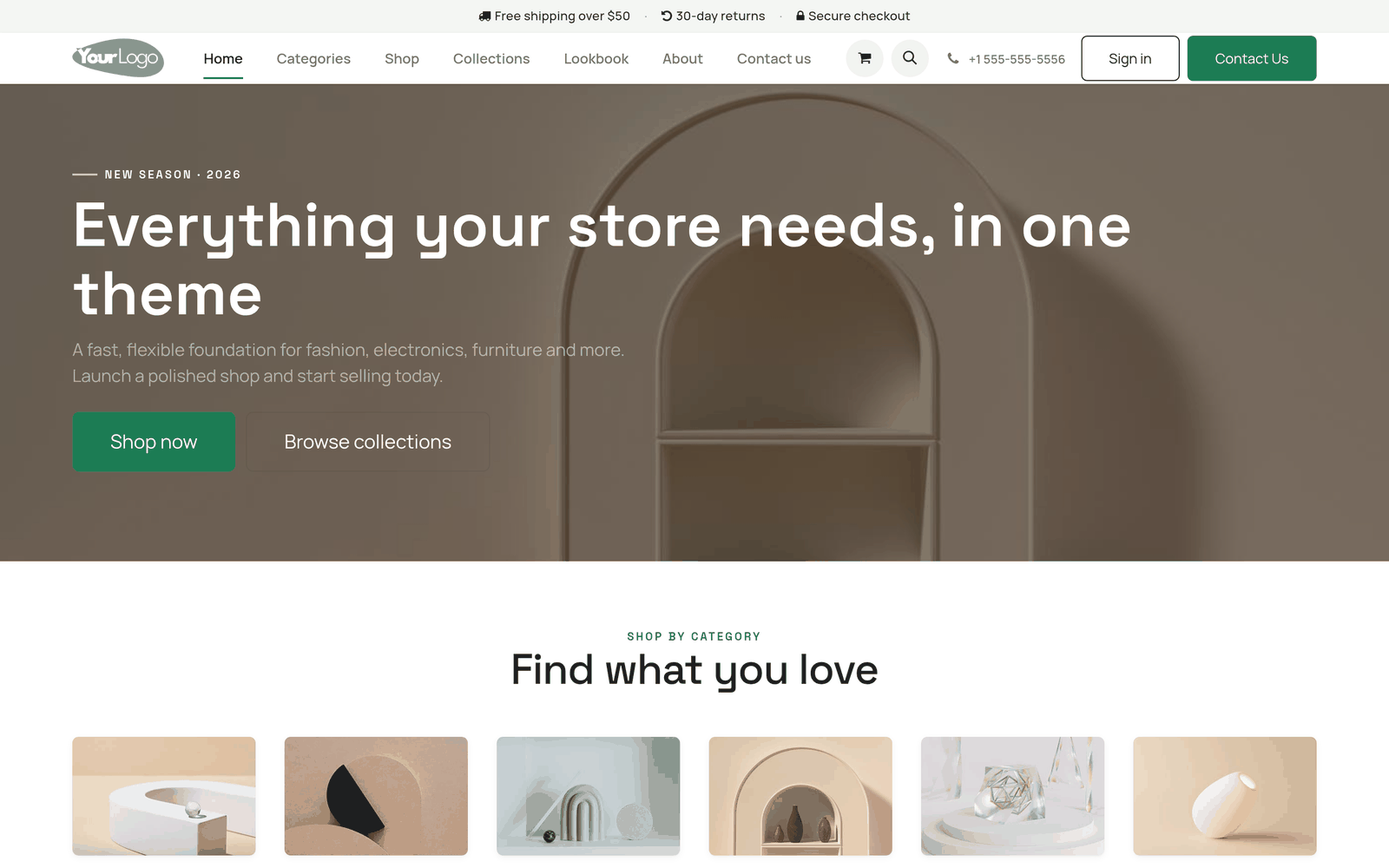
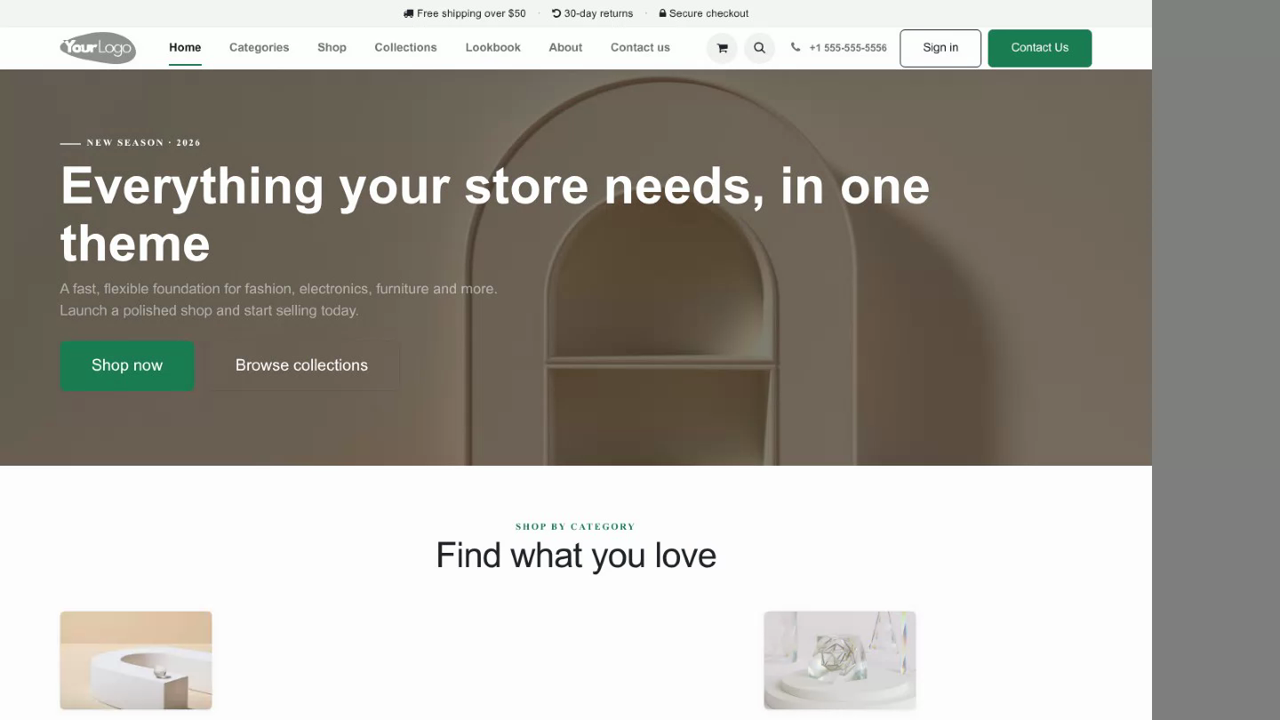
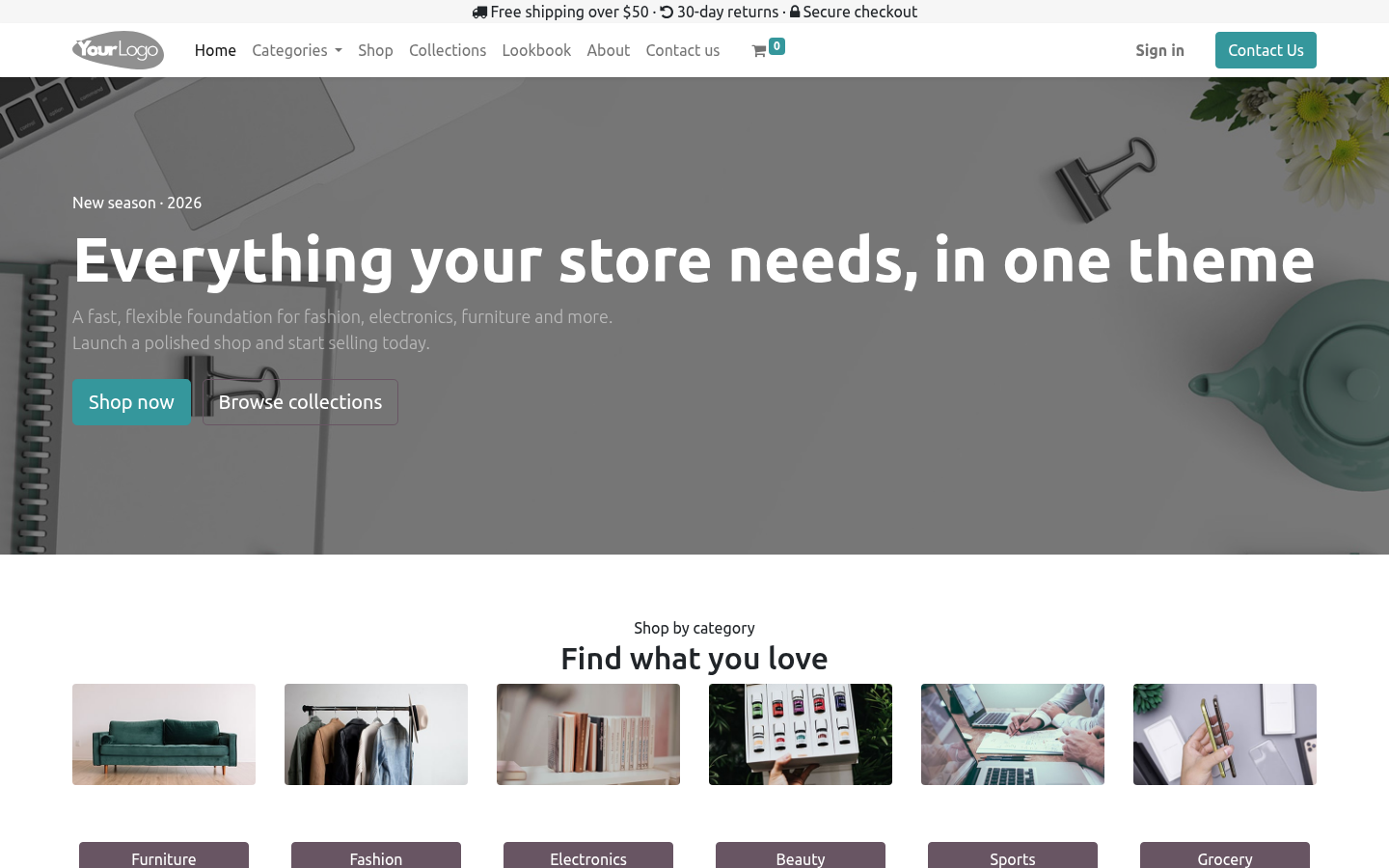
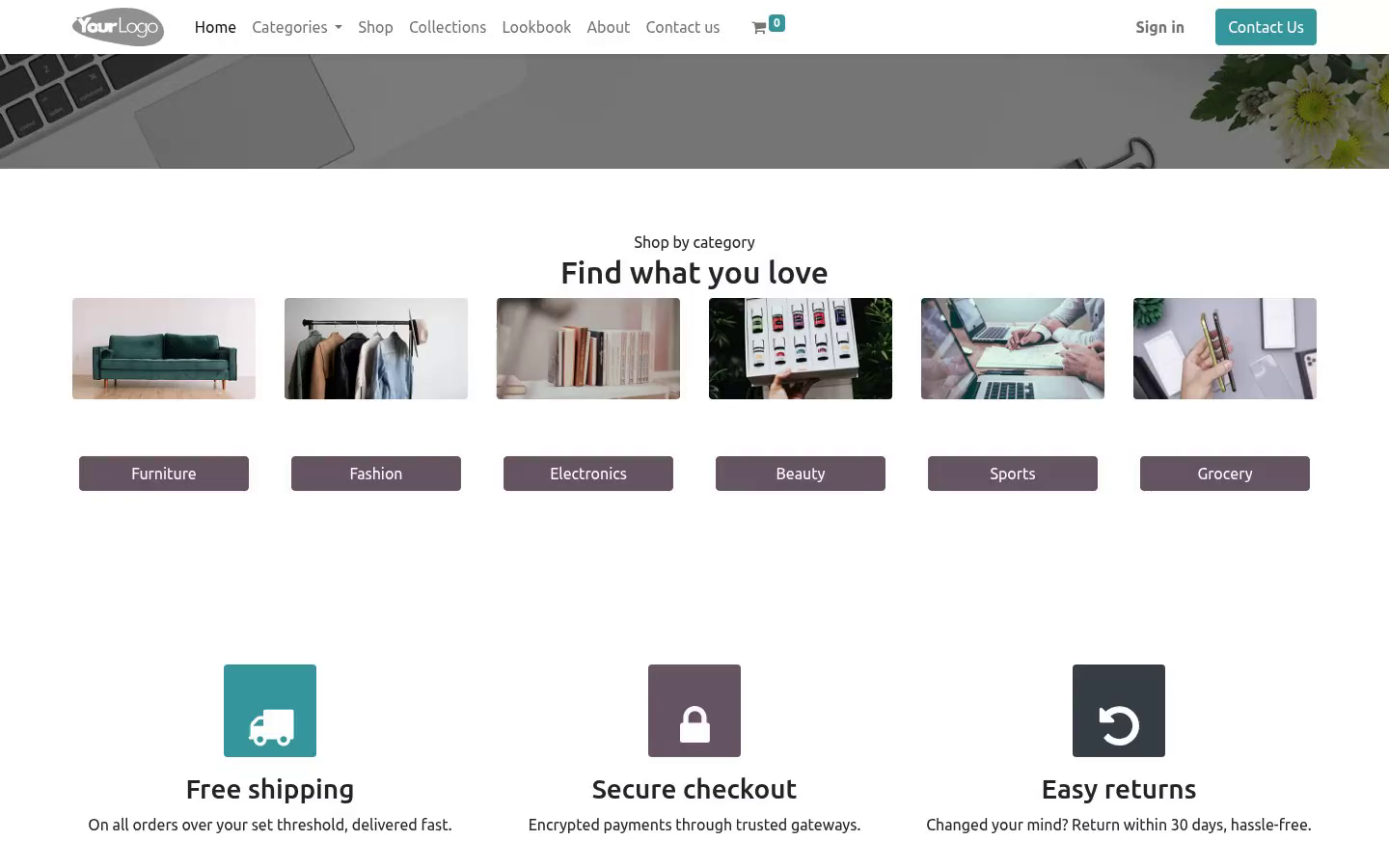
A designed homepage that replaces the blank default — a parallax hero, a shop-by-category grid, a service-features strip (free shipping / secure checkout / easy returns), a store-metrics band, a brand/trust strip and a promo call-to-action. Every section is standard Odoo snippet markup, so it stays fully editable.
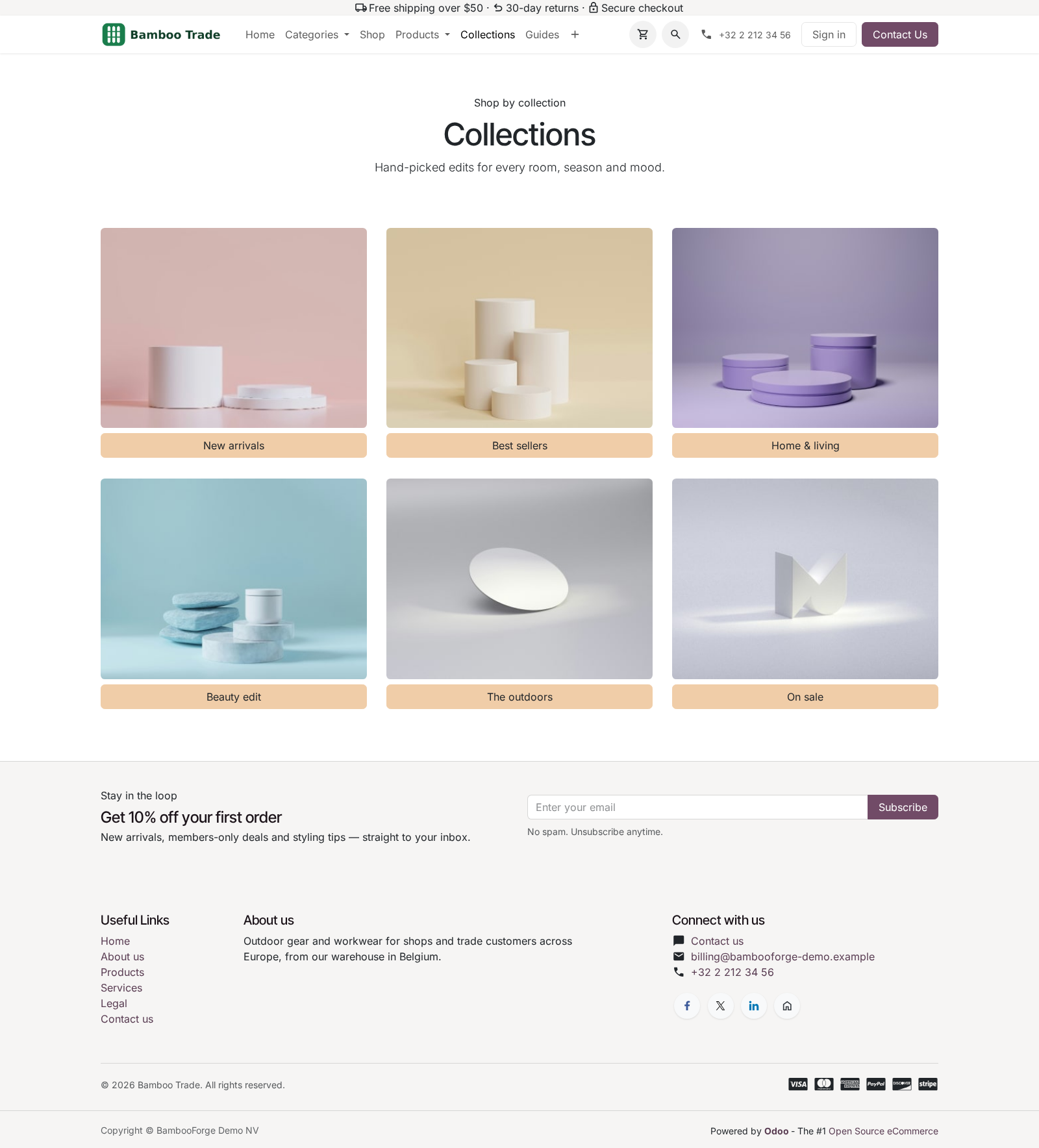
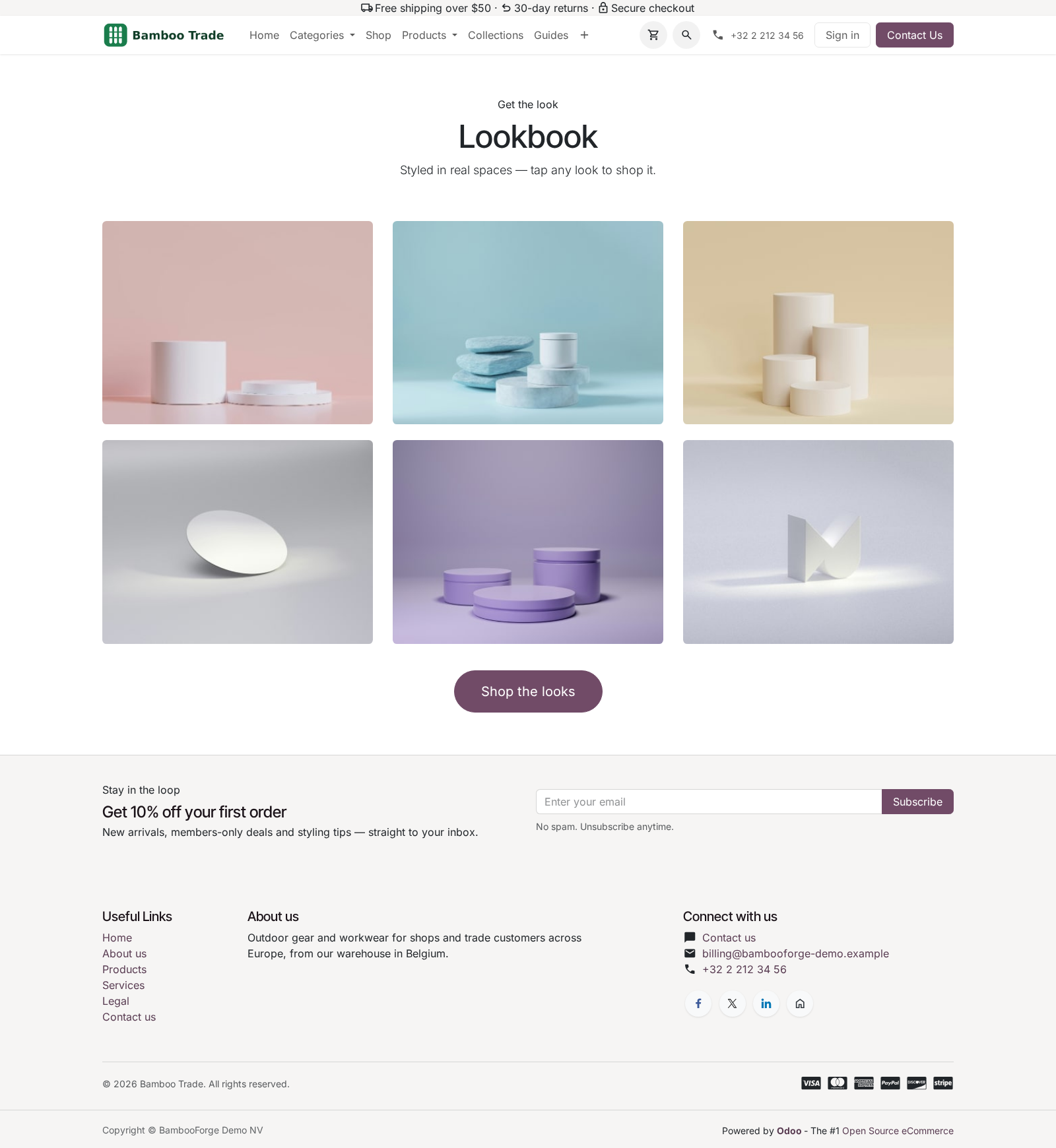
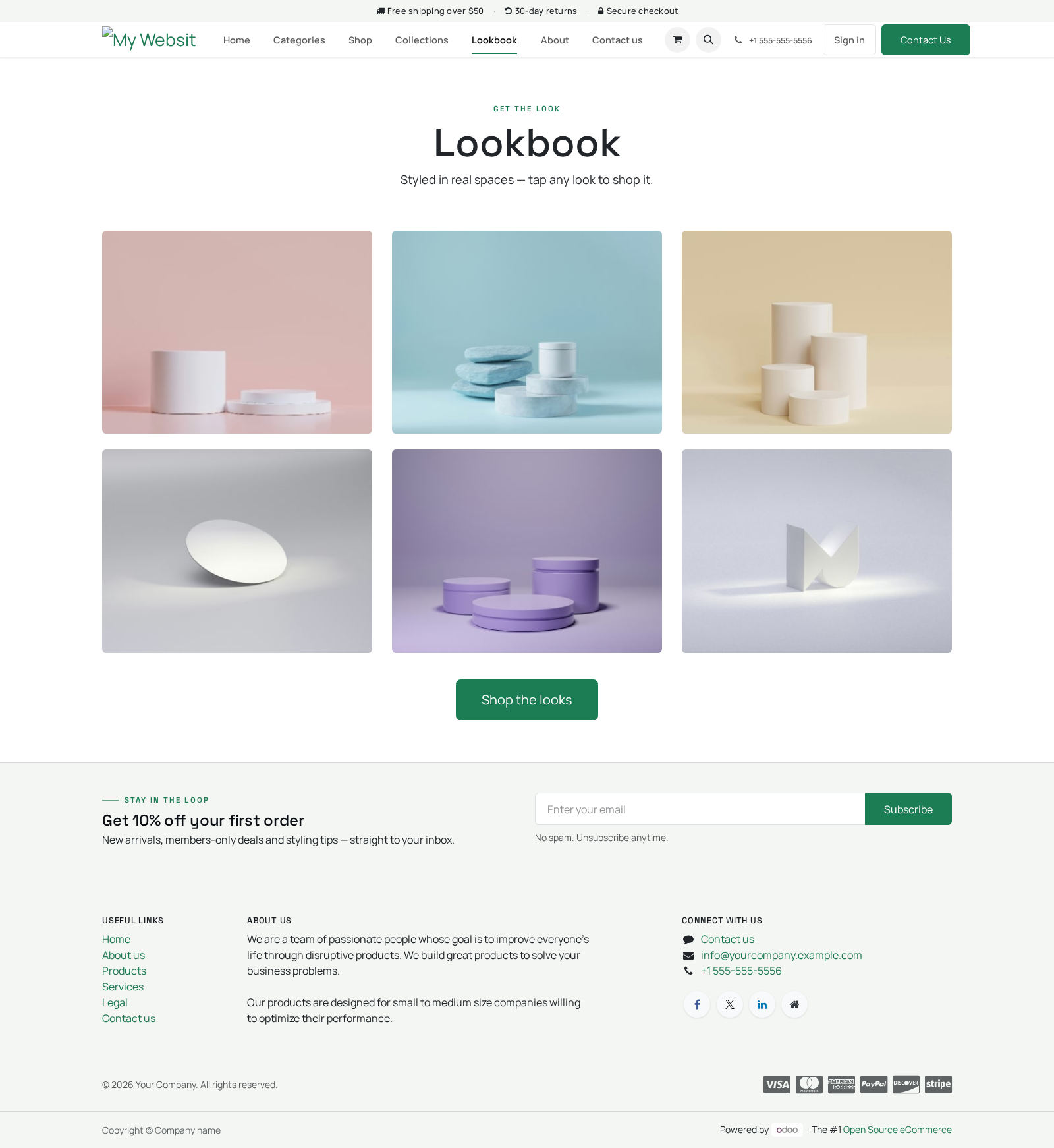
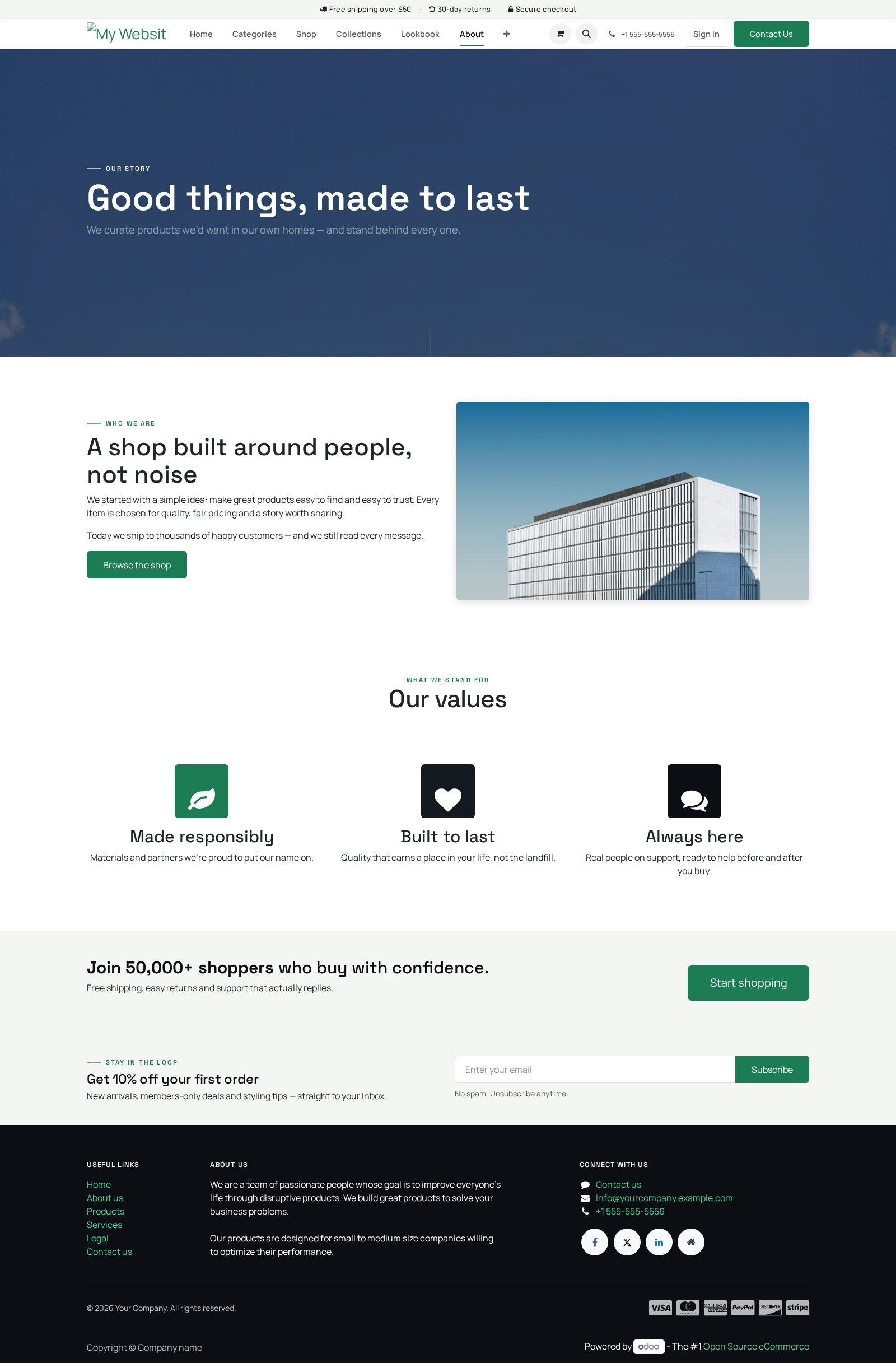
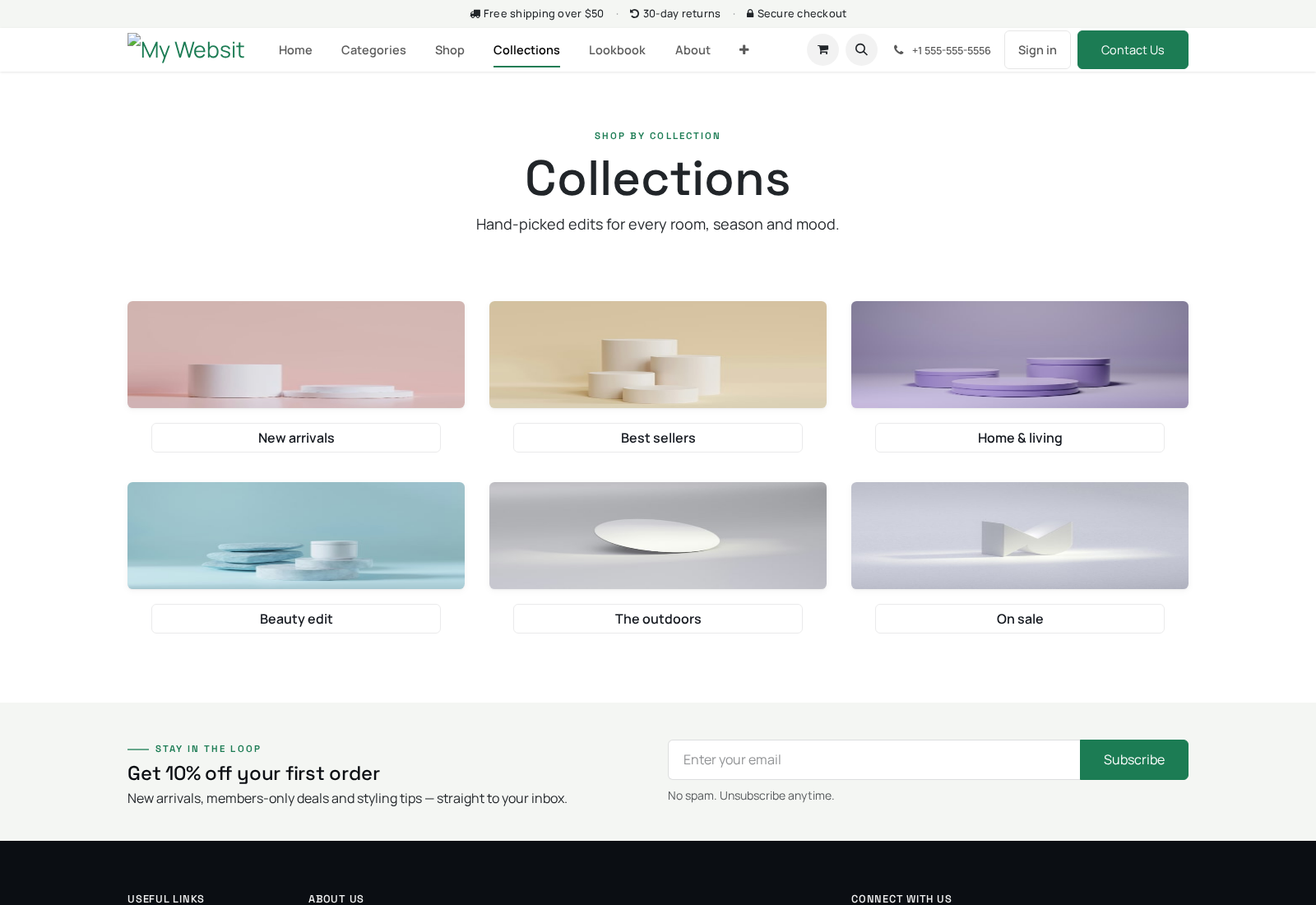
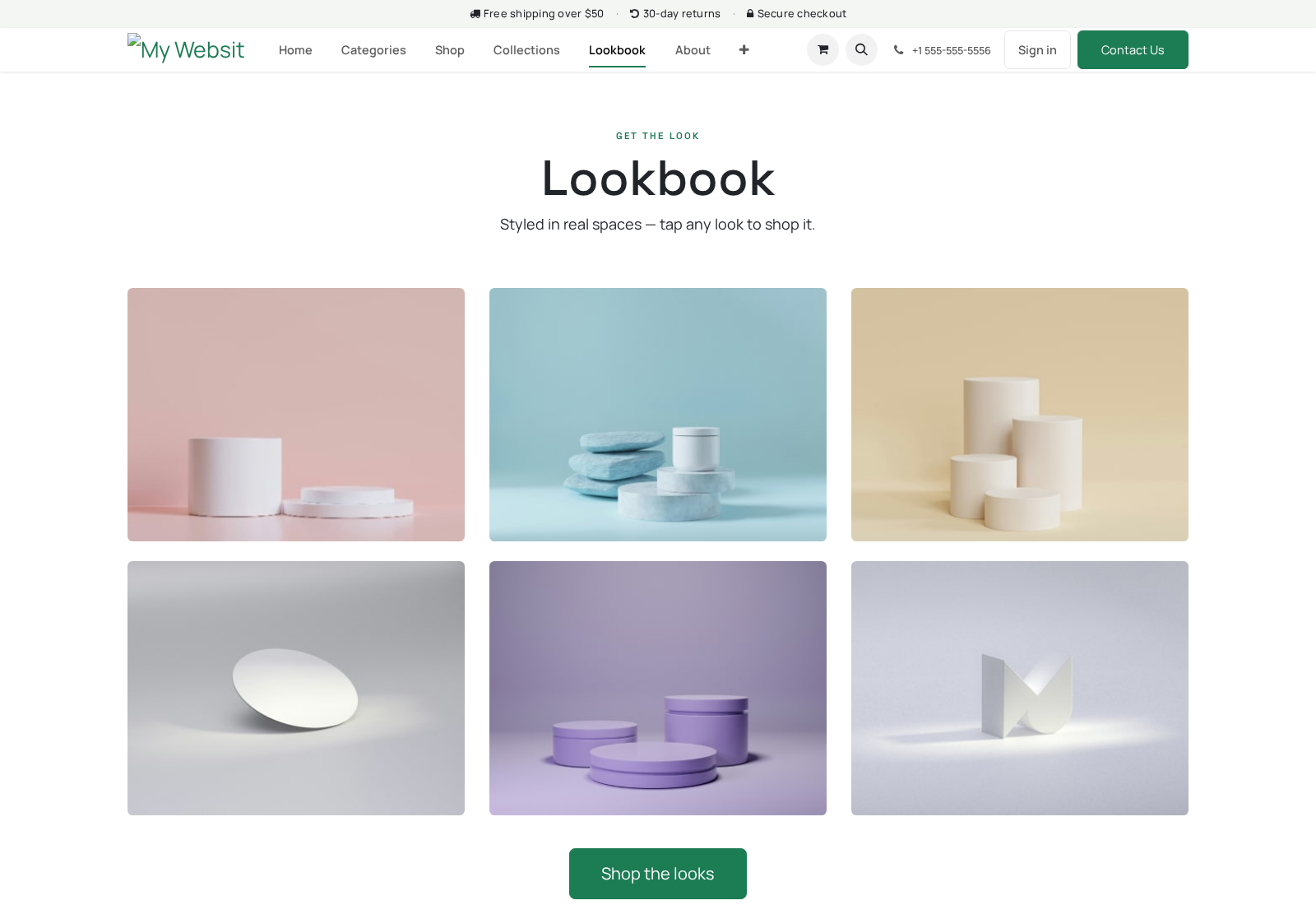
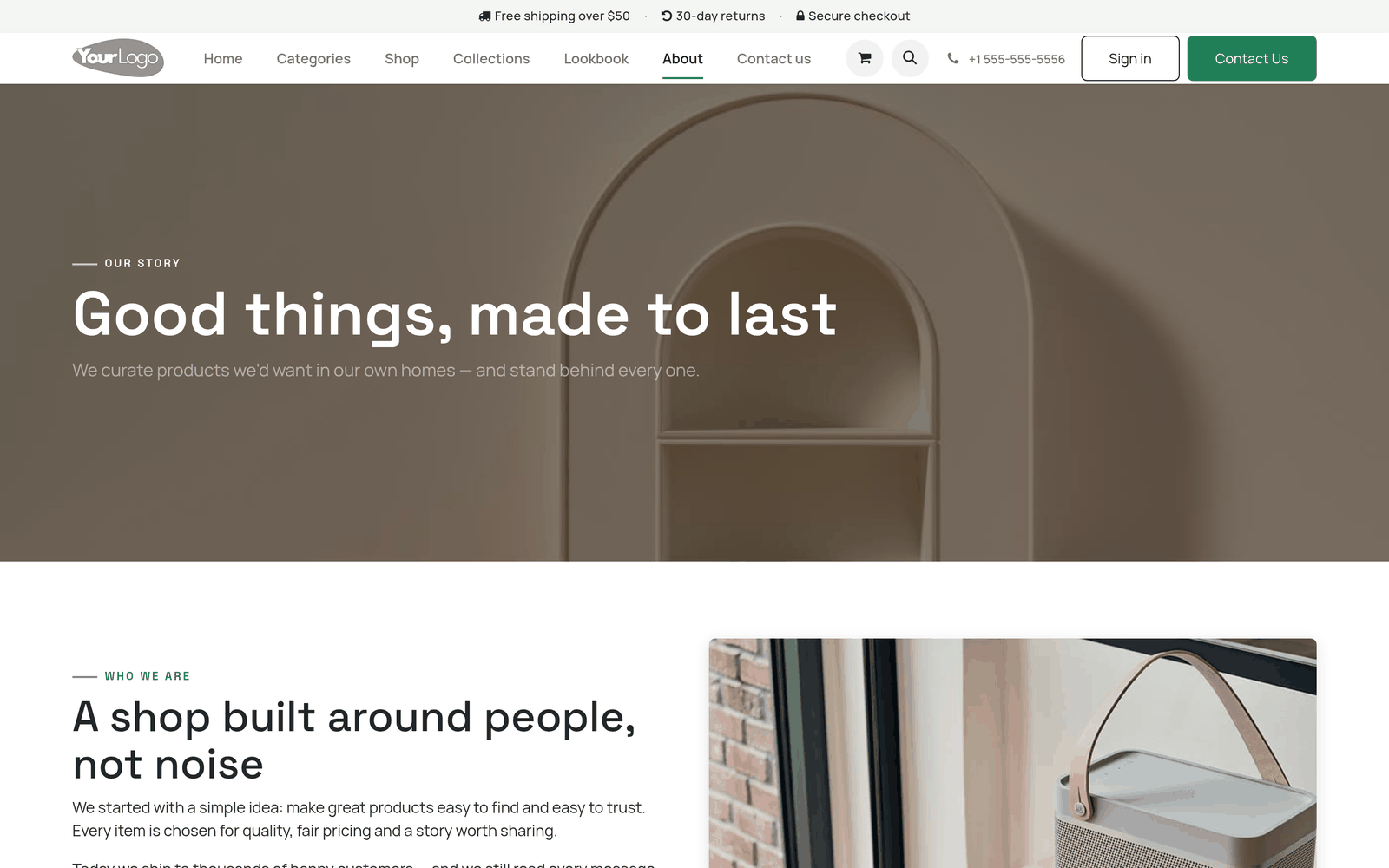
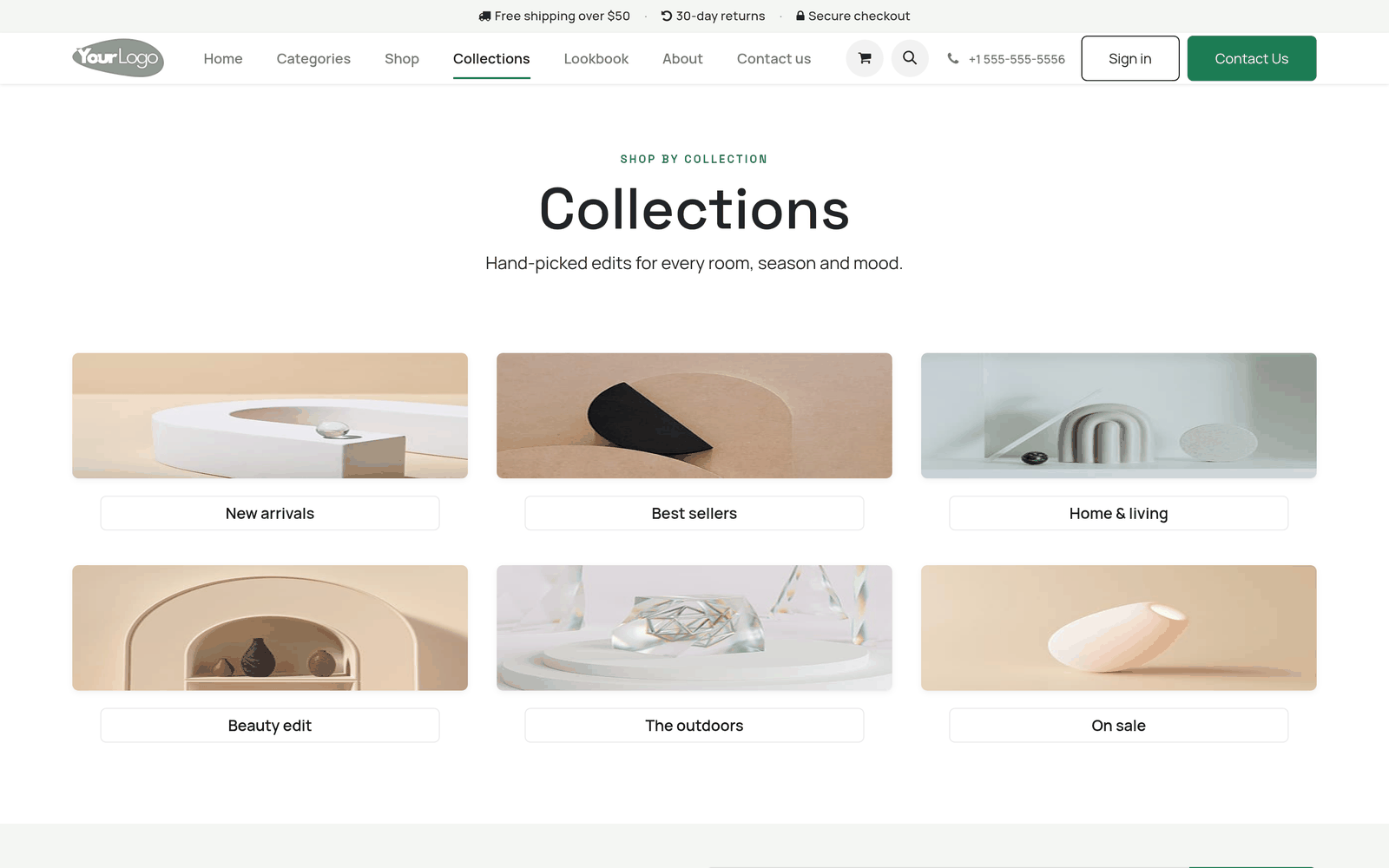
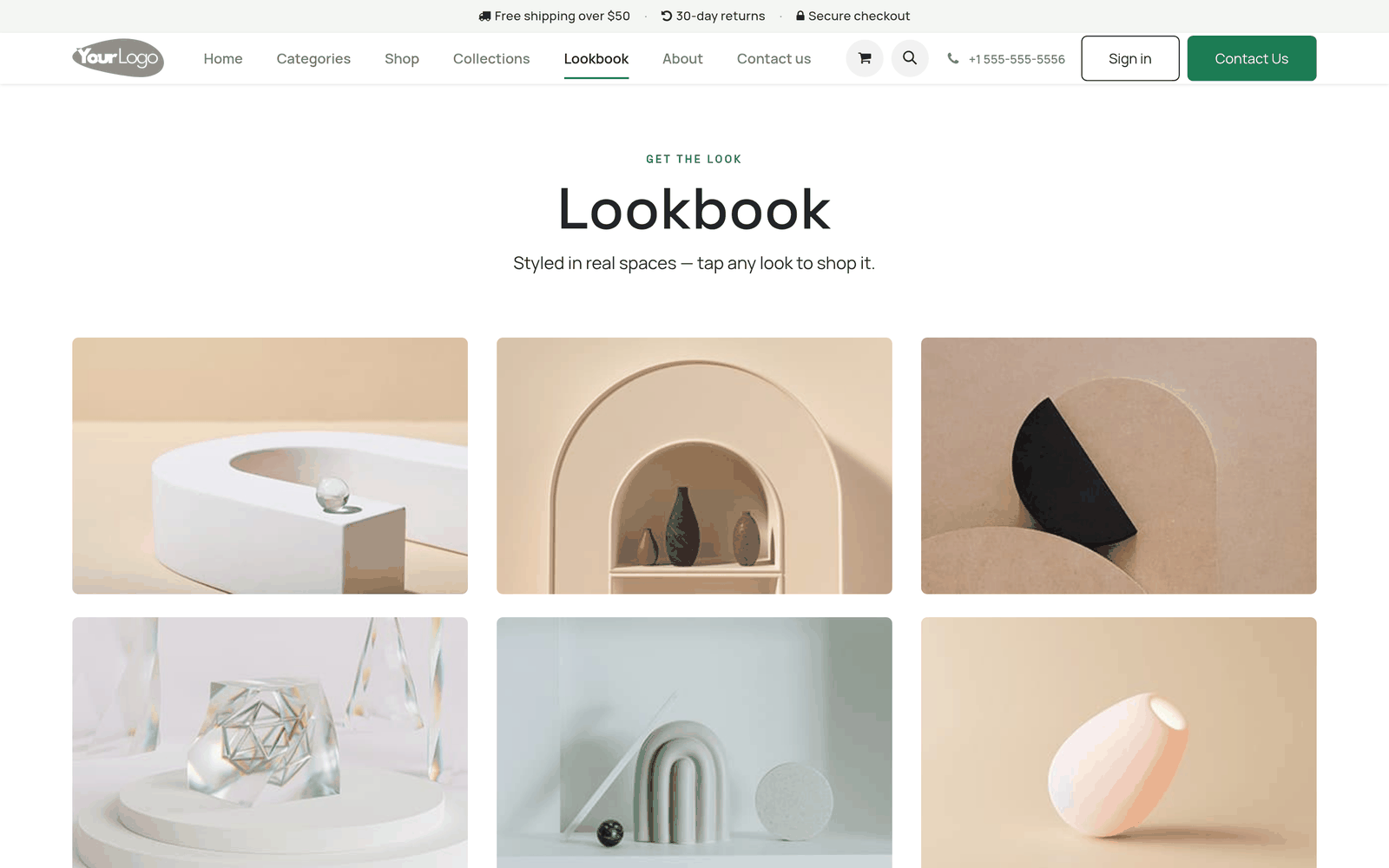
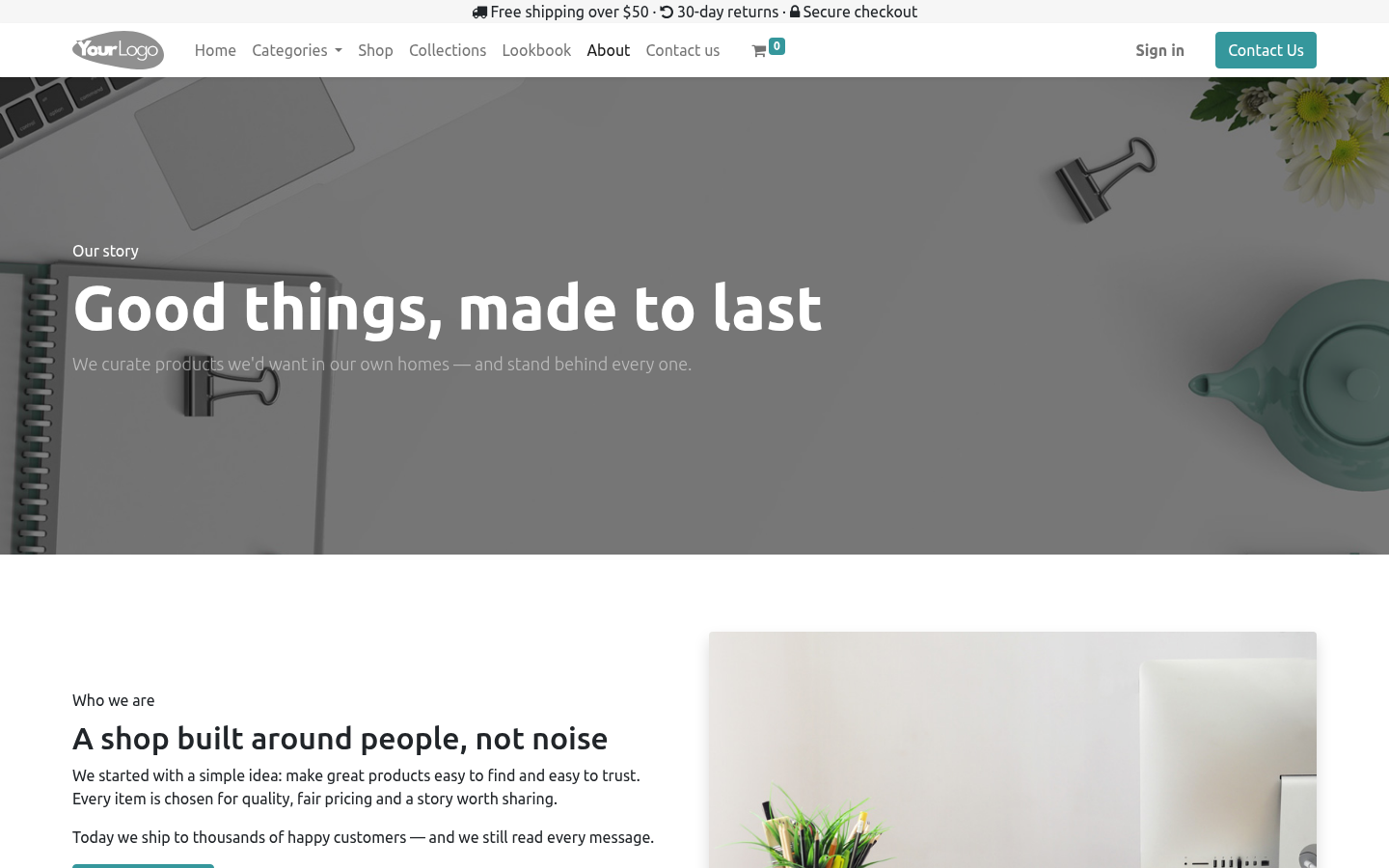
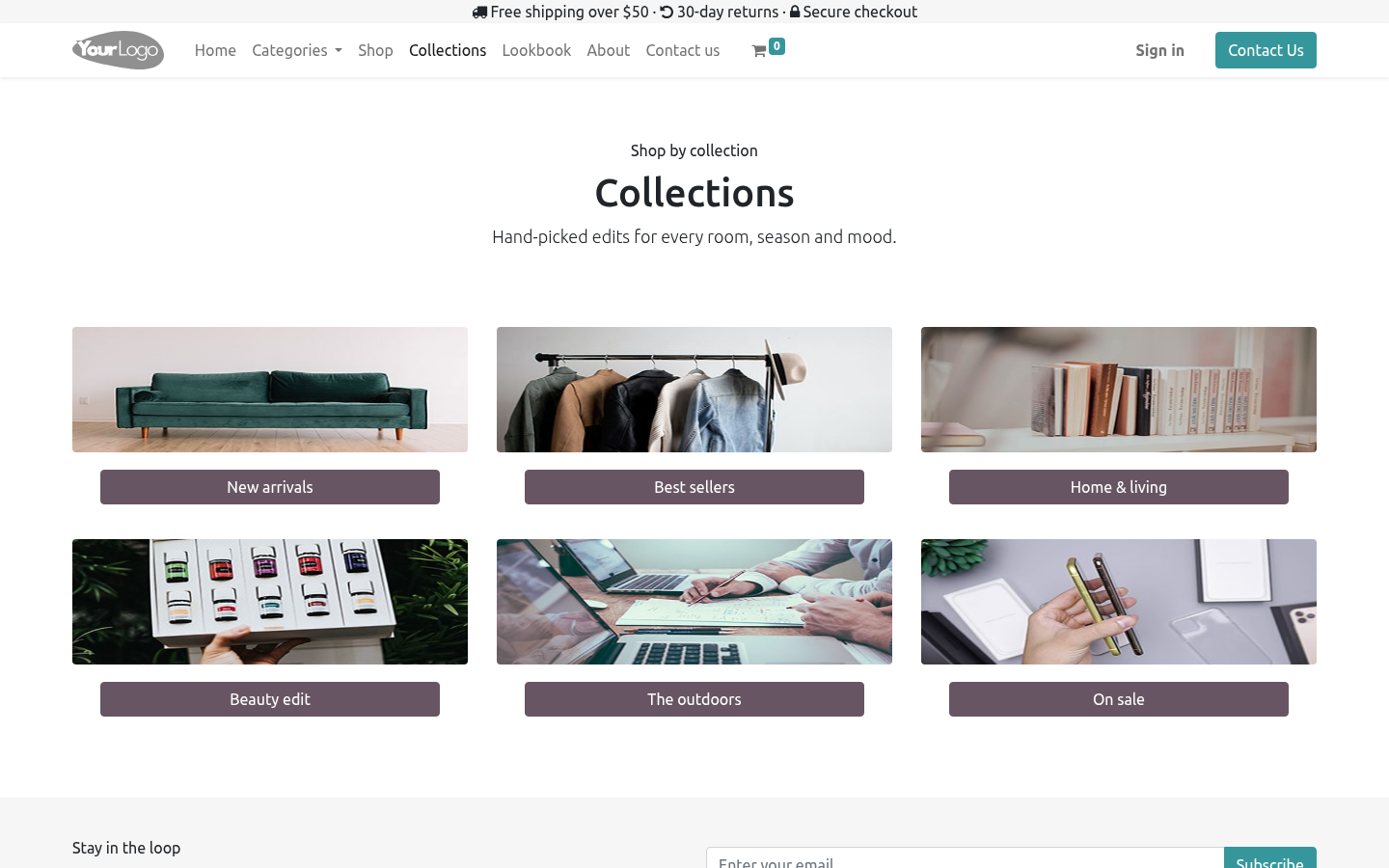
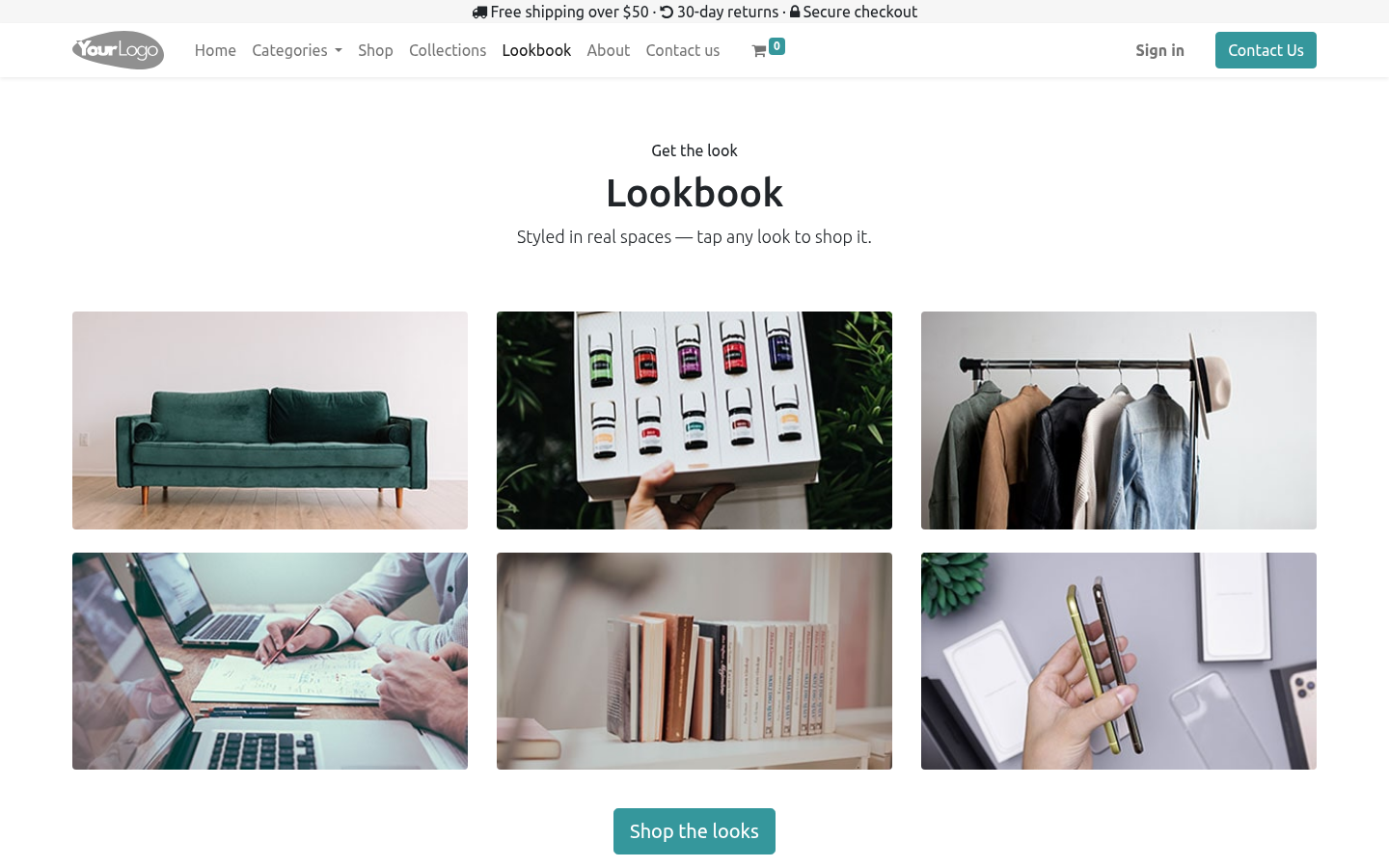
Three ready demo pages, each published with a navigation link: About (/about), Collections (/collections) and Lookbook (/lookbook).
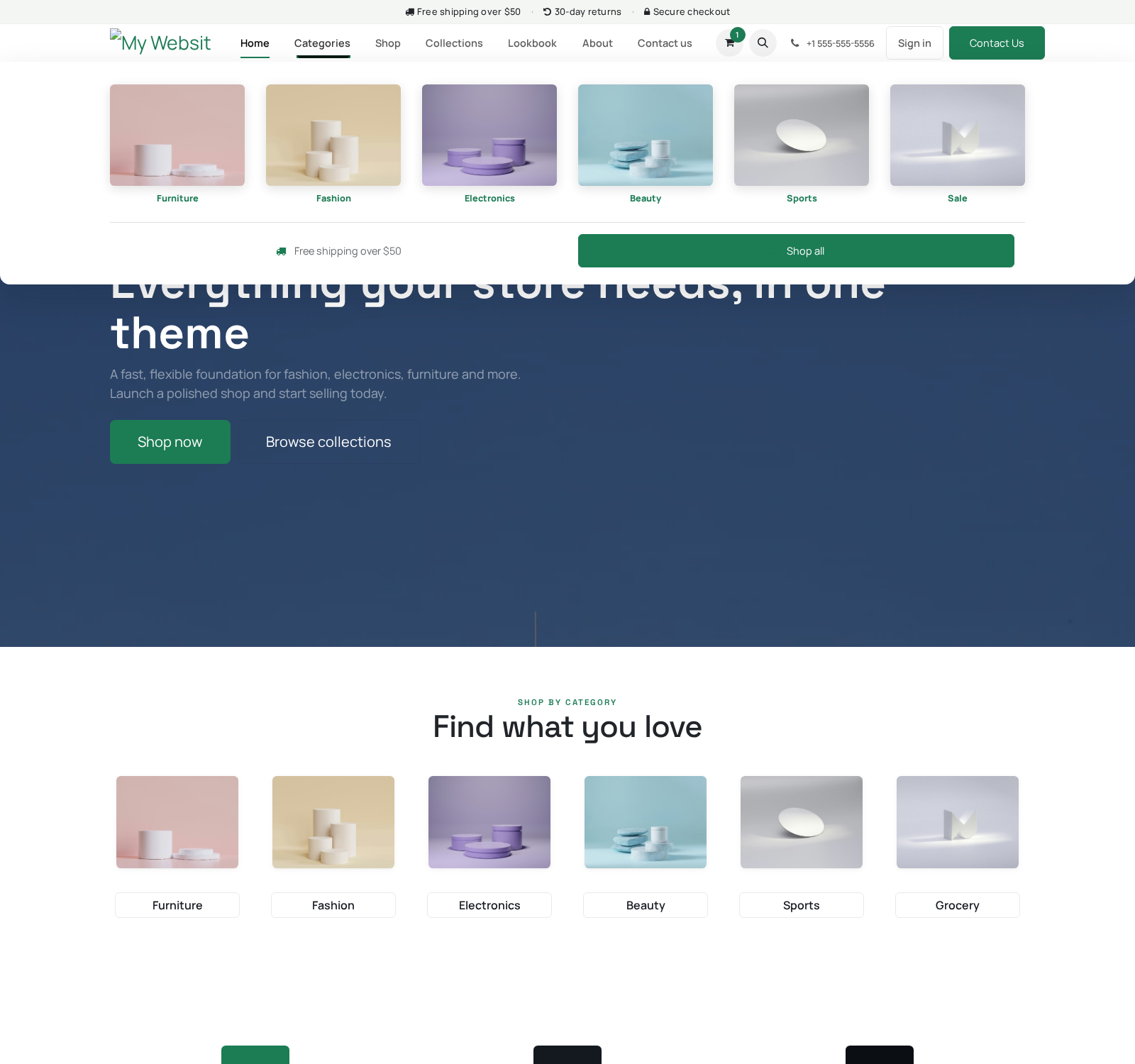
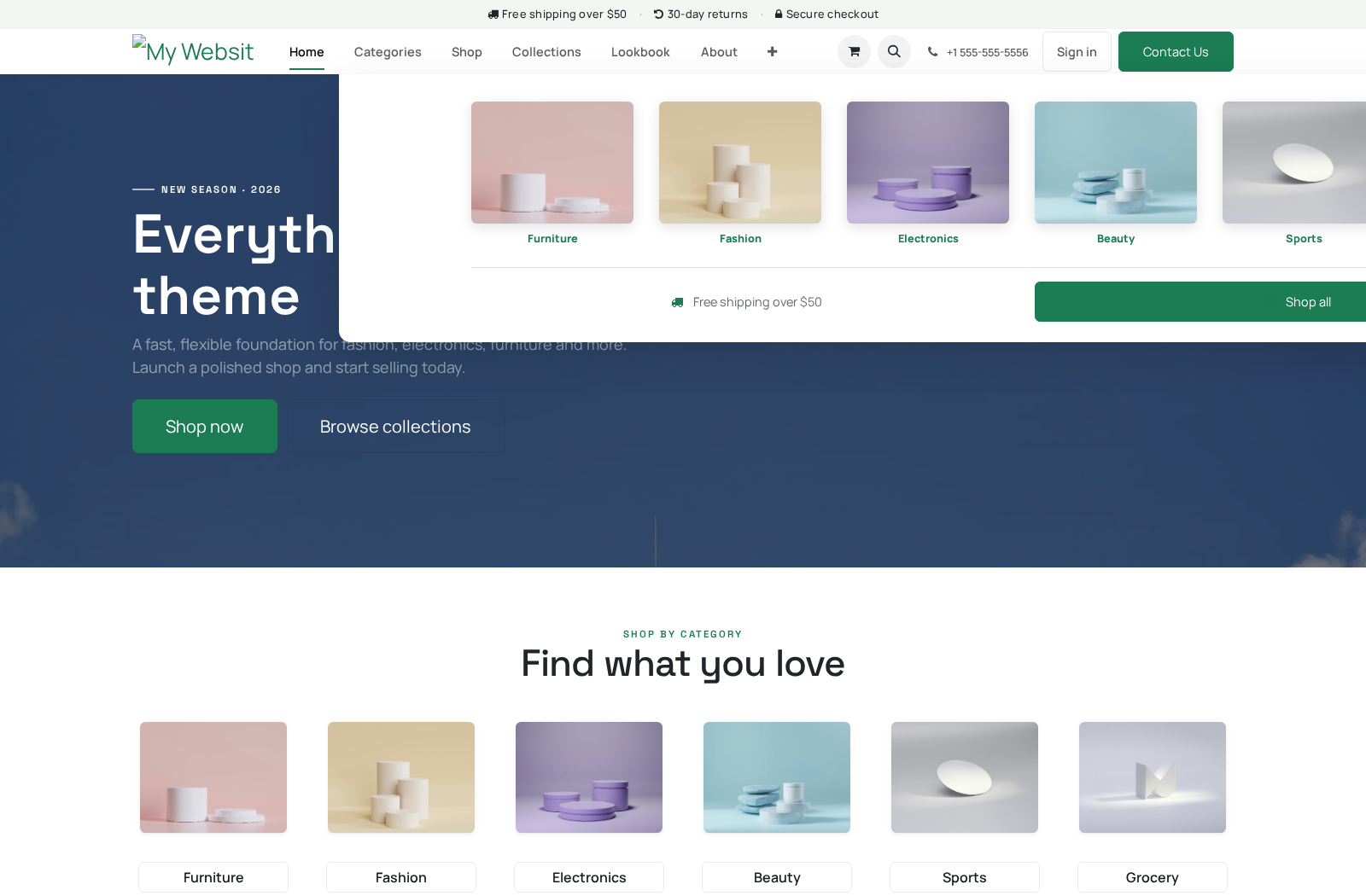
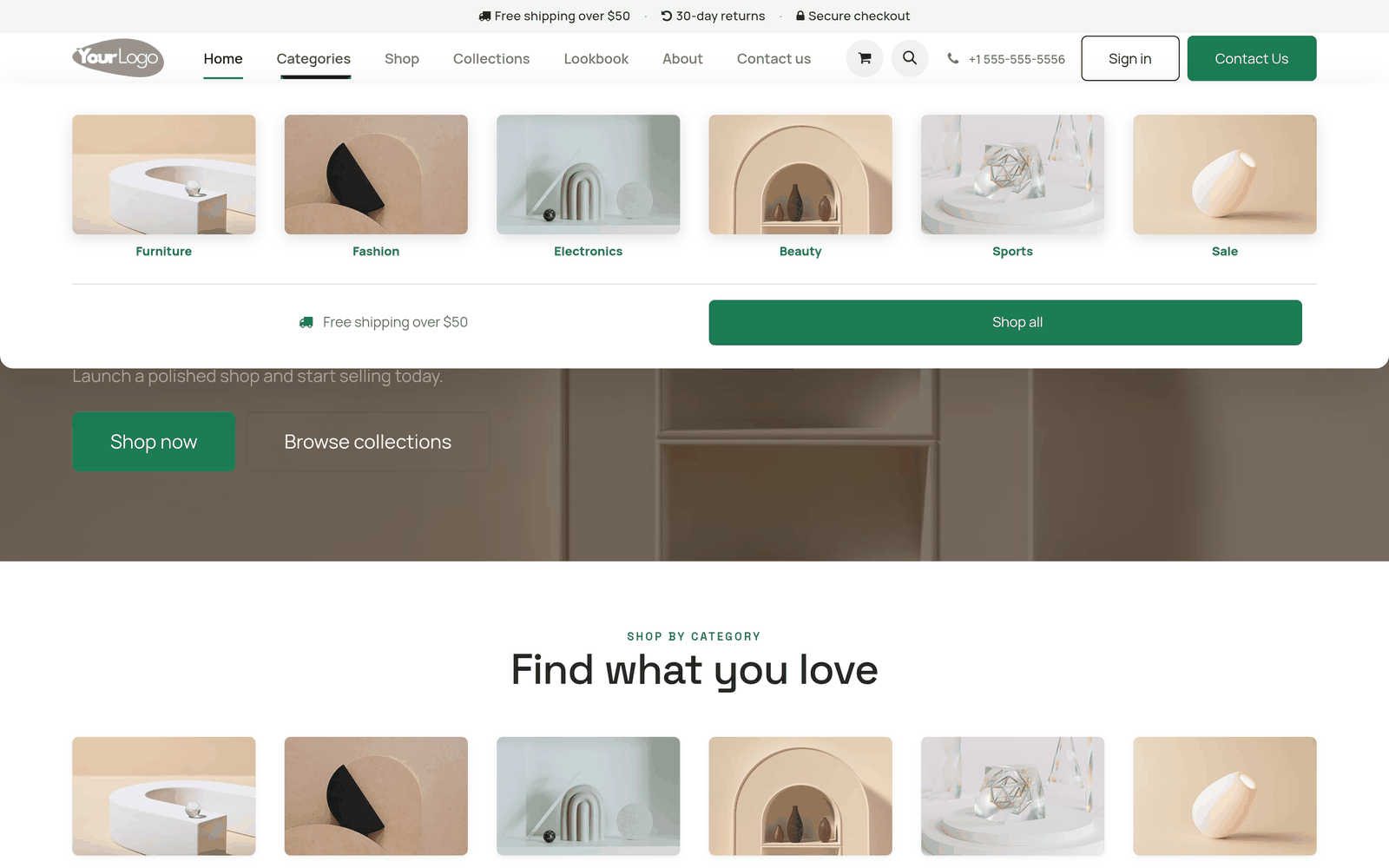
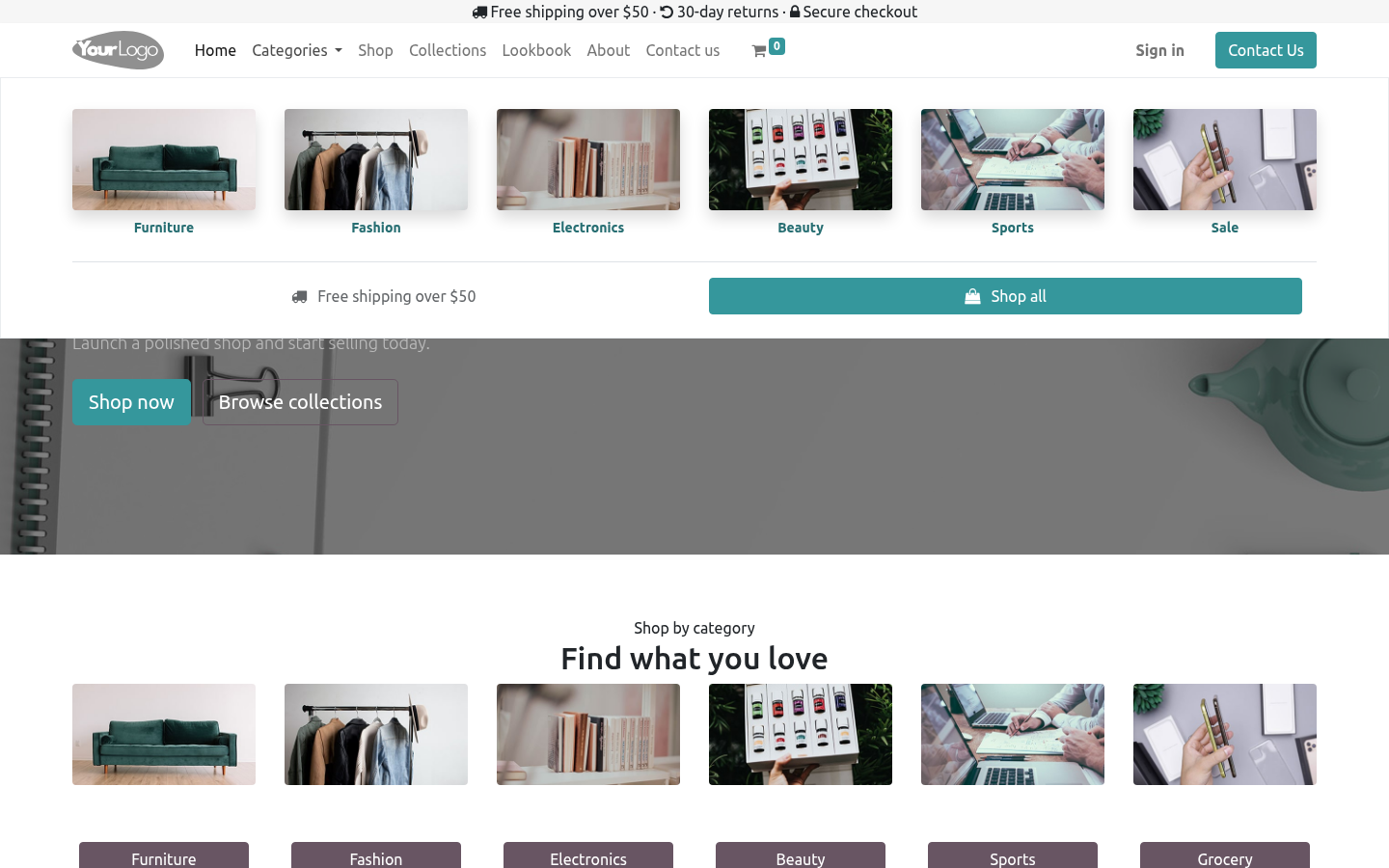
A Categories mega menu in the header (thumbnail style) with six category tiles and a "free shipping / shop all" footer row — repoint the links and images at your own categories.
An announcement / promo bar above the header (free shipping · 30-day returns · secure checkout), which works on any header template.
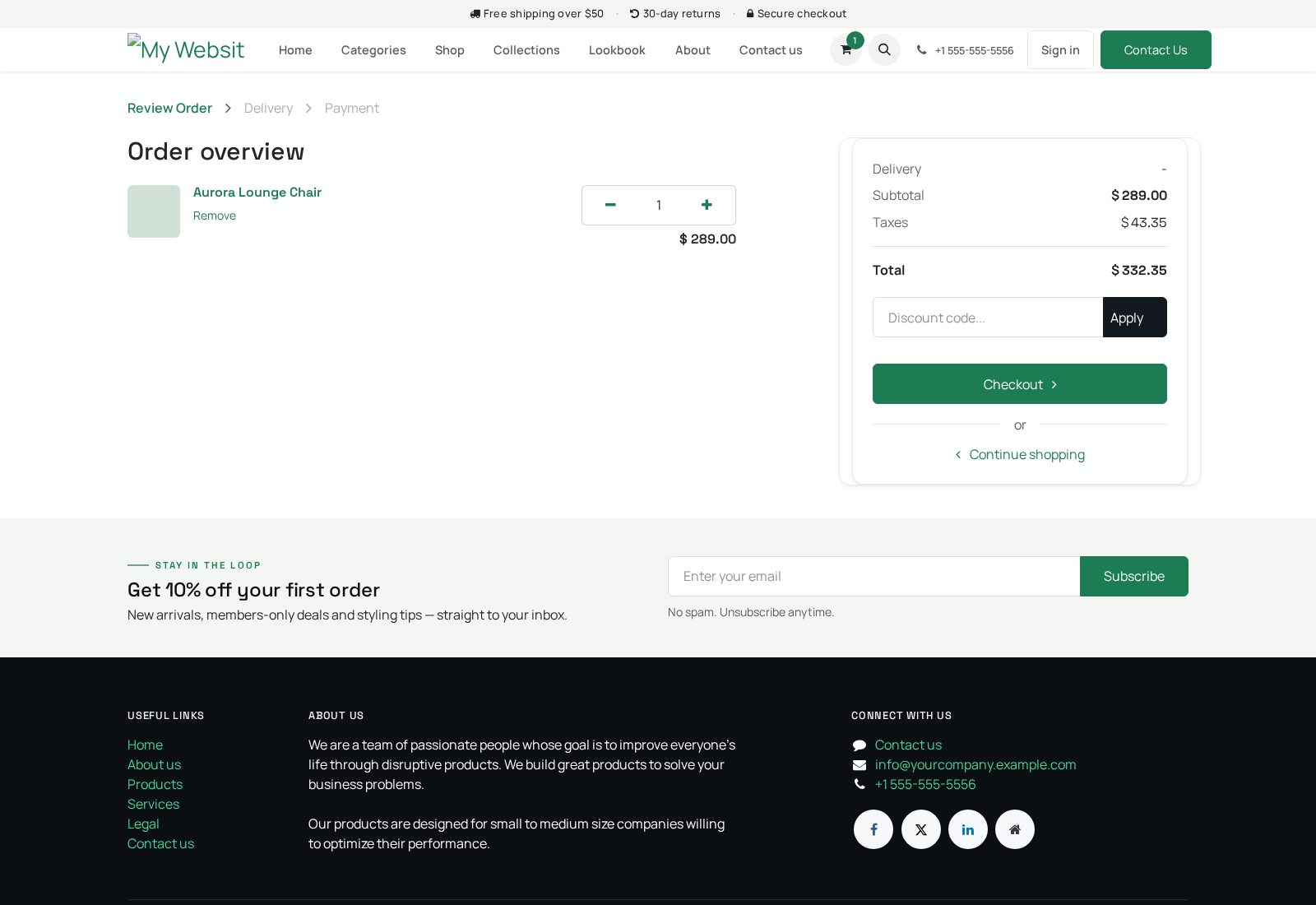
A sticky eCommerce header and a generous footer, enabled automatically when the theme is applied.
Three swappable colour palettes that share one typography and component language (see Choosing a palette).
Retail-tuned typography — Space Grotesk for headings over Manrope for body text (with Sora, Fraunces and Inter also available to pick in the editor).
The building blocks
The theme restyles the standard Odoo website snippets rather than inventing new ones, so everything you drag from the Website Builder already matches the theme. The restyled blocks are: Cover, Banner, Product List (the category/collection grid), Three Columns, Features, Process Steps, Numbers, Quotes Carousel, References, Call to Action, and the Thumbnails mega menu. Because they are the standard blocks, anything you already know about the Odoo editor still applies.
Requirements
Odoo: 20.0, Community or Enterprise.
Apps: the theme depends on Website eCommerce (website_sale) and on the theme_common support module. Installing the theme pulls both in automatically, and website_sale brings the Website app with it — so a working Shop is in place before the theme is applied.
Python: no extra libraries beyond a standard Odoo 20 install.
Access: activating a theme and editing pages requires a user in the Website administrator group (Settings ▸ Users ▸ Website / Administrator).
Installation & activation
A theme in Odoo is installed like any module, then applied to a website from the Website app. The two steps are separate.
Install the module
Copy bambooforge_storefront into your Odoo addons path.
Restart the Odoo service.
Open Apps, click Update Apps List, search for Storefront, and press Activate / Install. The dependencies (Website eCommerce and theme_common) install automatically.
Activate (apply) the theme
Installing the module makes the theme available; you still have to apply it to your website:
Open the Website app.
Go to Configuration ▸ Theme (or Website ▸ Edit ▸ Theme in the builder).
Pick BambooForge Storefront and confirm. Odoo applies the theme's styling, enables its sticky header and footer, and loads its homepage, demo pages and mega menu.
If you run several websites, apply the theme per website (switch the active website from the top-right website selector first).
Choosing a palette / preset
The theme ships three colour palettes. They are deliberately not the bright coral / cream / acid-green defaults — each is a distinct, brand-grounded retail mood, and all three reuse the same fonts, buttons and spacing so the theme stays cohesive whichever you pick:
Palette |
Mood |
Primary colour |
|---|---|---|
storefront-1 (Bamboo) |
Default — the BambooForge brand colour |
Jade green on a calm cool-light background |
storefront-2 (Volt) |
Electronics / tech |
Electric indigo on cool grey |
storefront-3 (Grove) |
Organic / home / wellness |
Olive on soft sage |
storefront-1 (Bamboo) is the default. To switch palette:
Open the website and click Edit to open the Website Builder.
In the right panel open the Theme tab.
Under Colors, pick a palette. Choose one of the three Storefront palettes (the theme also leaves Odoo's generic palettes available if you prefer them).
Click Save.
You can fine-tune the five palette colours, the heading and body fonts (Space Grotesk, Manrope, Sora, Fraunces, Inter) and the button shape from the same Theme tab without touching any code.
Customizing
Everything in the theme is built from standard snippets and standard website pages, so you customize it entirely from the Website Builder (the Edit button on any page).
Edit a section — hover a block, use the inline toolbar to change text, swap images, re-colour or remove it. Drag the handle to reorder sections.
Add a block — click Edit, open the Blocks panel and drag any snippet onto the page. Because the theme restyles the standard blocks, new blocks already match.
Edit the homepage — open the home page and click Edit; replace the hero image, the six category tiles (each links to /shop by default — repoint them at your real product categories), the metrics and the promo banner.
Edit the Categories mega menu — in the builder, click the Categories item in the top menu; the mega-menu panel becomes editable in place. Change each tile's image, label and link to your own categories, and edit the "free shipping / shop all" row.
Edit the demo pages — open About, Collections or Lookbook and click Edit. They are ordinary published pages: change the copy and images, or delete a page and its menu link if you don't need it (Website ▸ Site ▸ Pages / Edit ▸ Menu).
Edit header, footer and the promo bar — change the logo and menu from the builder; the announcement bar text (free shipping · returns · secure checkout) is part of the layout and editable in the builder like any block.
Because the theme only restyles standard Odoo snippets, there are no theme-specific blocks to learn — your existing Odoo editor knowledge carries over.
Usage
After activation your shop has a complete front end. Populate it with your own catalog:
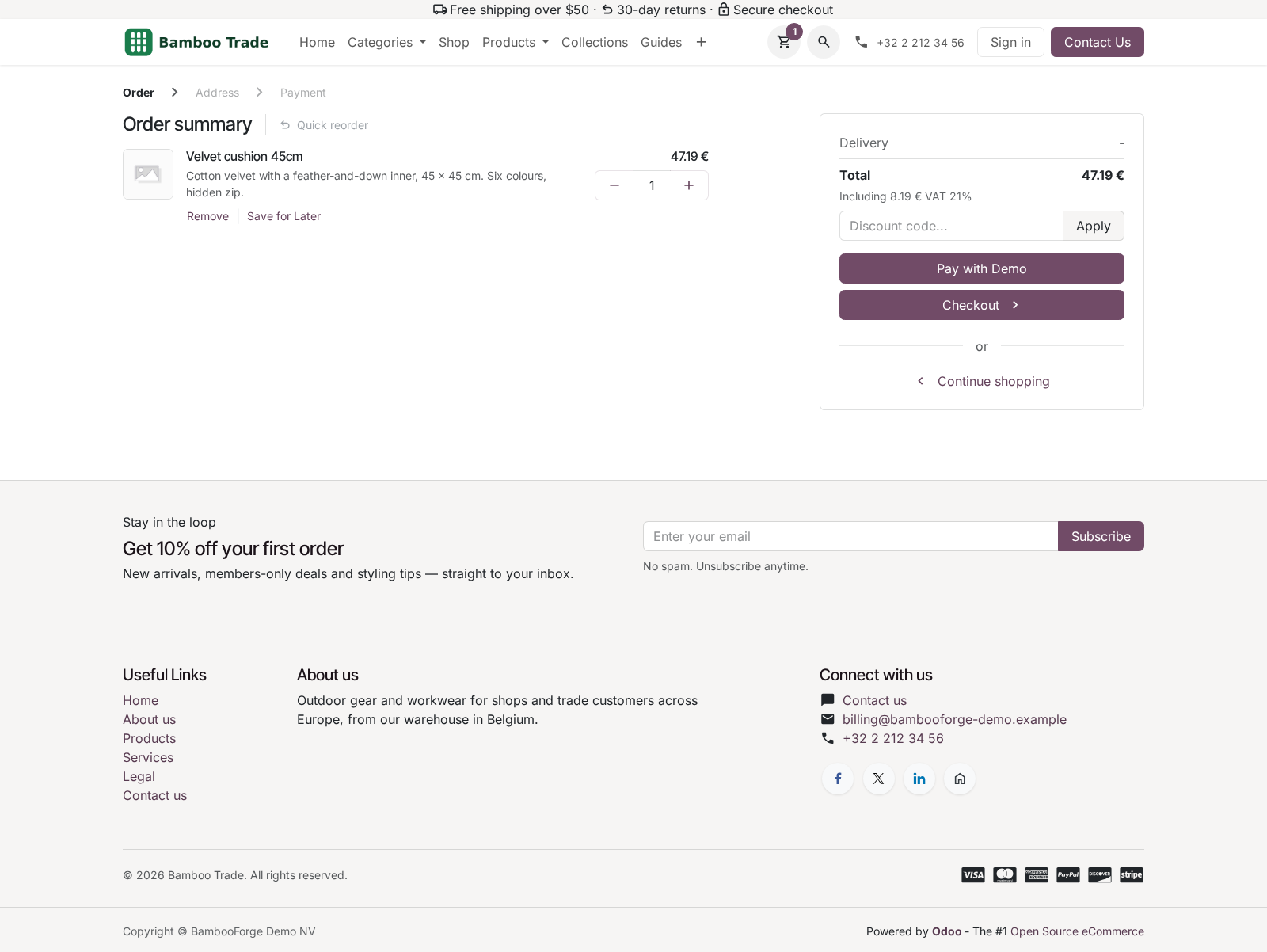
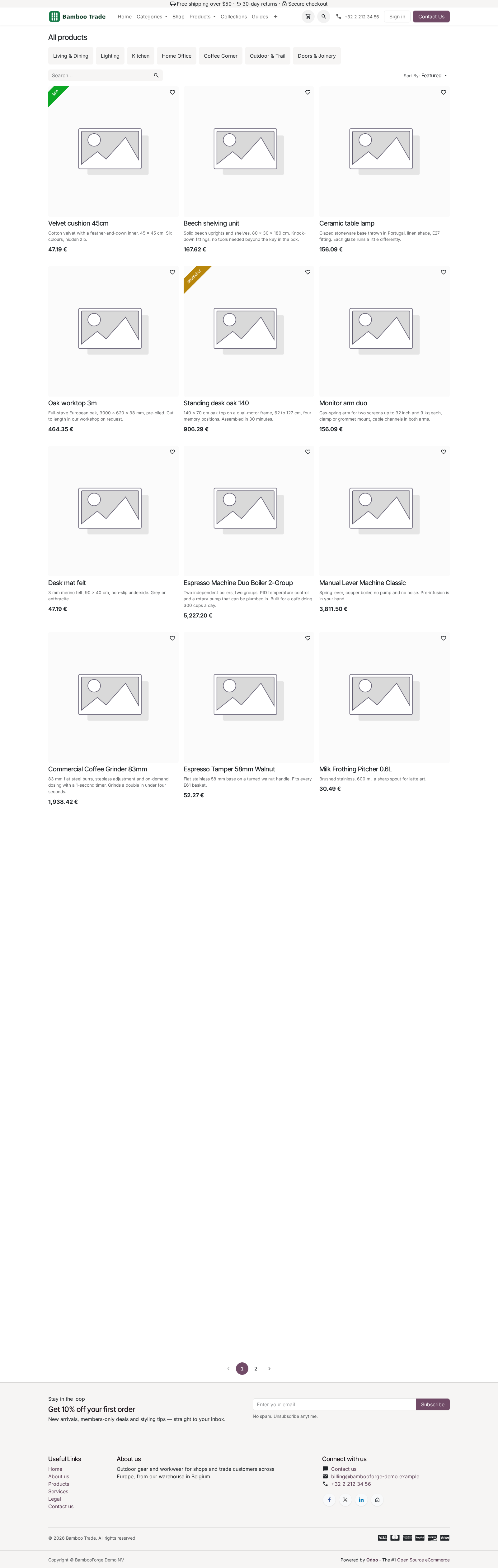
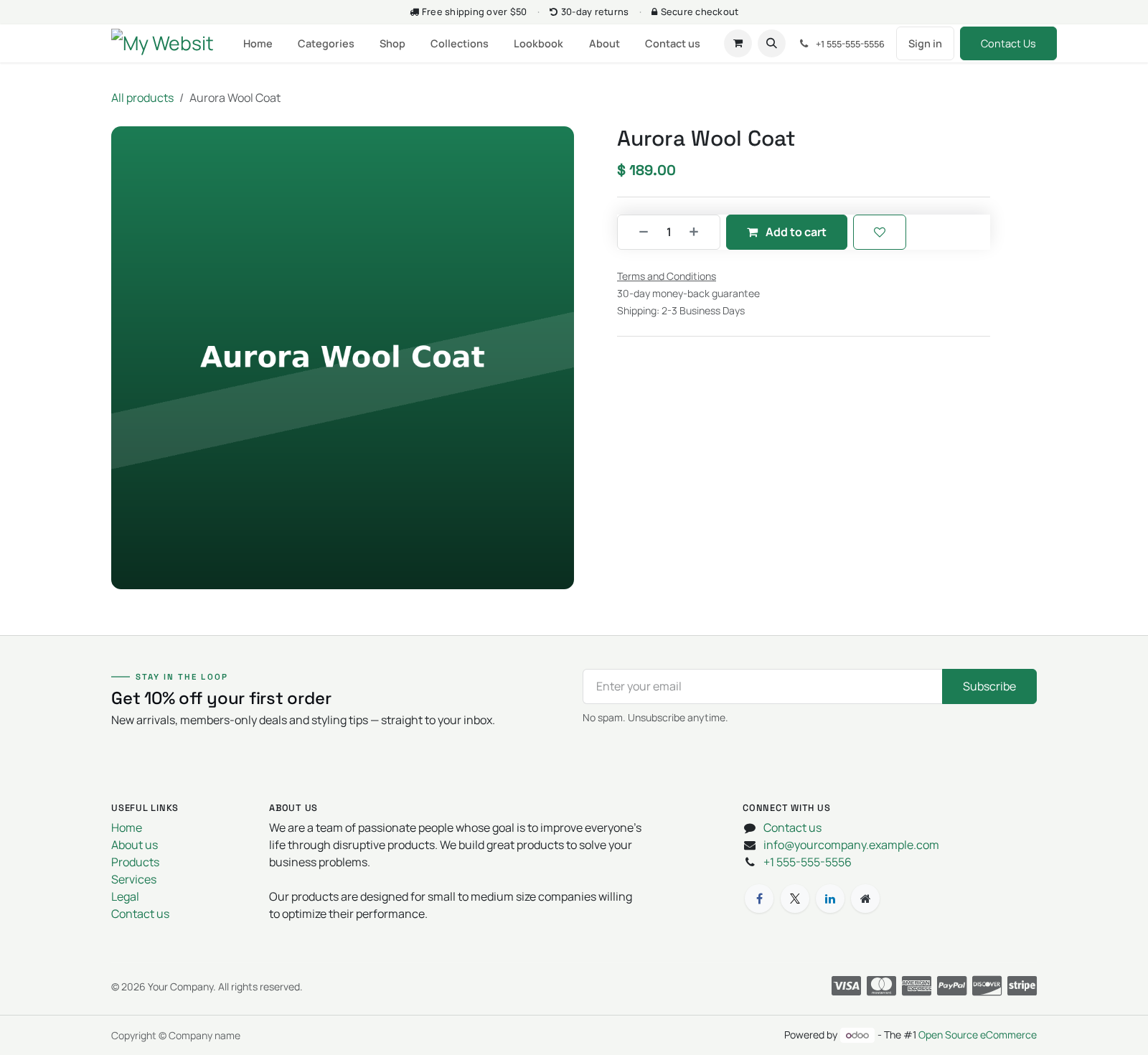
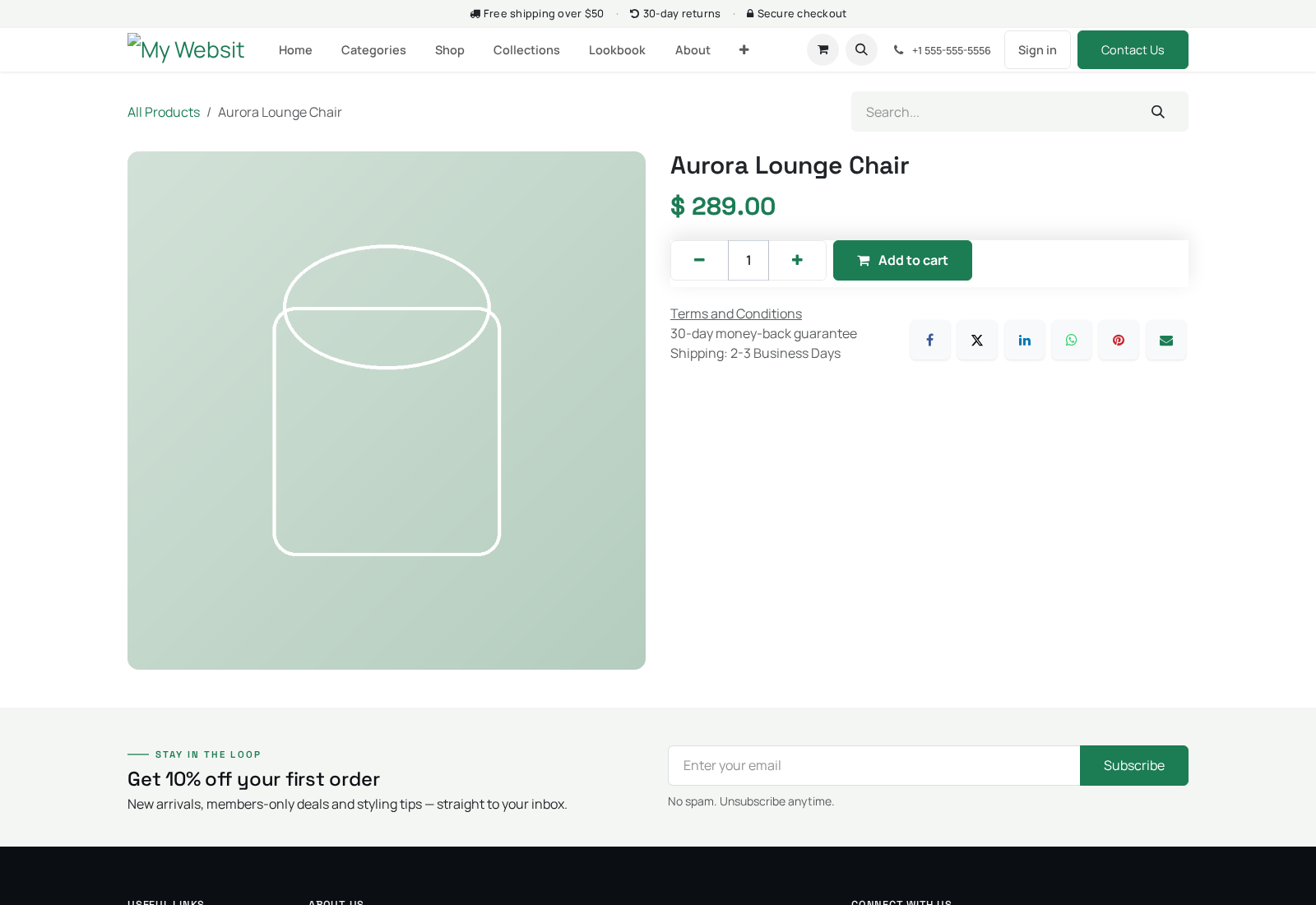
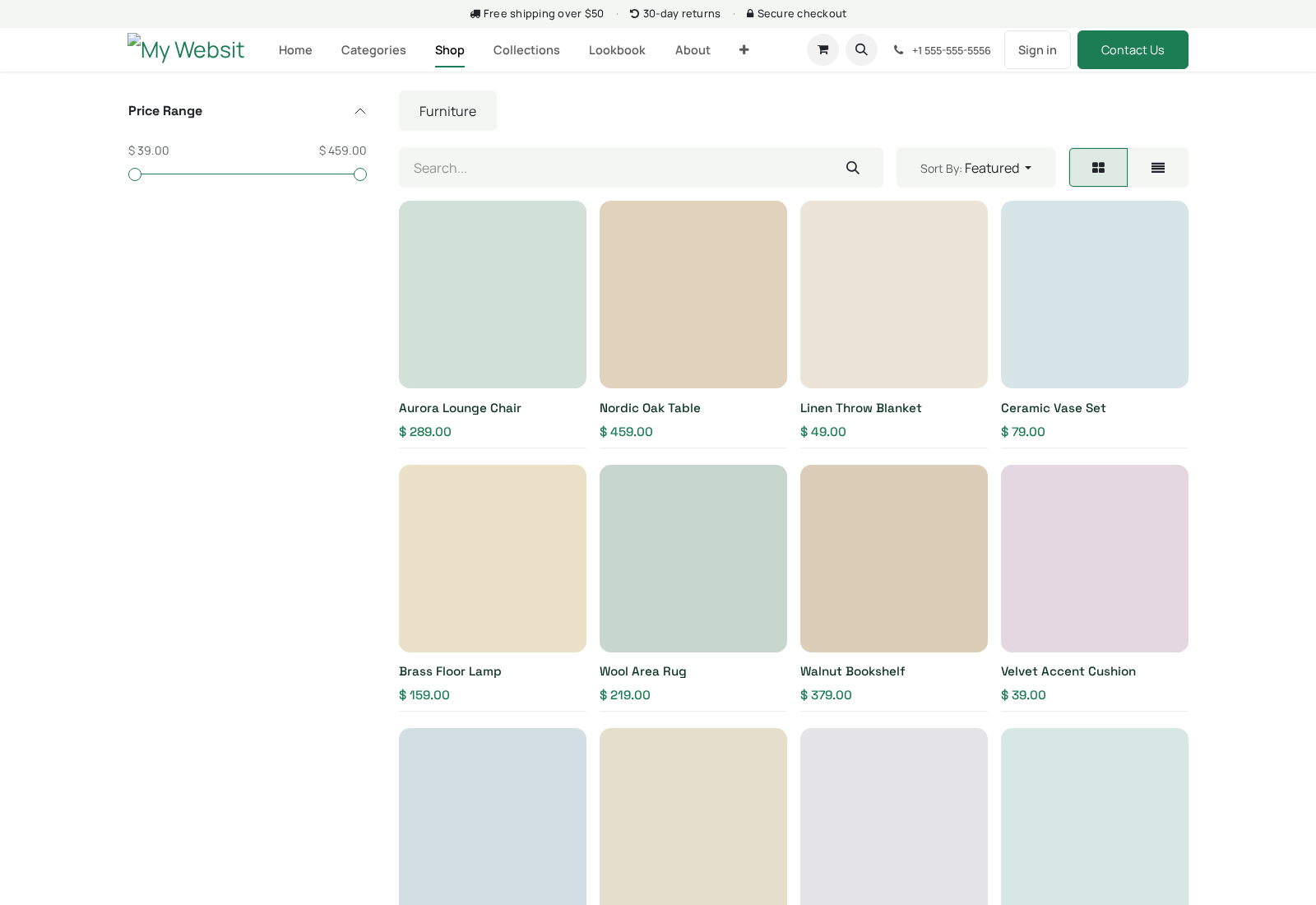
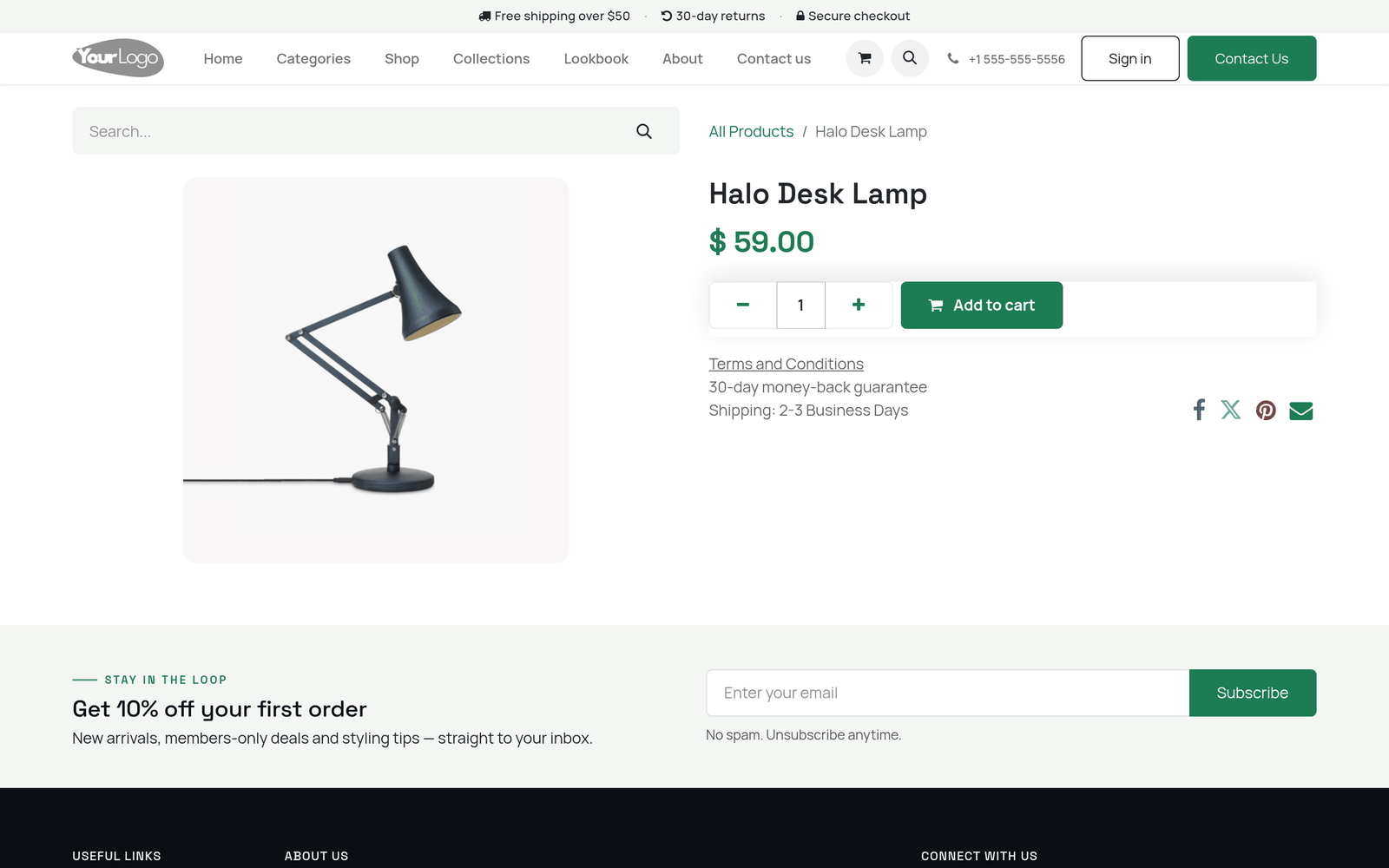
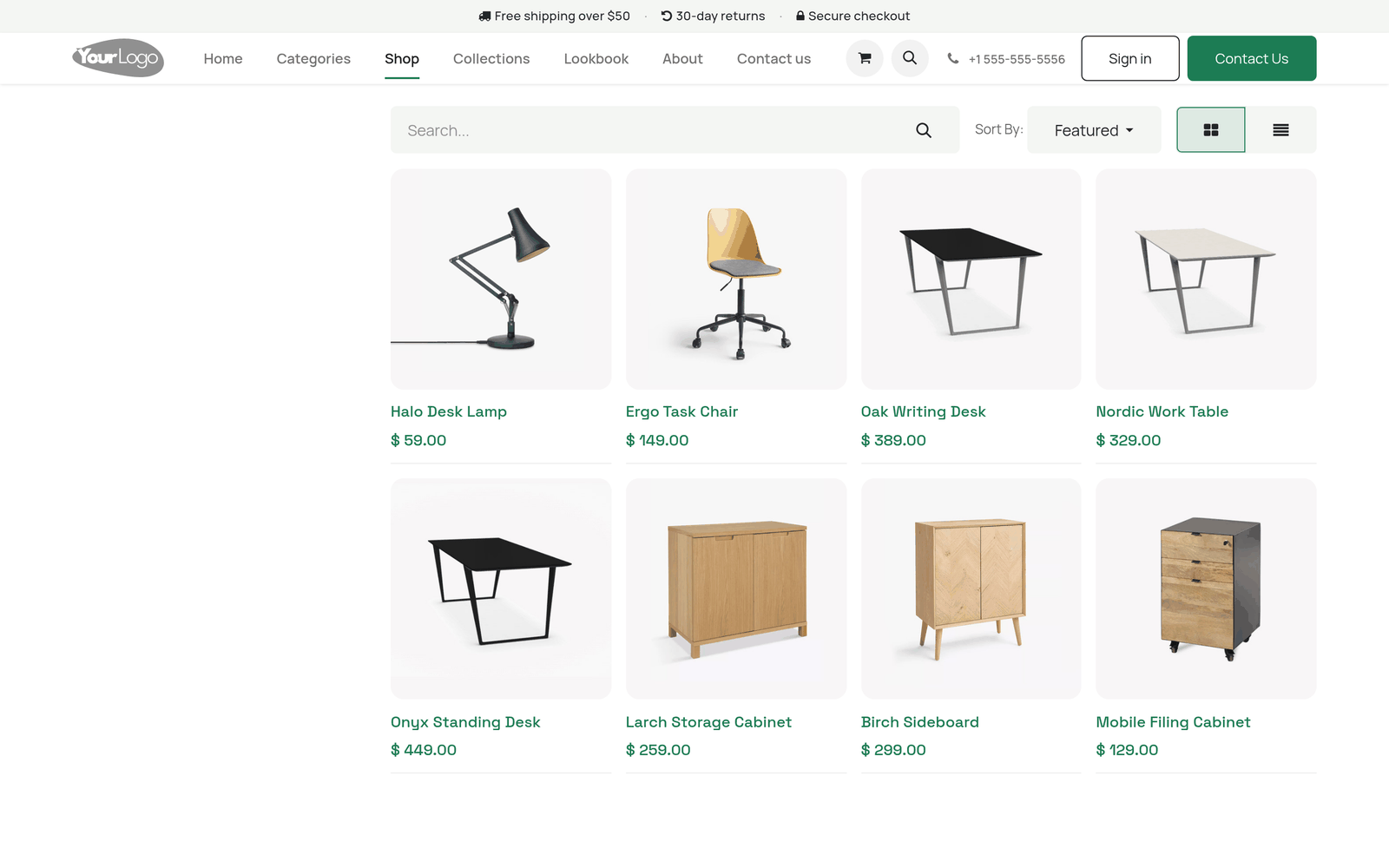
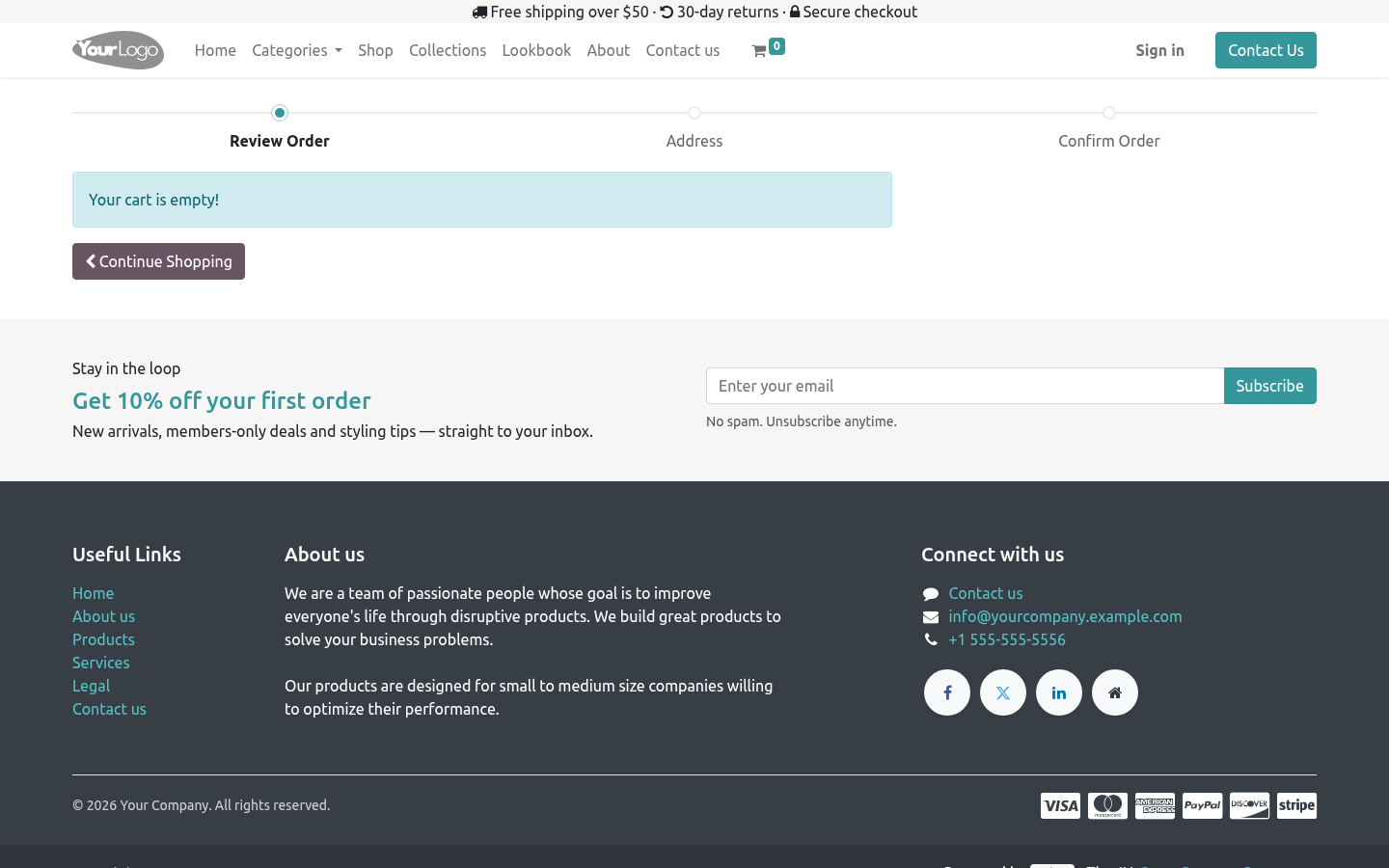
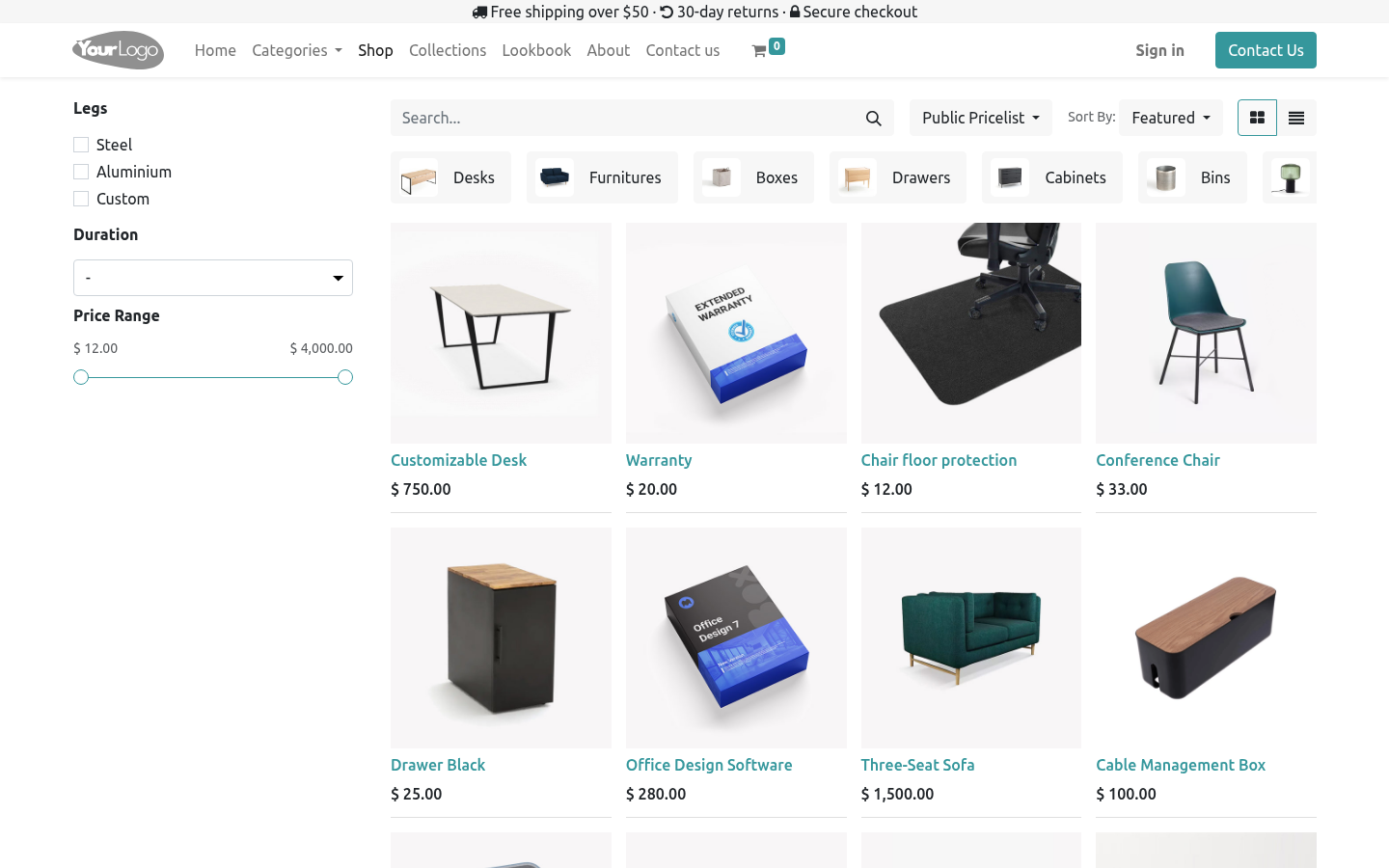
Add products — go to Website ▸ eCommerce ▸ Products (or Sales ▸ Products), create your products and publish them. They appear on the Shop page (/shop).
Organize the Shop — set product eCommerce Categories so the shop's category filters and your mega-menu links point at real categories.
Wire up the homepage and mega menu — repoint the category tiles and collection links (which all default to /shop) at the categories you created.
Keep or trim the demo pages — About, Collections and Lookbook are starting points; edit them to your brand or remove the ones you don't use.
Install
Copy bambooforge_storefront into your addons path and update the app list, or install the ZIP from the Odoo Apps Store.
Install Storefront Theme for eCommerce.
Troubleshooting
Symptom |
Cause and fix |
|---|---|
The theme installed but the site looks unchanged |
Installing the module only makes the theme available; you must apply it. Open Website ▸ Configuration ▸ Theme and select BambooForge Storefront. |
Snippets / blocks missing or look unstyled |
The styling assets did not rebuild. Open the site with ?debug=assets in the URL once, or restart Odoo with --dev=assets; in production clear the cache via Settings ▸ Technical ▸ Regenerate Assets Bundles. |
A palette change is not applied |
The colour assets are cached. Re-open the Theme ▸ Colors panel and Save again, then hard-refresh the page (Ctrl/Cmd+Shift+R). If it persists, regenerate the asset bundles (see above). |
Homepage / demo pages did not appear after activation |
The homepage and the About/Collections/Lookbook pages load when the theme is applied, not merely installed. Re-apply the theme from Configuration ▸ Theme. If you previously edited the home page, Odoo keeps your version. |
Images look like generic placeholders |
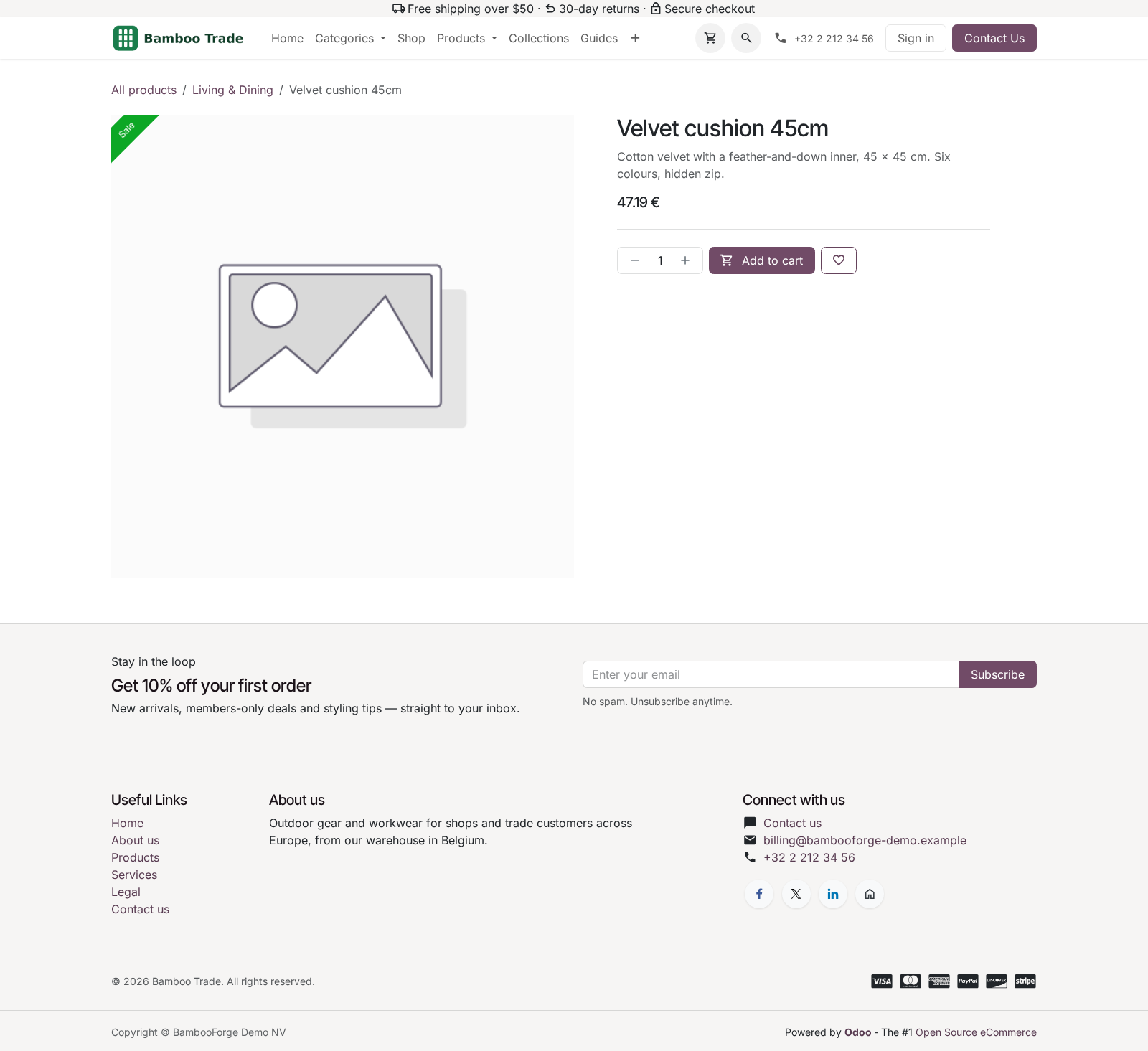
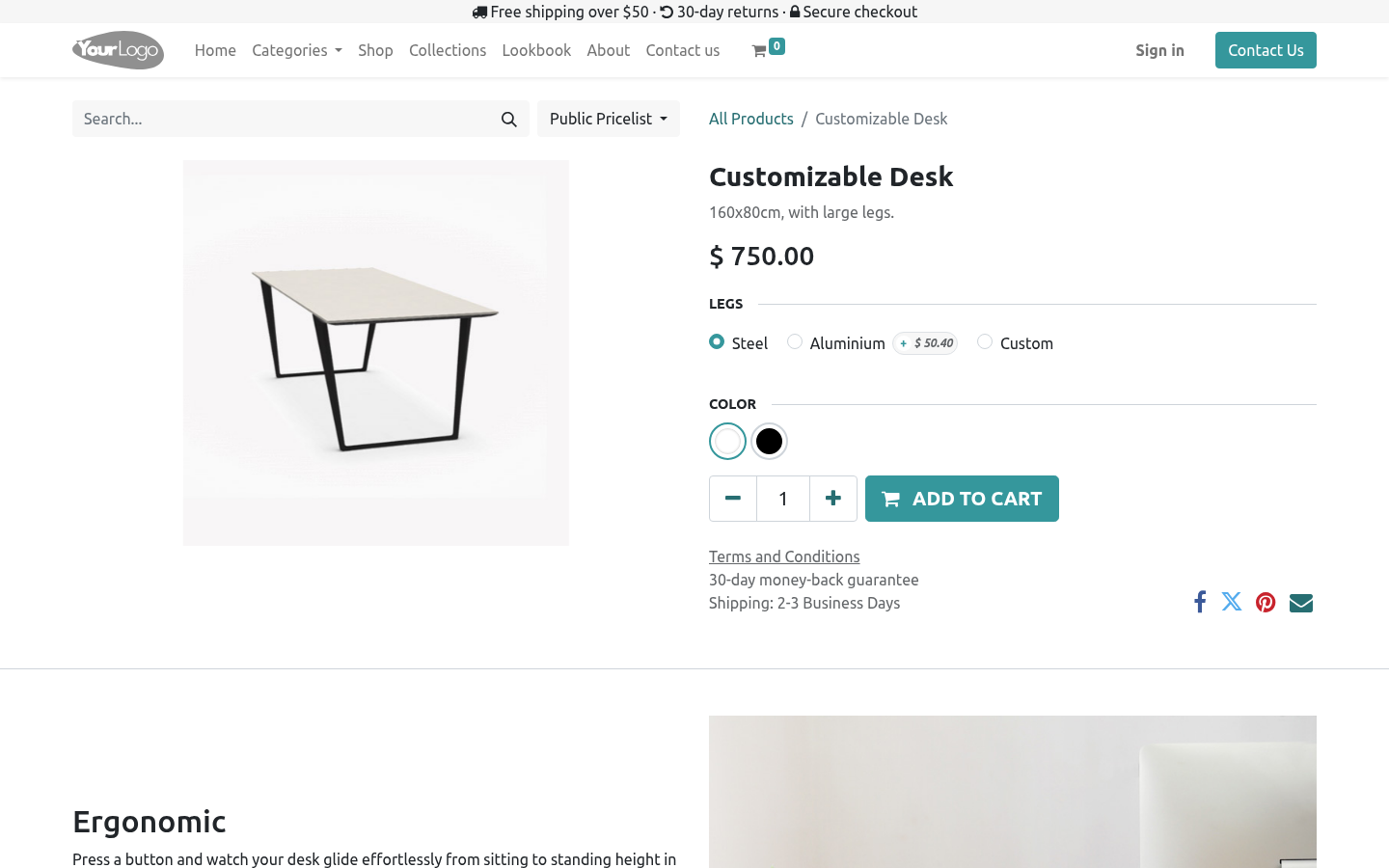
Those are Odoo's built-in demo images. Replace each one in the builder (click the image ▸ Replace) with your own product or lifestyle photos. |
The Categories mega menu shows the wrong items |
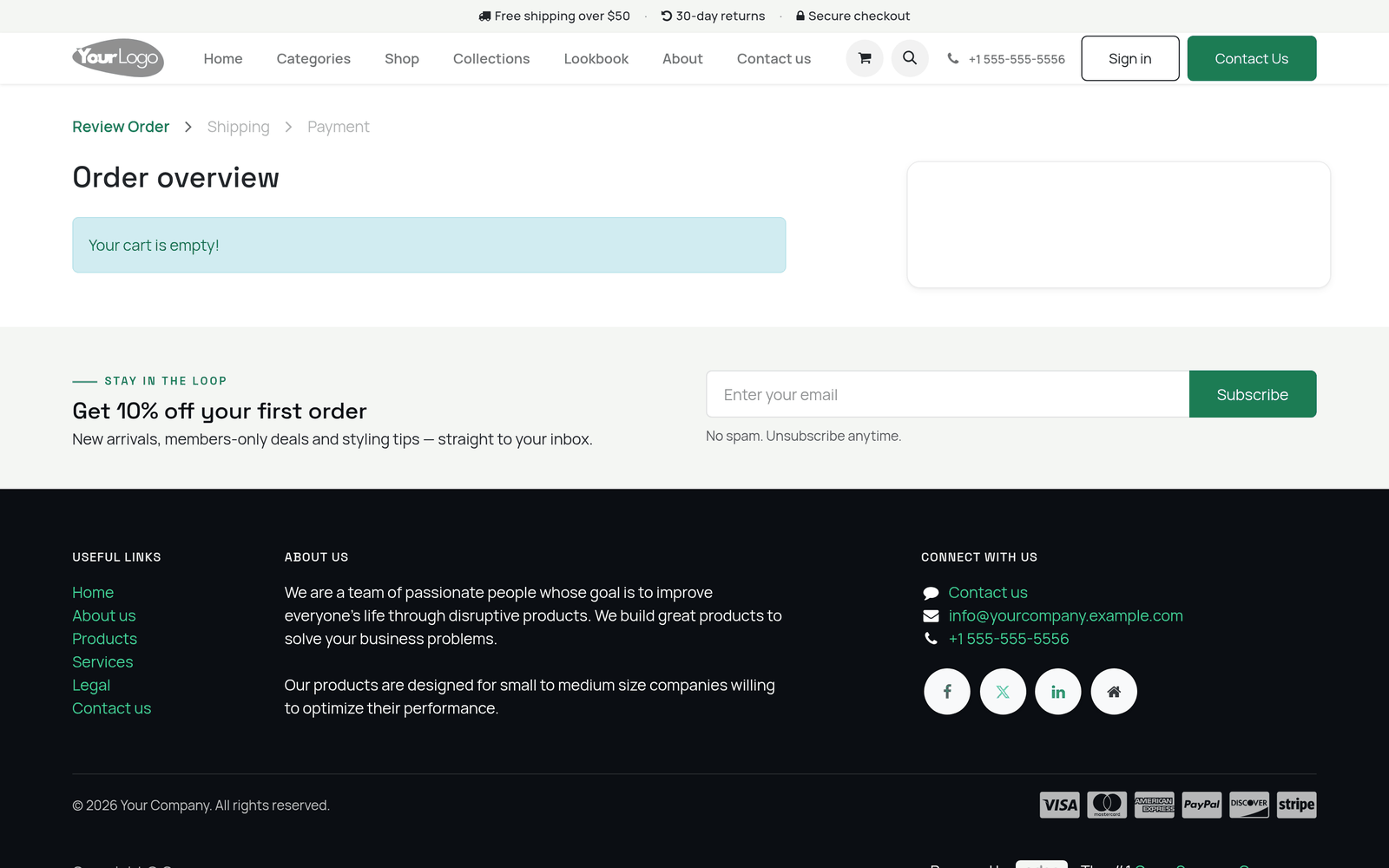
The shipped tiles are samples linking to /shop. Edit the Categories menu in the builder and repoint each tile's image and link at your real eCommerce categories. |
Fonts (Space Grotesk / Manrope) don't load |
The theme loads Google Fonts; if your server has no outbound internet the browser falls back to a system sans-serif. Allow outbound access, or pick a different font in Theme ▸ Fonts. |
Layout breaks on mobile / narrow screens |
All blocks use Bootstrap's responsive grid. Check the device preview in the builder (the phone/tablet icons); if a section was edited with fixed widths, reset it to the responsive column classes or re-drag a fresh block. |
The theme isn't offered when I have multiple websites |
Themes are applied per website. Switch to the target website with the website selector (top right), then open Configuration ▸ Theme. |
Frequently asked questions
Which Odoo versions are supported? Odoo 20.0, Community or Enterprise. The theme requires the Website eCommerce app.
Do I need the eCommerce app? Yes. The theme depends on website_sale, which is installed automatically with the theme and brings the Website app with it.
How many palettes are there, and can I make my own? Three — Bamboo (default), Volt and Grove. You can also edit any palette's five colours, or switch to Odoo's generic palettes, from Theme ▸ Colors in the builder.
Will activating the theme overwrite my existing pages? Activation loads the theme's homepage and its three demo pages and enables the styled header/footer. Your products, orders and existing custom pages are untouched. If you have already customized your home page, Odoo keeps your version.
Are the snippets custom, or standard Odoo blocks? They are the standard Odoo website snippets, restyled to match the theme. There is nothing proprietary to learn, and any block you add from the builder fits in automatically.
Can I remove the demo pages or the promo bar? Yes. Delete a demo page and its menu entry from Website ▸ Site ▸ Pages / Edit ▸ Menu. The promo bar is part of the layout and can be edited or removed in the builder.
Does it work with multiple websites? Yes — apply the theme per website from the Website selector and Configuration ▸ Theme.
What support and refund policy do I get? Every request is answered within 24 hours. If you report a bug within 2 months of purchase and it is not resolved within 15 days, you are entitled to a full money-back refund.
Limits
Front-end theme only — it styles the website and eCommerce storefront. It does not add back-office features, payment providers, shipping integrations or new apps.
Demo content is a starting point — products, category links and images are samples you replace with your own catalog and photography.
Snippets are restyled standards — the theme does not ship brand-new snippet types; it makes the standard Odoo blocks match the design.
Fonts require outbound access — Google Fonts load over the internet; offline servers fall back to a system font.
Support & updates
Support: support@bambooforge.dev — answered within 24 hours, setup help included.
Refund: report a bug within 2 months of purchase; if it is unresolved within 15 days, you get a full refund.
Full source is included. Updates track the supported Odoo 20 line.
Upgrading & version compatibility
This build targets Odoo 20.0. Each Odoo major series (16.0, 17.0, 18.0, 19.0, 20.0) has its own dedicated build of this module — always install the build that matches your Odoo version. Mixing a build with a different Odoo series is not supported.
Patch upgrades (same series, e.g. 20.0.1.0.0 → later)
Back up your database and filestore first.
Replace the module folder with the newer build.
Restart Odoo with the module updated:
./odoo-bin -c your.conf -u bambooforge_storefront -d your_db
Odoo applies any schema/data changes automatically. Your existing records and configuration are preserved.
Cross-version migration (moving to a newer Odoo)
Upgrading Odoo itself is a database migration handled by Odoo's standard upgrade tooling. When you migrate the database to the next Odoo series, install the matching build of this module for that series. Data created by this module carries over with the database migration.
Themes cache compiled assets. After upgrading, open the website once in the backend or run an assets regeneration so the latest styles are served.
Uninstallation
You can remove this module at any time from Apps → (this module) → Uninstall, or from the command line. Uninstalling is clean and reversible by reinstalling — but note what is and is not deleted.
What is removed
The fields, views and analysis definitions this module added.
The menus, actions, views and reports this module installed.
What is preserved
Your website content, pages and products remain. The site reverts to the default Odoo theme; re-select a theme under Website → Configuration if needed.
Attachments and chatter messages on standard records are kept.
As always, take a database backup before uninstalling in production.
Changelog
20.0.1.2.2
Built for Odoo 20: record rules and access rights rewritten onto Odoo 20's single ir.access model, the screens rebuilt on Owl 3, and every icon moved to the icon set Odoo 20 ships. The cover tweak for new pages is gone: Odoo 20's new-page wizard no longer offers a cover template to tweak.
20.0.1.1.1
Current release for Odoo 20.0. This build includes:
Multipurpose, Fashion, Electronics, Furniture, Organic, Modern Store, Shop.
Feature additions and fixes ship as new builds on the Odoo Apps store; this page and the module's version reflect the current published release. Always keep the build matched to your Odoo series (see Upgrading & version compatibility).
How we make sure it works
Before every release, 9 automated checks run against this app on Odoo 16, 17, 18, 19 and 20. Among them:
It needs only what a community install already has.
The listing offers somewhere to try it.
The shop pages it promises are present.
Every snippet on disk is declared.
The views it ships are loaded.
The complete list is in the source you receive.