 BambooForge Labs
Stock Aging & Dead Stock Report
FIFO-accurate stock aging with configurable buckets, an obsolescence provision finance can book, and a dead-stock disposition workflow.
Available for Odoo 16.0, Odoo 17.0, Odoo 18.0, Odoo 19.0, Odoo 20.0. Technical name bambooforge_stock_aging.
Transcript of the walkthrough (Odoo 20)
Stock Aging & Dead Stock Report. FIFO-accurate stock aging with configurable buckets, an obsolescence provision finance can book, and a dead-stock disposition workflow. Inventory that sits too long ties up cash and risks obsolescence. This app makes that visible: In the next few minutes: stock aging & dead stock report, then why fifo matters, then quick start, then reading the results, then how classification works.
Then what this app deliberately does not do, so you can tell before you buy whether it fits. Everything lives under Stock Aging then Aging then Dead Stock then Analyses. No Enterprise modules and no external Python libraries are required. Stock Aging & Dead Stock Report.
See exactly how old your on-hand inventory is and how much capital is tied up in slow-moving and dead stock. Aging is computed FIFO from real stock moves — the age of the oldest unit still on hand — not a naive last-receipt date. Products are bucketed by age, classified by movement (fast / slow / dead / never sold), and the classes are written back onto the products for filtering across Inventory. This page is the complete manual.
Follow it top to bottom and you can install, run your first analysis, read the aging matrix, tune the buckets and fix the common issues without contacting support. Why FIFO matters. A naive aging report dates stock by the last receipt, so one fresh delivery makes a pile of old stock look new. This app instead walks the move history: it takes incoming quantities oldest-first, removes everything that has since been delivered, and reports the age of the oldest unit still on hand.
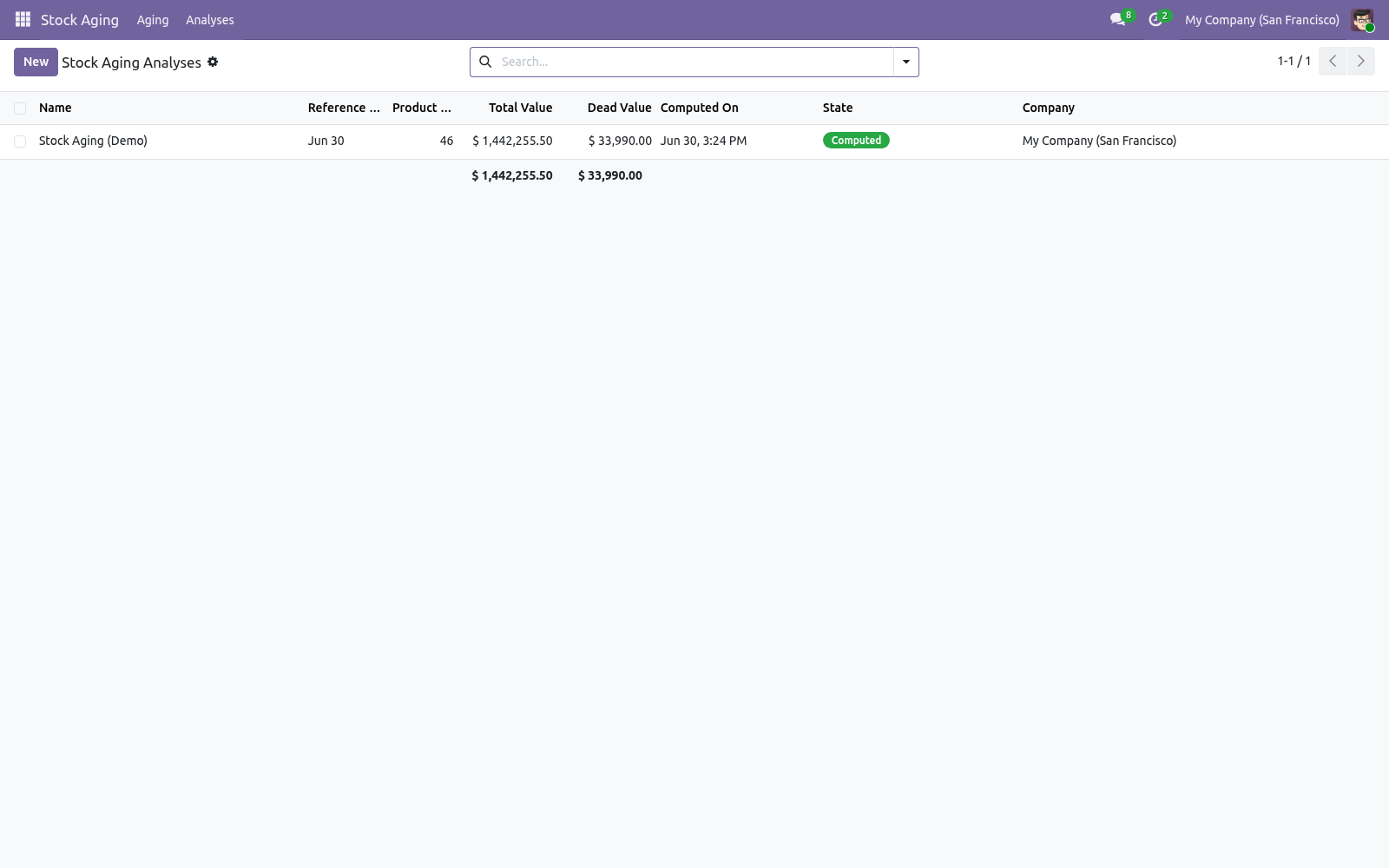
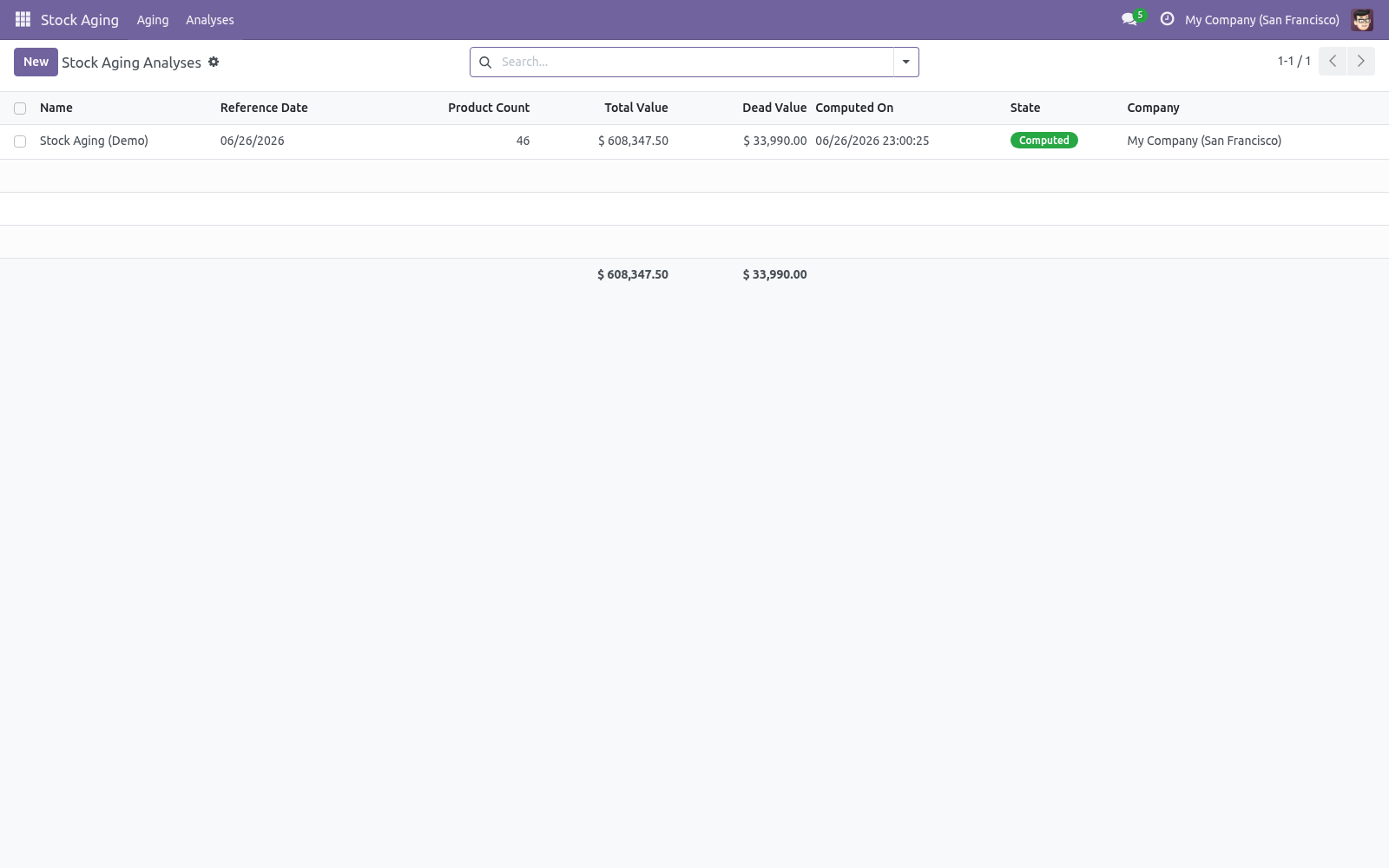
That is the number that actually tells you whether stock is going stale. Quick start. 1. Open Stock Aging > Analyses and click New.
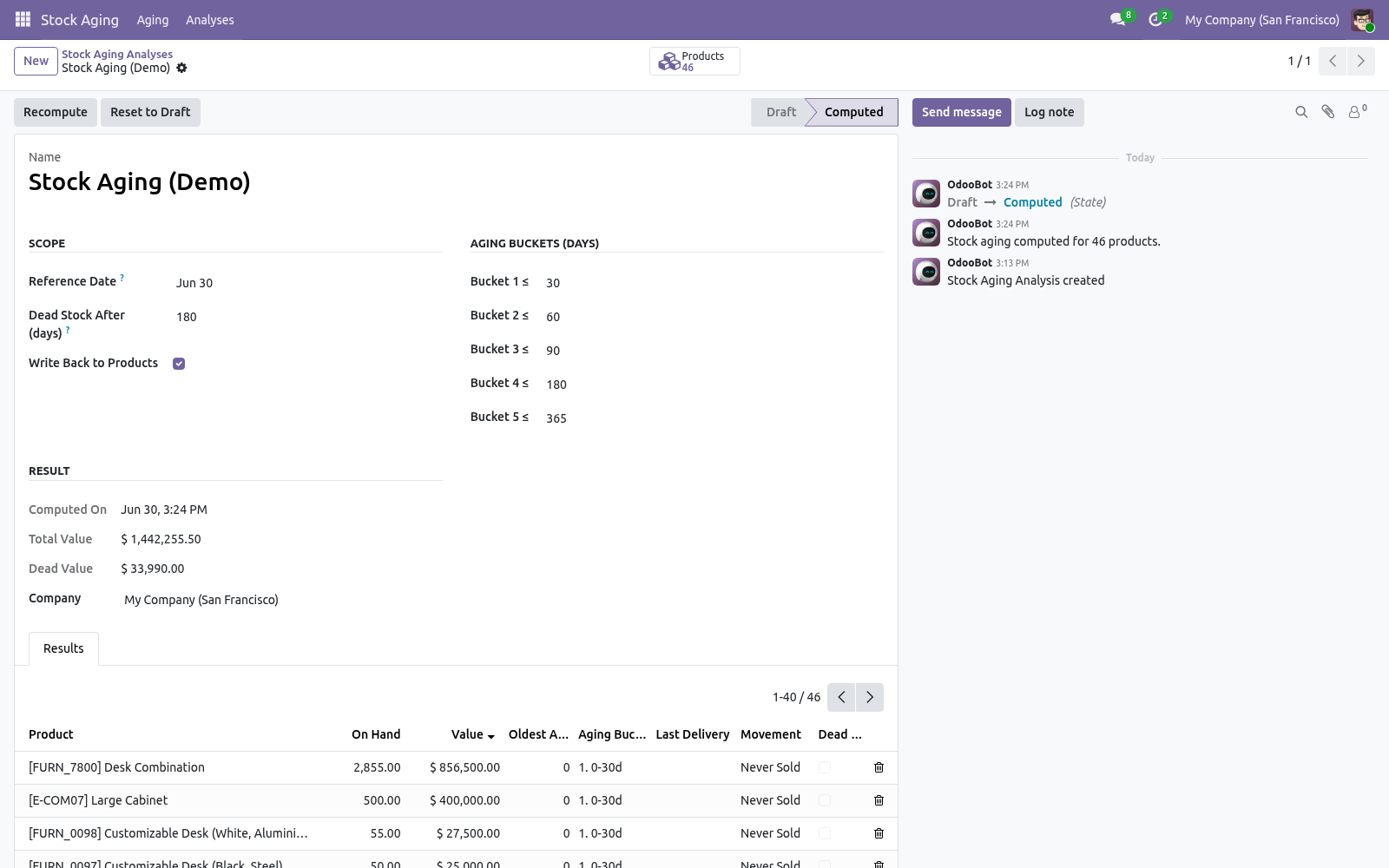
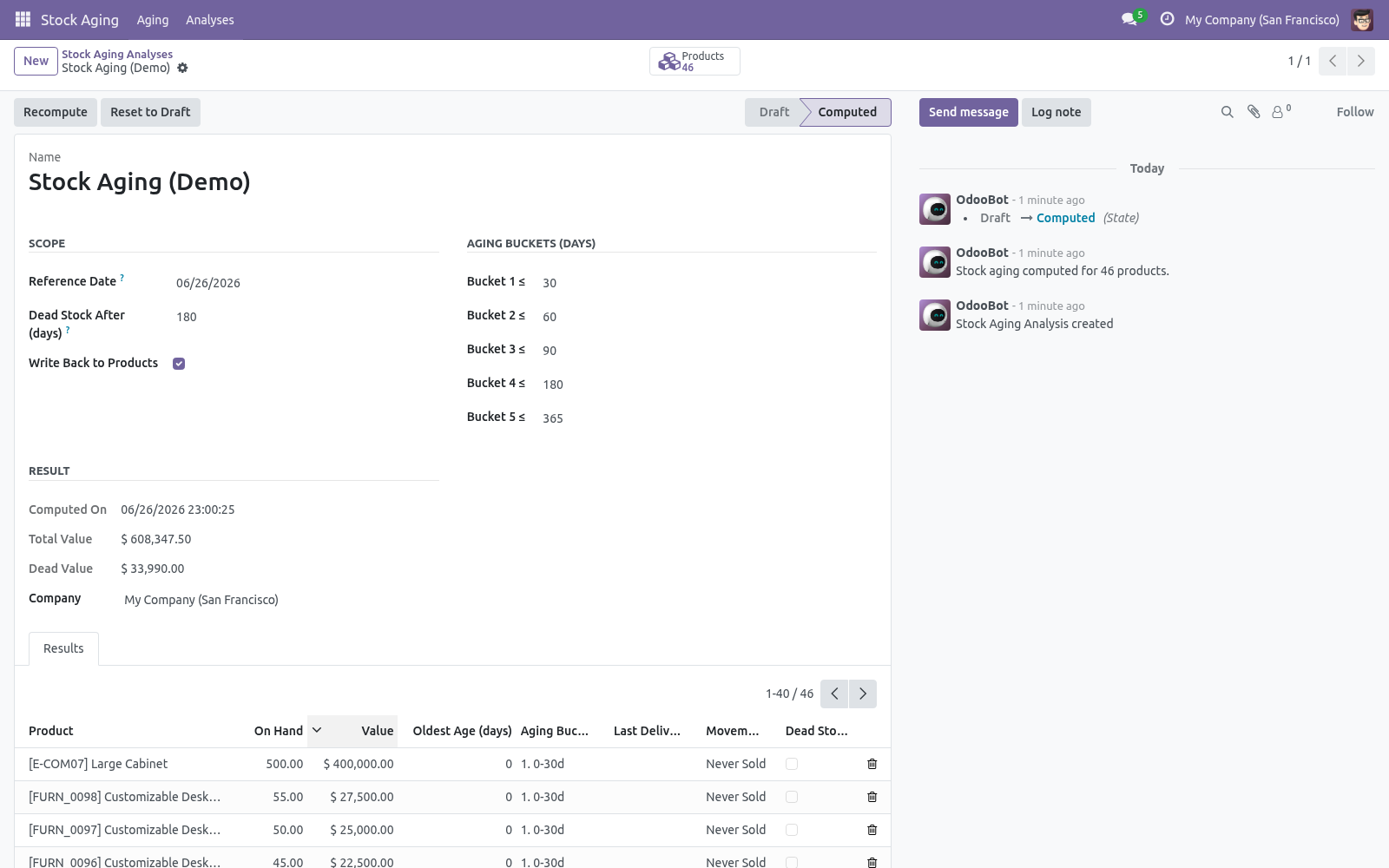
2. Optionally adjust the Aging Buckets (the five day thresholds) and the Dead Stock After (days) value. 3. Click Compute.
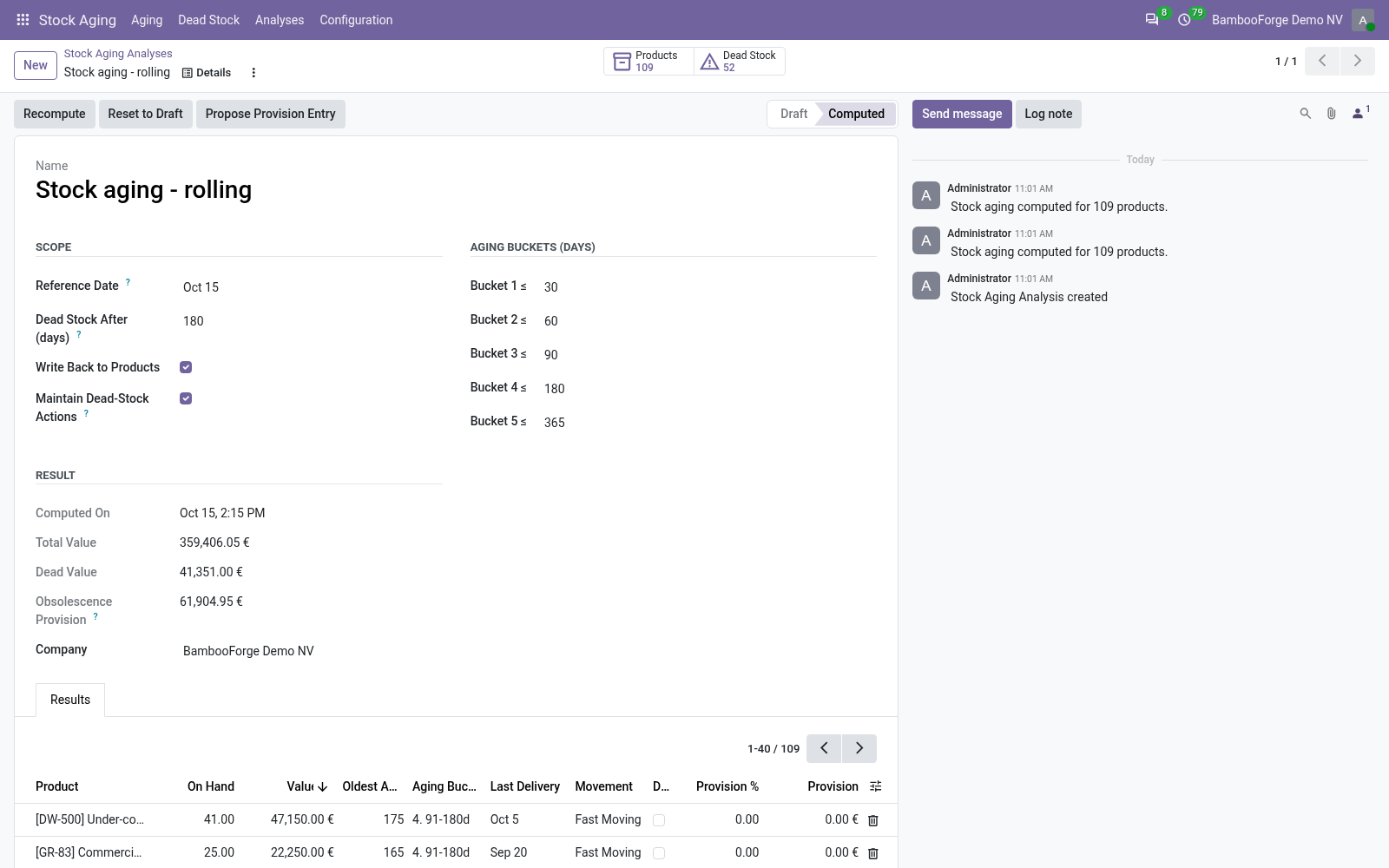
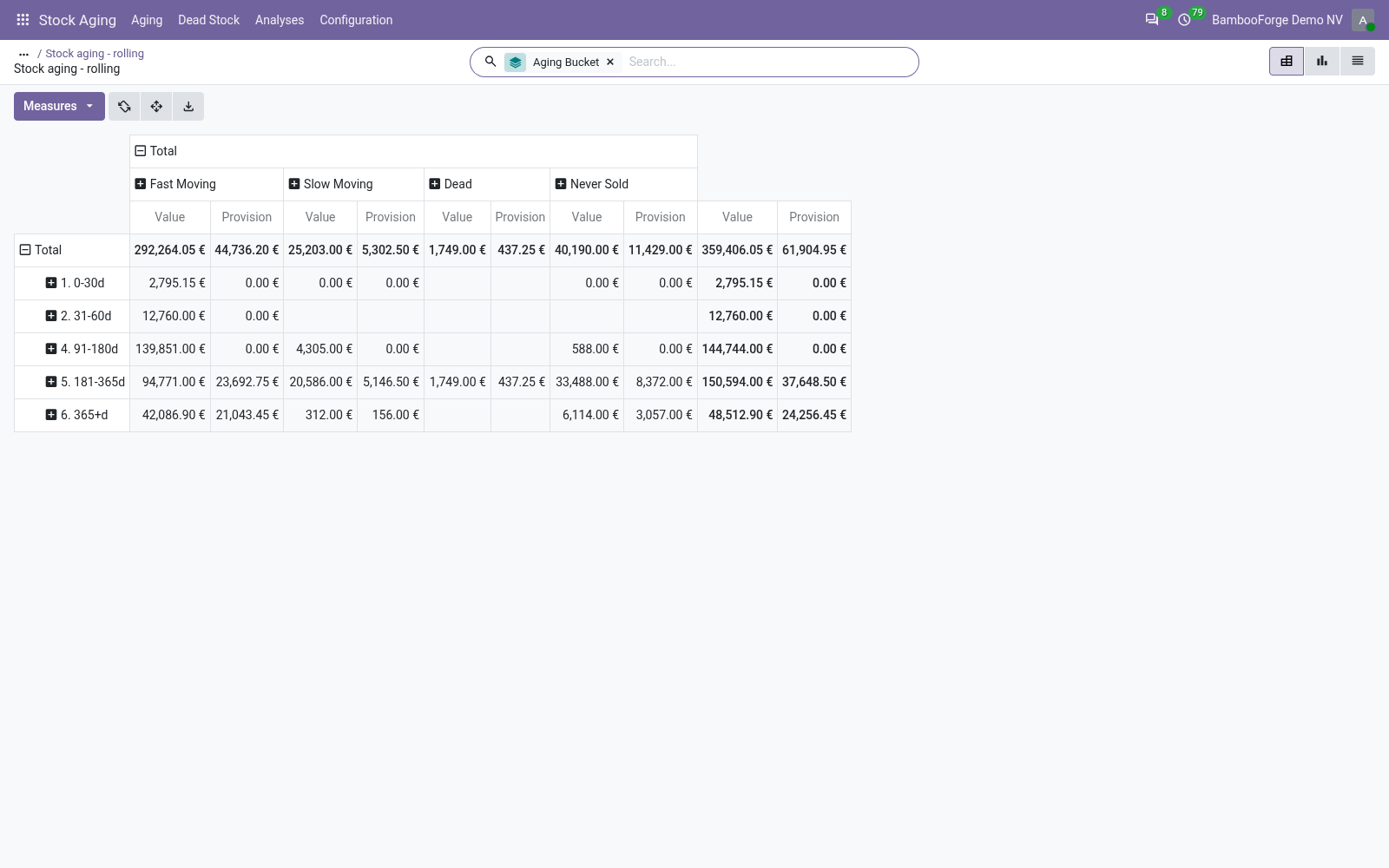
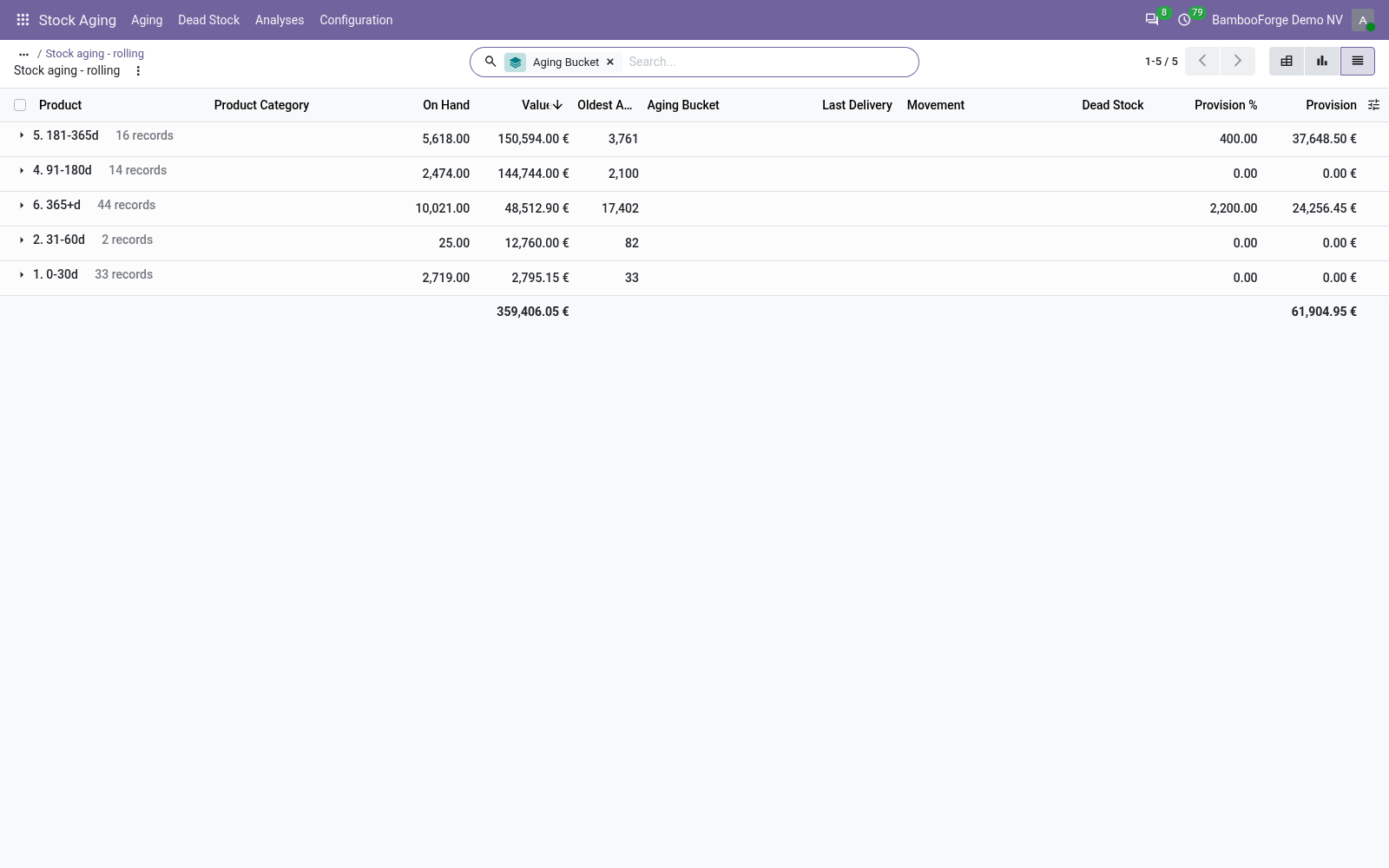
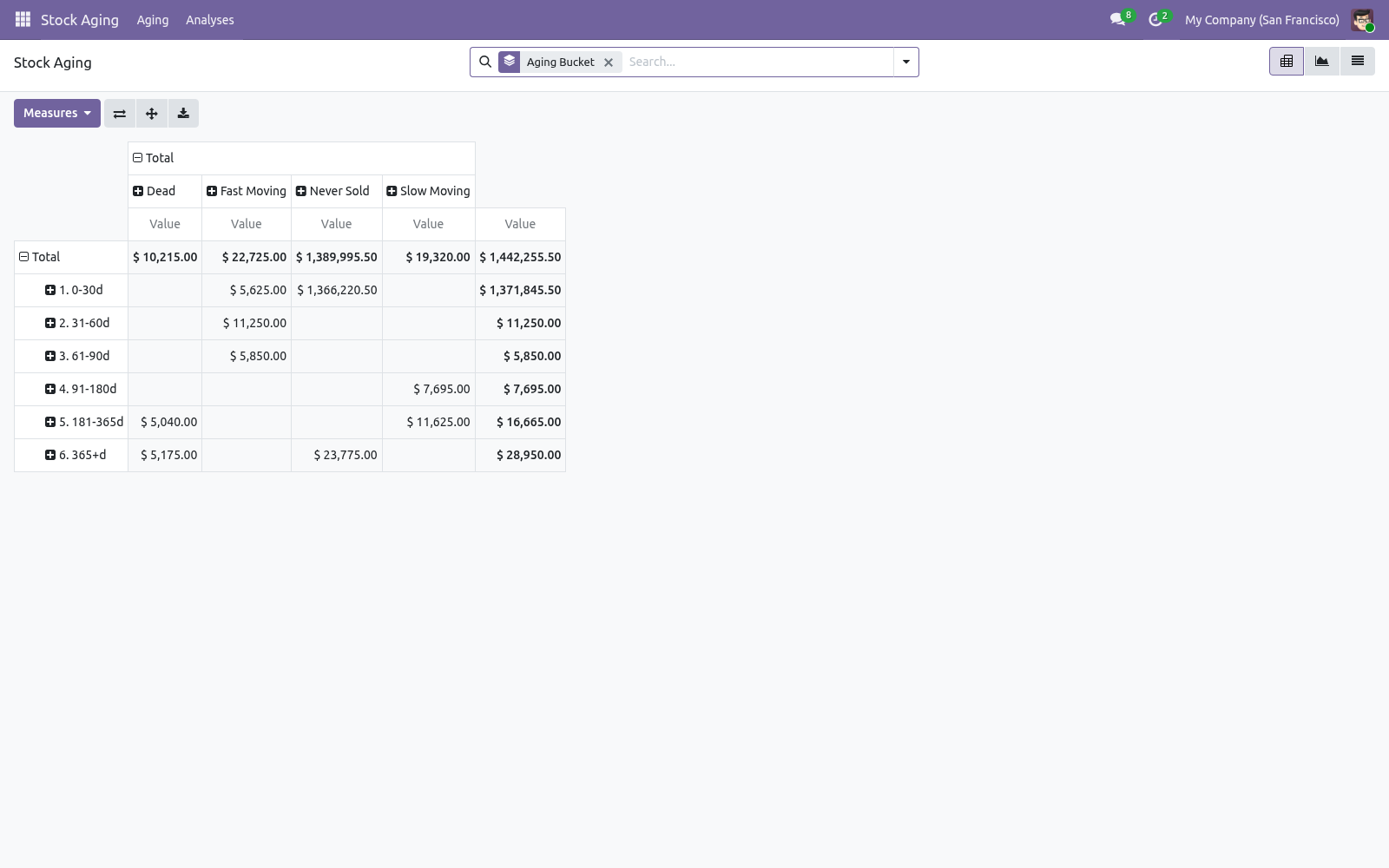
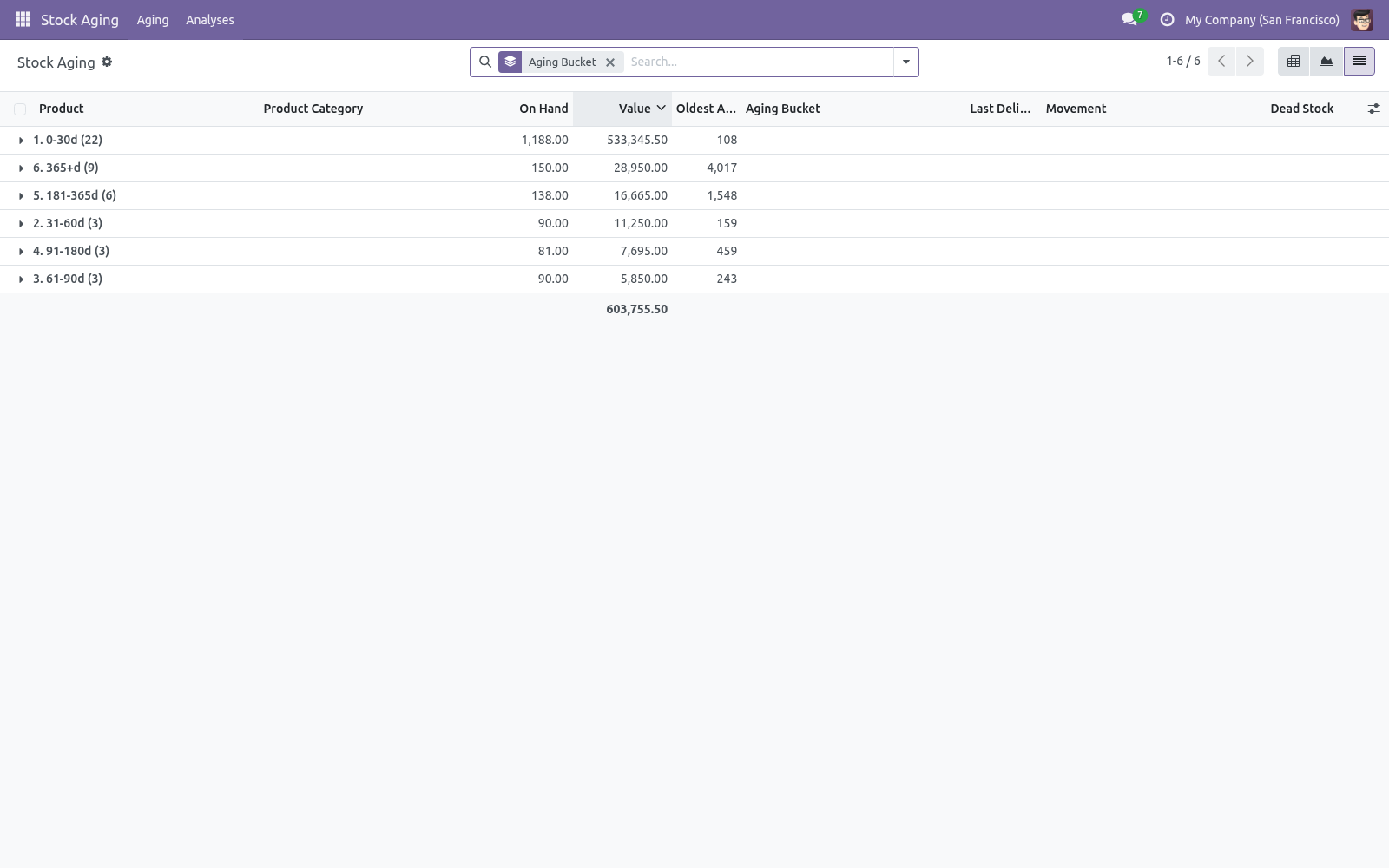
The analysis switches to Computed, the Products stat fills in, and the Result section shows the total on-hand value and the dead value. Open the Results tab, or Stock Aging > Aging, to explore. Reading the results. Go to Stock Aging > Aging for the analytical views: Pivot — aging buckets down the side, movement classes across the top, value in each cell.
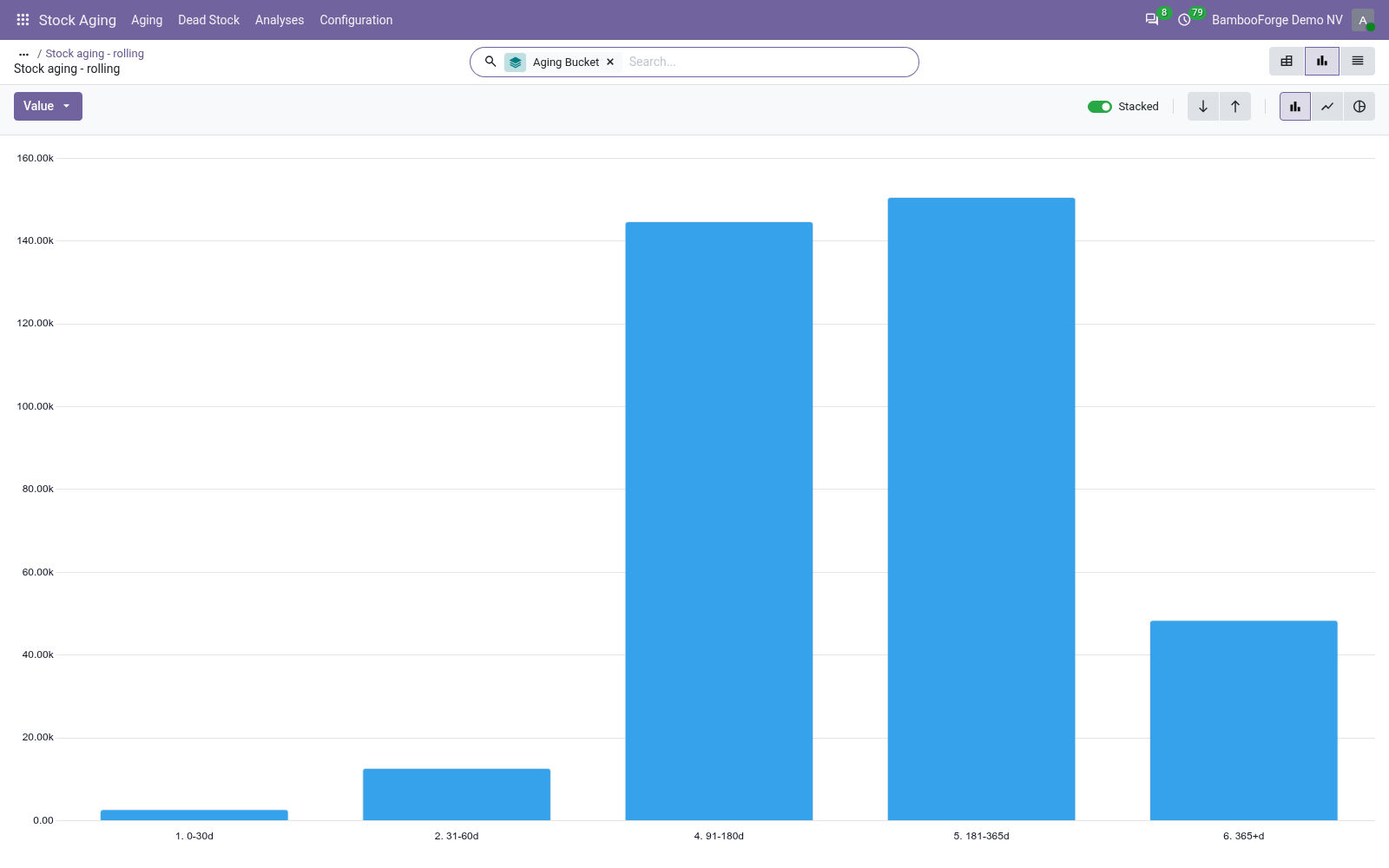
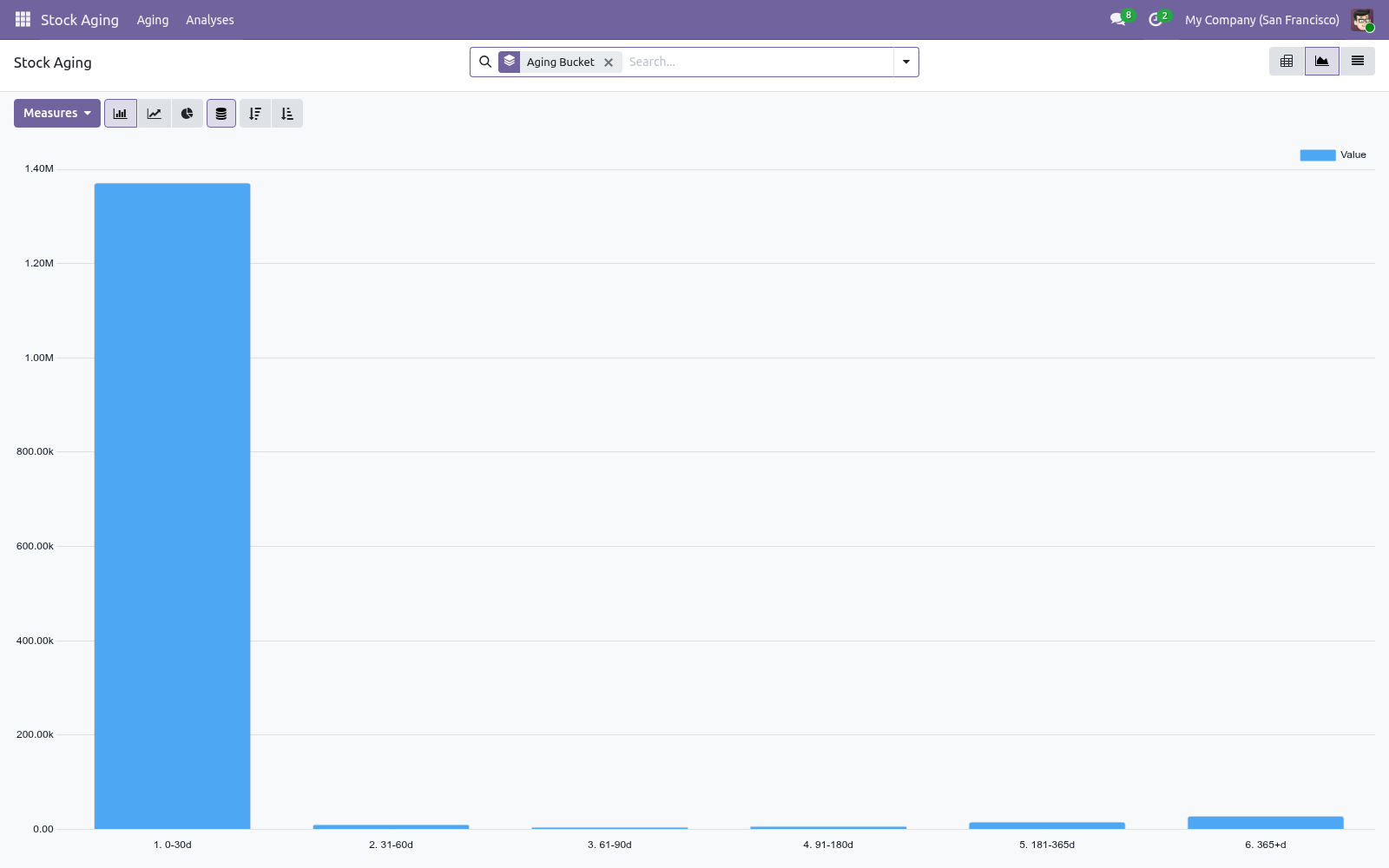
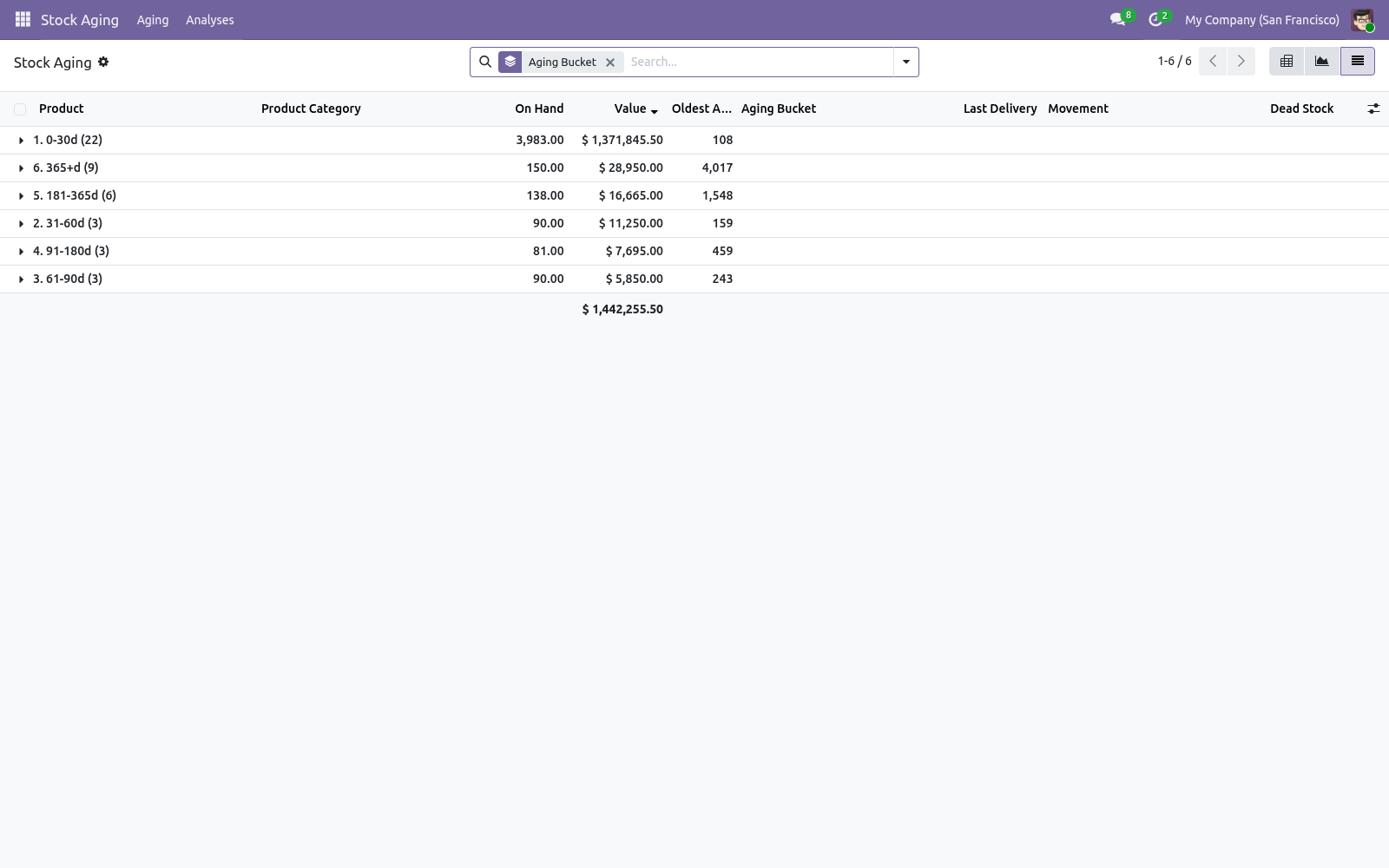
This is your "how much value is old, and is it moving?" matrix. Graph — value per aging bucket at a glance. List — every product with on-hand quantity and value, oldest age, aging bucket, last delivery, movement class and the dead-stock flag. Dead rows are highlighted in red and slow ones in orange.
How classification works. Aging. For each product the app collects done stock moves: receipts into stock and deliveries out of it. Incoming quantities are taken oldest-first and reduced by everything delivered since; the date of the oldest remaining layer gives the oldest age (days), which places the product in a bucket.
When a product has stock but no usable move history, its last receipt date is used. Dead stock & movement. From the last delivery date the app derives the days since the last sale and a movement class: fast (sold recently), slow (no sale for over a third of the dead-stock window), dead (no sale beyond the dead-stock window), or never sold. A product is flagged dead stock when it is dead, or has never sold yet has aged past the dead-stock window.
Tuning the buckets. On the analysis form set the five Aging Buckets day thresholds (they must be positive and strictly increasing) and the Dead Stock After (days) window. A sixth bucket automatically holds everything older than the fifth threshold. Re-run the analysis after any change; results update immediately.
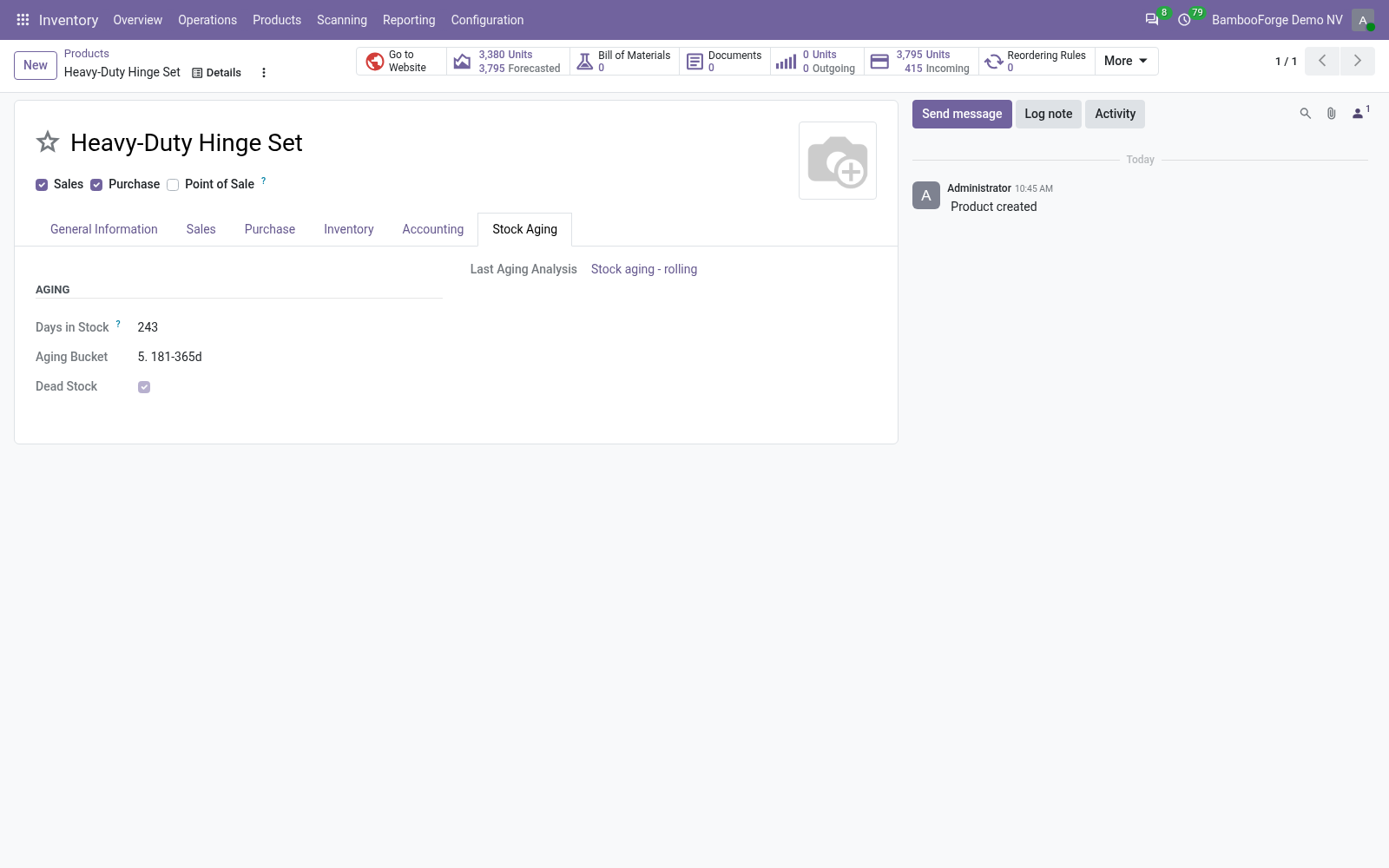
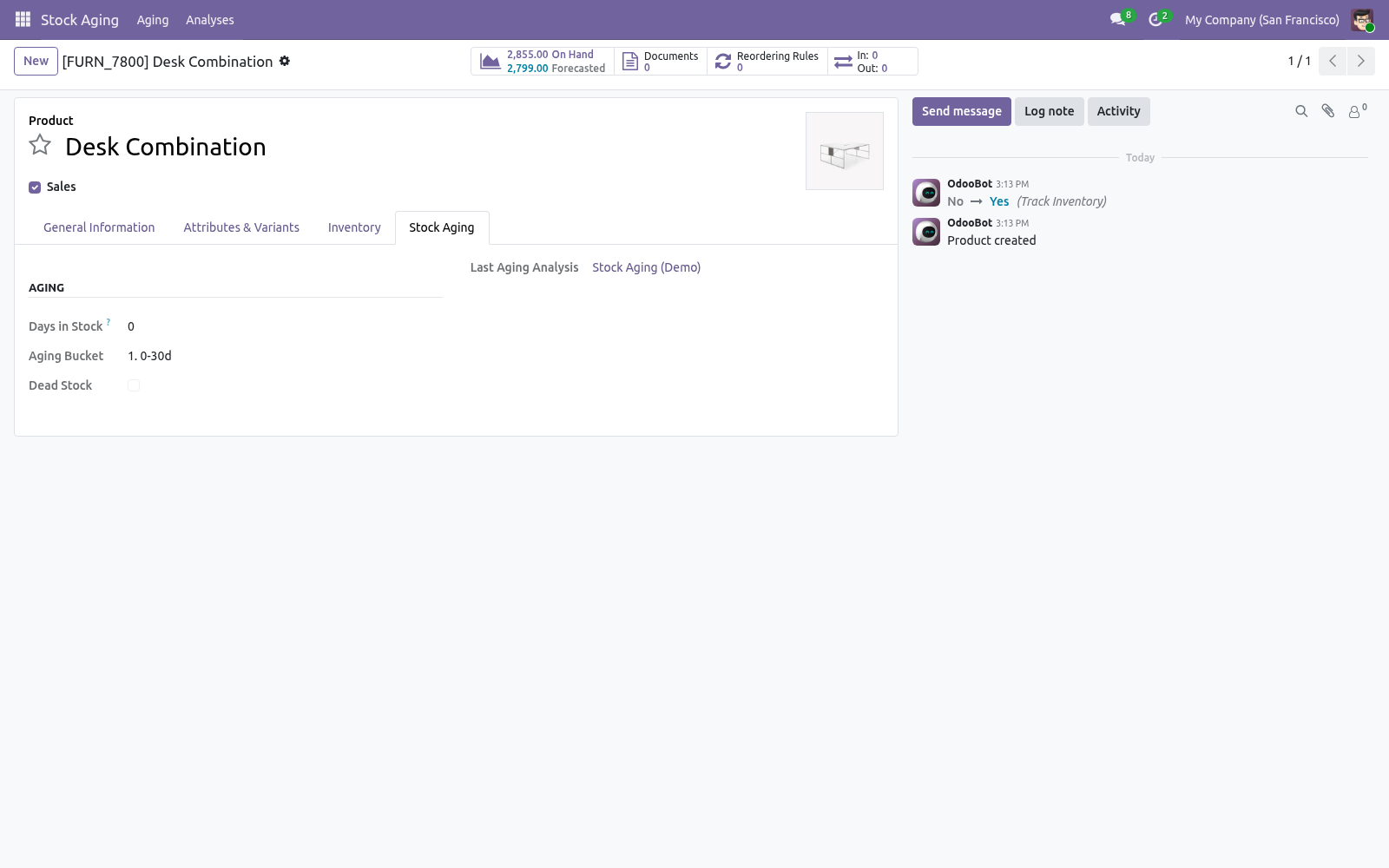
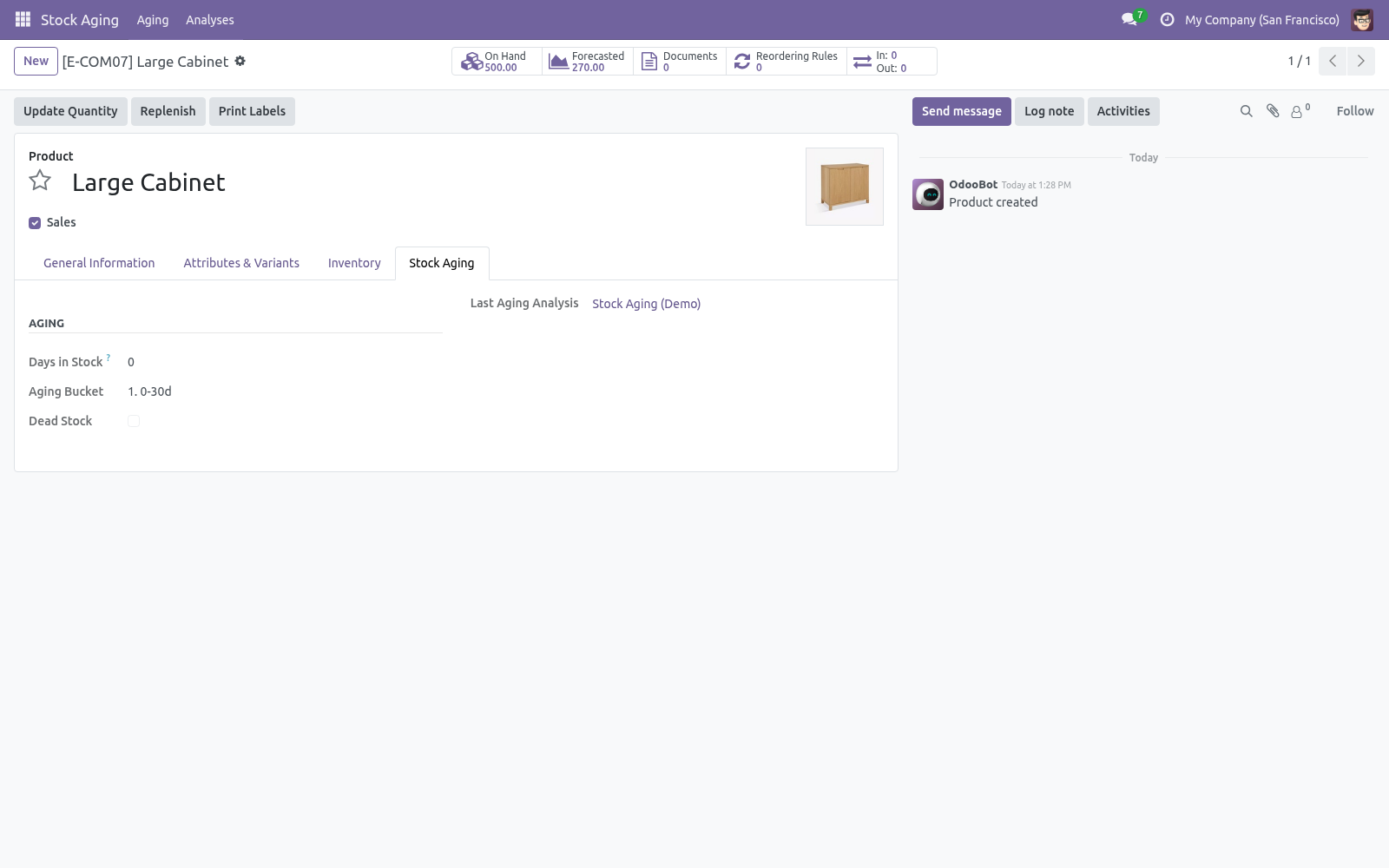
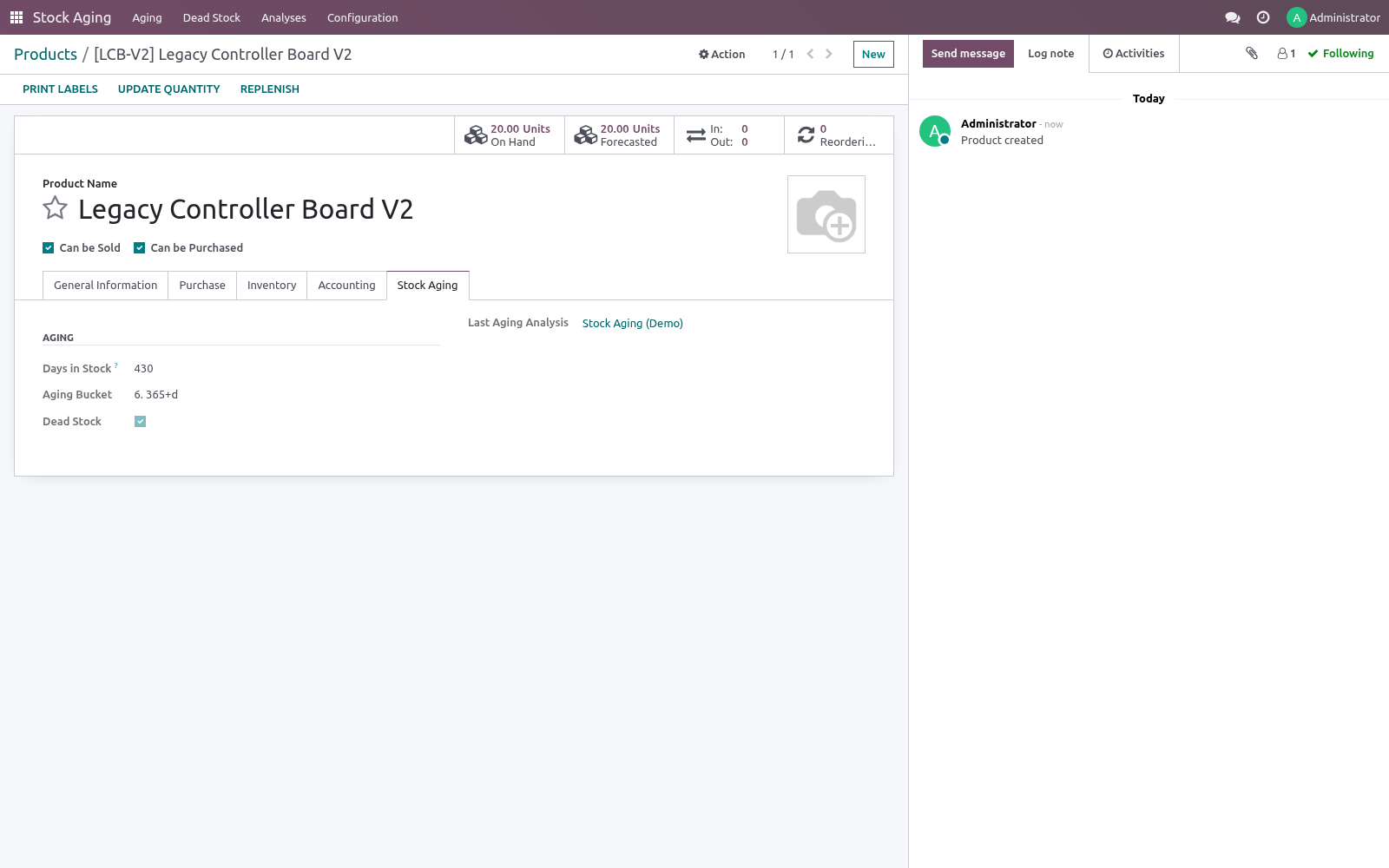
Acting on the results. With Write Back to Products on, every product gets a Stock Aging tab showing its days in stock, bucket and dead-stock flag. In the product list (Inventory > Products) you can filter to Dead Stock or group by Aging Bucket, then act: run a clearance promotion, stop replenishing, review suppliers, or write the stock down. Automating refreshes.
A scheduled action Stock Aging: Recompute Latest Analysis ships disabled. Enable it under Settings > Technical > Scheduled Actions to recompute the most recent analysis per company on a schedule (weekly by default), moving the reference date to today each run. Frequently asked questions. A product shows age 0 but I know it is old.
The FIFO age needs receipt moves. Products whose stock came from an inventory adjustment (no receipt move) fall back to their last receipt date, or 0 if there is none. Receive stock through normal operations for full accuracy. Value looks wrong.
Value is on-hand quantity × product cost (standard price). Make sure your cost prices are set. How we make sure it works. Before every release, 21 automated checks run against this app on Odoo 16, 17, 18, 19 and 20.
Among them: Age counts the company's days not the server's. A receipt after the company's midnight stays out. Wizard proposes draft entry only. No rules is unchanged.
Odoo 20's company timezone is the company's clock. The complete list is in the source you receive. The complete manual is at docs dot bambooforge dot dev, the demo database is linked from the store page, and support answers within twenty-four hours. Links are in the description.
Transcript of the walkthrough (Odoo 19)
Stock Aging & Dead Stock Report. FIFO-accurate stock aging with configurable buckets, an obsolescence provision finance can book, and a dead-stock disposition workflow. Inventory that sits too long ties up cash and risks obsolescence. This app makes that visible: In the next few minutes: stock aging & dead stock report, then why fifo matters, then quick start, then reading the results, then how classification works.
Then what this app deliberately does not do, so you can tell before you buy whether it fits. Everything lives under Stock Aging then Aging then Dead Stock then Analyses. No Enterprise modules and no external Python libraries are required. Stock Aging & Dead Stock Report.
See exactly how old your on-hand inventory is and how much capital is tied up in slow-moving and dead stock. Aging is computed FIFO from real stock moves — the age of the oldest unit still on hand — not a naive last-receipt date. Products are bucketed by age, classified by movement (fast / slow / dead / never sold), and the classes are written back onto the products for filtering across Inventory. This page is the complete manual.
Follow it top to bottom and you can install, run your first analysis, read the aging matrix, tune the buckets and fix the common issues without contacting support. Why FIFO matters. A naive aging report dates stock by the last receipt, so one fresh delivery makes a pile of old stock look new. This app instead walks the move history: it takes incoming quantities oldest-first, removes everything that has since been delivered, and reports the age of the oldest unit still on hand.
That is the number that actually tells you whether stock is going stale. Quick start. 1. Open Stock Aging > Analyses and click New.
2. Optionally adjust the Aging Buckets (the five day thresholds) and the Dead Stock After (days) value. 3. Click Compute.
The analysis switches to Computed, the Products stat fills in, and the Result section shows the total on-hand value and the dead value. Open the Results tab, or Stock Aging > Aging, to explore. Reading the results. Go to Stock Aging > Aging for the analytical views: Pivot — aging buckets down the side, movement classes across the top, value in each cell.
This is your "how much value is old, and is it moving?" matrix. Graph — value per aging bucket at a glance. List — every product with on-hand quantity and value, oldest age, aging bucket, last delivery, movement class and the dead-stock flag. Dead rows are highlighted in red and slow ones in orange.
How classification works. Aging. For each product the app collects done stock moves: receipts into stock and deliveries out of it. Incoming quantities are taken oldest-first and reduced by everything delivered since; the date of the oldest remaining layer gives the oldest age (days), which places the product in a bucket.
When a product has stock but no usable move history, its last receipt date is used. Dead stock & movement. From the last delivery date the app derives the days since the last sale and a movement class: fast (sold recently), slow (no sale for over a third of the dead-stock window), dead (no sale beyond the dead-stock window), or never sold. A product is flagged dead stock when it is dead, or has never sold yet has aged past the dead-stock window.
Tuning the buckets. On the analysis form set the five Aging Buckets day thresholds (they must be positive and strictly increasing) and the Dead Stock After (days) window. A sixth bucket automatically holds everything older than the fifth threshold. Re-run the analysis after any change; results update immediately.
Acting on the results. With Write Back to Products on, every product gets a Stock Aging tab showing its days in stock, bucket and dead-stock flag. In the product list (Inventory > Products) you can filter to Dead Stock or group by Aging Bucket, then act: run a clearance promotion, stop replenishing, review suppliers, or write the stock down. Automating refreshes.
A scheduled action Stock Aging: Recompute Latest Analysis ships disabled. Enable it under Settings > Technical > Scheduled Actions to recompute the most recent analysis per company on a schedule (weekly by default), moving the reference date to today each run. Frequently asked questions. A product shows age 0 but I know it is old.
The FIFO age needs receipt moves. Products whose stock came from an inventory adjustment (no receipt move) fall back to their last receipt date, or 0 if there is none. Receive stock through normal operations for full accuracy. Value looks wrong.
Value is on-hand quantity × product cost (standard price). Make sure your cost prices are set. Support. Questions or ideas: support@bambooforge.dev.
.. BAMBOOFORGE-DOC-APPENDIX (auto-generated: Upgrade/Uninstall/Changelog + bespoke) The complete manual is at docs dot bambooforge dot dev, the demo database is linked from the store page, and support answers within twenty-four hours. Links are in the description.
Transcript of the walkthrough (Odoo 18)
Stock Aging & Dead Stock Report. FIFO-accurate stock aging with configurable buckets, an obsolescence provision finance can book, and a dead-stock disposition workflow. Inventory that sits too long ties up cash and risks obsolescence. This app makes that visible: In the next few minutes: stock aging & dead stock report, then why fifo matters, then quick start, then reading the results, then how classification works.
Then what this app deliberately does not do, so you can tell before you buy whether it fits. Everything lives under Stock Aging then Aging then Dead Stock then Analyses. No Enterprise modules and no external Python libraries are required. Stock Aging & Dead Stock Report.
See exactly how old your on-hand inventory is and how much capital is tied up in slow-moving and dead stock. Aging is computed FIFO from real stock moves — the age of the oldest unit still on hand — not a naive last-receipt date. Products are bucketed by age, classified by movement (fast / slow / dead / never sold), and the classes are written back onto the products for filtering across Inventory. This page is the complete manual.
Follow it top to bottom and you can install, run your first analysis, read the aging matrix, tune the buckets and fix the common issues without contacting support. Why FIFO matters. A naive aging report dates stock by the last receipt, so one fresh delivery makes a pile of old stock look new. This app instead walks the move history: it takes incoming quantities oldest-first, removes everything that has since been delivered, and reports the age of the oldest unit still on hand.
That is the number that actually tells you whether stock is going stale. Quick start. 1. Open Stock Aging > Analyses and click New.
2. Optionally adjust the Aging Buckets (the five day thresholds) and the Dead Stock After (days) value. 3. Click Compute.
The analysis switches to Computed, the Products stat fills in, and the Result section shows the total on-hand value and the dead value. Open the Results tab, or Stock Aging > Aging, to explore. Reading the results. Go to Stock Aging > Aging for the analytical views: Pivot — aging buckets down the side, movement classes across the top, value in each cell.
This is your "how much value is old, and is it moving?" matrix. Graph — value per aging bucket at a glance. List — every product with on-hand quantity and value, oldest age, aging bucket, last delivery, movement class and the dead-stock flag. Dead rows are highlighted in red and slow ones in orange.
How classification works. Aging. For each product the app collects done stock moves: receipts into stock and deliveries out of it. Incoming quantities are taken oldest-first and reduced by everything delivered since; the date of the oldest remaining layer gives the oldest age (days), which places the product in a bucket.
When a product has stock but no usable move history, its last receipt date is used. Dead stock & movement. From the last delivery date the app derives the days since the last sale and a movement class: fast (sold recently), slow (no sale for over a third of the dead-stock window), dead (no sale beyond the dead-stock window), or never sold. A product is flagged dead stock when it is dead, or has never sold yet has aged past the dead-stock window.
Tuning the buckets. On the analysis form set the five Aging Buckets day thresholds (they must be positive and strictly increasing) and the Dead Stock After (days) window. A sixth bucket automatically holds everything older than the fifth threshold. Re-run the analysis after any change; results update immediately.
Acting on the results. With Write Back to Products on, every product gets a Stock Aging tab showing its days in stock, bucket and dead-stock flag. In the product list (Inventory > Products) you can filter to Dead Stock or group by Aging Bucket, then act: run a clearance promotion, stop replenishing, review suppliers, or write the stock down. Automating refreshes.
A scheduled action Stock Aging: Recompute Latest Analysis ships disabled. Enable it under Settings > Technical > Scheduled Actions to recompute the most recent analysis per company on a schedule (weekly by default), moving the reference date to today each run. Frequently asked questions. A product shows age 0 but I know it is old.
The FIFO age needs receipt moves. Products whose stock came from an inventory adjustment (no receipt move) fall back to their last receipt date, or 0 if there is none. Receive stock through normal operations for full accuracy. Value looks wrong.
Value is on-hand quantity × product cost (standard price). Make sure your cost prices are set. Support. Questions or ideas: support@bambooforge.dev.
.. BAMBOOFORGE-DOC-APPENDIX (auto-generated: Upgrade/Uninstall/Changelog + bespoke) The complete manual is at docs dot bambooforge dot dev, the demo database is linked from the store page, and support answers within twenty-four hours. Links are in the description.
Transcript of the walkthrough (Odoo 17)
Stock Aging & Dead Stock Report. FIFO-accurate stock aging with configurable buckets, an obsolescence provision finance can book, and a dead-stock disposition workflow. Inventory that sits too long ties up cash and risks obsolescence. This app makes that visible: In the next few minutes: stock aging & dead stock report, then why fifo matters, then quick start, then reading the results, then how classification works.
Then what this app deliberately does not do, so you can tell before you buy whether it fits. Everything lives under Stock Aging then Aging then Dead Stock then Analyses. No Enterprise modules and no external Python libraries are required. Stock Aging & Dead Stock Report.
See exactly how old your on-hand inventory is and how much capital is tied up in slow-moving and dead stock. Aging is computed FIFO from real stock moves — the age of the oldest unit still on hand — not a naive last-receipt date. Products are bucketed by age, classified by movement (fast / slow / dead / never sold), and the classes are written back onto the products for filtering across Inventory. This page is the complete manual.
Follow it top to bottom and you can install, run your first analysis, read the aging matrix, tune the buckets and fix the common issues without contacting support. Why FIFO matters. A naive aging report dates stock by the last receipt, so one fresh delivery makes a pile of old stock look new. This app instead walks the move history: it takes incoming quantities oldest-first, removes everything that has since been delivered, and reports the age of the oldest unit still on hand.
That is the number that actually tells you whether stock is going stale. Quick start. 1. Open Stock Aging > Analyses and click New.
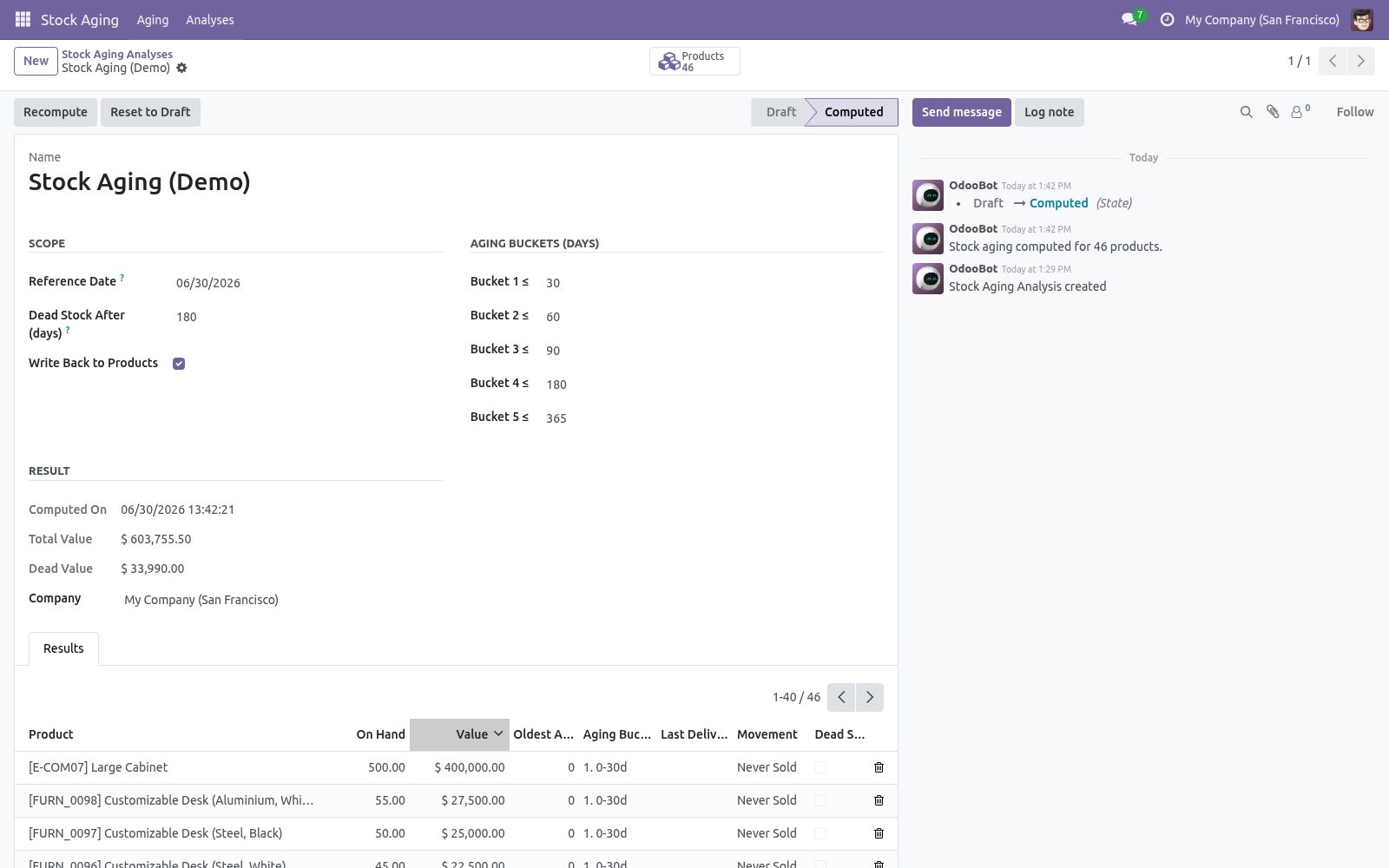
2. Optionally adjust the Aging Buckets (the five day thresholds) and the Dead Stock After (days) value. 3. Click Compute.
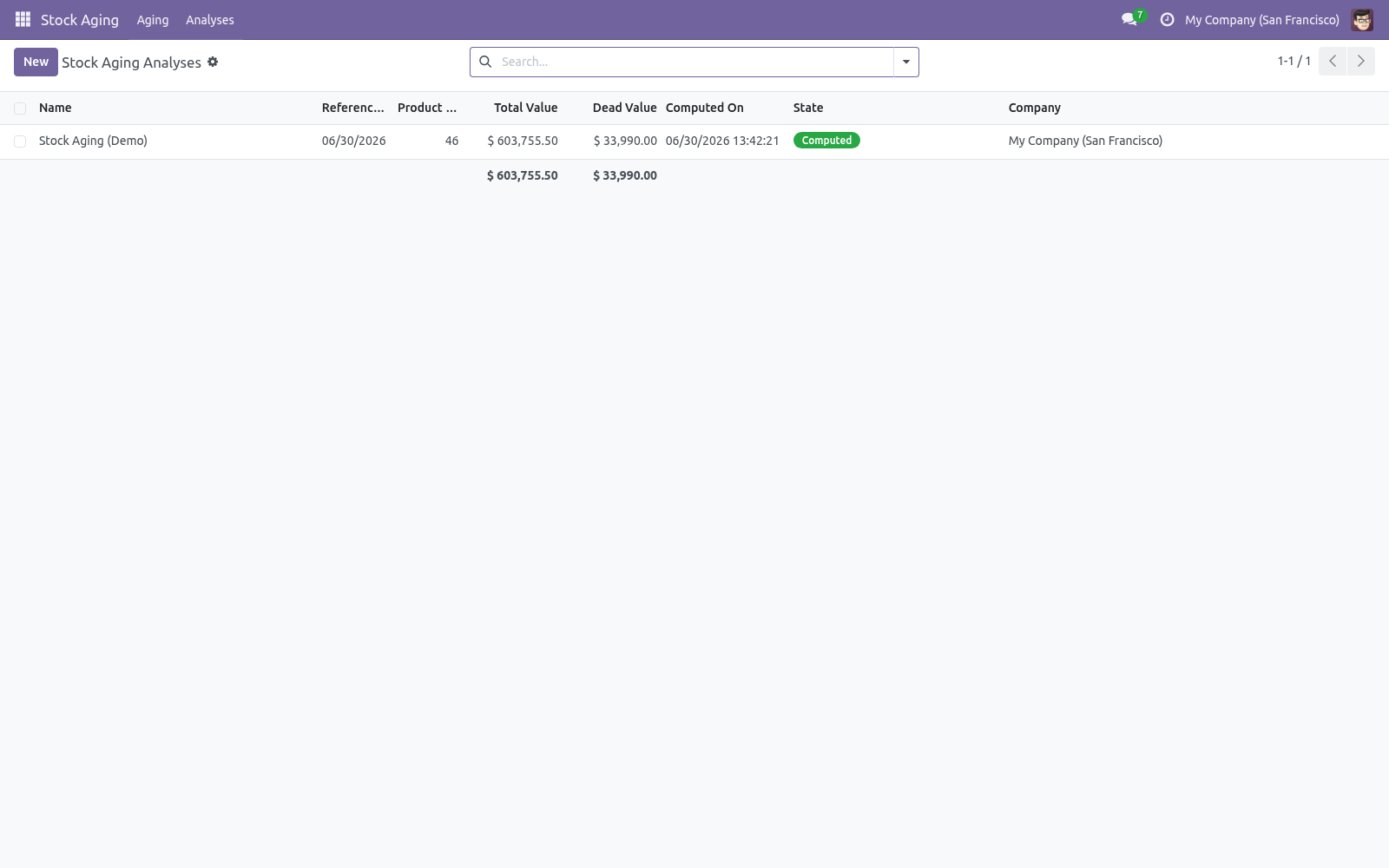
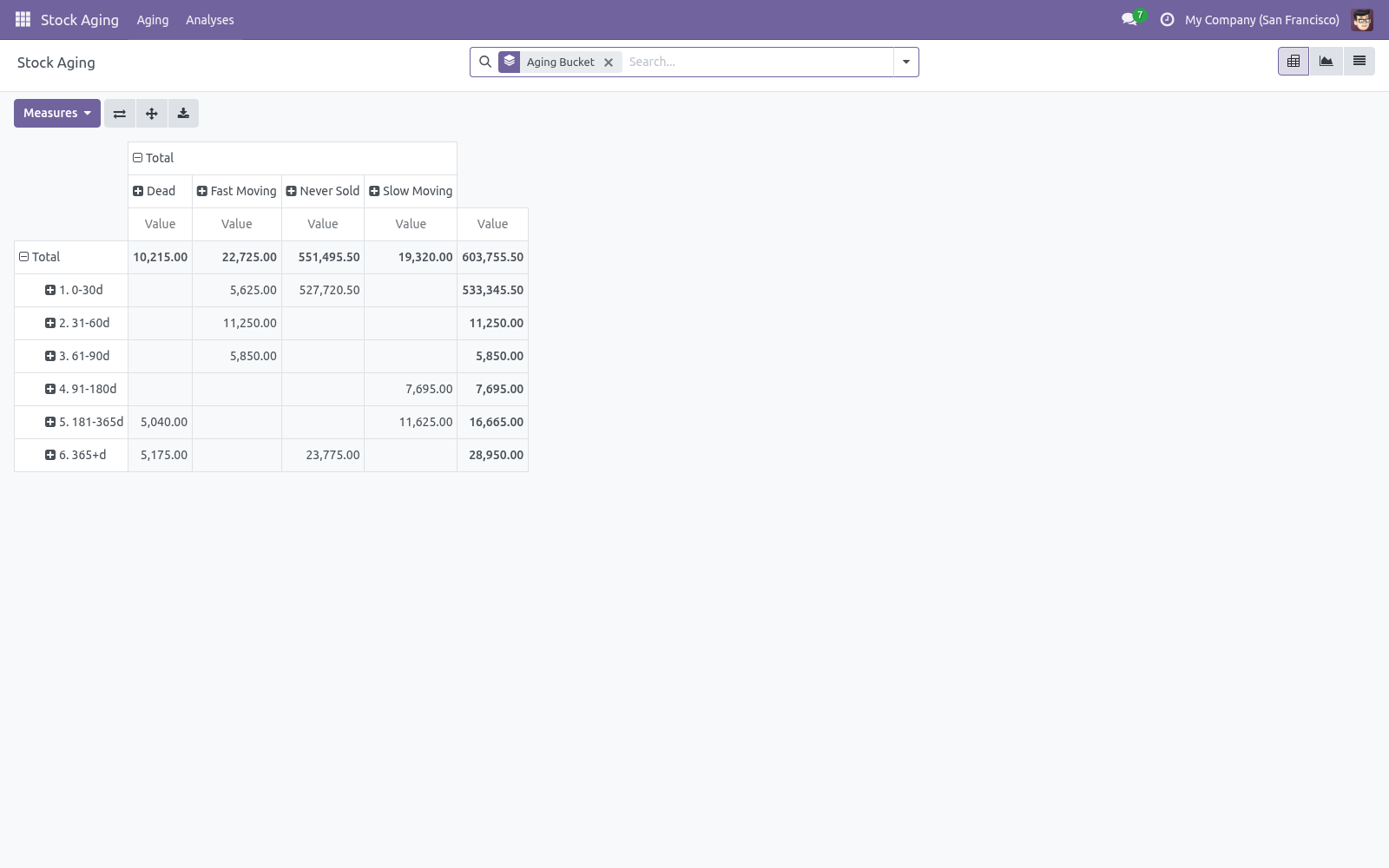
The analysis switches to Computed, the Products stat fills in, and the Result section shows the total on-hand value and the dead value. Open the Results tab, or Stock Aging > Aging, to explore. Reading the results. Go to Stock Aging > Aging for the analytical views: Pivot — aging buckets down the side, movement classes across the top, value in each cell.
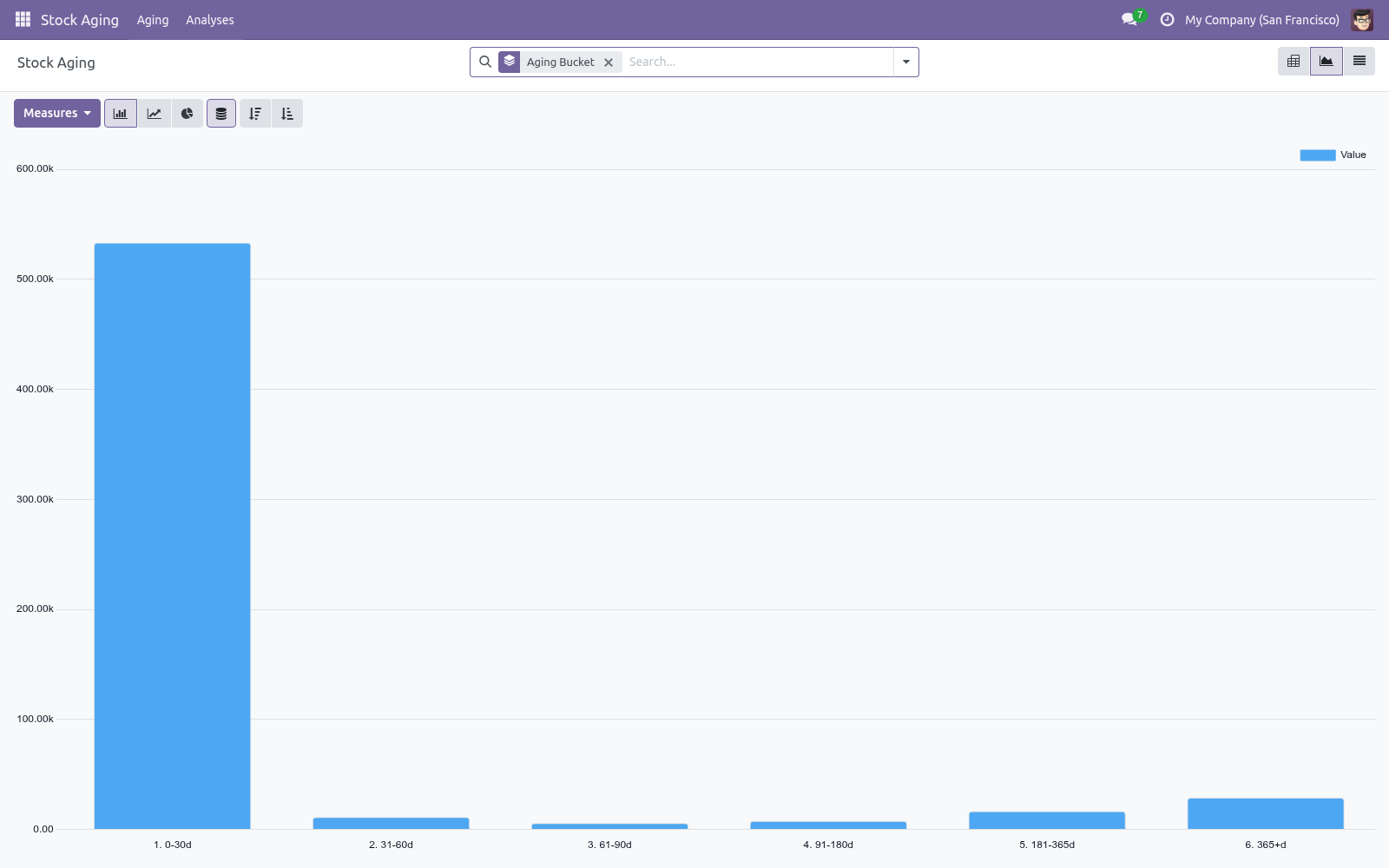
This is your "how much value is old, and is it moving?" matrix. Graph — value per aging bucket at a glance. List — every product with on-hand quantity and value, oldest age, aging bucket, last delivery, movement class and the dead-stock flag. Dead rows are highlighted in red and slow ones in orange.
How classification works. Aging. For each product the app collects done stock moves: receipts into stock and deliveries out of it. Incoming quantities are taken oldest-first and reduced by everything delivered since; the date of the oldest remaining layer gives the oldest age (days), which places the product in a bucket.
When a product has stock but no usable move history, its last receipt date is used. Dead stock & movement. From the last delivery date the app derives the days since the last sale and a movement class: fast (sold recently), slow (no sale for over a third of the dead-stock window), dead (no sale beyond the dead-stock window), or never sold. A product is flagged dead stock when it is dead, or has never sold yet has aged past the dead-stock window.
Tuning the buckets. On the analysis form set the five Aging Buckets day thresholds (they must be positive and strictly increasing) and the Dead Stock After (days) window. A sixth bucket automatically holds everything older than the fifth threshold. Re-run the analysis after any change; results update immediately.
Acting on the results. With Write Back to Products on, every product gets a Stock Aging tab showing its days in stock, bucket and dead-stock flag. In the product list (Inventory > Products) you can filter to Dead Stock or group by Aging Bucket, then act: run a clearance promotion, stop replenishing, review suppliers, or write the stock down. Automating refreshes.
A scheduled action Stock Aging: Recompute Latest Analysis ships disabled. Enable it under Settings > Technical > Scheduled Actions to recompute the most recent analysis per company on a schedule (weekly by default), moving the reference date to today each run. Frequently asked questions. A product shows age 0 but I know it is old.
The FIFO age needs receipt moves. Products whose stock came from an inventory adjustment (no receipt move) fall back to their last receipt date, or 0 if there is none. Receive stock through normal operations for full accuracy. Value looks wrong.
Value is on-hand quantity × product cost (standard price). Make sure your cost prices are set. Support. Questions or ideas: support@bambooforge.dev.
.. BAMBOOFORGE-DOC-APPENDIX (auto-generated: Upgrade/Uninstall/Changelog + bespoke) The complete manual is at docs dot bambooforge dot dev, the demo database is linked from the store page, and support answers within twenty-four hours. Links are in the description.
Transcript of the walkthrough (Odoo 16)
Stock Aging & Dead Stock Report. FIFO-accurate stock aging with configurable buckets, an obsolescence provision finance can book, and a dead-stock disposition workflow. Inventory that sits too long ties up cash and risks obsolescence. This app makes that visible: In the next few minutes: stock aging & dead stock report, then why fifo matters, then quick start, then reading the results, then how classification works.
Then what this app deliberately does not do, so you can tell before you buy whether it fits. Everything lives under Stock Aging then Aging then Dead Stock then Analyses. No Enterprise modules and no external Python libraries are required. Stock Aging & Dead Stock Report.
See exactly how old your on-hand inventory is and how much capital is tied up in slow-moving and dead stock. Aging is computed FIFO from real stock moves — the age of the oldest unit still on hand — not a naive last-receipt date. Products are bucketed by age, classified by movement (fast / slow / dead / never sold), and the classes are written back onto the products for filtering across Inventory. This page is the complete manual.
Follow it top to bottom and you can install, run your first analysis, read the aging matrix, tune the buckets and fix the common issues without contacting support. Why FIFO matters. A naive aging report dates stock by the last receipt, so one fresh delivery makes a pile of old stock look new. This app instead walks the move history: it takes incoming quantities oldest-first, removes everything that has since been delivered, and reports the age of the oldest unit still on hand.
That is the number that actually tells you whether stock is going stale. Quick start. 1. Open Stock Aging > Analyses and click New.
2. Optionally adjust the Aging Buckets (the five day thresholds) and the Dead Stock After (days) value. 3. Click Compute.
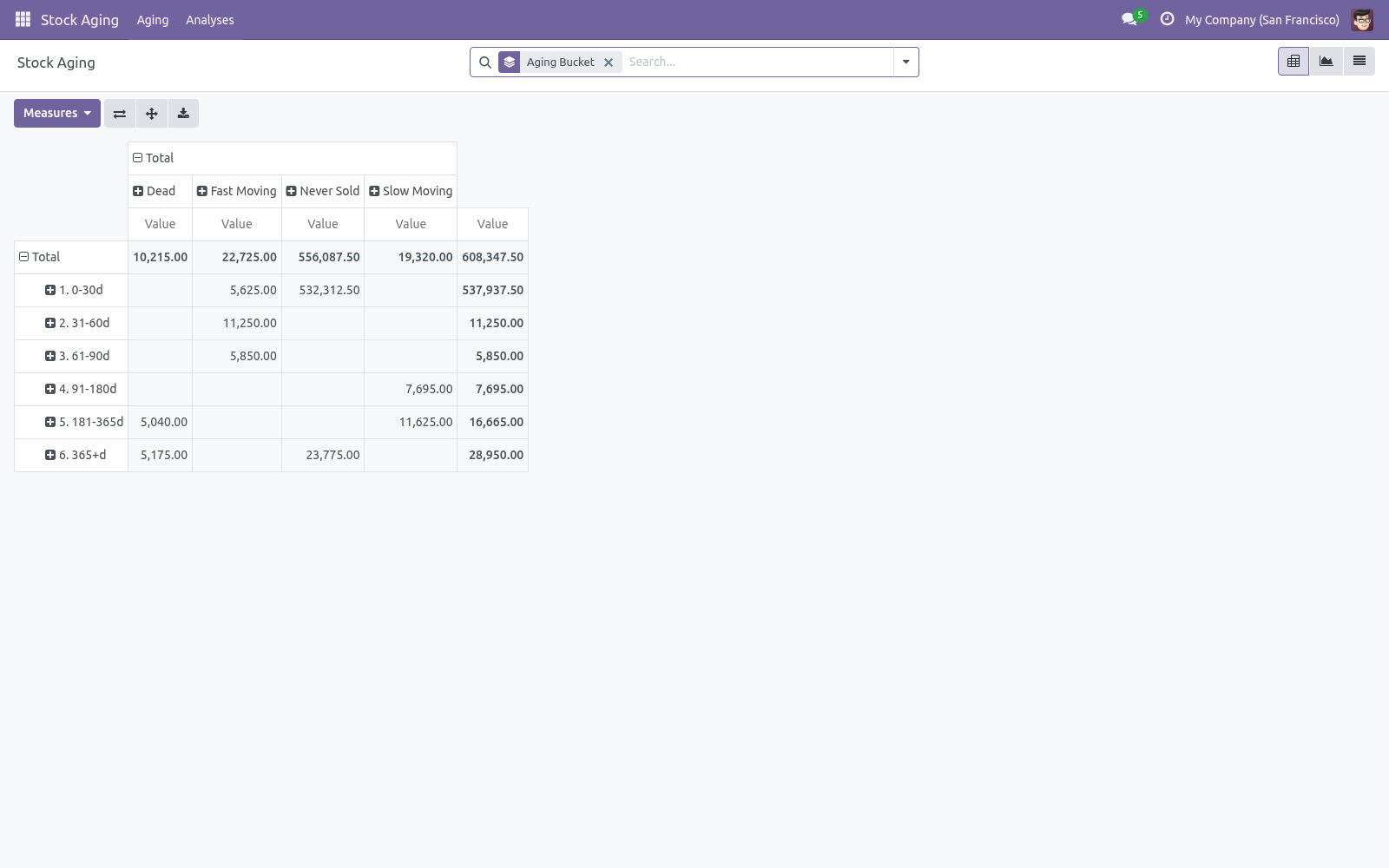
The analysis switches to Computed, the Products stat fills in, and the Result section shows the total on-hand value and the dead value. Open the Results tab, or Stock Aging > Aging, to explore. Reading the results. Go to Stock Aging > Aging for the analytical views: Pivot — aging buckets down the side, movement classes across the top, value in each cell.
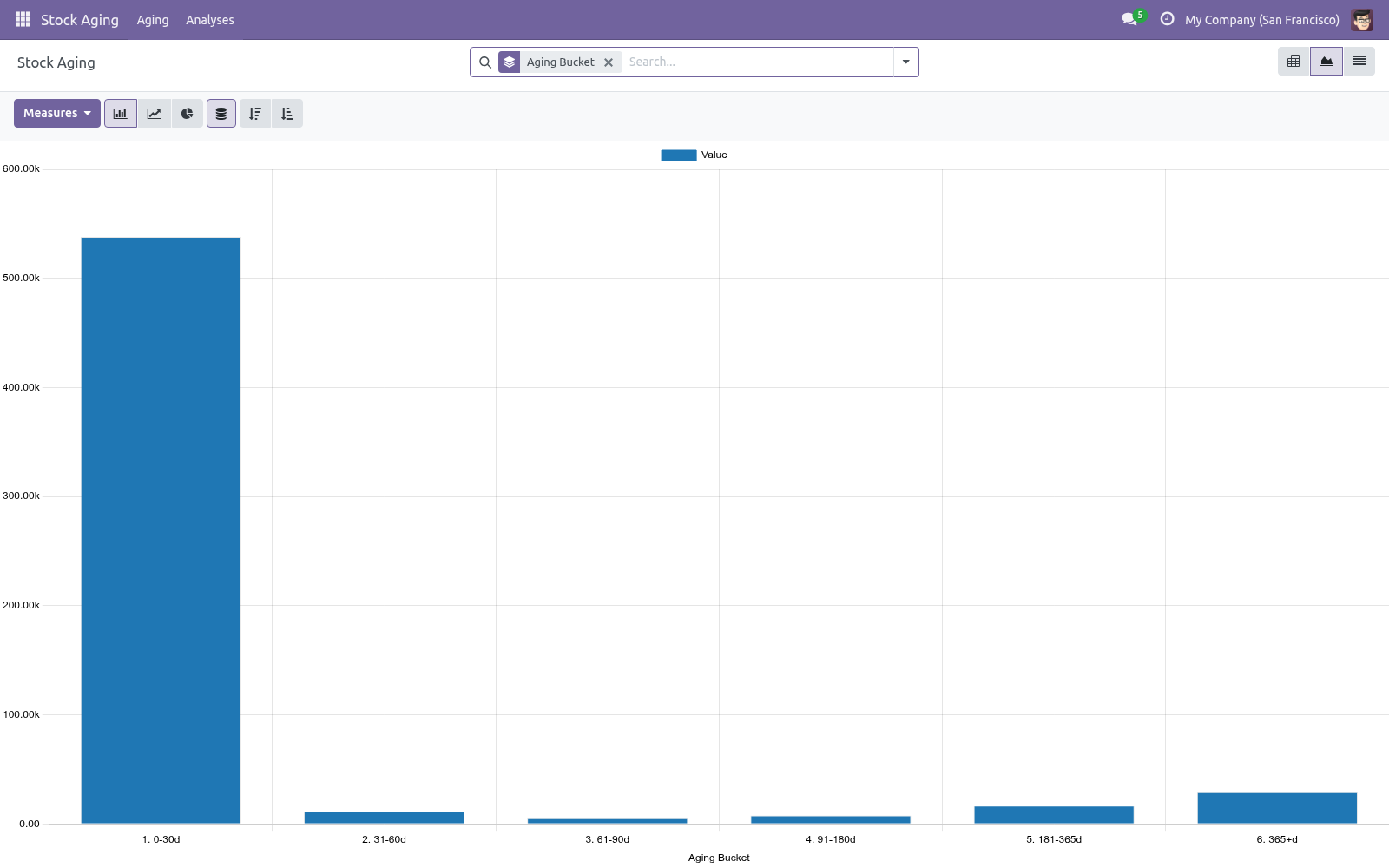
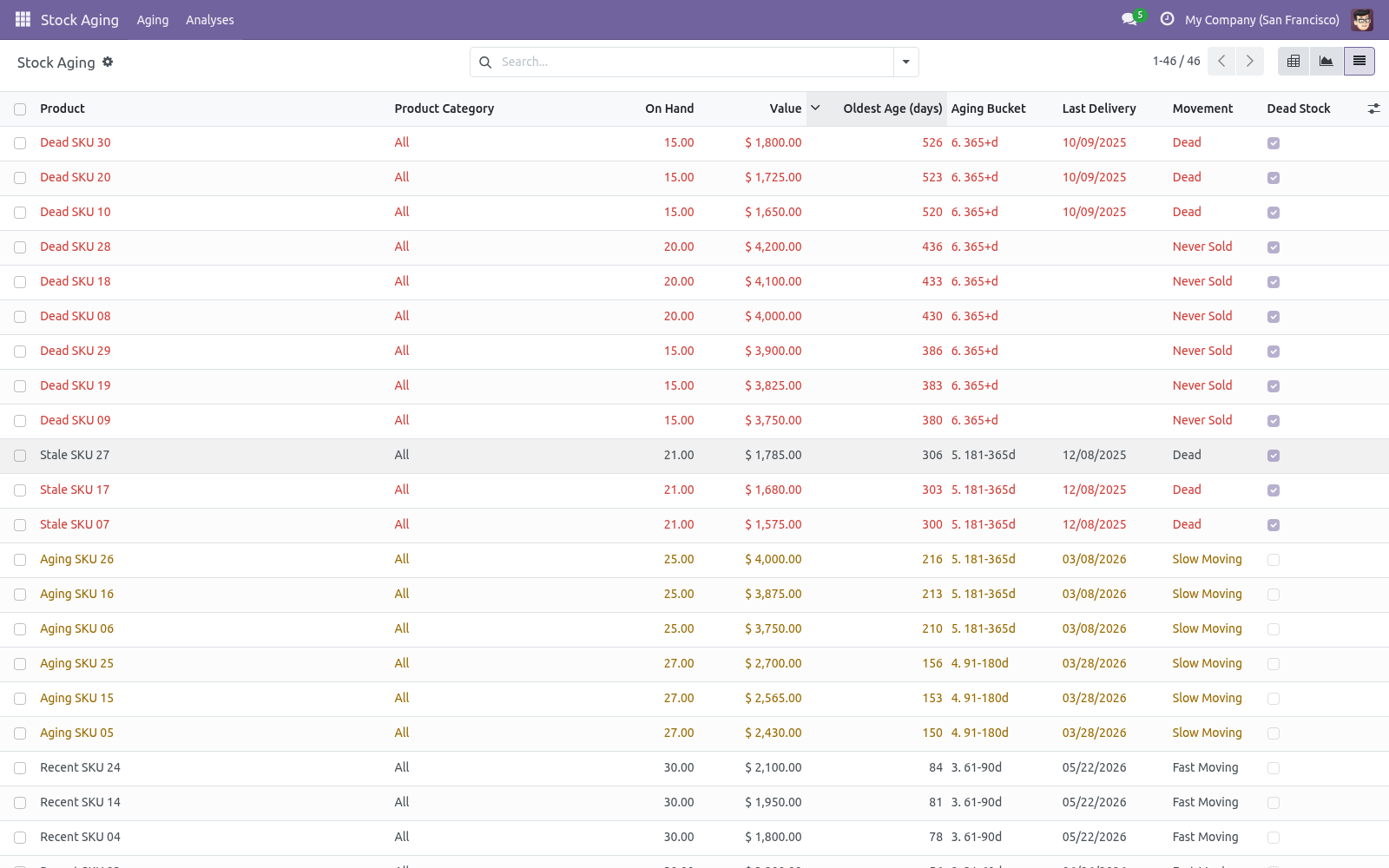
This is your "how much value is old, and is it moving?" matrix. Graph — value per aging bucket at a glance. List — every product with on-hand quantity and value, oldest age, aging bucket, last delivery, movement class and the dead-stock flag. Dead rows are highlighted in red and slow ones in orange.
How classification works. Aging. For each product the app collects done stock moves: receipts into stock and deliveries out of it. Incoming quantities are taken oldest-first and reduced by everything delivered since; the date of the oldest remaining layer gives the oldest age (days), which places the product in a bucket.
When a product has stock but no usable move history, its last receipt date is used. Dead stock & movement. From the last delivery date the app derives the days since the last sale and a movement class: fast (sold recently), slow (no sale for over a third of the dead-stock window), dead (no sale beyond the dead-stock window), or never sold. A product is flagged dead stock when it is dead, or has never sold yet has aged past the dead-stock window.
Tuning the buckets. On the analysis form set the five Aging Buckets day thresholds (they must be positive and strictly increasing) and the Dead Stock After (days) window. A sixth bucket automatically holds everything older than the fifth threshold. Re-run the analysis after any change; results update immediately.
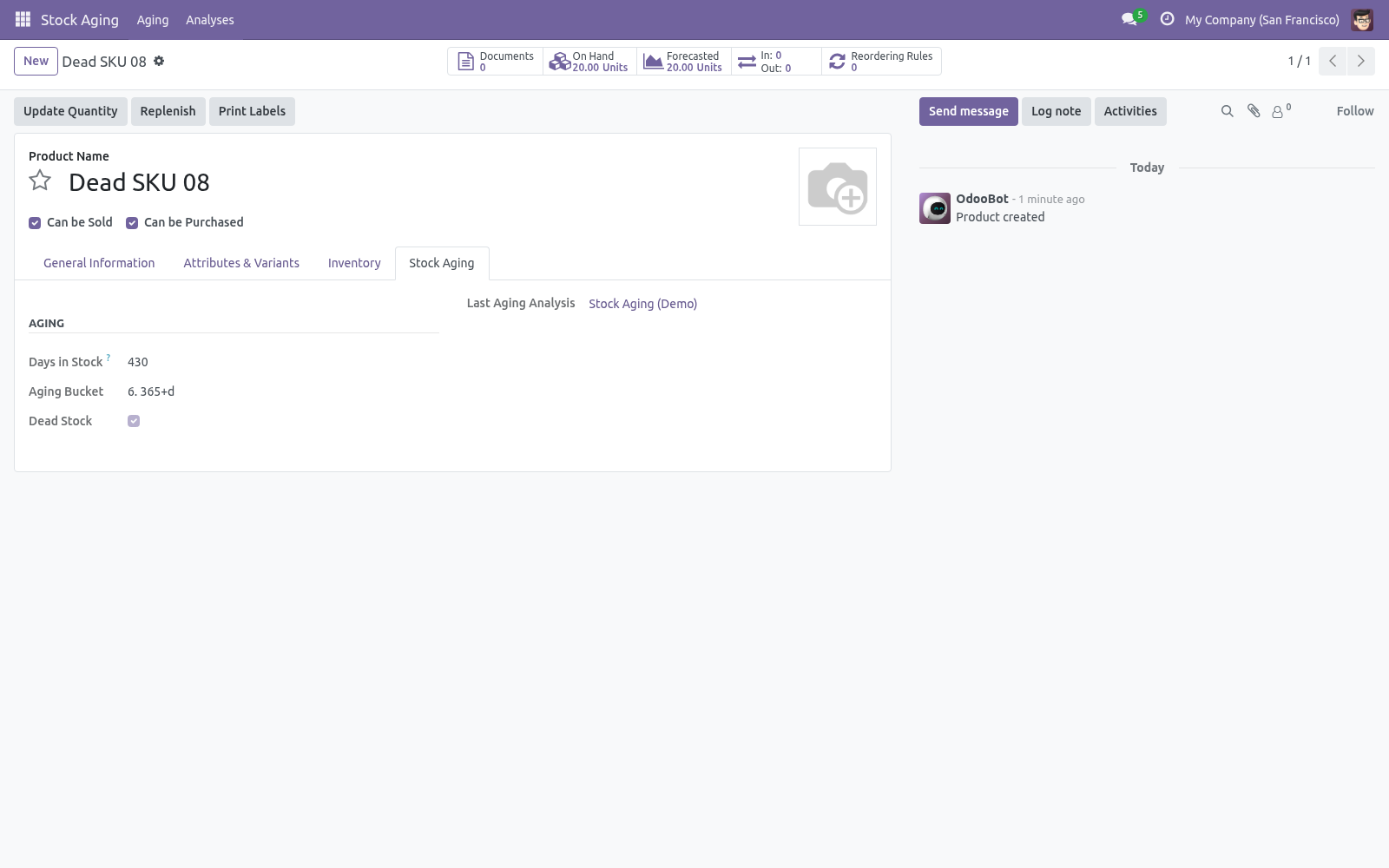
Acting on the results. With Write Back to Products on, every product gets a Stock Aging tab showing its days in stock, bucket and dead-stock flag. In the product list (Inventory > Products) you can filter to Dead Stock or group by Aging Bucket, then act: run a clearance promotion, stop replenishing, review suppliers, or write the stock down. Automating refreshes.
A scheduled action Stock Aging: Recompute Latest Analysis ships disabled. Enable it under Settings > Technical > Scheduled Actions to recompute the most recent analysis per company on a schedule (weekly by default), moving the reference date to today each run. Frequently asked questions. A product shows age 0 but I know it is old.
The FIFO age needs receipt moves. Products whose stock came from an inventory adjustment (no receipt move) fall back to their last receipt date, or 0 if there is none. Receive stock through normal operations for full accuracy. Value looks wrong.
Value is on-hand quantity × product cost (standard price). Make sure your cost prices are set. Support. Questions or ideas: support@bambooforge.dev.
.. BAMBOOFORGE-DOC-APPENDIX (auto-generated: Upgrade/Uninstall/Changelog + bespoke) The complete manual is at docs dot bambooforge dot dev, the demo database is linked from the store page, and support answers within twenty-four hours. Links are in the description.
Key facts
- What it is
- FIFO-accurate stock aging with configurable buckets, an obsolescence provision finance can book, and a dead-stock disposition workflow.
- For
- Warehouse
- Odoo versions
- 16.0, 17.0, 18.0, 19.0, 20.0 - Community and Enterprise
- Runs on
- Odoo.sh or Odoo you host yourself - not Odoo Online, which accepts no third-party apps
- Price
- 99 EUR, one-time, on the Odoo Apps Store
- Technical name
- bambooforge_stock_aging
- Manual last updated
- 2026-10-15
Stock Aging & Dead Stock Report
See exactly how old your on-hand inventory is and how much capital is tied up in slow-moving and dead stock. Aging is computed FIFO from real stock moves — the age of the oldest unit still on hand — not a naive last-receipt date. Products are bucketed by age, classified by movement (fast / slow / dead / never sold), and the classes are written back onto the products for filtering across Inventory.
This page is the complete manual. Follow it top to bottom and you can install, run your first analysis, read the aging matrix, tune the buckets and fix the common issues without contacting support.
Overview
Inventory that sits too long ties up cash and risks obsolescence. This app makes that visible:
Aging buckets — every on-hand product is placed in an age band (0-30, 31-60, … , 365+ days by default, fully configurable) based on the age of its oldest remaining unit, computed FIFO from receipts and deliveries.
Dead-stock detection — products with no outgoing movement for longer than a threshold you set are flagged as dead stock, with the capital they tie up.
Movement classes — fast, slow, dead or never sold, from each product's last delivery.
Capital view — total on-hand value and dead value, plus a matrix of value by aging bucket and movement class.
Write-back to products — days in stock, aging bucket and the dead-stock flag stored on each product, ready to filter and act on.
Snapshots and an optional weekly cron to track aging over time.
Why FIFO matters
A naive aging report dates stock by the last receipt, so one fresh delivery makes a pile of old stock look new. This app instead walks the move history: it takes incoming quantities oldest-first, removes everything that has since been delivered, and reports the age of the oldest unit still on hand. That is the number that actually tells you whether stock is going stale.
Requirements
Odoo 20.0.
The Inventory app (stock). Installing this app pulls it in automatically.
No Enterprise modules and no external Python libraries are required.
Installation
Copy bambooforge_stock_aging into your addons path.
Update the apps list (Apps > Update Apps List).
Search for Stock Aging and click Install.
A new top-level Stock Aging app appears, and a Stock Aging entry is added under Inventory > Reporting.
Quick start
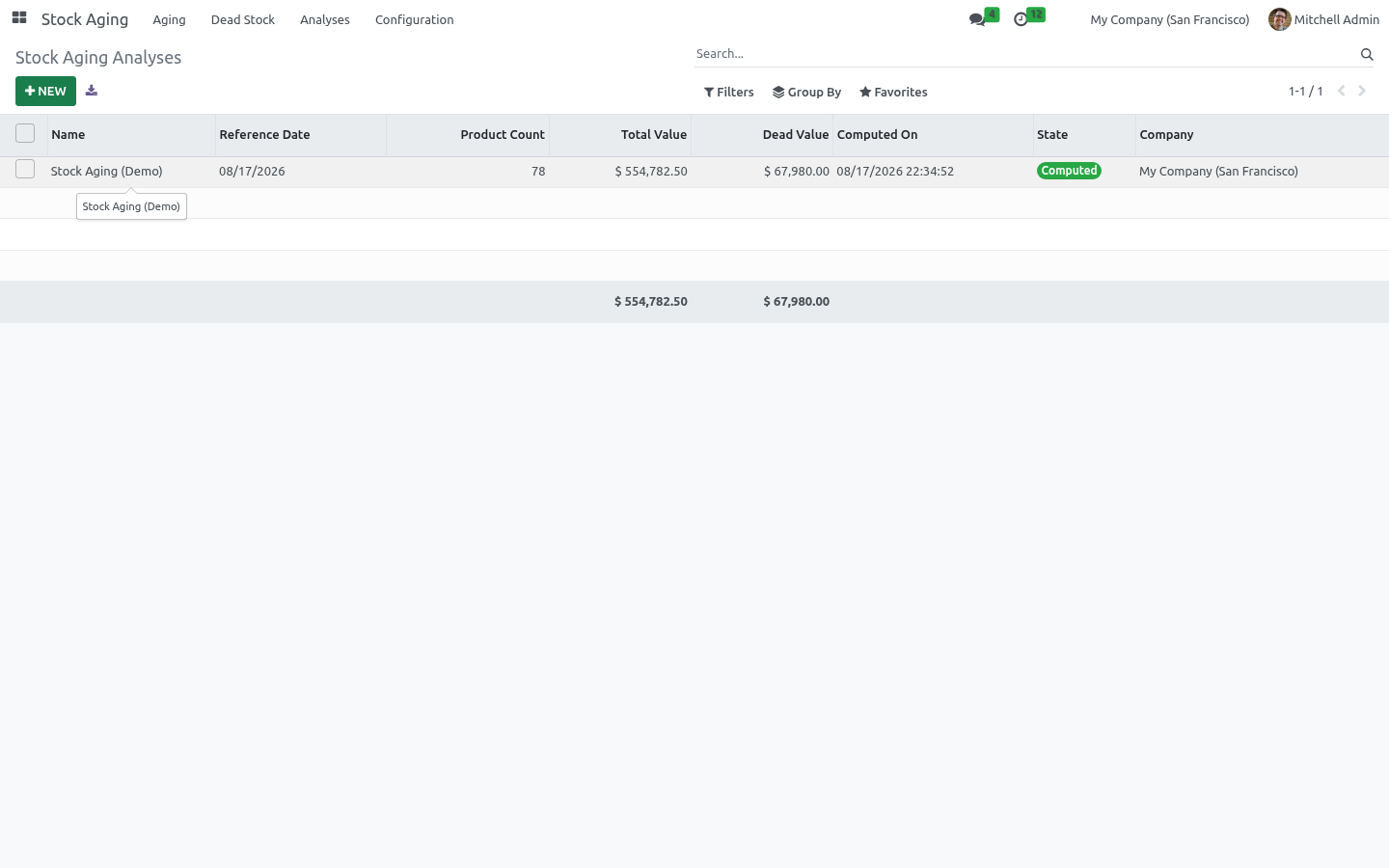
Open Stock Aging > Analyses and click New.
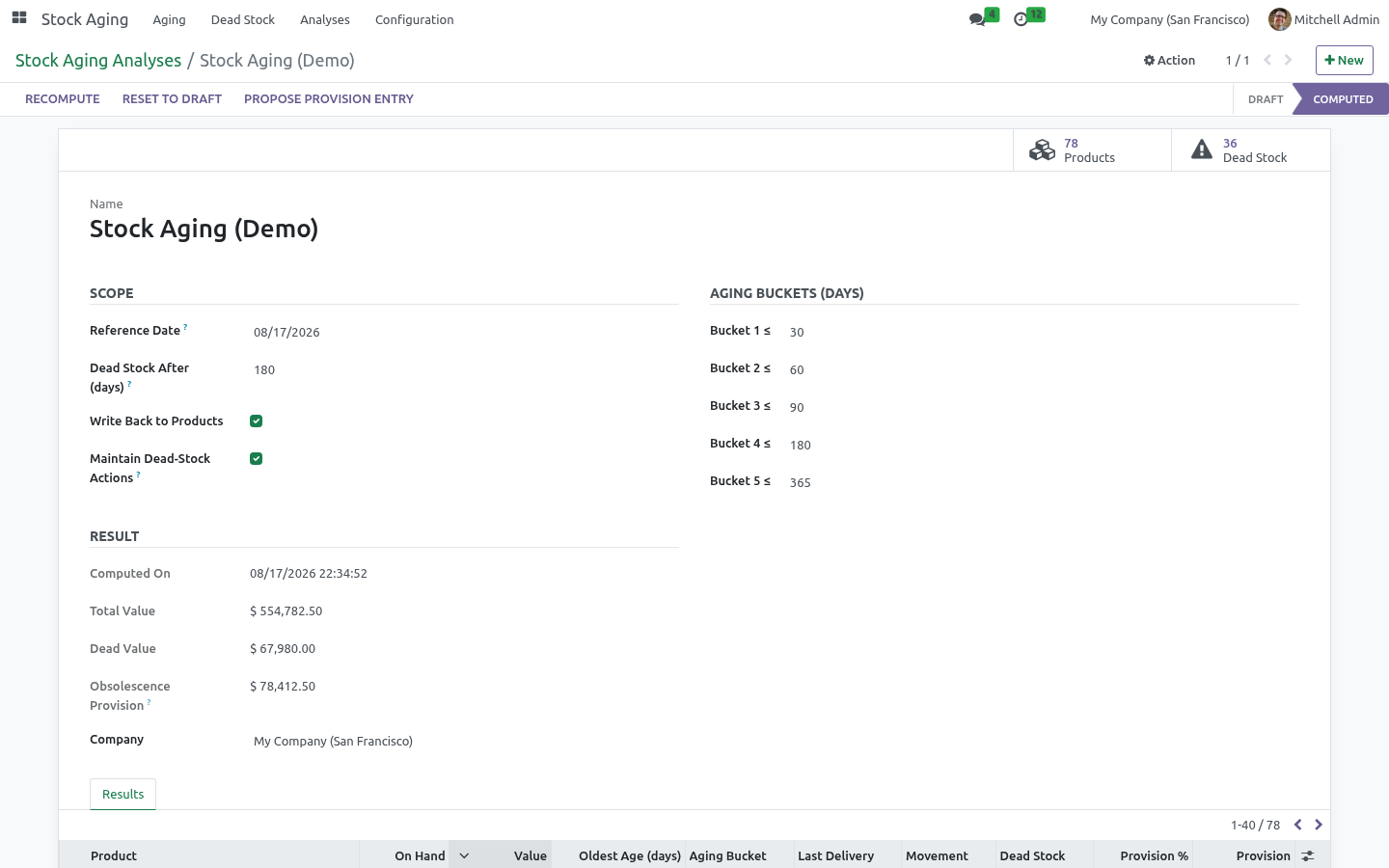
Optionally adjust the Aging Buckets (the five day thresholds) and the Dead Stock After (days) value.
Click Compute.
The analysis switches to Computed, the Products stat fills in, and the Result section shows the total on-hand value and the dead value. Open the Results tab, or Stock Aging > Aging, to explore.
Reading the results
Go to Stock Aging > Aging for the analytical views:
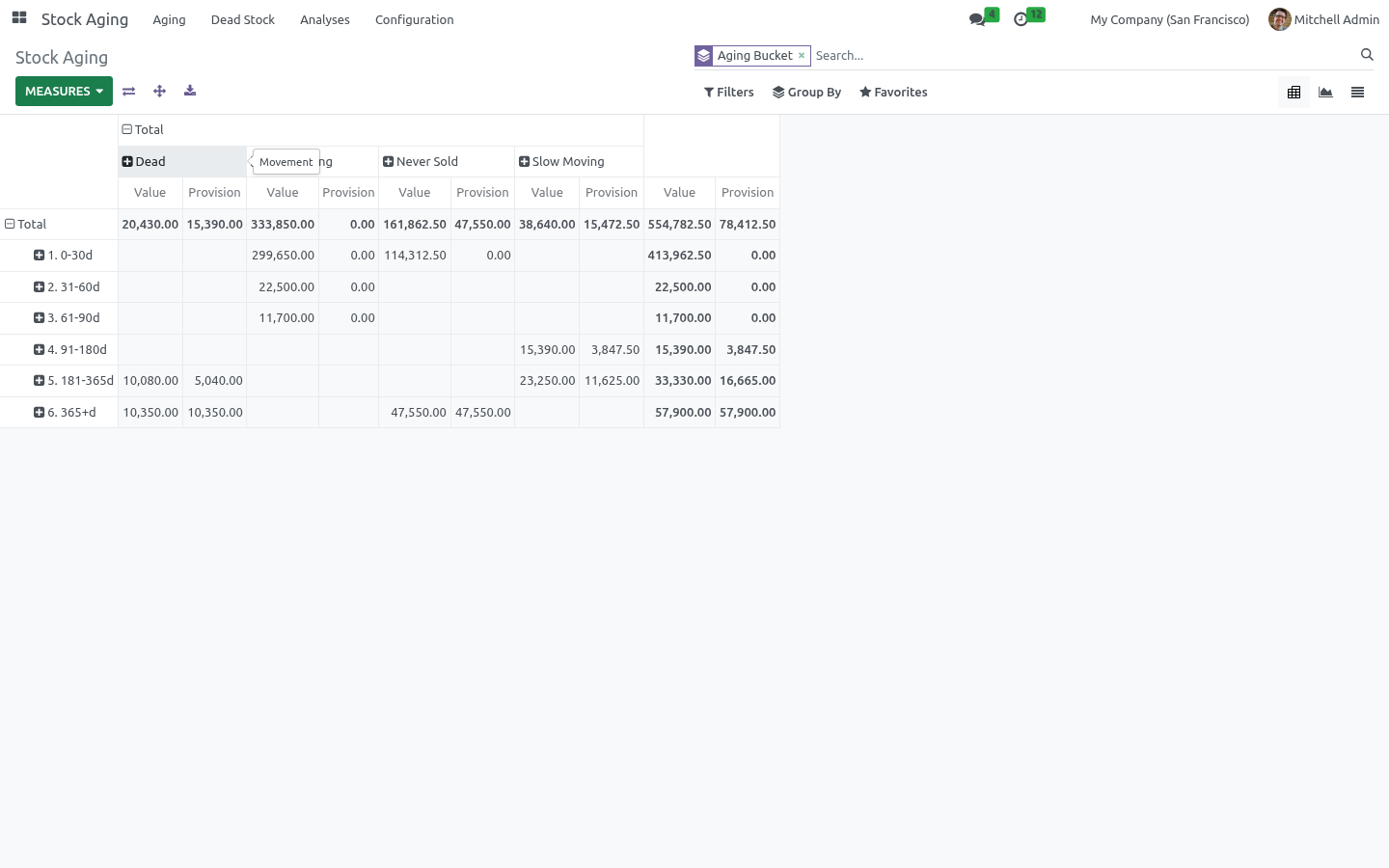
Pivot — aging buckets down the side, movement classes across the top, value in each cell. This is your "how much value is old, and is it moving?" matrix.
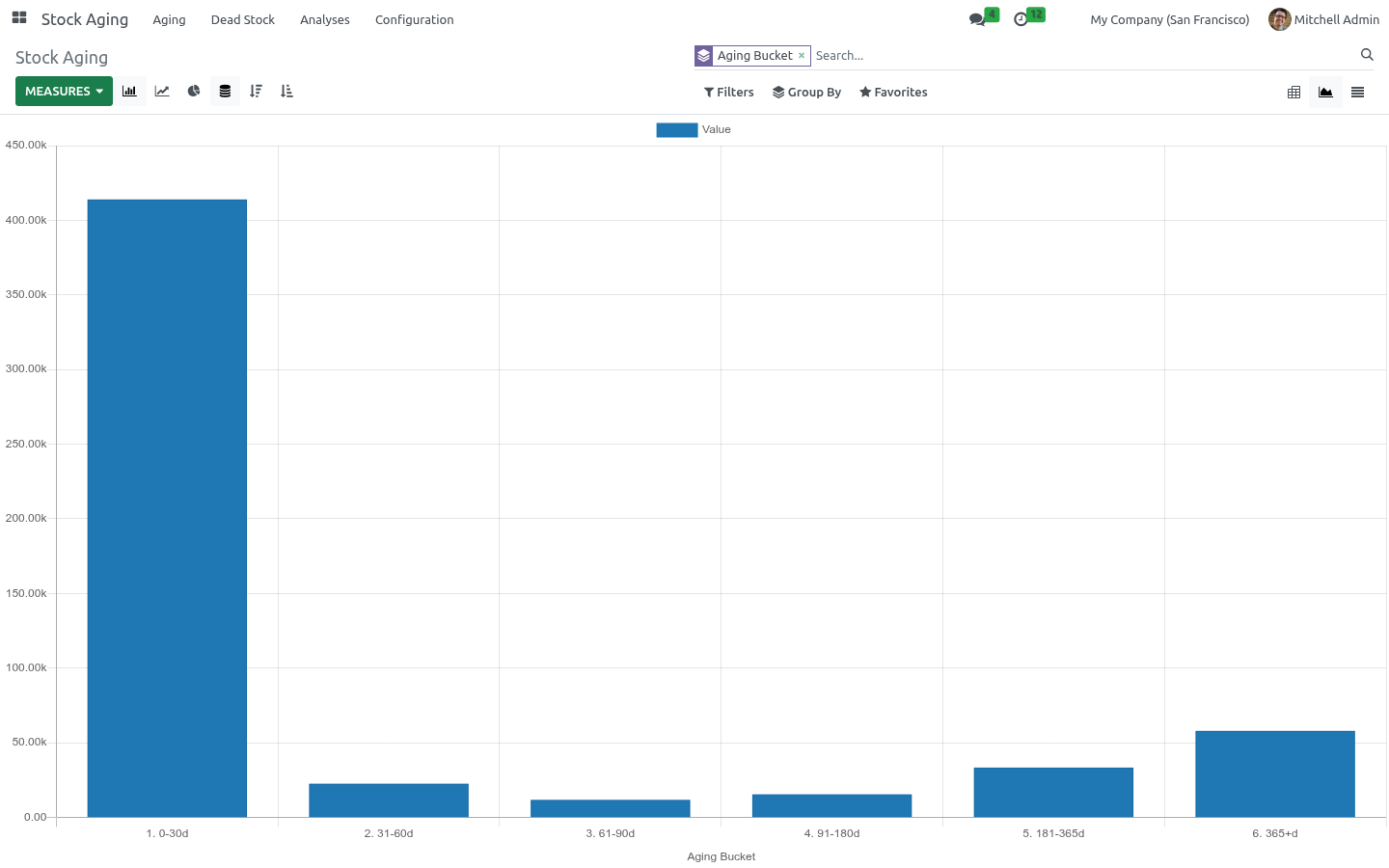
Graph — value per aging bucket at a glance.
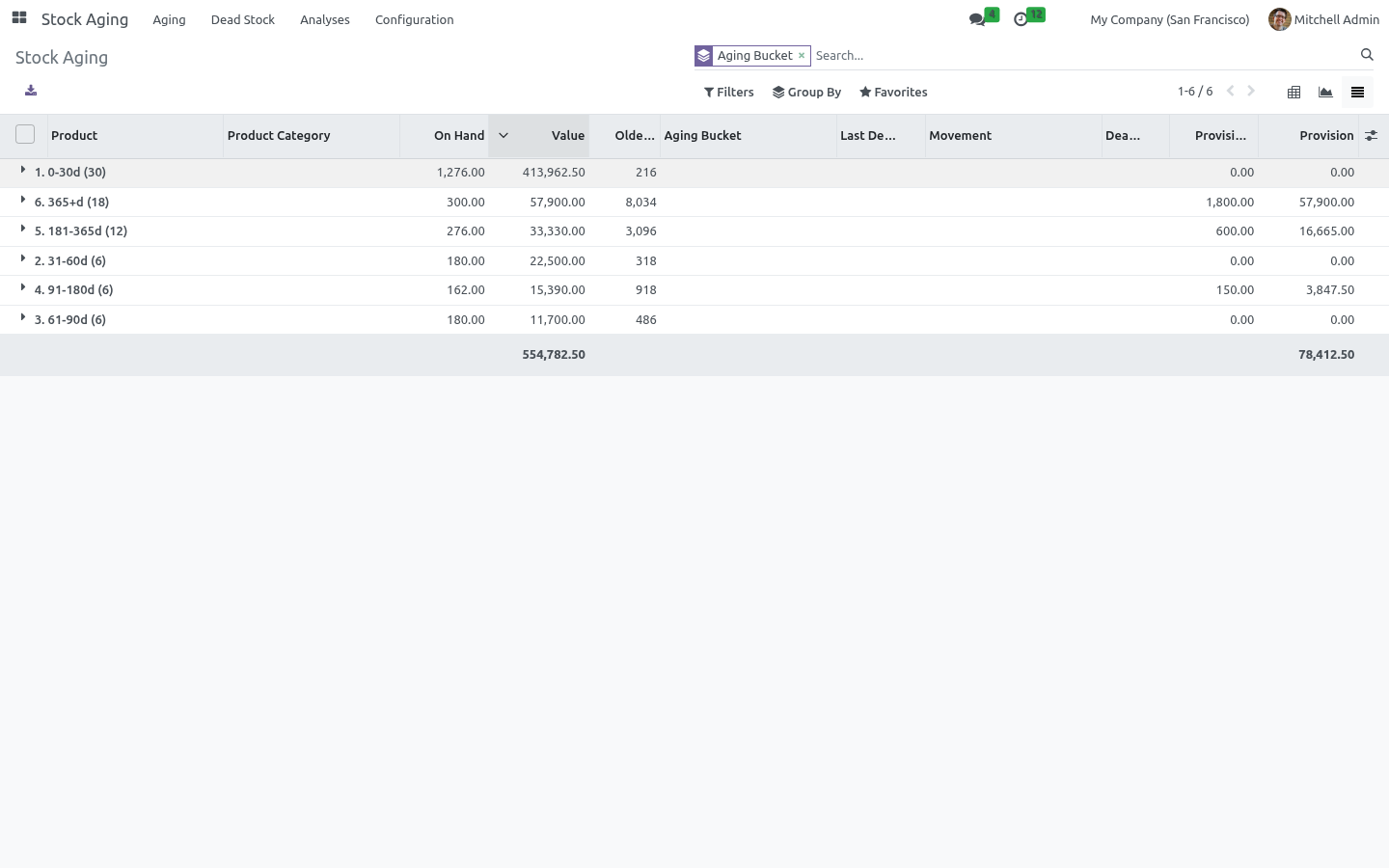
List — every product with on-hand quantity and value, oldest age, aging bucket, last delivery, movement class and the dead-stock flag. Dead rows are highlighted in red and slow ones in orange.
How classification works
Aging. For each product the app collects done stock moves: receipts into stock and deliveries out of it. Incoming quantities are taken oldest-first and reduced by everything delivered since; the date of the oldest remaining layer gives the oldest age (days), which places the product in a bucket. When a product has stock but no usable move history, its last receipt date is used.
Dead stock & movement. From the last delivery date the app derives the days since the last sale and a movement class: fast (sold recently), slow (no sale for over a third of the dead-stock window), dead (no sale beyond the dead-stock window), or never sold. A product is flagged dead stock when it is dead, or has never sold yet has aged past the dead-stock window.
All values use the product cost in the company currency.
Tuning the buckets
On the analysis form set the five Aging Buckets day thresholds (they must be positive and strictly increasing) and the Dead Stock After (days) window. A sixth bucket automatically holds everything older than the fifth threshold. Re-run the analysis after any change; results update immediately.
Acting on the results
With Write Back to Products on, every product gets a Stock Aging tab showing its days in stock, bucket and dead-stock flag. In the product list (Inventory > Products) you can filter to Dead Stock or group by Aging Bucket, then act: run a clearance promotion, stop replenishing, review suppliers, or write the stock down.
Automating refreshes
A scheduled action Stock Aging: Recompute Latest Analysis ships disabled. Enable it under Settings > Technical > Scheduled Actions to recompute the most recent analysis per company on a schedule (weekly by default), moving the reference date to today each run.
Frequently asked questions
- A product shows age 0 but I know it is old.
The FIFO age needs receipt moves. Products whose stock came from an inventory adjustment (no receipt move) fall back to their last receipt date, or 0 if there is none. Receive stock through normal operations for full accuracy.
- Value looks wrong.
Value is on-hand quantity × product cost (standard price). Make sure your cost prices are set.
- Everything is "never sold".
Movement classes need delivery moves. A database with no customer deliveries yet will show every product as never sold — that is expected.
- Does it respect multiple companies?
Yes. Each analysis is scoped to one company and results are kept separate per company.
How we make sure it works
Before every release, 21 automated checks run against this app on Odoo 16, 17, 18, 19 and 20. Among them:
Age counts the company's days not the server's.
A receipt after the company's midnight stays out.
Wizard proposes draft entry only.
No rules is unchanged.
Odoo 20's company timezone is the company's clock.
The complete list is in the source you receive.
Support
Questions or ideas: support@bambooforge.dev.
Usage
Everything starts from an analysis record: configure the buckets and thresholds, compute it, then read the results. After installation a top-level Stock Aging app appears, and the analyses are also surfaced under Inventory > Reporting > Stock Aging for inventory managers.
Running an analysis
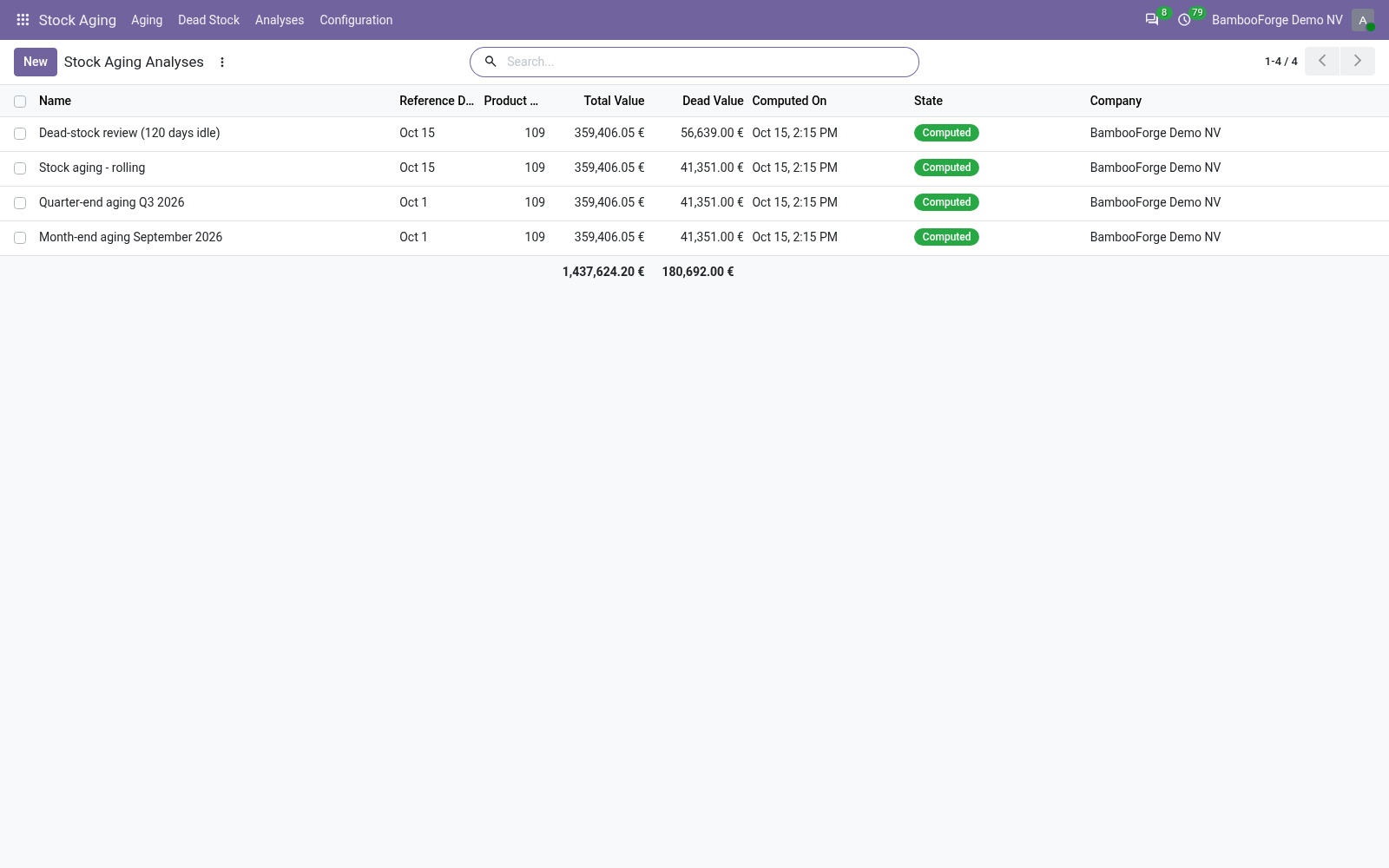
Go to Stock Aging > Analyses, click New, set the Reference Date (ages are measured up to this date), optionally adjust the five Aging Buckets thresholds and the Dead Stock After (days) window, then click Compute. The record moves to Computed and the summary shows Total Value, Dead Value and, if provision rules exist, the Obsolescence Provision figure. Re-run Compute after any change, or Reset to Draft to clear results. Leave Write Back to Products and Maintain Dead-Stock Actions on unless you only want a throw-away report.
Aging buckets
Each product is placed in one age band based on the age of its oldest unit still on hand, computed FIFO from stock moves. With the default thresholds (30 / 60 / 90 / 180 / 365) the buckets are 1. 0-30d, 2. 31-60d, 3. 61-90d, 4. 91-180d, 5. 181-365d and 6. 365+d — a sixth bucket that automatically holds everything older than the fifth threshold. Thresholds must be positive and strictly increasing; labels are sequence-prefixed so they sort in age order in pivots and group-by views.
Reading the report
Open Stock Aging > Aging for the analytical views:
Pivot — Aging Bucket rows, Movement columns, with Value and Provision measures: the "how much value is old, and is it still moving?" matrix.
Graph — a bar chart of on-hand value per aging bucket.
List — one row per product with quantity, value, oldest age, bucket, last delivery, movement class, dead-stock flag and provision; dead rows show in red and slow-moving rows in orange.
The Movement class comes from the last delivery: Fast Moving, Slow Moving (no sale for over a third of the dead-stock window), Dead (no sale beyond the whole window) or Never Sold. A product is flagged Dead Stock when it is dead, or has never sold yet has aged past the window.
The search view offers the filters Dead Stock, Slow Moving and With Provision, plus Group By Aging Bucket, Movement or Product Category — combine, for example, With Provision grouped by category to see where obsolescence risk concentrates.
Provisioning and dead-stock actions
Provisioning is opt-in. Under Stock Aging > Configuration > Provision Rules map an age band (From / To Age (days), where To = 0 means no upper bound), optionally scoped to a Product Category and Company, to a Provision %. The percentage is applied to the value already computed (qty × cost); the first matching rule in sequence order wins. On the analysis, Propose Provision Entry drafts a two-line journal entry (debit obsolescence expense, credit inventory allowance) and leaves it in draft — never posted automatically.
With Maintain Dead-Stock Actions on, every dead or provisioned product becomes a persistent item under Stock Aging > Dead Stock carrying a Disposition (To Review / Discount / Liquidate / Write Off / Keep), an Assignee and Notes. These items survive recomputes: each compute refreshes the snapshot figures but never overwrites your workflow fields. Use Schedule Review to raise a reminder activity.
Worked example
You receive 100 units in January and 100 more in June, then deliver 150 by December. With a December reference date the FIFO engine consumes the 100 January units plus 50 of June's, so the oldest remaining unit dates from June and the part lands in bucket 4. 91-180d rather than looking new. With no delivery for over 180 days it is also flagged Dead Stock, and a "50% over 180 days" provision rule would put half of its remaining on-hand value into the Obsolescence Provision total.
A scheduled action, Stock Aging: Recompute Latest Analysis, ships disabled; enable it under Settings > Technical > Scheduled Actions to recompute the latest analysis per company (weekly by default), advancing the reference date to today each run.
Upgrading & version compatibility
This build targets Odoo 20.0. Each Odoo major series (16.0, 17.0, 18.0, 19.0, 20.0) has its own dedicated build of this module — always install the build that matches your Odoo version. Mixing a build with a different Odoo series is not supported.
Patch upgrades (same series, e.g. 20.0.1.0.0 → later)
Back up your database and filestore first.
Replace the module folder with the newer build.
Restart Odoo with the module updated:
./odoo-bin -c your.conf -u bambooforge_stock_aging -d your_db
Odoo applies any schema/data changes automatically. Your existing records and configuration are preserved.
Cross-version migration (moving to a newer Odoo)
Upgrading Odoo itself is a database migration handled by Odoo's standard upgrade tooling. When you migrate the database to the next Odoo series, install the matching build of this module for that series. Data created by this module carries over with the database migration.
After any upgrade the module's scheduled actions resume on their normal cadence — no manual re-activation is required.
Uninstallation
You can remove this module at any time from Apps → (this module) → Uninstall, or from the command line. Uninstalling is clean and reversible by reinstalling — but note what is and is not deleted.
What is removed
The fields, views and analysis definitions this module added.
The menus, actions, views and reports this module installed.
Its scheduled actions (cron jobs) — they stop immediately on uninstall.
What is preserved
Your standard Odoo data (partners, products, sales, invoices, inventory moves) is not deleted — this module only reads and annotates it; the underlying records stay.
Attachments and chatter messages on standard records are kept.
As always, take a database backup before uninstalling in production.
Questions people ask
- Which Odoo versions does it run on?
Odoo 16.0, 17.0, 18.0, 19.0, 20.0, on the series you buy it for; each series is its own listing.
- Community or Enterprise?
Both. It needs no Enterprise app.
- What does it need?
The standard Inventory, Invoicing apps. No extra Python package.
- Where does it show up?
Under the Stock Aging menu (Aging, Dead Stock, Analyses, Configuration).
- Does anything leave my server?
No. It makes no call outside your Odoo server: no telemetry, no licence check, no third-party service.
- What happens if I uninstall it?
Odoo drops the app's own tables and fields; the standard records it worked on (contacts, orders, products) stay as they are.
Changelog
20.0.1.2.2
Built for Odoo 20: record rules and access rights rewritten onto Odoo 20's single ir.access model, the screens rebuilt on Owl 3, and every icon moved to the icon set Odoo 20 ships.
20.0.1.0.0
Current release for Odoo 20.0. This build includes:
FIFO-accurate stock aging with configurable buckets, an obsolescence provision finance can book, and a dead-stock disposition workflow.
Feature additions and fixes ship as new builds on the Odoo Apps store; this page and the module's version reflect the current published release. Always keep the build matched to your Odoo series (see Upgrading & version compatibility).