 BambooForge Labs
RFM Customer Segmentation
RFM customer segmentation with scoring, automatic segments (Champions, At Risk, Lost), snapshots over time and write-back to contacts.
Available for Odoo 16.0, Odoo 17.0, Odoo 18.0, Odoo 19.0, Odoo 20.0. Technical name bambooforge_rfm_analysis.
Transcript of the walkthrough (Odoo 20)
RFM Customer Segmentation. RFM customer segmentation with scoring, automatic segments (Champions, At Risk, Lost), snapshots over time and write-back to contacts. RFM is the classic, battle-tested model for ranking a customer base by behaviour instead of guesswork: In the next few minutes: rfm customer segmentation, then quick start, then reading the results, then how scoring works, then tuning your segments. Then what this app deliberately does not do, so you can tell before you buy whether it fits.
Everything lives under RFM then Customers then Analyses then Configuration. No Enterprise modules and no external Python libraries are required. RFM Customer Segmentation. Turn raw sales history into actionable customer segments for Odoo 20.
This app scores every customer on Recency, Frequency and Monetary value, drops them into named segments (Champions, Loyal, At Risk, Lost...), keeps a snapshot of every run so you can watch segments move over time, and writes the result back onto each contact so you can filter and target them anywhere in the CRM. This page is the complete manual. Follow it top to bottom and you can install, run your first analysis, read the results, tune the segments, automate refreshes and fix the common issues without contacting support. Quick start.
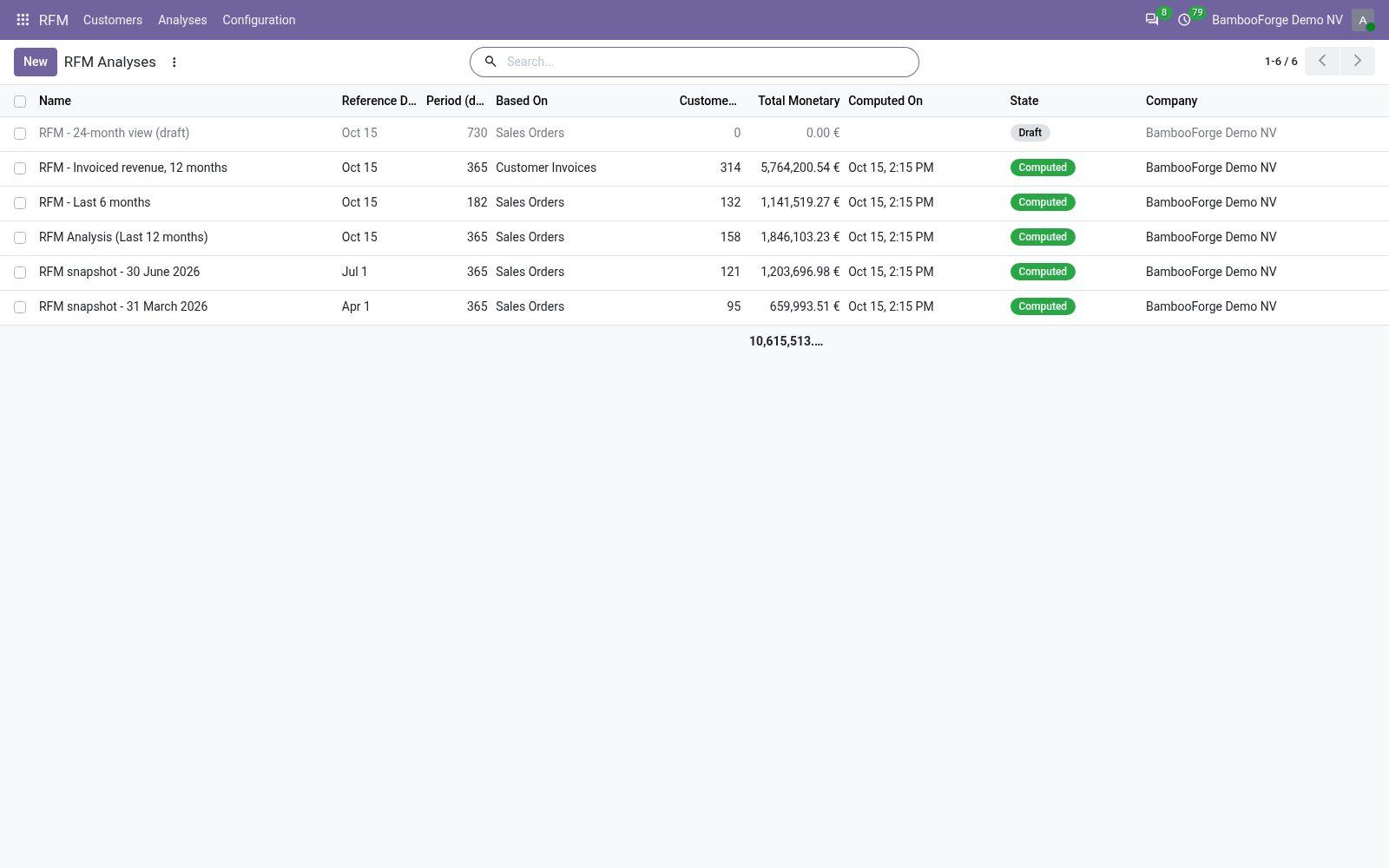
1. Open RFM > Analyses and click New. 2. Set the Reference Date (recency is measured backwards from here — usually today) and the Period (days) to look back over (365 is a good default).
3. Choose Based On: Sales Orders — confirmed sale orders (state "Sales Order"). Customer Invoices — posted customer invoices, net of credit notes. 4.
Leave Write Back to Contacts ticked if you want the segment stored on each contact. 5. Click Compute. Reading the results.
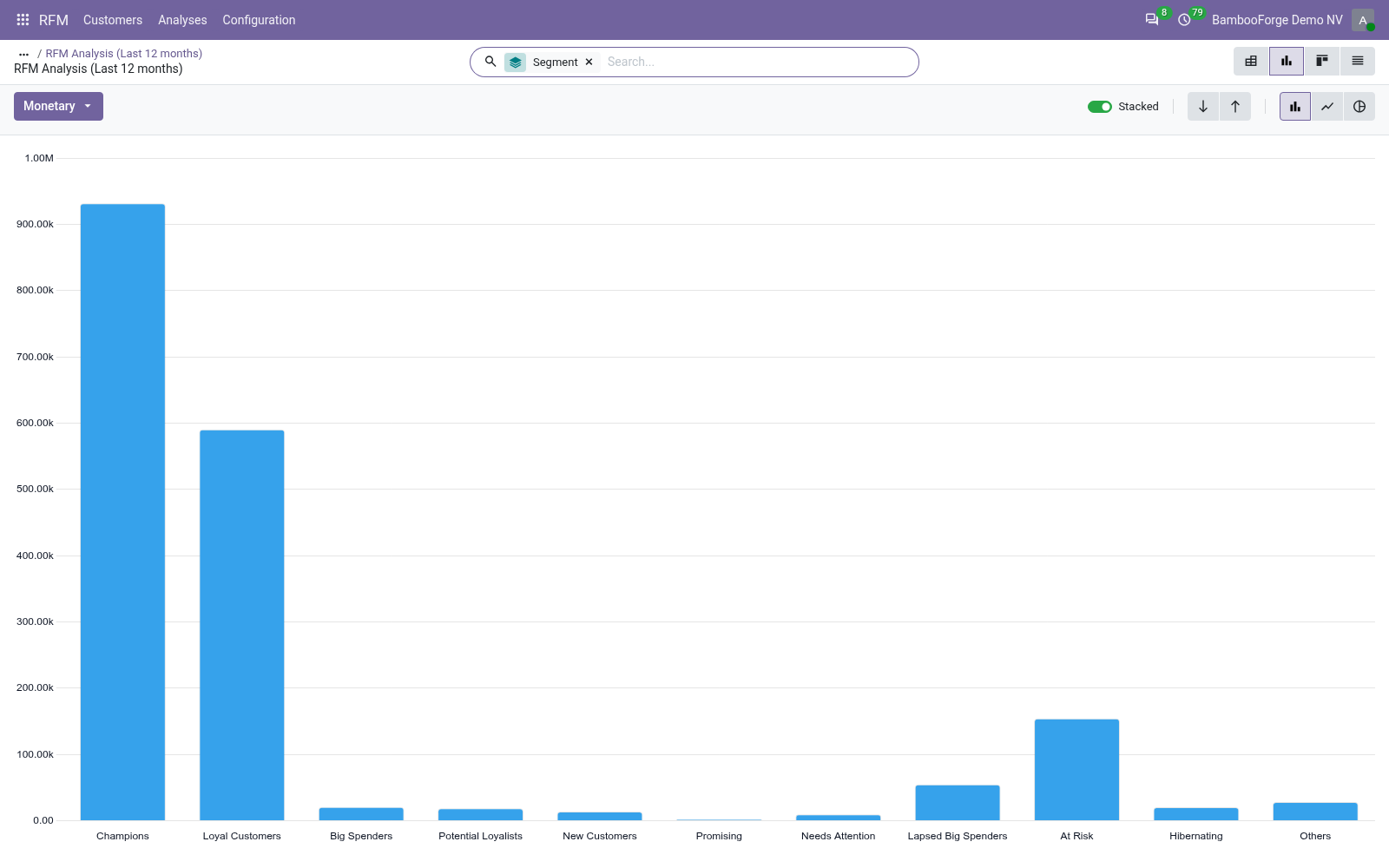
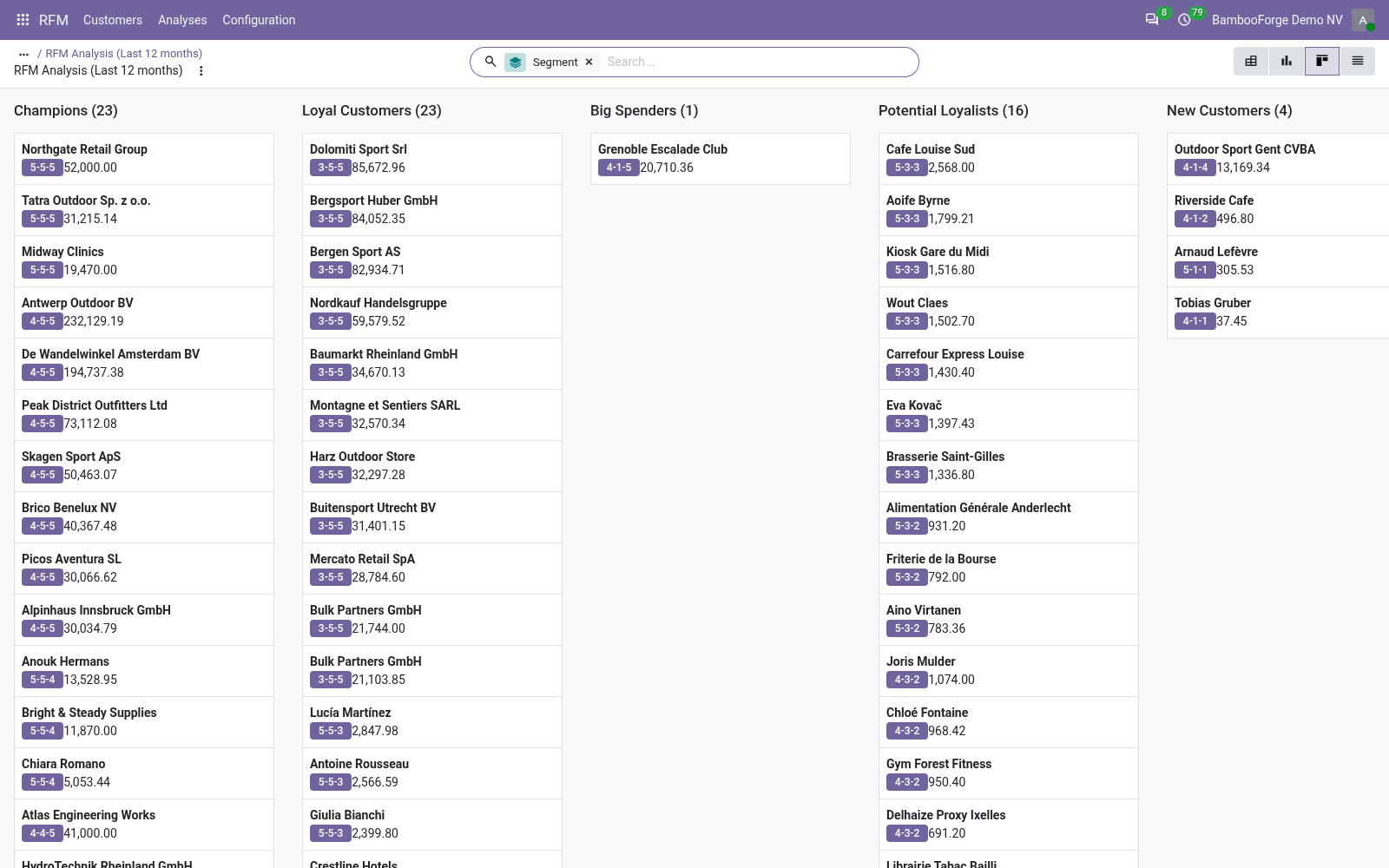
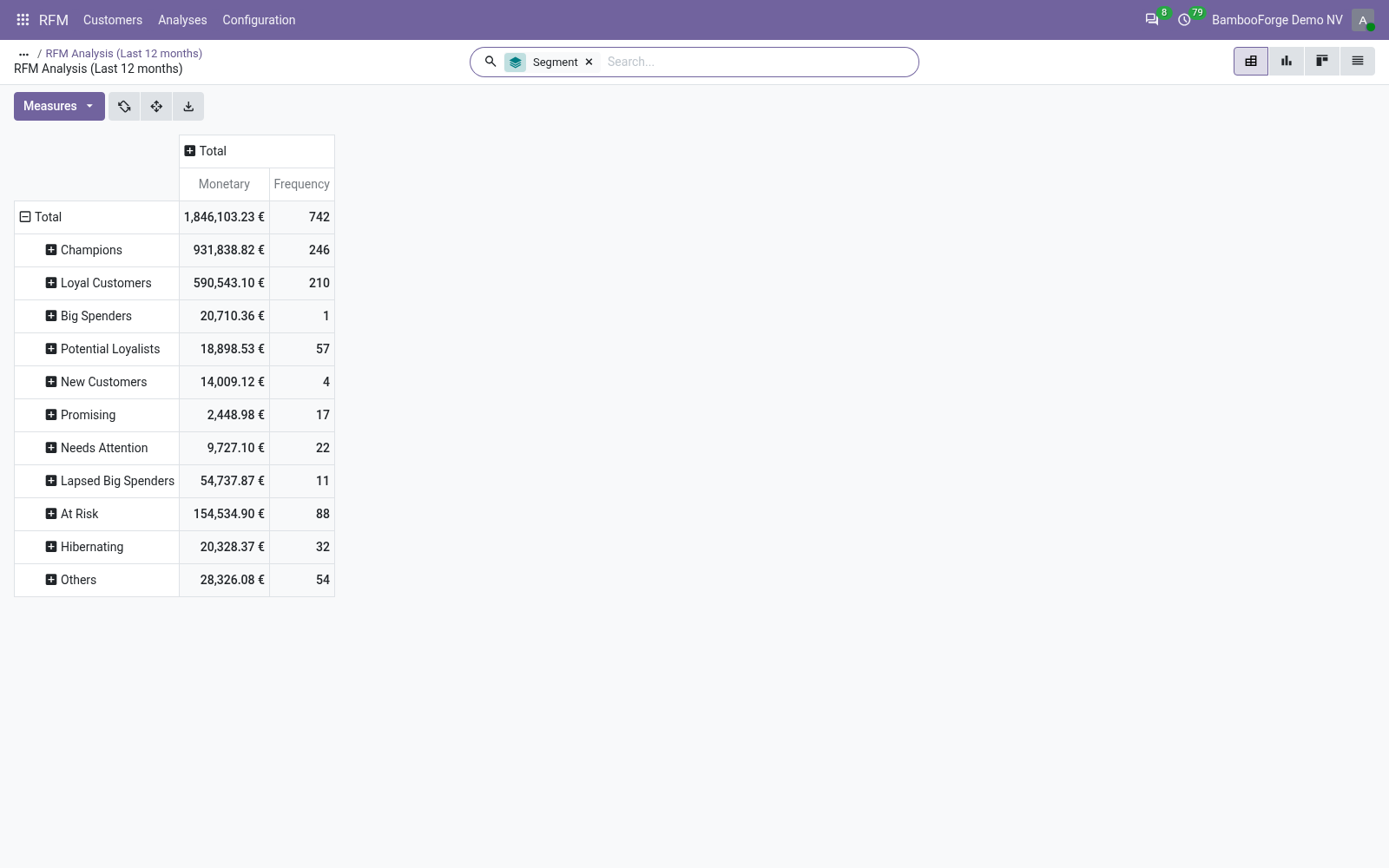
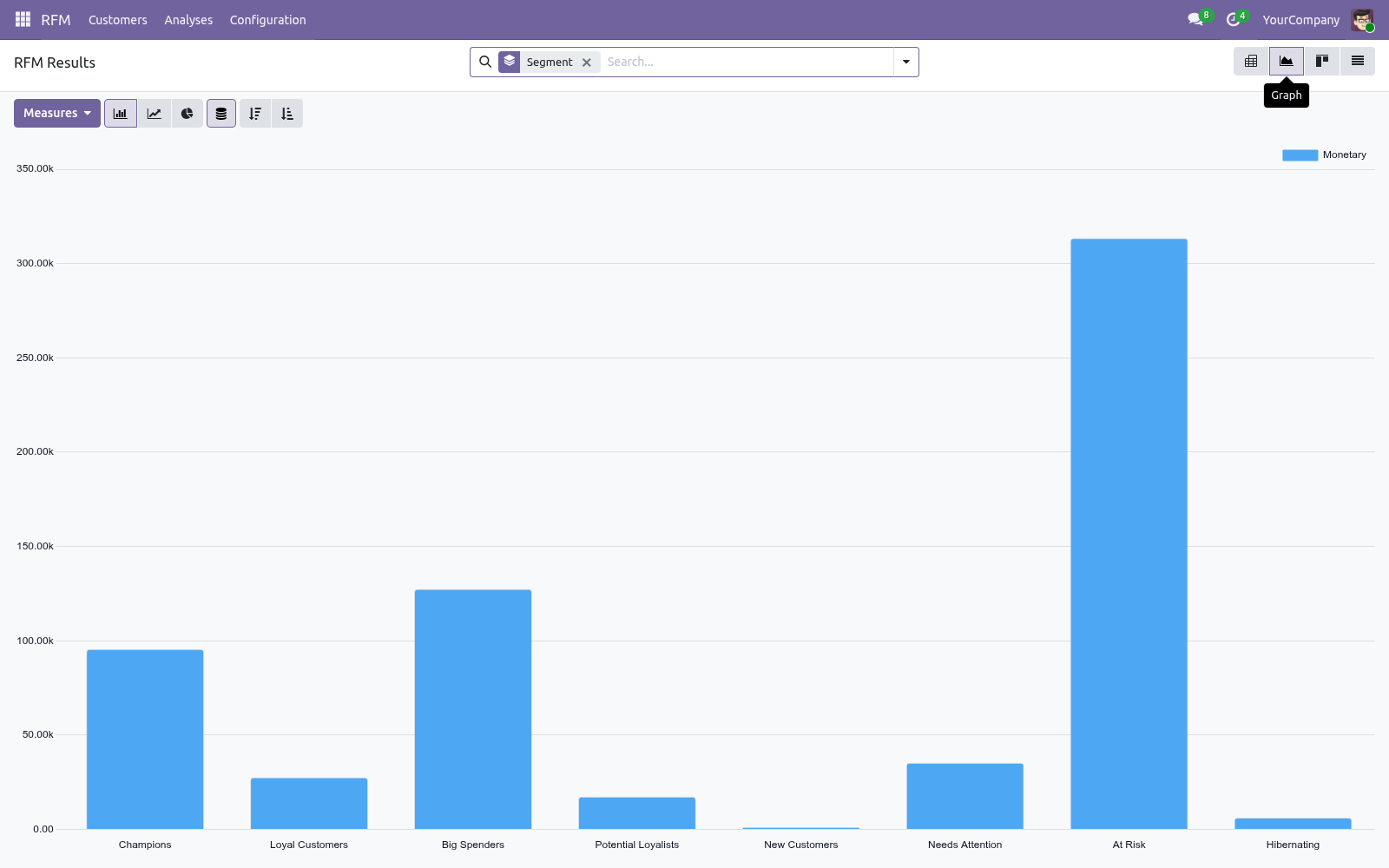
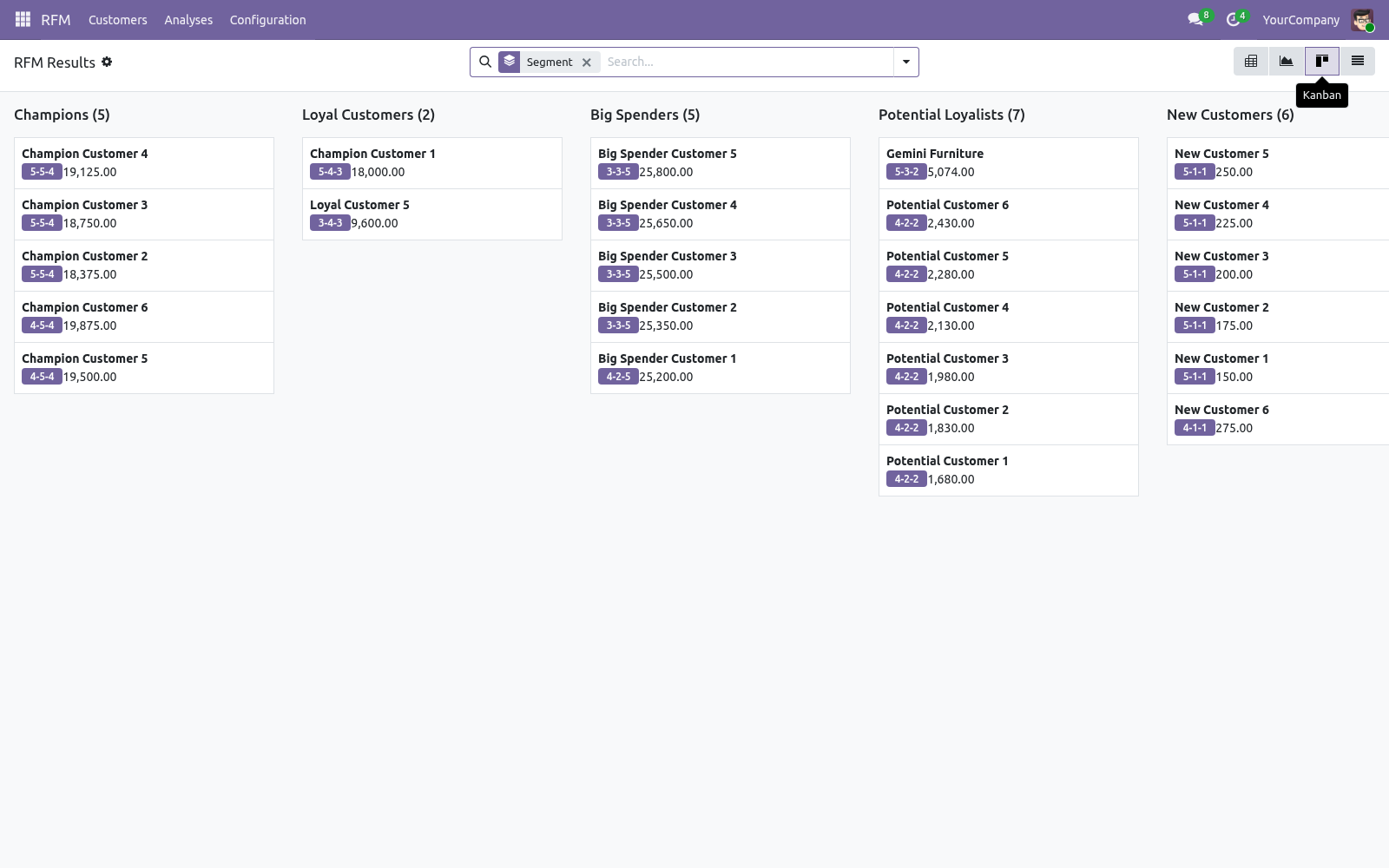
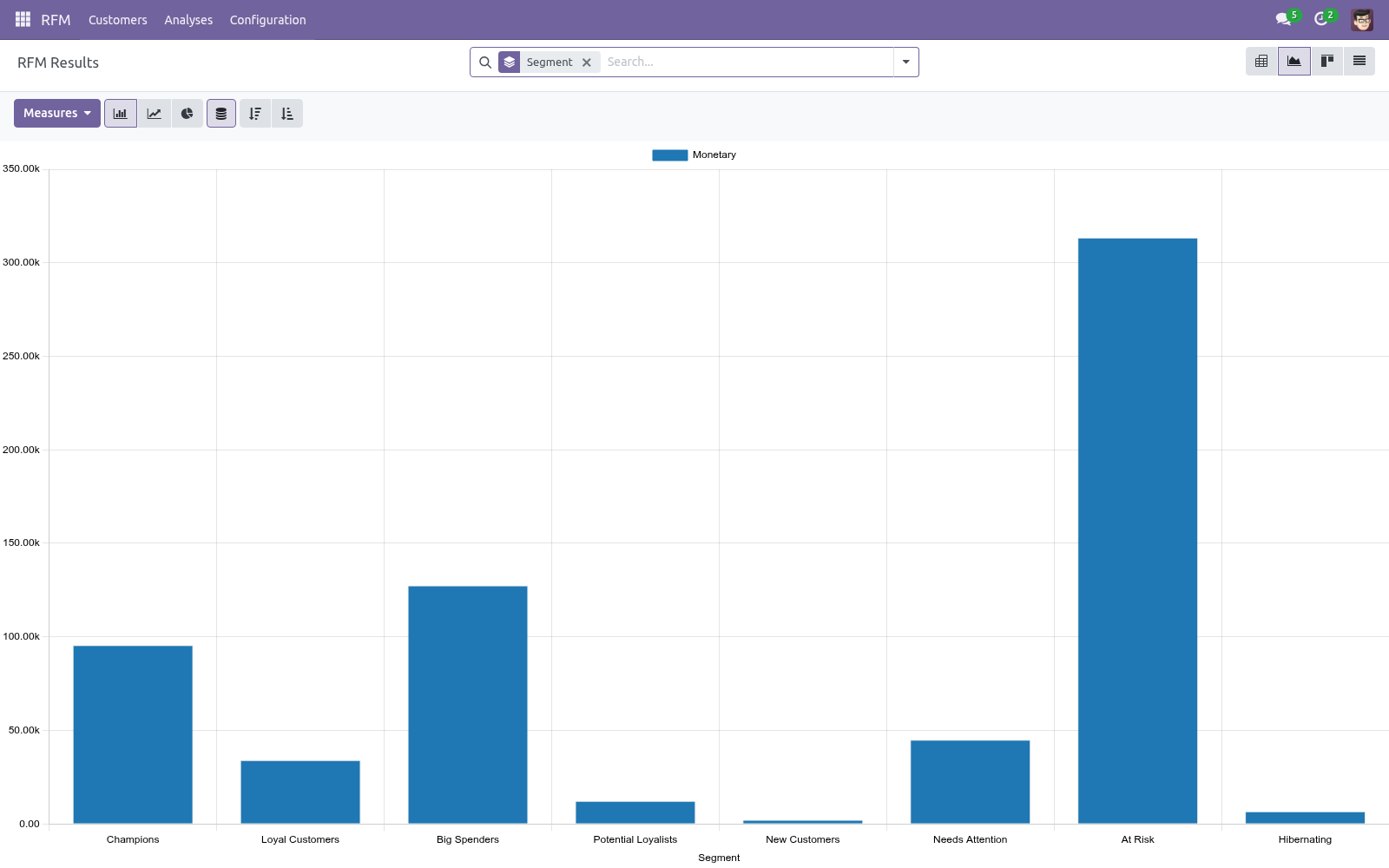
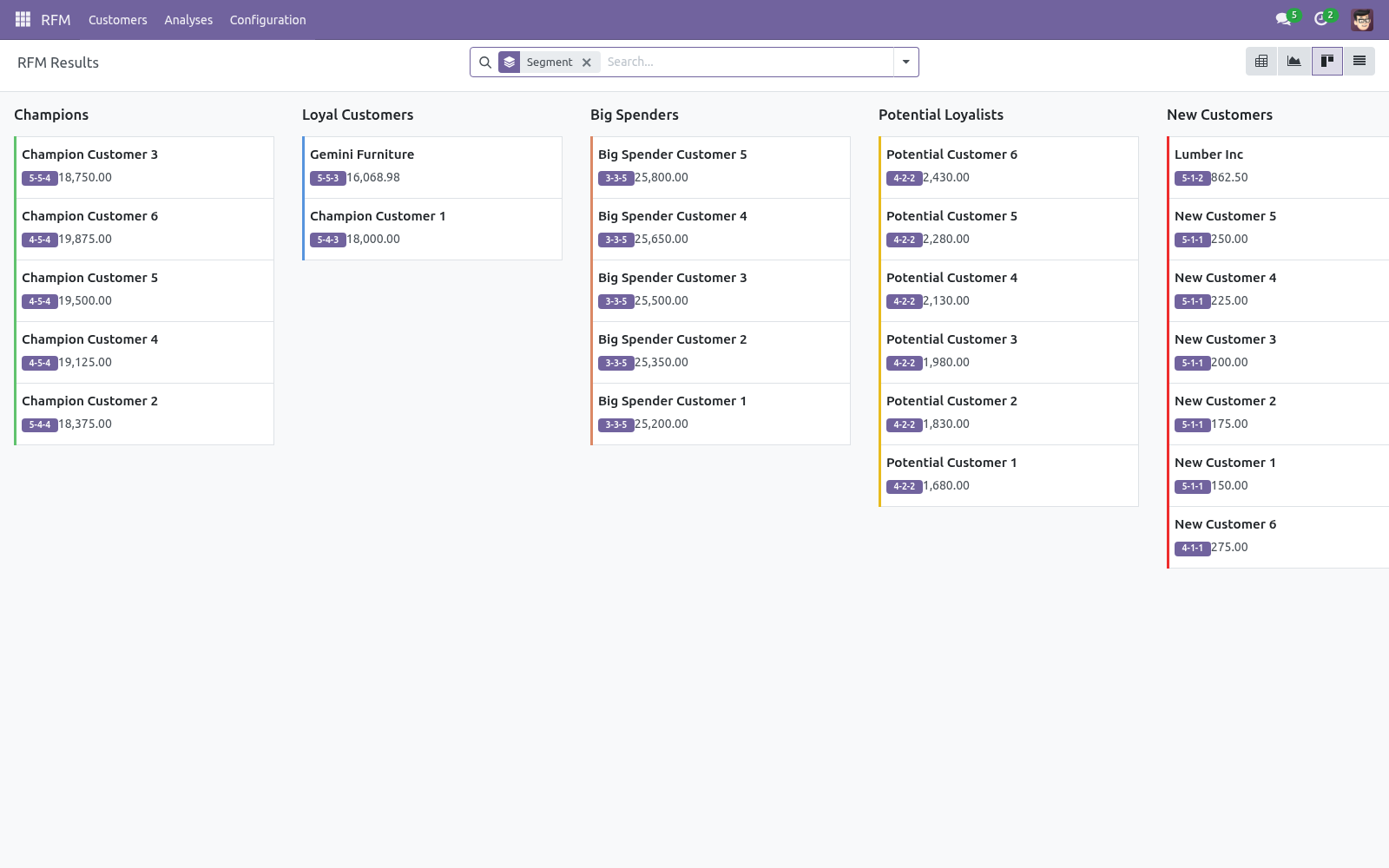
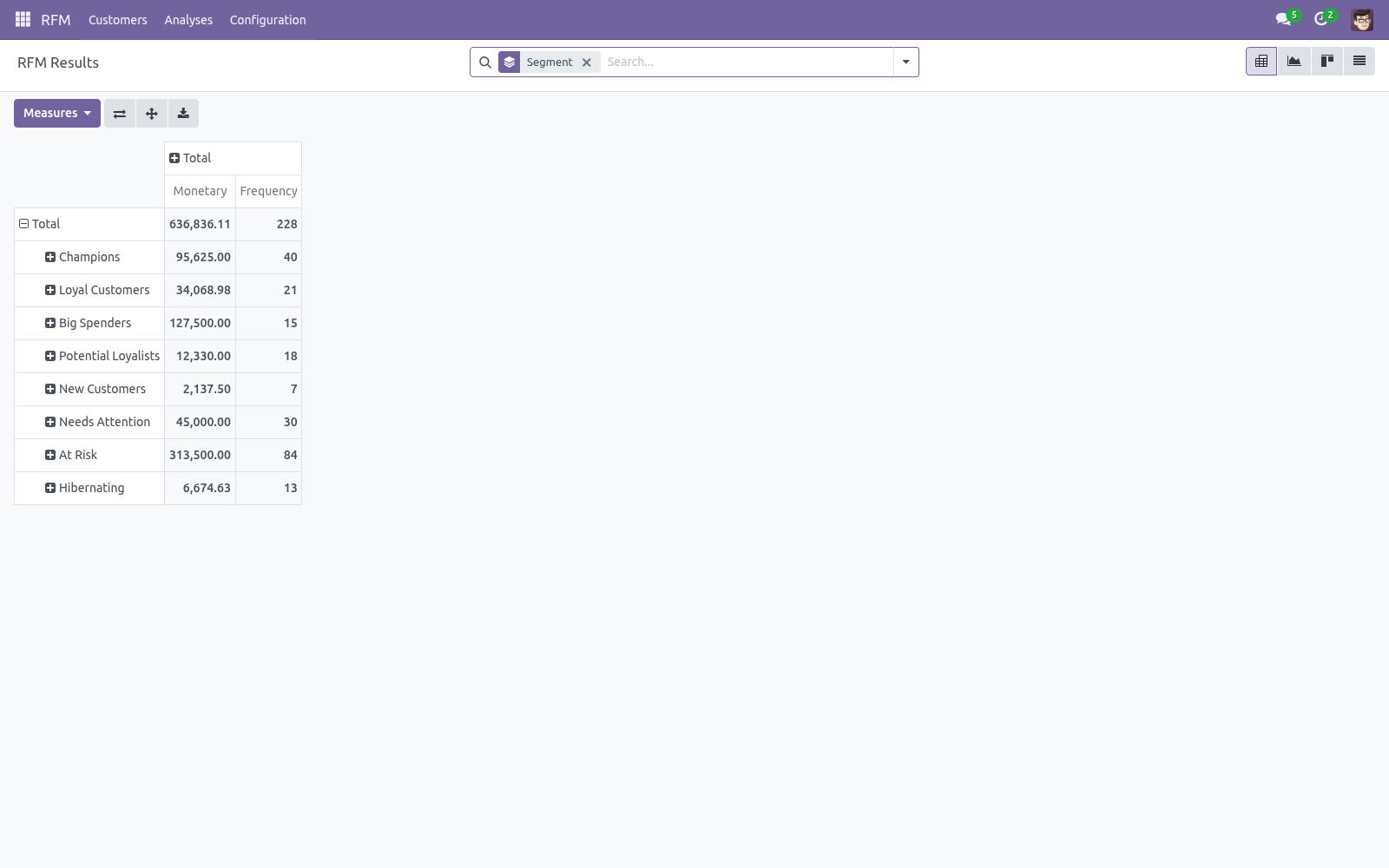
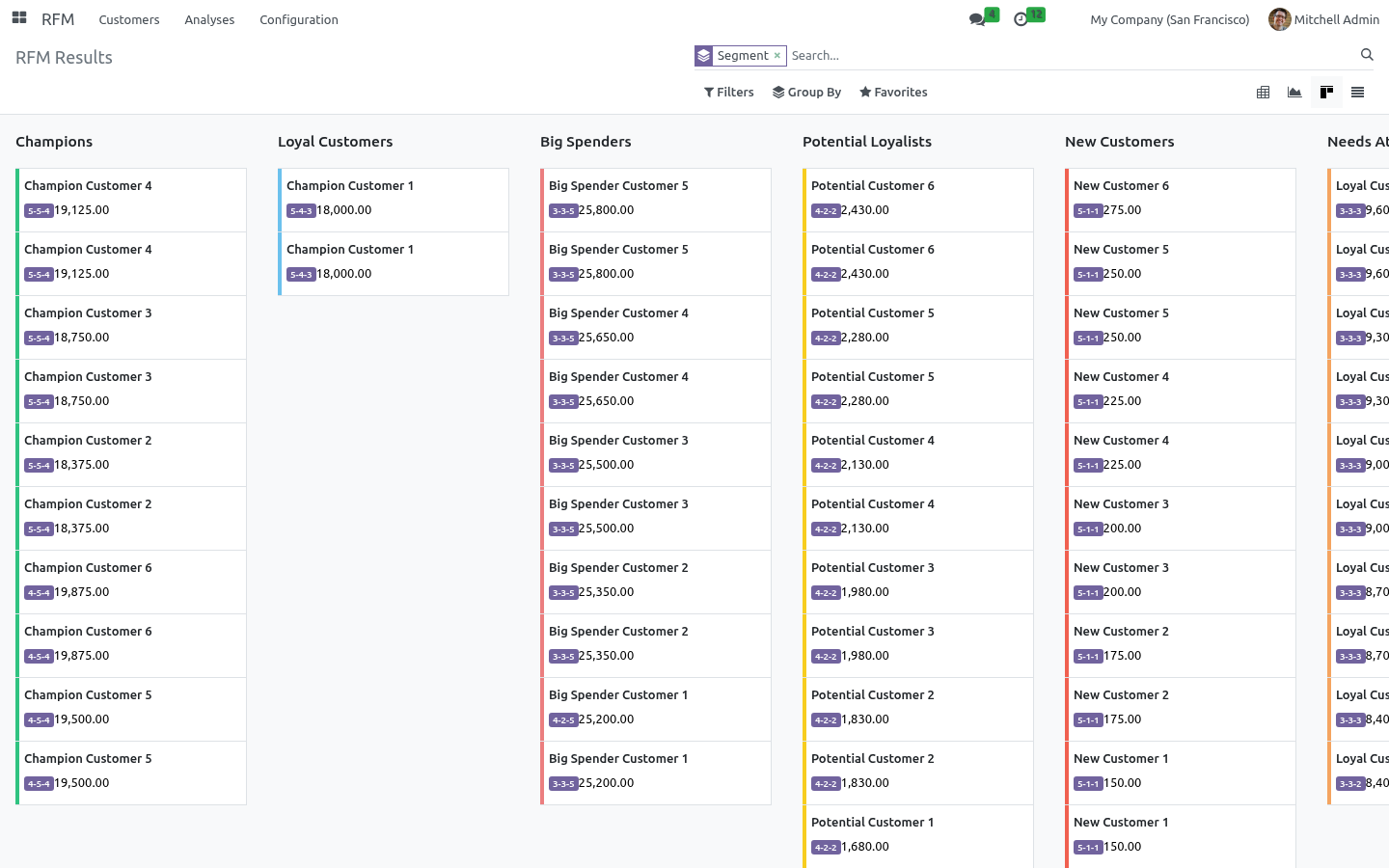
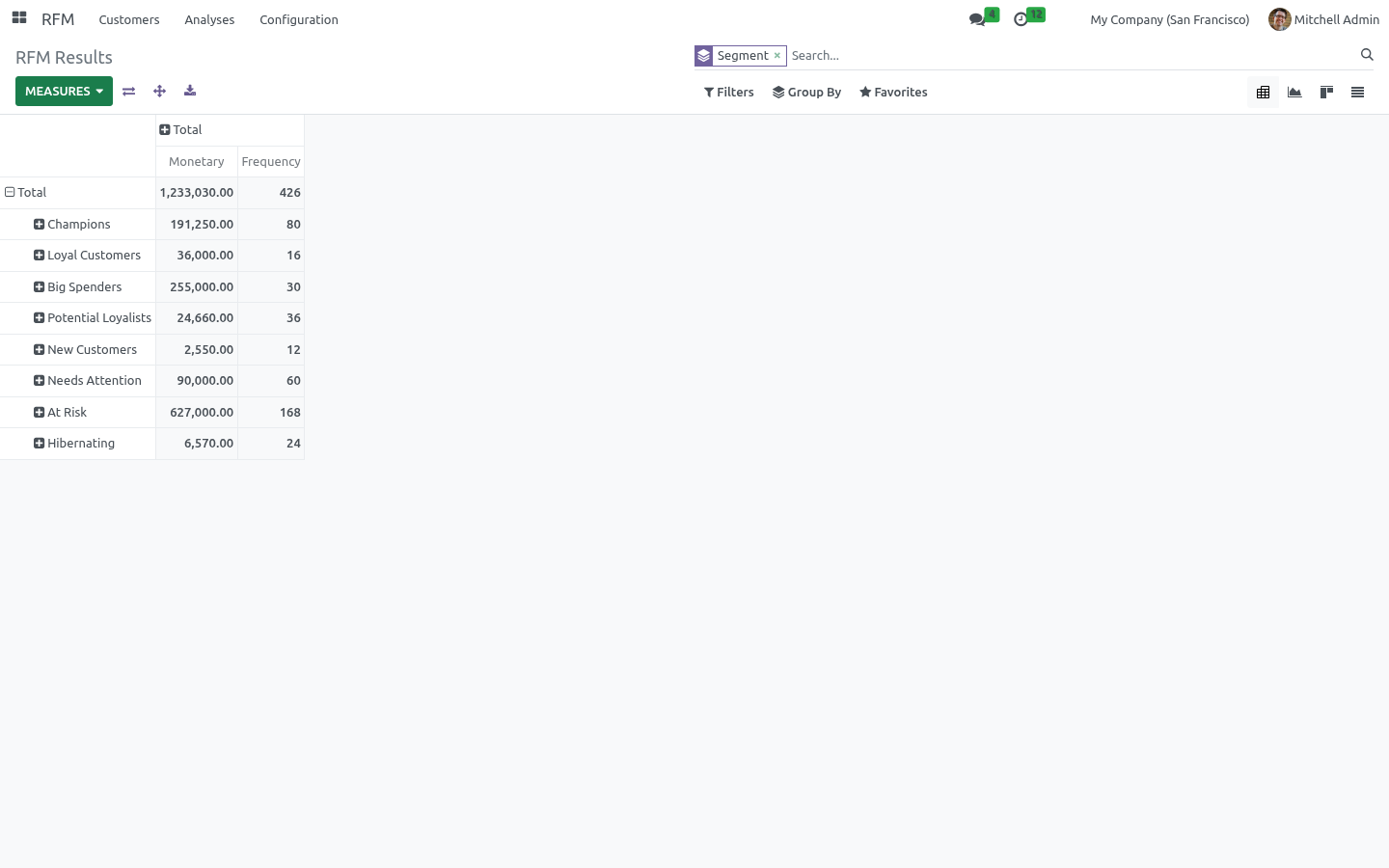
Open an analysis and use the Customers stat button, or go to RFM > Customers for the full analytical views: Pivot — segments down the side, monetary and frequency as measures. This is your "where is my revenue concentrated" view. Graph — monetary value per segment at a glance. Kanban — one card per customer, grouped by segment and colour-coded.
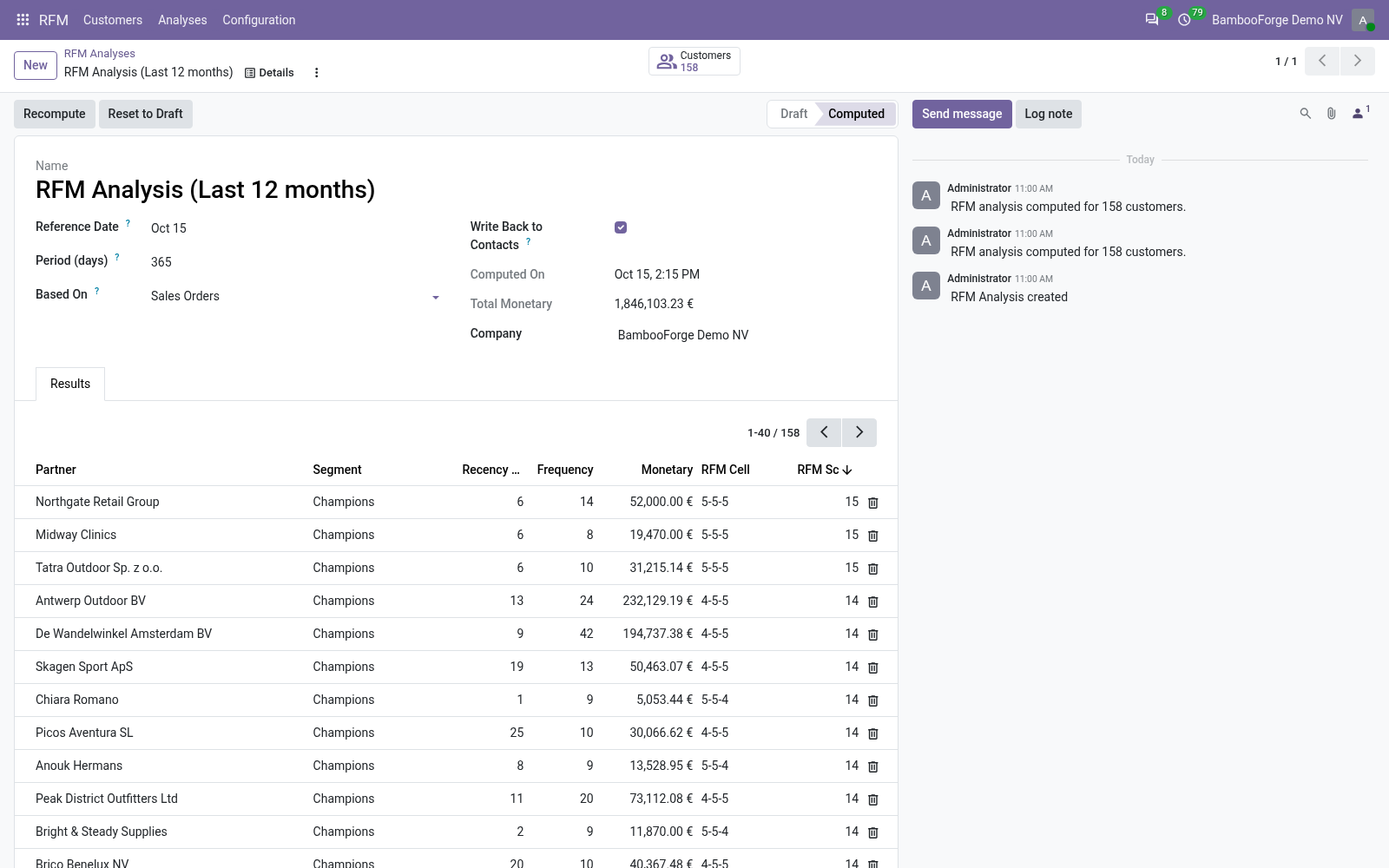
List — every score in a sortable table; sort by RFM Score to find your best customers instantly. Recency (days) — days since the last transaction. Frequency — number of transactions in the period. Monetary — total value in the company currency.
R / F / M — the 1-5 scores. How scoring works. Scores are quintiles: customers are ranked on each dimension and split into five equal groups. The best fifth scores 5, the worst fifth scores 1.
For Frequency and Monetary, higher values score higher. For Recency, a smaller number of days (more recent) scores higher. Because scoring is rank-based, it adapts to your business — a "5" always means "top 20% of your customers", whether you sell coffee or combine harvesters. Tuning your segments.
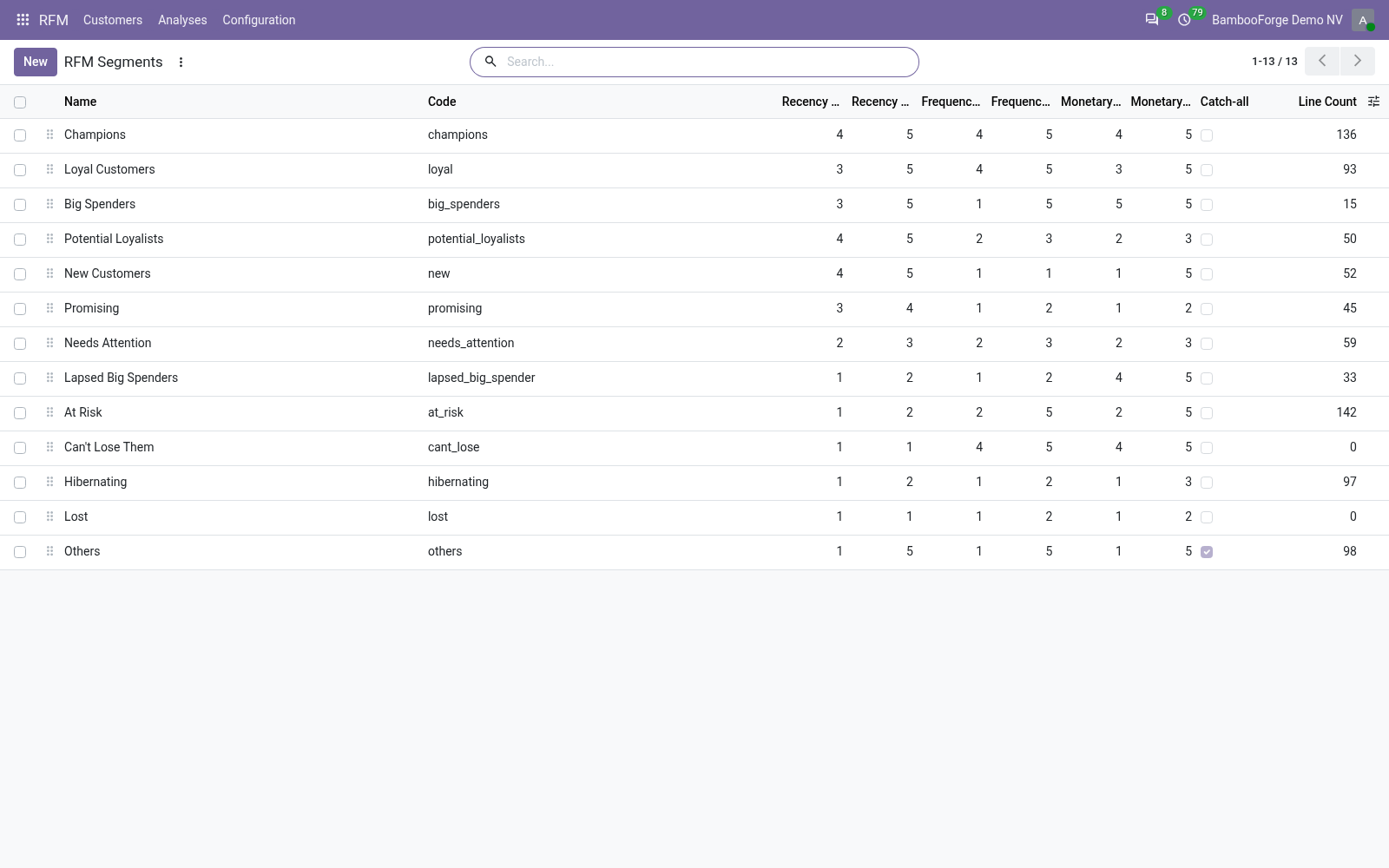
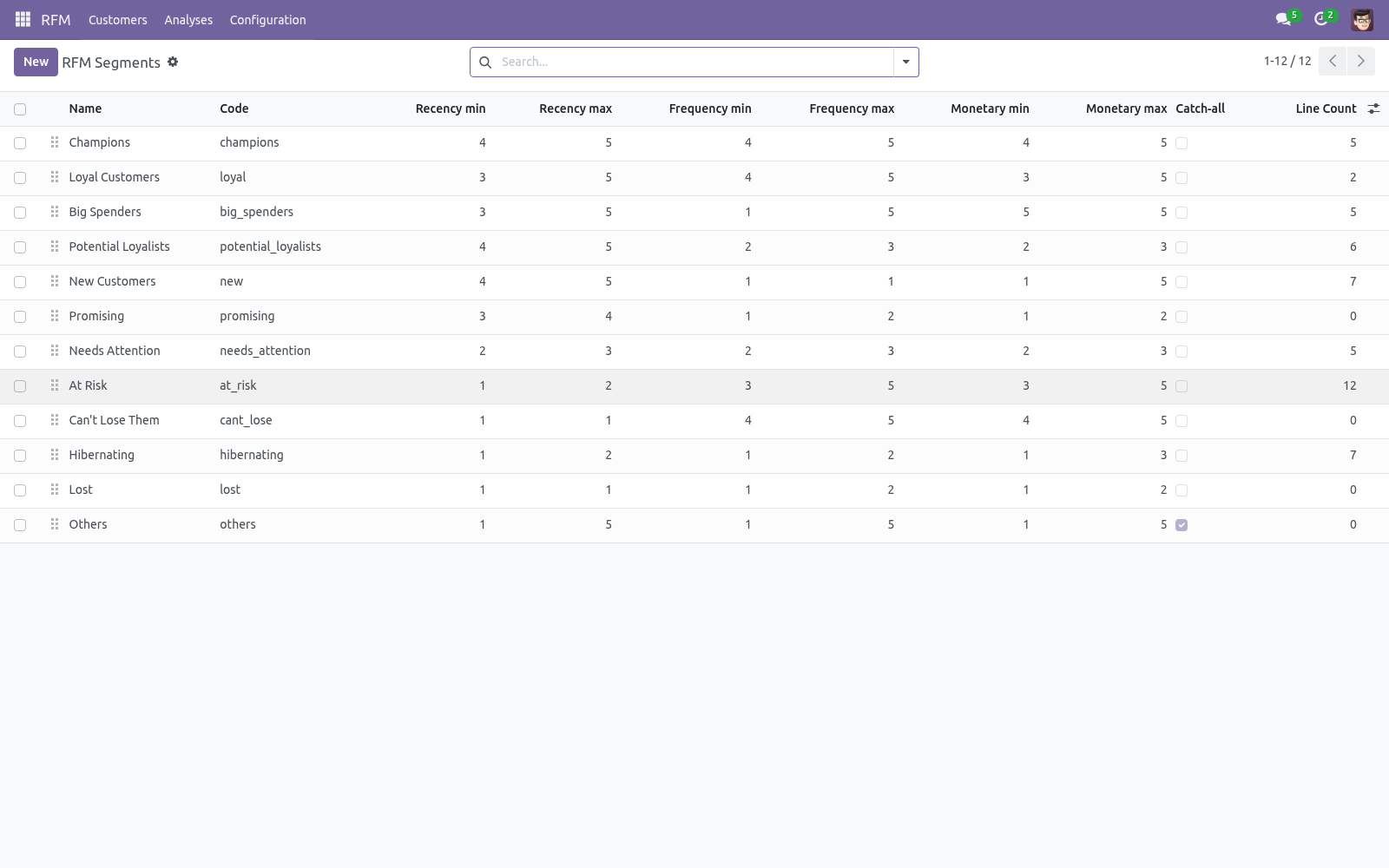
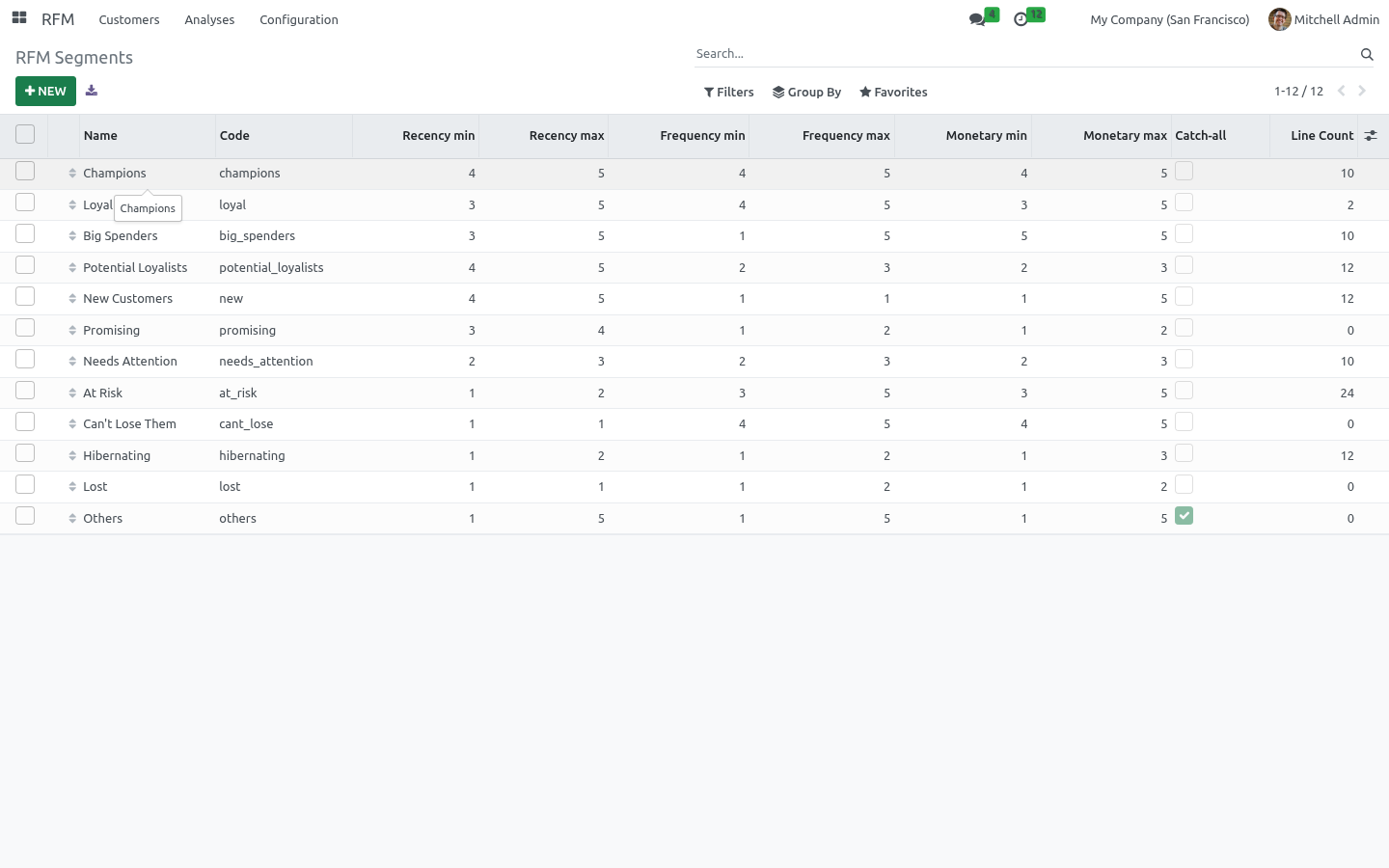
Go to RFM > Configuration > Segments. Each segment defines an inclusive range (1-5) for R, F and M. A customer is placed in the first segment (top to bottom by sequence) whose three ranges all contain their scores — so order matters. Drag the handle to reorder.
Keep exactly one catch-all segment (the Others segment, with Catch-all ticked). It matches anything the specific segments missed, guaranteeing every customer lands somewhere. Put your most specific / highest-value segments at the top. The score-range constraint enforces 1 <= min <= max <= 5; you cannot save an invalid range.
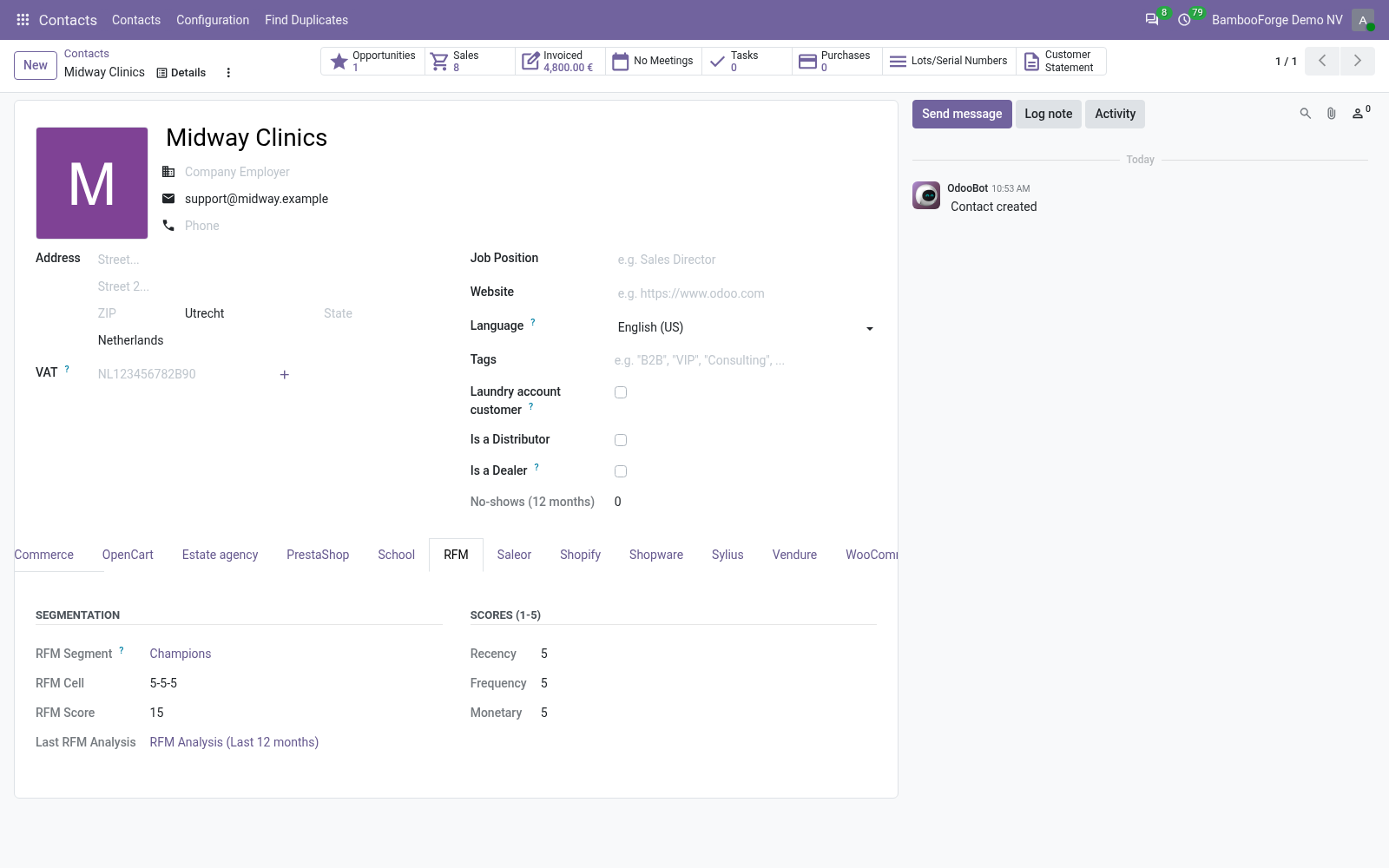
Use the Customers stat button on a segment to jump to the contacts currently in it. Targeting customers from segments. When Write Back to Contacts is on, every contact gets an RFM tab showing its segment, cell and scores, plus filterable fields. In any Contacts list: 1.
Group by RFM Segment (search panel > Group By > RFM Segment). 2. Select a segment such as At Risk or Champions. 3.
Act on the selection — add to a mailing list, launch an activity, export, etc. Automating refreshes. A scheduled action RFM: Recompute Latest Analysis ships disabled. Enable it under Settings > Technical > Scheduled Actions to recompute the most recent computed analysis per company on a schedule (weekly by default).
Each run moves the reference date forward to today, so contacts stay current with no manual work. Frequently asked questions. A customer is missing from the results. Only customers with at least one qualifying transaction inside the period appear.
Check the reference date, the period length, and the data source (orders vs invoices). Draft orders and unposted invoices are ignored. Scores look off for a tiny customer base. Quintiles need spread to be meaningful.
With only a handful of customers the five buckets are coarse by definition — the model is designed for dozens or more customers. How we make sure it works. Before every release, 14 automated checks run against this app on Odoo 16, 17, 18, 19 and 20. Among them: An order after the company's midnight stays out.
Odoo 20's company timezone is the company's clock. The rolling analysis advances on the company's calendar. Lapsed big spender has a home. Lapsed mid value is at risk.
The complete list is in the source you receive. Support. Questions or ideas: support@bambooforge.dev. The complete manual is at docs dot bambooforge dot dev, the demo database is linked from the store page, and support answers within twenty-four hours.
Links are in the description.
Transcript of the walkthrough (Odoo 19)
RFM Customer Segmentation. RFM customer segmentation with scoring, automatic segments (Champions, At Risk, Lost), snapshots over time and write-back to contacts. RFM is the classic, battle-tested model for ranking a customer base by behaviour instead of guesswork: In the next few minutes: rfm customer segmentation, then quick start, then reading the results, then how scoring works, then tuning your segments. Then what this app deliberately does not do, so you can tell before you buy whether it fits.
Everything lives under RFM then Customers then Analyses then Configuration. No Enterprise modules and no external Python libraries are required. RFM Customer Segmentation. Turn raw sales history into actionable customer segments for Odoo 17.
This app scores every customer on Recency, Frequency and Monetary value, drops them into named segments (Champions, Loyal, At Risk, Lost...), keeps a snapshot of every run so you can watch segments move over time, and writes the result back onto each contact so you can filter and target them anywhere in the CRM. This page is the complete manual. Follow it top to bottom and you can install, run your first analysis, read the results, tune the segments, automate refreshes and fix the common issues without contacting support. Quick start.
1. Open RFM > Analyses and click New. 2. Set the Reference Date (recency is measured backwards from here — usually today) and the Period (days) to look back over (365 is a good default).
3. Choose Based On: Sales Orders — confirmed sale orders (state "Sales Order"). Customer Invoices — posted customer invoices, net of credit notes. 4.
Leave Write Back to Contacts ticked if you want the segment stored on each contact. 5. Click Compute. Reading the results.
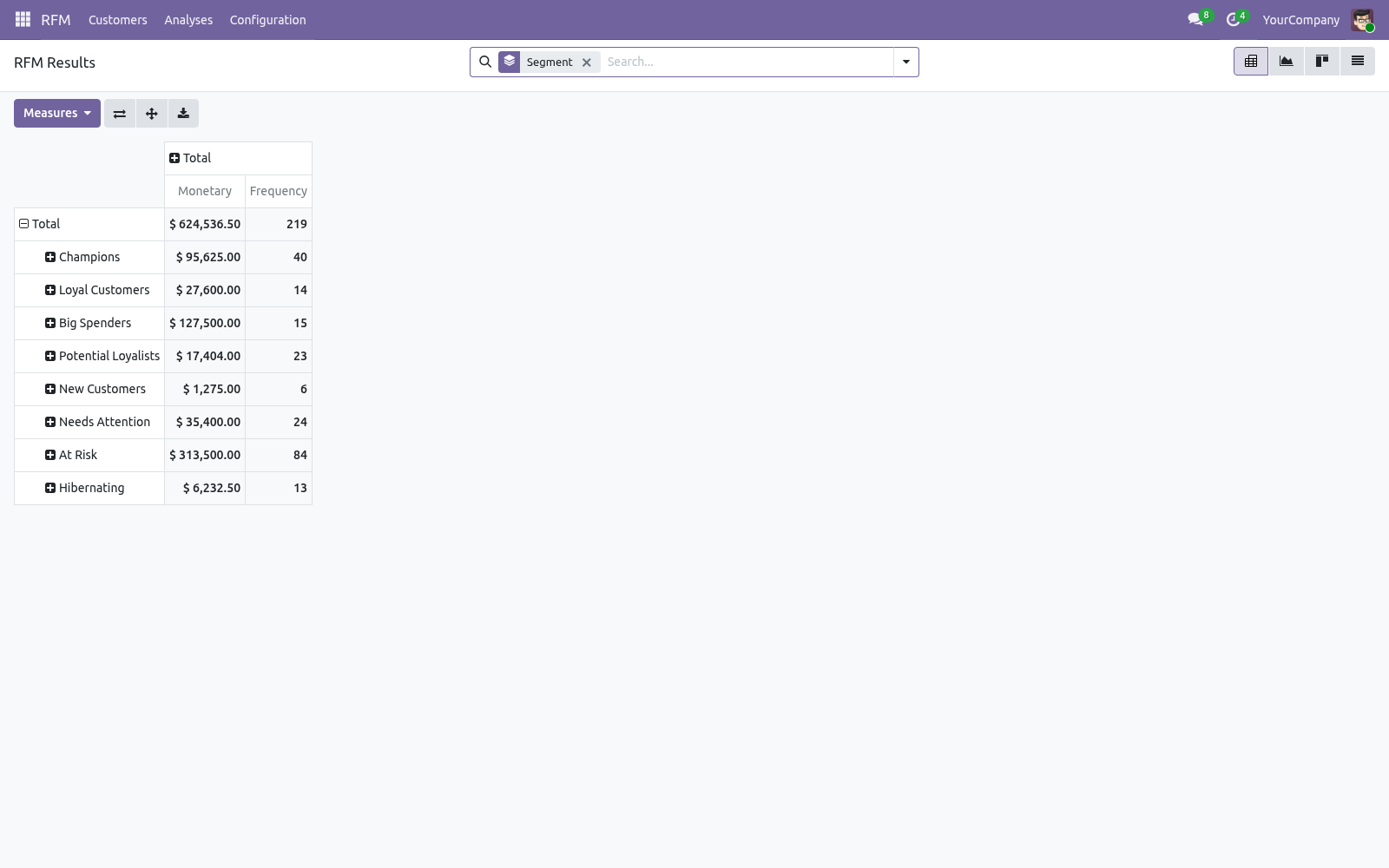
Open an analysis and use the Customers stat button, or go to RFM > Customers for the full analytical views: Pivot — segments down the side, monetary and frequency as measures. This is your "where is my revenue concentrated" view. Graph — monetary value per segment at a glance. Kanban — one card per customer, grouped by segment and colour-coded.
List — every score in a sortable table; sort by RFM Score to find your best customers instantly. Recency (days) — days since the last transaction. Frequency — number of transactions in the period. Monetary — total value in the company currency.
R / F / M — the 1-5 scores. How scoring works. Scores are quintiles: customers are ranked on each dimension and split into five equal groups. The best fifth scores 5, the worst fifth scores 1.
For Frequency and Monetary, higher values score higher. For Recency, a smaller number of days (more recent) scores higher. Because scoring is rank-based, it adapts to your business — a "5" always means "top 20% of your customers", whether you sell coffee or combine harvesters. Tuning your segments.
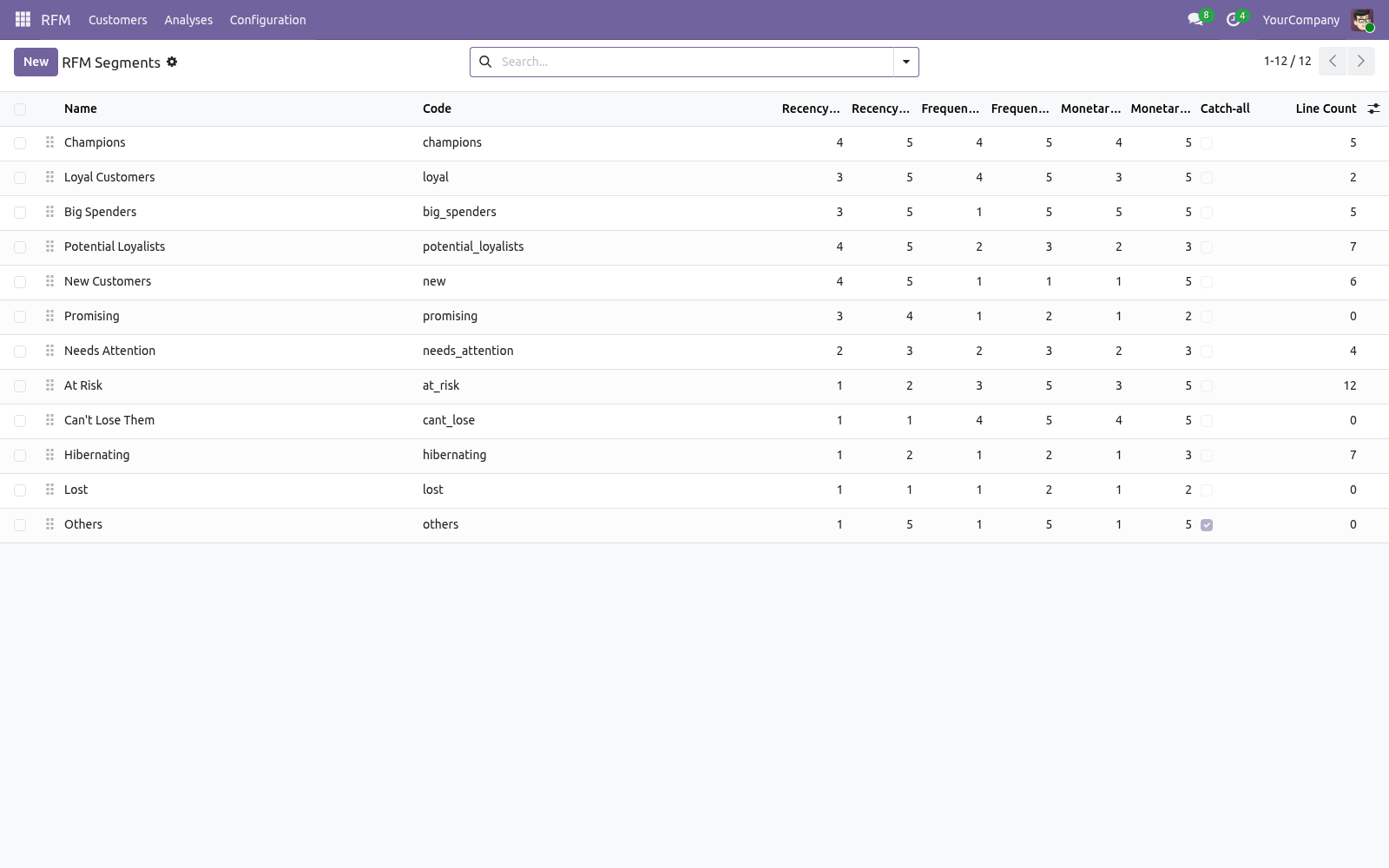
Go to RFM > Configuration > Segments. Each segment defines an inclusive range (1-5) for R, F and M. A customer is placed in the first segment (top to bottom by sequence) whose three ranges all contain their scores — so order matters. Drag the handle to reorder.
Keep exactly one catch-all segment (the Others segment, with Catch-all ticked). It matches anything the specific segments missed, guaranteeing every customer lands somewhere. Put your most specific / highest-value segments at the top. The score-range constraint enforces 1 <= min <= max <= 5; you cannot save an invalid range.
Use the Customers stat button on a segment to jump to the contacts currently in it. Targeting customers from segments. When Write Back to Contacts is on, every contact gets an RFM tab showing its segment, cell and scores, plus filterable fields. In any Contacts list: 1.
Group by RFM Segment (search panel > Group By > RFM Segment). 2. Select a segment such as At Risk or Champions. 3.
Act on the selection — add to a mailing list, launch an activity, export, etc. Automating refreshes. A scheduled action RFM: Recompute Latest Analysis ships disabled. Enable it under Settings > Technical > Scheduled Actions to recompute the most recent computed analysis per company on a schedule (weekly by default).
Each run moves the reference date forward to today, so contacts stay current with no manual work. Frequently asked questions. A customer is missing from the results. Only customers with at least one qualifying transaction inside the period appear.
Check the reference date, the period length, and the data source (orders vs invoices). Draft orders and unposted invoices are ignored. Scores look off for a tiny customer base. Quintiles need spread to be meaningful.
With only a handful of customers the five buckets are coarse by definition — the model is designed for dozens or more customers. Support. Questions or ideas: support@bambooforge.dev. ..
BAMBOOFORGE-DOC-APPENDIX (auto-generated: Upgrade/Uninstall/Changelog + bespoke) Running an analysis. Open RFM > Analyses and click New. Fill in the run parameters: Reference Date — recency is measured backwards from this date and any transaction after it is ignored. Leave it on today for a current picture.
Period (days) — the look-back window. Only transactions within this many days before the reference date are counted (365 by default). Based On — Sales Orders counts confirmed orders (state "Sales Order"); Customer Invoices counts posted customer invoices and nets credit notes out against them. Write Back to Contacts — when ticked, the resulting segment and R/F/M scores are stored on each res.partner for filtering and targeting.
Click Compute. The record moves to the Computed state, the Customers count and Total Monetary fill in, the Results tab lists every scored customer, and the chatter logs how many customers were processed. Click Compute again at any time to refresh a run; Reset to Draft clears its results. At least one segment must exist (the shipped catch-all is enough) or the compute stops with an explanatory error.
The complete manual is at docs dot bambooforge dot dev, the demo database is linked from the store page, and support answers within twenty-four hours. Links are in the description.
Transcript of the walkthrough (Odoo 18)
RFM Customer Segmentation. RFM customer segmentation with scoring, automatic segments (Champions, At Risk, Lost), snapshots over time and write-back to contacts. RFM is the classic, battle-tested model for ranking a customer base by behaviour instead of guesswork: In the next few minutes: rfm customer segmentation, then quick start, then reading the results, then how scoring works, then tuning your segments. Then what this app deliberately does not do, so you can tell before you buy whether it fits.
Everything lives under RFM then Customers then Analyses then Configuration. No Enterprise modules and no external Python libraries are required. RFM Customer Segmentation. Turn raw sales history into actionable customer segments for Odoo 17.
This app scores every customer on Recency, Frequency and Monetary value, drops them into named segments (Champions, Loyal, At Risk, Lost...), keeps a snapshot of every run so you can watch segments move over time, and writes the result back onto each contact so you can filter and target them anywhere in the CRM. This page is the complete manual. Follow it top to bottom and you can install, run your first analysis, read the results, tune the segments, automate refreshes and fix the common issues without contacting support. Quick start.
1. Open RFM > Analyses and click New. 2. Set the Reference Date (recency is measured backwards from here — usually today) and the Period (days) to look back over (365 is a good default).
3. Choose Based On: Sales Orders — confirmed sale orders (state "Sales Order"). Customer Invoices — posted customer invoices, net of credit notes. 4.
Leave Write Back to Contacts ticked if you want the segment stored on each contact. 5. Click Compute. Reading the results.
Open an analysis and use the Customers stat button, or go to RFM > Customers for the full analytical views: Pivot — segments down the side, monetary and frequency as measures. This is your "where is my revenue concentrated" view. Graph — monetary value per segment at a glance. Kanban — one card per customer, grouped by segment and colour-coded.
List — every score in a sortable table; sort by RFM Score to find your best customers instantly. Recency (days) — days since the last transaction. Frequency — number of transactions in the period. Monetary — total value in the company currency.
R / F / M — the 1-5 scores. How scoring works. Scores are quintiles: customers are ranked on each dimension and split into five equal groups. The best fifth scores 5, the worst fifth scores 1.
For Frequency and Monetary, higher values score higher. For Recency, a smaller number of days (more recent) scores higher. Because scoring is rank-based, it adapts to your business — a "5" always means "top 20% of your customers", whether you sell coffee or combine harvesters. Tuning your segments.
Go to RFM > Configuration > Segments. Each segment defines an inclusive range (1-5) for R, F and M. A customer is placed in the first segment (top to bottom by sequence) whose three ranges all contain their scores — so order matters. Drag the handle to reorder.
Keep exactly one catch-all segment (the Others segment, with Catch-all ticked). It matches anything the specific segments missed, guaranteeing every customer lands somewhere. Put your most specific / highest-value segments at the top. The score-range constraint enforces 1 <= min <= max <= 5; you cannot save an invalid range.
Use the Customers stat button on a segment to jump to the contacts currently in it. Targeting customers from segments. When Write Back to Contacts is on, every contact gets an RFM tab showing its segment, cell and scores, plus filterable fields. In any Contacts list: 1.
Group by RFM Segment (search panel > Group By > RFM Segment). 2. Select a segment such as At Risk or Champions. 3.
Act on the selection — add to a mailing list, launch an activity, export, etc. Automating refreshes. A scheduled action RFM: Recompute Latest Analysis ships disabled. Enable it under Settings > Technical > Scheduled Actions to recompute the most recent computed analysis per company on a schedule (weekly by default).
Each run moves the reference date forward to today, so contacts stay current with no manual work. Frequently asked questions. A customer is missing from the results. Only customers with at least one qualifying transaction inside the period appear.
Check the reference date, the period length, and the data source (orders vs invoices). Draft orders and unposted invoices are ignored. Scores look off for a tiny customer base. Quintiles need spread to be meaningful.
With only a handful of customers the five buckets are coarse by definition — the model is designed for dozens or more customers. Support. Questions or ideas: support@bambooforge.dev. ..
BAMBOOFORGE-DOC-APPENDIX (auto-generated: Upgrade/Uninstall/Changelog + bespoke) Running an analysis. Open RFM > Analyses and click New. Fill in the run parameters: Reference Date — recency is measured backwards from this date and any transaction after it is ignored. Leave it on today for a current picture.
Period (days) — the look-back window. Only transactions within this many days before the reference date are counted (365 by default). Based On — Sales Orders counts confirmed orders (state "Sales Order"); Customer Invoices counts posted customer invoices and nets credit notes out against them. Write Back to Contacts — when ticked, the resulting segment and R/F/M scores are stored on each res.partner for filtering and targeting.
Click Compute. The record moves to the Computed state, the Customers count and Total Monetary fill in, the Results tab lists every scored customer, and the chatter logs how many customers were processed. Click Compute again at any time to refresh a run; Reset to Draft clears its results. At least one segment must exist (the shipped catch-all is enough) or the compute stops with an explanatory error.
The complete manual is at docs dot bambooforge dot dev, the demo database is linked from the store page, and support answers within twenty-four hours. Links are in the description.
Transcript of the walkthrough (Odoo 17)
RFM Customer Segmentation. RFM customer segmentation with scoring, automatic segments (Champions, At Risk, Lost), snapshots over time and write-back to contacts. RFM is the classic, battle-tested model for ranking a customer base by behaviour instead of guesswork: In the next few minutes: rfm customer segmentation, then quick start, then reading the results, then how scoring works, then tuning your segments. Then what this app deliberately does not do, so you can tell before you buy whether it fits.
Everything lives under RFM then Customers then Analyses then Configuration. No Enterprise modules and no external Python libraries are required. RFM Customer Segmentation. Turn raw sales history into actionable customer segments for Odoo 17.
This app scores every customer on Recency, Frequency and Monetary value, drops them into named segments (Champions, Loyal, At Risk, Lost...), keeps a snapshot of every run so you can watch segments move over time, and writes the result back onto each contact so you can filter and target them anywhere in the CRM. This page is the complete manual. Follow it top to bottom and you can install, run your first analysis, read the results, tune the segments, automate refreshes and fix the common issues without contacting support. Quick start.
1. Open RFM > Analyses and click New. 2. Set the Reference Date (recency is measured backwards from here — usually today) and the Period (days) to look back over (365 is a good default).
3. Choose Based On: Sales Orders — confirmed sale orders (state "Sales Order"). Customer Invoices — posted customer invoices, net of credit notes. 4.
Leave Write Back to Contacts ticked if you want the segment stored on each contact. 5. Click Compute. Reading the results.
Open an analysis and use the Customers stat button, or go to RFM > Customers for the full analytical views: Pivot — segments down the side, monetary and frequency as measures. This is your "where is my revenue concentrated" view. Graph — monetary value per segment at a glance. Kanban — one card per customer, grouped by segment and colour-coded.
List — every score in a sortable table; sort by RFM Score to find your best customers instantly. Recency (days) — days since the last transaction. Frequency — number of transactions in the period. Monetary — total value in the company currency.
R / F / M — the 1-5 scores. How scoring works. Scores are quintiles: customers are ranked on each dimension and split into five equal groups. The best fifth scores 5, the worst fifth scores 1.
For Frequency and Monetary, higher values score higher. For Recency, a smaller number of days (more recent) scores higher. Because scoring is rank-based, it adapts to your business — a "5" always means "top 20% of your customers", whether you sell coffee or combine harvesters. Tuning your segments.
Go to RFM > Configuration > Segments. Each segment defines an inclusive range (1-5) for R, F and M. A customer is placed in the first segment (top to bottom by sequence) whose three ranges all contain their scores — so order matters. Drag the handle to reorder.
Keep exactly one catch-all segment (the Others segment, with Catch-all ticked). It matches anything the specific segments missed, guaranteeing every customer lands somewhere. Put your most specific / highest-value segments at the top. The score-range constraint enforces 1 <= min <= max <= 5; you cannot save an invalid range.
Use the Customers stat button on a segment to jump to the contacts currently in it. Targeting customers from segments. When Write Back to Contacts is on, every contact gets an RFM tab showing its segment, cell and scores, plus filterable fields. In any Contacts list: 1.
Group by RFM Segment (search panel > Group By > RFM Segment). 2. Select a segment such as At Risk or Champions. 3.
Act on the selection — add to a mailing list, launch an activity, export, etc. Automating refreshes. A scheduled action RFM: Recompute Latest Analysis ships disabled. Enable it under Settings > Technical > Scheduled Actions to recompute the most recent computed analysis per company on a schedule (weekly by default).
Each run moves the reference date forward to today, so contacts stay current with no manual work. Frequently asked questions. A customer is missing from the results. Only customers with at least one qualifying transaction inside the period appear.
Check the reference date, the period length, and the data source (orders vs invoices). Draft orders and unposted invoices are ignored. Scores look off for a tiny customer base. Quintiles need spread to be meaningful.
With only a handful of customers the five buckets are coarse by definition — the model is designed for dozens or more customers. Support. Questions or ideas: support@bambooforge.dev. ..
BAMBOOFORGE-DOC-APPENDIX (auto-generated: Upgrade/Uninstall/Changelog + bespoke) Running an analysis. Open RFM > Analyses and click New. Fill in the run parameters: Reference Date — recency is measured backwards from this date and any transaction after it is ignored. Leave it on today for a current picture.
Period (days) — the look-back window. Only transactions within this many days before the reference date are counted (365 by default). Based On — Sales Orders counts confirmed orders (state "Sales Order"); Customer Invoices counts posted customer invoices and nets credit notes out against them. Write Back to Contacts — when ticked, the resulting segment and R/F/M scores are stored on each res.partner for filtering and targeting.
Click Compute. The record moves to the Computed state, the Customers count and Total Monetary fill in, the Results tab lists every scored customer, and the chatter logs how many customers were processed. Click Compute again at any time to refresh a run; Reset to Draft clears its results. At least one segment must exist (the shipped catch-all is enough) or the compute stops with an explanatory error.
The complete manual is at docs dot bambooforge dot dev, the demo database is linked from the store page, and support answers within twenty-four hours. Links are in the description.
Transcript of the walkthrough (Odoo 16)
RFM Customer Segmentation. RFM customer segmentation with scoring, automatic segments (Champions, At Risk, Lost), snapshots over time and write-back to contacts. RFM is the classic, battle-tested model for ranking a customer base by behaviour instead of guesswork: In the next few minutes: rfm customer segmentation, then quick start, then reading the results, then how scoring works, then tuning your segments. Then what this app deliberately does not do, so you can tell before you buy whether it fits.
Everything lives under RFM then Customers then Analyses then Configuration. No Enterprise modules and no external Python libraries are required. RFM Customer Segmentation. Turn raw sales history into actionable customer segments for Odoo 17.
This app scores every customer on Recency, Frequency and Monetary value, drops them into named segments (Champions, Loyal, At Risk, Lost...), keeps a snapshot of every run so you can watch segments move over time, and writes the result back onto each contact so you can filter and target them anywhere in the CRM. This page is the complete manual. Follow it top to bottom and you can install, run your first analysis, read the results, tune the segments, automate refreshes and fix the common issues without contacting support. Quick start.
1. Open RFM > Analyses and click New. 2. Set the Reference Date (recency is measured backwards from here — usually today) and the Period (days) to look back over (365 is a good default).
3. Choose Based On: Sales Orders — confirmed sale orders (state "Sales Order"). Customer Invoices — posted customer invoices, net of credit notes. 4.
Leave Write Back to Contacts ticked if you want the segment stored on each contact. 5. Click Compute. Reading the results.
Open an analysis and use the Customers stat button, or go to RFM > Customers for the full analytical views: Pivot — segments down the side, monetary and frequency as measures. This is your "where is my revenue concentrated" view. Graph — monetary value per segment at a glance. Kanban — one card per customer, grouped by segment and colour-coded.
List — every score in a sortable table; sort by RFM Score to find your best customers instantly. Recency (days) — days since the last transaction. Frequency — number of transactions in the period. Monetary — total value in the company currency.
R / F / M — the 1-5 scores. How scoring works. Scores are quintiles: customers are ranked on each dimension and split into five equal groups. The best fifth scores 5, the worst fifth scores 1.
For Frequency and Monetary, higher values score higher. For Recency, a smaller number of days (more recent) scores higher. Because scoring is rank-based, it adapts to your business — a "5" always means "top 20% of your customers", whether you sell coffee or combine harvesters. Tuning your segments.
Go to RFM > Configuration > Segments. Each segment defines an inclusive range (1-5) for R, F and M. A customer is placed in the first segment (top to bottom by sequence) whose three ranges all contain their scores — so order matters. Drag the handle to reorder.
Keep exactly one catch-all segment (the Others segment, with Catch-all ticked). It matches anything the specific segments missed, guaranteeing every customer lands somewhere. Put your most specific / highest-value segments at the top. The score-range constraint enforces 1 <= min <= max <= 5; you cannot save an invalid range.
Use the Customers stat button on a segment to jump to the contacts currently in it. Targeting customers from segments. When Write Back to Contacts is on, every contact gets an RFM tab showing its segment, cell and scores, plus filterable fields. In any Contacts list: 1.
Group by RFM Segment (search panel > Group By > RFM Segment). 2. Select a segment such as At Risk or Champions. 3.
Act on the selection — add to a mailing list, launch an activity, export, etc. Automating refreshes. A scheduled action RFM: Recompute Latest Analysis ships disabled. Enable it under Settings > Technical > Scheduled Actions to recompute the most recent computed analysis per company on a schedule (weekly by default).
Each run moves the reference date forward to today, so contacts stay current with no manual work. Frequently asked questions. A customer is missing from the results. Only customers with at least one qualifying transaction inside the period appear.
Check the reference date, the period length, and the data source (orders vs invoices). Draft orders and unposted invoices are ignored. Scores look off for a tiny customer base. Quintiles need spread to be meaningful.
With only a handful of customers the five buckets are coarse by definition — the model is designed for dozens or more customers. Support. Questions or ideas: support@bambooforge.dev. ..
BAMBOOFORGE-DOC-APPENDIX (auto-generated: Upgrade/Uninstall/Changelog + bespoke) Running an analysis. Open RFM > Analyses and click New. Fill in the run parameters: Reference Date — recency is measured backwards from this date and any transaction after it is ignored. Leave it on today for a current picture.
Period (days) — the look-back window. Only transactions within this many days before the reference date are counted (365 by default). Based On — Sales Orders counts confirmed orders (state "Sales Order"); Customer Invoices counts posted customer invoices and nets credit notes out against them. Write Back to Contacts — when ticked, the resulting segment and R/F/M scores are stored on each res.partner for filtering and targeting.
Click Compute. The record moves to the Computed state, the Customers count and Total Monetary fill in, the Results tab lists every scored customer, and the chatter logs how many customers were processed. Click Compute again at any time to refresh a run; Reset to Draft clears its results. At least one segment must exist (the shipped catch-all is enough) or the compute stops with an explanatory error.
The complete manual is at docs dot bambooforge dot dev, the demo database is linked from the store page, and support answers within twenty-four hours. Links are in the description.
Key facts
- What it is
- RFM customer segmentation with scoring, automatic segments (Champions, At Risk, Lost), snapshots over time and write-back to contacts.
- For
- Sales
- Odoo versions
- 16.0, 17.0, 18.0, 19.0, 20.0 - Community and Enterprise
- Runs on
- Odoo.sh or Odoo you host yourself - not Odoo Online, which accepts no third-party apps
- Price
- 89 EUR, one-time, on the Odoo Apps Store
- Technical name
- bambooforge_rfm_analysis
- Live demo
- https://demo20.bambooforge.dev/odoo/action-bambooforge_rfm_analysis.rfm_analysis_line_action
- Manual last updated
- 2026-10-15
RFM Customer Segmentation
Turn raw sales history into actionable customer segments for Odoo 20. This app scores every customer on Recency, Frequency and Monetary value, drops them into named segments (Champions, Loyal, At Risk, Lost...), keeps a snapshot of every run so you can watch segments move over time, and writes the result back onto each contact so you can filter and target them anywhere in the CRM.
This page is the complete manual. Follow it top to bottom and you can install, run your first analysis, read the results, tune the segments, automate refreshes and fix the common issues without contacting support.
Overview
RFM is the classic, battle-tested model for ranking a customer base by behaviour instead of guesswork:
Recency — how long ago the customer last bought. Recent buyers respond best to new offers.
Frequency — how often they buy in the period. Frequent buyers are loyal.
Monetary — how much they spent in the period. Big spenders deserve VIP treatment.
Each customer gets a 1-5 score on every dimension (1 = worst, 5 = best). The three scores place them into a segment, which tells you what to do next — reward, nurture, win back or let go.
The app gives you:
RFM Analyses — a saved run for a reference date, period and data source. Re-runnable; each keeps its own snapshot of results.
Quintile scoring — rank-based 1-5 scoring that adapts to your own customer base instead of fixed thresholds that only fit one company.
Configurable segments — a priority-ordered matrix of score ranges, fully editable, shipped with a sensible 11-segment default plus a catch-all.
Write-back to contacts — segment and scores stored on res.partner so you can group, filter and build targeted lists across Odoo.
Pivot, graph and kanban views of the results, grouped by segment.
Optional weekly cron to keep the latest analysis fresh automatically.
Requirements
Odoo 20.0.
The Sales app (sale). Installing this app pulls it in automatically.
No Enterprise modules and no external Python libraries are required.
Installation
Copy bambooforge_rfm_analysis into your addons path.
Update the apps list (Apps > Update Apps List).
Search for RFM and click Install.
A new top-level RFM menu appears, and an RFM Analysis entry is added under Sales > Reporting.
Quick start
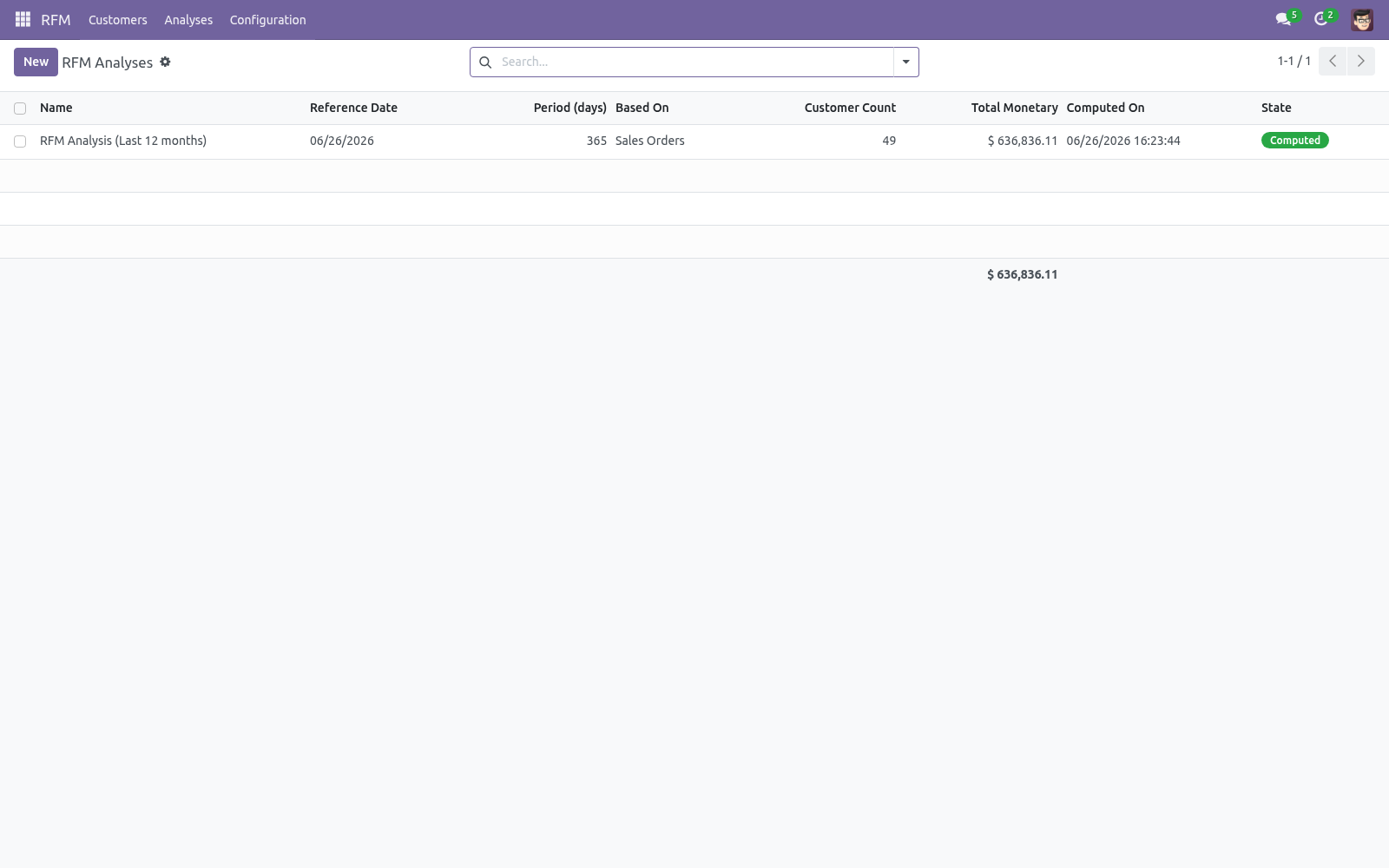
Open RFM > Analyses and click New.
Set the Reference Date (recency is measured backwards from here — usually today) and the Period (days) to look back over (365 is a good default).
Choose Based On:
Sales Orders — confirmed sale orders (state "Sales Order").
Customer Invoices — posted customer invoices, net of credit notes.
Leave Write Back to Contacts ticked if you want the segment stored on each contact.
Click Compute.
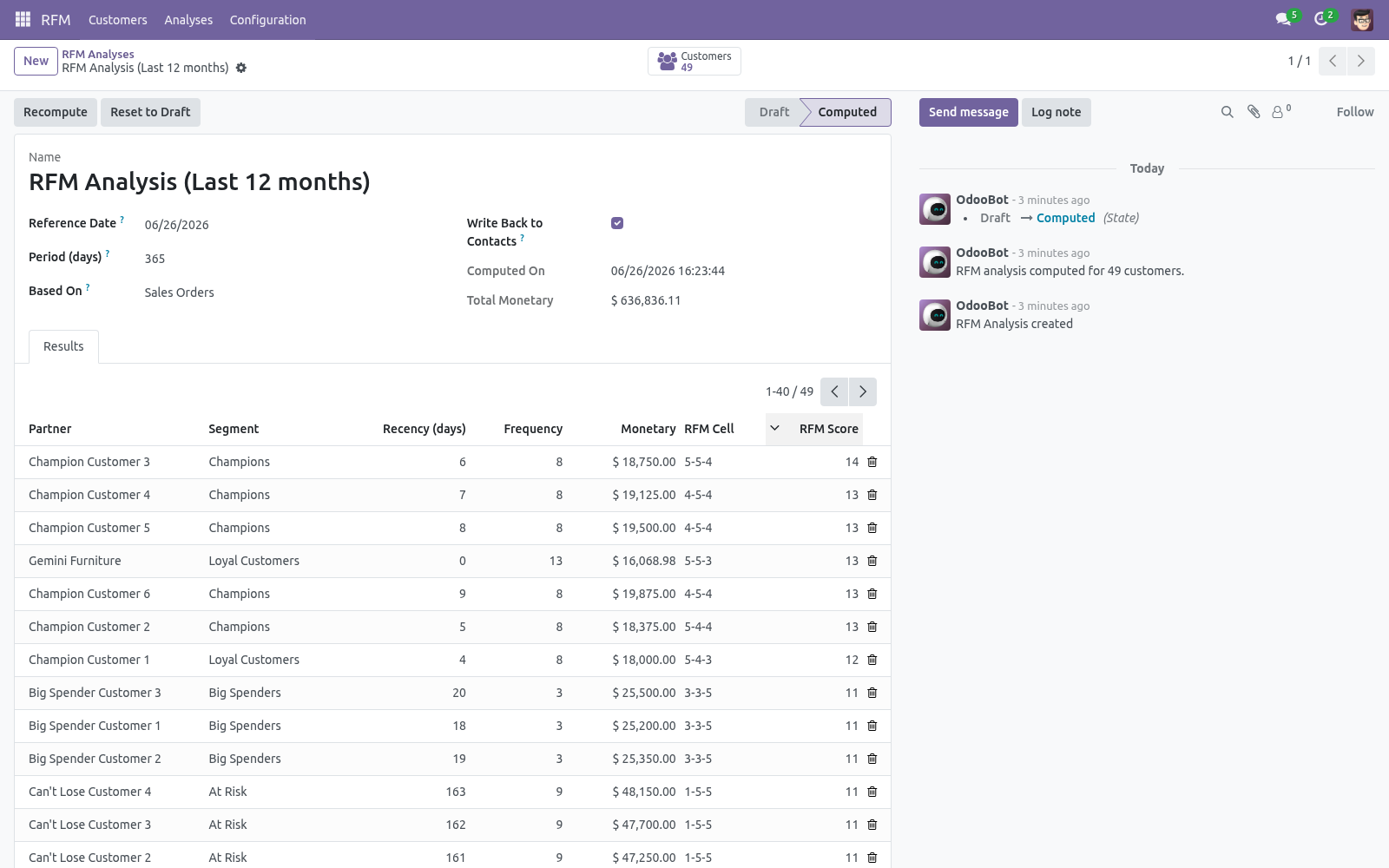
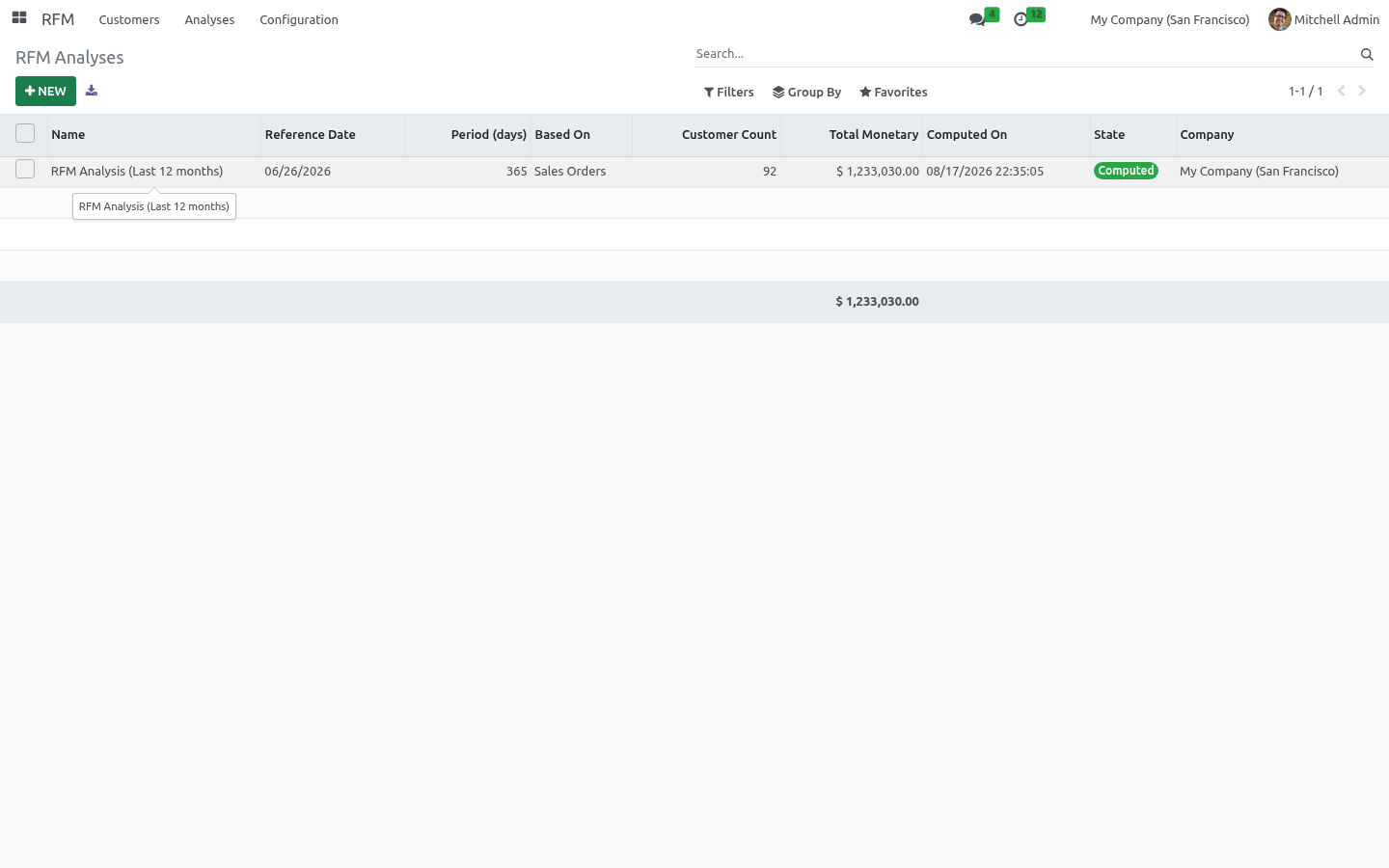
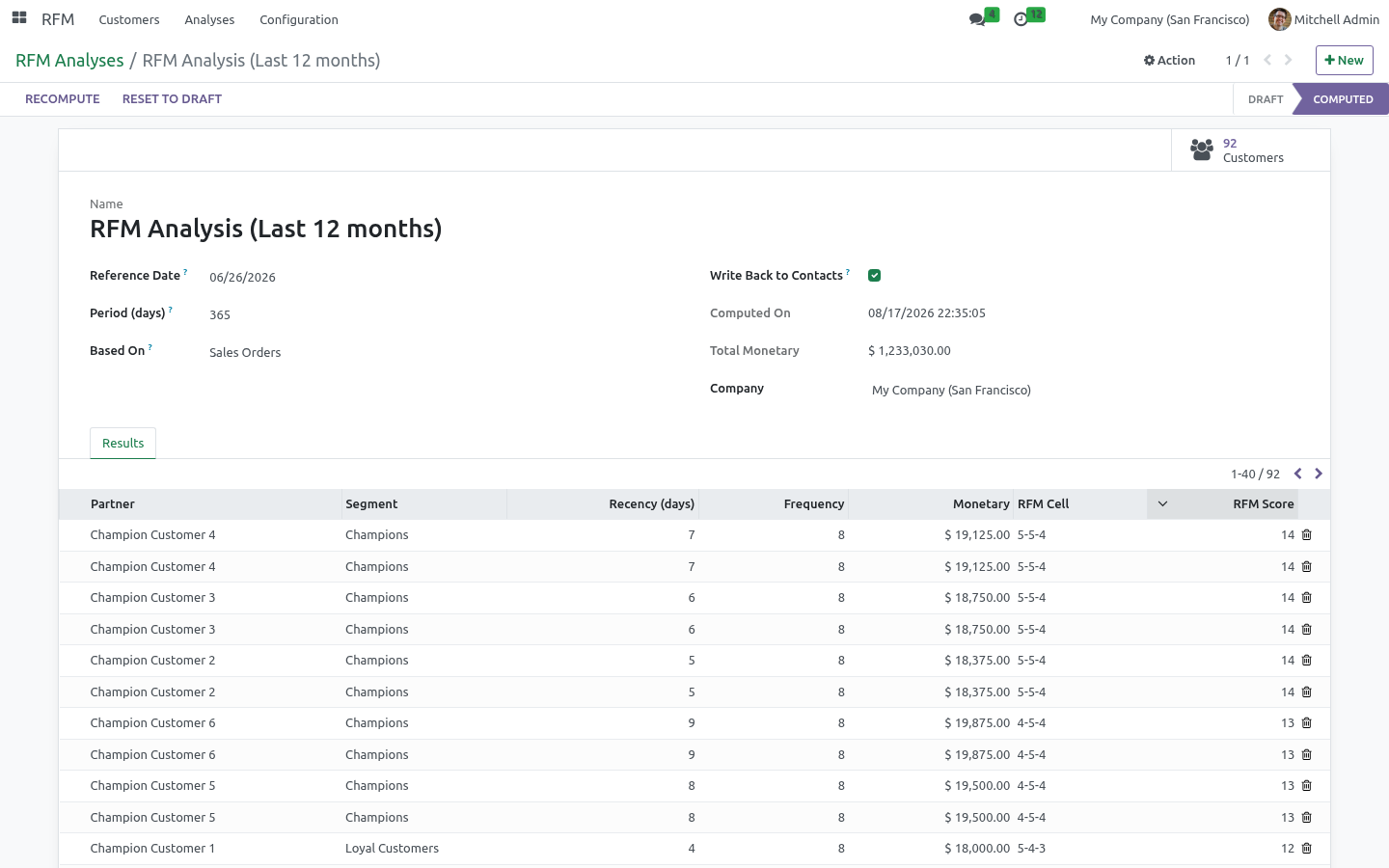
The analysis switches to Computed, the Customers stat button fills in, and the Results tab lists every customer with their scores and segment.
Reading the results
Open an analysis and use the Customers stat button, or go to RFM > Customers for the full analytical views:
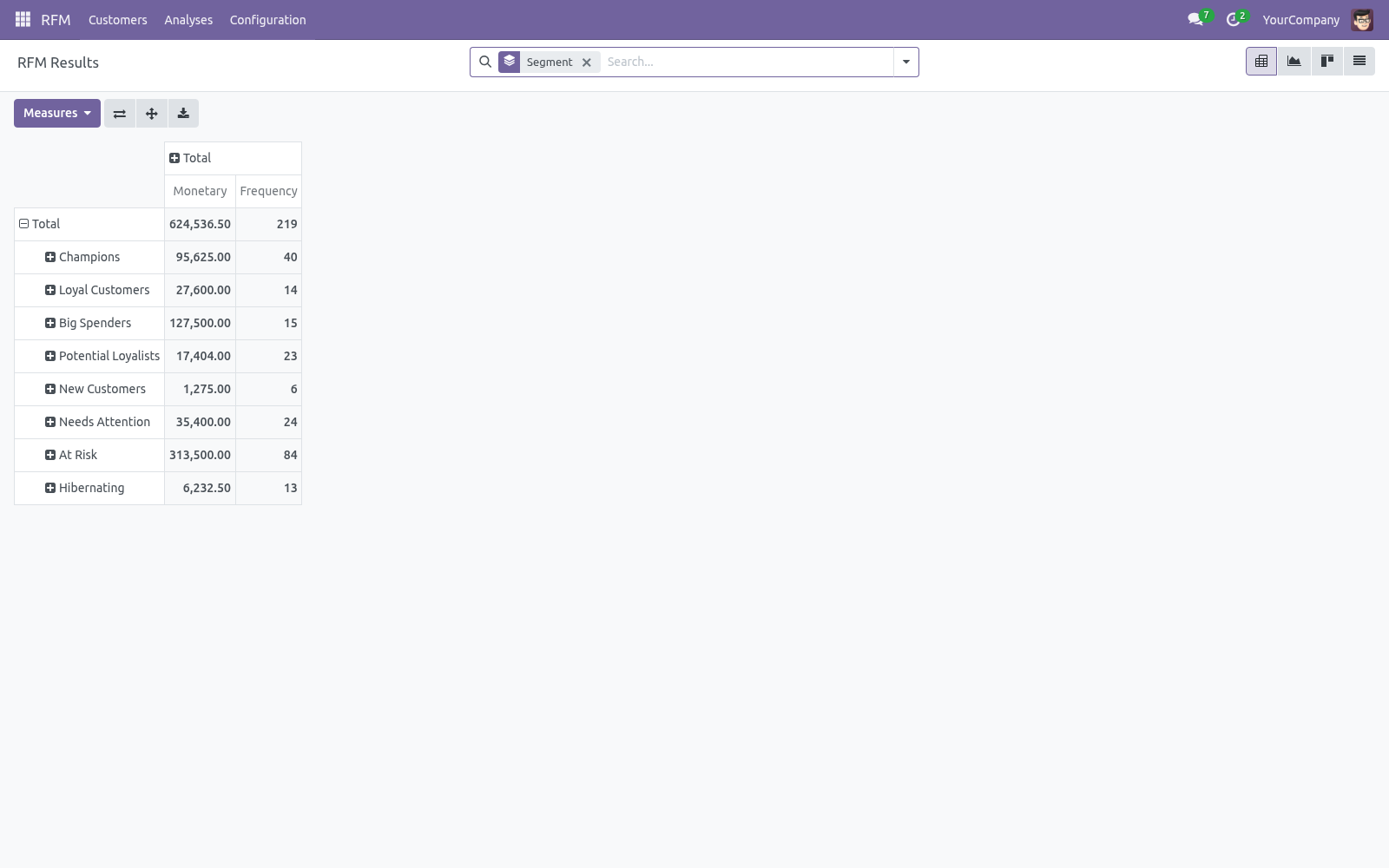
Pivot — segments down the side, monetary and frequency as measures. This is your "where is my revenue concentrated" view.
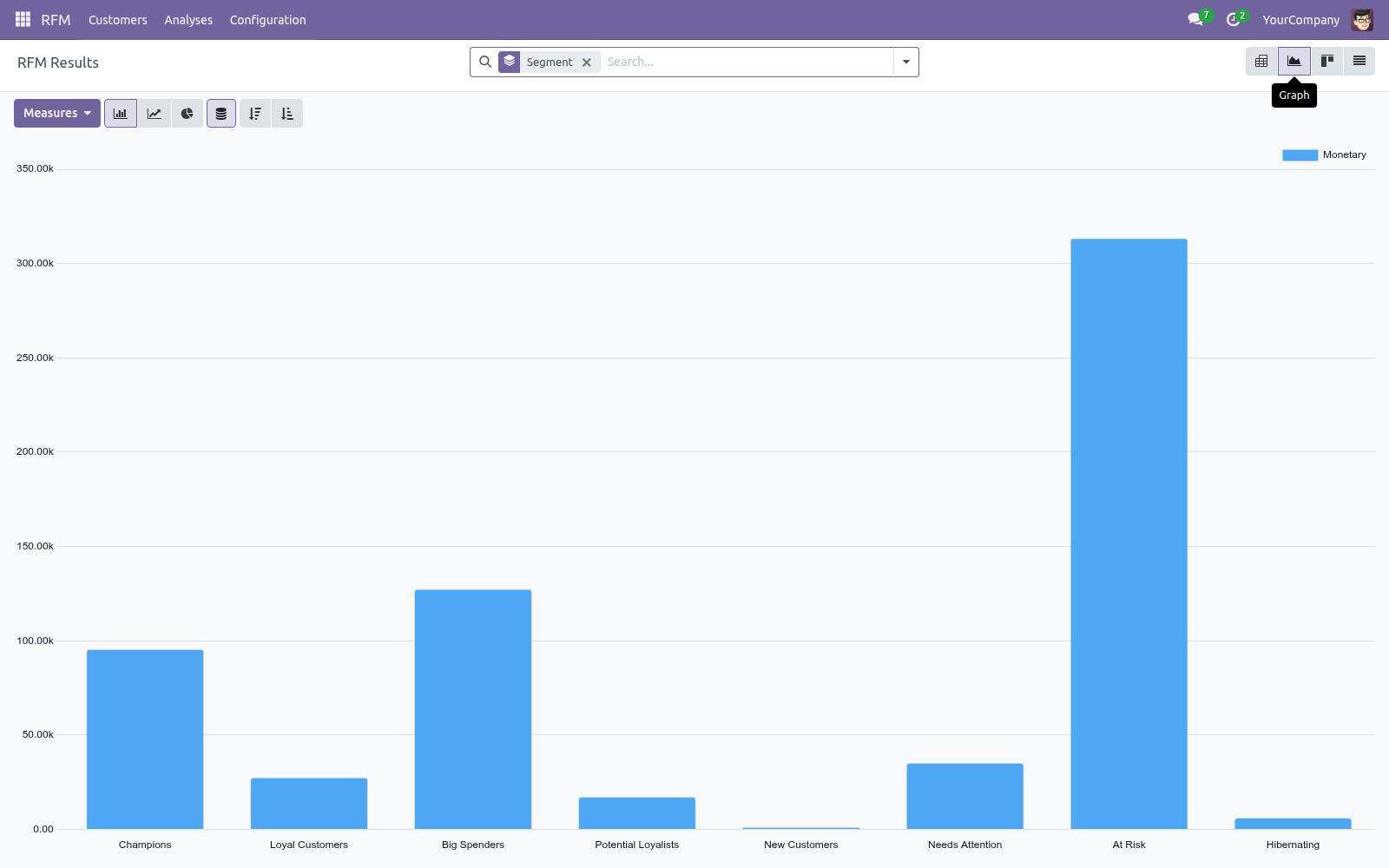
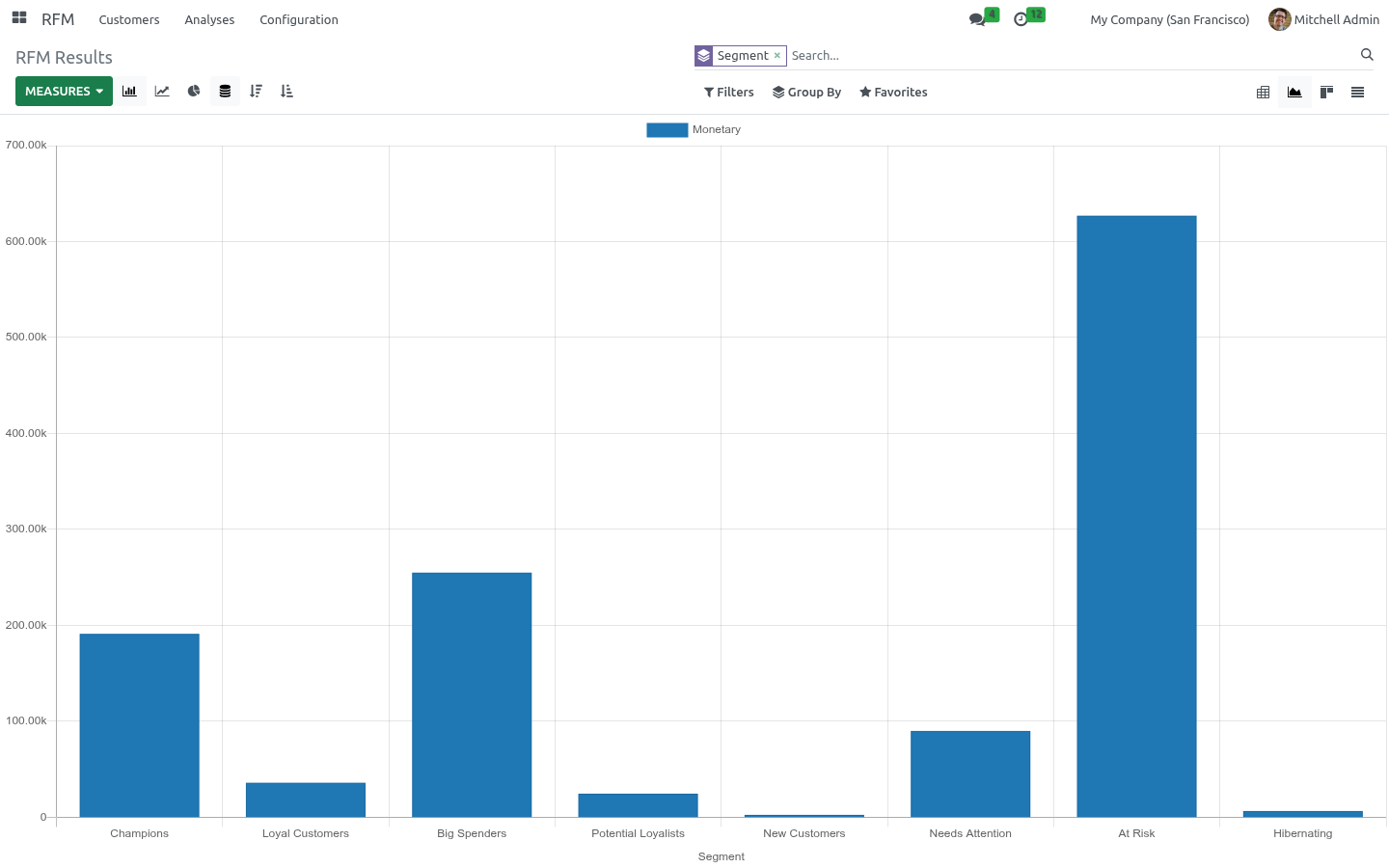
Graph — monetary value per segment at a glance.
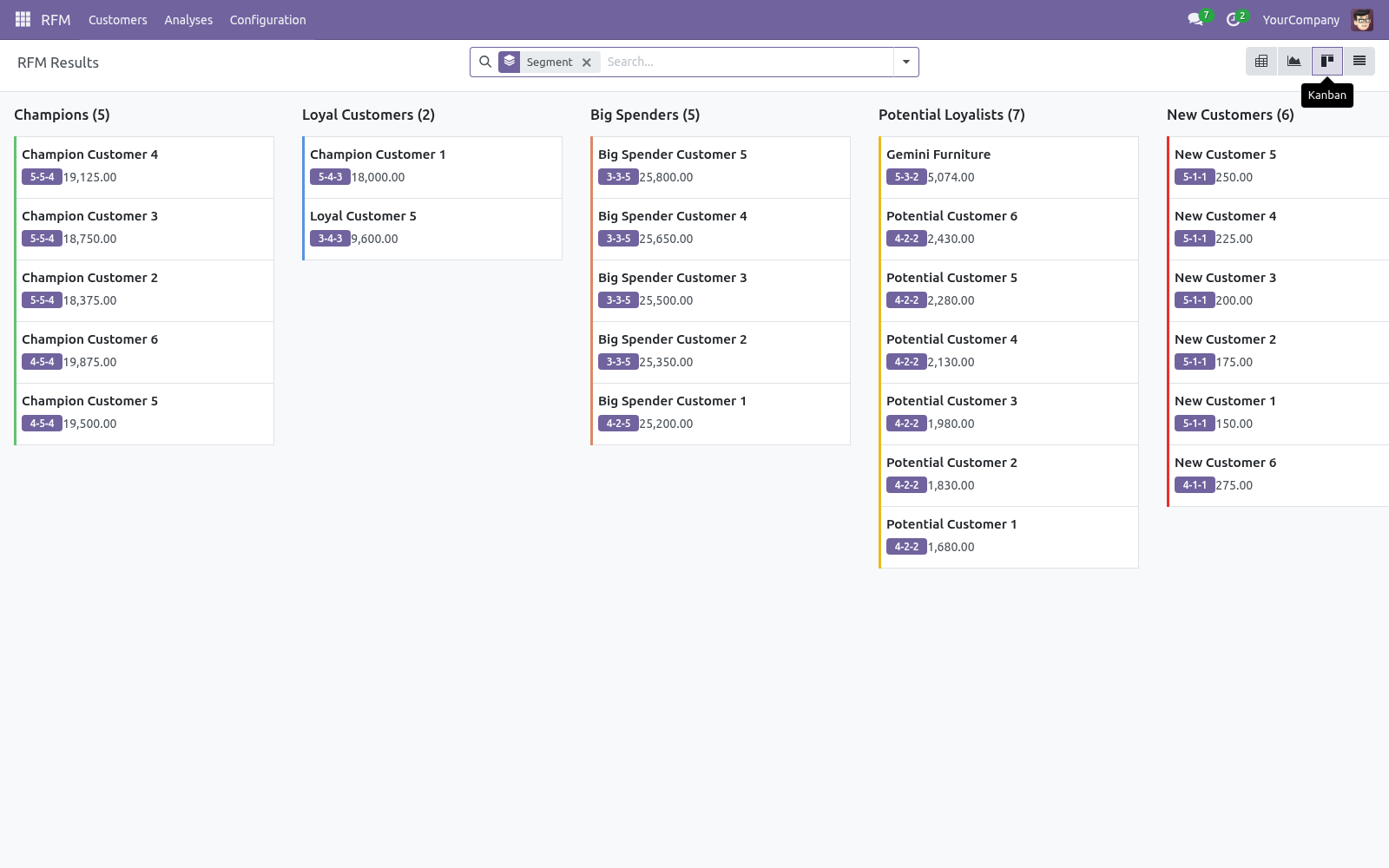
Kanban — one card per customer, grouped by segment and colour-coded.
List — every score in a sortable table; sort by RFM Score to find your best customers instantly.
Each result row shows:
Recency (days) — days since the last transaction.
Frequency — number of transactions in the period.
Monetary — total value in the company currency.
R / F / M — the 1-5 scores.
RFM Cell — the three scores joined, e.g. 5-4-5.
RFM Score — the sum (3 to 15); a quick single-number ranking.
How scoring works
Scores are quintiles: customers are ranked on each dimension and split into five equal groups. The best fifth scores 5, the worst fifth scores 1.
For Frequency and Monetary, higher values score higher.
For Recency, a smaller number of days (more recent) scores higher.
Because scoring is rank-based, it adapts to your business — a "5" always means "top 20% of your customers", whether you sell coffee or combine harvesters.
Multi-currency sales orders are converted to the company currency at the order date before being summed. Invoice-based analyses use the company-currency signed totals directly, so credit notes correctly reduce a customer's monetary value.
Tuning your segments
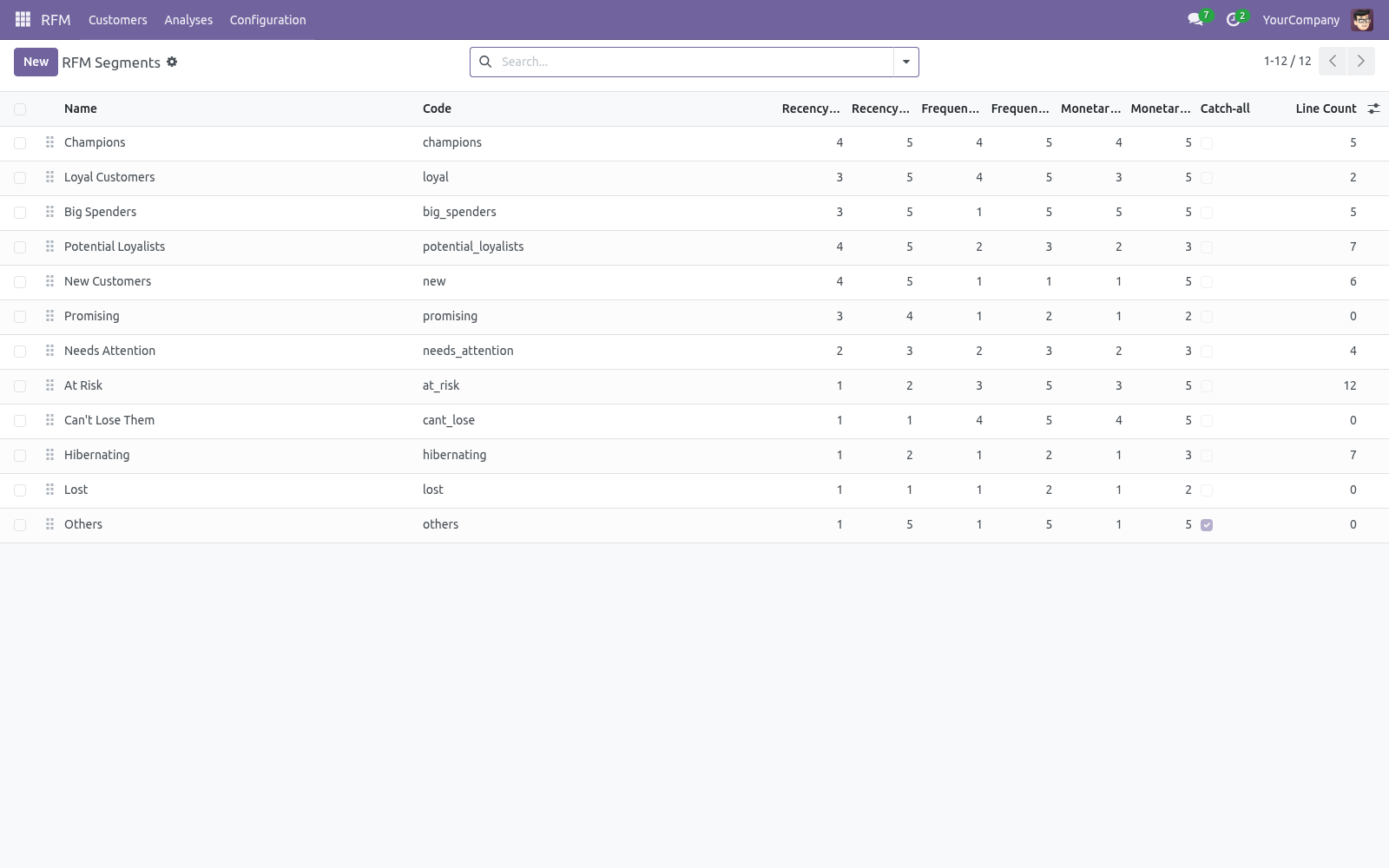
Go to RFM > Configuration > Segments. Each segment defines an inclusive range (1-5) for R, F and M. A customer is placed in the first segment (top to bottom by sequence) whose three ranges all contain their scores — so order matters. Drag the handle to reorder.
Tips:
Keep exactly one catch-all segment (the Others segment, with Catch-all ticked). It matches anything the specific segments missed, guaranteeing every customer lands somewhere.
Put your most specific / highest-value segments at the top.
The score-range constraint enforces 1 <= min <= max <= 5; you cannot save an invalid range.
Use the Customers stat button on a segment to jump to the contacts currently in it.
Targeting customers from segments
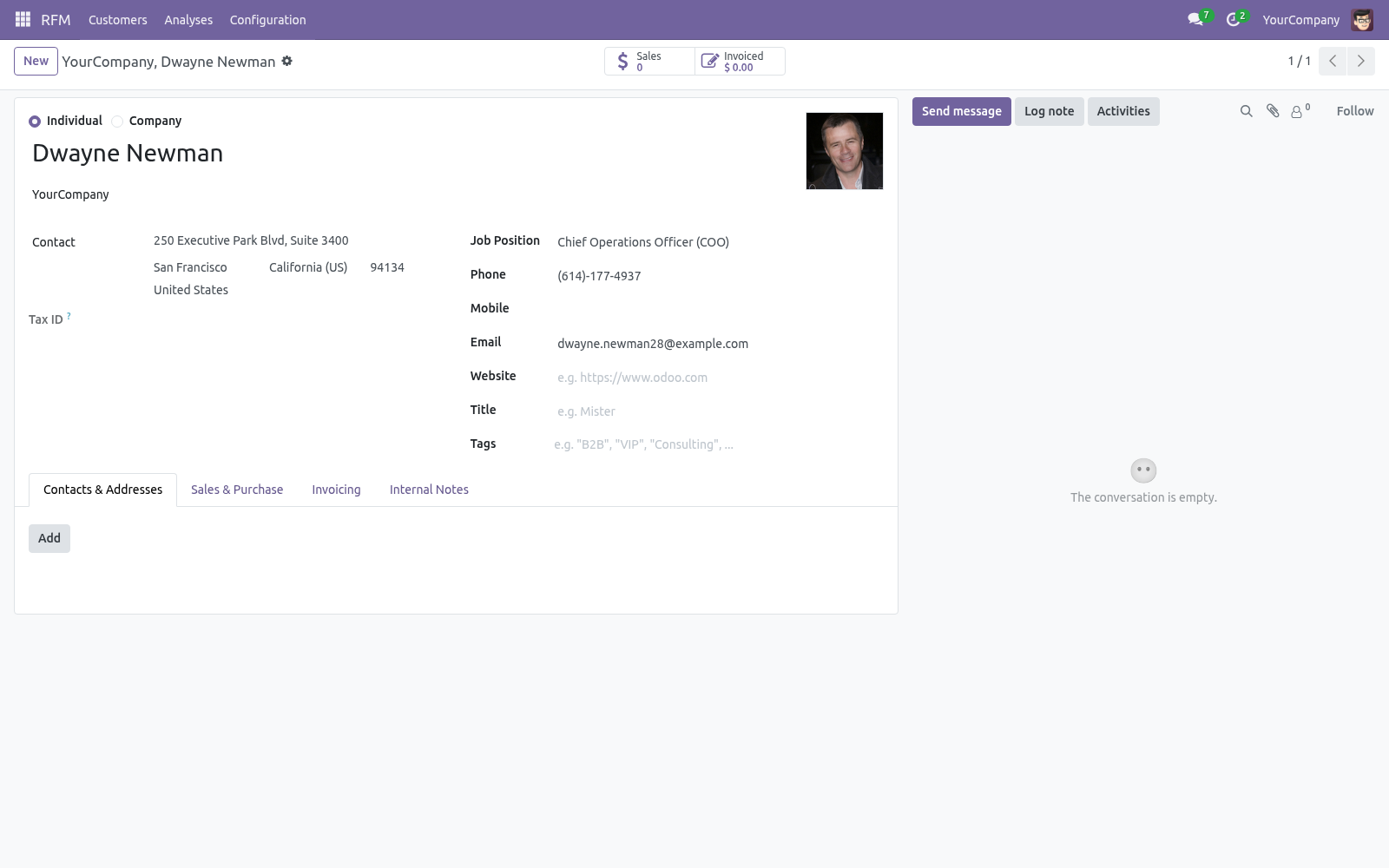
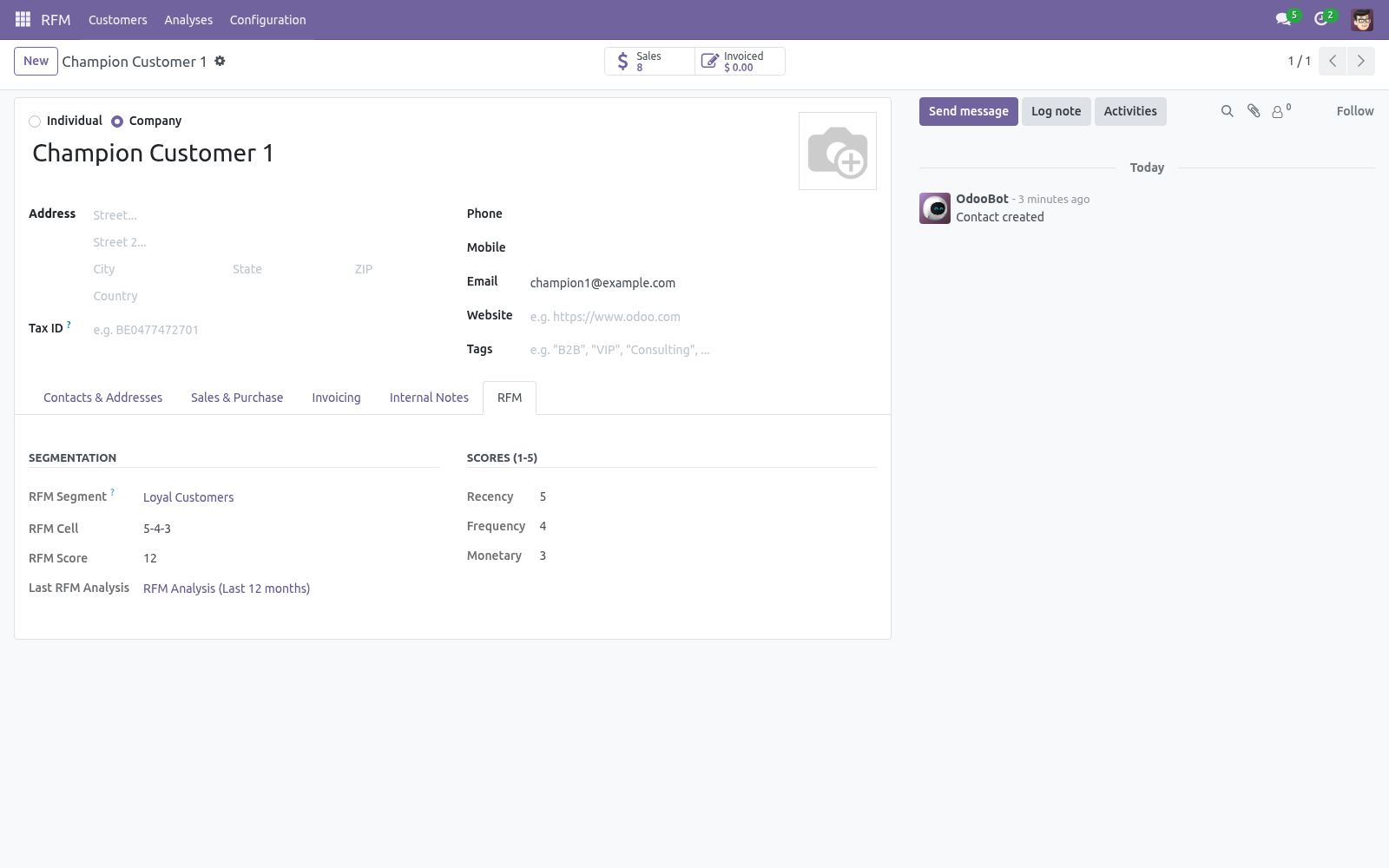
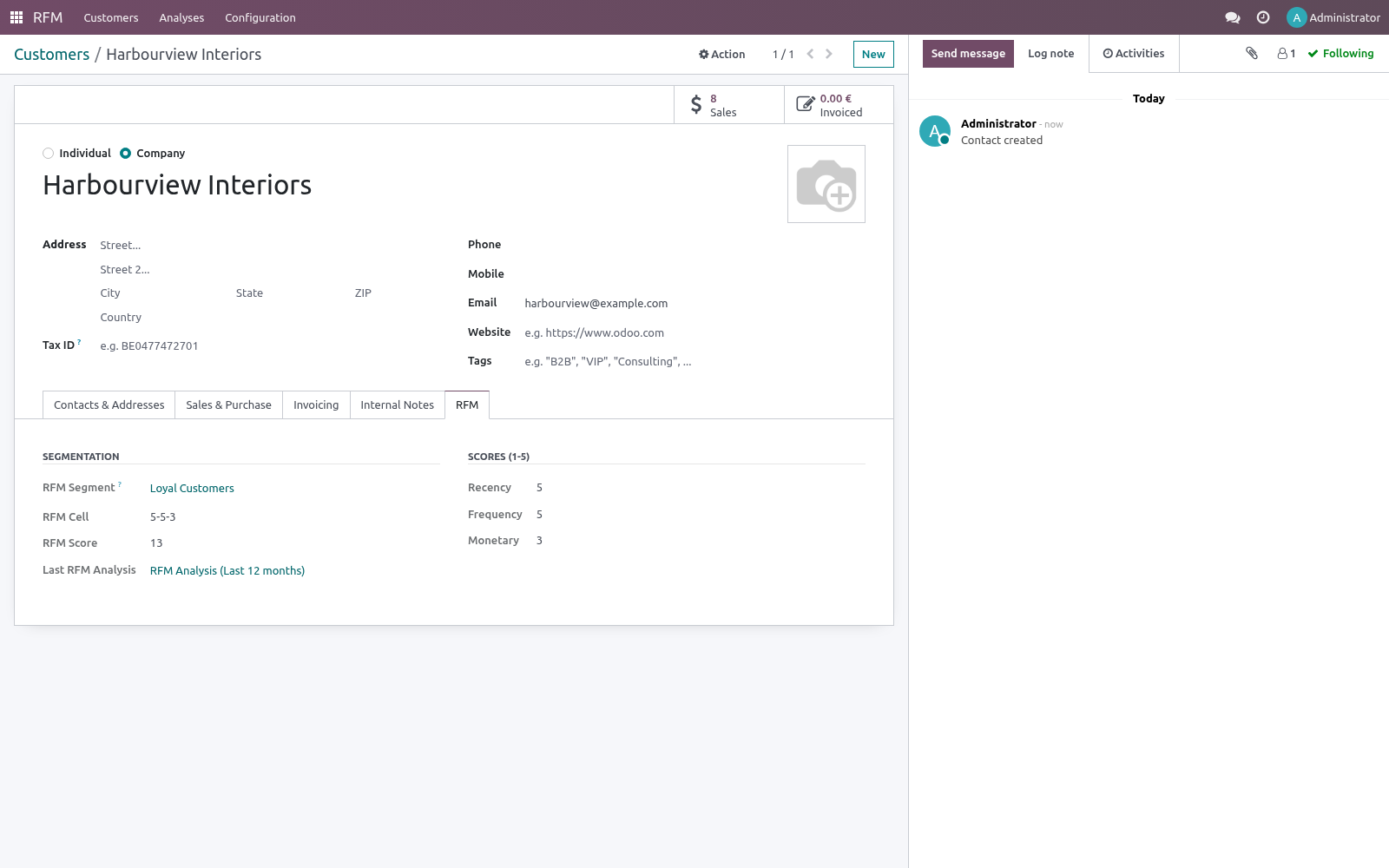
When Write Back to Contacts is on, every contact gets an RFM tab showing its segment, cell and scores, plus filterable fields. In any Contacts list:
Group by RFM Segment (search panel > Group By > RFM Segment).
Select a segment such as At Risk or Champions.
Act on the selection — add to a mailing list, launch an activity, export, etc.
Because the data lives on res.partner, it is available to mailing lists, automated actions, server actions and your own reports.
Automating refreshes
A scheduled action RFM: Recompute Latest Analysis ships disabled. Enable it under Settings > Technical > Scheduled Actions to recompute the most recent computed analysis per company on a schedule (weekly by default). Each run moves the reference date forward to today, so contacts stay current with no manual work.
Frequently asked questions
- A customer is missing from the results.
Only customers with at least one qualifying transaction inside the period appear. Check the reference date, the period length, and the data source (orders vs invoices). Draft orders and unposted invoices are ignored.
- Scores look off for a tiny customer base.
Quintiles need spread to be meaningful. With only a handful of customers the five buckets are coarse by definition — the model is designed for dozens or more customers.
- Can I score on something other than orders or invoices?
Out of the box it is sales orders or customer invoices. The data-collection step is isolated in one method, making custom sources straightforward for a developer.
- Does it work with multiple companies?
Yes. Each analysis is scoped to one company and record rules keep results separated per company.
- Will recomputing lose my history?
Recomputing replaces the lines of that analysis. Keep separate analyses (e.g. one per quarter) to retain historical snapshots and compare segment movement over time.
How we make sure it works
Before every release, 15 automated checks run against this app on Odoo 16, 17, 18, 19 and 20. Among them:
An order after the company's midnight stays out.
Odoo 20's company timezone is the company's clock.
The rolling analysis advances on the company's calendar.
Customers button opens this analysis by segment.
Lapsed big spender has a home.
The complete list is in the source you receive.
Support
Questions or ideas: support@bambooforge.dev.
Usage
Running an analysis
Open RFM > Analyses and click New. Fill in the run parameters:
Reference Date — recency is measured backwards from this date and any transaction after it is ignored. Leave it on today for a current picture.
Period (days) — the look-back window. Only transactions within this many days before the reference date are counted (365 by default).
Based On — Sales Orders counts confirmed orders (state "Sales Order"); Customer Invoices counts posted customer invoices and nets credit notes out against them.
Write Back to Contacts — when ticked, the resulting segment and R/F/M scores are stored on each res.partner for filtering and targeting.
Click Compute. The record moves to the Computed state, the Customers count and Total Monetary fill in, the Results tab lists every scored customer, and the chatter logs how many customers were processed. Click Compute again at any time to refresh a run; Reset to Draft clears its results. At least one segment must exist (the shipped catch-all is enough) or the compute stops with an explanatory error.
Reading the results
From an analysis, use the Customers stat button, or open RFM > Customers, to reach the result views (pivot, graph, list and kanban), grouped by segment by default. Each result row carries:
Recency (days) — days since the customer's last transaction.
Frequency — number of transactions in the period.
Monetary — total value in the company currency.
R / F / M — the individual 1-5 scores (5 = best).
RFM Cell — the three scores joined, e.g. 5-4-5.
RFM Score — the sum of R, F and M (3 to 15) for one-number ranking.
Scores are quintiles: customers are ranked on each dimension and split into five equal groups, so a "5" always means the top 20% of your customer base. More recent buying scores higher on Recency; higher counts and higher spend score higher on Frequency and Monetary.
Working with segments
The R/F/M scores place each customer in a segment. Review the segment matrix at RFM > Configuration > Segments (managers only). A customer lands in the first segment, top to bottom by sequence, whose R, F and M ranges all contain their scores; the Others catch-all guarantees everyone is placed. Drag the handle to reorder priority and edit the inclusive 1-5 ranges as needed. Use a segment's Customers button to open the contacts currently in it.
Eleven segments ship ready to use: Champions, Loyal Customers, Big Spenders, Potential Loyalists, New Customers, Promising, Needs Attention, At Risk, Can't Lose Them, Hibernating and Lost, plus the Others catch-all.
A worked example
A customer with three orders in the last month, the most recent yesterday and a high total spend is ranked in the top fifth on all three dimensions. Their scores come out as R=5, F=5, M=5, giving an RFM Cell of 5-5-5 and an RFM Score of 15. That matches the Champions range (R 4-5, F 4-5, M 4-5), so they are tagged Champions and, with write-back on, their contact record shows it too.
Targeting from contacts
With write-back enabled, each contact gains an RFM tab showing its segment, cell and scores. In any Contacts list, group by RFM Segment, pick a segment such as At Risk or Champions, and act on the selection — add to a mailing list, schedule an activity, export or feed an automated action.
Automating refreshes
The scheduled action RFM: Recompute Latest Analysis ships disabled. Enable it under Settings > Technical > Scheduled Actions to recompute the most recent computed analysis per company on a schedule (weekly by default); each run advances the reference date to today so contacts stay current automatically.
Upgrading & version compatibility
This build targets Odoo 20.0. Each Odoo major series (16.0, 17.0, 18.0, 19.0, 20.0) has its own dedicated build of this module — always install the build that matches your Odoo version. Mixing a build with a different Odoo series is not supported.
Patch upgrades (same series, e.g. 20.0.1.0.0 → later)
Back up your database and filestore first.
Replace the module folder with the newer build.
Restart Odoo with the module updated:
./odoo-bin -c your.conf -u bambooforge_rfm_analysis -d your_db
Odoo applies any schema/data changes automatically. Your existing records and configuration are preserved.
Cross-version migration (moving to a newer Odoo)
Upgrading Odoo itself is a database migration handled by Odoo's standard upgrade tooling. When you migrate the database to the next Odoo series, install the matching build of this module for that series. Data created by this module carries over with the database migration.
After any upgrade the module's scheduled actions resume on their normal cadence — no manual re-activation is required.
Uninstallation
You can remove this module at any time from Apps → (this module) → Uninstall, or from the command line. Uninstalling is clean and reversible by reinstalling — but note what is and is not deleted.
What is removed
The module's own tables and every record in them (3 models, prefixed rfm.*) — this is the data this module created.
The menus, actions, views and reports this module installed.
Its scheduled actions (cron jobs) — they stop immediately on uninstall.
What is preserved
Your standard Odoo data (partners, products, sales, invoices, inventory moves) is not deleted — this module only reads and annotates it; the underlying records stay.
Attachments and chatter messages on standard records are kept.
As always, take a database backup before uninstalling in production.
Questions people ask
- Which Odoo versions does it run on?
Odoo 16.0, 17.0, 18.0, 19.0, 20.0, on the series you buy it for; each series is its own listing.
- Community or Enterprise?
Both. It needs no Enterprise app.
- What does it need?
The standard Sales app. No extra Python package.
- Where does it show up?
Under the RFM menu (Customers, Analyses, Configuration).
- Does anything leave my server?
No. It makes no call outside your Odoo server: no telemetry, no licence check, no third-party service.
- What happens if I uninstall it?
Odoo drops the app's own tables and fields; the standard records it worked on (contacts, orders, products) stay as they are.
Changelog
20.0.1.2.4
The Customers button of an analysis opens its results as a kanban by segment too, as the Results menu does, and shows that analysis alone.
20.0.1.2.2
Built for Odoo 20: record rules and access rights rewritten onto Odoo 20's single ir.access model, the screens rebuilt on Owl 3, and every icon moved to the icon set Odoo 20 ships.
20.0.1.0.0
Current release for Odoo 20.0. This build includes:
RFM (Recency, Frequency, Monetary) customer segmentation with scoring, auto-segments (Champions, At Risk, Lost...), snapshots over time and write-back to contacts for targeting.
Feature additions and fixes ship as new builds on the Odoo Apps store; this page and the module's version reflect the current published release. Always keep the build matched to your Odoo series (see Upgrading & version compatibility).