 BambooForge Labs
Report Designer: PDF Report Builder
Design PDF reports without XML: stack title, addresses, info grid, line table, totals and signatures, pick fields from dropdowns, preview live.
Available for Odoo 16.0, Odoo 17.0, Odoo 18.0, Odoo 19.0, Odoo 20.0. Technical name bambooforge_report_studio.
Transcript of the walkthrough (Odoo 20)
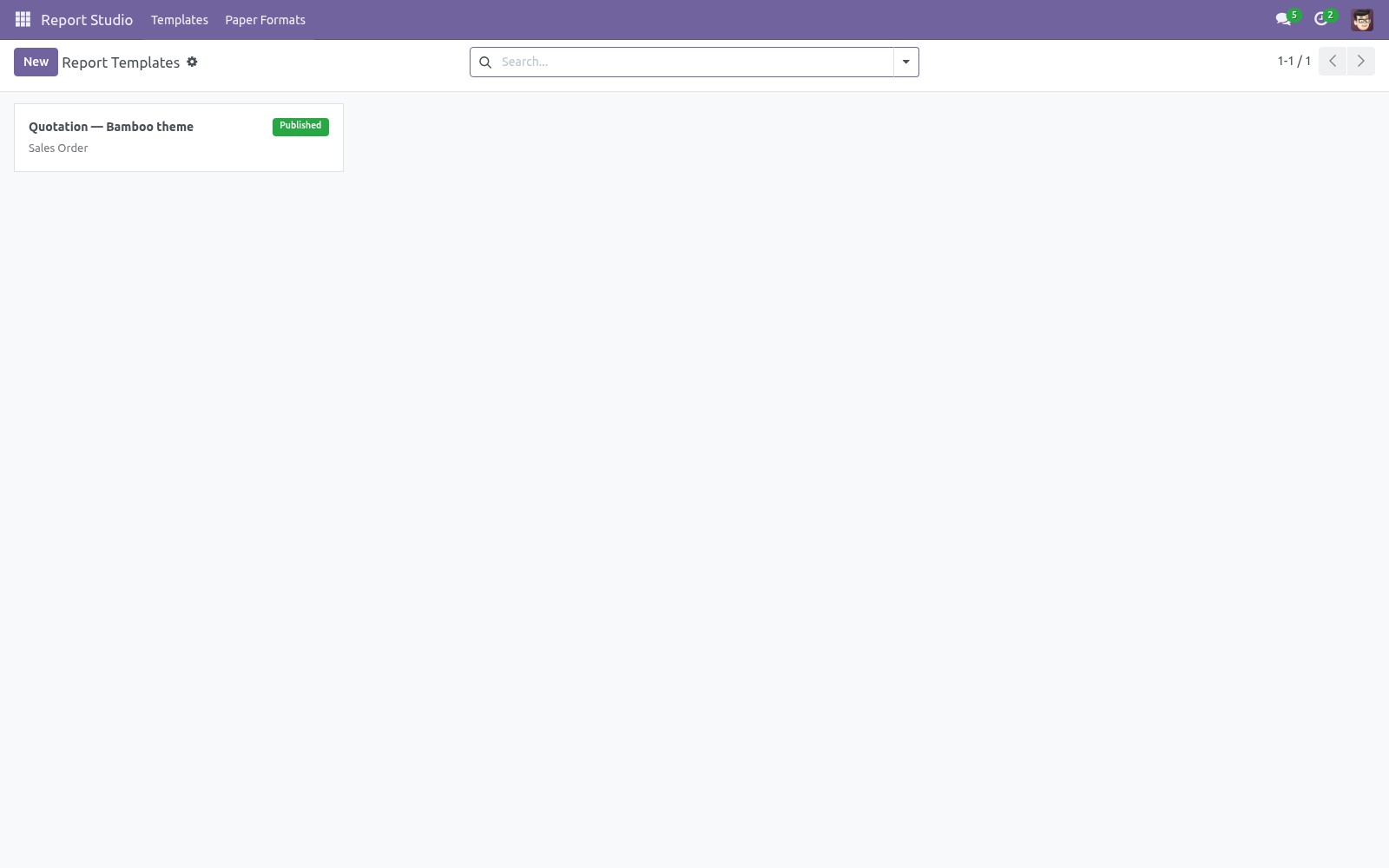
Report Designer: PDF Report Builder. Design PDF reports without XML: stack title, addresses, info grid, line table, totals and signatures, pick fields from dropdowns, preview live. Design PDF reports without writing a line of XML: stack and reorder seven building blocks — title, customer address, info grid, a lines table with your columns, totals, free text and signatures — pick every field from dropdowns filled by the live model, choose your accent colour and paper format, preview on a real document and publish straight into the Print menu with one click. Works on quotations, invoices, delivery orders and any custom (non-transient) model, on Community or Enterprise, and the generated report renders inside the standard company header, footer and logo from Settings.
In the next few minutes: report designer: pdf report builder, then designing a report, then publishing and printing, then unpublishing, deleting, duplicating, then hand-tuning the generated view. Then what this app deliberately does not do, so you can tell before you buy whether it fits. Everything lives under Report Studio then Templates then Paper Formats. Report Designer: PDF Report Builder.
Design PDF reports without writing a line of XML: stack and reorder seven building blocks — title, customer address, info grid, a lines table with your columns, totals, free text and signatures — pick every field from dropdowns filled by the live model, choose your accent colour and paper format, preview on a real document and publish straight into the Print menu with one click. Works on quotations, invoices, delivery orders and any custom (non-transient) model, on Community or Enterprise, and the generated report renders inside the standard company header, footer and logo from Settings. This page is the complete manual. Follow it top to bottom and you can install, design your first report, publish it and fix the common issues without contacting support.
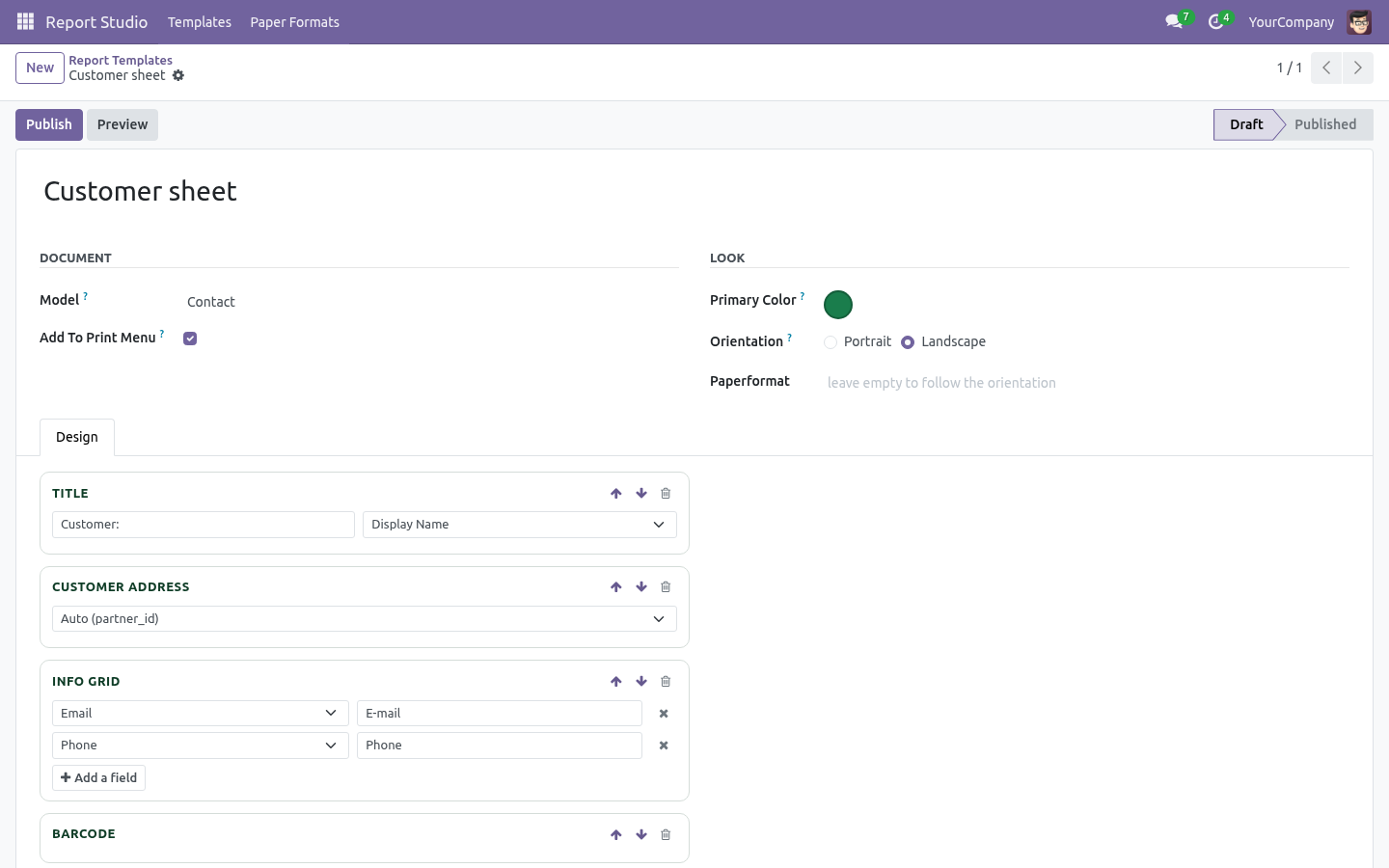
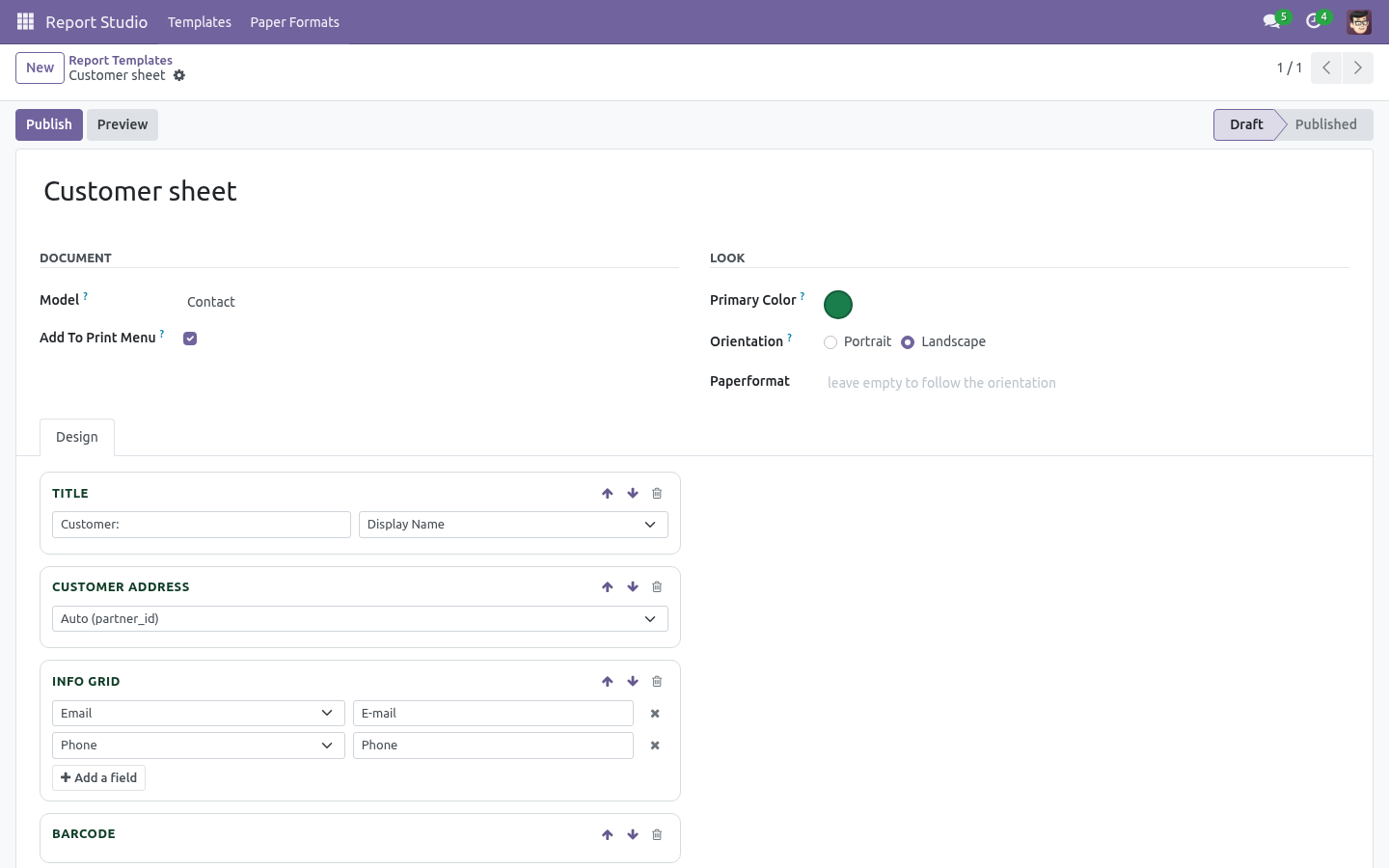
Designing a report. Pick the model first. The designer's field pickers are filled from the chosen model, so select the document model before stacking blocks. Changing the model reloads the pickers.
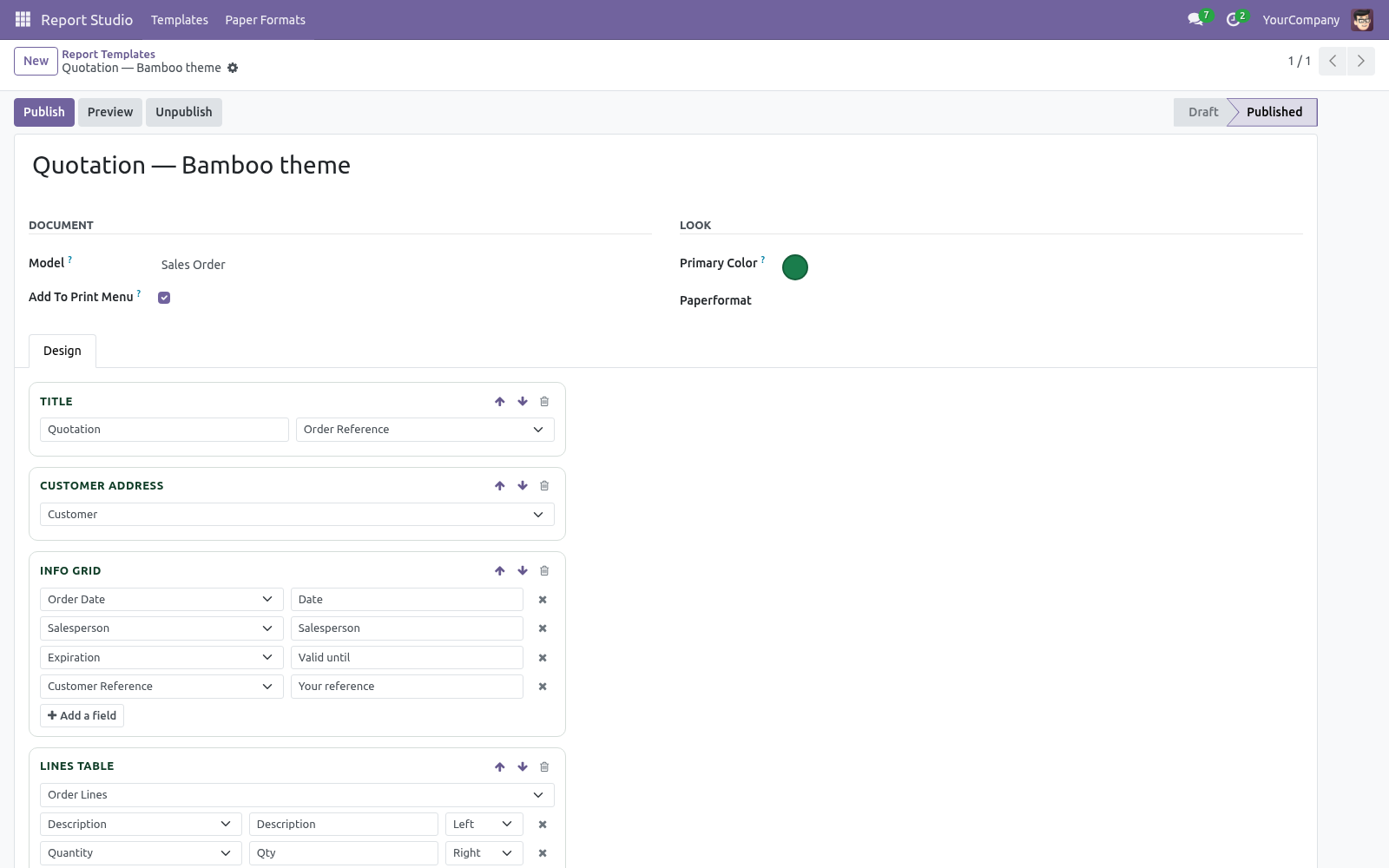
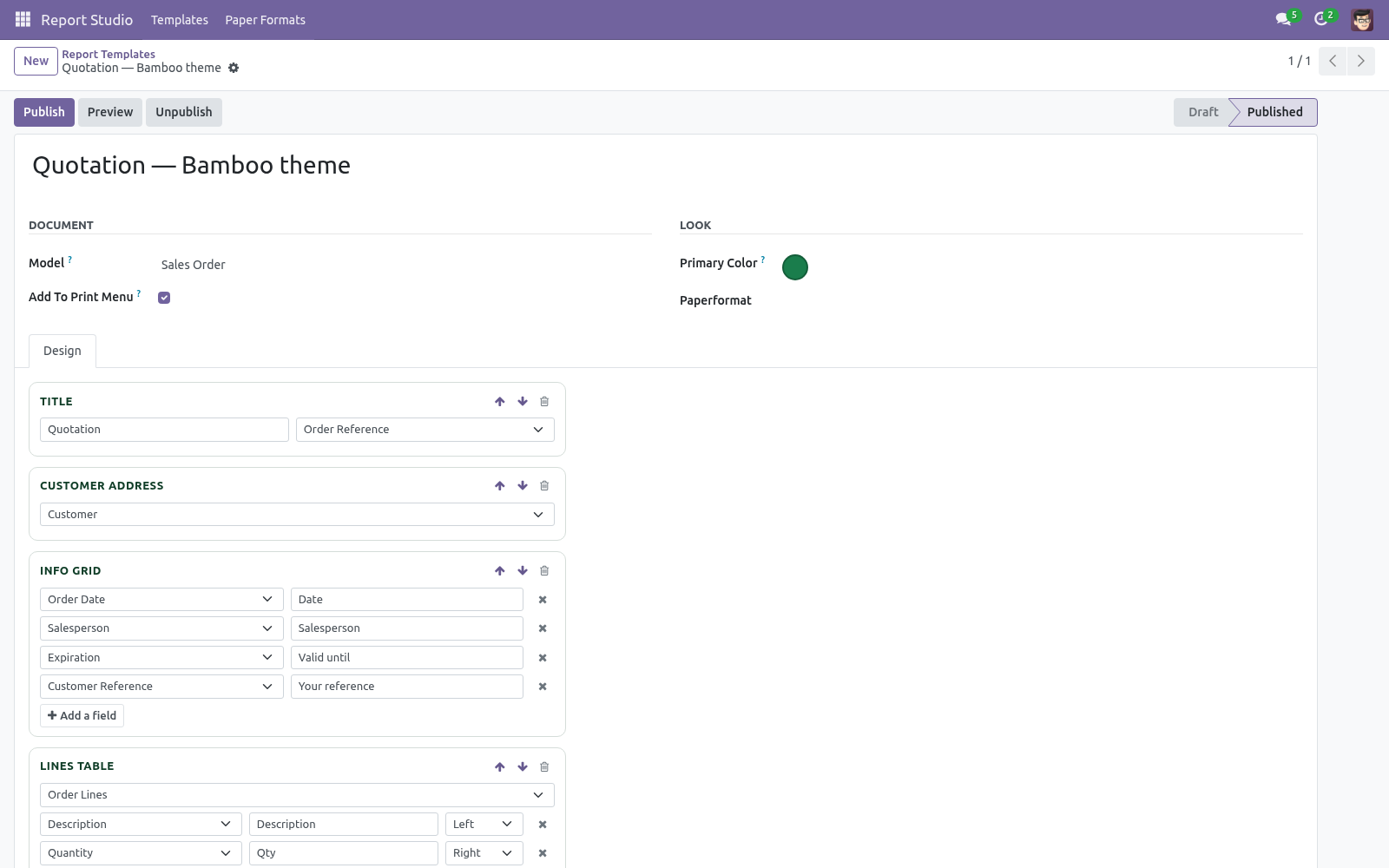
Stack the blocks. Add any of the seven block types in any order, as many of each as you need; move them up and down to reorder and remove the ones you don't want. A block left empty (an info grid with no fields, a table with no columns, a blank text block) is skipped at rendering time — it never prints as an empty box. Publishing and printing Publish generates the QWeb view and the report action.
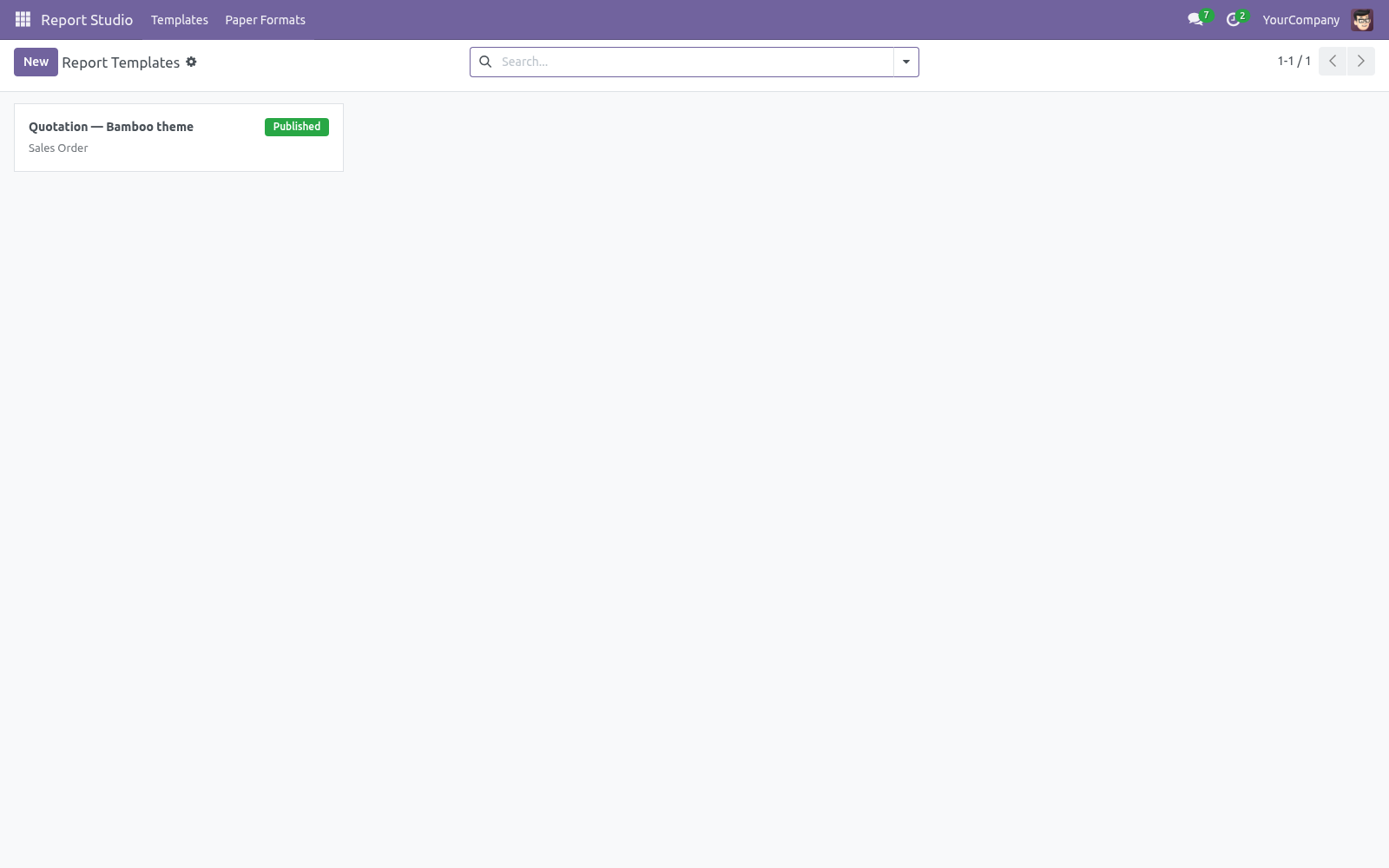
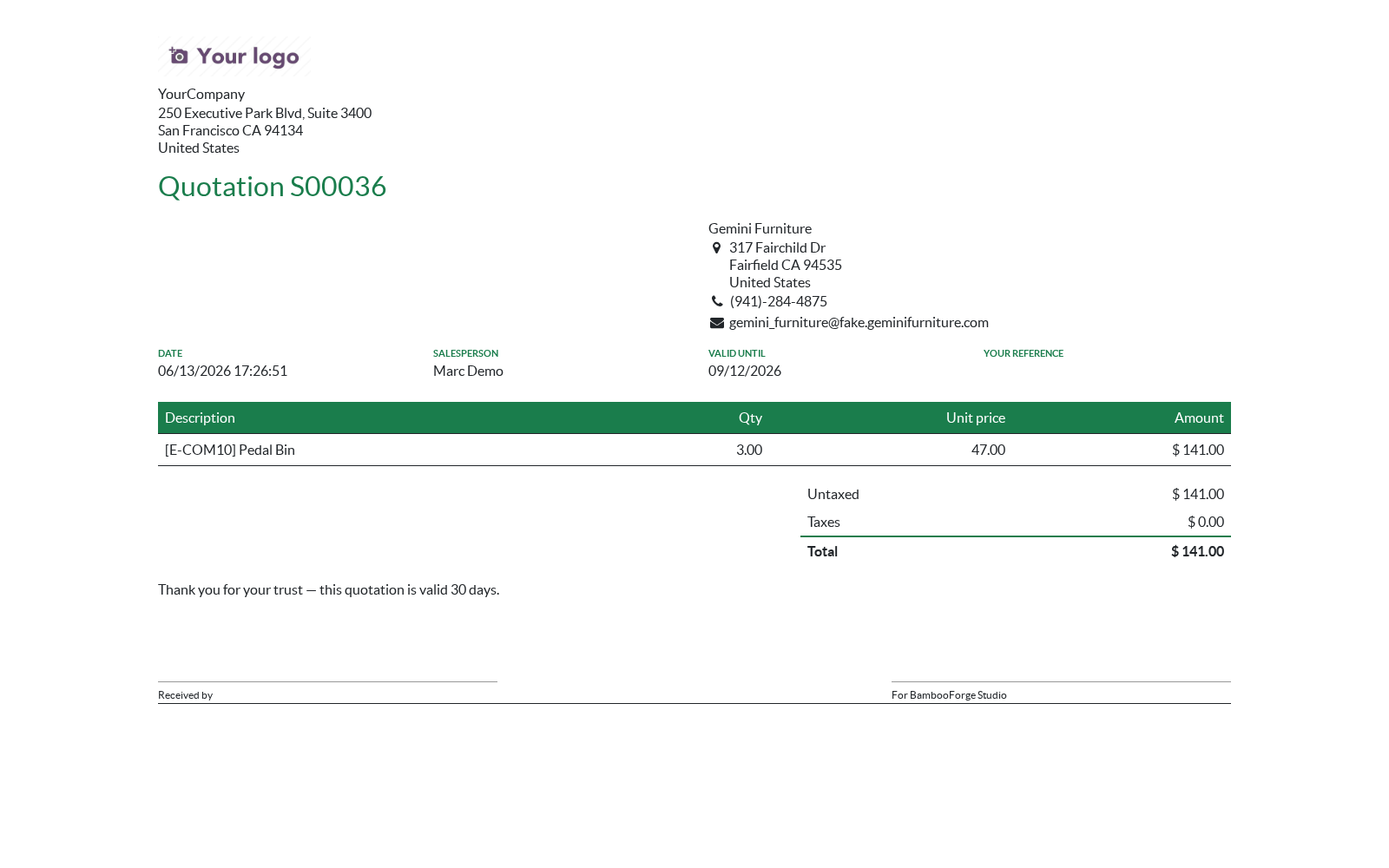
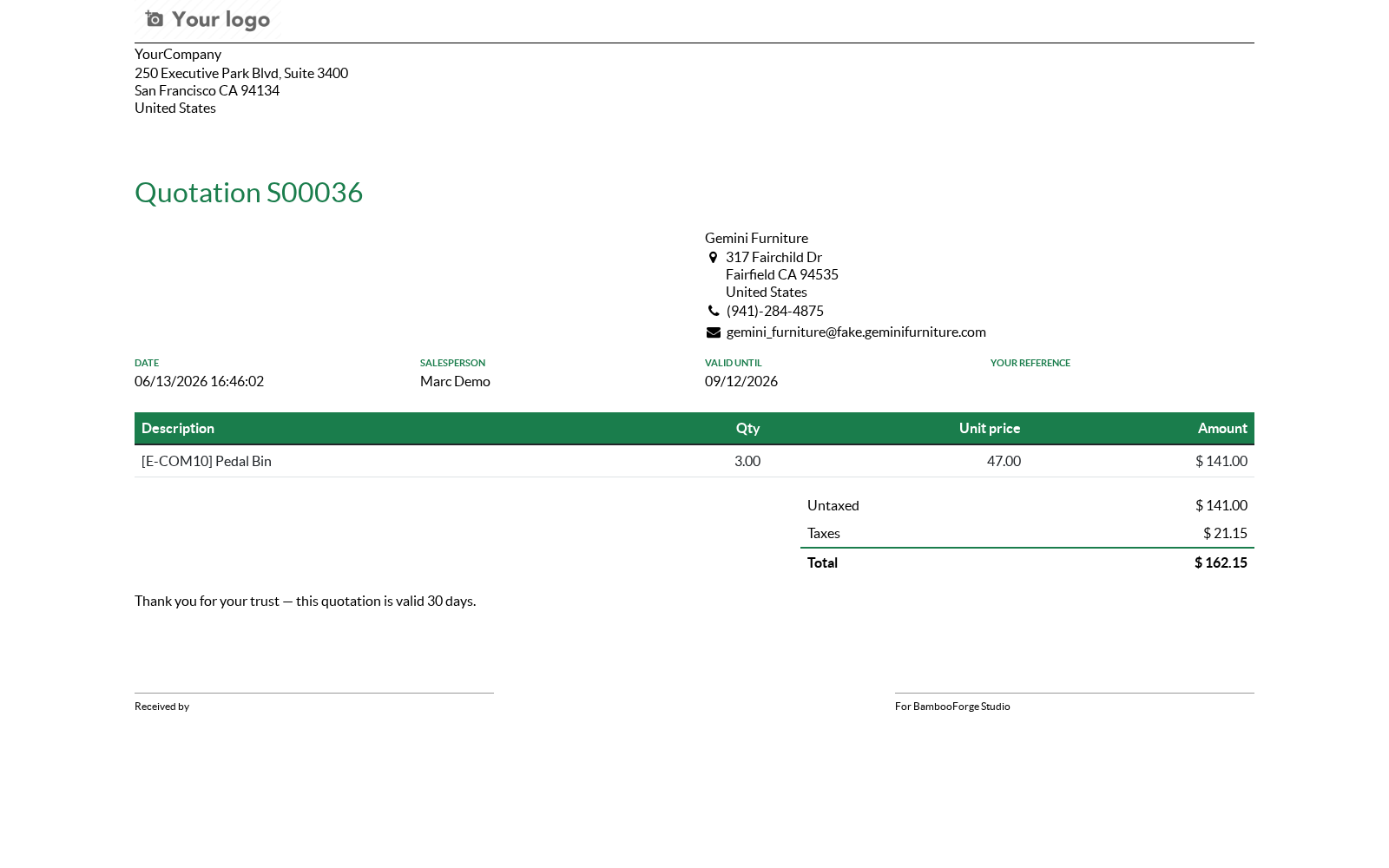
With Show in Print menu enabled (the default), the report appears in the Print menu of every record of the model; disabled, the report exists but is not bound to the menu. Preview opens the rendered HTML of the newest record within your allowed companies in a new tab. On a draft template, Preview publishes first — so a preview you like is already live. Publishing an already-published template regenerates the view and updates the action in place — same report, new design.
The printed file is named after the template and the document (e.g. Quotation — Bamboo theme - S00042). Unpublishing, deleting, duplicating Unpublish removes the generated view and the report action and puts the template back to Draft. The Print menu entry disappears; nothing is left in Technical views.
Deleting a template cleans up the same way. Duplicating a template copies the design as a fresh Draft with no view or action attached — publish it to get a second, independent report. Hand-tuning the generated view. The generated view is an ordinary QWeb view — you can inspect or hand-tune it in Settings ▸ Technical ▸ User Interface ▸ Views (search for BF Report).
One caveat: Publish regenerates the view, overwriting manual edits. Once a developer takes a report over by hand, stop republishing that template — or duplicate it and let the copy be the hand-maintained one. Conditional blocks, codes and layout Condition — enter a field name on a block to print it only when that field is set, or prefix it with ! to print it only when the field is empty.
One template then serves the documents that need a bank panel and the ones that do not. Barcode block — prints a QR, Code128 or EAN13 code built from any field, for payment QRs and tracking labels. Image block — prints any binary field, for product photos or a per-document logo. Page break — starts the following blocks on a fresh page.
Orientation — switching a report to landscape builds one shared paper format and reuses it; setting a paper format by hand still wins. Access rights. Printing a published report requires no Report Studio group: the generated report action behaves like any Odoo report, available to whoever can read the document. Report Studio / User — browse report templates.
Report Studio / Manager — create, design, publish, unpublish and delete templates; manage paper formats. FAQ. How is this different from Odoo Studio (Enterprise)? Studio is a drag-and-drop editor over Odoo's existing reports, down to pixel positioning — and it requires an Enterprise subscription.
Report Studio builds new reports from structured blocks: it covers the common "I need a clean, branded quote / invoice / delivery slip with my fields and my columns" on Community or Enterprise, without Studio. For free-form pixel editing of a stock report, Studio is the tool; for a tidy branded document today, this is. How is this different from the report template packs on the store? Template packs are fixed designs for a fixed document — you pick the least-wrong one and live with its fields.
Report Studio is a designer: you choose the blocks, fields, columns, labels and colours yourself, per model — including custom models no template pack covers. How we make sure it works. Before every release, 30 automated checks run against this app on Odoo 16, 17, 18, 19 and 20. Among them: Condition on an unknown field is refused.
Blocks without condition are untouched. Condition hides the block on documents without the field set. Barcode rejects an unknown field. Barcode rejects an unknown symbology.
The complete list is in the source you receive. Support E-mail — support@bambooforge.dev. Every request is answered within 24 hours, setup help included. What to send — your Odoo version and edition, the document model, the block configuration (a screenshot of the Design tab is perfect) and the exact error message from Publish or the server log around bf_report.
Money-back guarantee — report a bug within 2 months of purchase; if we cannot resolve it within 15 days, you get a full refund. Source — the complete OPL-1 source is included; extend it your way. The complete manual is at docs dot bambooforge dot dev, the demo database is linked from the store page, and support answers within twenty-four hours. Links are in the description.
Transcript of the walkthrough (Odoo 19)
Report Designer: PDF Report Builder. Design PDF reports without XML: stack title, addresses, info grid, line table, totals and signatures, pick fields from dropdowns, preview live. Design PDF reports without writing a line of XML: stack and reorder seven building blocks — title, customer address, info grid, a lines table with your columns, totals, free text and signatures — pick every field from dropdowns filled by the live model, choose your accent colour and paper format, preview on a real document and publish straight into the Print menu with one click. Works on quotations, invoices, delivery orders and any custom (non-transient) model, on Community or Enterprise, and the generated report renders inside the standard company header, footer and logo from Settings.
In the next few minutes: report designer: pdf report builder, then designing a report, then publishing and printing, then unpublishing, deleting, duplicating, then hand-tuning the generated view. Then what this app deliberately does not do, so you can tell before you buy whether it fits. Everything lives under Report Studio then Templates then Paper Formats. Report Designer: PDF Report Builder.
Design PDF reports without writing a line of XML: stack and reorder seven building blocks — title, customer address, info grid, a lines table with your columns, totals, free text and signatures — pick every field from dropdowns filled by the live model, choose your accent colour and paper format, preview on a real document and publish straight into the Print menu with one click. Works on quotations, invoices, delivery orders and any custom (non-transient) model, on Community or Enterprise, and the generated report renders inside the standard company header, footer and logo from Settings. This page is the complete manual. Follow it top to bottom and you can install, design your first report, publish it and fix the common issues without contacting support.
Designing a report. Pick the model first. The designer's field pickers are filled from the chosen model, so select the document model before stacking blocks. Changing the model reloads the pickers.
Stack the blocks. Add any of the seven block types in any order, as many of each as you need; move them up and down to reorder and remove the ones you don't want. A block left empty (an info grid with no fields, a table with no columns, a blank text block) is skipped at rendering time — it never prints as an empty box. Publishing and printing Publish generates the QWeb view and the report action.
With Show in Print menu enabled (the default), the report appears in the Print menu of every record of the model; disabled, the report exists but is not bound to the menu. Preview opens the rendered HTML of the newest record within your allowed companies in a new tab. On a draft template, Preview publishes first — so a preview you like is already live. Publishing an already-published template regenerates the view and updates the action in place — same report, new design.
The printed file is named after the template and the document (e.g. Quotation — Bamboo theme - S00042). Unpublishing, deleting, duplicating Unpublish removes the generated view and the report action and puts the template back to Draft. The Print menu entry disappears; nothing is left in Technical views.
Deleting a template cleans up the same way. Duplicating a template copies the design as a fresh Draft with no view or action attached — publish it to get a second, independent report. Hand-tuning the generated view. The generated view is an ordinary QWeb view — you can inspect or hand-tune it in Settings ▸ Technical ▸ User Interface ▸ Views (search for BF Report).
One caveat: Publish regenerates the view, overwriting manual edits. Once a developer takes a report over by hand, stop republishing that template — or duplicate it and let the copy be the hand-maintained one. Conditional blocks, codes and layout Condition — enter a field name on a block to print it only when that field is set, or prefix it with ! to print it only when the field is empty.
One template then serves the documents that need a bank panel and the ones that do not. Barcode block — prints a QR, Code128 or EAN13 code built from any field, for payment QRs and tracking labels. Image block — prints any binary field, for product photos or a per-document logo. Page break — starts the following blocks on a fresh page.
Orientation — switching a report to landscape builds one shared paper format and reuses it; setting a paper format by hand still wins. Template options - Option (per template) The model the report prints. Any non-transient model, standard or custom. - Show in Print menu Bind the published report to the document's Print menu (default on).
Off, the report is generated but not bound. - Primary colour Accent used for the title, the table header row and the totals rule. Optional report.paperformat (A4, Letter, custom); empty uses the company default. The company the template belongs to (your current company by default).
Preview always picks the newest document within your allowed companies. Blocks Optional label + any field (default: display name), as an accent-coloured heading. - Customer address Contact widget (name, address, phone, e-mail); the partner field is picked or auto-detected (partner_id); skipped when the model has none. Any fields with custom labels, four per row, labels in small caps and the accent colour.
One one2many + its columns, each with a header label and left/right alignment; accent-coloured header row. Right-aligned rows of fields; the last row is bold with an accent rule. Sanitized static HTML: formatting is kept, script tags and QWeb/templating attributes (t-out, t-esc, t-field, data-oe-*, groups) are stripped. Two labelled signing lines (defaults Received by / Authorized signature).
Access rights. Printing a published report requires no Report Studio group: the generated report action behaves like any Odoo report, available to whoever can read the document. Report Studio / User — browse report templates. Report Studio / Manager — create, design, publish, unpublish and delete templates; manage paper formats.
FAQ. How is this different from Odoo Studio (Enterprise)? Studio is a drag-and-drop editor over Odoo's existing reports, down to pixel positioning — and it requires an Enterprise subscription. Report Studio builds new reports from structured blocks: it covers the common "I need a clean, branded quote / invoice / delivery slip with my fields and my columns" on Community or Enterprise, without Studio.
For free-form pixel editing of a stock report, Studio is the tool; for a tidy branded document today, this is. How is this different from the report template packs on the store? Template packs are fixed designs for a fixed document — you pick the least-wrong one and live with its fields. Report Studio is a designer: you choose the blocks, fields, columns, labels and colours yourself, per model — including custom models no template pack covers.
The complete manual is at docs dot bambooforge dot dev, the demo database is linked from the store page, and support answers within twenty-four hours. Links are in the description.
Transcript of the walkthrough (Odoo 18)
Report Designer: PDF Report Builder. Design PDF reports without XML: stack title, addresses, info grid, line table, totals and signatures, pick fields from dropdowns, preview live. Design PDF reports without writing a line of XML: stack and reorder seven building blocks — title, customer address, info grid, a lines table with your columns, totals, free text and signatures — pick every field from dropdowns filled by the live model, choose your accent colour and paper format, preview on a real document and publish straight into the Print menu with one click. Works on quotations, invoices, delivery orders and any custom (non-transient) model, on Community or Enterprise, and the generated report renders inside the standard company header, footer and logo from Settings.
In the next few minutes: report designer: pdf report builder, then designing a report, then publishing and printing, then unpublishing, deleting, duplicating, then hand-tuning the generated view. Then what this app deliberately does not do, so you can tell before you buy whether it fits. Everything lives under Report Studio then Templates then Paper Formats. Report Designer: PDF Report Builder.
Design PDF reports without writing a line of XML: stack and reorder seven building blocks — title, customer address, info grid, a lines table with your columns, totals, free text and signatures — pick every field from dropdowns filled by the live model, choose your accent colour and paper format, preview on a real document and publish straight into the Print menu with one click. Works on quotations, invoices, delivery orders and any custom (non-transient) model, on Community or Enterprise, and the generated report renders inside the standard company header, footer and logo from Settings. This page is the complete manual. Follow it top to bottom and you can install, design your first report, publish it and fix the common issues without contacting support.
Designing a report. Pick the model first. The designer's field pickers are filled from the chosen model, so select the document model before stacking blocks. Changing the model reloads the pickers.
Stack the blocks. Add any of the seven block types in any order, as many of each as you need; move them up and down to reorder and remove the ones you don't want. A block left empty (an info grid with no fields, a table with no columns, a blank text block) is skipped at rendering time — it never prints as an empty box. Publishing and printing Publish generates the QWeb view and the report action.
With Show in Print menu enabled (the default), the report appears in the Print menu of every record of the model; disabled, the report exists but is not bound to the menu. Preview opens the rendered HTML of the newest record within your allowed companies in a new tab. On a draft template, Preview publishes first — so a preview you like is already live. Publishing an already-published template regenerates the view and updates the action in place — same report, new design.
The printed file is named after the template and the document (e.g. Quotation — Bamboo theme - S00042). Unpublishing, deleting, duplicating Unpublish removes the generated view and the report action and puts the template back to Draft. The Print menu entry disappears; nothing is left in Technical views.
Deleting a template cleans up the same way. Duplicating a template copies the design as a fresh Draft with no view or action attached — publish it to get a second, independent report. Hand-tuning the generated view. The generated view is an ordinary QWeb view — you can inspect or hand-tune it in Settings ▸ Technical ▸ User Interface ▸ Views (search for BF Report).
One caveat: Publish regenerates the view, overwriting manual edits. Once a developer takes a report over by hand, stop republishing that template — or duplicate it and let the copy be the hand-maintained one. Conditional blocks, codes and layout Condition — enter a field name on a block to print it only when that field is set, or prefix it with ! to print it only when the field is empty.
One template then serves the documents that need a bank panel and the ones that do not. Barcode block — prints a QR, Code128 or EAN13 code built from any field, for payment QRs and tracking labels. Image block — prints any binary field, for product photos or a per-document logo. Page break — starts the following blocks on a fresh page.
Orientation — switching a report to landscape builds one shared paper format and reuses it; setting a paper format by hand still wins. Template options - Option (per template) The model the report prints. Any non-transient model, standard or custom. - Show in Print menu Bind the published report to the document's Print menu (default on).
Off, the report is generated but not bound. - Primary colour Accent used for the title, the table header row and the totals rule. Optional report.paperformat (A4, Letter, custom); empty uses the company default. The company the template belongs to (your current company by default).
Preview always picks the newest document within your allowed companies. Blocks Optional label + any field (default: display name), as an accent-coloured heading. - Customer address Contact widget (name, address, phone, e-mail); the partner field is picked or auto-detected (partner_id); skipped when the model has none. Any fields with custom labels, four per row, labels in small caps and the accent colour.
One one2many + its columns, each with a header label and left/right alignment; accent-coloured header row. Right-aligned rows of fields; the last row is bold with an accent rule. Sanitized static HTML: formatting is kept, script tags and QWeb/templating attributes (t-out, t-esc, t-field, data-oe-*, groups) are stripped. Two labelled signing lines (defaults Received by / Authorized signature).
Access rights. Printing a published report requires no Report Studio group: the generated report action behaves like any Odoo report, available to whoever can read the document. Report Studio / User — browse report templates. Report Studio / Manager — create, design, publish, unpublish and delete templates; manage paper formats.
FAQ. How is this different from Odoo Studio (Enterprise)? Studio is a drag-and-drop editor over Odoo's existing reports, down to pixel positioning — and it requires an Enterprise subscription. Report Studio builds new reports from structured blocks: it covers the common "I need a clean, branded quote / invoice / delivery slip with my fields and my columns" on Community or Enterprise, without Studio.
For free-form pixel editing of a stock report, Studio is the tool; for a tidy branded document today, this is. How is this different from the report template packs on the store? Template packs are fixed designs for a fixed document — you pick the least-wrong one and live with its fields. Report Studio is a designer: you choose the blocks, fields, columns, labels and colours yourself, per model — including custom models no template pack covers.
The complete manual is at docs dot bambooforge dot dev, the demo database is linked from the store page, and support answers within twenty-four hours. Links are in the description.
Transcript of the walkthrough (Odoo 17)
Report Designer: PDF Report Builder. Design PDF reports without XML: stack title, addresses, info grid, line table, totals and signatures, pick fields from dropdowns, preview live. Design PDF reports without writing a line of XML: stack and reorder seven building blocks — title, customer address, info grid, a lines table with your columns, totals, free text and signatures — pick every field from dropdowns filled by the live model, choose your accent colour and paper format, preview on a real document and publish straight into the Print menu with one click. Works on quotations, invoices, delivery orders and any custom (non-transient) model, on Community or Enterprise, and the generated report renders inside the standard company header, footer and logo from Settings.
In the next few minutes: report designer: pdf report builder, then designing a report, then publishing and printing, then unpublishing, deleting, duplicating, then hand-tuning the generated view. Then what this app deliberately does not do, so you can tell before you buy whether it fits. Everything lives under Report Studio then Templates then Paper Formats. Report Designer: PDF Report Builder.
Design PDF reports without writing a line of XML: stack and reorder seven building blocks — title, customer address, info grid, a lines table with your columns, totals, free text and signatures — pick every field from dropdowns filled by the live model, choose your accent colour and paper format, preview on a real document and publish straight into the Print menu with one click. Works on quotations, invoices, delivery orders and any custom (non-transient) model, on Community or Enterprise, and the generated report renders inside the standard company header, footer and logo from Settings. This page is the complete manual. Follow it top to bottom and you can install, design your first report, publish it and fix the common issues without contacting support.
Designing a report. Pick the model first. The designer's field pickers are filled from the chosen model, so select the document model before stacking blocks. Changing the model reloads the pickers.
Stack the blocks. Add any of the seven block types in any order, as many of each as you need; move them up and down to reorder and remove the ones you don't want. A block left empty (an info grid with no fields, a table with no columns, a blank text block) is skipped at rendering time — it never prints as an empty box. Publishing and printing Publish generates the QWeb view and the report action.
With Show in Print menu enabled (the default), the report appears in the Print menu of every record of the model; disabled, the report exists but is not bound to the menu. Preview opens the rendered HTML of the newest record within your allowed companies in a new tab. On a draft template, Preview publishes first — so a preview you like is already live. Publishing an already-published template regenerates the view and updates the action in place — same report, new design.
The printed file is named after the template and the document (e.g. Quotation — Bamboo theme - S00042). Unpublishing, deleting, duplicating Unpublish removes the generated view and the report action and puts the template back to Draft. The Print menu entry disappears; nothing is left in Technical views.
Deleting a template cleans up the same way. Duplicating a template copies the design as a fresh Draft with no view or action attached — publish it to get a second, independent report. Hand-tuning the generated view. The generated view is an ordinary QWeb view — you can inspect or hand-tune it in Settings ▸ Technical ▸ User Interface ▸ Views (search for BF Report).
One caveat: Publish regenerates the view, overwriting manual edits. Once a developer takes a report over by hand, stop republishing that template — or duplicate it and let the copy be the hand-maintained one. Conditional blocks, codes and layout Condition — enter a field name on a block to print it only when that field is set, or prefix it with ! to print it only when the field is empty.
One template then serves the documents that need a bank panel and the ones that do not. Barcode block — prints a QR, Code128 or EAN13 code built from any field, for payment QRs and tracking labels. Image block — prints any binary field, for product photos or a per-document logo. Page break — starts the following blocks on a fresh page.
Orientation — switching a report to landscape builds one shared paper format and reuses it; setting a paper format by hand still wins. Template options - Option (per template) The model the report prints. Any non-transient model, standard or custom. - Show in Print menu Bind the published report to the document's Print menu (default on).
Off, the report is generated but not bound. - Primary colour Accent used for the title, the table header row and the totals rule. Optional report.paperformat (A4, Letter, custom); empty uses the company default. The company the template belongs to (your current company by default).
Preview always picks the newest document within your allowed companies. Blocks Optional label + any field (default: display name), as an accent-coloured heading. - Customer address Contact widget (name, address, phone, e-mail); the partner field is picked or auto-detected (partner_id); skipped when the model has none. Any fields with custom labels, four per row, labels in small caps and the accent colour.
One one2many + its columns, each with a header label and left/right alignment; accent-coloured header row. Right-aligned rows of fields; the last row is bold with an accent rule. Sanitized static HTML: formatting is kept, script tags and QWeb/templating attributes (t-out, t-esc, t-field, data-oe-*, groups) are stripped. Two labelled signing lines (defaults Received by / Authorized signature).
Access rights. Printing a published report requires no Report Studio group: the generated report action behaves like any Odoo report, available to whoever can read the document. Report Studio / User — browse report templates. Report Studio / Manager — create, design, publish, unpublish and delete templates; manage paper formats.
FAQ. How is this different from Odoo Studio (Enterprise)? Studio is a drag-and-drop editor over Odoo's existing reports, down to pixel positioning — and it requires an Enterprise subscription. Report Studio builds new reports from structured blocks: it covers the common "I need a clean, branded quote / invoice / delivery slip with my fields and my columns" on Community or Enterprise, without Studio.
For free-form pixel editing of a stock report, Studio is the tool; for a tidy branded document today, this is. How is this different from the report template packs on the store? Template packs are fixed designs for a fixed document — you pick the least-wrong one and live with its fields. Report Studio is a designer: you choose the blocks, fields, columns, labels and colours yourself, per model — including custom models no template pack covers.
The complete manual is at docs dot bambooforge dot dev, the demo database is linked from the store page, and support answers within twenty-four hours. Links are in the description.
Transcript of the walkthrough (Odoo 16)
Report Designer: PDF Report Builder. Design PDF reports without XML: stack title, addresses, info grid, line table, totals and signatures, pick fields from dropdowns, preview live. Design PDF reports without writing a line of XML: stack and reorder seven building blocks — title, customer address, info grid, a lines table with your columns, totals, free text and signatures — pick every field from dropdowns filled by the live model, choose your accent colour and paper format, preview on a real document and publish straight into the Print menu with one click. Works on quotations, invoices, delivery orders and any custom (non-transient) model, on Community or Enterprise, and the generated report renders inside the standard company header, footer and logo from Settings.
In the next few minutes: report designer: pdf report builder, then designing a report, then publishing and printing, then unpublishing, deleting, duplicating, then hand-tuning the generated view. Then what this app deliberately does not do, so you can tell before you buy whether it fits. Everything lives under Report Studio then Templates then Paper Formats. Report Designer: PDF Report Builder.
Design PDF reports without writing a line of XML: stack and reorder seven building blocks — title, customer address, info grid, a lines table with your columns, totals, free text and signatures — pick every field from dropdowns filled by the live model, choose your accent colour and paper format, preview on a real document and publish straight into the Print menu with one click. Works on quotations, invoices, delivery orders and any custom (non-transient) model, on Community or Enterprise, and the generated report renders inside the standard company header, footer and logo from Settings. This page is the complete manual. Follow it top to bottom and you can install, design your first report, publish it and fix the common issues without contacting support.
Designing a report. Pick the model first. The designer's field pickers are filled from the chosen model, so select the document model before stacking blocks. Changing the model reloads the pickers.
Stack the blocks. Add any of the seven block types in any order, as many of each as you need; move them up and down to reorder and remove the ones you don't want. A block left empty (an info grid with no fields, a table with no columns, a blank text block) is skipped at rendering time — it never prints as an empty box. Publishing and printing Publish generates the QWeb view and the report action.
With Show in Print menu enabled (the default), the report appears in the Print menu of every record of the model; disabled, the report exists but is not bound to the menu. Preview opens the rendered HTML of the newest record within your allowed companies in a new tab. On a draft template, Preview publishes first — so a preview you like is already live. Publishing an already-published template regenerates the view and updates the action in place — same report, new design.
The printed file is named after the template and the document (e.g. Quotation — Bamboo theme - S00042). Unpublishing, deleting, duplicating Unpublish removes the generated view and the report action and puts the template back to Draft. The Print menu entry disappears; nothing is left in Technical views.
Deleting a template cleans up the same way. Duplicating a template copies the design as a fresh Draft with no view or action attached — publish it to get a second, independent report. Hand-tuning the generated view. The generated view is an ordinary QWeb view — you can inspect or hand-tune it in Settings ▸ Technical ▸ User Interface ▸ Views (search for BF Report).
One caveat: Publish regenerates the view, overwriting manual edits. Once a developer takes a report over by hand, stop republishing that template — or duplicate it and let the copy be the hand-maintained one. Conditional blocks, codes and layout Condition — enter a field name on a block to print it only when that field is set, or prefix it with ! to print it only when the field is empty.
One template then serves the documents that need a bank panel and the ones that do not. Barcode block — prints a QR, Code128 or EAN13 code built from any field, for payment QRs and tracking labels. Image block — prints any binary field, for product photos or a per-document logo. Page break — starts the following blocks on a fresh page.
Orientation — switching a report to landscape builds one shared paper format and reuses it; setting a paper format by hand still wins. Template options - Option (per template) The model the report prints. Any non-transient model, standard or custom. - Show in Print menu Bind the published report to the document's Print menu (default on).
Off, the report is generated but not bound. - Primary colour Accent used for the title, the table header row and the totals rule. Optional report.paperformat (A4, Letter, custom); empty uses the company default. The company the template belongs to (your current company by default).
Preview always picks the newest document within your allowed companies. Blocks Optional label + any field (default: display name), as an accent-coloured heading. - Customer address Contact widget (name, address, phone, e-mail); the partner field is picked or auto-detected (partner_id); skipped when the model has none. Any fields with custom labels, four per row, labels in small caps and the accent colour.
One one2many + its columns, each with a header label and left/right alignment; accent-coloured header row. Right-aligned rows of fields; the last row is bold with an accent rule. Sanitized static HTML: formatting is kept, script tags and QWeb/templating attributes (t-out, t-esc, t-field, data-oe-*, groups) are stripped. Two labelled signing lines (defaults Received by / Authorized signature).
Access rights. Printing a published report requires no Report Studio group: the generated report action behaves like any Odoo report, available to whoever can read the document. Report Studio / User — browse report templates. Report Studio / Manager — create, design, publish, unpublish and delete templates; manage paper formats.
FAQ. How is this different from Odoo Studio (Enterprise)? Studio is a drag-and-drop editor over Odoo's existing reports, down to pixel positioning — and it requires an Enterprise subscription. Report Studio builds new reports from structured blocks: it covers the common "I need a clean, branded quote / invoice / delivery slip with my fields and my columns" on Community or Enterprise, without Studio.
For free-form pixel editing of a stock report, Studio is the tool; for a tidy branded document today, this is. How is this different from the report template packs on the store? Template packs are fixed designs for a fixed document — you pick the least-wrong one and live with its fields. Report Studio is a designer: you choose the blocks, fields, columns, labels and colours yourself, per model — including custom models no template pack covers.
The complete manual is at docs dot bambooforge dot dev, the demo database is linked from the store page, and support answers within twenty-four hours. Links are in the description.
Key facts
- What it is
- Design PDF reports without XML: stack title, addresses, info grid, line table, totals and signatures, pick fields from dropdowns, preview live.
- For
- Extra Tools
- Odoo versions
- 16.0, 17.0, 18.0, 19.0, 20.0 - Community and Enterprise
- Runs on
- Odoo.sh or Odoo you host yourself - not Odoo Online, which accepts no third-party apps
- Price
- 169 EUR, one-time, on the Odoo Apps Store
- Technical name
- bambooforge_report_studio
- Not for
- Said before you buy, because it is the half that decides whether the app fits:; Run a template engine between your data and the PDF: a published report is a plain Odoo report.; Show a designer fields on a model they cannot read.; Publish a template with a wrong field path - validation names the block and the field.
- Live demo
- https://demo20.bambooforge.dev/odoo/action-bambooforge_report_studio.action_bf_report_template
- Manual last updated
- 2026-09-23
Report Designer: PDF Report Builder
Design PDF reports without writing a line of XML: stack and reorder seven building blocks — title, customer address, info grid, a lines table with your columns, totals, free text and signatures — pick every field from dropdowns filled by the live model, choose your accent colour and paper format, preview on a real document and publish straight into the Print menu with one click. Works on quotations, invoices, delivery orders and any custom (non-transient) model, on Community or Enterprise, and the generated report renders inside the standard company header, footer and logo from Settings.
This page is the complete manual. Follow it top to bottom and you can install, design your first report, publish it and fix the common issues without contacting support.
Overview
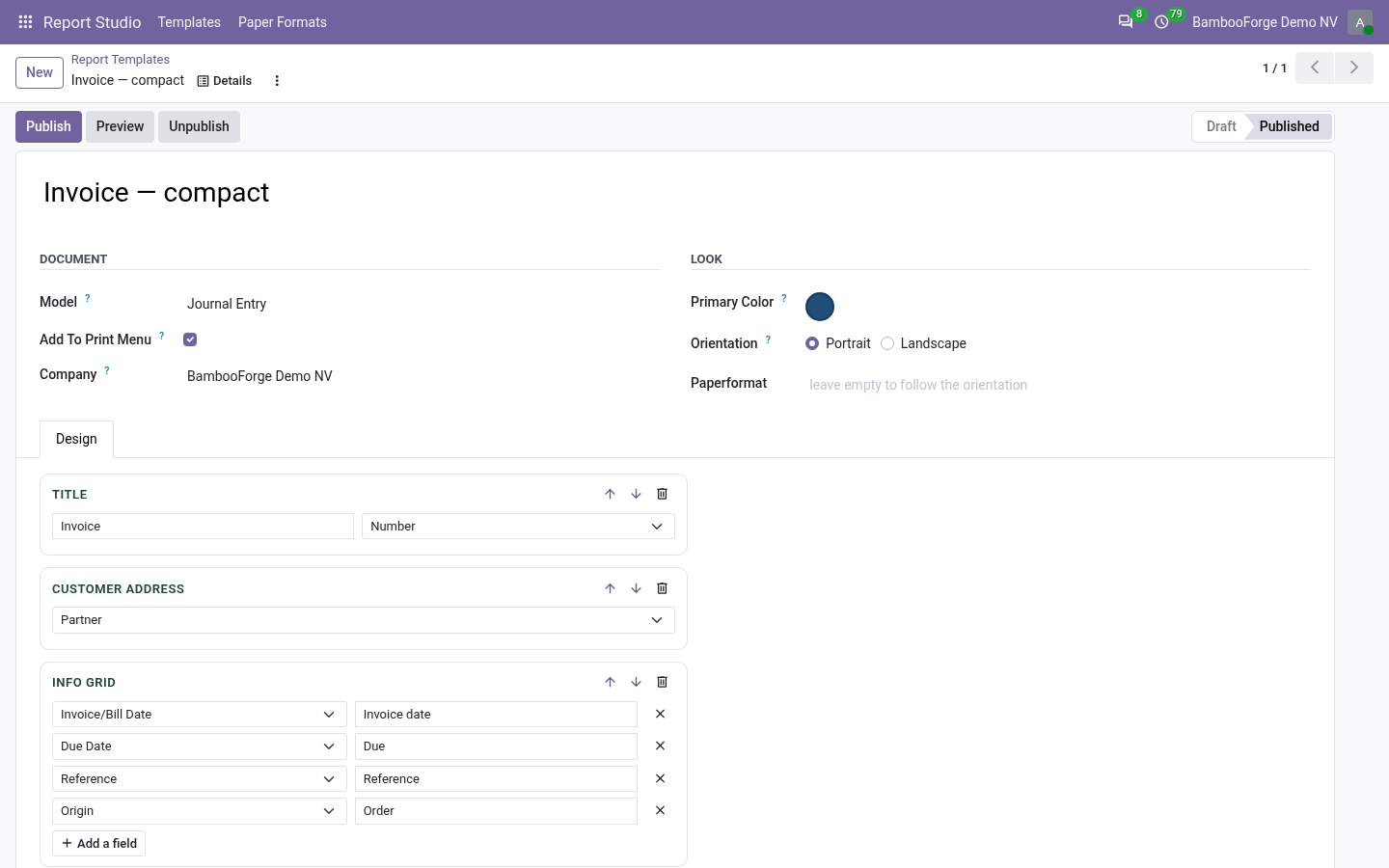
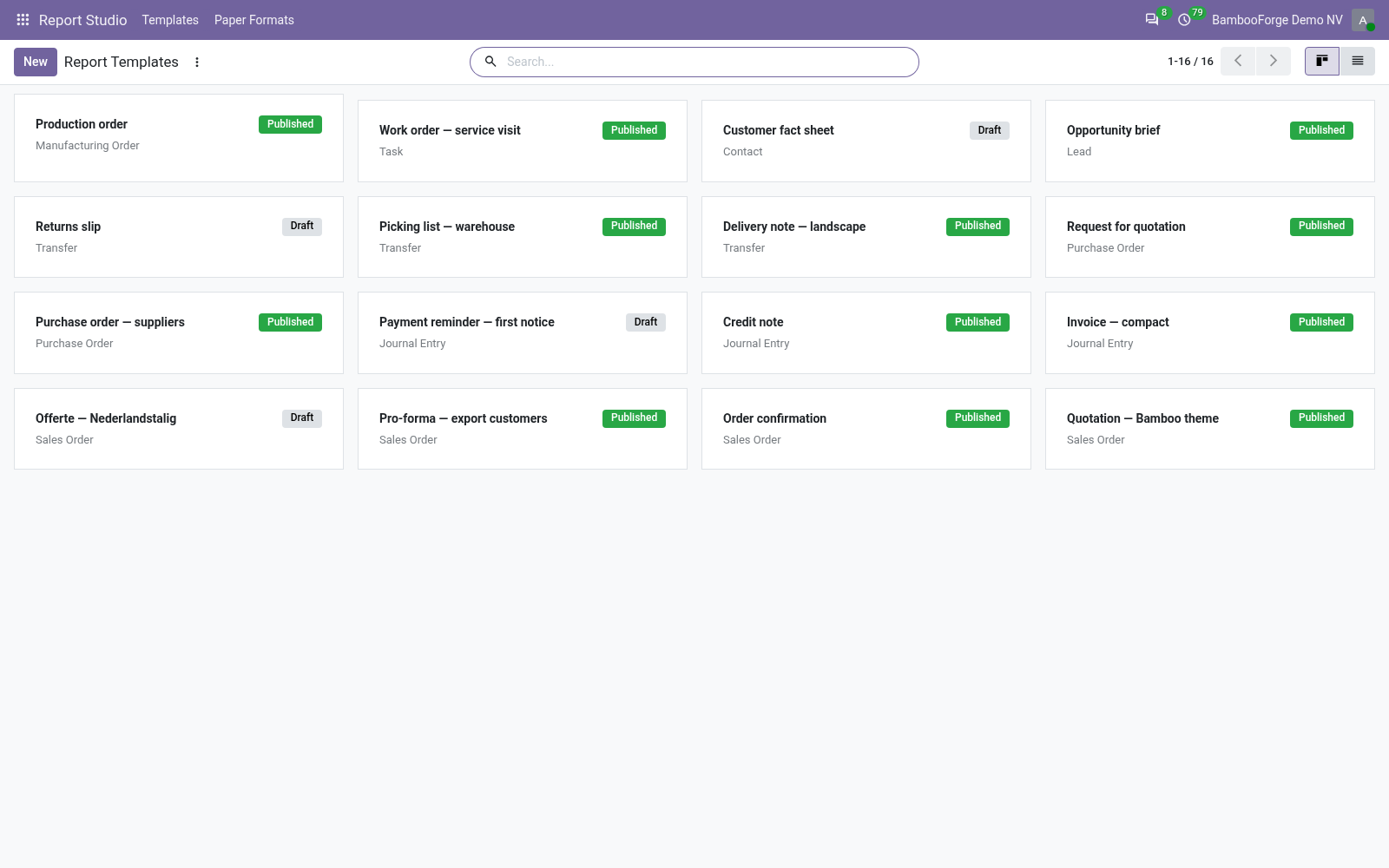
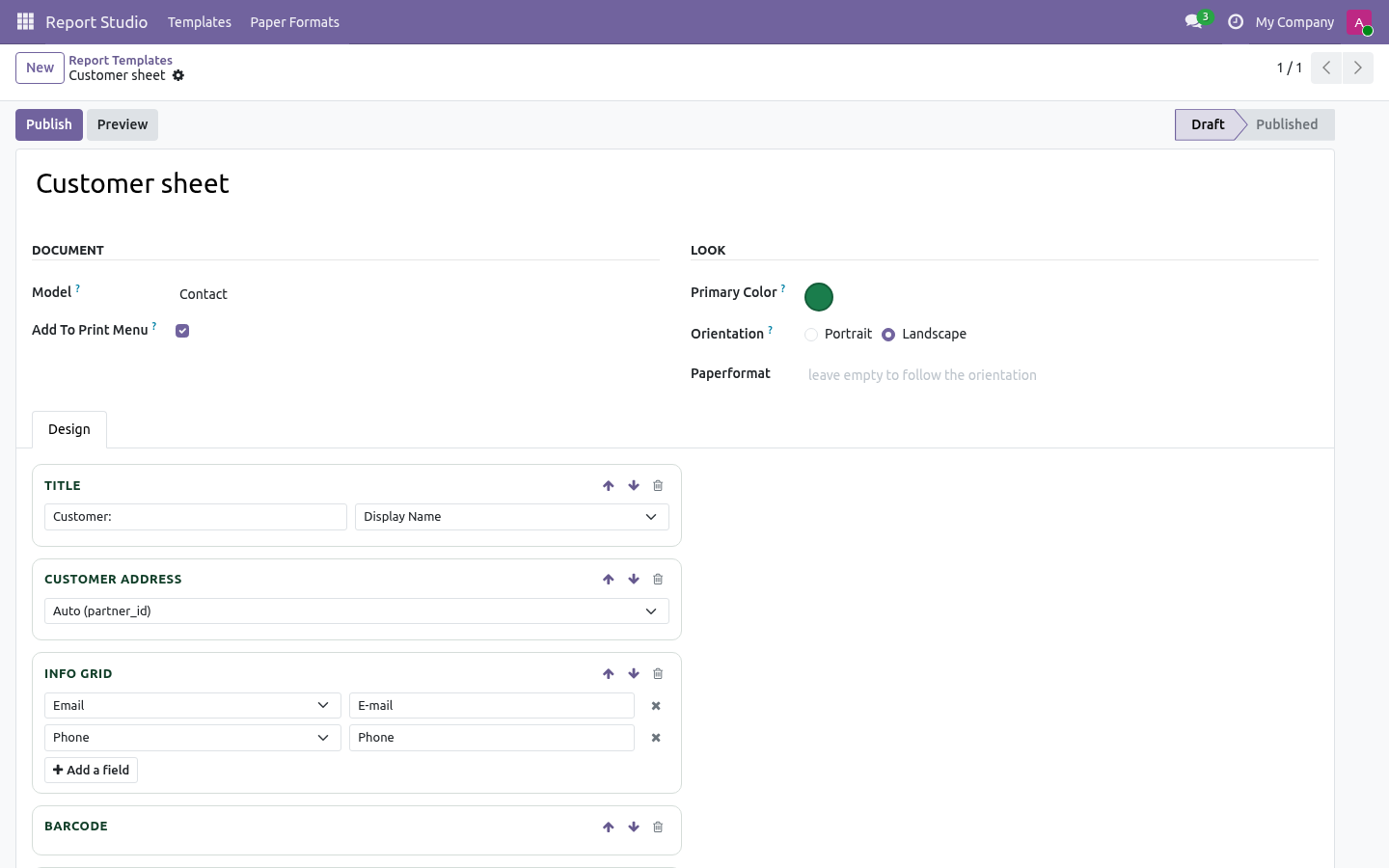
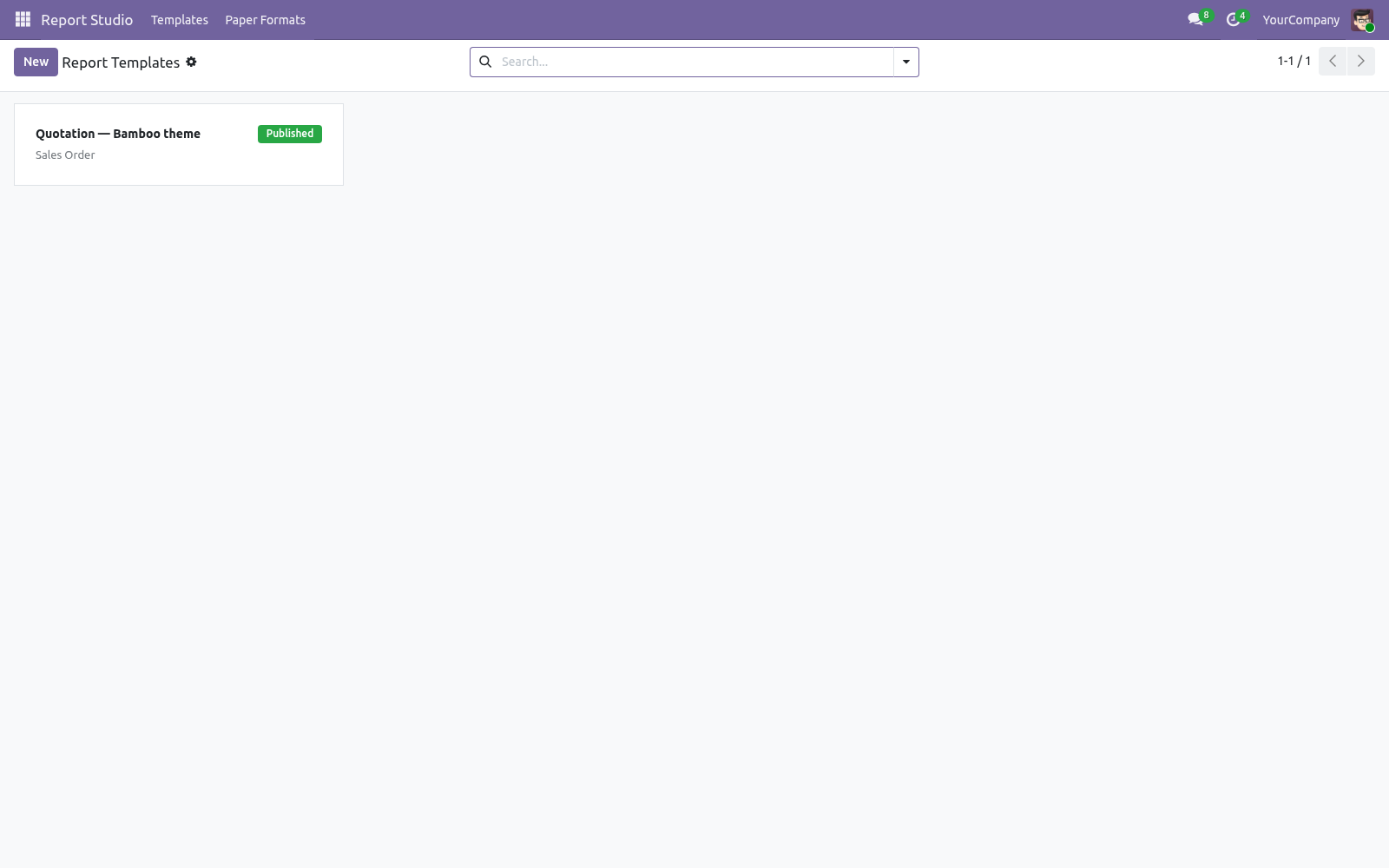
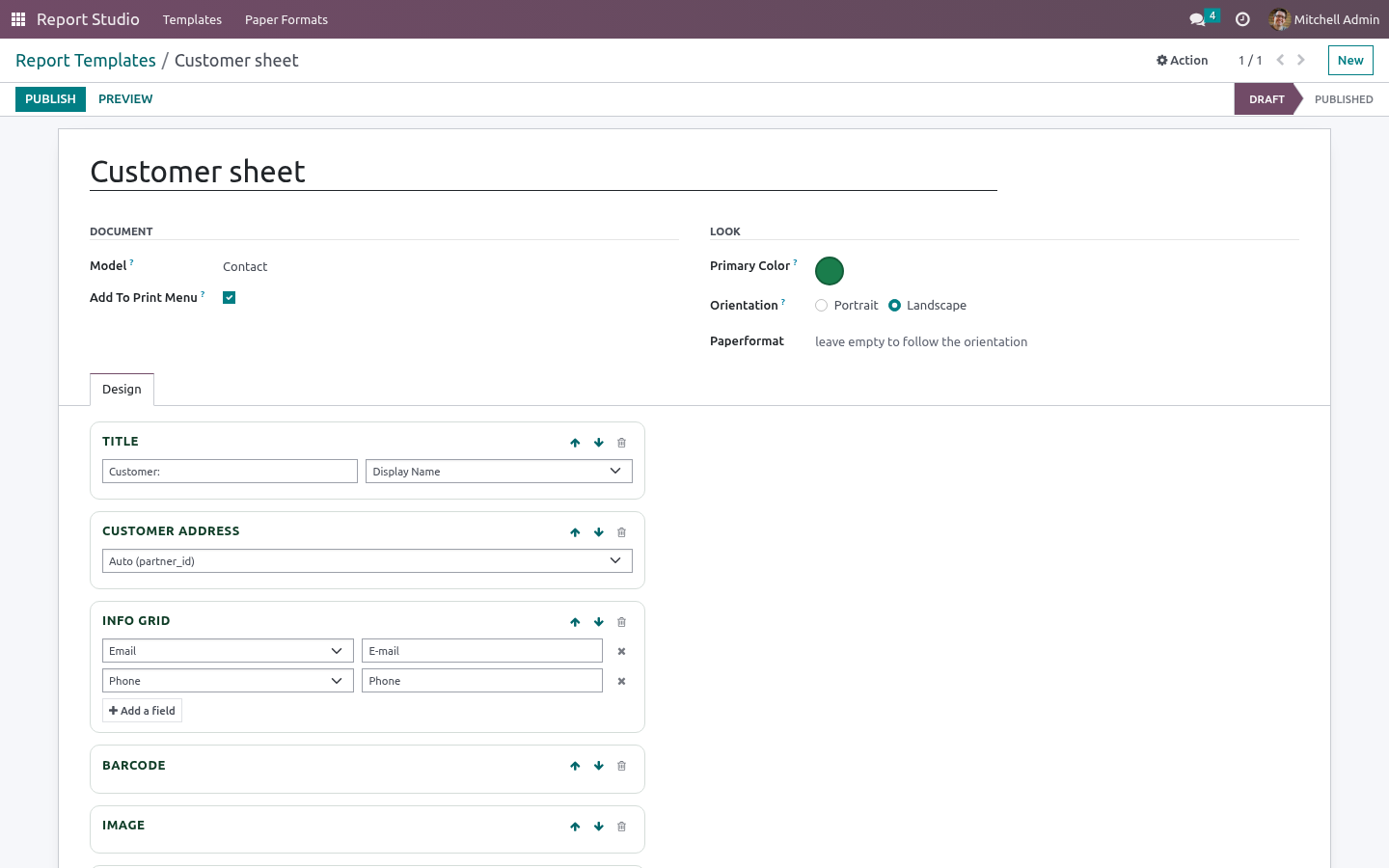
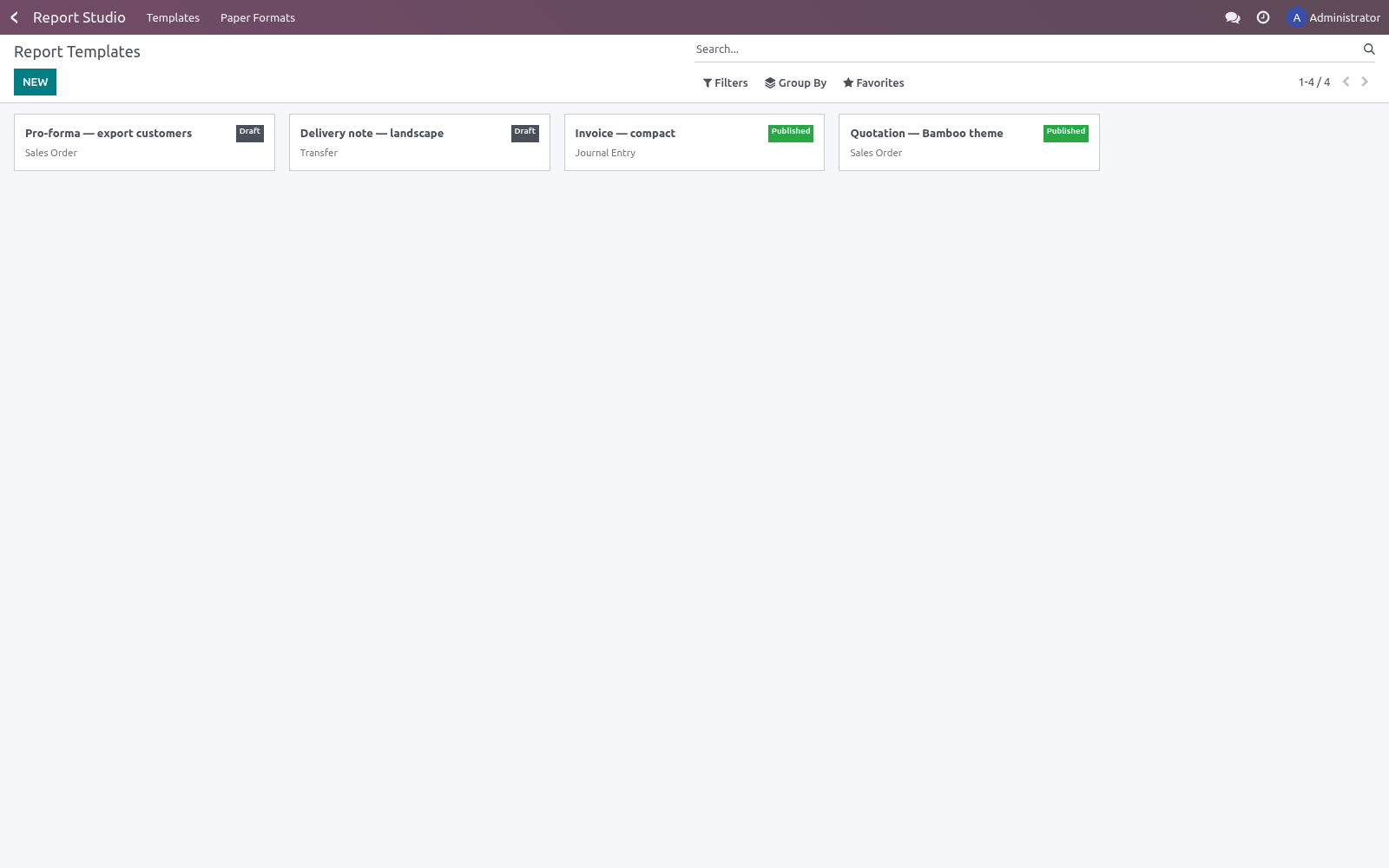
Templates — a template is a name, a document model (any non-transient model: quotations, invoices, pickings, custom models), an accent colour, an optional paper format, a Show in Print menu switch and a stack of blocks. Templates live in Report Studio ▸ Templates as a kanban of Draft / Published cards.
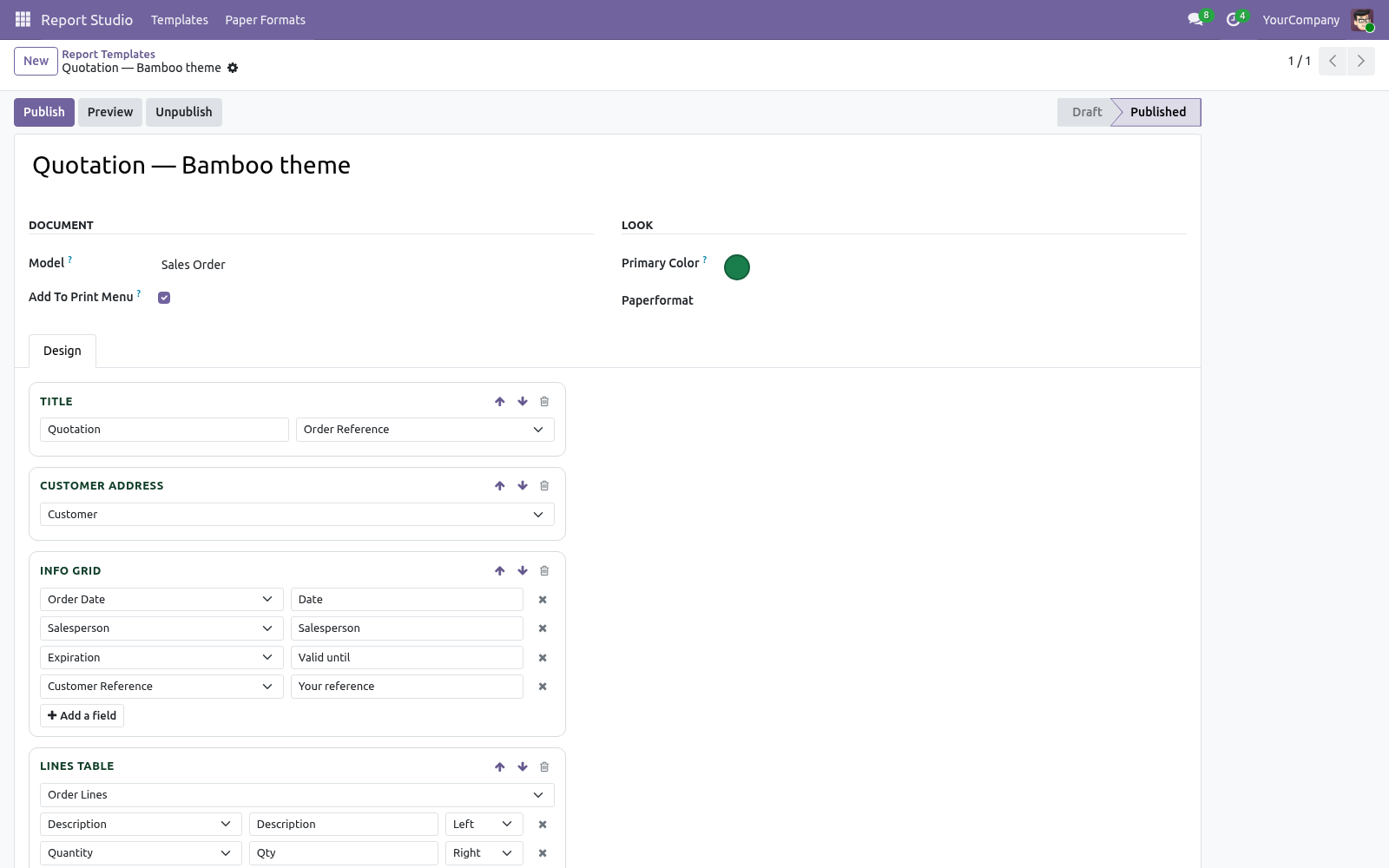
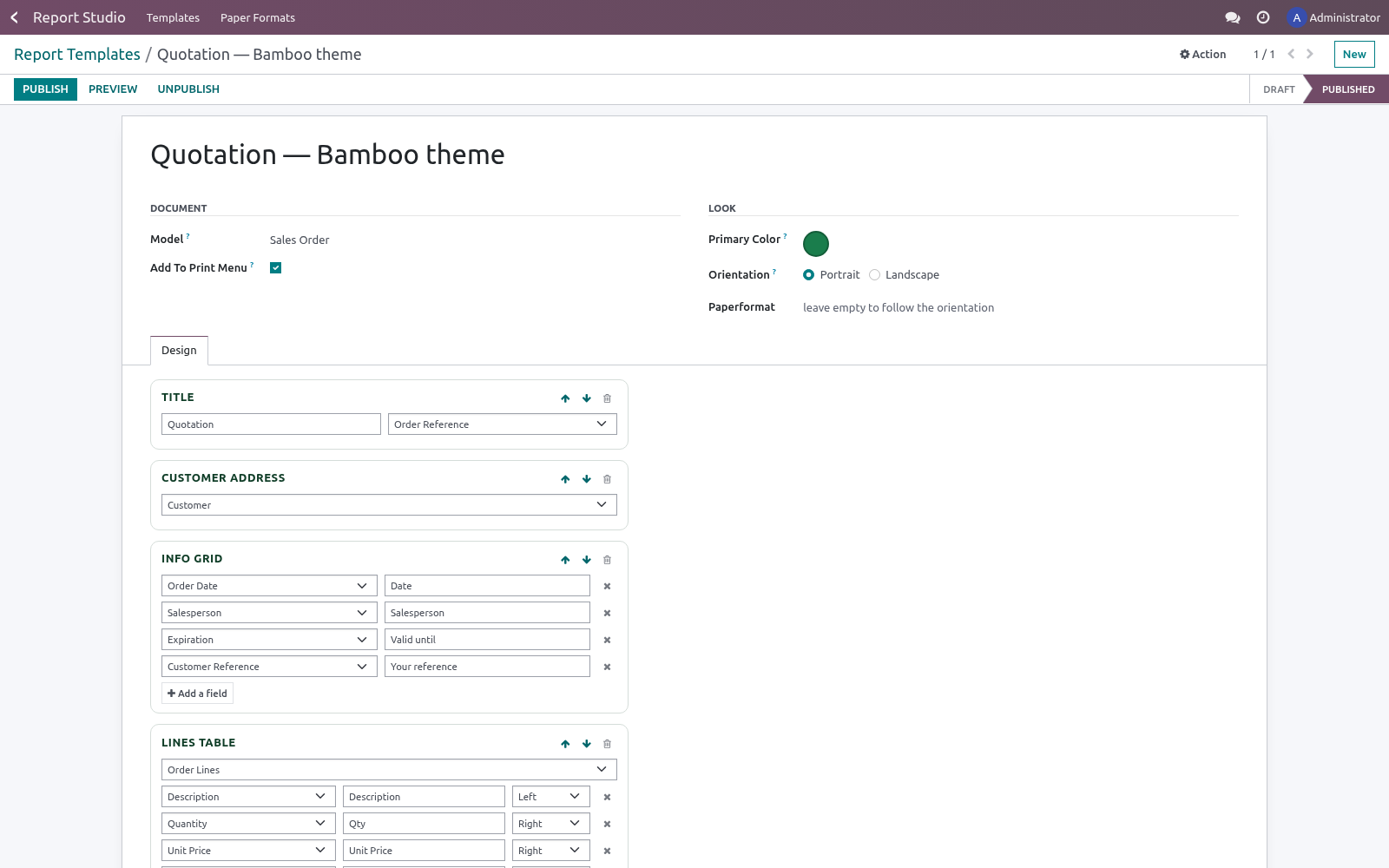
Blocks — the report page is a stack of seven block types, in any order, each optional and repeatable:
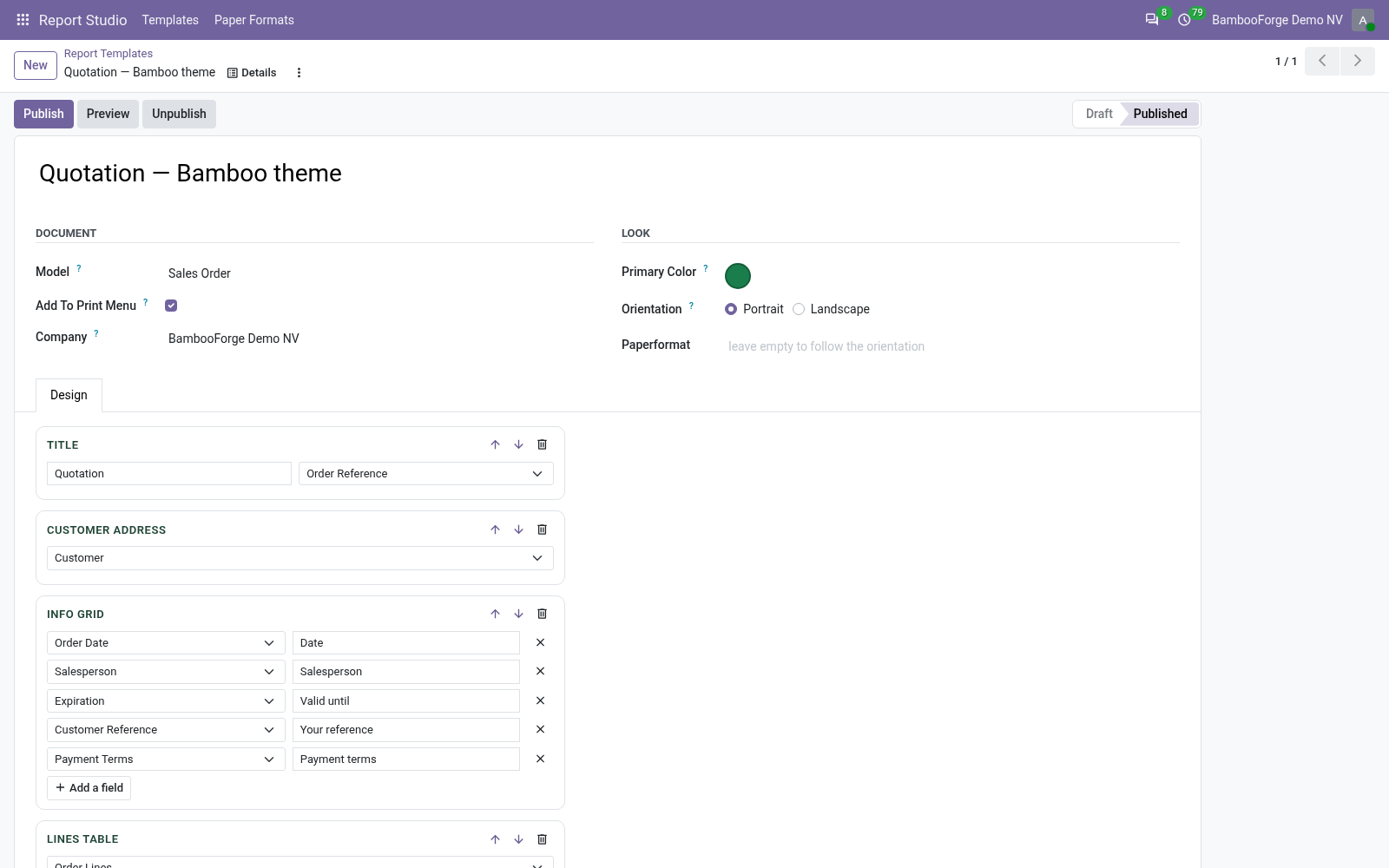
Title — an optional label plus any field of the document (default: the display name), rendered as a heading in the accent colour.
Customer address — the standard Odoo contact widget (name, address, phone, e-mail). Pick the partner field yourself, or leave it empty and the block auto-detects partner_id; on a model with no partner field it simply doesn't print.
Info grid — any fields of the document with custom labels, four per row: date, salesperson, reference, payment terms — whatever the reader needs at a glance.
Lines table — pick any one2many of the document (order lines, invoice lines…) and its columns, each with a header label of your own and left or right alignment. The header row is filled with the accent colour.
Totals — a right-aligned column of fields; the last row is emphasised (bold, accent rule) as the grand total.
Free text — an HTML block for terms, notes or a thank-you line. Formatting HTML is kept (bold, italics, lists, links); the content is sanitized and stored as static markup, so QWeb/templating attributes (t-out, t-esc, t-field, data-oe-*, groups) and script tags are removed — by design, so a report author cannot make the server execute code.
Signatures — two labelled signing lines (defaults: Received by and Authorized signature).
Live field pickers — every dropdown in the designer is populated from the model you chose, at design time: its fields, its one2many lines and their columns. Switch the model and the pickers follow. Custom models work exactly like standard ones. The pickers only expose models the current user is allowed to read: on a model you have no read access to, the designer returns no fields at all.
Publish — one click generates a plain native QWeb view and a standard report action (ir.actions.report), optionally bound to the document's Print menu. There is no runtime engine between your data and the PDF.
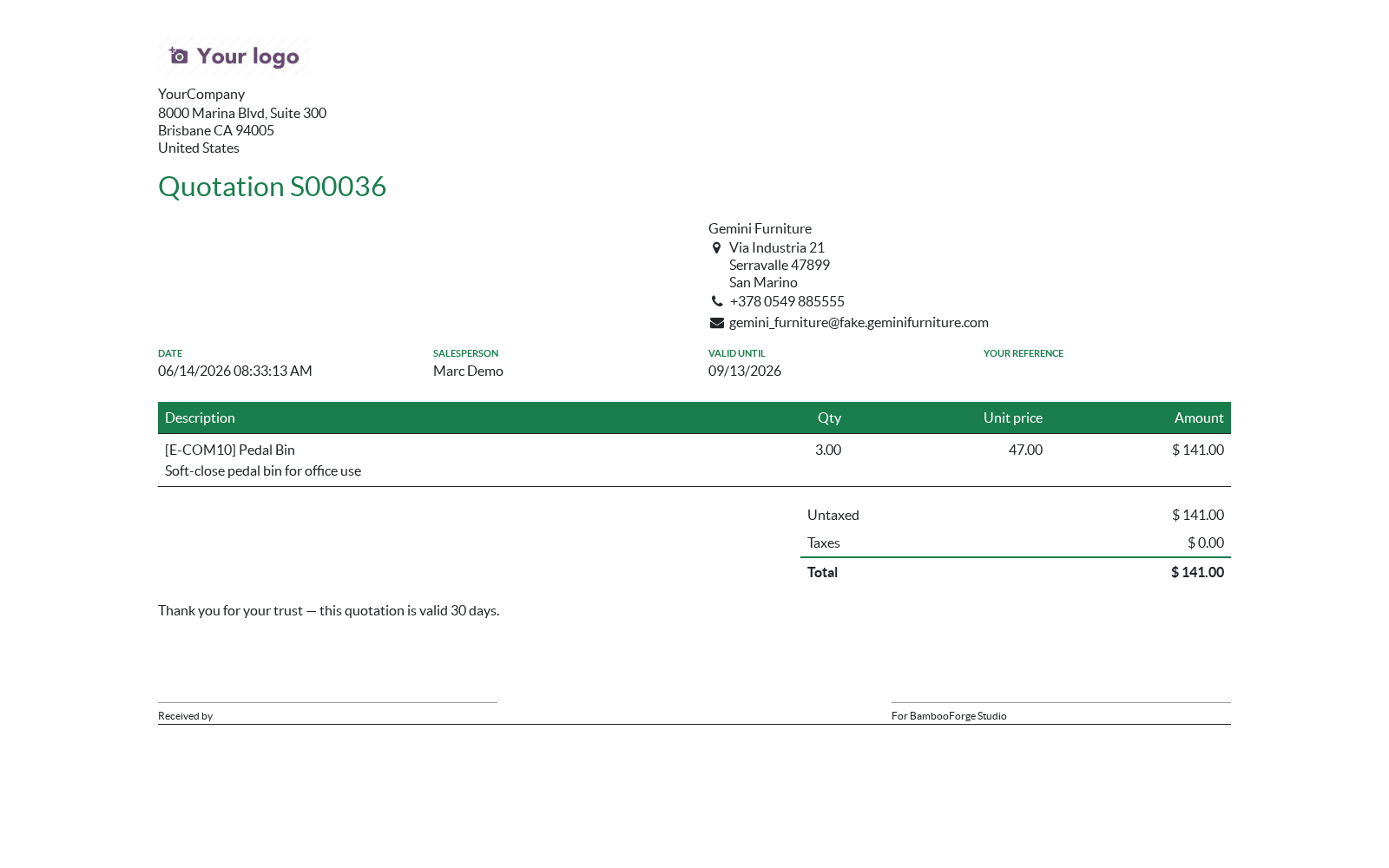
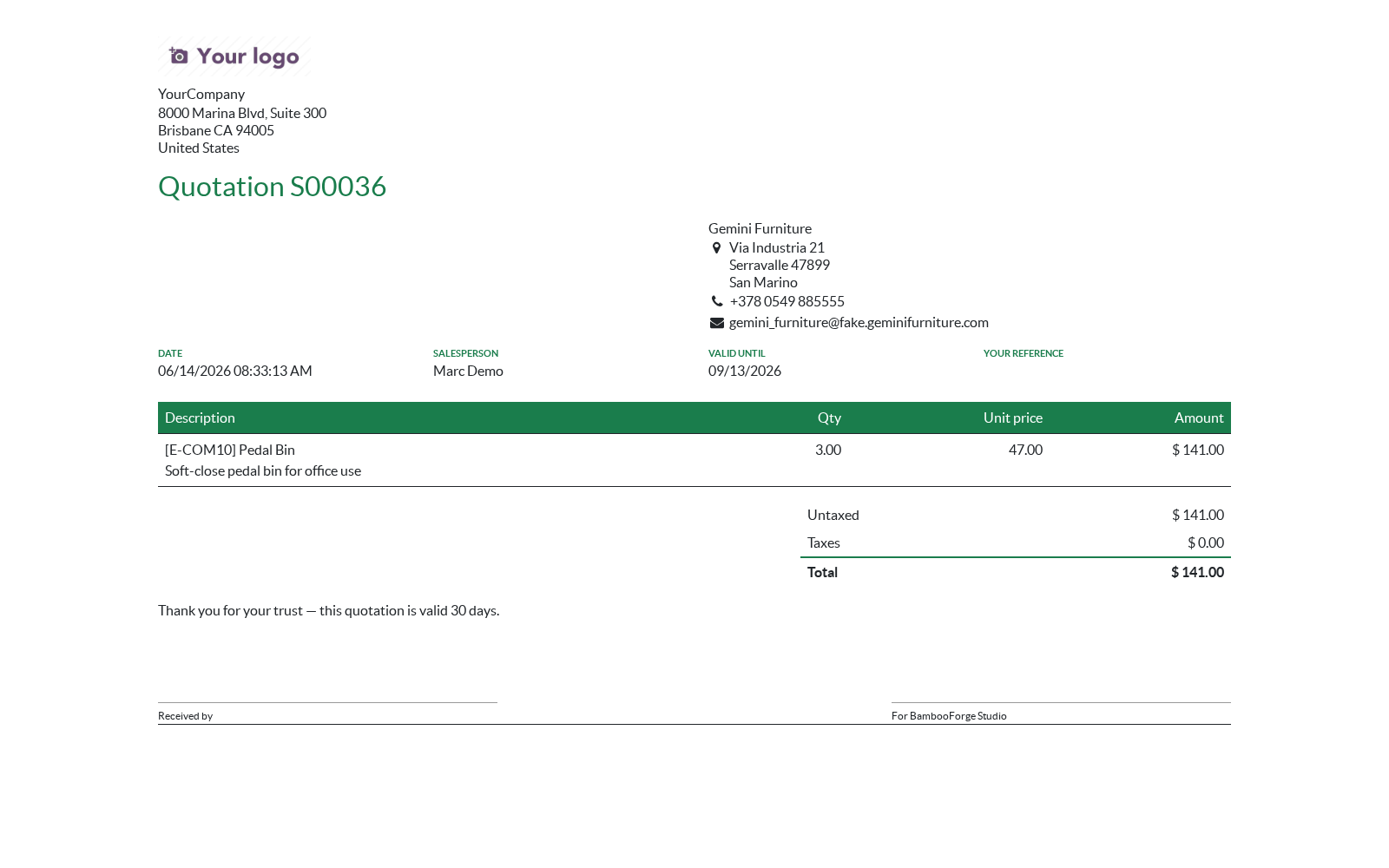
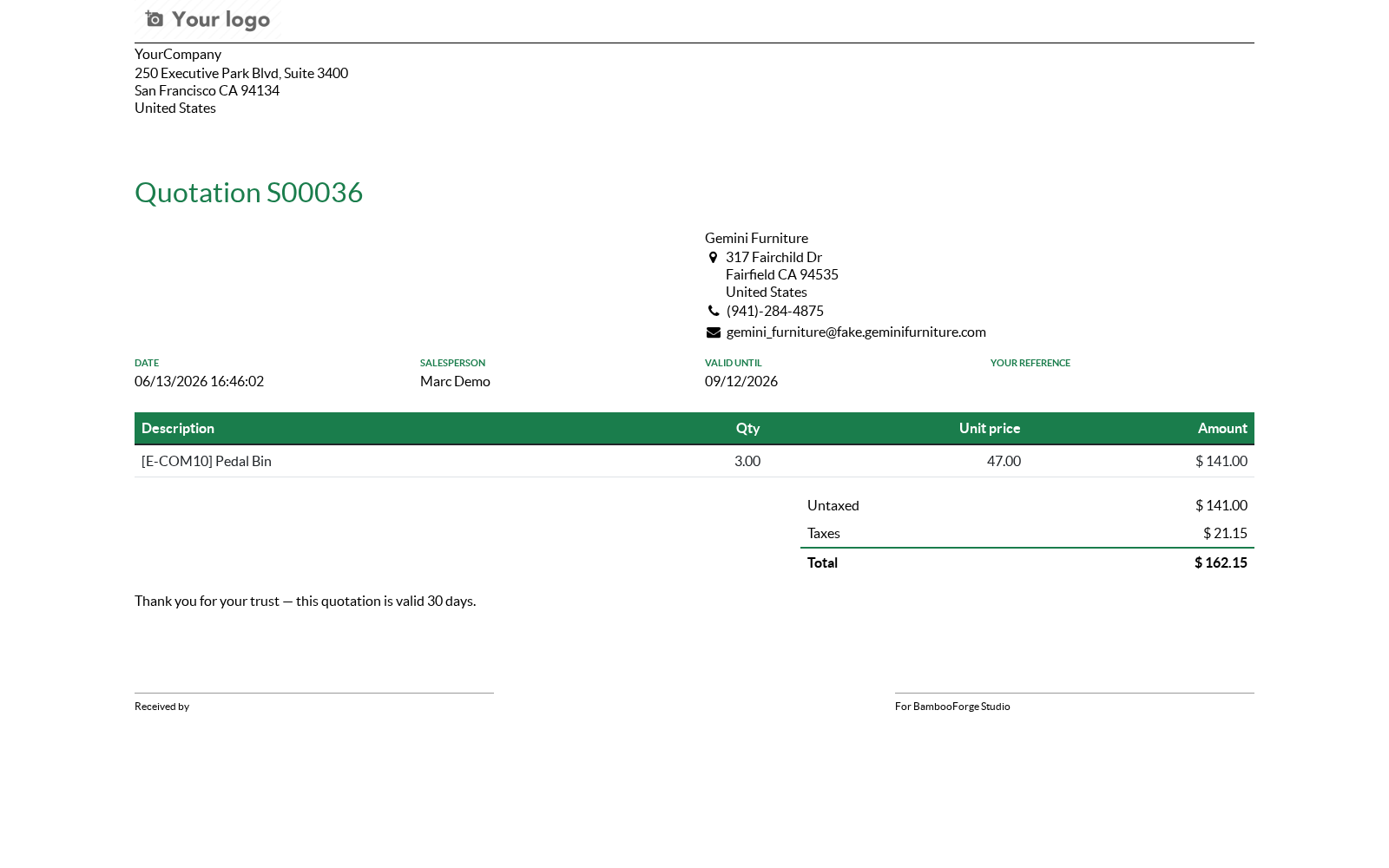
Preview — opens the rendered HTML on the newest document within your allowed companies, so you check the design against real data you may actually see. Previewing a draft template publishes it first.
Validation — every field path is checked against the model at publish time; a wrong field name or a lines field that is not a one2many raises a clear error naming the block and the field instead of producing a broken PDF.
Clean removal — Unpublish (or deleting the template) removes the generated view and report action completely; both paths are covered by automated tests. Duplicating a template yields a fresh draft copy.
Company branding kept — the generated report renders inside the standard web.external_layout, so the company header, footer and logo configured in Settings apply unchanged.
Access rights — Report Studio / User browses templates; Report Studio / Manager creates, designs, publishes and manages paper formats. Printing a published report needs no Report Studio group at all — anyone who can read the document can use its Print menu, as with any Odoo report.
Tested — 15 automated tests, including rendering a real document through the generated QWeb and a real-browser tour of the designer, green on each of Odoo 16, 17, 18, 19 and 20.
Getting started
Install BambooForge Report Studio (Community or Enterprise; only the standard web module is required).
Open Report Studio ▸ Templates and create a template: give it a name and pick the document model — Sales Order for a quotation layout, Journal Entry for invoices, or any custom model.
On the Design tab, stack your blocks: set the title field, add the info grid fields with their labels, pick the lines one2many and its columns, add the totals and a signature row.
Choose the accent colour and, if needed, a paper format.
Click Preview — the rendered document opens on your newest record. Adjust and preview until it looks right.
Click Publish, open a record of the model and print your report from the Print menu.
Usage
Designing a report
Pick the model first. The designer's field pickers are filled from the chosen model, so select the document model before stacking blocks. Changing the model reloads the pickers.
Stack the blocks. Add any of the seven block types in any order, as many of each as you need; move them up and down to reorder and remove the ones you don't want. A block left empty (an info grid with no fields, a table with no columns, a blank text block) is skipped at rendering time — it never prints as an empty box.
The lines table. Choose the one2many field that holds the document's lines, then add one column per line: the line field, the header label you want printed, and the alignment. Put descriptions left and quantities, prices and amounts right — right-aligned numbers are what make a document look professional.
Totals. Add the amount fields in printing order — untaxed, taxes, total. The last entry is automatically emphasised with a bold face and an accent-coloured rule, so put the grand total last.
Free text. Formatting HTML: payment terms, a legal footer, a thank-you note, with bold, italics, lists and links. The content is sanitized before it reaches the report and kept as static markup: script tags and every QWeb/templating attribute (t-out, t-esc, t-field, data-oe-*, groups) are stripped, so the block prints text and formatting — it never evaluates an expression against your data. Use the Title, Info grid, Lines table and Totals blocks for values that come from the document.
Publishing and printing
Publish generates the QWeb view and the report action. With Show in Print menu enabled (the default), the report appears in the Print menu of every record of the model; disabled, the report exists but is not bound to the menu.
Preview opens the rendered HTML of the newest record within your allowed companies in a new tab. On a draft template, Preview publishes first — so a preview you like is already live.
Publishing an already-published template regenerates the view and updates the action in place — same report, new design.
The printed file is named after the template and the document (e.g. Quotation — Bamboo theme - S00042).
Unpublishing, deleting, duplicating
Unpublish removes the generated view and the report action and puts the template back to Draft. The Print menu entry disappears; nothing is left in Technical views.
Deleting a template cleans up the same way.
Duplicating a template copies the design as a fresh Draft with no view or action attached — publish it to get a second, independent report.
Hand-tuning the generated view
The generated view is an ordinary QWeb view — you can inspect or hand-tune it in Settings ▸ Technical ▸ User Interface ▸ Views (search for BF Report). One caveat: Publish regenerates the view, overwriting manual edits. Once a developer takes a report over by hand, stop republishing that template — or duplicate it and let the copy be the hand-maintained one.
Conditional blocks, codes and layout
Condition — enter a field name on a block to print it only when that field is set, or prefix it with ! to print it only when the field is empty. One template then serves the documents that need a bank panel and the ones that do not.
Barcode block — prints a QR, Code128 or EAN13 code built from any field, for payment QRs and tracking labels.
Image block — prints any binary field, for product photos or a per-document logo.
Page break — starts the following blocks on a fresh page.
Orientation — switching a report to landscape builds one shared paper format and reuses it; setting a paper format by hand still wins.
Configuration
Template options
Option (per template) |
Effect |
|---|---|
Document |
The model the report prints. Any non-transient model, standard or custom. |
Show in Print menu |
Bind the published report to the document's Print menu (default on). Off, the report is generated but not bound. |
Primary colour |
Accent used for the title, the table header row and the totals rule. |
Paper format |
Optional report.paperformat (A4, Letter, custom); empty uses the company default. |
Company |
The company the template belongs to (your current company by default). Preview always picks the newest document within your allowed companies. |
Blocks
Block |
What it prints |
|---|---|
Title |
Optional label + any field (default: display name), as an accent-coloured heading. |
Customer address |
Contact widget (name, address, phone, e-mail); the partner field is picked or auto-detected (partner_id); skipped when the model has none. |
Info grid |
Any fields with custom labels, four per row, labels in small caps and the accent colour. |
Lines table |
One one2many + its columns, each with a header label and left/right alignment; accent-coloured header row. |
Totals |
Right-aligned rows of fields; the last row is bold with an accent rule. |
Free text |
Sanitized static HTML: formatting is kept, script tags and QWeb/templating attributes (t-out, t-esc, t-field, data-oe-*, groups) are stripped. |
Signatures |
Two labelled signing lines (defaults Received by / Authorized signature). |
Access rights
Report Studio / User — browse report templates.
Report Studio / Manager — create, design, publish, unpublish and delete templates; manage paper formats.
Printing a published report requires no Report Studio group: the generated report action behaves like any Odoo report, available to whoever can read the document.
FAQ
- How is this different from Odoo Studio (Enterprise)?
Studio is a drag-and-drop editor over Odoo's existing reports, down to pixel positioning — and it requires an Enterprise subscription. Report Studio builds new reports from structured blocks: it covers the common "I need a clean, branded quote / invoice / delivery slip with my fields and my columns" on Community or Enterprise, without Studio. For free-form pixel editing of a stock report, Studio is the tool; for a tidy branded document today, this is.
- How is this different from the report template packs on the store?
Template packs are fixed designs for a fixed document — you pick the least-wrong one and live with its fields. Report Studio is a designer: you choose the blocks, fields, columns, labels and colours yourself, per model — including custom models no template pack covers.
- Can I edit the generated XML?
Yes — Publish creates a normal QWeb view, visible in Settings ▸ Technical ▸ Views like any other. Inspect it, learn from it, hand-tune it. Caveat: republishing the template regenerates the view and overwrites manual edits.
- Does it work on custom models?
Yes — any non-transient model. The designer reads the model's real fields at runtime, so a model your integrator added yesterday is a valid report target today: its fields fill the pickers, its one2many lines feed the table block.
- Why did Publish refuse my template?
Publish validates every field path against the model and every table against its one2many. The error names the block and the field — e.g. "Info block: 'date_ordr' is not a field of sale.order" or "Lines table: 'partner_id' is not a one2many field". Fix the named field in the designer and publish again.
- Can I put a QWeb expression in the Free text block?
No — and that is deliberate. Formatting HTML (bold, italics, lists, links) is kept, but the block is stored as static markup: t-out, t-esc, t-field, data-oe-* and groups attributes are removed when the report is published, so nothing a report author types there can be executed on the server. Print document values with the Title, Info grid, Lines table and Totals blocks instead.
- Preview says there is no record to preview on.
Preview renders the newest record of the document model within your allowed companies; if there is no such record yet there is nothing to render. Create one record (a draft is fine), or switch the company selector to the company that holds your data, and preview again.
- Does my company header and logo still appear?
Yes. Generated reports render inside the standard web.external_layout, so the company header, footer, logo, address and taglines from Settings apply — the blocks only fill the page between them.
- Is it tested?
Yes: 15 automated tests — designer metadata (including that it respects read access), QWeb generation, invalid-field and invalid-table refusals, publish with and without the Print-menu binding, rendering a real document through the generated QWeb, clean unpublish and delete, duplicate-resets-publication, the preview action and the HTML sanitizer (script tags and QWeb directives) — including a real-browser tour of the designer, on each of Odoo 16, 17, 18, 19 and 20.
How we make sure it works
Before every release, 30 automated checks run against this app on Odoo 16, 17, 18, 19 and 20. Among them:
Condition on an unknown field is refused.
Blocks without condition are untouched.
Condition hides the block on documents without the field set.
Barcode rejects an unknown field.
Barcode rejects an unknown symbology.
The complete list is in the source you receive.
Support
E-mail — support@bambooforge.dev. Every request is answered within 24 hours, setup help included.
What to send — your Odoo version and edition, the document model, the block configuration (a screenshot of the Design tab is perfect) and the exact error message from Publish or the server log around bf_report.
Money-back guarantee — report a bug within 2 months of purchase; if we cannot resolve it within 15 days, you get a full refund.
Source — the complete OPL-1 source is included; extend it your way.
What it does not do
Said before you buy, because it is the half that decides whether the app fits:
Run a template engine between your data and the PDF: a published report is a plain Odoo report.
Show a designer fields on a model they cannot read.
Publish a template with a wrong field path - validation names the block and the field.
Install
Copy bambooforge_report_studio into your addons path and update the app list, or install the ZIP from the Odoo Apps Store.
Install Report Designer: PDF Report Builder.
Open Report Studio - its menus are Templates, Paper Formats.
Changelog
20.0.1.1.1
Built for Odoo 20: record rules and access rights rewritten onto Odoo 20's single ir.access model, the screens rebuilt on Owl 3, and every icon moved to the icon set Odoo 20 ships.
20.0.1.0.1 (2026-08-15)
Free text is stored as static markup. Formatting HTML is kept as before, but QWeb/templating attributes (t-out, t-esc, t-field, data-oe-*, groups) are now stripped when the report is published, so a report author cannot make the server evaluate an expression.
Field pickers respect read access — the designer only exposes the fields of models the current user is allowed to read.
New Company field on a template, and Preview now renders the newest document within the user's allowed companies.
Two new automated tests cover the two rules above (15 in total).
20.0.1.0.0 (2026-08-14)
Initial release: block-based PDF report designer with seven block types (title, customer address with auto-detected partner field, info grid four-per-row with custom labels, lines table on any one2many with per-column header labels and left/right alignment, totals with emphasised last row, sanitized free-text HTML, two labelled signature lines); works on any non-transient model with field pickers populated live from the chosen model; accent colour and paper format, rendered inside the standard web.external_layout; one-click Publish generating a plain native QWeb view and report action with optional Print-menu binding; Preview on the newest record; clean Unpublish and delete removing the generated view and action; publish-time validation of every field path with clear errors; User and Manager access groups; 15 automated tests including rendering a real document through the generated QWeb and a real-browser designer tour, on each of Odoo 16, 17, 18, 19 and 20.