 BambooForge Labs
Recurring Sales Orders
Generate repeat sales orders on a schedule from reusable plans, and let customers pause, skip or modify their standing order from the portal.
Available for Odoo 16.0, Odoo 17.0, Odoo 18.0, Odoo 19.0, Odoo 20.0. Technical name bambooforge_recurring_order.
Transcript of the walkthrough (Odoo 20)
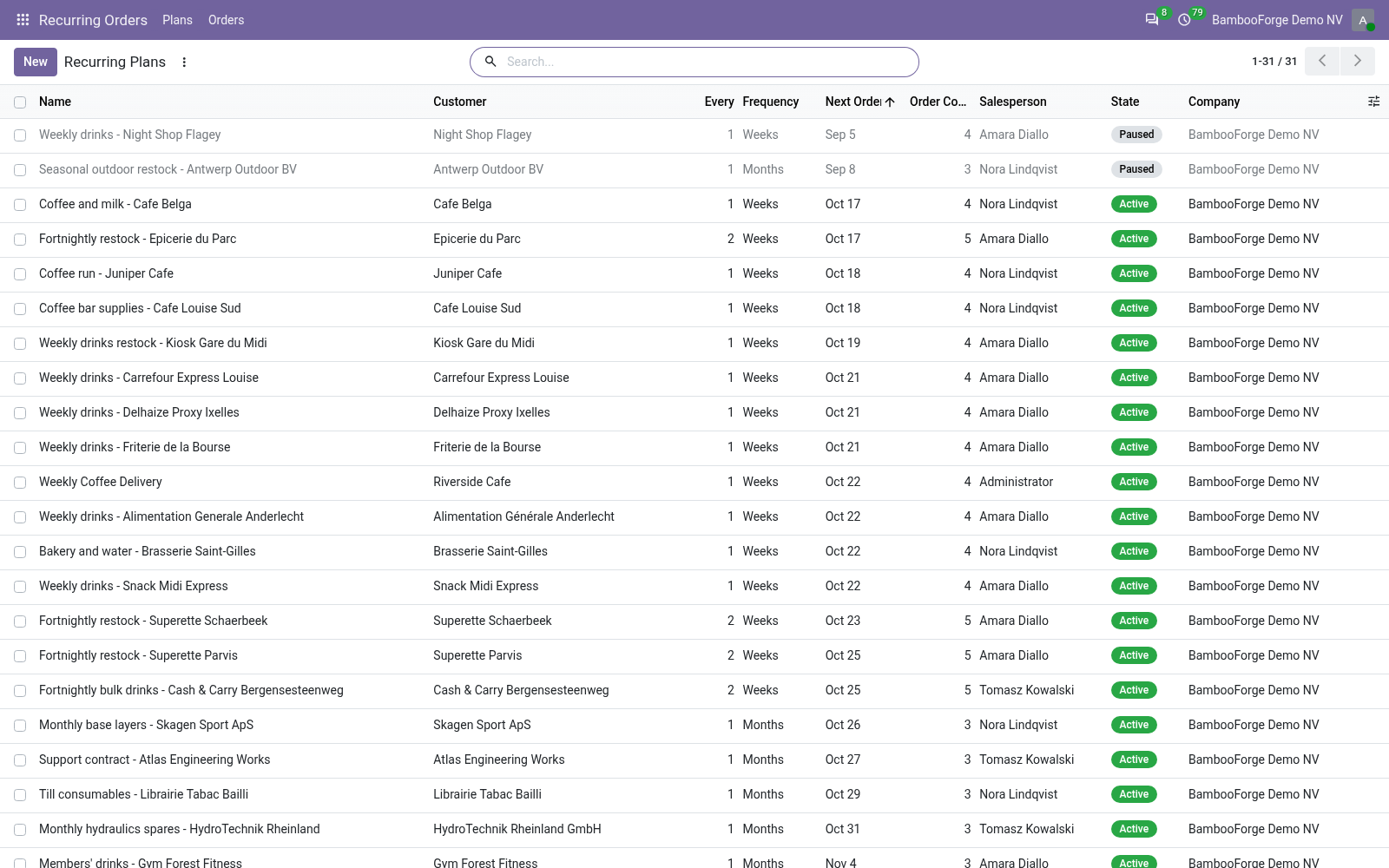
Recurring Sales Orders. Generate repeat sales orders on a schedule from reusable plans, and let customers pause, skip or modify their standing order from the portal. For every repeat customer you set up one plan: In the next few minutes: recurring sales orders, then quick start, then how generation works, then pricing, then pausing and ending a plan. Then what this app deliberately does not do, so you can tell before you buy whether it fits.
Everything lives under Recurring Orders then Plans. No Enterprise modules and no external Python libraries are required. Recurring Sales Orders. Stop re-keying the same order every week or month.
Define a recurring plan per customer — the products and a cadence — and the app generates the sales order for you on schedule, as a draft quotation to review or a confirmed order, your choice. This page is the complete manual. Follow it top to bottom and you can install, build a plan and fix the common issues without contacting support. Quick start.
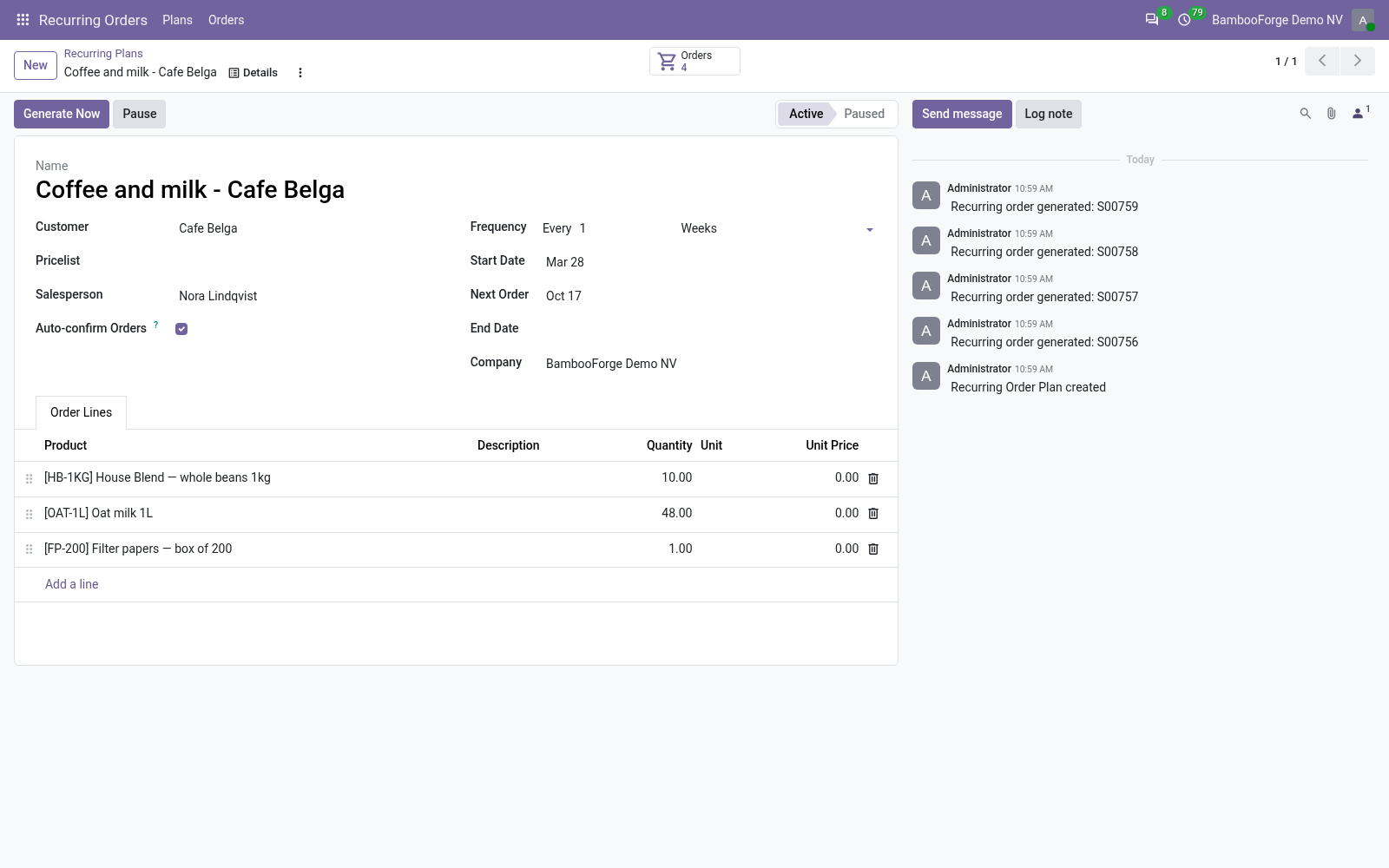
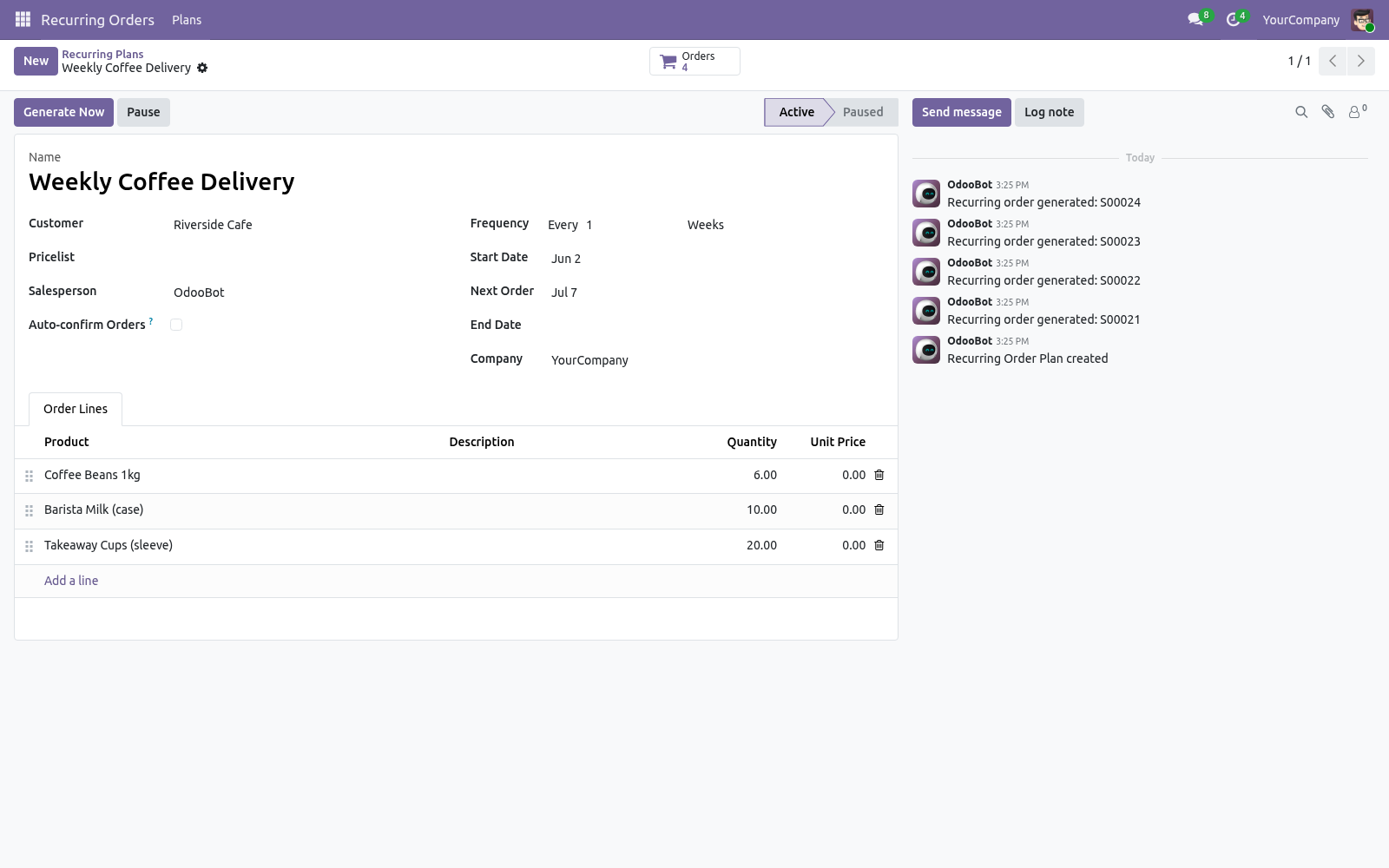
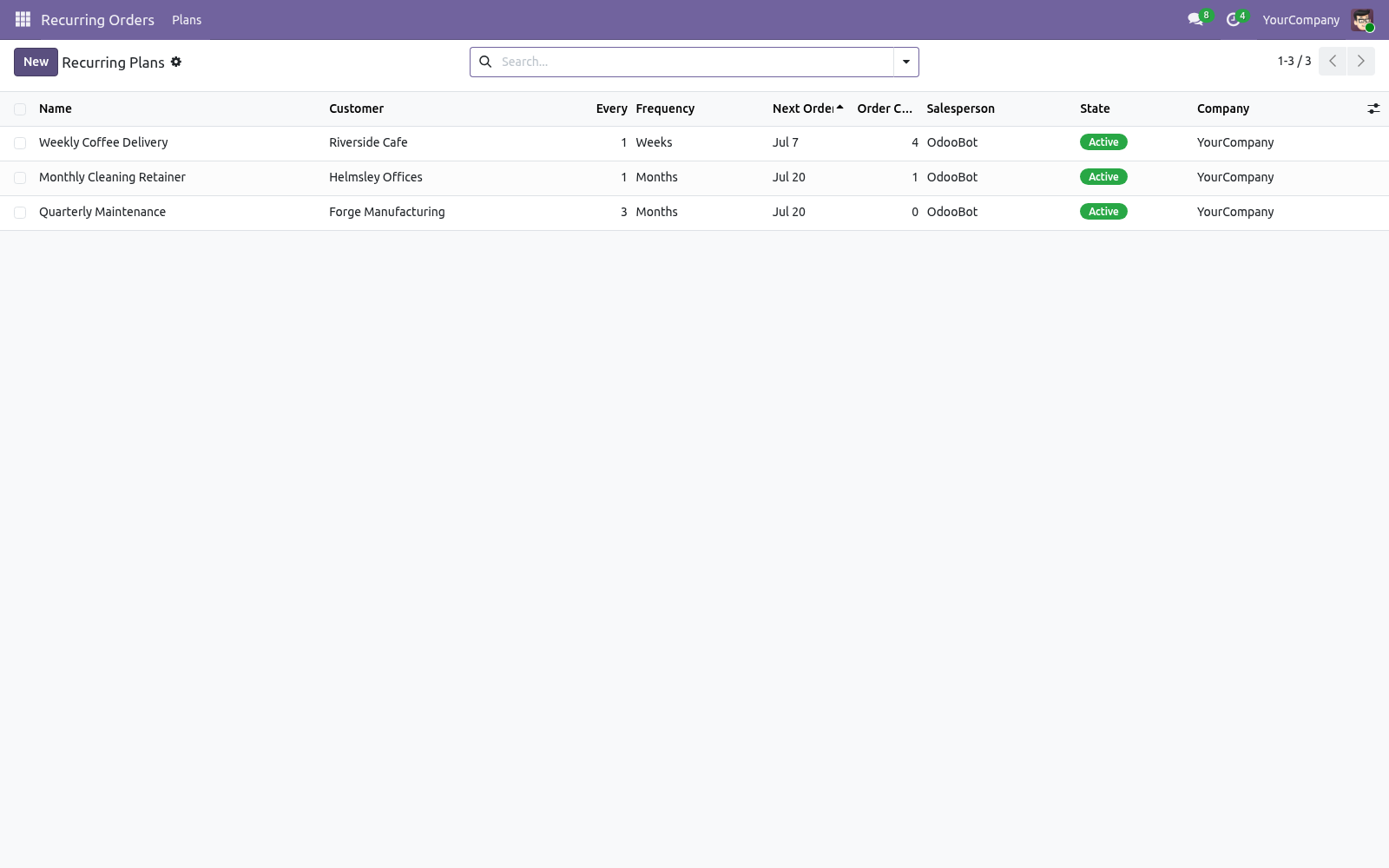
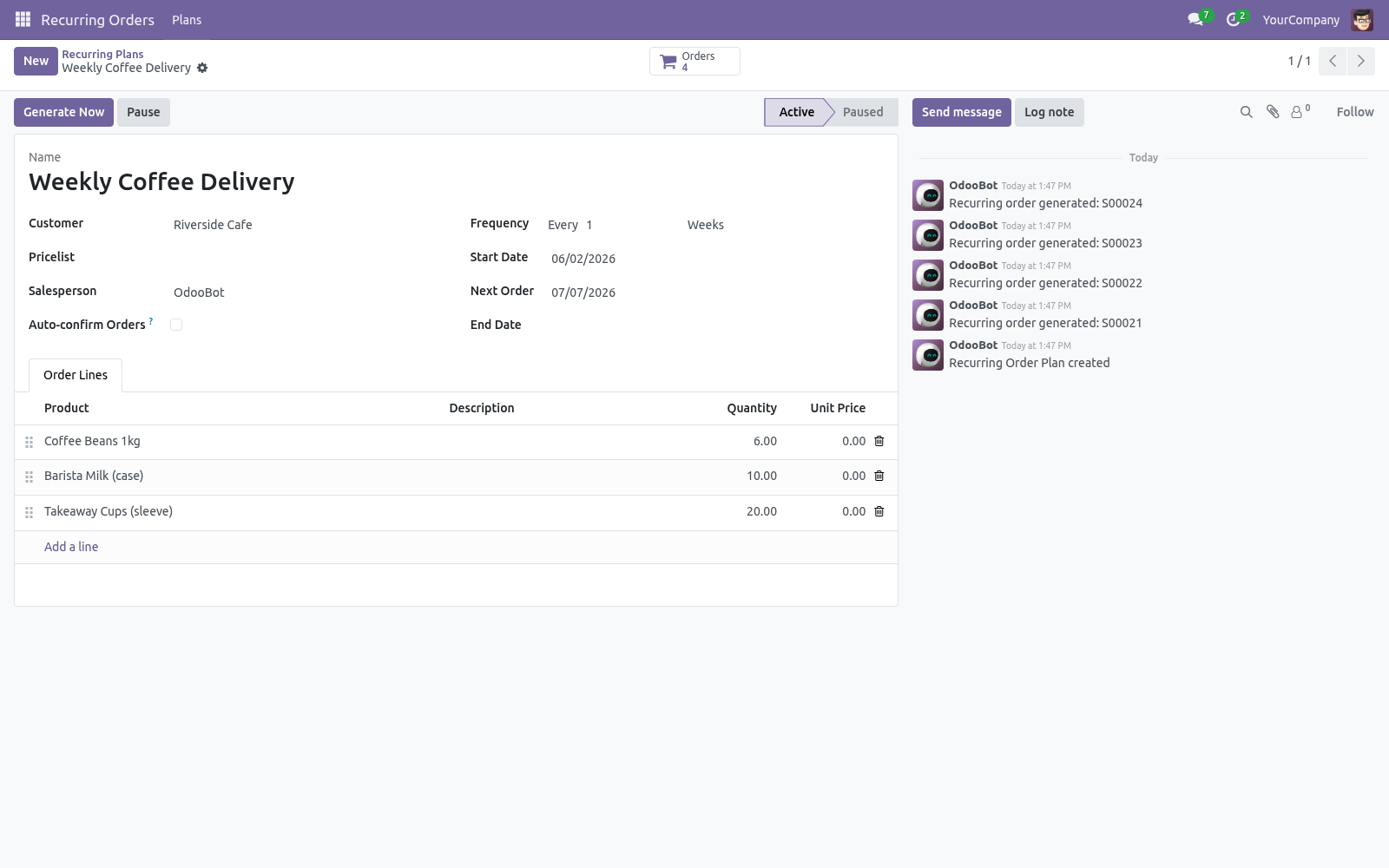
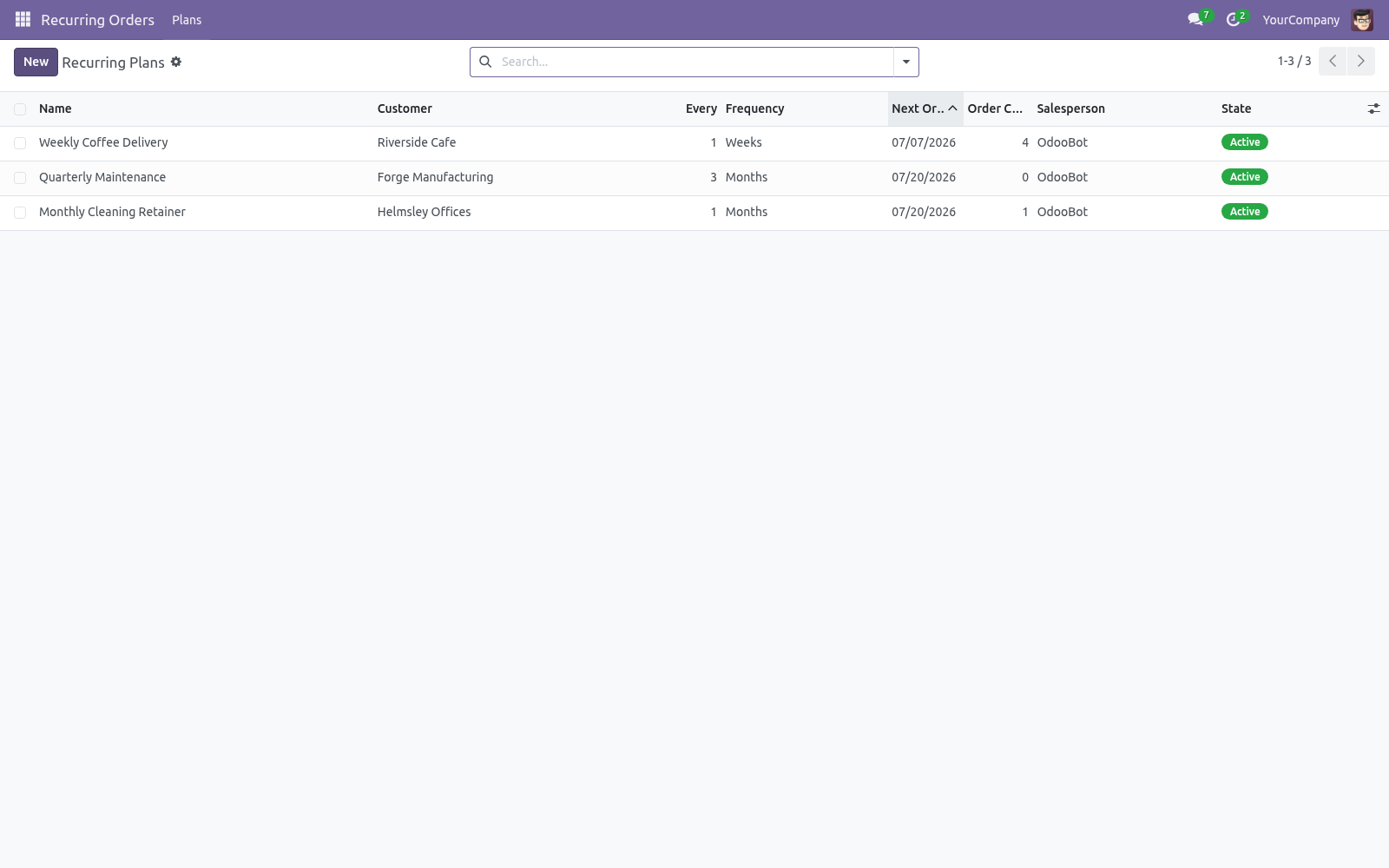
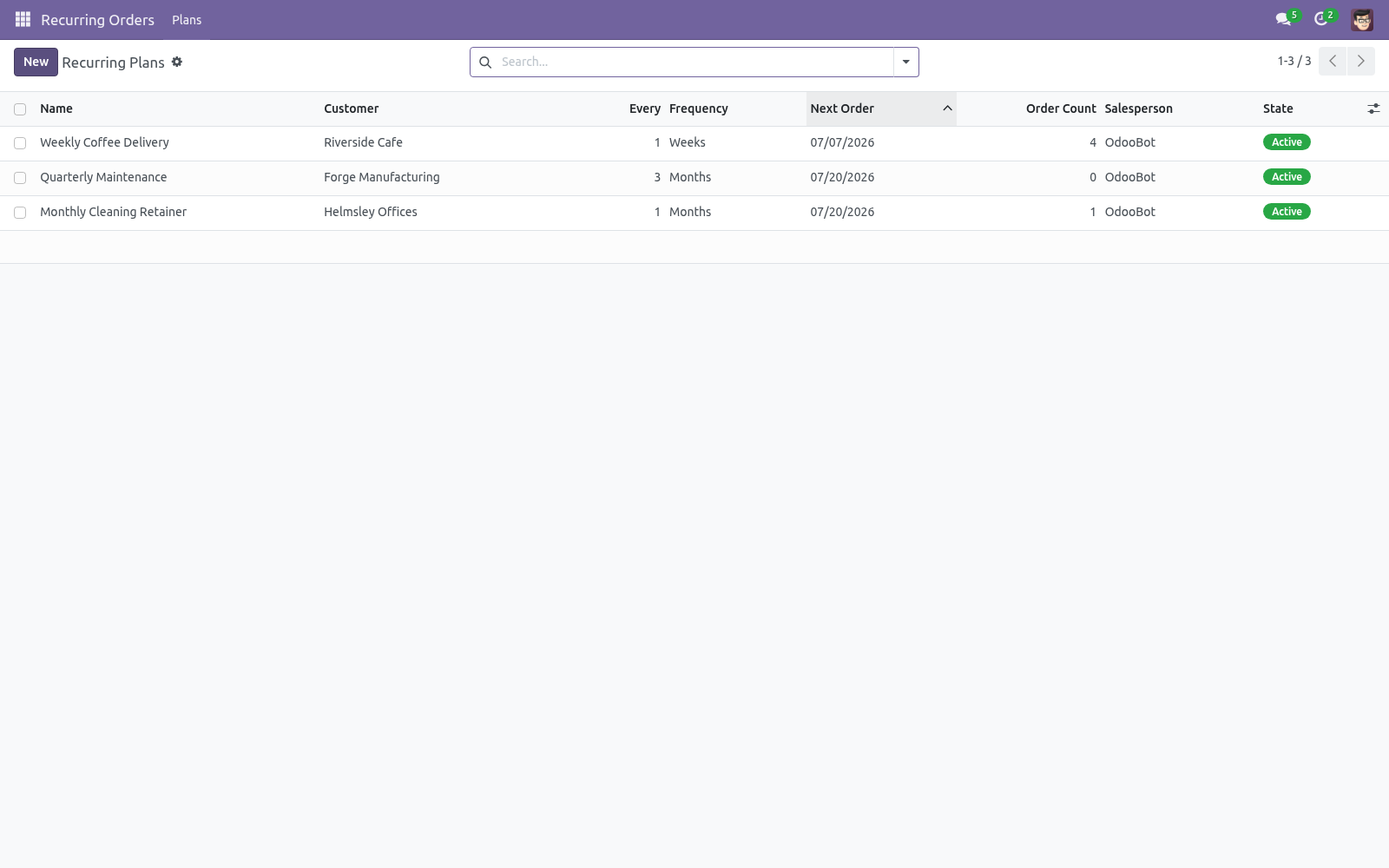
1. Open Recurring Orders > Plans and click New. 2. Choose the Customer and add the Order Lines (products and quantities).
3. Set the Frequency (every N days/weeks/months/years), the Start Date and, if the plan should stop, an End Date. 4. Decide whether to Auto-confirm Orders or leave them as draft quotations.
5. Save. Use Generate Now to create the first order immediately, or let the schedule do it. How generation works.
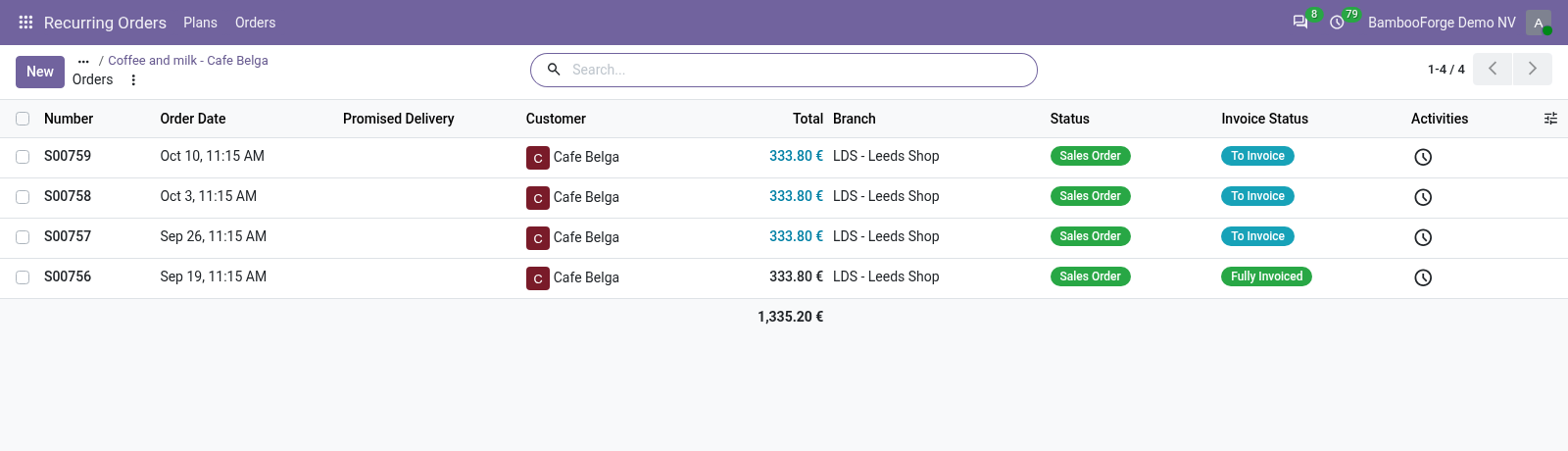
Each plan has a Next Order date. The daily scheduled action Recurring Orders: Generate Due finds every active plan whose next-order date has arrived and creates the order, then advances the next-order date by the cadence. If a plan was due several times since it last ran (for example the scheduler was off for a while), the app catches up and creates each missed order, up to a safety cap, so nothing is silently skipped. Pricing.
Leave a line's Unit Price at zero to price it from the customer's pricelist at the moment the order is generated — so price changes are always picked up. Enter a unit price to lock a fixed amount instead. Pausing and ending a plan. Click Pause to stop generating without losing the plan; Activate resumes it.
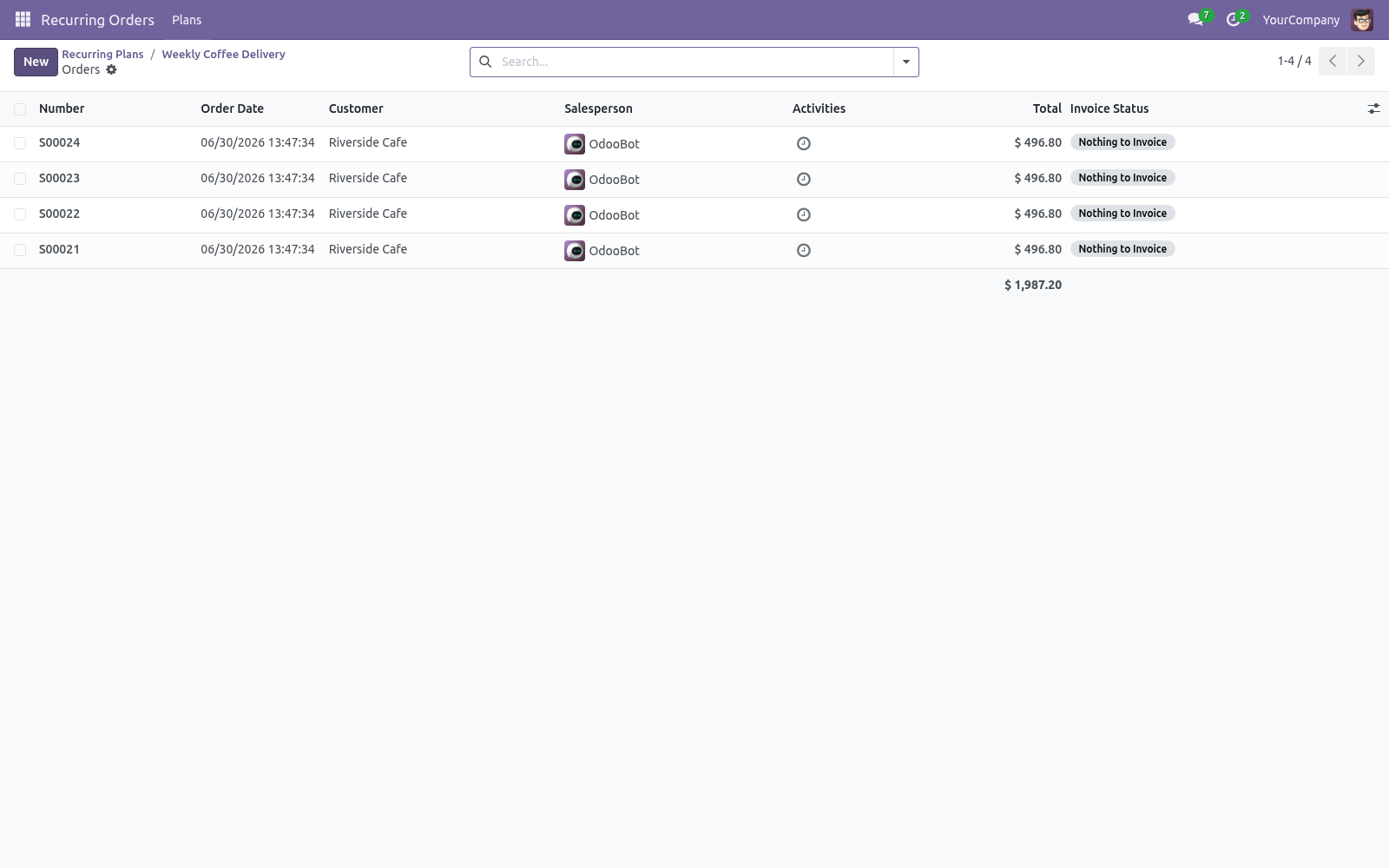
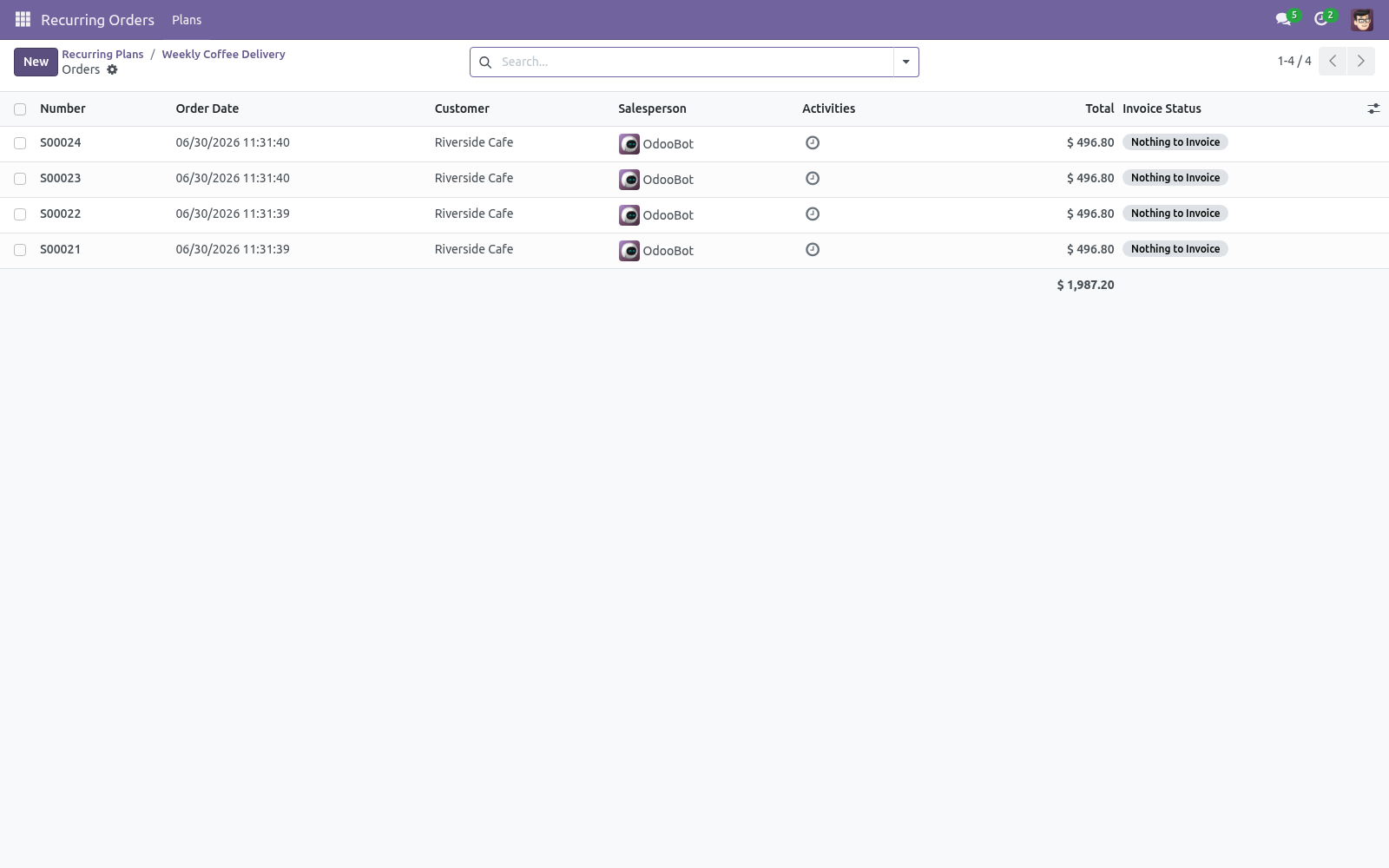
Set an End Date to stop automatically after a certain point. The plan's Orders button opens every order it has generated. Frequently asked questions. Orders weren't generated automatically.
Enable the Recurring Orders: Generate Due scheduled action. Until then, use Generate Now on each plan. Prices on generated orders are wrong. Lines priced from the pricelist use the price at generation time.
Set a fixed Unit Price on a line to override. How we make sure it works. Before every release, 17 automated checks run against this app on Odoo 16, 17, 18, 19 and 20. Among them: List shows only own.
Modify disallowed field ignored. Home counter scoped per partner. Modify out of bounds rejected. Pause then resume via portal.
The complete list is in the source you receive. Support. Questions or ideas: support@bambooforge.dev. Creating a recurring plan.
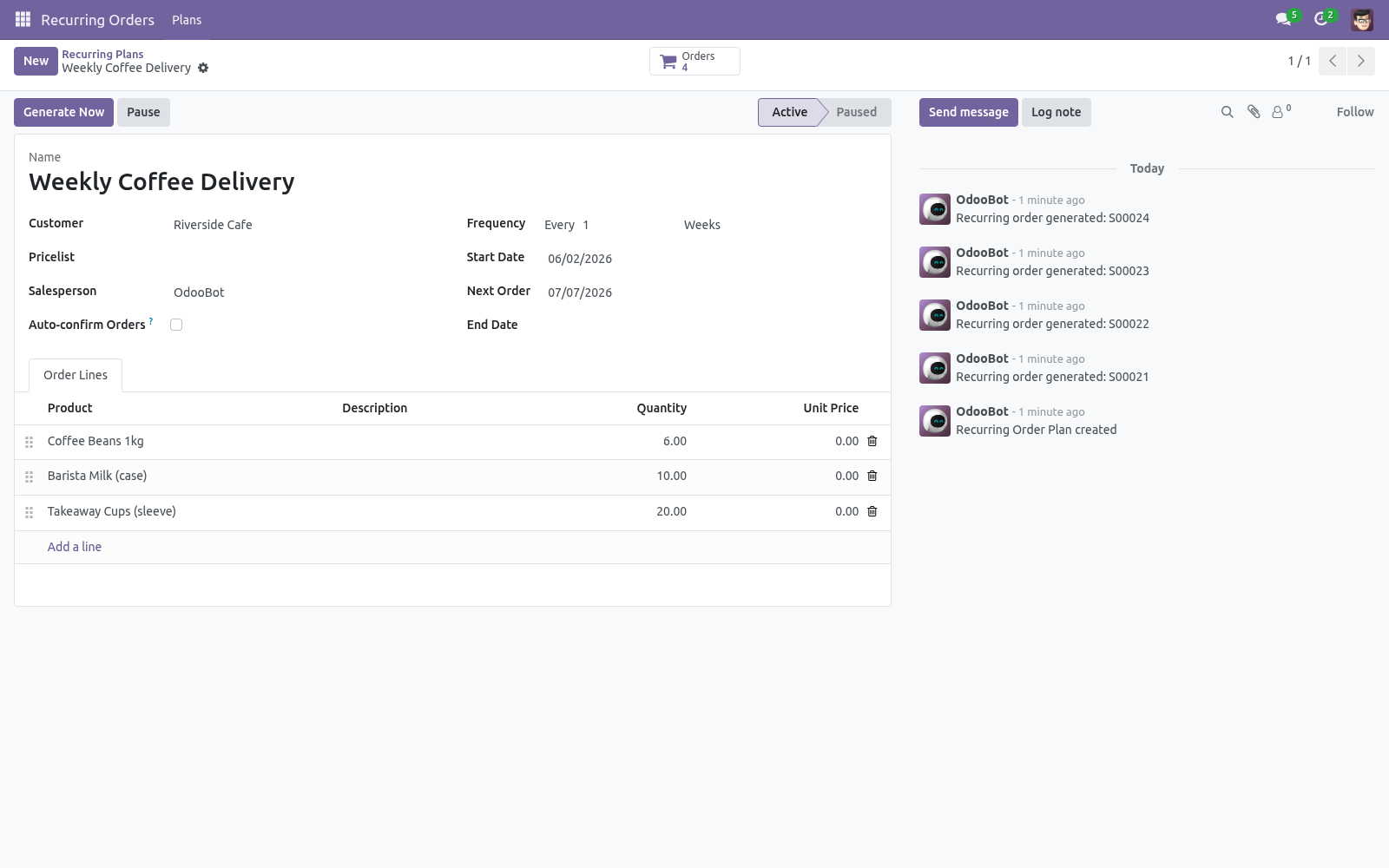
Open Recurring Orders > Plans (or, as a Sales manager, Sales > Configuration > Recurring Plans) and click New. The plan reference is assigned automatically from a sequence when you save. Customer — the partner the orders are raised for (required). Pricelist — optional; when left empty the customer's own pricelist is used at generation time.
Salesperson — defaults to you. Frequency — the cadence, entered as Every N Days / Weeks / Months / Years. Start Date — defaults to today; the first Next Order date is seeded from it. End Date — optional; generation stops once the next-order date passes it.
Auto-confirm Orders — leave off to create draft quotations for review, or tick it to confirm each generated order automatically. On the Order Lines tab, add the products and quantities. Selecting a product fills the description and unit of measure. Leave a line's Unit Price at 0 to price it from the pricelist when the order is generated; enter a value to lock a fixed price.
The quantity you first enter also seeds the line's Baseline Quantity, which bounds later customer portal changes. Generating orders. Each plan carries a Next Order date. Use the header button Generate Now at any time to raise the order immediately; the plan's next-order date then advances by the cadence and the order opens for you.
Every generated sales order carries its plan reference as the Source Document and a Recurring Plan link back to the plan. The Orders smart button on the plan opens all orders it has produced. The complete manual is at docs dot bambooforge dot dev, the demo database is linked from the store page, and support answers within twenty-four hours. Links are in the description.
Transcript of the walkthrough (Odoo 19)
Recurring Sales Orders. Generate repeat sales orders on a schedule from reusable plans, and let customers pause, skip or modify their standing order from the portal. For every repeat customer you set up one plan: In the next few minutes: recurring sales orders, then quick start, then how generation works, then pricing, then pausing and ending a plan. Then what this app deliberately does not do, so you can tell before you buy whether it fits.
Everything lives under Recurring Orders then Plans. No Enterprise modules and no external Python libraries are required. Recurring Sales Orders. Stop re-keying the same order every week or month.
Define a recurring plan per customer — the products and a cadence — and the app generates the sales order for you on schedule, as a draft quotation to review or a confirmed order, your choice. This page is the complete manual. Follow it top to bottom and you can install, build a plan and fix the common issues without contacting support. Quick start.
1. Open Recurring Orders > Plans and click New. 2. Choose the Customer and add the Order Lines (products and quantities).
3. Set the Frequency (every N days/weeks/months/years), the Start Date and, if the plan should stop, an End Date. 4. Decide whether to Auto-confirm Orders or leave them as draft quotations.
5. Save. Use Generate Now to create the first order immediately, or let the schedule do it. How generation works.
Each plan has a Next Order date. The daily scheduled action Recurring Orders: Generate Due finds every active plan whose next-order date has arrived and creates the order, then advances the next-order date by the cadence. If a plan was due several times since it last ran (for example the scheduler was off for a while), the app catches up and creates each missed order, up to a safety cap, so nothing is silently skipped. Pricing.
Leave a line's Unit Price at zero to price it from the customer's pricelist at the moment the order is generated — so price changes are always picked up. Enter a unit price to lock a fixed amount instead. Pausing and ending a plan. Click Pause to stop generating without losing the plan; Activate resumes it.
Set an End Date to stop automatically after a certain point. The plan's Orders button opens every order it has generated. Frequently asked questions. Orders weren't generated automatically.
Enable the Recurring Orders: Generate Due scheduled action. Until then, use Generate Now on each plan. Prices on generated orders are wrong. Lines priced from the pricelist use the price at generation time.
Set a fixed Unit Price on a line to override. Support. Questions or ideas: support@bambooforge.dev. ..
BAMBOOFORGE-DOC-APPENDIX (auto-generated: Upgrade/Uninstall/Changelog + bespoke) Creating a recurring plan. Open Recurring Orders > Plans (or, as a Sales manager, Sales > Configuration > Recurring Plans) and click New. The plan reference is assigned automatically from a sequence when you save. Customer — the partner the orders are raised for (required).
Pricelist — optional; when left empty the customer's own pricelist is used at generation time. Salesperson — defaults to you. Frequency — the cadence, entered as Every N Days / Weeks / Months / Years. Start Date — defaults to today; the first Next Order date is seeded from it.
End Date — optional; generation stops once the next-order date passes it. Auto-confirm Orders — leave off to create draft quotations for review, or tick it to confirm each generated order automatically. On the Order Lines tab, add the products and quantities. Selecting a product fills the description and unit of measure.
Leave a line's Unit Price at 0 to price it from the pricelist when the order is generated; enter a value to lock a fixed price. The quantity you first enter also seeds the line's Baseline Quantity, which bounds later customer portal changes. Generating orders. Each plan carries a Next Order date.
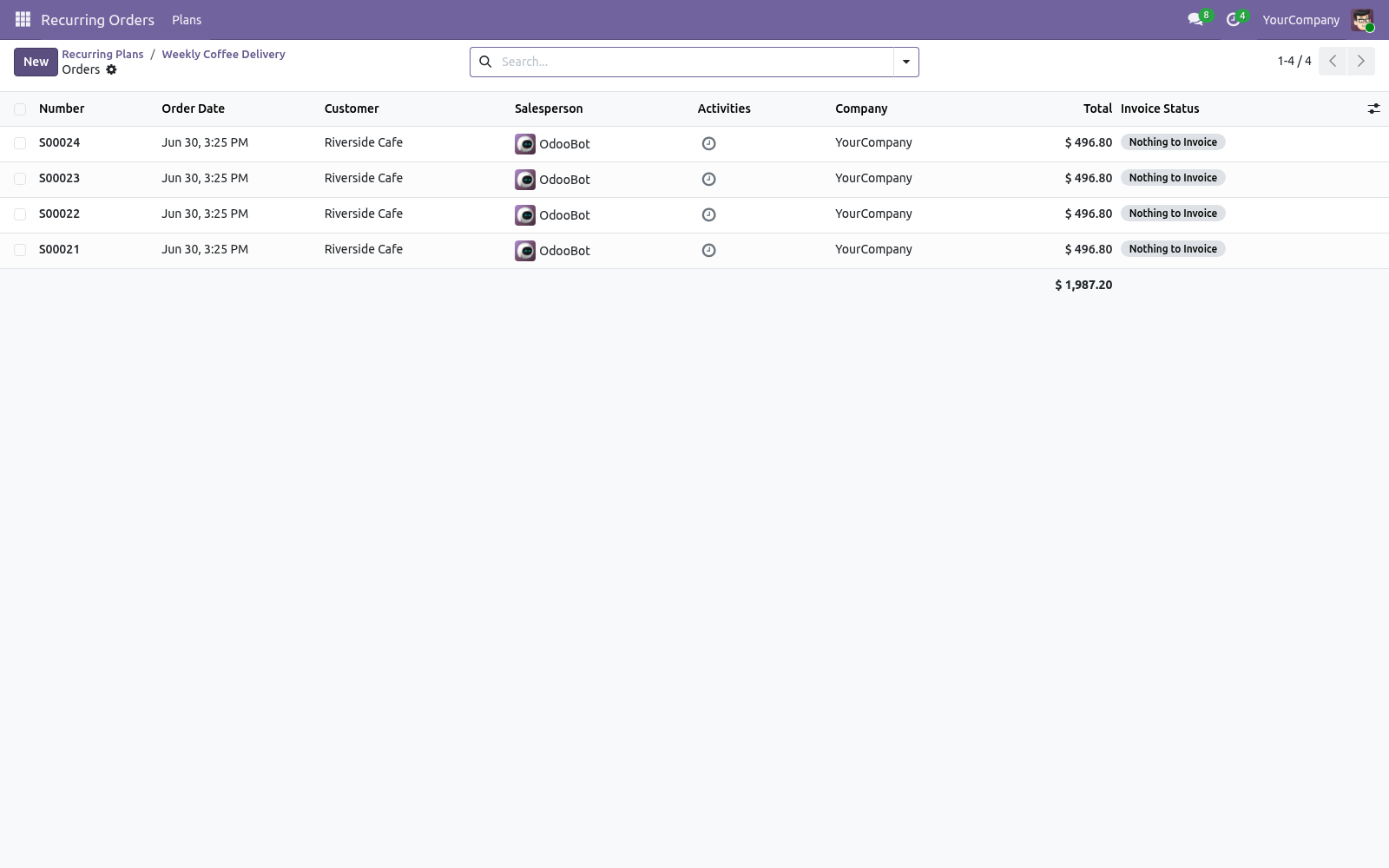
Use the header button Generate Now at any time to raise the order immediately; the plan's next-order date then advances by the cadence and the order opens for you. Every generated sales order carries its plan reference as the Source Document and a Recurring Plan link back to the plan. The Orders smart button on the plan opens all orders it has produced. Automatic generation (cron).
The scheduled action Recurring Orders: Generate Due runs daily. It picks up every Active plan whose next-order date has arrived, creates the order, and advances the next-order date. If a plan was due several times since it last ran (for example the scheduler was stopped for a while) the action catches up and creates each missed order, up to an internal safety cap of 60 cycles per run, so nothing is silently dropped. This scheduled action ships disabled.
Enable it under Settings > Technical > Scheduled Actions to let plans generate on their own; until then, use Generate Now. The complete manual is at docs dot bambooforge dot dev, the demo database is linked from the store page, and support answers within twenty-four hours. Links are in the description.
Transcript of the walkthrough (Odoo 18)
Recurring Sales Orders. Generate repeat sales orders on a schedule from reusable plans, and let customers pause, skip or modify their standing order from the portal. For every repeat customer you set up one plan: In the next few minutes: recurring sales orders, then quick start, then how generation works, then pricing, then pausing and ending a plan. Then what this app deliberately does not do, so you can tell before you buy whether it fits.
Everything lives under Recurring Orders then Plans. No Enterprise modules and no external Python libraries are required. Recurring Sales Orders. Stop re-keying the same order every week or month.
Define a recurring plan per customer — the products and a cadence — and the app generates the sales order for you on schedule, as a draft quotation to review or a confirmed order, your choice. This page is the complete manual. Follow it top to bottom and you can install, build a plan and fix the common issues without contacting support. Quick start.
1. Open Recurring Orders > Plans and click New. 2. Choose the Customer and add the Order Lines (products and quantities).
3. Set the Frequency (every N days/weeks/months/years), the Start Date and, if the plan should stop, an End Date. 4. Decide whether to Auto-confirm Orders or leave them as draft quotations.
5. Save. Use Generate Now to create the first order immediately, or let the schedule do it. How generation works.
Each plan has a Next Order date. The daily scheduled action Recurring Orders: Generate Due finds every active plan whose next-order date has arrived and creates the order, then advances the next-order date by the cadence. If a plan was due several times since it last ran (for example the scheduler was off for a while), the app catches up and creates each missed order, up to a safety cap, so nothing is silently skipped. Pricing.
Leave a line's Unit Price at zero to price it from the customer's pricelist at the moment the order is generated — so price changes are always picked up. Enter a unit price to lock a fixed amount instead. Pausing and ending a plan. Click Pause to stop generating without losing the plan; Activate resumes it.
Set an End Date to stop automatically after a certain point. The plan's Orders button opens every order it has generated. Frequently asked questions. Orders weren't generated automatically.
Enable the Recurring Orders: Generate Due scheduled action. Until then, use Generate Now on each plan. Prices on generated orders are wrong. Lines priced from the pricelist use the price at generation time.
Set a fixed Unit Price on a line to override. Support. Questions or ideas: support@bambooforge.dev. ..
BAMBOOFORGE-DOC-APPENDIX (auto-generated: Upgrade/Uninstall/Changelog + bespoke) Creating a recurring plan. Open Recurring Orders > Plans (or, as a Sales manager, Sales > Configuration > Recurring Plans) and click New. The plan reference is assigned automatically from a sequence when you save. Customer — the partner the orders are raised for (required).
Pricelist — optional; when left empty the customer's own pricelist is used at generation time. Salesperson — defaults to you. Frequency — the cadence, entered as Every N Days / Weeks / Months / Years. Start Date — defaults to today; the first Next Order date is seeded from it.
End Date — optional; generation stops once the next-order date passes it. Auto-confirm Orders — leave off to create draft quotations for review, or tick it to confirm each generated order automatically. On the Order Lines tab, add the products and quantities. Selecting a product fills the description and unit of measure.
Leave a line's Unit Price at 0 to price it from the pricelist when the order is generated; enter a value to lock a fixed price. The quantity you first enter also seeds the line's Baseline Quantity, which bounds later customer portal changes. Generating orders. Each plan carries a Next Order date.
Use the header button Generate Now at any time to raise the order immediately; the plan's next-order date then advances by the cadence and the order opens for you. Every generated sales order carries its plan reference as the Source Document and a Recurring Plan link back to the plan. The Orders smart button on the plan opens all orders it has produced. Automatic generation (cron).
The scheduled action Recurring Orders: Generate Due runs daily. It picks up every Active plan whose next-order date has arrived, creates the order, and advances the next-order date. If a plan was due several times since it last ran (for example the scheduler was stopped for a while) the action catches up and creates each missed order, up to an internal safety cap of 60 cycles per run, so nothing is silently dropped. This scheduled action ships disabled.
Enable it under Settings > Technical > Scheduled Actions to let plans generate on their own; until then, use Generate Now. The complete manual is at docs dot bambooforge dot dev, the demo database is linked from the store page, and support answers within twenty-four hours. Links are in the description.
Transcript of the walkthrough (Odoo 17)
Recurring Sales Orders. Generate repeat sales orders on a schedule from reusable plans, and let customers pause, skip or modify their standing order from the portal. For every repeat customer you set up one plan: In the next few minutes: recurring sales orders, then quick start, then how generation works, then pricing, then pausing and ending a plan. Then what this app deliberately does not do, so you can tell before you buy whether it fits.
Everything lives under Recurring Orders then Plans. No Enterprise modules and no external Python libraries are required. Recurring Sales Orders. Stop re-keying the same order every week or month.
Define a recurring plan per customer — the products and a cadence — and the app generates the sales order for you on schedule, as a draft quotation to review or a confirmed order, your choice. This page is the complete manual. Follow it top to bottom and you can install, build a plan and fix the common issues without contacting support. Quick start.
1. Open Recurring Orders > Plans and click New. 2. Choose the Customer and add the Order Lines (products and quantities).
3. Set the Frequency (every N days/weeks/months/years), the Start Date and, if the plan should stop, an End Date. 4. Decide whether to Auto-confirm Orders or leave them as draft quotations.
5. Save. Use Generate Now to create the first order immediately, or let the schedule do it. How generation works.
Each plan has a Next Order date. The daily scheduled action Recurring Orders: Generate Due finds every active plan whose next-order date has arrived and creates the order, then advances the next-order date by the cadence. If a plan was due several times since it last ran (for example the scheduler was off for a while), the app catches up and creates each missed order, up to a safety cap, so nothing is silently skipped. Pricing.
Leave a line's Unit Price at zero to price it from the customer's pricelist at the moment the order is generated — so price changes are always picked up. Enter a unit price to lock a fixed amount instead. Pausing and ending a plan. Click Pause to stop generating without losing the plan; Activate resumes it.
Set an End Date to stop automatically after a certain point. The plan's Orders button opens every order it has generated. Frequently asked questions. Orders weren't generated automatically.
Enable the Recurring Orders: Generate Due scheduled action. Until then, use Generate Now on each plan. Prices on generated orders are wrong. Lines priced from the pricelist use the price at generation time.
Set a fixed Unit Price on a line to override. Support. Questions or ideas: support@bambooforge.dev. ..
BAMBOOFORGE-DOC-APPENDIX (auto-generated: Upgrade/Uninstall/Changelog + bespoke) Creating a recurring plan. Open Recurring Orders > Plans (or, as a Sales manager, Sales > Configuration > Recurring Plans) and click New. The plan reference is assigned automatically from a sequence when you save. Customer — the partner the orders are raised for (required).
Pricelist — optional; when left empty the customer's own pricelist is used at generation time. Salesperson — defaults to you. Frequency — the cadence, entered as Every N Days / Weeks / Months / Years. Start Date — defaults to today; the first Next Order date is seeded from it.
End Date — optional; generation stops once the next-order date passes it. Auto-confirm Orders — leave off to create draft quotations for review, or tick it to confirm each generated order automatically. On the Order Lines tab, add the products and quantities. Selecting a product fills the description and unit of measure.
Leave a line's Unit Price at 0 to price it from the pricelist when the order is generated; enter a value to lock a fixed price. The quantity you first enter also seeds the line's Baseline Quantity, which bounds later customer portal changes. Generating orders. Each plan carries a Next Order date.
Use the header button Generate Now at any time to raise the order immediately; the plan's next-order date then advances by the cadence and the order opens for you. Every generated sales order carries its plan reference as the Source Document and a Recurring Plan link back to the plan. The Orders smart button on the plan opens all orders it has produced. Automatic generation (cron).
The scheduled action Recurring Orders: Generate Due runs daily. It picks up every Active plan whose next-order date has arrived, creates the order, and advances the next-order date. If a plan was due several times since it last ran (for example the scheduler was stopped for a while) the action catches up and creates each missed order, up to an internal safety cap of 60 cycles per run, so nothing is silently dropped. This scheduled action ships disabled.
Enable it under Settings > Technical > Scheduled Actions to let plans generate on their own; until then, use Generate Now. The complete manual is at docs dot bambooforge dot dev, the demo database is linked from the store page, and support answers within twenty-four hours. Links are in the description.
Transcript of the walkthrough (Odoo 16)
Recurring Sales Orders. Generate repeat sales orders on a schedule from reusable plans, and let customers pause, skip or modify their standing order from the portal. For every repeat customer you set up one plan: In the next few minutes: recurring sales orders, then quick start, then how generation works, then pricing, then pausing and ending a plan. Then what this app deliberately does not do, so you can tell before you buy whether it fits.
Everything lives under Recurring Orders then Plans. No Enterprise modules and no external Python libraries are required. Recurring Sales Orders. Stop re-keying the same order every week or month.
Define a recurring plan per customer — the products and a cadence — and the app generates the sales order for you on schedule, as a draft quotation to review or a confirmed order, your choice. This page is the complete manual. Follow it top to bottom and you can install, build a plan and fix the common issues without contacting support. Quick start.
1. Open Recurring Orders > Plans and click New. 2. Choose the Customer and add the Order Lines (products and quantities).
3. Set the Frequency (every N days/weeks/months/years), the Start Date and, if the plan should stop, an End Date. 4. Decide whether to Auto-confirm Orders or leave them as draft quotations.
5. Save. Use Generate Now to create the first order immediately, or let the schedule do it. How generation works.
Each plan has a Next Order date. The daily scheduled action Recurring Orders: Generate Due finds every active plan whose next-order date has arrived and creates the order, then advances the next-order date by the cadence. If a plan was due several times since it last ran (for example the scheduler was off for a while), the app catches up and creates each missed order, up to a safety cap, so nothing is silently skipped. Pricing.
Leave a line's Unit Price at zero to price it from the customer's pricelist at the moment the order is generated — so price changes are always picked up. Enter a unit price to lock a fixed amount instead. Pausing and ending a plan. Click Pause to stop generating without losing the plan; Activate resumes it.
Set an End Date to stop automatically after a certain point. The plan's Orders button opens every order it has generated. Frequently asked questions. Orders weren't generated automatically.
Enable the Recurring Orders: Generate Due scheduled action. Until then, use Generate Now on each plan. Prices on generated orders are wrong. Lines priced from the pricelist use the price at generation time.
Set a fixed Unit Price on a line to override. Support. Questions or ideas: support@bambooforge.dev. ..
BAMBOOFORGE-DOC-APPENDIX (auto-generated: Upgrade/Uninstall/Changelog + bespoke) Creating a recurring plan. Open Recurring Orders > Plans (or, as a Sales manager, Sales > Configuration > Recurring Plans) and click New. The plan reference is assigned automatically from a sequence when you save. Customer — the partner the orders are raised for (required).
Pricelist — optional; when left empty the customer's own pricelist is used at generation time. Salesperson — defaults to you. Frequency — the cadence, entered as Every N Days / Weeks / Months / Years. Start Date — defaults to today; the first Next Order date is seeded from it.
End Date — optional; generation stops once the next-order date passes it. Auto-confirm Orders — leave off to create draft quotations for review, or tick it to confirm each generated order automatically. On the Order Lines tab, add the products and quantities. Selecting a product fills the description and unit of measure.
Leave a line's Unit Price at 0 to price it from the pricelist when the order is generated; enter a value to lock a fixed price. The quantity you first enter also seeds the line's Baseline Quantity, which bounds later customer portal changes. Generating orders. Each plan carries a Next Order date.
Use the header button Generate Now at any time to raise the order immediately; the plan's next-order date then advances by the cadence and the order opens for you. Every generated sales order carries its plan reference as the Source Document and a Recurring Plan link back to the plan. The Orders smart button on the plan opens all orders it has produced. Automatic generation (cron).
The scheduled action Recurring Orders: Generate Due runs daily. It picks up every Active plan whose next-order date has arrived, creates the order, and advances the next-order date. If a plan was due several times since it last ran (for example the scheduler was stopped for a while) the action catches up and creates each missed order, up to an internal safety cap of 60 cycles per run, so nothing is silently dropped. This scheduled action ships disabled.
Enable it under Settings > Technical > Scheduled Actions to let plans generate on their own; until then, use Generate Now. The complete manual is at docs dot bambooforge dot dev, the demo database is linked from the store page, and support answers within twenty-four hours. Links are in the description.
Key facts
- What it is
- Generate repeat sales orders on a schedule from reusable plans, and let customers pause, skip or modify their standing order from the portal.
- For
- Sales
- Odoo versions
- 16.0, 17.0, 18.0, 19.0, 20.0 - Community and Enterprise
- Runs on
- Odoo.sh or Odoo you host yourself - not Odoo Online, which accepts no third-party apps
- Price
- 89 EUR, one-time, on the Odoo Apps Store
- Technical name
- bambooforge_recurring_order
- Not for
- Said before you buy, because it is the half that decides whether the app fits:; Move the next date past the plan's end, or further than the reschedule window allows.; Let a customer change a plan when self-management is off - they see it read-only.; Mix Odoo series: a build is for the series it was bought for.
- Live demo
- https://demo20.bambooforge.dev/odoo/action-bambooforge_recurring_order.recurring_order_plan_action
- Manual last updated
- 2026-10-15
Recurring Sales Orders
Stop re-keying the same order every week or month. Define a recurring plan per customer — the products and a cadence — and the app generates the sales order for you on schedule, as a draft quotation to review or a confirmed order, your choice.
This page is the complete manual. Follow it top to bottom and you can install, build a plan and fix the common issues without contacting support.
Overview
For every repeat customer you set up one plan:
a customer, an optional pricelist and a salesperson,
the order lines (products and quantities),
a cadence — every N days, weeks, months or years — with a start and an optional end date.
A daily scheduled action then creates the order whenever a plan is due. Choose draft quotations to review before sending, or auto-confirm to push straight to confirmed sales orders. Every generated order links back to its plan.
Requirements
Odoo 20.0 with Sales (sale_management). Installing this app pulls it in automatically.
No Enterprise modules and no external Python libraries are required.
Installation
Copy bambooforge_recurring_order into your addons path.
Update the apps list (Apps > Update Apps List).
Search for Recurring Orders and click Install.
A Recurring Orders app appears, and a Recurring Plans entry is added under Sales > Configuration.
Quick start
Open Recurring Orders > Plans and click New.
Choose the Customer and add the Order Lines (products and quantities).
Set the Frequency (every N days/weeks/months/years), the Start Date and, if the plan should stop, an End Date.
Decide whether to Auto-confirm Orders or leave them as draft quotations.
Save. Use Generate Now to create the first order immediately, or let the schedule do it.
How generation works
Each plan has a Next Order date. The daily scheduled action Recurring Orders: Generate Due finds every active plan whose next-order date has arrived and creates the order, then advances the next-order date by the cadence.
If a plan was due several times since it last ran (for example the scheduler was off for a while), the app catches up and creates each missed order, up to a safety cap, so nothing is silently skipped.
The scheduled action ships disabled — enable it under Settings > Technical > Scheduled Actions to run daily.
Pricing
Leave a line's Unit Price at zero to price it from the customer's pricelist at the moment the order is generated — so price changes are always picked up. Enter a unit price to lock a fixed amount instead.
Pausing and ending a plan
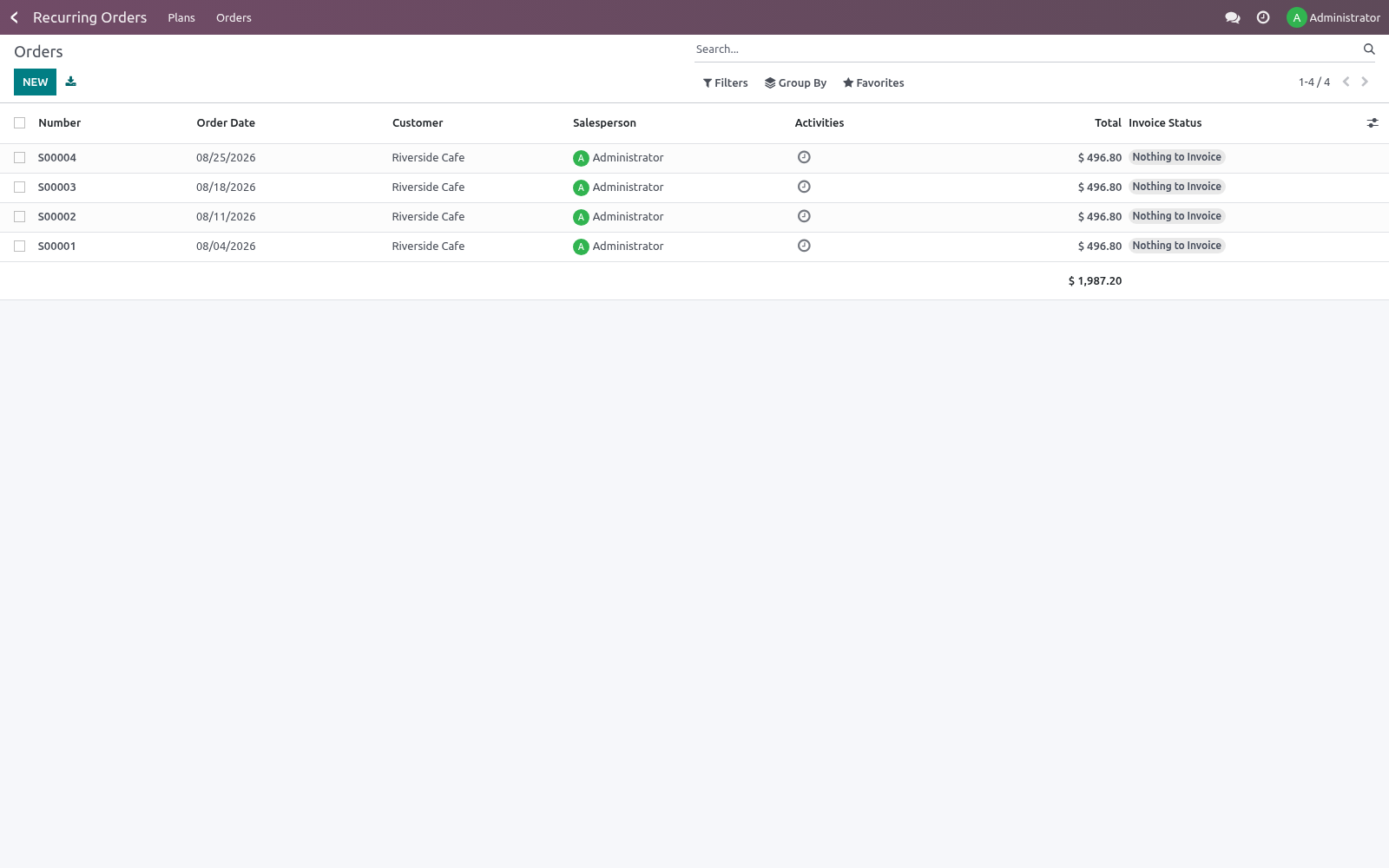
Click Pause to stop generating without losing the plan; Activate resumes it. Set an End Date to stop automatically after a certain point. The plan's Orders button opens every order it has generated.
Frequently asked questions
- Orders weren't generated automatically.
Enable the Recurring Orders: Generate Due scheduled action. Until then, use Generate Now on each plan.
- Prices on generated orders are wrong.
Lines priced from the pricelist use the price at generation time. Set a fixed Unit Price on a line to override.
- Can I generate confirmed orders, not quotations?
Yes — tick Auto-confirm Orders on the plan.
- What happens if I miss a few cycles?
The catch-up logic creates each missed order the next time the schedule runs.
- Does it work with multiple companies?
Yes. Each plan is scoped to one company via a record rule.
How we make sure it works
Before every release, 17 automated checks run against this app on Odoo 16, 17, 18, 19 and 20. Among them:
List shows only own.
Modify disallowed field ignored.
Home counter scoped per partner.
Modify out of bounds rejected.
Pause then resume via portal.
The complete list is in the source you receive.
Support
Questions or ideas: support@bambooforge.dev.
Usage
Creating a recurring plan
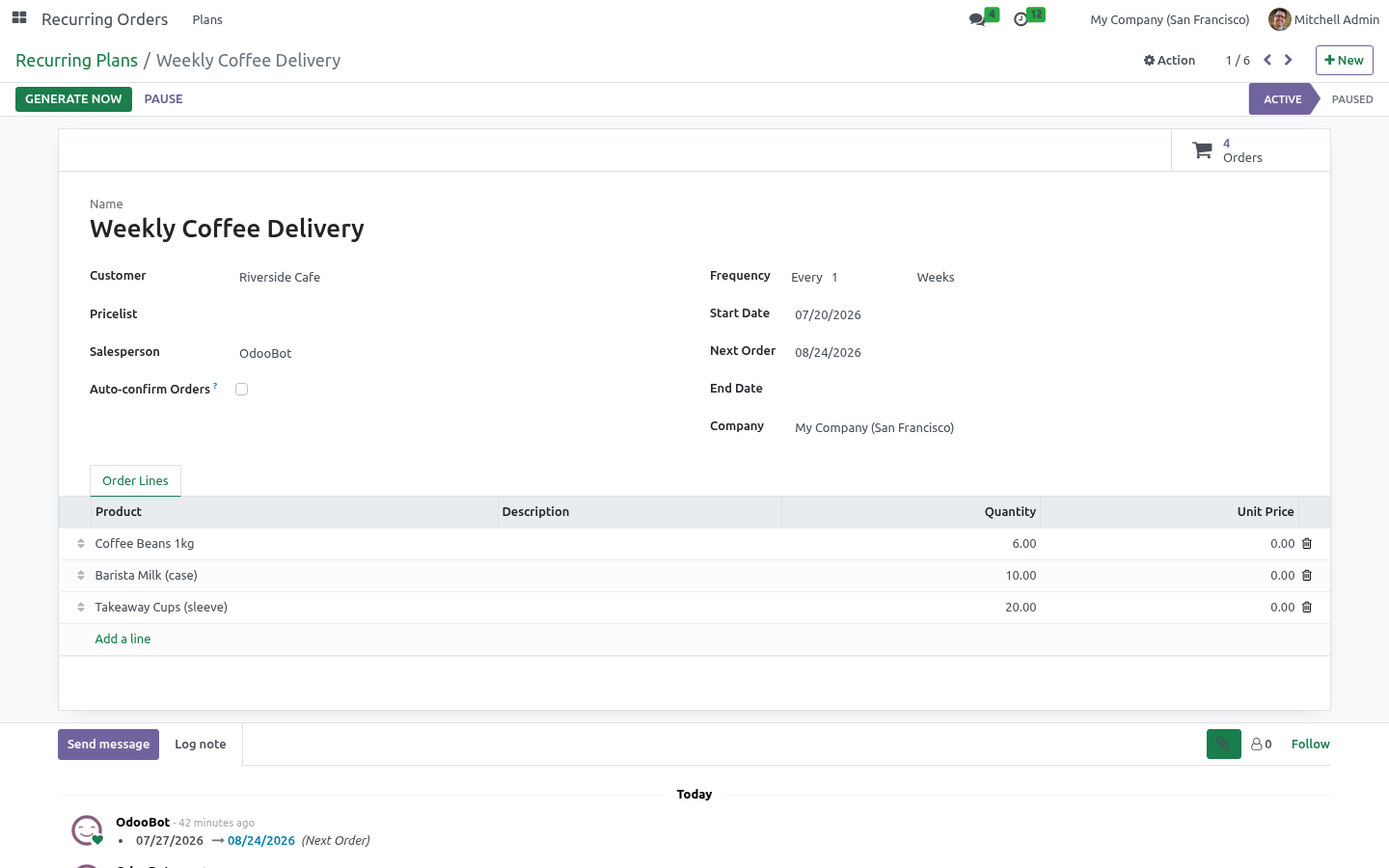
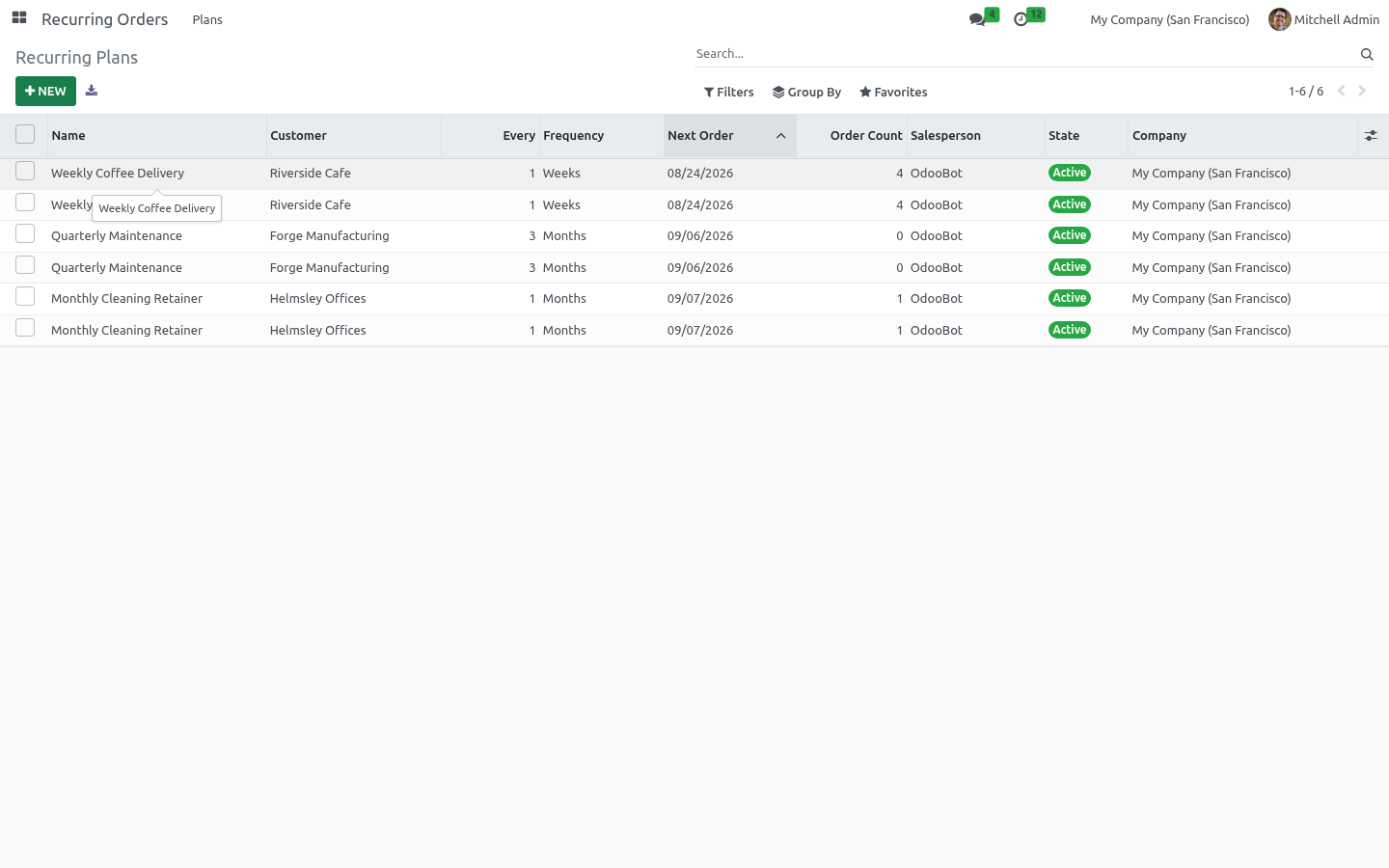
Open Recurring Orders > Plans (or, as a Sales manager, Sales > Configuration > Recurring Plans) and click New. The plan reference is assigned automatically from a sequence when you save.
Fill in the plan:
Customer — the partner the orders are raised for (required).
Pricelist — optional; when left empty the customer's own pricelist is used at generation time.
Salesperson — defaults to you.
Frequency — the cadence, entered as Every N Days / Weeks / Months / Years.
Start Date — defaults to today; the first Next Order date is seeded from it.
End Date — optional; generation stops once the next-order date passes it.
Auto-confirm Orders — leave off to create draft quotations for review, or tick it to confirm each generated order automatically.
On the Order Lines tab, add the products and quantities. Selecting a product fills the description and unit of measure. Leave a line's Unit Price at 0 to price it from the pricelist when the order is generated; enter a value to lock a fixed price. The quantity you first enter also seeds the line's Baseline Quantity, which bounds later customer portal changes.
Generating orders
Each plan carries a Next Order date. Use the header button Generate Now at any time to raise the order immediately; the plan's next-order date then advances by the cadence and the order opens for you. Every generated sales order carries its plan reference as the Source Document and a Recurring Plan link back to the plan. The Orders smart button on the plan opens all orders it has produced.
Automatic generation (cron)
The scheduled action Recurring Orders: Generate Due runs daily. It picks up every Active plan whose next-order date has arrived, creates the order, and advances the next-order date. If a plan was due several times since it last ran (for example the scheduler was stopped for a while) the action catches up and creates each missed order, up to an internal safety cap of 60 cycles per run, so nothing is silently dropped.
This scheduled action ships disabled. Enable it under Settings > Technical > Scheduled Actions to let plans generate on their own; until then, use Generate Now.
Pausing, ending and skipping
Click Pause in the plan header to stop generation without deleting the plan, and Activate to resume. Set an End Date to stop automatically. A one-off Skip Next Occurrence flag lets you skip exactly the next cycle: the schedule advances past it without raising an order, then resumes normally.
Customer self-service portal
When Customer Self-Management is enabled on a plan (on by default), customers manage their standing orders from My Account > Recurring Orders (/my/recurring). From a plan's page a customer can:
Pause or Resume the plan,
Skip (or un-skip) the next occurrence,
adjust line quantities and move the next order date.
Customer changes are bounded by the merchant's limits: a quantity may not exceed Max Qty Factor times the line's baseline (default 2.0, i.e. at most double), and the next date may be moved at most Max Reschedule Window (days) into the future (default 90) and never past the plan's end date. Every portal change is logged in the plan's chatter. Turn off Customer Self-Management to keep a plan fully back-office controlled; customers then see it read-only and are asked to contact you for changes.
Example
A cafe orders 10 bags of coffee beans every 2 weeks. Create a plan for that customer, set Every 2 Weeks, add one order line for the beans with a quantity of 10, and leave Auto-confirm Orders off. Save. With the scheduled action enabled, a draft quotation for 10 bags is created every fortnight for your team to review and send. If the cafe closes for a holiday, it opens its portal and clicks Skip Next Occurrence — the following fortnight is skipped and the plan resumes automatically after that.
Upgrading & version compatibility
This build targets Odoo 20.0. Each Odoo major series (16.0, 17.0, 18.0, 19.0, 20.0) has its own dedicated build of this module — always install the build that matches your Odoo version. Mixing a build with a different Odoo series is not supported.
Patch upgrades (same series, e.g. 20.0.1.0.0 → later)
Back up your database and filestore first.
Replace the module folder with the newer build.
Restart Odoo with the module updated:
./odoo-bin -c your.conf -u bambooforge_recurring_order -d your_db
Odoo applies any schema/data changes automatically. Your existing records and configuration are preserved.
Cross-version migration (moving to a newer Odoo)
Upgrading Odoo itself is a database migration handled by Odoo's standard upgrade tooling. When you migrate the database to the next Odoo series, install the matching build of this module for that series. Data created by this module carries over with the database migration.
After any upgrade the module's scheduled actions resume on their normal cadence — no manual re-activation is required.
Uninstallation
You can remove this module at any time from Apps → (this module) → Uninstall, or from the command line. Uninstalling is clean and reversible by reinstalling — but note what is and is not deleted.
What is removed
The module's own tables and every record in them (2 models, prefixed recurring.*) — this is the data this module created.
The menus, actions, views and reports this module installed.
Its scheduled actions (cron jobs) — they stop immediately on uninstall.
What is preserved
Your standard Odoo data (partners, products, sales, invoices, inventory moves) is not deleted — this module only reads and annotates it; the underlying records stay.
Attachments and chatter messages on standard records are kept.
As always, take a database backup before uninstalling in production.
What it does not do
Said before you buy, because it is the half that decides whether the app fits:
Move the next date past the plan's end, or further than the reschedule window allows.
Let a customer change a plan when self-management is off - they see it read-only.
Mix Odoo series: a build is for the series it was bought for.
Questions people ask
- Which Odoo versions does it run on?
Odoo 16.0, 17.0, 18.0, 19.0, 20.0, on the series you buy it for; each series is its own listing.
- Community or Enterprise?
Both. It needs no Enterprise app.
- What does it need?
The standard Portal, Sales apps. No extra Python package.
- Where does it show up?
Under the Recurring Orders menu (Plans).
- Does anything leave my server?
No. It makes no call outside your Odoo server: no telemetry, no licence check, no third-party service.
- What happens if I uninstall it?
Odoo drops the app's own tables and fields; the standard records it worked on (contacts, orders, products) stay as they are.
Changelog
20.0.1.1.1
Built for Odoo 20: record rules and access rights rewritten onto Odoo 20's single ir.access model, the screens rebuilt on Owl 3, and every icon moved to the icon set Odoo 20 ships. The portal card is an Odoo 20 portal entry.
20.0.1.0.0
Current release for Odoo 20.0. This build includes:
Customers pause, skip or modify their own standing orders from the Odoo portal.
The generator honors it. Plus: generate repeat sales orders automatically on a schedule from reusable plans.
Weekly deliveries, monthly retainers, standing orders.
As draft quotations or confirmed orders.
Feature additions and fixes ship as new builds on the Odoo Apps store; this page and the module's version reflect the current published release. Always keep the build matched to your Odoo series (see Upgrading & version compatibility).