 BambooForge Labs
Quotation Follow-up: Auto-chase Sent Quotes
Never let a sent quotation go cold: follow-up levels that fire reminder emails and salesperson activities after configurable delays.
Available for Odoo 16.0, Odoo 17.0, Odoo 18.0, Odoo 19.0, Odoo 20.0. Technical name bambooforge_quote_followup.
Transcript of the walkthrough (Odoo 20)
Quotation Follow-up: Auto-chase Sent Quotes. Never let a sent quotation go cold: follow-up levels that fire reminder emails and salesperson activities after configurable delays. When a quotation is sent, a follow-up clock starts. As each level's delay passes, the app applies the next step automatically: In the next few minutes: quotation follow-up: auto-chase sent quotes, then configuring follow-up levels, then how the automation works, then working the list, then frequently asked questions.
Then what this app deliberately does not do, so you can tell before you buy whether it fits. Everything lives under Quotation Follow-ups then Follow-up Levels. No Enterprise modules and no external Python libraries are required. Quotation Follow-up: Auto-chase Sent Quotes.
Never let a sent quotation go cold. This app chases your quotations for you: define escalating follow-up levels — reminder emails and salesperson activities — that fire automatically after the delays you set, until the customer responds. A ready-to-work list shows every quotation due for follow-up. This page is the complete manual.
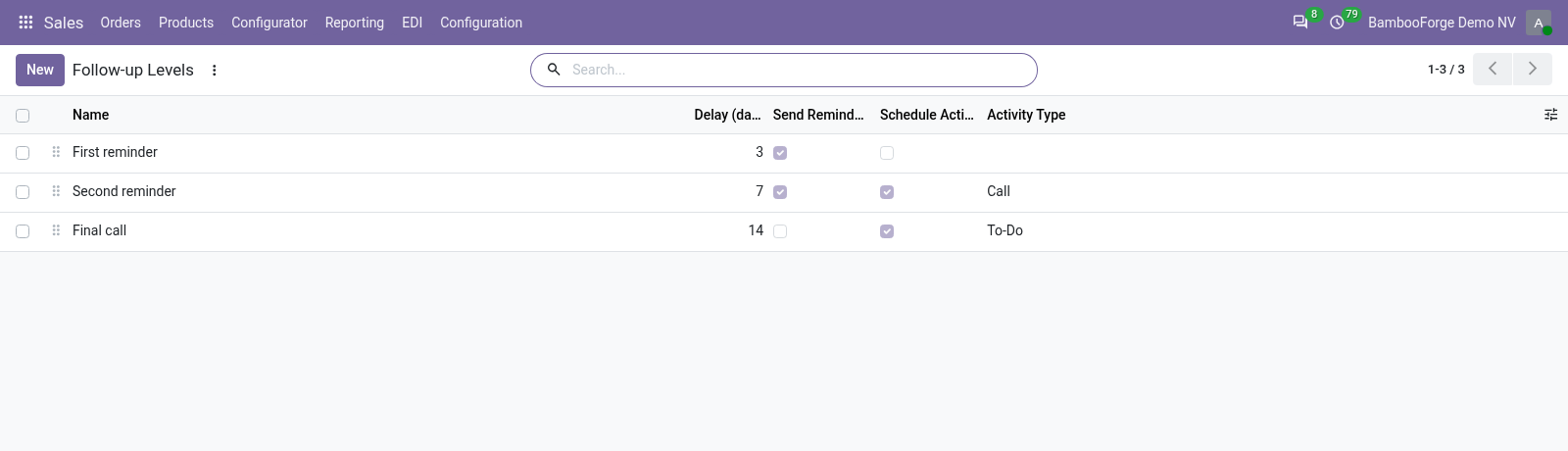
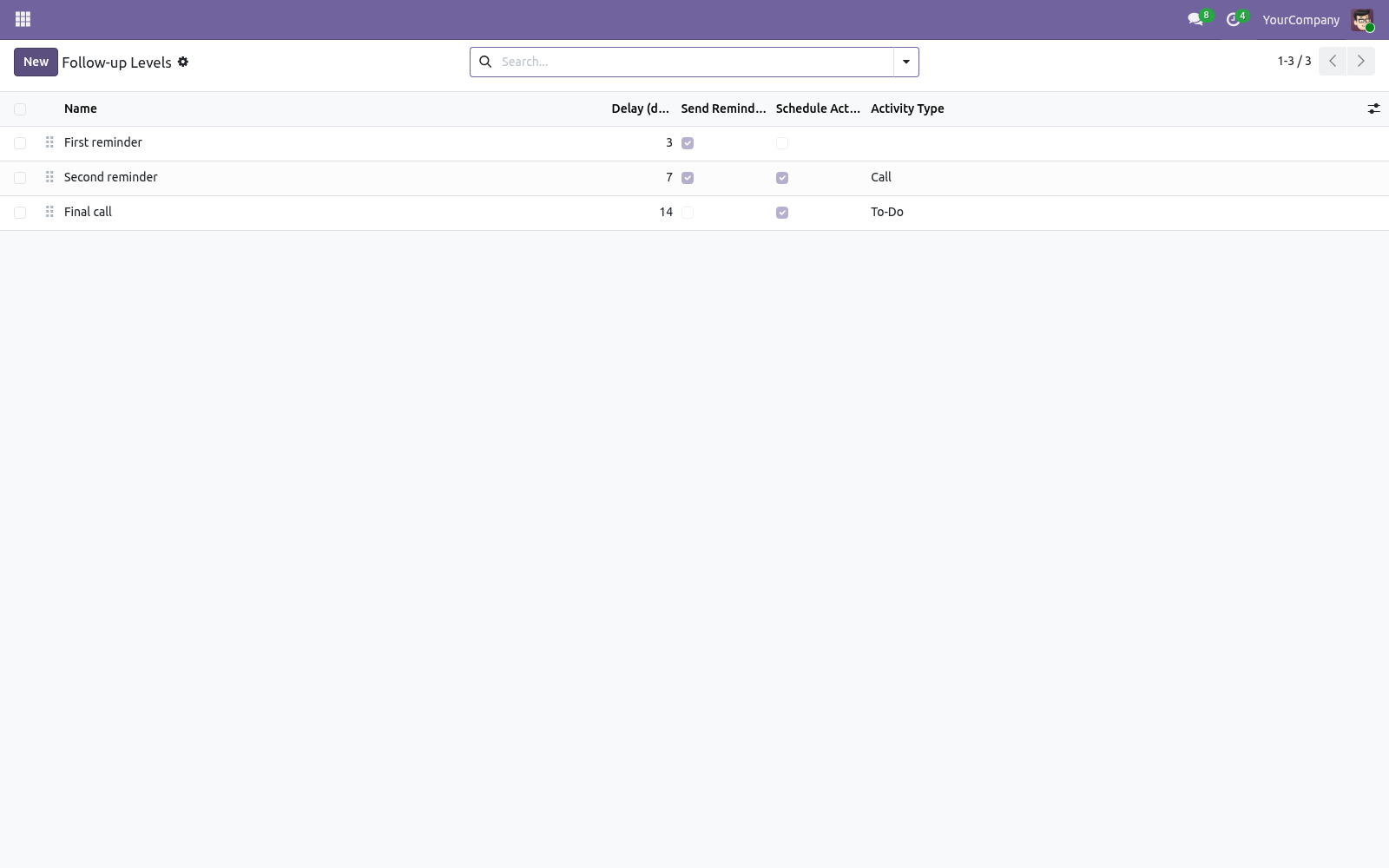
Follow it top to bottom and you can install, configure your follow-up steps, work the list and fix the common issues without contacting support. Configuring follow-up levels. Go to Sales > Configuration > Follow-up Levels. Each level has: a Delay (days) — how long to wait after the quotation was sent (first level) or after the previous step before this one fires, Send Reminder Email with an Email Template, Schedule Activity with an Activity Type and summary, or any combination.
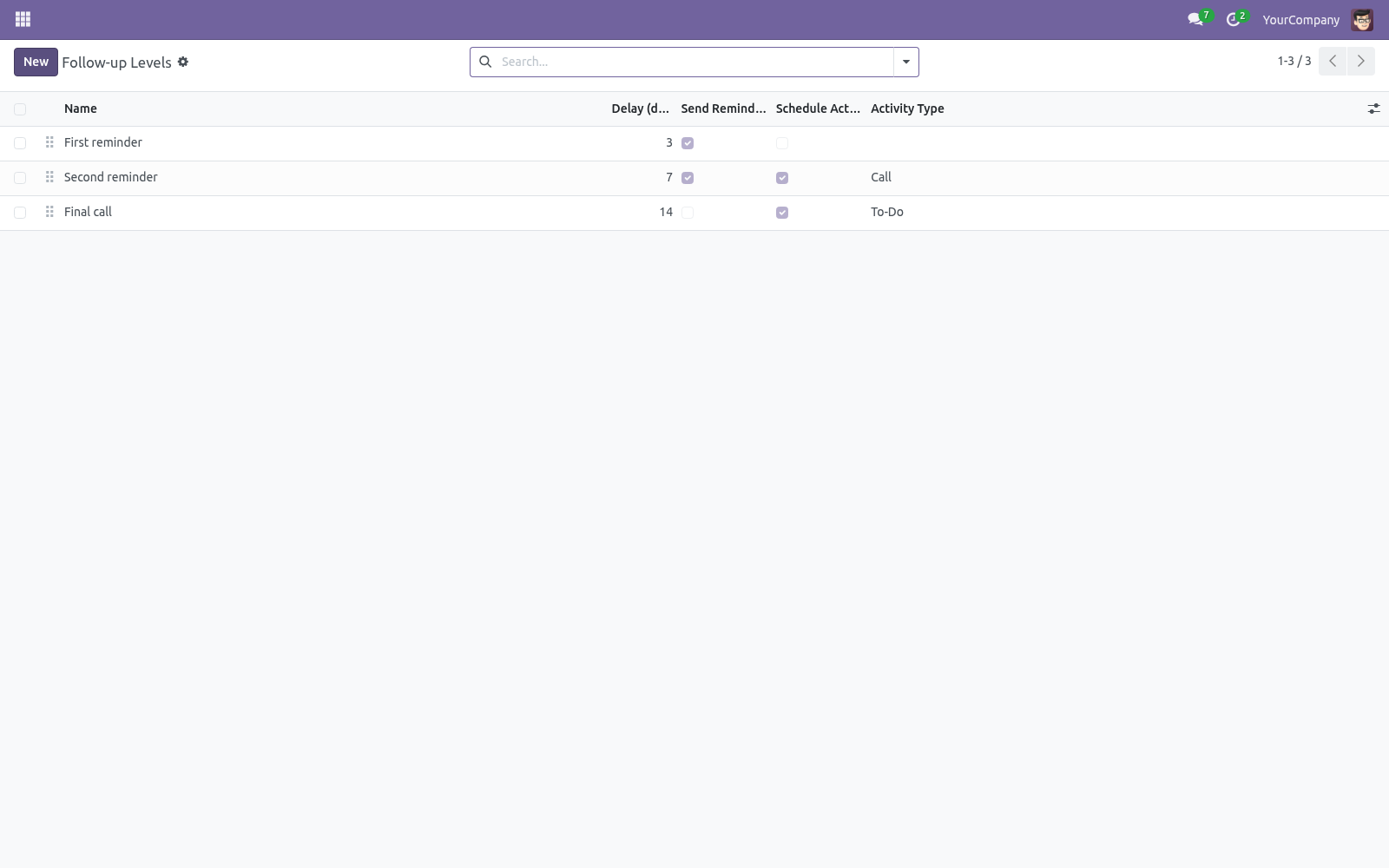
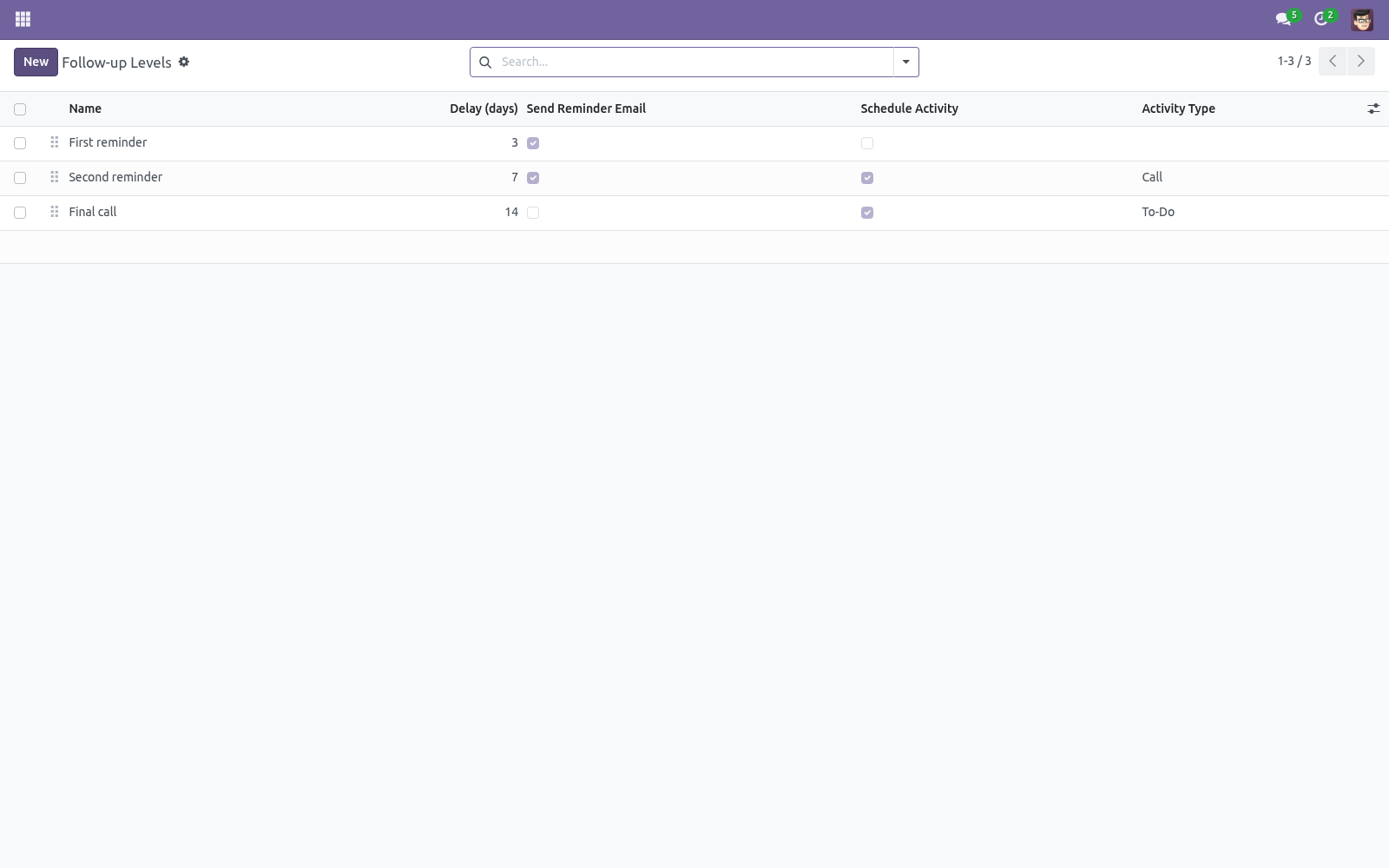
Drag to reorder; levels fire from top to bottom. The shipped levels are a first email at 3 days, a second email plus a call task at 7 days, and a final to-do at 14 days — edit them to suit your sales motion. How the automation works. When a quotation moves to Quotation Sent, its follow-up clock starts.
A daily scheduled action checks every sent quotation and, when the next level's delay has elapsed, applies that level — sending its email and/or scheduling its activity — then advances to the next level. One step is applied per run, so the escalation spreads out exactly as configured. The chase stops when the quotation is confirmed (becomes an order), when the last level has fired, or when you mark it No Follow-up. Working the list.
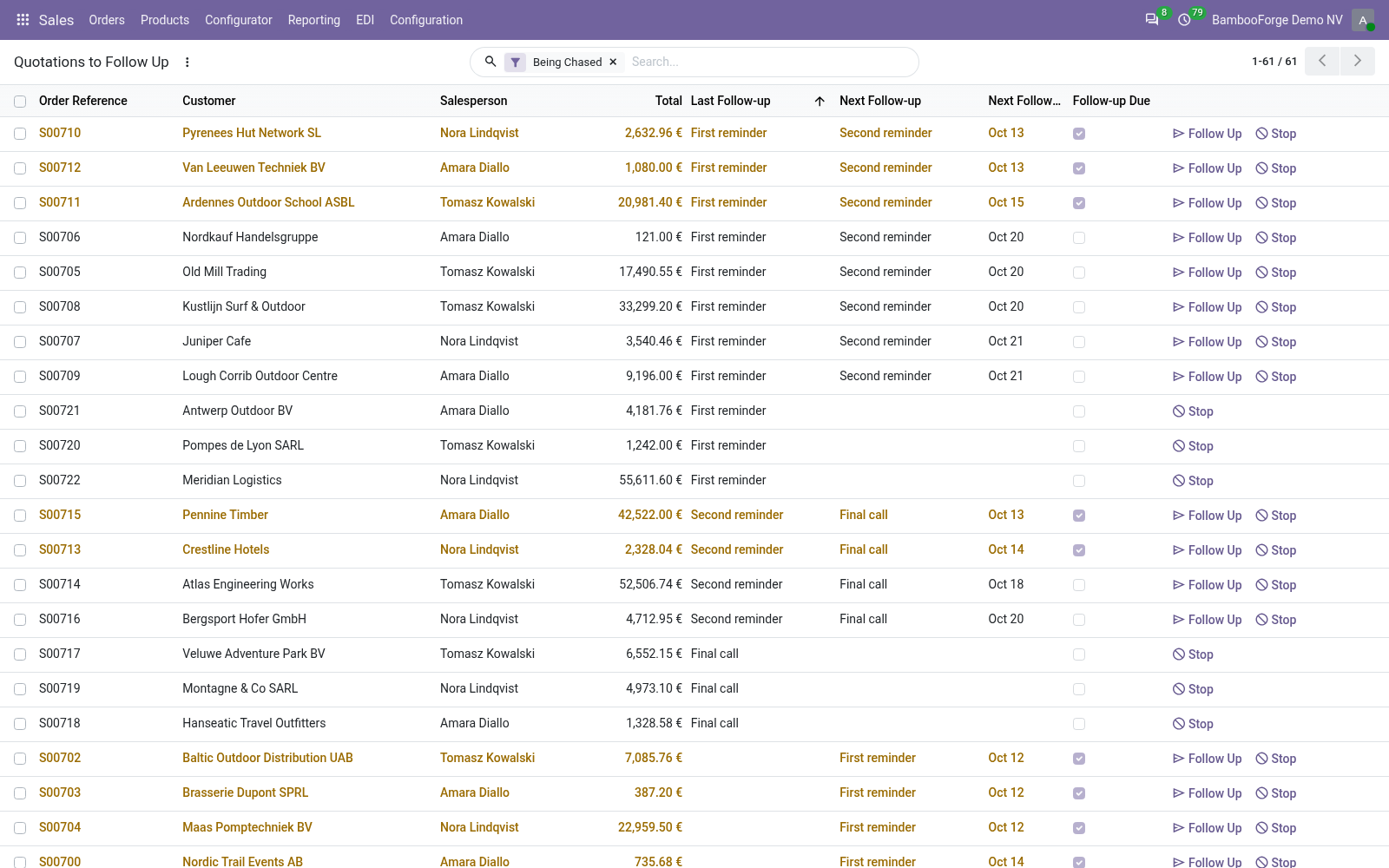
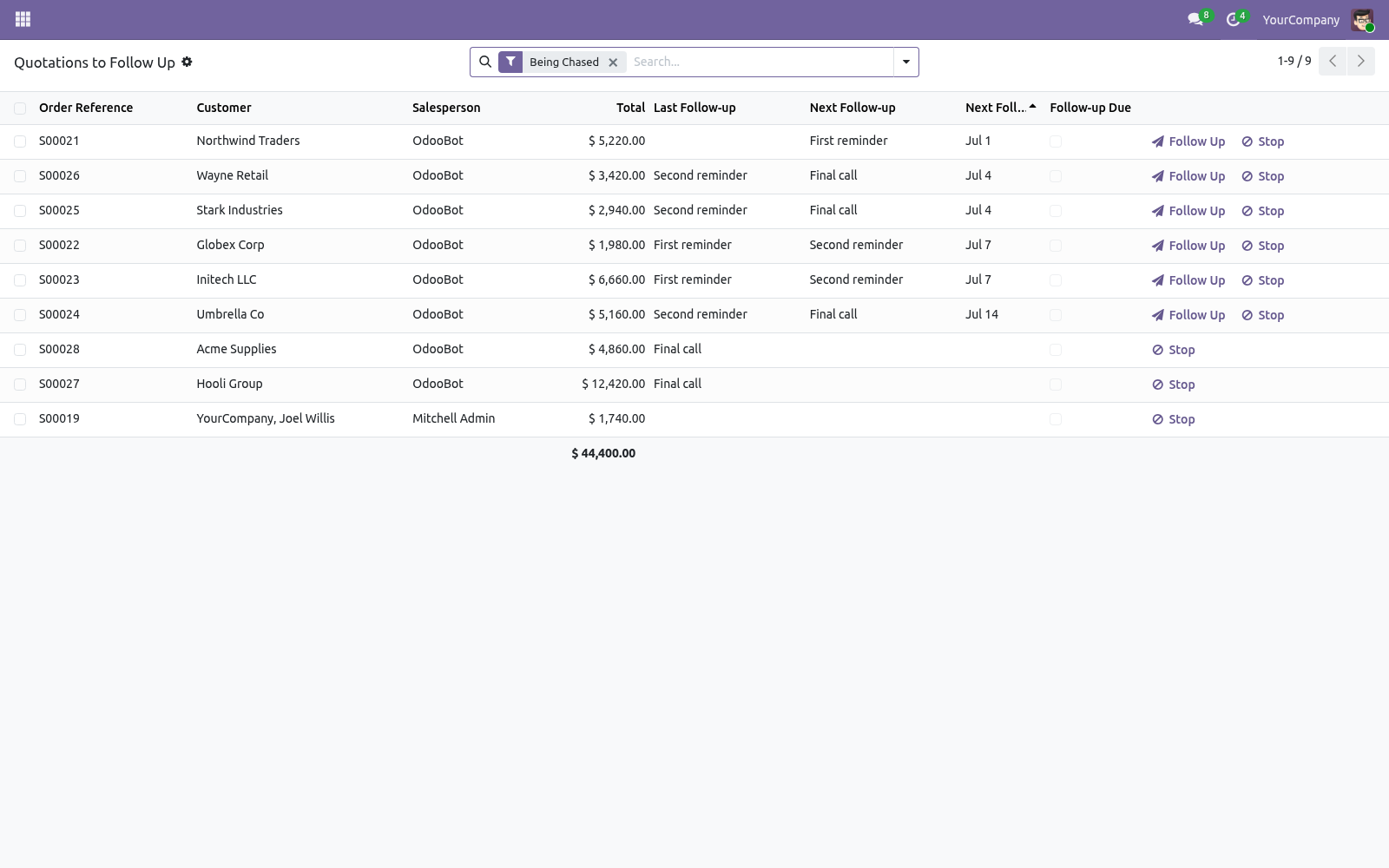
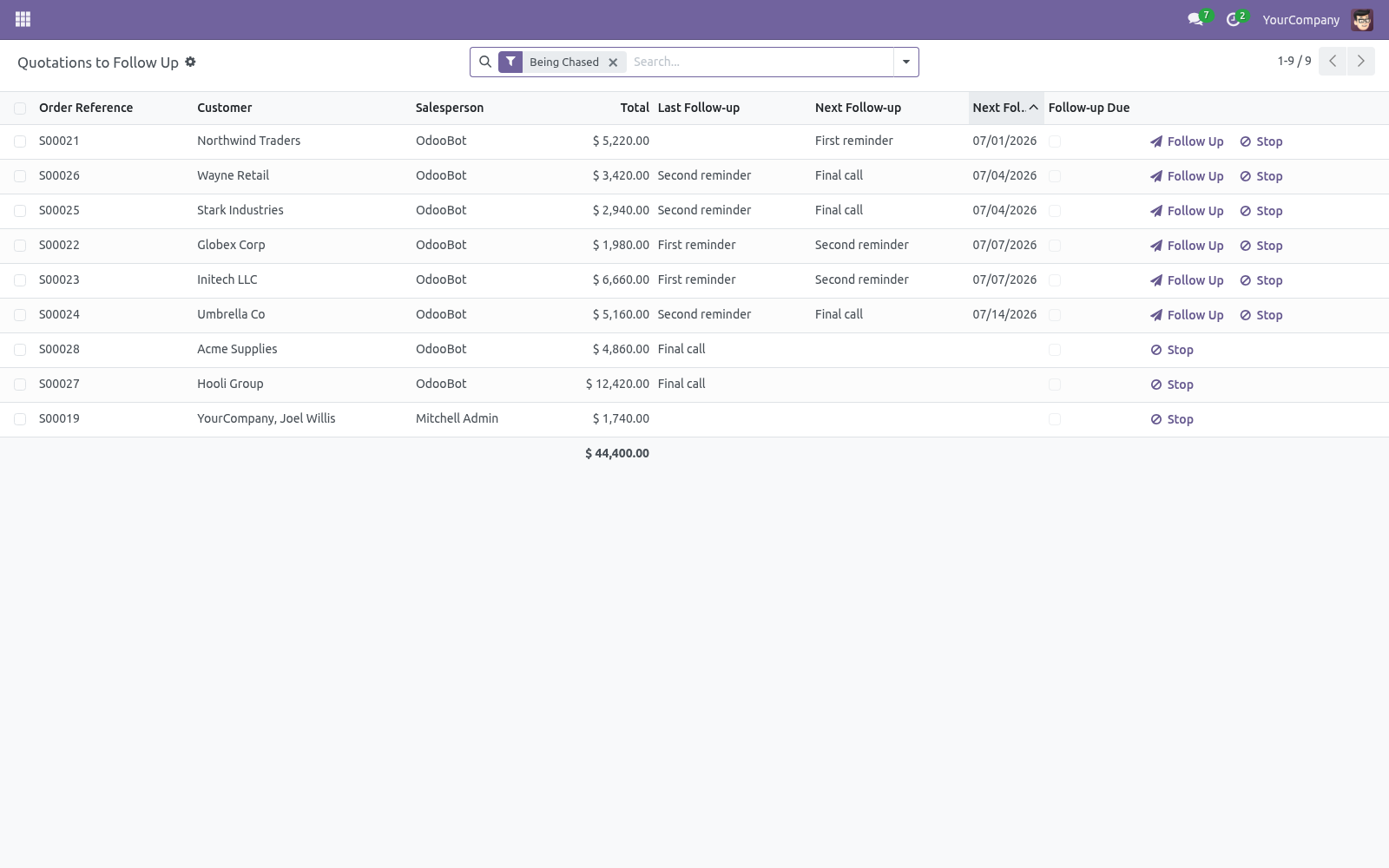
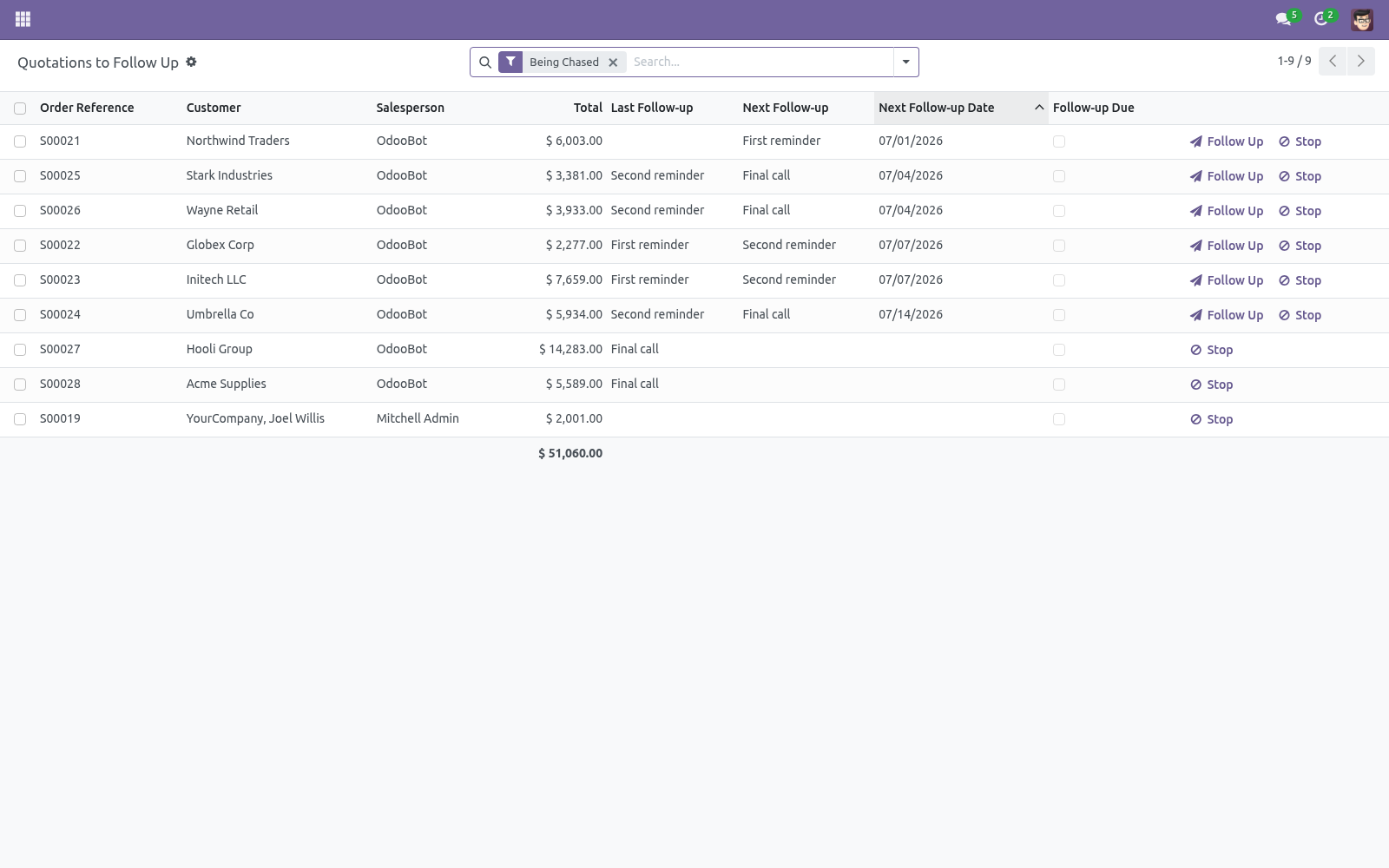
Sales > Orders > Quotation Follow-ups lists every sent quotation being chased, with its last and next step and the next follow-up date. Quotations due now are highlighted. From the list (or the quotation's Follow-up tab) you can: Follow Up Now — apply the next step immediately, without waiting. Stop Follow-up — take a quotation out of the chase.
Frequently asked questions. A reminder went to the wrong address. Emails use the quotation's customer email and the follow-up template. Adjust the template under Settings > Technical > Email > Templates.
Follow-ups aren't firing automatically. Enable the Quotation Follow-up: Process Due scheduled action. Until then, use Follow Up Now to apply steps manually. How we make sure it works.
Before every release, 11 automated checks run against this app on Odoo 16, 17, 18, 19 and 20. Among them: Internal note does not pause. Resume puts it back in the queue. Customer reply pauses the sequence.
Due before any reply. Stops after last level. The complete list is in the source you receive. Support.
Questions or ideas: support@bambooforge.dev. Usage. The follow-up engine runs entirely on standard quotations, so you work from the same menus you already use for sales. There is nothing to launch by hand once the scheduled action is enabled.
Define your follow-up levels. Go to Sales > Configuration > Follow-up Levels (visible to Sales Managers). Each level defines one escalation step: Delay (days) — days to wait after the quotation was sent, for the first level, or after the previous step for later levels. Must be zero or positive.
Send Reminder Email with an Email Template (restricted to sale.order templates). If the box is ticked, a template is required. Schedule Activity with an Activity Type and an Activity Summary — a to-do or call scheduled on the quotation for its salesperson. Levels fire from top to bottom; drag the handle to reorder them.
Three levels ship ready to use: First reminder (email at 3 days), Second reminder (email plus a "Call the customer" activity at 7 days), and Final call (a "decide whether to close" to-do at 14 days). Edit, add or archive them to match your sales motion. How the follow-up clock runs. When a quotation moves to the Quotation Sent state, its Follow-up Start date is stamped and the clock begins.
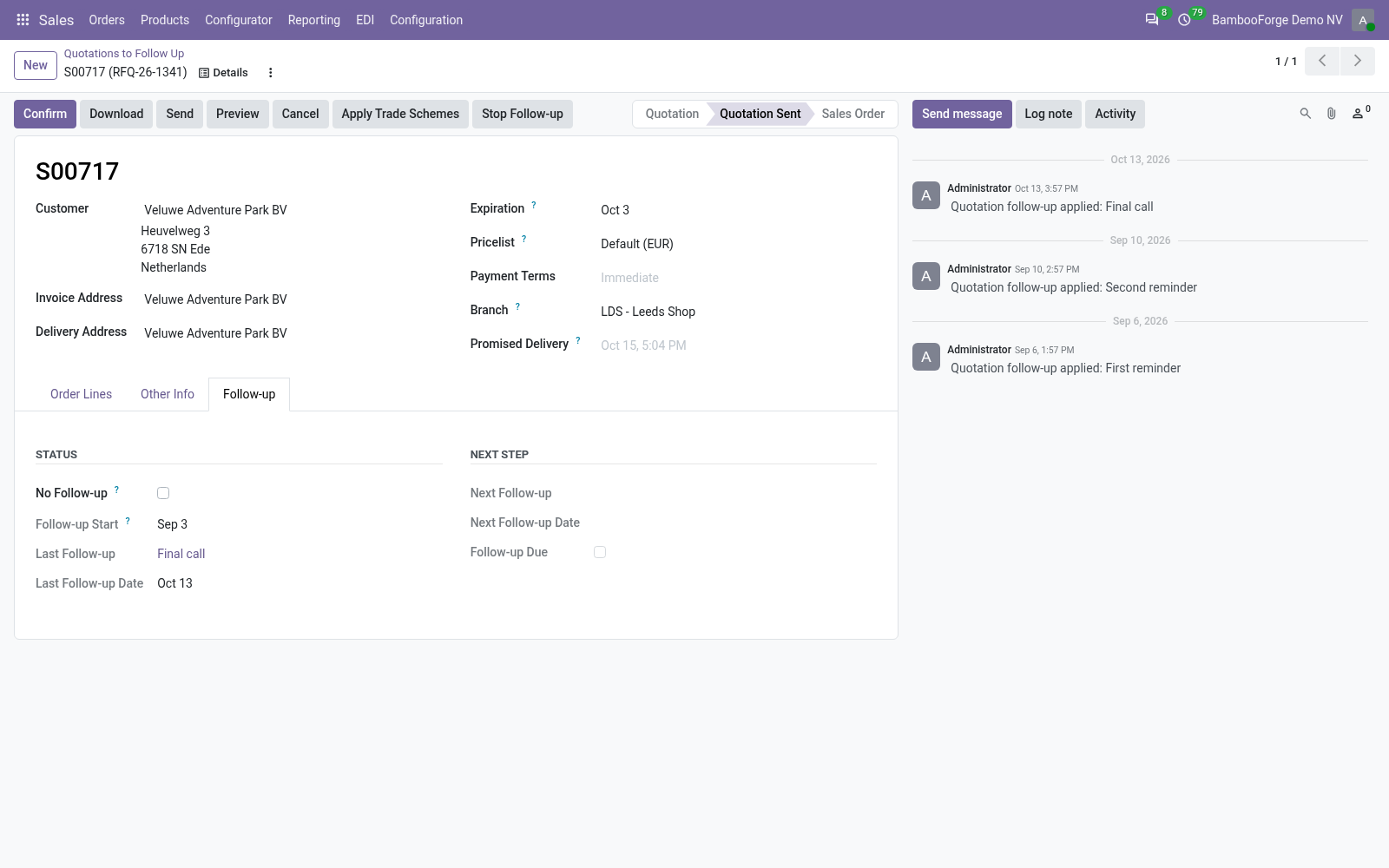
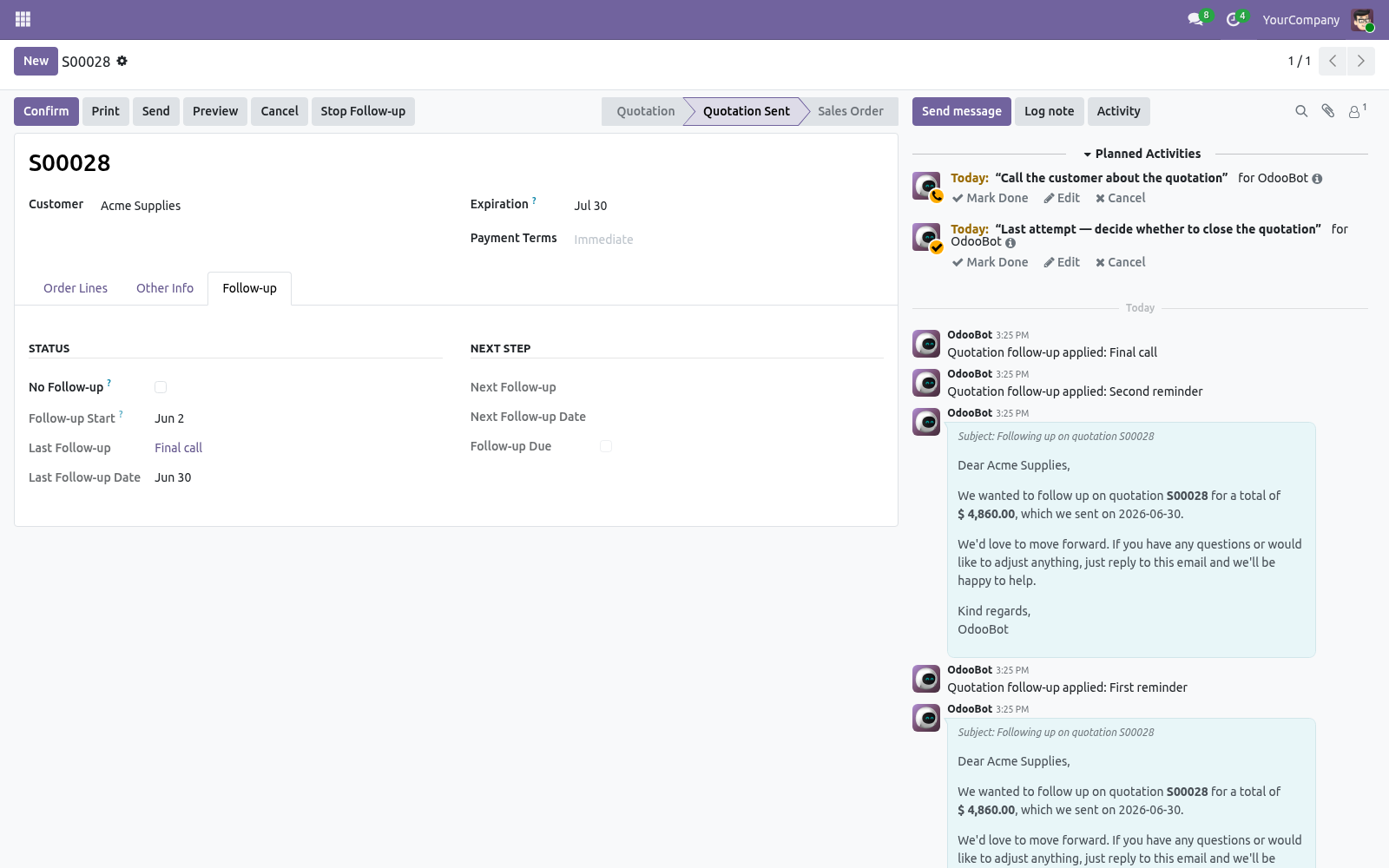
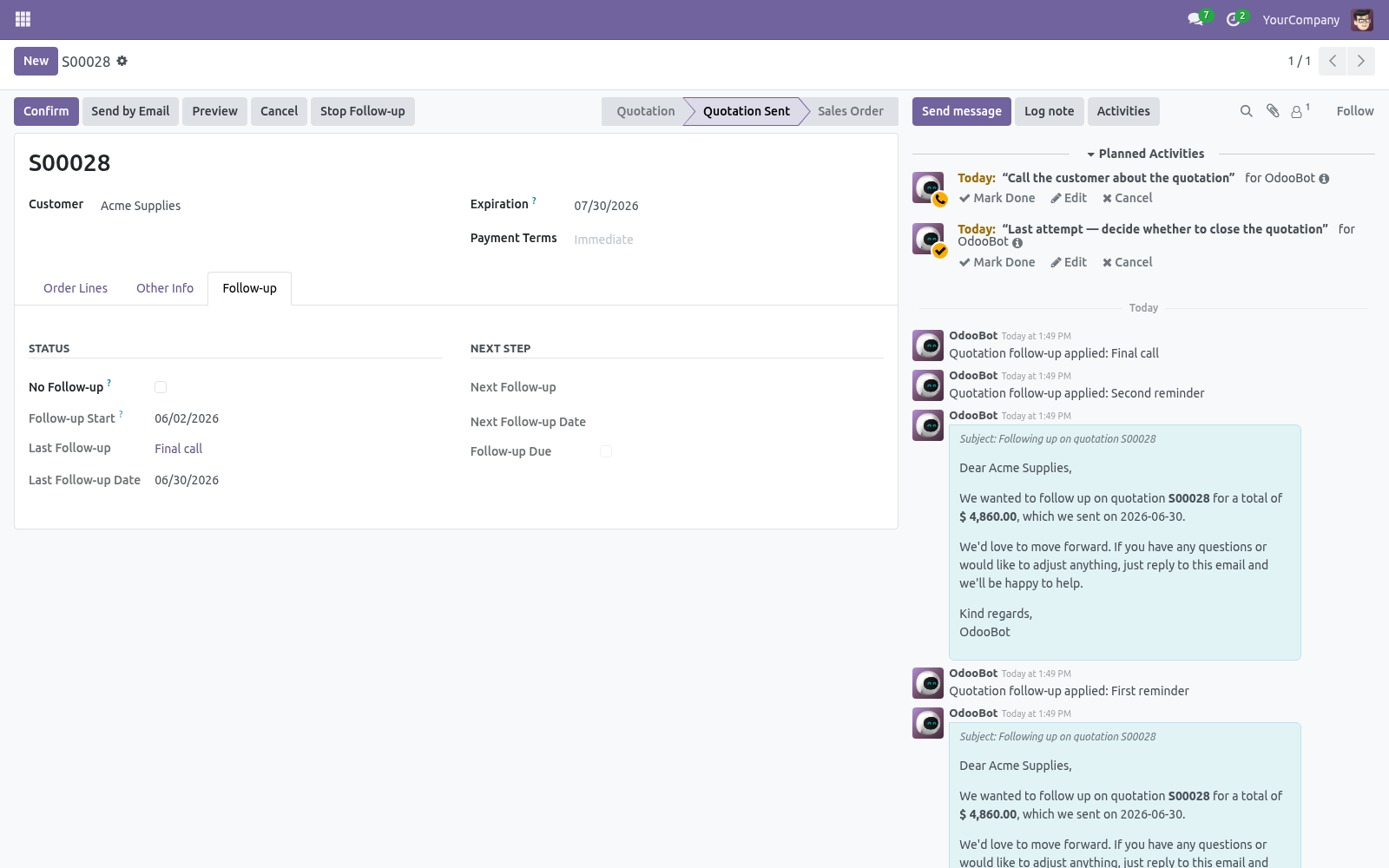
The daily scheduled action Quotation Follow-up: Process Due scans every sent, non-blocked quotation and, when the next level's delay has elapsed, applies that level: it sends the reminder email (queued, not force-sent) and/or schedules the activity on the responsible salesperson, then records the level in Last Follow-up, updates Last Follow-up Date, and posts a note in the chatter. The next level's due date is then computed from that last date plus its own delay, so the escalation spaces itself out exactly as configured. The chase stops automatically when the quotation is confirmed (becomes a sales order), when the final level has already fired, or when you tick No Follow-up. The complete manual is at docs dot bambooforge dot dev, the demo database is linked from the store page, and support answers within twenty-four hours.
Links are in the description.
Transcript of the walkthrough (Odoo 19)
Quotation Follow-up: Auto-chase Sent Quotes. Never let a sent quotation go cold: follow-up levels that fire reminder emails and salesperson activities after configurable delays. When a quotation is sent, a follow-up clock starts. As each level's delay passes, the app applies the next step automatically: In the next few minutes: quotation follow-up: auto-chase sent quotes, then configuring follow-up levels, then how the automation works, then working the list, then frequently asked questions.
Then what this app deliberately does not do, so you can tell before you buy whether it fits. Everything lives under Quotation Follow-ups then Follow-up Levels. No Enterprise modules and no external Python libraries are required. Quotation Follow-up: Auto-chase Sent Quotes.
Never let a sent quotation go cold. This app chases your quotations for you: define escalating follow-up levels — reminder emails and salesperson activities — that fire automatically after the delays you set, until the customer responds. A ready-to-work list shows every quotation due for follow-up. This page is the complete manual.
Follow it top to bottom and you can install, configure your follow-up steps, work the list and fix the common issues without contacting support. Configuring follow-up levels. Go to Sales > Configuration > Follow-up Levels. Each level has: a Delay (days) — how long to wait after the quotation was sent (first level) or after the previous step before this one fires, Send Reminder Email with an Email Template, Schedule Activity with an Activity Type and summary, or any combination.
Drag to reorder; levels fire from top to bottom. The shipped levels are a first email at 3 days, a second email plus a call task at 7 days, and a final to-do at 14 days — edit them to suit your sales motion. How the automation works. When a quotation moves to Quotation Sent, its follow-up clock starts.
A daily scheduled action checks every sent quotation and, when the next level's delay has elapsed, applies that level — sending its email and/or scheduling its activity — then advances to the next level. One step is applied per run, so the escalation spreads out exactly as configured. The chase stops when the quotation is confirmed (becomes an order), when the last level has fired, or when you mark it No Follow-up. Working the list.
Sales > Orders > Quotation Follow-ups lists every sent quotation being chased, with its last and next step and the next follow-up date. Quotations due now are highlighted. From the list (or the quotation's Follow-up tab) you can: Follow Up Now — apply the next step immediately, without waiting. Stop Follow-up — take a quotation out of the chase.
Frequently asked questions. A reminder went to the wrong address. Emails use the quotation's customer email and the follow-up template. Adjust the template under Settings > Technical > Email > Templates.
Follow-ups aren't firing automatically. Enable the Quotation Follow-up: Process Due scheduled action. Until then, use Follow Up Now to apply steps manually. Support.
Questions or ideas: support@bambooforge.dev. .. BAMBOOFORGE-DOC-APPENDIX (auto-generated: Upgrade/Uninstall/Changelog + bespoke) Usage. The follow-up engine runs entirely on standard quotations, so you work from the same menus you already use for sales.
There is nothing to launch by hand once the scheduled action is enabled. Define your follow-up levels. Go to Sales > Configuration > Follow-up Levels (visible to Sales Managers). Each level defines one escalation step: Delay (days) — days to wait after the quotation was sent, for the first level, or after the previous step for later levels.
Must be zero or positive. Send Reminder Email with an Email Template (restricted to sale.order templates). If the box is ticked, a template is required. Schedule Activity with an Activity Type and an Activity Summary — a to-do or call scheduled on the quotation for its salesperson.
Levels fire from top to bottom; drag the handle to reorder them. Three levels ship ready to use: First reminder (email at 3 days), Second reminder (email plus a "Call the customer" activity at 7 days), and Final call (a "decide whether to close" to-do at 14 days). Edit, add or archive them to match your sales motion. How the follow-up clock runs.
When a quotation moves to the Quotation Sent state, its Follow-up Start date is stamped and the clock begins. The daily scheduled action Quotation Follow-up: Process Due scans every sent, non-blocked quotation and, when the next level's delay has elapsed, applies that level: it sends the reminder email (queued, not force-sent) and/or schedules the activity on the responsible salesperson, then records the level in Last Follow-up, updates Last Follow-up Date, and posts a note in the chatter. The next level's due date is then computed from that last date plus its own delay, so the escalation spaces itself out exactly as configured. The chase stops automatically when the quotation is confirmed (becomes a sales order), when the final level has already fired, or when you tick No Follow-up.
Work the follow-up list. Open Sales > Orders > Quotation Follow-ups for a ready-to-work list of every sent quotation being chased. It shows the customer, salesperson, total, the last and next step and the Next Follow-up Date; rows that are Follow-up Due are shown in bold orange and sorted first. Use the Due Now and Being Chased filters, or group by last follow-up level or salesperson.
Per row you can: Follow Up (paper-plane icon) — apply the next step immediately. Stop (ban icon) — exclude the quotation from further follow-ups. The same Follow Up Now and Stop Follow-up buttons appear in the header of the quotation form, and a Follow-up tab shows the status and next-step fields. The complete manual is at docs dot bambooforge dot dev, the demo database is linked from the store page, and support answers within twenty-four hours.
Links are in the description.
Transcript of the walkthrough (Odoo 18)
Quotation Follow-up: Auto-chase Sent Quotes. Never let a sent quotation go cold: follow-up levels that fire reminder emails and salesperson activities after configurable delays. When a quotation is sent, a follow-up clock starts. As each level's delay passes, the app applies the next step automatically: In the next few minutes: quotation follow-up: auto-chase sent quotes, then configuring follow-up levels, then how the automation works, then working the list, then frequently asked questions.
Then what this app deliberately does not do, so you can tell before you buy whether it fits. Everything lives under Quotation Follow-ups then Follow-up Levels. No Enterprise modules and no external Python libraries are required. Quotation Follow-up: Auto-chase Sent Quotes.
Never let a sent quotation go cold. This app chases your quotations for you: define escalating follow-up levels — reminder emails and salesperson activities — that fire automatically after the delays you set, until the customer responds. A ready-to-work list shows every quotation due for follow-up. This page is the complete manual.
Follow it top to bottom and you can install, configure your follow-up steps, work the list and fix the common issues without contacting support. Configuring follow-up levels. Go to Sales > Configuration > Follow-up Levels. Each level has: a Delay (days) — how long to wait after the quotation was sent (first level) or after the previous step before this one fires, Send Reminder Email with an Email Template, Schedule Activity with an Activity Type and summary, or any combination.
Drag to reorder; levels fire from top to bottom. The shipped levels are a first email at 3 days, a second email plus a call task at 7 days, and a final to-do at 14 days — edit them to suit your sales motion. How the automation works. When a quotation moves to Quotation Sent, its follow-up clock starts.
A daily scheduled action checks every sent quotation and, when the next level's delay has elapsed, applies that level — sending its email and/or scheduling its activity — then advances to the next level. One step is applied per run, so the escalation spreads out exactly as configured. The chase stops when the quotation is confirmed (becomes an order), when the last level has fired, or when you mark it No Follow-up. Working the list.
Sales > Orders > Quotation Follow-ups lists every sent quotation being chased, with its last and next step and the next follow-up date. Quotations due now are highlighted. From the list (or the quotation's Follow-up tab) you can: Follow Up Now — apply the next step immediately, without waiting. Stop Follow-up — take a quotation out of the chase.
Frequently asked questions. A reminder went to the wrong address. Emails use the quotation's customer email and the follow-up template. Adjust the template under Settings > Technical > Email > Templates.
Follow-ups aren't firing automatically. Enable the Quotation Follow-up: Process Due scheduled action. Until then, use Follow Up Now to apply steps manually. Support.
Questions or ideas: support@bambooforge.dev. .. BAMBOOFORGE-DOC-APPENDIX (auto-generated: Upgrade/Uninstall/Changelog + bespoke) Usage. The follow-up engine runs entirely on standard quotations, so you work from the same menus you already use for sales.
There is nothing to launch by hand once the scheduled action is enabled. Define your follow-up levels. Go to Sales > Configuration > Follow-up Levels (visible to Sales Managers). Each level defines one escalation step: Delay (days) — days to wait after the quotation was sent, for the first level, or after the previous step for later levels.
Must be zero or positive. Send Reminder Email with an Email Template (restricted to sale.order templates). If the box is ticked, a template is required. Schedule Activity with an Activity Type and an Activity Summary — a to-do or call scheduled on the quotation for its salesperson.
Levels fire from top to bottom; drag the handle to reorder them. Three levels ship ready to use: First reminder (email at 3 days), Second reminder (email plus a "Call the customer" activity at 7 days), and Final call (a "decide whether to close" to-do at 14 days). Edit, add or archive them to match your sales motion. How the follow-up clock runs.
When a quotation moves to the Quotation Sent state, its Follow-up Start date is stamped and the clock begins. The daily scheduled action Quotation Follow-up: Process Due scans every sent, non-blocked quotation and, when the next level's delay has elapsed, applies that level: it sends the reminder email (queued, not force-sent) and/or schedules the activity on the responsible salesperson, then records the level in Last Follow-up, updates Last Follow-up Date, and posts a note in the chatter. The next level's due date is then computed from that last date plus its own delay, so the escalation spaces itself out exactly as configured. The chase stops automatically when the quotation is confirmed (becomes a sales order), when the final level has already fired, or when you tick No Follow-up.
Work the follow-up list. Open Sales > Orders > Quotation Follow-ups for a ready-to-work list of every sent quotation being chased. It shows the customer, salesperson, total, the last and next step and the Next Follow-up Date; rows that are Follow-up Due are shown in bold orange and sorted first. Use the Due Now and Being Chased filters, or group by last follow-up level or salesperson.
Per row you can: Follow Up (paper-plane icon) — apply the next step immediately. Stop (ban icon) — exclude the quotation from further follow-ups. The same Follow Up Now and Stop Follow-up buttons appear in the header of the quotation form, and a Follow-up tab shows the status and next-step fields. The complete manual is at docs dot bambooforge dot dev, the demo database is linked from the store page, and support answers within twenty-four hours.
Links are in the description.
Transcript of the walkthrough (Odoo 17)
Quotation Follow-up: Auto-chase Sent Quotes. Never let a sent quotation go cold: follow-up levels that fire reminder emails and salesperson activities after configurable delays. When a quotation is sent, a follow-up clock starts. As each level's delay passes, the app applies the next step automatically: In the next few minutes: quotation follow-up: auto-chase sent quotes, then configuring follow-up levels, then how the automation works, then working the list, then frequently asked questions.
Then what this app deliberately does not do, so you can tell before you buy whether it fits. Everything lives under Quotation Follow-ups then Follow-up Levels. No Enterprise modules and no external Python libraries are required. Quotation Follow-up: Auto-chase Sent Quotes.
Never let a sent quotation go cold. This app chases your quotations for you: define escalating follow-up levels — reminder emails and salesperson activities — that fire automatically after the delays you set, until the customer responds. A ready-to-work list shows every quotation due for follow-up. This page is the complete manual.
Follow it top to bottom and you can install, configure your follow-up steps, work the list and fix the common issues without contacting support. Configuring follow-up levels. Go to Sales > Configuration > Follow-up Levels. Each level has: a Delay (days) — how long to wait after the quotation was sent (first level) or after the previous step before this one fires, Send Reminder Email with an Email Template, Schedule Activity with an Activity Type and summary, or any combination.
Drag to reorder; levels fire from top to bottom. The shipped levels are a first email at 3 days, a second email plus a call task at 7 days, and a final to-do at 14 days — edit them to suit your sales motion. How the automation works. When a quotation moves to Quotation Sent, its follow-up clock starts.
A daily scheduled action checks every sent quotation and, when the next level's delay has elapsed, applies that level — sending its email and/or scheduling its activity — then advances to the next level. One step is applied per run, so the escalation spreads out exactly as configured. The chase stops when the quotation is confirmed (becomes an order), when the last level has fired, or when you mark it No Follow-up. Working the list.
Sales > Orders > Quotation Follow-ups lists every sent quotation being chased, with its last and next step and the next follow-up date. Quotations due now are highlighted. From the list (or the quotation's Follow-up tab) you can: Follow Up Now — apply the next step immediately, without waiting. Stop Follow-up — take a quotation out of the chase.
Frequently asked questions. A reminder went to the wrong address. Emails use the quotation's customer email and the follow-up template. Adjust the template under Settings > Technical > Email > Templates.
Follow-ups aren't firing automatically. Enable the Quotation Follow-up: Process Due scheduled action. Until then, use Follow Up Now to apply steps manually. Support.
Questions or ideas: support@bambooforge.dev. .. BAMBOOFORGE-DOC-APPENDIX (auto-generated: Upgrade/Uninstall/Changelog + bespoke) Usage. The follow-up engine runs entirely on standard quotations, so you work from the same menus you already use for sales.
There is nothing to launch by hand once the scheduled action is enabled. Define your follow-up levels. Go to Sales > Configuration > Follow-up Levels (visible to Sales Managers). Each level defines one escalation step: Delay (days) — days to wait after the quotation was sent, for the first level, or after the previous step for later levels.
Must be zero or positive. Send Reminder Email with an Email Template (restricted to sale.order templates). If the box is ticked, a template is required. Schedule Activity with an Activity Type and an Activity Summary — a to-do or call scheduled on the quotation for its salesperson.
Levels fire from top to bottom; drag the handle to reorder them. Three levels ship ready to use: First reminder (email at 3 days), Second reminder (email plus a "Call the customer" activity at 7 days), and Final call (a "decide whether to close" to-do at 14 days). Edit, add or archive them to match your sales motion. How the follow-up clock runs.
When a quotation moves to the Quotation Sent state, its Follow-up Start date is stamped and the clock begins. The daily scheduled action Quotation Follow-up: Process Due scans every sent, non-blocked quotation and, when the next level's delay has elapsed, applies that level: it sends the reminder email (queued, not force-sent) and/or schedules the activity on the responsible salesperson, then records the level in Last Follow-up, updates Last Follow-up Date, and posts a note in the chatter. The next level's due date is then computed from that last date plus its own delay, so the escalation spaces itself out exactly as configured. The chase stops automatically when the quotation is confirmed (becomes a sales order), when the final level has already fired, or when you tick No Follow-up.
Work the follow-up list. Open Sales > Orders > Quotation Follow-ups for a ready-to-work list of every sent quotation being chased. It shows the customer, salesperson, total, the last and next step and the Next Follow-up Date; rows that are Follow-up Due are shown in bold orange and sorted first. Use the Due Now and Being Chased filters, or group by last follow-up level or salesperson.
Per row you can: Follow Up (paper-plane icon) — apply the next step immediately. Stop (ban icon) — exclude the quotation from further follow-ups. The same Follow Up Now and Stop Follow-up buttons appear in the header of the quotation form, and a Follow-up tab shows the status and next-step fields. The complete manual is at docs dot bambooforge dot dev, the demo database is linked from the store page, and support answers within twenty-four hours.
Links are in the description.
Transcript of the walkthrough (Odoo 16)
Quotation Follow-up: Auto-chase Sent Quotes. Never let a sent quotation go cold: follow-up levels that fire reminder emails and salesperson activities after configurable delays. When a quotation is sent, a follow-up clock starts. As each level's delay passes, the app applies the next step automatically: In the next few minutes: quotation follow-up: auto-chase sent quotes, then configuring follow-up levels, then how the automation works, then working the list, then frequently asked questions.
Then what this app deliberately does not do, so you can tell before you buy whether it fits. Everything lives under Quotation Follow-ups then Follow-up Levels. No Enterprise modules and no external Python libraries are required. Quotation Follow-up: Auto-chase Sent Quotes.
Never let a sent quotation go cold. This app chases your quotations for you: define escalating follow-up levels — reminder emails and salesperson activities — that fire automatically after the delays you set, until the customer responds. A ready-to-work list shows every quotation due for follow-up. This page is the complete manual.
Follow it top to bottom and you can install, configure your follow-up steps, work the list and fix the common issues without contacting support. Configuring follow-up levels. Go to Sales > Configuration > Follow-up Levels. Each level has: a Delay (days) — how long to wait after the quotation was sent (first level) or after the previous step before this one fires, Send Reminder Email with an Email Template, Schedule Activity with an Activity Type and summary, or any combination.
Drag to reorder; levels fire from top to bottom. The shipped levels are a first email at 3 days, a second email plus a call task at 7 days, and a final to-do at 14 days — edit them to suit your sales motion. How the automation works. When a quotation moves to Quotation Sent, its follow-up clock starts.
A daily scheduled action checks every sent quotation and, when the next level's delay has elapsed, applies that level — sending its email and/or scheduling its activity — then advances to the next level. One step is applied per run, so the escalation spreads out exactly as configured. The chase stops when the quotation is confirmed (becomes an order), when the last level has fired, or when you mark it No Follow-up. Working the list.
Sales > Orders > Quotation Follow-ups lists every sent quotation being chased, with its last and next step and the next follow-up date. Quotations due now are highlighted. From the list (or the quotation's Follow-up tab) you can: Follow Up Now — apply the next step immediately, without waiting. Stop Follow-up — take a quotation out of the chase.
Frequently asked questions. A reminder went to the wrong address. Emails use the quotation's customer email and the follow-up template. Adjust the template under Settings > Technical > Email > Templates.
Follow-ups aren't firing automatically. Enable the Quotation Follow-up: Process Due scheduled action. Until then, use Follow Up Now to apply steps manually. Support.
Questions or ideas: support@bambooforge.dev. .. BAMBOOFORGE-DOC-APPENDIX (auto-generated: Upgrade/Uninstall/Changelog + bespoke) Usage. The follow-up engine runs entirely on standard quotations, so you work from the same menus you already use for sales.
There is nothing to launch by hand once the scheduled action is enabled. Define your follow-up levels. Go to Sales > Configuration > Follow-up Levels (visible to Sales Managers). Each level defines one escalation step: Delay (days) — days to wait after the quotation was sent, for the first level, or after the previous step for later levels.
Must be zero or positive. Send Reminder Email with an Email Template (restricted to sale.order templates). If the box is ticked, a template is required. Schedule Activity with an Activity Type and an Activity Summary — a to-do or call scheduled on the quotation for its salesperson.
Levels fire from top to bottom; drag the handle to reorder them. Three levels ship ready to use: First reminder (email at 3 days), Second reminder (email plus a "Call the customer" activity at 7 days), and Final call (a "decide whether to close" to-do at 14 days). Edit, add or archive them to match your sales motion. How the follow-up clock runs.
When a quotation moves to the Quotation Sent state, its Follow-up Start date is stamped and the clock begins. The daily scheduled action Quotation Follow-up: Process Due scans every sent, non-blocked quotation and, when the next level's delay has elapsed, applies that level: it sends the reminder email (queued, not force-sent) and/or schedules the activity on the responsible salesperson, then records the level in Last Follow-up, updates Last Follow-up Date, and posts a note in the chatter. The next level's due date is then computed from that last date plus its own delay, so the escalation spaces itself out exactly as configured. The chase stops automatically when the quotation is confirmed (becomes a sales order), when the final level has already fired, or when you tick No Follow-up.
Work the follow-up list. Open Sales > Orders > Quotation Follow-ups for a ready-to-work list of every sent quotation being chased. It shows the customer, salesperson, total, the last and next step and the Next Follow-up Date; rows that are Follow-up Due are shown in bold orange and sorted first. Use the Due Now and Being Chased filters, or group by last follow-up level or salesperson.
Per row you can: Follow Up (paper-plane icon) — apply the next step immediately. Stop (ban icon) — exclude the quotation from further follow-ups. The same Follow Up Now and Stop Follow-up buttons appear in the header of the quotation form, and a Follow-up tab shows the status and next-step fields. The complete manual is at docs dot bambooforge dot dev, the demo database is linked from the store page, and support answers within twenty-four hours.
Links are in the description.
Key facts
- What it is
- Never let a sent quotation go cold: follow-up levels that fire reminder emails and salesperson activities after configurable delays.
- For
- Sales
- Odoo versions
- 16.0, 17.0, 18.0, 19.0, 20.0 - Community and Enterprise
- Runs on
- Odoo.sh or Odoo you host yourself - not Odoo Online, which accepts no third-party apps
- Price
- 79 EUR, one-time, on the Odoo Apps Store
- Technical name
- bambooforge_quote_followup
- Live demo
- https://demo20.bambooforge.dev/odoo/action-bambooforge_quote_followup.quote_followup_action
- Manual last updated
- 2026-10-15
Quotation Follow-up: Auto-chase Sent Quotes
Never let a sent quotation go cold. This app chases your quotations for you: define escalating follow-up levels — reminder emails and salesperson activities — that fire automatically after the delays you set, until the customer responds. A ready-to-work list shows every quotation due for follow-up.
This page is the complete manual. Follow it top to bottom and you can install, configure your follow-up steps, work the list and fix the common issues without contacting support.
Overview
When a quotation is sent, a follow-up clock starts. As each level's delay passes, the app applies the next step automatically:
Reminder emails — a templated nudge to the customer.
Salesperson activities — a call or to-do scheduled on the quotation for the responsible salesperson.
Escalation — levels fire in order, each after its own delay, until the last one or until the customer replies (the quotation becomes an order) or you stop the chase.
Everything is logged on the quotation's chatter, and a Quotations to Follow Up list shows what is due, the last and next step, and one-click actions.
Requirements
Odoo 20.0.
The Sales app (sale). Installing this app pulls it in automatically.
No Enterprise modules and no external Python libraries are required.
Installation
Copy bambooforge_quote_followup into your addons path.
Update the apps list (Apps > Update Apps List).
Search for Quotation Follow-up and click Install.
A starter set of three follow-up levels is created. Find them under Sales > Configuration > Follow-up Levels, and the worklist under Sales > Orders > Quotation Follow-ups.
Configuring follow-up levels
Go to Sales > Configuration > Follow-up Levels. Each level has:
a Delay (days) — how long to wait after the quotation was sent (first level) or after the previous step before this one fires,
Send Reminder Email with an Email Template,
Schedule Activity with an Activity Type and summary,
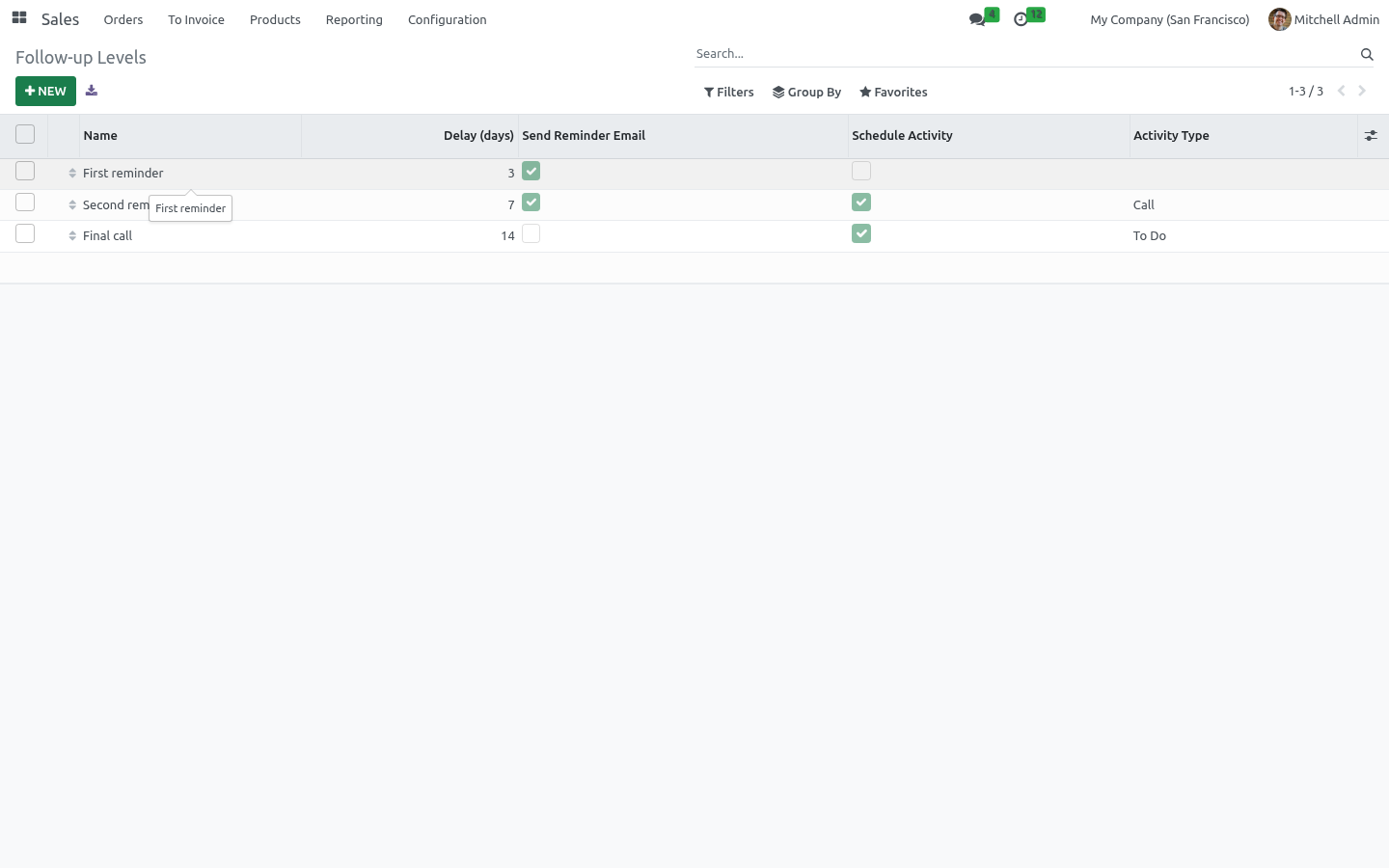
or any combination. Drag to reorder; levels fire from top to bottom. The shipped levels are a first email at 3 days, a second email plus a call task at 7 days, and a final to-do at 14 days — edit them to suit your sales motion.
How the automation works
When a quotation moves to Quotation Sent, its follow-up clock starts. A daily scheduled action checks every sent quotation and, when the next level's delay has elapsed, applies that level — sending its email and/or scheduling its activity — then advances to the next level. One step is applied per run, so the escalation spreads out exactly as configured.
The chase stops when the quotation is confirmed (becomes an order), when the last level has fired, or when you mark it No Follow-up.
The scheduled action ships disabled — enable Quotation Follow-up: Process Due under Settings > Technical > Scheduled Actions to run it automatically.
Working the list
Sales > Orders > Quotation Follow-ups lists every sent quotation being chased, with its last and next step and the next follow-up date. Quotations due now are highlighted. From the list (or the quotation's Follow-up tab) you can:
Follow Up Now — apply the next step immediately, without waiting.
Stop Follow-up — take a quotation out of the chase.
Frequently asked questions
- A reminder went to the wrong address.
Emails use the quotation's customer email and the follow-up template. Adjust the template under Settings > Technical > Email > Templates.
- Follow-ups aren't firing automatically.
Enable the Quotation Follow-up: Process Due scheduled action. Until then, use Follow Up Now to apply steps manually.
- I don't want to chase a particular quotation.
Open it and tick No Follow-up, or use Stop in the list.
- Can I add more levels?
Yes — add as many follow-up levels as you like, each with its own delay, email and activity.
- Does it work with multiple companies?
Follow-up levels are global; the chase runs on each company's sent quotations.
How we make sure it works
Before every release, 11 automated checks run against this app on Odoo 16, 17, 18, 19 and 20. Among them:
Internal note does not pause.
Resume puts it back in the queue.
Customer reply pauses the sequence.
Due before any reply.
Stops after last level.
The complete list is in the source you receive.
Support
Questions or ideas: support@bambooforge.dev.
Usage
The follow-up engine runs entirely on standard quotations, so you work from the same menus you already use for sales. There is nothing to launch by hand once the scheduled action is enabled.
Define your follow-up levels
Go to Sales > Configuration > Follow-up Levels (visible to Sales Managers). Each level defines one escalation step:
Delay (days) — days to wait after the quotation was sent, for the first level, or after the previous step for later levels. Must be zero or positive.
Send Reminder Email with an Email Template (restricted to sale.order templates). If the box is ticked, a template is required.
Schedule Activity with an Activity Type and an Activity Summary — a to-do or call scheduled on the quotation for its salesperson.
Levels fire from top to bottom; drag the handle to reorder them. Three levels ship ready to use: First reminder (email at 3 days), Second reminder (email plus a "Call the customer" activity at 7 days), and Final call (a "decide whether to close" to-do at 14 days). Edit, add or archive them to match your sales motion.
How the follow-up clock runs
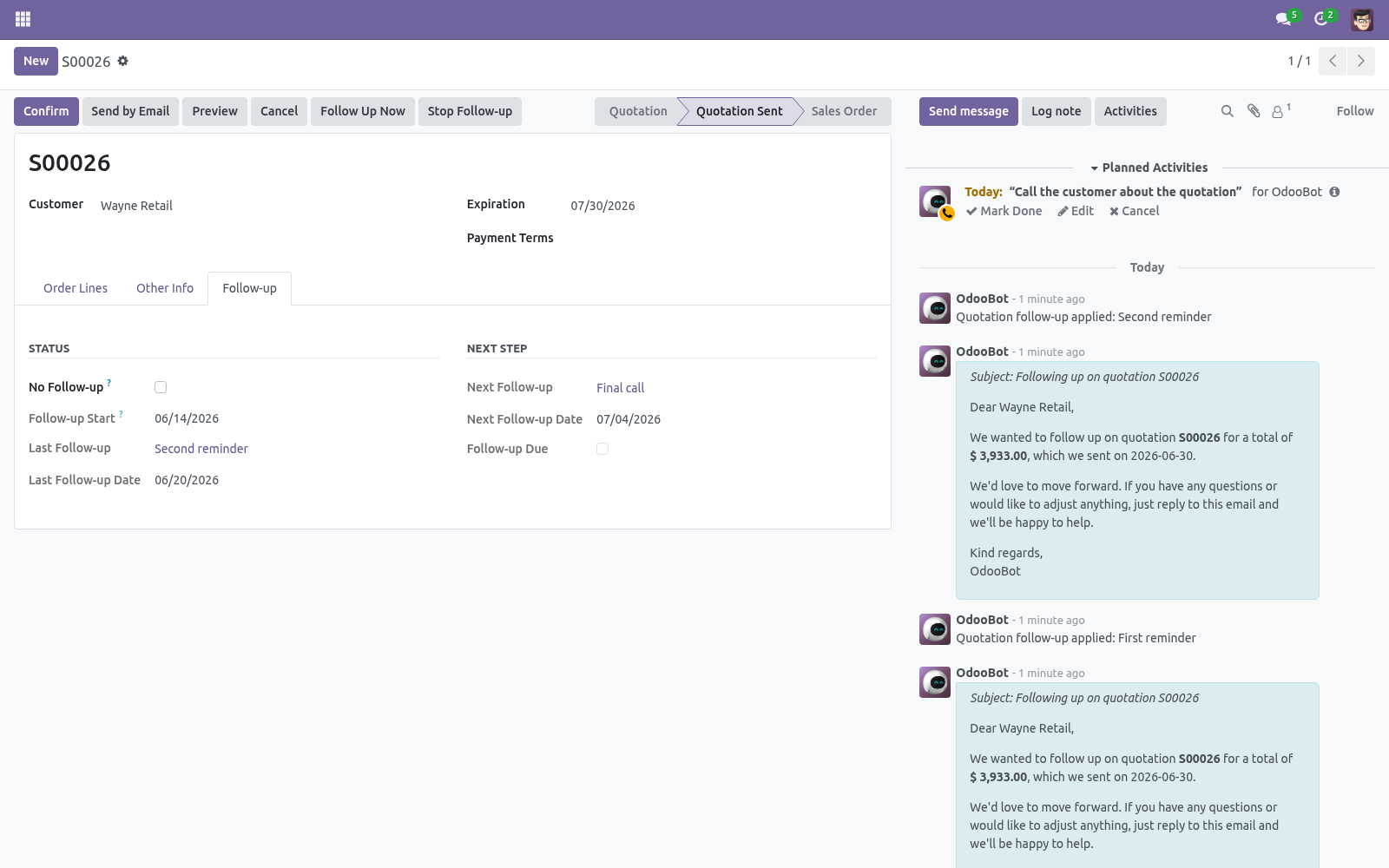
When a quotation moves to the Quotation Sent state, its Follow-up Start date is stamped and the clock begins. The daily scheduled action Quotation Follow-up: Process Due scans every sent, non-blocked quotation and, when the next level's delay has elapsed, applies that level: it sends the reminder email (queued, not force-sent) and/or schedules the activity on the responsible salesperson, then records the level in Last Follow-up, updates Last Follow-up Date, and posts a note in the chatter. The next level's due date is then computed from that last date plus its own delay, so the escalation spaces itself out exactly as configured.
The chase stops automatically when the quotation is confirmed (becomes a sales order), when the final level has already fired, or when you tick No Follow-up.
Work the follow-up list
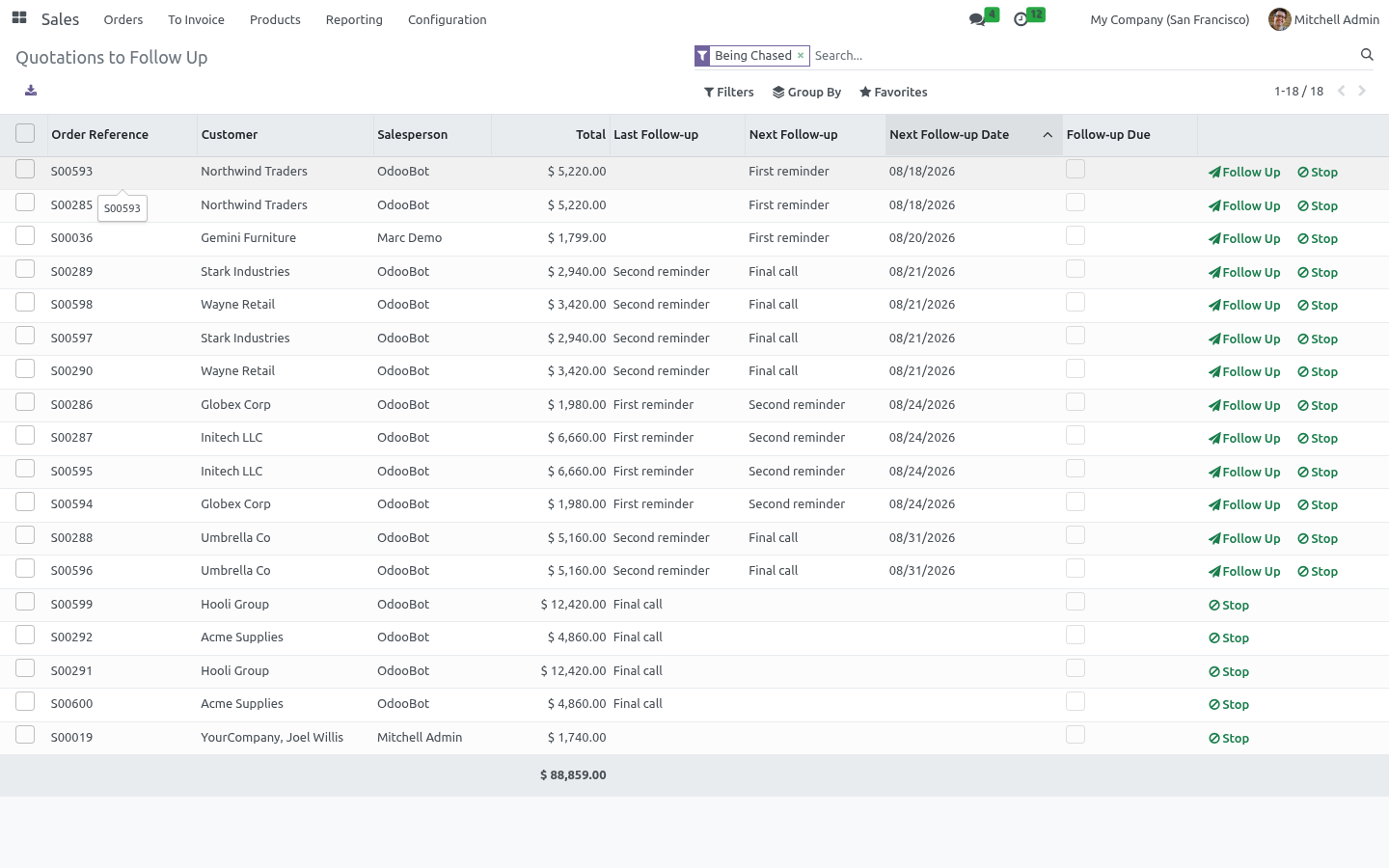
Open Sales > Orders > Quotation Follow-ups for a ready-to-work list of every sent quotation being chased. It shows the customer, salesperson, total, the last and next step and the Next Follow-up Date; rows that are Follow-up Due are shown in bold orange and sorted first. Use the Due Now and Being Chased filters, or group by last follow-up level or salesperson. Per row you can:
Follow Up (paper-plane icon) — apply the next step immediately.
Stop (ban icon) — exclude the quotation from further follow-ups.
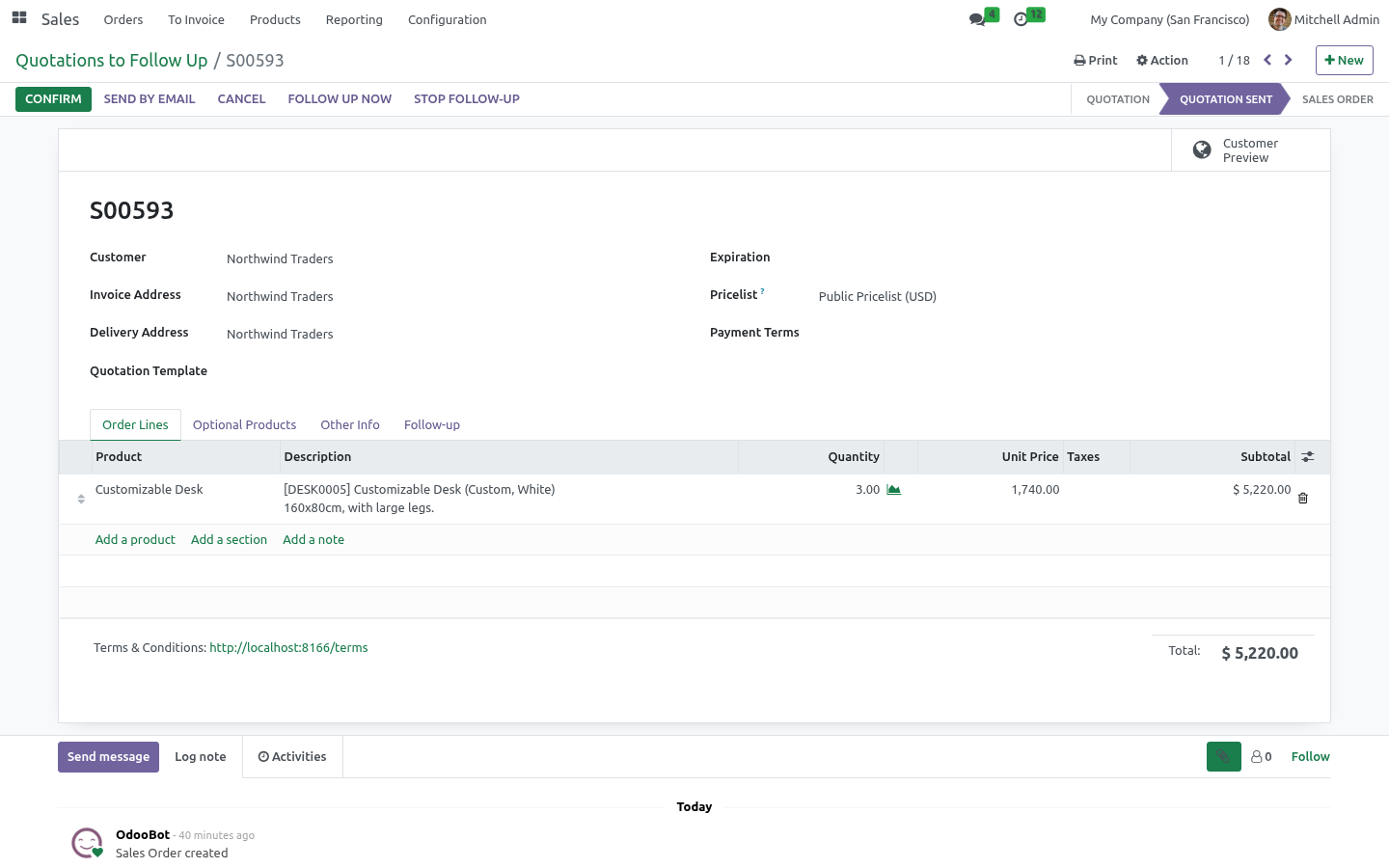
The same Follow Up Now and Stop Follow-up buttons appear in the header of the quotation form, and a Follow-up tab shows the status and next-step fields.
Example
You send quotation S00042 to a customer on 1 July. The Follow-up Start is set to 1 July. With the shipped levels and the cron enabled:
4 July (start + 3 days): the First reminder email is sent and logged.
11 July (last + 7 days): the Second reminder email is sent and a "Call the customer about the quotation" activity is scheduled for the salesperson.
25 July (last + 14 days): a "Last attempt — decide whether to close the quotation" to-do is scheduled.
If the customer accepts and you confirm the quotation on 8 July, it leaves the sent state and no further follow-ups fire. If you would rather not chase it at all, open it and tick No Follow-up (or click Stop in the list) at any time.
Upgrading & version compatibility
This build targets Odoo 20.0. Each Odoo major series (16.0, 17.0, 18.0, 19.0, 20.0) has its own dedicated build of this module — always install the build that matches your Odoo version. Mixing a build with a different Odoo series is not supported.
Patch upgrades (same series, e.g. 20.0.1.0.0 → later)
Back up your database and filestore first.
Replace the module folder with the newer build.
Restart Odoo with the module updated:
./odoo-bin -c your.conf -u bambooforge_quote_followup -d your_db
Odoo applies any schema/data changes automatically. Your existing records and configuration are preserved.
Cross-version migration (moving to a newer Odoo)
Upgrading Odoo itself is a database migration handled by Odoo's standard upgrade tooling. When you migrate the database to the next Odoo series, install the matching build of this module for that series. Data created by this module carries over with the database migration.
After any upgrade the module's scheduled actions resume on their normal cadence — no manual re-activation is required.
Uninstallation
You can remove this module at any time from Apps → (this module) → Uninstall, or from the command line. Uninstalling is clean and reversible by reinstalling — but note what is and is not deleted.
What is removed
The module's own tables and every record in them (1 model, prefixed quote.*) — this is the data this module created.
The menus, actions, views and reports this module installed.
Its scheduled actions (cron jobs) — they stop immediately on uninstall.
What is preserved
Your standard Odoo data (partners, products, sales, invoices, inventory moves) is not deleted — this module only reads and annotates it; the underlying records stay.
Attachments and chatter messages on standard records are kept.
As always, take a database backup before uninstalling in production.
Questions people ask
- Which Odoo versions does it run on?
Odoo 16.0, 17.0, 18.0, 19.0, 20.0, on the series you buy it for; each series is its own listing.
- Community or Enterprise?
Both. It needs no Enterprise app.
- What does it need?
The standard Sales app. No extra Python package.
- Where does it show up?
Under the Quotation Follow-ups menu (Follow-up Levels).
- Does anything leave my server?
No. It makes no call outside your Odoo server: no telemetry, no licence check, no third-party service.
- What happens if I uninstall it?
Odoo drops the app's own tables and fields; the standard records it worked on (contacts, orders, products) stay as they are.
Changelog
20.0.1.1.1
Built for Odoo 20: record rules and access rights rewritten onto Odoo 20's single ir.access model, the screens rebuilt on Owl 3, and every icon moved to the icon set Odoo 20 ships.
20.0.1.0.0
Current release for Odoo 20.0. This build includes:
Never let a sent quotation go cold. Define follow-up levels (reminder emails and salesperson activities) that fire automatically after configurable delays, with a ready-to-work list of quotations due for follow-up.
Feature additions and fixes ship as new builds on the Odoo Apps store; this page and the module's version reflect the current published release. Always keep the build matched to your Odoo series (see Upgrading & version compatibility).