 BambooForge Labs
Process Workflow Pro with SLA, Checklists and Hand-off Rules
Draw any business process as stages - who works each one, how long they have, what they tick off and what they must write down before it moves on. Cases route by rules, land with the least busy person, run a clock, come back with a reason, and every stage they sat in is on record. Ten worked processes on day one.
Available for Odoo 16.0, Odoo 17.0, Odoo 18.0, Odoo 19.0, Odoo 20.0. Technical name bambooforge_process.
Transcript of the walkthrough (Odoo 20)
Process Workflow Pro with SLA, Checklists and Hand-off Rules. Draw any business process as stages - who works each one, how long they have, what they tick off and what they must write down before it moves on. Cases route by rules, land with the least busy person, run a clock, come back with a reason, and every stage they sat in is on record. Ten worked processes on day one.
Odoo has stages on tasks, tickets and leads, and nothing for the processes that run between apps - a purchase request, a new starter, a complaint, a contract, an access request. Those live in email, and nobody can say where they stopped. This app lets you draw such a process once, as a line of stages, and then run every case of it down that line: with a named holder, a clock, a checklist, the fields the next desk needs, rules that route it, and a record of every stage it sat in. In the next few minutes: what you get, then the gallery, then working a case, then designing a process, then where cases wait.
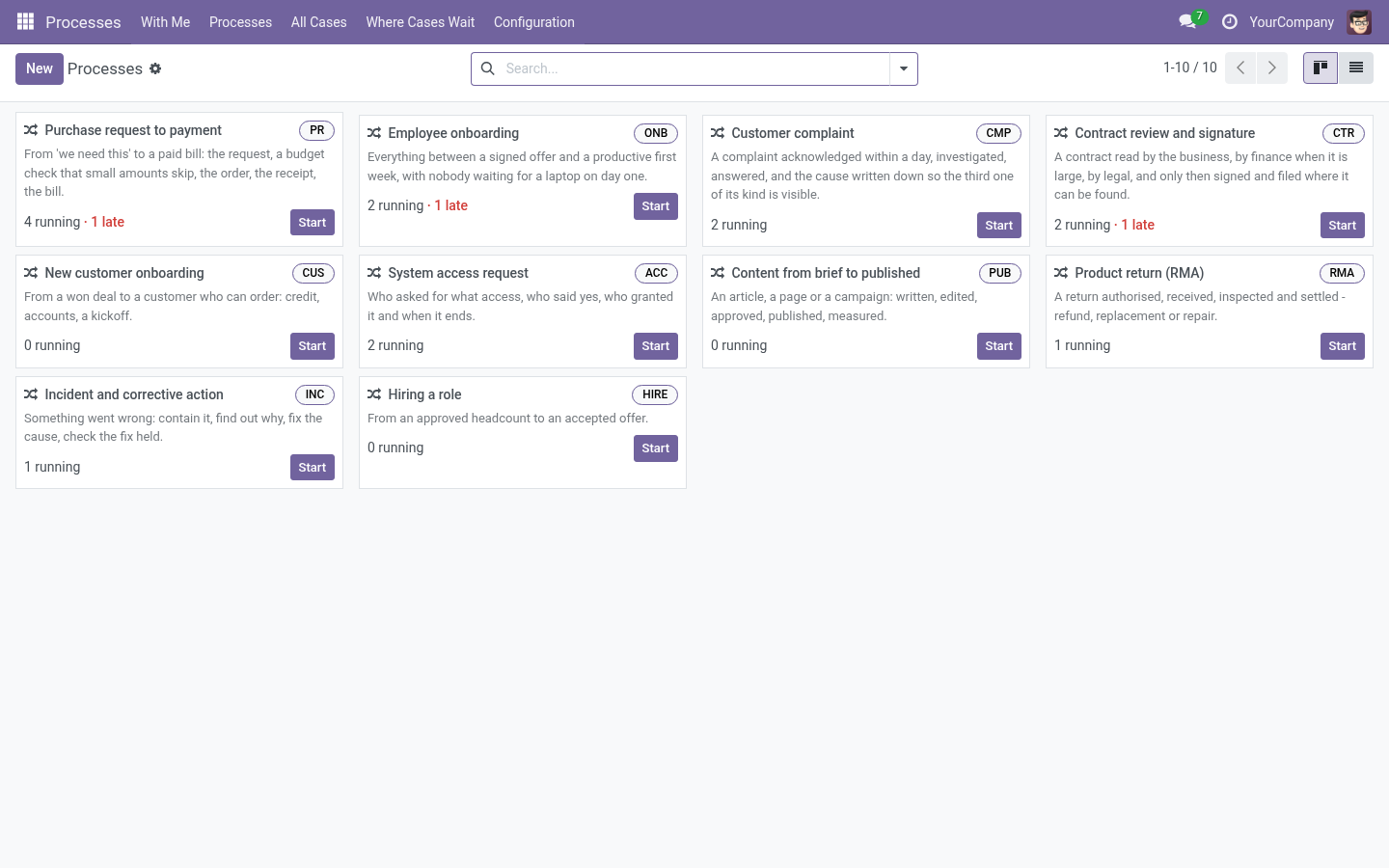
Then what this app deliberately does not do, so you can tell before you buy whether it fits. Everything lives under Processes then With Me then Processes then All Cases. What you get Processes drawn as stages: who works each one, how long they have, what they tick off, what they write down. Cases that walk the line: started by anybody allowed, held by one person at a time, moved with buttons that keep the record straight.
Assignment by rule: whoever the previous desk picks, the least busy of the stage's people, the person who worked it before, the starter, the first named, or at random. A clock on every stage - round the clock, weekends skipped if you say so, or the working hours of a calendar with its public holidays; an activity for the holder with the deadline; the process owners told once when a stage runs late. The hand-off contract: required checklist lines (some only with a file attached) and required fields hold the case in its stage, and the case says which are missing. Sign-offs: several people sign a stage off, in any order, before the case moves on; a refusal is written down with its reason.
Doors from outside: an email alias that starts a case, a web form for customers or for anyone, and the requester's list of their cases on the portal. Rules that skip a stage or hand it to somebody, from what earlier stages wrote down, the starter's group, a label or the priority. A skip never loses a question: the required fields of a skipped stage are asked at the stage the case lands on. The gallery.
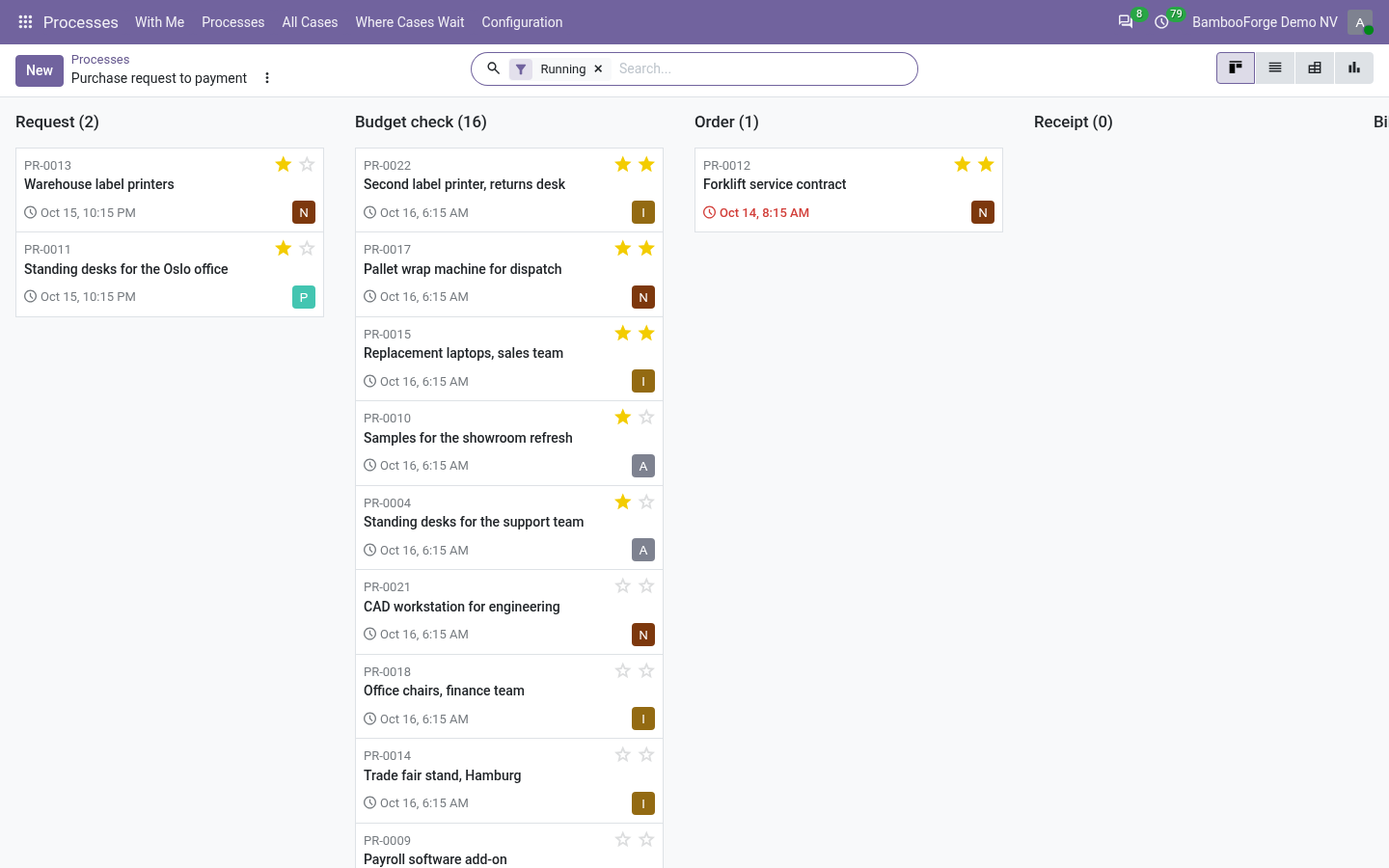
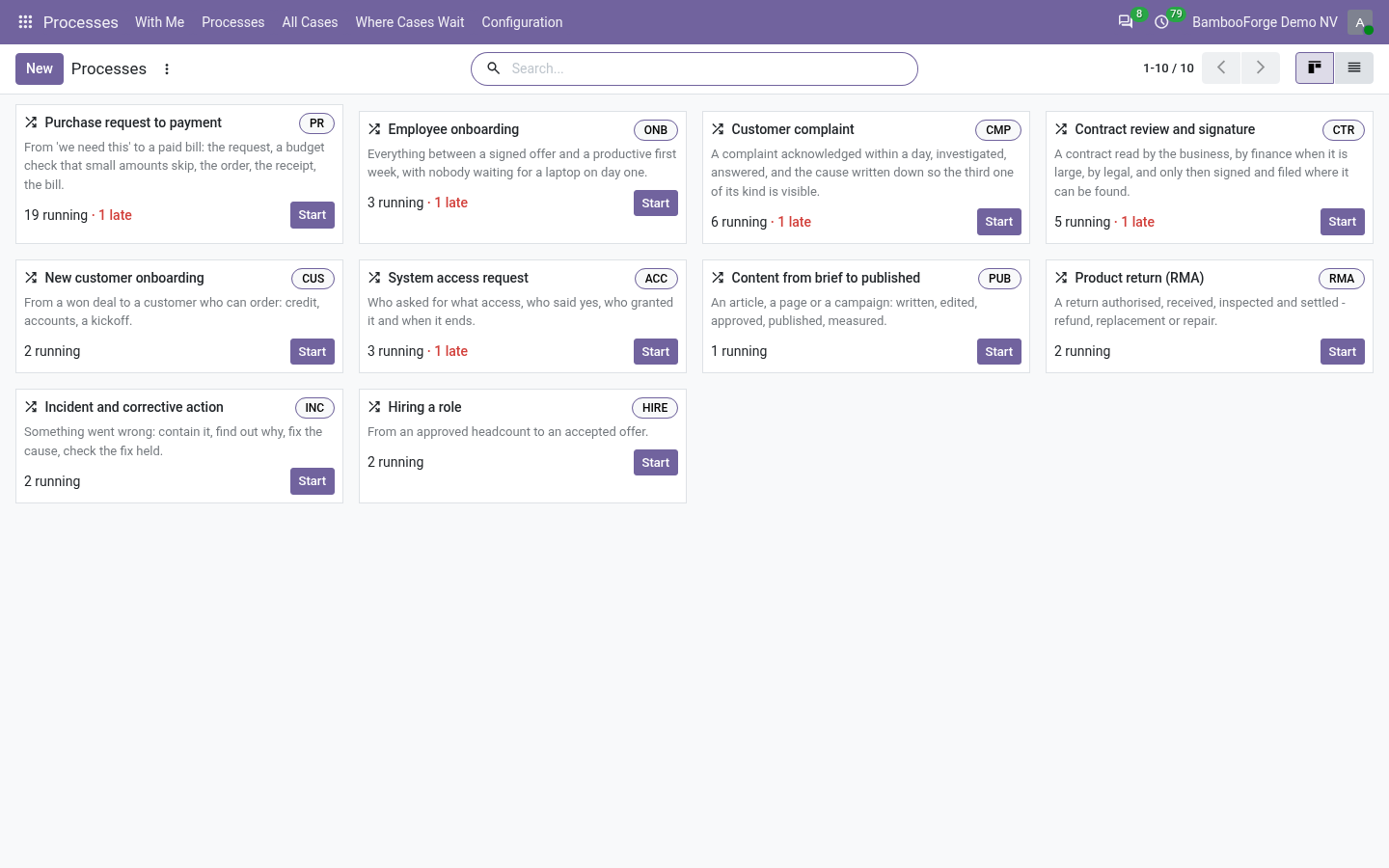
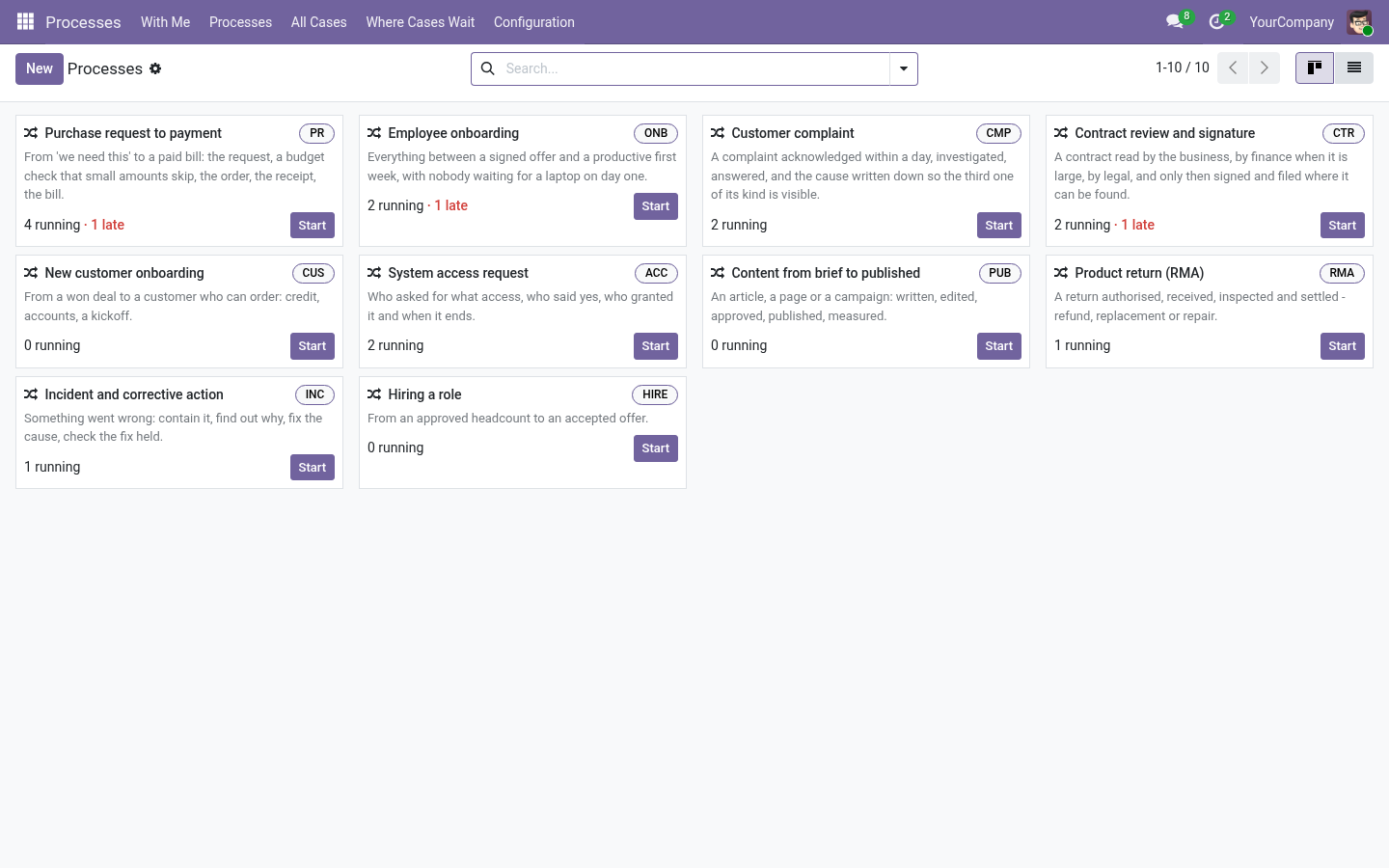
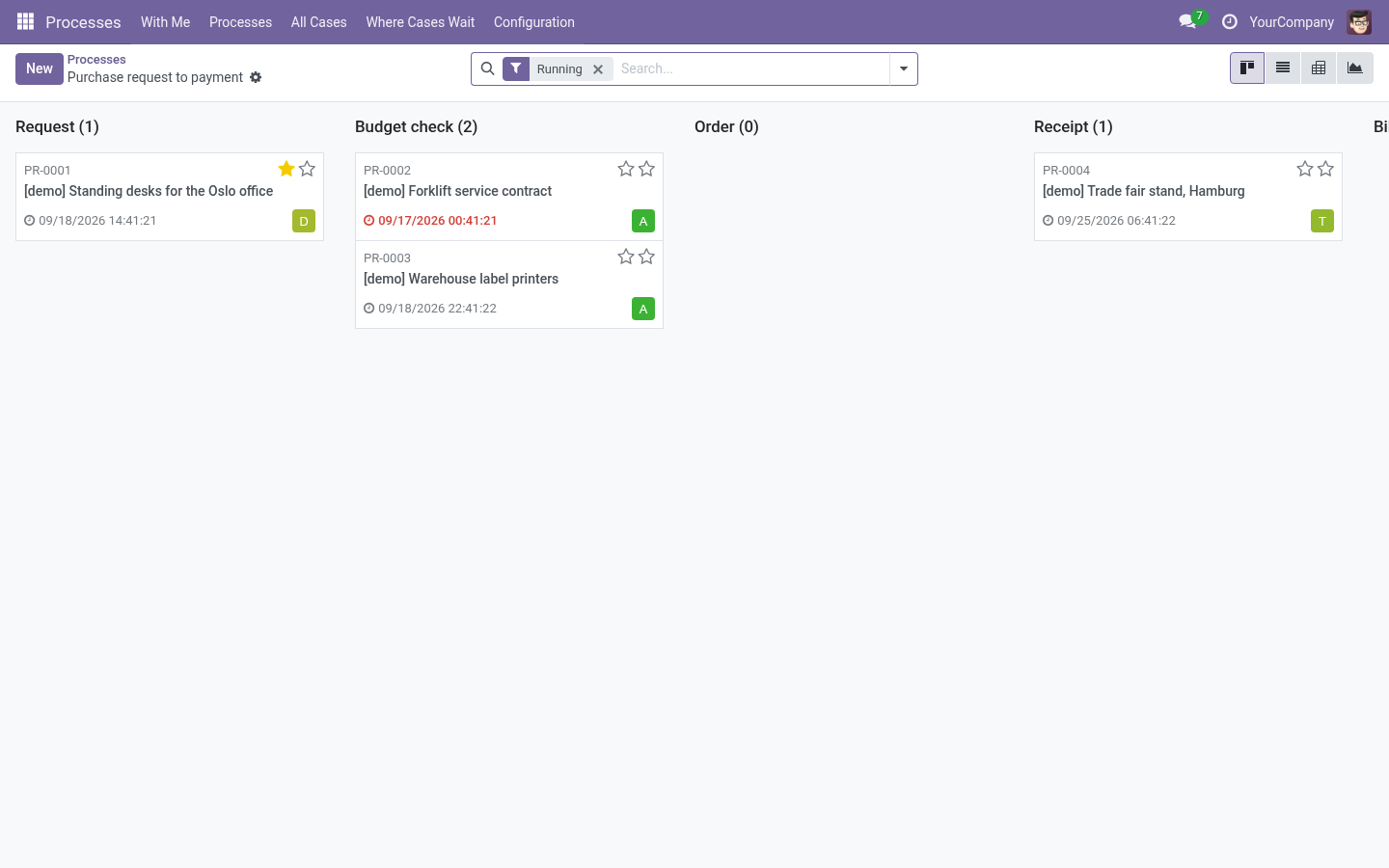
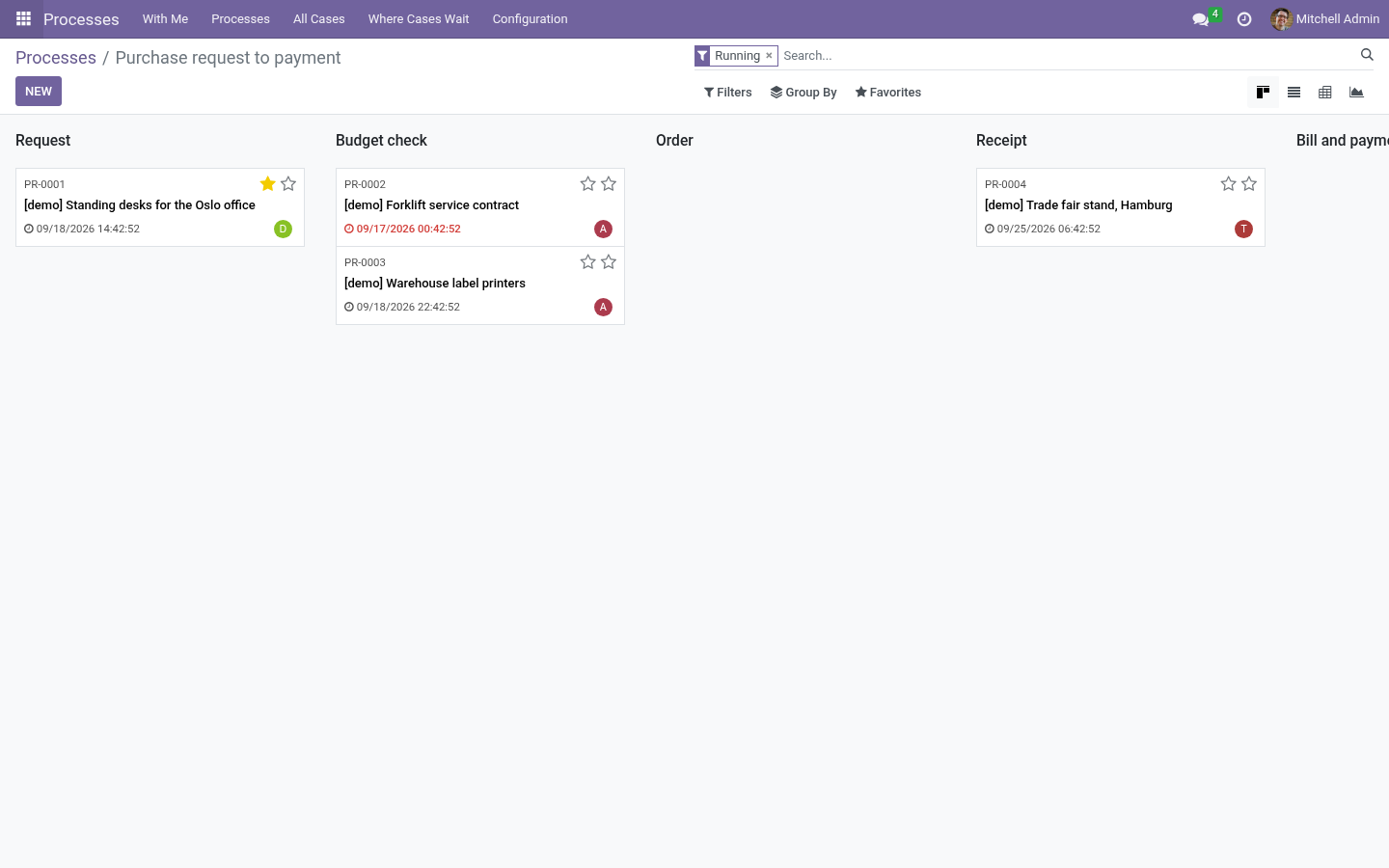
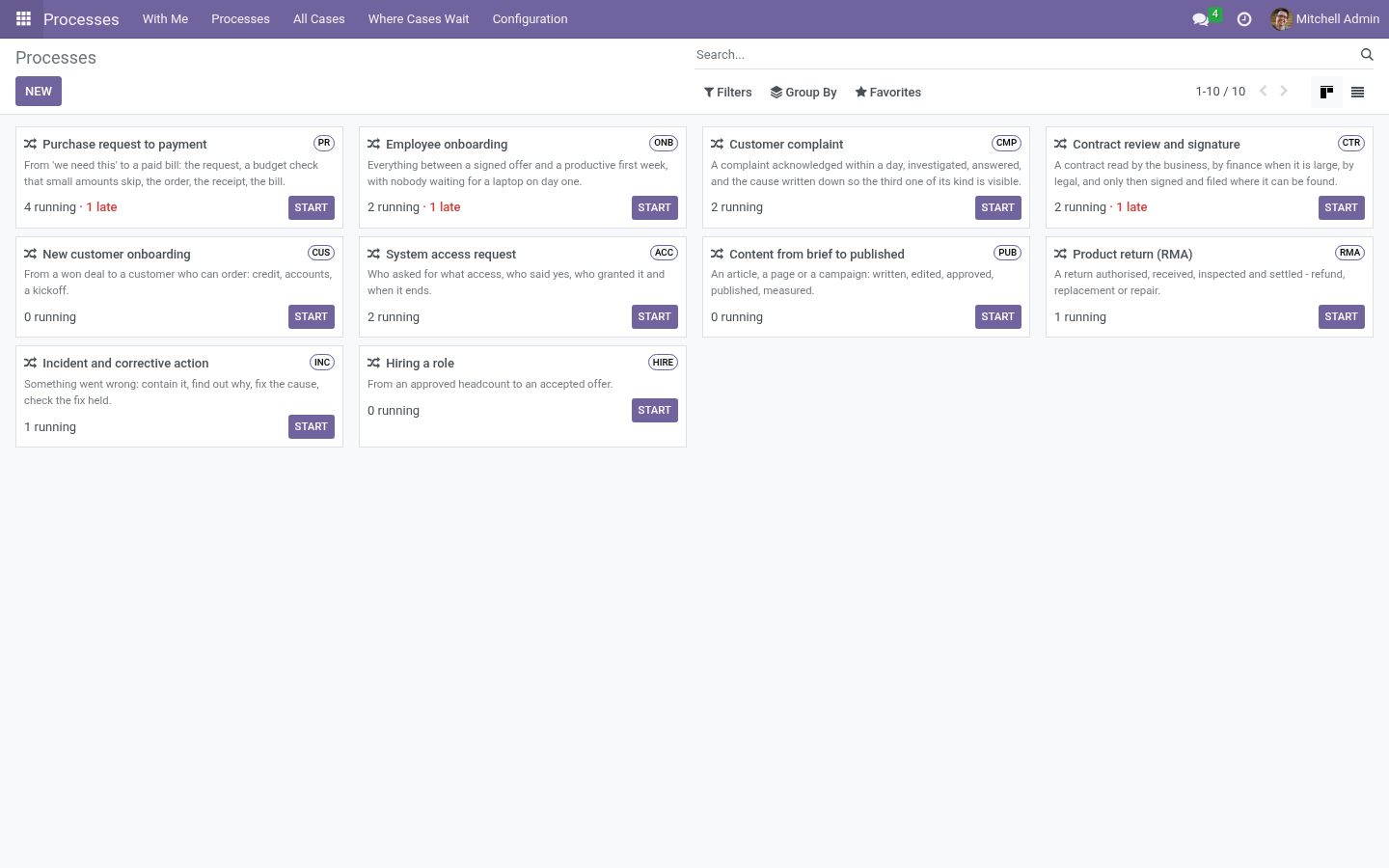
Purchase request to payment, employee onboarding, customer complaint, contract review and signature, new customer onboarding, system access request, content publishing, product return (RMA), incident and corrective action, hiring a role. Open one, read its stages, put your people on them and start a case - or copy it and make it yours. A gallery process is never overwritten by an upgrade; archive the ones you do not want (a deleted one would come back). Processes ▸ list ▸ Action ▸ Load the process gallery brings back what is missing.
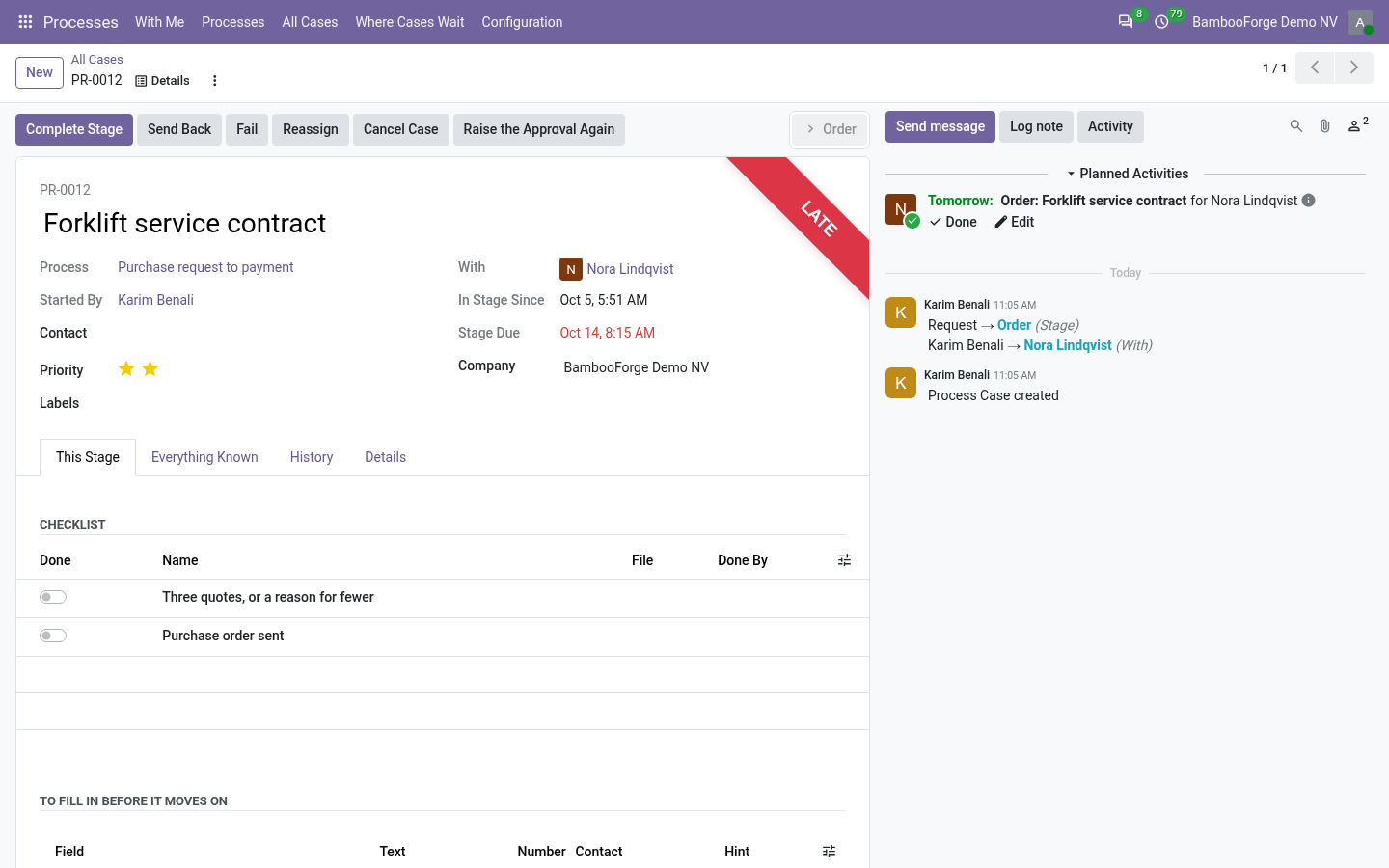
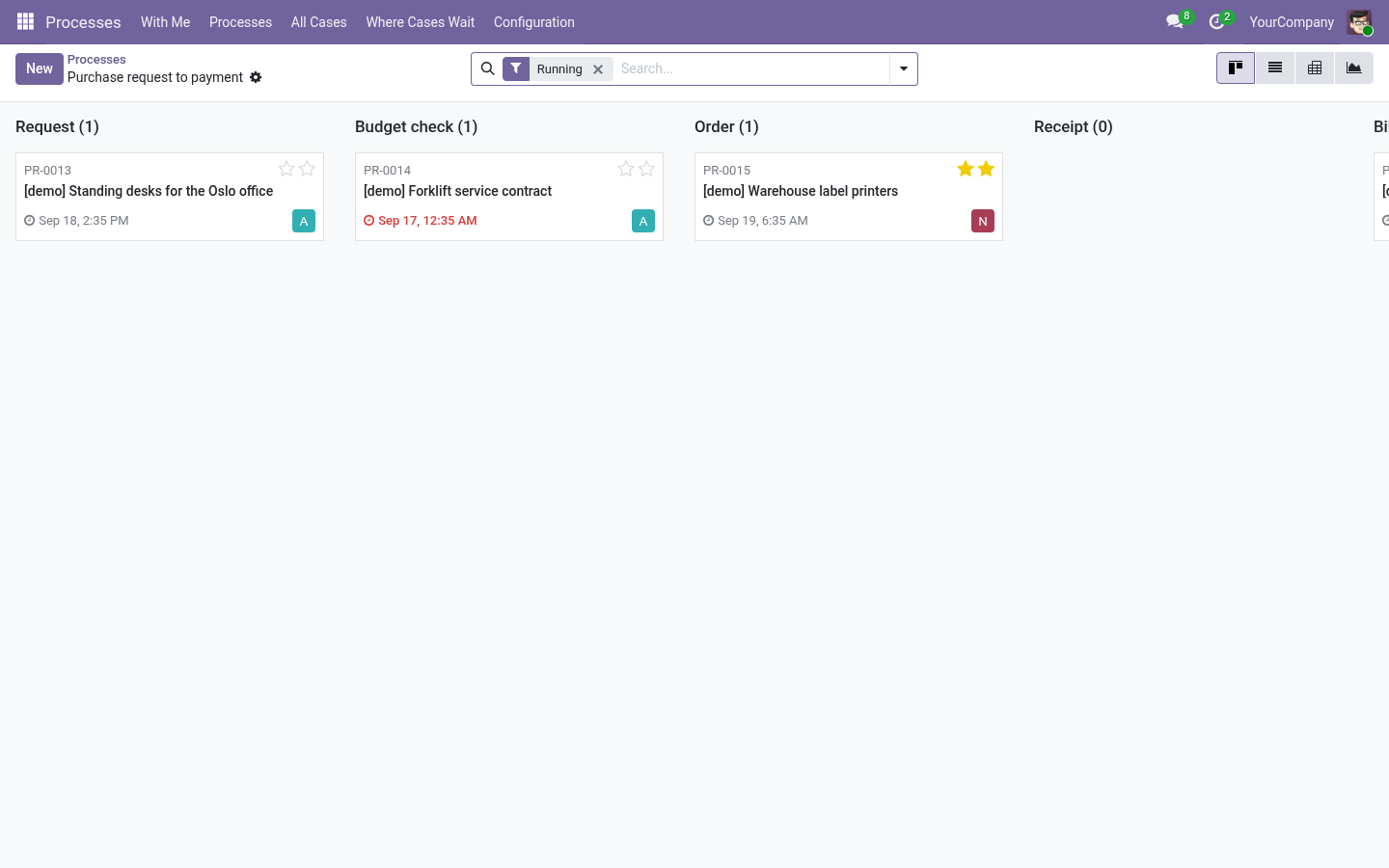
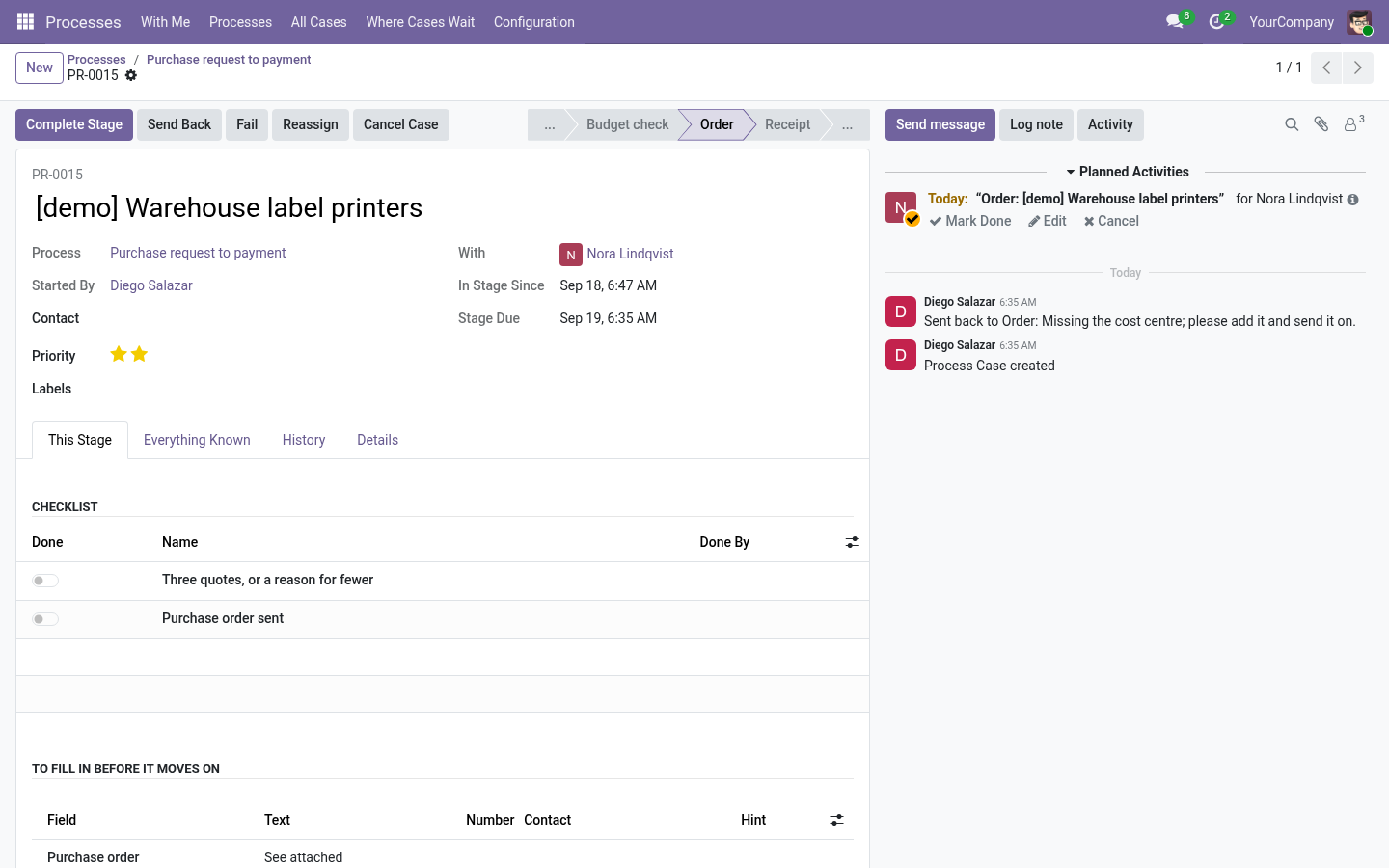
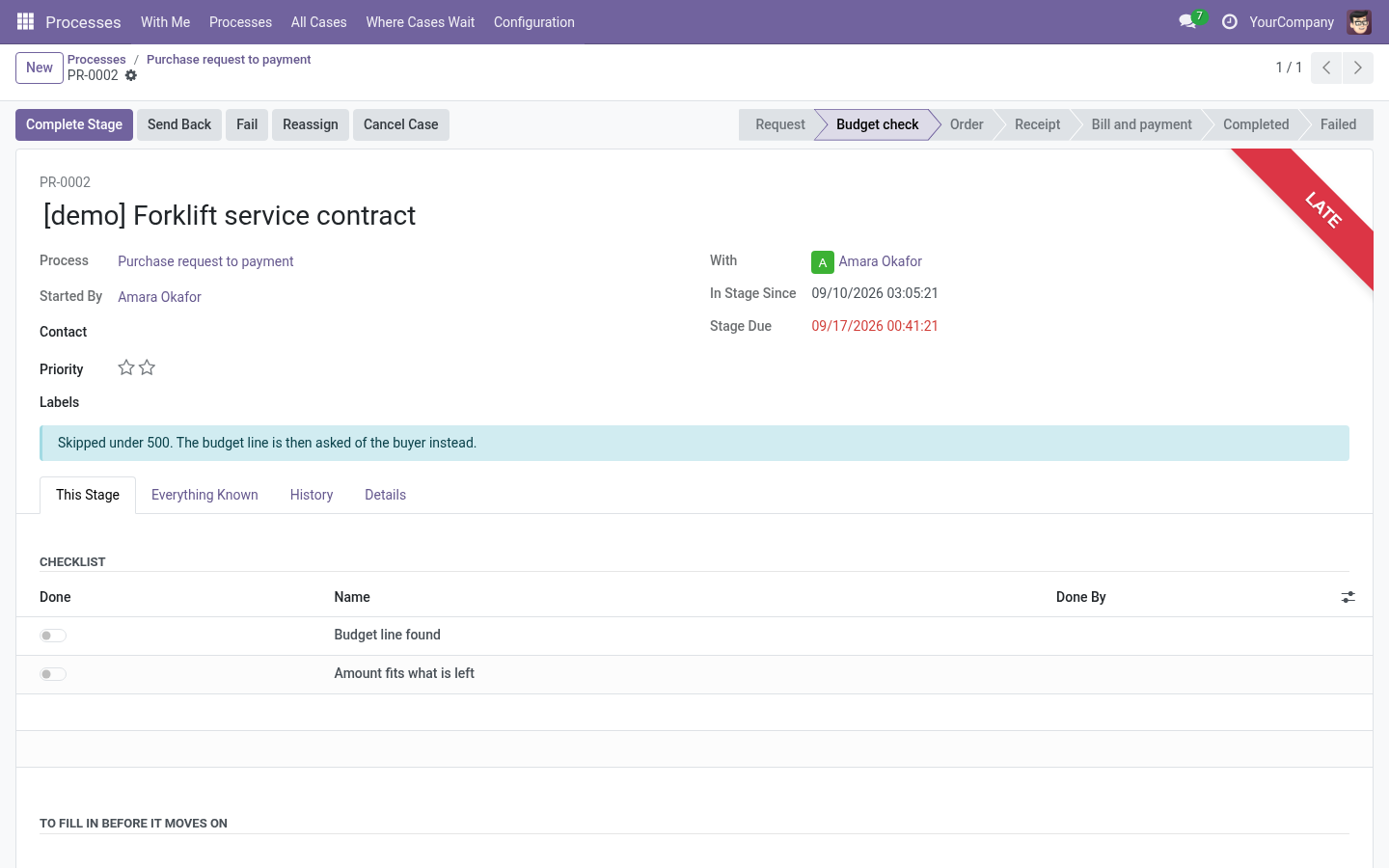
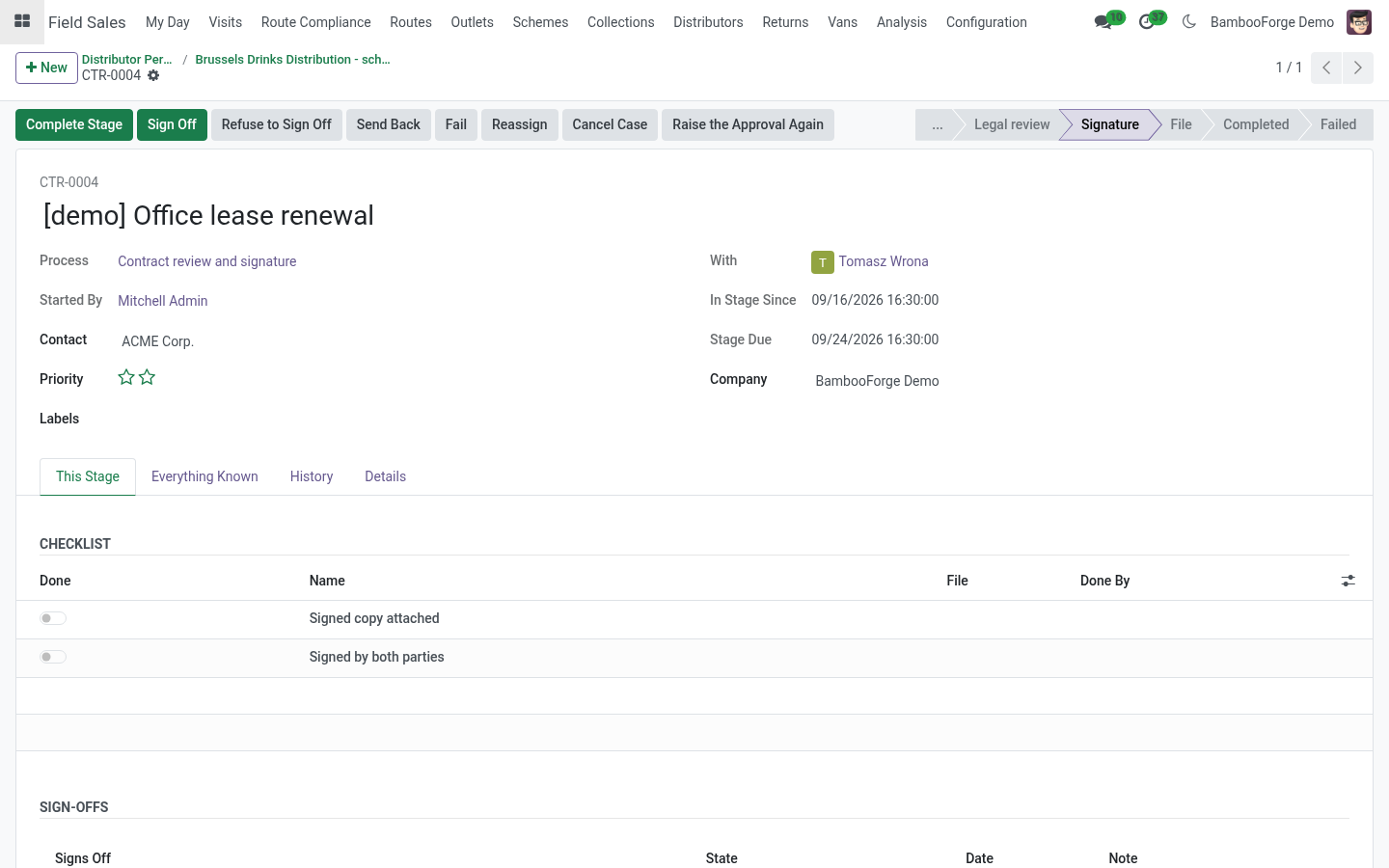
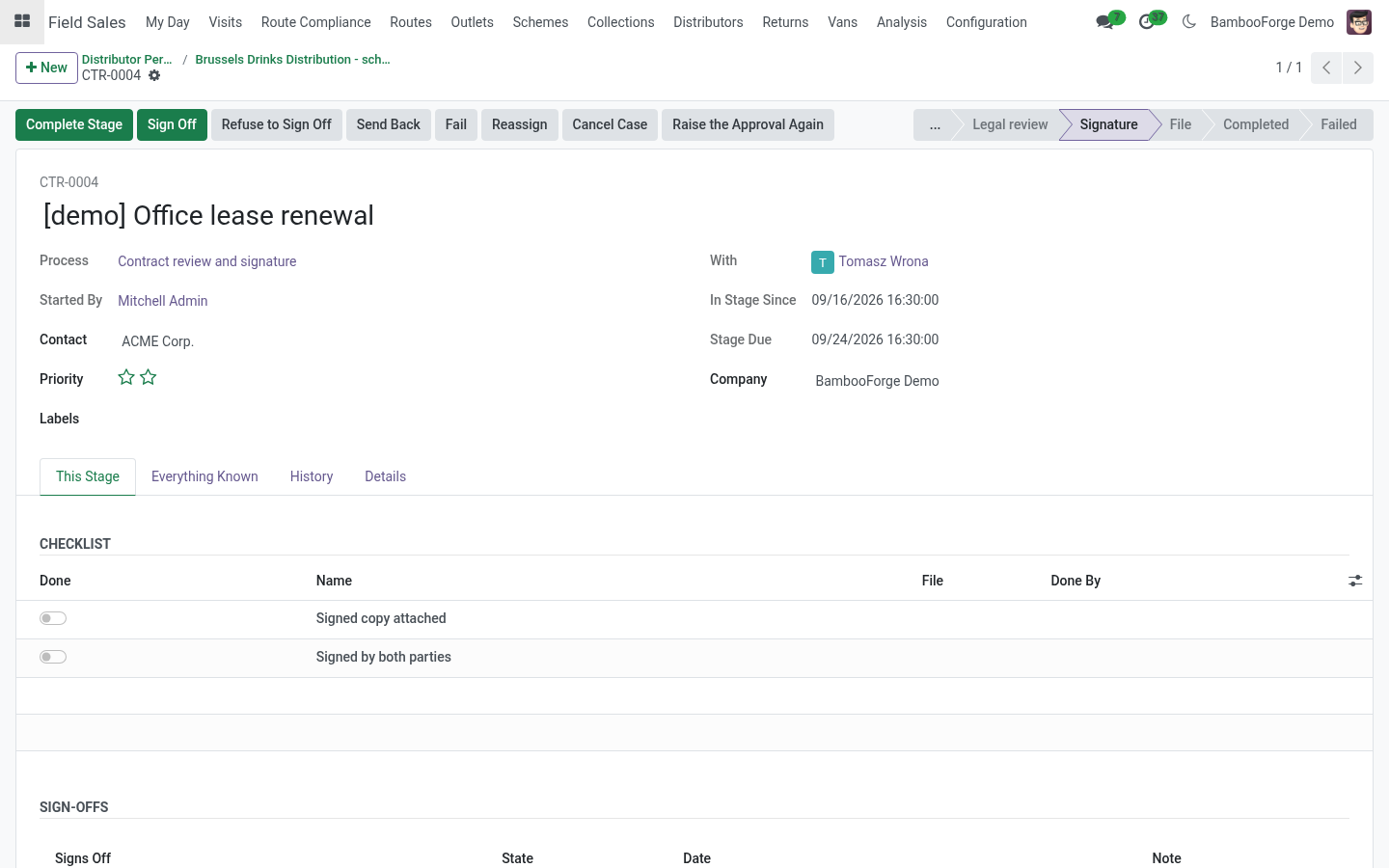
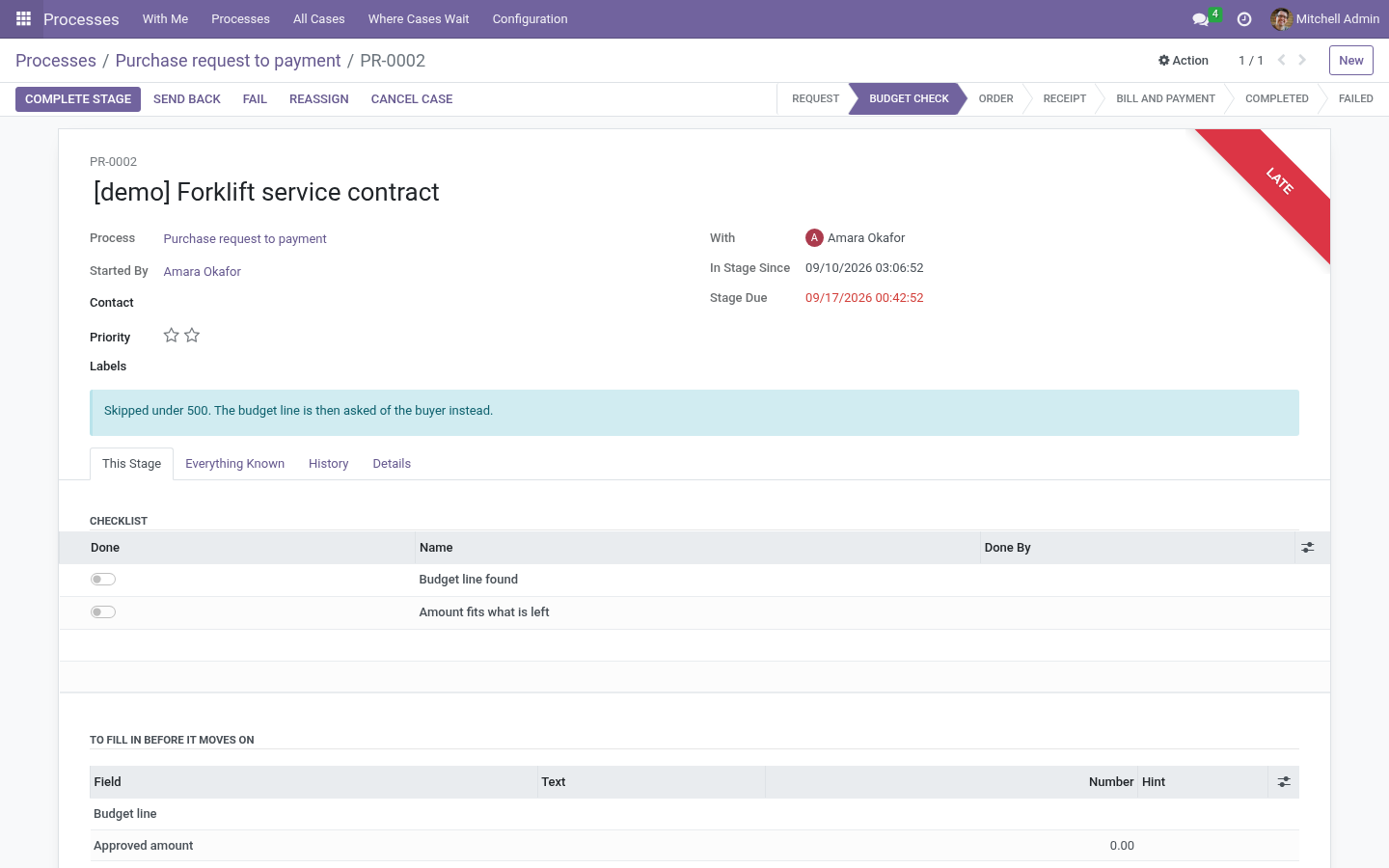
Working a case. With Me lists the cases waiting for you. Open one: The stage's instructions are at the top; its checklist and the fields to fill in are on the This Stage tab. Tick, fill, and press Complete Stage.
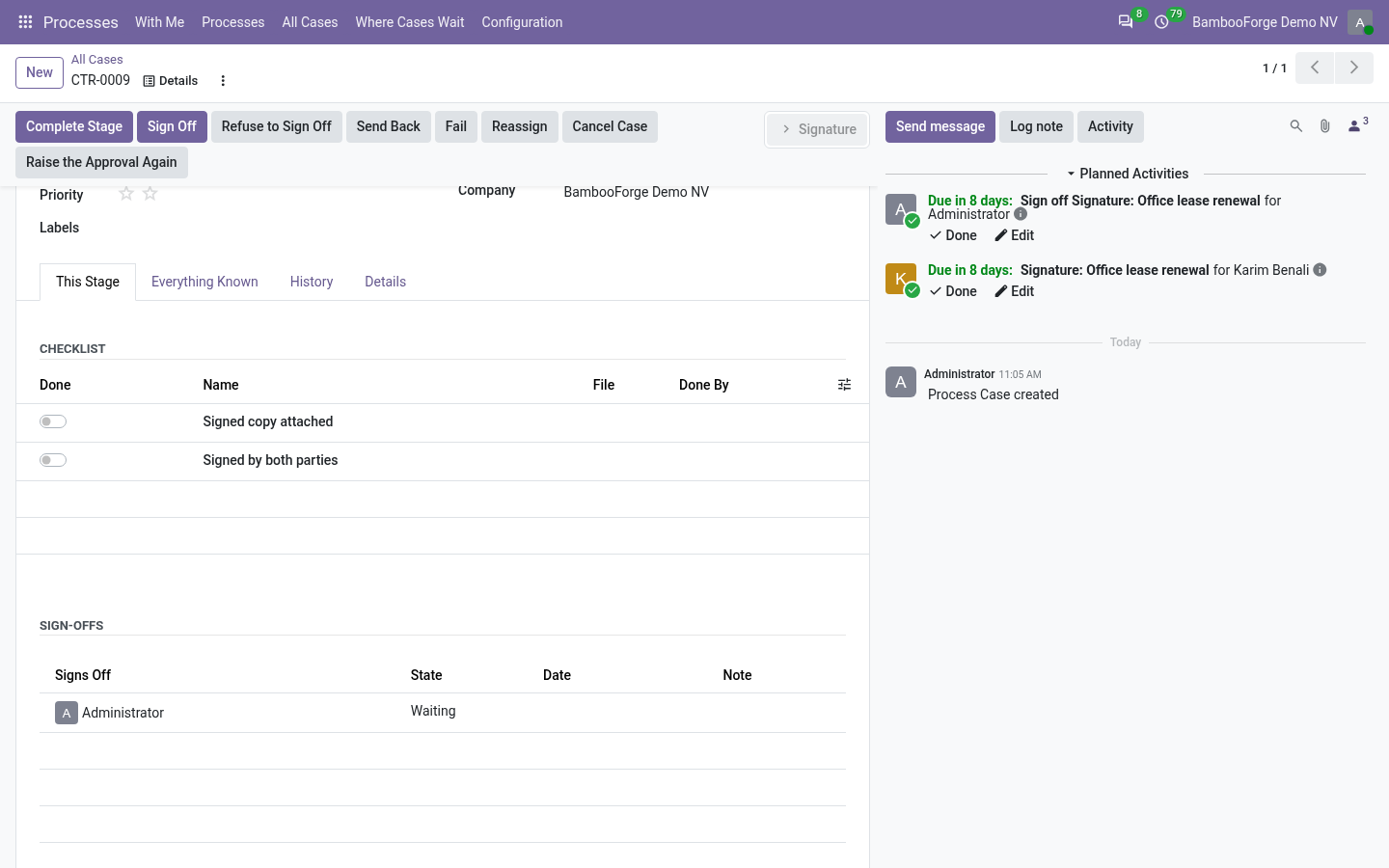
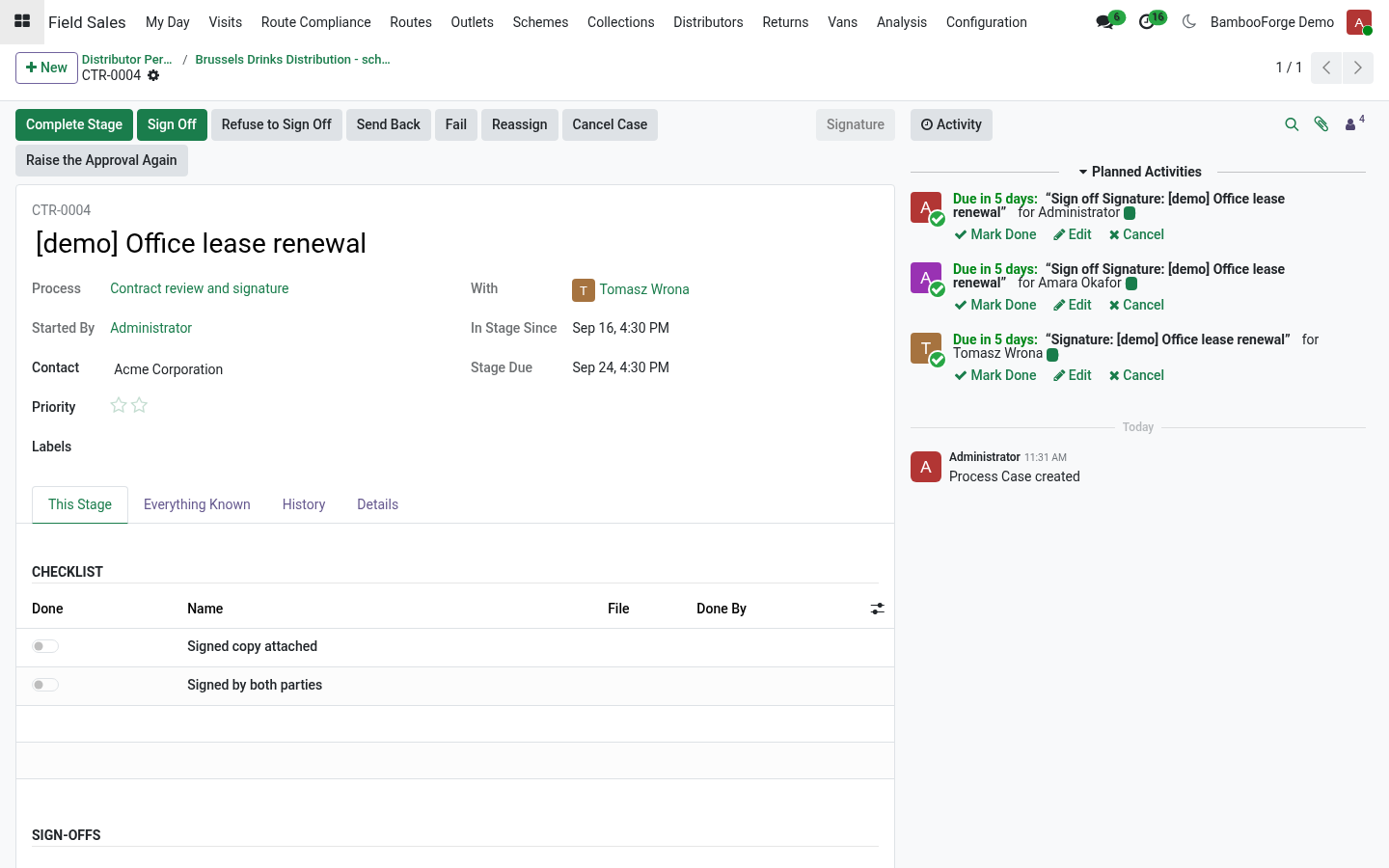
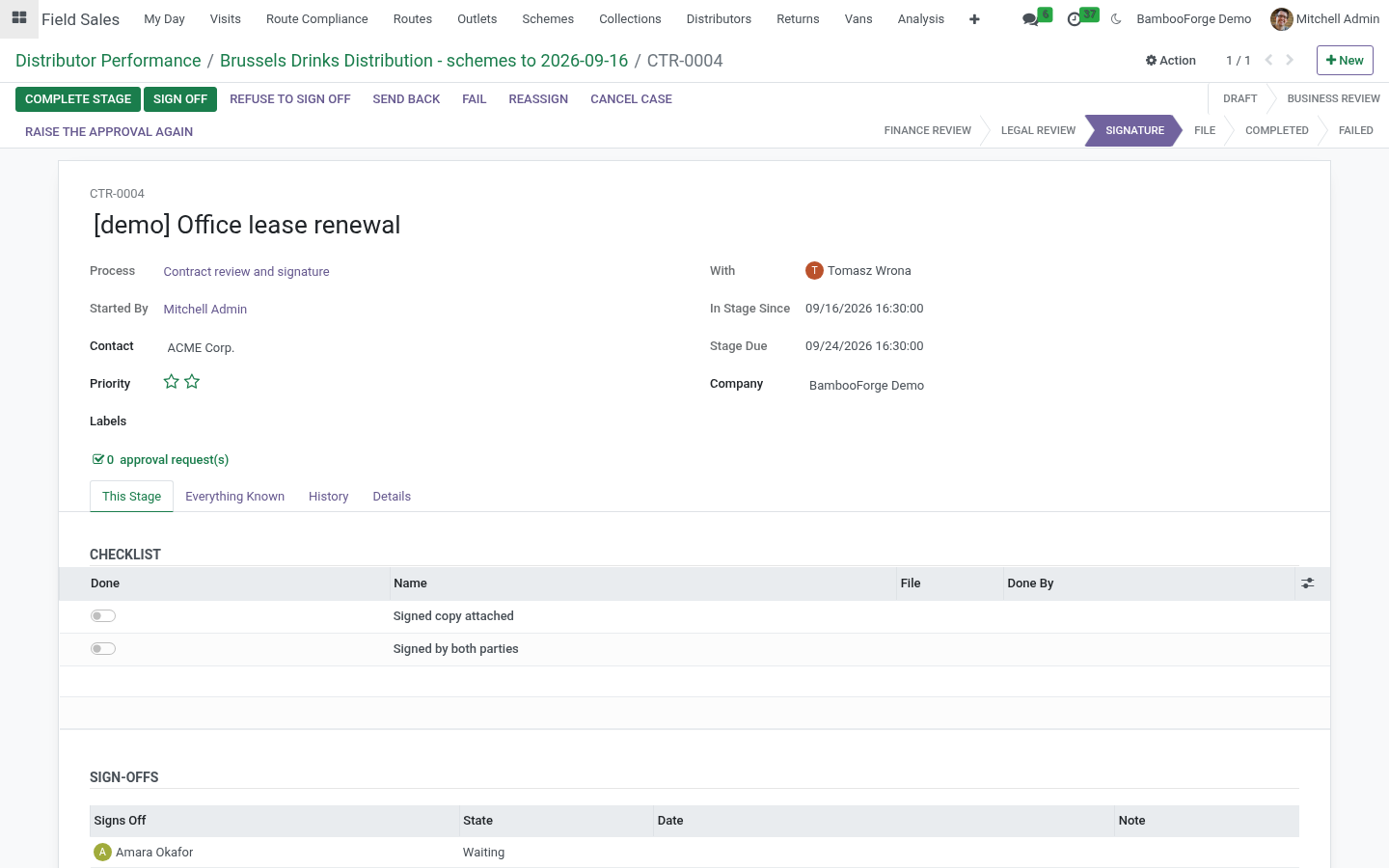
If a required box or field is empty the case stays and the message names it. A checklist line marked file required takes its file first - the signed scan, the quote - in the line itself; it cannot be ticked without. When the next stage goes to whoever you choose, Hand To appears: pick the person before completing. A stage with sign-offs lists them on This Stage.
Each person named gets an activity and the buttons Sign Off and Refuse to Sign Off (with a reason, posted to the holder and the owners). The case leaves the stage once every sign-off is given; sent back and returned, it asks them all again. Send Back returns the case to the stage before, with a reason the person reads in the chatter; it lands with the desk that had it, and that desk's checklist is ticked again. A stage can forbid sending back.
Fail ends the case with a reason - the report on failures is built from these. Cancel Case is for the starter and the owners; the history is kept. Everything Known lists every field the case has answered, stage by stage; History every stage it sat in. Only the holder of a case, or an owner of its process, moves it or edits its checklist and fields.
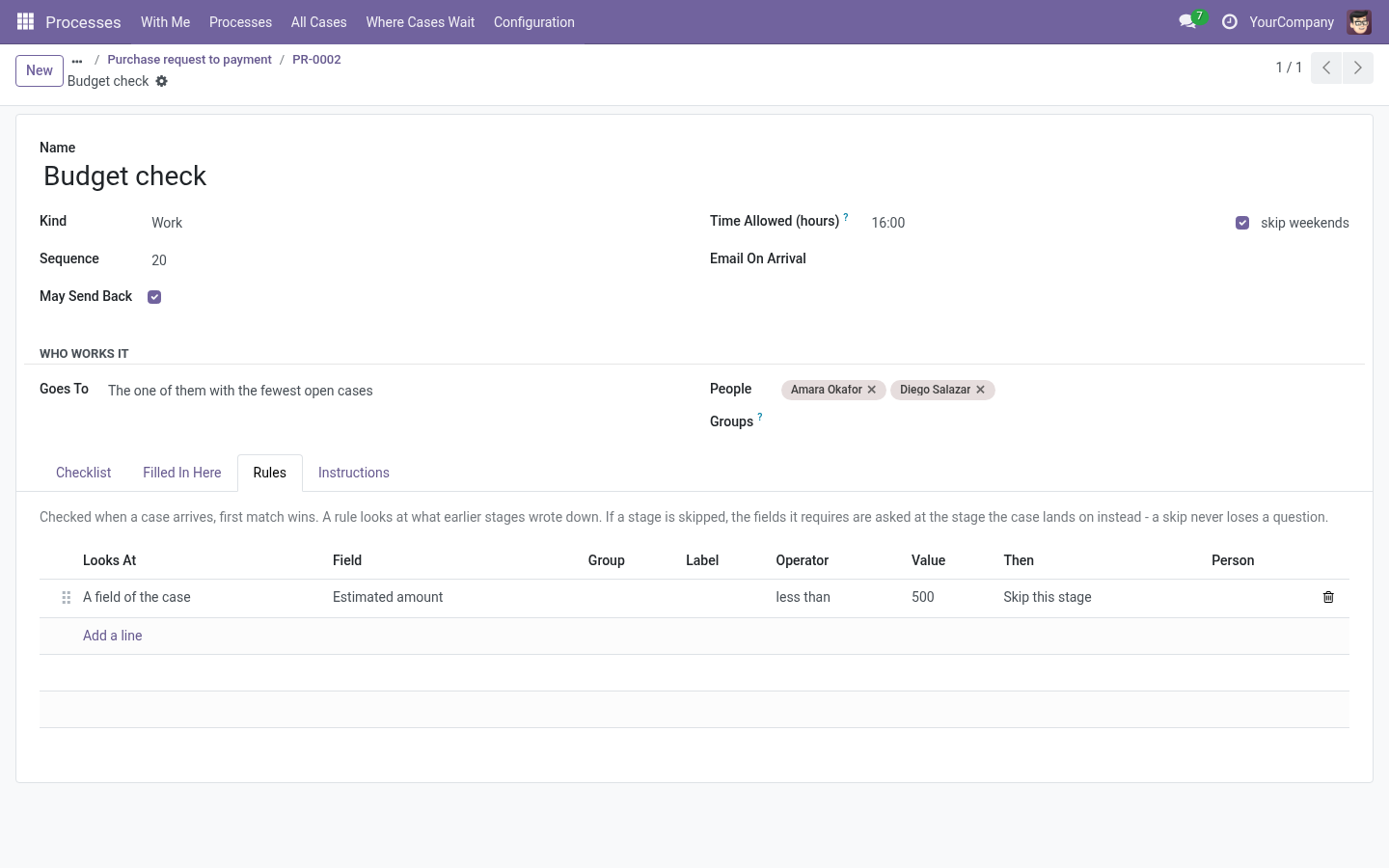
Everybody else who can see it reads it. The number, state, holder, deadline and history are written by the workflow alone. Designing a process. Processes ▸ New (Designers only): a name, a case prefix (PR gives PR-0001), the owners, and who may start a case (empty: every internal user).
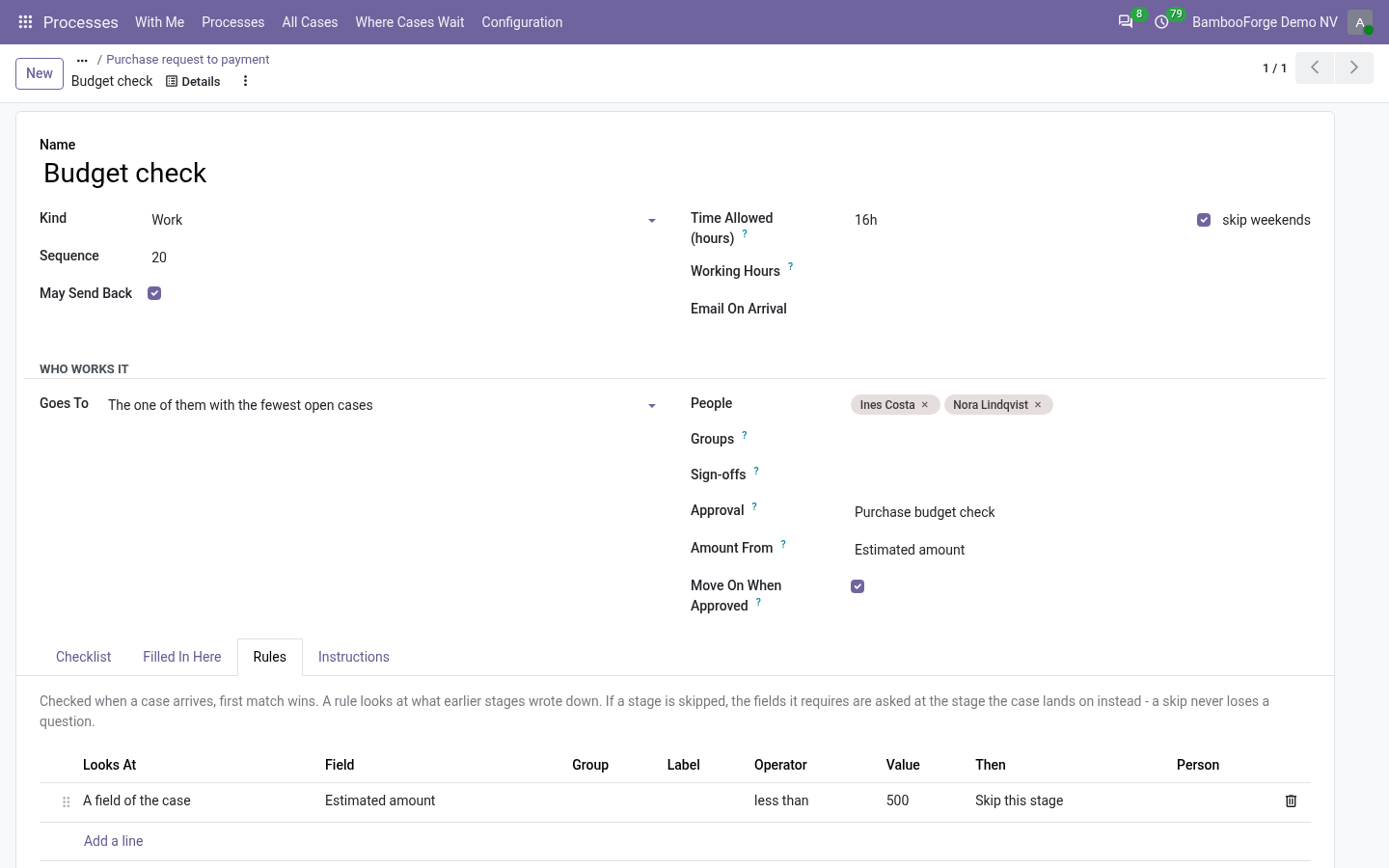
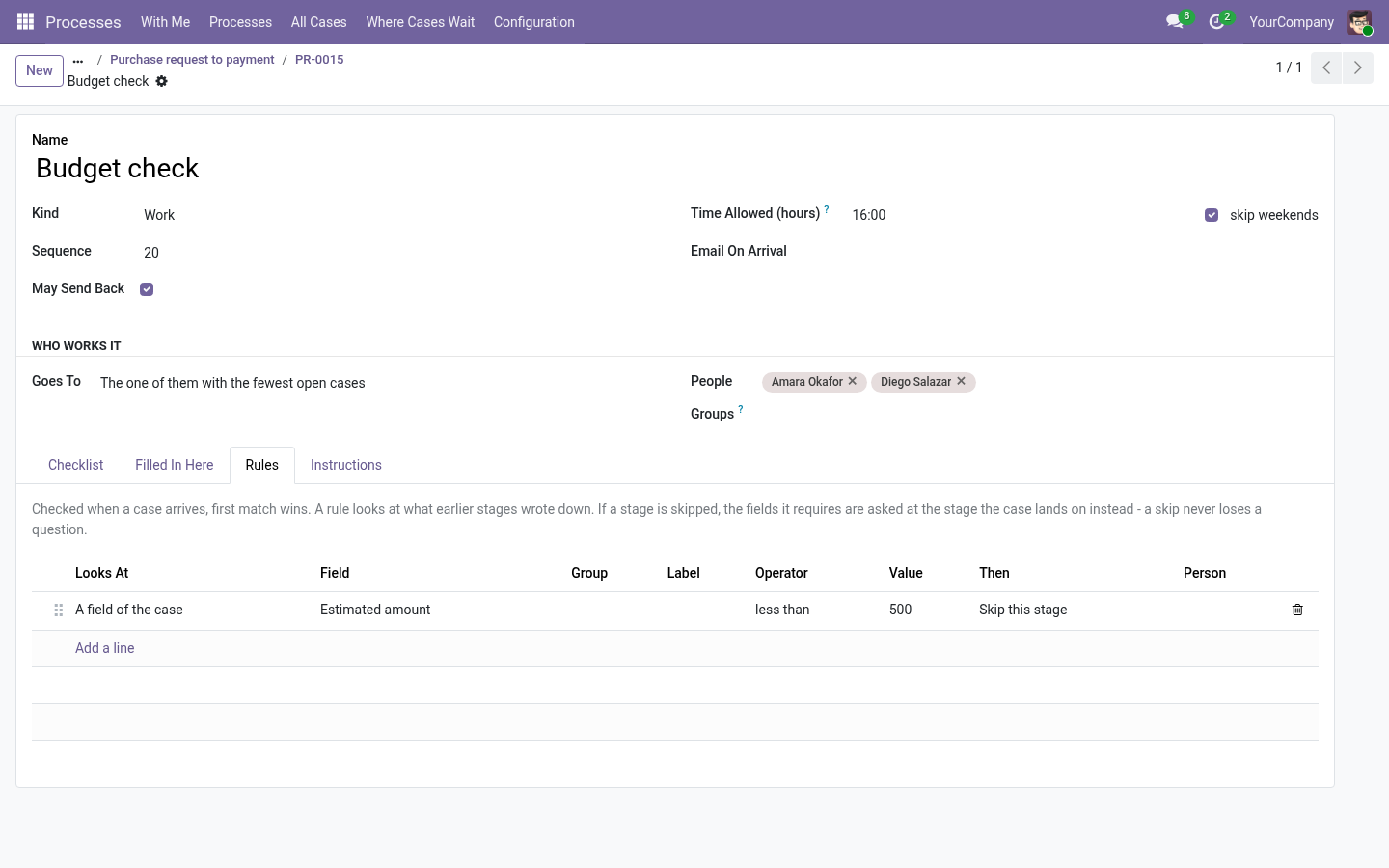
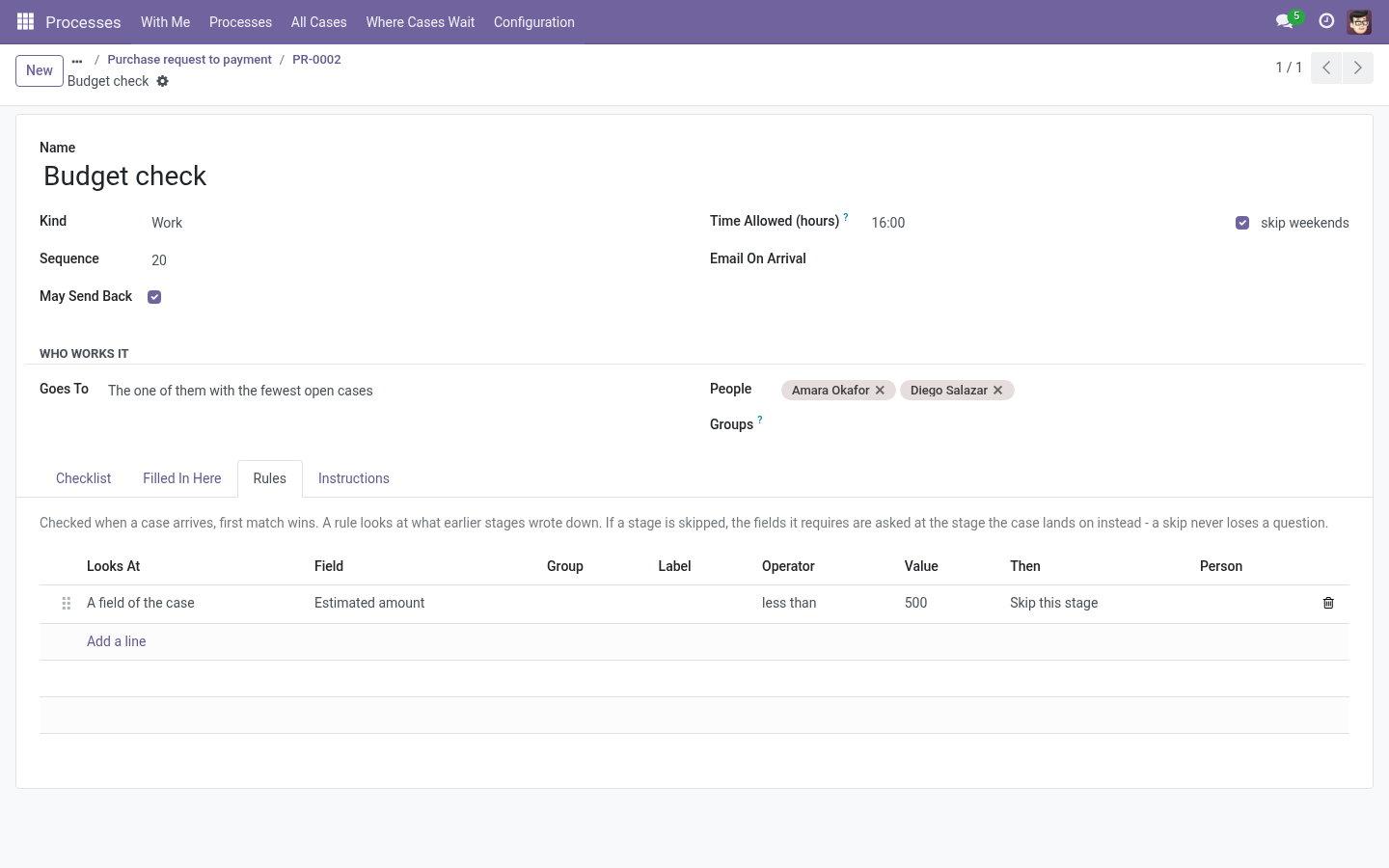
Then the stages, in order. Two end stages are needed: completed and failed; work stages come before them. Checklist: lines to tick; a required line holds the case; file required means the line is ticked only with a file attached to it. Sign-offs: the people who each sign the stage off before it moves on, in parallel, in any order.
Filled in here: the hand-off contract. Text, long text, number, date, yes/no, choice, contact or user; a required field holds the case. A field is answered once and can be read by every later stage. Email on arrival: a template on the case model, sent when a case enters the stage.
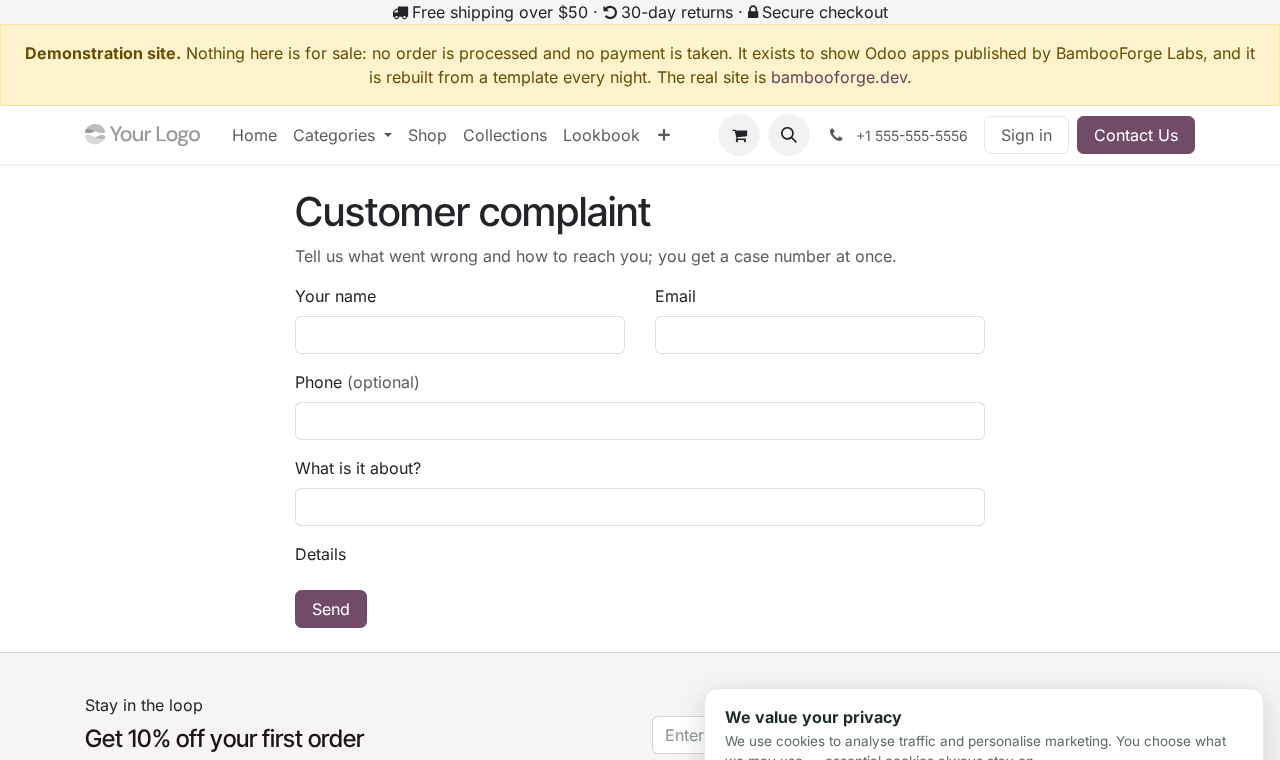
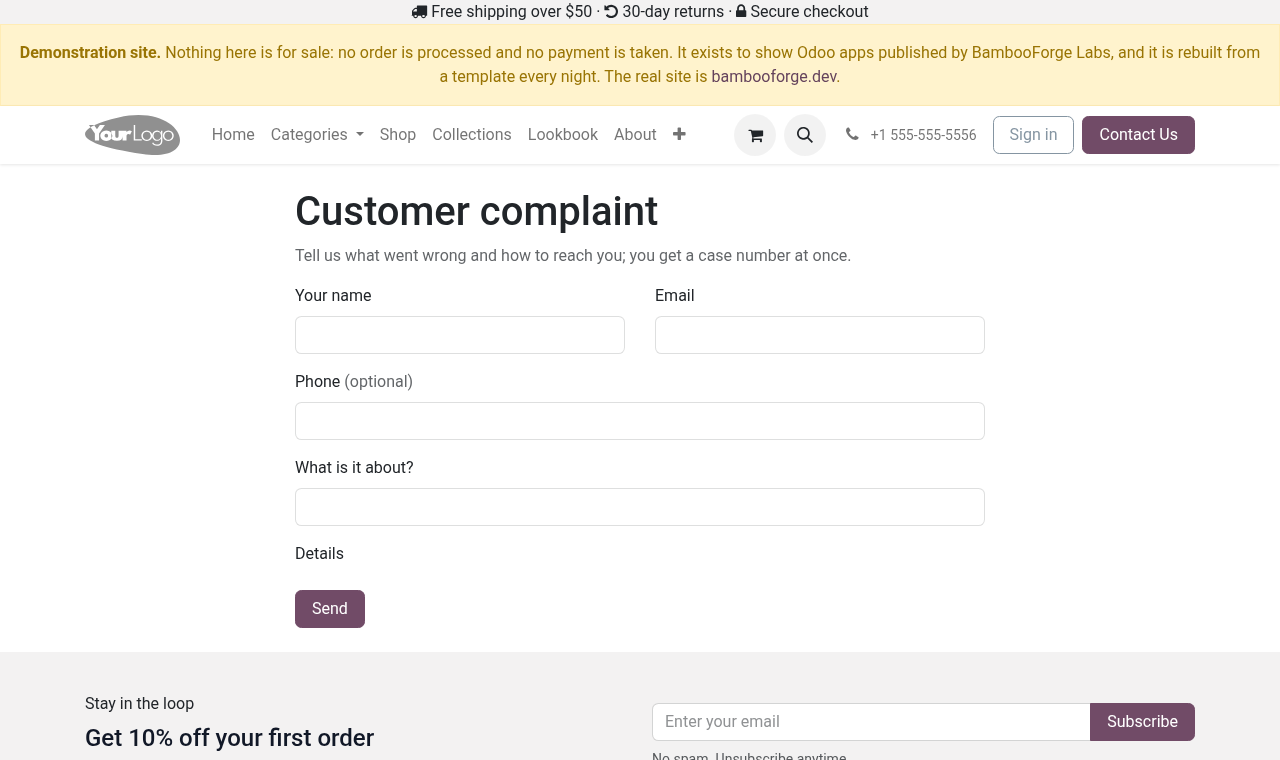
Instructions: shown on the case while it is there. Email alias: purchase-requests makes an email to purchase-requests@your mail domain start a case - the subject is the case, the message its description, the sender its contact (created if new) and follower, so they get the case's messages. Cases from outside are started by the first process owner. Web form: Signed-in customers and partners asks a portal login; Anyone, on the web asks a name and an email.
The form's address is shown on the process; the text above it is yours. The requester is told the case number, follows the case, and finds it on their portal under Requests with the stage it is in. Start from a record. Set Started From to a model - sale order, task, employee, contact - and that model's Action menu gets Start: <process>, on one record or many.
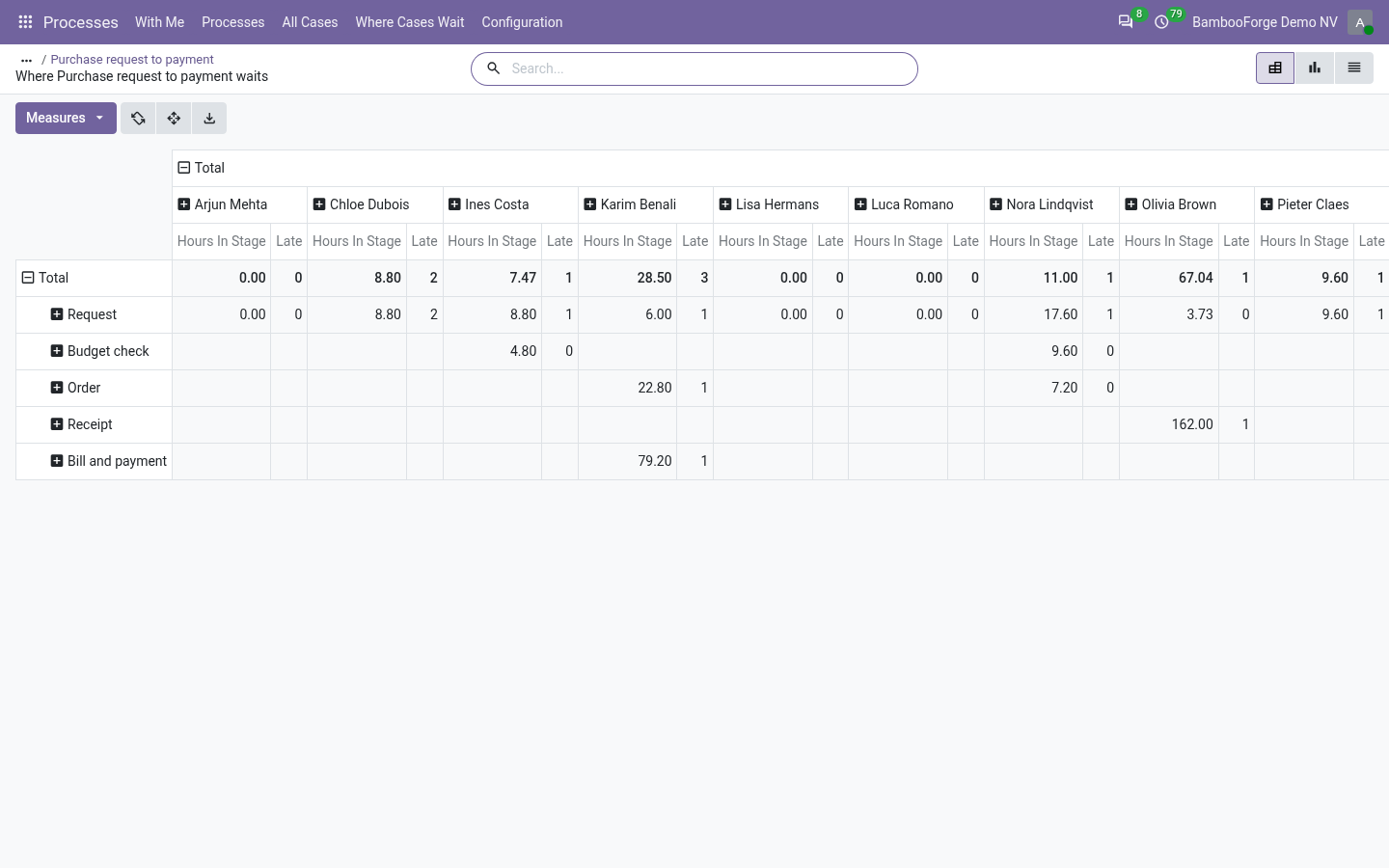
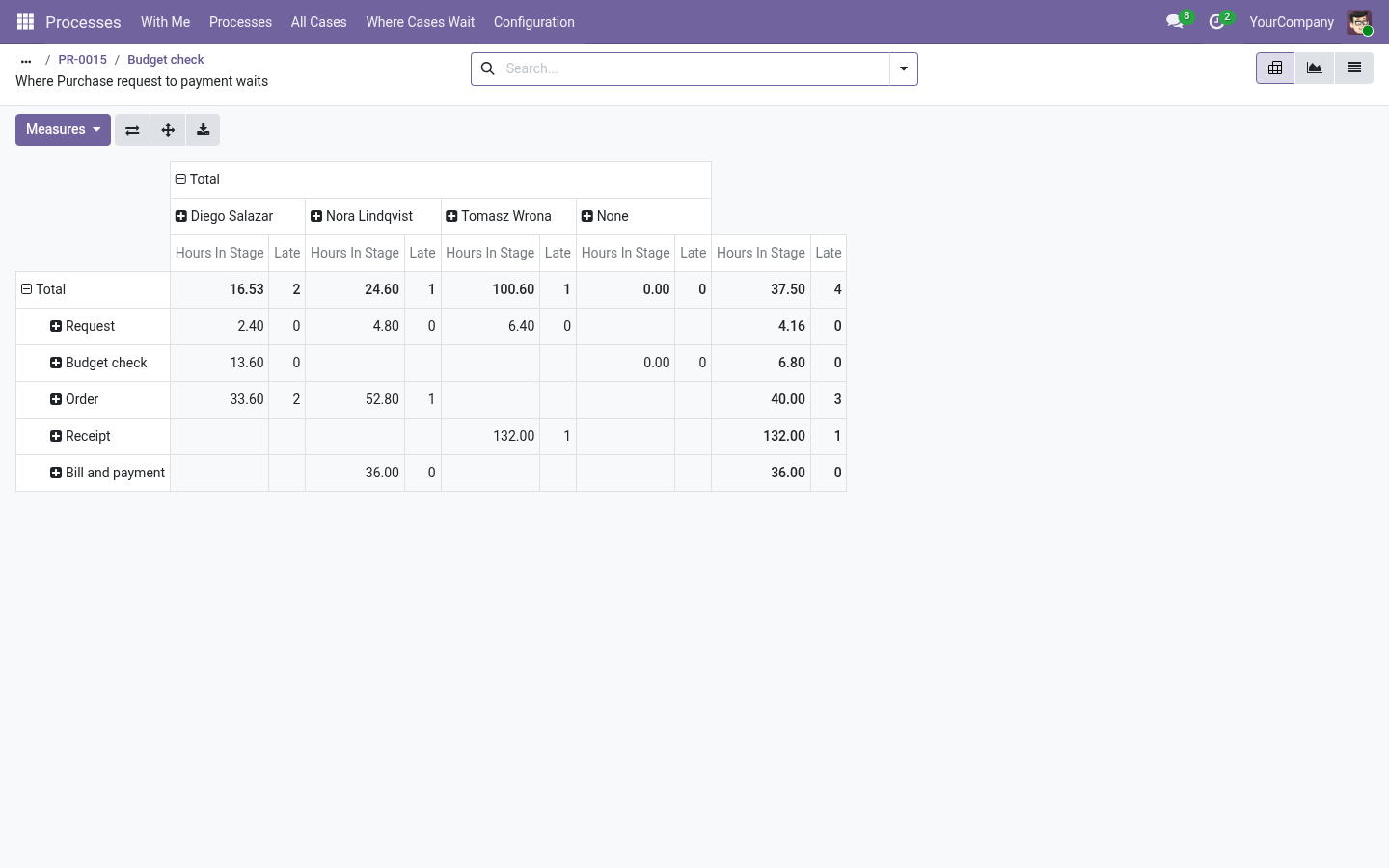
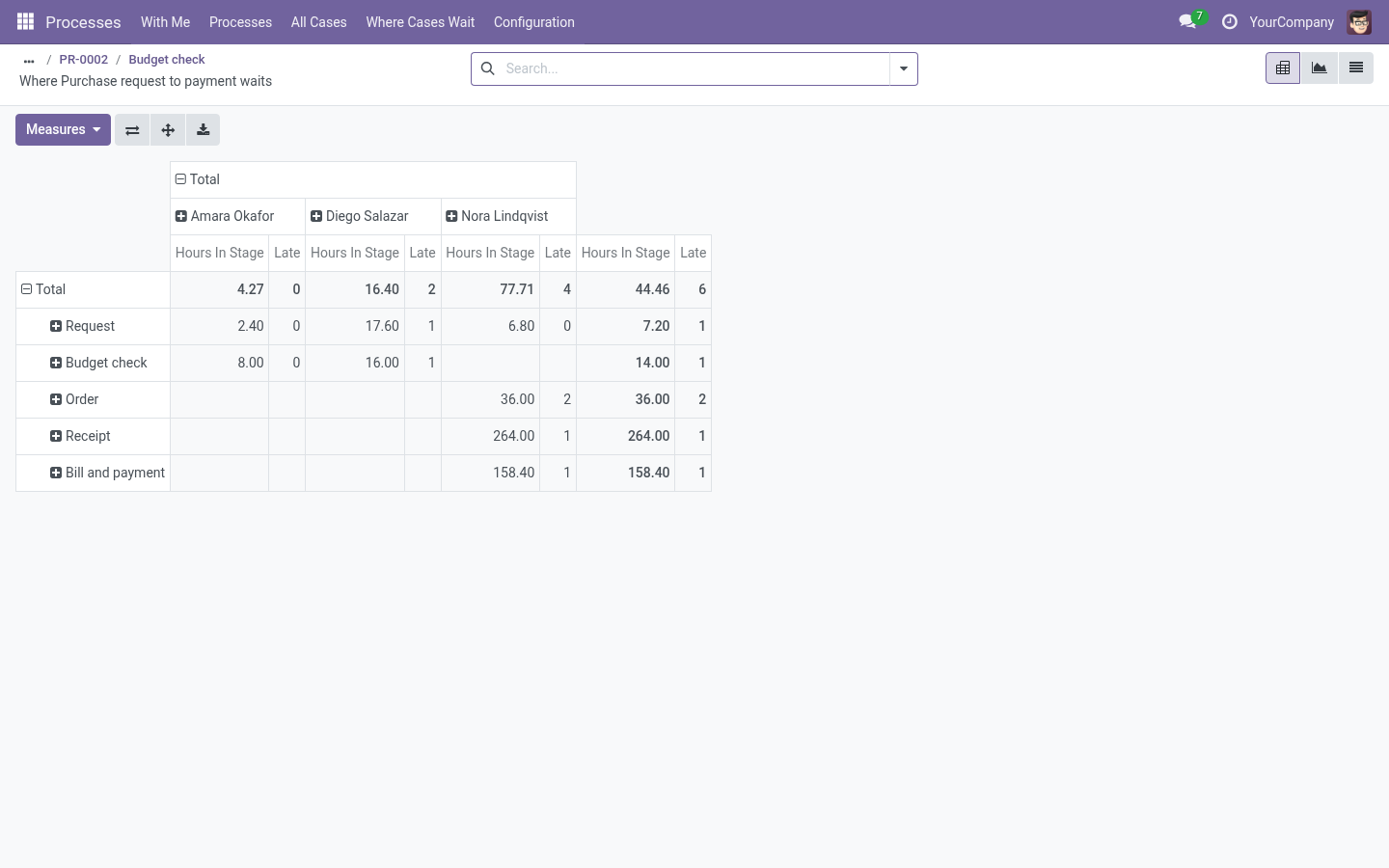
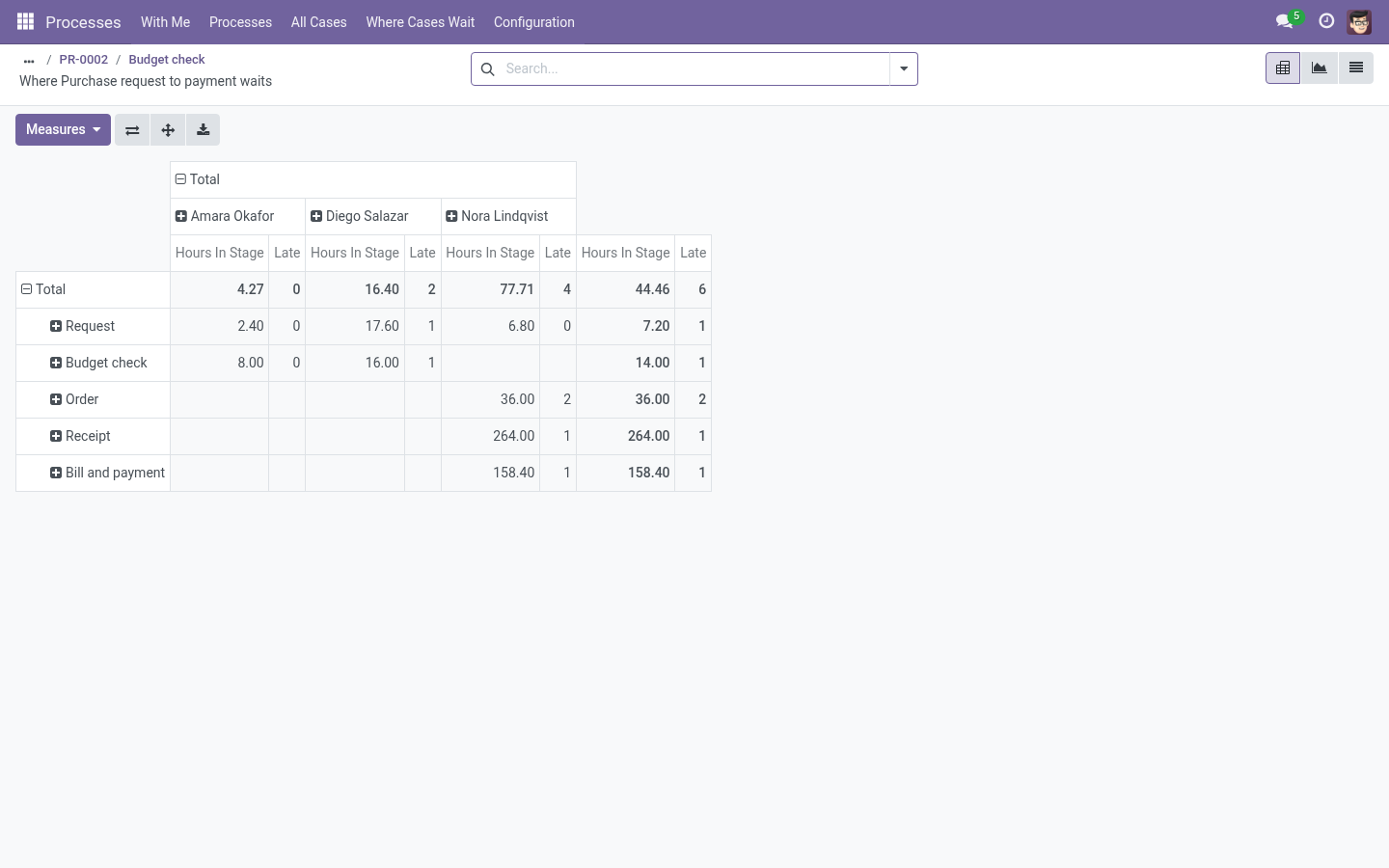
The case keeps the record, opens it from a button, and takes its contact when it has one. Where cases wait. Every stage a case leaves writes a line: stage, holder, entered, left, hours, whether it left late, what happened (completed, sent back, skipped, failed, cancelled). Where Cases Wait pivots those lines by stage and person, with average hours and the count of late departures; group by month to see whether a bottleneck is new.
The graph shows the same. Every process form has the same report for itself. The clock. An hourly scheduled action looks for running cases past their stage deadline.
Each one is reported once: a note in its chatter addressed to the holder and the process owners, and an activity for each owner. The Late ribbon and the red deadline stay until the case moves. All Cases ▸ Late lists them. Troubleshooting.
"... cannot leave '...' yet" A required checklist line is unticked or a required field is empty; the message names them. Fields marked carried belong to a stage that was skipped. "'...' goes to whoever you choose: fill in Hand To first" The next stage's assignment is whoever completes the stage before picks.
Choose the person in Hand To, then complete. Uninstalling. Uninstalling removes the processes, cases, histories and the Start: actions this app created. It touches nothing else.
20.0.1.1.0 Built for Odoo 20: record rules and access rights rewritten onto Odoo 20's single ir.access model, the screens rebuilt on Owl 3, and every icon moved to the icon set Odoo 20 ships. The portal card is an Odoo 20 portal entry. 20.0.1.1.0 Time allowed on a working calendar, public holidays left out. Checklist lines that need a file; parallel sign-offs within a stage.
Cases started by email alias and from a portal or public web form; the requester's list of cases on the portal. An approval request per stage with Approval Workflow (new companion module). Now the part most videos leave out: what this does not do. A case is visible to the person who started it, the person holding it, everybody who ever held it, its followers, the owners of its process and Process Designers.
Others do not see it in any list or search. Multi-company: a process and its cases can belong to one company or to all. The workflow's own fields - number, state, holder, deadline, history - cannot be written by hand, not even by a Designer; the buttons are the only way, so the history is always what happened. Nothing leaves the database.
Emails go out only through templates you put on a stage. The complete manual is at docs dot bambooforge dot dev, the demo database is linked from the store page, and support answers within twenty-four hours. Links are in the description.
Transcript of the walkthrough (Odoo 19)
Process Workflow Pro with SLA, Checklists and Hand-off Rules. Draw any business process as stages - who works each one, how long they have, what they tick off and what they must write down before it moves on. Cases route by rules, land with the least busy person, run a clock, come back with a reason, and every stage they sat in is on record. Ten worked processes on day one.
Odoo has stages on tasks, tickets and leads, and nothing for the processes that run between apps - a purchase request, a new starter, a complaint, a contract, an access request. Those live in email, and nobody can say where they stopped. This app lets you draw such a process once, as a line of stages, and then run every case of it down that line: with a named holder, a clock, a checklist, the fields the next desk needs, rules that route it, and a record of every stage it sat in. In the next few minutes: what you get, then the gallery, then working a case, then designing a process, then where cases wait.
Then what this app deliberately does not do, so you can tell before you buy whether it fits. Everything lives under Processes then With Me then Processes then All Cases. What you get Processes drawn as stages: who works each one, how long they have, what they tick off, what they write down. Cases that walk the line: started by anybody allowed, held by one person at a time, moved with buttons that keep the record straight.
Assignment by rule: whoever the previous desk picks, the least busy of the stage's people, the person who worked it before, the starter, the first named, or at random. A clock on every stage - round the clock, weekends skipped if you say so, or the working hours of a calendar with its public holidays; an activity for the holder with the deadline; the process owners told once when a stage runs late. The hand-off contract: required checklist lines (some only with a file attached) and required fields hold the case in its stage, and the case says which are missing. Sign-offs: several people sign a stage off, in any order, before the case moves on; a refusal is written down with its reason.
Doors from outside: an email alias that starts a case, a web form for customers or for anyone, and the requester's list of their cases on the portal. Rules that skip a stage or hand it to somebody, from what earlier stages wrote down, the starter's group, a label or the priority. A skip never loses a question: the required fields of a skipped stage are asked at the stage the case lands on. The gallery.
Purchase request to payment, employee onboarding, customer complaint, contract review and signature, new customer onboarding, system access request, content publishing, product return (RMA), incident and corrective action, hiring a role. Open one, read its stages, put your people on them and start a case - or copy it and make it yours. A gallery process is never overwritten by an upgrade; archive the ones you do not want (a deleted one would come back). Processes ▸ list ▸ Action ▸ Load the process gallery brings back what is missing.
Working a case. With Me lists the cases waiting for you. Open one: The stage's instructions are at the top; its checklist and the fields to fill in are on the This Stage tab. Tick, fill, and press Complete Stage.
If a required box or field is empty the case stays and the message names it. A checklist line marked file required takes its file first - the signed scan, the quote - in the line itself; it cannot be ticked without. When the next stage goes to whoever you choose, Hand To appears: pick the person before completing. A stage with sign-offs lists them on This Stage.
Each person named gets an activity and the buttons Sign Off and Refuse to Sign Off (with a reason, posted to the holder and the owners). The case leaves the stage once every sign-off is given; sent back and returned, it asks them all again. Send Back returns the case to the stage before, with a reason the person reads in the chatter; it lands with the desk that had it, and that desk's checklist is ticked again. A stage can forbid sending back.
Fail ends the case with a reason - the report on failures is built from these. Cancel Case is for the starter and the owners; the history is kept. Everything Known lists every field the case has answered, stage by stage; History every stage it sat in. Only the holder of a case, or an owner of its process, moves it or edits its checklist and fields.
Everybody else who can see it reads it. The number, state, holder, deadline and history are written by the workflow alone. Designing a process. Processes ▸ New (Designers only): a name, a case prefix (PR gives PR-0001), the owners, and who may start a case (empty: every internal user).
Then the stages, in order. Two end stages are needed: completed and failed; work stages come before them. Checklist: lines to tick; a required line holds the case; file required means the line is ticked only with a file attached to it. Sign-offs: the people who each sign the stage off before it moves on, in parallel, in any order.
Filled in here: the hand-off contract. Text, long text, number, date, yes/no, choice, contact or user; a required field holds the case. A field is answered once and can be read by every later stage. Email on arrival: a template on the case model, sent when a case enters the stage.
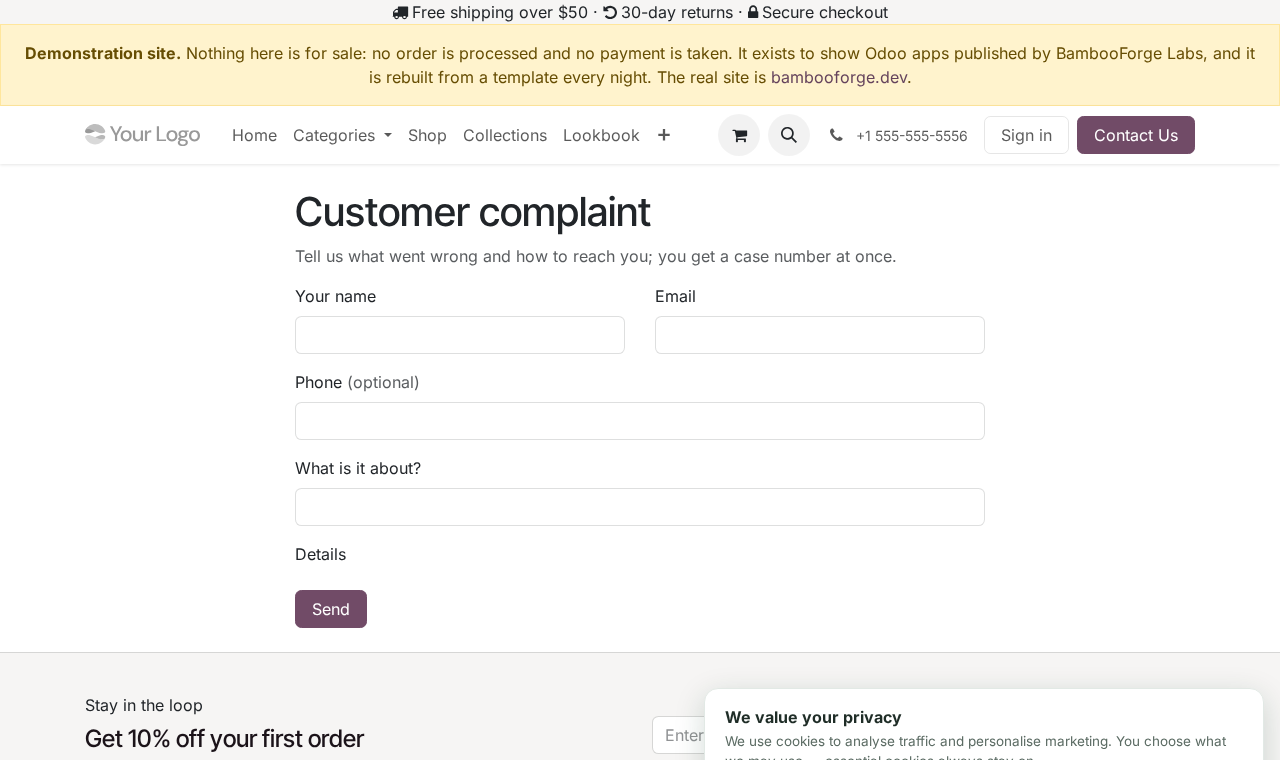
Instructions: shown on the case while it is there. Email alias: purchase-requests makes an email to purchase-requests@your mail domain start a case - the subject is the case, the message its description, the sender its contact (created if new) and follower, so they get the case's messages. Cases from outside are started by the first process owner. Web form: Signed-in customers and partners asks a portal login; Anyone, on the web asks a name and an email.
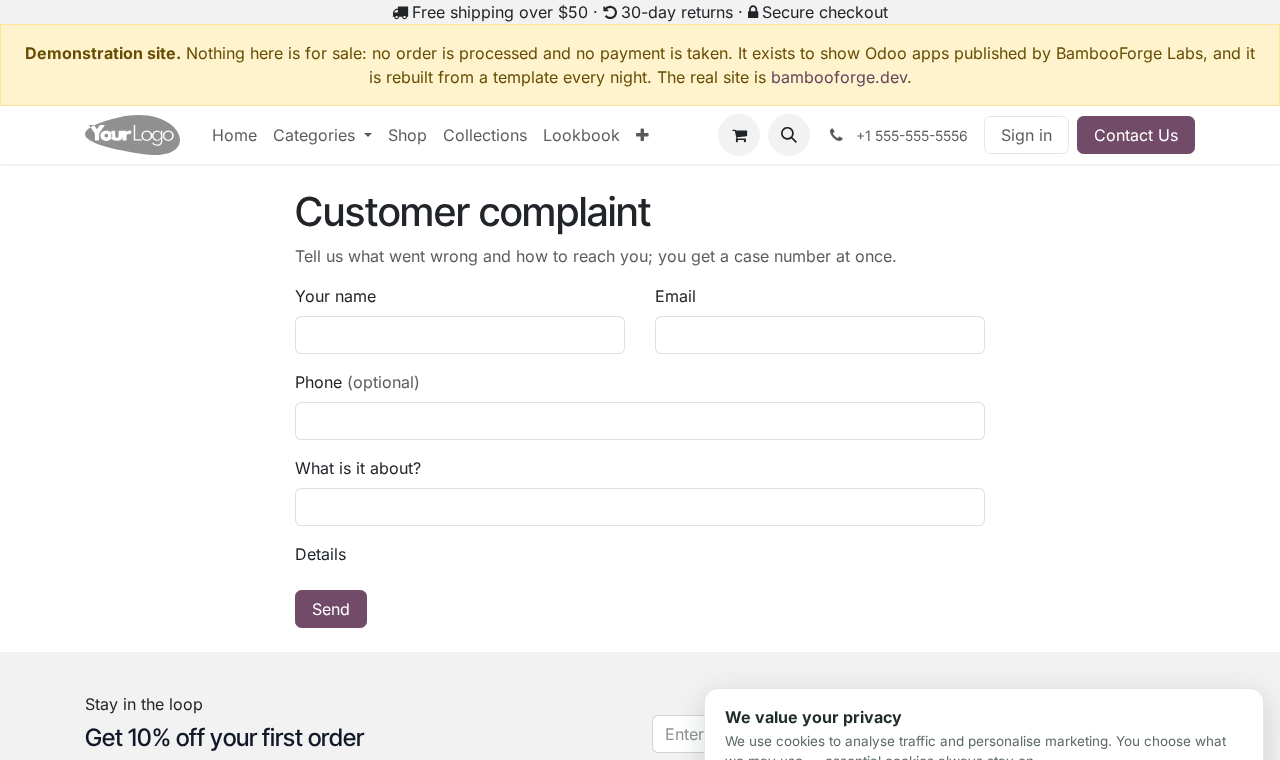
The form's address is shown on the process; the text above it is yours. The requester is told the case number, follows the case, and finds it on their portal under Requests with the stage it is in. Start from a record. Set Started From to a model - sale order, task, employee, contact - and that model's Action menu gets Start: <process>, on one record or many.
The case keeps the record, opens it from a button, and takes its contact when it has one. Where cases wait. Every stage a case leaves writes a line: stage, holder, entered, left, hours, whether it left late, what happened (completed, sent back, skipped, failed, cancelled). Where Cases Wait pivots those lines by stage and person, with average hours and the count of late departures; group by month to see whether a bottleneck is new.
The graph shows the same. Every process form has the same report for itself. The clock. An hourly scheduled action looks for running cases past their stage deadline.
Each one is reported once: a note in its chatter addressed to the holder and the process owners, and an activity for each owner. The Late ribbon and the red deadline stay until the case moves. All Cases ▸ Late lists them. Troubleshooting.
"... cannot leave '...' yet" A required checklist line is unticked or a required field is empty; the message names them. Fields marked carried belong to a stage that was skipped. "'...' goes to whoever you choose: fill in Hand To first" The next stage's assignment is whoever completes the stage before picks.
Choose the person in Hand To, then complete. Uninstalling. Uninstalling removes the processes, cases, histories and the Start: actions this app created. It touches nothing else.
19.0.1.1.0 Time allowed on a working calendar, public holidays left out. Checklist lines that need a file; parallel sign-offs within a stage. Cases started by email alias and from a portal or public web form; the requester's list of cases on the portal. An approval request per stage with Approval Workflow (new companion module).
19.0.1.0.0. First release: processes with stages, assignment modes, SLA clock, checklists, hand-off fields, skip and assign rules with carried fields, send back, fail, reassign, history and the bottleneck report, start from any record, a gallery of ten processes. Now the part most videos leave out: what this does not do. A case is visible to the person who started it, the person holding it, everybody who ever held it, its followers, the owners of its process and Process Designers.
Others do not see it in any list or search. Multi-company: a process and its cases can belong to one company or to all. The workflow's own fields - number, state, holder, deadline, history - cannot be written by hand, not even by a Designer; the buttons are the only way, so the history is always what happened. Nothing leaves the database.
Emails go out only through templates you put on a stage. The complete manual is at docs dot bambooforge dot dev, the demo database is linked from the store page, and support answers within twenty-four hours. Links are in the description.
Transcript of the walkthrough (Odoo 18)
Process Workflow Pro with SLA, Checklists and Hand-off Rules. Draw any business process as stages - who works each one, how long they have, what they tick off and what they must write down before it moves on. Cases route by rules, land with the least busy person, run a clock, come back with a reason, and every stage they sat in is on record. Ten worked processes on day one.
Odoo has stages on tasks, tickets and leads, and nothing for the processes that run between apps - a purchase request, a new starter, a complaint, a contract, an access request. Those live in email, and nobody can say where they stopped. This app lets you draw such a process once, as a line of stages, and then run every case of it down that line: with a named holder, a clock, a checklist, the fields the next desk needs, rules that route it, and a record of every stage it sat in. In the next few minutes: what you get, then the gallery, then working a case, then designing a process, then where cases wait.
Then what this app deliberately does not do, so you can tell before you buy whether it fits. Everything lives under Processes then With Me then Processes then All Cases. What you get Processes drawn as stages: who works each one, how long they have, what they tick off, what they write down. Cases that walk the line: started by anybody allowed, held by one person at a time, moved with buttons that keep the record straight.
Assignment by rule: whoever the previous desk picks, the least busy of the stage's people, the person who worked it before, the starter, the first named, or at random. A clock on every stage - round the clock, weekends skipped if you say so, or the working hours of a calendar with its public holidays; an activity for the holder with the deadline; the process owners told once when a stage runs late. The hand-off contract: required checklist lines (some only with a file attached) and required fields hold the case in its stage, and the case says which are missing. Sign-offs: several people sign a stage off, in any order, before the case moves on; a refusal is written down with its reason.
Doors from outside: an email alias that starts a case, a web form for customers or for anyone, and the requester's list of their cases on the portal. Rules that skip a stage or hand it to somebody, from what earlier stages wrote down, the starter's group, a label or the priority. A skip never loses a question: the required fields of a skipped stage are asked at the stage the case lands on. The gallery.
Purchase request to payment, employee onboarding, customer complaint, contract review and signature, new customer onboarding, system access request, content publishing, product return (RMA), incident and corrective action, hiring a role. Open one, read its stages, put your people on them and start a case - or copy it and make it yours. A gallery process is never overwritten by an upgrade; archive the ones you do not want (a deleted one would come back). Processes ▸ list ▸ Action ▸ Load the process gallery brings back what is missing.
Working a case. With Me lists the cases waiting for you. Open one: The stage's instructions are at the top; its checklist and the fields to fill in are on the This Stage tab. Tick, fill, and press Complete Stage.
If a required box or field is empty the case stays and the message names it. A checklist line marked file required takes its file first - the signed scan, the quote - in the line itself; it cannot be ticked without. When the next stage goes to whoever you choose, Hand To appears: pick the person before completing. A stage with sign-offs lists them on This Stage.
Each person named gets an activity and the buttons Sign Off and Refuse to Sign Off (with a reason, posted to the holder and the owners). The case leaves the stage once every sign-off is given; sent back and returned, it asks them all again. Send Back returns the case to the stage before, with a reason the person reads in the chatter; it lands with the desk that had it, and that desk's checklist is ticked again. A stage can forbid sending back.
Fail ends the case with a reason - the report on failures is built from these. Cancel Case is for the starter and the owners; the history is kept. Everything Known lists every field the case has answered, stage by stage; History every stage it sat in. Only the holder of a case, or an owner of its process, moves it or edits its checklist and fields.
Everybody else who can see it reads it. The number, state, holder, deadline and history are written by the workflow alone. Designing a process. Processes ▸ New (Designers only): a name, a case prefix (PR gives PR-0001), the owners, and who may start a case (empty: every internal user).
Then the stages, in order. Two end stages are needed: completed and failed; work stages come before them. Checklist: lines to tick; a required line holds the case; file required means the line is ticked only with a file attached to it. Sign-offs: the people who each sign the stage off before it moves on, in parallel, in any order.
Filled in here: the hand-off contract. Text, long text, number, date, yes/no, choice, contact or user; a required field holds the case. A field is answered once and can be read by every later stage. Email on arrival: a template on the case model, sent when a case enters the stage.
Instructions: shown on the case while it is there. Email alias: purchase-requests makes an email to purchase-requests@your mail domain start a case - the subject is the case, the message its description, the sender its contact (created if new) and follower, so they get the case's messages. Cases from outside are started by the first process owner. Web form: Signed-in customers and partners asks a portal login; Anyone, on the web asks a name and an email.
The form's address is shown on the process; the text above it is yours. The requester is told the case number, follows the case, and finds it on their portal under Requests with the stage it is in. Start from a record. Set Started From to a model - sale order, task, employee, contact - and that model's Action menu gets Start: <process>, on one record or many.
The case keeps the record, opens it from a button, and takes its contact when it has one. Where cases wait. Every stage a case leaves writes a line: stage, holder, entered, left, hours, whether it left late, what happened (completed, sent back, skipped, failed, cancelled). Where Cases Wait pivots those lines by stage and person, with average hours and the count of late departures; group by month to see whether a bottleneck is new.
The graph shows the same. Every process form has the same report for itself. The clock. An hourly scheduled action looks for running cases past their stage deadline.
Each one is reported once: a note in its chatter addressed to the holder and the process owners, and an activity for each owner. The Late ribbon and the red deadline stay until the case moves. All Cases ▸ Late lists them. Troubleshooting.
"... cannot leave '...' yet" A required checklist line is unticked or a required field is empty; the message names them. Fields marked carried belong to a stage that was skipped. "'...' goes to whoever you choose: fill in Hand To first" The next stage's assignment is whoever completes the stage before picks.
Choose the person in Hand To, then complete. Uninstalling. Uninstalling removes the processes, cases, histories and the Start: actions this app created. It touches nothing else.
18.0.1.1.0 Time allowed on a working calendar, public holidays left out. Checklist lines that need a file; parallel sign-offs within a stage. Cases started by email alias and from a portal or public web form; the requester's list of cases on the portal. An approval request per stage with Approval Workflow (new companion module).
18.0.1.0.0. First release: processes with stages, assignment modes, SLA clock, checklists, hand-off fields, skip and assign rules with carried fields, send back, fail, reassign, history and the bottleneck report, start from any record, a gallery of ten processes. Now the part most videos leave out: what this does not do. A case is visible to the person who started it, the person holding it, everybody who ever held it, its followers, the owners of its process and Process Designers.
Others do not see it in any list or search. Multi-company: a process and its cases can belong to one company or to all. The workflow's own fields - number, state, holder, deadline, history - cannot be written by hand, not even by a Designer; the buttons are the only way, so the history is always what happened. Nothing leaves the database.
Emails go out only through templates you put on a stage. The complete manual is at docs dot bambooforge dot dev, the demo database is linked from the store page, and support answers within twenty-four hours. Links are in the description.
Transcript of the walkthrough (Odoo 17)
Process Workflow Pro with SLA, Checklists and Hand-off Rules. Draw any business process as stages - who works each one, how long they have, what they tick off and what they must write down before it moves on. Cases route by rules, land with the least busy person, run a clock, come back with a reason, and every stage they sat in is on record. Ten worked processes on day one.
Odoo has stages on tasks, tickets and leads, and nothing for the processes that run between apps - a purchase request, a new starter, a complaint, a contract, an access request. Those live in email, and nobody can say where they stopped. This app lets you draw such a process once, as a line of stages, and then run every case of it down that line: with a named holder, a clock, a checklist, the fields the next desk needs, rules that route it, and a record of every stage it sat in. In the next few minutes: what you get, then the gallery, then working a case, then designing a process, then where cases wait.
Then what this app deliberately does not do, so you can tell before you buy whether it fits. Everything lives under Processes then With Me then Processes then All Cases. What you get Processes drawn as stages: who works each one, how long they have, what they tick off, what they write down. Cases that walk the line: started by anybody allowed, held by one person at a time, moved with buttons that keep the record straight.
Assignment by rule: whoever the previous desk picks, the least busy of the stage's people, the person who worked it before, the starter, the first named, or at random. A clock on every stage - round the clock, weekends skipped if you say so, or the working hours of a calendar with its public holidays; an activity for the holder with the deadline; the process owners told once when a stage runs late. The hand-off contract: required checklist lines (some only with a file attached) and required fields hold the case in its stage, and the case says which are missing. Sign-offs: several people sign a stage off, in any order, before the case moves on; a refusal is written down with its reason.
Doors from outside: an email alias that starts a case, a web form for customers or for anyone, and the requester's list of their cases on the portal. Rules that skip a stage or hand it to somebody, from what earlier stages wrote down, the starter's group, a label or the priority. A skip never loses a question: the required fields of a skipped stage are asked at the stage the case lands on. The gallery.
Purchase request to payment, employee onboarding, customer complaint, contract review and signature, new customer onboarding, system access request, content publishing, product return (RMA), incident and corrective action, hiring a role. Open one, read its stages, put your people on them and start a case - or copy it and make it yours. A gallery process is never overwritten by an upgrade; archive the ones you do not want (a deleted one would come back). Processes ▸ list ▸ Action ▸ Load the process gallery brings back what is missing.
Working a case. With Me lists the cases waiting for you. Open one: The stage's instructions are at the top; its checklist and the fields to fill in are on the This Stage tab. Tick, fill, and press Complete Stage.
If a required box or field is empty the case stays and the message names it. A checklist line marked file required takes its file first - the signed scan, the quote - in the line itself; it cannot be ticked without. When the next stage goes to whoever you choose, Hand To appears: pick the person before completing. A stage with sign-offs lists them on This Stage.
Each person named gets an activity and the buttons Sign Off and Refuse to Sign Off (with a reason, posted to the holder and the owners). The case leaves the stage once every sign-off is given; sent back and returned, it asks them all again. Send Back returns the case to the stage before, with a reason the person reads in the chatter; it lands with the desk that had it, and that desk's checklist is ticked again. A stage can forbid sending back.
Fail ends the case with a reason - the report on failures is built from these. Cancel Case is for the starter and the owners; the history is kept. Everything Known lists every field the case has answered, stage by stage; History every stage it sat in. Only the holder of a case, or an owner of its process, moves it or edits its checklist and fields.
Everybody else who can see it reads it. The number, state, holder, deadline and history are written by the workflow alone. Designing a process. Processes ▸ New (Designers only): a name, a case prefix (PR gives PR-0001), the owners, and who may start a case (empty: every internal user).
Then the stages, in order. Two end stages are needed: completed and failed; work stages come before them. Checklist: lines to tick; a required line holds the case; file required means the line is ticked only with a file attached to it. Sign-offs: the people who each sign the stage off before it moves on, in parallel, in any order.
Filled in here: the hand-off contract. Text, long text, number, date, yes/no, choice, contact or user; a required field holds the case. A field is answered once and can be read by every later stage. Email on arrival: a template on the case model, sent when a case enters the stage.
Instructions: shown on the case while it is there. Email alias: purchase-requests makes an email to purchase-requests@your mail domain start a case - the subject is the case, the message its description, the sender its contact (created if new) and follower, so they get the case's messages. Cases from outside are started by the first process owner. Web form: Signed-in customers and partners asks a portal login; Anyone, on the web asks a name and an email.
The form's address is shown on the process; the text above it is yours. The requester is told the case number, follows the case, and finds it on their portal under Requests with the stage it is in. Start from a record. Set Started From to a model - sale order, task, employee, contact - and that model's Action menu gets Start: <process>, on one record or many.
The case keeps the record, opens it from a button, and takes its contact when it has one. Where cases wait. Every stage a case leaves writes a line: stage, holder, entered, left, hours, whether it left late, what happened (completed, sent back, skipped, failed, cancelled). Where Cases Wait pivots those lines by stage and person, with average hours and the count of late departures; group by month to see whether a bottleneck is new.
The graph shows the same. Every process form has the same report for itself. The clock. An hourly scheduled action looks for running cases past their stage deadline.
Each one is reported once: a note in its chatter addressed to the holder and the process owners, and an activity for each owner. The Late ribbon and the red deadline stay until the case moves. All Cases ▸ Late lists them. Troubleshooting.
"... cannot leave '...' yet" A required checklist line is unticked or a required field is empty; the message names them. Fields marked carried belong to a stage that was skipped. "'...' goes to whoever you choose: fill in Hand To first" The next stage's assignment is whoever completes the stage before picks.
Choose the person in Hand To, then complete. Uninstalling. Uninstalling removes the processes, cases, histories and the Start: actions this app created. It touches nothing else.
17.0.1.1.0 Time allowed on a working calendar, public holidays left out. Checklist lines that need a file; parallel sign-offs within a stage. Cases started by email alias and from a portal or public web form; the requester's list of cases on the portal. An approval request per stage with Approval Workflow (new companion module).
17.0.1.0.0. First release: processes with stages, assignment modes, SLA clock, checklists, hand-off fields, skip and assign rules with carried fields, send back, fail, reassign, history and the bottleneck report, start from any record, a gallery of ten processes. Now the part most videos leave out: what this does not do. A case is visible to the person who started it, the person holding it, everybody who ever held it, its followers, the owners of its process and Process Designers.
Others do not see it in any list or search. Multi-company: a process and its cases can belong to one company or to all. The workflow's own fields - number, state, holder, deadline, history - cannot be written by hand, not even by a Designer; the buttons are the only way, so the history is always what happened. Nothing leaves the database.
Emails go out only through templates you put on a stage. The complete manual is at docs dot bambooforge dot dev, the demo database is linked from the store page, and support answers within twenty-four hours. Links are in the description.
Transcript of the walkthrough (Odoo 16)
Process Workflow Pro with SLA, Checklists and Hand-off Rules. Draw any business process as stages - who works each one, how long they have, what they tick off and what they must write down before it moves on. Cases route by rules, land with the least busy person, run a clock, come back with a reason, and every stage they sat in is on record. Ten worked processes on day one.
Odoo has stages on tasks, tickets and leads, and nothing for the processes that run between apps - a purchase request, a new starter, a complaint, a contract, an access request. Those live in email, and nobody can say where they stopped. This app lets you draw such a process once, as a line of stages, and then run every case of it down that line: with a named holder, a clock, a checklist, the fields the next desk needs, rules that route it, and a record of every stage it sat in. In the next few minutes: what you get, then the gallery, then working a case, then designing a process, then where cases wait.
Then what this app deliberately does not do, so you can tell before you buy whether it fits. Everything lives under Processes then With Me then Processes then All Cases. What you get Processes drawn as stages: who works each one, how long they have, what they tick off, what they write down. Cases that walk the line: started by anybody allowed, held by one person at a time, moved with buttons that keep the record straight.
Assignment by rule: whoever the previous desk picks, the least busy of the stage's people, the person who worked it before, the starter, the first named, or at random. A clock on every stage - round the clock, weekends skipped if you say so, or the working hours of a calendar with its public holidays; an activity for the holder with the deadline; the process owners told once when a stage runs late. The hand-off contract: required checklist lines (some only with a file attached) and required fields hold the case in its stage, and the case says which are missing. Sign-offs: several people sign a stage off, in any order, before the case moves on; a refusal is written down with its reason.
Doors from outside: an email alias that starts a case, a web form for customers or for anyone, and the requester's list of their cases on the portal. Rules that skip a stage or hand it to somebody, from what earlier stages wrote down, the starter's group, a label or the priority. A skip never loses a question: the required fields of a skipped stage are asked at the stage the case lands on. The gallery.
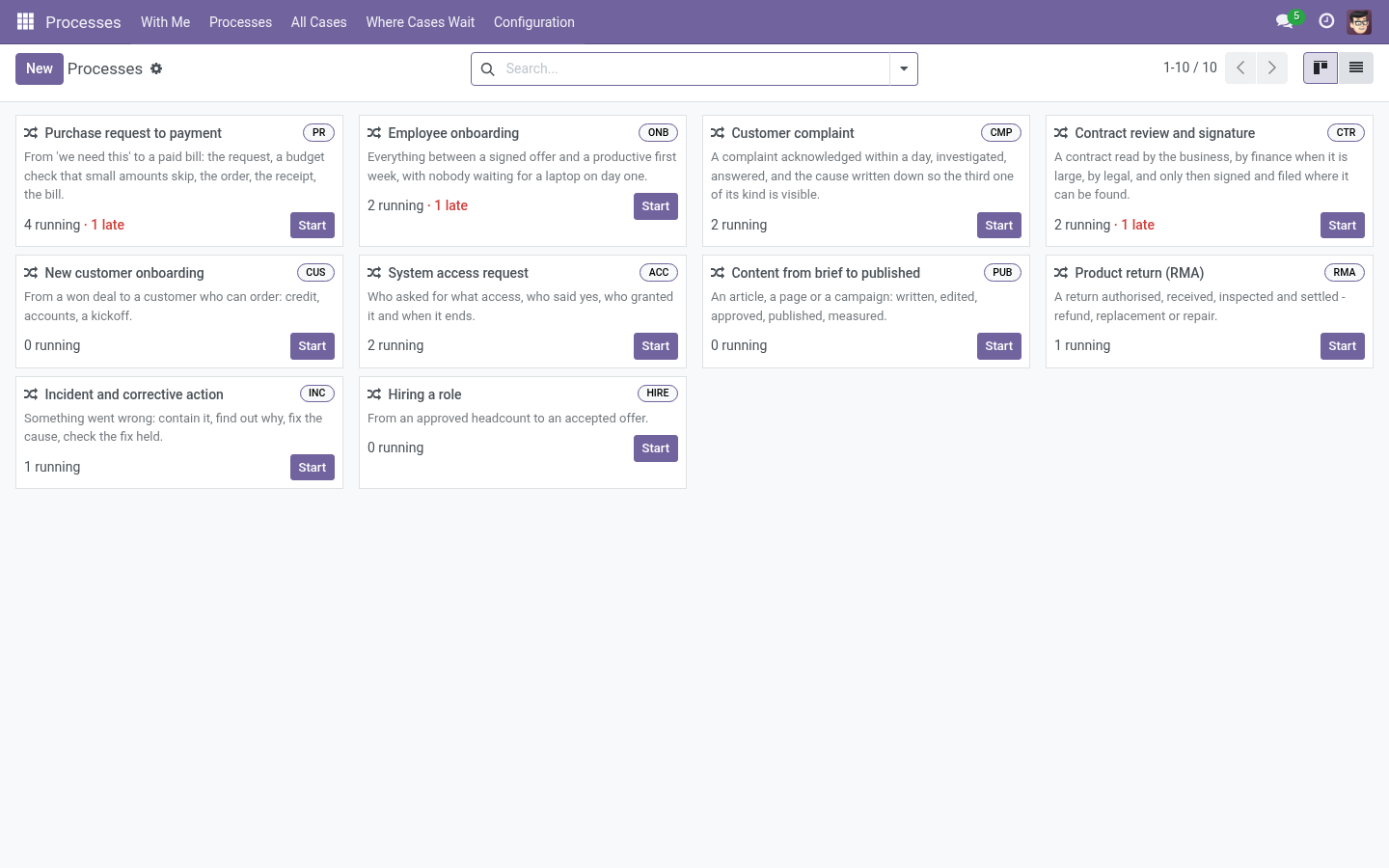
Purchase request to payment, employee onboarding, customer complaint, contract review and signature, new customer onboarding, system access request, content publishing, product return (RMA), incident and corrective action, hiring a role. Open one, read its stages, put your people on them and start a case - or copy it and make it yours. A gallery process is never overwritten by an upgrade; archive the ones you do not want (a deleted one would come back). Processes ▸ list ▸ Action ▸ Load the process gallery brings back what is missing.
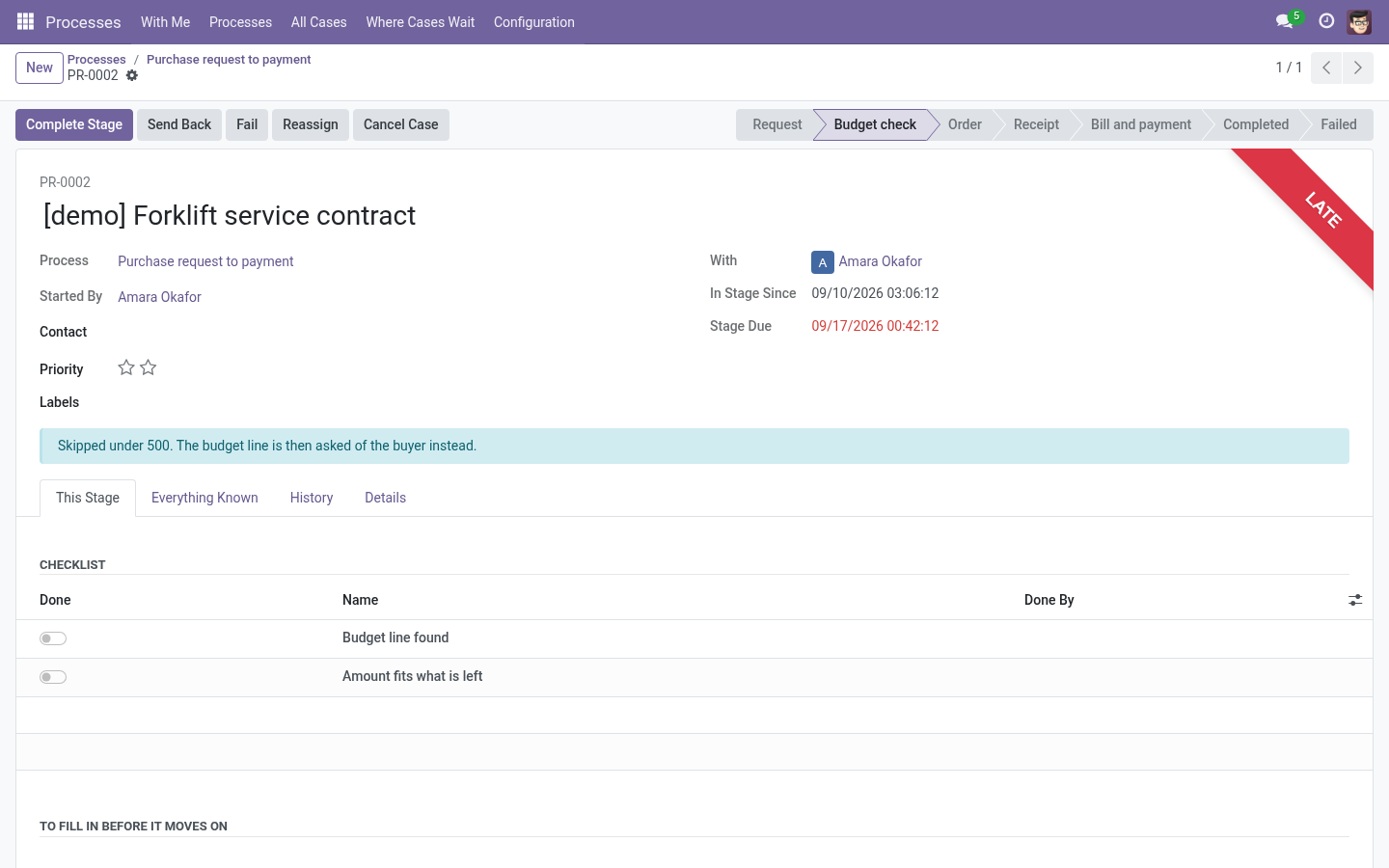
Working a case. With Me lists the cases waiting for you. Open one: The stage's instructions are at the top; its checklist and the fields to fill in are on the This Stage tab. Tick, fill, and press Complete Stage.
If a required box or field is empty the case stays and the message names it. A checklist line marked file required takes its file first - the signed scan, the quote - in the line itself; it cannot be ticked without. When the next stage goes to whoever you choose, Hand To appears: pick the person before completing. A stage with sign-offs lists them on This Stage.
Each person named gets an activity and the buttons Sign Off and Refuse to Sign Off (with a reason, posted to the holder and the owners). The case leaves the stage once every sign-off is given; sent back and returned, it asks them all again. Send Back returns the case to the stage before, with a reason the person reads in the chatter; it lands with the desk that had it, and that desk's checklist is ticked again. A stage can forbid sending back.
Fail ends the case with a reason - the report on failures is built from these. Cancel Case is for the starter and the owners; the history is kept. Everything Known lists every field the case has answered, stage by stage; History every stage it sat in. Only the holder of a case, or an owner of its process, moves it or edits its checklist and fields.
Everybody else who can see it reads it. The number, state, holder, deadline and history are written by the workflow alone. Designing a process. Processes ▸ New (Designers only): a name, a case prefix (PR gives PR-0001), the owners, and who may start a case (empty: every internal user).
Then the stages, in order. Two end stages are needed: completed and failed; work stages come before them. Checklist: lines to tick; a required line holds the case; file required means the line is ticked only with a file attached to it. Sign-offs: the people who each sign the stage off before it moves on, in parallel, in any order.
Filled in here: the hand-off contract. Text, long text, number, date, yes/no, choice, contact or user; a required field holds the case. A field is answered once and can be read by every later stage. Email on arrival: a template on the case model, sent when a case enters the stage.
Instructions: shown on the case while it is there. Email alias: purchase-requests makes an email to purchase-requests@your mail domain start a case - the subject is the case, the message its description, the sender its contact (created if new) and follower, so they get the case's messages. Cases from outside are started by the first process owner. Web form: Signed-in customers and partners asks a portal login; Anyone, on the web asks a name and an email.
The form's address is shown on the process; the text above it is yours. The requester is told the case number, follows the case, and finds it on their portal under Requests with the stage it is in. Start from a record. Set Started From to a model - sale order, task, employee, contact - and that model's Action menu gets Start: <process>, on one record or many.
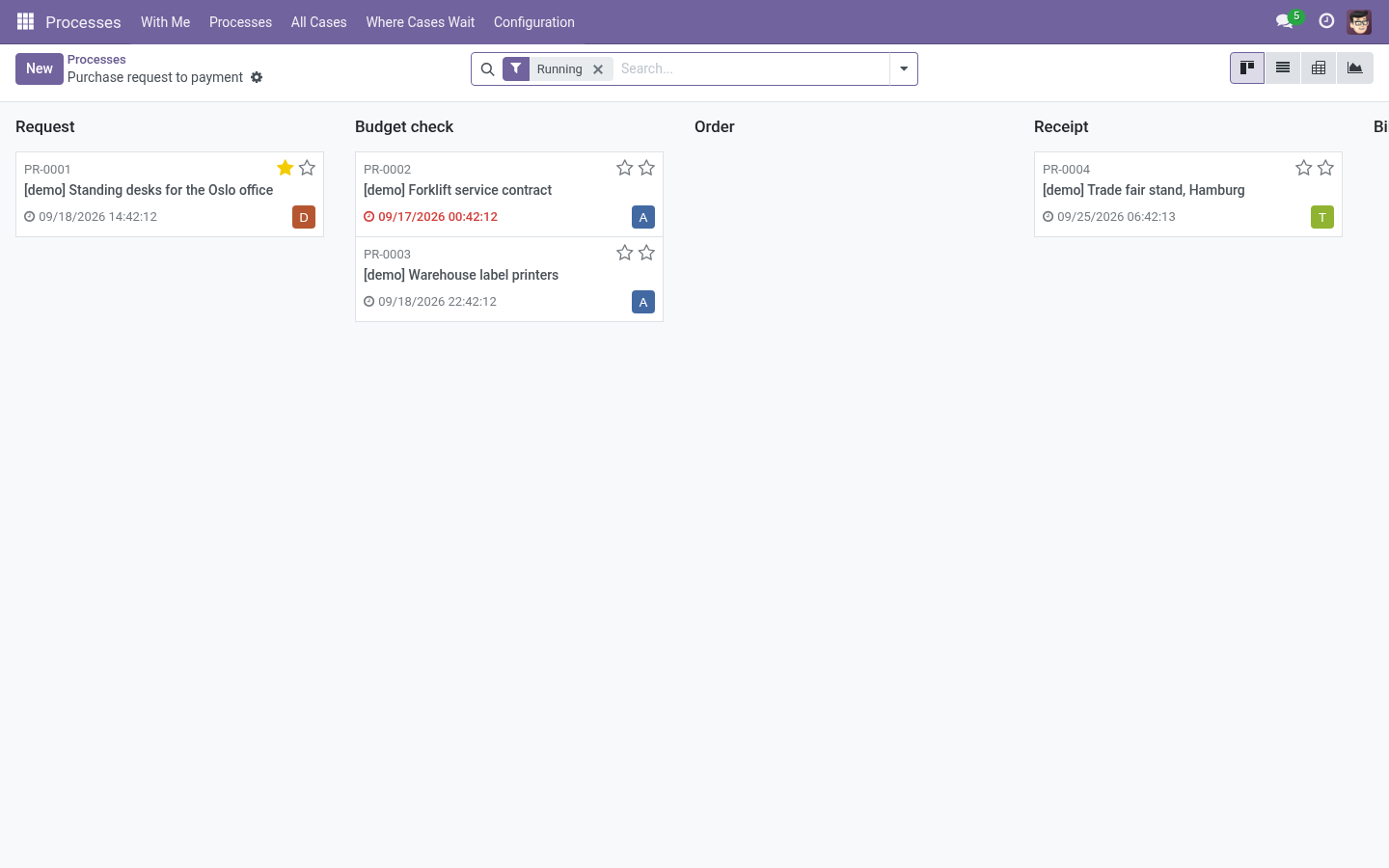
The case keeps the record, opens it from a button, and takes its contact when it has one. Where cases wait. Every stage a case leaves writes a line: stage, holder, entered, left, hours, whether it left late, what happened (completed, sent back, skipped, failed, cancelled). Where Cases Wait pivots those lines by stage and person, with average hours and the count of late departures; group by month to see whether a bottleneck is new.
The graph shows the same. Every process form has the same report for itself. The clock. An hourly scheduled action looks for running cases past their stage deadline.
Each one is reported once: a note in its chatter addressed to the holder and the process owners, and an activity for each owner. The Late ribbon and the red deadline stay until the case moves. All Cases ▸ Late lists them. Troubleshooting.
"... cannot leave '...' yet" A required checklist line is unticked or a required field is empty; the message names them. Fields marked carried belong to a stage that was skipped. "'...' goes to whoever you choose: fill in Hand To first" The next stage's assignment is whoever completes the stage before picks.
Choose the person in Hand To, then complete. Uninstalling. Uninstalling removes the processes, cases, histories and the Start: actions this app created. It touches nothing else.
16.0.1.1.0 Time allowed on a working calendar, public holidays left out. Checklist lines that need a file; parallel sign-offs within a stage. Cases started by email alias and from a portal or public web form; the requester's list of cases on the portal. An approval request per stage with Approval Workflow (new companion module).
16.0.1.0.0. First release: processes with stages, assignment modes, SLA clock, checklists, hand-off fields, skip and assign rules with carried fields, send back, fail, reassign, history and the bottleneck report, start from any record, a gallery of ten processes. Now the part most videos leave out: what this does not do. A case is visible to the person who started it, the person holding it, everybody who ever held it, its followers, the owners of its process and Process Designers.
Others do not see it in any list or search. Multi-company: a process and its cases can belong to one company or to all. The workflow's own fields - number, state, holder, deadline, history - cannot be written by hand, not even by a Designer; the buttons are the only way, so the history is always what happened. Nothing leaves the database.
Emails go out only through templates you put on a stage. The complete manual is at docs dot bambooforge dot dev, the demo database is linked from the store page, and support answers within twenty-four hours. Links are in the description.
Key facts
- What it is
- Draw any business process as stages - who works each one, how long they have, what they tick off and what they must write down before it moves on. Cases route by rules, land with the least busy person, run a clock, come back with a reason, and every stage they sat in is on record. Ten worked processes on day one.
- For
- Productivity
- Odoo versions
- 16.0, 17.0, 18.0, 19.0, 20.0 - Community and Enterprise
- Runs on
- Odoo.sh or Odoo you host yourself - not Odoo Online, which accepts no third-party apps
- Price
- 149 EUR, one-time, on the Odoo Apps Store
- Technical name
- bambooforge_process
- Not for
- A process is a line. Stages run in order; a rule can skip forward and a person can send back one stage, but there are no parallel branches and no loops by design. Parallel sign-offs within a stage are the way to have several people agree at once.; Fields are the case's own; they are not written back to the record the case was started from.; Cases are worked by internal users; the portal shows requesters their cases and where they stand, not the case's internal fields.; The public web form has a hidden trap field against robots, not a captcha; put a captcha in front of it if spam gets through.; With Approval Workflow installed, the small Process with Approvals module installs by itself: a stage can name an approval type, raise the request as the case arrives, and move on once it is approved.
- Manual last updated
- 2026-10-15
Process Workflow Pro with SLA, Checklists and Hand-off Rules
Odoo has stages on tasks, tickets and leads, and nothing for the processes that run between apps - a purchase request, a new starter, a complaint, a contract, an access request. Those live in email, and nobody can say where they stopped. This app lets you draw such a process once, as a line of stages, and then run every case of it down that line: with a named holder, a clock, a checklist, the fields the next desk needs, rules that route it, and a record of every stage it sat in.
This page is the complete manual. Read top to bottom, it takes you from install to a designed, running process without contacting support.
What you get
Processes drawn as stages: who works each one, how long they have, what they tick off, what they write down.
Cases that walk the line: started by anybody allowed, held by one person at a time, moved with buttons that keep the record straight.
Assignment by rule: whoever the previous desk picks, the least busy of the stage's people, the person who worked it before, the starter, the first named, or at random.
A clock on every stage - round the clock, weekends skipped if you say so, or the working hours of a calendar with its public holidays; an activity for the holder with the deadline; the process owners told once when a stage runs late.
The hand-off contract: required checklist lines (some only with a file attached) and required fields hold the case in its stage, and the case says which are missing.
Sign-offs: several people sign a stage off, in any order, before the case moves on; a refusal is written down with its reason.
Doors from outside: an email alias that starts a case, a web form for customers or for anyone, and the requester's list of their cases on the portal.
Rules that skip a stage or hand it to somebody, from what earlier stages wrote down, the starter's group, a label or the priority. A skip never loses a question: the required fields of a skipped stage are asked at the stage the case lands on.
Send back with a reason, to the desk that had it; fail with a reason; reassign as an owner; cancel.
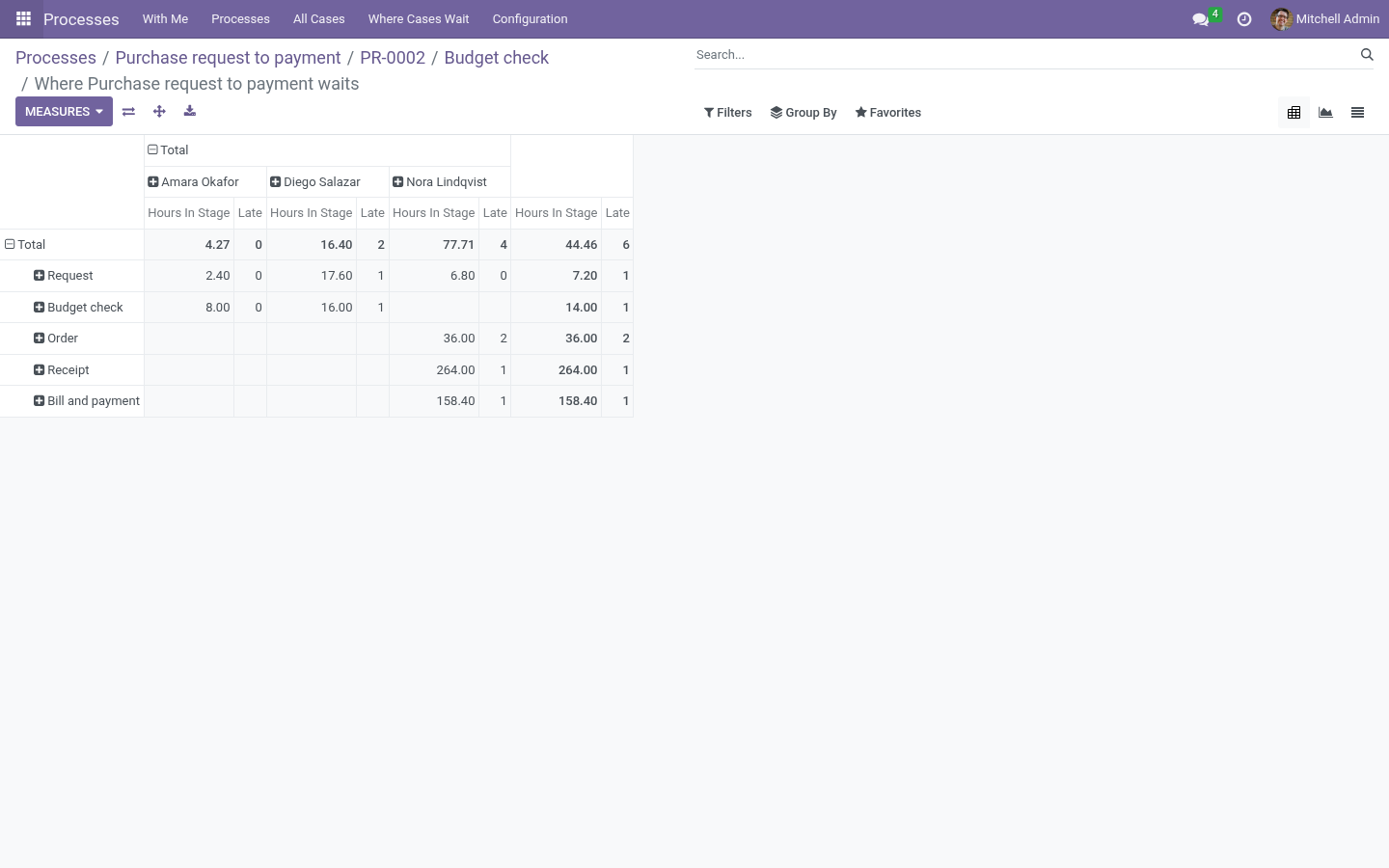
History: every stage a case sat in - with whom, how long, whether it left late, whether it came back - and Where Cases Wait, the pivot that shows the bottleneck by stage, person and month.
Start from any record: name a model and its Action menu offers Start: <process>; the case keeps the link.
Ten worked processes on install.
Requirements
Odoo: 20.0, Community or Enterprise.
Dependencies: mail (Discuss), portal and resource (working calendars) - all part of Odoo Community.
Access: every internal user starts cases they are allowed to, works the ones given to them, and sees the ones they started, hold, held or follow. A Process Designer (Settings ▸ Users ▸ Processes) draws processes and sees every case. Each process also names Process Owners, who see and move every case of that process and are told when one runs late. The administrator is a Designer by default.
Network: none.
Install
Copy bambooforge_process into your addons path and restart Odoo.
Apps ▸ Update Apps List, search for Process Workflow, Activate.
Open Processes. Ten processes are already there, each with its stages, checklists, fields and rules, and nobody named on them yet: every stage goes to the process owner until you say who works it.
The gallery
Purchase request to payment, employee onboarding, customer complaint, contract review and signature, new customer onboarding, system access request, content publishing, product return (RMA), incident and corrective action, hiring a role. Open one, read its stages, put your people on them and start a case - or copy it and make it yours. A gallery process is never overwritten by an upgrade; archive the ones you do not want (a deleted one would come back). Processes ▸ list ▸ Action ▸ Load the process gallery brings back what is missing.
Working a case
With Me lists the cases waiting for you. Open one:
The stage's instructions are at the top; its checklist and the fields to fill in are on the This Stage tab. Tick, fill, and press Complete Stage. If a required box or field is empty the case stays and the message names it.
A checklist line marked file required takes its file first - the signed scan, the quote - in the line itself; it cannot be ticked without.
When the next stage goes to whoever you choose, Hand To appears: pick the person before completing.
A stage with sign-offs lists them on This Stage. Each person named gets an activity and the buttons Sign Off and Refuse to Sign Off (with a reason, posted to the holder and the owners). The case leaves the stage once every sign-off is given; sent back and returned, it asks them all again.
Send Back returns the case to the stage before, with a reason the person reads in the chatter; it lands with the desk that had it, and that desk's checklist is ticked again. A stage can forbid sending back.
Fail ends the case with a reason - the report on failures is built from these.
Cancel Case is for the starter and the owners; the history is kept.
Everything Known lists every field the case has answered, stage by stage; History every stage it sat in.
Only the holder of a case, or an owner of its process, moves it or edits its checklist and fields. Everybody else who can see it reads it. The number, state, holder, deadline and history are written by the workflow alone.
Designing a process
Processes ▸ New (Designers only): a name, a case prefix (PR gives PR-0001), the owners, and who may start a case (empty: every internal user). Then the stages, in order. Two end stages are needed: completed and failed; work stages come before them.
A stage:
Who works it - people and groups - and how a case goes to one of them: whoever completes the stage before picks, the least busy, the one who worked it before (for a return visit: the thirty-day check-in goes to the manager who did the first week), the starter, the first listed, at random. A stage nobody is named for goes to the process owner.
Time allowed, in hours, from the moment the case arrives; skip weekends stops the clock on Saturday and Sunday. With Working Hours set to a calendar (Settings ▸ Technical ▸ Working Schedules), only its working hours count and its public holidays are left out: eight hours from Friday 16:00 on a 9-to-5 calendar is Monday 16:00, or Tuesday when Monday is a holiday.
Checklist: lines to tick; a required line holds the case; file required means the line is ticked only with a file attached to it.
Sign-offs: the people who each sign the stage off before it moves on, in parallel, in any order.
Filled in here: the hand-off contract. Text, long text, number, date, yes/no, choice, contact or user; a required field holds the case. A field is answered once and can be read by every later stage.
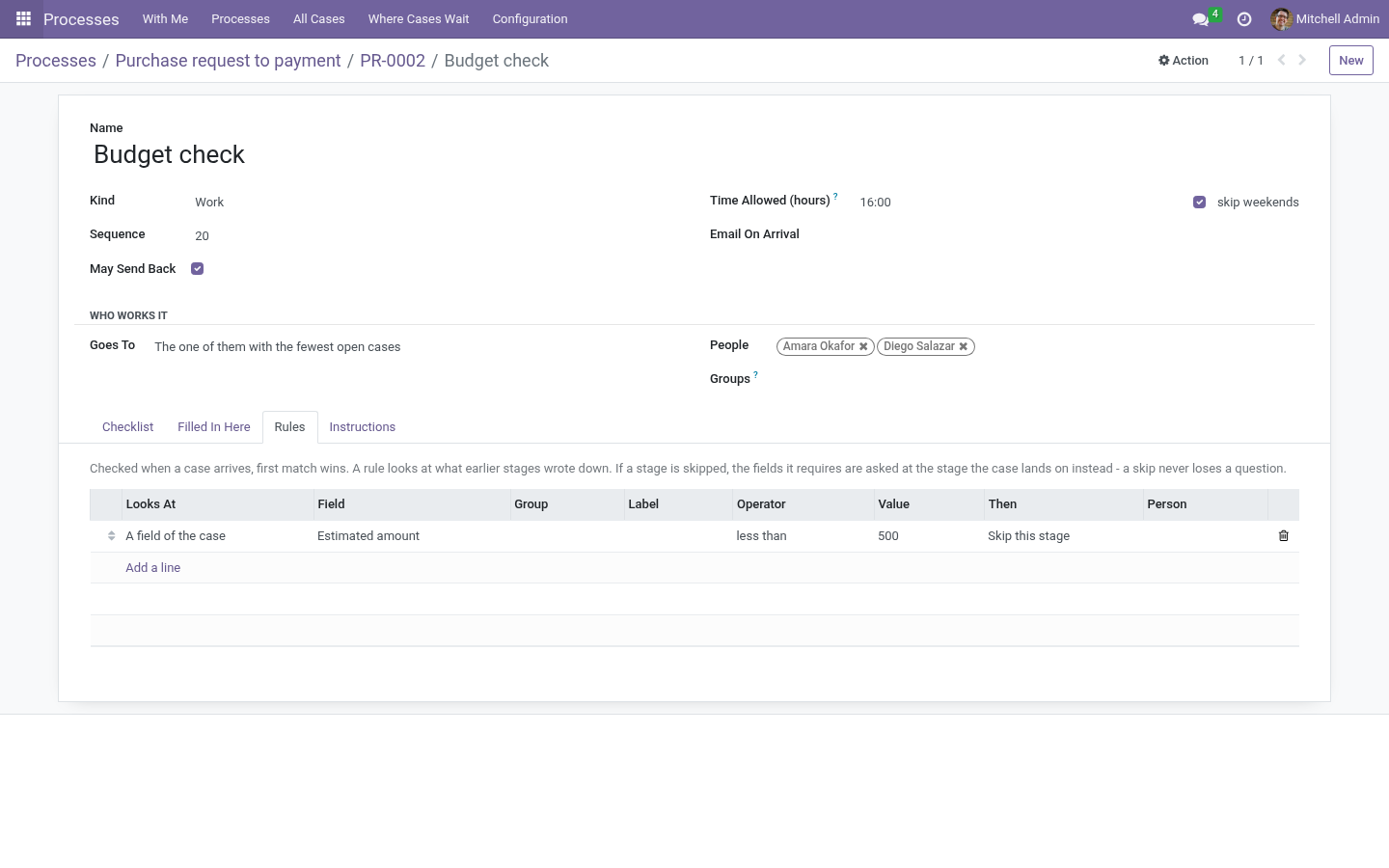
Rules, checked when a case arrives, first match wins. A rule looks at a field an earlier stage filled in, the starter's group, a label on the case or its priority, and either skips the stage or gives it to a named person. Skipped stages are written in the history, and the required fields they would have asked are asked at the landing stage instead, marked carried.
Email on arrival: a template on the case model, sent when a case enters the stage.
Instructions: shown on the case while it is there.
Started from outside. On the process:
Email alias: purchase-requests makes an email to purchase-requests@your mail domain start a case - the subject is the case, the message its description, the sender its contact (created if new) and follower, so they get the case's messages. Cases from outside are started by the first process owner.
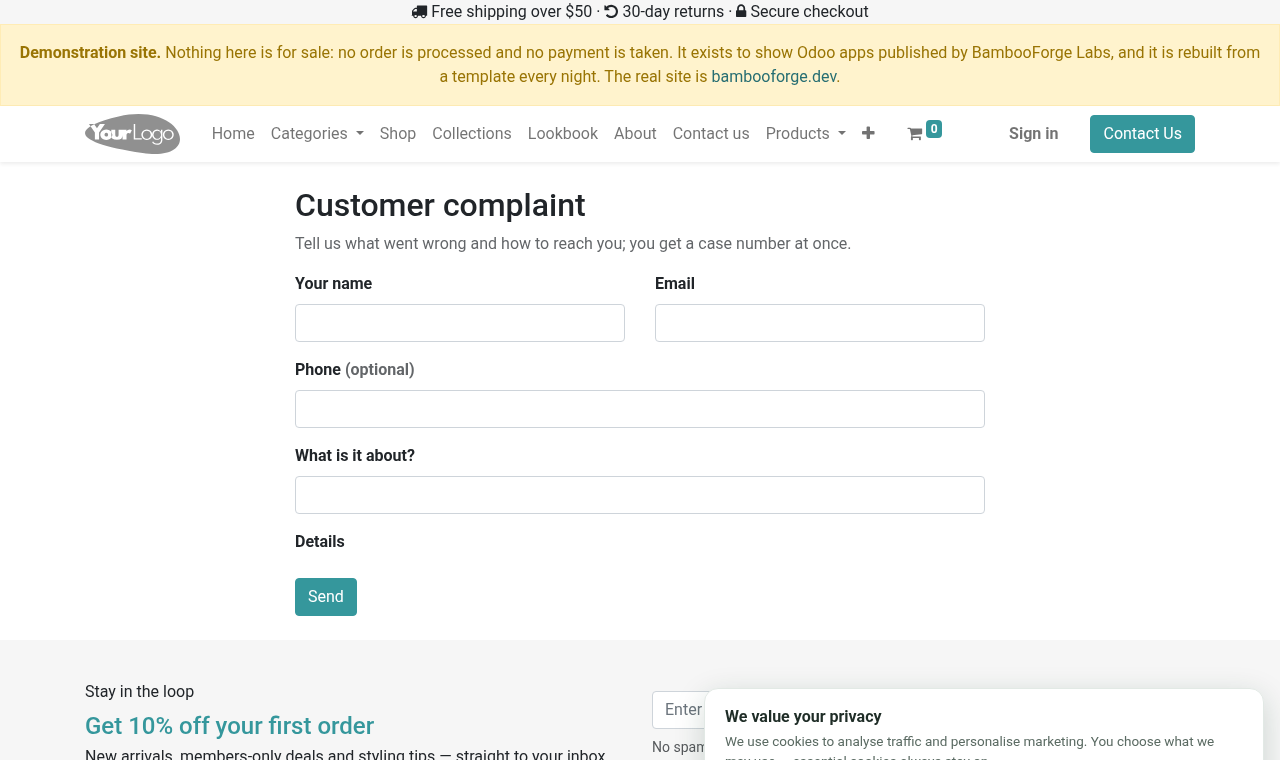
Web form: Signed-in customers and partners asks a portal login; Anyone, on the web asks a name and an email. The form's address is shown on the process; the text above it is yours. The requester is told the case number, follows the case, and finds it on their portal under Requests with the stage it is in.
Start from a record. Set Started From to a model - sale order, task, employee, contact - and that model's Action menu gets Start: <process>, on one record or many. The case keeps the record, opens it from a button, and takes its contact when it has one.
Where cases wait
Every stage a case leaves writes a line: stage, holder, entered, left, hours, whether it left late, what happened (completed, sent back, skipped, failed, cancelled). Where Cases Wait pivots those lines by stage and person, with average hours and the count of late departures; group by month to see whether a bottleneck is new. The graph shows the same. Every process form has the same report for itself.
The clock
An hourly scheduled action looks for running cases past their stage deadline. Each one is reported once: a note in its chatter addressed to the holder and the process owners, and an activity for each owner. The Late ribbon and the red deadline stay until the case moves. All Cases ▸ Late lists them.
Access and privacy
A case is visible to the person who started it, the person holding it, everybody who ever held it, its followers, the owners of its process and Process Designers. Others do not see it in any list or search.
Multi-company: a process and its cases can belong to one company or to all.
The workflow's own fields - number, state, holder, deadline, history - cannot be written by hand, not even by a Designer; the buttons are the only way, so the history is always what happened.
Nothing leaves the database. Emails go out only through templates you put on a stage.
Troubleshooting
- "... cannot leave '...' yet"
A required checklist line is unticked or a required field is empty; the message names them. Fields marked carried belong to a stage that was skipped.
- "'...' goes to whoever you choose: fill in Hand To first"
The next stage's assignment is whoever completes the stage before picks. Choose the person in Hand To, then complete.
- "... is with <somebody>"
Only the holder or a process owner moves a case. Ask an owner to reassign it.
- A case landed with the process owner
The stage names nobody, or the people named are archived or portal users. Put people or groups on the stage.
- A rule does not fire
Rules run when the case arrives at the stage and look only at what earlier stages filled in. A rule on a field of the same stage is refused on save for that reason.
- "You are not among the people who may start ..."
The process names starter groups and you are in none of them.
Limits, stated plainly
A process is a line. Stages run in order; a rule can skip forward and a person can send back one stage, but there are no parallel branches and no loops by design. Parallel sign-offs within a stage are the way to have several people agree at once.
Fields are the case's own; they are not written back to the record the case was started from.
Cases are worked by internal users; the portal shows requesters their cases and where they stand, not the case's internal fields.
The public web form has a hidden trap field against robots, not a captcha; put a captcha in front of it if spam gets through.
With Approval Workflow installed, the small Process with Approvals module installs by itself: a stage can name an approval type, raise the request as the case arrives, and move on once it is approved.
Uninstalling
Uninstalling removes the processes, cases, histories and the Start: actions this app created. It touches nothing else.
Changelog
20.0.1.1.0
Built for Odoo 20: record rules and access rights rewritten onto Odoo 20's single ir.access model, the screens rebuilt on Owl 3, and every icon moved to the icon set Odoo 20 ships. The portal card is an Odoo 20 portal entry.
20.0.1.1.0
Time allowed on a working calendar, public holidays left out.
Checklist lines that need a file; parallel sign-offs within a stage.
Cases started by email alias and from a portal or public web form; the requester's list of cases on the portal.
An approval request per stage with Approval Workflow (new companion module).
20.0.1.0.0
First release: processes with stages, assignment modes, SLA clock, checklists, hand-off fields, skip and assign rules with carried fields, send back, fail, reassign, history and the bottleneck report, start from any record, a gallery of ten processes.
How we make sure it works
Before every release, 23 automated checks run against this app on Odoo 16, 17, 18, 19 and 20. Among them:
A refused sign off keeps the case.
Only the holder or an owner moves it.
A skipped stage never loses a question.
Send back returns to the desk that had it.
Start lands with the starter and starts the clock.
The complete list is in the source you receive.