 BambooForge Labs
POS Interface All in One for Restaurant
Makes the faster Point of Sale layout fit cleanly with Odoo Restaurant. Installs itself only when both are present, nothing hard-coded.
Available for Odoo 17.0, Odoo 18.0, Odoo 19.0, Odoo 20.0. Technical name bambooforge_pos_ui_bridge.
Transcript of the walkthrough (Odoo 20)
POS Interface All in One for Restaurant. Makes the faster Point of Sale layout fit cleanly with Odoo Restaurant. Installs itself only when both are present, nothing hard-coded. This is a small compatibility bridge between BambooForge POS UI and Odoo Restaurant (pos_restaurant).
It aligns the restaurant-specific screens — the floor plan, table cards and the table order view — with the BambooForge cashier layout, using your theme's own colour variables. In the next few minutes: configuration, then questions people ask, then the bridge did not install, then restaurant screens still look unstyled, then colours look wrong on the floor plan. Then what this app deliberately does not do, so you can tell before you buy whether it fits. Configuration.
None. The bridge follows the BambooForge Layout toggle of each register (from BambooForge POS UI) and your active theme's colours. Questions people ask. Which Odoo versions does it run on?
Odoo 17.0, 18.0, 19.0, 20.0, on the series you buy it for; each series is its own listing. Community or Enterprise? Both. It needs no Enterprise app.
The bridge did not install. It installs only when both BambooForge POS UI and Restaurant are present. Install the missing one and update the apps list. Restaurant screens still look unstyled.
Make sure the register has BambooForge Layout enabled (in BambooForge POS UI), then reopen the session so styles reload. Colours look wrong on the floor plan. Colours come from your active theme. Set your brand colour in your backend/POS theme and the restaurant screens follow it.
I want the standard restaurant look on one register. Turn BambooForge Layout off for that register; the bridge styling only applies where the layout is enabled. Frequently asked questions. Do I need this if I do not use Restaurant?
No. Without Restaurant it will not install and is not needed. Does it change restaurant behaviour? No — it is styling only.
How we make sure it works. Before every release, 8 automated checks run against this app on Odoo 17, 18, 19 and 20. Among them: It is priced as a bridge not as a product. It carries no model and no data.
It installs itself only alongside both sides. The stylesheet hard codes no colour. The listing offers somewhere to try it. The complete list is in the source you receive.
Support. This app is designed to run without vendor support. For licensing questions contact support@bambooforge.dev. Usage.
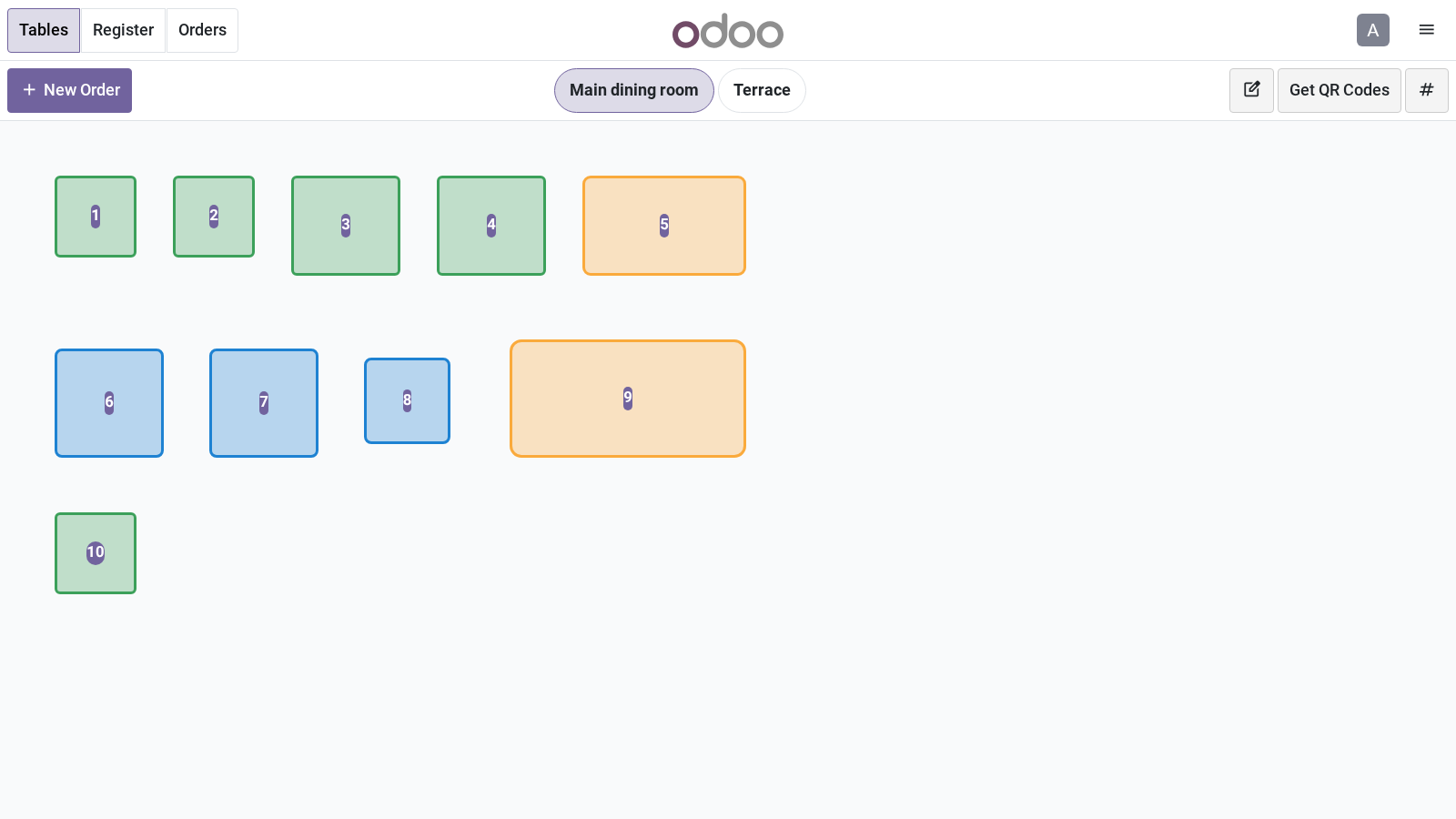
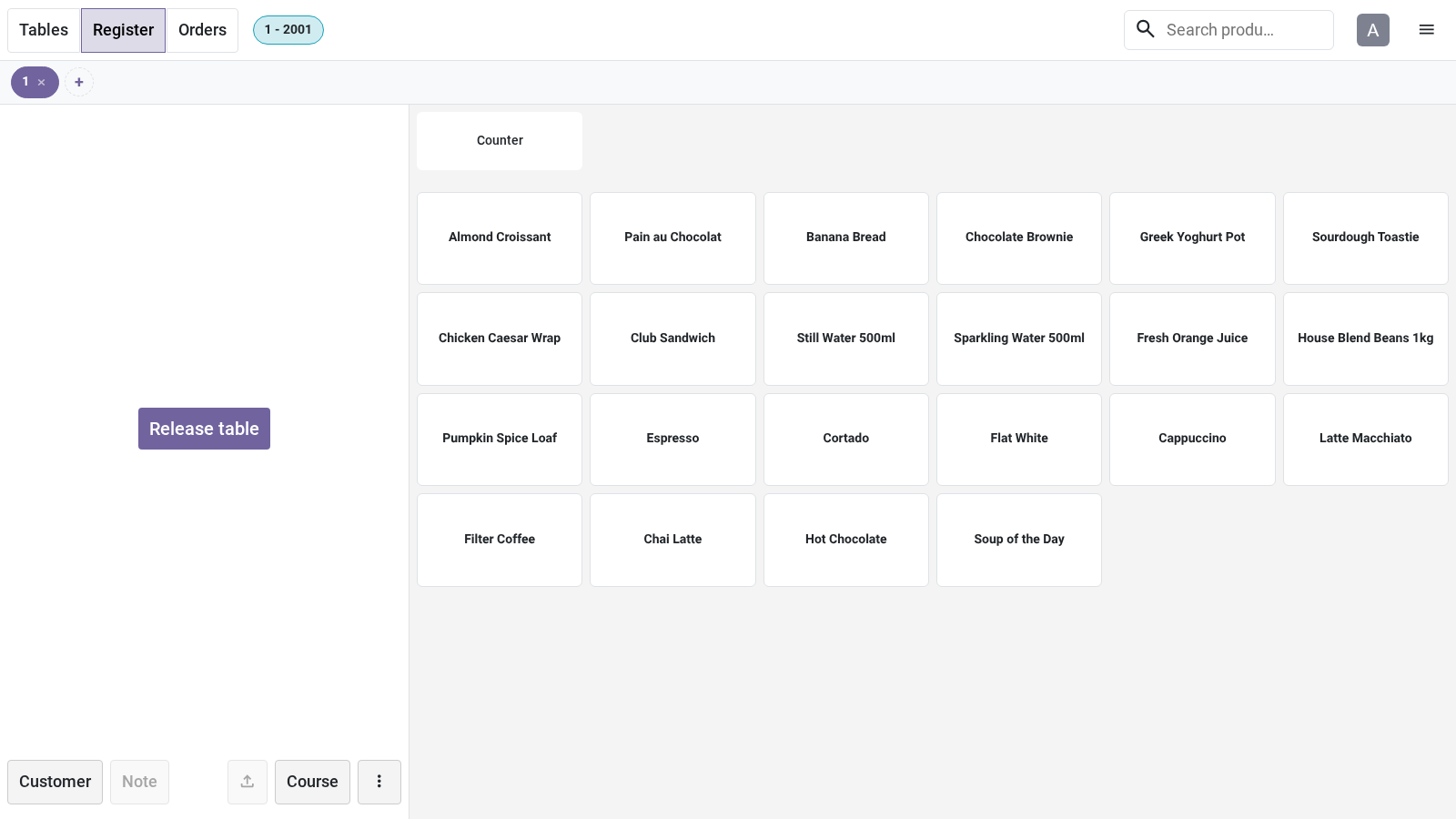
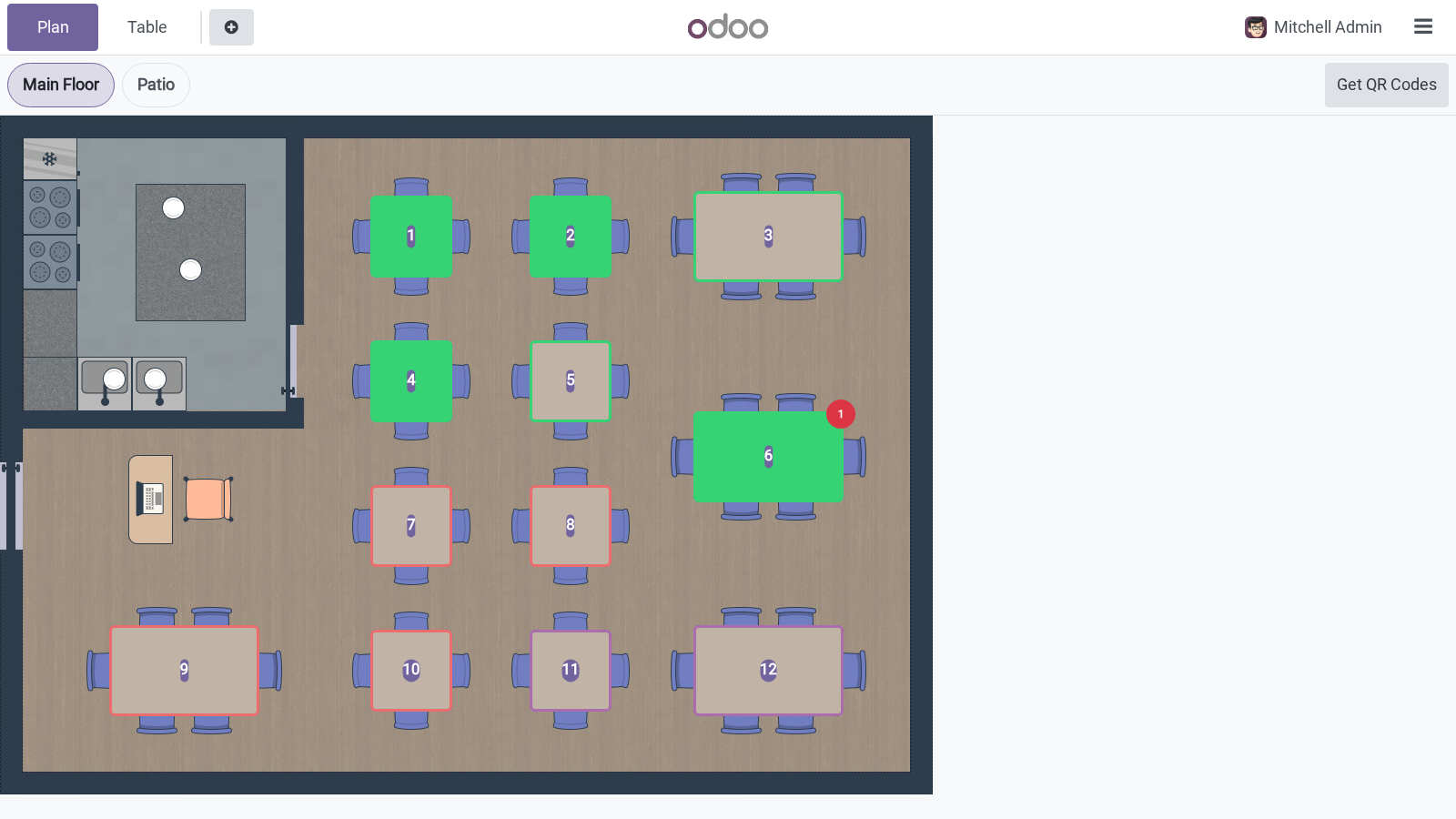
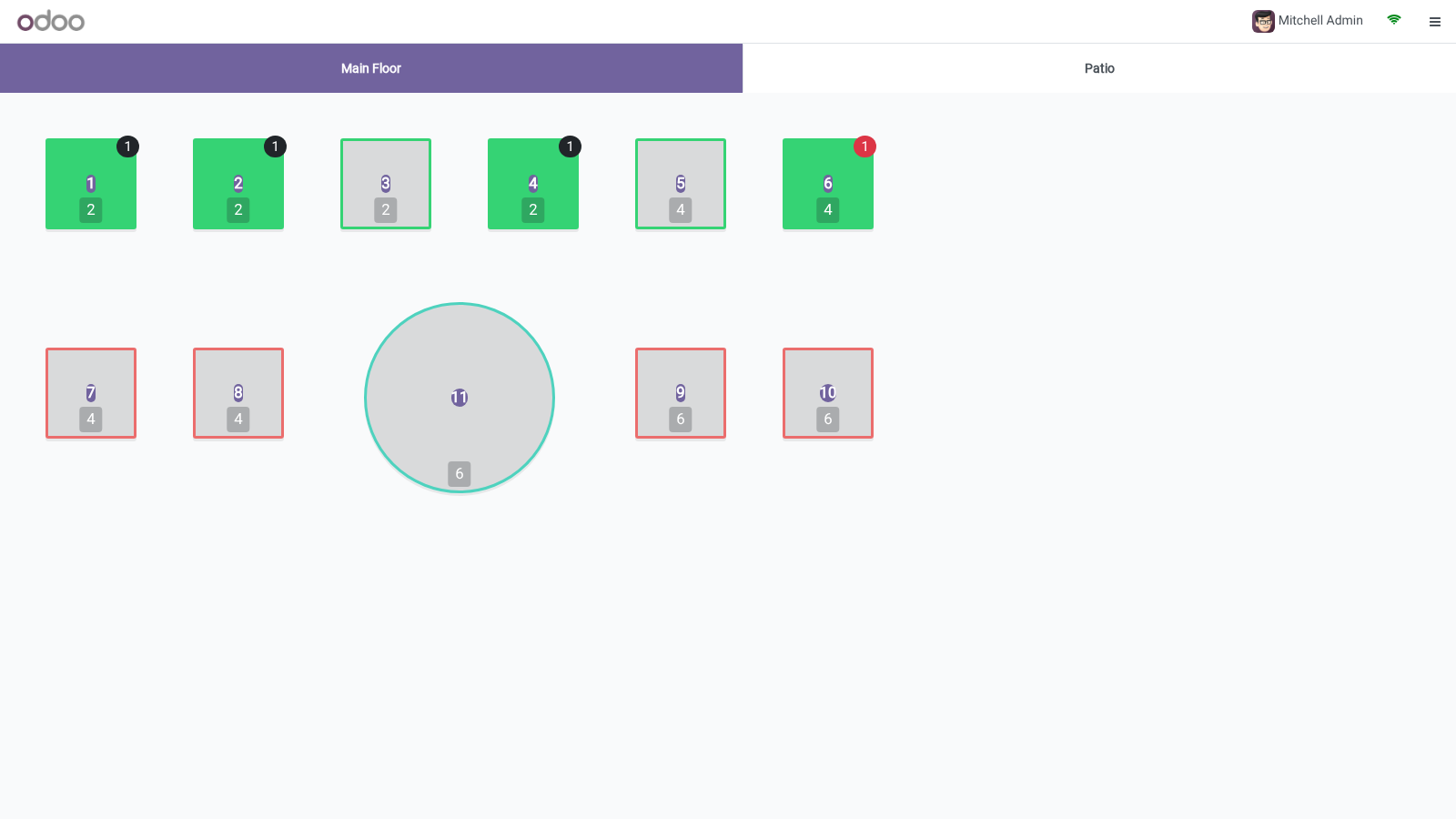
There is nothing to open, configure or learn: the bridge activates automatically and has no screens or settings of its own. Once BambooForge POS UI and Restaurant (pos_restaurant) are both installed, it loads with the Point of Sale and quietly does its job in the background. Floor plan — table shapes get the softer BambooForge corners, and the selected table is outlined in your theme's accent colour. Floor selector — the floor buttons along the top adopt the rounded, emphasised pill style used elsewhere in the layout.
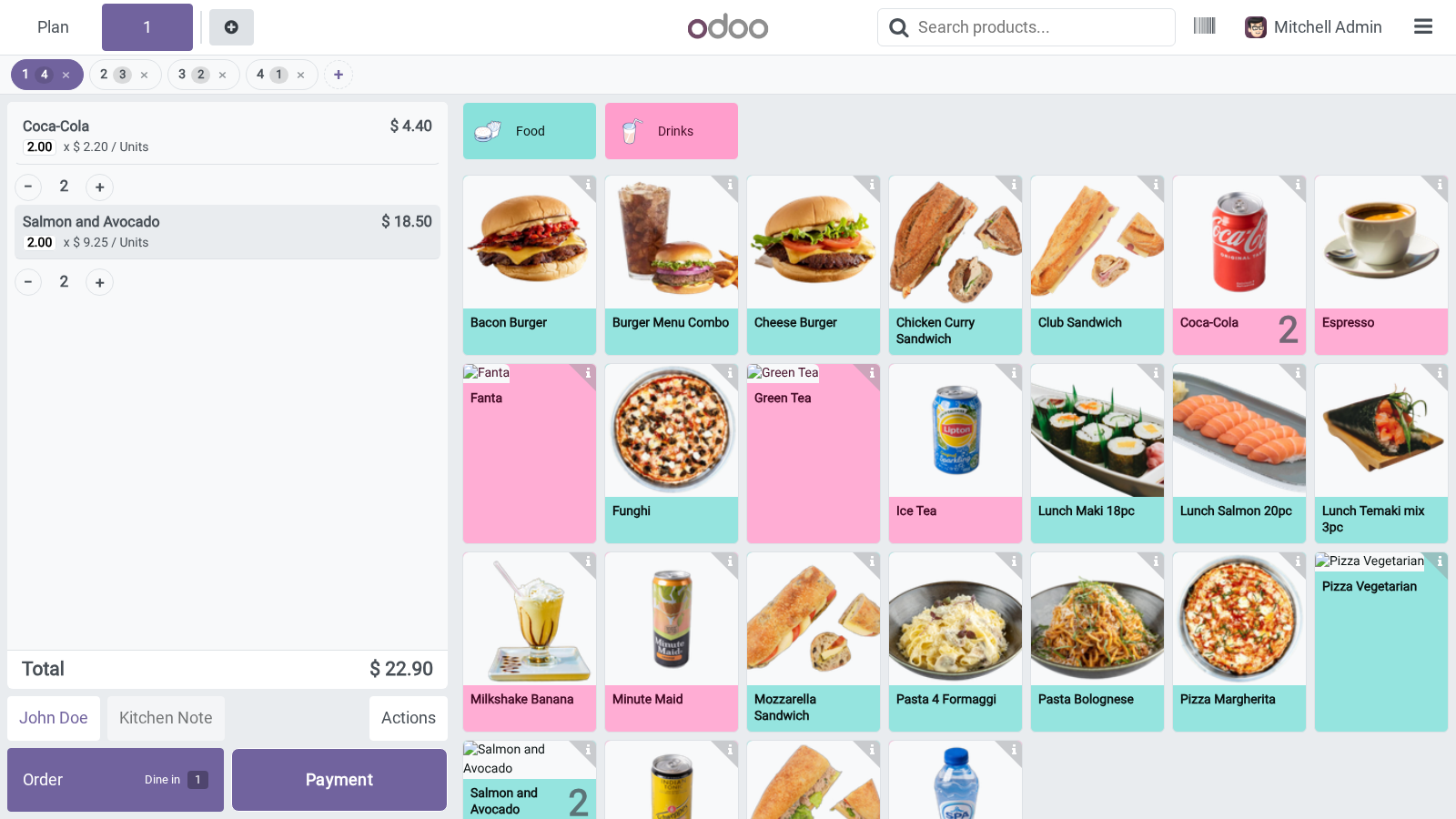
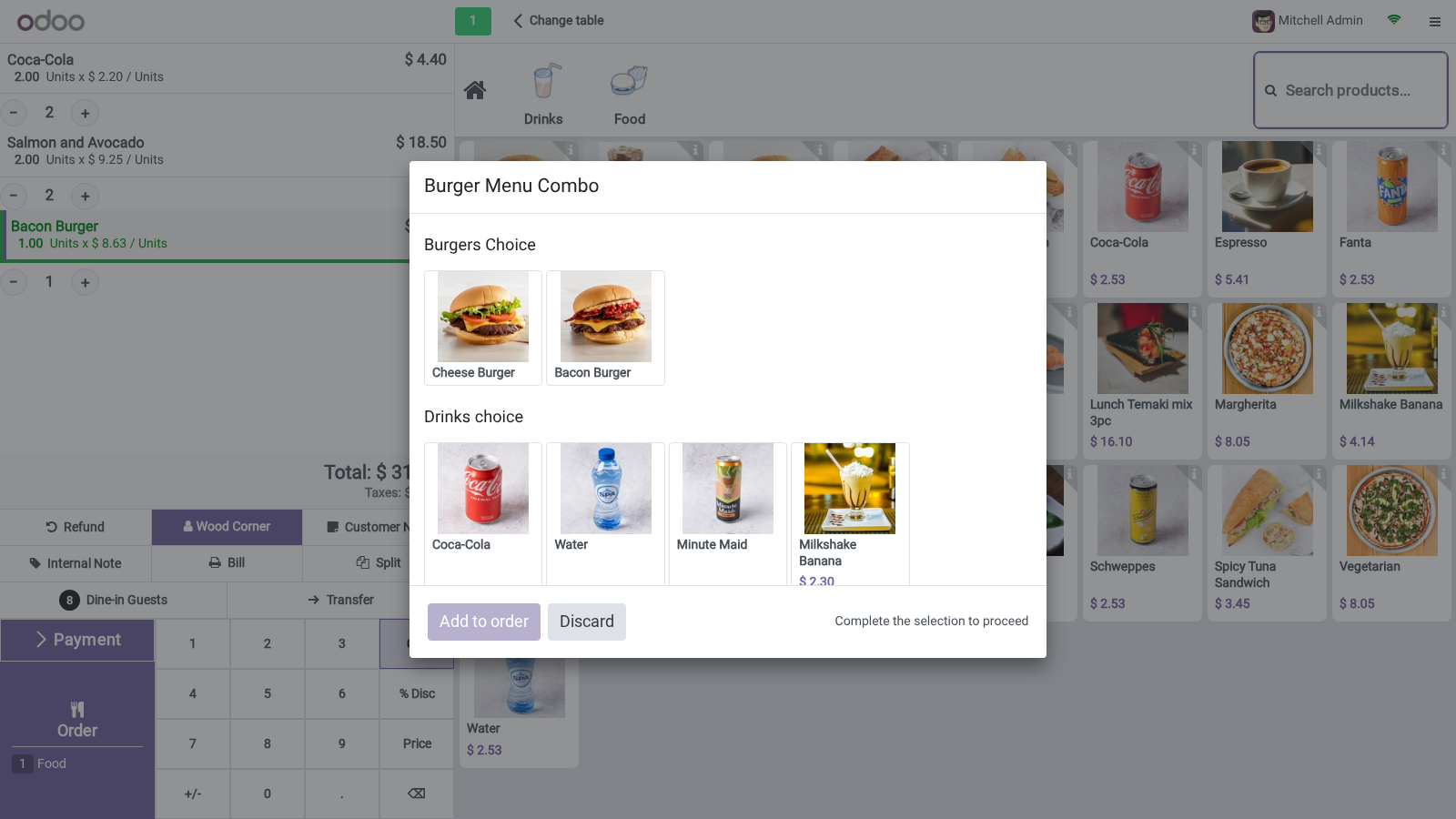
Table and guest badges — seat counts, table labels and the order-number badge pick up the same accent colour for a consistent look. Table order screen — order lines keep the tidy, evenly separated cart appearance of the standard BambooForge order view. In restaurant mode it carries a handful of styling touch-ups so the restaurant-specific screens match the BambooForge cashier layout: Now the part most videos leave out: what this does not do. Covers the Restaurant screens.
Loyalty and Multi-employee work with the base layout without a bridge. The complete manual is at docs dot bambooforge dot dev, the demo database is linked from the store page, and support answers within twenty-four hours. Links are in the description.
Transcript of the walkthrough (Odoo 19)
POS Interface Suite: Restaurant Compatibility. Makes the faster Point of Sale layout fit cleanly with Odoo Restaurant. Installs itself only when both are present, nothing hard-coded. This is a small compatibility bridge between BambooForge POS UI and Odoo Restaurant (pos_restaurant).
It aligns the restaurant-specific screens — the floor plan, table cards and the table order view — with the BambooForge cashier layout, using your theme's own colour variables. In the next few minutes: pos interface suite: restaurant compatibility, then configuration, then the bridge did not install, then restaurant screens still look unstyled, then colours look wrong on the floor plan. Then what this app deliberately does not do, so you can tell before you buy whether it fits. POS Interface Suite: Restaurant Compatibility Configuration.
None. The bridge follows the BambooForge Layout toggle of each register (from BambooForge POS UI) and your active theme's colours. The bridge did not install. It installs only when both BambooForge POS UI and Restaurant are present.
Install the missing one and update the apps list. Restaurant screens still look unstyled. Make sure the register has BambooForge Layout enabled (in BambooForge POS UI), then reopen the session so styles reload. Colours look wrong on the floor plan.
Colours come from your active theme. Set your brand colour in your backend/POS theme and the restaurant screens follow it. I want the standard restaurant look on one register. Turn BambooForge Layout off for that register; the bridge styling only applies where the layout is enabled.
Frequently asked questions. Do I need this if I do not use Restaurant? No. Without Restaurant it will not install and is not needed.
Does it change restaurant behaviour? No — it is styling only. Support. This app is designed to run without vendor support.
For licensing questions contact support@bambooforge.dev. .. BAMBOOFORGE-DOC-APPENDIX (auto-generated: Upgrade/Uninstall/Changelog + bespoke) Usage. There is nothing to open, configure or learn: the bridge activates automatically and has no screens or settings of its own.
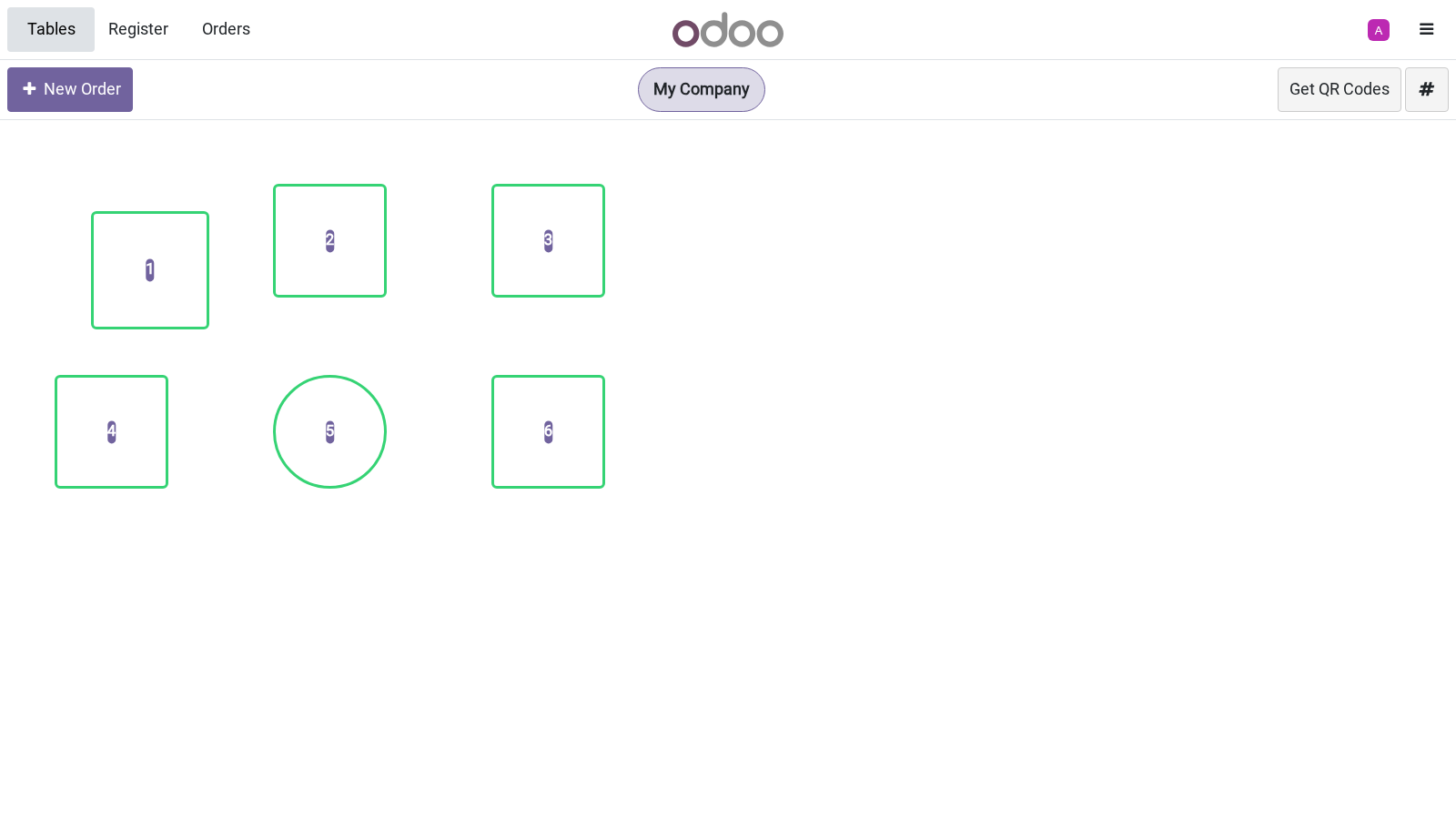
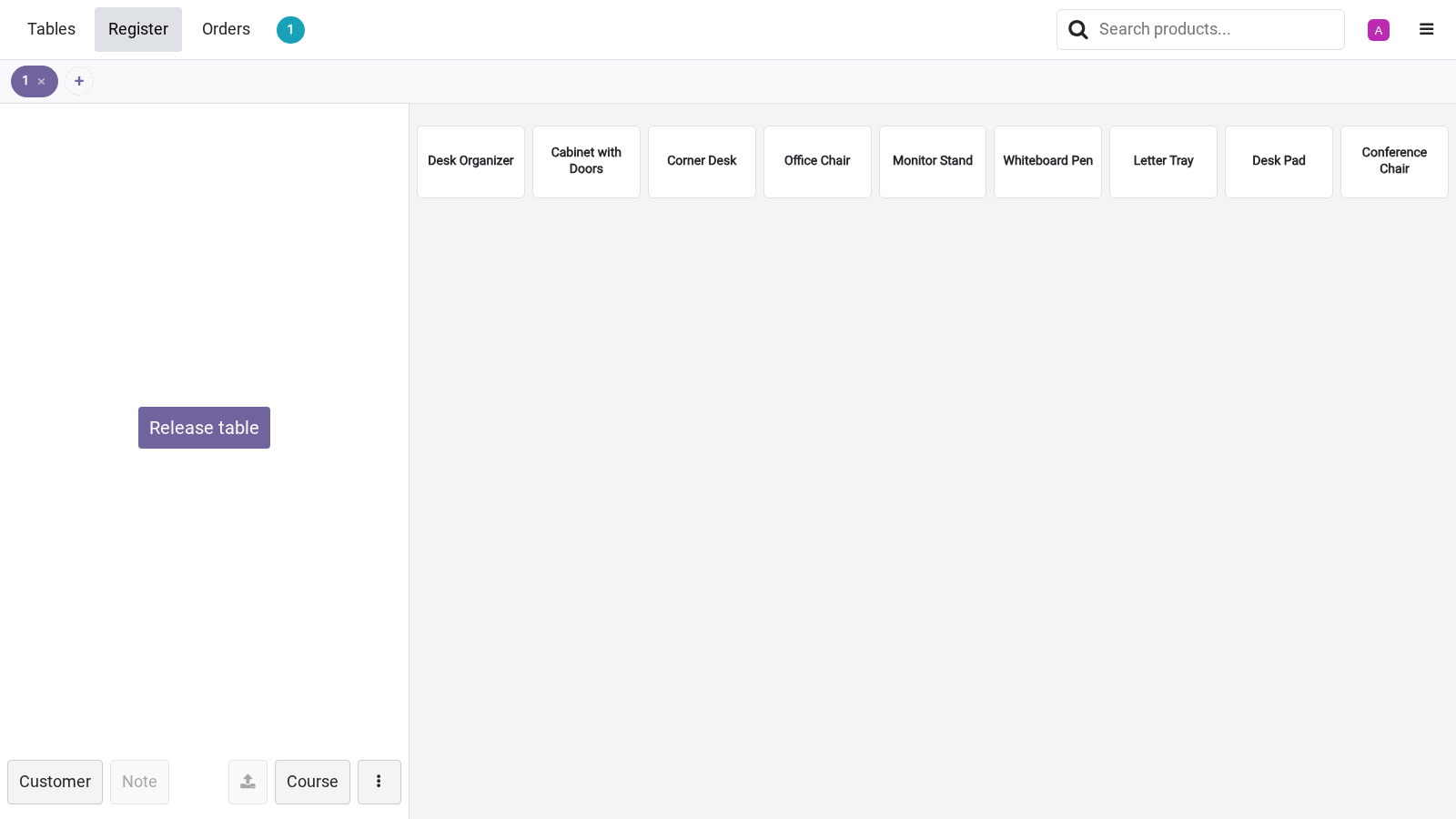
Once BambooForge POS UI and Restaurant (pos_restaurant) are both installed, it loads with the Point of Sale and quietly does its job in the background. Floor plan — table shapes get the softer BambooForge corners, and the selected table is outlined in your theme's accent colour. Floor selector — the floor buttons along the top adopt the rounded, emphasised pill style used elsewhere in the layout. Table and guest badges — seat counts, table labels and the order-number badge pick up the same accent colour for a consistent look.
Table order screen — order lines keep the tidy, evenly separated cart appearance of the standard BambooForge order view. In restaurant mode it carries a handful of styling touch-ups so the restaurant-specific screens match the BambooForge cashier layout: Upgrading & version compatibility. This build targets Odoo 19.0. Each Odoo major series (17.0, 18.0, 19.0) has its own dedicated build of this module — always install the build that matches your Odoo version.
Mixing a build with a different Odoo series is not supported. Now the part most videos leave out: what this does not do. Covers the Restaurant screens. Loyalty and Multi-employee work with the base layout without a bridge.
The complete manual is at docs dot bambooforge dot dev, the demo database is linked from the store page, and support answers within twenty-four hours. Links are in the description.
Transcript of the walkthrough (Odoo 18)
POS Interface Suite: Restaurant Compatibility. Makes the faster Point of Sale layout fit cleanly with Odoo Restaurant. Installs itself only when both are present, nothing hard-coded. This is a small compatibility bridge between BambooForge POS UI and Odoo Restaurant (pos_restaurant).
It aligns the restaurant-specific screens — the floor plan, table cards and the table order view — with the BambooForge cashier layout, using your theme's own colour variables. In the next few minutes: pos interface suite: restaurant compatibility, then configuration, then the bridge did not install, then restaurant screens still look unstyled, then colours look wrong on the floor plan. Then what this app deliberately does not do, so you can tell before you buy whether it fits. POS Interface Suite: Restaurant Compatibility Configuration.
None. The bridge follows the BambooForge Layout toggle of each register (from BambooForge POS UI) and your active theme's colours. The bridge did not install. It installs only when both BambooForge POS UI and Restaurant are present.
Install the missing one and update the apps list. Restaurant screens still look unstyled. Make sure the register has BambooForge Layout enabled (in BambooForge POS UI), then reopen the session so styles reload. Colours look wrong on the floor plan.
Colours come from your active theme. Set your brand colour in your backend/POS theme and the restaurant screens follow it. I want the standard restaurant look on one register. Turn BambooForge Layout off for that register; the bridge styling only applies where the layout is enabled.
Frequently asked questions. Do I need this if I do not use Restaurant? No. Without Restaurant it will not install and is not needed.
Does it change restaurant behaviour? No — it is styling only. Support. This app is designed to run without vendor support.
For licensing questions contact support@bambooforge.dev. .. BAMBOOFORGE-DOC-APPENDIX (auto-generated: Upgrade/Uninstall/Changelog + bespoke) Usage. There is nothing to open, configure or learn: the bridge activates automatically and has no screens or settings of its own.
Once BambooForge POS UI and Restaurant (pos_restaurant) are both installed, it loads with the Point of Sale and quietly does its job in the background. Floor plan — table shapes get the softer BambooForge corners, and the selected table is outlined in your theme's accent colour. Floor selector — the floor buttons along the top adopt the rounded, emphasised pill style used elsewhere in the layout. Table and guest badges — seat counts, table labels and the order-number badge pick up the same accent colour for a consistent look.
Table order screen — order lines keep the tidy, evenly separated cart appearance of the standard BambooForge order view. In restaurant mode it carries a handful of styling touch-ups so the restaurant-specific screens match the BambooForge cashier layout: Upgrading & version compatibility. This build targets Odoo 18.0. Each Odoo major series (17.0, 18.0, 19.0) has its own dedicated build of this module — always install the build that matches your Odoo version.
Mixing a build with a different Odoo series is not supported. Now the part most videos leave out: what this does not do. Covers the Restaurant screens. Loyalty and Multi-employee work with the base layout without a bridge.
The complete manual is at docs dot bambooforge dot dev, the demo database is linked from the store page, and support answers within twenty-four hours. Links are in the description.
Transcript of the walkthrough (Odoo 17)
POS Interface Suite: Restaurant Compatibility. Makes the faster Point of Sale layout fit cleanly with Odoo Restaurant. Installs itself only when both are present, nothing hard-coded. This is a small compatibility bridge between BambooForge POS UI and Odoo Restaurant (pos_restaurant).
It aligns the restaurant-specific screens — the floor plan, table cards and the table order view — with the BambooForge cashier layout, using your theme's own colour variables. In the next few minutes: pos interface suite: restaurant compatibility, then configuration, then the bridge did not install, then restaurant screens still look unstyled, then colours look wrong on the floor plan. Then what this app deliberately does not do, so you can tell before you buy whether it fits. POS Interface Suite: Restaurant Compatibility Configuration.
None. The bridge follows the BambooForge Layout toggle of each register (from BambooForge POS UI) and your active theme's colours. The bridge did not install. It installs only when both BambooForge POS UI and Restaurant are present.
Install the missing one and update the apps list. Restaurant screens still look unstyled. Make sure the register has BambooForge Layout enabled (in BambooForge POS UI), then reopen the session so styles reload. Colours look wrong on the floor plan.
Colours come from your active theme. Set your brand colour in your backend/POS theme and the restaurant screens follow it. I want the standard restaurant look on one register. Turn BambooForge Layout off for that register; the bridge styling only applies where the layout is enabled.
Frequently asked questions. Do I need this if I do not use Restaurant? No. Without Restaurant it will not install and is not needed.
Does it change restaurant behaviour? No — it is styling only. Support. This app is designed to run without vendor support.
For licensing questions contact support@bambooforge.dev. .. BAMBOOFORGE-DOC-APPENDIX (auto-generated: Upgrade/Uninstall/Changelog + bespoke) Usage. There is nothing to open, configure or learn: the bridge activates automatically and has no screens or settings of its own.
Once BambooForge POS UI and Restaurant (pos_restaurant) are both installed, it loads with the Point of Sale and quietly does its job in the background. Floor plan — table shapes get the softer BambooForge corners, and the selected table is outlined in your theme's accent colour. Floor selector — the floor buttons along the top adopt the rounded, emphasised pill style used elsewhere in the layout. Table and guest badges — seat counts, table labels and the order-number badge pick up the same accent colour for a consistent look.
Table order screen — order lines keep the tidy, evenly separated cart appearance of the standard BambooForge order view. In restaurant mode it carries a handful of styling touch-ups so the restaurant-specific screens match the BambooForge cashier layout: Upgrading & version compatibility. This build targets Odoo 17.0. Each Odoo major series (17.0, 18.0, 19.0) has its own dedicated build of this module — always install the build that matches your Odoo version.
Mixing a build with a different Odoo series is not supported. Now the part most videos leave out: what this does not do. Covers the Restaurant screens. Loyalty and Multi-employee work with the base layout without a bridge.
The complete manual is at docs dot bambooforge dot dev, the demo database is linked from the store page, and support answers within twenty-four hours. Links are in the description.
Key facts
- What it is
- Makes the faster Point of Sale layout fit cleanly with Odoo Restaurant. Installs itself only when both are present, nothing hard-coded.
- For
- Point of Sale
- Odoo versions
- 17.0, 18.0, 19.0, 20.0 - Community and Enterprise
- Runs on
- Odoo.sh or Odoo you host yourself - not Odoo Online, which accepts no third-party apps
- Price
- 118 EUR, one-time, on the Odoo Apps Store
- Technical name
- bambooforge_pos_ui_bridge
- Not for
- Covers the Restaurant screens. Loyalty and Multi-employee work with the base layout without a bridge.
- Manual last updated
- 2026-10-15
POS Interface All in One for Restaurant
Overview
This is a small compatibility bridge between BambooForge POS UI and Odoo Restaurant (pos_restaurant). It aligns the restaurant-specific screens — the floor plan, table cards and the table order view — with the BambooForge cashier layout, using your theme's own colour variables.
It has no settings and does nothing on its own: it simply makes the two apps look right together.
Requirements
Odoo 20.0.
BambooForge POS UI and Restaurant (pos_restaurant).
Installation
Install BambooForge POS UI and Odoo's Restaurant app; the bridge installs itself as soon as both are present and is removed automatically if you uninstall either one.
Nothing to configure: the bridge follows the BambooForge Layout toggle of each register and your active theme's colours.
Configuration
None. The bridge follows the BambooForge Layout toggle of each register (from BambooForge POS UI) and your active theme's colours.
Questions people ask
- Which Odoo versions does it run on?
Odoo 17.0, 18.0, 19.0, 20.0, on the series you buy it for; each series is its own listing.
- Community or Enterprise?
Both. It needs no Enterprise app.
- What does it need?
The standard Restaurant; pos ui (BambooForge) must be installed first app. No extra Python package.
- Does anything leave my server?
No. It makes no call outside your Odoo server: no telemetry, no licence check, no third-party service.
- What happens if I uninstall it?
Odoo drops the app's own tables and fields; the standard records it worked on (contacts, orders, products) stay as they are.
Troubleshooting
The bridge did not install
It installs only when both BambooForge POS UI and Restaurant are present. Install the missing one and update the apps list.
Restaurant screens still look unstyled
Make sure the register has BambooForge Layout enabled (in BambooForge POS UI), then reopen the session so styles reload.
Colours look wrong on the floor plan
Colours come from your active theme. Set your brand colour in your backend/POS theme and the restaurant screens follow it.
I want the standard restaurant look on one register
Turn BambooForge Layout off for that register; the bridge styling only applies where the layout is enabled.
Frequently asked questions
Do I need this if I do not use Restaurant? No. Without Restaurant it will not install and is not needed.
Does it change restaurant behaviour? No — it is styling only.
Limits
Covers the Restaurant screens. Loyalty and Multi-employee work with the base layout without a bridge.
How we make sure it works
Before every release, 8 automated checks run against this app on Odoo 17, 18, 19 and 20. Among them:
It is priced as a bridge not as a product.
It carries no model and no data.
It installs itself only alongside both sides.
The stylesheet hard codes no colour.
The listing offers somewhere to try it.
The complete list is in the source you receive.
Support
This app is designed to run without vendor support. For licensing questions contact support@bambooforge.dev.
Usage
There is nothing to open, configure or learn: the bridge activates automatically and has no screens or settings of its own. Once BambooForge POS UI and Restaurant (pos_restaurant) are both installed, it loads with the Point of Sale and quietly does its job in the background.
In restaurant mode it carries a handful of styling touch-ups so the restaurant-specific screens match the BambooForge cashier layout:
Floor plan — table shapes get the softer BambooForge corners, and the selected table is outlined in your theme's accent colour.
Floor selector — the floor buttons along the top adopt the rounded, emphasised pill style used elsewhere in the layout.
Table and guest badges — seat counts, table labels and the order-number badge pick up the same accent colour for a consistent look.
Table order screen — order lines keep the tidy, evenly separated cart appearance of the standard BambooForge order view.
All of these are visual only; the bridge never changes how Restaurant behaves. Every colour comes from your active theme's variables, so the restaurant screens follow whatever brand colour you have set — nothing is hard-coded.
For end users this means there is no new workflow. Cashiers and waiters simply open the POS, pick a floor and a table, and take orders exactly as they always have; the screens just look consistent with the rest of your BambooForge layout.
The styling applies only where the BambooForge Layout toggle is enabled for a register (from BambooForge POS UI). Turn that toggle off and the register falls back to the standard Restaurant appearance, with no action needed here.
Upgrading & version compatibility
This build targets Odoo 20.0. Each Odoo major series (17.0, 18.0, 19.0, 20.0) has its own dedicated build of this module — always install the build that matches your Odoo version. Mixing a build with a different Odoo series is not supported.
Patch upgrades (same series, e.g. 20.0.1.0.0 → later)
Back up your database and filestore first.
Replace the module folder with the newer build.
Restart Odoo with the module updated:
./odoo-bin -c your.conf -u bambooforge_pos_ui_bridge -d your_db
Odoo applies any schema/data changes automatically. Your existing records and configuration are preserved.
Cross-version migration (moving to a newer Odoo)
Upgrading Odoo itself is a database migration handled by Odoo's standard upgrade tooling. When you migrate the database to the next Odoo series, install the matching build of this module for that series. Data created by this module carries over with the database migration.
Uninstallation
You can remove this module at any time from Apps → (this module) → Uninstall, or from the command line. Uninstalling is clean and reversible by reinstalling — but note what is and is not deleted.
What is removed
The fields, views and analysis definitions this module added.
The menus, actions, views and reports this module installed.
What is preserved
Your standard Odoo data (partners, products, sales, invoices, inventory moves) is not deleted — this module only reads and annotates it; the underlying records stay.
Attachments and chatter messages on standard records are kept.
As always, take a database backup before uninstalling in production.
Changelog
20.0.1.1.1
Built for Odoo 20: record rules and access rights rewritten onto Odoo 20's single ir.access model, the screens rebuilt on Owl 3, and every icon moved to the icon set Odoo 20 ships.
20.0.1.0.0
Current release for Odoo 20.0. This build includes:
Makes the BambooForge POS layout fit cleanly with Odoo Restaurant. Auto-installs only when both are present. Theme-variable driven.
Nothing hard-coded.
Feature additions and fixes ship as new builds on the Odoo Apps store; this page and the module's version reflect the current published release. Always keep the build matched to your Odoo series (see Upgrading & version compatibility).