 BambooForge Labs
POS Interface: Fast Retail Point of Sale
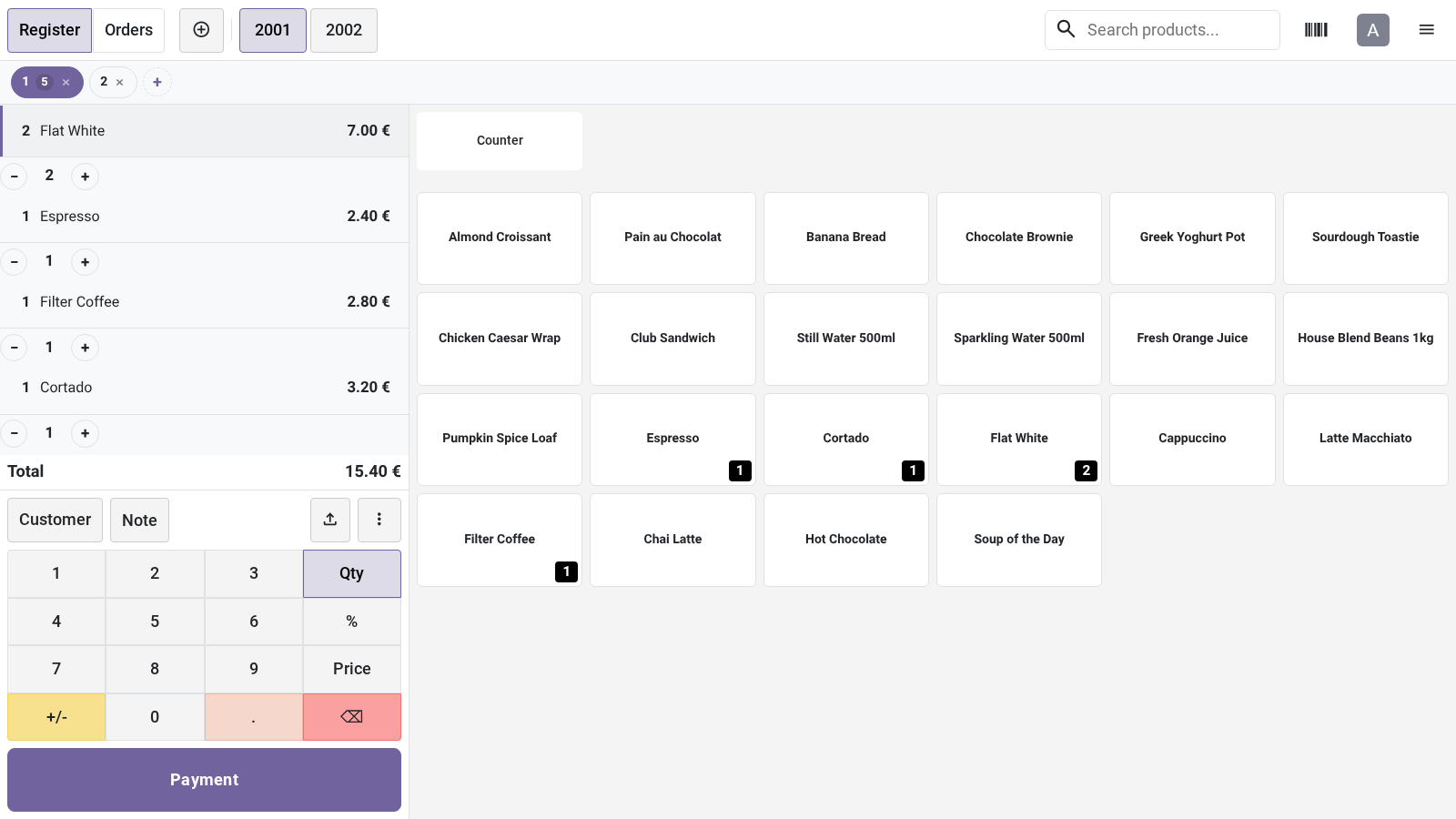
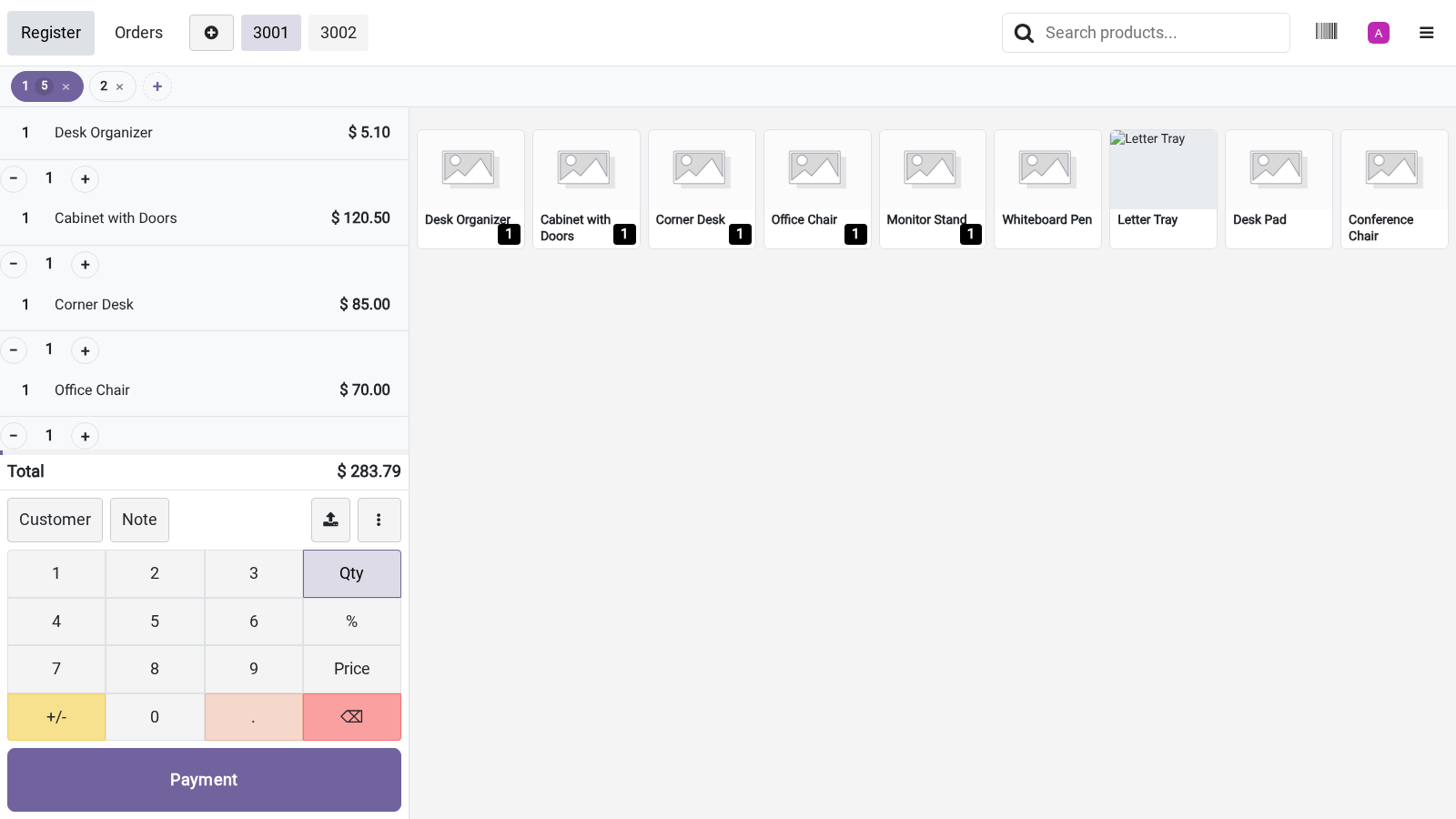
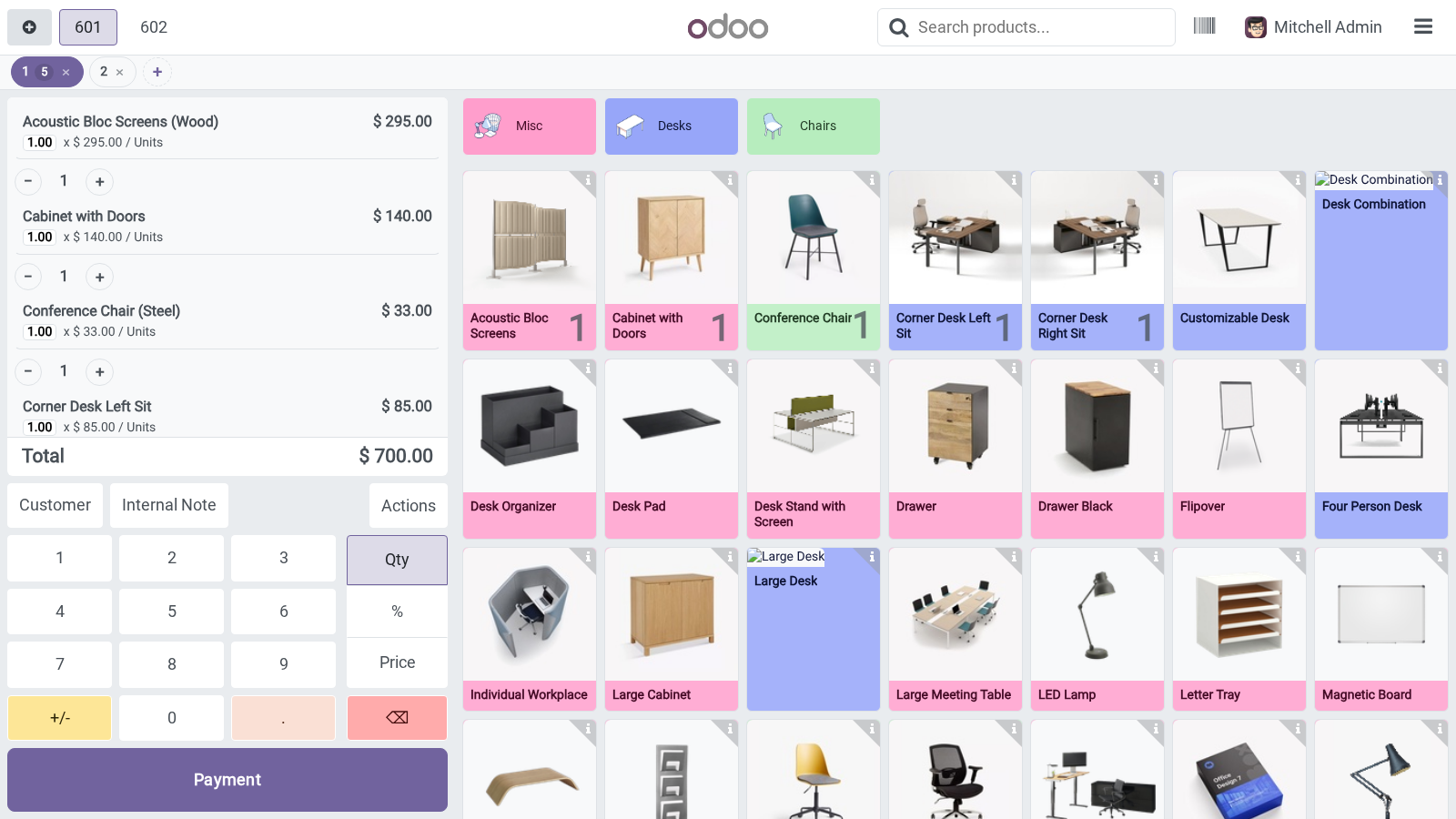
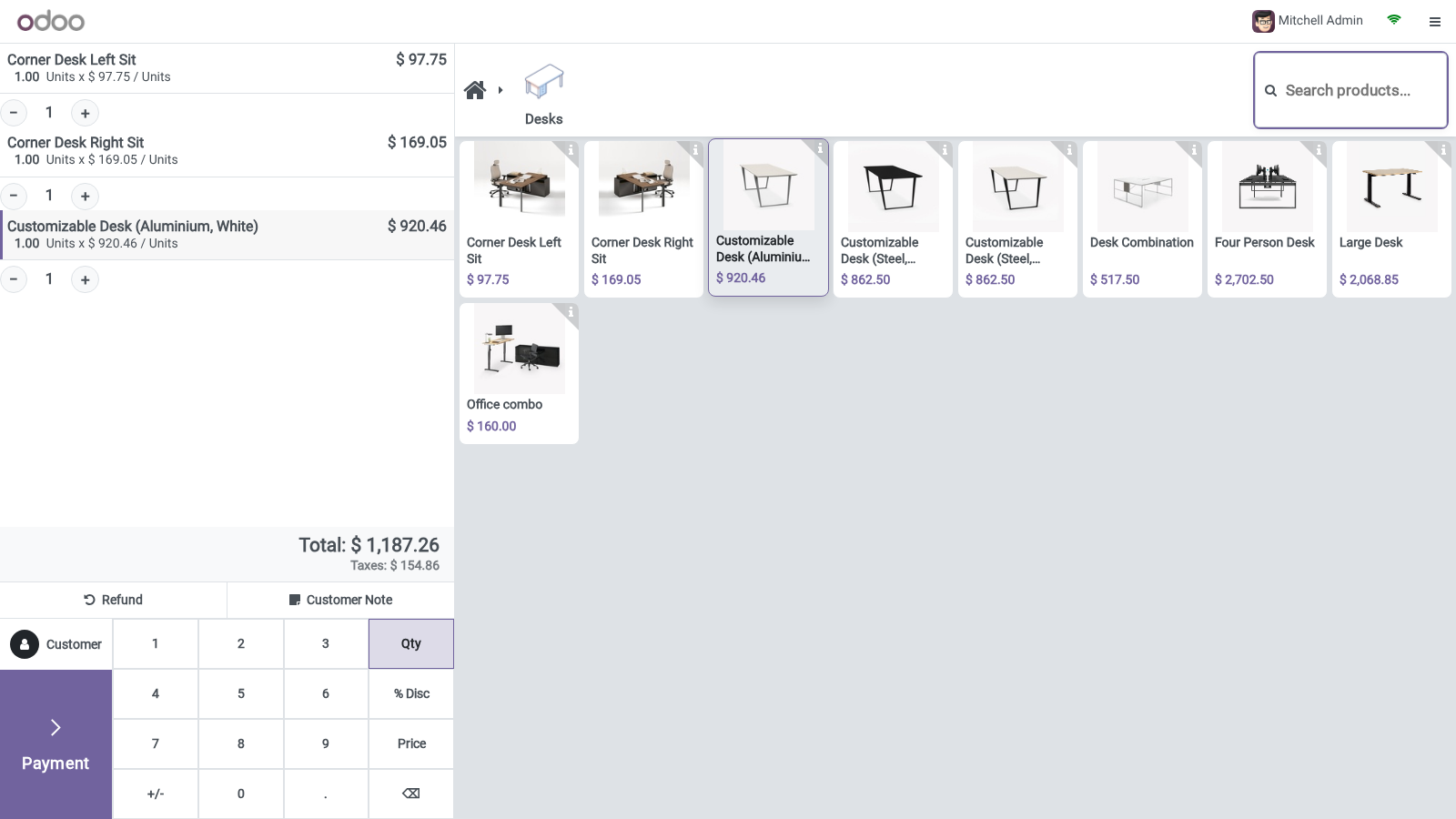
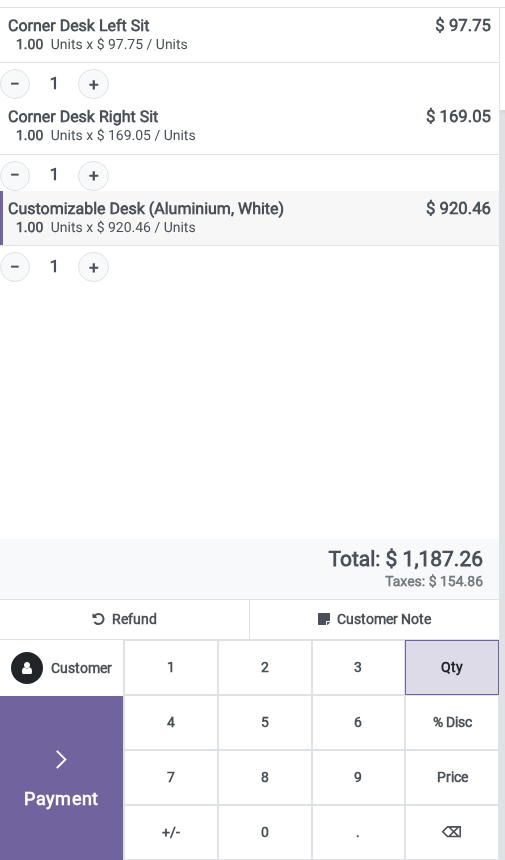
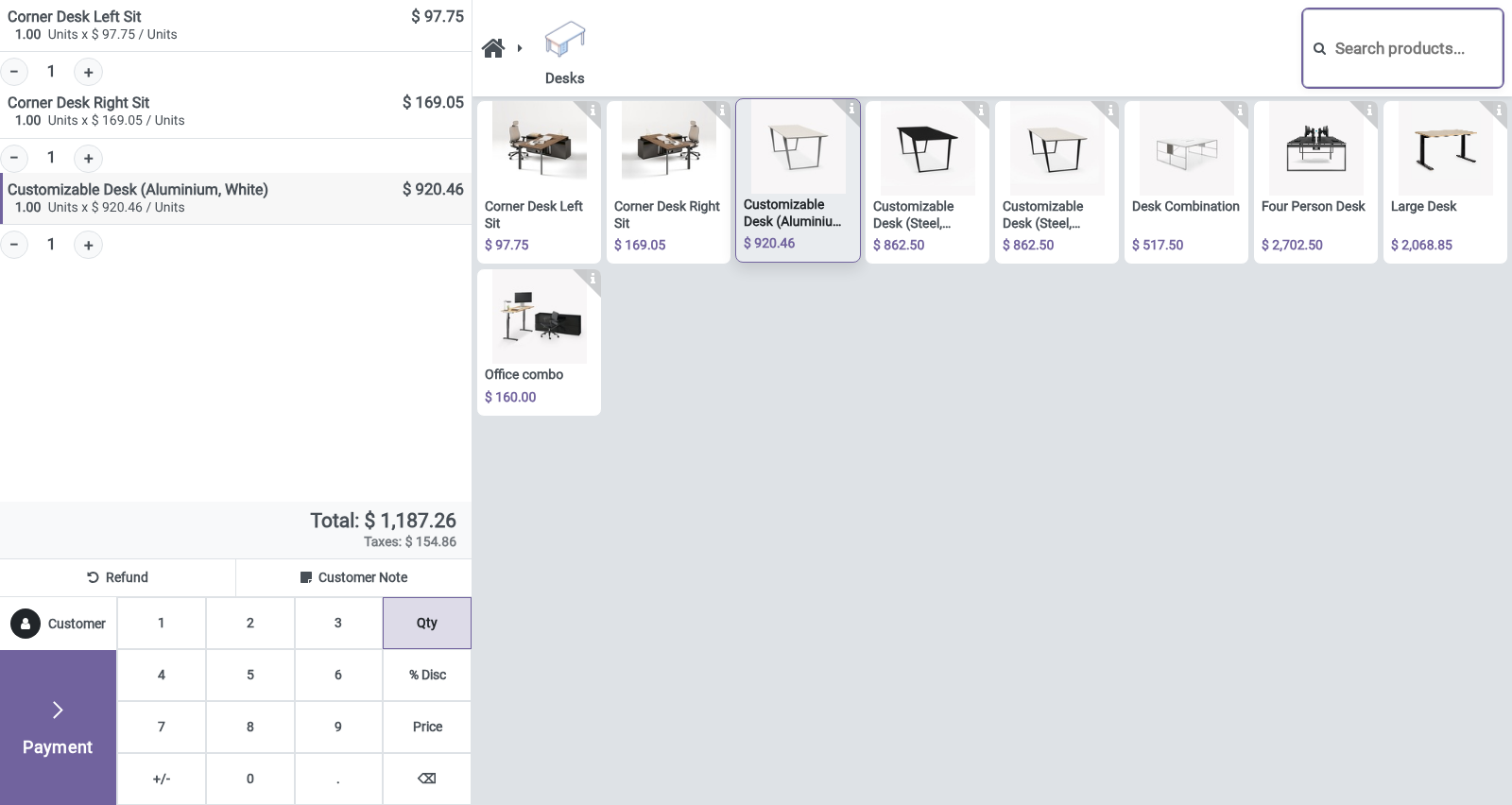
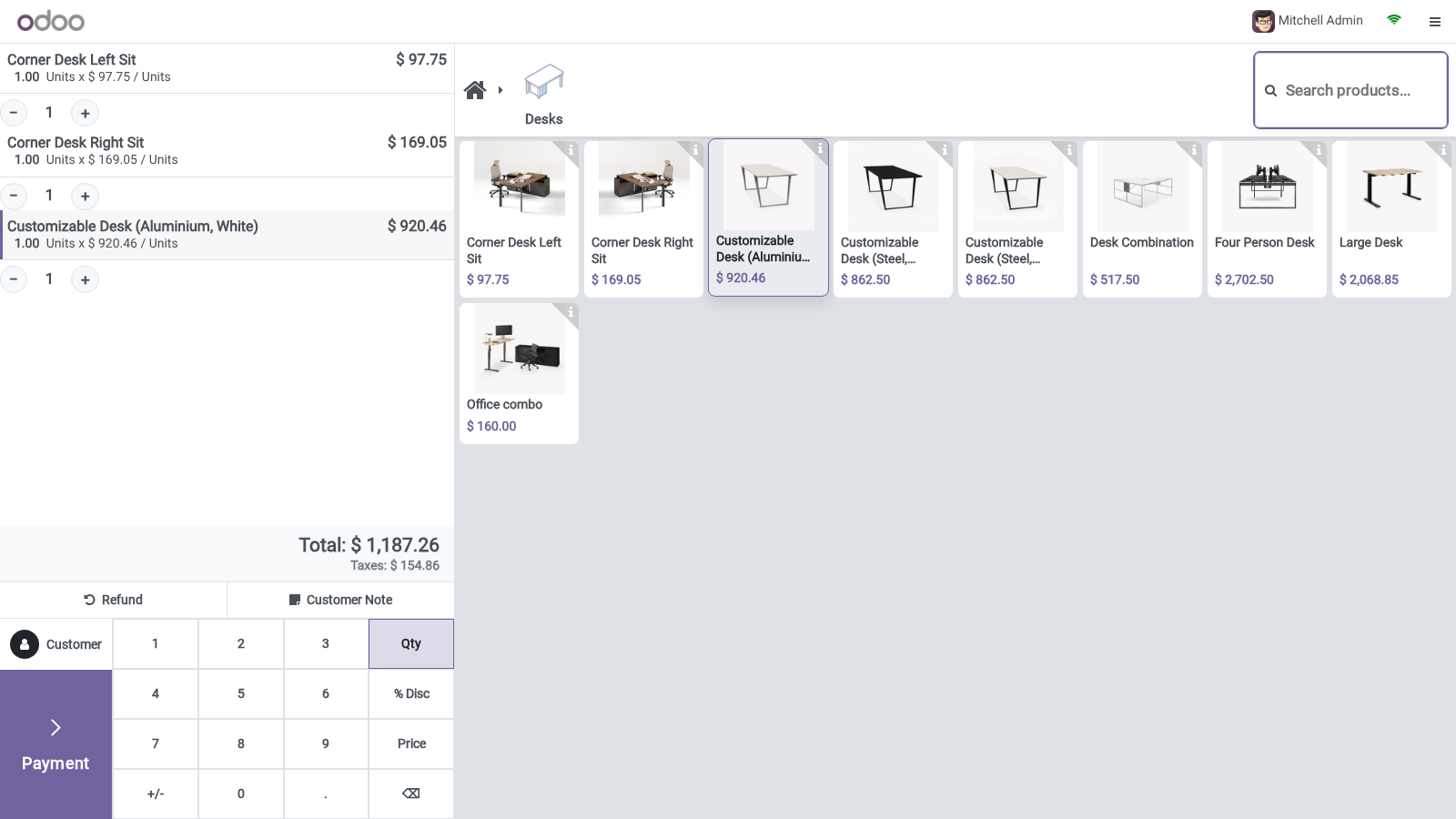
A faster retail Point of Sale layout: prominent search, a tidy cart with inline quantity steppers, big totals and a bold Pay button.
Available for Odoo 17.0, Odoo 18.0, Odoo 19.0, Odoo 20.0. Technical name bambooforge_pos_ui.
Transcript of the walkthrough (Odoo 20)
POS Interface: Fast Retail Point of Sale. A faster retail Point of Sale layout: prominent search, a tidy cart with inline quantity steppers, big totals and a bold Pay button. BambooForge POS UI gives the Odoo Point of Sale a faster, calmer cashier layout inspired by the retail POS screens staff already know: In the next few minutes: configuration, then using it, then serve several customers at once, then take cash fast, then questions people ask. Then what this app deliberately does not do, so you can tell before you buy whether it fits.
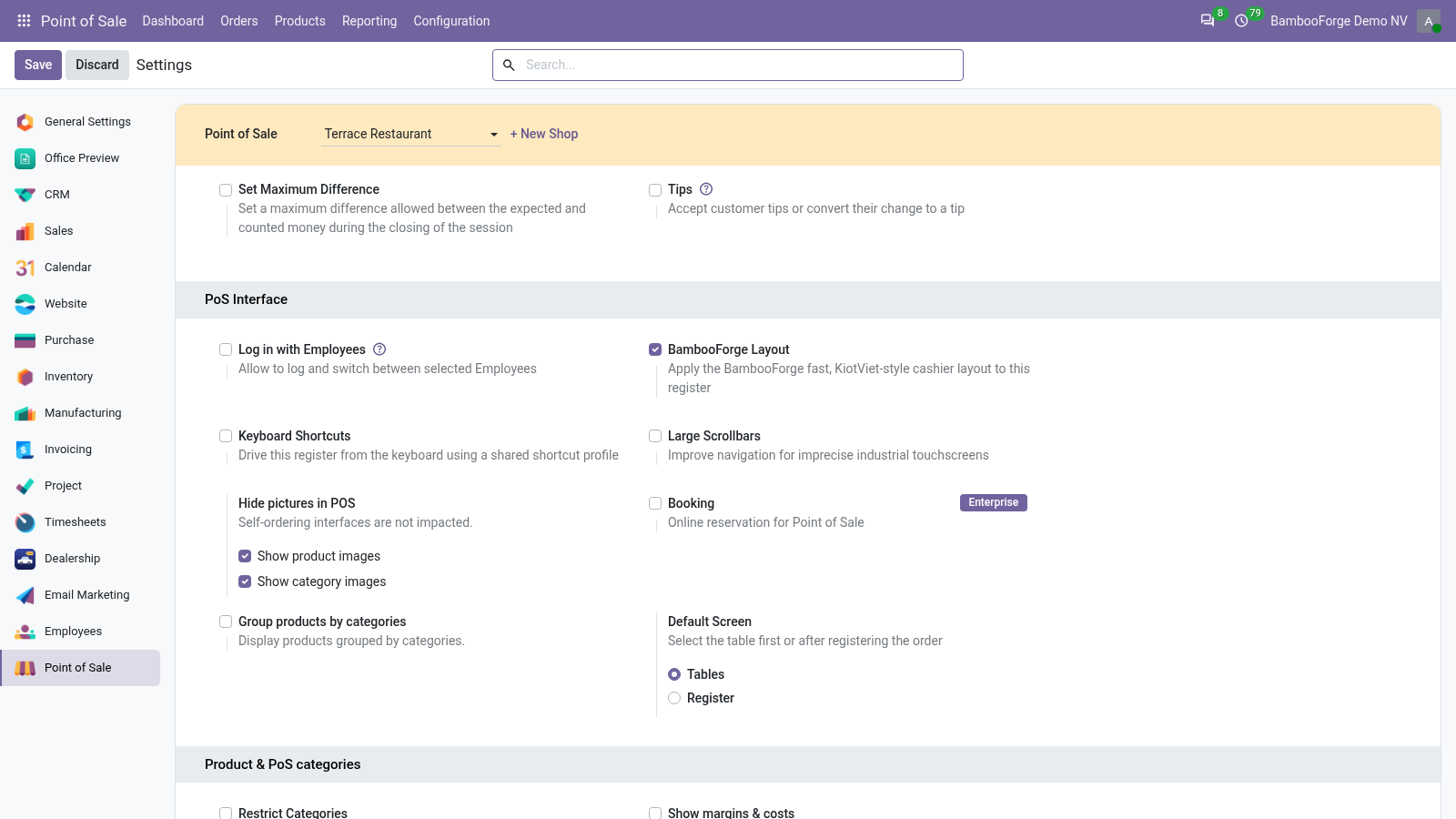
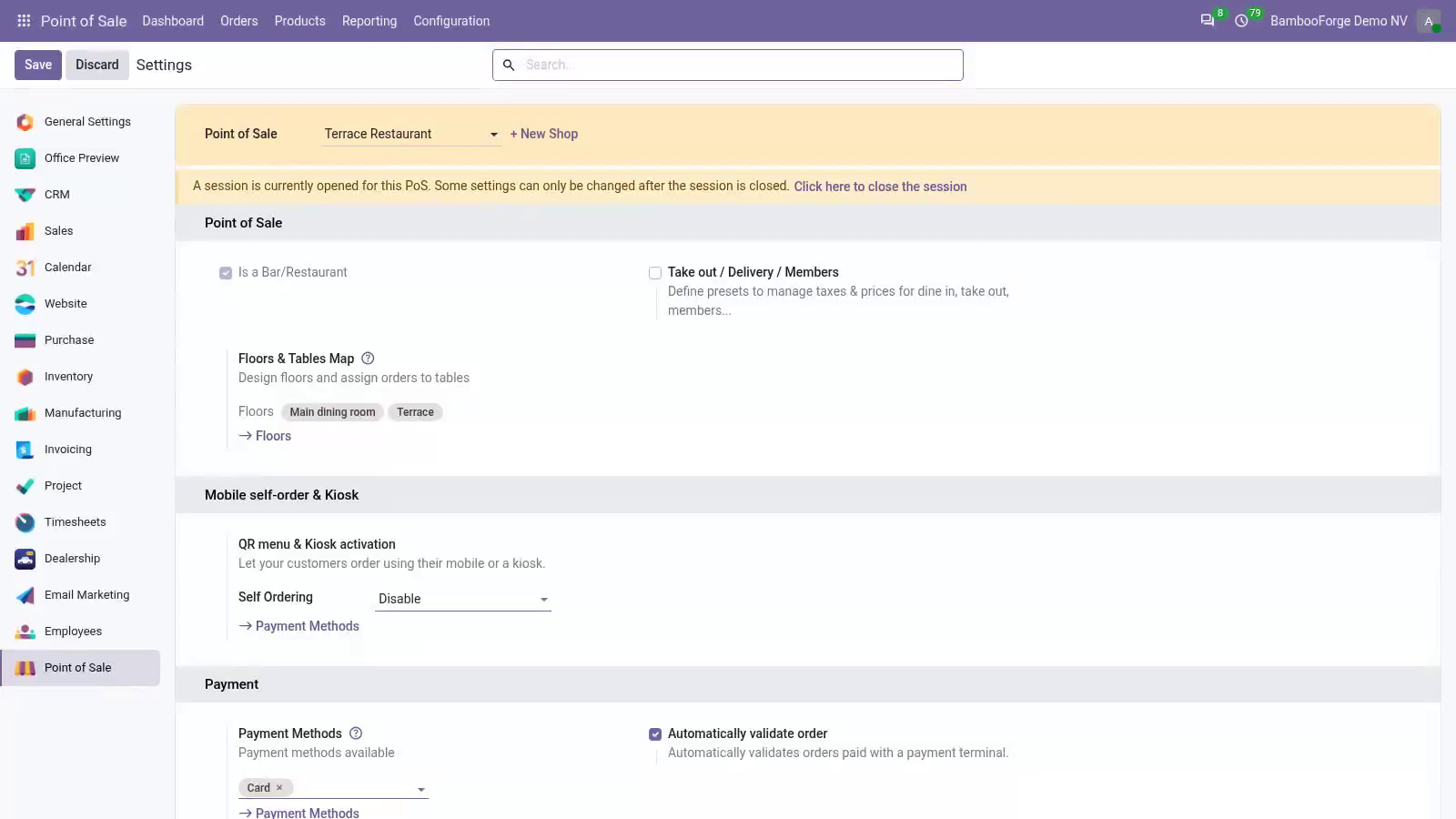
Configuration. The layout is applied per register so you can mix styles across shops. 1. Go to Point of Sale → Configuration → Settings.
2. Pick the register at the top of the page. 3. Toggle BambooForge Layout on or off.
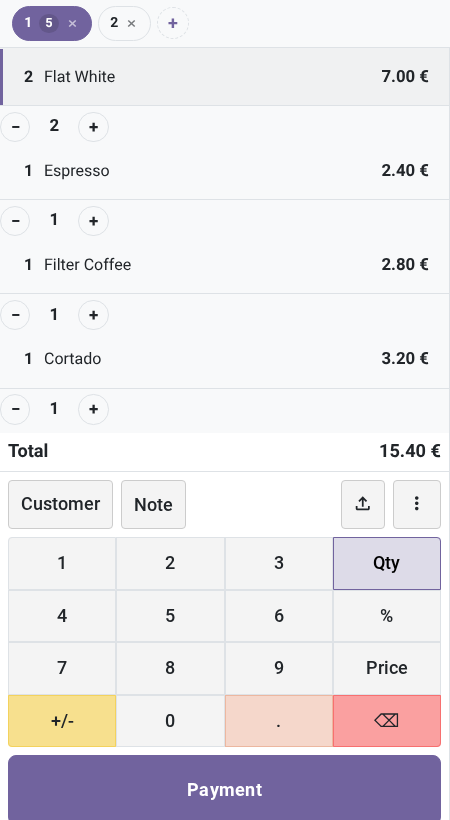
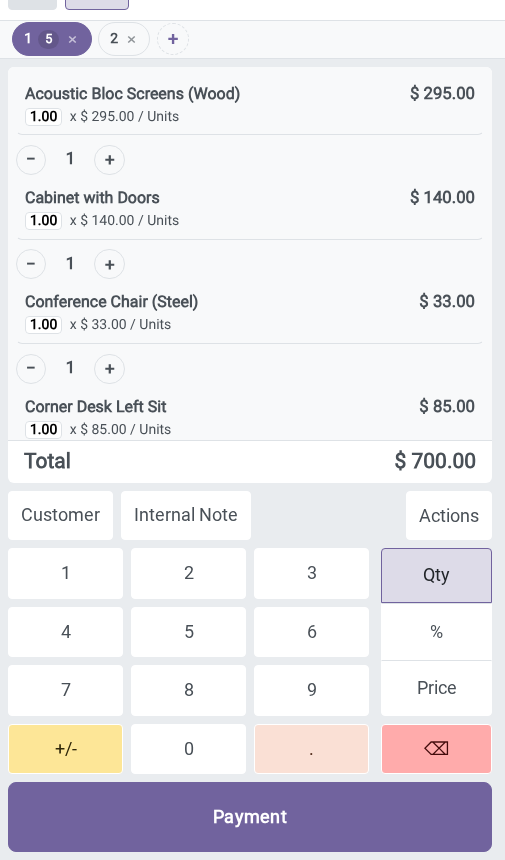
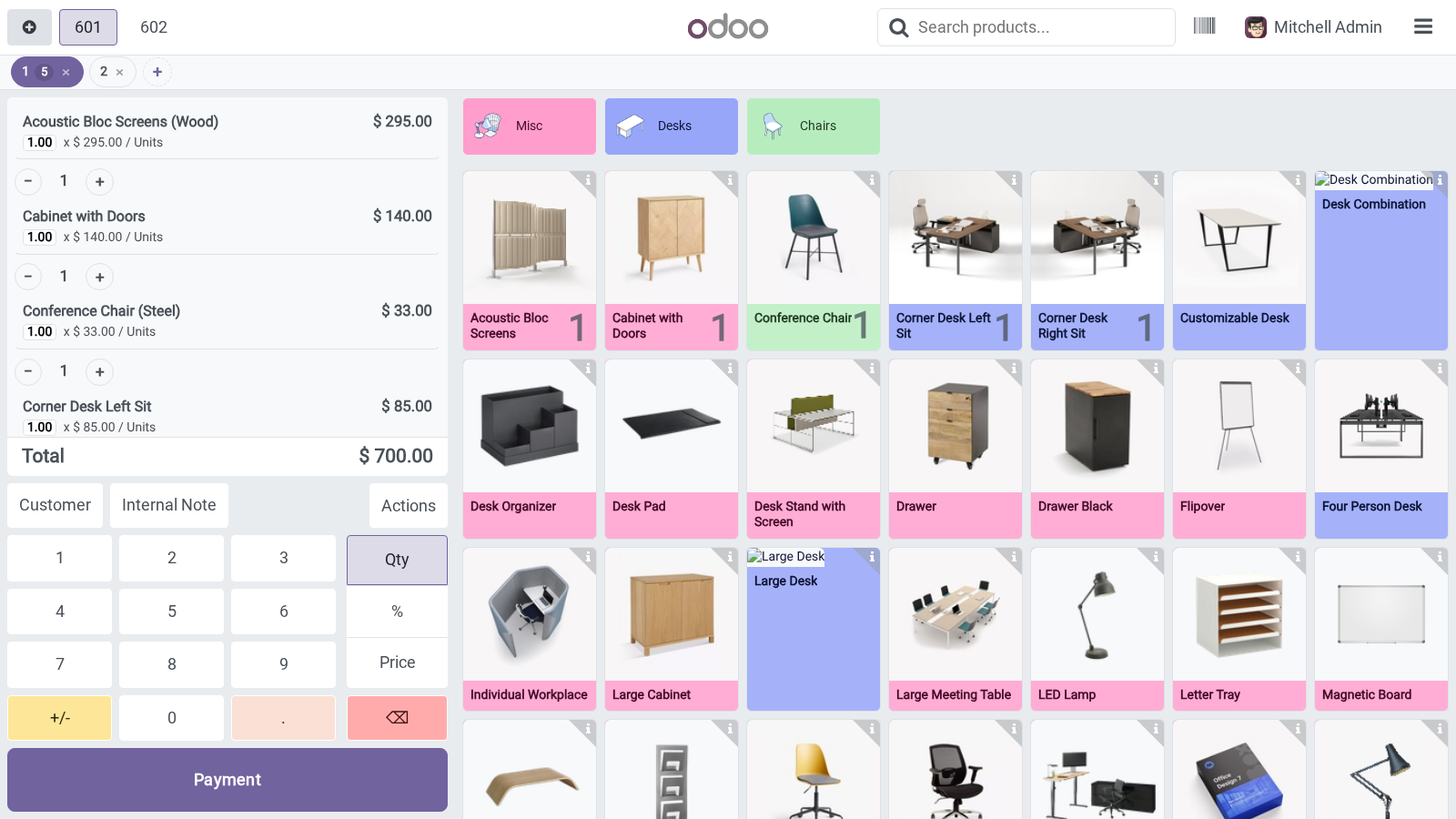
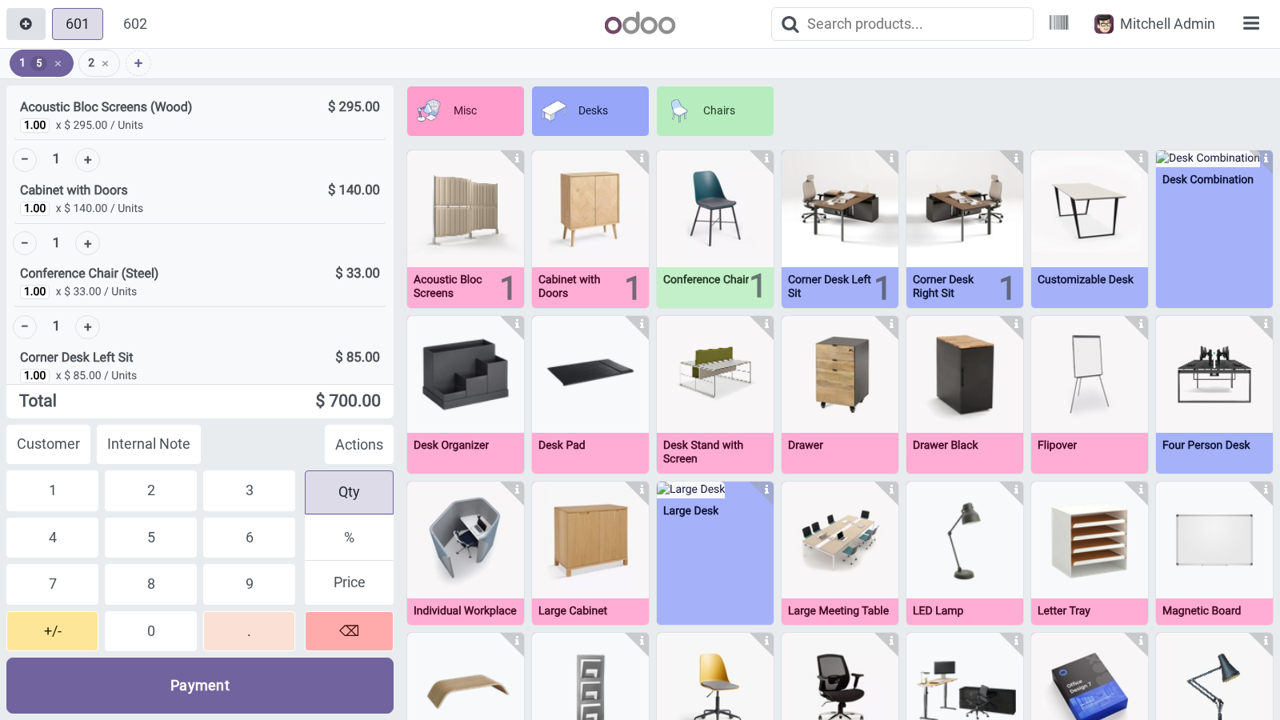
4. Save, then open (or reopen) the register. Using it Search or scan at the top; tap a product card to add it. On each cart line, use the – and + buttons to change the quantity; decreasing to zero removes the line.
The running total is always visible; press Pay to move to payment. Serve several customers at once. The tab bar under the top navbar shows every open order. Tap + to start a new order (hold one customer while you serve another), tap a tab to switch, and tap the × on a tab to close it (you are asked to confirm if it still has items).
Take cash fast. On the payment screen the Quick cash panel offers the exact amount and a few rounded-up amounts. One tap tenders the cash and the Change due is shown in large type. It uses the register's cash method, so it appears whenever the register accepts cash.
The layout pairs naturally with BambooForge POS Hotkeys for a fully keyboard-driven register. Questions people ask. Which Odoo versions does it run on? Odoo 17.0, 18.0, 19.0, 20.0, on the series you buy it for; each series is its own listing.
Community or Enterprise? Both. It needs no Enterprise app. The layout does not appear.
Check that BambooForge Layout is enabled for this register, then close and reopen the POS session so the setting is loaded. The quantity stepper is missing on a line. The stepper shows on the product (order) screen only. On the payment or receipt screens the order is read-only by design.
Colours do not match my brand. The layout follows your active theme's variables. Set your brand colour in your backend/POS theme and the POS adopts it — there is nothing to configure here. The look is different after installing another POS add-on.
The layout uses additive styling and is safe with common add-ons. If you use Restaurant, Loyalty or Multi-employee (HR), install the companion BambooForge POS UI Bridge so the three fit together cleanly. A register should keep the standard Odoo look. Turn BambooForge Layout off for that register (see Configuration).
Other registers are unaffected. Now the part most videos leave out: what this does not do. The inline quantity stepper acts on the product screen only. Very large custom POS forks may need minor CSS adjustments.
The complete manual is at docs dot bambooforge dot dev, the demo database is linked from the store page, and support answers within twenty-four hours. Links are in the description.
Transcript of the walkthrough (Odoo 19)
POS Interface: Fast Retail Point of Sale. A faster retail Point of Sale layout: prominent search, a tidy cart with inline quantity steppers, big totals and a bold Pay button. BambooForge POS UI gives the Odoo Point of Sale a faster, calmer cashier layout inspired by the retail POS screens staff already know: In the next few minutes: pos interface: fast retail point of sale, then configuration, then using it, then serve several customers at once, then take cash fast. Then what this app deliberately does not do, so you can tell before you buy whether it fits.
POS Interface: Fast Retail Point of Sale Configuration. The layout is applied per register so you can mix styles across shops. 1. Go to Point of Sale → Configuration → Settings.
2. Pick the register at the top of the page. 3. Toggle BambooForge Layout on or off.
4. Save, then open (or reopen) the register. Using it Search or scan at the top; tap a product card to add it. On each cart line, use the – and + buttons to change the quantity; decreasing to zero removes the line.
The running total is always visible; press Pay to move to payment. Serve several customers at once. The tab bar under the top navbar shows every open order. Tap + to start a new order (hold one customer while you serve another), tap a tab to switch, and tap the × on a tab to close it (you are asked to confirm if it still has items).
Take cash fast. On the payment screen the Quick cash panel offers the exact amount and a few rounded-up amounts. One tap tenders the cash and the Change due is shown in large type. It uses the register's cash method, so it appears whenever the register accepts cash.
The layout pairs naturally with BambooForge POS Hotkeys for a fully keyboard-driven register. The layout does not appear. Check that BambooForge Layout is enabled for this register, then close and reopen the POS session so the setting is loaded. The quantity stepper is missing on a line.
The stepper shows on the product (order) screen only. On the payment or receipt screens the order is read-only by design. Colours do not match my brand. The layout follows your active theme's variables.
Set your brand colour in your backend/POS theme and the POS adopts it — there is nothing to configure here. The look is different after installing another POS add-on. The layout uses additive styling and is safe with common add-ons. If you use Restaurant, Loyalty or Multi-employee (HR), install the companion BambooForge POS UI Bridge so the three fit together cleanly.
A register should keep the standard Odoo look. Turn BambooForge Layout off for that register (see Configuration). Other registers are unaffected. Now the part most videos leave out: what this does not do.
The inline quantity stepper acts on the product screen only. Very large custom POS forks may need minor CSS adjustments. The complete manual is at docs dot bambooforge dot dev, the demo database is linked from the store page, and support answers within twenty-four hours. Links are in the description.
Transcript of the walkthrough (Odoo 18)
POS Interface: Fast Retail Point of Sale. A faster retail Point of Sale layout: prominent search, a tidy cart with inline quantity steppers, big totals and a bold Pay button. BambooForge POS UI gives the Odoo Point of Sale a faster, calmer cashier layout inspired by the retail POS screens staff already know: In the next few minutes: pos interface: fast retail point of sale, then configuration, then using it, then serve several customers at once, then take cash fast. Then what this app deliberately does not do, so you can tell before you buy whether it fits.
POS Interface: Fast Retail Point of Sale Configuration. The layout is applied per register so you can mix styles across shops. 1. Go to Point of Sale → Configuration → Settings.
2. Pick the register at the top of the page. 3. Toggle BambooForge Layout on or off.
4. Save, then open (or reopen) the register. Using it Search or scan at the top; tap a product card to add it. On each cart line, use the – and + buttons to change the quantity; decreasing to zero removes the line.
The running total is always visible; press Pay to move to payment. Serve several customers at once. The tab bar under the top navbar shows every open order. Tap + to start a new order (hold one customer while you serve another), tap a tab to switch, and tap the × on a tab to close it (you are asked to confirm if it still has items).
Take cash fast. On the payment screen the Quick cash panel offers the exact amount and a few rounded-up amounts. One tap tenders the cash and the Change due is shown in large type. It uses the register's cash method, so it appears whenever the register accepts cash.
The layout pairs naturally with BambooForge POS Hotkeys for a fully keyboard-driven register. The layout does not appear. Check that BambooForge Layout is enabled for this register, then close and reopen the POS session so the setting is loaded. The quantity stepper is missing on a line.
The stepper shows on the product (order) screen only. On the payment or receipt screens the order is read-only by design. Colours do not match my brand. The layout follows your active theme's variables.
Set your brand colour in your backend/POS theme and the POS adopts it — there is nothing to configure here. The look is different after installing another POS add-on. The layout uses additive styling and is safe with common add-ons. If you use Restaurant, Loyalty or Multi-employee (HR), install the companion BambooForge POS UI Bridge so the three fit together cleanly.
A register should keep the standard Odoo look. Turn BambooForge Layout off for that register (see Configuration). Other registers are unaffected. Now the part most videos leave out: what this does not do.
The inline quantity stepper acts on the product screen only. Very large custom POS forks may need minor CSS adjustments. The complete manual is at docs dot bambooforge dot dev, the demo database is linked from the store page, and support answers within twenty-four hours. Links are in the description.
Transcript of the walkthrough (Odoo 17)
POS Interface: Fast Retail Point of Sale. A faster retail Point of Sale layout: prominent search, a tidy cart with inline quantity steppers, big totals and a bold Pay button. BambooForge POS UI gives the Odoo Point of Sale a faster, calmer cashier layout inspired by the retail POS screens staff already know: In the next few minutes: pos interface: fast retail point of sale, then configuration, then using it, then serve several customers at once, then take cash fast. Then what this app deliberately does not do, so you can tell before you buy whether it fits.
POS Interface: Fast Retail Point of Sale Configuration. The layout is applied per register so you can mix styles across shops. 1. Go to Point of Sale → Configuration → Settings.
2. Pick the register at the top of the page. 3. Toggle BambooForge Layout on or off.
4. Save, then open (or reopen) the register. Using it Search or scan at the top; tap a product card to add it. On each cart line, use the – and + buttons to change the quantity; decreasing to zero removes the line.
The running total is always visible; press Pay to move to payment. Serve several customers at once. The tab bar under the top navbar shows every open order. Tap + to start a new order (hold one customer while you serve another), tap a tab to switch, and tap the × on a tab to close it (you are asked to confirm if it still has items).
Take cash fast. On the payment screen the Quick cash panel offers the exact amount and a few rounded-up amounts. One tap tenders the cash and the Change due is shown in large type. It uses the register's cash method, so it appears whenever the register accepts cash.
The layout pairs naturally with BambooForge POS Hotkeys for a fully keyboard-driven register. The layout does not appear. Check that BambooForge Layout is enabled for this register, then close and reopen the POS session so the setting is loaded. The quantity stepper is missing on a line.
The stepper shows on the product (order) screen only. On the payment or receipt screens the order is read-only by design. Colours do not match my brand. The layout follows your active theme's variables.
Set your brand colour in your backend/POS theme and the POS adopts it — there is nothing to configure here. The look is different after installing another POS add-on. The layout uses additive styling and is safe with common add-ons. If you use Restaurant, Loyalty or Multi-employee (HR), install the companion BambooForge POS UI Bridge so the three fit together cleanly.
A register should keep the standard Odoo look. Turn BambooForge Layout off for that register (see Configuration). Other registers are unaffected. Now the part most videos leave out: what this does not do.
The inline quantity stepper acts on the product screen only. Very large custom POS forks may need minor CSS adjustments. The complete manual is at docs dot bambooforge dot dev, the demo database is linked from the store page, and support answers within twenty-four hours. Links are in the description.
Key facts
- What it is
- A faster retail Point of Sale layout: prominent search, a tidy cart with inline quantity steppers, big totals and a bold Pay button.
- For
- Point of Sale
- Odoo versions
- 17.0, 18.0, 19.0, 20.0 - Community and Enterprise
- Runs on
- Odoo.sh or Odoo you host yourself - not Odoo Online, which accepts no third-party apps
- Price
- 69 EUR, one-time, on the Odoo Apps Store
- Technical name
- bambooforge_pos_ui
- Not for
- The inline quantity stepper acts on the product screen only.; Very large custom POS forks may need minor CSS adjustments.
- Manual last updated
- 2026-10-15
POS Interface: Fast Retail Point of Sale
Overview
BambooForge POS UI gives the Odoo Point of Sale a faster, calmer cashier layout inspired by the retail POS screens staff already know:
a prominent product search / barcode bar,
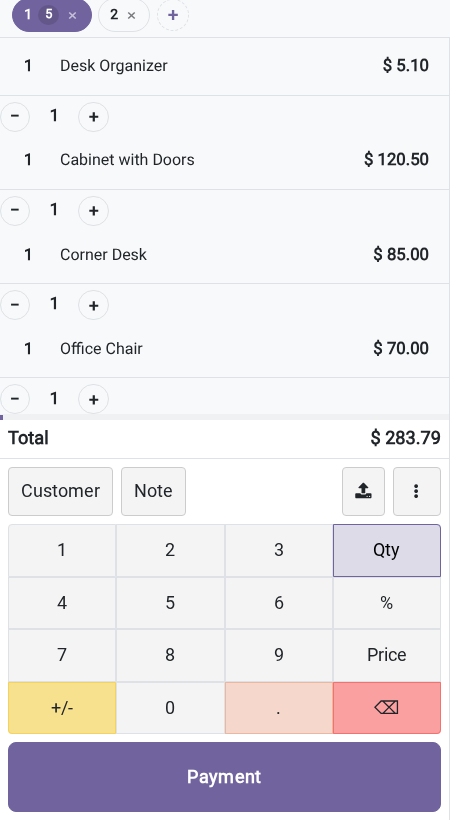
the cart shown as a tidy table with an inline ± quantity stepper on every line,
big, bold totals and a clear, full-width Pay button,
multi-order tabs to hold several customers at once and switch between them in one tap,
quick-cash buttons on the payment screen (exact + rounded-up amounts) with a big change-due readout.
It is theme-friendly by design: every colour is read from your existing Odoo/Bootstrap variables, so if you install another backend or POS theme, this layout adopts its colours automatically. Nothing is hard-coded.
Requirements
Odoo 20.0.
The Point of Sale application (point_of_sale). No other dependency.
Installation
Copy bambooforge_pos_ui into your addons path.
Update the apps list (Apps → Update Apps List).
Search for BambooForge POS UI and click Install.
The layout is enabled on every register by default.
Configuration
The layout is applied per register so you can mix styles across shops.
Go to Point of Sale → Configuration → Settings.
Pick the register at the top of the page.
Toggle BambooForge Layout on or off.
Save, then open (or reopen) the register.
Using it
Search or scan at the top; tap a product card to add it.
On each cart line, use the – and + buttons to change the quantity; decreasing to zero removes the line.
The running total is always visible; press Pay to move to payment.
Serve several customers at once
The tab bar under the top navbar shows every open order. Tap + to start a new order (hold one customer while you serve another), tap a tab to switch, and tap the × on a tab to close it (you are asked to confirm if it still has items).
Take cash fast
On the payment screen the Quick cash panel offers the exact amount and a few rounded-up amounts. One tap tenders the cash and the Change due is shown in large type. It uses the register's cash method, so it appears whenever the register accepts cash.
The layout pairs naturally with BambooForge POS Hotkeys for a fully keyboard-driven register.
Questions people ask
- Which Odoo versions does it run on?
Odoo 17.0, 18.0, 19.0, 20.0, on the series you buy it for; each series is its own listing.
- Community or Enterprise?
Both. It needs no Enterprise app.
- What does it need?
The standard Point of Sale app. No extra Python package.
- Does anything leave my server?
No. It makes no call outside your Odoo server: no telemetry, no licence check, no third-party service.
- What happens if I uninstall it?
Odoo drops the app's own tables and fields; the standard records it worked on (contacts, orders, products) stay as they are.
Troubleshooting
The layout does not appear
Check that BambooForge Layout is enabled for this register, then close and reopen the POS session so the setting is loaded.
The quantity stepper is missing on a line
The stepper shows on the product (order) screen only. On the payment or receipt screens the order is read-only by design.
Colours do not match my brand
The layout follows your active theme's variables. Set your brand colour in your backend/POS theme and the POS adopts it — there is nothing to configure here.
The look is different after installing another POS add-on
The layout uses additive styling and is safe with common add-ons. If you use Restaurant, Loyalty or Multi-employee (HR), install the companion BambooForge POS UI Bridge so the three fit together cleanly.
A register should keep the standard Odoo look
Turn BambooForge Layout off for that register (see Configuration). Other registers are unaffected.
The stepper changed a quantity I did not expect
Each tap changes the selected line by one unit. For large quantities, select the line and type the amount on the numpad as usual.
After toggling the setting nothing changed
The POS loads its configuration when a session opens. Close the session and reopen it, or reload the POS tab.
Frequently asked questions
Does it change how orders or payments work? No. It is a visual layout only; all POS behaviour, taxes and reports are unchanged.
Will it follow my dark theme? Yes. Colours come from your theme's variables, including dark themes.
Can different shops use different looks? Yes — the layout is toggled per register.
Limits
The inline quantity stepper acts on the product screen only.
Very large custom POS forks may need minor CSS adjustments.
How we make sure it works
Before every release, 9 automated checks run against this app on Odoo 17, 18, 19 and 20. Among them:
Ladder is magnitude scaled not fixed.
No colour is hard coded past the theme.
The layout is scoped to a class the bridge can target.
The layout can be turned off per register.
The listing offers somewhere to try it.
The complete list is in the source you receive.
Support
This app is designed to run without vendor support: the steps above cover setup, daily use and common issues. For licensing questions contact support@bambooforge.dev.
Upgrading & version compatibility
This build targets Odoo 20.0. Each Odoo major series (17.0, 18.0, 19.0, 20.0) has its own dedicated build of this module — always install the build that matches your Odoo version. Mixing a build with a different Odoo series is not supported.
Patch upgrades (same series, e.g. 20.0.1.0.0 → later)
Back up your database and filestore first.
Replace the module folder with the newer build.
Restart Odoo with the module updated:
./odoo-bin -c your.conf -u bambooforge_pos_ui -d your_db
Odoo applies any schema/data changes automatically. Your existing records and configuration are preserved.
Cross-version migration (moving to a newer Odoo)
Upgrading Odoo itself is a database migration handled by Odoo's standard upgrade tooling. When you migrate the database to the next Odoo series, install the matching build of this module for that series. Data created by this module carries over with the database migration.
Uninstallation
You can remove this module at any time from Apps → (this module) → Uninstall, or from the command line. Uninstalling is clean and reversible by reinstalling — but note what is and is not deleted.
What is removed
The fields, views and analysis definitions this module added.
The menus, actions, views and reports this module installed.
What is preserved
Your standard Odoo data (partners, products, sales, invoices, inventory moves) is not deleted — this module only reads and annotates it; the underlying records stay.
Attachments and chatter messages on standard records are kept.
As always, take a database backup before uninstalling in production.
Changelog
20.0.1.3.1
Built for Odoo 20: record rules and access rights rewritten onto Odoo 20's single ir.access model, the screens rebuilt on Owl 3, and every icon moved to the icon set Odoo 20 ships.
20.0.1.1.0
Current release for Odoo 20.0. This build includes:
A faster, cleaner POS layout inspired by popular retail cashier screens: prominent search, a tidy cart table with inline quantity steppers, big totals and a bold Pay button. Follows your installed theme's colours.
No hard-coded palette.
Feature additions and fixes ship as new builds on the Odoo Apps store; this page and the module's version reflect the current published release. Always keep the build matched to your Odoo series (see Upgrading & version compatibility).