 BambooForge Labs
Duplicate Contacts: Find & Merge Partners
Find duplicate contacts by fuzzy match on email, phone, VAT and name, review them in groups, and merge with Odoo's own merge engine.
Available for Odoo 16.0, Odoo 17.0, Odoo 18.0, Odoo 19.0, Odoo 20.0. Technical name bambooforge_partner_dedupe.
Transcript of the walkthrough (Odoo 20)
Duplicate Contacts: Find & Merge Partners. Find duplicate contacts by fuzzy match on email, phone, VAT and name, review them in groups, and merge with Odoo's own merge engine. Duplicate contacts creep into every database: imports, web leads, typos, the same company entered twice. This app finds them and helps you clean up: In the next few minutes: duplicate contacts: find & merge partners, then quick start, then how matching works, then reviewing and merging, then the suggested master.
Then what this app deliberately does not do, so you can tell before you buy whether it fits. Everything lives under Dedupe then Scans then Duplicate Groups. No Enterprise modules and no external Python libraries are required. Duplicate Contacts: Find & Merge Partners.
Keep your contact database clean. This app scans your contacts for duplicates by email, phone, tax ID and fuzzy name matching, groups the matches for review, suggests which record to keep, and merges them safely using Odoo's own merge engine — so every link, document and transaction is preserved. No Enterprise needed. This page is the complete manual.
Follow it top to bottom and you can install, run your first scan, review and merge duplicates, schedule scans and fix the common issues without contacting support. Quick start. 1. Open Dedupe > Scans and click New.
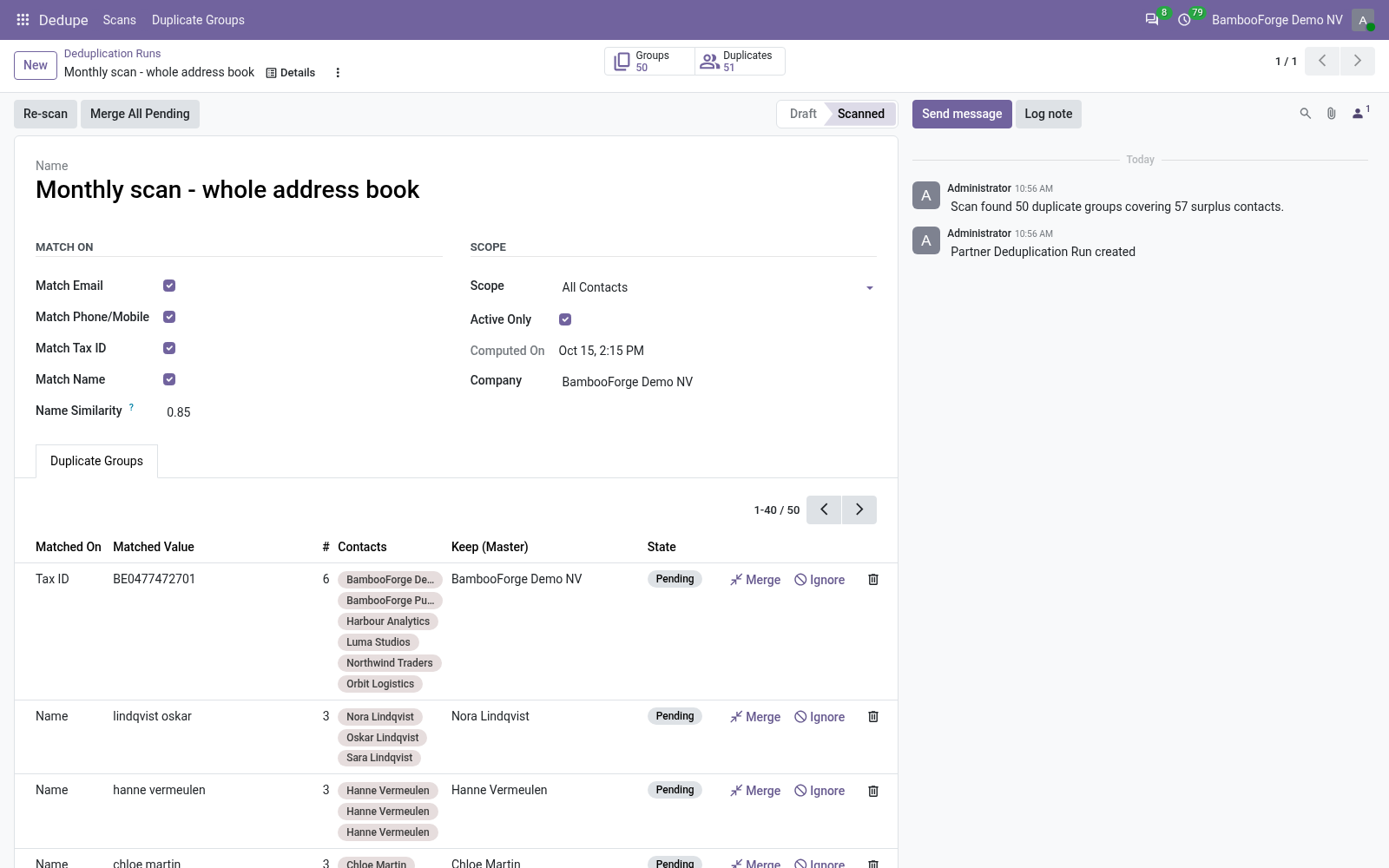
2. Choose what to Match On — any combination of Email, Phone/Mobile, Tax ID and Name. For names, set the Name Similarity (0–1): 1.0 means identical after normalization, lower values catch typos and word-order differences. 3.
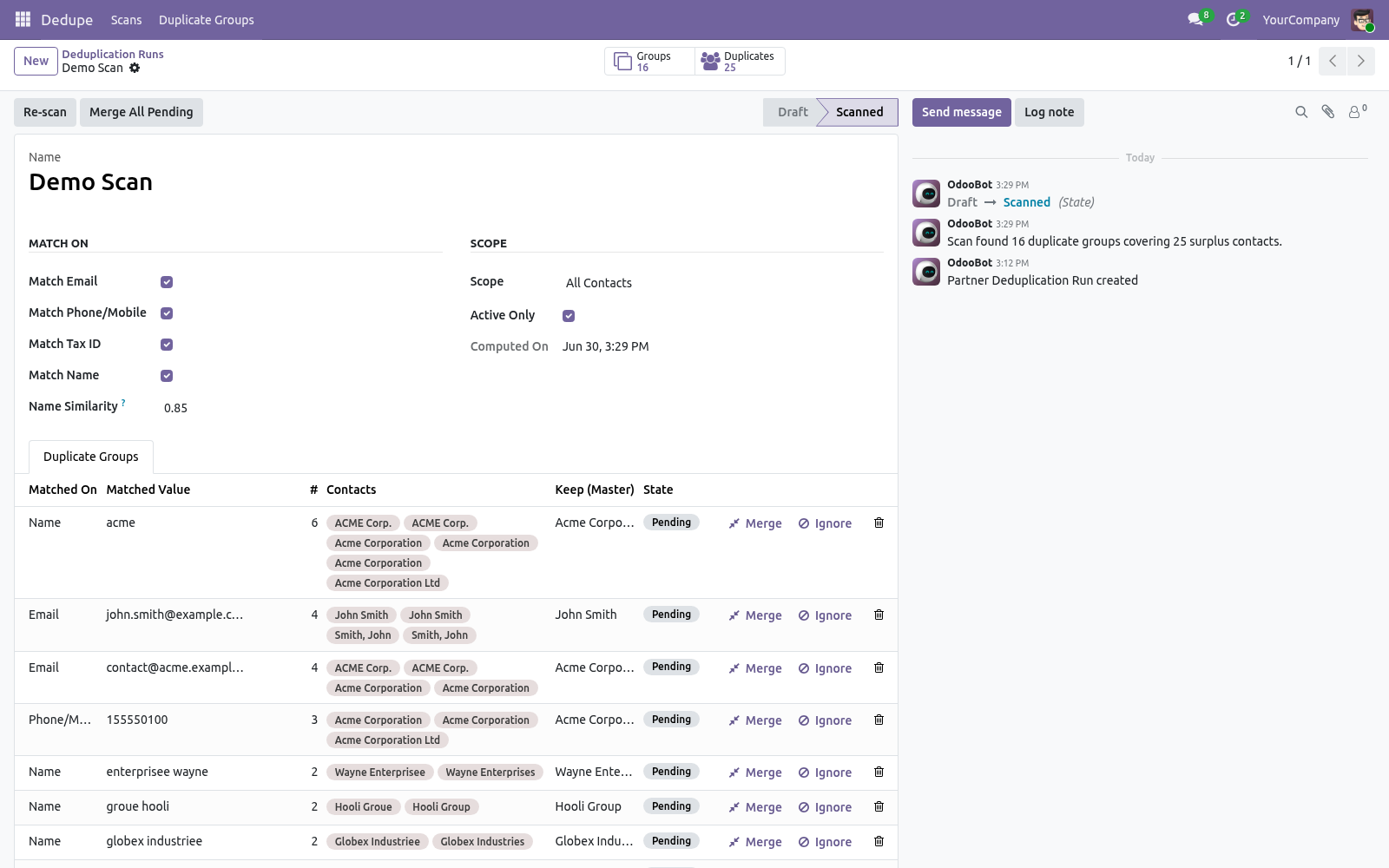
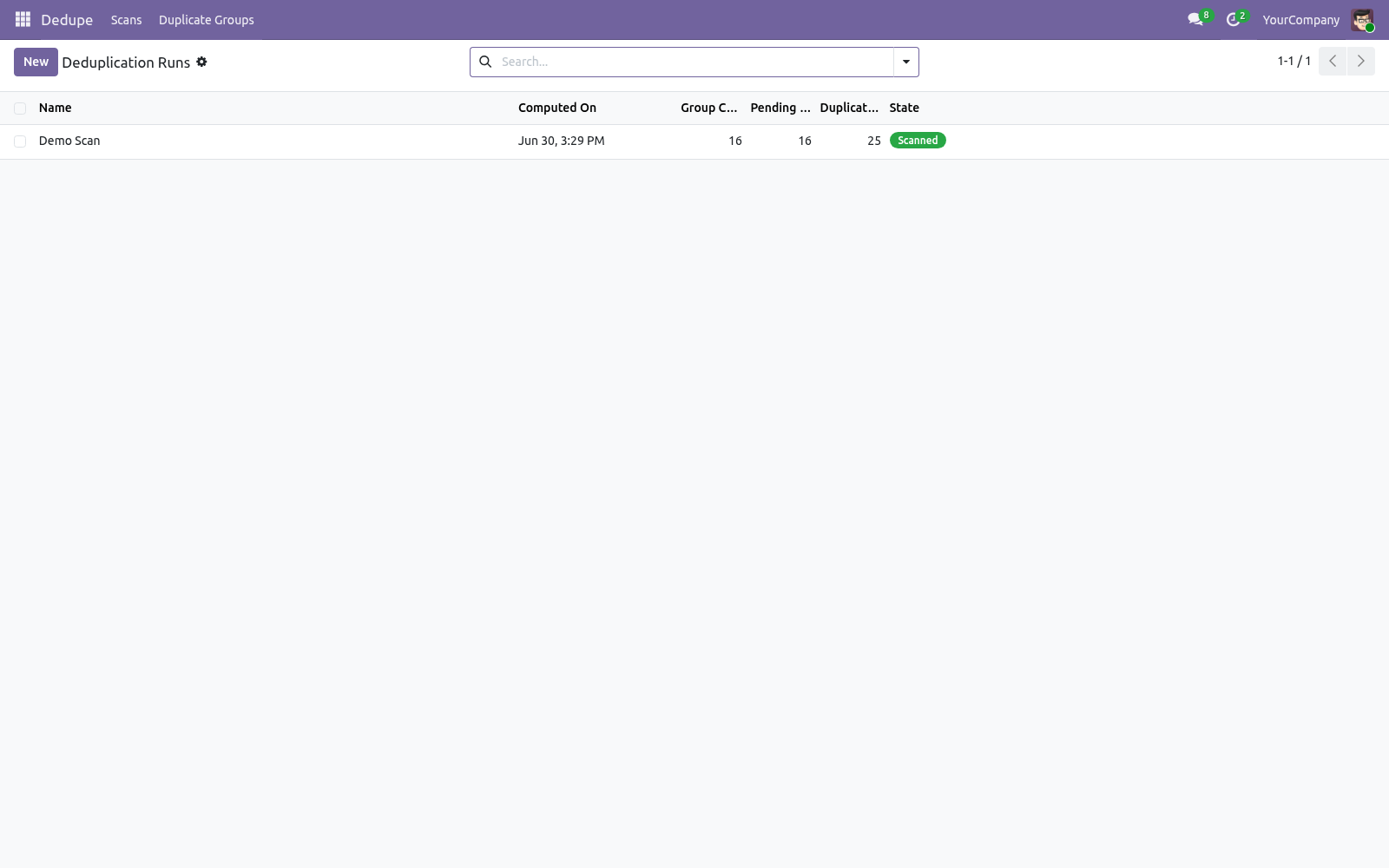
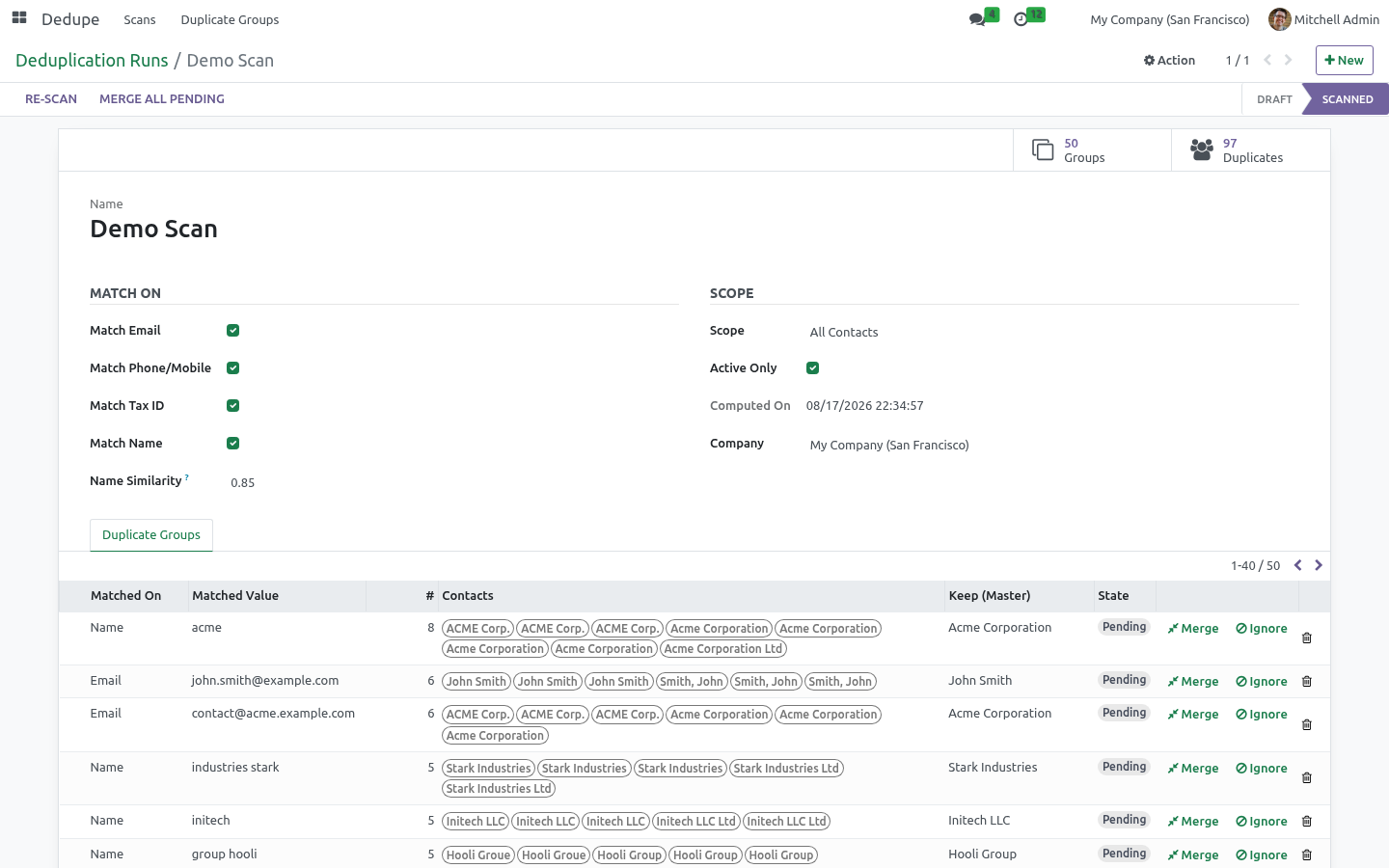
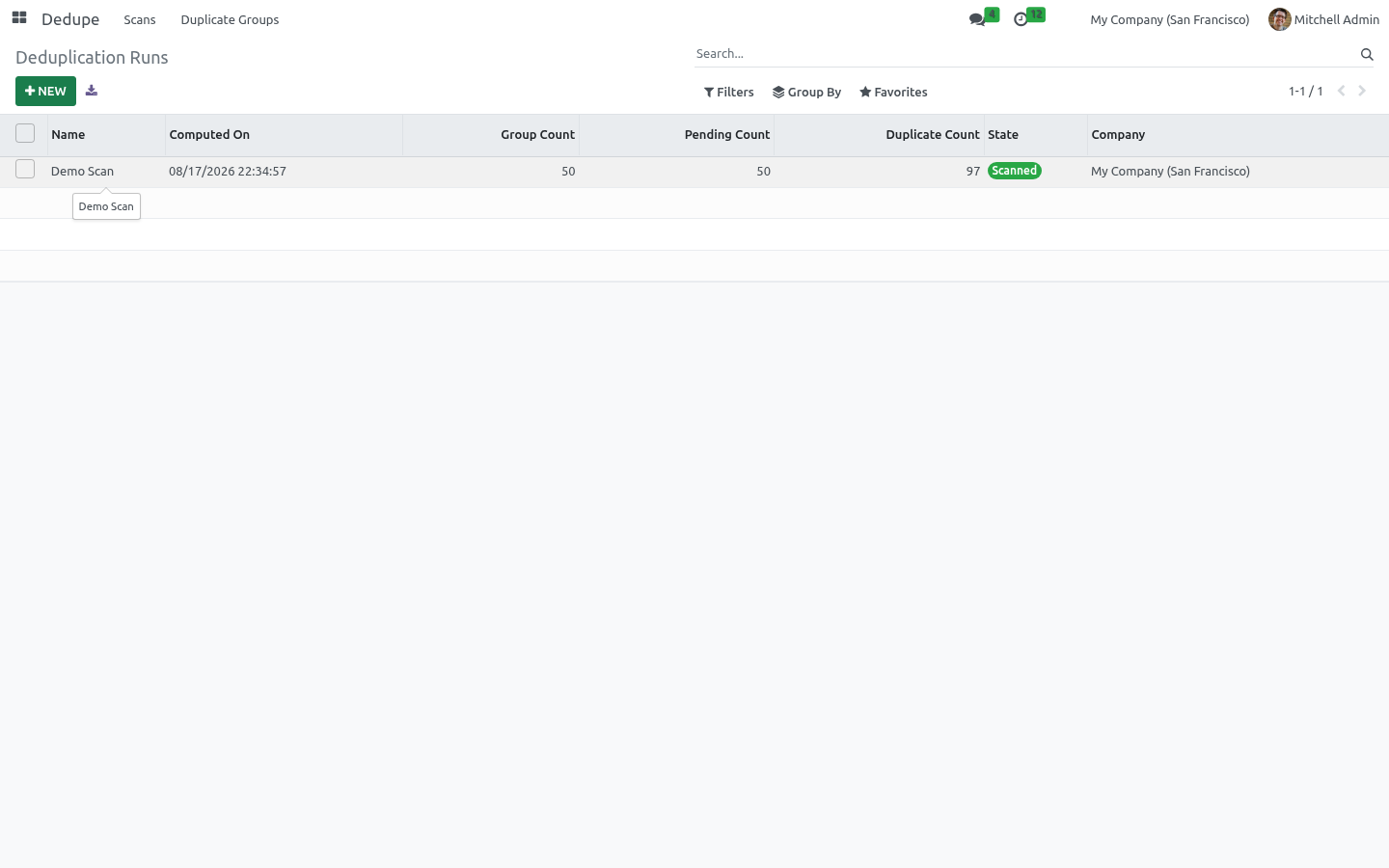
Pick a Scope (all contacts, companies only, or individuals) and whether to include archived contacts. 4. Click Scan. The run switches to Scanned and the Groups and Duplicates stat buttons fill in.
Open the Duplicate Groups tab to review. How matching works. Each criterion normalizes the value before comparing, so cosmetic differences do not hide a duplicate: Email — trimmed and lower-cased. Phone/Mobile — reduced to digits and compared on the last nine, so +1 (415) 555-0100 and 415.555.0100 match.
Tax ID — stripped of punctuation and upper-cased. Name — lower-cased, punctuation removed, legal-form suffixes (Ltd, Inc, GmbH, Corp…) dropped, words sorted — then compared with a similarity ratio against the Name Similarity threshold, so Acme Corp and ACME Corporation Ltd match, as do John Smith and Smith, John. Contacts that belong to the same commercial entity (a company and its own child contacts) are never grouped as duplicates, avoiding the most common false positive. Reviewing and merging.
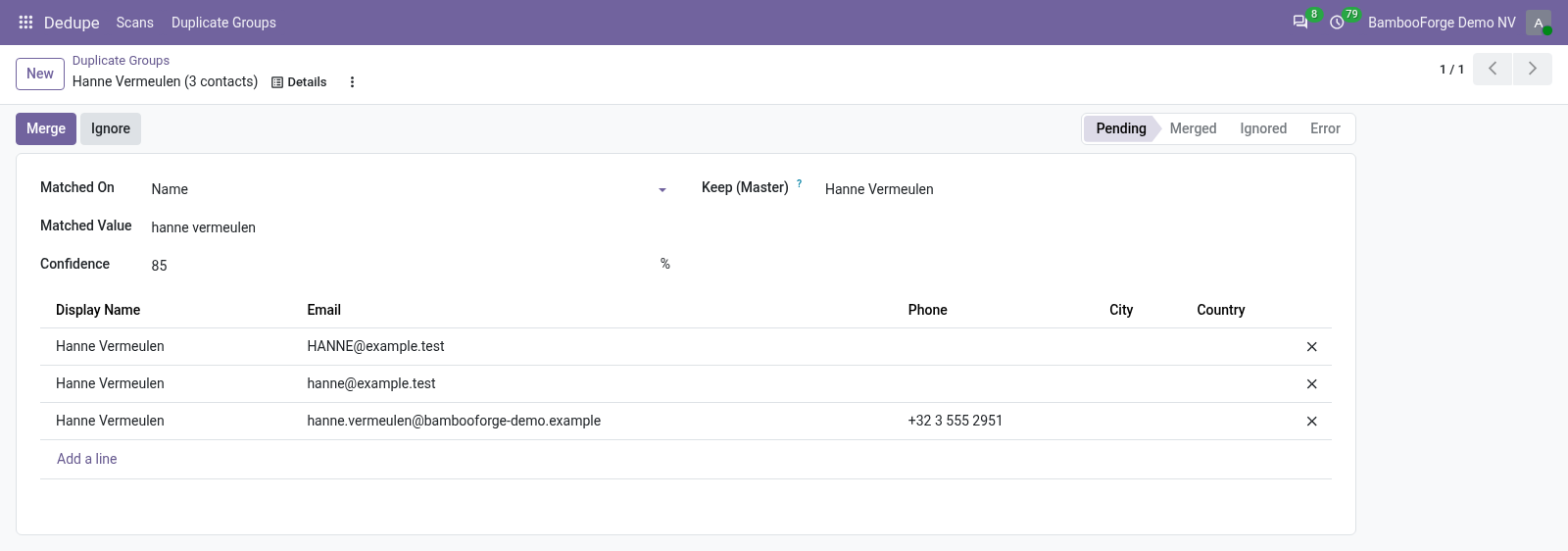
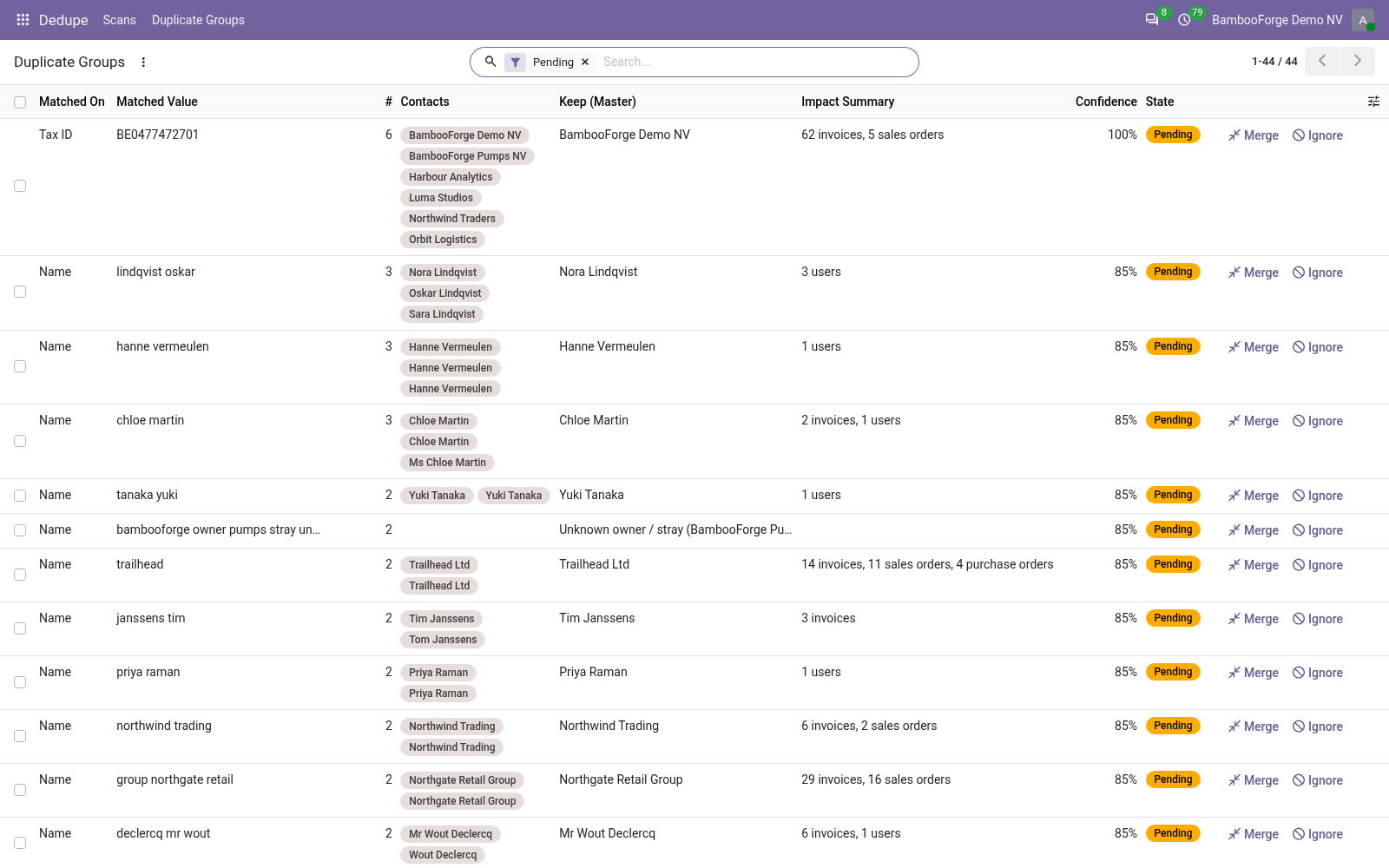
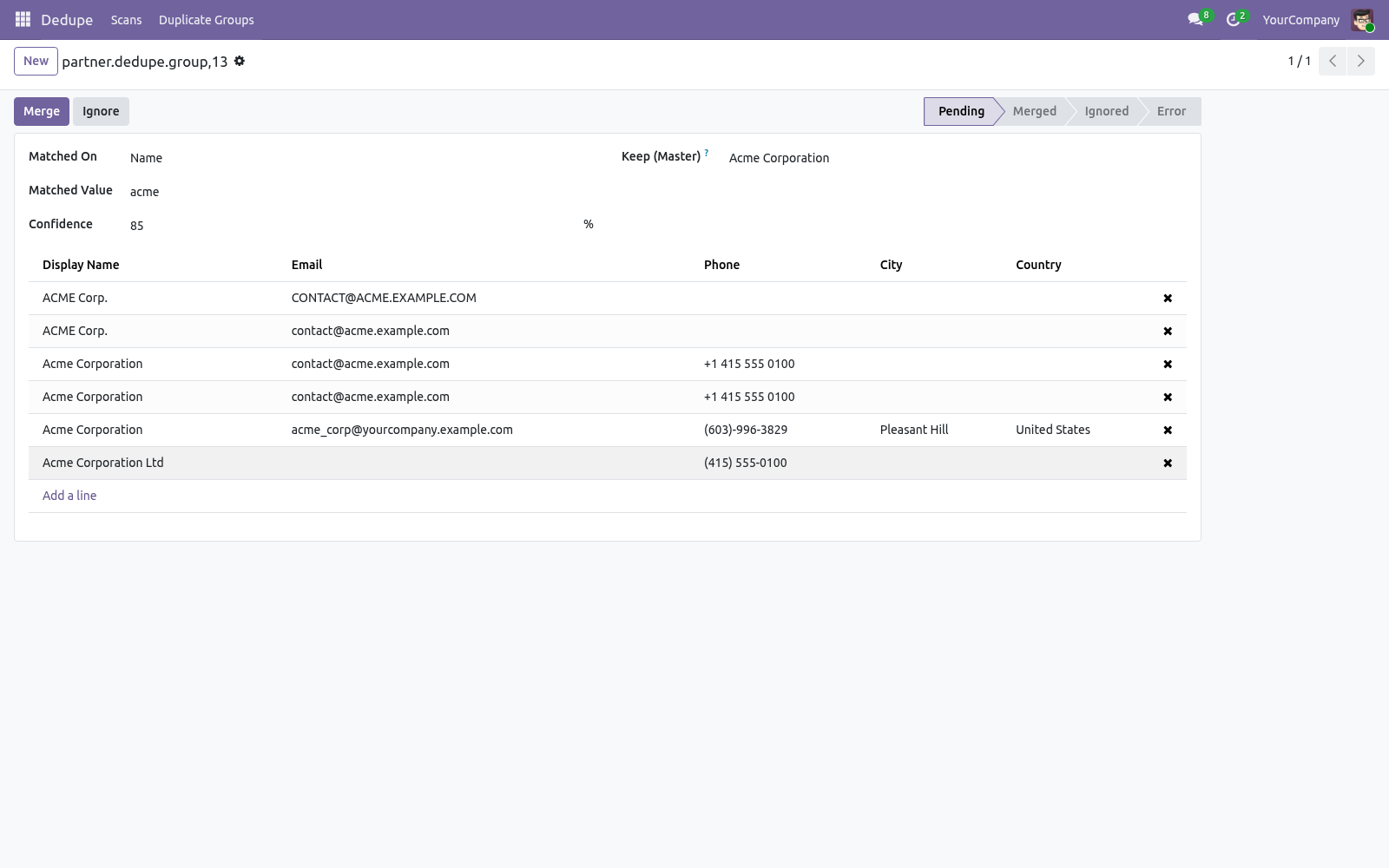
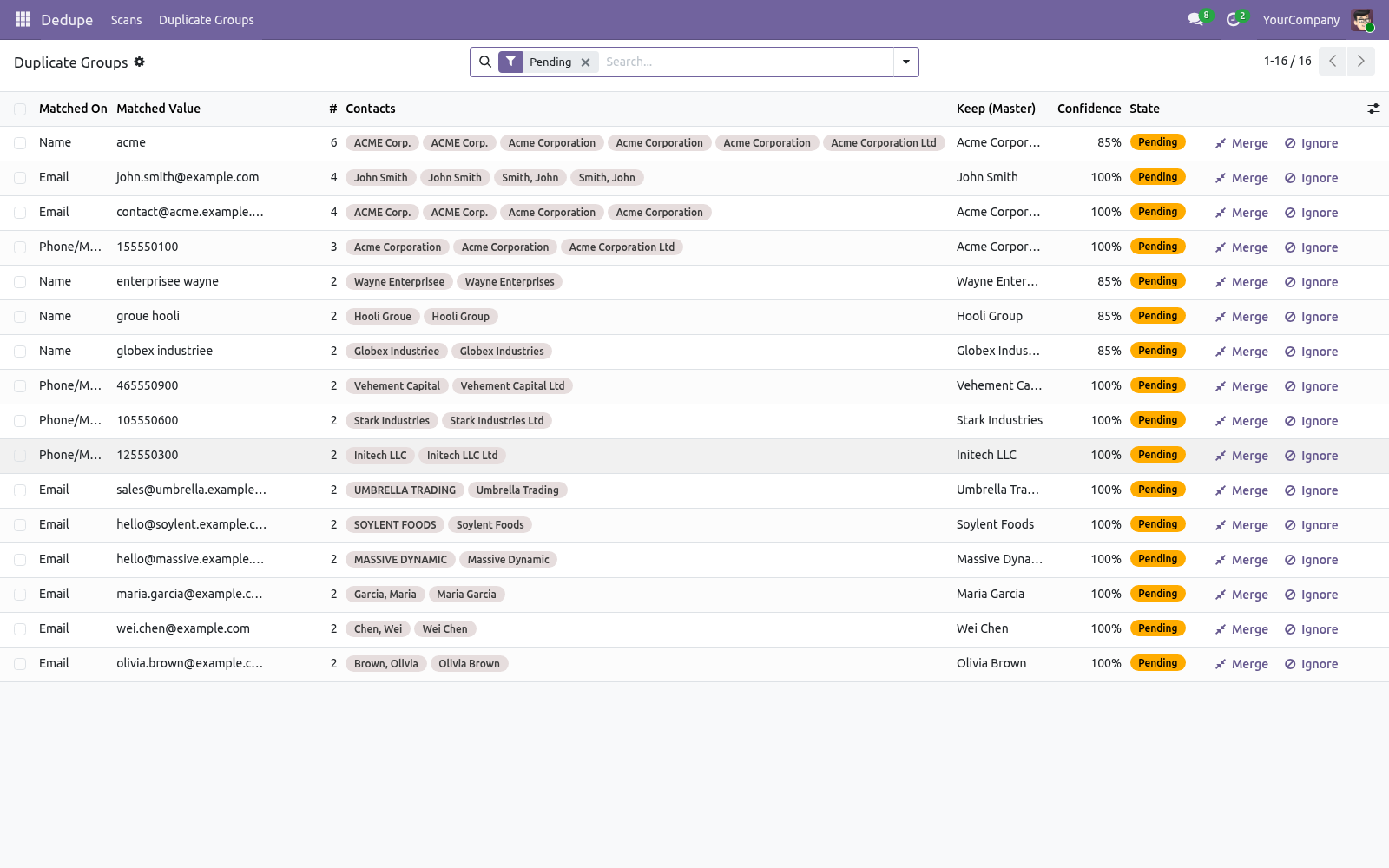
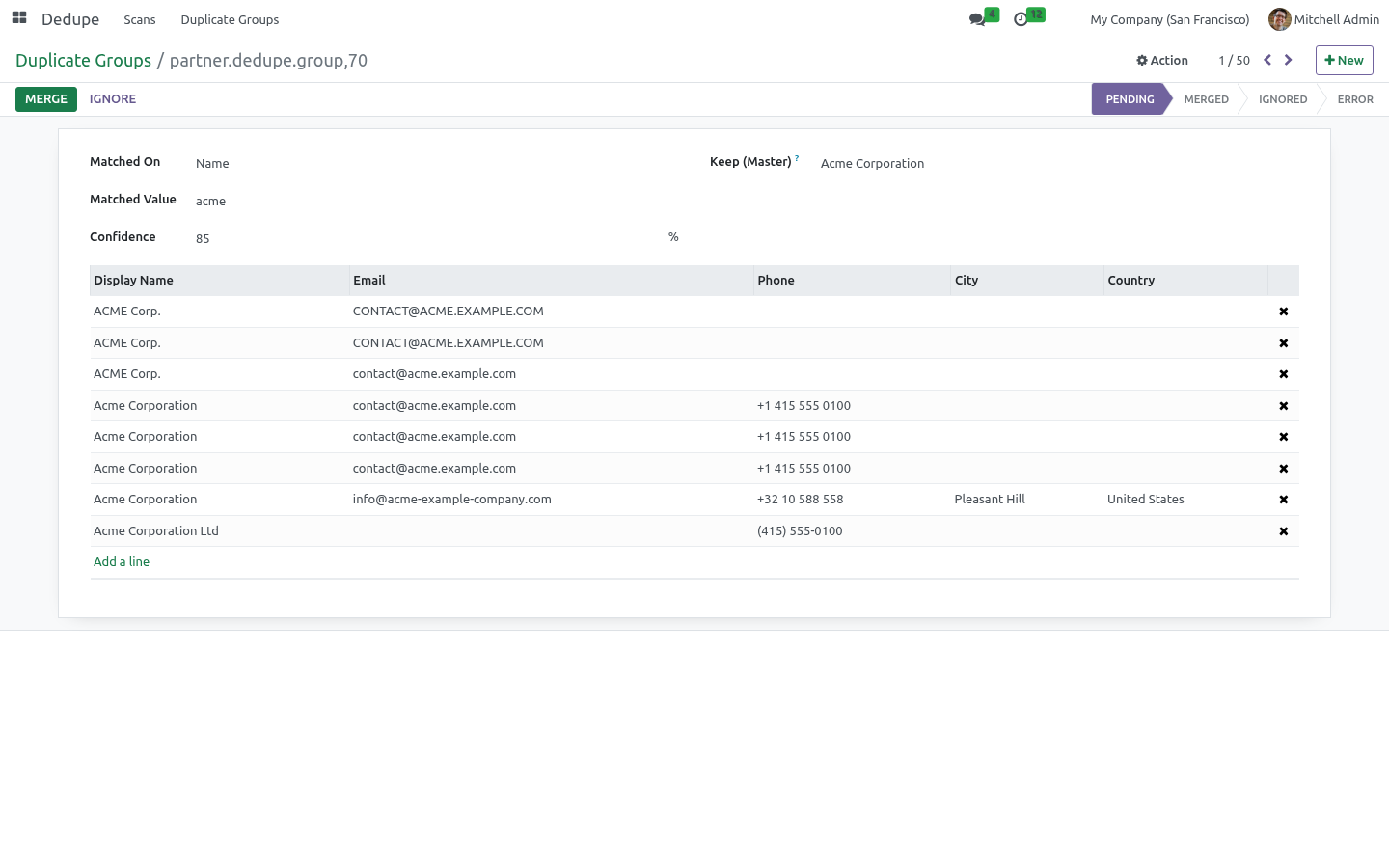
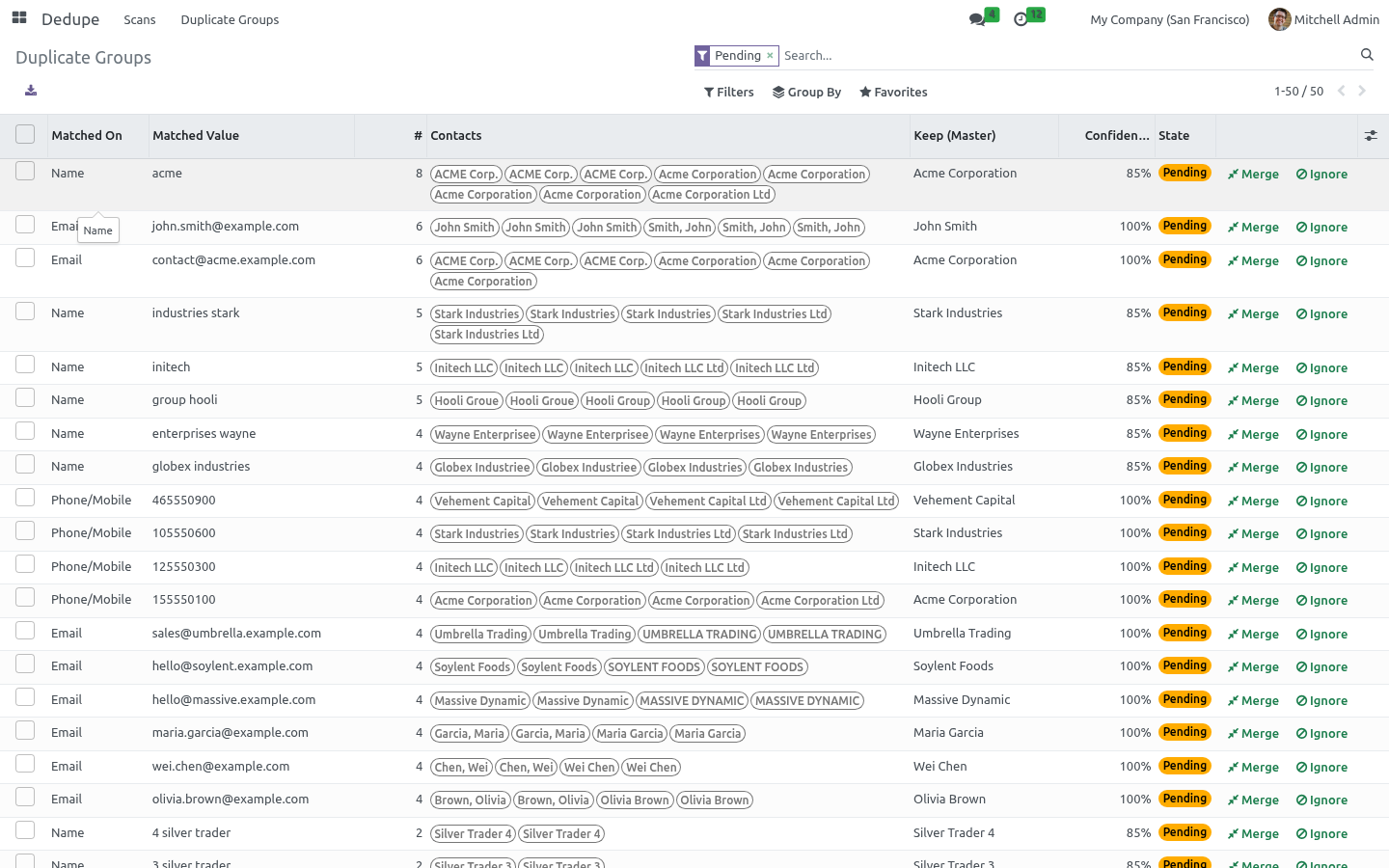
In the Duplicate Groups list each row shows what was matched, the matched value, the contacts involved, the suggested master to keep, a confidence score and a status. From there you can: Merge a group — the master is kept and the other contacts are merged into it. Open a group first if you want to change which contact is the master. Ignore a group you have judged to be distinct.
Reset an ignored or errored group back to pending. Merge All Pending from the run to process every group at once (with a confirmation). Merging uses Odoo's engine, which re-points foreign keys and reference fields, merges values into the master, logs the operation and deletes the source contacts. For safety the engine merges up to three contacts at a time; larger groups are merged in several automatic passes.
The suggested master. For each group the app suggests keeping the most complete contact — the one with the most filled-in fields (email, phone, address, tax ID…), breaking ties in favour of the oldest record. You can override this on the group before merging. Scheduling scans.
A scheduled action Dedupe: Scheduled Duplicate Scan ships disabled. Enable it under Settings > Technical > Scheduled Actions to create a fresh scan on a schedule (weekly by default) so duplicates are surfaced as they appear. The scan only detects; merging always stays a manual, reviewed action. Frequently asked questions.
Will merging lose any data? No. The merge re-points every related record (orders, invoices, activities, messages, etc.) to the surviving contact before the duplicates are removed — this is Odoo's own merge behaviour. A merge shows an Error status.
The engine refuses some merges for safety — for example contacts in a parent/child relationship, or contacts linked to more than one user. The reason is stored on the group; fix the underlying issue and Reset to retry. How we make sure it works. Before every release, 17 automated checks run against this app on Odoo 16, 17, 18, 19 and 20.
Among them: A plain employee sees no dedupe data at all. Ignore and reset stay available to the role. Overlapping groups no arbitrary merge. The sold group makes a user who can clean contacts.
The email less manager scans reviews and merges. The complete list is in the source you receive. Support. Questions or ideas: support@bambooforge.dev.
Upgrading & version compatibility. This build targets Odoo 20.0. Each Odoo major series (17.0, 18.0, 19.0) has its own dedicated build of this module — always install the build that matches your Odoo version. Mixing a build with a different Odoo series is not supported.
The complete manual is at docs dot bambooforge dot dev, the demo database is linked from the store page, and support answers within twenty-four hours. Links are in the description.
Transcript of the walkthrough (Odoo 19)
Duplicate Contacts: Find & Merge Partners. Find duplicate contacts by fuzzy match on email, phone, VAT and name, review them in groups, and merge with Odoo's own merge engine. Duplicate contacts creep into every database: imports, web leads, typos, the same company entered twice. This app finds them and helps you clean up: In the next few minutes: duplicate contacts: find & merge partners, then quick start, then how matching works, then reviewing and merging, then the suggested master.
Then what this app deliberately does not do, so you can tell before you buy whether it fits. Everything lives under Dedupe then Scans then Duplicate Groups. No Enterprise modules and no external Python libraries are required. Duplicate Contacts: Find & Merge Partners.
Keep your contact database clean. This app scans your contacts for duplicates by email, phone, tax ID and fuzzy name matching, groups the matches for review, suggests which record to keep, and merges them safely using Odoo's own merge engine — so every link, document and transaction is preserved. No Enterprise needed. This page is the complete manual.
Follow it top to bottom and you can install, run your first scan, review and merge duplicates, schedule scans and fix the common issues without contacting support. Quick start. 1. Open Dedupe > Scans and click New.
2. Choose what to Match On — any combination of Email, Phone/Mobile, Tax ID and Name. For names, set the Name Similarity (0–1): 1.0 means identical after normalization, lower values catch typos and word-order differences. 3.
Pick a Scope (all contacts, companies only, or individuals) and whether to include archived contacts. 4. Click Scan. The run switches to Scanned and the Groups and Duplicates stat buttons fill in.
Open the Duplicate Groups tab to review. How matching works. Each criterion normalizes the value before comparing, so cosmetic differences do not hide a duplicate: Email — trimmed and lower-cased. Phone/Mobile — reduced to digits and compared on the last nine, so +1 (415) 555-0100 and 415.555.0100 match.
Tax ID — stripped of punctuation and upper-cased. Name — lower-cased, punctuation removed, legal-form suffixes (Ltd, Inc, GmbH, Corp…) dropped, words sorted — then compared with a similarity ratio against the Name Similarity threshold, so Acme Corp and ACME Corporation Ltd match, as do John Smith and Smith, John. Contacts that belong to the same commercial entity (a company and its own child contacts) are never grouped as duplicates, avoiding the most common false positive. Reviewing and merging.
In the Duplicate Groups list each row shows what was matched, the matched value, the contacts involved, the suggested master to keep, a confidence score and a status. From there you can: Merge a group — the master is kept and the other contacts are merged into it. Open a group first if you want to change which contact is the master. Ignore a group you have judged to be distinct.
Reset an ignored or errored group back to pending. Merge All Pending from the run to process every group at once (with a confirmation). Merging uses Odoo's engine, which re-points foreign keys and reference fields, merges values into the master, logs the operation and deletes the source contacts. For safety the engine merges up to three contacts at a time; larger groups are merged in several automatic passes.
The suggested master. For each group the app suggests keeping the most complete contact — the one with the most filled-in fields (email, phone, address, tax ID…), breaking ties in favour of the oldest record. You can override this on the group before merging. Scheduling scans.
A scheduled action Dedupe: Scheduled Duplicate Scan ships disabled. Enable it under Settings > Technical > Scheduled Actions to create a fresh scan on a schedule (weekly by default) so duplicates are surfaced as they appear. The scan only detects; merging always stays a manual, reviewed action. Frequently asked questions.
Will merging lose any data? No. The merge re-points every related record (orders, invoices, activities, messages, etc.) to the surviving contact before the duplicates are removed — this is Odoo's own merge behaviour. A merge shows an Error status.
The engine refuses some merges for safety — for example contacts in a parent/child relationship, or contacts linked to more than one user. The reason is stored on the group; fix the underlying issue and Reset to retry. Support. Questions or ideas: support@bambooforge.dev.
.. BAMBOOFORGE-DOC-APPENDIX (auto-generated: Upgrade/Uninstall/Changelog + bespoke) Upgrading & version compatibility. This build targets Odoo 19.0. Each Odoo major series (17.0, 18.0, 19.0) has its own dedicated build of this module — always install the build that matches your Odoo version.
Mixing a build with a different Odoo series is not supported. Patch upgrades (same series, e.g. 19.0.1.0.0 → later). ./odoo-bin -c your.conf -u bambooforge_partner_dedupe -d your_db 4.
Odoo applies any schema/data changes automatically. Your existing records and configuration are preserved. The complete manual is at docs dot bambooforge dot dev, the demo database is linked from the store page, and support answers within twenty-four hours. Links are in the description.
Transcript of the walkthrough (Odoo 18)
Duplicate Contacts: Find & Merge Partners. Find duplicate contacts by fuzzy match on email, phone, VAT and name, review them in groups, and merge with Odoo's own merge engine. Duplicate contacts creep into every database: imports, web leads, typos, the same company entered twice. This app finds them and helps you clean up: In the next few minutes: duplicate contacts: find & merge partners, then quick start, then how matching works, then reviewing and merging, then the suggested master.
Then what this app deliberately does not do, so you can tell before you buy whether it fits. Everything lives under Dedupe then Scans then Duplicate Groups. No Enterprise modules and no external Python libraries are required. Duplicate Contacts: Find & Merge Partners.
Keep your contact database clean. This app scans your contacts for duplicates by email, phone, tax ID and fuzzy name matching, groups the matches for review, suggests which record to keep, and merges them safely using Odoo's own merge engine — so every link, document and transaction is preserved. No Enterprise needed. This page is the complete manual.
Follow it top to bottom and you can install, run your first scan, review and merge duplicates, schedule scans and fix the common issues without contacting support. Quick start. 1. Open Dedupe > Scans and click New.
2. Choose what to Match On — any combination of Email, Phone/Mobile, Tax ID and Name. For names, set the Name Similarity (0–1): 1.0 means identical after normalization, lower values catch typos and word-order differences. 3.
Pick a Scope (all contacts, companies only, or individuals) and whether to include archived contacts. 4. Click Scan. The run switches to Scanned and the Groups and Duplicates stat buttons fill in.
Open the Duplicate Groups tab to review. How matching works. Each criterion normalizes the value before comparing, so cosmetic differences do not hide a duplicate: Email — trimmed and lower-cased. Phone/Mobile — reduced to digits and compared on the last nine, so +1 (415) 555-0100 and 415.555.0100 match.
Tax ID — stripped of punctuation and upper-cased. Name — lower-cased, punctuation removed, legal-form suffixes (Ltd, Inc, GmbH, Corp…) dropped, words sorted — then compared with a similarity ratio against the Name Similarity threshold, so Acme Corp and ACME Corporation Ltd match, as do John Smith and Smith, John. Contacts that belong to the same commercial entity (a company and its own child contacts) are never grouped as duplicates, avoiding the most common false positive. Reviewing and merging.
In the Duplicate Groups list each row shows what was matched, the matched value, the contacts involved, the suggested master to keep, a confidence score and a status. From there you can: Merge a group — the master is kept and the other contacts are merged into it. Open a group first if you want to change which contact is the master. Ignore a group you have judged to be distinct.
Reset an ignored or errored group back to pending. Merge All Pending from the run to process every group at once (with a confirmation). Merging uses Odoo's engine, which re-points foreign keys and reference fields, merges values into the master, logs the operation and deletes the source contacts. For safety the engine merges up to three contacts at a time; larger groups are merged in several automatic passes.
The suggested master. For each group the app suggests keeping the most complete contact — the one with the most filled-in fields (email, phone, address, tax ID…), breaking ties in favour of the oldest record. You can override this on the group before merging. Scheduling scans.
A scheduled action Dedupe: Scheduled Duplicate Scan ships disabled. Enable it under Settings > Technical > Scheduled Actions to create a fresh scan on a schedule (weekly by default) so duplicates are surfaced as they appear. The scan only detects; merging always stays a manual, reviewed action. Frequently asked questions.
Will merging lose any data? No. The merge re-points every related record (orders, invoices, activities, messages, etc.) to the surviving contact before the duplicates are removed — this is Odoo's own merge behaviour. A merge shows an Error status.
The engine refuses some merges for safety — for example contacts in a parent/child relationship, or contacts linked to more than one user. The reason is stored on the group; fix the underlying issue and Reset to retry. Support. Questions or ideas: support@bambooforge.dev.
.. BAMBOOFORGE-DOC-APPENDIX (auto-generated: Upgrade/Uninstall/Changelog + bespoke) Upgrading & version compatibility. This build targets Odoo 18.0. Each Odoo major series (17.0, 18.0, 19.0) has its own dedicated build of this module — always install the build that matches your Odoo version.
Mixing a build with a different Odoo series is not supported. Patch upgrades (same series, e.g. 18.0.1.0.0 → later). ./odoo-bin -c your.conf -u bambooforge_partner_dedupe -d your_db 4.
Odoo applies any schema/data changes automatically. Your existing records and configuration are preserved. The complete manual is at docs dot bambooforge dot dev, the demo database is linked from the store page, and support answers within twenty-four hours. Links are in the description.
Transcript of the walkthrough (Odoo 17)
Duplicate Contacts: Find & Merge Partners. Find duplicate contacts by fuzzy match on email, phone, VAT and name, review them in groups, and merge with Odoo's own merge engine. Duplicate contacts creep into every database: imports, web leads, typos, the same company entered twice. This app finds them and helps you clean up: In the next few minutes: duplicate contacts: find & merge partners, then quick start, then how matching works, then reviewing and merging, then the suggested master.
Then what this app deliberately does not do, so you can tell before you buy whether it fits. Everything lives under Dedupe then Scans then Duplicate Groups. No Enterprise modules and no external Python libraries are required. Duplicate Contacts: Find & Merge Partners.
Keep your contact database clean. This app scans your contacts for duplicates by email, phone, tax ID and fuzzy name matching, groups the matches for review, suggests which record to keep, and merges them safely using Odoo's own merge engine — so every link, document and transaction is preserved. No Enterprise needed. This page is the complete manual.
Follow it top to bottom and you can install, run your first scan, review and merge duplicates, schedule scans and fix the common issues without contacting support. Quick start. 1. Open Dedupe > Scans and click New.
2. Choose what to Match On — any combination of Email, Phone/Mobile, Tax ID and Name. For names, set the Name Similarity (0–1): 1.0 means identical after normalization, lower values catch typos and word-order differences. 3.
Pick a Scope (all contacts, companies only, or individuals) and whether to include archived contacts. 4. Click Scan. The run switches to Scanned and the Groups and Duplicates stat buttons fill in.
Open the Duplicate Groups tab to review. How matching works. Each criterion normalizes the value before comparing, so cosmetic differences do not hide a duplicate: Email — trimmed and lower-cased. Phone/Mobile — reduced to digits and compared on the last nine, so +1 (415) 555-0100 and 415.555.0100 match.
Tax ID — stripped of punctuation and upper-cased. Name — lower-cased, punctuation removed, legal-form suffixes (Ltd, Inc, GmbH, Corp…) dropped, words sorted — then compared with a similarity ratio against the Name Similarity threshold, so Acme Corp and ACME Corporation Ltd match, as do John Smith and Smith, John. Contacts that belong to the same commercial entity (a company and its own child contacts) are never grouped as duplicates, avoiding the most common false positive. Reviewing and merging.
In the Duplicate Groups list each row shows what was matched, the matched value, the contacts involved, the suggested master to keep, a confidence score and a status. From there you can: Merge a group — the master is kept and the other contacts are merged into it. Open a group first if you want to change which contact is the master. Ignore a group you have judged to be distinct.
Reset an ignored or errored group back to pending. Merge All Pending from the run to process every group at once (with a confirmation). Merging uses Odoo's engine, which re-points foreign keys and reference fields, merges values into the master, logs the operation and deletes the source contacts. For safety the engine merges up to three contacts at a time; larger groups are merged in several automatic passes.
The suggested master. For each group the app suggests keeping the most complete contact — the one with the most filled-in fields (email, phone, address, tax ID…), breaking ties in favour of the oldest record. You can override this on the group before merging. Scheduling scans.
A scheduled action Dedupe: Scheduled Duplicate Scan ships disabled. Enable it under Settings > Technical > Scheduled Actions to create a fresh scan on a schedule (weekly by default) so duplicates are surfaced as they appear. The scan only detects; merging always stays a manual, reviewed action. Frequently asked questions.
Will merging lose any data? No. The merge re-points every related record (orders, invoices, activities, messages, etc.) to the surviving contact before the duplicates are removed — this is Odoo's own merge behaviour. A merge shows an Error status.
The engine refuses some merges for safety — for example contacts in a parent/child relationship, or contacts linked to more than one user. The reason is stored on the group; fix the underlying issue and Reset to retry. Support. Questions or ideas: support@bambooforge.dev.
.. BAMBOOFORGE-DOC-APPENDIX (auto-generated: Upgrade/Uninstall/Changelog + bespoke) Upgrading & version compatibility. This build targets Odoo 17.0. Each Odoo major series (17.0, 18.0, 19.0) has its own dedicated build of this module — always install the build that matches your Odoo version.
Mixing a build with a different Odoo series is not supported. Patch upgrades (same series, e.g. 17.0.1.0.0 → later). ./odoo-bin -c your.conf -u bambooforge_partner_dedupe -d your_db 4.
Odoo applies any schema/data changes automatically. Your existing records and configuration are preserved. The complete manual is at docs dot bambooforge dot dev, the demo database is linked from the store page, and support answers within twenty-four hours. Links are in the description.
Transcript of the walkthrough (Odoo 16)
Duplicate Contacts: Find & Merge Partners. Find duplicate contacts by fuzzy match on email, phone, VAT and name, review them in groups, and merge with Odoo's own merge engine. Duplicate contacts creep into every database: imports, web leads, typos, the same company entered twice. This app finds them and helps you clean up: In the next few minutes: duplicate contacts: find & merge partners, then quick start, then how matching works, then reviewing and merging, then the suggested master.
Then what this app deliberately does not do, so you can tell before you buy whether it fits. Everything lives under Dedupe then Scans then Duplicate Groups. No Enterprise modules and no external Python libraries are required. Duplicate Contacts: Find & Merge Partners.
Keep your contact database clean. This app scans your contacts for duplicates by email, phone, tax ID and fuzzy name matching, groups the matches for review, suggests which record to keep, and merges them safely using Odoo's own merge engine — so every link, document and transaction is preserved. No Enterprise needed. This page is the complete manual.
Follow it top to bottom and you can install, run your first scan, review and merge duplicates, schedule scans and fix the common issues without contacting support. Quick start. 1. Open Dedupe > Scans and click New.
2. Choose what to Match On — any combination of Email, Phone/Mobile, Tax ID and Name. For names, set the Name Similarity (0–1): 1.0 means identical after normalization, lower values catch typos and word-order differences. 3.
Pick a Scope (all contacts, companies only, or individuals) and whether to include archived contacts. 4. Click Scan. The run switches to Scanned and the Groups and Duplicates stat buttons fill in.
Open the Duplicate Groups tab to review. How matching works. Each criterion normalizes the value before comparing, so cosmetic differences do not hide a duplicate: Email — trimmed and lower-cased. Phone/Mobile — reduced to digits and compared on the last nine, so +1 (415) 555-0100 and 415.555.0100 match.
Tax ID — stripped of punctuation and upper-cased. Name — lower-cased, punctuation removed, legal-form suffixes (Ltd, Inc, GmbH, Corp…) dropped, words sorted — then compared with a similarity ratio against the Name Similarity threshold, so Acme Corp and ACME Corporation Ltd match, as do John Smith and Smith, John. Contacts that belong to the same commercial entity (a company and its own child contacts) are never grouped as duplicates, avoiding the most common false positive. Reviewing and merging.
In the Duplicate Groups list each row shows what was matched, the matched value, the contacts involved, the suggested master to keep, a confidence score and a status. From there you can: Merge a group — the master is kept and the other contacts are merged into it. Open a group first if you want to change which contact is the master. Ignore a group you have judged to be distinct.
Reset an ignored or errored group back to pending. Merge All Pending from the run to process every group at once (with a confirmation). Merging uses Odoo's engine, which re-points foreign keys and reference fields, merges values into the master, logs the operation and deletes the source contacts. For safety the engine merges up to three contacts at a time; larger groups are merged in several automatic passes.
The suggested master. For each group the app suggests keeping the most complete contact — the one with the most filled-in fields (email, phone, address, tax ID…), breaking ties in favour of the oldest record. You can override this on the group before merging. Scheduling scans.
A scheduled action Dedupe: Scheduled Duplicate Scan ships disabled. Enable it under Settings > Technical > Scheduled Actions to create a fresh scan on a schedule (weekly by default) so duplicates are surfaced as they appear. The scan only detects; merging always stays a manual, reviewed action. Frequently asked questions.
Will merging lose any data? No. The merge re-points every related record (orders, invoices, activities, messages, etc.) to the surviving contact before the duplicates are removed — this is Odoo's own merge behaviour. A merge shows an Error status.
The engine refuses some merges for safety — for example contacts in a parent/child relationship, or contacts linked to more than one user. The reason is stored on the group; fix the underlying issue and Reset to retry. Support. Questions or ideas: support@bambooforge.dev.
.. BAMBOOFORGE-DOC-APPENDIX (auto-generated: Upgrade/Uninstall/Changelog + bespoke) Upgrading & version compatibility. This build targets Odoo 16.0. Each Odoo major series (17.0, 18.0, 19.0) has its own dedicated build of this module — always install the build that matches your Odoo version.
Mixing a build with a different Odoo series is not supported. Patch upgrades (same series, e.g. 16.0.1.0.0 → later). ./odoo-bin -c your.conf -u bambooforge_partner_dedupe -d your_db 4.
Odoo applies any schema/data changes automatically. Your existing records and configuration are preserved. The complete manual is at docs dot bambooforge dot dev, the demo database is linked from the store page, and support answers within twenty-four hours. Links are in the description.
Key facts
- What it is
- Find duplicate contacts by fuzzy match on email, phone, VAT and name, review them in groups, and merge with Odoo's own merge engine.
- For
- Extra Tools
- Odoo versions
- 16.0, 17.0, 18.0, 19.0, 20.0 - Community and Enterprise
- Runs on
- Odoo.sh or Odoo you host yourself - not Odoo Online, which accepts no third-party apps
- Price
- 79 EUR, one-time, on the Odoo Apps Store
- Technical name
- bambooforge_partner_dedupe
- Not for
- Said before you buy, because it is the half that decides whether the app fits:; Group a company with its own child contacts as duplicates.; Auto-exclude contacts of different companies - only contacts of the same commercial entity are.
- Manual last updated
- 2026-10-15
Duplicate Contacts: Find & Merge Partners
Keep your contact database clean. This app scans your contacts for duplicates by email, phone, tax ID and fuzzy name matching, groups the matches for review, suggests which record to keep, and merges them safely using Odoo's own merge engine — so every link, document and transaction is preserved. No Enterprise needed.
This page is the complete manual. Follow it top to bottom and you can install, run your first scan, review and merge duplicates, schedule scans and fix the common issues without contacting support.
Overview
Duplicate contacts creep into every database: imports, web leads, typos, the same company entered twice. This app finds them and helps you clean up:
Scan your contacts on any combination of email, phone/mobile, tax ID and name, with configurable fuzzy name matching.
Review the results as duplicate groups, each with a suggested master, a confidence score and the matched value.
Merge safely — the actual merge is performed by Odoo's built-in merge engine, which re-points every related record (orders, invoices, messages…) to the surviving contact before deleting the duplicates.
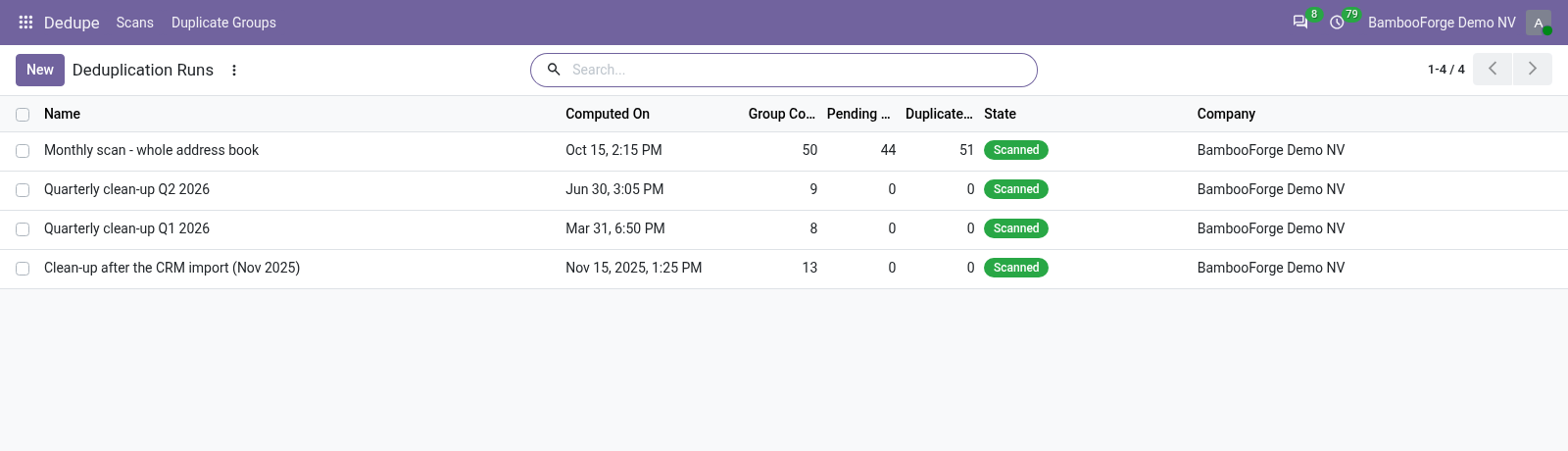
Ignore false positives, re-scan any time, and keep a history of runs.
Schedule scans to catch duplicates as they appear.
It deliberately reuses the platform's merge logic, so merging is exactly as safe as Odoo's own "Merge Contacts" tool — with far better detection and a review workflow on top.
Requirements
Odoo 20.0.
The Contacts app (contacts). Installing this app pulls it in automatically.
No Enterprise modules and no external Python libraries are required.
Installation
Copy bambooforge_partner_dedupe into your addons path.
Update the apps list (Apps > Update Apps List).
Search for Dedupe and click Install.
A new top-level Dedupe app appears, and a Find Duplicates entry is added under the Contacts app.
Quick start
Open Dedupe > Scans and click New.
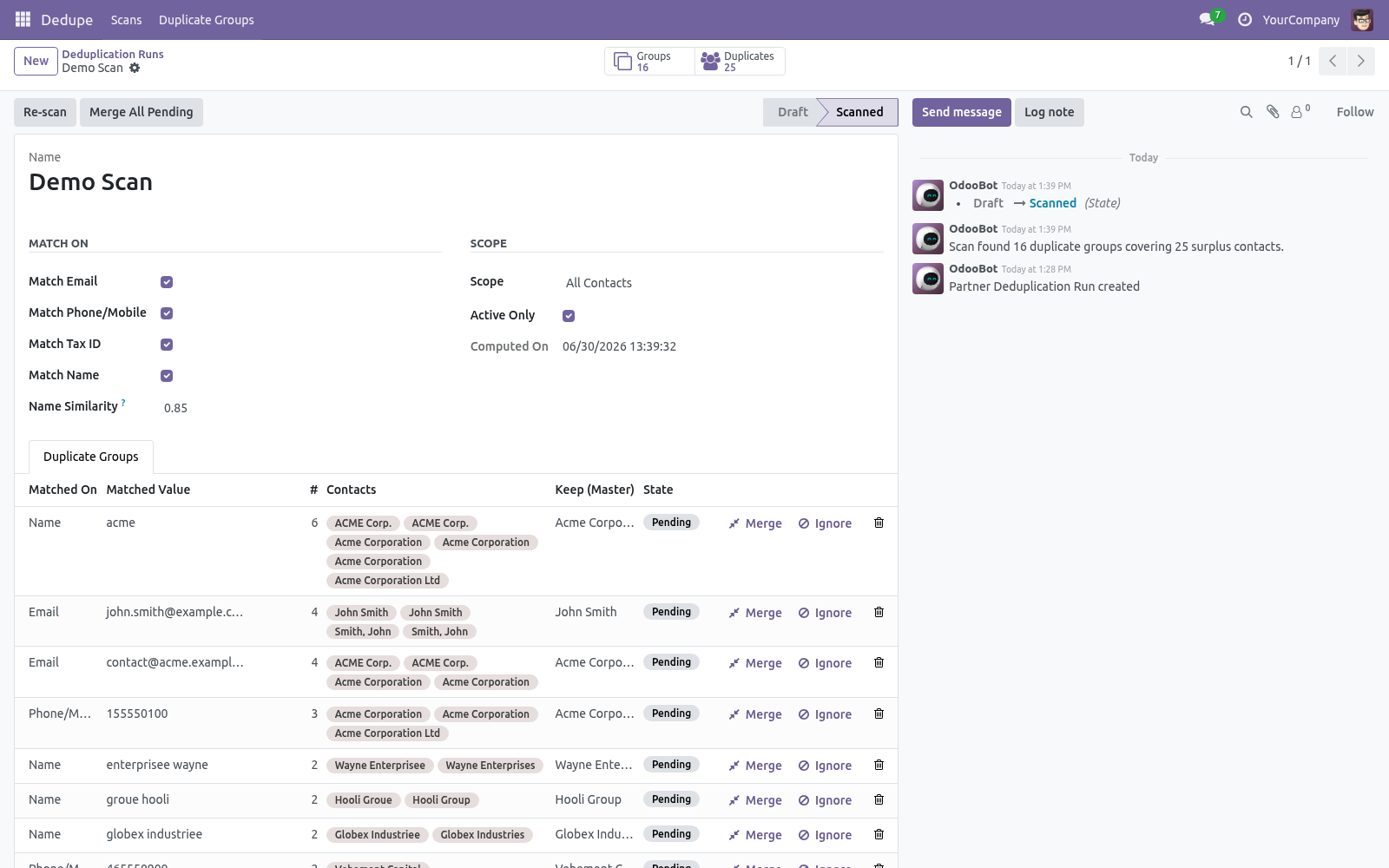
Choose what to Match On — any combination of Email, Phone/Mobile, Tax ID and Name. For names, set the Name Similarity (0–1): 1.0 means identical after normalization, lower values catch typos and word-order differences.
Pick a Scope (all contacts, companies only, or individuals) and whether to include archived contacts.
Click Scan.
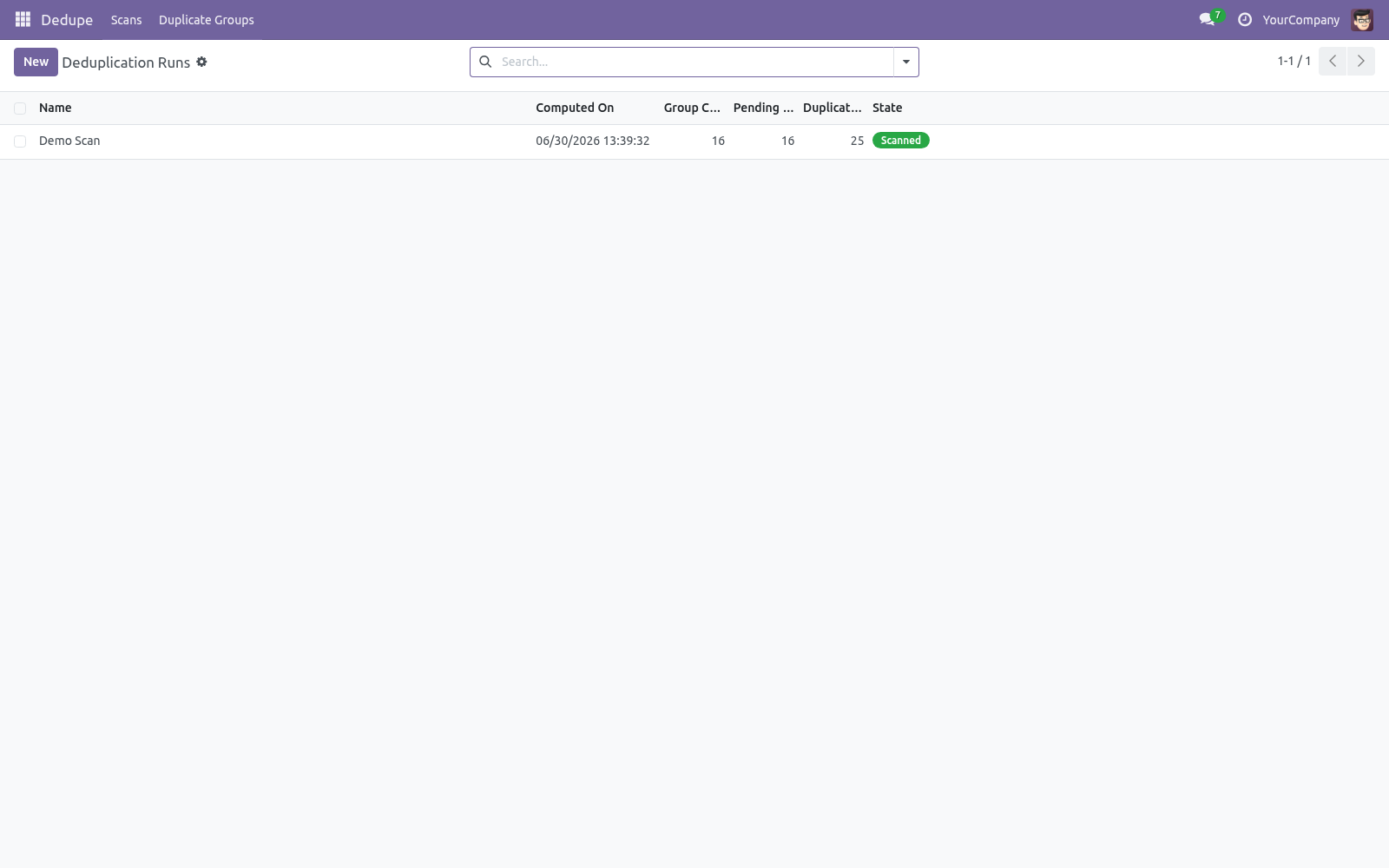
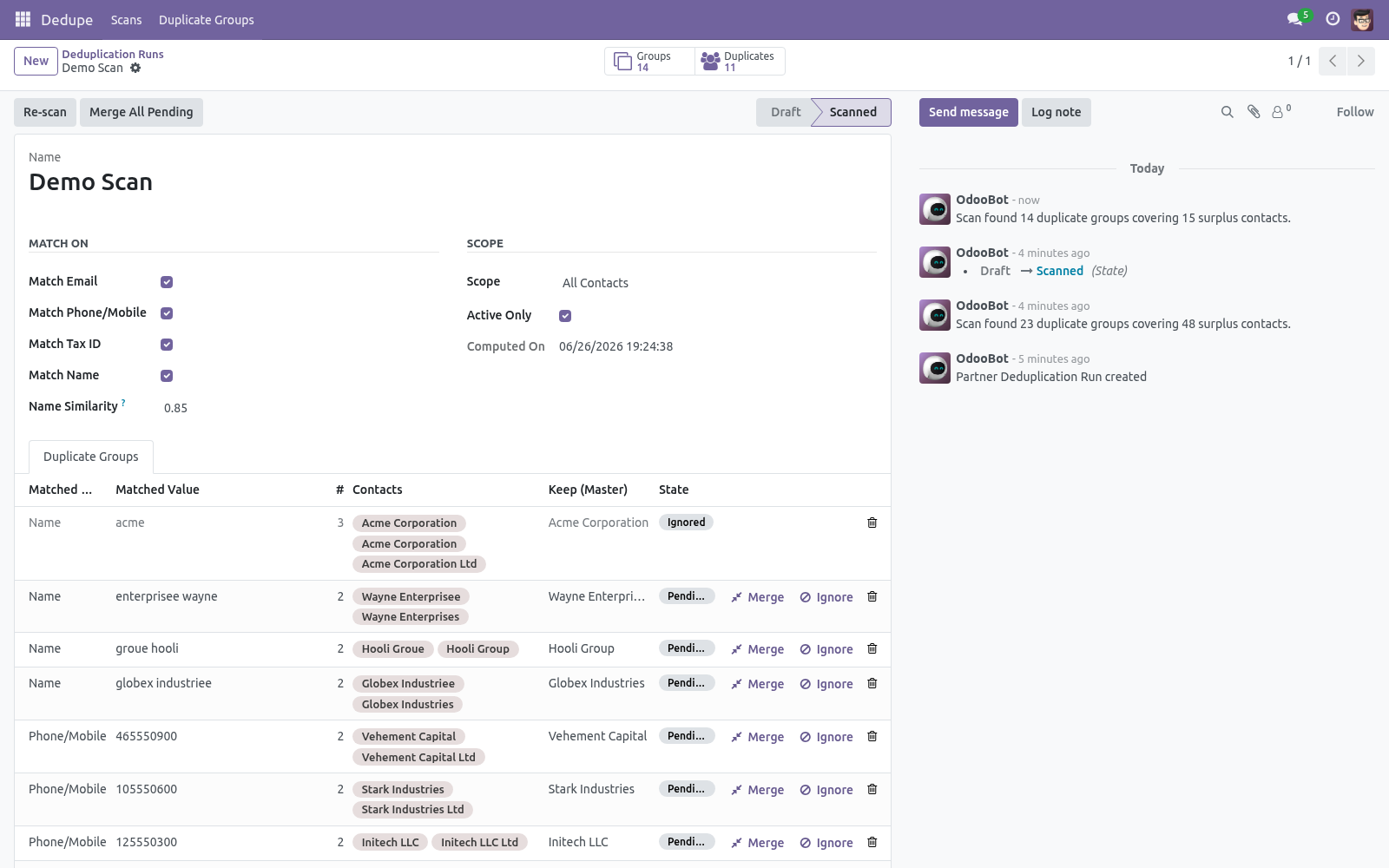
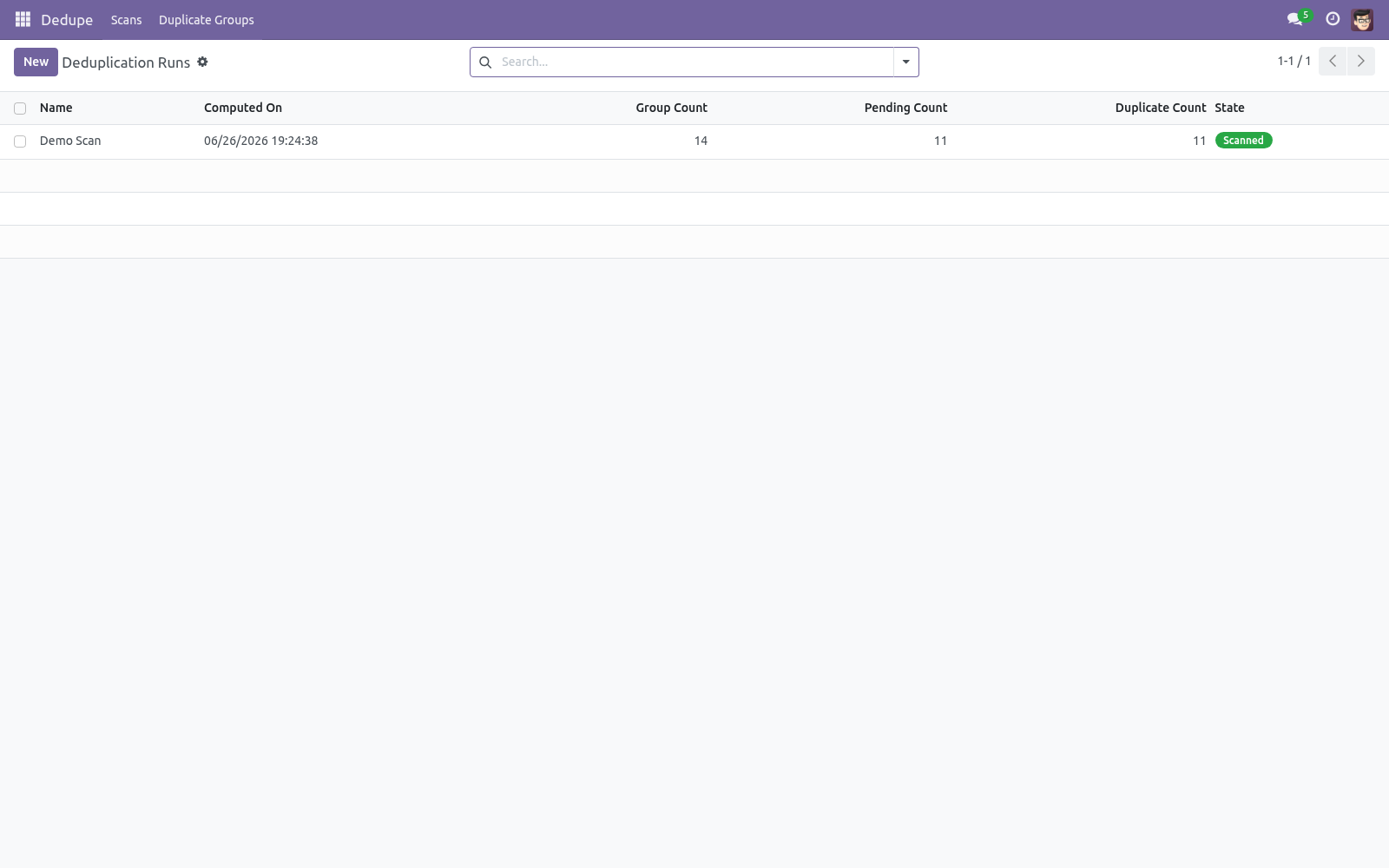
The run switches to Scanned and the Groups and Duplicates stat buttons fill in. Open the Duplicate Groups tab to review.
How matching works
Each criterion normalizes the value before comparing, so cosmetic differences do not hide a duplicate:
Email — trimmed and lower-cased.
Phone/Mobile — reduced to digits and compared on the last nine, so +1 (415) 555-0100 and 415.555.0100 match.
Tax ID — stripped of punctuation and upper-cased.
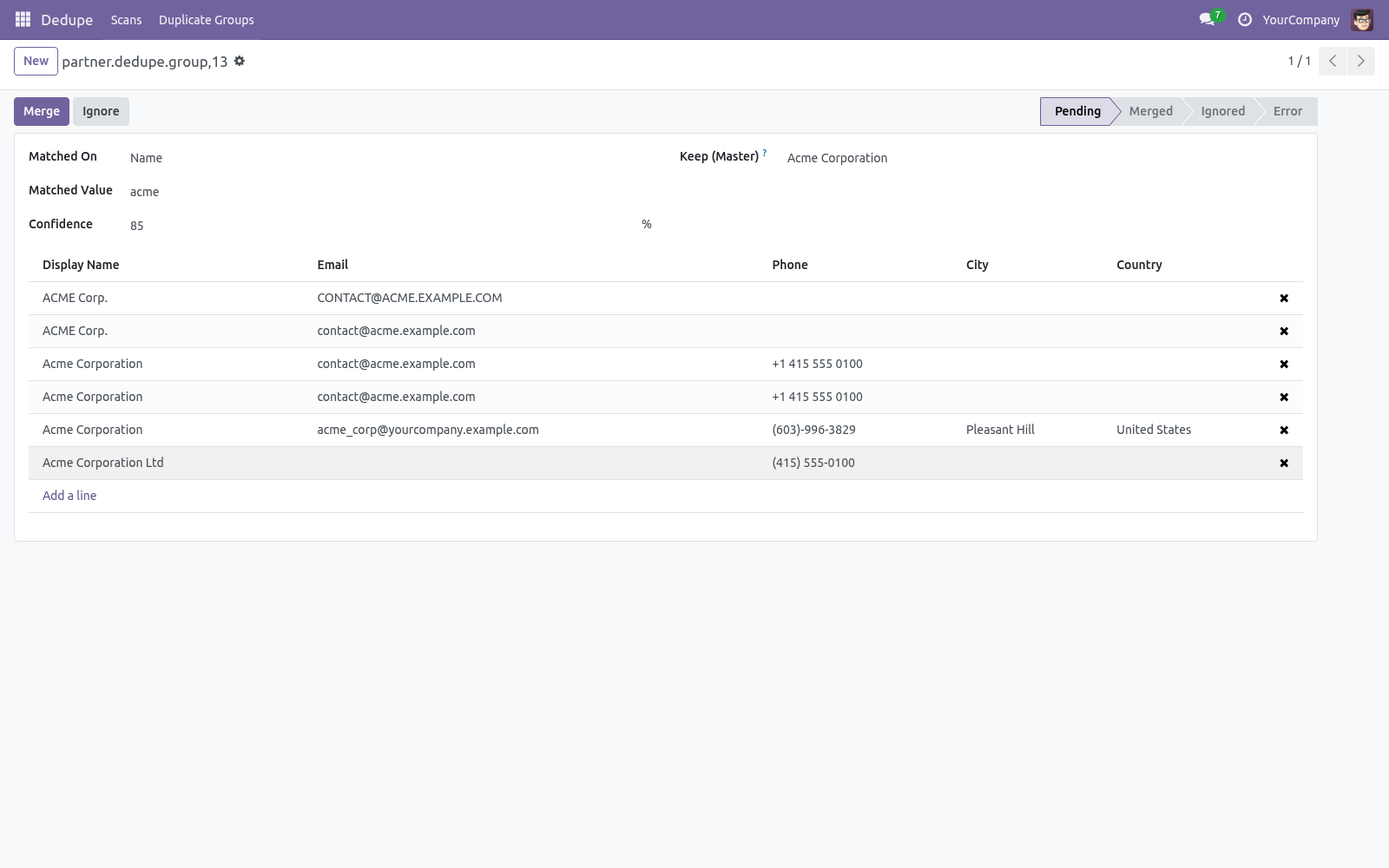
Name — lower-cased, punctuation removed, legal-form suffixes (Ltd, Inc, GmbH, Corp…) dropped, words sorted — then compared with a similarity ratio against the Name Similarity threshold, so Acme Corp and ACME Corporation Ltd match, as do John Smith and Smith, John.
Contacts that belong to the same commercial entity (a company and its own child contacts) are never grouped as duplicates, avoiding the most common false positive.
Reviewing and merging
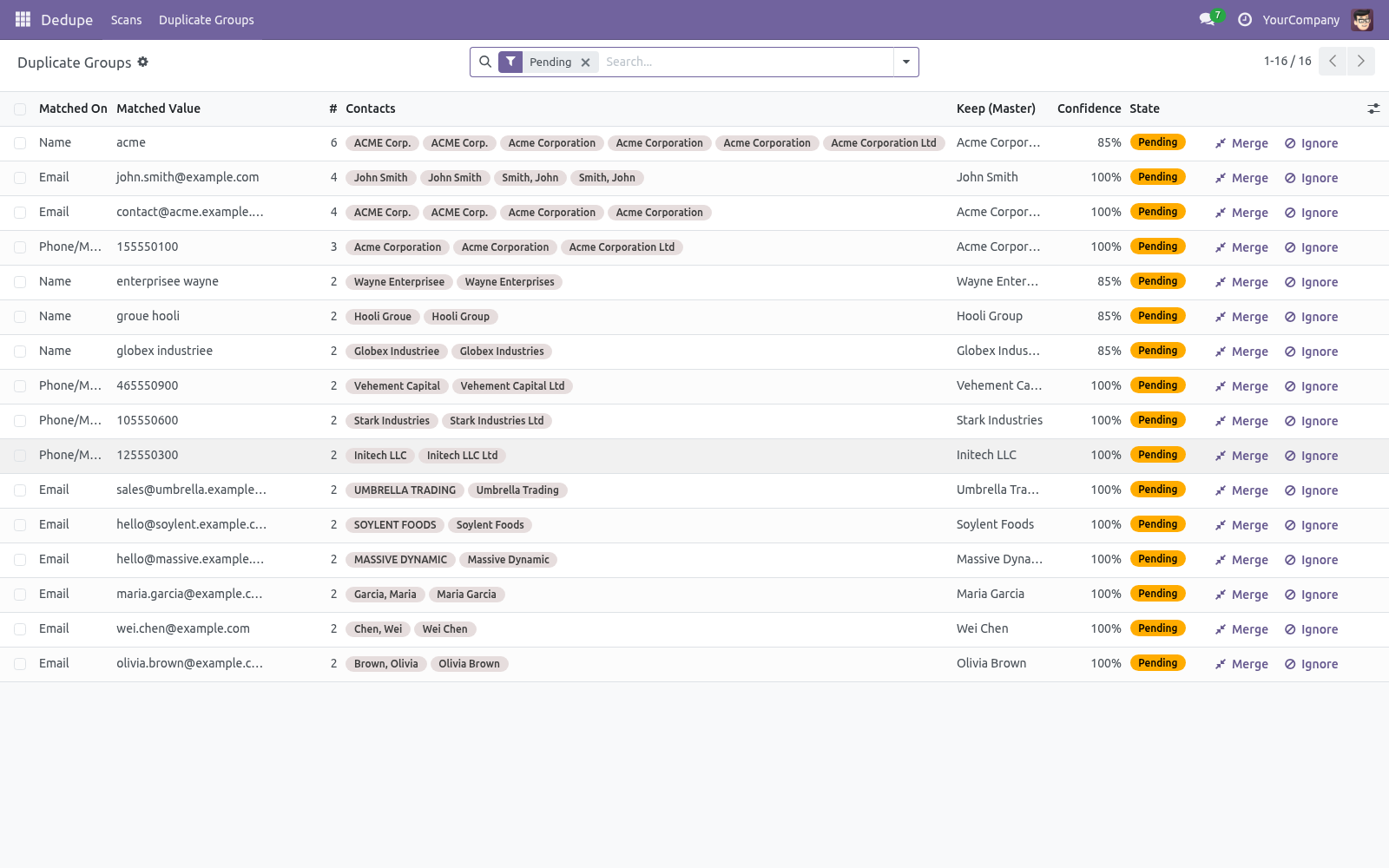
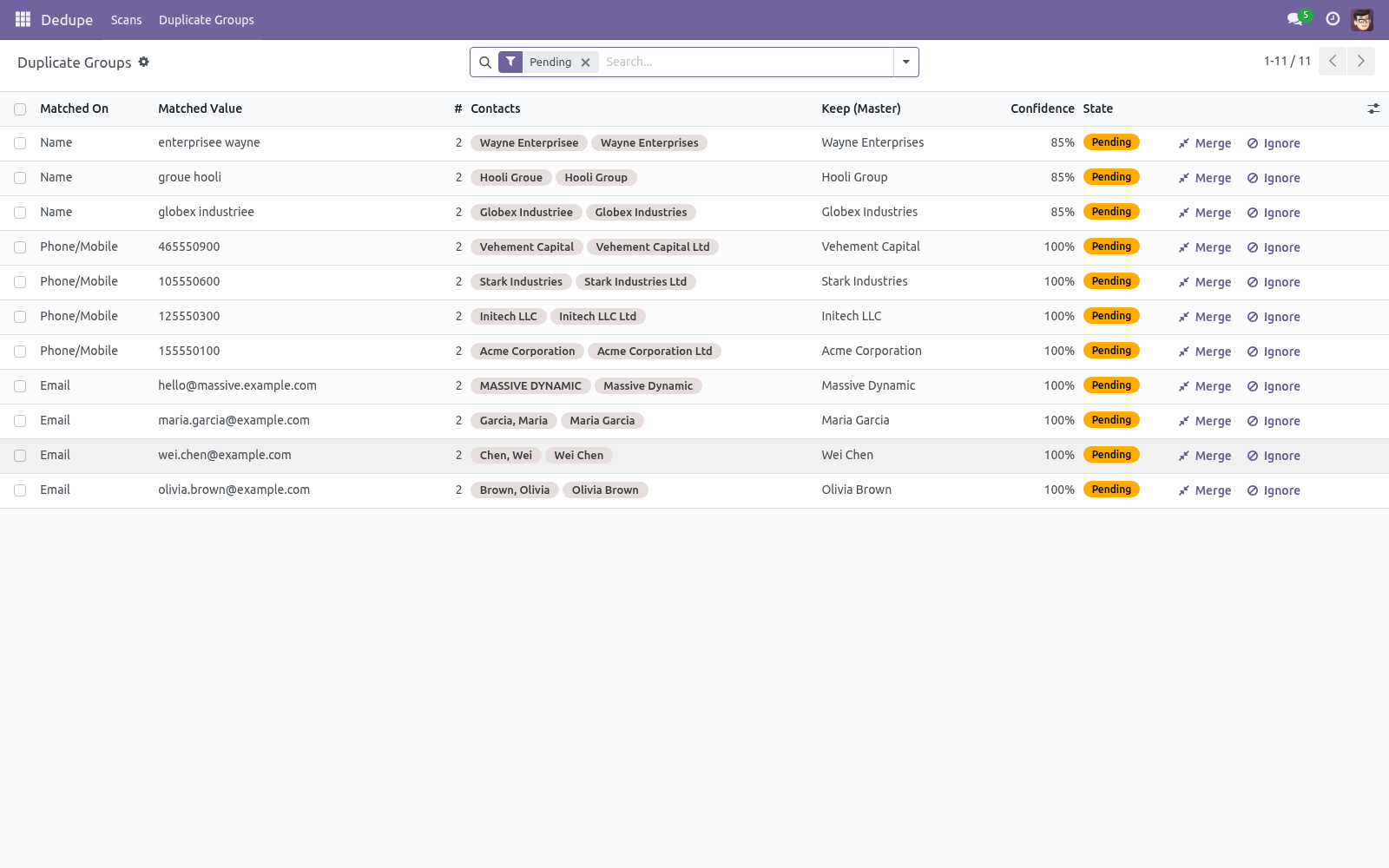
In the Duplicate Groups list each row shows what was matched, the matched value, the contacts involved, the suggested master to keep, a confidence score and a status. From there you can:
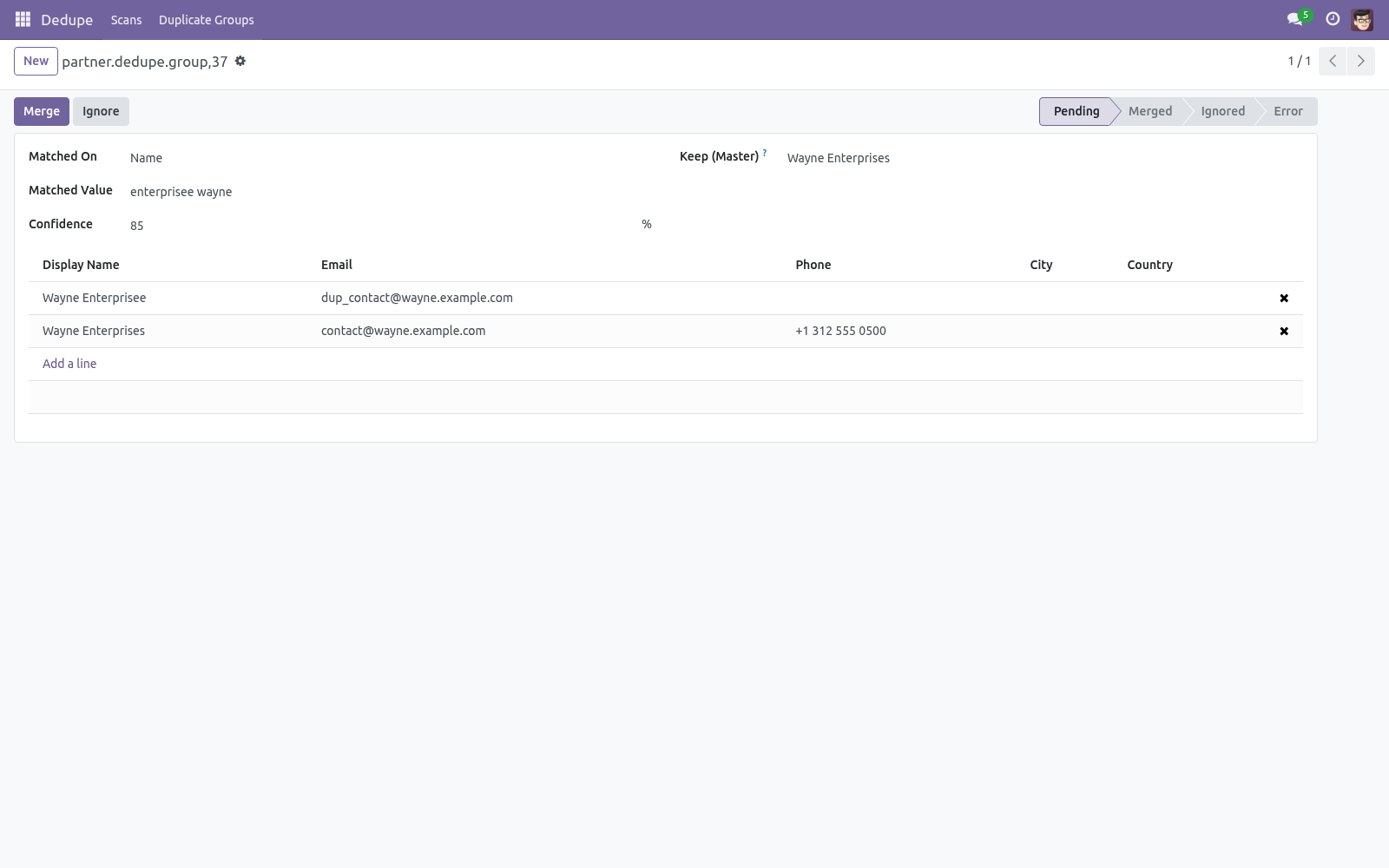
Merge a group — the master is kept and the other contacts are merged into it. Open a group first if you want to change which contact is the master.
Ignore a group you have judged to be distinct.
Reset an ignored or errored group back to pending.
Merge All Pending from the run to process every group at once (with a confirmation).
Merging uses Odoo's engine, which re-points foreign keys and reference fields, merges values into the master, logs the operation and deletes the source contacts. For safety the engine merges up to three contacts at a time; larger groups are merged in several automatic passes.
The suggested master
For each group the app suggests keeping the most complete contact — the one with the most filled-in fields (email, phone, address, tax ID…), breaking ties in favour of the oldest record. You can override this on the group before merging.
Scheduling scans
A scheduled action Dedupe: Scheduled Duplicate Scan ships disabled. Enable it under Settings > Technical > Scheduled Actions to create a fresh scan on a schedule (weekly by default) so duplicates are surfaced as they appear. The scan only detects; merging always stays a manual, reviewed action.
Frequently asked questions
- Will merging lose any data?
No. The merge re-points every related record (orders, invoices, activities, messages, etc.) to the surviving contact before the duplicates are removed — this is Odoo's own merge behaviour.
- A merge shows an Error status.
The engine refuses some merges for safety — for example contacts in a parent/child relationship, or contacts linked to more than one user. The reason is stored on the group; fix the underlying issue and Reset to retry.
- Two different companies share a tax ID and were grouped — is that wrong?
That is a genuine match worth reviewing. If they are truly distinct, Ignore the group. Only contacts of the same company are auto-excluded.
- Can I tune how aggressive name matching is?
Yes. Lower the Name Similarity to catch more typos (at the risk of more false positives), or raise it toward 1.0 to require near-identical names.
- Does it work with multiple companies?
Yes. Runs and groups are company-scoped via record rules.
How we make sure it works
Before every release, 17 automated checks run against this app on Odoo 16, 17, 18, 19 and 20. Among them:
A plain employee sees no dedupe data at all.
Ignore and reset stay available to the role.
Overlapping groups no arbitrary merge.
The sold group makes a user who can clean contacts.
The email less manager scans reviews and merges.
The complete list is in the source you receive.
Support
Questions or ideas: support@bambooforge.dev.
Upgrading & version compatibility
This build targets Odoo 20.0. Each Odoo major series (16.0, 17.0, 18.0, 19.0, 20.0) has its own dedicated build of this module — always install the build that matches your Odoo version. Mixing a build with a different Odoo series is not supported.
Patch upgrades (same series, e.g. 20.0.1.0.0 → later)
Back up your database and filestore first.
Replace the module folder with the newer build.
Restart Odoo with the module updated:
./odoo-bin -c your.conf -u bambooforge_partner_dedupe -d your_db
Odoo applies any schema/data changes automatically. Your existing records and configuration are preserved.
Cross-version migration (moving to a newer Odoo)
Upgrading Odoo itself is a database migration handled by Odoo's standard upgrade tooling. When you migrate the database to the next Odoo series, install the matching build of this module for that series. Data created by this module carries over with the database migration.
After any upgrade the module's scheduled actions resume on their normal cadence — no manual re-activation is required.
Uninstallation
You can remove this module at any time from Apps → (this module) → Uninstall, or from the command line. Uninstalling is clean and reversible by reinstalling — but note what is and is not deleted.
What is removed
The module's own tables and every record in them (2 models, prefixed partner.*) — this is the data this module created.
The menus, actions, views and reports this module installed.
Its scheduled actions (cron jobs) — they stop immediately on uninstall.
The security groups this module defined (user assignments to them are dropped).
What is preserved
Your standard Odoo data (partners, products, sales, invoices, inventory moves) is not deleted — this module only reads and annotates it; the underlying records stay.
Attachments and chatter messages on standard records are kept.
As always, take a database backup before uninstalling in production.
What it does not do
Said before you buy, because it is the half that decides whether the app fits:
Group a company with its own child contacts as duplicates.
Auto-exclude contacts of different companies - only contacts of the same commercial entity are.
Questions people ask
- Which Odoo versions does it run on?
Odoo 16.0, 17.0, 18.0, 19.0, 20.0, on the series you buy it for; each series is its own listing.
- Community or Enterprise?
Both. It needs no Enterprise app.
- What does it need?
The standard Contacts app. No extra Python package.
- Where does it show up?
Under the Dedupe menu (Scans, Duplicate Groups).
- Does anything leave my server?
No. It makes no call outside your Odoo server: no telemetry, no licence check, no third-party service.
- What happens if I uninstall it?
Odoo drops the app's own tables and fields; the standard records it worked on (contacts, orders, products) stay as they are.
Changelog
20.0.1.2.1
Built for Odoo 20: record rules and access rights rewritten onto Odoo 20's single ir.access model, the screens rebuilt on Owl 3, and every icon moved to the icon set Odoo 20 ships.
20.0.1.0.0
Current release for Odoo 20.0. This build includes:
Find duplicate contacts with fuzzy matching on email, phone, VAT and name, review them in groups, and merge safely using Odoo's own merge engine.
The Community answer to data cleaning.
Feature additions and fixes ship as new builds on the Odoo Apps store; this page and the module's version reflect the current published release. Always keep the build matched to your Odoo series (see Upgrading & version compatibility).