 BambooForge Labs
OpenCart Connector
Two-way OpenCart integration through a bundled token-secured API companion: products, customers, orders and stock, with a resilient queue.
Available for Odoo 16.0, Odoo 17.0, Odoo 18.0, Odoo 19.0, Odoo 20.0. Technical name bambooforge_opencart_connector.
Transcript of the walkthrough (Odoo 20)
OpenCart Connector. Two-way OpenCart integration through a bundled token-secured API companion: products, customers, orders and stock, with a resilient queue. The connector keeps Odoo in sync with your OpenCart store. Because OpenCart has no native admin REST API, the data comes from the bundled bf_api.php companion (a single self-contained PHP file you install on the OpenCart server).
It covers: In the next few minutes: opencart connector, then matching the storefront total, then tested against the real thing, then step 1 — configure the companion token & url, then step 2 — create the connection in odoo. Then what this app deliberately does not do, so you can tell before you buy whether it fits. Everything lives under OpenCart Connector then Control Tower then Dead-letter then Conflicts. OpenCart Connector.
A bridge between Odoo 20 and your OpenCart store: import products (with categories and images), customers and orders, map order statuses to sale-order actions, and turn order refunds into draft credit notes — with a resilient job queue, dry-run safety, validation and rollback so you stay in control. OpenCart ships no rich admin REST API, so this connector includes a small, token-secured API companion (bf_api.php) that you drop at your OpenCart web root. The connector reads it over a hardened token-authenticated client; the companion reuses OpenCart's own config.php for database access and returns products, customers and orders as JSON. Matching the storefront total.
A storefront charges shipping and grants discounts outside the product lines, so an order rebuilt from those lines alone is worth less than the order the customer paid for: the sale looks smaller than it was and never reconciles against the platform payout. the shipping charge is imported as its own order line, on a clearly named service product; whatever still separates Odoo from the platform total — platform discounts, fees, rounding — is posted as a single adjustment line rather than dropped; the platform total and the remaining difference are stored on the order and shown on its connector tab; an order that still does not match within Total Tolerance raises a validation warning, so the gap is visible instead of silent. With Match Storefront Totals on the instance (on by default): Tested against the real thing. Automated tests run against a bundled mock store on every release; the line below is the part no mock can give you - the connector pointed at the real platform, with real records and real order totals.
Tested for real against OpenCart 3.0.3.8 and 4.0.0.0: 19 products imported through the bf_api.php companion with 0 errors; the 4.0 demo store would not complete a checkout, so order import on 4.0 rests on the automated suite rather than a live order. Step 1 — Configure the companion token & URL. The companion is protected by a single shared token. It is read from the BF_API_TOKEN environment variable if set, otherwise from the constant at the top of the file (which ships as the placeholder CHANGE-ME-LONG-SECRET).
You must change it. set the BF_API_TOKEN environment variable on the OpenCart host to a long random secret, or edit the line define('BF_API_TOKEN', getenv('BF_API_TOKEN') ?: 'CHANGE-ME-LONG-SECRET'); and replace CHANGE-ME-LONG-SECRET with your own long secret. 2. Keep that exact secret — you will paste the same value into the Odoo instance API Token field in Step 2.
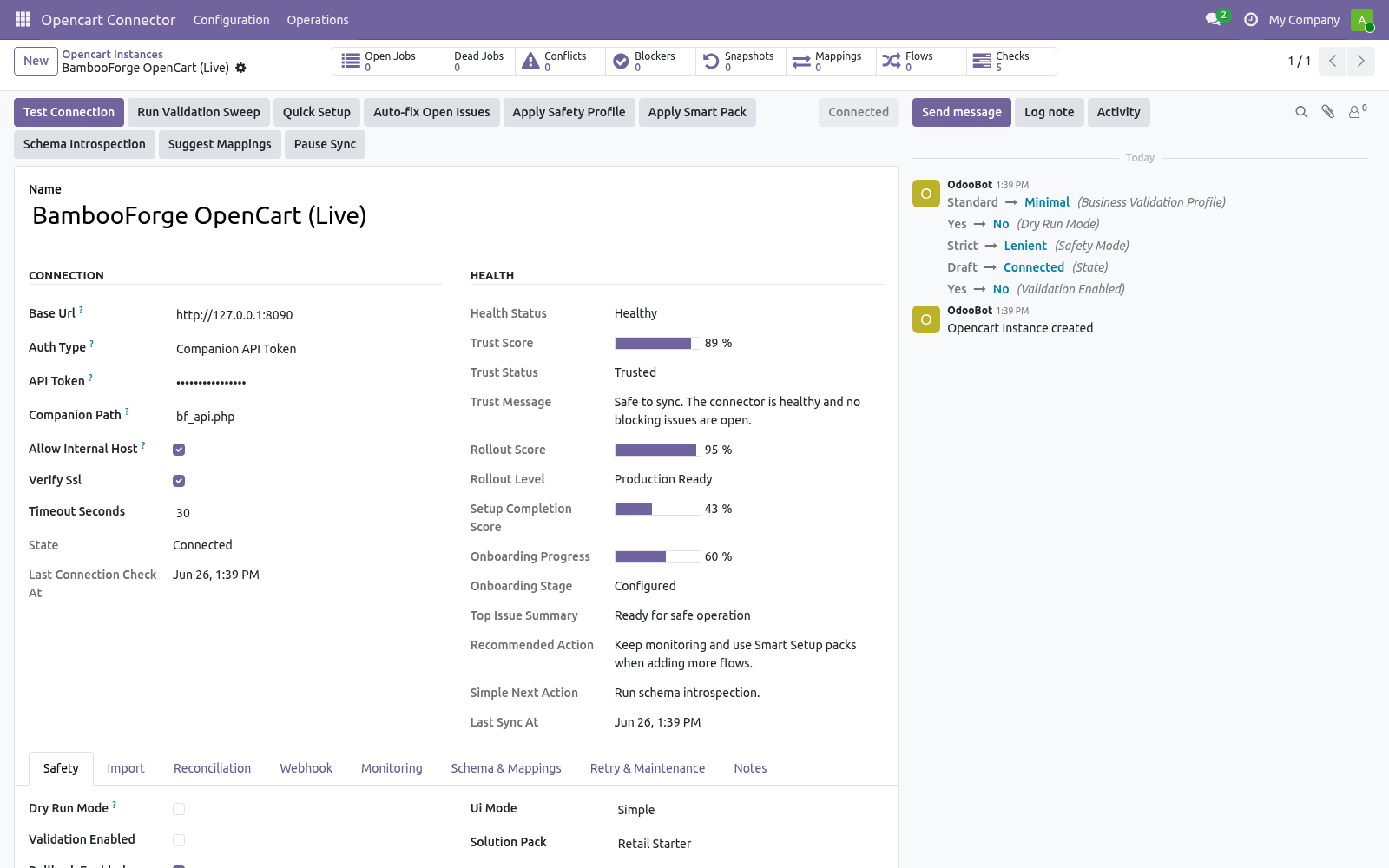
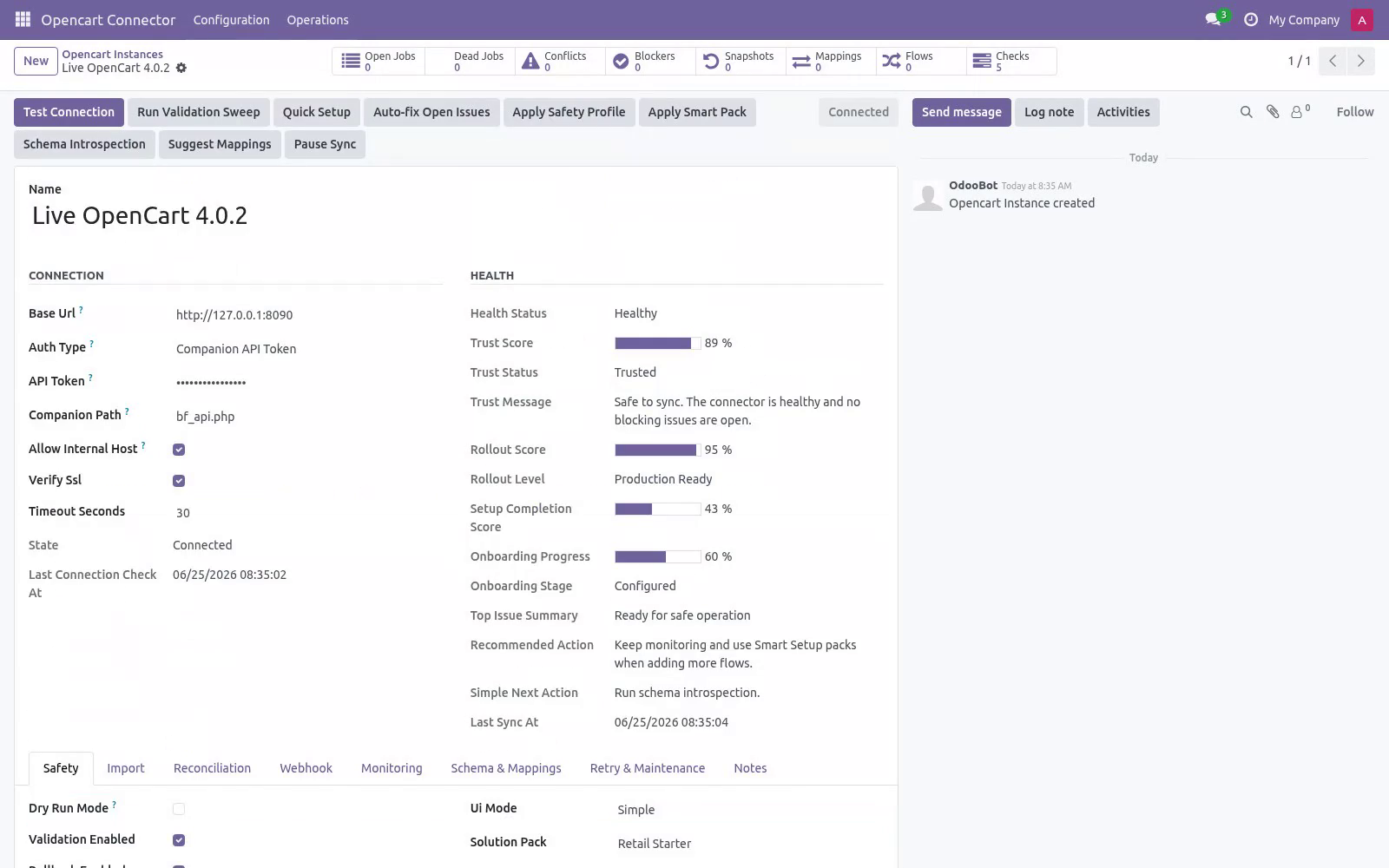
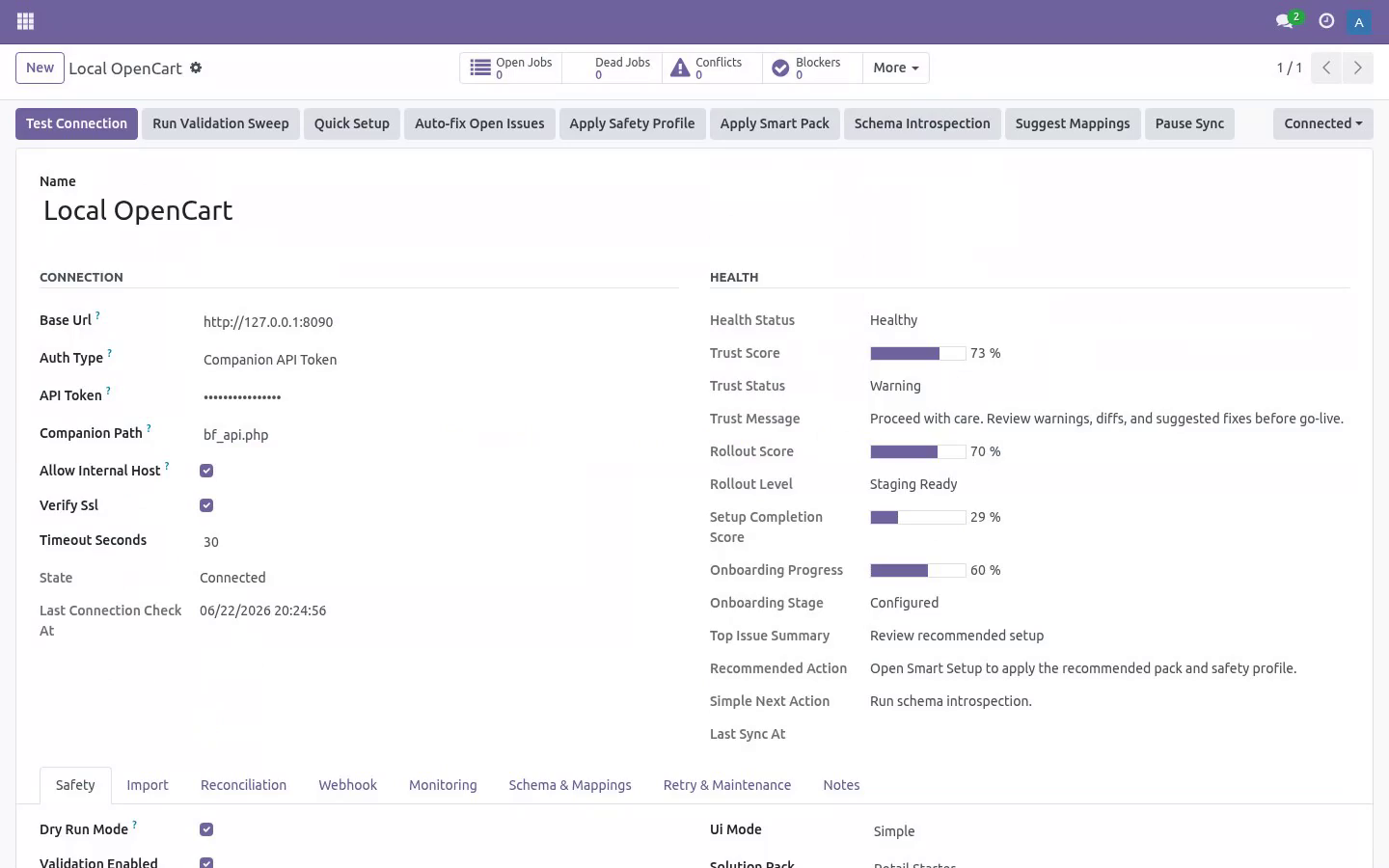
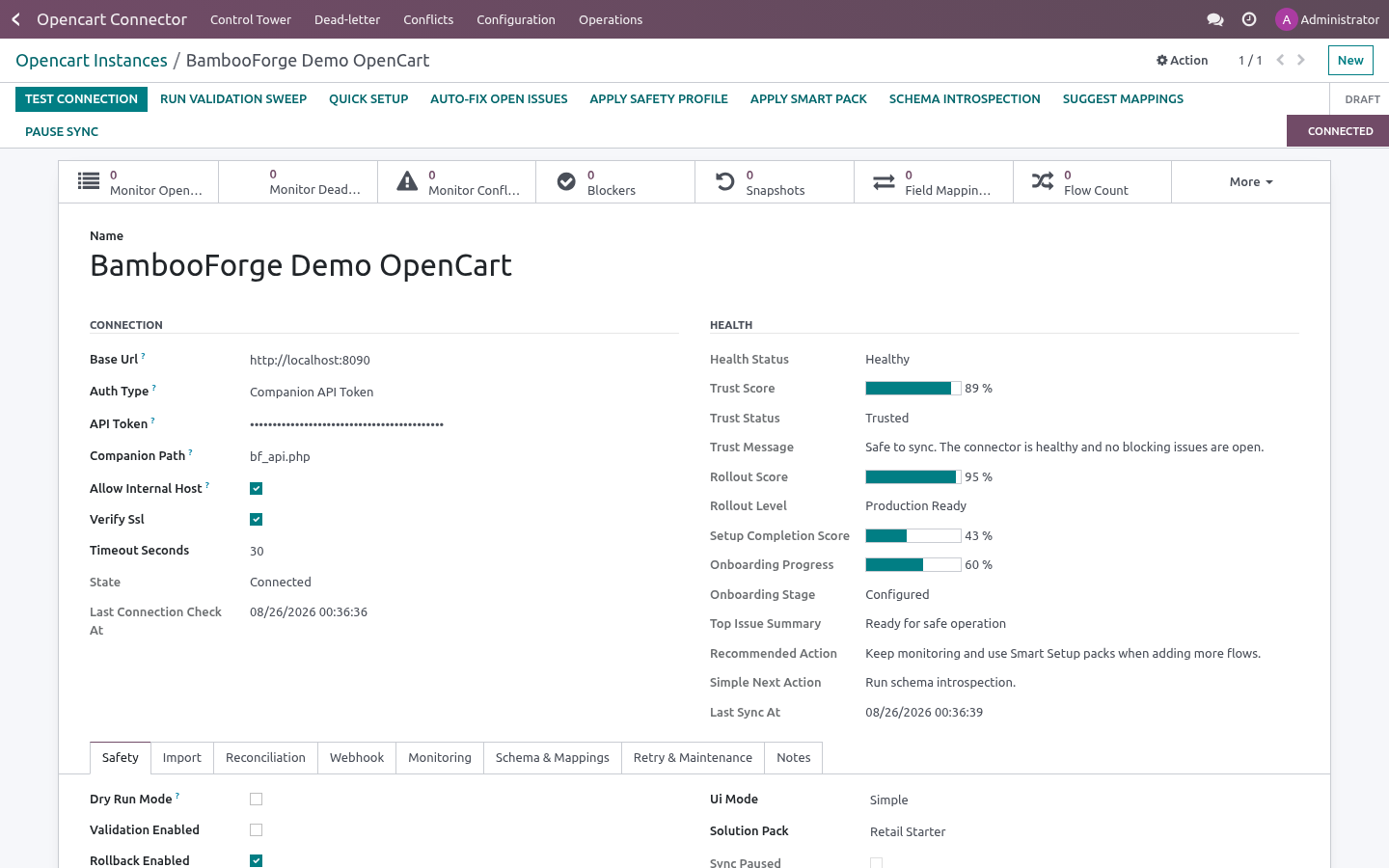
They must match exactly. Step 2 — Create the connection in Odoo. Open OpenCart Connector ▸ Configuration ▸ Instances and create a record. Then click Test Connection.
The connector calls the companion's ping endpoint; a green Connected state means the URL and token are correct, and the default order-status mappings are seeded on the first successful connect. If it fails, the exact error is shown on the form and recorded in Logs (see Troubleshooting). Step 3 — First sync (dry-run, then live). New instances start with Dry-run ON.
In dry-run, import and delete jobs simulate writes: instead of changing data they produce Validation Results you can review under OpenCart Connector ▸ Operations ▸ Validation Results. This lets you confirm what would happen before anything is written. 1. On the instance, click Import Products (and/or Import Customers, Import Orders).
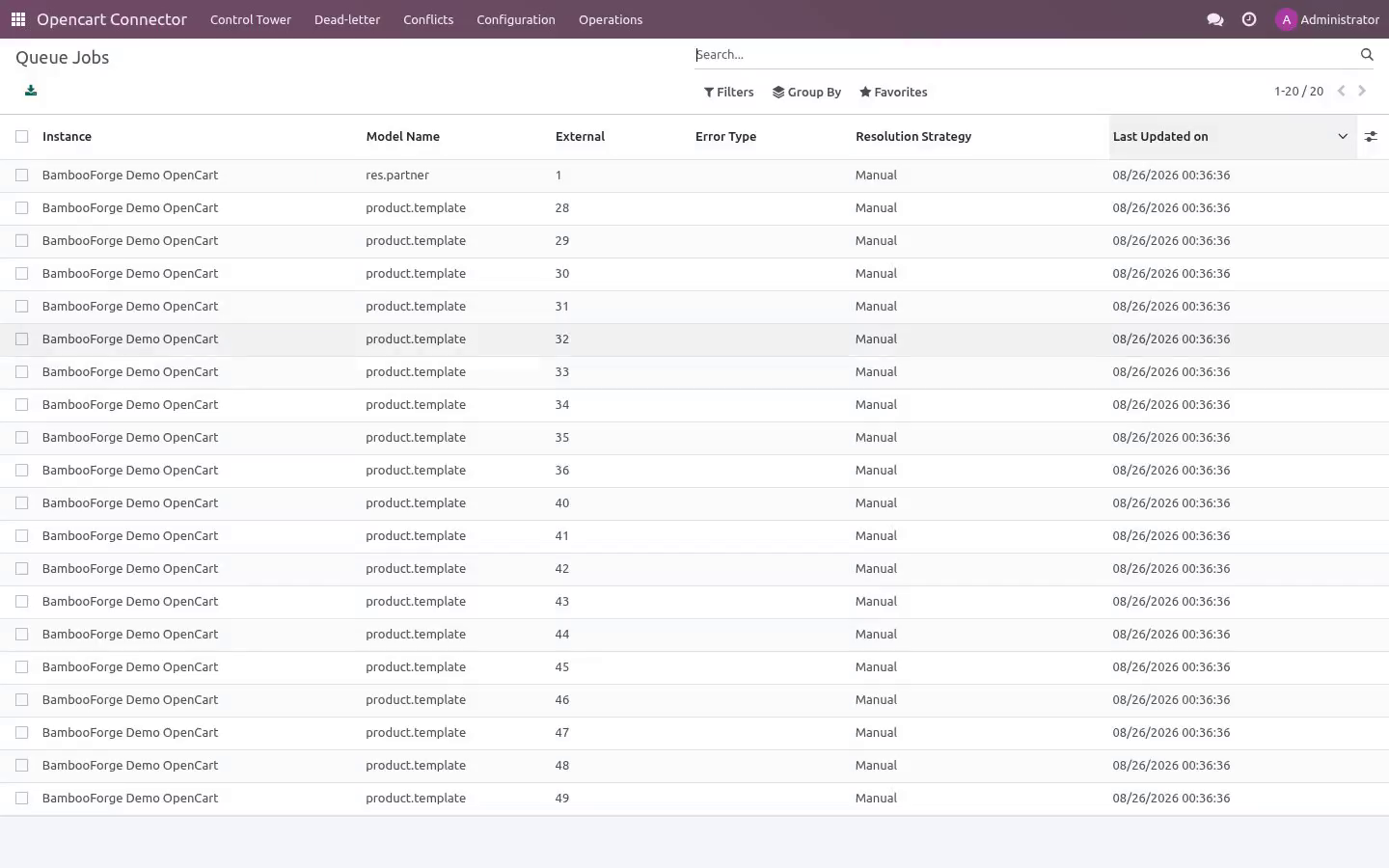
This enqueues jobs; it does not block the UI. 2. Jobs are processed by the OpenCart Queue Processor scheduled action (every minute), or immediately if you run it manually from Operations ▸ Queue Jobs. 3.
Review Validation Results while still in dry-run. 4. When satisfied, open the instance, turn Dry-run OFF, and run the imports again to write the records for real. Order status mapping.
OpenCart stores each order's status as a numeric order_status_id, which the connector normalizes onto the order. Under Configuration ▸ Order State Mappings each instance gets a default table (seeded on first successful connect) that decides what happens to the Odoo sale order when an order arrives in a given status: Change any row to Ignore (do nothing), Keep draft, Confirm sale order or Cancel sale order. Unknown/custom statuses default to Ignore, so a status you have not mapped never triggers a destructive transition. Add a row for any custom status your store introduces (use the exact numeric order_status_id).
Field mapping & customization Field Mappings (Configuration) map OpenCart fields to Odoo fields per model. Use Generate suggested mappings on the instance to seed the business-critical ones, then adjust. The mapping board flags fields that need attention. Schema Fields lists the discovered OpenCart fields per resource.
Run Schema Introspection on the instance to refresh it from your live store (it falls back to sample data if the store is not reachable). Stock / images / tax are opt-in toggles on the instance: Sync stock, Sync images (and max images), Upload images on export, Sync taxes and Auto-match taxes on import. They are off by default; turn on only what you need. Tax matching is name-based and never auto-creates taxes.
Refunds are opt-in: turn on Sync refunds to create draft credit notes from OpenCart order slips, and Auto-post refunds if you want them validated automatically (off by default so accountants can review first). Automation (scheduled actions & webhooks). The module ships these scheduled actions (Settings ▸ Technical ▸ Scheduled Actions): Delivery URL: https://<your-odoo-domain>/opencart/webhook Signature header: X-OpenCart-Signature — an HMAC-SHA256 of the raw body using the instance Webhook Secret (admin-only field on the instance). Turn on Auto import / Auto reconcile per model on the instance to let the scheduled actions keep things in sync hands-free.
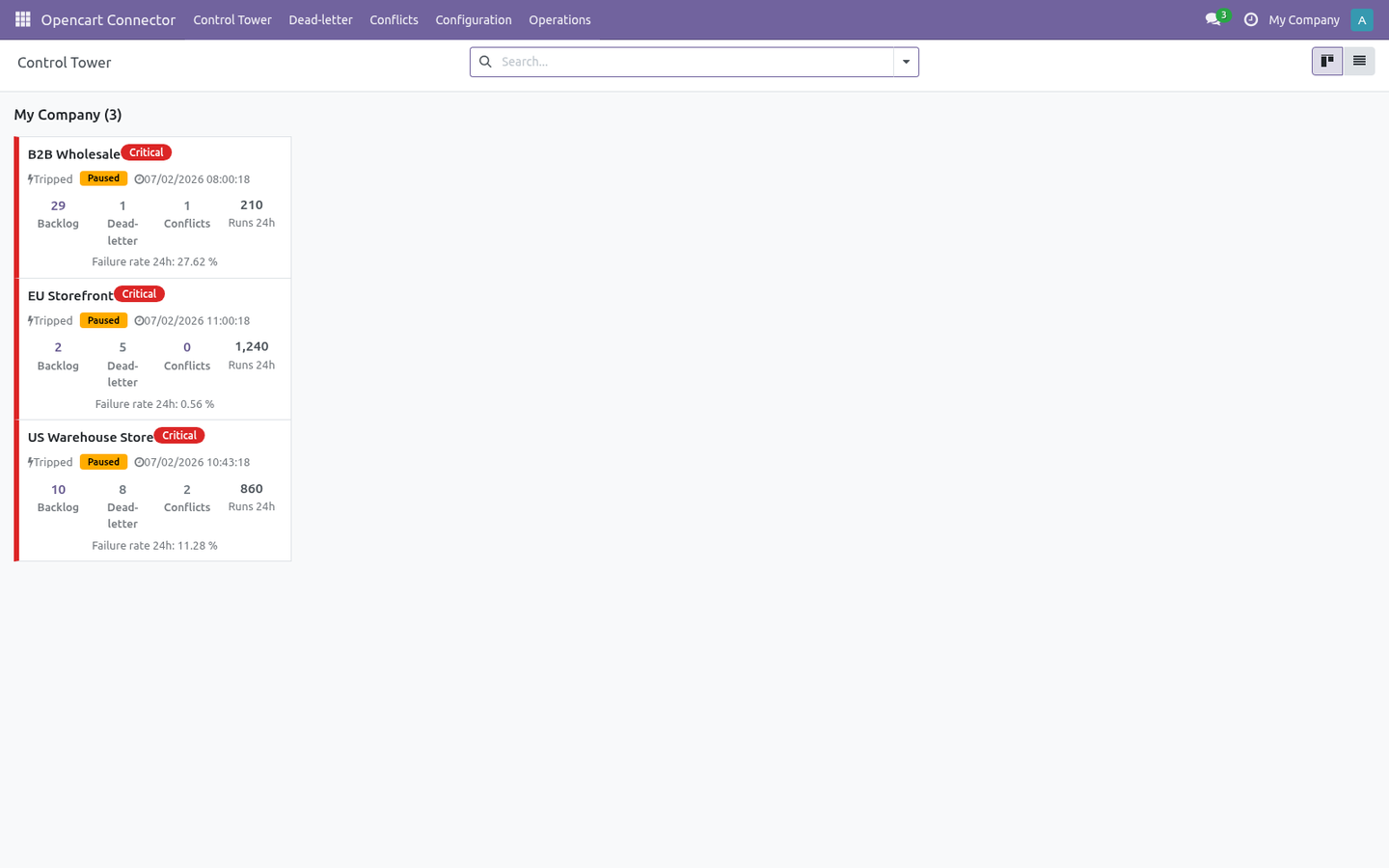
Safety features Dry-run mode — simulate writes and review Validation Results before going live. Business validation profiles — Minimal / Standard / Strict gate risky writes. Resilient queue — every remote action is a job with retry and exponential back-off, plus a dead-letter state for jobs that exhaust their retries. Circuit breaker — after repeated failures an instance auto-pauses (Tripped); the Auto Recover action reopens it once the store responds again.
Rollback snapshots — when enabled, imports capture a snapshot so you can undo a batch from Operations ▸ Rollback Snapshots. SSRF guard — the connector refuses internal/loopback/private hosts unless Allow internal host is explicitly enabled. Token-only companion — bf_api.php rejects every request without the matching token and exposes read-only endpoints; serve it over HTTPS so the token is not exposed. Now the part most videos leave out: what this does not do.
The connector reads products (with categories and images), customers, orders and order slips from your store via bf_api.php and writes the corresponding Odoo records. The companion token, webhook secret and other credentials are stored in admin-only fields. The companion is read-only: it exposes only the ping, products, customers and orders endpoints and never writes to the OpenCart database. In scope today: product/customer/order import (with categories and images), order-status mapping, refund discovery from order slips, product export, scheduled sync, signed webhooks.
Out of scope / best-effort: tax auto-matching (off by default, name-based, never auto-creates taxes); multi-warehouse stock routing; subscription/booking order types. The complete manual is at docs dot bambooforge dot dev, the demo database is linked from the store page, and support answers within twenty-four hours. Links are in the description.
Transcript of the walkthrough (Odoo 19)
OpenCart Connector. Two-way OpenCart integration through a bundled token-secured API companion: products, customers, orders and stock, with a resilient queue. The connector keeps Odoo in sync with your OpenCart store. Because OpenCart has no native admin REST API, the data comes from the bundled bf_api.php companion (a single self-contained PHP file you install on the OpenCart server).
It covers: In the next few minutes: opencart connector, then matching the storefront total, then step 1 — configure the companion token & url, then step 2 — create the connection in odoo, then step 3 — first sync (dry-run, then live). Then what this app deliberately does not do, so you can tell before you buy whether it fits. Everything lives under Opencart Connector then Control Tower then Dead-letter then Conflicts. OpenCart Connector.
A bridge between Odoo 19 and your OpenCart store: import products (with categories and images), customers and orders, map order statuses to sale-order actions, and turn order refunds into draft credit notes — with a resilient job queue, dry-run safety, validation and rollback so you stay in control. OpenCart ships no rich admin REST API, so this connector includes a small, token-secured API companion (bf_api.php) that you drop at your OpenCart web root. The connector reads it over a hardened token-authenticated client; the companion reuses OpenCart's own config.php for database access and returns products, customers and orders as JSON. Matching the storefront total.
A storefront charges shipping and grants discounts outside the product lines, so an order rebuilt from those lines alone is worth less than the order the customer paid for: the sale looks smaller than it was and never reconciles against the platform payout. the shipping charge is imported as its own order line, on a clearly named service product; whatever still separates Odoo from the platform total — platform discounts, fees, rounding — is posted as a single adjustment line rather than dropped; the platform total and the remaining difference are stored on the order and shown on its connector tab; an order that still does not match within Total Tolerance raises a validation warning, so the gap is visible instead of silent. With Match Storefront Totals on the instance (on by default): Step 1 — Configure the companion token & URL. The companion is protected by a single shared token.
It is read from the BF_API_TOKEN environment variable if set, otherwise from the constant at the top of the file (which ships as the placeholder CHANGE-ME-LONG-SECRET). You must change it. set the BF_API_TOKEN environment variable on the OpenCart host to a long random secret, or edit the line define('BF_API_TOKEN', getenv('BF_API_TOKEN') ?: 'CHANGE-ME-LONG-SECRET'); and replace CHANGE-ME-LONG-SECRET with your own long secret. 2.
Keep that exact secret — you will paste the same value into the Odoo instance API Token field in Step 2. They must match exactly. Step 2 — Create the connection in Odoo. Open OpenCart Connector ▸ Configuration ▸ Instances and create a record.
A label for this store, e.g. My Live Store. Your store root, e.g. https://store.example.com (or the mock URL to evaluate).
- Authentication Companion API Token — the only mode. OpenCart has no admin REST API, so the connector talks to bf_api.php with a shared token. The BF_API_TOKEN you set in the companion (Step 1). Must match exactly.
Visible to administrators only. - Companion Path Path to the companion at the store root. Default bf_api.php; change only if you renamed or relocated the file. Keep on for production.
Turn off only for self-signed test certificates. Then click Test Connection. The connector calls the companion's ping endpoint; a green Connected state means the URL and token are correct, and the default order-status mappings are seeded on the first successful connect. If it fails, the exact error is shown on the form and recorded in Logs (see Troubleshooting).
Step 3 — First sync (dry-run, then live). New instances start with Dry-run ON. In dry-run, import and delete jobs simulate writes: instead of changing data they produce Validation Results you can review under OpenCart Connector ▸ Operations ▸ Validation Results. This lets you confirm what would happen before anything is written.
1. On the instance, click Import Products (and/or Import Customers, Import Orders). This enqueues jobs; it does not block the UI. 2.
Jobs are processed by the OpenCart Queue Processor scheduled action (every minute), or immediately if you run it manually from Operations ▸ Queue Jobs. 3. Review Validation Results while still in dry-run. 4.
When satisfied, open the instance, turn Dry-run OFF, and run the imports again to write the records for real. Order status mapping. OpenCart stores each order's status as a numeric order_status_id, which the connector normalizes onto the order. Under Configuration ▸ Order State Mappings each instance gets a default table (seeded on first successful connect) that decides what happens to the Odoo sale order when an order arrives in a given status: - OpenCart status id OpenCart status name Default Odoo action Confirm sale order Cancel sale order Change any row to Ignore (do nothing), Keep draft, Confirm sale order or Cancel sale order.
Unknown/custom statuses default to Ignore, so a status you have not mapped never triggers a destructive transition. Add a row for any custom status your store introduces (use the exact numeric order_status_id). Field mapping & customization Field Mappings (Configuration) map OpenCart fields to Odoo fields per model. Use Generate suggested mappings on the instance to seed the business-critical ones, then adjust.
The mapping board flags fields that need attention. Schema Fields lists the discovered OpenCart fields per resource. Run Schema Introspection on the instance to refresh it from your live store (it falls back to sample data if the store is not reachable). Stock / images / tax are opt-in toggles on the instance: Sync stock, Sync images (and max images), Upload images on export, Sync taxes and Auto-match taxes on import.
They are off by default; turn on only what you need. Tax matching is name-based and never auto-creates taxes. Refunds are opt-in: turn on Sync refunds to create draft credit notes from OpenCart order slips, and Auto-post refunds if you want them validated automatically (off by default so accountants can review first). Automation (scheduled actions & webhooks).
The module ships these scheduled actions (Settings ▸ Technical ▸ Scheduled Actions): - Scheduled action - OpenCart Queue Processor Processes queued import/export/delete jobs. - OpenCart Reconciliation Pulls recent remote changes for enabled models. - OpenCart Maintenance Recovers stale/locked jobs and trims old logs. - OpenCart Flow Scheduler Turn on Auto import / Auto reconcile per model on the instance to let the scheduled actions keep things in sync hands-free.
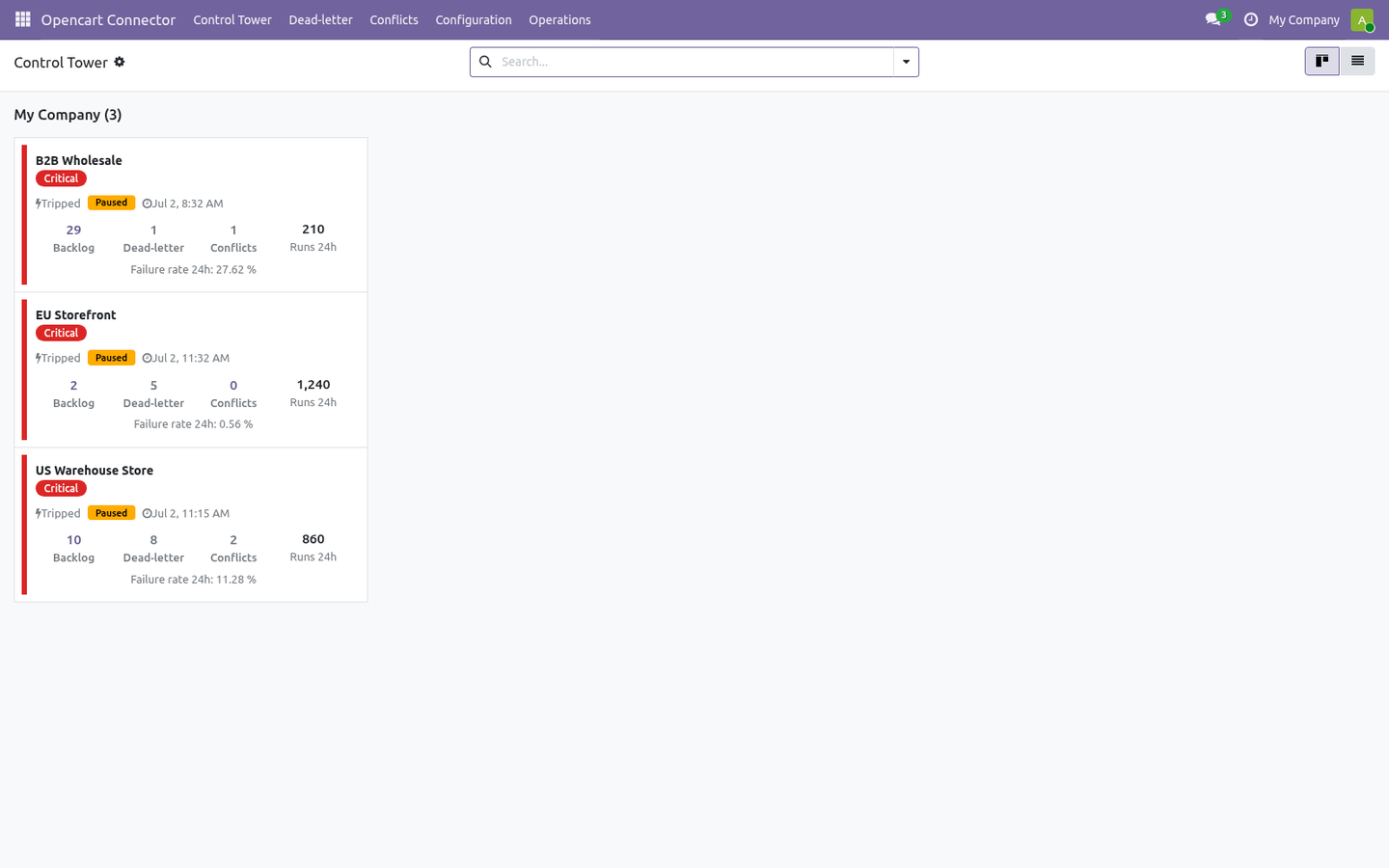
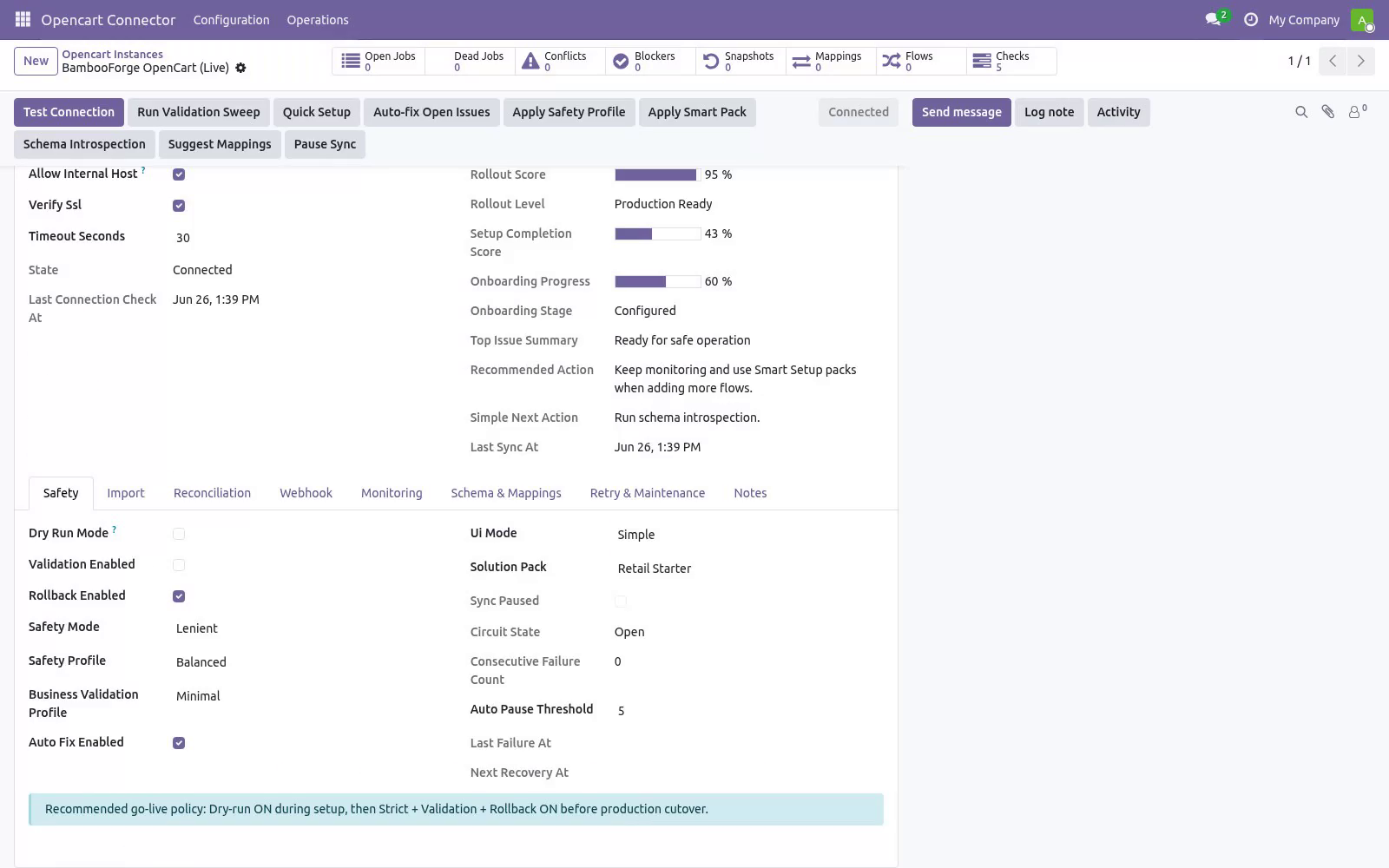
Safety features Dry-run mode — simulate writes and review Validation Results before going live. Business validation profiles — Minimal / Standard / Strict gate risky writes. Resilient queue — every remote action is a job with retry and exponential back-off, plus a dead-letter state for jobs that exhaust their retries. Circuit breaker — after repeated failures an instance auto-pauses (Tripped); the Auto Recover action reopens it once the store responds again.
Rollback snapshots — when enabled, imports capture a snapshot so you can undo a batch from Operations ▸ Rollback Snapshots. SSRF guard — the connector refuses internal/loopback/private hosts unless Allow internal host is explicitly enabled. Token-only companion — bf_api.php rejects every request without the matching token and exposes read-only endpoints; serve it over HTTPS so the token is not exposed. Troubleshooting.
For anything else, Operations ▸ Logs records every API call, payload and error with a timestamp. - Test Connection fails with 401 / "rejected the token" The API Token in Odoo does not match BF_API_TOKEN in bf_api.php (or its BF_API_TOKEN env var). Re-check Step 1; the placeholder CHANGE-ME-LONG-SECRET must be replaced. - Test Connection fails with "config.php not found" bf_api.php is not in the OpenCart web root next to config.php.
Move it beside index.php / config.php (see Installation). - Test Connection fails with "Check that bf_api.php is deployed at the store root" The companion URL returns 404. Confirm the file is uploaded and the Companion Path field matches the actual filename/location. - "DB connection failed" from the companion OpenCart's config.php credentials are wrong/blocked, or PHP lacks mysqli.
Confirm the store itself loads, then retry. Now the part most videos leave out: what this does not do. The connector reads products (with categories and images), customers, orders and order slips from your store via bf_api.php and writes the corresponding Odoo records. The companion token, webhook secret and other credentials are stored in admin-only fields.
The companion is read-only: it exposes only the ping, products, customers and orders endpoints and never writes to the OpenCart database. In scope today: product/customer/order import (with categories and images), order-status mapping, refund discovery from order slips, product export, scheduled sync, signed webhooks. Out of scope / best-effort: tax auto-matching (off by default, name-based, never auto-creates taxes); multi-warehouse stock routing; subscription/booking order types. The complete manual is at docs dot bambooforge dot dev, the demo database is linked from the store page, and support answers within twenty-four hours.
Links are in the description.
Transcript of the walkthrough (Odoo 18)
OpenCart Connector. Two-way OpenCart integration through a bundled token-secured API companion: products, customers, orders and stock, with a resilient queue. The connector keeps Odoo in sync with your OpenCart store. Because OpenCart has no native admin REST API, the data comes from the bundled bf_api.php companion (a single self-contained PHP file you install on the OpenCart server).
It covers: In the next few minutes: opencart connector, then matching the storefront total, then step 1 — configure the companion token & url, then step 2 — create the connection in odoo, then step 3 — first sync (dry-run, then live). Then what this app deliberately does not do, so you can tell before you buy whether it fits. Everything lives under Opencart Connector then Control Tower then Dead-letter then Conflicts. OpenCart Connector.
A bridge between Odoo 18 and your OpenCart store: import products (with categories and images), customers and orders, map order statuses to sale-order actions, and turn order refunds into draft credit notes — with a resilient job queue, dry-run safety, validation and rollback so you stay in control. OpenCart ships no rich admin REST API, so this connector includes a small, token-secured API companion (bf_api.php) that you drop at your OpenCart web root. The connector reads it over a hardened token-authenticated client; the companion reuses OpenCart's own config.php for database access and returns products, customers and orders as JSON. Matching the storefront total.
A storefront charges shipping and grants discounts outside the product lines, so an order rebuilt from those lines alone is worth less than the order the customer paid for: the sale looks smaller than it was and never reconciles against the platform payout. the shipping charge is imported as its own order line, on a clearly named service product; whatever still separates Odoo from the platform total — platform discounts, fees, rounding — is posted as a single adjustment line rather than dropped; the platform total and the remaining difference are stored on the order and shown on its connector tab; an order that still does not match within Total Tolerance raises a validation warning, so the gap is visible instead of silent. With Match Storefront Totals on the instance (on by default): Step 1 — Configure the companion token & URL. The companion is protected by a single shared token.
It is read from the BF_API_TOKEN environment variable if set, otherwise from the constant at the top of the file (which ships as the placeholder CHANGE-ME-LONG-SECRET). You must change it. set the BF_API_TOKEN environment variable on the OpenCart host to a long random secret, or edit the line define('BF_API_TOKEN', getenv('BF_API_TOKEN') ?: 'CHANGE-ME-LONG-SECRET'); and replace CHANGE-ME-LONG-SECRET with your own long secret. 2.
Keep that exact secret — you will paste the same value into the Odoo instance API Token field in Step 2. They must match exactly. Step 2 — Create the connection in Odoo. Open OpenCart Connector ▸ Configuration ▸ Instances and create a record.
A label for this store, e.g. My Live Store. Your store root, e.g. https://store.example.com (or the mock URL to evaluate).
- Authentication Companion API Token — the only mode. OpenCart has no admin REST API, so the connector talks to bf_api.php with a shared token. The BF_API_TOKEN you set in the companion (Step 1). Must match exactly.
Visible to administrators only. - Companion Path Path to the companion at the store root. Default bf_api.php; change only if you renamed or relocated the file. Keep on for production.
Turn off only for self-signed test certificates. Then click Test Connection. The connector calls the companion's ping endpoint; a green Connected state means the URL and token are correct, and the default order-status mappings are seeded on the first successful connect. If it fails, the exact error is shown on the form and recorded in Logs (see Troubleshooting).
Step 3 — First sync (dry-run, then live). New instances start with Dry-run ON. In dry-run, import and delete jobs simulate writes: instead of changing data they produce Validation Results you can review under OpenCart Connector ▸ Operations ▸ Validation Results. This lets you confirm what would happen before anything is written.
1. On the instance, click Import Products (and/or Import Customers, Import Orders). This enqueues jobs; it does not block the UI. 2.
Jobs are processed by the OpenCart Queue Processor scheduled action (every minute), or immediately if you run it manually from Operations ▸ Queue Jobs. 3. Review Validation Results while still in dry-run. 4.
When satisfied, open the instance, turn Dry-run OFF, and run the imports again to write the records for real. Order status mapping. OpenCart stores each order's status as a numeric order_status_id, which the connector normalizes onto the order. Under Configuration ▸ Order State Mappings each instance gets a default table (seeded on first successful connect) that decides what happens to the Odoo sale order when an order arrives in a given status: - OpenCart status id OpenCart status name Default Odoo action Confirm sale order Cancel sale order Change any row to Ignore (do nothing), Keep draft, Confirm sale order or Cancel sale order.
Unknown/custom statuses default to Ignore, so a status you have not mapped never triggers a destructive transition. Add a row for any custom status your store introduces (use the exact numeric order_status_id). Field mapping & customization Field Mappings (Configuration) map OpenCart fields to Odoo fields per model. Use Generate suggested mappings on the instance to seed the business-critical ones, then adjust.
The mapping board flags fields that need attention. Schema Fields lists the discovered OpenCart fields per resource. Run Schema Introspection on the instance to refresh it from your live store (it falls back to sample data if the store is not reachable). Stock / images / tax are opt-in toggles on the instance: Sync stock, Sync images (and max images), Upload images on export, Sync taxes and Auto-match taxes on import.
They are off by default; turn on only what you need. Tax matching is name-based and never auto-creates taxes. Refunds are opt-in: turn on Sync refunds to create draft credit notes from OpenCart order slips, and Auto-post refunds if you want them validated automatically (off by default so accountants can review first). Automation (scheduled actions & webhooks).
The module ships these scheduled actions (Settings ▸ Technical ▸ Scheduled Actions): - Scheduled action - OpenCart Queue Processor Processes queued import/export/delete jobs. - OpenCart Reconciliation Pulls recent remote changes for enabled models. - OpenCart Maintenance Recovers stale/locked jobs and trims old logs. - OpenCart Flow Scheduler Turn on Auto import / Auto reconcile per model on the instance to let the scheduled actions keep things in sync hands-free.
Safety features Dry-run mode — simulate writes and review Validation Results before going live. Business validation profiles — Minimal / Standard / Strict gate risky writes. Resilient queue — every remote action is a job with retry and exponential back-off, plus a dead-letter state for jobs that exhaust their retries. Circuit breaker — after repeated failures an instance auto-pauses (Tripped); the Auto Recover action reopens it once the store responds again.
Rollback snapshots — when enabled, imports capture a snapshot so you can undo a batch from Operations ▸ Rollback Snapshots. SSRF guard — the connector refuses internal/loopback/private hosts unless Allow internal host is explicitly enabled. Token-only companion — bf_api.php rejects every request without the matching token and exposes read-only endpoints; serve it over HTTPS so the token is not exposed. Troubleshooting.
For anything else, Operations ▸ Logs records every API call, payload and error with a timestamp. - Test Connection fails with 401 / "rejected the token" The API Token in Odoo does not match BF_API_TOKEN in bf_api.php (or its BF_API_TOKEN env var). Re-check Step 1; the placeholder CHANGE-ME-LONG-SECRET must be replaced. - Test Connection fails with "config.php not found" bf_api.php is not in the OpenCart web root next to config.php.
Move it beside index.php / config.php (see Installation). - Test Connection fails with "Check that bf_api.php is deployed at the store root" The companion URL returns 404. Confirm the file is uploaded and the Companion Path field matches the actual filename/location. - "DB connection failed" from the companion OpenCart's config.php credentials are wrong/blocked, or PHP lacks mysqli.
Confirm the store itself loads, then retry. Now the part most videos leave out: what this does not do. The connector reads products (with categories and images), customers, orders and order slips from your store via bf_api.php and writes the corresponding Odoo records. The companion token, webhook secret and other credentials are stored in admin-only fields.
The companion is read-only: it exposes only the ping, products, customers and orders endpoints and never writes to the OpenCart database. In scope today: product/customer/order import (with categories and images), order-status mapping, refund discovery from order slips, product export, scheduled sync, signed webhooks. Out of scope / best-effort: tax auto-matching (off by default, name-based, never auto-creates taxes); multi-warehouse stock routing; subscription/booking order types. The complete manual is at docs dot bambooforge dot dev, the demo database is linked from the store page, and support answers within twenty-four hours.
Links are in the description.
Transcript of the walkthrough (Odoo 17)
OpenCart Connector. Two-way OpenCart integration through a bundled token-secured API companion: products, customers, orders and stock, with a resilient queue. The connector keeps Odoo in sync with your OpenCart store. Because OpenCart has no native admin REST API, the data comes from the bundled bf_api.php companion (a single self-contained PHP file you install on the OpenCart server).
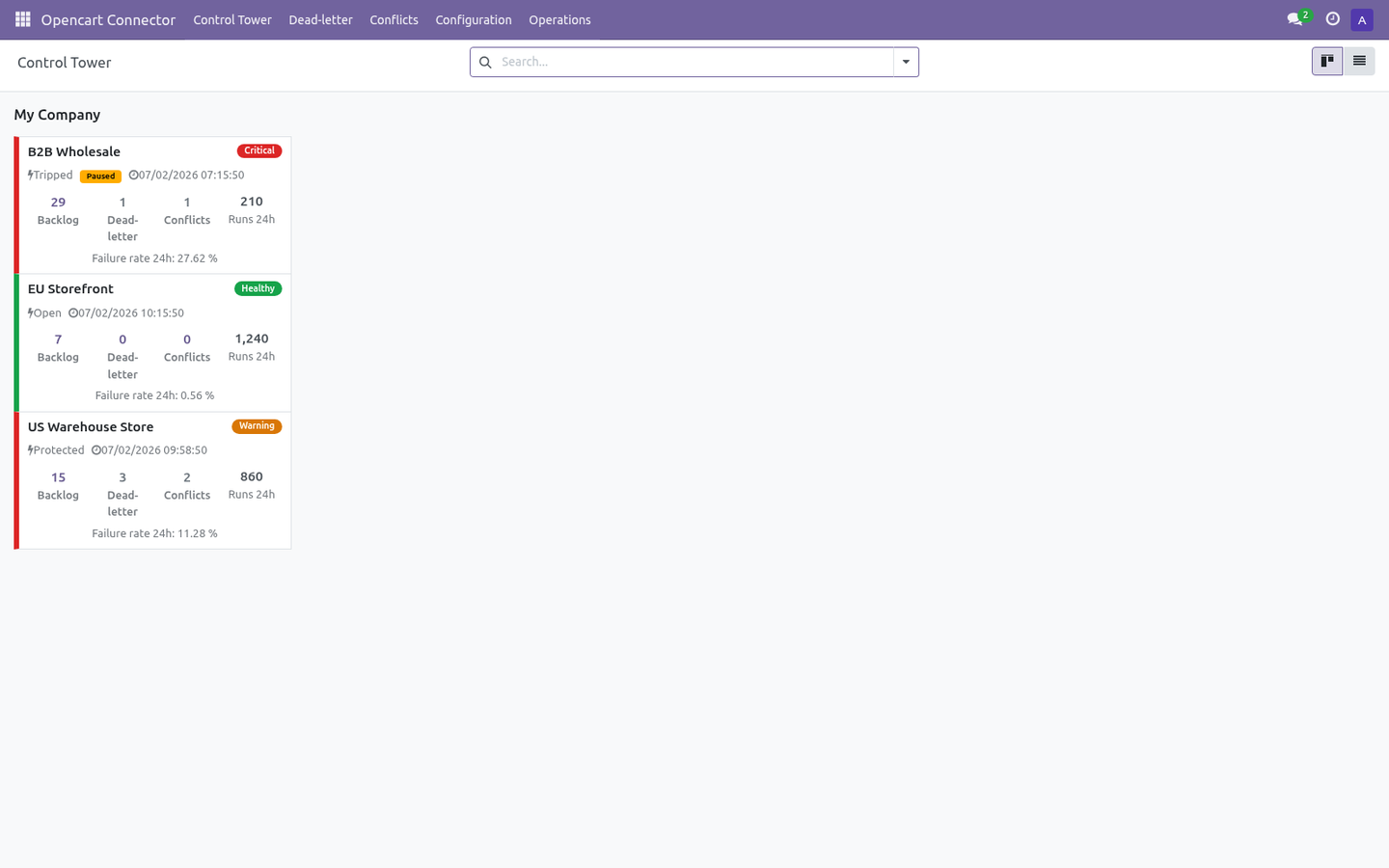
It covers: In the next few minutes: opencart connector, then matching the storefront total, then step 1 — configure the companion token & url, then step 2 — create the connection in odoo, then step 3 — first sync (dry-run, then live). Then what this app deliberately does not do, so you can tell before you buy whether it fits. Everything lives under Opencart Connector then Control Tower then Dead-letter then Conflicts. OpenCart Connector.
A bridge between Odoo 17 and your OpenCart store: import products (with categories and images), customers and orders, map order statuses to sale-order actions, and turn order refunds into draft credit notes — with a resilient job queue, dry-run safety, validation and rollback so you stay in control. OpenCart ships no rich admin REST API, so this connector includes a small, token-secured API companion (bf_api.php) that you drop at your OpenCart web root. The connector reads it over a hardened token-authenticated client; the companion reuses OpenCart's own config.php for database access and returns products, customers and orders as JSON. Matching the storefront total.
A storefront charges shipping and grants discounts outside the product lines, so an order rebuilt from those lines alone is worth less than the order the customer paid for: the sale looks smaller than it was and never reconciles against the platform payout. the shipping charge is imported as its own order line, on a clearly named service product; whatever still separates Odoo from the platform total — platform discounts, fees, rounding — is posted as a single adjustment line rather than dropped; the platform total and the remaining difference are stored on the order and shown on its connector tab; an order that still does not match within Total Tolerance raises a validation warning, so the gap is visible instead of silent. With Match Storefront Totals on the instance (on by default): Step 1 — Configure the companion token & URL. The companion is protected by a single shared token.
It is read from the BF_API_TOKEN environment variable if set, otherwise from the constant at the top of the file (which ships as the placeholder CHANGE-ME-LONG-SECRET). You must change it. set the BF_API_TOKEN environment variable on the OpenCart host to a long random secret, or edit the line define('BF_API_TOKEN', getenv('BF_API_TOKEN') ?: 'CHANGE-ME-LONG-SECRET'); and replace CHANGE-ME-LONG-SECRET with your own long secret. 2.
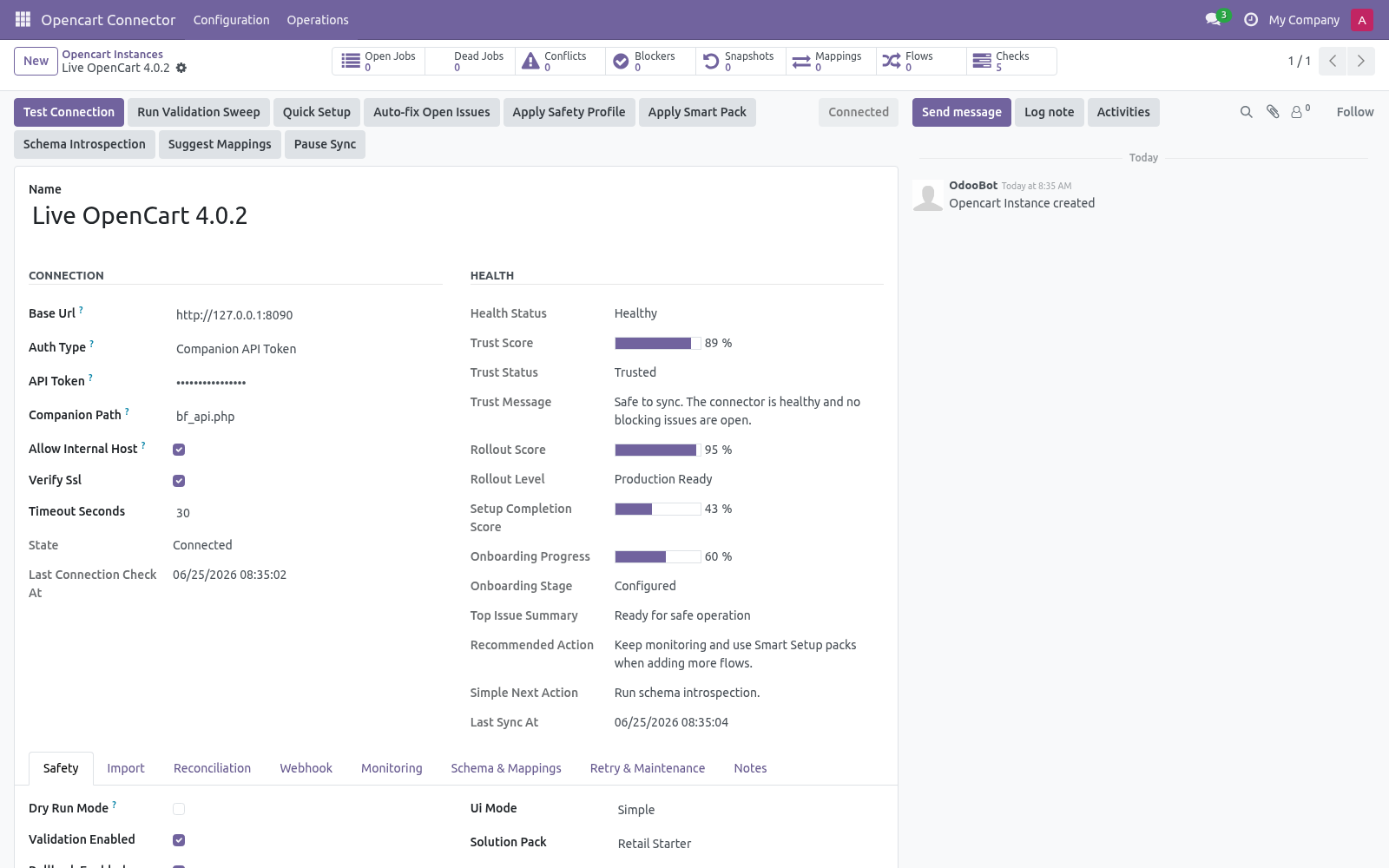
Keep that exact secret — you will paste the same value into the Odoo instance API Token field in Step 2. They must match exactly. Step 2 — Create the connection in Odoo. Open OpenCart Connector ▸ Configuration ▸ Instances and create a record.
A label for this store, e.g. My Live Store. Your store root, e.g. https://store.example.com (or the mock URL to evaluate).
- Authentication Companion API Token — the only mode. OpenCart has no admin REST API, so the connector talks to bf_api.php with a shared token. The BF_API_TOKEN you set in the companion (Step 1). Must match exactly.
Visible to administrators only. - Companion Path Path to the companion at the store root. Default bf_api.php; change only if you renamed or relocated the file. Keep on for production.
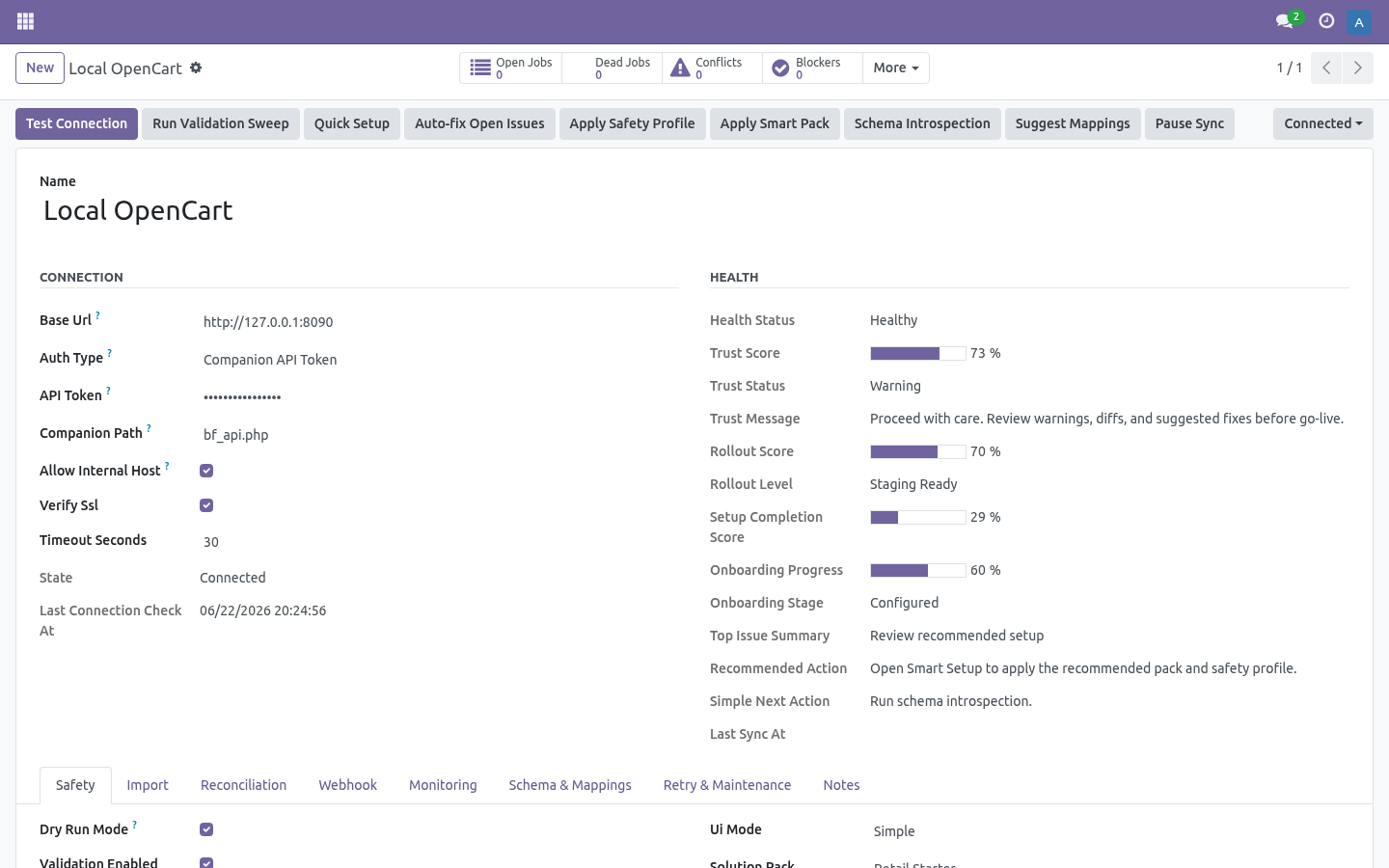
Turn off only for self-signed test certificates. Then click Test Connection. The connector calls the companion's ping endpoint; a green Connected state means the URL and token are correct, and the default order-status mappings are seeded on the first successful connect. If it fails, the exact error is shown on the form and recorded in Logs (see Troubleshooting).
Step 3 — First sync (dry-run, then live). New instances start with Dry-run ON. In dry-run, import and delete jobs simulate writes: instead of changing data they produce Validation Results you can review under OpenCart Connector ▸ Operations ▸ Validation Results. This lets you confirm what would happen before anything is written.
1. On the instance, click Import Products (and/or Import Customers, Import Orders). This enqueues jobs; it does not block the UI. 2.
Jobs are processed by the OpenCart Queue Processor scheduled action (every minute), or immediately if you run it manually from Operations ▸ Queue Jobs. 3. Review Validation Results while still in dry-run. 4.
When satisfied, open the instance, turn Dry-run OFF, and run the imports again to write the records for real. Order status mapping. OpenCart stores each order's status as a numeric order_status_id, which the connector normalizes onto the order. Under Configuration ▸ Order State Mappings each instance gets a default table (seeded on first successful connect) that decides what happens to the Odoo sale order when an order arrives in a given status: - OpenCart status id OpenCart status name Default Odoo action Confirm sale order Cancel sale order Change any row to Ignore (do nothing), Keep draft, Confirm sale order or Cancel sale order.
Unknown/custom statuses default to Ignore, so a status you have not mapped never triggers a destructive transition. Add a row for any custom status your store introduces (use the exact numeric order_status_id). Field mapping & customization Field Mappings (Configuration) map OpenCart fields to Odoo fields per model. Use Generate suggested mappings on the instance to seed the business-critical ones, then adjust.
The mapping board flags fields that need attention. Schema Fields lists the discovered OpenCart fields per resource. Run Schema Introspection on the instance to refresh it from your live store (it falls back to sample data if the store is not reachable). Stock / images / tax are opt-in toggles on the instance: Sync stock, Sync images (and max images), Upload images on export, Sync taxes and Auto-match taxes on import.
They are off by default; turn on only what you need. Tax matching is name-based and never auto-creates taxes. Refunds are opt-in: turn on Sync refunds to create draft credit notes from OpenCart order slips, and Auto-post refunds if you want them validated automatically (off by default so accountants can review first). Automation (scheduled actions & webhooks).
The module ships these scheduled actions (Settings ▸ Technical ▸ Scheduled Actions): - Scheduled action - OpenCart Queue Processor Processes queued import/export/delete jobs. - OpenCart Reconciliation Pulls recent remote changes for enabled models. - OpenCart Maintenance Recovers stale/locked jobs and trims old logs. - OpenCart Flow Scheduler Turn on Auto import / Auto reconcile per model on the instance to let the scheduled actions keep things in sync hands-free.
Safety features Dry-run mode — simulate writes and review Validation Results before going live. Business validation profiles — Minimal / Standard / Strict gate risky writes. Resilient queue — every remote action is a job with retry and exponential back-off, plus a dead-letter state for jobs that exhaust their retries. Circuit breaker — after repeated failures an instance auto-pauses (Tripped); the Auto Recover action reopens it once the store responds again.
Rollback snapshots — when enabled, imports capture a snapshot so you can undo a batch from Operations ▸ Rollback Snapshots. SSRF guard — the connector refuses internal/loopback/private hosts unless Allow internal host is explicitly enabled. Token-only companion — bf_api.php rejects every request without the matching token and exposes read-only endpoints; serve it over HTTPS so the token is not exposed. Troubleshooting.
For anything else, Operations ▸ Logs records every API call, payload and error with a timestamp. - Test Connection fails with 401 / "rejected the token" The API Token in Odoo does not match BF_API_TOKEN in bf_api.php (or its BF_API_TOKEN env var). Re-check Step 1; the placeholder CHANGE-ME-LONG-SECRET must be replaced. - Test Connection fails with "config.php not found" bf_api.php is not in the OpenCart web root next to config.php.
Move it beside index.php / config.php (see Installation). - Test Connection fails with "Check that bf_api.php is deployed at the store root" The companion URL returns 404. Confirm the file is uploaded and the Companion Path field matches the actual filename/location. - "DB connection failed" from the companion OpenCart's config.php credentials are wrong/blocked, or PHP lacks mysqli.
Confirm the store itself loads, then retry. Now the part most videos leave out: what this does not do. The connector reads products (with categories and images), customers, orders and order slips from your store via bf_api.php and writes the corresponding Odoo records. The companion token, webhook secret and other credentials are stored in admin-only fields.
The companion is read-only: it exposes only the ping, products, customers and orders endpoints and never writes to the OpenCart database. In scope today: product/customer/order import (with categories and images), order-status mapping, refund discovery from order slips, product export, scheduled sync, signed webhooks. Out of scope / best-effort: tax auto-matching (off by default, name-based, never auto-creates taxes); multi-warehouse stock routing; subscription/booking order types. The complete manual is at docs dot bambooforge dot dev, the demo database is linked from the store page, and support answers within twenty-four hours.
Links are in the description.
Transcript of the walkthrough (Odoo 16)
OpenCart Connector. Two-way OpenCart integration through a bundled token-secured API companion: products, customers, orders and stock, with a resilient queue. The connector keeps Odoo in sync with your OpenCart store. Because OpenCart has no native admin REST API, the data comes from the bundled bf_api.php companion (a single self-contained PHP file you install on the OpenCart server).
It covers: In the next few minutes: opencart connector, then matching the storefront total, then step 1 — configure the companion token & url, then step 2 — create the connection in odoo, then step 3 — first sync (dry-run, then live). Then what this app deliberately does not do, so you can tell before you buy whether it fits. Everything lives under Opencart Connector then Control Tower then Dead-letter then Conflicts. OpenCart Connector.
A bridge between Odoo 17 and your OpenCart store: import products (with categories and images), customers and orders, map order statuses to sale-order actions, and turn order refunds into draft credit notes — with a resilient job queue, dry-run safety, validation and rollback so you stay in control. OpenCart ships no rich admin REST API, so this connector includes a small, token-secured API companion (bf_api.php) that you drop at your OpenCart web root. The connector reads it over a hardened token-authenticated client; the companion reuses OpenCart's own config.php for database access and returns products, customers and orders as JSON. Matching the storefront total.
A storefront charges shipping and grants discounts outside the product lines, so an order rebuilt from those lines alone is worth less than the order the customer paid for: the sale looks smaller than it was and never reconciles against the platform payout. the shipping charge is imported as its own order line, on a clearly named service product; whatever still separates Odoo from the platform total — platform discounts, fees, rounding — is posted as a single adjustment line rather than dropped; the platform total and the remaining difference are stored on the order and shown on its connector tab; an order that still does not match within Total Tolerance raises a validation warning, so the gap is visible instead of silent. With Match Storefront Totals on the instance (on by default): Step 1 — Configure the companion token & URL. The companion is protected by a single shared token.
It is read from the BF_API_TOKEN environment variable if set, otherwise from the constant at the top of the file (which ships as the placeholder CHANGE-ME-LONG-SECRET). You must change it. set the BF_API_TOKEN environment variable on the OpenCart host to a long random secret, or edit the line define('BF_API_TOKEN', getenv('BF_API_TOKEN') ?: 'CHANGE-ME-LONG-SECRET'); and replace CHANGE-ME-LONG-SECRET with your own long secret. 2.
Keep that exact secret — you will paste the same value into the Odoo instance API Token field in Step 2. They must match exactly. Step 2 — Create the connection in Odoo. Open OpenCart Connector ▸ Configuration ▸ Instances and create a record.
A label for this store, e.g. My Live Store. Your store root, e.g. https://store.example.com (or the mock URL to evaluate).
- Authentication Companion API Token — the only mode. OpenCart has no admin REST API, so the connector talks to bf_api.php with a shared token. The BF_API_TOKEN you set in the companion (Step 1). Must match exactly.
Visible to administrators only. - Companion Path Path to the companion at the store root. Default bf_api.php; change only if you renamed or relocated the file. Keep on for production.
Turn off only for self-signed test certificates. Then click Test Connection. The connector calls the companion's ping endpoint; a green Connected state means the URL and token are correct, and the default order-status mappings are seeded on the first successful connect. If it fails, the exact error is shown on the form and recorded in Logs (see Troubleshooting).
Step 3 — First sync (dry-run, then live). New instances start with Dry-run ON. In dry-run, import and delete jobs simulate writes: instead of changing data they produce Validation Results you can review under OpenCart Connector ▸ Operations ▸ Validation Results. This lets you confirm what would happen before anything is written.
1. On the instance, click Import Products (and/or Import Customers, Import Orders). This enqueues jobs; it does not block the UI. 2.
Jobs are processed by the OpenCart Queue Processor scheduled action (every minute), or immediately if you run it manually from Operations ▸ Queue Jobs. 3. Review Validation Results while still in dry-run. 4.
When satisfied, open the instance, turn Dry-run OFF, and run the imports again to write the records for real. Order status mapping. OpenCart stores each order's status as a numeric order_status_id, which the connector normalizes onto the order. Under Configuration ▸ Order State Mappings each instance gets a default table (seeded on first successful connect) that decides what happens to the Odoo sale order when an order arrives in a given status: - OpenCart status id OpenCart status name Default Odoo action Confirm sale order Cancel sale order Change any row to Ignore (do nothing), Keep draft, Confirm sale order or Cancel sale order.
Unknown/custom statuses default to Ignore, so a status you have not mapped never triggers a destructive transition. Add a row for any custom status your store introduces (use the exact numeric order_status_id). Field mapping & customization Field Mappings (Configuration) map OpenCart fields to Odoo fields per model. Use Generate suggested mappings on the instance to seed the business-critical ones, then adjust.
The mapping board flags fields that need attention. Schema Fields lists the discovered OpenCart fields per resource. Run Schema Introspection on the instance to refresh it from your live store (it falls back to sample data if the store is not reachable). Stock / images / tax are opt-in toggles on the instance: Sync stock, Sync images (and max images), Upload images on export, Sync taxes and Auto-match taxes on import.
They are off by default; turn on only what you need. Tax matching is name-based and never auto-creates taxes. Refunds are opt-in: turn on Sync refunds to create draft credit notes from OpenCart order slips, and Auto-post refunds if you want them validated automatically (off by default so accountants can review first). Automation (scheduled actions & webhooks).
The module ships these scheduled actions (Settings ▸ Technical ▸ Scheduled Actions): - Scheduled action - OpenCart Queue Processor Processes queued import/export/delete jobs. - OpenCart Reconciliation Pulls recent remote changes for enabled models. - OpenCart Maintenance Recovers stale/locked jobs and trims old logs. - OpenCart Flow Scheduler Turn on Auto import / Auto reconcile per model on the instance to let the scheduled actions keep things in sync hands-free.
Safety features Dry-run mode — simulate writes and review Validation Results before going live. Business validation profiles — Minimal / Standard / Strict gate risky writes. Resilient queue — every remote action is a job with retry and exponential back-off, plus a dead-letter state for jobs that exhaust their retries. Circuit breaker — after repeated failures an instance auto-pauses (Tripped); the Auto Recover action reopens it once the store responds again.
Rollback snapshots — when enabled, imports capture a snapshot so you can undo a batch from Operations ▸ Rollback Snapshots. SSRF guard — the connector refuses internal/loopback/private hosts unless Allow internal host is explicitly enabled. Token-only companion — bf_api.php rejects every request without the matching token and exposes read-only endpoints; serve it over HTTPS so the token is not exposed. Troubleshooting.
For anything else, Operations ▸ Logs records every API call, payload and error with a timestamp. - Test Connection fails with 401 / "rejected the token" The API Token in Odoo does not match BF_API_TOKEN in bf_api.php (or its BF_API_TOKEN env var). Re-check Step 1; the placeholder CHANGE-ME-LONG-SECRET must be replaced. - Test Connection fails with "config.php not found" bf_api.php is not in the OpenCart web root next to config.php.
Move it beside index.php / config.php (see Installation). - Test Connection fails with "Check that bf_api.php is deployed at the store root" The companion URL returns 404. Confirm the file is uploaded and the Companion Path field matches the actual filename/location. - "DB connection failed" from the companion OpenCart's config.php credentials are wrong/blocked, or PHP lacks mysqli.
Confirm the store itself loads, then retry. Now the part most videos leave out: what this does not do. The connector reads products (with categories and images), customers, orders and order slips from your store via bf_api.php and writes the corresponding Odoo records. The companion token, webhook secret and other credentials are stored in admin-only fields.
The companion is read-only: it exposes only the ping, products, customers and orders endpoints and never writes to the OpenCart database. In scope today: product/customer/order import (with categories and images), order-status mapping, refund discovery from order slips, product export, scheduled sync, signed webhooks. Out of scope / best-effort: tax auto-matching (off by default, name-based, never auto-creates taxes); multi-warehouse stock routing; subscription/booking order types. The complete manual is at docs dot bambooforge dot dev, the demo database is linked from the store page, and support answers within twenty-four hours.
Links are in the description.
Key facts
- What it is
- Two-way OpenCart integration through a bundled token-secured API companion: products, customers, orders and stock, with a resilient queue.
- For
- eCommerce
- Odoo versions
- 16.0, 17.0, 18.0, 19.0, 20.0 - Community and Enterprise
- Runs on
- Odoo.sh or Odoo you host yourself - not Odoo Online, which accepts no third-party apps
- Price
- 199 EUR, one-time, on the Odoo Apps Store
- Technical name
- bambooforge_opencart_connector
- Run for real
- Tested for real against OpenCart 3.0.3.8 and 4.0.0.0: 19 products imported through the bf_api.php companion with 0 errors; the 4.0 demo store would not complete a checkout, so order import on 4.0 rests on the automated suite rather than a live order.
- Not for
- The connector reads products (with categories and images), customers, orders and order slips from your store via bf_api.php and writes the corresponding Odoo records. The companion token, webhook secret and other credentials are stored in admin-only fields.; The companion is read-only: it exposes only the ping, products, customers and orders endpoints and never writes to the OpenCart database.; In scope today: product/customer/order import (with categories and images), order-status mapping, refund discovery from order slips, product export, scheduled sync, signed webhooks.; Out of scope / best-effort: tax auto-matching (off by default, name-based, never auto-creates taxes); multi-warehouse stock routing; subscription/booking order types.
- Manual last updated
- 2026-10-15
OpenCart Connector
A bridge between Odoo 20 and your OpenCart store: import products (with categories and images), customers and orders, map order statuses to sale-order actions, and turn order refunds into draft credit notes — with a resilient job queue, dry-run safety, validation and rollback so you stay in control.
OpenCart ships no rich admin REST API, so this connector includes a small, token-secured API companion (bf_api.php) that you drop at your OpenCart web root. The connector reads it over a hardened token-authenticated client; the companion reuses OpenCart's own config.php for database access and returns products, customers and orders as JSON.
This page is the complete manual. If you follow it top to bottom you can install, connect, run your first sync, automate it, and fix the common issues without contacting support.
Matching the storefront total
A storefront charges shipping and grants discounts outside the product lines, so an order rebuilt from those lines alone is worth less than the order the customer paid for: the sale looks smaller than it was and never reconciles against the platform payout.
With Match Storefront Totals on the instance (on by default):
the shipping charge is imported as its own order line, on a clearly named service product;
whatever still separates Odoo from the platform total — platform discounts, fees, rounding — is posted as a single adjustment line rather than dropped;
the platform total and the remaining difference are stored on the order and shown on its connector tab;
an order that still does not match within Total Tolerance raises a validation warning, so the gap is visible instead of silent.
Imported lines deliberately carry no Odoo tax: the storefront has already computed tax and it is kept on the order's own tax amount field. Switch the option off if you would rather Odoo recompute everything from your own price lists and tax rules.
Overview
The connector keeps Odoo in sync with your OpenCart store. Because OpenCart has no native admin REST API, the data comes from the bundled bf_api.php companion (a single self-contained PHP file you install on the OpenCart server). It covers:
Products — import OpenCart products into Odoo product templates, including their categories and images, and (optionally) stock and tax group.
Customers — import OpenCart customers (name, email, telephone) into Odoo contacts.
Orders — import OpenCart orders into Odoo sale orders, mapping each order's numeric OpenCart order_status_id to a sale-order action (keep draft, confirm, cancel, or ignore).
Refunds — optionally discover OpenCart order credit slips (order_slip) and create matching draft customer credit notes in Odoo.
Direction of sync: Odoo ← OpenCart (import is the primary flow; product export and webhook-driven updates are supported).
Every remote call goes through a queue: nothing is written to Odoo until a job runs, jobs retry with back-off on transient failures, and a circuit breaker pauses an instance that keeps failing.
Tested against the real thing
Automated tests run against a bundled mock store on every release; the line below is the part no mock can give you - the connector pointed at the real platform, with real records and real order totals.
Tested for real against OpenCart 3.0.3.8 and 4.0.0.0: 19 products imported through the bf_api.php companion with 0 errors; the 4.0 demo store would not complete a checkout, so order import on 4.0 rests on the automated suite rather than a live order.
Requirements
Odoo: 20.0, Community or Enterprise.
OpenCart: a running OpenCart store you can add one PHP file to, with access to its config.php database credentials. The companion talks to OpenCart's database directly, so it works across OpenCart versions that keep the standard product, customer and order tables. The store must be reachable from the Odoo server.
PHP / MySQL: the OpenCart host must run PHP with the mysqli extension (standard on any OpenCart server).
Python: no extra libraries beyond a standard Odoo 20 install.
Odoo access: any internal user can use the connector screens. The companion token, webhook secret and other credentials are stored in system-only fields, so only the Settings / Administration user can read or change them.
Network: outbound HTTPS from Odoo to your store. By default the connector refuses internal/loopback/private hosts as an SSRF safeguard (see Safety features).
Installation
The connector has two parts: the Odoo module, and the bf_api.php companion on the OpenCart server.
Odoo side
Copy bambooforge_opencart_connector into your Odoo addons path.
Restart the Odoo service.
Open Apps, click Update Apps List, search for OpenCart, and press Activate / Install. Dependencies (Sales, Contacts, Invoicing) install automatically.
No OpenCart store is required to evaluate the connector: a mock companion ships inside the module, so you can install, explore and run the full import flow against sample data before pointing it at a real store. To use it, set the instance Base URL to https://<your-odoo-domain>/opencart/mock_api (the mock accepts any non-empty token).
OpenCart side — install the companion
The companion file ships inside the module at bambooforge_opencart_connector/phase2/opencart_api/bf_api.php.
Copy bf_api.php to your OpenCart web root — the same directory that holds OpenCart's index.php and config.php (the companion reads config.php from its own directory for the database credentials, so it must sit next to it).
The file is then reachable at https://store.example.com/bf_api.php.
Set its token (next section), and always serve it over HTTPS in production — the token travels in the request.
Step 1 — Configure the companion token & URL
The companion is protected by a single shared token. It is read from the BF_API_TOKEN environment variable if set, otherwise from the constant at the top of the file (which ships as the placeholder CHANGE-ME-LONG-SECRET). You must change it.
Open bf_api.php and either:
set the BF_API_TOKEN environment variable on the OpenCart host to a long random secret, or
edit the line define('BF_API_TOKEN', getenv('BF_API_TOKEN') ?: 'CHANGE-ME-LONG-SECRET'); and replace CHANGE-ME-LONG-SECRET with your own long secret.
Keep that exact secret — you will paste the same value into the Odoo instance API Token field in Step 2. They must match exactly.
Verify the companion responds. In a browser or with curl (replace the token):
https://store.example.com/bf_api.php?token=YOUR-SECRET&resource=ping
A healthy companion returns JSON like {"ok": true, "platform": "opencart", ...}. A 401 Unauthorized means the token does not match; a 500 with "OpenCart config.php not found" means bf_api.php is not next to config.php.
The companion exposes only read endpoints — ping, products, customers and orders — and authenticates every request, either by the token query parameter or an X-BF-Token header.
Step 2 — Create the connection in Odoo
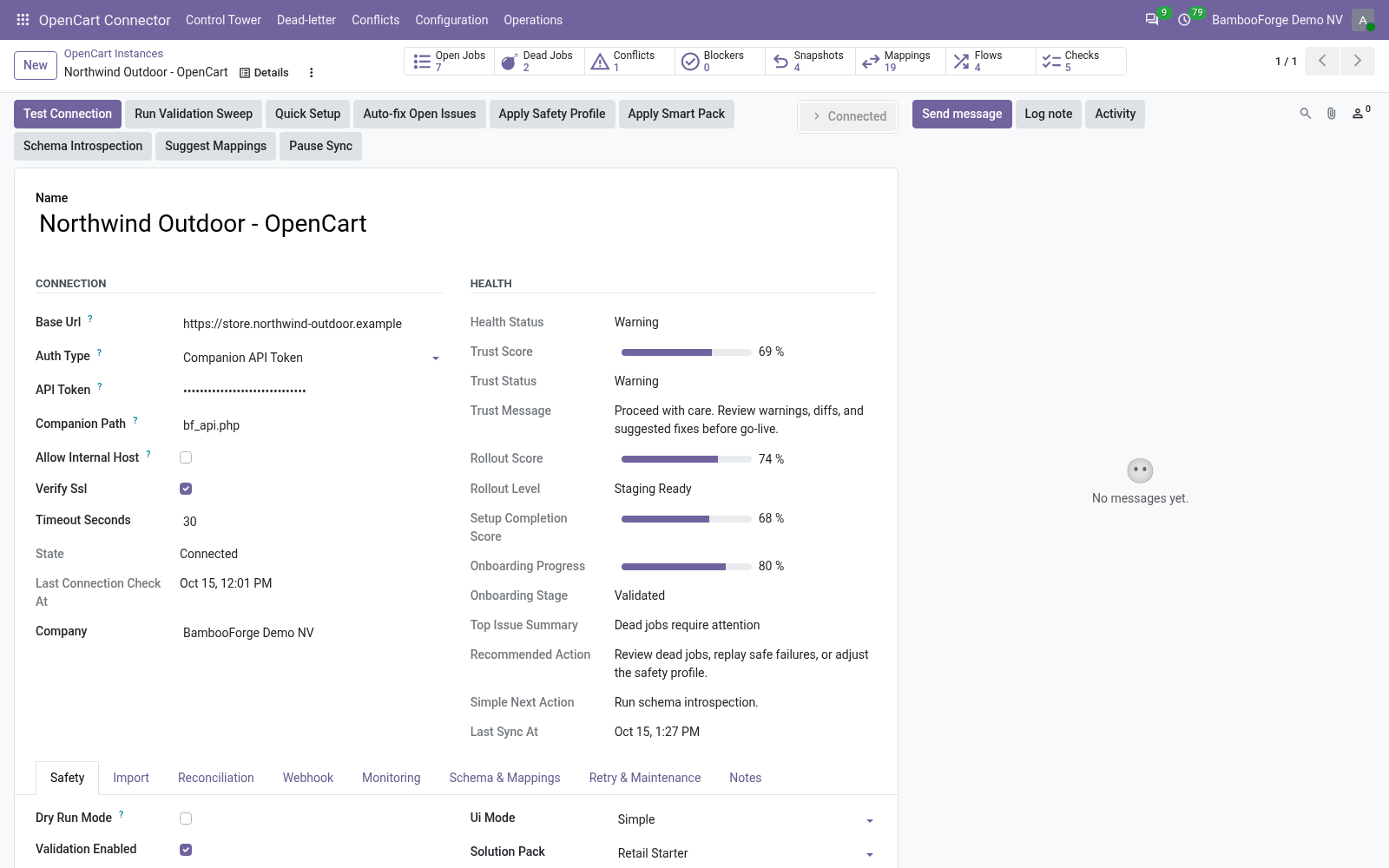
Open OpenCart Connector ▸ Configuration ▸ Instances and create a record.
Key fields:
Field |
What to enter |
|---|---|
Name |
A label for this store, e.g. My Live Store. |
Base URL |
Your store root, e.g. https://store.example.com (or the mock URL to evaluate). |
Authentication |
Companion API Token — the only mode. OpenCart has no admin REST API, so the connector talks to bf_api.php with a shared token. |
API Token |
The BF_API_TOKEN you set in the companion (Step 1). Must match exactly. Visible to administrators only. |
Companion Path |
Path to the companion at the store root. Default bf_api.php; change only if you renamed or relocated the file. |
Verify SSL |
Keep on for production. Turn off only for self-signed test certificates. |
Allow internal host |
Off by default. Turn on only to reach a store on localhost or a private network (lowers the SSRF guard — see Safety features). |
Then click Test Connection. The connector calls the companion's ping endpoint; a green Connected state means the URL and token are correct, and the default order-status mappings are seeded on the first successful connect. If it fails, the exact error is shown on the form and recorded in Logs (see Troubleshooting).
Tip: use Quick Setup (button on the instance) to pick a use case (catalog only, B2C full sync, …), seed default field mappings and order-status rules, and apply a recommended schedule in one step.
Step 3 — First sync (dry-run, then live)
New instances start with Dry-run ON. In dry-run, import and delete jobs simulate writes: instead of changing data they produce Validation Results you can review under OpenCart Connector ▸ Operations ▸ Validation Results. This lets you confirm what would happen before anything is written.
To run a first import:
On the instance, click Import Products (and/or Import Customers, Import Orders). This enqueues jobs; it does not block the UI.
Jobs are processed by the OpenCart Queue Processor scheduled action (every minute), or immediately if you run it manually from Operations ▸ Queue Jobs.
Review Validation Results while still in dry-run.
When satisfied, open the instance, turn Dry-run OFF, and run the imports again to write the records for real.
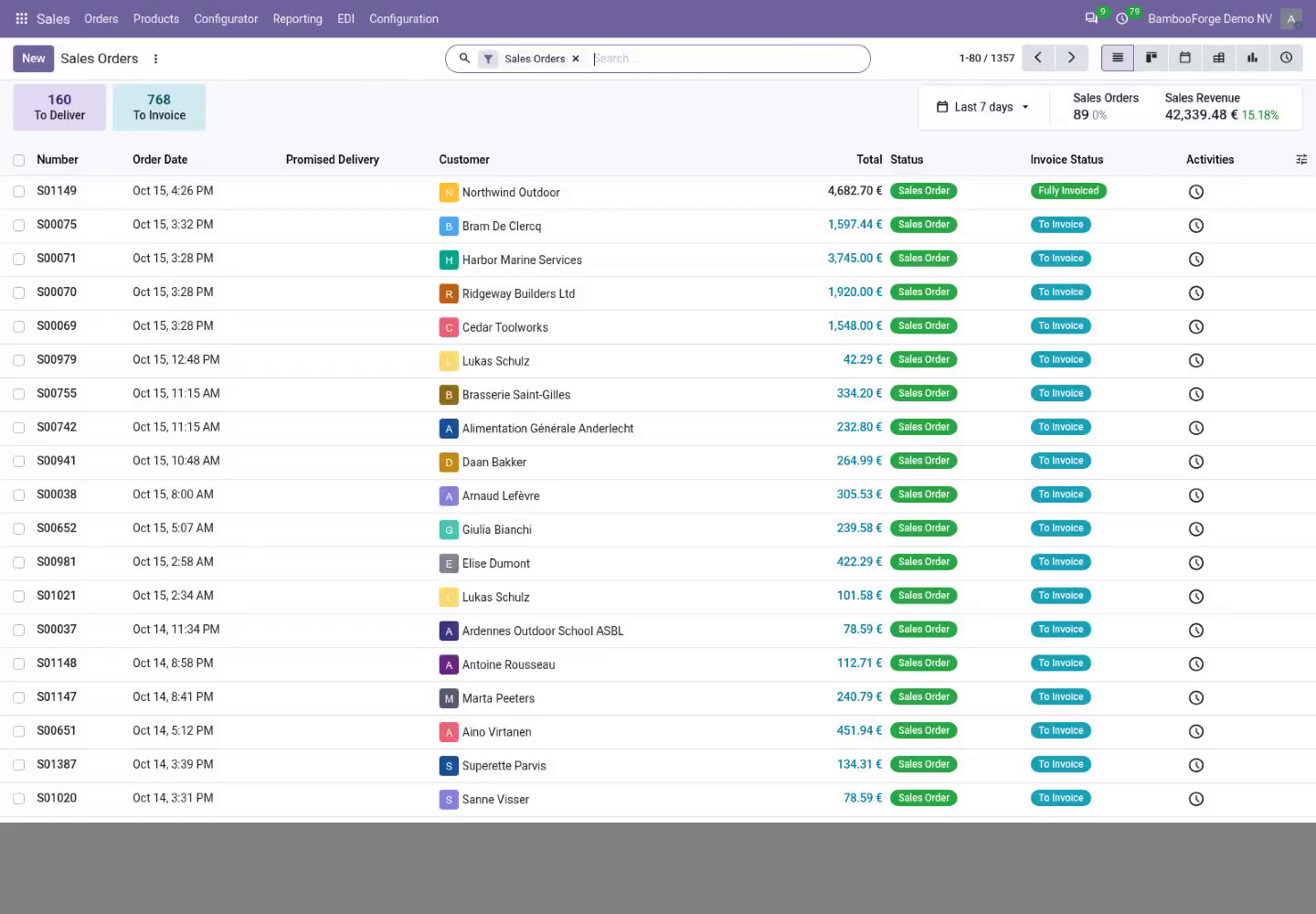
Imported records land in the standard Odoo apps: Sales ▸ Products, Contacts, and Sales ▸ Orders. Each carries its OpenCart reference so re-imports update the same record instead of duplicating it.
Order status mapping
OpenCart stores each order's status as a numeric order_status_id, which the connector normalizes onto the order. Under Configuration ▸ Order State Mappings each instance gets a default table (seeded on first successful connect) that decides what happens to the Odoo sale order when an order arrives in a given status:
OpenCart status id |
OpenCart status name |
Default Odoo action |
|---|---|---|
1 |
Pending |
Keep draft |
2 |
Processing |
Confirm sale order |
3 |
Shipped |
Confirm sale order |
5 |
Complete |
Confirm sale order |
7 |
Canceled |
Cancel sale order |
8 |
Denied |
Cancel sale order |
9 |
Canceled Reversal |
Cancel sale order |
10 |
Failed |
Keep draft |
11 |
Refunded |
Cancel sale order |
12 |
Reversed |
Cancel sale order |
13 |
Chargeback |
Keep draft |
14 |
Expired |
Cancel sale order |
15 |
Processed |
Confirm sale order |
16 |
Voided |
Cancel sale order |
Change any row to Ignore (do nothing), Keep draft, Confirm sale order or Cancel sale order. Unknown/custom statuses default to Ignore, so a status you have not mapped never triggers a destructive transition. Add a row for any custom status your store introduces (use the exact numeric order_status_id).
Field mapping & customization
Field Mappings (Configuration) map OpenCart fields to Odoo fields per model. Use Generate suggested mappings on the instance to seed the business-critical ones, then adjust. The mapping board flags fields that need attention.
Schema Fields lists the discovered OpenCart fields per resource. Run Schema Introspection on the instance to refresh it from your live store (it falls back to sample data if the store is not reachable).
Stock / images / tax are opt-in toggles on the instance: Sync stock, Sync images (and max images), Upload images on export, Sync taxes and Auto-match taxes on import. They are off by default; turn on only what you need. Tax matching is name-based and never auto-creates taxes.
Refunds are opt-in: turn on Sync refunds to create draft credit notes from OpenCart order slips, and Auto-post refunds if you want them validated automatically (off by default so accountants can review first).
Automation (scheduled actions & webhooks)
The module ships these scheduled actions (Settings ▸ Technical ▸ Scheduled Actions):
Scheduled action |
Default |
Purpose |
|---|---|---|
OpenCart Queue Processor |
every 1 min |
Processes queued import/export/delete jobs. |
OpenCart Reconciliation |
every 15 min |
Pulls recent remote changes for enabled models. |
OpenCart Maintenance |
every 1 hr |
Recovers stale/locked jobs and trims old logs. |
OpenCart Flow Scheduler |
every 5 min |
Runs scheduled sync flows. |
OpenCart Flow Metrics |
every 1 hr |
Aggregates flow-run metrics. |
OpenCart Auto Recover |
every 15 min |
Reopens a tripped circuit breaker once the store is healthy. |
Turn on Auto import / Auto reconcile per model on the instance to let the scheduled actions keep things in sync hands-free.
Real-time webhooks (optional): if your store (or a custom OpenCart extension) can POST events, point them at:
Delivery URL: https://<your-odoo-domain>/opencart/webhook
Signature header: X-OpenCart-Signature — an HMAC-SHA256 of the raw body using the instance Webhook Secret (admin-only field on the instance).
Odoo verifies the signature on each delivery, rejects stale or replayed requests (the signed emitted_at must be recent), and enqueues a safe import. Without webhooks the scheduled reconciliation still keeps data current.
Safety features
Dry-run mode — simulate writes and review Validation Results before going live.
Business validation profiles — Minimal / Standard / Strict gate risky writes.
Resilient queue — every remote action is a job with retry and exponential back-off, plus a dead-letter state for jobs that exhaust their retries.
Circuit breaker — after repeated failures an instance auto-pauses (Tripped); the Auto Recover action reopens it once the store responds again.
Rollback snapshots — when enabled, imports capture a snapshot so you can undo a batch from Operations ▸ Rollback Snapshots.
SSRF guard — the connector refuses internal/loopback/private hosts unless Allow internal host is explicitly enabled.
Token-only companion — bf_api.php rejects every request without the matching token and exposes read-only endpoints; serve it over HTTPS so the token is not exposed.
Where OpenCart shows up in Odoo
The connector stays out of the way on records that have nothing to do with OpenCart:
Sales orders - the OpenCart tab, Queue OpenCart Export and OpenCart Binding appear only on orders that came from OpenCart, are bound to OpenCart, or belong to a customer bound to OpenCart.
Products and contacts - the OpenCart tab appears once an active OpenCart connection exists; the OpenCart Binding button inside it appears once the record is bound.
List views, the sync queue and the control tower are unchanged.
Troubleshooting
Symptom |
Cause and fix |
|---|---|
Test Connection fails with 401 / "rejected the token" |
The API Token in Odoo does not match BF_API_TOKEN in bf_api.php (or its BF_API_TOKEN env var). Re-check Step 1; the placeholder CHANGE-ME-LONG-SECRET must be replaced. |
Test Connection fails with "config.php not found" |
bf_api.php is not in the OpenCart web root next to config.php. Move it beside index.php / config.php (see Installation). |
Test Connection fails with "Check that bf_api.php is deployed at the store root" |
The companion URL returns 404. Confirm the file is uploaded and the Companion Path field matches the actual filename/location. |
"DB connection failed" from the companion |
OpenCart's config.php credentials are wrong/blocked, or PHP lacks mysqli. Confirm the store itself loads, then retry. |
"Refused internal/private host" |
Base URL points at localhost/private IP. Enable Allow internal host on the instance (test/self-hosted only). |
SSL errors on Test Connection |
Self-signed certificate. Use a valid cert, or turn off Verify SSL for testing only. |
Orders import but never confirm |
The order's OpenCart order_status_id is mapped to Keep draft or Ignore. Adjust Order State Mappings. |
Jobs stay in Pending |
The Queue Processor is off or the instance is paused. Check Scheduled Actions is active and the instance is not Paused. |
Instance shows Tripped |
Circuit breaker tripped after repeated failures. Fix the store/token; Auto Recover reopens it, or click Resume. |
Records imported twice |
Imports are keyed by the OpenCart reference, so this should not happen. If it does, check that two instances do not point at the same store. |
Nothing happens after Import |
You are in Dry-run. Review Validation Results, then turn dry-run off and re-run. |
For anything else, Operations ▸ Logs records every API call, payload and error with a timestamp.
Frequently asked questions
Which versions are supported? Odoo 20.0 on the Odoo side. On the store side the companion reads OpenCart's database directly, so it works with OpenCart builds that keep the standard product, customer and order tables. Validate your exact build with the bundled mock first.
Why does it need a PHP file? Can't it use OpenCart's API? OpenCart ships no rich admin REST API. The connector therefore includes bf_api.php, a small self-contained, token-secured companion you drop at the OpenCart web root; it reuses OpenCart's config.php for database access and returns products/customers/orders as JSON.
Where exactly do I put bf_api.php? In the OpenCart web root, the directory that already contains index.php and config.php. It must sit next to config.php because it reads the database credentials from there. It is then reachable at https://store.example.com/bf_api.php.
Do I need OpenCart installed to evaluate it? No. A mock companion ships inside the module. Point the instance Base URL at https://<your-odoo-domain>/opencart/mock_api (any non-empty token) and run the full import flow before connecting a real store.
How does authentication work? A single shared token. Set BF_API_TOKEN in bf_api.php (constant or environment variable) and paste the same value into the Odoo instance API Token field. The companion rejects every request whose token does not match.
How does real-time sync work? If your store can POST events, point them at /opencart/webhook with an X-OpenCart-Signature HMAC-SHA256 of the body using the instance Webhook Secret; Odoo verifies the signature and enqueues a safe import. Without it, scheduled reconciliation keeps things in sync.
Is it safe to run against production data? Dry-run is ON by default, validation blocks risky writes, and rollback snapshots let you undo. You decide when to go live. The companion is read-only.
What support and refund policy do I get? Every request is answered within 24 hours, setup help included. If you report a bug within 2 months of purchase and it is not resolved within 15 days, you are entitled to a full money-back refund.
Data, privacy & limits
The connector reads products (with categories and images), customers, orders and order slips from your store via bf_api.php and writes the corresponding Odoo records. The companion token, webhook secret and other credentials are stored in admin-only fields.
The companion is read-only: it exposes only the ping, products, customers and orders endpoints and never writes to the OpenCart database.
In scope today: product/customer/order import (with categories and images), order-status mapping, refund discovery from order slips, product export, scheduled sync, signed webhooks.
Out of scope / best-effort: tax auto-matching (off by default, name-based, never auto-creates taxes); multi-warehouse stock routing; subscription/booking order types.
Support & updates
Support: support@bambooforge.dev — answered within 24 hours, setup help included.
Refund: report a bug within 2 months of purchase; if unresolved within 15 days, full refund.
Full source is included, companion file bundled. Updates track the supported Odoo 20 line.
Upgrading & version compatibility
This build targets Odoo 20.0. Each Odoo major series (16.0, 17.0, 18.0, 19.0, 20.0) has its own dedicated build of this module — always install the build that matches your Odoo version. Mixing a build with a different Odoo series is not supported.
Order import in this lab
The OpenCart demo store that ships with this connector's test lab holds no orders: OpenCart 4.0.0.0 cannot complete its own checkout there (its session cookie is written with an invalid path, and no payment method is offered even with cash on delivery enabled). Product, customer and stock synchronisation are demonstrated against that live store; order import and the storefront-total matching described above run on the same engine as the other connectors, are covered by this module's automated tests, and were verified live on nine other platforms.
Patch upgrades (same series, e.g. 20.0.1.0.0 → later)
Back up your database and filestore first.
Replace the module folder with the newer build.
Restart Odoo with the module updated:
./odoo-bin -c your.conf -u bambooforge_opencart_connector -d your_db
Odoo applies any schema/data changes automatically. Your existing records and configuration are preserved.
Cross-version migration (moving to a newer Odoo)
Upgrading Odoo itself is a database migration handled by Odoo's standard upgrade tooling. When you migrate the database to the next Odoo series, install the matching build of this module for that series. Data created by this module carries over with the database migration.
After any upgrade the module's scheduled actions resume on their normal cadence — no manual re-activation is required.
Uninstallation
You can remove this module at any time from Apps → (this module) → Uninstall, or from the command line. Uninstalling is clean and reversible by reinstalling — but note what is and is not deleted.
What is removed
The module's own tables and every record in them (20 models, prefixed opencart.*) — this is the data this module created.
The menus, actions, views and reports this module installed.
Its scheduled actions (cron jobs) — they stop immediately on uninstall.
Connection records, credentials, field mappings, queue jobs and sync logs stored in Odoo.
What is preserved
Your remote platform is never touched. Uninstalling only removes the Odoo-side connector; products, customers and orders on the external store/service are untouched.
Records already imported into standard Odoo models (e.g. contacts, products, sales orders) remain — they are ordinary Odoo records once created.
Attachments and chatter messages on standard records are kept.
As always, take a database backup before uninstalling in production.
Changelog
20.0.1.2.5
Built for Odoo 20: record rules and access rights rewritten onto Odoo 20's single ir.access model, the screens rebuilt on Owl 3, and every icon moved to the icon set Odoo 20 ships.
20.0.1.0.0
Current release for Odoo 20.0. This build includes:
Odoo 20 <-> OpenCart connector: import products, customers and orders via a bundled token-secured API companion.
Two-way stock sync, live Sync Control Tower, resilient queue and dry-run safety.
Feature additions and fixes ship as new builds on the Odoo Apps store; this page and the module's version reflect the current published release. Always keep the build matched to your Odoo series (see Upgrading & version compatibility).
How we make sure it works
Before every release, 94 automated checks run against this app on Odoo 16, 17, 18, 19 and 20. Among them:
Nothing at all is an empty row not a crash.
A product shows its binding button only once bound.
Import to odoo true but dry run never moves stock.
The queue only calls mapper methods that exist.
A plain order shows no opencart buttons.
Tested for real against OpenCart 3.0.3.8 and 4.0.0.0: 19 products imported through the bf_api.php companion with 0 errors; the 4.0 demo store would not complete a checkout, so order import on 4.0 rests on the automated suite rather than a live order.
The complete list is in the source you receive.