 BambooForge Labs
Shop Floor Scheduler Pro: Finite Capacity Gantt and Tool Life
Plan every work order of the shop in one go, hour by hour, within each work centre's calendar, never more at once than it runs, never two on one mould. Drag a work order and the rest is recalculated around it; replan from any point after a breakdown. Moulds and dies count their life and block when due.
Available for Odoo 16.0, Odoo 17.0, Odoo 18.0, Odoo 19.0, Odoo 20.0. Technical name bambooforge_mrp_scheduler.
Transcript of the walkthrough (Odoo 20)
Shop Floor Scheduler Pro: Finite Capacity Gantt and Tool Life. Plan every work order of the shop in one go, hour by hour, within each work centre's calendar, never more at once than it runs, never two on one mould. Drag a work order and the rest is recalculated around it; replan from any point after a breakdown. Moulds and dies count their life and block when due.
Odoo plans a work order into the first free slot of its work centre and stops there. When a machine breaks, a rush order lands or a mould wears out, the plan is what the planner keeps in their head. This app plans the whole shop, hour by hour, and keeps the plan honest. In the next few minutes: what you get, then setting up, then planning, then conflicts, then tool life.
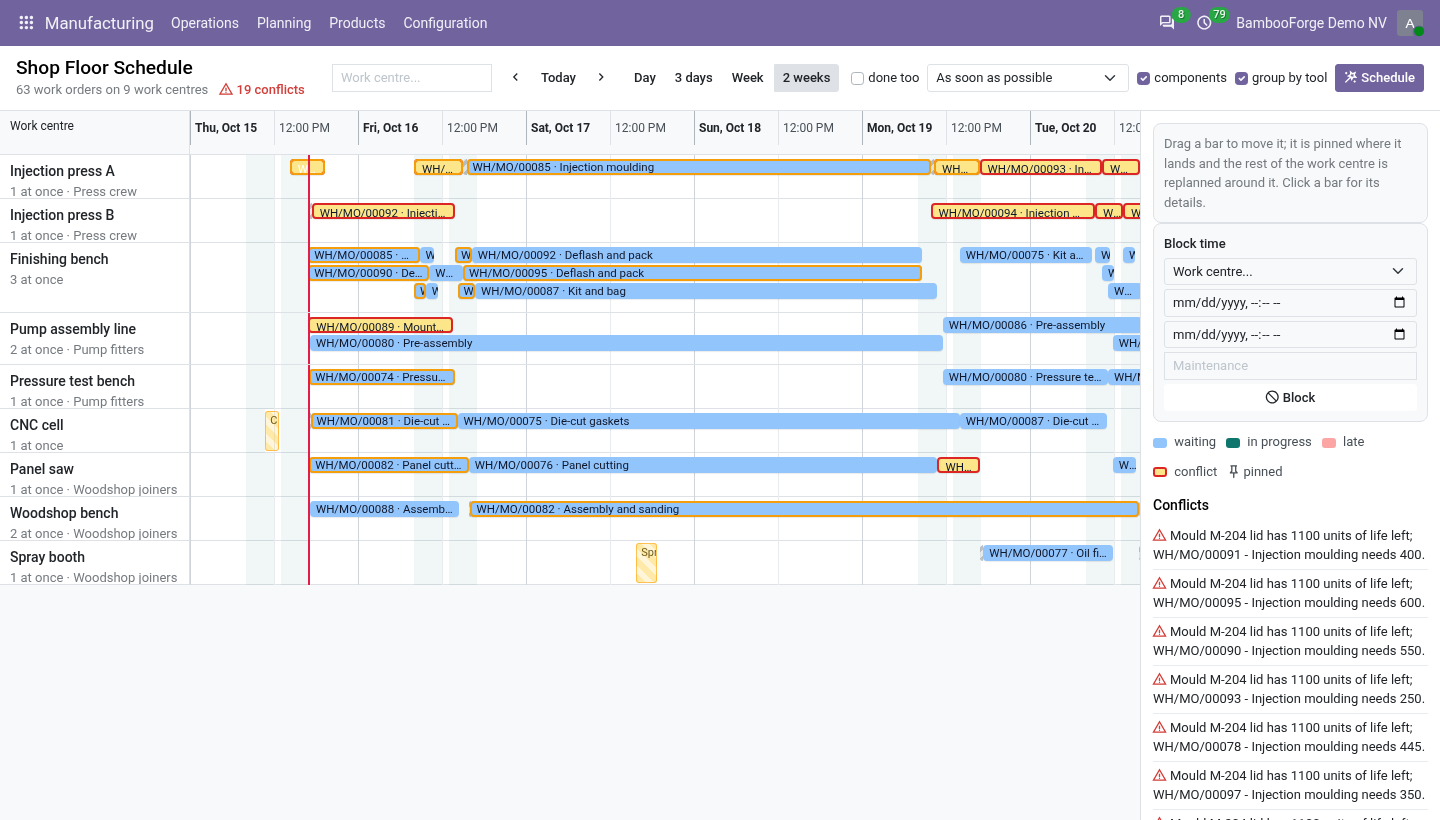
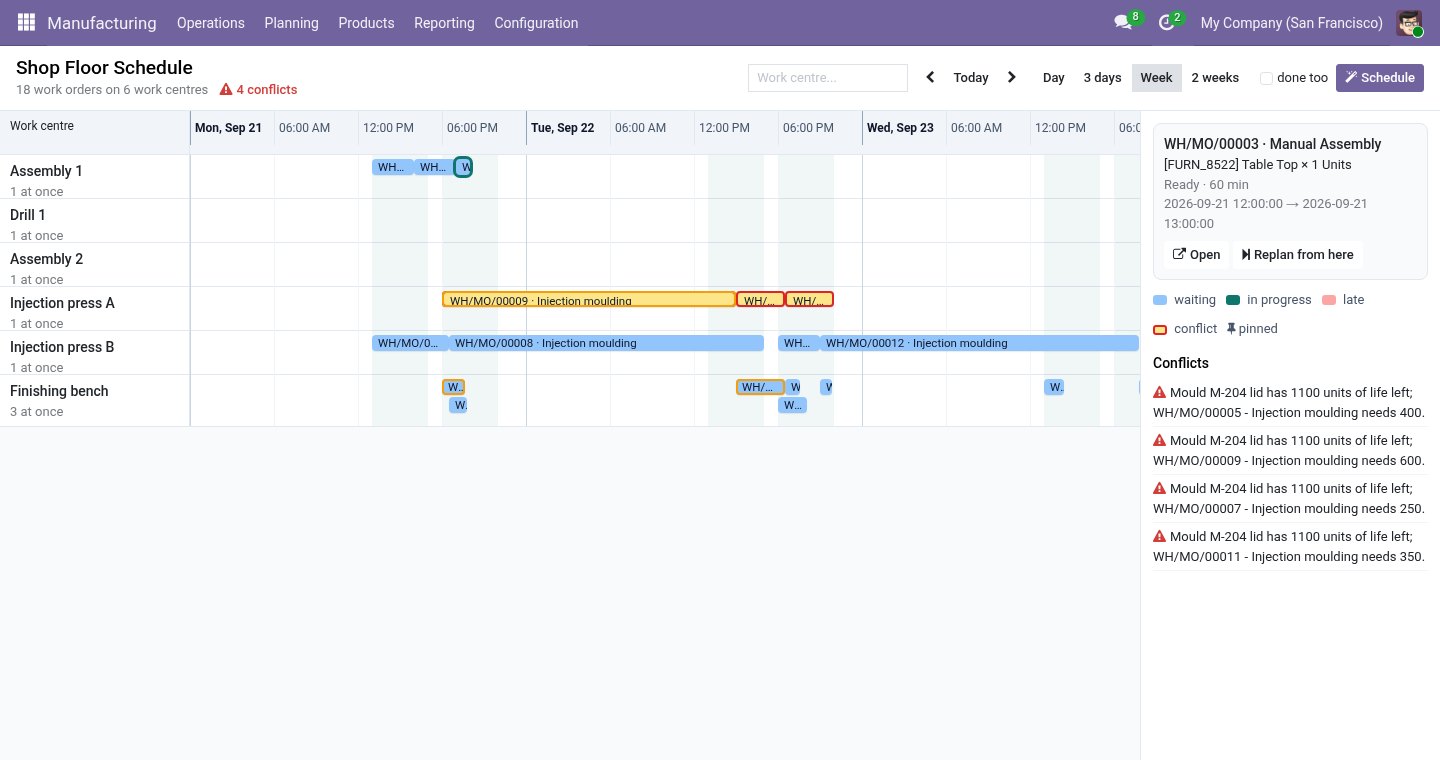
Then what this app deliberately does not do, so you can tell before you buy whether it fits. Everything lives under Shop Floor Schedule then Tools and Moulds then Operator Crews. What you get Schedule: every waiting work order placed in its work centre's working calendar, after the operations it waits for, never more at once than the work centre runs, never two on one tool; manufacturing orders taken by priority, then deadline, then first come first served. A Gantt by the hour: rows per work centre, the calendar shaded, the current moment marked; day, three-day, week and fortnight views.
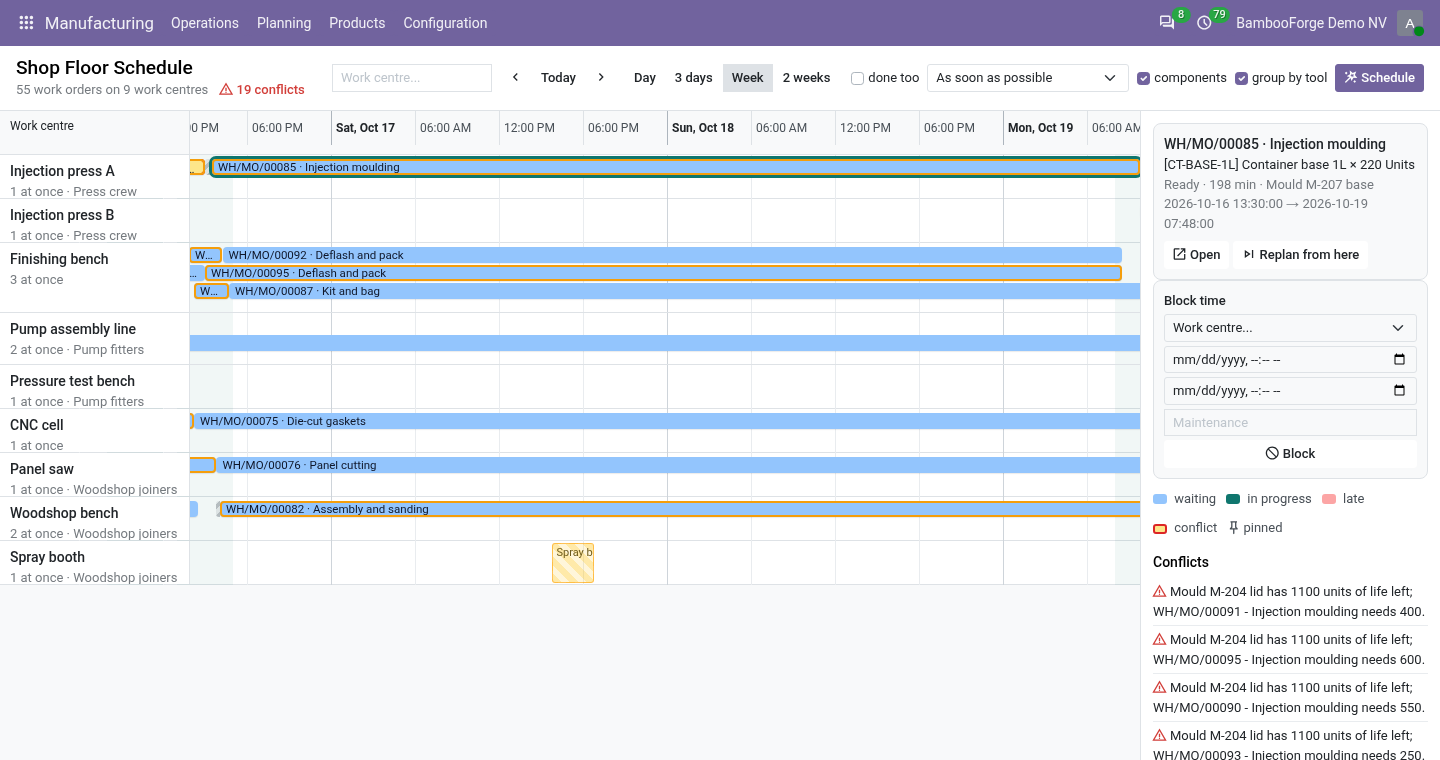
Drag to move: a work order dragged keeps its duration, snaps to the next working time, is pinned where it landed, and the rest of its work centre is replanned around it. Replan from here: leave everything planned before a work order alone and replan from it on - after a breakdown, from the work order that stopped. Tools, moulds and dies with a life in units: put one on an operation and no two work orders hold it at once; every finished work order counts its pieces against the life; when it is due the board says so, and when it is exhausted no work order starts on it until it is serviced. Components first: an order's first operation waits for its components to arrive; an order nothing is coming for is named.
Changeovers: setting a mould up is planned in front of the work order that needs it, and orders due the same day that use the same mould run one after another. Just in time: backward from the deadline - the last operation ending at it - forward again when there is no room. Setting up. Work centres.
Manufacturing ▸ Configuration ▸ Work Centers: each one has a working calendar; set Work Orders at Once to how many it really runs side by side (a bench with three people: 3; a press: 1). Crews. Manufacturing ▸ Configuration ▸ Operator Crews: a crew and how many people are on shift. On each work centre that draws on it, pick the Crew and the Operators per Work Order.
Three presses and two operators: the scheduler never runs a third press at the same time. Planning. Schedule plans every waiting work order of the work centres on the board (or of all of them). A running work order and a pinned one are left where they are and planned around.
Three choices sit next to the button: Components: the first operation of an order does not start before its components are expected - the forecast Odoo keeps from receipts and other orders. An order short of a component nothing is coming for is planned all the same, and named in the result and among the conflicts. Drag a bar left or right: it keeps its duration, lands at the next working time (a Saturday drop lands Monday morning), is pinned, and the rest of that work centre is replanned from that moment. Unpin hands it back to the scheduler.
Conflicts. Listed beside the board, each pointing at its work order: capacity - more work orders overlap on a work centre than it runs at once (a hand-placed order, or a work order planned by something else); tool - two work orders hold the same tool at the same time; tool life - the tool on a work order is due or exhausted; material - an order's first operation starts before its components are expected, or nothing is coming for one of them; crew - more operators needed at one moment than the crew has; late is on the bar itself, red. Schedule clears the first two; the third needs the tool serviced. Tool life.
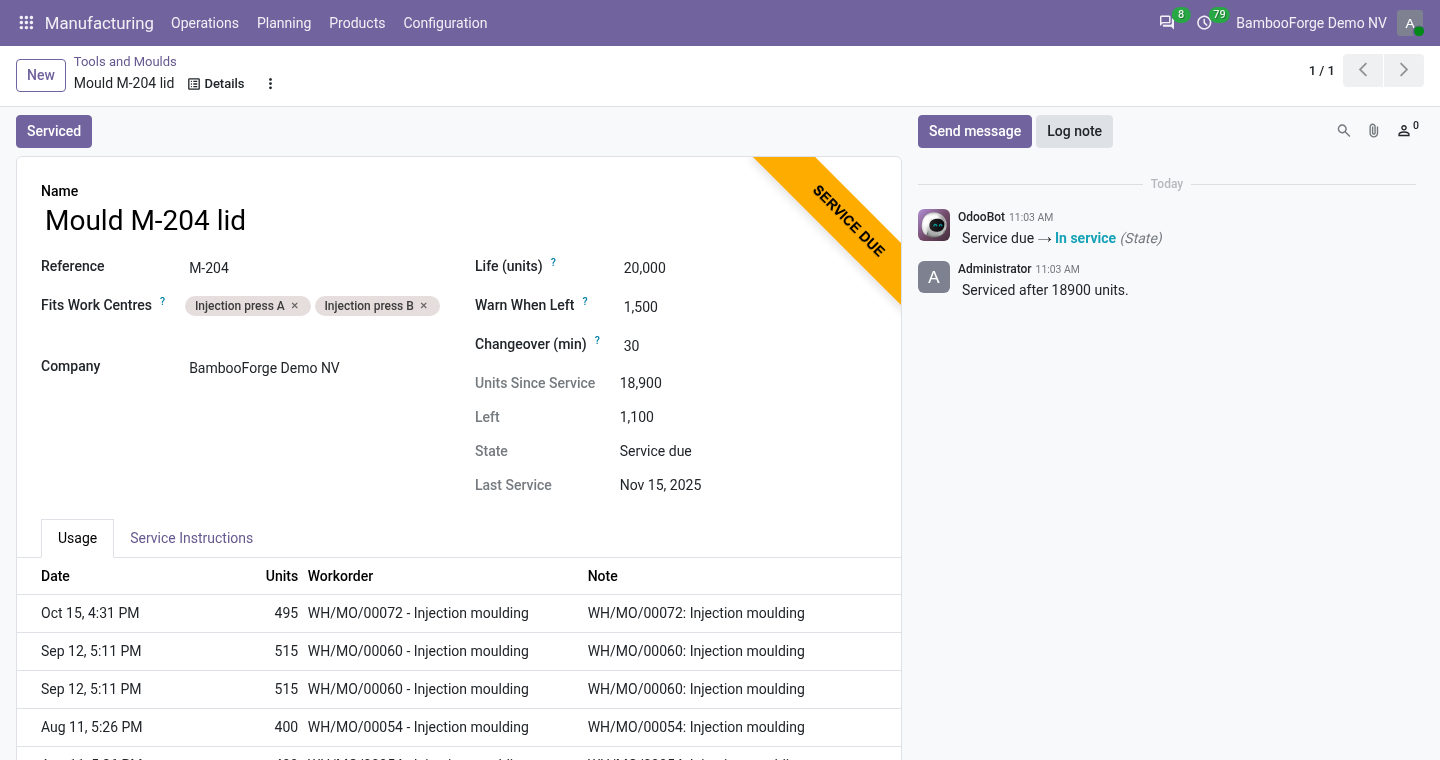
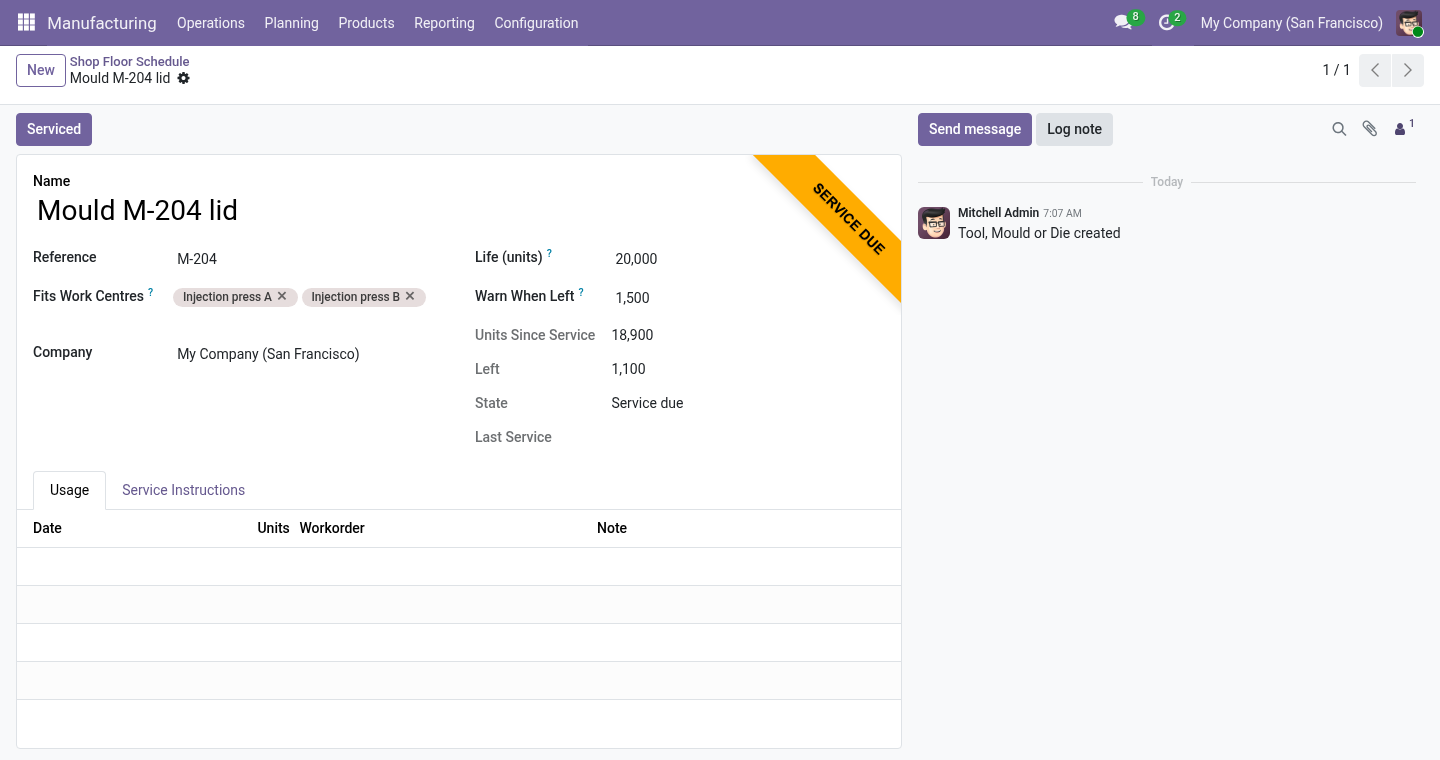
When a work order is finished, its produced quantity is added to the tool's units since service and written in the tool's usage log. Below the warn threshold the tool is due; at zero life left it is exhausted and Start on any work order that holds it is refused with the units left and the units needed. Serviced on the tool resets the counter and dates the service. Uninstalling.
Uninstalling removes the tools, their logs and the pin flags. Work orders keep the dates they had. 20.0.1.1.0 Built for Odoo 20: record rules and access rights rewritten onto Odoo 20's single ir.access model, the screens rebuilt on Owl 3, and every icon moved to the icon set Odoo 20 ships. 20.0.1.1.0 Components: the first operation waits for them; missing supply named.
Tool changeover planned in front of the work order; same-tool orders grouped. Just in time: backward scheduling from the deadline. Maintenance blocks on the board; operator crews shared by work centres. An order's start copied back by Odoo from its own work orders no longer holds it where the last run left it.
20.0.1.0.0 How we make sure it works. Before every release, 15 automated checks run against this app on Odoo 16, 17, 18, 19 and 20. Among them: A tool is never held twice. Nothing coming is said.
Work runs over the break and never at night. A block on a machine without a calendar. Drag pins and replans the rest. The complete list is in the source you receive.
Now the part most videos leave out: what this does not do. Durations are Odoo's own expected durations; the scheduler does not estimate them. Just in time plans backward from the order's deadline; it does not level the load across days. The components check reads Odoo's forecast; what the forecast does not know - a late supplier - the board does not know either.
A crew is a headcount, not a roster of named people and their skills. The complete manual is at docs dot bambooforge dot dev, the demo database is linked from the store page, and support answers within twenty-four hours. Links are in the description.
Transcript of the walkthrough (Odoo 19)
Shop Floor Scheduler Pro: Finite Capacity Gantt and Tool Life. Plan every work order of the shop in one go, hour by hour, within each work centre's calendar, never more at once than it runs, never two on one mould. Drag a work order and the rest is recalculated around it; replan from any point after a breakdown. Moulds and dies count their life and block when due.
Odoo plans a work order into the first free slot of its work centre and stops there. When a machine breaks, a rush order lands or a mould wears out, the plan is what the planner keeps in their head. This app plans the whole shop, hour by hour, and keeps the plan honest. In the next few minutes: what you get, then setting up, then planning, then conflicts, then tool life.
Then what this app deliberately does not do, so you can tell before you buy whether it fits. Everything lives under Shop Floor Schedule then Tools and Moulds then Operator Crews. What you get Schedule: every waiting work order placed in its work centre's working calendar, after the operations it waits for, never more at once than the work centre runs, never two on one tool; manufacturing orders taken by priority, then deadline, then first come first served. A Gantt by the hour: rows per work centre, the calendar shaded, the current moment marked; day, three-day, week and fortnight views.
Drag to move: a work order dragged keeps its duration, snaps to the next working time, is pinned where it landed, and the rest of its work centre is replanned around it. Replan from here: leave everything planned before a work order alone and replan from it on - after a breakdown, from the work order that stopped. Tools, moulds and dies with a life in units: put one on an operation and no two work orders hold it at once; every finished work order counts its pieces against the life; when it is due the board says so, and when it is exhausted no work order starts on it until it is serviced. Components first: an order's first operation waits for its components to arrive; an order nothing is coming for is named.
Changeovers: setting a mould up is planned in front of the work order that needs it, and orders due the same day that use the same mould run one after another. Just in time: backward from the deadline - the last operation ending at it - forward again when there is no room. Setting up. Work centres.
Manufacturing ▸ Configuration ▸ Work Centers: each one has a working calendar; set Work Orders at Once to how many it really runs side by side (a bench with three people: 3; a press: 1). Crews. Manufacturing ▸ Configuration ▸ Operator Crews: a crew and how many people are on shift. On each work centre that draws on it, pick the Crew and the Operators per Work Order.
Three presses and two operators: the scheduler never runs a third press at the same time. Planning. Schedule plans every waiting work order of the work centres on the board (or of all of them). A running work order and a pinned one are left where they are and planned around.
Three choices sit next to the button: Components: the first operation of an order does not start before its components are expected - the forecast Odoo keeps from receipts and other orders. An order short of a component nothing is coming for is planned all the same, and named in the result and among the conflicts. Drag a bar left or right: it keeps its duration, lands at the next working time (a Saturday drop lands Monday morning), is pinned, and the rest of that work centre is replanned from that moment. Unpin hands it back to the scheduler.
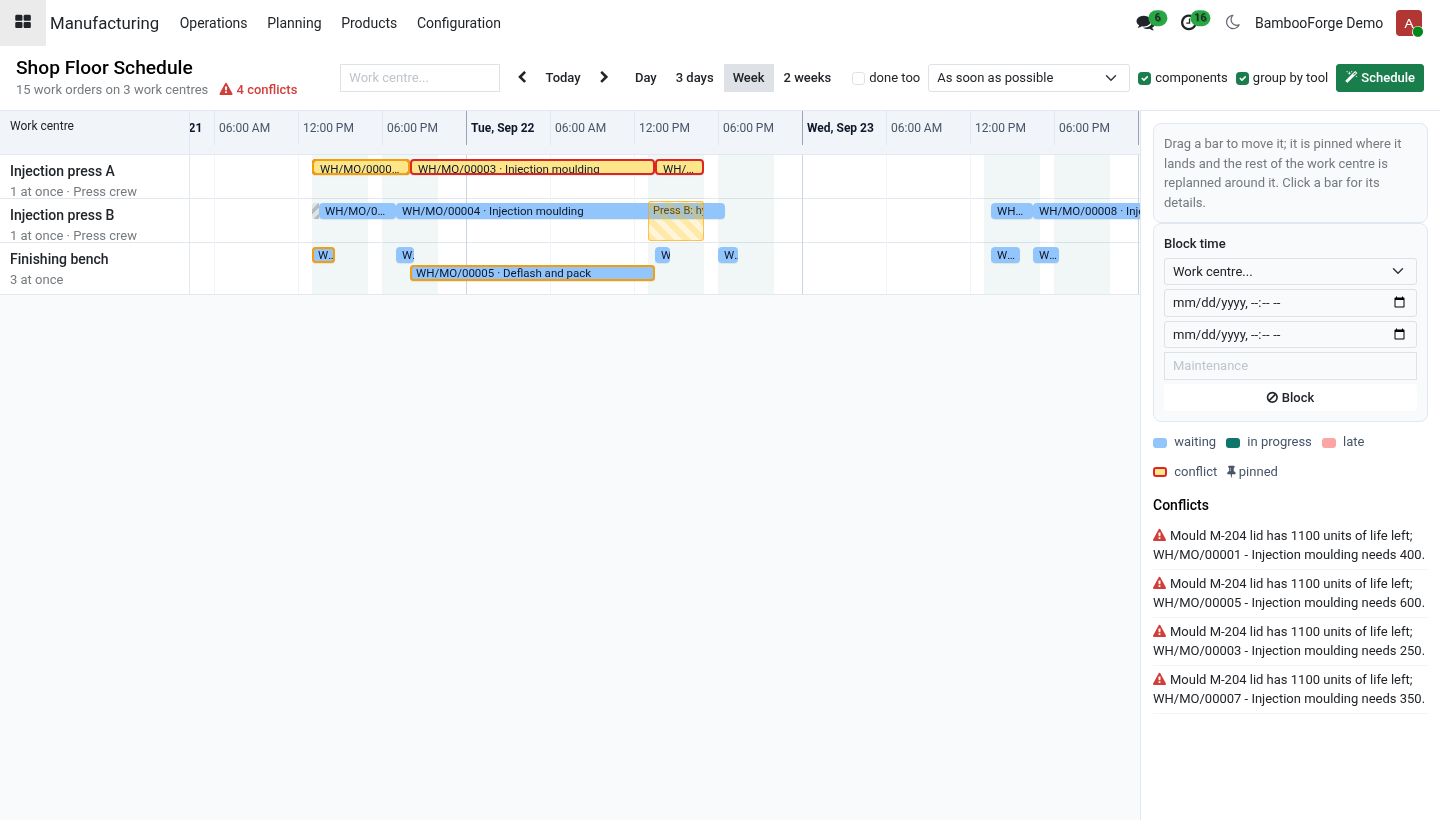
Conflicts. Listed beside the board, each pointing at its work order: capacity - more work orders overlap on a work centre than it runs at once (a hand-placed order, or a work order planned by something else); tool - two work orders hold the same tool at the same time; tool life - the tool on a work order is due or exhausted; material - an order's first operation starts before its components are expected, or nothing is coming for one of them; crew - more operators needed at one moment than the crew has; late is on the bar itself, red. Schedule clears the first two; the third needs the tool serviced. Tool life.
When a work order is finished, its produced quantity is added to the tool's units since service and written in the tool's usage log. Below the warn threshold the tool is due; at zero life left it is exhausted and Start on any work order that holds it is refused with the units left and the units needed. Serviced on the tool resets the counter and dates the service. Uninstalling.
Uninstalling removes the tools, their logs and the pin flags. Work orders keep the dates they had. 19.0.1.1.0 Components: the first operation waits for them; missing supply named. Tool changeover planned in front of the work order; same-tool orders grouped.
Just in time: backward scheduling from the deadline. Maintenance blocks on the board; operator crews shared by work centres. An order's start copied back by Odoo from its own work orders no longer holds it where the last run left it. 19.0.1.0.0 How we make sure it works.
Before every release, 15 automated checks run against this app on Odoo 16, 17, 18 and 19. Among them: A tool is never held twice. Nothing coming is said. Work runs over the break and never at night.
A block on a machine without a calendar. Drag pins and replans the rest. The complete list is in the source you receive. Now the part most videos leave out: what this does not do.
Durations are Odoo's own expected durations; the scheduler does not estimate them. Just in time plans backward from the order's deadline; it does not level the load across days. The components check reads Odoo's forecast; what the forecast does not know - a late supplier - the board does not know either. A crew is a headcount, not a roster of named people and their skills.
The complete manual is at docs dot bambooforge dot dev, the demo database is linked from the store page, and support answers within twenty-four hours. Links are in the description.
Transcript of the walkthrough (Odoo 18)
Shop Floor Scheduler Pro: Finite Capacity Gantt and Tool Life. Plan every work order of the shop in one go, hour by hour, within each work centre's calendar, never more at once than it runs, never two on one mould. Drag a work order and the rest is recalculated around it; replan from any point after a breakdown. Moulds and dies count their life and block when due.
Odoo plans a work order into the first free slot of its work centre and stops there. When a machine breaks, a rush order lands or a mould wears out, the plan is what the planner keeps in their head. This app plans the whole shop, hour by hour, and keeps the plan honest. In the next few minutes: what you get, then setting up, then planning, then conflicts, then tool life.
Then what this app deliberately does not do, so you can tell before you buy whether it fits. Everything lives under Shop Floor Schedule then Tools and Moulds then Operator Crews. What you get Schedule: every waiting work order placed in its work centre's working calendar, after the operations it waits for, never more at once than the work centre runs, never two on one tool; manufacturing orders taken by priority, then deadline, then first come first served. A Gantt by the hour: rows per work centre, the calendar shaded, the current moment marked; day, three-day, week and fortnight views.
Drag to move: a work order dragged keeps its duration, snaps to the next working time, is pinned where it landed, and the rest of its work centre is replanned around it. Replan from here: leave everything planned before a work order alone and replan from it on - after a breakdown, from the work order that stopped. Tools, moulds and dies with a life in units: put one on an operation and no two work orders hold it at once; every finished work order counts its pieces against the life; when it is due the board says so, and when it is exhausted no work order starts on it until it is serviced. Components first: an order's first operation waits for its components to arrive; an order nothing is coming for is named.
Changeovers: setting a mould up is planned in front of the work order that needs it, and orders due the same day that use the same mould run one after another. Just in time: backward from the deadline - the last operation ending at it - forward again when there is no room. Setting up. Work centres.
Manufacturing ▸ Configuration ▸ Work Centers: each one has a working calendar; set Work Orders at Once to how many it really runs side by side (a bench with three people: 3; a press: 1). Crews. Manufacturing ▸ Configuration ▸ Operator Crews: a crew and how many people are on shift. On each work centre that draws on it, pick the Crew and the Operators per Work Order.
Three presses and two operators: the scheduler never runs a third press at the same time. Planning. Schedule plans every waiting work order of the work centres on the board (or of all of them). A running work order and a pinned one are left where they are and planned around.
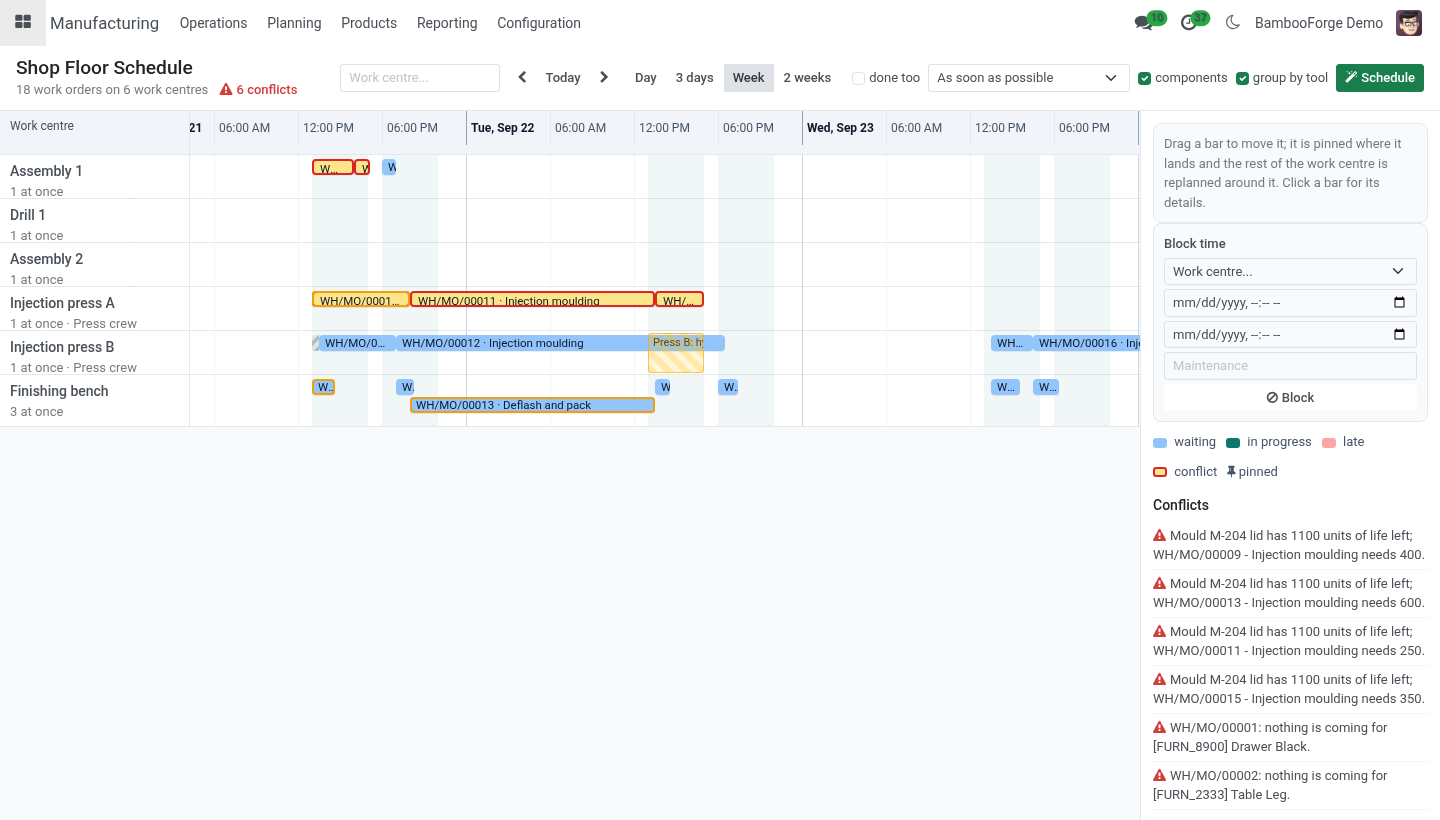
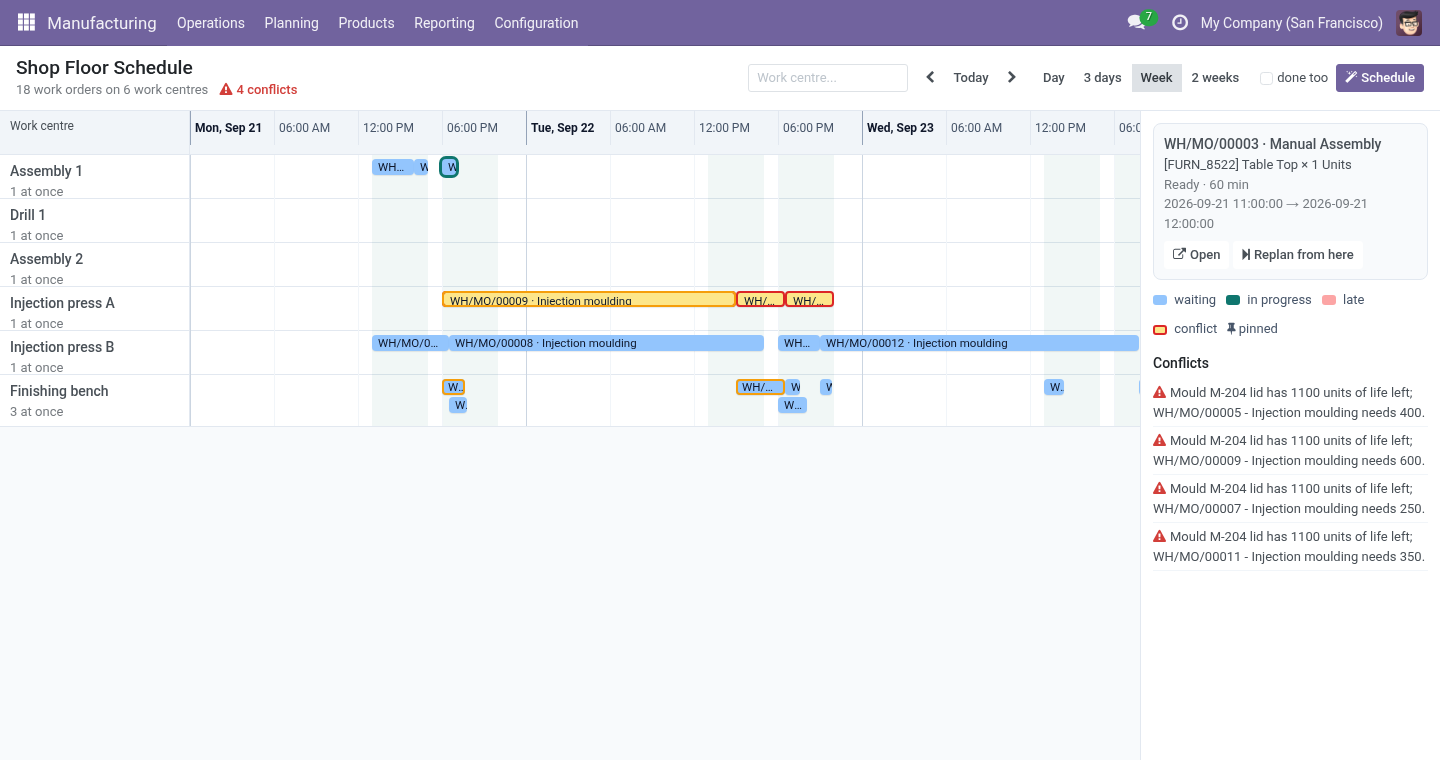
Three choices sit next to the button: Components: the first operation of an order does not start before its components are expected - the forecast Odoo keeps from receipts and other orders. An order short of a component nothing is coming for is planned all the same, and named in the result and among the conflicts. Drag a bar left or right: it keeps its duration, lands at the next working time (a Saturday drop lands Monday morning), is pinned, and the rest of that work centre is replanned from that moment. Unpin hands it back to the scheduler.
Conflicts. Listed beside the board, each pointing at its work order: capacity - more work orders overlap on a work centre than it runs at once (a hand-placed order, or a work order planned by something else); tool - two work orders hold the same tool at the same time; tool life - the tool on a work order is due or exhausted; material - an order's first operation starts before its components are expected, or nothing is coming for one of them; crew - more operators needed at one moment than the crew has; late is on the bar itself, red. Schedule clears the first two; the third needs the tool serviced. Tool life.
When a work order is finished, its produced quantity is added to the tool's units since service and written in the tool's usage log. Below the warn threshold the tool is due; at zero life left it is exhausted and Start on any work order that holds it is refused with the units left and the units needed. Serviced on the tool resets the counter and dates the service. Uninstalling.
Uninstalling removes the tools, their logs and the pin flags. Work orders keep the dates they had. 18.0.1.1.0 Components: the first operation waits for them; missing supply named. Tool changeover planned in front of the work order; same-tool orders grouped.
Just in time: backward scheduling from the deadline. Maintenance blocks on the board; operator crews shared by work centres. An order's start copied back by Odoo from its own work orders no longer holds it where the last run left it. 18.0.1.0.0 How we make sure it works.
Before every release, 15 automated checks run against this app on Odoo 16, 17, 18 and 19. Among them: A tool is never held twice. Nothing coming is said. Work runs over the break and never at night.
A block on a machine without a calendar. Drag pins and replans the rest. The complete list is in the source you receive. Now the part most videos leave out: what this does not do.
Durations are Odoo's own expected durations; the scheduler does not estimate them. Just in time plans backward from the order's deadline; it does not level the load across days. The components check reads Odoo's forecast; what the forecast does not know - a late supplier - the board does not know either. A crew is a headcount, not a roster of named people and their skills.
The complete manual is at docs dot bambooforge dot dev, the demo database is linked from the store page, and support answers within twenty-four hours. Links are in the description.
Transcript of the walkthrough (Odoo 17)
Shop Floor Scheduler Pro: Finite Capacity Gantt and Tool Life. Plan every work order of the shop in one go, hour by hour, within each work centre's calendar, never more at once than it runs, never two on one mould. Drag a work order and the rest is recalculated around it; replan from any point after a breakdown. Moulds and dies count their life and block when due.
Odoo plans a work order into the first free slot of its work centre and stops there. When a machine breaks, a rush order lands or a mould wears out, the plan is what the planner keeps in their head. This app plans the whole shop, hour by hour, and keeps the plan honest. In the next few minutes: what you get, then setting up, then planning, then conflicts, then tool life.
Then what this app deliberately does not do, so you can tell before you buy whether it fits. Everything lives under Shop Floor Schedule then Tools and Moulds then Operator Crews. What you get Schedule: every waiting work order placed in its work centre's working calendar, after the operations it waits for, never more at once than the work centre runs, never two on one tool; manufacturing orders taken by priority, then deadline, then first come first served. A Gantt by the hour: rows per work centre, the calendar shaded, the current moment marked; day, three-day, week and fortnight views.
Drag to move: a work order dragged keeps its duration, snaps to the next working time, is pinned where it landed, and the rest of its work centre is replanned around it. Replan from here: leave everything planned before a work order alone and replan from it on - after a breakdown, from the work order that stopped. Tools, moulds and dies with a life in units: put one on an operation and no two work orders hold it at once; every finished work order counts its pieces against the life; when it is due the board says so, and when it is exhausted no work order starts on it until it is serviced. Components first: an order's first operation waits for its components to arrive; an order nothing is coming for is named.
Changeovers: setting a mould up is planned in front of the work order that needs it, and orders due the same day that use the same mould run one after another. Just in time: backward from the deadline - the last operation ending at it - forward again when there is no room. Setting up. Work centres.
Manufacturing ▸ Configuration ▸ Work Centers: each one has a working calendar; set Work Orders at Once to how many it really runs side by side (a bench with three people: 3; a press: 1). Crews. Manufacturing ▸ Configuration ▸ Operator Crews: a crew and how many people are on shift. On each work centre that draws on it, pick the Crew and the Operators per Work Order.
Three presses and two operators: the scheduler never runs a third press at the same time. Planning. Schedule plans every waiting work order of the work centres on the board (or of all of them). A running work order and a pinned one are left where they are and planned around.
Three choices sit next to the button: Components: the first operation of an order does not start before its components are expected - the forecast Odoo keeps from receipts and other orders. An order short of a component nothing is coming for is planned all the same, and named in the result and among the conflicts. Drag a bar left or right: it keeps its duration, lands at the next working time (a Saturday drop lands Monday morning), is pinned, and the rest of that work centre is replanned from that moment. Unpin hands it back to the scheduler.
Conflicts. Listed beside the board, each pointing at its work order: capacity - more work orders overlap on a work centre than it runs at once (a hand-placed order, or a work order planned by something else); tool - two work orders hold the same tool at the same time; tool life - the tool on a work order is due or exhausted; material - an order's first operation starts before its components are expected, or nothing is coming for one of them; crew - more operators needed at one moment than the crew has; late is on the bar itself, red. Schedule clears the first two; the third needs the tool serviced. Tool life.
When a work order is finished, its produced quantity is added to the tool's units since service and written in the tool's usage log. Below the warn threshold the tool is due; at zero life left it is exhausted and Start on any work order that holds it is refused with the units left and the units needed. Serviced on the tool resets the counter and dates the service. Uninstalling.
Uninstalling removes the tools, their logs and the pin flags. Work orders keep the dates they had. 17.0.1.1.0 Components: the first operation waits for them; missing supply named. Tool changeover planned in front of the work order; same-tool orders grouped.
Just in time: backward scheduling from the deadline. Maintenance blocks on the board; operator crews shared by work centres. An order's start copied back by Odoo from its own work orders no longer holds it where the last run left it. 17.0.1.0.0 How we make sure it works.
Before every release, 15 automated checks run against this app on Odoo 16, 17, 18 and 19. Among them: A tool is never held twice. Nothing coming is said. Work runs over the break and never at night.
A block on a machine without a calendar. Drag pins and replans the rest. The complete list is in the source you receive. Now the part most videos leave out: what this does not do.
Durations are Odoo's own expected durations; the scheduler does not estimate them. Just in time plans backward from the order's deadline; it does not level the load across days. The components check reads Odoo's forecast; what the forecast does not know - a late supplier - the board does not know either. A crew is a headcount, not a roster of named people and their skills.
The complete manual is at docs dot bambooforge dot dev, the demo database is linked from the store page, and support answers within twenty-four hours. Links are in the description.
Transcript of the walkthrough (Odoo 16)
Shop Floor Scheduler Pro: Finite Capacity Gantt and Tool Life. Plan every work order of the shop in one go, hour by hour, within each work centre's calendar, never more at once than it runs, never two on one mould. Drag a work order and the rest is recalculated around it; replan from any point after a breakdown. Moulds and dies count their life and block when due.
Odoo plans a work order into the first free slot of its work centre and stops there. When a machine breaks, a rush order lands or a mould wears out, the plan is what the planner keeps in their head. This app plans the whole shop, hour by hour, and keeps the plan honest. In the next few minutes: what you get, then setting up, then planning, then conflicts, then tool life.
Then what this app deliberately does not do, so you can tell before you buy whether it fits. Everything lives under Shop Floor Schedule then Tools and Moulds then Operator Crews. What you get Schedule: every waiting work order placed in its work centre's working calendar, after the operations it waits for, never more at once than the work centre runs, never two on one tool; manufacturing orders taken by priority, then deadline, then first come first served. A Gantt by the hour: rows per work centre, the calendar shaded, the current moment marked; day, three-day, week and fortnight views.
Drag to move: a work order dragged keeps its duration, snaps to the next working time, is pinned where it landed, and the rest of its work centre is replanned around it. Replan from here: leave everything planned before a work order alone and replan from it on - after a breakdown, from the work order that stopped. Tools, moulds and dies with a life in units: put one on an operation and no two work orders hold it at once; every finished work order counts its pieces against the life; when it is due the board says so, and when it is exhausted no work order starts on it until it is serviced. Components first: an order's first operation waits for its components to arrive; an order nothing is coming for is named.
Changeovers: setting a mould up is planned in front of the work order that needs it, and orders due the same day that use the same mould run one after another. Just in time: backward from the deadline - the last operation ending at it - forward again when there is no room. Setting up. Work centres.
Manufacturing ▸ Configuration ▸ Work Centers: each one has a working calendar; set Work Orders at Once to how many it really runs side by side (a bench with three people: 3; a press: 1). Crews. Manufacturing ▸ Configuration ▸ Operator Crews: a crew and how many people are on shift. On each work centre that draws on it, pick the Crew and the Operators per Work Order.
Three presses and two operators: the scheduler never runs a third press at the same time. Planning. Schedule plans every waiting work order of the work centres on the board (or of all of them). A running work order and a pinned one are left where they are and planned around.
Three choices sit next to the button: Components: the first operation of an order does not start before its components are expected - the forecast Odoo keeps from receipts and other orders. An order short of a component nothing is coming for is planned all the same, and named in the result and among the conflicts. Drag a bar left or right: it keeps its duration, lands at the next working time (a Saturday drop lands Monday morning), is pinned, and the rest of that work centre is replanned from that moment. Unpin hands it back to the scheduler.
Conflicts. Listed beside the board, each pointing at its work order: capacity - more work orders overlap on a work centre than it runs at once (a hand-placed order, or a work order planned by something else); tool - two work orders hold the same tool at the same time; tool life - the tool on a work order is due or exhausted; material - an order's first operation starts before its components are expected, or nothing is coming for one of them; crew - more operators needed at one moment than the crew has; late is on the bar itself, red. Schedule clears the first two; the third needs the tool serviced. Tool life.
When a work order is finished, its produced quantity is added to the tool's units since service and written in the tool's usage log. Below the warn threshold the tool is due; at zero life left it is exhausted and Start on any work order that holds it is refused with the units left and the units needed. Serviced on the tool resets the counter and dates the service. Uninstalling.
Uninstalling removes the tools, their logs and the pin flags. Work orders keep the dates they had. 16.0.1.1.0 Components: the first operation waits for them; missing supply named. Tool changeover planned in front of the work order; same-tool orders grouped.
Just in time: backward scheduling from the deadline. Maintenance blocks on the board; operator crews shared by work centres. An order's start copied back by Odoo from its own work orders no longer holds it where the last run left it. 16.0.1.0.0 How we make sure it works.
Before every release, 15 automated checks run against this app on Odoo 16, 17, 18 and 19. Among them: A tool is never held twice. Nothing coming is said. Work runs over the break and never at night.
A block on a machine without a calendar. Drag pins and replans the rest. The complete list is in the source you receive. Now the part most videos leave out: what this does not do.
Durations are Odoo's own expected durations; the scheduler does not estimate them. Just in time plans backward from the order's deadline; it does not level the load across days. The components check reads Odoo's forecast; what the forecast does not know - a late supplier - the board does not know either. A crew is a headcount, not a roster of named people and their skills.
The complete manual is at docs dot bambooforge dot dev, the demo database is linked from the store page, and support answers within twenty-four hours. Links are in the description.
Key facts
- What it is
- Plan every work order of the shop in one go, hour by hour, within each work centre's calendar, never more at once than it runs, never two on one mould. Drag a work order and the rest is recalculated around it; replan from any point after a breakdown. Moulds and dies count their life and block when due.
- For
- Manufacturing
- Odoo versions
- 16.0, 17.0, 18.0, 19.0, 20.0 - Community and Enterprise
- Runs on
- Odoo.sh or Odoo you host yourself - not Odoo Online, which accepts no third-party apps
- Price
- 249 EUR, one-time, on the Odoo Apps Store
- Technical name
- bambooforge_mrp_scheduler
- Not for
- Durations are Odoo's own expected durations; the scheduler does not estimate them.; Just in time plans backward from the order's deadline; it does not level the load across days.; The components check reads Odoo's forecast; what the forecast does not know - a late supplier - the board does not know either.; A crew is a headcount, not a roster of named people and their skills.; One tool per operation; a work order needing several tools is not modelled.; Machine signals are not read; a breakdown is entered by hand (block the work centre, or replan from the stopped work order).
- Live demo
- https://demo20.bambooforge.dev/odoo/action-bambooforge_mrp_scheduler.bf_mrp_scheduler_action
- Manual last updated
- 2026-10-15
Shop Floor Scheduler Pro: Finite Capacity Gantt and Tool Life
Odoo plans a work order into the first free slot of its work centre and stops there. When a machine breaks, a rush order lands or a mould wears out, the plan is what the planner keeps in their head. This app plans the whole shop, hour by hour, and keeps the plan honest.
What you get
Schedule: every waiting work order placed in its work centre's working calendar, after the operations it waits for, never more at once than the work centre runs, never two on one tool; manufacturing orders taken by priority, then deadline, then first come first served.
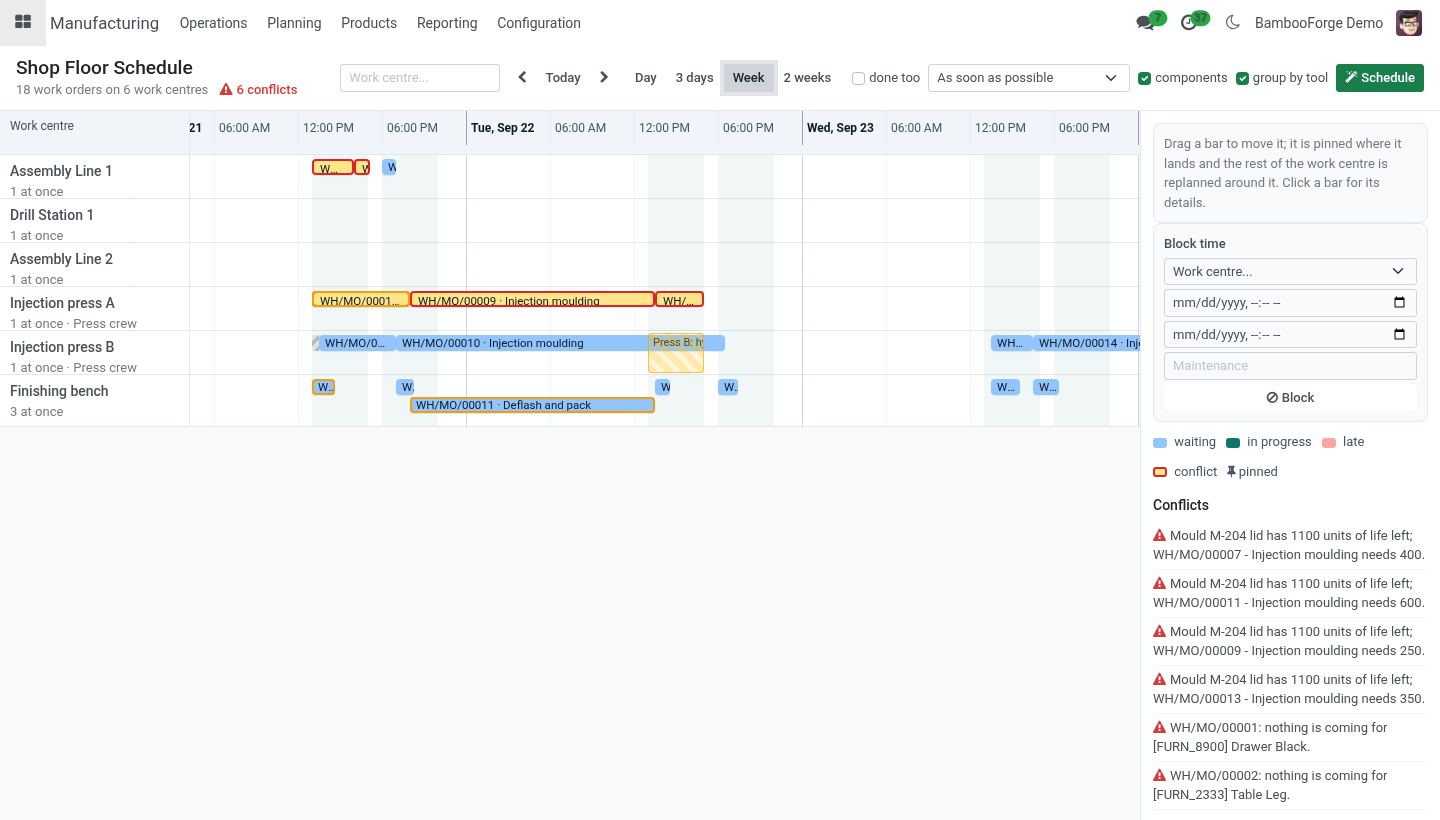
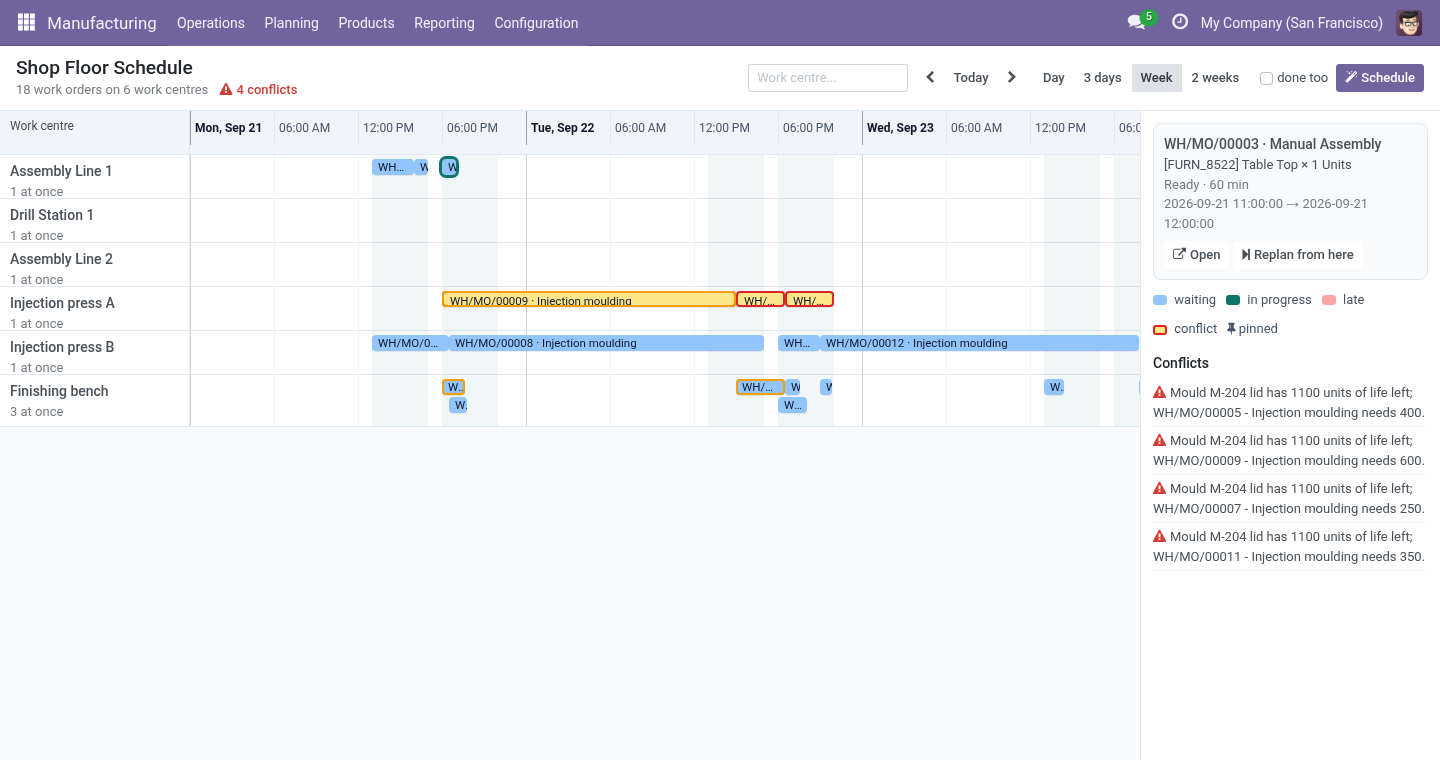
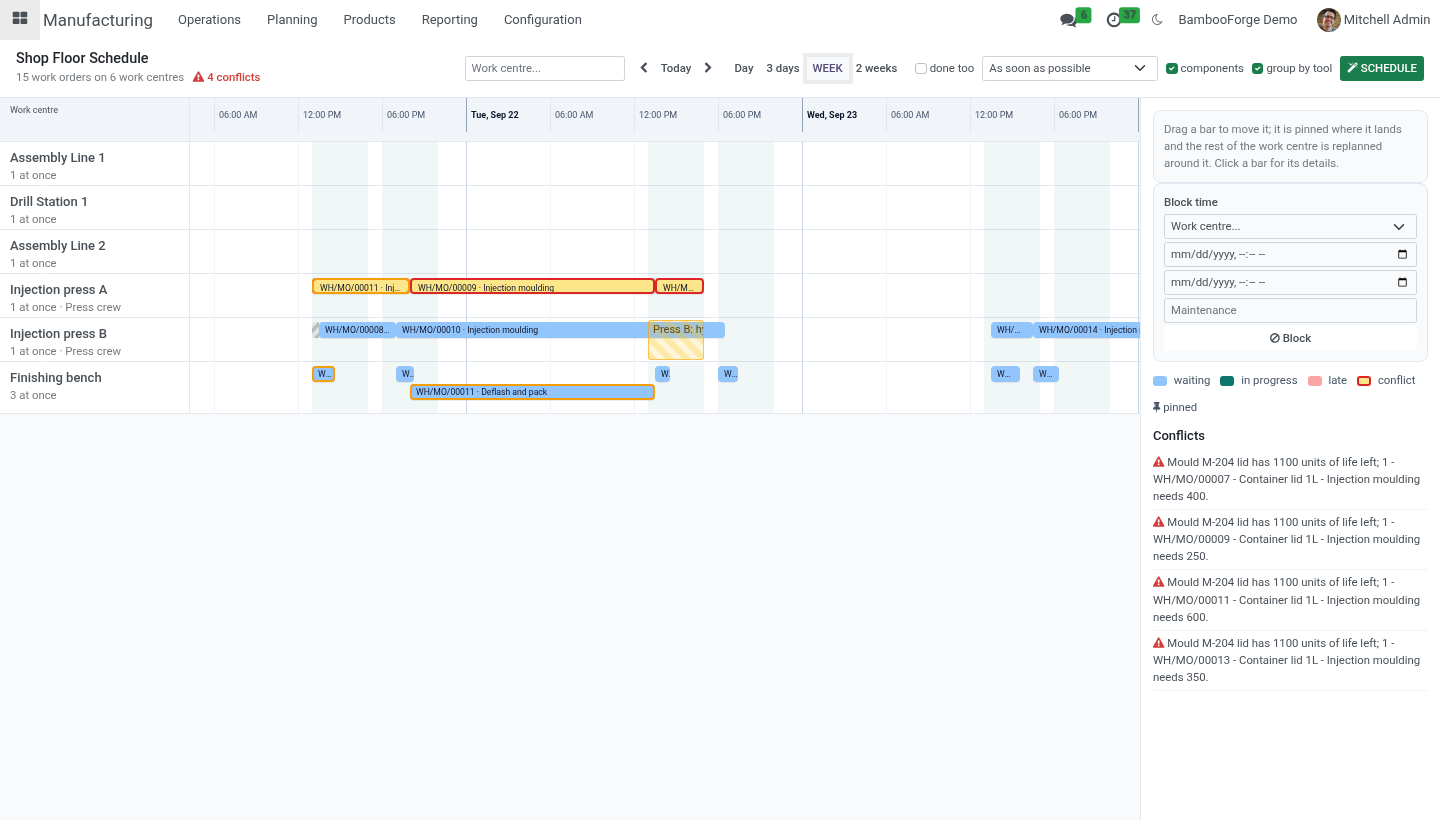
A Gantt by the hour: rows per work centre, the calendar shaded, the current moment marked; day, three-day, week and fortnight views.
Drag to move: a work order dragged keeps its duration, snaps to the next working time, is pinned where it landed, and the rest of its work centre is replanned around it.
Replan from here: leave everything planned before a work order alone and replan from it on - after a breakdown, from the work order that stopped.
Tools, moulds and dies with a life in units: put one on an operation and no two work orders hold it at once; every finished work order counts its pieces against the life; when it is due the board says so, and when it is exhausted no work order starts on it until it is serviced.
Components first: an order's first operation waits for its components to arrive; an order nothing is coming for is named.
Changeovers: setting a mould up is planned in front of the work order that needs it, and orders due the same day that use the same mould run one after another.
Just in time: backward from the deadline - the last operation ending at it - forward again when there is no room.
Maintenance blocks: time booked off a machine, drawn on the board and planned around.
Operator crews: machines that share people never run more work orders at once than there are people on shift.
Conflicts named: overlaps beyond capacity, a tool double-booked, a tool past its life, components that will not be there, a crew over its headcount, a work order ending after its order's deadline.
Requirements
Odoo: 20.0, Community or Enterprise, with Manufacturing installed.
Work centres with a working calendar (every work centre has one).
Access: Manufacturing users see the board and the tools; Manufacturing administrators manage tools.
Install
Copy bambooforge_mrp_scheduler into your addons path and restart Odoo.
Apps ▸ Update Apps List, search for Shop Floor Scheduler, Activate.
Manufacturing ▸ Planning ▸ Shop Floor Schedule.
Setting up
Work centres. Manufacturing ▸ Configuration ▸ Work Centers: each one has a working calendar; set Work Orders at Once to how many it really runs side by side (a bench with three people: 3; a press: 1).
Crews. Manufacturing ▸ Configuration ▸ Operator Crews: a crew and how many people are on shift. On each work centre that draws on it, pick the Crew and the Operators per Work Order. Three presses and two operators: the scheduler never runs a third press at the same time.
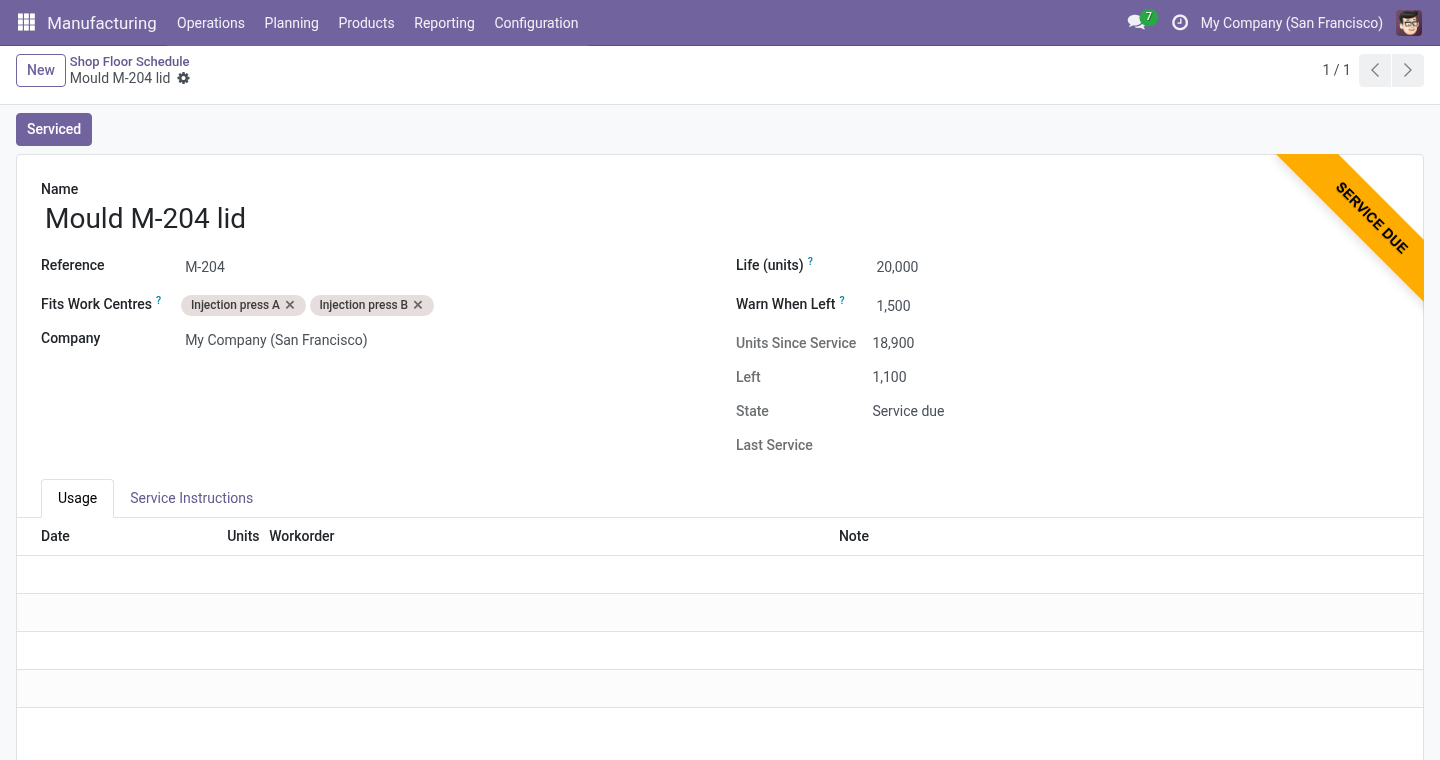
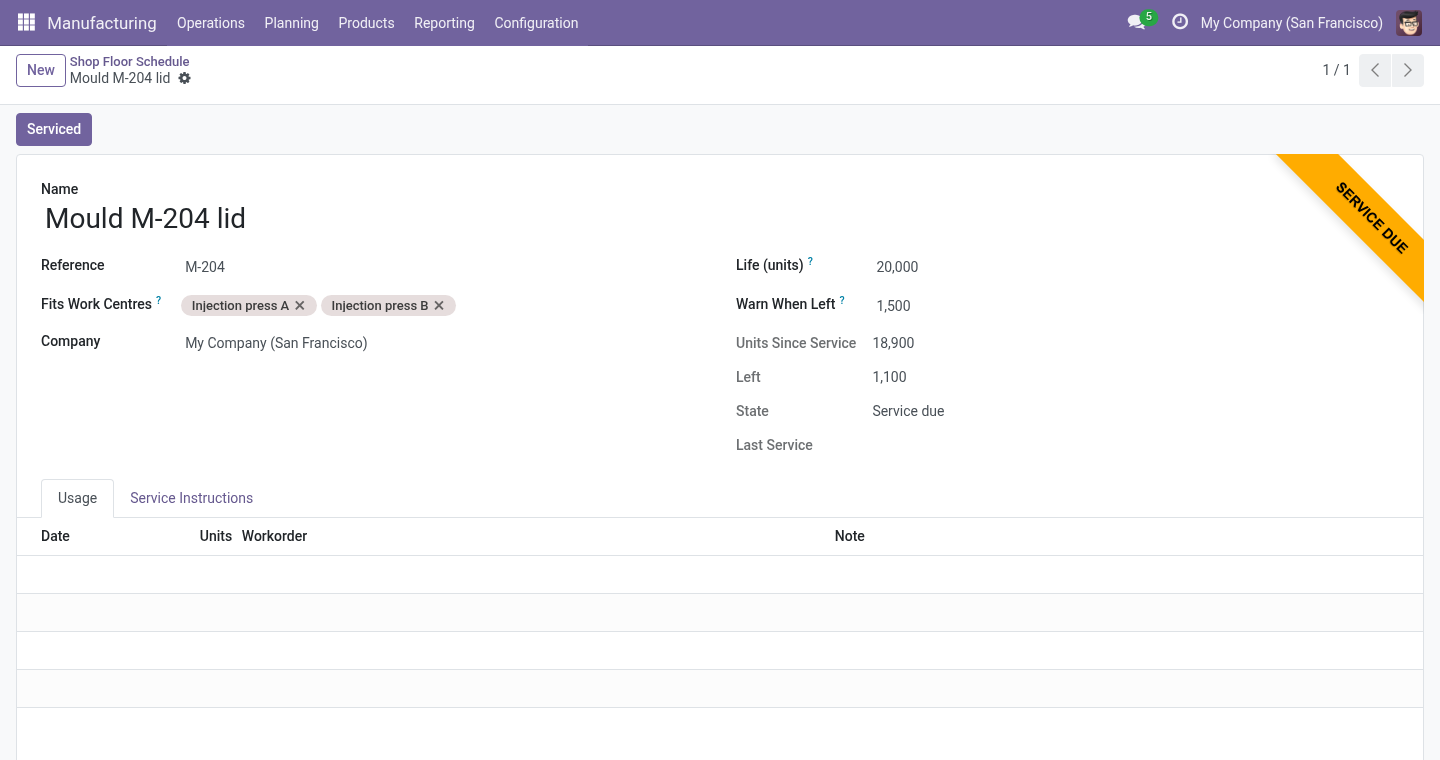
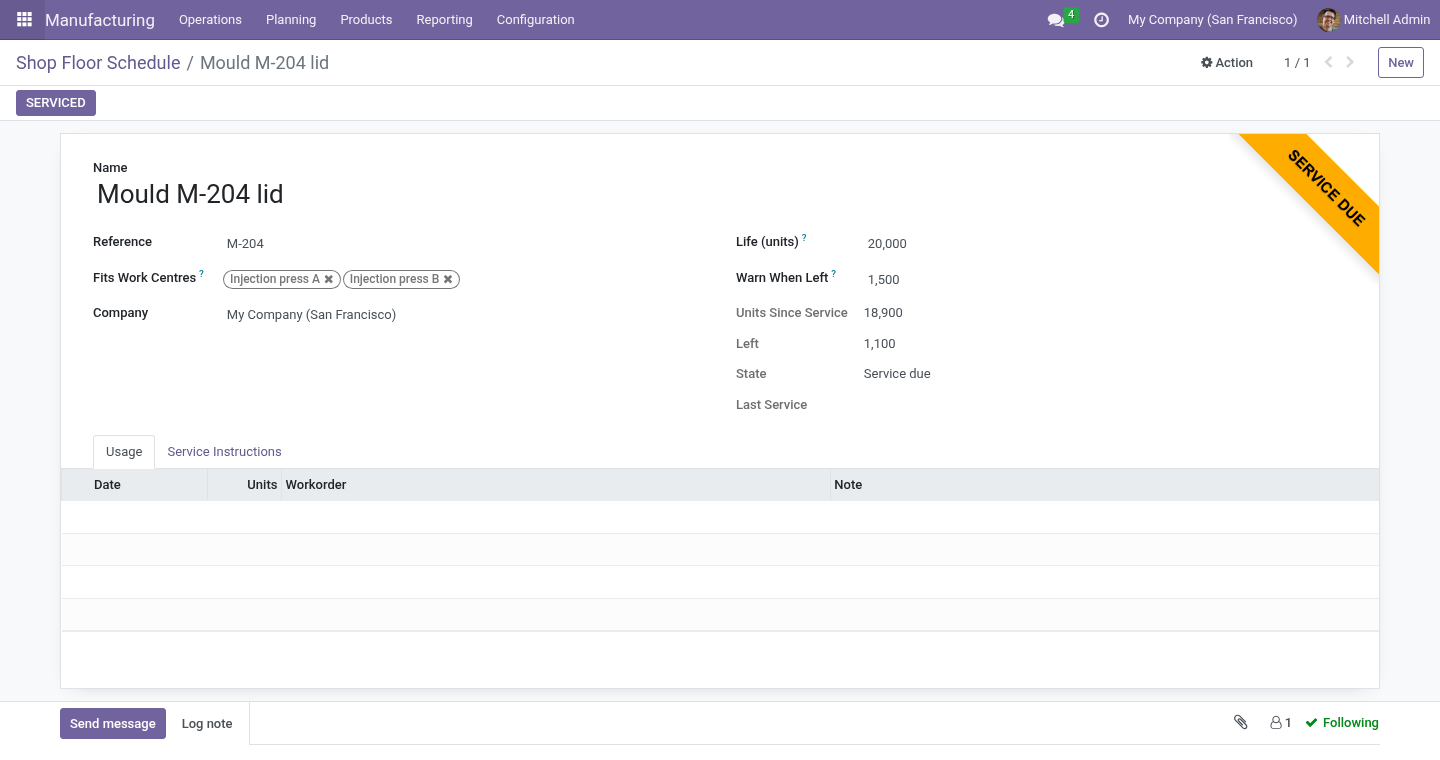
Tools and moulds. Manufacturing ▸ Configuration ▸ Tools and Moulds: a name, the work centres it fits, its life in units (0 for no limit), at how many units left to warn, and its changeover in minutes - the time to set it up on a machine that last ran with another tool. Then open the operation in the bill of materials and pick the tool under Tool / Mould: every work order of that operation holds it.
Planning
Schedule plans every waiting work order of the work centres on the board (or of all of them). A running work order and a pinned one are left where they are and planned around. Three choices sit next to the button:
As soon as possible or Just in time for the deadline. Just in time plans each order backward: its last operation ends at the order's deadline, each operation before it ends where the next begins. An order that would then have to start in the past - or before its components arrive - is planned as soon as possible instead, and shows late if it is. An order without a deadline is always planned as soon as possible.
Components: the first operation of an order does not start before its components are expected - the forecast Odoo keeps from receipts and other orders. An order short of a component nothing is coming for is planned all the same, and named in the result and among the conflicts.
Group by tool: among orders of the same priority due the same day, those whose first operation uses the same tool are planned one after another. A tool's changeover is planned only when the machine last ran with another tool (or when nothing is known of what ran on it); it is drawn as a hatched stretch in front of the bar, and the work order starts once it is over. Work runs over the lunch break and never outside the calendar; a work order longer than the day continues the next morning. The button says how many were planned and names any that could not be placed within ninety days.
Drag a bar left or right: it keeps its duration, lands at the next working time (a Saturday drop lands Monday morning), is pinned, and the rest of that work centre is replanned from that moment. Unpin hands it back to the scheduler.
Replan from here (on the selected work order) leaves everything planned before it untouched and replans from it on - the honest way to absorb a breakdown or a rush order without shuffling the morning.
Schedule Work Centres on a manufacturing order does the same for the work centres that order uses and opens the board.
Block time (beside the board): a work centre, a start, an end and a reason - a service, a trial run. The block is drawn on the row, hatched, and the next Schedule plans around it; the cross on it removes it. Blocks are Odoo's own time off on the work centre's resource, so a block entered from Odoo's resource screens counts the same.
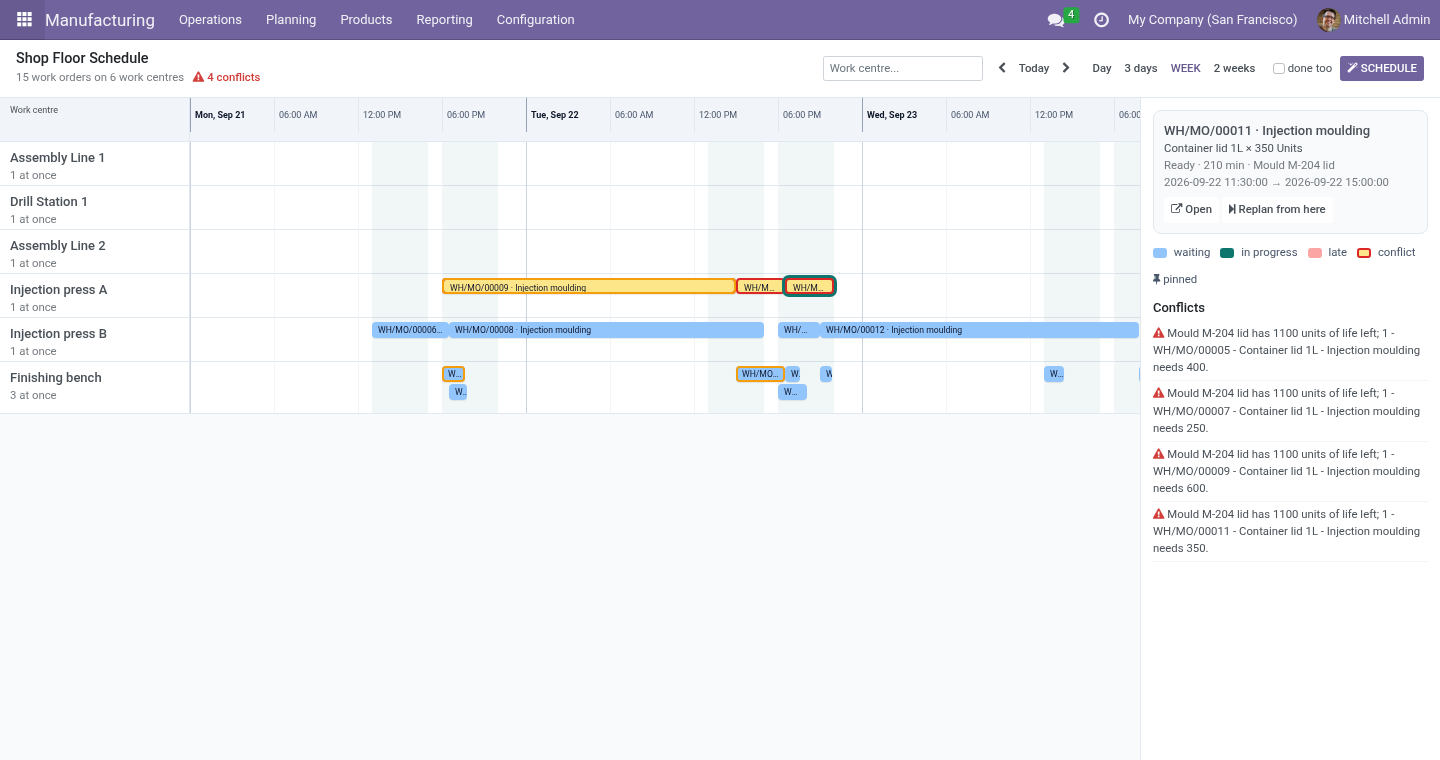
The board shows a work order's manufacturing order, product, quantity, state, duration, tool, planned span and, when it ends after the order's deadline, that it is late. Click a bar for the details; Open goes to the work order.
Conflicts
Listed beside the board, each pointing at its work order:
capacity - more work orders overlap on a work centre than it runs at once (a hand-placed order, or a work order planned by something else);
tool - two work orders hold the same tool at the same time;
tool life - the tool on a work order is due or exhausted;
material - an order's first operation starts before its components are expected, or nothing is coming for one of them;
crew - more operators needed at one moment than the crew has;
late is on the bar itself, red.
Schedule clears the first two; the third needs the tool serviced.
Tool life
When a work order is finished, its produced quantity is added to the tool's units since service and written in the tool's usage log. Below the warn threshold the tool is due; at zero life left it is exhausted and Start on any work order that holds it is refused with the units left and the units needed. Serviced on the tool resets the counter and dates the service.
Limits, stated plainly
Durations are Odoo's own expected durations; the scheduler does not estimate them.
Just in time plans backward from the order's deadline; it does not level the load across days.
The components check reads Odoo's forecast; what the forecast does not know - a late supplier - the board does not know either.
A crew is a headcount, not a roster of named people and their skills.
One tool per operation; a work order needing several tools is not modelled.
Machine signals are not read; a breakdown is entered by hand (block the work centre, or replan from the stopped work order).
Uninstalling
Uninstalling removes the tools, their logs and the pin flags. Work orders keep the dates they had.
Changelog
20.0.1.1.0
Built for Odoo 20: record rules and access rights rewritten onto Odoo 20's single ir.access model, the screens rebuilt on Owl 3, and every icon moved to the icon set Odoo 20 ships.
20.0.1.1.0
Components: the first operation waits for them; missing supply named.
Tool changeover planned in front of the work order; same-tool orders grouped.
Just in time: backward scheduling from the deadline.
Maintenance blocks on the board; operator crews shared by work centres.
An order's start copied back by Odoo from its own work orders no longer holds it where the last run left it.
20.0.1.0.0
First release.
How we make sure it works
Before every release, 16 automated checks run against this app on Odoo 16, 17, 18, 19 and 20. Among them:
A tool is never held twice.
Nothing coming is said.
Work runs over the break and never at night.
A block on a machine without a calendar.
A centre counts what runs at once.
The complete list is in the source you receive.