 BambooForge Labs
Marketing Automation: Email Journeys & Campaigns
Drip campaigns and customer journeys on Odoo Community: audience filters, multi-step email sequences with delays and conditions, goal exits.
Available for Odoo 16.0, Odoo 17.0, Odoo 18.0, Odoo 19.0, Odoo 20.0. Technical name bambooforge_marketing_automation.
Transcript of the walkthrough (Odoo 20)
Marketing Automation: Email Journeys & Campaigns. Drip campaigns and customer journeys on Odoo Community: audience filters, multi-step email sequences with delays and conditions, goal exits. This page is the complete manual. Follow it top to bottom and you can install, launch your first journey, read the statistics and fix the common issues without contacting support.
In the next few minutes: marketing automation: email journeys & campaigns, then how a journey processes a participant, then run test (dry run), then the flow tab, then reporting. Then what this app deliberately does not do, so you can tell before you buy whether it fits. Everything lives under Automation then Journeys then Participants then Sending Log. Marketing Automation: Email Journeys & Campaigns.
This page is the complete manual. Follow it top to bottom and you can install, launch your first journey, read the statistics and fix the common issues without contacting support. How a journey processes a participant. Every 10 minutes the scheduled action Marketing Automation: process journeys handles each running journey: it first enrolls new matching records, then processes every participant whose wait has elapsed (up to 500 per journey per run).
For each due participant, in order: Each journey is processed independently — an error in one journey is logged and rolled back without blocking the others. Editing the flow under running participants is safe too: a participant whose current step was deleted completes instead of hanging, a step that was re-parented mid-flight simply ends that path, and a goal or Only send when filter pointing at a field that no longer exists fails that participant only (logged as Failed) rather than aborting the whole run. Run Test (dry run). Run Test on the journey form takes the first record matching the audience filter, creates a participant flagged as a test and walks it through the entire flow immediately.
It is a dry run: every step is written to the sending log as would send e-mail '…', would send SMS or would run server action — no message is sent, no SMS is queued and no server action executes, so rehearsing a journey can never mail a real customer or modify live records. Test participants are excluded from the journey counters and from the Reporting analyses. The Flow tab. The journey form opens on the Flow tab: the whole step graph as a flowchart.
Root steps hang under the Start node; branch steps hang under their parent with a trigger badge — opened, not opened, clicked, not clicked or A/B split — and every card shows its wait delay and live sent / opened / clicked counters, so you see at a glance where participants flow and where they stop. Click a card to edit that step in a dialog (same fields as the Steps list). “+” under Start adds a new root step; “+” under a card adds a branch of that step (the trigger defaults to if opened for branches). The Steps tab keeps the classic editable list — the canvas and the list edit the same step records, use whichever you prefer.
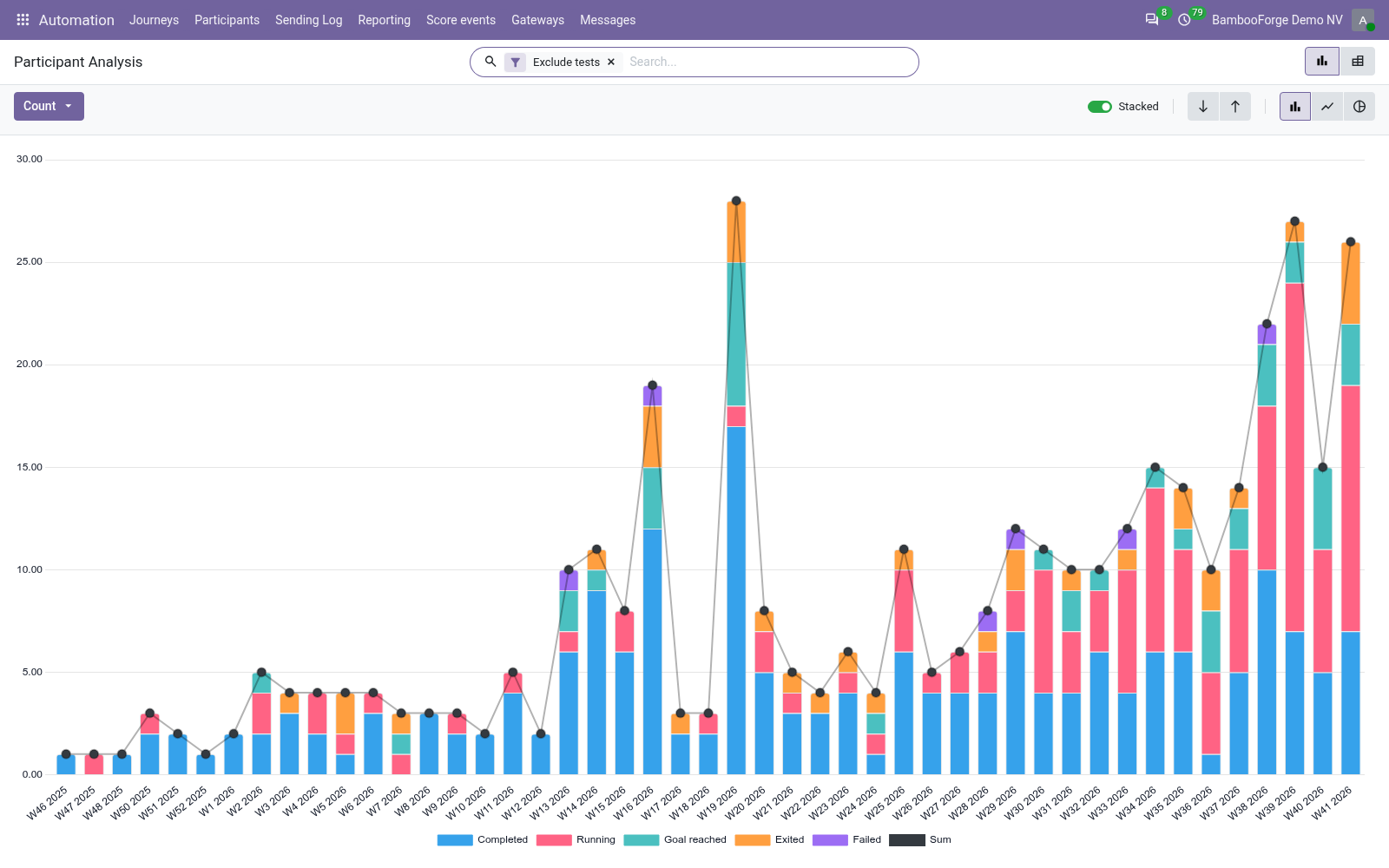
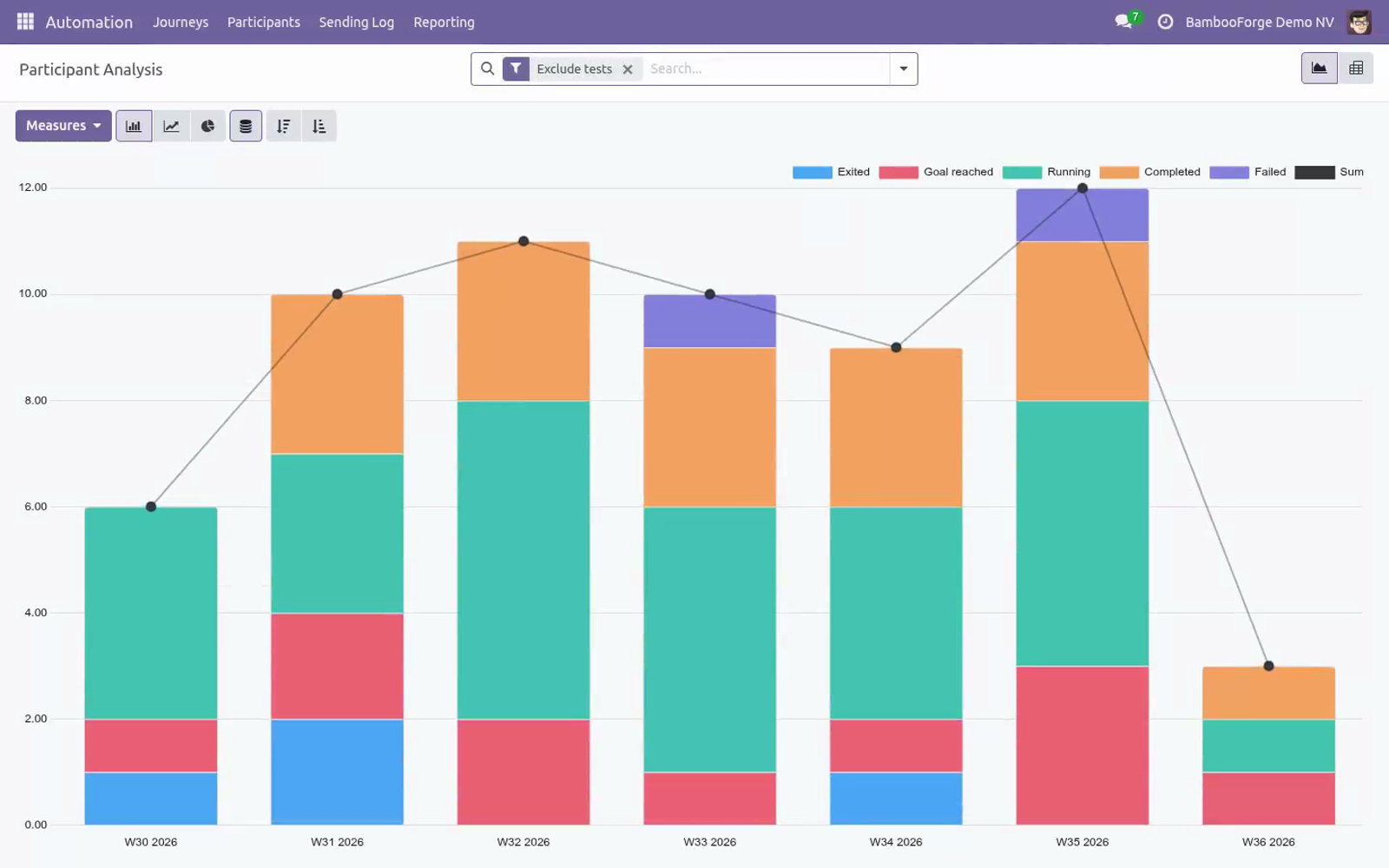
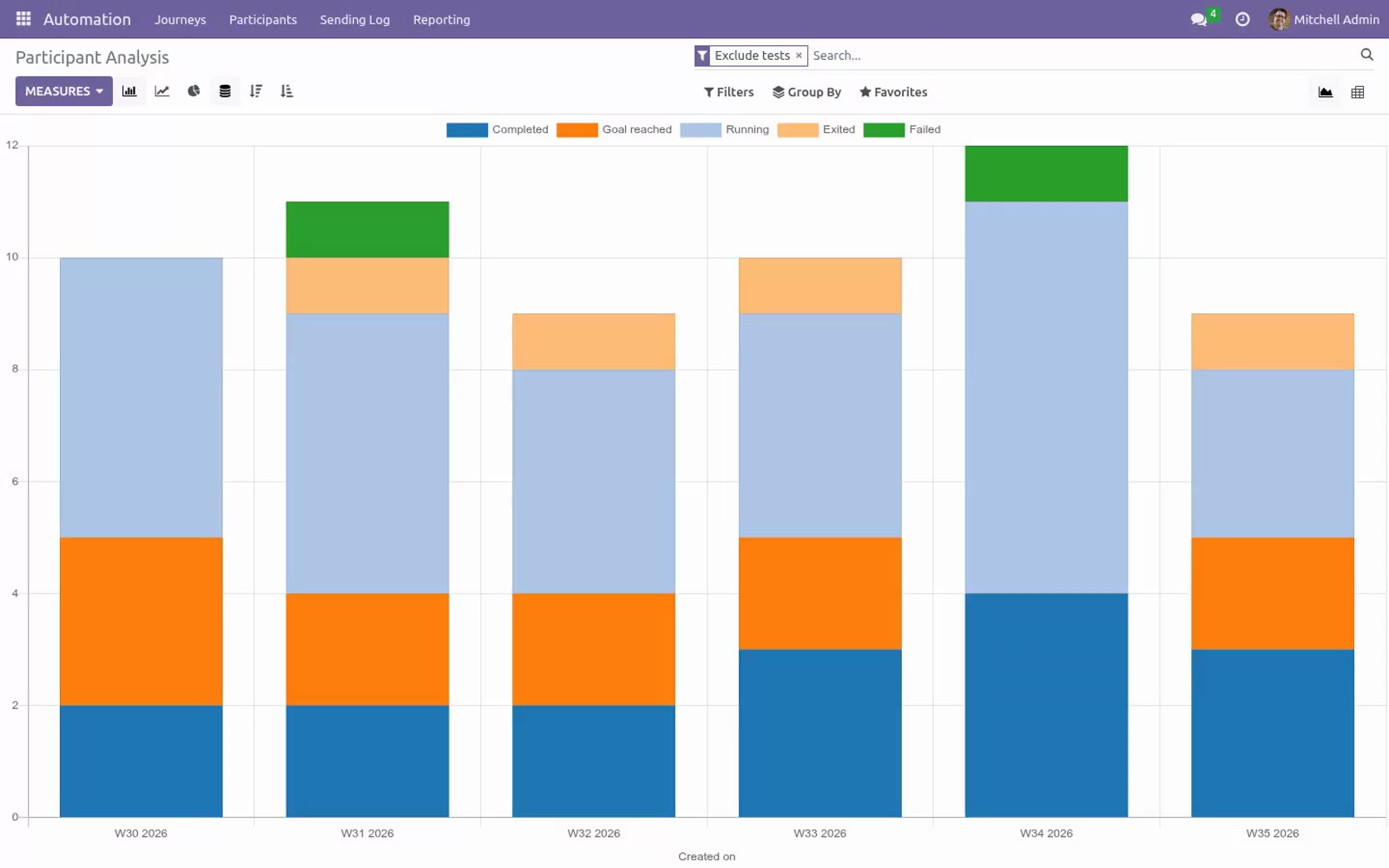
Reporting. Automation ▸ Reporting holds two analyses, each opening as a graph with a pivot one click away: Participants (Participant Analysis) — enrollments by week, stacked by status (running, completed, goal reached, exited, failed). Test-mode participants are excluded by default (remove the Exclude tests filter to see them). Group by journey to compare campaigns.
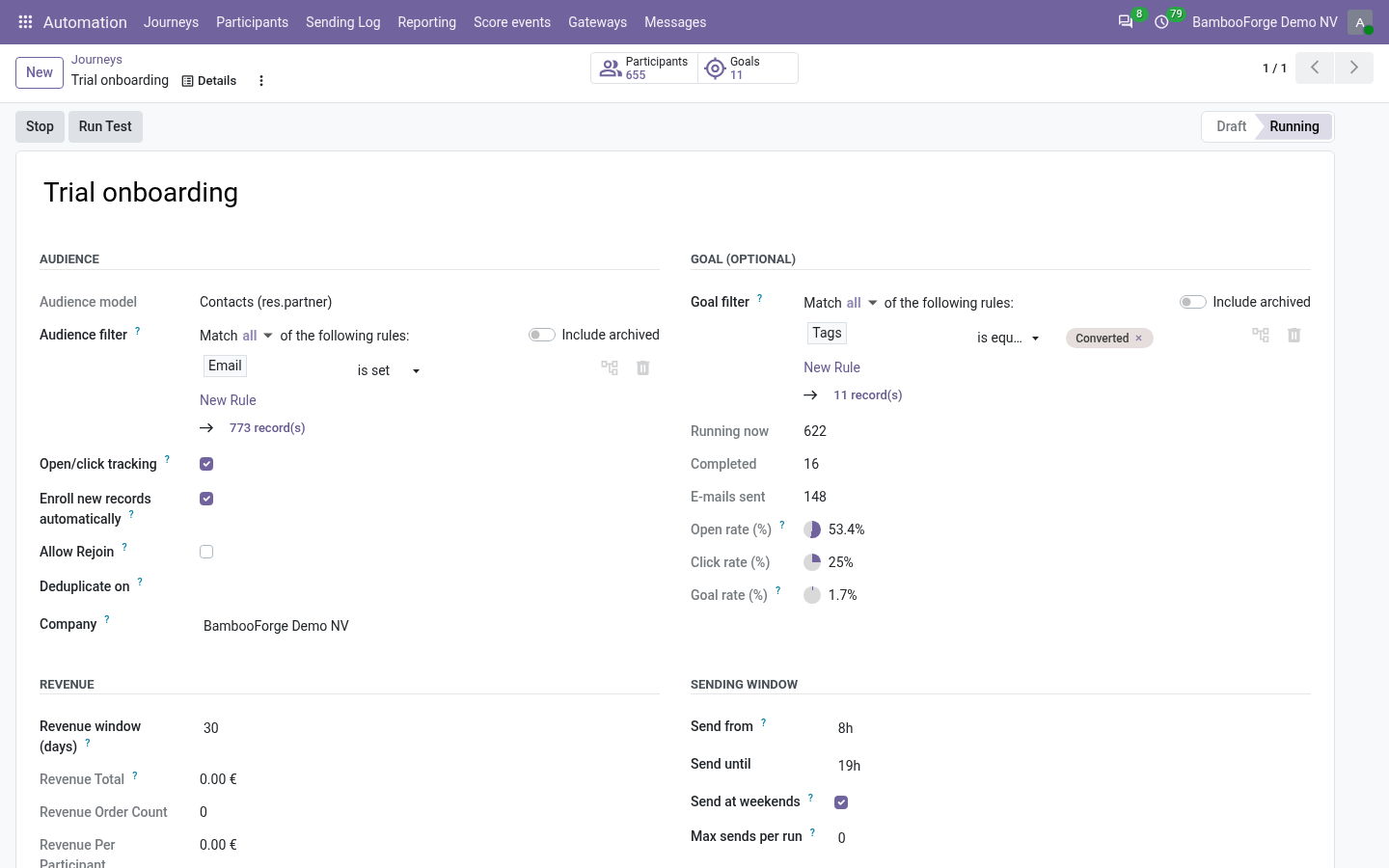
Step Activity (Step Activity Analysis) — every logged trace counted per step and result: sent / skipped / expired / failed — the weak step of a sequence stands out immediately. Filter by journey or group by day to watch a launch. On the journey form itself, three KPIs summarise the funnel: open rate and click rate (opens / clicks over tracked e-mails sent) and goal rate (participants that exited as Goal reached over all participants). Branching, A/B splits and SMS.
To build a branch, add a step and set its After step to the parent (an e-mail step) and its Trigger to if opened, if not opened, if clicked or if not clicked — the trigger is evaluated when the branch becomes due, against the parent's mailing trace for that participant. Give a parent several children with increasing sequences to model if / elif / else: the first child whose trigger matches runs, the others are skipped (logged), and a child with trigger Always at the end acts as the else. After a branch chain finishes, that path ends; participants coming from a root step continue with the next root. An A/B split is a branch with trigger A/B split (runs for a % of participants) and a Variant share (%): assignment is deterministic per record (a hash of journey, parent step and record), so the same record always lands in the same variant and re-processing never flips it.
The rest falls through to the next sibling — typically the B variant with trigger Always. Enrollment. Start enrolls everything matching the filter at that moment. After that, the scan only examines records created since the previous scan (fast, even on big databases) and enrolls the matching ones — switch Enroll new records automatically off for a one-shot, fixed-audience campaign.
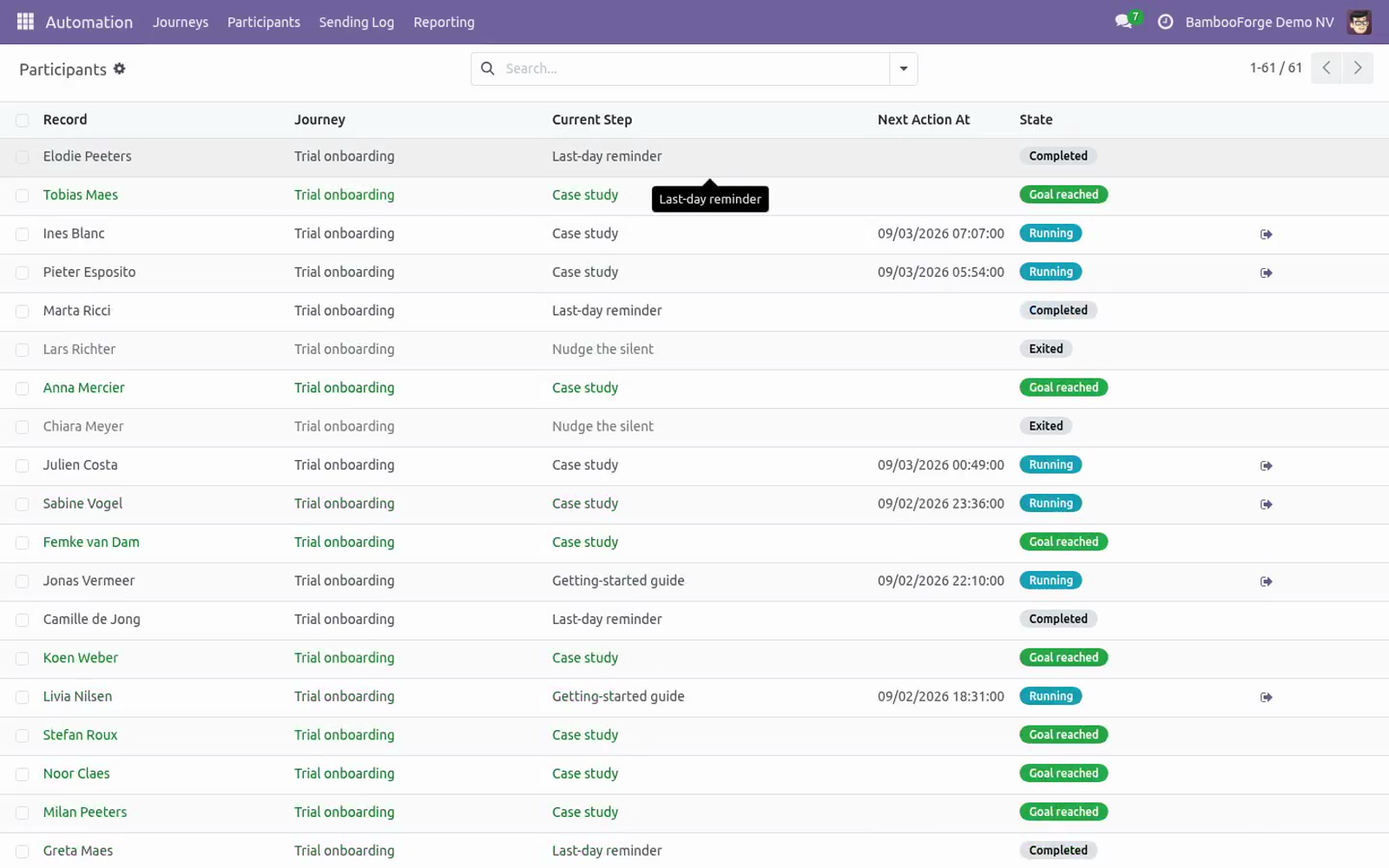
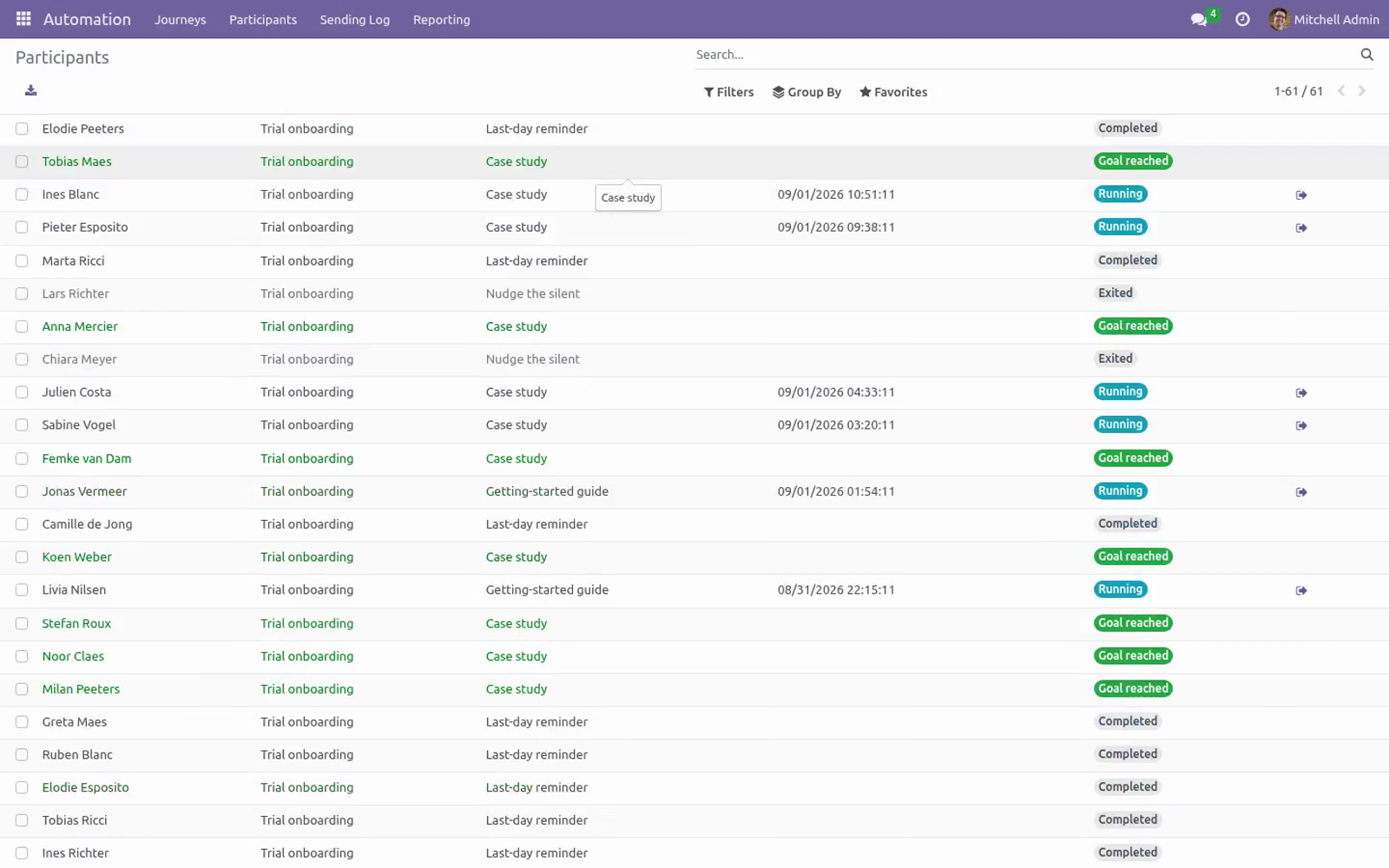
A record already in the journey is never enrolled twice while it is running; with Allow rejoin on, a record that finished the journey may be enrolled again by a later enrollment, otherwise it is excluded for good. Managing participants. Automation ▸ Participants (or the Participants button on the journey) lists every enrolled record with its journey, current step, next action time and state. The Exit journey button removes a running participant from the flow — nothing more is sent to it.
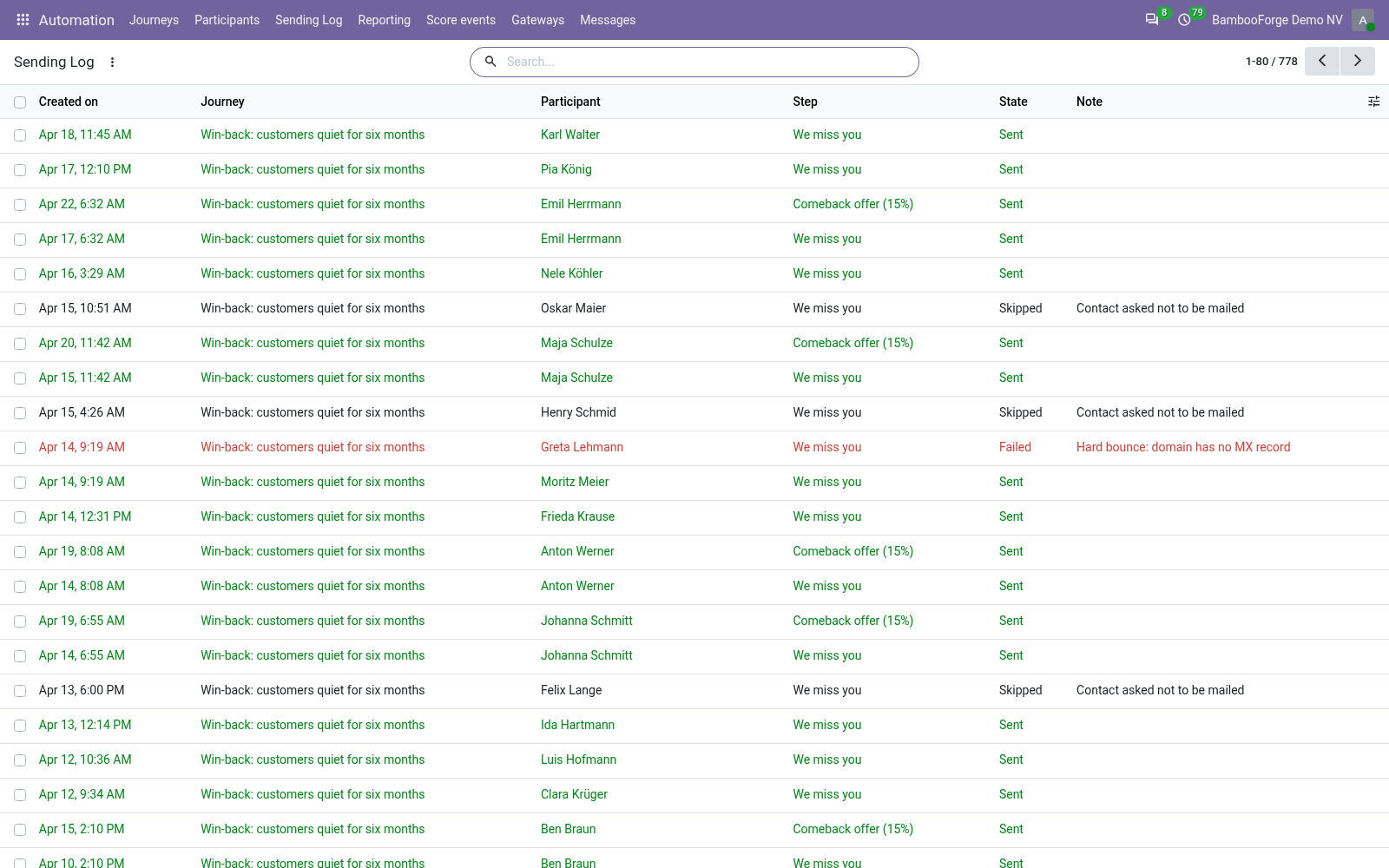
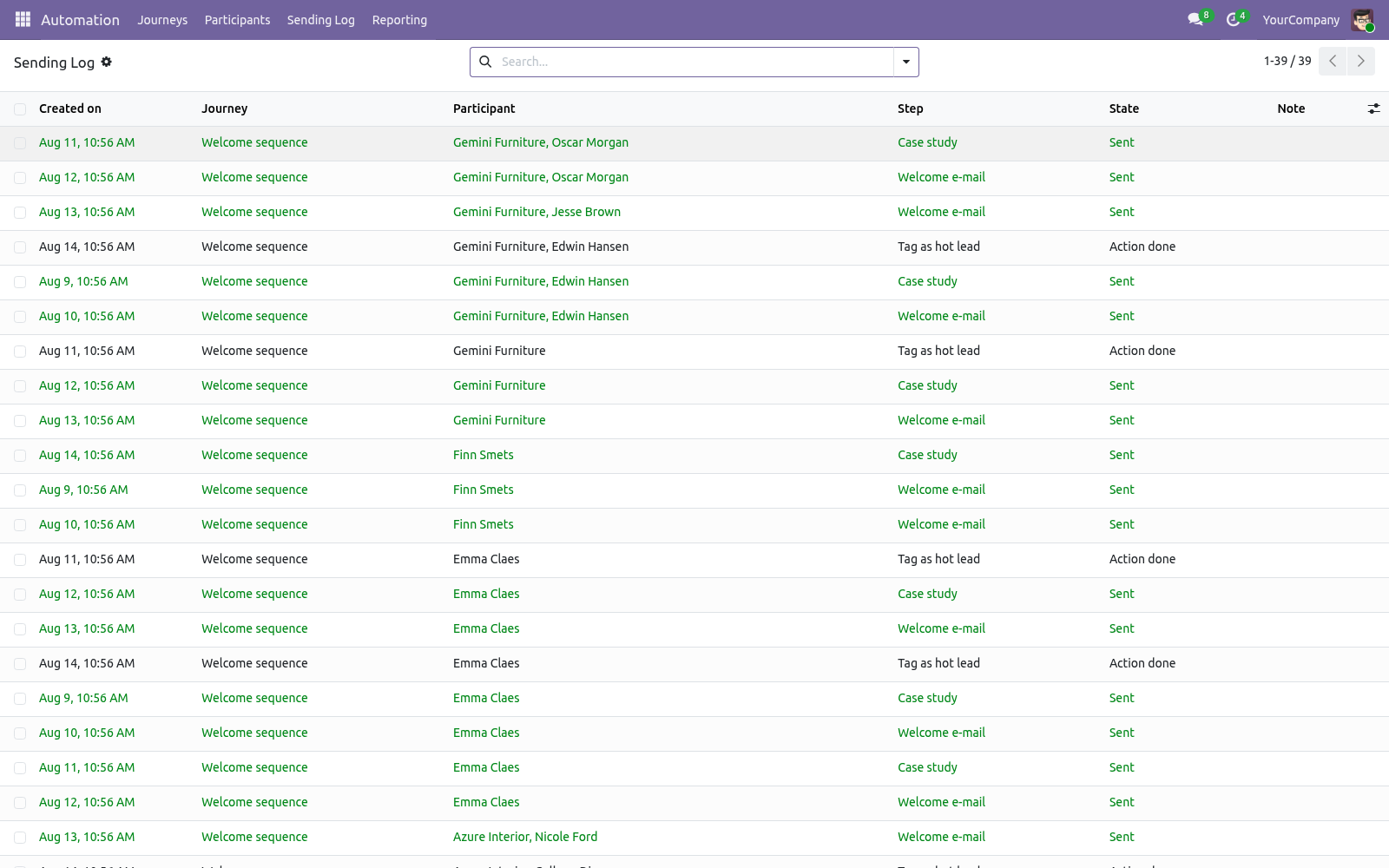
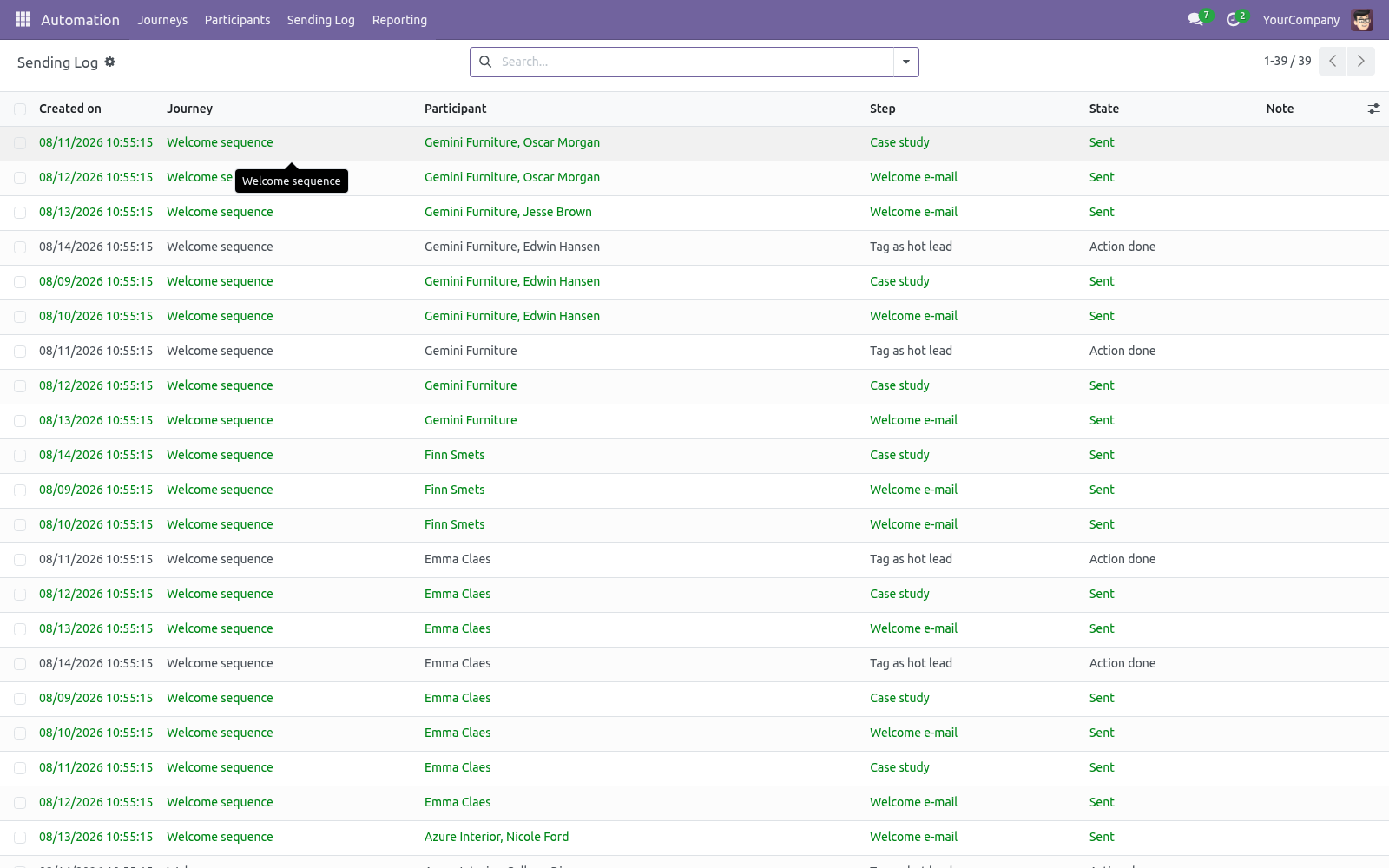
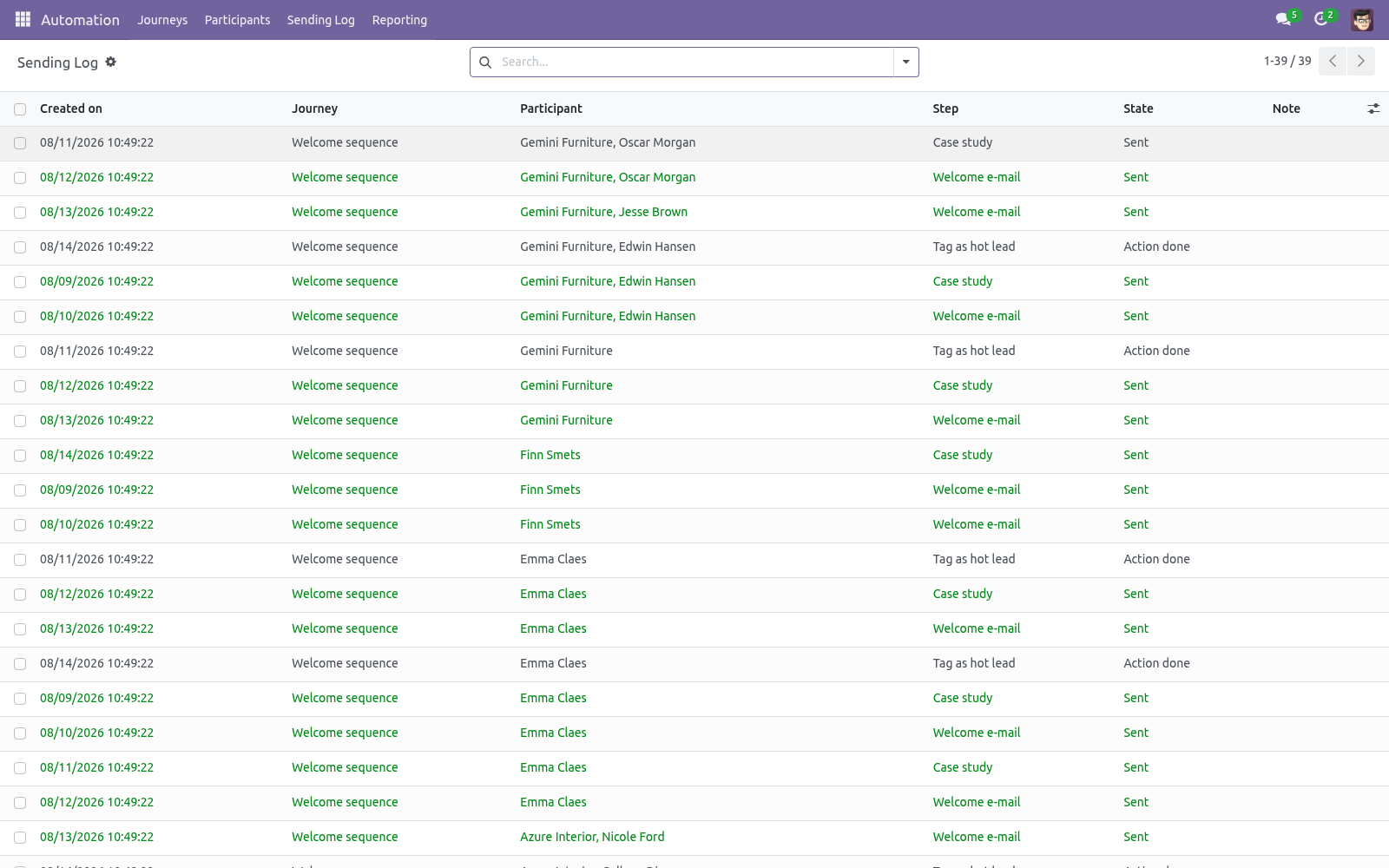
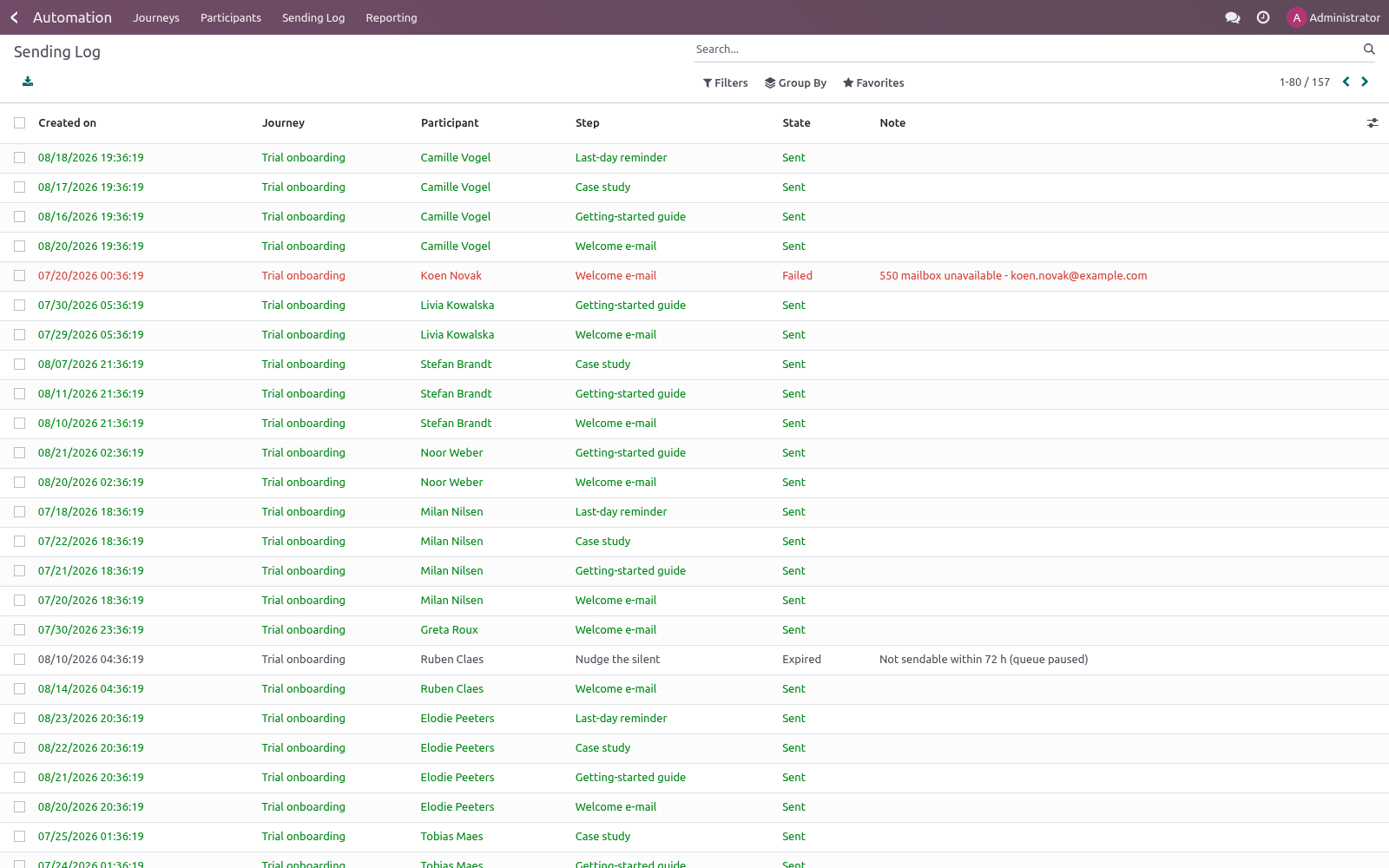
Rows are colour-coded: green for Goal reached, muted for exited/failed. Reading the log. Automation ▸ Sending Log shows every step execution: timestamp, journey, participant, step, state (Sent / Skipped / Failed) and the reason note. Sent traces link to the actual e-mail record, where you can open the rendered message and its delivery state (Settings ▸ Technical ▸ Emails).
Editing a running journey. The audience model is locked once the journey leaves Draft. For other changes, the safe procedure is Stop → edit → Start: stopping pauses enrollment and sending without losing any participant, and restarting resumes where things stood (plus a fresh enrollment pass over the audience). The complete manual is at docs dot bambooforge dot dev, the demo database is linked from the store page, and support answers within twenty-four hours.
Links are in the description.
Transcript of the walkthrough (Odoo 19)
Marketing Automation: Email Journeys & Campaigns. Drip campaigns and customer journeys on Odoo Community: audience filters, multi-step email sequences with delays and conditions, goal exits. This page is the complete manual. Follow it top to bottom and you can install, launch your first journey, read the statistics and fix the common issues without contacting support.
In the next few minutes: marketing automation: email journeys & campaigns, then how a journey processes a participant, then run test (dry run), then the flow tab, then reporting. Then what this app deliberately does not do, so you can tell before you buy whether it fits. Everything lives under Automation then Journeys then Participants then Sending Log. Marketing Automation: Email Journeys & Campaigns.
This page is the complete manual. Follow it top to bottom and you can install, launch your first journey, read the statistics and fix the common issues without contacting support. How a journey processes a participant. Every 10 minutes the scheduled action Marketing Automation: process journeys handles each running journey: it first enrolls new matching records, then processes every participant whose wait has elapsed (up to 500 per journey per run).
For each due participant, in order: Each journey is processed independently — an error in one journey is logged and rolled back without blocking the others. Editing the flow under running participants is safe too: a participant whose current step was deleted completes instead of hanging, a step that was re-parented mid-flight simply ends that path, and a goal or Only send when filter pointing at a field that no longer exists fails that participant only (logged as Failed) rather than aborting the whole run. Run Test (dry run). Run Test on the journey form takes the first record matching the audience filter, creates a participant flagged as a test and walks it through the entire flow immediately.
It is a dry run: every step is written to the sending log as would send e-mail '…', would send SMS or would run server action — no message is sent, no SMS is queued and no server action executes, so rehearsing a journey can never mail a real customer or modify live records. Test participants are excluded from the journey counters and from the Reporting analyses. The Flow tab. The journey form opens on the Flow tab: the whole step graph as a flowchart.
Root steps hang under the Start node; branch steps hang under their parent with a trigger badge — opened, not opened, clicked, not clicked or A/B split — and every card shows its wait delay and live sent / opened / clicked counters, so you see at a glance where participants flow and where they stop. Click a card to edit that step in a dialog (same fields as the Steps list). “+” under Start adds a new root step; “+” under a card adds a branch of that step (the trigger defaults to if opened for branches). The Steps tab keeps the classic editable list — the canvas and the list edit the same step records, use whichever you prefer.
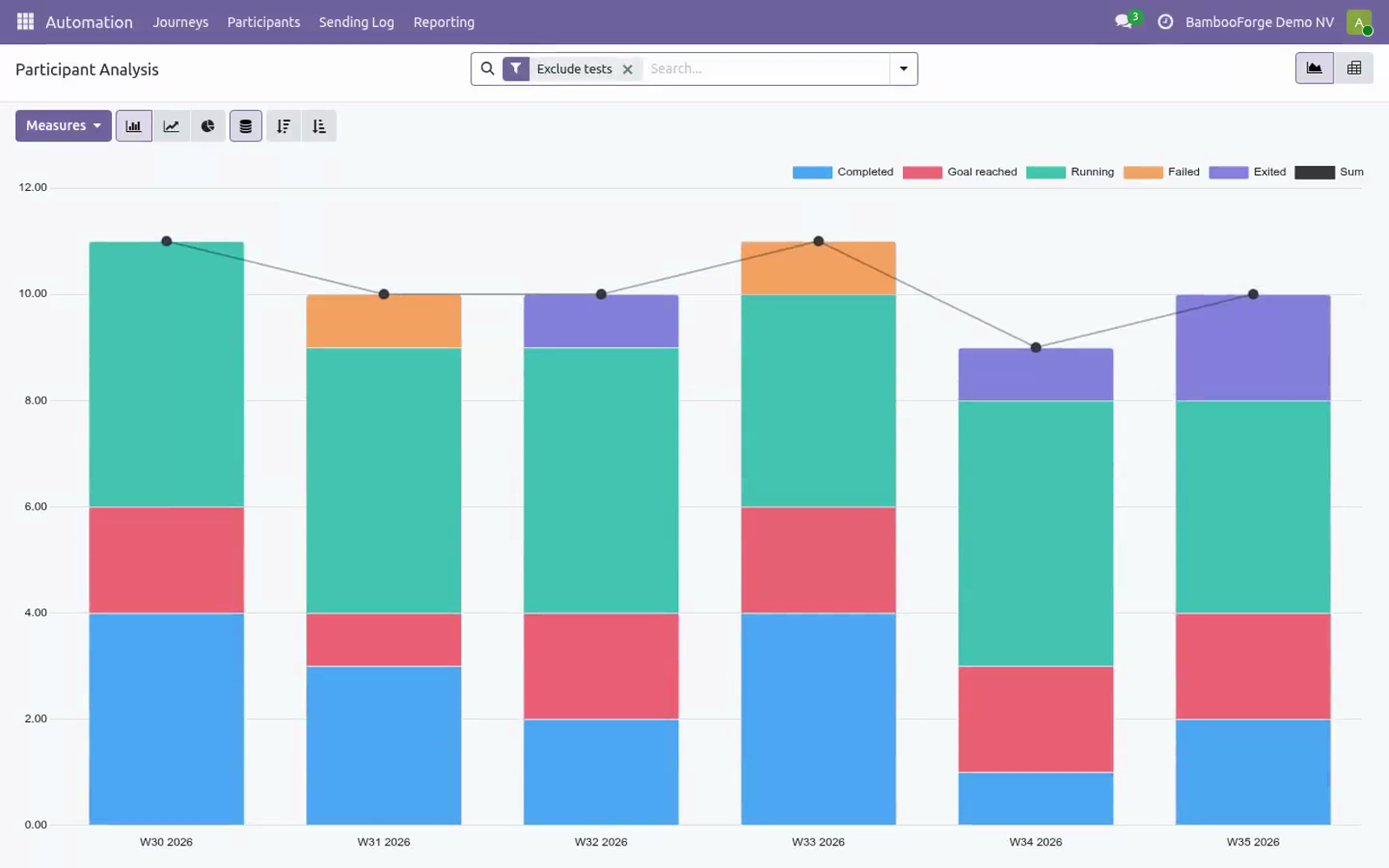
Reporting. Automation ▸ Reporting holds two analyses, each opening as a graph with a pivot one click away: Participants (Participant Analysis) — enrollments by week, stacked by status (running, completed, goal reached, exited, failed). Test-mode participants are excluded by default (remove the Exclude tests filter to see them). Group by journey to compare campaigns.
Step Activity (Step Activity Analysis) — every logged trace counted per step and result: sent / skipped / expired / failed — the weak step of a sequence stands out immediately. Filter by journey or group by day to watch a launch. On the journey form itself, three KPIs summarise the funnel: open rate and click rate (opens / clicks over tracked e-mails sent) and goal rate (participants that exited as Goal reached over all participants). Branching, A/B splits and SMS.
To build a branch, add a step and set its After step to the parent (an e-mail step) and its Trigger to if opened, if not opened, if clicked or if not clicked — the trigger is evaluated when the branch becomes due, against the parent's mailing trace for that participant. Give a parent several children with increasing sequences to model if / elif / else: the first child whose trigger matches runs, the others are skipped (logged), and a child with trigger Always at the end acts as the else. After a branch chain finishes, that path ends; participants coming from a root step continue with the next root. An A/B split is a branch with trigger A/B split (runs for a % of participants) and a Variant share (%): assignment is deterministic per record (a hash of journey, parent step and record), so the same record always lands in the same variant and re-processing never flips it.
The rest falls through to the next sibling — typically the B variant with trigger Always. Enrollment. Start enrolls everything matching the filter at that moment. After that, the scan only examines records created since the previous scan (fast, even on big databases) and enrolls the matching ones — switch Enroll new records automatically off for a one-shot, fixed-audience campaign.
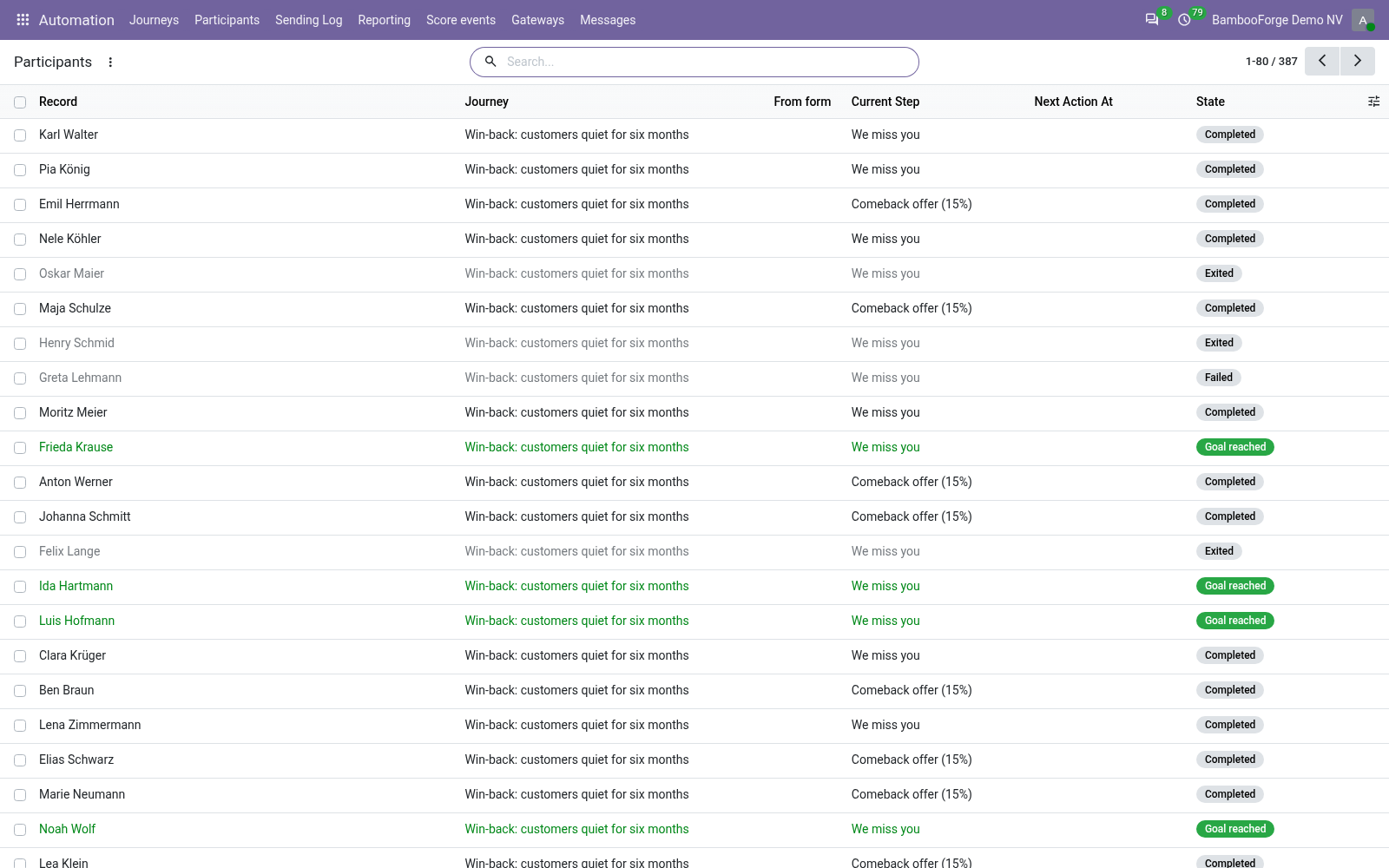
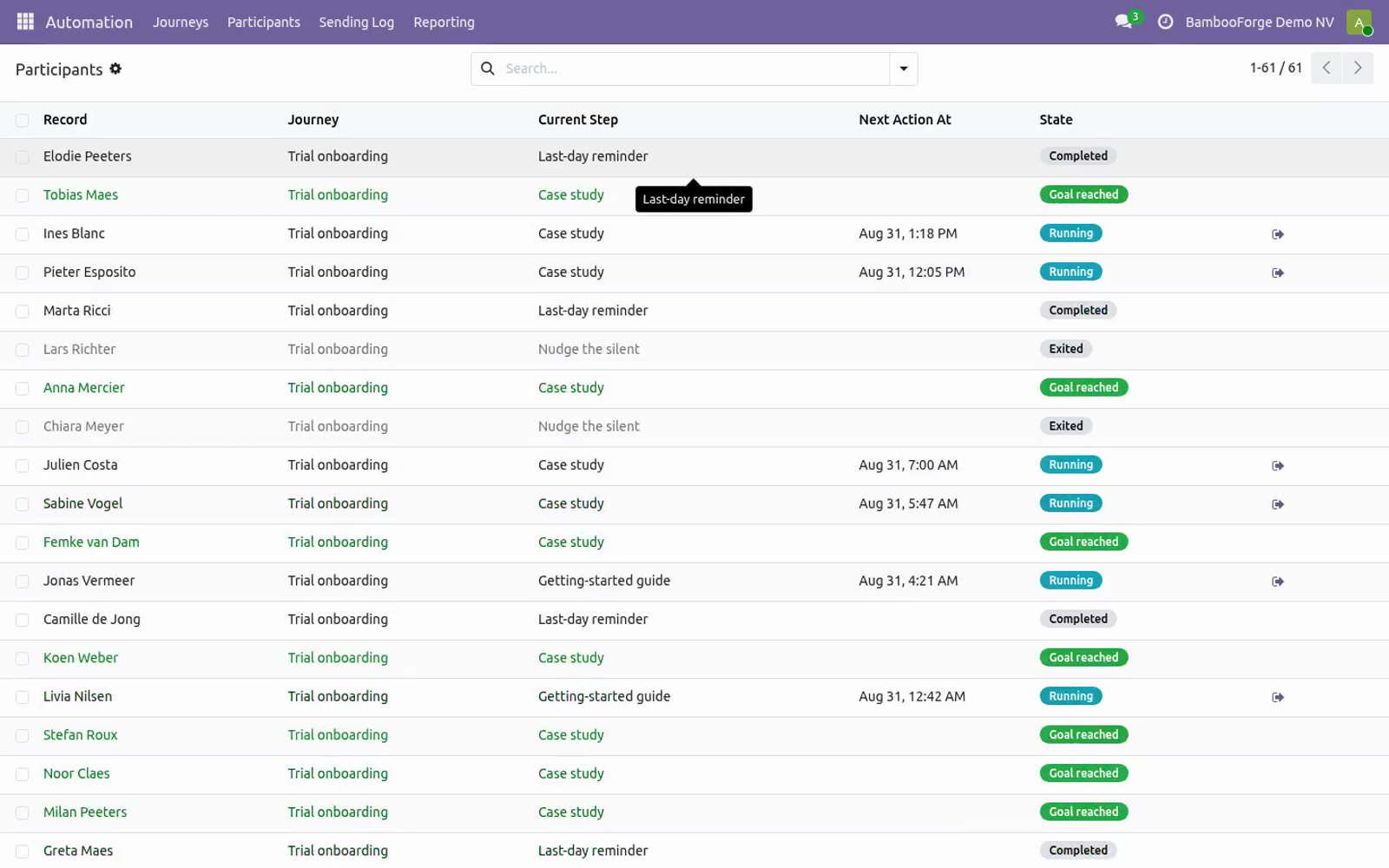
A record already in the journey is never enrolled twice while it is running; with Allow rejoin on, a record that finished the journey may be enrolled again by a later enrollment, otherwise it is excluded for good. Managing participants. Automation ▸ Participants (or the Participants button on the journey) lists every enrolled record with its journey, current step, next action time and state. The Exit journey button removes a running participant from the flow — nothing more is sent to it.
Rows are colour-coded: green for Goal reached, muted for exited/failed. Reading the log. Automation ▸ Sending Log shows every step execution: timestamp, journey, participant, step, state (Sent / Skipped / Failed) and the reason note. Sent traces link to the actual e-mail record, where you can open the rendered message and its delivery state (Settings ▸ Technical ▸ Emails).
Editing a running journey. The audience model is locked once the journey leaves Draft. For other changes, the safe procedure is Stop → edit → Start: stopping pauses enrollment and sending without losing any participant, and restarting resumes where things stood (plus a fresh enrollment pass over the audience). The complete manual is at docs dot bambooforge dot dev, the demo database is linked from the store page, and support answers within twenty-four hours.
Links are in the description.
Transcript of the walkthrough (Odoo 18)
Marketing Automation: Email Journeys & Campaigns. Drip campaigns and customer journeys on Odoo Community: audience filters, multi-step email sequences with delays and conditions, goal exits. This page is the complete manual. Follow it top to bottom and you can install, launch your first journey, read the statistics and fix the common issues without contacting support.
In the next few minutes: marketing automation: email journeys & campaigns, then how a journey processes a participant, then run test (dry run), then the flow tab, then reporting. Then what this app deliberately does not do, so you can tell before you buy whether it fits. Everything lives under Automation then Journeys then Participants then Sending Log. Marketing Automation: Email Journeys & Campaigns.
This page is the complete manual. Follow it top to bottom and you can install, launch your first journey, read the statistics and fix the common issues without contacting support. How a journey processes a participant. Every 10 minutes the scheduled action Marketing Automation: process journeys handles each running journey: it first enrolls new matching records, then processes every participant whose wait has elapsed (up to 500 per journey per run).
For each due participant, in order: Each journey is processed independently — an error in one journey is logged and rolled back without blocking the others. Editing the flow under running participants is safe too: a participant whose current step was deleted completes instead of hanging, a step that was re-parented mid-flight simply ends that path, and a goal or Only send when filter pointing at a field that no longer exists fails that participant only (logged as Failed) rather than aborting the whole run. Run Test (dry run). Run Test on the journey form takes the first record matching the audience filter, creates a participant flagged as a test and walks it through the entire flow immediately.
It is a dry run: every step is written to the sending log as would send e-mail '…', would send SMS or would run server action — no message is sent, no SMS is queued and no server action executes, so rehearsing a journey can never mail a real customer or modify live records. Test participants are excluded from the journey counters and from the Reporting analyses. The Flow tab. The journey form opens on the Flow tab: the whole step graph as a flowchart.
Root steps hang under the Start node; branch steps hang under their parent with a trigger badge — opened, not opened, clicked, not clicked or A/B split — and every card shows its wait delay and live sent / opened / clicked counters, so you see at a glance where participants flow and where they stop. Click a card to edit that step in a dialog (same fields as the Steps list). “+” under Start adds a new root step; “+” under a card adds a branch of that step (the trigger defaults to if opened for branches). The Steps tab keeps the classic editable list — the canvas and the list edit the same step records, use whichever you prefer.
Reporting. Automation ▸ Reporting holds two analyses, each opening as a graph with a pivot one click away: Participants (Participant Analysis) — enrollments by week, stacked by status (running, completed, goal reached, exited, failed). Test-mode participants are excluded by default (remove the Exclude tests filter to see them). Group by journey to compare campaigns.
Step Activity (Step Activity Analysis) — every logged trace counted per step and result: sent / skipped / expired / failed — the weak step of a sequence stands out immediately. Filter by journey or group by day to watch a launch. On the journey form itself, three KPIs summarise the funnel: open rate and click rate (opens / clicks over tracked e-mails sent) and goal rate (participants that exited as Goal reached over all participants). Branching, A/B splits and SMS.
To build a branch, add a step and set its After step to the parent (an e-mail step) and its Trigger to if opened, if not opened, if clicked or if not clicked — the trigger is evaluated when the branch becomes due, against the parent's mailing trace for that participant. Give a parent several children with increasing sequences to model if / elif / else: the first child whose trigger matches runs, the others are skipped (logged), and a child with trigger Always at the end acts as the else. After a branch chain finishes, that path ends; participants coming from a root step continue with the next root. An A/B split is a branch with trigger A/B split (runs for a % of participants) and a Variant share (%): assignment is deterministic per record (a hash of journey, parent step and record), so the same record always lands in the same variant and re-processing never flips it.
The rest falls through to the next sibling — typically the B variant with trigger Always. Enrollment. Start enrolls everything matching the filter at that moment. After that, the scan only examines records created since the previous scan (fast, even on big databases) and enrolls the matching ones — switch Enroll new records automatically off for a one-shot, fixed-audience campaign.
A record already in the journey is never enrolled twice while it is running; with Allow rejoin on, a record that finished the journey may be enrolled again by a later enrollment, otherwise it is excluded for good. Managing participants. Automation ▸ Participants (or the Participants button on the journey) lists every enrolled record with its journey, current step, next action time and state. The Exit journey button removes a running participant from the flow — nothing more is sent to it.
Rows are colour-coded: green for Goal reached, muted for exited/failed. Reading the log. Automation ▸ Sending Log shows every step execution: timestamp, journey, participant, step, state (Sent / Skipped / Failed) and the reason note. Sent traces link to the actual e-mail record, where you can open the rendered message and its delivery state (Settings ▸ Technical ▸ Emails).
Editing a running journey. The audience model is locked once the journey leaves Draft. For other changes, the safe procedure is Stop → edit → Start: stopping pauses enrollment and sending without losing any participant, and restarting resumes where things stood (plus a fresh enrollment pass over the audience). The complete manual is at docs dot bambooforge dot dev, the demo database is linked from the store page, and support answers within twenty-four hours.
Links are in the description.
Transcript of the walkthrough (Odoo 17)
Marketing Automation: Email Journeys & Campaigns. Drip campaigns and customer journeys on Odoo Community: audience filters, multi-step email sequences with delays and conditions, goal exits. This page is the complete manual. Follow it top to bottom and you can install, launch your first journey, read the statistics and fix the common issues without contacting support.
In the next few minutes: marketing automation: email journeys & campaigns, then how a journey processes a participant, then run test (dry run), then the flow tab, then reporting. Then what this app deliberately does not do, so you can tell before you buy whether it fits. Everything lives under Automation then Journeys then Participants then Sending Log. Marketing Automation: Email Journeys & Campaigns.
This page is the complete manual. Follow it top to bottom and you can install, launch your first journey, read the statistics and fix the common issues without contacting support. How a journey processes a participant. Every 10 minutes the scheduled action Marketing Automation: process journeys handles each running journey: it first enrolls new matching records, then processes every participant whose wait has elapsed (up to 500 per journey per run).
For each due participant, in order: Each journey is processed independently — an error in one journey is logged and rolled back without blocking the others. Editing the flow under running participants is safe too: a participant whose current step was deleted completes instead of hanging, a step that was re-parented mid-flight simply ends that path, and a goal or Only send when filter pointing at a field that no longer exists fails that participant only (logged as Failed) rather than aborting the whole run. Run Test (dry run). Run Test on the journey form takes the first record matching the audience filter, creates a participant flagged as a test and walks it through the entire flow immediately.
It is a dry run: every step is written to the sending log as would send e-mail '…', would send SMS or would run server action — no message is sent, no SMS is queued and no server action executes, so rehearsing a journey can never mail a real customer or modify live records. Test participants are excluded from the journey counters and from the Reporting analyses. The Flow tab. The journey form opens on the Flow tab: the whole step graph as a flowchart.
Root steps hang under the Start node; branch steps hang under their parent with a trigger badge — opened, not opened, clicked, not clicked or A/B split — and every card shows its wait delay and live sent / opened / clicked counters, so you see at a glance where participants flow and where they stop. Click a card to edit that step in a dialog (same fields as the Steps list). “+” under Start adds a new root step; “+” under a card adds a branch of that step (the trigger defaults to if opened for branches). The Steps tab keeps the classic editable list — the canvas and the list edit the same step records, use whichever you prefer.
Reporting. Automation ▸ Reporting holds two analyses, each opening as a graph with a pivot one click away: Participants (Participant Analysis) — enrollments by week, stacked by status (running, completed, goal reached, exited, failed). Test-mode participants are excluded by default (remove the Exclude tests filter to see them). Group by journey to compare campaigns.
Step Activity (Step Activity Analysis) — every logged trace counted per step and result: sent / skipped / expired / failed — the weak step of a sequence stands out immediately. Filter by journey or group by day to watch a launch. On the journey form itself, three KPIs summarise the funnel: open rate and click rate (opens / clicks over tracked e-mails sent) and goal rate (participants that exited as Goal reached over all participants). Branching, A/B splits and SMS.
To build a branch, add a step and set its After step to the parent (an e-mail step) and its Trigger to if opened, if not opened, if clicked or if not clicked — the trigger is evaluated when the branch becomes due, against the parent's mailing trace for that participant. Give a parent several children with increasing sequences to model if / elif / else: the first child whose trigger matches runs, the others are skipped (logged), and a child with trigger Always at the end acts as the else. After a branch chain finishes, that path ends; participants coming from a root step continue with the next root. An A/B split is a branch with trigger A/B split (runs for a % of participants) and a Variant share (%): assignment is deterministic per record (a hash of journey, parent step and record), so the same record always lands in the same variant and re-processing never flips it.
The rest falls through to the next sibling — typically the B variant with trigger Always. Enrollment. Start enrolls everything matching the filter at that moment. After that, the scan only examines records created since the previous scan (fast, even on big databases) and enrolls the matching ones — switch Enroll new records automatically off for a one-shot, fixed-audience campaign.
A record already in the journey is never enrolled twice while it is running; with Allow rejoin on, a record that finished the journey may be enrolled again by a later enrollment, otherwise it is excluded for good. Managing participants. Automation ▸ Participants (or the Participants button on the journey) lists every enrolled record with its journey, current step, next action time and state. The Exit journey button removes a running participant from the flow — nothing more is sent to it.
Rows are colour-coded: green for Goal reached, muted for exited/failed. Reading the log. Automation ▸ Sending Log shows every step execution: timestamp, journey, participant, step, state (Sent / Skipped / Failed) and the reason note. Sent traces link to the actual e-mail record, where you can open the rendered message and its delivery state (Settings ▸ Technical ▸ Emails).
Editing a running journey. The audience model is locked once the journey leaves Draft. For other changes, the safe procedure is Stop → edit → Start: stopping pauses enrollment and sending without losing any participant, and restarting resumes where things stood (plus a fresh enrollment pass over the audience). The complete manual is at docs dot bambooforge dot dev, the demo database is linked from the store page, and support answers within twenty-four hours.
Links are in the description.
Transcript of the walkthrough (Odoo 16)
Marketing Automation: Email Journeys & Campaigns. Drip campaigns and customer journeys on Odoo Community: audience filters, multi-step email sequences with delays and conditions, goal exits. This page is the complete manual. Follow it top to bottom and you can install, launch your first journey, read the statistics and fix the common issues without contacting support.
In the next few minutes: marketing automation: email journeys & campaigns, then how a journey processes a participant, then run test (dry run), then the flow tab, then reporting. Then what this app deliberately does not do, so you can tell before you buy whether it fits. Everything lives under Automation then Journeys then Participants then Sending Log. Marketing Automation: Email Journeys & Campaigns.
This page is the complete manual. Follow it top to bottom and you can install, launch your first journey, read the statistics and fix the common issues without contacting support. How a journey processes a participant. Every 10 minutes the scheduled action Marketing Automation: process journeys handles each running journey: it first enrolls new matching records, then processes every participant whose wait has elapsed (up to 500 per journey per run).
For each due participant, in order: Each journey is processed independently — an error in one journey is logged and rolled back without blocking the others. Editing the flow under running participants is safe too: a participant whose current step was deleted completes instead of hanging, a step that was re-parented mid-flight simply ends that path, and a goal or Only send when filter pointing at a field that no longer exists fails that participant only (logged as Failed) rather than aborting the whole run. Run Test (dry run). Run Test on the journey form takes the first record matching the audience filter, creates a participant flagged as a test and walks it through the entire flow immediately.
It is a dry run: every step is written to the sending log as would send e-mail '…', would send SMS or would run server action — no message is sent, no SMS is queued and no server action executes, so rehearsing a journey can never mail a real customer or modify live records. Test participants are excluded from the journey counters and from the Reporting analyses. The Flow tab. The journey form opens on the Flow tab: the whole step graph as a flowchart.
Root steps hang under the Start node; branch steps hang under their parent with a trigger badge — opened, not opened, clicked, not clicked or A/B split — and every card shows its wait delay and live sent / opened / clicked counters, so you see at a glance where participants flow and where they stop. Click a card to edit that step in a dialog (same fields as the Steps list). “+” under Start adds a new root step; “+” under a card adds a branch of that step (the trigger defaults to if opened for branches). The Steps tab keeps the classic editable list — the canvas and the list edit the same step records, use whichever you prefer.
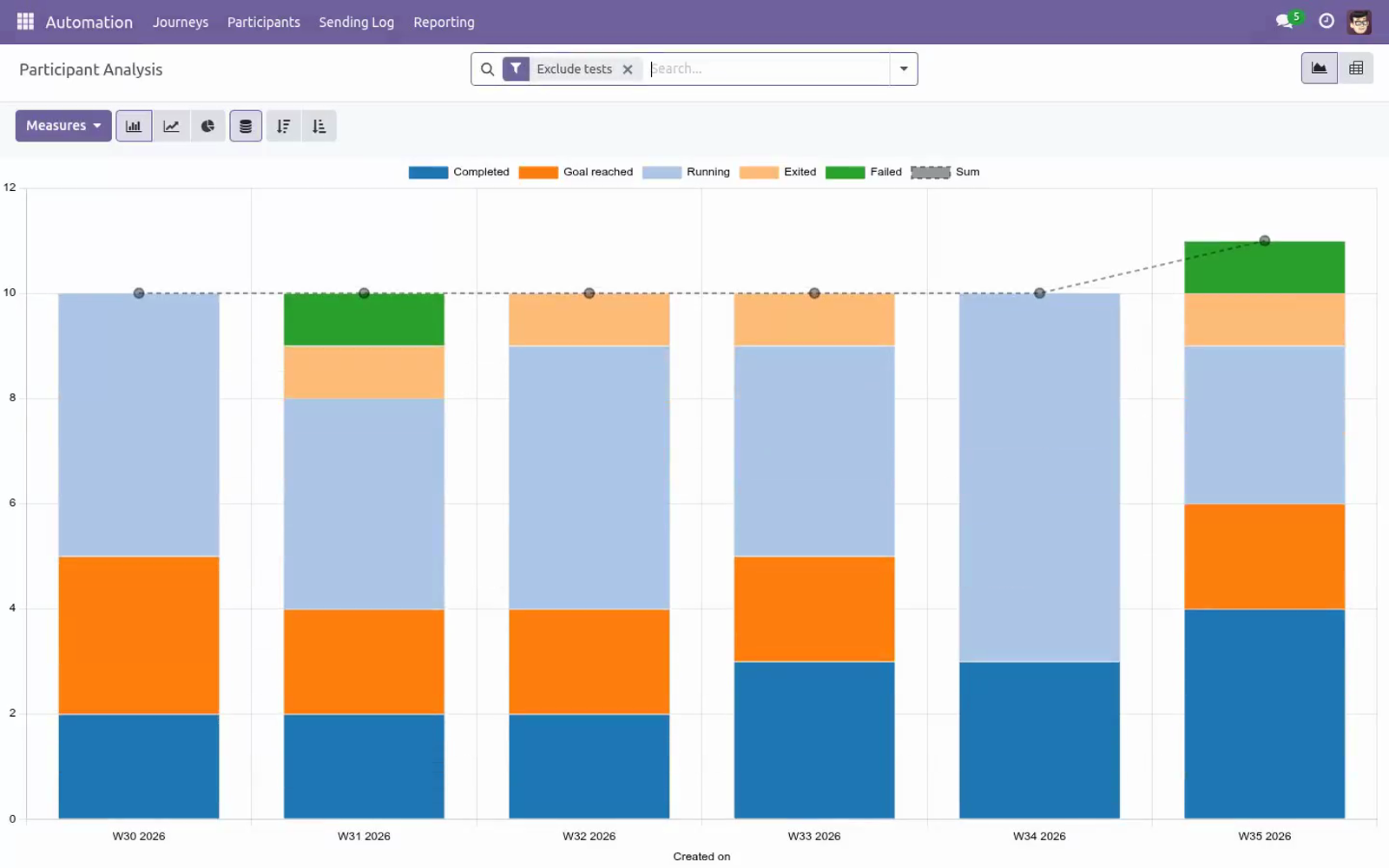
Reporting. Automation ▸ Reporting holds two analyses, each opening as a graph with a pivot one click away: Participants (Participant Analysis) — enrollments by week, stacked by status (running, completed, goal reached, exited, failed). Test-mode participants are excluded by default (remove the Exclude tests filter to see them). Group by journey to compare campaigns.
Step Activity (Step Activity Analysis) — every logged trace counted per step and result: sent / skipped / expired / failed — the weak step of a sequence stands out immediately. Filter by journey or group by day to watch a launch. On the journey form itself, three KPIs summarise the funnel: open rate and click rate (opens / clicks over tracked e-mails sent) and goal rate (participants that exited as Goal reached over all participants). Branching, A/B splits and SMS.
To build a branch, add a step and set its After step to the parent (an e-mail step) and its Trigger to if opened, if not opened, if clicked or if not clicked — the trigger is evaluated when the branch becomes due, against the parent's mailing trace for that participant. Give a parent several children with increasing sequences to model if / elif / else: the first child whose trigger matches runs, the others are skipped (logged), and a child with trigger Always at the end acts as the else. After a branch chain finishes, that path ends; participants coming from a root step continue with the next root. An A/B split is a branch with trigger A/B split (runs for a % of participants) and a Variant share (%): assignment is deterministic per record (a hash of journey, parent step and record), so the same record always lands in the same variant and re-processing never flips it.
The rest falls through to the next sibling — typically the B variant with trigger Always. Enrollment. Start enrolls everything matching the filter at that moment. After that, the scan only examines records created since the previous scan (fast, even on big databases) and enrolls the matching ones — switch Enroll new records automatically off for a one-shot, fixed-audience campaign.
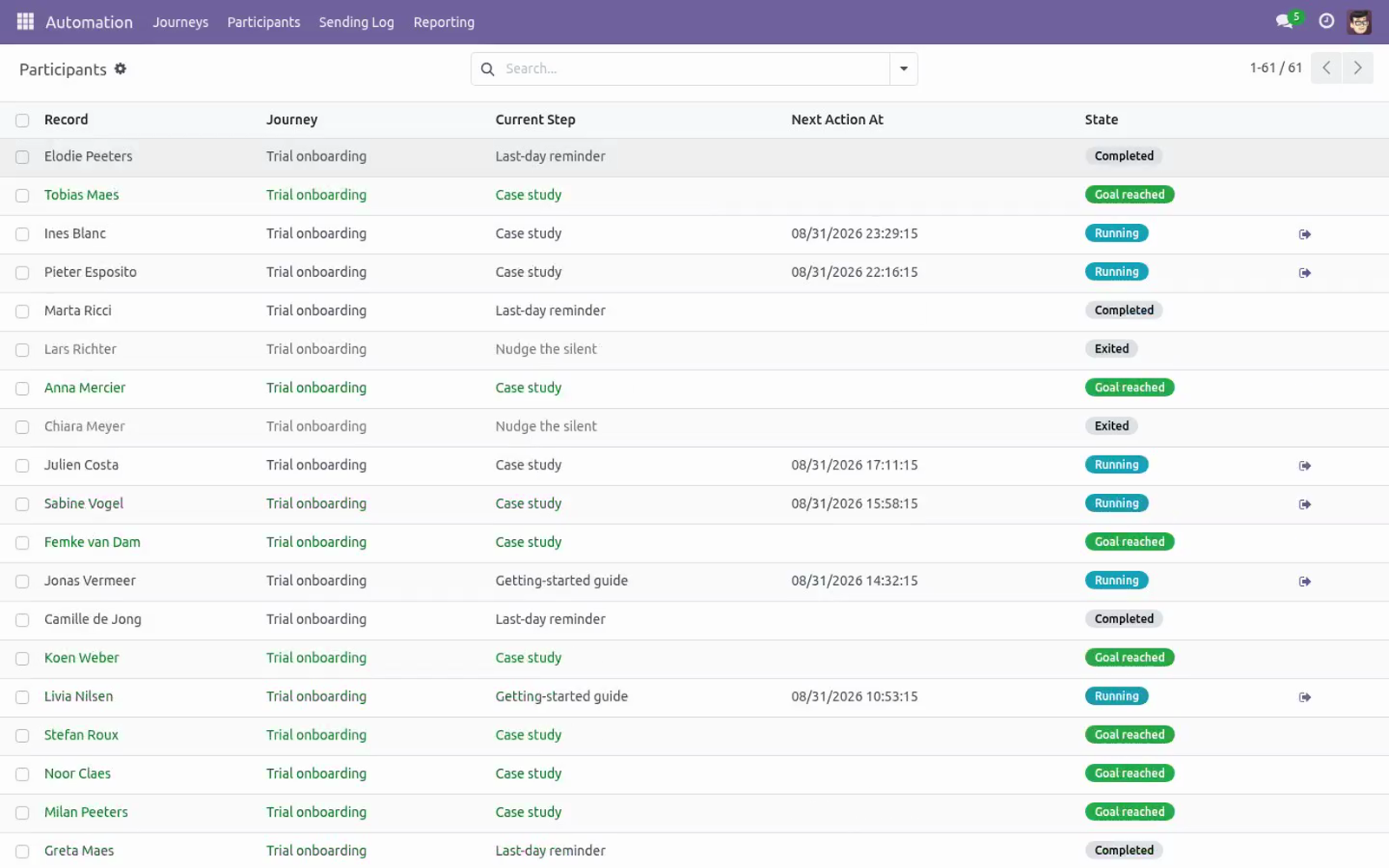
A record already in the journey is never enrolled twice while it is running; with Allow rejoin on, a record that finished the journey may be enrolled again by a later enrollment, otherwise it is excluded for good. Managing participants. Automation ▸ Participants (or the Participants button on the journey) lists every enrolled record with its journey, current step, next action time and state. The Exit journey button removes a running participant from the flow — nothing more is sent to it.
Rows are colour-coded: green for Goal reached, muted for exited/failed. Reading the log. Automation ▸ Sending Log shows every step execution: timestamp, journey, participant, step, state (Sent / Skipped / Failed) and the reason note. Sent traces link to the actual e-mail record, where you can open the rendered message and its delivery state (Settings ▸ Technical ▸ Emails).
Editing a running journey. The audience model is locked once the journey leaves Draft. For other changes, the safe procedure is Stop → edit → Start: stopping pauses enrollment and sending without losing any participant, and restarting resumes where things stood (plus a fresh enrollment pass over the audience). The complete manual is at docs dot bambooforge dot dev, the demo database is linked from the store page, and support answers within twenty-four hours.
Links are in the description.
Key facts
- What it is
- Drip campaigns and customer journeys on Odoo Community: audience filters, multi-step email sequences with delays and conditions, goal exits.
- For
- Marketing
- Odoo versions
- 16.0, 17.0, 18.0, 19.0, 20.0 - Community and Enterprise
- Runs on
- Odoo.sh or Odoo you host yourself - not Odoo Online, which accepts no third-party apps
- Price
- 149 EUR, one-time, on the Odoo Apps Store
- Technical name
- bambooforge_marketing_automation
- Live demo
- https://demo20.bambooforge.dev/odoo/action-bambooforge_marketing_automation.action_bf_journey
- Manual last updated
- 2026-09-21
Marketing Automation: Email Journeys & Campaigns
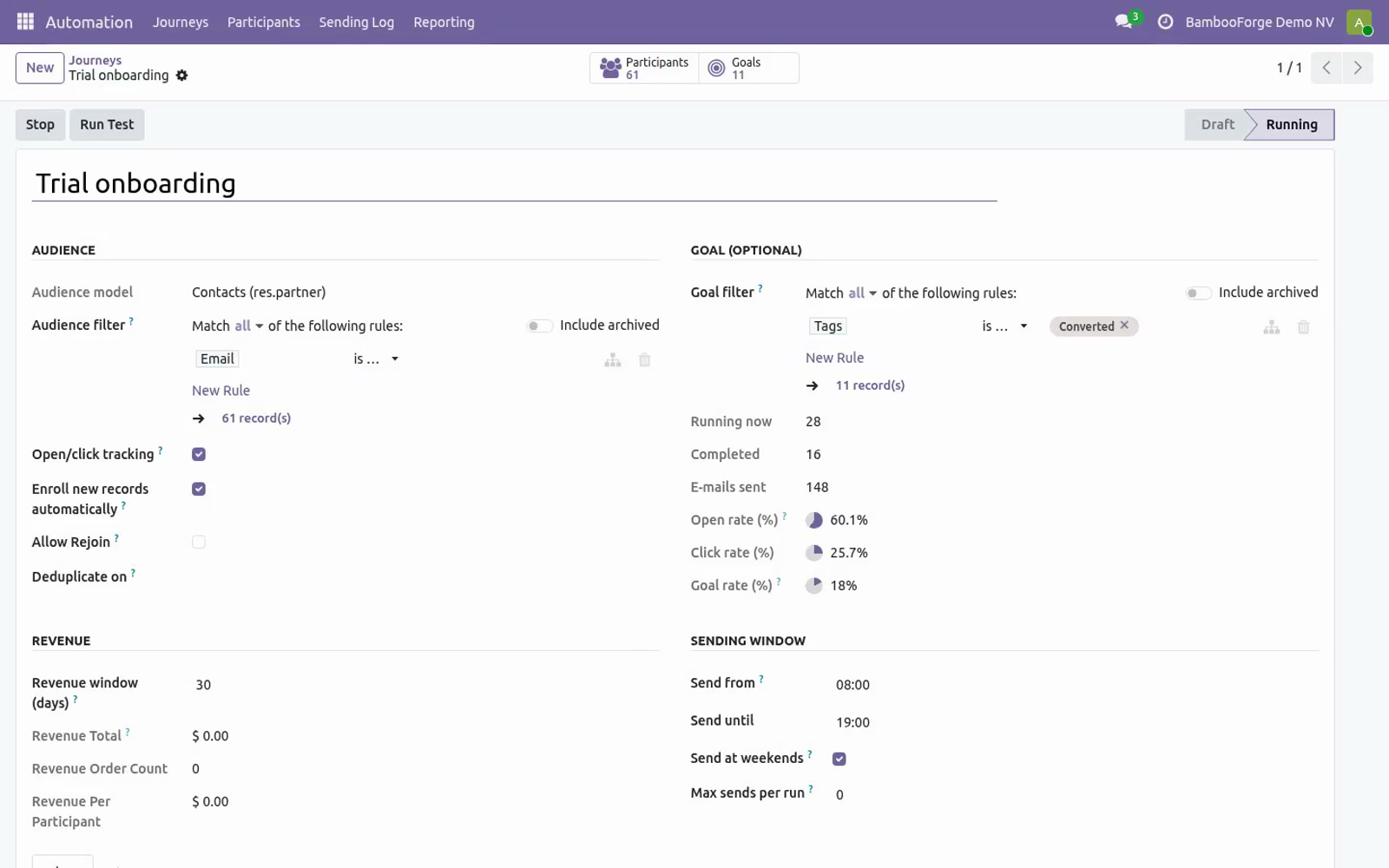
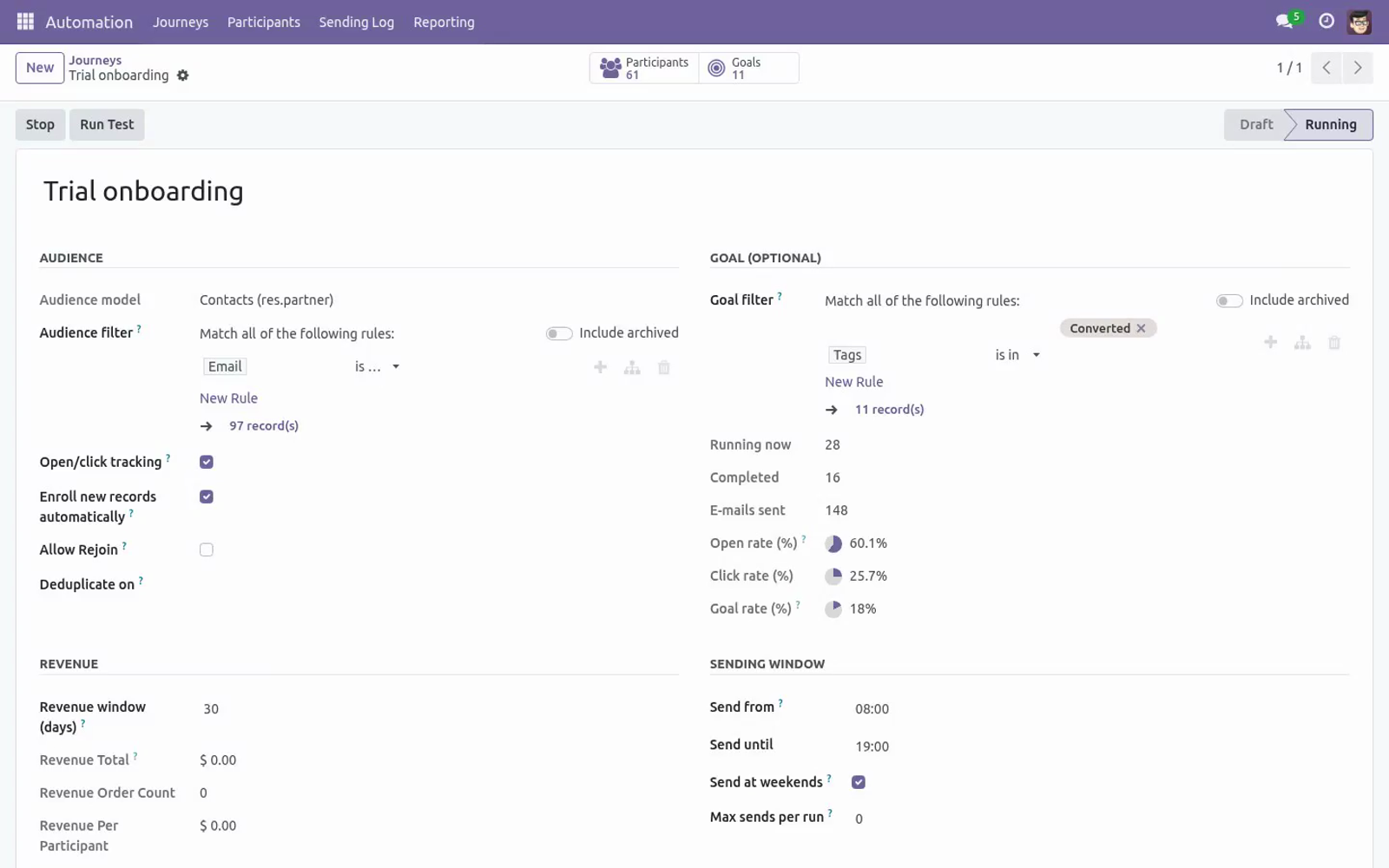
Drip campaigns and customer journeys for Odoo 20, running entirely on Community: an audience filter enrolls contacts, mailing contacts or CRM leads automatically (including records created after launch), ordered steps send mail templates or SMS after configurable delays and optional conditions, opens and clicks are tracked per step, branch steps react to that tracking (if opened, if not clicked, …) or split the audience A/B, a goal filter exits participants who converted, the e-mail blacklist is respected, and every action is logged. The journey is drawn on a visual Flow canvas, the form shows open / click / goal rate KPIs, and a Reporting menu analyses enrollments and step activity as graphs and pivots.
This page is the complete manual. Follow it top to bottom and you can install, launch your first journey, read the statistics and fix the common issues without contacting support.
Overview
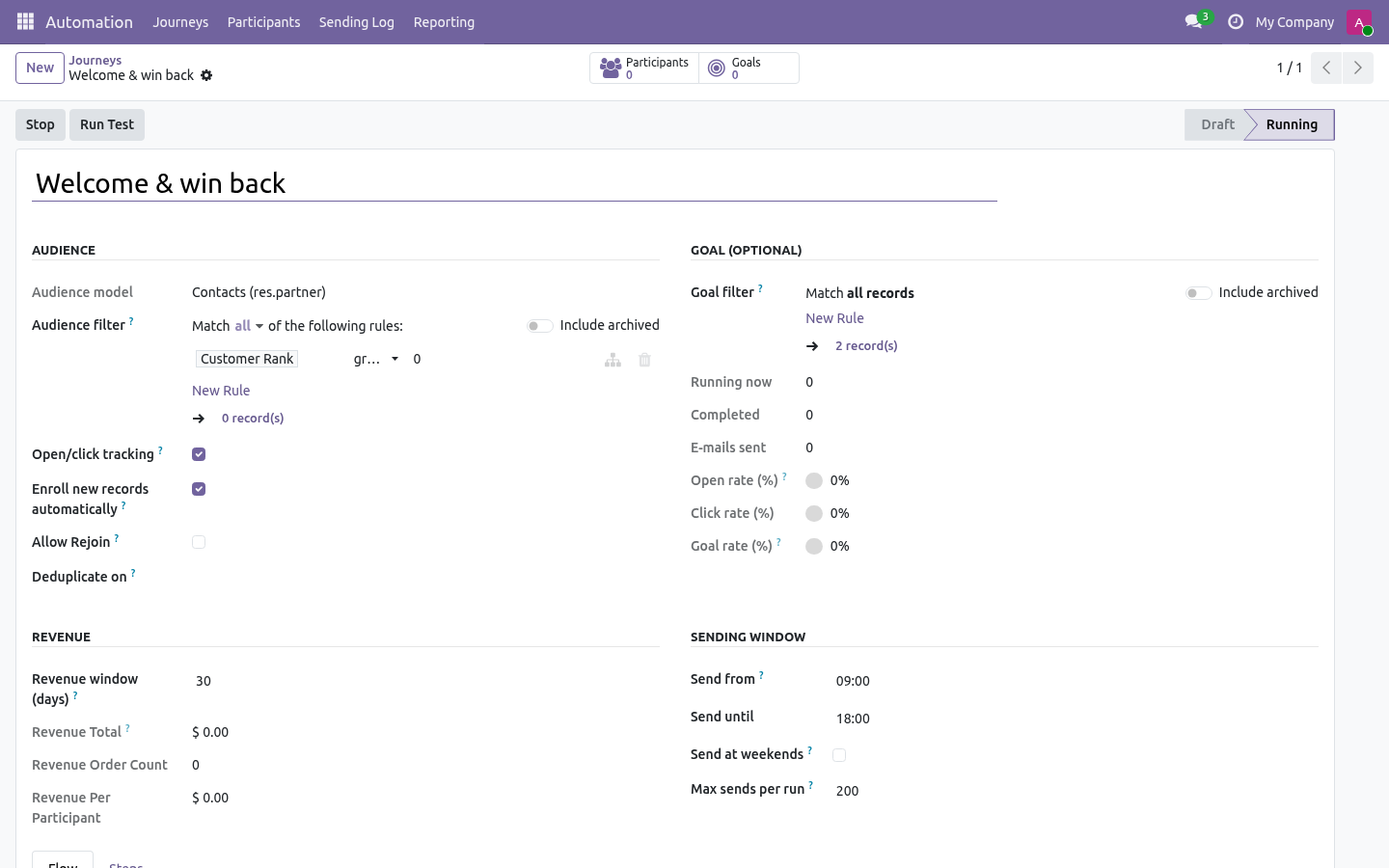
Journeys — a journey targets one audience model (contacts res.partner, mailing contacts mailing.contact or CRM leads crm.lead) with a domain-widget Audience filter. Lifecycle: Draft → Running → Stopped; you can start and stop at any time.
Automatic enrollment — pressing Start enrolls every record matching the filter. With Enroll new records automatically on (the default), a scan every 10 minutes also enrolls matching records created after launch. Allow rejoin optionally lets a record that already finished the journey be enrolled again by a later scan.
Steps — an ordered list (drag-and-drop sequence): each step sends a mail template, queues an SMS or runs a server action, after a wait delay (hours / days / weeks, counted from enrollment for the first step, from the previous step otherwise) and an optional Only send when condition — a participant that no longer matches skips the step (logged) and continues. Templates must be defined on the journey's audience model; a constraint enforces it. A Run server action step is executed with the rights of the user who created the journey — never with superuser rights.
Tracking — with Open/click tracking on (the default), e-mail steps send through an auto-managed mass mailing per step (Community's own tracking pixel and link tracker, no external service), giving every step live Opened and Clicked counters. Off, the template is sent directly and carries no tracking pixel — but the step's mailing still backs an unsubscribe link appended to the message, so both paths stay opt-out compliant.
Run Test (dry run) — the Run Test button walks the whole journey for the first record matching the audience filter and logs what each step would do. Nothing leaves the server: no e-mail is sent, no SMS is queued and no server action touches live data. The test participant is flagged as a test and excluded from the counters and the Reporting analyses.
Company — an optional Company on the journey: when it is set, the audience search only picks up records belonging to that company (or to no company at all).
Branching — a step can run after a parent step with a trigger: if opened, if not opened, if clicked, if not clicked — or an A/B split that takes a deterministic percentage of participants (the same record always lands in the same variant). Siblings are evaluated in sequence order like if / elif / else: the first trigger that matches runs, in the same processing tick.
Goal — an optional journey-level goal filter, checked before every step fires. A matching participant exits as Goal reached without receiving the step (e.g. the lead was won).
Blacklist — before sending, the participant's e-mail is checked against Odoo's standard blacklist (mail.blacklist). Blacklisted addresses are skipped with a logged trace; records without any e-mail address are logged as failed and the journey continues.
Participants — one record per enrolled record, with a state machine: Running, Completed, Goal reached, Exited, Failed — plus a manual Exit journey button. A participant whose source record was deleted exits automatically.
Sending log — every step execution creates a trace: Sent (linked to the mailing trace, or to the actual mail.mail when tracking is off), Action done, Skipped (condition, blacklist or unmet branch trigger, with the reason), Expired or Failed (with the error text).
Flow canvas — the journey form opens on a visual Flow tab: the step graph rendered as a flowchart, with trigger badges (opened / not opened / clicked / A/B split) on branch cards, wait delays and live per-step sent / opened / clicked counters on each card. Clicking a card edits the step in a dialog; “+” buttons add root steps or branches directly on the canvas, and drag & drop a card onto another step to re-wire it as a branch (drop it on the Audience enters pill to move it back to the main sequence — its trigger resets to Always). The classic Steps list sits on the next tab — both edit the same records.
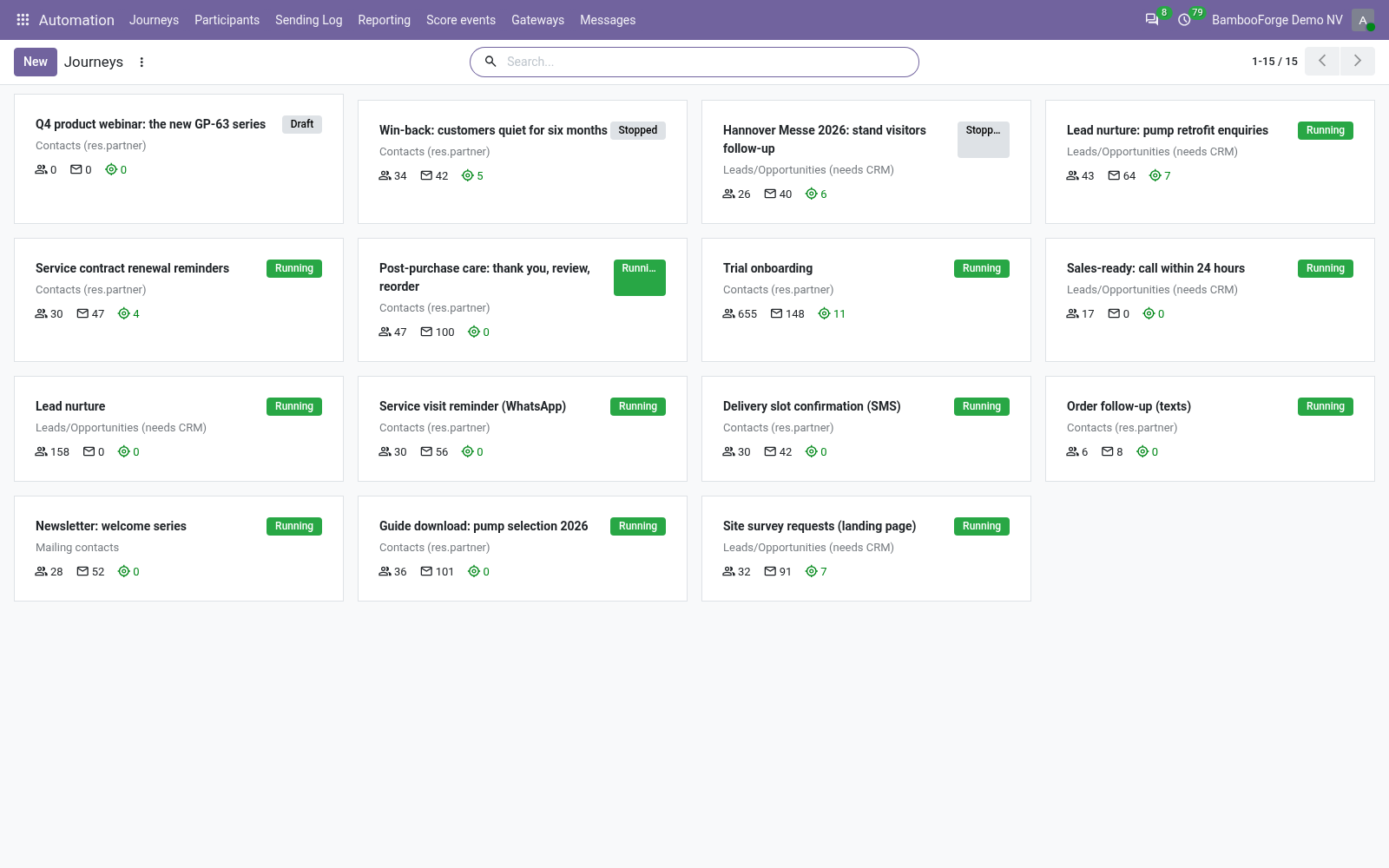
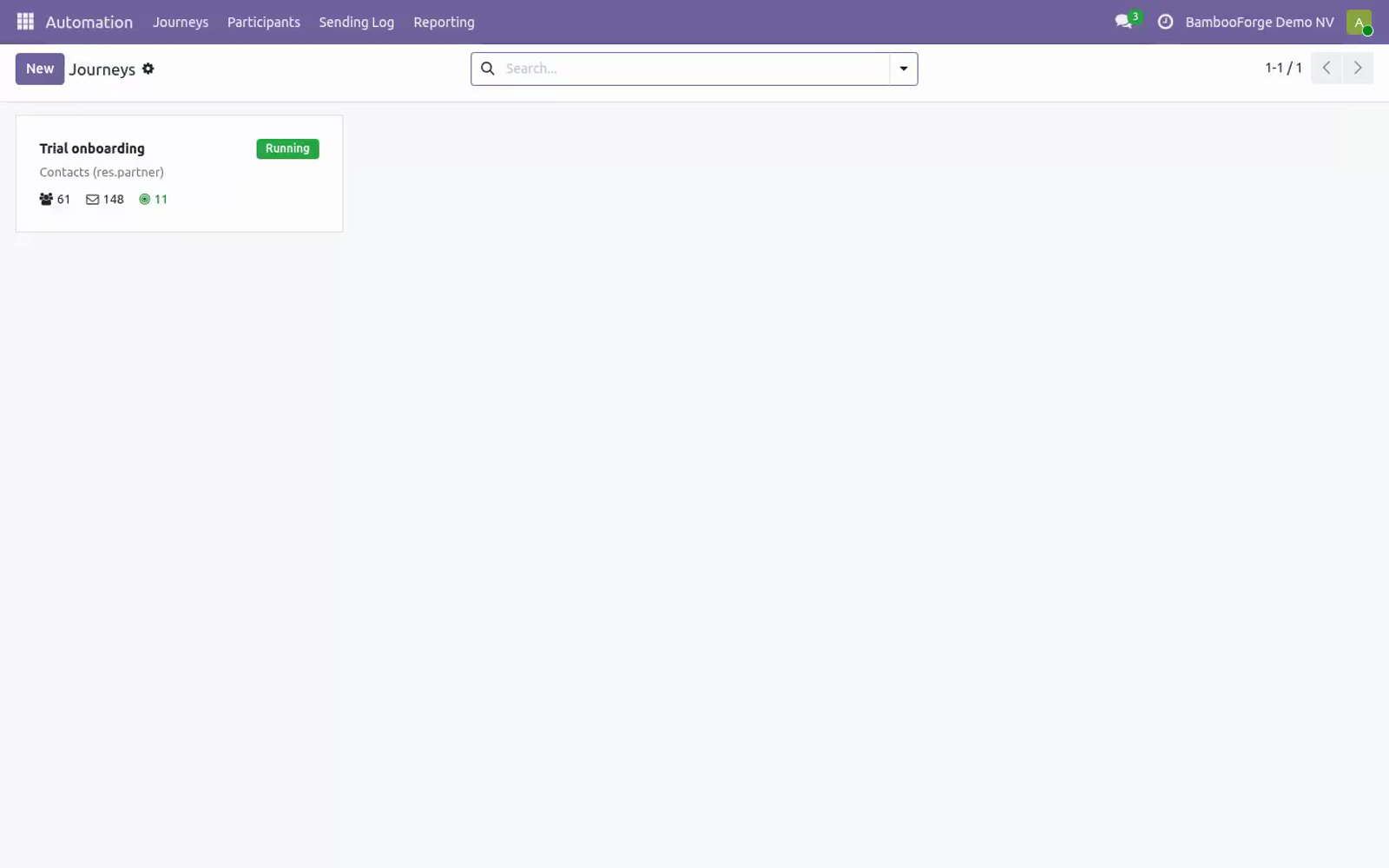
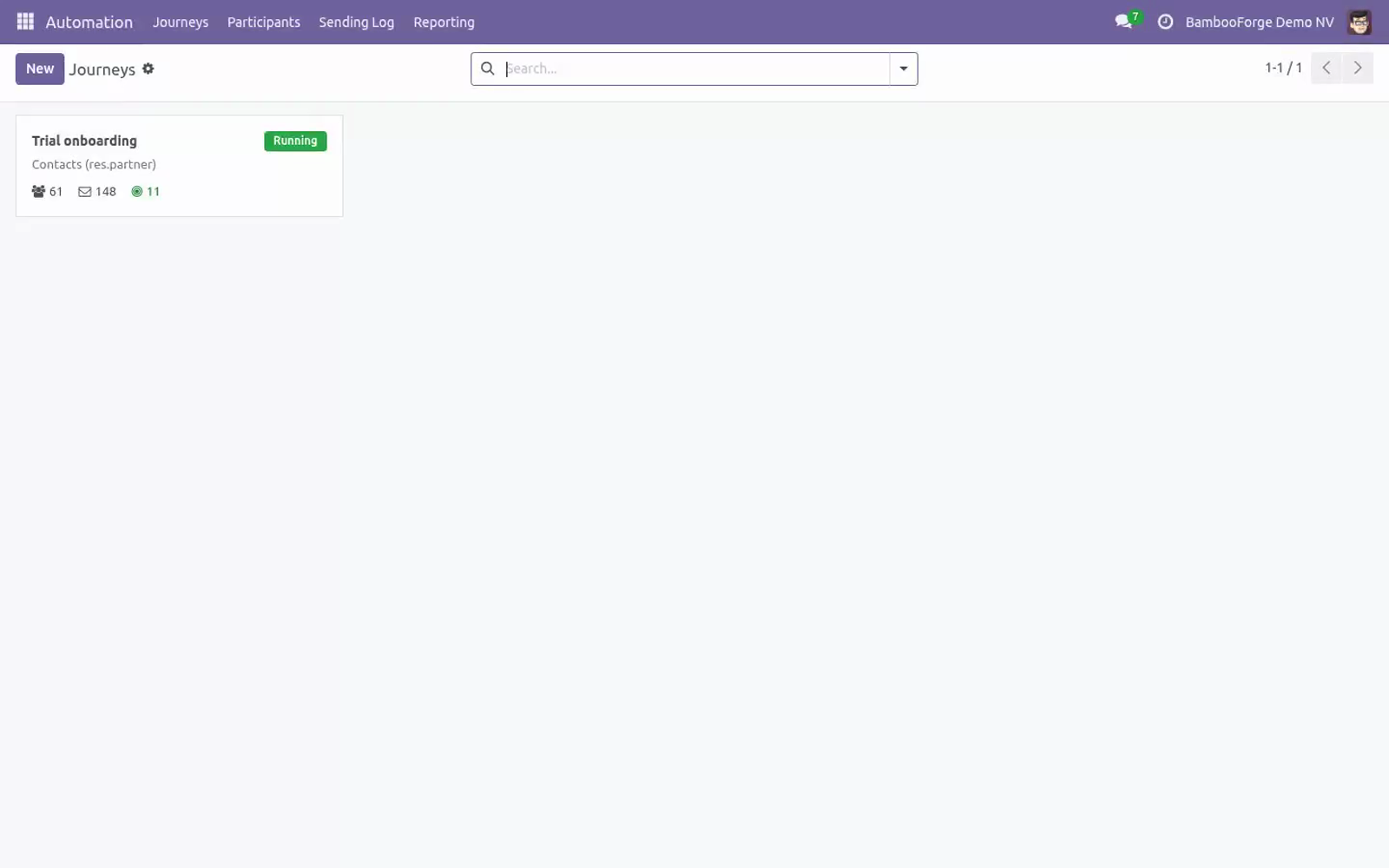
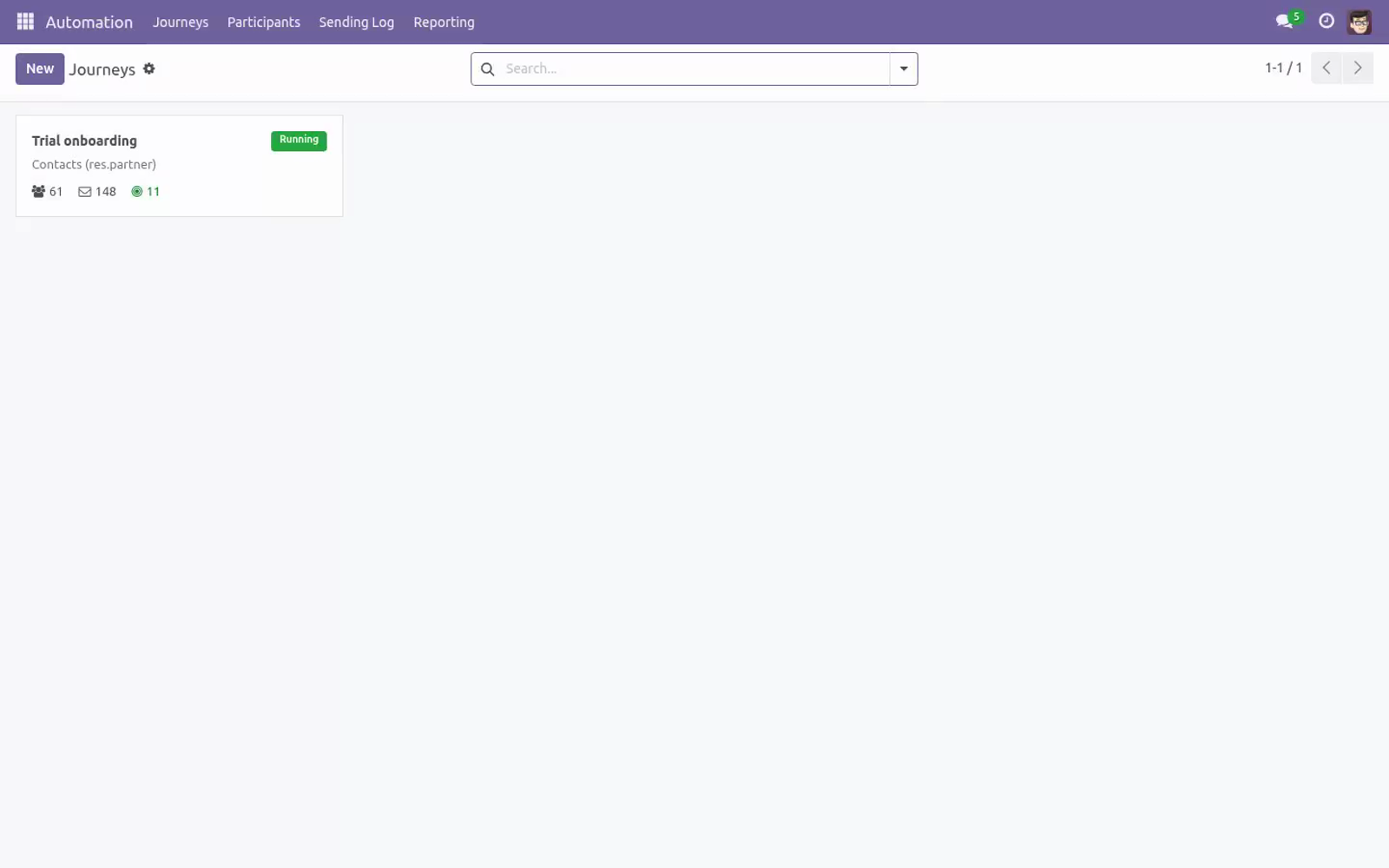
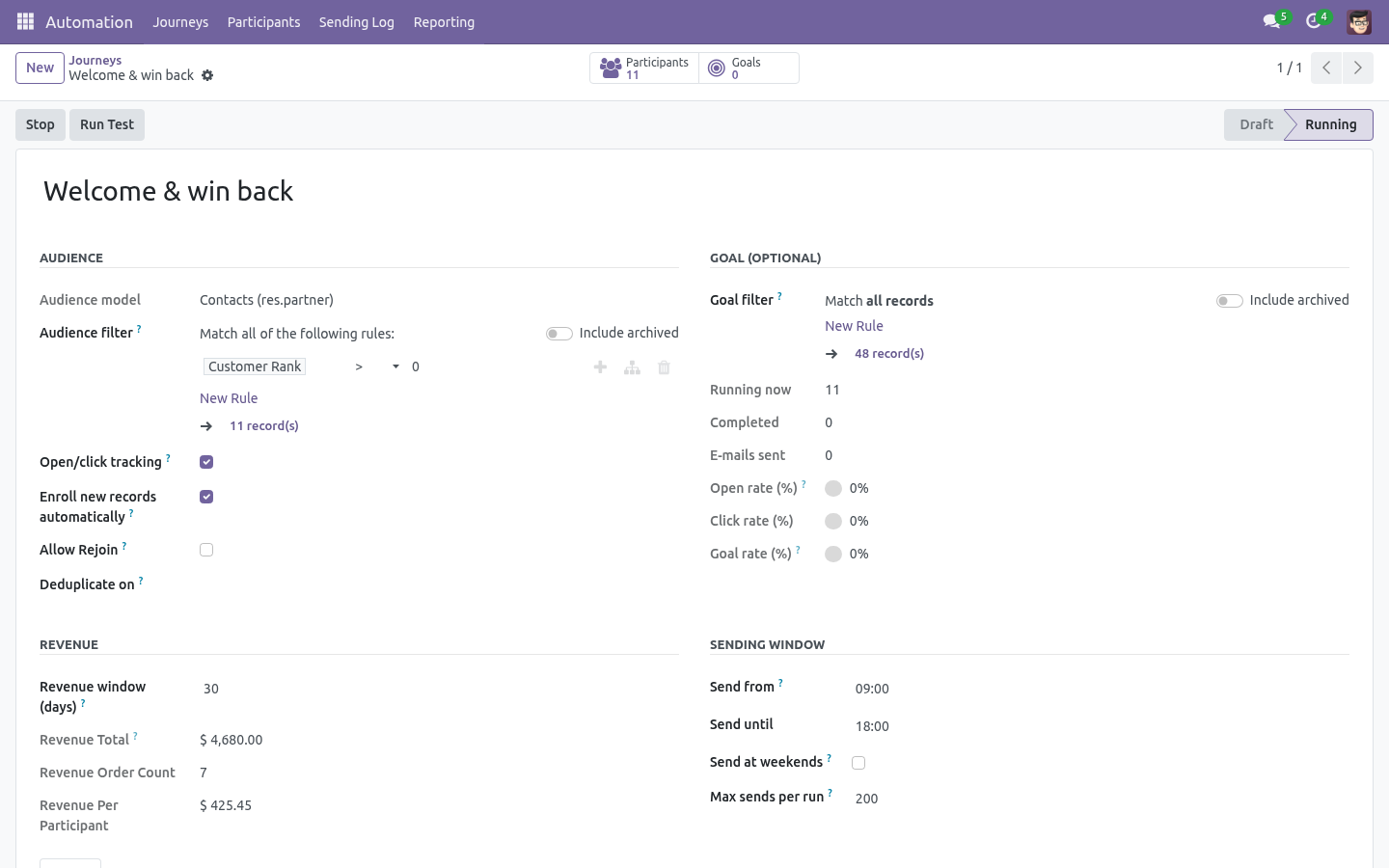
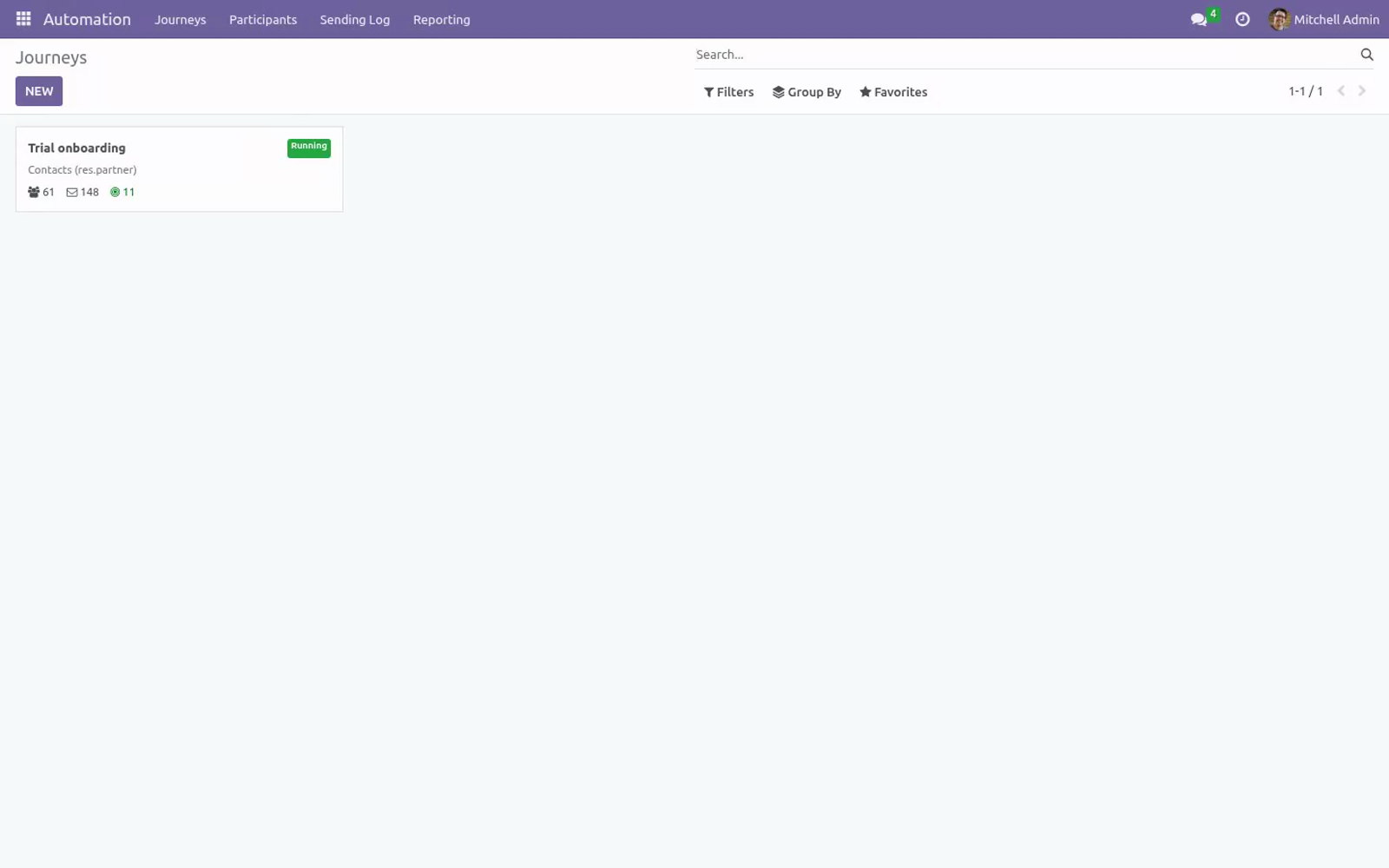
Statistics — the kanban card shows participants, e-mails sent and goals per journey; the form adds running / completed counters, stat buttons and open rate / click rate / goal rate KPIs, and each step shows its own Sent / Opened / Clicked counts.
Reporting — an Automation ▸ Reporting menu with two analyses, each as graph and pivot: Participant Analysis (enrollments by week, stacked by status, test participants excluded by default) and Step Activity Analysis (sent / skipped / expired / failed per step).
Access rights — Marketing Automation / User (read journeys and the log, manage participants) and Marketing Automation / Manager (full configuration).
Requirements
Item |
Detail |
|---|---|
Odoo |
20.0, Community or Enterprise. Only the standard CE mass_mailing app is required — the Enterprise Marketing Automation app is not needed and is not touched if present. |
CRM leads audience |
Selecting Leads/Opportunities as audience model requires the (free, CE) CRM app to be installed; a validation error tells you if it is missing. |
SMS steps |
Require the standard SMS app (messages are queued through it and sent with IAP credits); a validation error tells you if it is missing. |
Python / JS |
No extra libraries and no external services. Journeys run in your database only. |
Outgoing e-mail |
Steps send standard Odoo mail templates — configure an outgoing mail server as usual. |
Getting started
Install BambooForge Marketing Automation.
Prepare one mail template per step (Settings ▸ Technical ▸ Email Templates), defined on your audience model — e.g. on Contact with To set to {{ object.email }}.
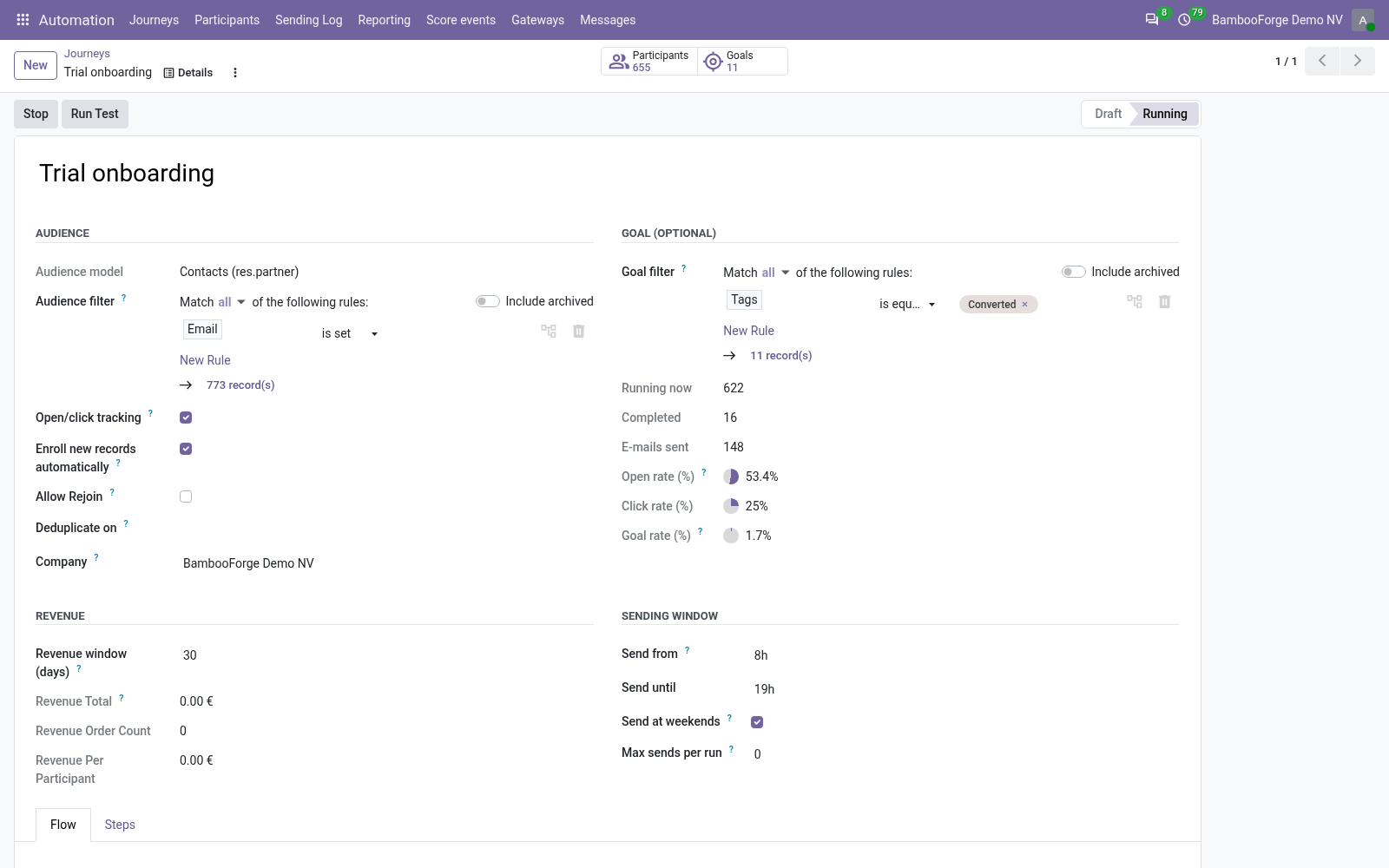
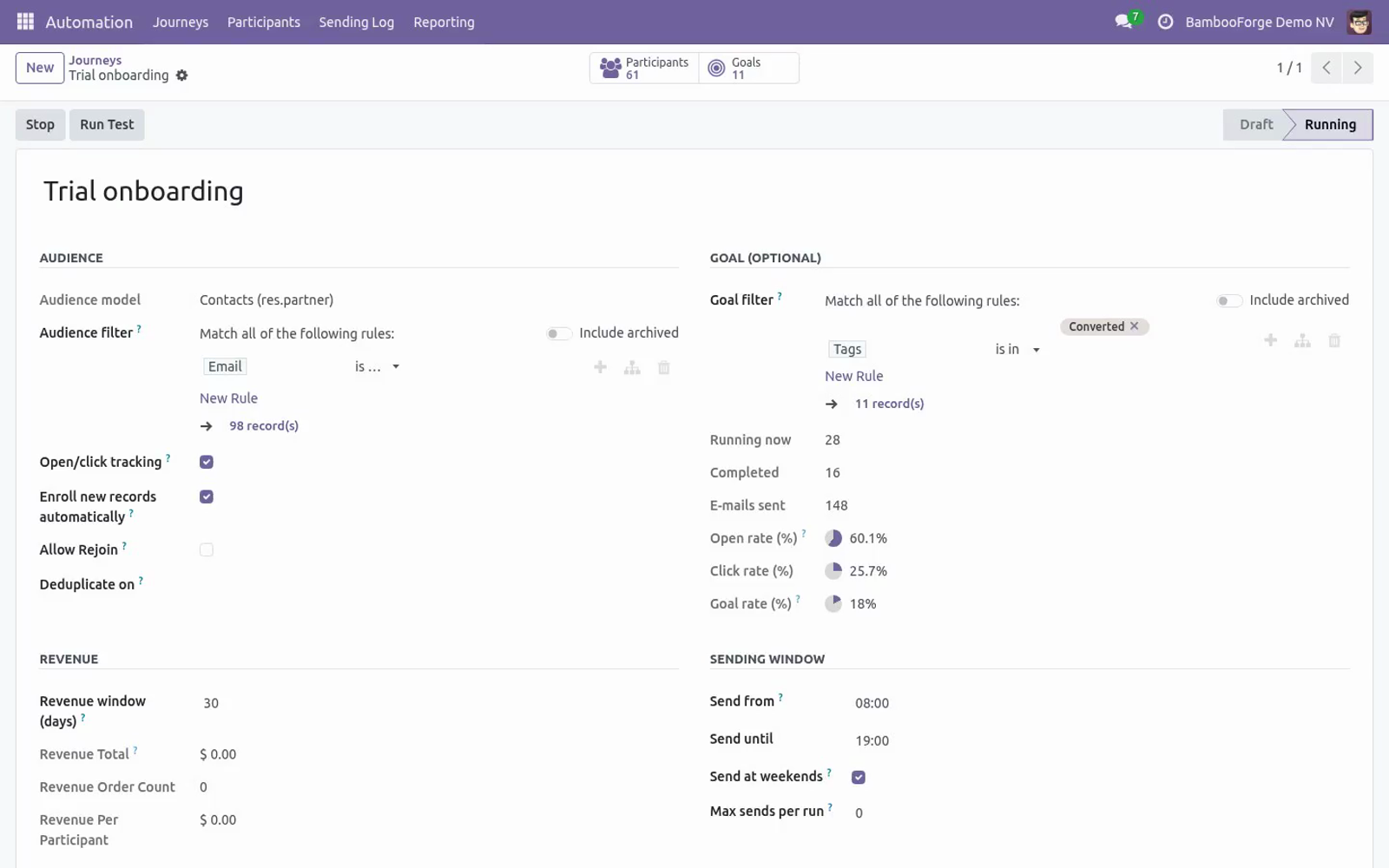
Open Automation ▸ Journeys, create a journey: pick the Audience model, build the Audience filter with the domain editor (e.g. contacts with a given tag).
Build your sequence on the Flow tab (the “+” buttons add steps, clicking a card edits it) or on the Steps list — for example: Welcome (wait 0 hours), Follow-up (wait 2 days), Last call (wait 1 week) — each with its template and, optionally, an Only send when condition.
Optionally set a Goal filter (e.g. lead is won) and review Enroll new records automatically / Allow rejoin.
Press Start. Matching records are enrolled immediately; the cron then sends due steps and keeps enrolling newcomers every 10 minutes. Watch the counters on the form, the Participants button and Automation ▸ Sending Log.
Usage
How a journey processes a participant
Every 10 minutes the scheduled action Marketing Automation: process journeys handles each running journey: it first enrolls new matching records, then processes every participant whose wait has elapsed (up to 500 per journey per run). For each due participant, in order:
Goal check — if the record matches the goal filter, the participant exits as Goal reached; the step is not sent.
Branch trigger — on a branch step with an open/click or A/B trigger, the parent step's tracking data for this participant decides. A non-matching trigger is logged as Skipped and the next sibling is evaluated in the same tick (if / elif / else); when no sibling matches, that path ends.
Step condition — if the step has an Only send when filter and the record no longer matches, the step is logged as Skipped and the participant advances to the next step.
Blacklist / e-mail check — a blacklisted address is logged as Skipped (reason blacklisted); a record without e-mail is logged as Failed (reason no e-mail). Both advance.
Send — with Open/click tracking on, the e-mail goes out through the step's auto-managed mass mailing (feeding the Opened / Clicked counters); off, the template is sent as a plain mail. SMS steps queue a text message through the SMS app; action steps run their server action. The trace stores the result, and any error is logged as Failed — the journey continues rather than blocking.
Advance — the participant moves to the step's branches first (if any), otherwise to the next root step, and waits its delay — or becomes Completed after the last step.
Each journey is processed independently — an error in one journey is logged and rolled back without blocking the others. Editing the flow under running participants is safe too: a participant whose current step was deleted completes instead of hanging, a step that was re-parented mid-flight simply ends that path, and a goal or Only send when filter pointing at a field that no longer exists fails that participant only (logged as Failed) rather than aborting the whole run.
Run Test (dry run)
Run Test on the journey form takes the first record matching the audience filter, creates a participant flagged as a test and walks it through the entire flow immediately. It is a dry run: every step is written to the sending log as would send e-mail '…', would send SMS or would run server action — no message is sent, no SMS is queued and no server action executes, so rehearsing a journey can never mail a real customer or modify live records. Test participants are excluded from the journey counters and from the Reporting analyses.
The Flow tab
The journey form opens on the Flow tab: the whole step graph as a flowchart. Root steps hang under the Start node; branch steps hang under their parent with a trigger badge — opened, not opened, clicked, not clicked or A/B split — and every card shows its wait delay and live sent / opened / clicked counters, so you see at a glance where participants flow and where they stop.
Click a card to edit that step in a dialog (same fields as the Steps list).
“+” under Start adds a new root step; “+” under a card adds a branch of that step (the trigger defaults to if opened for branches).
The Steps tab keeps the classic editable list — the canvas and the list edit the same step records, use whichever you prefer.
Reporting
Automation ▸ Reporting holds two analyses, each opening as a graph with a pivot one click away:
Participants (Participant Analysis) — enrollments by week, stacked by status (running, completed, goal reached, exited, failed). Test-mode participants are excluded by default (remove the Exclude tests filter to see them). Group by journey to compare campaigns.
Step Activity (Step Activity Analysis) — every logged trace counted per step and result: sent / skipped / expired / failed — the weak step of a sequence stands out immediately. Filter by journey or group by day to watch a launch.
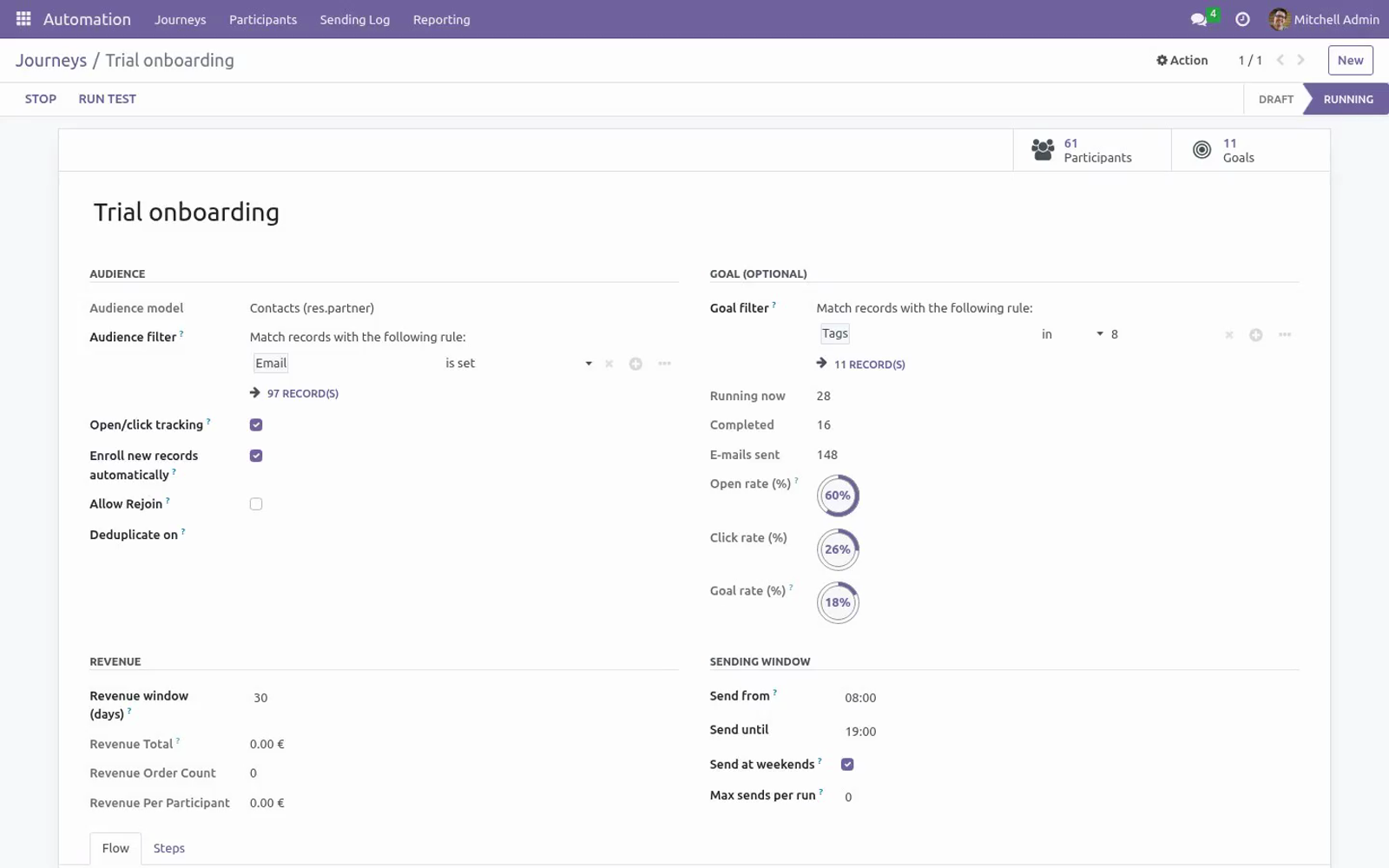
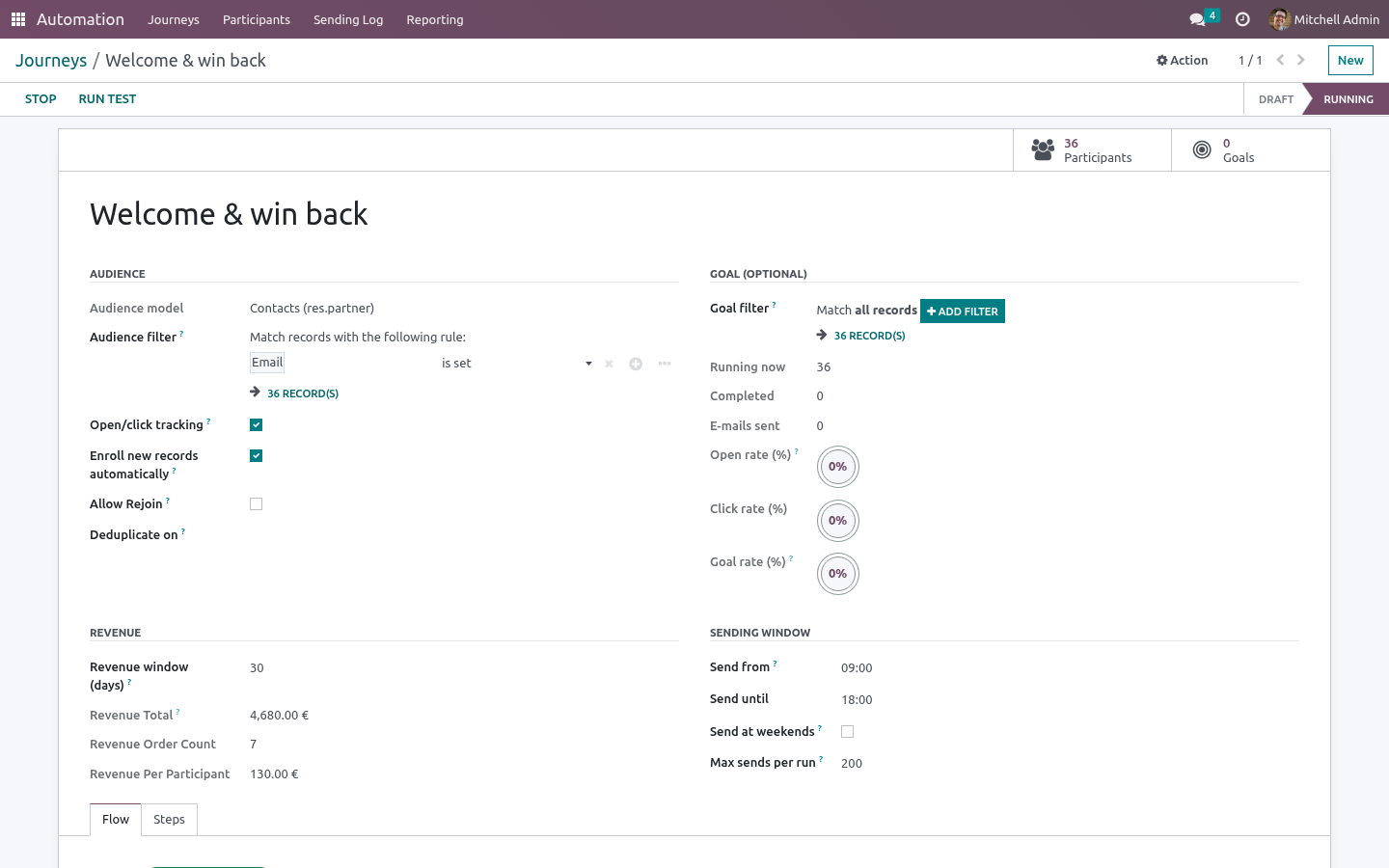
On the journey form itself, three KPIs summarise the funnel: open rate and click rate (opens / clicks over tracked e-mails sent) and goal rate (participants that exited as Goal reached over all participants).
Branching, A/B splits and SMS
To build a branch, add a step and set its After step to the parent (an e-mail step) and its Trigger to if opened, if not opened, if clicked or if not clicked — the trigger is evaluated when the branch becomes due, against the parent's mailing trace for that participant. Give a parent several children with increasing sequences to model if / elif / else: the first child whose trigger matches runs, the others are skipped (logged), and a child with trigger Always at the end acts as the else. After a branch chain finishes, that path ends; participants coming from a root step continue with the next root.
An A/B split is a branch with trigger A/B split (runs for a % of participants) and a Variant share (%): assignment is deterministic per record (a hash of journey, parent step and record), so the same record always lands in the same variant and re-processing never flips it. The rest falls through to the next sibling — typically the B variant with trigger Always.
An SMS step writes its text directly on the step (inline placeholders supported, e.g. Hi {{ object.name }}) and queues the message through the standard SMS app to the record's mobile or phone number. Participants without any phone number are skipped with a logged trace and the journey continues. Open/click triggers react to e-mail tracking only, so branch on a parent e-mail step.
Enrollment
Start enrolls everything matching the filter at that moment. After that, the scan only examines records created since the previous scan (fast, even on big databases) and enrolls the matching ones — switch Enroll new records automatically off for a one-shot, fixed-audience campaign. A record already in the journey is never enrolled twice while it is running; with Allow rejoin on, a record that finished the journey may be enrolled again by a later enrollment, otherwise it is excluded for good.
Managing participants
Automation ▸ Participants (or the Participants button on the journey) lists every enrolled record with its journey, current step, next action time and state. The Exit journey button removes a running participant from the flow — nothing more is sent to it. Rows are colour-coded: green for Goal reached, muted for exited/failed.
Reading the log
Automation ▸ Sending Log shows every step execution: timestamp, journey, participant, step, state (Sent / Skipped / Failed) and the reason note. Sent traces link to the actual e-mail record, where you can open the rendered message and its delivery state (Settings ▸ Technical ▸ Emails).
Editing a running journey
The audience model is locked once the journey leaves Draft. For other changes, the safe procedure is Stop → edit → Start: stopping pauses enrollment and sending without losing any participant, and restarting resumes where things stood (plus a fresh enrollment pass over the audience).
Revenue attribution
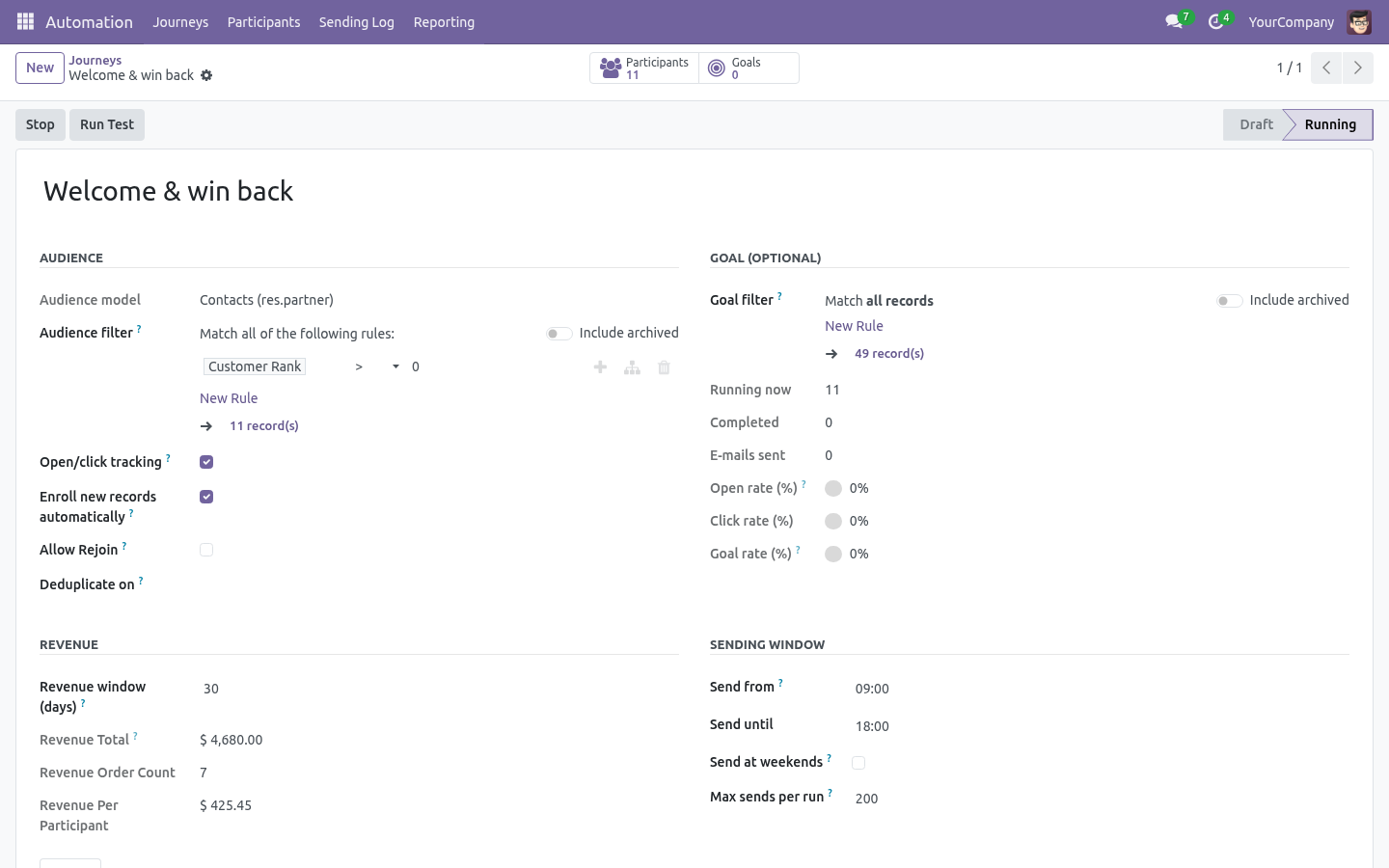
A journey reports what it earned, not only what it sent. Every participant is stamped when the journey first mails it, and matched against that customer's confirmed sales orders inside Revenue window (days) (30 by default; set 0 to switch attribution off). The journey form shows the total earned, the number of orders and the value per participant, refreshed by its own scheduled action every six hours. Test participants and orders placed outside the window are excluded on purpose.
Sending window
Marketing mail that lands at three in the morning reads as spam. Set Send from / Send until to keep the journey inside working hours (a window may cross midnight, e.g. 20:00 → 06:00), untick Send at weekends to hold Saturday and Sunday until Monday, and use Max sends per run to cap how many participants one cron pass may action. A step that falls due outside the window is rescheduled to the next opening — never sent, never dropped.
Configuration
Journey settings:
Setting |
Effect |
|---|---|
Audience model |
Contacts, mailing contacts or CRM leads. Locked after Draft. |
Audience filter |
Domain editor; matching records enter the journey. |
Enroll new records automatically |
On: the 10-minute scan enrolls matching records created after launch. Off: only the records enrolled at Start participate. |
Allow rejoin |
On: a record that already finished the journey may be enrolled again by a later enrollment pass. |
Goal filter |
Optional; checked before each step — matching participants exit as Goal reached. |
Open/click tracking |
On (default): e-mail steps send through an auto-managed mass mailing per step, feeding the Opened / Clicked counters and the branch triggers. Off: the template is sent directly, with no tracking pixel and no tracking data — an unsubscribe link taken from the step's mailing is still appended. |
Company |
Optional. When set, the audience search only considers records of that company (or records without a company). |
Step settings (Steps tab, one row per step, drag to reorder):
Setting (per step) |
Effect |
|---|---|
Wait / unit |
Delay in hours, days or weeks — after enrollment for the first step, after the previous step otherwise. 0 = as soon as the cron runs. |
Step type |
Send e-mail (mail template), Send SMS (text with inline placeholders, queued through the SMS app) or Run server action (executed per participant record, with the rights of the user who created the journey). |
Mail template |
Rendered per participant and sent to the record's e-mail. Must be defined on the journey's audience model. |
After step / Trigger |
Turns the step into a branch: it runs after the parent step, when the trigger matches — Always, if opened / not opened / clicked / not clicked (against the parent e-mail's tracking) or A/B split. Siblings are tried in sequence order, if / elif / else. |
Variant share (%) |
A/B split only: percentage of participants taking this branch, assigned deterministically per record; the rest falls through to the next sibling. |
Only send when |
Optional condition; a participant that no longer matches skips the step (logged) and continues. |
Sent / Opened / Clicked (read-only) |
Live counters per step; Opened and Clicked come from the step's auto-managed mass mailing when tracking is on. |
Scheduling: the cron Marketing Automation: process journeys runs every 10 minutes and processes up to 500 due participants per journey per run. Adjust the interval under Settings ▸ Technical ▸ Scheduled Actions if you want faster reaction or lighter load.
Access rights: Marketing Automation / User reads journeys, steps and the log and can manage participants (e.g. exit them); Marketing Automation / Manager additionally creates and configures journeys and steps and can clean the log.
Install
Copy bambooforge_marketing_automation into your addons path and update the app list, or install the ZIP from the Odoo Apps Store.
Install Marketing Automation: Email Journeys & Campaigns.
Open Automation - its menus are Journeys, Participants, Sending Log, Reporting.
Troubleshooting
- Nobody was enrolled.
The journey must be Running (a Draft journey does nothing) and the audience filter must match — open the same filter on the audience model's list view to verify. Note the automatic scan only looks at records created after the journey started; existing records are enrolled by pressing Start (stop and start again to re-run a full enrollment pass).
- Participants are enrolled but nothing is sent.
Sending happens when the step's wait has elapsed and the cron runs — with a 10-minute interval a "0 hours" step can take up to 10 minutes. Check the cron is active (Settings ▸ Technical ▸ Scheduled Actions), an outgoing mail server is configured, and the template's To field resolves (e.g. {{ object.email }}).
- A participant was skipped.
That is the module doing its job — open Sending Log and read the trace: blacklisted (the address unsubscribed), no e-mail (the record has no address) or a Skipped trace on a step whose Only send when condition no longer matched.
- The goal never triggers.
The goal is evaluated when a step becomes due, not continuously — a participant that converts after the last step simply completes. Verify the goal filter matches by testing it on the audience model's list view.
- I cannot pick my template on a step.
Step templates are filtered to the journey's audience model. Recreate the template on the right model (e.g. Lead/Opportunity instead of Contact).
- Leads/Opportunities is rejected as audience.
Install the free CRM app first; the journey validates that the audience model is available on your database.
- Opened / Clicked counters stay at 0.
Open/click tracking must be on for the journey — steps sent as plain template mails carry no tracking. The counters come from the standard mass-mailing infrastructure: an open registers when the recipient's mail client loads the tracking pixel (images enabled), a click when a tracked link is followed. Branch triggers read the same data, so if opened branches only fire for participants whose trace recorded an open.
- Sending failed for one participant.
The error is recorded on the Failed trace (note column) and the journey continues for everyone else. Fix the cause (usually the template or the mail server) — subsequent steps still go out.
FAQ
- Does it need Odoo Enterprise or the Marketing Automation app?
No. It runs on Community with only mass_mailing — that is the reason it exists. It installs unchanged on Enterprise too, and does not conflict with Enterprise apps.
- How is it different from Enterprise marketing_automation?
It implements the working core of drip marketing: automatic enrollment on a domain filter, delayed steps, per-step conditions, goal exits, blacklist handling, statistics, a full log — and, across 20.0.1.1.0–1.4.0, open/click tracking, branching on opens and clicks, A/B splits, SMS steps, a visual Flow canvas and a Reporting menu (participant and step-activity analyses, graph and pivot) with open / click / goal rate KPIs. It does not clone every Enterprise screen pixel for pixel, but the classic reasons to upgrade are covered — as a one-off purchase instead of a subscription.
- Why not a Mailchimp or Brevo connector?
Connectors in that range cost $283–345 and only bridge the data — the automation still runs on the SaaS, with its own per-contact pricing, its own copy of your contacts and a synchronisation to maintain. Here journeys run inside Odoo on live data; nothing leaves your server.
- Does it track opens and clicks?
Yes. With Open/click tracking on (the default), every e-mail step sends through an auto-managed mass mailing — Odoo's own tracking pixel and link tracker, no external service — and shows live Opened and Clicked counters. Branch steps react to that data (if opened, if not clicked, …). The log still tracks sent / skipped / failed per participant, each sent trace linked to the mailing trace or e-mail record.
- Is unsubscribing / GDPR respected?
Yes. Every send is checked against Odoo's standard e-mail blacklist — the same list the mass-mailing unsubscribe flow feeds — and skips are logged, so honouring an opt-out is provable. Every e-mail also carries an unsubscribe link: through the mass mailing when tracking is on, appended from the step's mailing when it is off. No external service ever receives your data.
- Is it tested?
Yes: a 19-test unit suite covering enrollment, delays, conditions, goals, blacklist, rejoin rules, tracking-based sending, open/click branching, A/B split bounds, SMS steps and counters, plus a real-browser backend tour.
- Can several journeys run at once?
Yes, without limit; each is processed independently and a failure in one never blocks the others. The same record may participate in several journeys at the same time.
Upgrade
Back up the database.
Replace the module folder, restart, then:
odoo-bin -d <db> -u bambooforge_marketing_automation --stop-after-init
Review the Changelog below for new settings worth enabling.
Uninstall
Export Automation ▸ Sending Log (and Participants) first if you need the history — journeys, steps, participants and traces are removed with the module (standard Odoo behaviour).
Apps ▸ BambooForge Marketing Automation ▸ Uninstall.
Contacts, leads, mail templates and all e-mails already sent remain untouched in your database.
Changelog
20.0.1.10.2
Built for Odoo 20: record rules and access rights rewritten onto Odoo 20's single ir.access model, the screens rebuilt on Owl 3, and every icon moved to the icon set Odoo 20 ships.
20.0.1.6.0 (2026-08-15)
Run Test is now a dry run: it walks the whole journey for the first matching record and logs what each step would do, without sending an e-mail, queueing an SMS or running a server action against live data.
E-mail steps sent with Open/click tracking off now always carry an unsubscribe link, taken from the step's mailing — so every commercial message is opt-out compliant on both paths.
Server actions in an Action step now run with the rights of the user who created the journey instead of superuser rights.
New optional Company on the journey: the audience search stays inside that company.
Robustness: deleting or re-parenting a step no longer wedges the participants sitting on it, and a goal or condition filter pointing at a removed field fails only that participant instead of the whole run.
20.0.1.5.0 (2026-08-14)
Flow canvas: steps can now be dragged and dropped — drop a card on another step to make it a branch, or on the Audience enters pill to return it to the main sequence (the trigger resets to Always; circular moves are refused).
20.0.1.4.0 (2026-08-14)
Flow canvas: the journey form now opens on a visual Flow tab — the step graph rendered as a flowchart with trigger badges (opened / not opened / clicked / A/B split) on branch cards, wait delays and live sent / opened / clicked counters on every card. Clicking a card edits the step in a dialog; “+” buttons add root steps or branches directly on the canvas.
Reporting menu with two graph + pivot analyses: Participant Analysis (enrollments by week, stacked by status, test participants excluded by default) and Step Activity Analysis (sent / skipped / expired / failed per step).
Journey KPIs on the form: open rate, click rate and goal rate.
20.0.1.3.0 (2026-08-14)
A/B split branches: a child step can take a deterministic percentage of participants (same record always lands in the same variant), the rest falls through to the next sibling.
SMS steps: queue text messages through the standard SMS app, with inline placeholders and phone-less participants skipped safely.
20.0.1.2.0 (2026-08-14)
Branching: a step can now run after another step with an open/click trigger — if opened, if not opened, if clicked, if not clicked. Siblings are evaluated in order (if / elif / else) in the same tick, against the parent step's tracking data.
20.0.1.1.0 (2026-08-14)
Open/click tracking: e-mail steps now send through an auto-managed mass mailing (Community infrastructure), giving every step Opened and Clicked counters with no external service. Toggle per journey; the plain template path remains available.
20.0.1.0.0 (2026-08-14, initial)
Server-action steps (tag a record, create an activity, update a field) alongside e-mail steps.
Test mode: run the whole flow instantly on one record, excluded from statistics.
Deduplicate enrollment on any field (e.g. e-mail across duplicates).
Step expiry window and journey duplication that clones the steps.
Initial release: journeys on contacts (res.partner), mailing contacts (mailing.contact) and CRM leads (crm.lead) with a domain-based audience filter; automatic enrollment at start plus a 10-minute scan that enrolls records created after launch, with opt-out and Allow rejoin options; ordered steps combining a mail template, a wait delay (hours / days / weeks) and an optional Only send when condition with silent, logged skip; journey-level goal filter evaluated before each step with Goal reached exit; e-mail blacklist (mail.blacklist) respected with logged skips and logged no-e-mail failures; per-participant state machine (running / completed / goal reached / exited / failed) with manual Exit journey button and automatic exit of deleted records; sending log with sent / skipped / failed traces linked to the actual mail.mail; per-step sent counters and journey KPIs (participants, running, completed, goals, e-mails sent) on kanban and form; start / stop lifecycle with template-model validation; per-journey fault isolation in the processing cron (up to 500 due participants per journey per run); user and manager access groups; 9-test unit suite and backend browser tour.
How we make sure it works
Before every release, 50 automated checks run against this app on Odoo 16, 17, 18, 19 and 20. Among them:
A plain employee does not see the menu.
Branch not opened falls to else.
Deleted step does not wedge participant.
The analyst changes nothing.
A plain employee never reads the journeys.
The complete list is in the source you receive.