 BambooForge Labs
Product Label Designer & Barcode Printing
Design and print product labels and barcodes without XML: drag-and-drop designer, 31 ready stocks (Avery, Dymo, Zebra), QR codes, start-at-label.
Available for Odoo 16.0, Odoo 17.0, Odoo 18.0, Odoo 19.0, Odoo 20.0. Technical name bambooforge_label_designer.
Transcript of the walkthrough (Odoo 20)
Product Label Designer & Barcode Printing. Design and print product labels and barcodes without XML: drag-and-drop designer, 31 ready stocks (Avery, Dymo, Zebra), QR codes, start-at-label. Design labels for any Odoo record — products, lots, pickings, assets, members — and print them on the stock you already buy. Blocks are placed in millimetres, barcodes are drawn by Odoo itself, and the print dialog can start half way down a sheet you already used.
In the next few minutes: product label designer & barcode printing, then what it is, then design a label, then print, then measuring your own stock. Then what this app deliberately does not do, so you can tell before you buy whether it fits. Everything lives under Labels then Label Templates then Label Stocks. 1.
Copy bambooforge_label_designer into your addons path (or install the ZIP), update the app list and install BambooForge Label Designer. 2. Give yourself Label Designer: Designer (Settings → Users → Other → Label Designer). Everyone else can print; only designers can change a template.
3. The Labels menu appears with Label Templates and Label Stocks. Product Label Designer & Barcode Printing. Design labels for any Odoo record — products, lots, pickings, assets, members — and print them on the stock you already buy.
Blocks are placed in millimetres, barcodes are drawn by Odoo itself, and the print dialog can start half way down a sheet you already used. This page is the whole manual: install, design, print, and fix the usual problems without contacting support. What it is. Three records and nothing else to learn: Label stock (Labels → Label Stocks) The physical sheet or roll: page size, margins, how many labels across and down, the label size and the gaps between them.
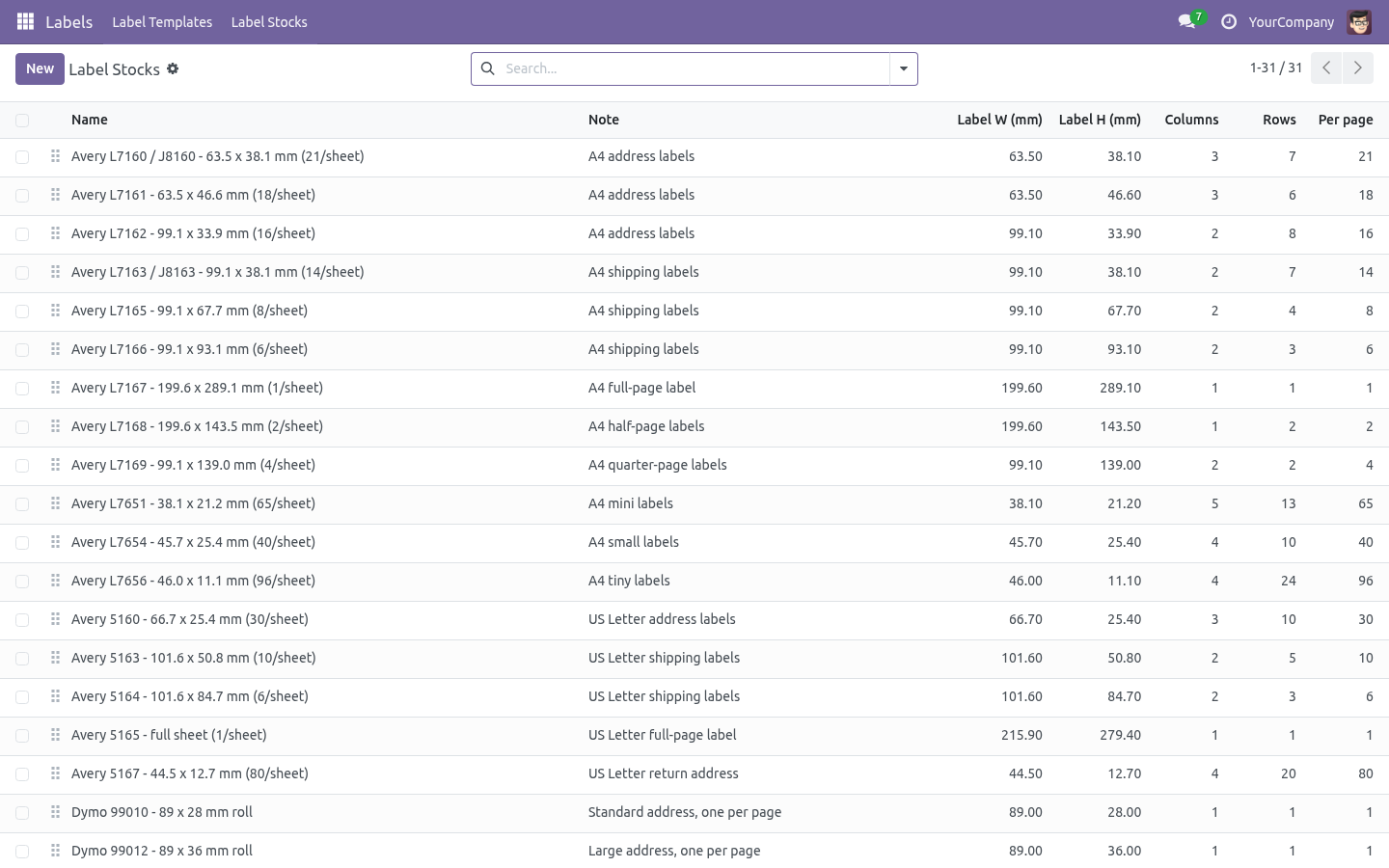
Thirty-one common stocks ship with the app — Avery A4 and US Letter, Dymo, Zebra and thermal rolls — and you can measure your own in a minute. Design a label. 1. Model — what you print.
product.template for shelf labels, stock.lot for lot labels, stock.picking for parcel labels, or your own model. 2. Label stock — pick the sheet you buy. The canvas immediately takes the size of one label on it.
3. Copies — how many labels one record gets by default. 4. Copies from field (optional) — a field holding a quantity, e.g.
qty_available. It multiplies the number of copies asked for, which is how "one label per unit in stock" becomes a setting instead of a script. 5. Print cut guides — a dashed outline around each label.
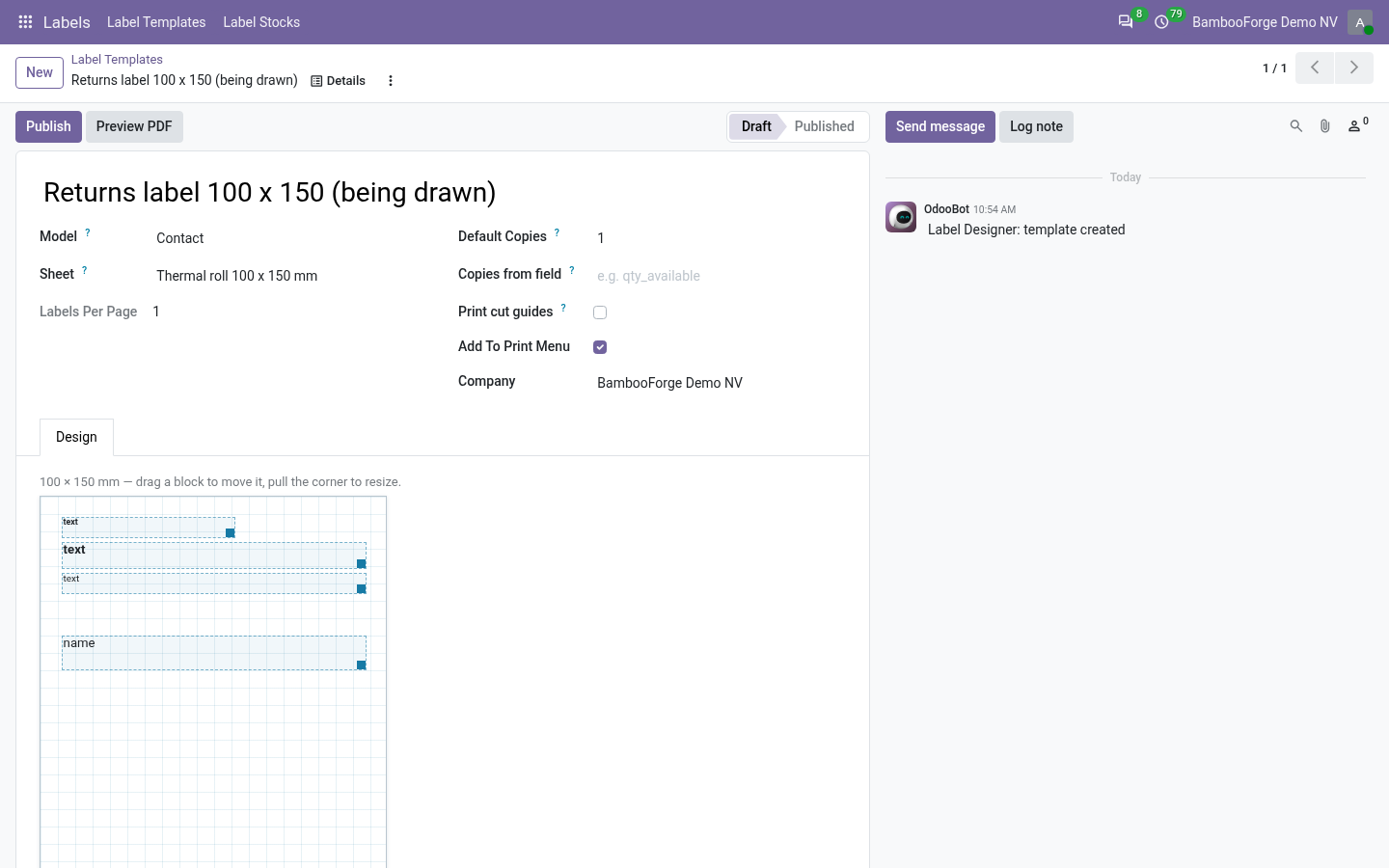
Leave it on while you align a new stock on plain paper; turn it off for the real run. Then place the blocks on the canvas: drag to move, pull the bottom-right corner to resize, and use the panel on the right for the details. Everything snaps to half a millimetre. Print.
From a list or a form of the model: Print → Print labels. Copies — labels per record (multiplied by Copies from field when the template uses one). Start at label — the first free label on the sheet. Put the part-finished sheet back in the tray, say you are starting at label 14, and the first thirteen positions are left blank.
The dialog shows how many labels and how many sheets the job will take before you commit any stock. Measuring your own stock. Labels → Label Stocks → New, then measure the sheet with a ruler: Page — the paper itself (210 × 297 mm for A4, or the label size for a roll). Top / left margin — from the paper edge to the first label.
Columns / rows, label width / height, and the gaps between labels. The form shows how much of the page the layout uses; the record refuses to save if the labels cannot physically fit. Print one page with cut guides on plain paper, hold it against the real sheet, and adjust: printers differ by a millimetre or two, and it is always the printer, never the design. How it prints.
Worth knowing when something looks off by a millimetre: Each stock gets its own paper format, built once and reused. It carries the page size, the stock's margins, and shrink-to-fit turned off — the PDF engine otherwise scales the page by about a fifth, which moves every label off its die-cut. The margins live in that paper format rather than in the page, so page two of a long run lands exactly like page one. Labels are laid out as inline blocks of a fixed size, the layout every label sheet in the world uses, and no label is ever split across a page.
Troubleshooting. Everything is shifted by a few millimetres Print one page with cut guides and compare against the sheet. If the whole grid is offset, adjust the stock's top/left margin; if the spacing is wrong, adjust the gaps. Some printers also apply their own scaling: check that the print dialog is at 100% and not "fit to page".
"'x' is not a field of model.y" A block points at a field the model does not have — usually after changing the template's model. Open the block and pick the field again. What changed in 1.1 ZPL II output. The print wizard's Download ZPL renders the same block design as ^XA jobs for Zebra-class thermal printers - text, fields, prices, Code128 (with native GS1 mode), EAN-13, QR, boxes and lines, one job per label with the right ^PQ quantity.
Image blocks stay PDF-only, stated on the file itself. Print runs above 5,000 labels are refused with a clear message instead of hanging the PDF engine. Templates carry a chatter tracking design changes, and are isolated per company. How we make sure it works.
Before every release, 65 automated checks run against this app on Odoo 16, 17, 18, 19 and 20. Among them: A colour cannot smuggle a style declaration. A draft template is not published by an edit. A plain employee does not see the menu.
An unknown block type is skipped not crashed. No print menu entry when not asked for. The complete list is in the source you receive. Support.
support@bambooforge.dev — questions, bug reports and feature requests are answered by the developers who wrote the module. The complete manual is at docs dot bambooforge dot dev, the demo database is linked from the store page, and support answers within twenty-four hours. Links are in the description.

Transcript of the walkthrough (Odoo 19)
Product Label Designer & Barcode Printing. Design and print product labels and barcodes without XML: drag-and-drop designer, 31 ready stocks (Avery, Dymo, Zebra), QR codes, start-at-label. Design labels for any Odoo record — products, lots, pickings, assets, members — and print them on the stock you already buy. Blocks are placed in millimetres, barcodes are drawn by Odoo itself, and the print dialog can start half way down a sheet you already used.
In the next few minutes: product label designer & barcode printing, then what it is, then design a label, then print, then measuring your own stock. Then what this app deliberately does not do, so you can tell before you buy whether it fits. Everything lives under Labels then Label Templates then Label Stocks. 1.
Copy bambooforge_label_designer into your addons path (or install the ZIP), update the app list and install BambooForge Label Designer. 2. Give yourself Label Designer: Designer (Settings → Users → Other → Label Designer). Everyone else can print; only designers can change a template.
3. The Labels menu appears with Label Templates and Label Stocks. Product Label Designer & Barcode Printing. Design labels for any Odoo record — products, lots, pickings, assets, members — and print them on the stock you already buy.
Blocks are placed in millimetres, barcodes are drawn by Odoo itself, and the print dialog can start half way down a sheet you already used. This page is the whole manual: install, design, print, and fix the usual problems without contacting support. What it is. Three records and nothing else to learn: Label stock (Labels → Label Stocks) The physical sheet or roll: page size, margins, how many labels across and down, the label size and the gaps between them.
Thirty-one common stocks ship with the app — Avery A4 and US Letter, Dymo, Zebra and thermal rolls — and you can measure your own in a minute. Design a label. 1. Model — what you print.
product.template for shelf labels, stock.lot for lot labels, stock.picking for parcel labels, or your own model. 2. Label stock — pick the sheet you buy. The canvas immediately takes the size of one label on it.
3. Copies — how many labels one record gets by default. 4. Copies from field (optional) — a field holding a quantity, e.g.
qty_available. It multiplies the number of copies asked for, which is how "one label per unit in stock" becomes a setting instead of a script. 5. Print cut guides — a dashed outline around each label.
Leave it on while you align a new stock on plain paper; turn it off for the real run. Then place the blocks on the canvas: drag to move, pull the bottom-right corner to resize, and use the panel on the right for the details. Everything snaps to half a millimetre. Print.
From a list or a form of the model: Print → Print labels. Copies — labels per record (multiplied by Copies from field when the template uses one). Start at label — the first free label on the sheet. Put the part-finished sheet back in the tray, say you are starting at label 14, and the first thirteen positions are left blank.
The dialog shows how many labels and how many sheets the job will take before you commit any stock. Measuring your own stock. Labels → Label Stocks → New, then measure the sheet with a ruler: Page — the paper itself (210 × 297 mm for A4, or the label size for a roll). Top / left margin — from the paper edge to the first label.
Columns / rows, label width / height, and the gaps between labels. The form shows how much of the page the layout uses; the record refuses to save if the labels cannot physically fit. Print one page with cut guides on plain paper, hold it against the real sheet, and adjust: printers differ by a millimetre or two, and it is always the printer, never the design. How it prints.
Worth knowing when something looks off by a millimetre: Each stock gets its own paper format, built once and reused. It carries the page size, the stock's margins, and shrink-to-fit turned off — the PDF engine otherwise scales the page by about a fifth, which moves every label off its die-cut. The margins live in that paper format rather than in the page, so page two of a long run lands exactly like page one. Labels are laid out as inline blocks of a fixed size, the layout every label sheet in the world uses, and no label is ever split across a page.
Troubleshooting. Everything is shifted by a few millimetres Print one page with cut guides and compare against the sheet. If the whole grid is offset, adjust the stock's top/left margin; if the spacing is wrong, adjust the gaps. Some printers also apply their own scaling: check that the print dialog is at 100% and not "fit to page".
"'x' is not a field of model.y" A block points at a field the model does not have — usually after changing the template's model. Open the block and pick the field again. What changed in 1.1 ZPL II output. The print wizard's Download ZPL renders the same block design as ^XA jobs for Zebra-class thermal printers - text, fields, prices, Code128 (with native GS1 mode), EAN-13, QR, boxes and lines, one job per label with the right ^PQ quantity.
Image blocks stay PDF-only, stated on the file itself. Print runs above 5,000 labels are refused with a clear message instead of hanging the PDF engine. Templates carry a chatter tracking design changes, and are isolated per company. Support.
support@bambooforge.dev — questions, bug reports and feature requests are answered by the developers who wrote the module. The complete manual is at docs dot bambooforge dot dev, the demo database is linked from the store page, and support answers within twenty-four hours. Links are in the description.

Transcript of the walkthrough (Odoo 18)
Product Label Designer & Barcode Printing. Design and print product labels and barcodes without XML: drag-and-drop designer, 31 ready stocks (Avery, Dymo, Zebra), QR codes, start-at-label. Design labels for any Odoo record — products, lots, pickings, assets, members — and print them on the stock you already buy. Blocks are placed in millimetres, barcodes are drawn by Odoo itself, and the print dialog can start half way down a sheet you already used.
In the next few minutes: product label designer & barcode printing, then what it is, then design a label, then print, then measuring your own stock. Then what this app deliberately does not do, so you can tell before you buy whether it fits. Everything lives under Labels then Label Templates then Label Stocks. 1.
Copy bambooforge_label_designer into your addons path (or install the ZIP), update the app list and install BambooForge Label Designer. 2. Give yourself Label Designer: Designer (Settings → Users → Other → Label Designer). Everyone else can print; only designers can change a template.
3. The Labels menu appears with Label Templates and Label Stocks. Product Label Designer & Barcode Printing. Design labels for any Odoo record — products, lots, pickings, assets, members — and print them on the stock you already buy.
Blocks are placed in millimetres, barcodes are drawn by Odoo itself, and the print dialog can start half way down a sheet you already used. This page is the whole manual: install, design, print, and fix the usual problems without contacting support. What it is. Three records and nothing else to learn: Label stock (Labels → Label Stocks) The physical sheet or roll: page size, margins, how many labels across and down, the label size and the gaps between them.
Thirty-one common stocks ship with the app — Avery A4 and US Letter, Dymo, Zebra and thermal rolls — and you can measure your own in a minute. Design a label. 1. Model — what you print.
product.template for shelf labels, stock.lot for lot labels, stock.picking for parcel labels, or your own model. 2. Label stock — pick the sheet you buy. The canvas immediately takes the size of one label on it.
3. Copies — how many labels one record gets by default. 4. Copies from field (optional) — a field holding a quantity, e.g.
qty_available. It multiplies the number of copies asked for, which is how "one label per unit in stock" becomes a setting instead of a script. 5. Print cut guides — a dashed outline around each label.
Leave it on while you align a new stock on plain paper; turn it off for the real run. Then place the blocks on the canvas: drag to move, pull the bottom-right corner to resize, and use the panel on the right for the details. Everything snaps to half a millimetre. Print.
From a list or a form of the model: Print → Print labels. Copies — labels per record (multiplied by Copies from field when the template uses one). Start at label — the first free label on the sheet. Put the part-finished sheet back in the tray, say you are starting at label 14, and the first thirteen positions are left blank.
The dialog shows how many labels and how many sheets the job will take before you commit any stock. Measuring your own stock. Labels → Label Stocks → New, then measure the sheet with a ruler: Page — the paper itself (210 × 297 mm for A4, or the label size for a roll). Top / left margin — from the paper edge to the first label.
Columns / rows, label width / height, and the gaps between labels. The form shows how much of the page the layout uses; the record refuses to save if the labels cannot physically fit. Print one page with cut guides on plain paper, hold it against the real sheet, and adjust: printers differ by a millimetre or two, and it is always the printer, never the design. How it prints.
Worth knowing when something looks off by a millimetre: Each stock gets its own paper format, built once and reused. It carries the page size, the stock's margins, and shrink-to-fit turned off — the PDF engine otherwise scales the page by about a fifth, which moves every label off its die-cut. The margins live in that paper format rather than in the page, so page two of a long run lands exactly like page one. Labels are laid out as inline blocks of a fixed size, the layout every label sheet in the world uses, and no label is ever split across a page.
Troubleshooting. Everything is shifted by a few millimetres Print one page with cut guides and compare against the sheet. If the whole grid is offset, adjust the stock's top/left margin; if the spacing is wrong, adjust the gaps. Some printers also apply their own scaling: check that the print dialog is at 100% and not "fit to page".
"'x' is not a field of model.y" A block points at a field the model does not have — usually after changing the template's model. Open the block and pick the field again. What changed in 1.1 ZPL II output. The print wizard's Download ZPL renders the same block design as ^XA jobs for Zebra-class thermal printers - text, fields, prices, Code128 (with native GS1 mode), EAN-13, QR, boxes and lines, one job per label with the right ^PQ quantity.
Image blocks stay PDF-only, stated on the file itself. Print runs above 5,000 labels are refused with a clear message instead of hanging the PDF engine. Templates carry a chatter tracking design changes, and are isolated per company. Support.
support@bambooforge.dev — questions, bug reports and feature requests are answered by the developers who wrote the module. The complete manual is at docs dot bambooforge dot dev, the demo database is linked from the store page, and support answers within twenty-four hours. Links are in the description.
Transcript of the walkthrough (Odoo 17)
Product Label Designer & Barcode Printing. Design and print product labels and barcodes without XML: drag-and-drop designer, 31 ready stocks (Avery, Dymo, Zebra), QR codes, start-at-label. Design labels for any Odoo record — products, lots, pickings, assets, members — and print them on the stock you already buy. Blocks are placed in millimetres, barcodes are drawn by Odoo itself, and the print dialog can start half way down a sheet you already used.
In the next few minutes: product label designer & barcode printing, then what it is, then design a label, then print, then measuring your own stock. Then what this app deliberately does not do, so you can tell before you buy whether it fits. Everything lives under Labels then Label Templates then Label Stocks. 1.
Copy bambooforge_label_designer into your addons path (or install the ZIP), update the app list and install BambooForge Label Designer. 2. Give yourself Label Designer: Designer (Settings → Users → Other → Label Designer). Everyone else can print; only designers can change a template.
3. The Labels menu appears with Label Templates and Label Stocks. Product Label Designer & Barcode Printing. Design labels for any Odoo record — products, lots, pickings, assets, members — and print them on the stock you already buy.
Blocks are placed in millimetres, barcodes are drawn by Odoo itself, and the print dialog can start half way down a sheet you already used. This page is the whole manual: install, design, print, and fix the usual problems without contacting support. What it is. Three records and nothing else to learn: Label stock (Labels → Label Stocks) The physical sheet or roll: page size, margins, how many labels across and down, the label size and the gaps between them.
Thirty-one common stocks ship with the app — Avery A4 and US Letter, Dymo, Zebra and thermal rolls — and you can measure your own in a minute. Design a label. 1. Model — what you print.
product.template for shelf labels, stock.lot for lot labels, stock.picking for parcel labels, or your own model. 2. Label stock — pick the sheet you buy. The canvas immediately takes the size of one label on it.
3. Copies — how many labels one record gets by default. 4. Copies from field (optional) — a field holding a quantity, e.g.
qty_available. It multiplies the number of copies asked for, which is how "one label per unit in stock" becomes a setting instead of a script. 5. Print cut guides — a dashed outline around each label.
Leave it on while you align a new stock on plain paper; turn it off for the real run. Then place the blocks on the canvas: drag to move, pull the bottom-right corner to resize, and use the panel on the right for the details. Everything snaps to half a millimetre. Print.
From a list or a form of the model: Print → Print labels. Copies — labels per record (multiplied by Copies from field when the template uses one). Start at label — the first free label on the sheet. Put the part-finished sheet back in the tray, say you are starting at label 14, and the first thirteen positions are left blank.
The dialog shows how many labels and how many sheets the job will take before you commit any stock. Measuring your own stock. Labels → Label Stocks → New, then measure the sheet with a ruler: Page — the paper itself (210 × 297 mm for A4, or the label size for a roll). Top / left margin — from the paper edge to the first label.
Columns / rows, label width / height, and the gaps between labels. The form shows how much of the page the layout uses; the record refuses to save if the labels cannot physically fit. Print one page with cut guides on plain paper, hold it against the real sheet, and adjust: printers differ by a millimetre or two, and it is always the printer, never the design. How it prints.
Worth knowing when something looks off by a millimetre: Each stock gets its own paper format, built once and reused. It carries the page size, the stock's margins, and shrink-to-fit turned off — the PDF engine otherwise scales the page by about a fifth, which moves every label off its die-cut. The margins live in that paper format rather than in the page, so page two of a long run lands exactly like page one. Labels are laid out as inline blocks of a fixed size, the layout every label sheet in the world uses, and no label is ever split across a page.
Troubleshooting. Everything is shifted by a few millimetres Print one page with cut guides and compare against the sheet. If the whole grid is offset, adjust the stock's top/left margin; if the spacing is wrong, adjust the gaps. Some printers also apply their own scaling: check that the print dialog is at 100% and not "fit to page".
"'x' is not a field of model.y" A block points at a field the model does not have — usually after changing the template's model. Open the block and pick the field again. What changed in 1.1 ZPL II output. The print wizard's Download ZPL renders the same block design as ^XA jobs for Zebra-class thermal printers - text, fields, prices, Code128 (with native GS1 mode), EAN-13, QR, boxes and lines, one job per label with the right ^PQ quantity.
Image blocks stay PDF-only, stated on the file itself. Print runs above 5,000 labels are refused with a clear message instead of hanging the PDF engine. Templates carry a chatter tracking design changes, and are isolated per company. Support.
support@bambooforge.dev — questions, bug reports and feature requests are answered by the developers who wrote the module. The complete manual is at docs dot bambooforge dot dev, the demo database is linked from the store page, and support answers within twenty-four hours. Links are in the description.
Transcript of the walkthrough (Odoo 16)
Product Label Designer & Barcode Printing. Design and print product labels and barcodes without XML: drag-and-drop designer, 31 ready stocks (Avery, Dymo, Zebra), QR codes, start-at-label. Design labels for any Odoo record — products, lots, pickings, assets, members — and print them on the stock you already buy. Blocks are placed in millimetres, barcodes are drawn by Odoo itself, and the print dialog can start half way down a sheet you already used.
In the next few minutes: product label designer & barcode printing, then what it is, then design a label, then print, then measuring your own stock. Then what this app deliberately does not do, so you can tell before you buy whether it fits. Everything lives under Labels then Label Templates then Label Stocks. 1.
Copy bambooforge_label_designer into your addons path (or install the ZIP), update the app list and install BambooForge Label Designer. 2. Give yourself Label Designer: Designer (Settings → Users → Other → Label Designer). Everyone else can print; only designers can change a template.
3. The Labels menu appears with Label Templates and Label Stocks. Product Label Designer & Barcode Printing. Design labels for any Odoo record — products, lots, pickings, assets, members — and print them on the stock you already buy.
Blocks are placed in millimetres, barcodes are drawn by Odoo itself, and the print dialog can start half way down a sheet you already used. This page is the whole manual: install, design, print, and fix the usual problems without contacting support. What it is. Three records and nothing else to learn: Label stock (Labels → Label Stocks) The physical sheet or roll: page size, margins, how many labels across and down, the label size and the gaps between them.
Thirty-one common stocks ship with the app — Avery A4 and US Letter, Dymo, Zebra and thermal rolls — and you can measure your own in a minute. Design a label. 1. Model — what you print.
product.template for shelf labels, stock.lot for lot labels, stock.picking for parcel labels, or your own model. 2. Label stock — pick the sheet you buy. The canvas immediately takes the size of one label on it.
3. Copies — how many labels one record gets by default. 4. Copies from field (optional) — a field holding a quantity, e.g.
qty_available. It multiplies the number of copies asked for, which is how "one label per unit in stock" becomes a setting instead of a script. 5. Print cut guides — a dashed outline around each label.
Leave it on while you align a new stock on plain paper; turn it off for the real run. Then place the blocks on the canvas: drag to move, pull the bottom-right corner to resize, and use the panel on the right for the details. Everything snaps to half a millimetre. Print.
From a list or a form of the model: Print → Print labels. Copies — labels per record (multiplied by Copies from field when the template uses one). Start at label — the first free label on the sheet. Put the part-finished sheet back in the tray, say you are starting at label 14, and the first thirteen positions are left blank.
The dialog shows how many labels and how many sheets the job will take before you commit any stock. Measuring your own stock. Labels → Label Stocks → New, then measure the sheet with a ruler: Page — the paper itself (210 × 297 mm for A4, or the label size for a roll). Top / left margin — from the paper edge to the first label.
Columns / rows, label width / height, and the gaps between labels. The form shows how much of the page the layout uses; the record refuses to save if the labels cannot physically fit. Print one page with cut guides on plain paper, hold it against the real sheet, and adjust: printers differ by a millimetre or two, and it is always the printer, never the design. How it prints.
Worth knowing when something looks off by a millimetre: Each stock gets its own paper format, built once and reused. It carries the page size, the stock's margins, and shrink-to-fit turned off — the PDF engine otherwise scales the page by about a fifth, which moves every label off its die-cut. The margins live in that paper format rather than in the page, so page two of a long run lands exactly like page one. Labels are laid out as inline blocks of a fixed size, the layout every label sheet in the world uses, and no label is ever split across a page.
Troubleshooting. Everything is shifted by a few millimetres Print one page with cut guides and compare against the sheet. If the whole grid is offset, adjust the stock's top/left margin; if the spacing is wrong, adjust the gaps. Some printers also apply their own scaling: check that the print dialog is at 100% and not "fit to page".
"'x' is not a field of model.y" A block points at a field the model does not have — usually after changing the template's model. Open the block and pick the field again. What changed in 1.1 ZPL II output. The print wizard's Download ZPL renders the same block design as ^XA jobs for Zebra-class thermal printers - text, fields, prices, Code128 (with native GS1 mode), EAN-13, QR, boxes and lines, one job per label with the right ^PQ quantity.
Image blocks stay PDF-only, stated on the file itself. Print runs above 5,000 labels are refused with a clear message instead of hanging the PDF engine. Templates carry a chatter tracking design changes, and are isolated per company. Support.
support@bambooforge.dev — questions, bug reports and feature requests are answered by the developers who wrote the module. The complete manual is at docs dot bambooforge dot dev, the demo database is linked from the store page, and support answers within twenty-four hours. Links are in the description.
Key facts
- What it is
- Design and print product labels and barcodes without XML: drag-and-drop designer, 31 ready stocks (Avery, Dymo, Zebra), QR codes, start-at-label.
- For
- Warehouse
- Odoo versions
- 16.0, 17.0, 18.0, 19.0, 20.0 - Community and Enterprise
- Runs on
- Odoo.sh or Odoo you host yourself - not Odoo Online, which accepts no third-party apps
- Price
- 129 EUR, one-time, on the Odoo Apps Store
- Technical name
- bambooforge_label_designer
- Live demo
- https://demo20.bambooforge.dev/odoo/action-bambooforge_label_designer.action_bf_label_template
- Manual last updated
- 2026-09-23
Product Label Designer & Barcode Printing
Design labels for any Odoo record — products, lots, pickings, assets, members — and print them on the stock you already buy. Blocks are placed in millimetres, barcodes are drawn by Odoo itself, and the print dialog can start half way down a sheet you already used.
This page is the whole manual: install, design, print, and fix the usual problems without contacting support.
What it is
Three records and nothing else to learn:
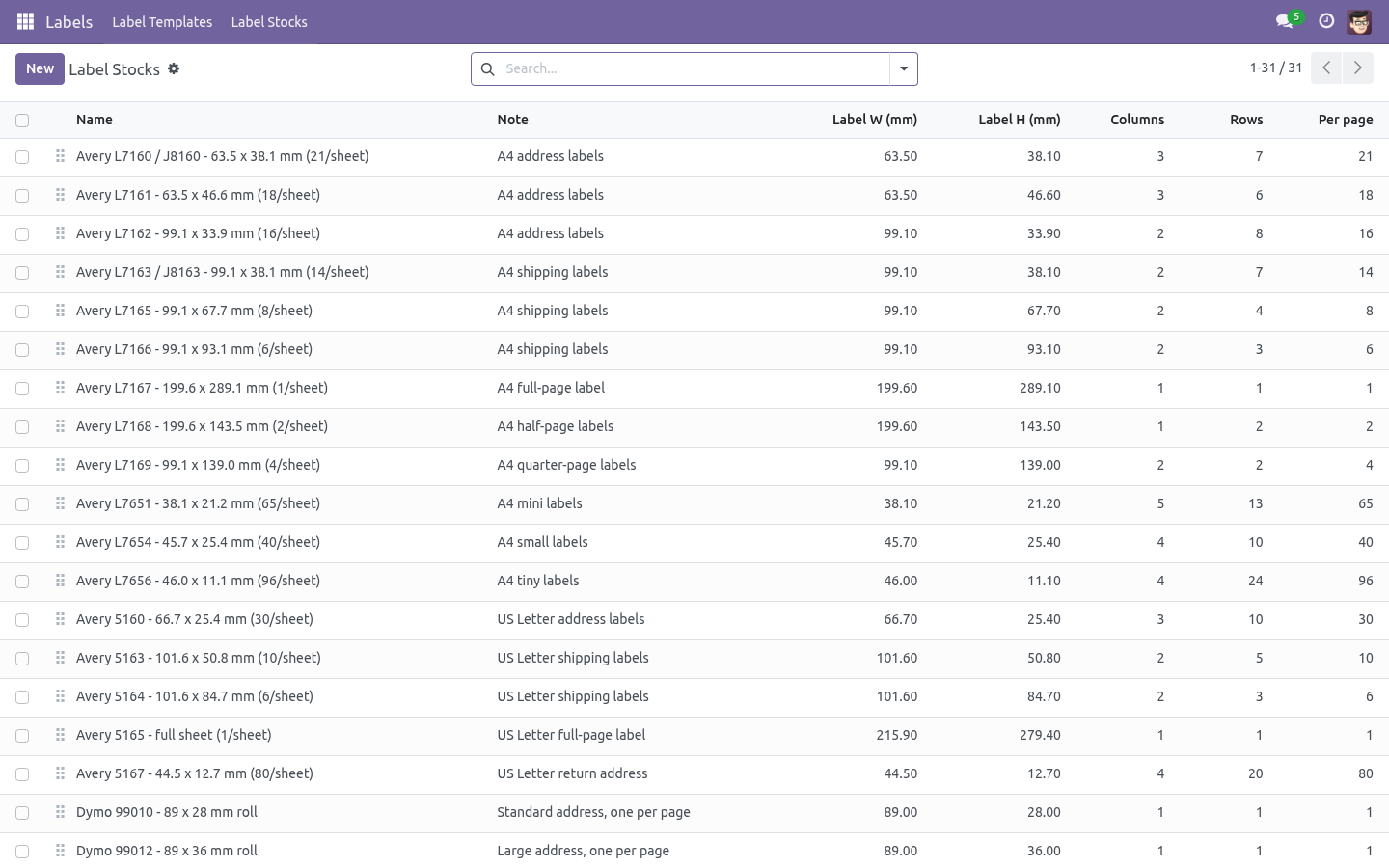
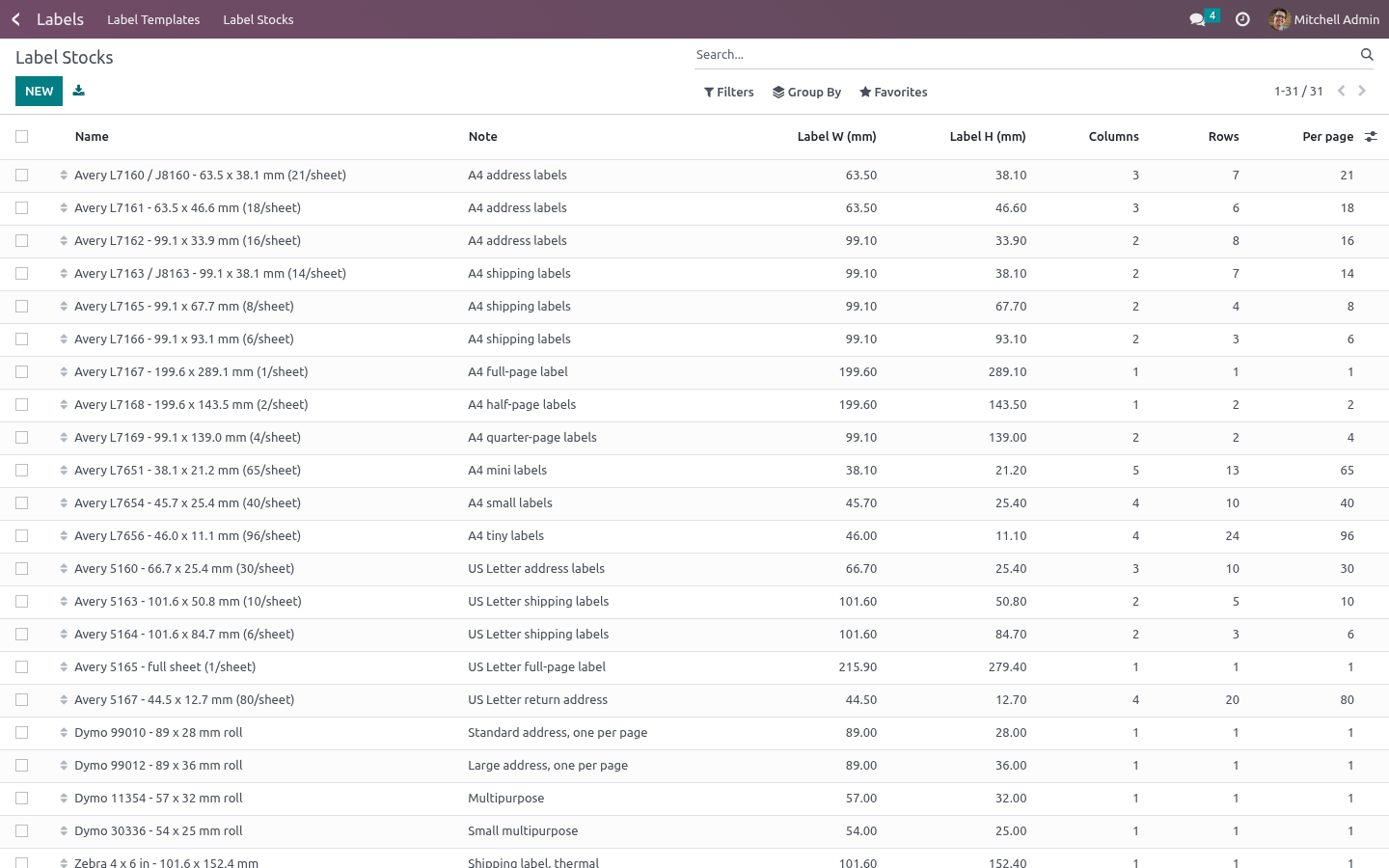
- Label stock (Labels → Label Stocks)
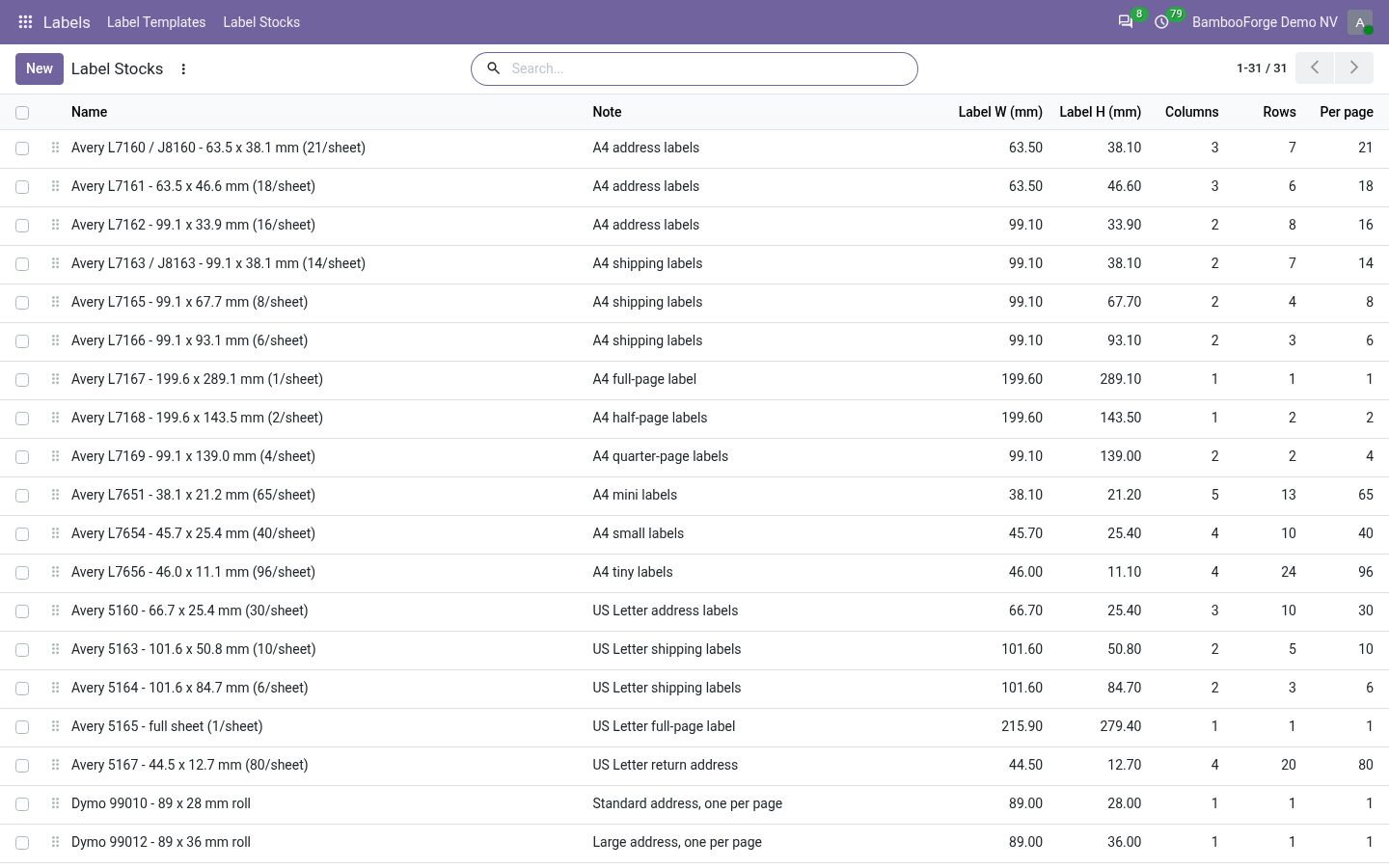
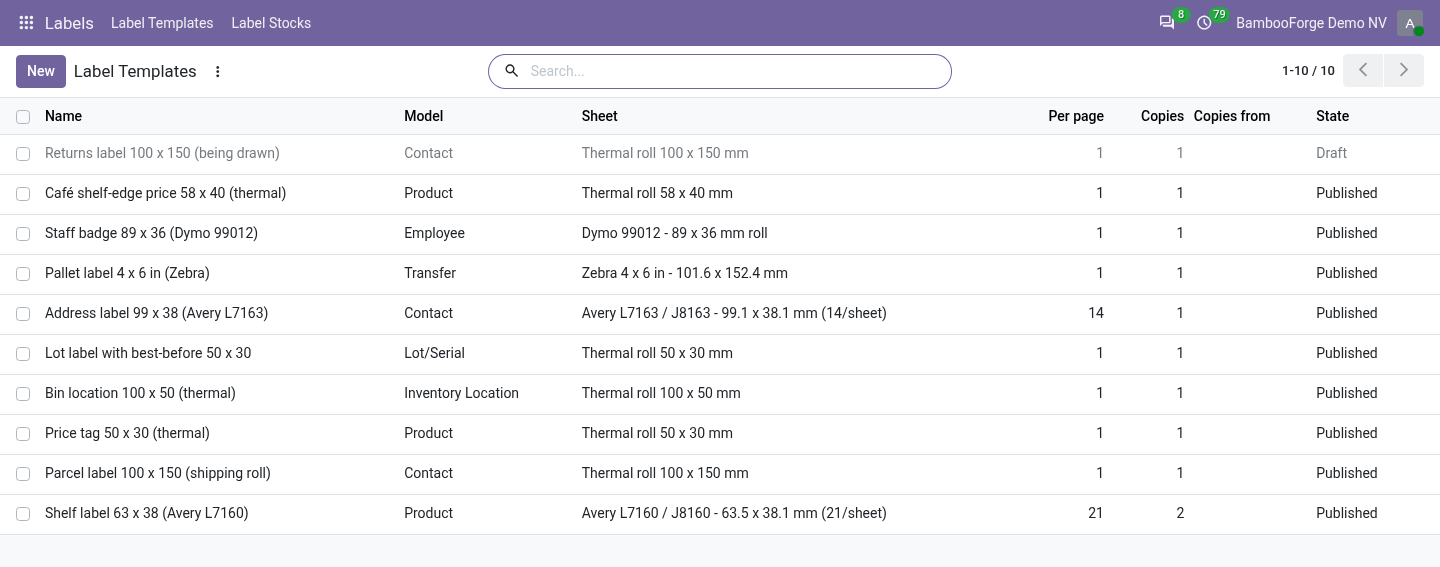
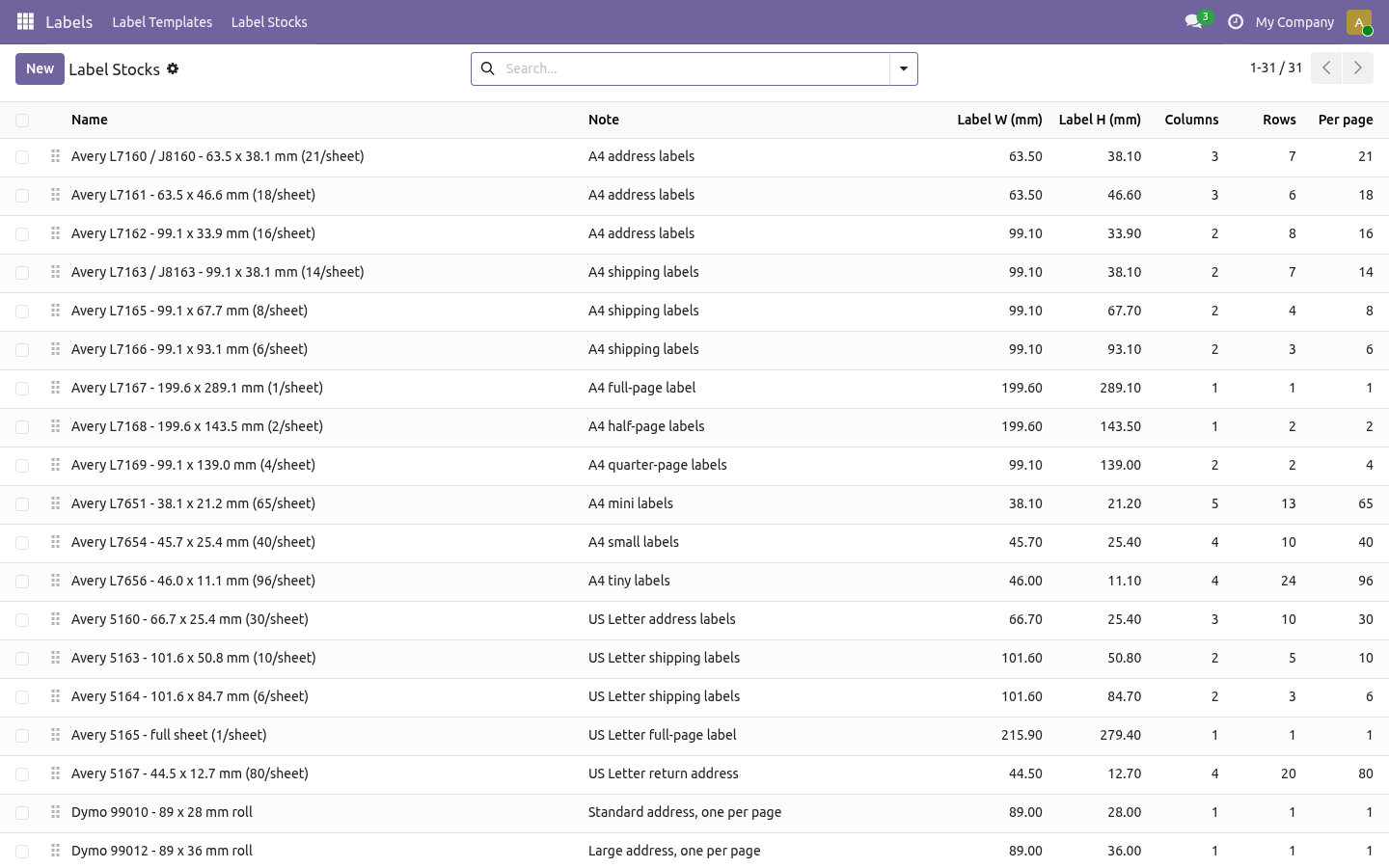
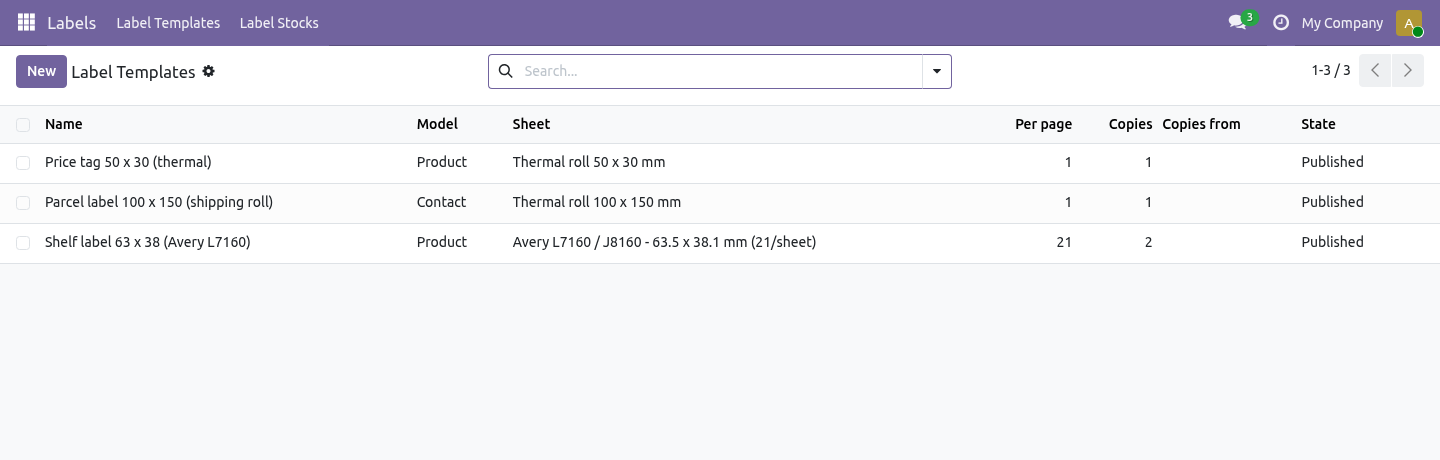
The physical sheet or roll: page size, margins, how many labels across and down, the label size and the gaps between them. Thirty-one common stocks ship with the app — Avery A4 and US Letter, Dymo, Zebra and thermal rolls — and you can measure your own in a minute.
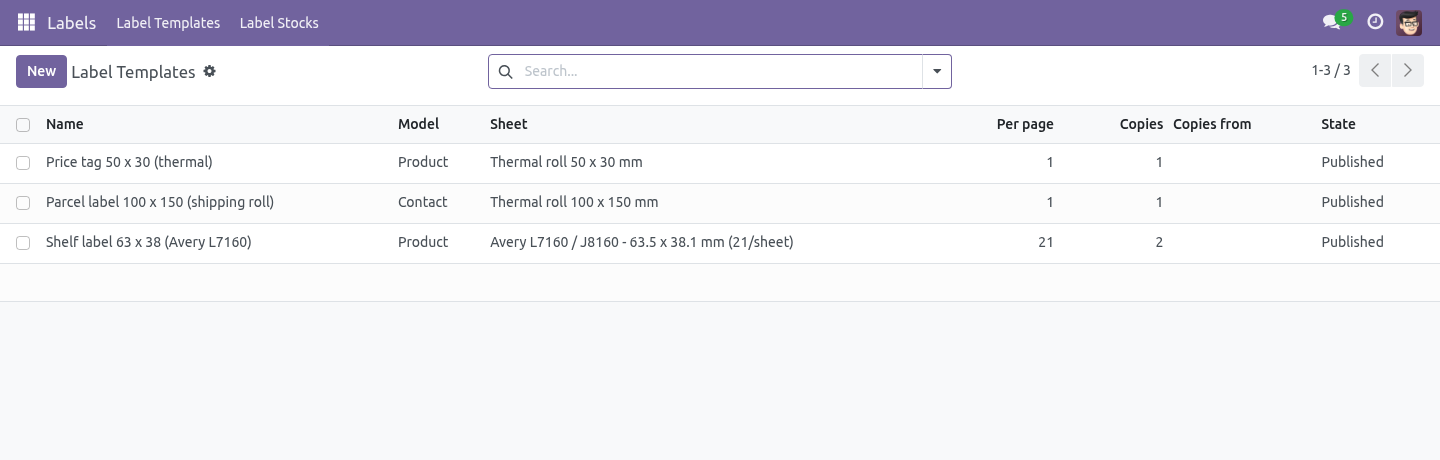
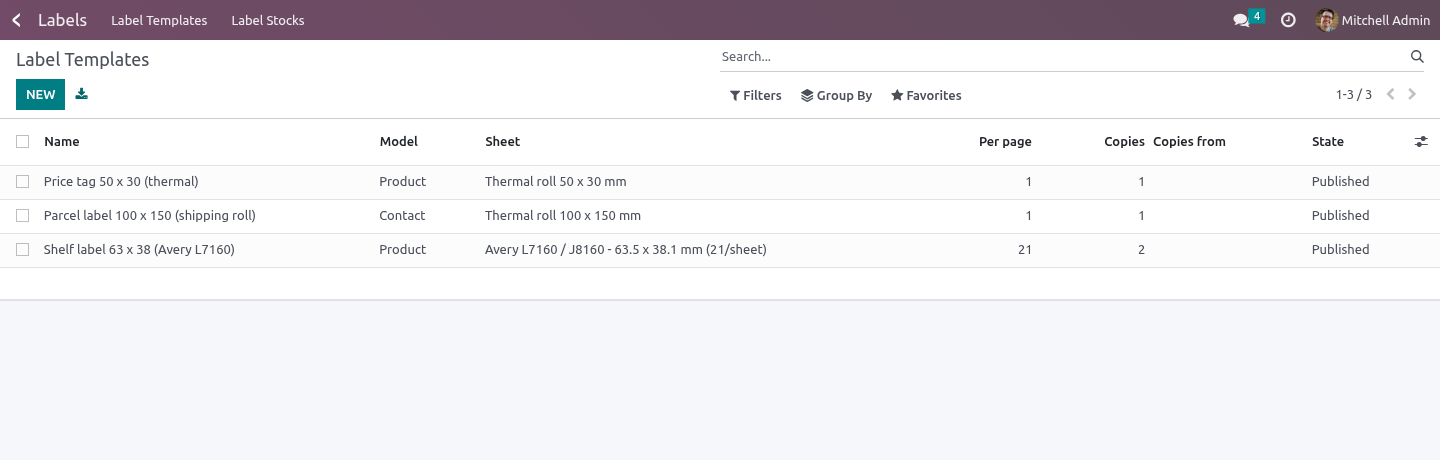
- Label template (Labels → Label Templates)
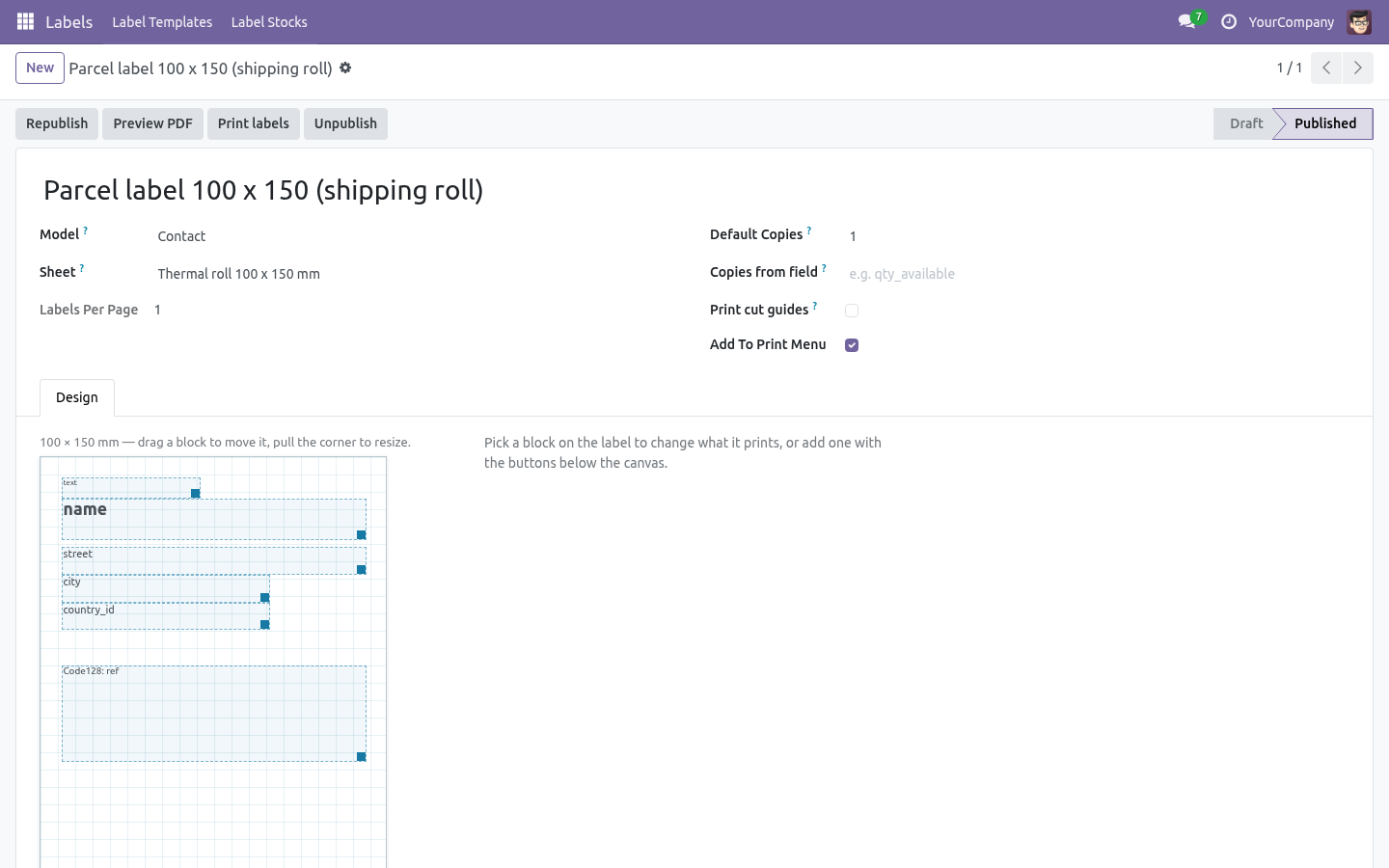
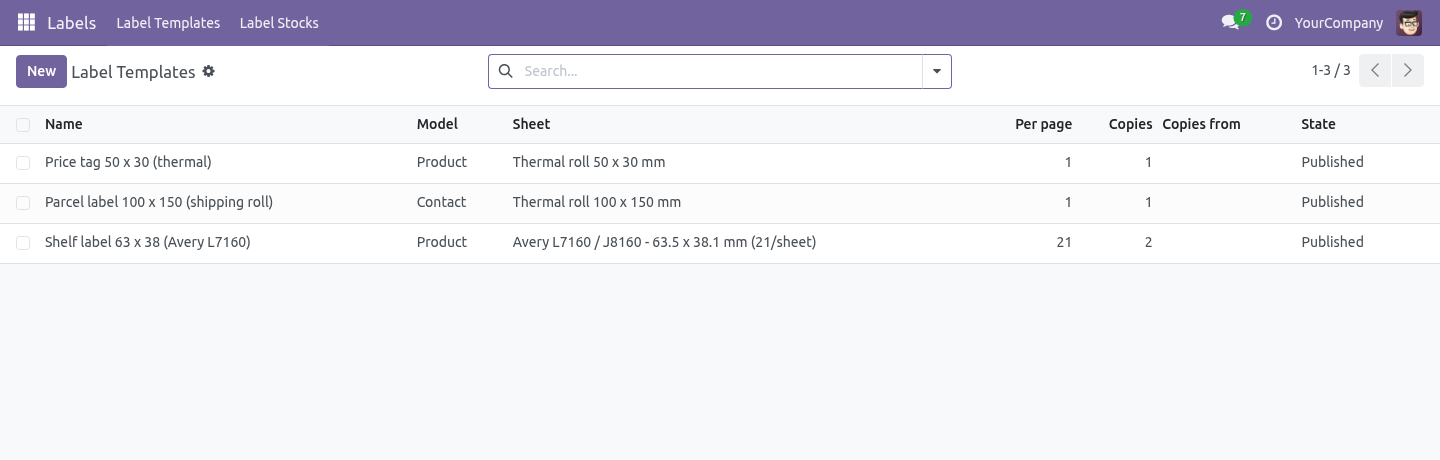
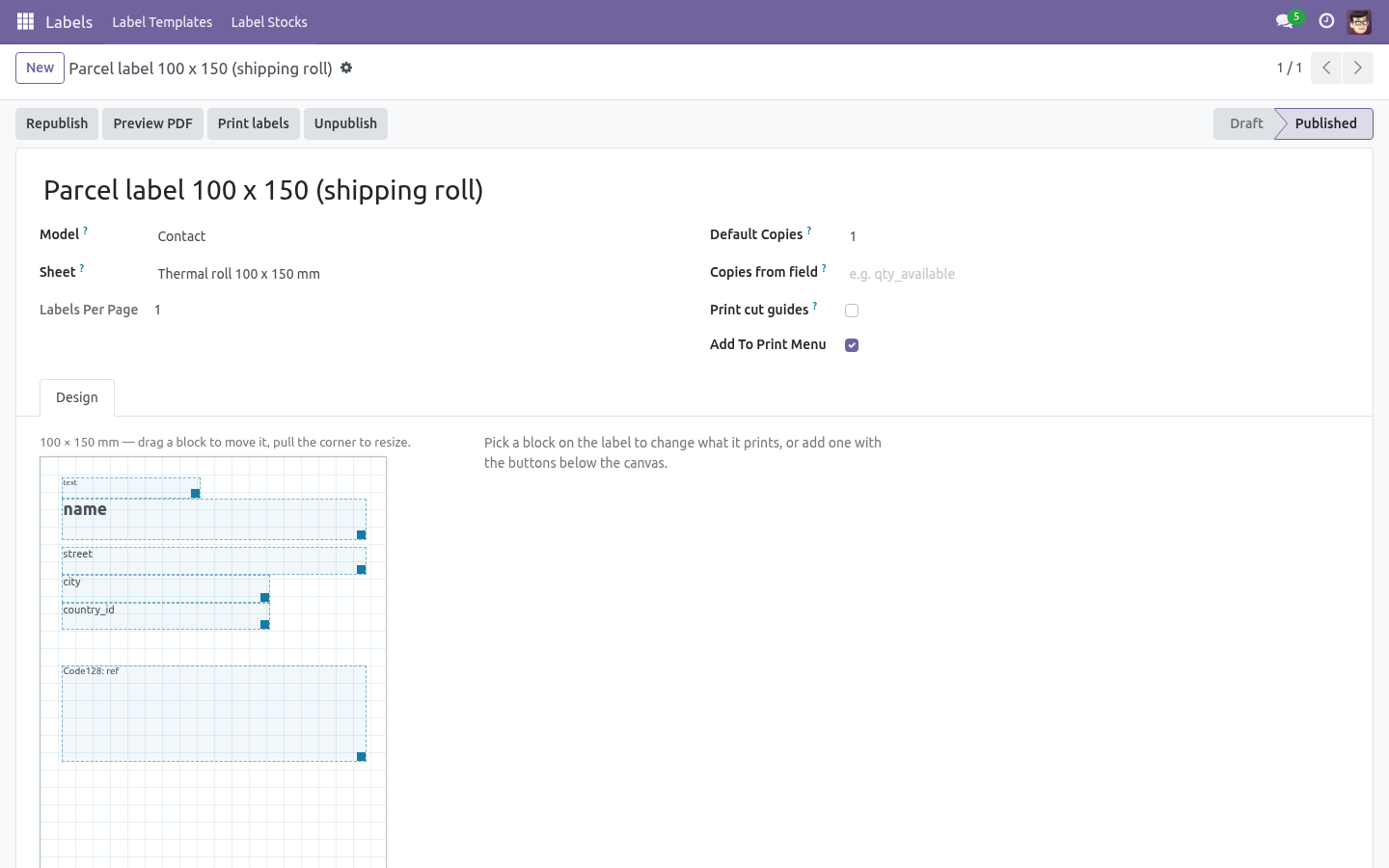
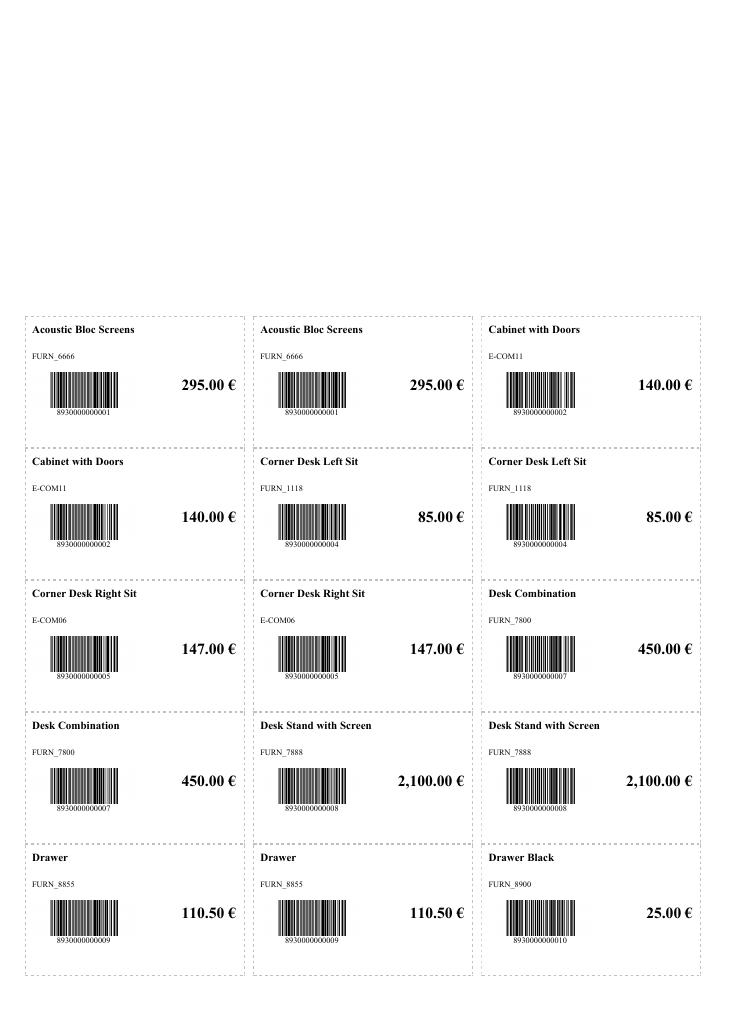
A design for one model on one stock. You place blocks — a field, free text, a price, a barcode, an image, a box, a rule — each with its own position and size in millimetres. Publishing turns it into a normal Odoo PDF report.
- Print dialog
How many copies, and which label on the sheet to start at.
Install
Copy bambooforge_label_designer into your addons path (or install the ZIP), update the app list and install BambooForge Label Designer.
Give yourself Label Designer: Designer (Settings → Users → Other → Label Designer). Everyone else can print; only designers can change a template.
The Labels menu appears with Label Templates and Label Stocks.
The app depends only on base, web and product. It works on Community and Enterprise alike, and prints with the wkhtmltopdf your Odoo already uses — no print server, no font pack, no external service.
Design a label
Labels → Label Templates → New
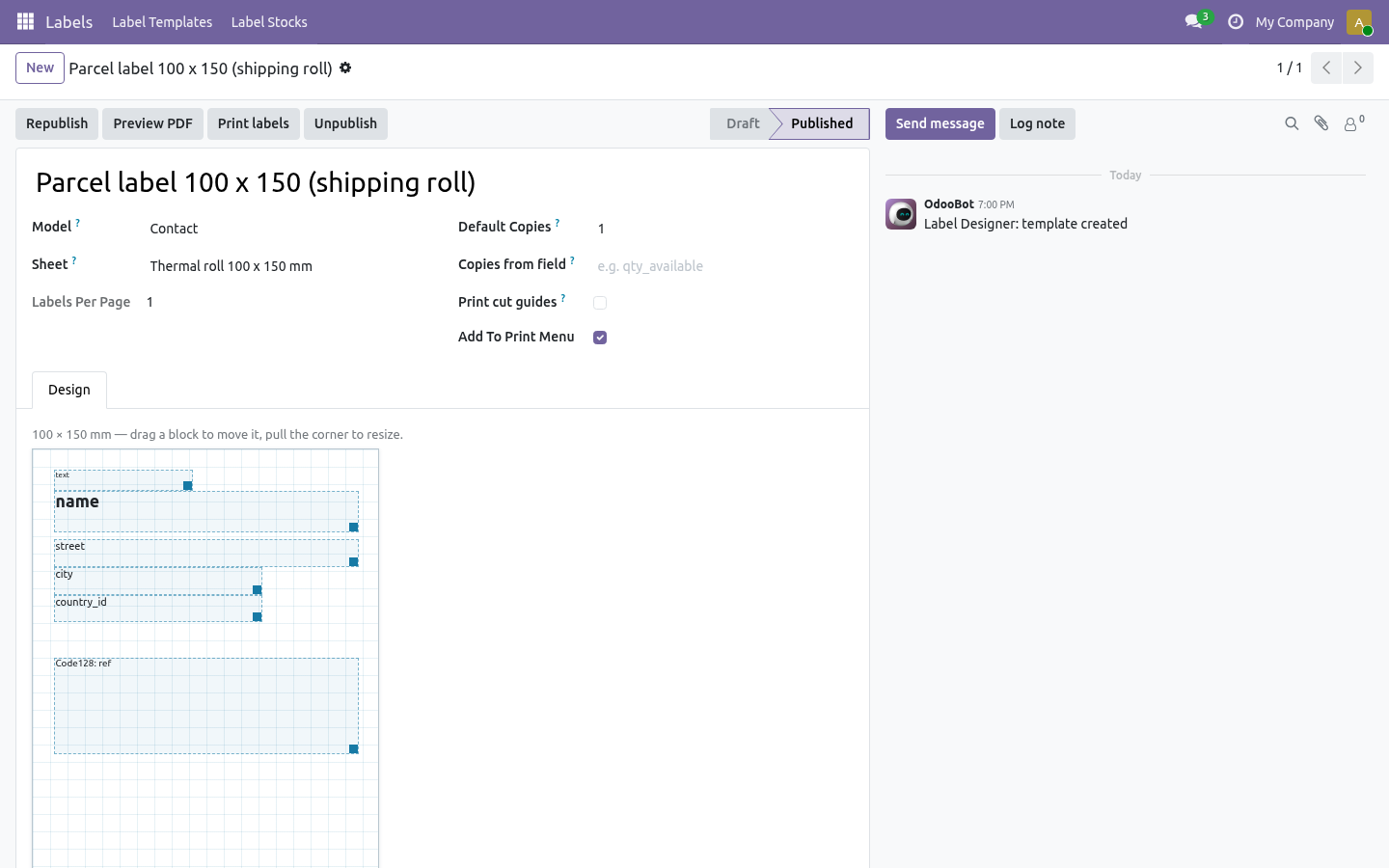
Model — what you print. product.template for shelf labels, stock.lot for lot labels, stock.picking for parcel labels, or your own model.
Label stock — pick the sheet you buy. The canvas immediately takes the size of one label on it.
Copies — how many labels one record gets by default.
Copies from field (optional) — a field holding a quantity, e.g. qty_available. It multiplies the number of copies asked for, which is how "one label per unit in stock" becomes a setting instead of a script.
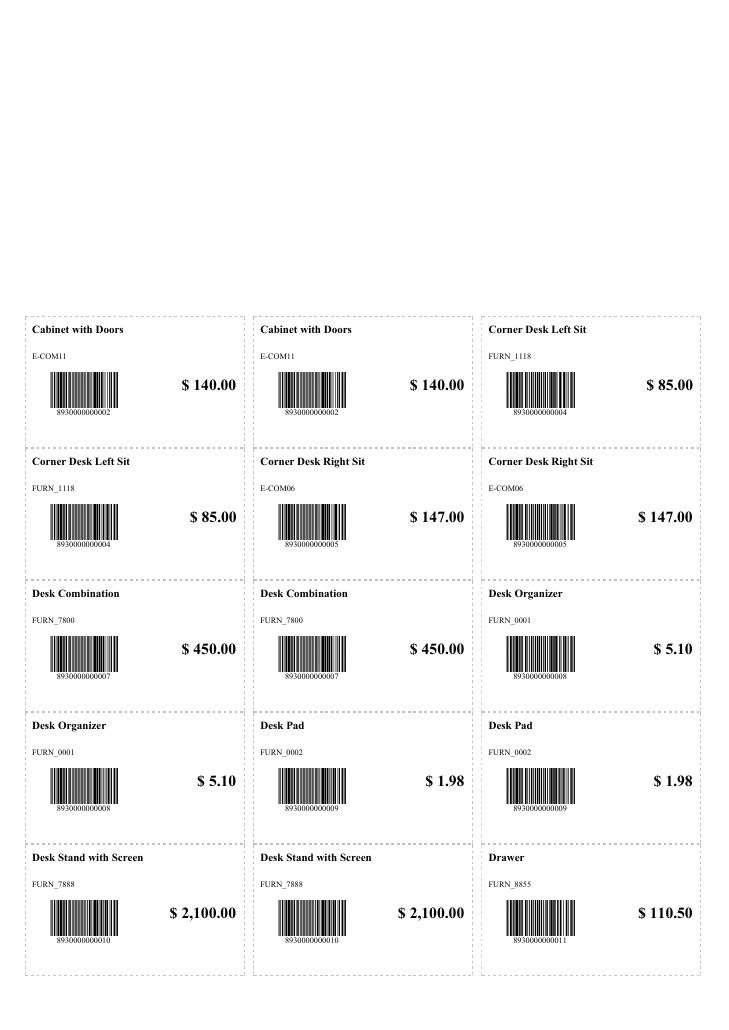
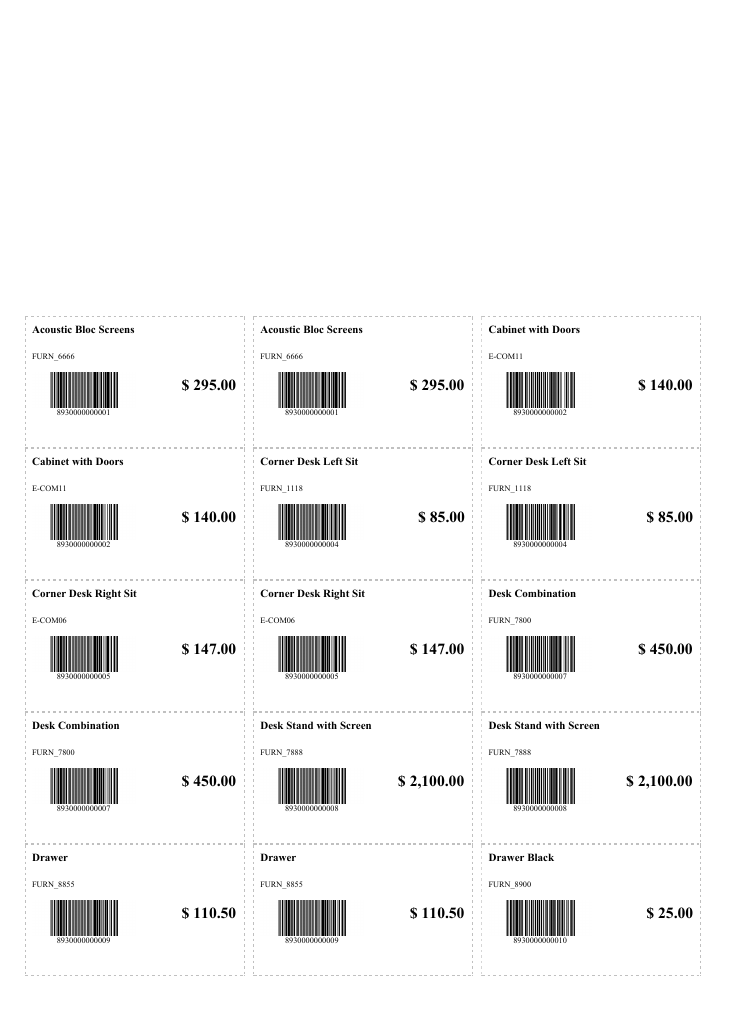
Print cut guides — a dashed outline around each label. Leave it on while you align a new stock on plain paper; turn it off for the real run.
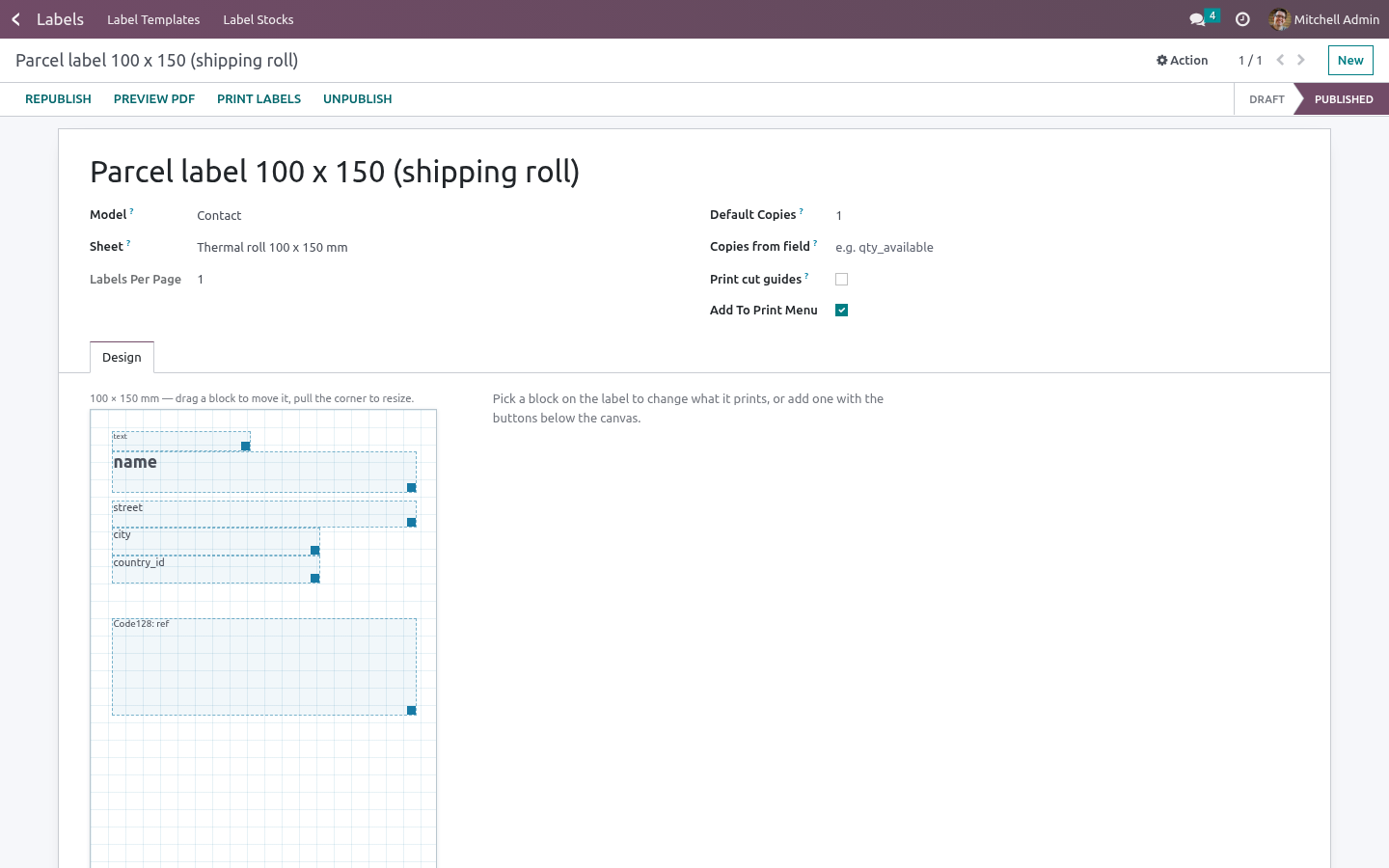
Then place the blocks on the canvas: drag to move, pull the bottom-right corner to resize, and use the panel on the right for the details. Everything snaps to half a millimetre.
Block |
What it prints |
|---|---|
Field |
Any field of the record, including a dotted path such as categ_id.name. Optional prefix and suffix, size, alignment, bold. |
Text |
Fixed text: a warning, a unit, your own name. |
Price |
A numeric field printed as money, with the record's own currency. |
Barcode |
Code128, EAN13 or QR built from a field. The image is drawn inside the PDF — nothing is fetched over the network at print time. Tick Print the value under the bars for a human-readable line. |
Image |
Any binary field: the product photo, a logo, a signature. |
Box / Line |
A frame or a rule, in the template's accent colour. |
Press Publish. That is the moment the design is checked: a block pointing at a field the model does not have, or an unsupported barcode symbology, refuses to publish and tells you which block is wrong. A published template becomes a real ir.actions.report, so it appears in the record's Print menu and can be called from a server action, a button or a cron.
Preview PDF prints the first records of the model straight away, which is the fastest way to check a design against the actual stock.
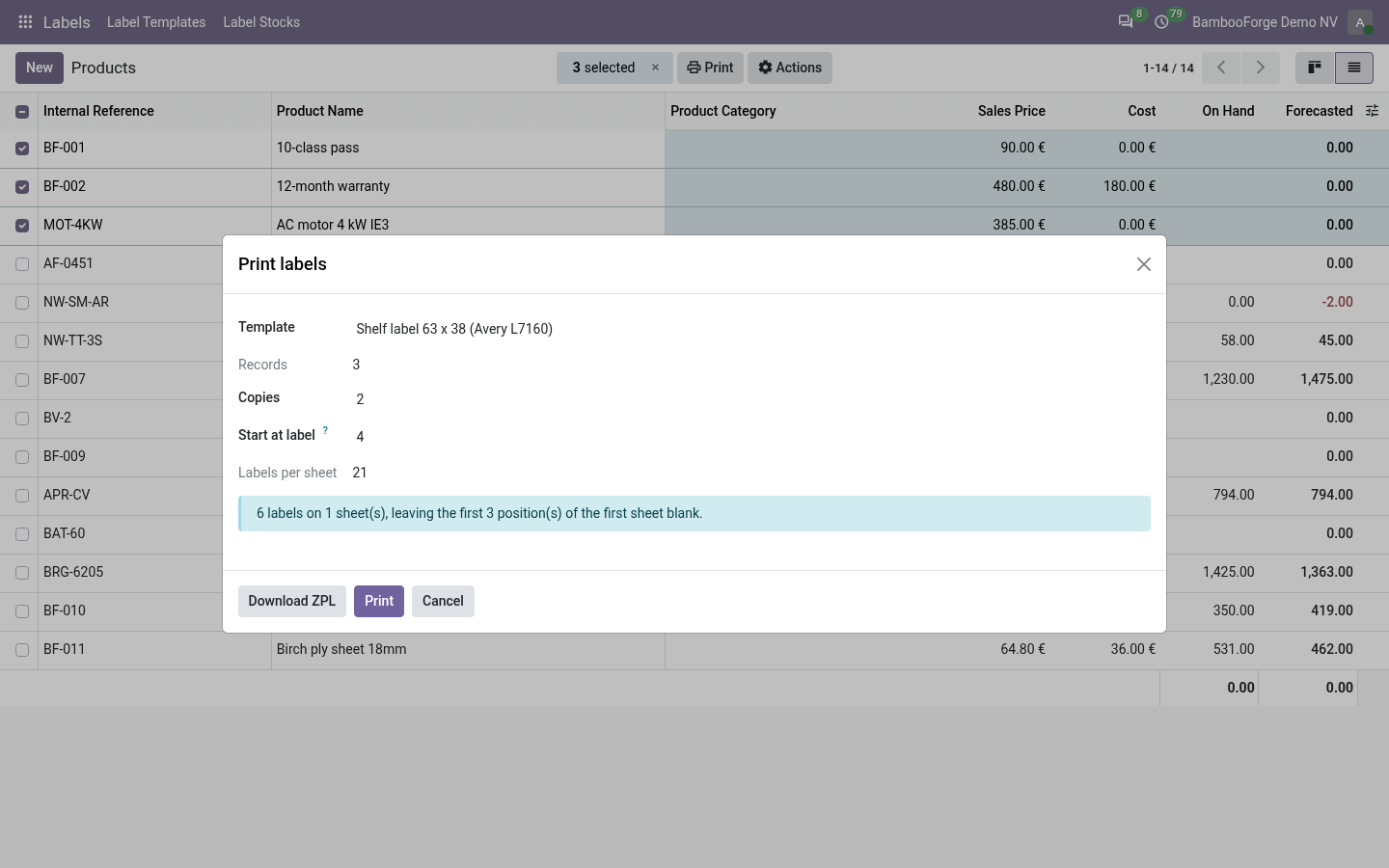
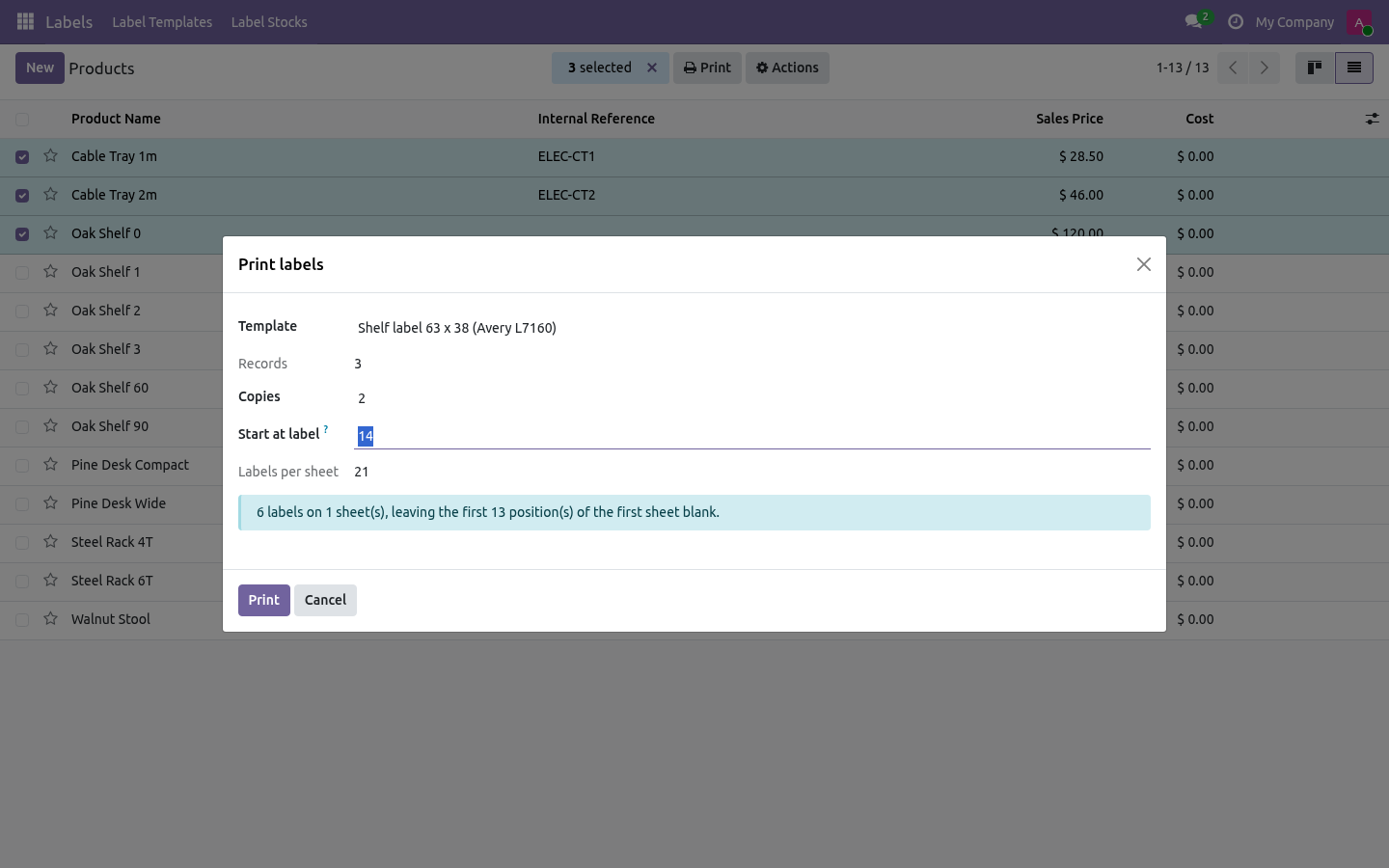
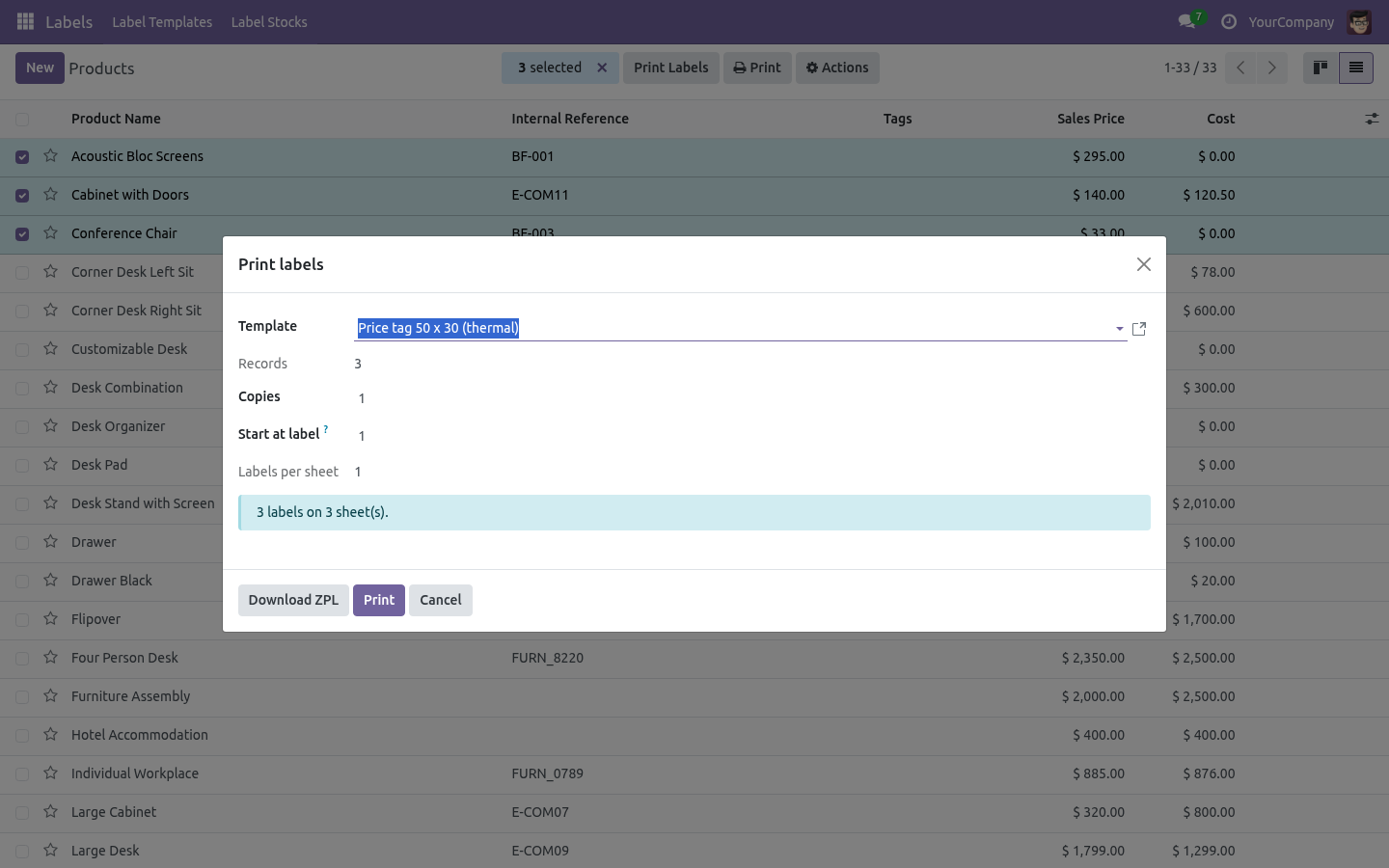
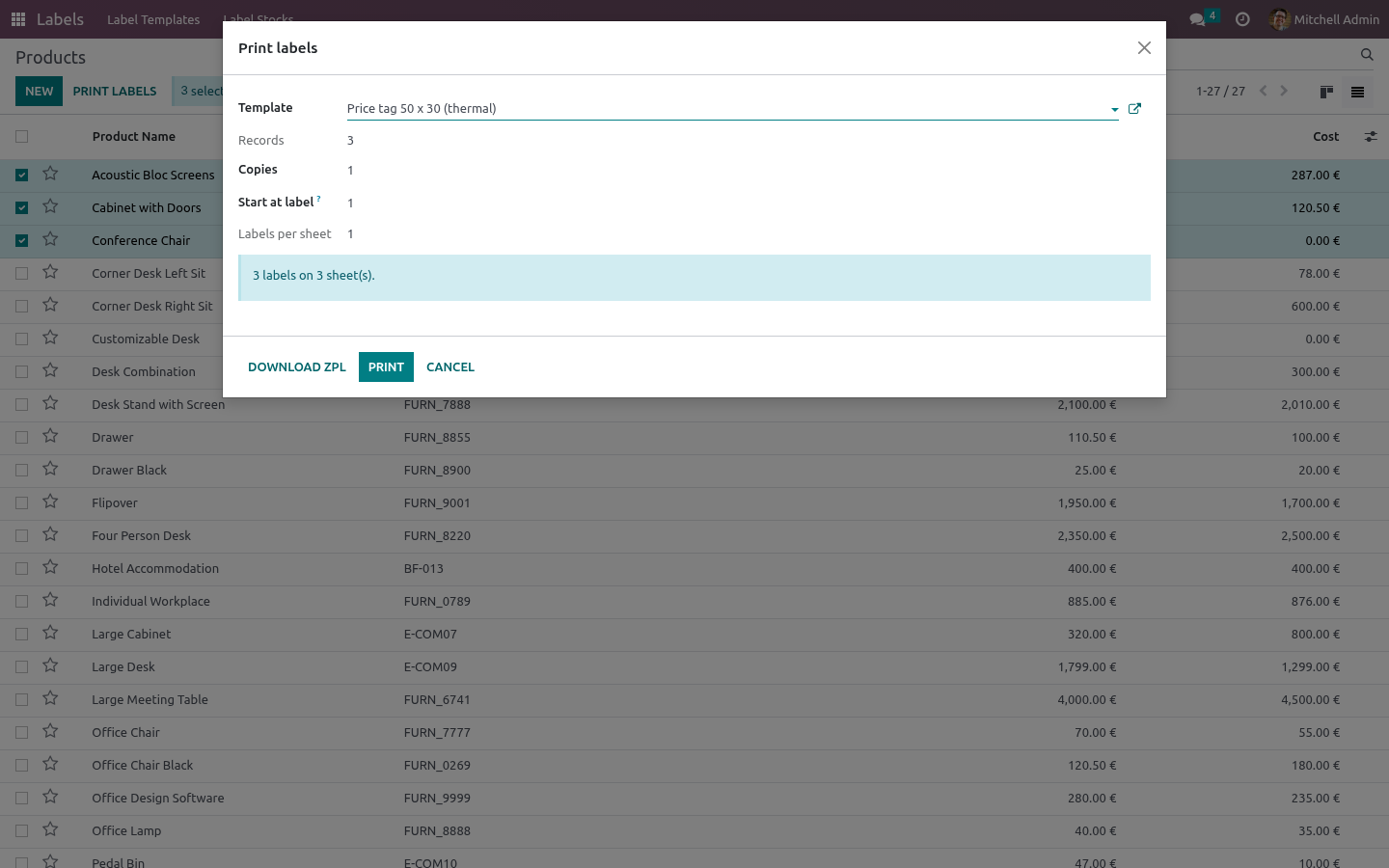
From a list or a form of the model: Print → Print labels.
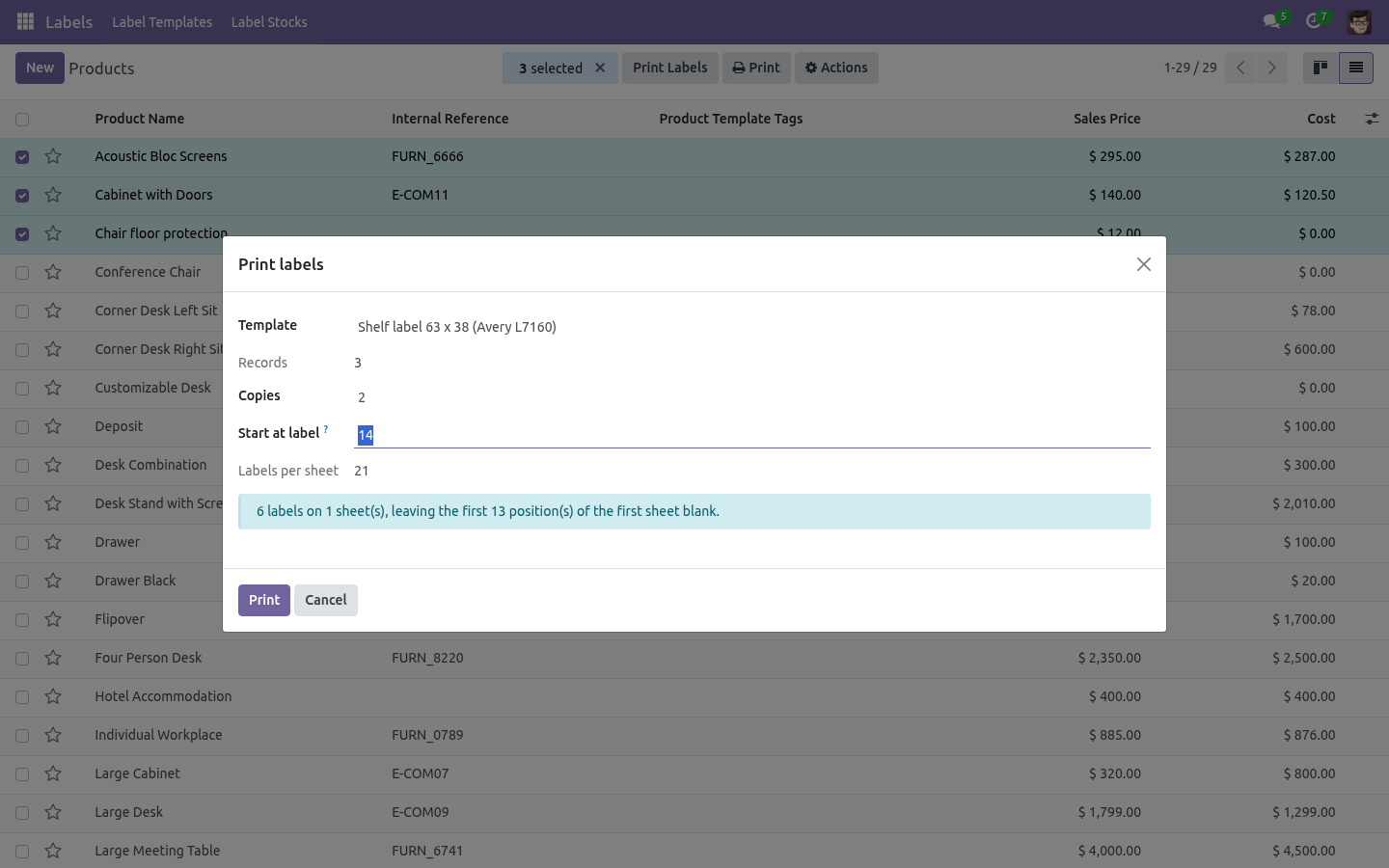
Copies — labels per record (multiplied by Copies from field when the template uses one).
Start at label — the first free label on the sheet. Put the part-finished sheet back in the tray, say you are starting at label 14, and the first thirteen positions are left blank.
The dialog shows how many labels and how many sheets the job will take before you commit any stock.
The Print menu entry created by publishing prints with the template's own defaults and no dialog — handy for a one-click label from a form.
Measuring your own stock
Labels → Label Stocks → New, then measure the sheet with a ruler:
Page — the paper itself (210 × 297 mm for A4, or the label size for a roll).
Top / left margin — from the paper edge to the first label.
Columns / rows, label width / height, and the gaps between labels.
The form shows how much of the page the layout uses; the record refuses to save if the labels cannot physically fit. Print one page with cut guides on plain paper, hold it against the real sheet, and adjust: printers differ by a millimetre or two, and it is always the printer, never the design.
A roll printer is a stock whose page is one label: page 50 × 30 mm, one column, one row, no margins. Ten of those ship with the app.
How it prints
Worth knowing when something looks off by a millimetre:
Each stock gets its own paper format, built once and reused. It carries the page size, the stock's margins, and shrink-to-fit turned off — the PDF engine otherwise scales the page by about a fifth, which moves every label off its die-cut.
The margins live in that paper format rather than in the page, so page two of a long run lands exactly like page one.
Labels are laid out as inline blocks of a fixed size, the layout every label sheet in the world uses, and no label is ever split across a page.
Troubleshooting
- Everything is shifted by a few millimetres
Print one page with cut guides and compare against the sheet. If the whole grid is offset, adjust the stock's top/left margin; if the spacing is wrong, adjust the gaps. Some printers also apply their own scaling: check that the print dialog is at 100% and not "fit to page".
- "'x' is not a field of model.y"
A block points at a field the model does not have — usually after changing the template's model. Open the block and pick the field again.
- "Unsupported barcode symbology"
Only Code128, EAN13 and QR are supported. EAN13 needs exactly 13 digits (12 plus the check digit); Odoo prints nothing for an invalid value, so check the field's content first.
- The barcode is blank
The field is empty on that record. Barcodes print only when there is something to encode.
- The price is cut off
The block is too narrow for the amount at that font size. Widen the block or drop a point of size — the label crops rather than reflow, on purpose, so nothing ever pushes another block off the label.
- Nothing appears in the Print menu
The template is still in draft, or Add to print menu is off. Publish it.
- Two templates for the same model
Both appear in the Print menu, each under its own name. The print dialog lets you pick; a list with no template for its model shows nothing.
What changed in 1.1
ZPL II output. The print wizard's Download ZPL renders the same block design as ^XA jobs for Zebra-class thermal printers - text, fields, prices, Code128 (with native GS1 mode), EAN-13, QR, boxes and lines, one job per label with the right ^PQ quantity. Image blocks stay PDF-only, stated on the file itself.
Print runs above 5,000 labels are refused with a clear message instead of hanging the PDF engine.
Templates carry a chatter tracking design changes, and are isolated per company.
How we make sure it works
Before every release, 65 automated checks run against this app on Odoo 16, 17, 18, 19 and 20. Among them:
A colour cannot smuggle a style declaration.
A draft template is not published by an edit.
A plain employee does not see the menu.
An unknown block type is skipped not crashed.
No print menu entry when not asked for.
The complete list is in the source you receive.
Support
support@bambooforge.dev — questions, bug reports and feature requests are answered by the developers who wrote the module.