 BambooForge Labs
Discuss Pro: Modern Chat UI
A modern, professional redesign of Odoo Discuss: quick reactions, compact density and brand-aware styling, built on Odoo's own theme colours.
Available for Odoo 17.0, Odoo 18.0, Odoo 19.0, Odoo 20.0. Technical name bambooforge_discuss_pro.
Transcript of the walkthrough (Odoo 20)
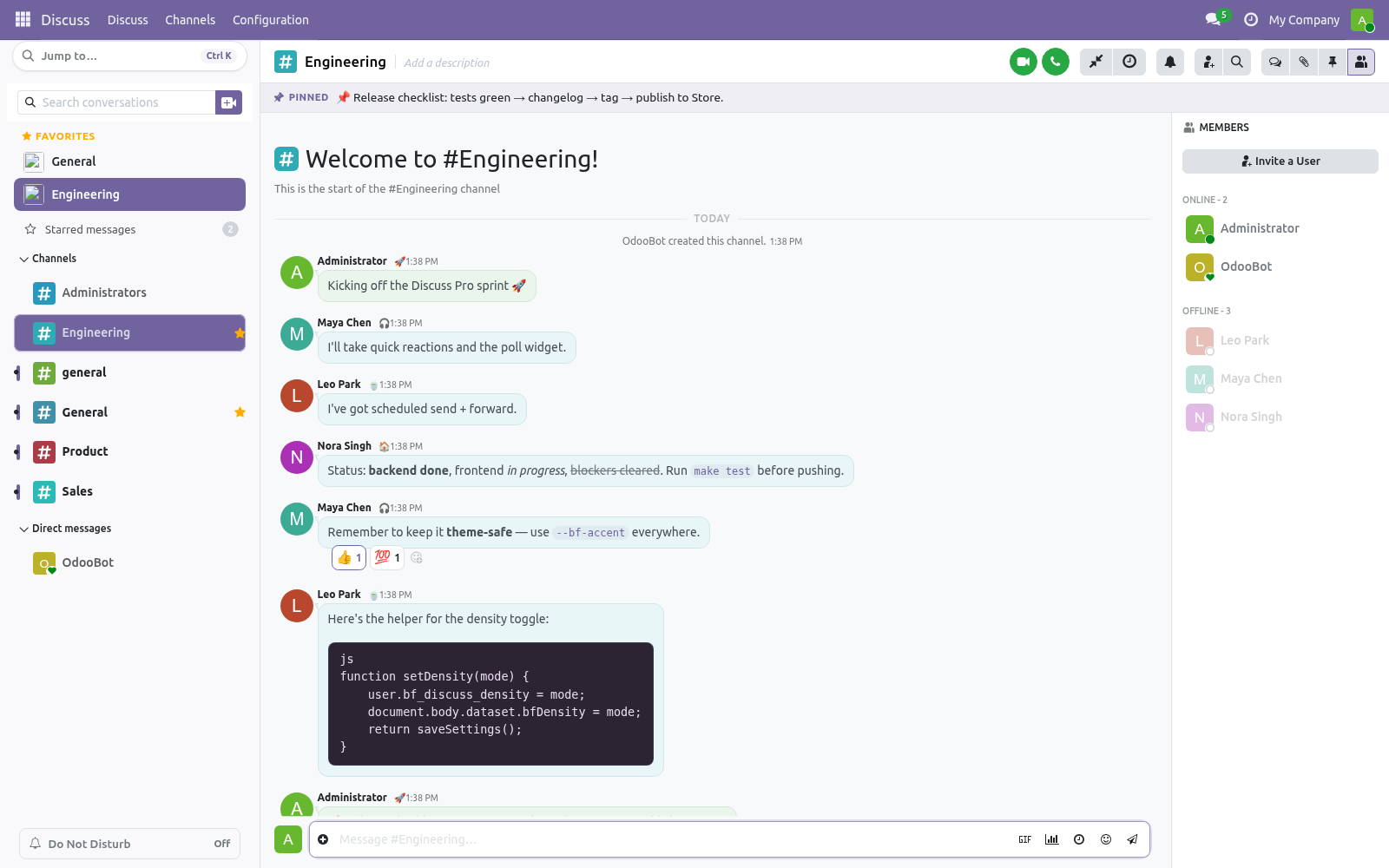
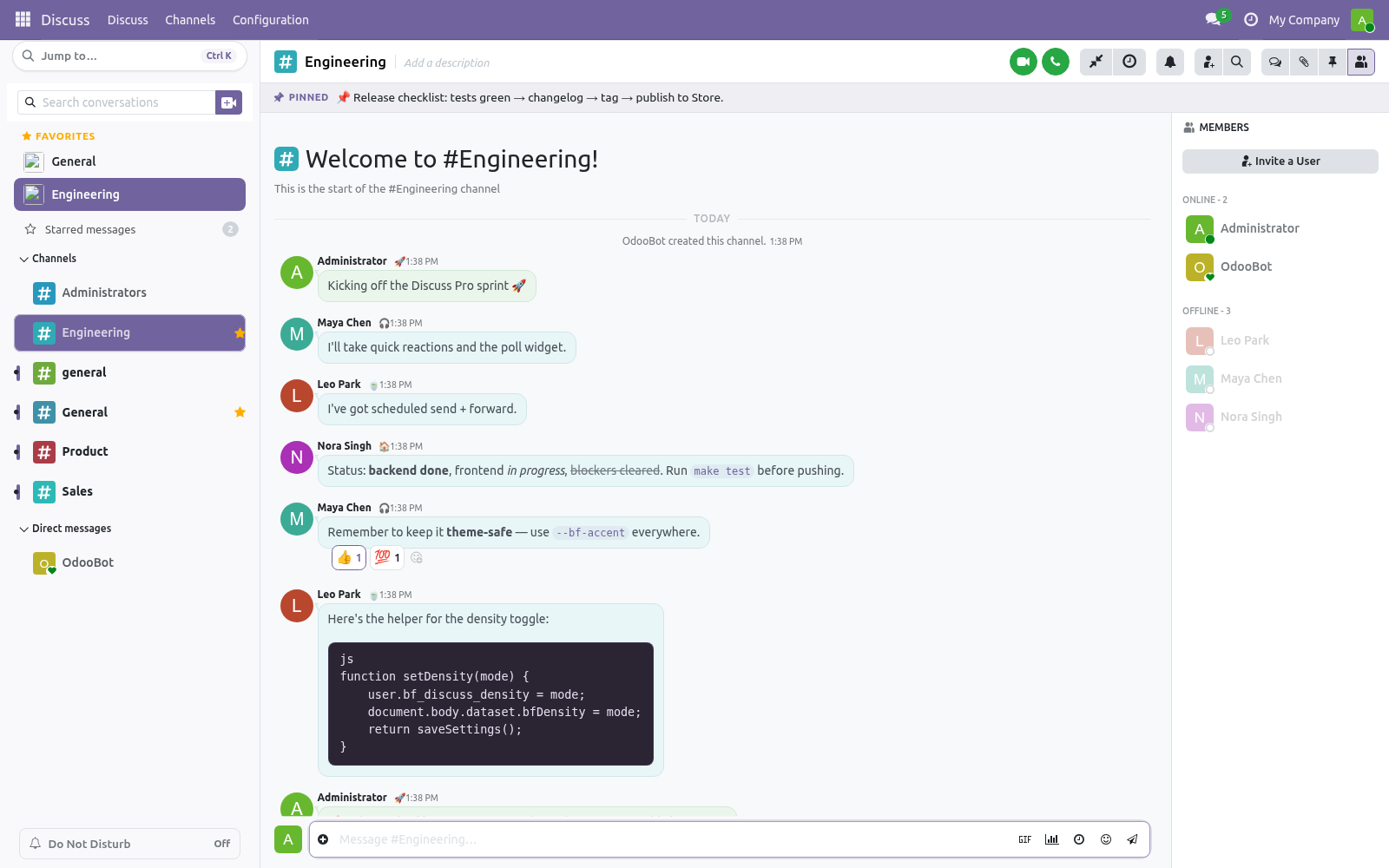
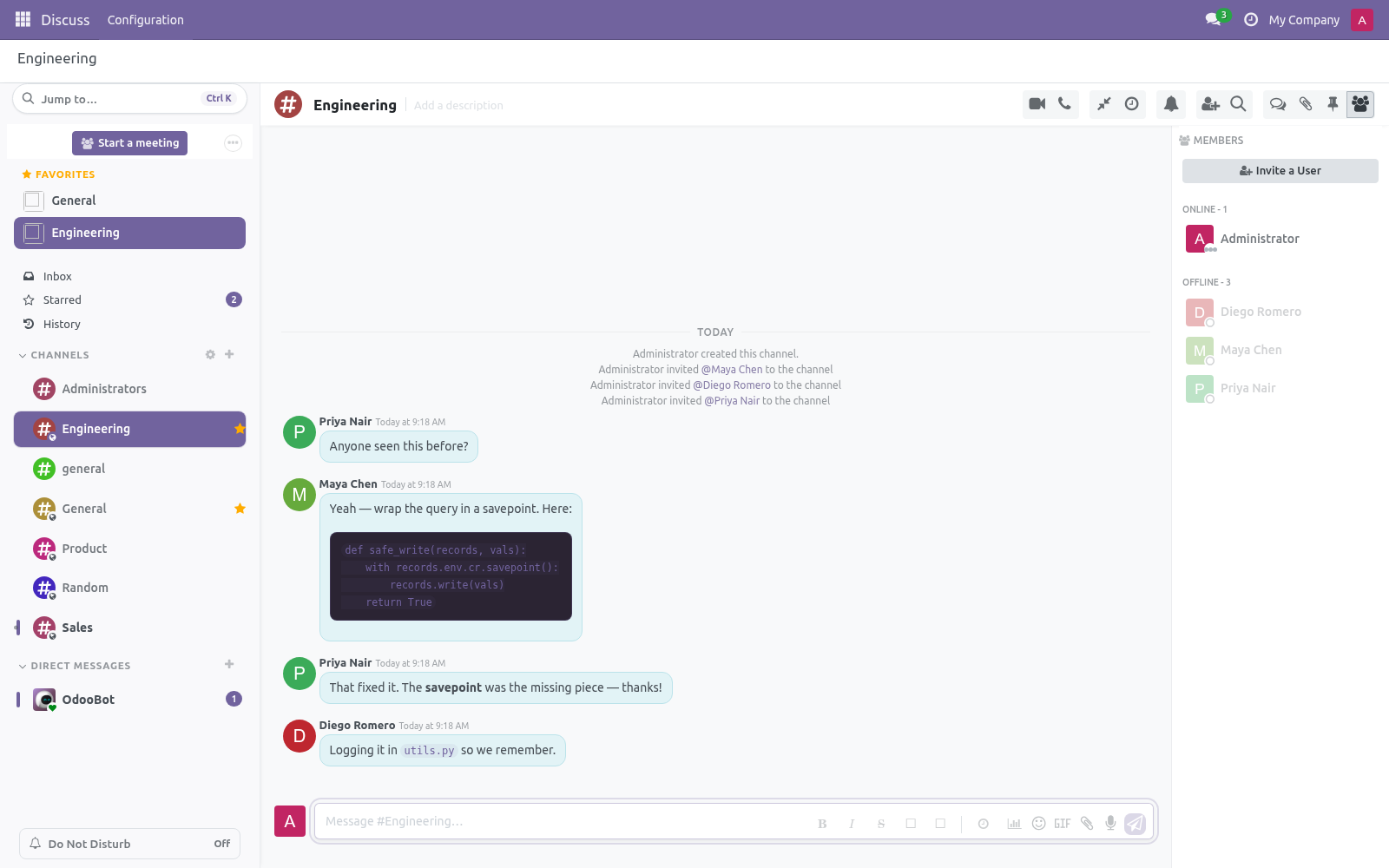
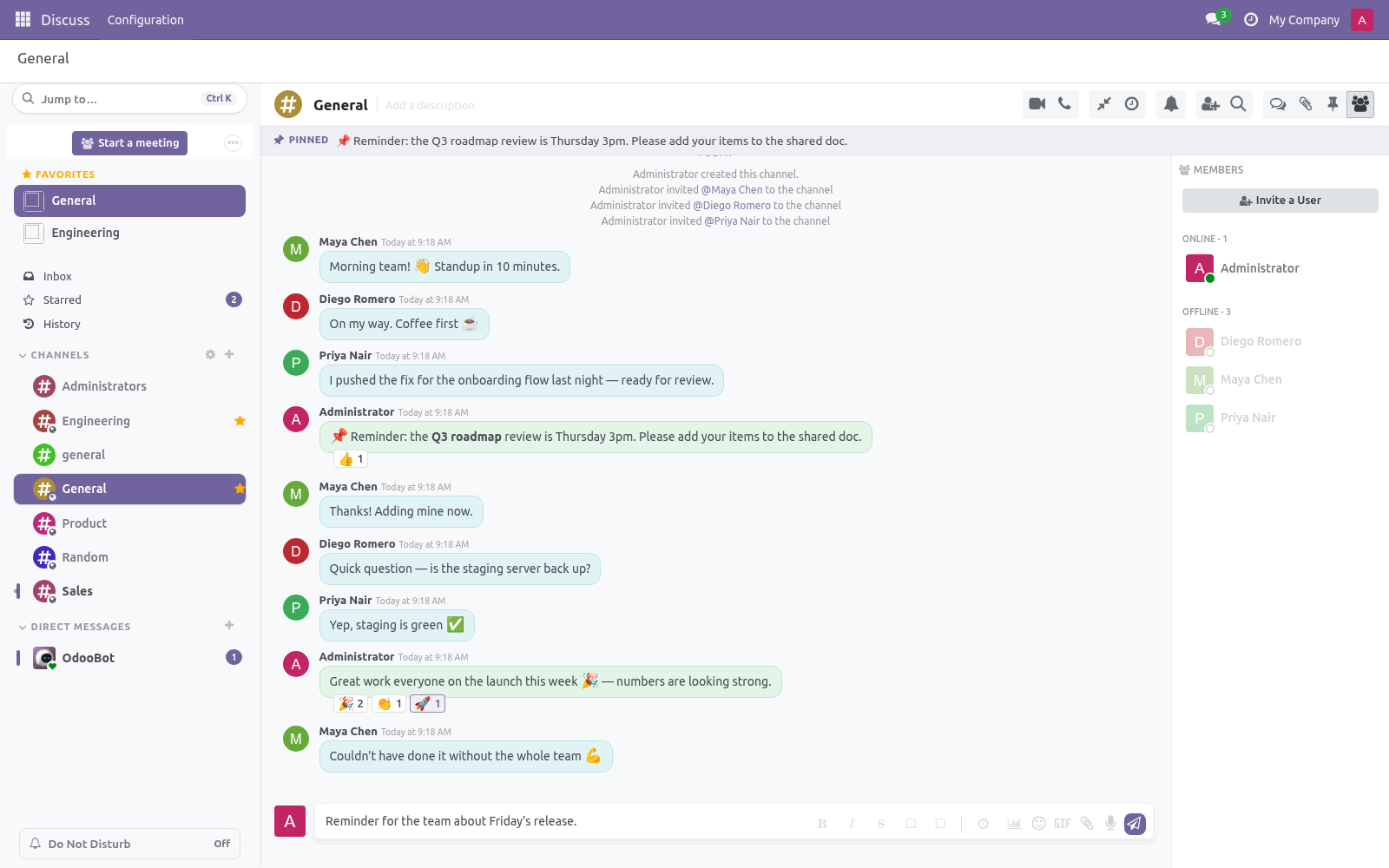
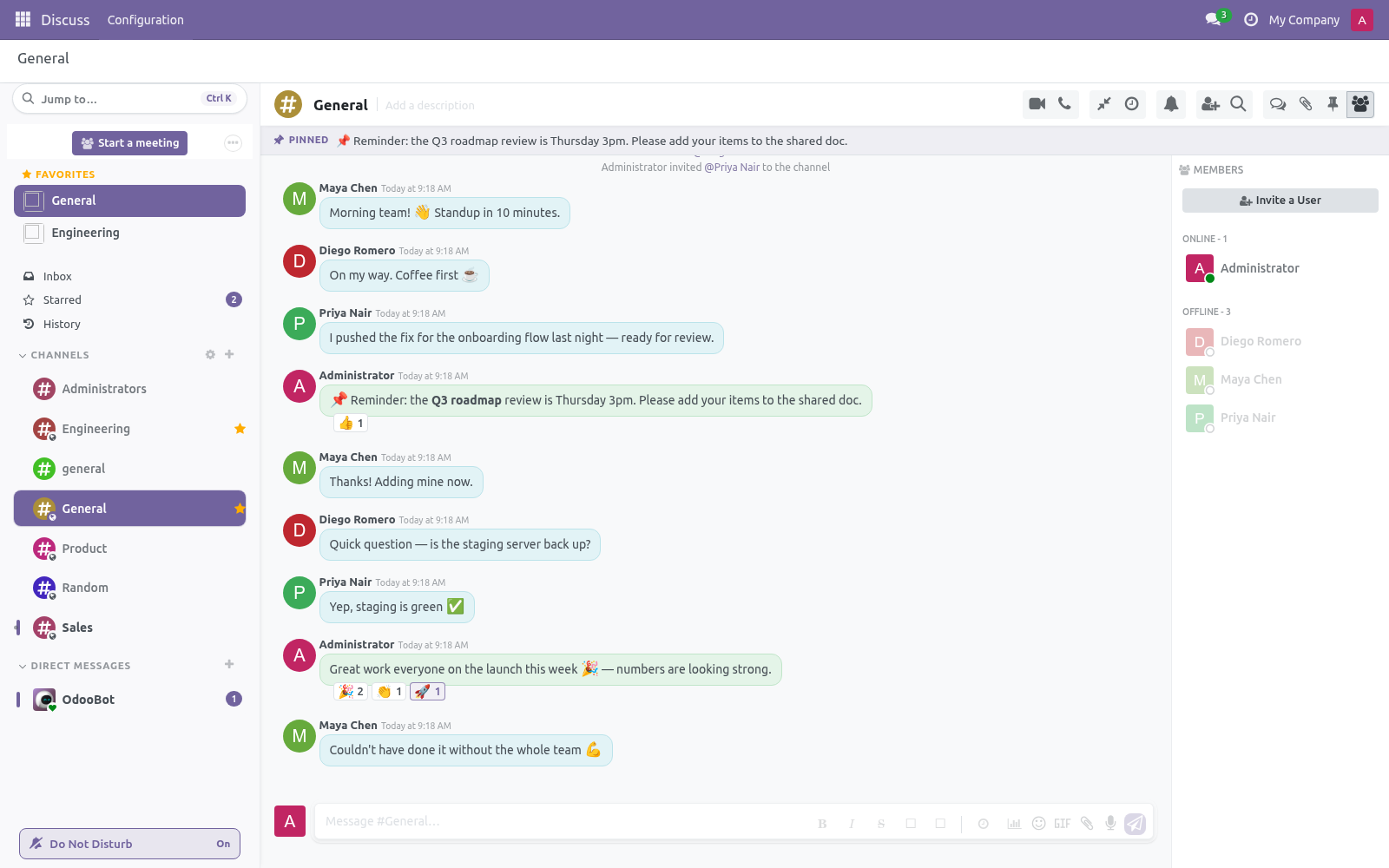
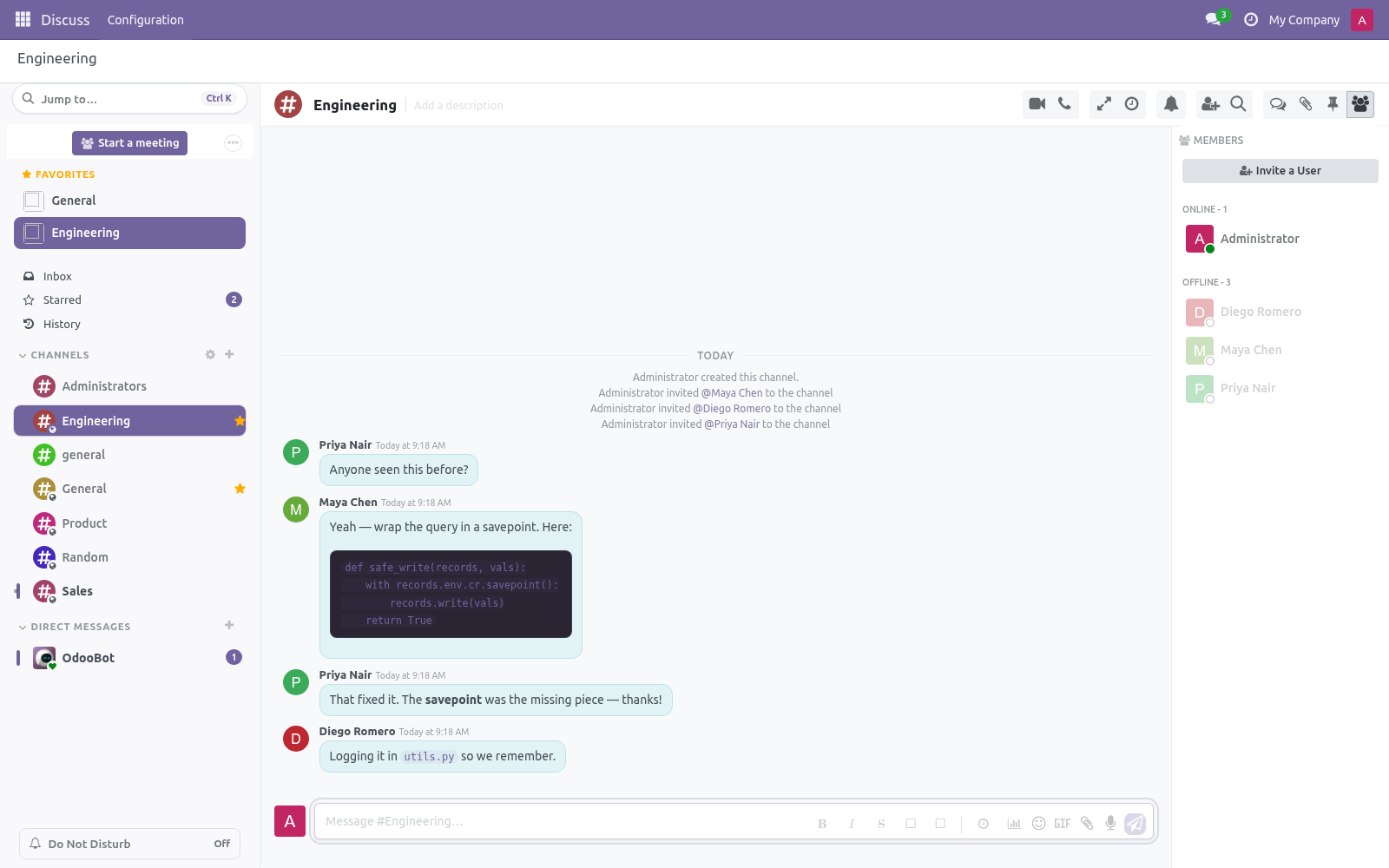
Discuss Pro: Modern Chat UI. A modern, professional redesign of Odoo Discuss: quick reactions, compact density and brand-aware styling, built on Odoo's own theme colours. A modern, feature-rich redesign of Odoo 20 Discuss. It adds the chat features your team expects — quick reactions, polls, scheduled messages, formatting, forwarding, custom statuses and more — on top of a refined interface that follows your backend theme's colors.
In the next few minutes: discuss pro: modern chat ui, then quick reactions, then message formatting, then polls, then scheduled send (send later). Then what this app deliberately does not do, so you can tell before you buy whether it fits. 1. Copy bambooforge_discuss_pro into your addons path (or install from the Apps store).
2. Go to Apps, click Update Apps List, search for Discuss Pro and install. 3. That's it — open Discuss and the new interface is live for every user.
Discuss Pro: Modern Chat UI. A modern, feature-rich redesign of Odoo 20 Discuss. It adds the chat features your team expects — quick reactions, polls, scheduled messages, formatting, forwarding, custom statuses and more — on top of a refined interface that follows your backend theme's colors. This module does not fork the mail module.
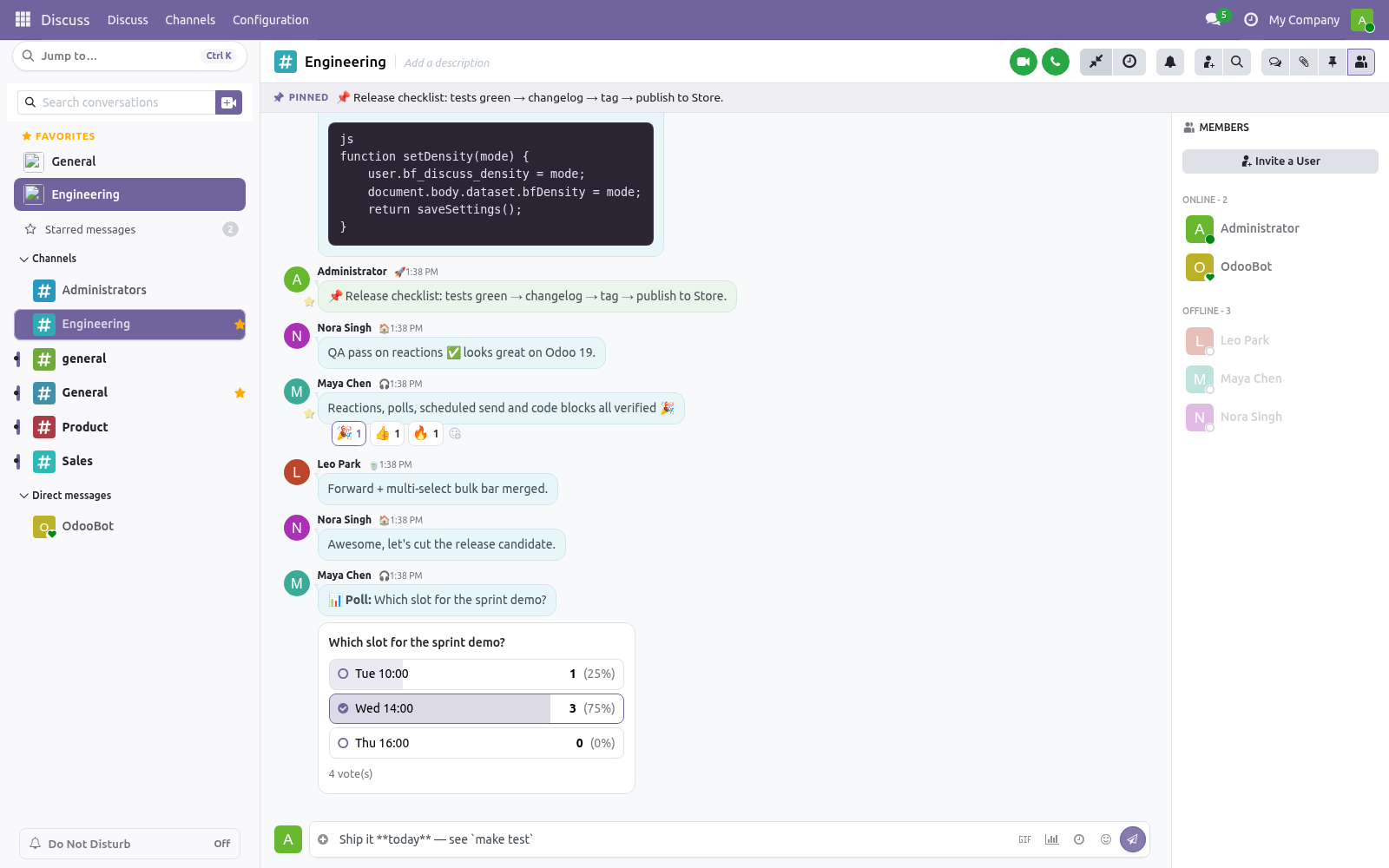
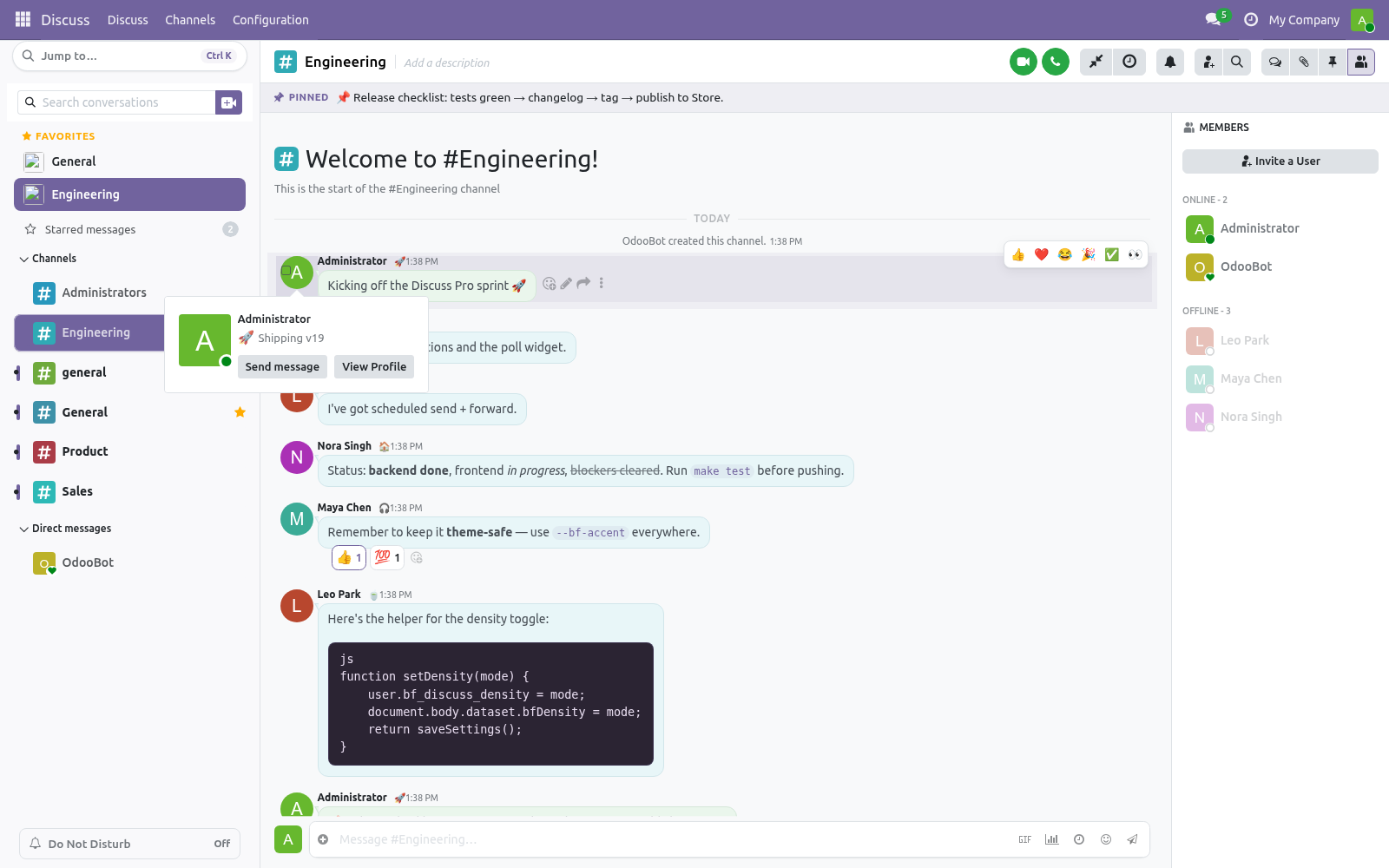
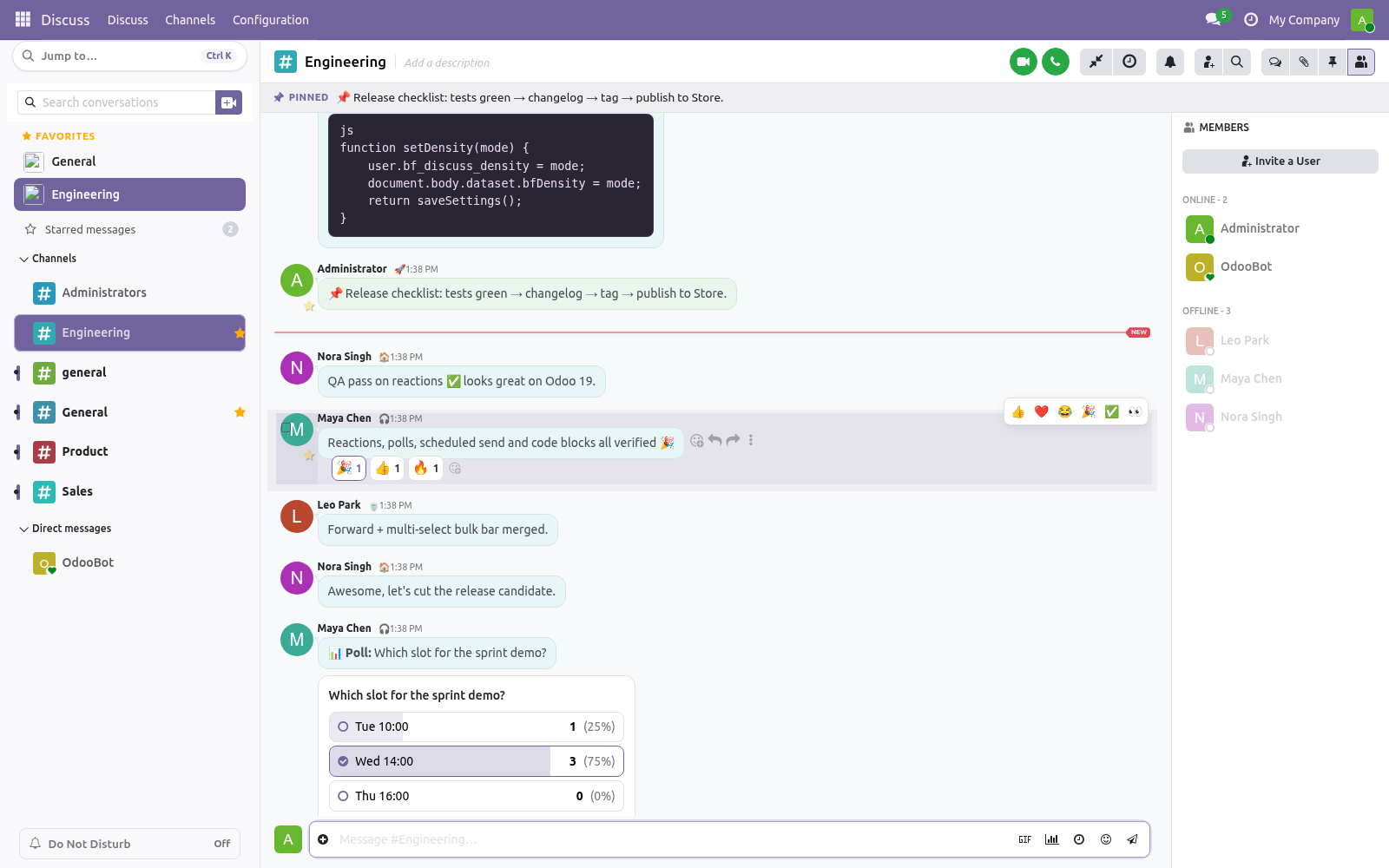
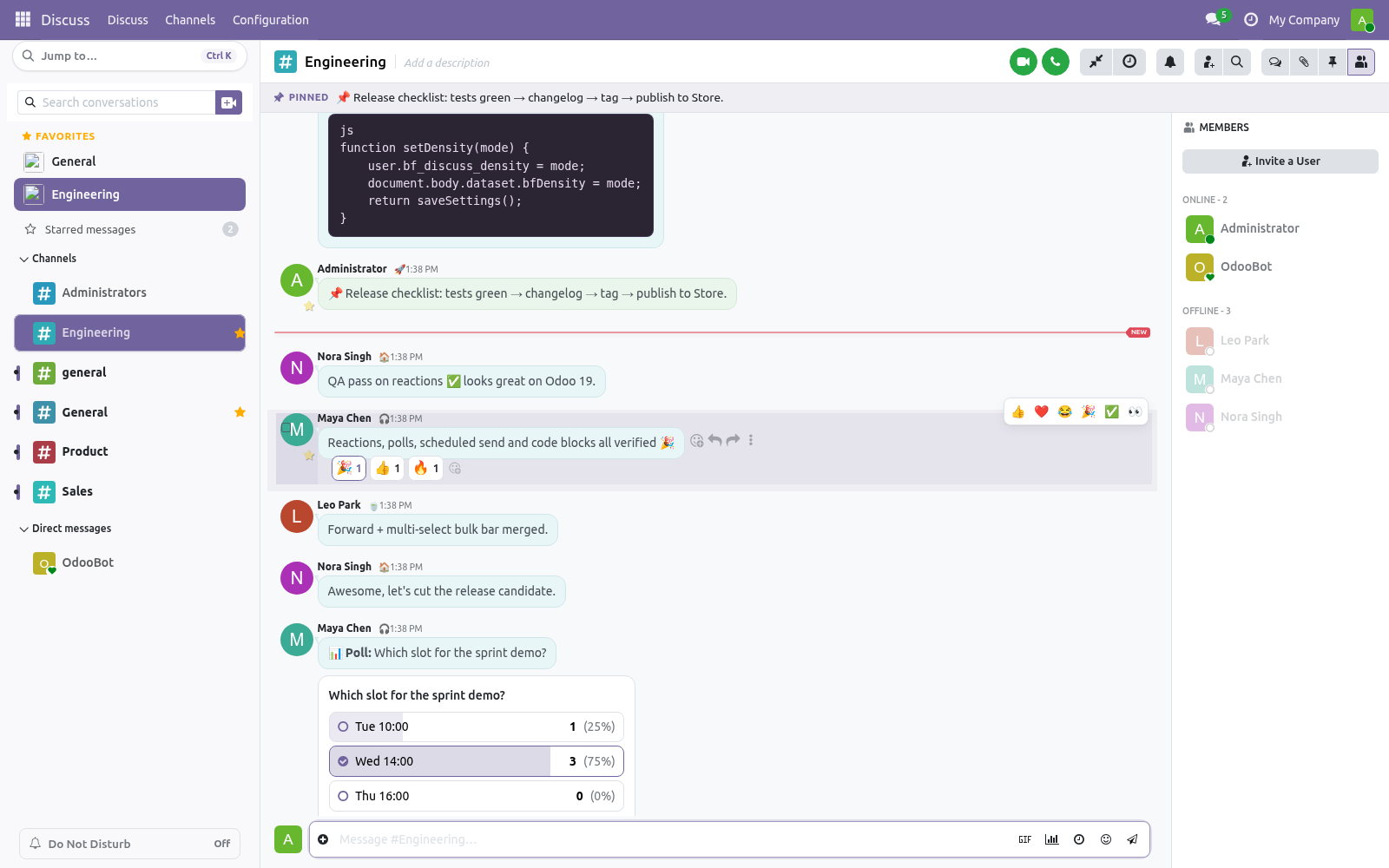
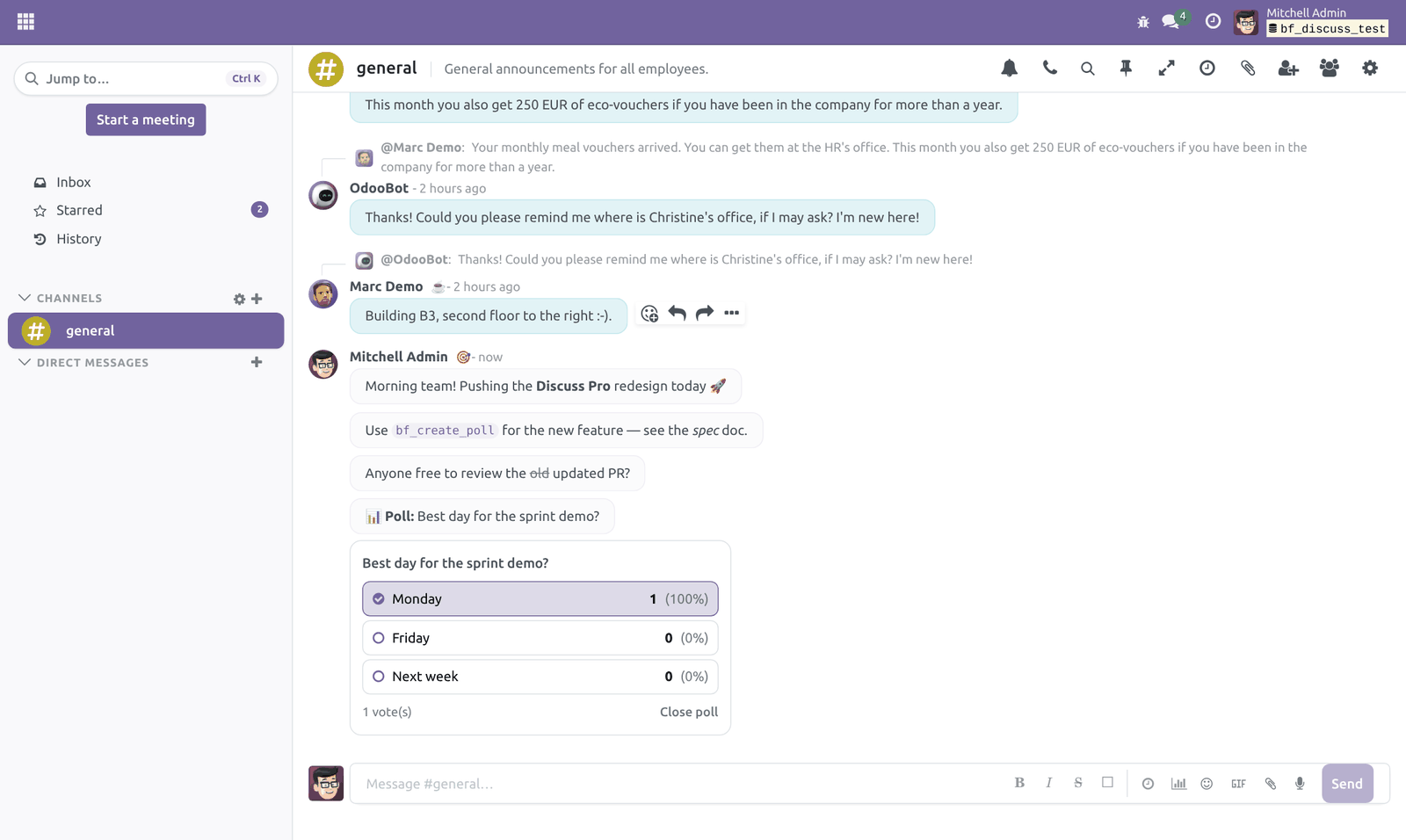
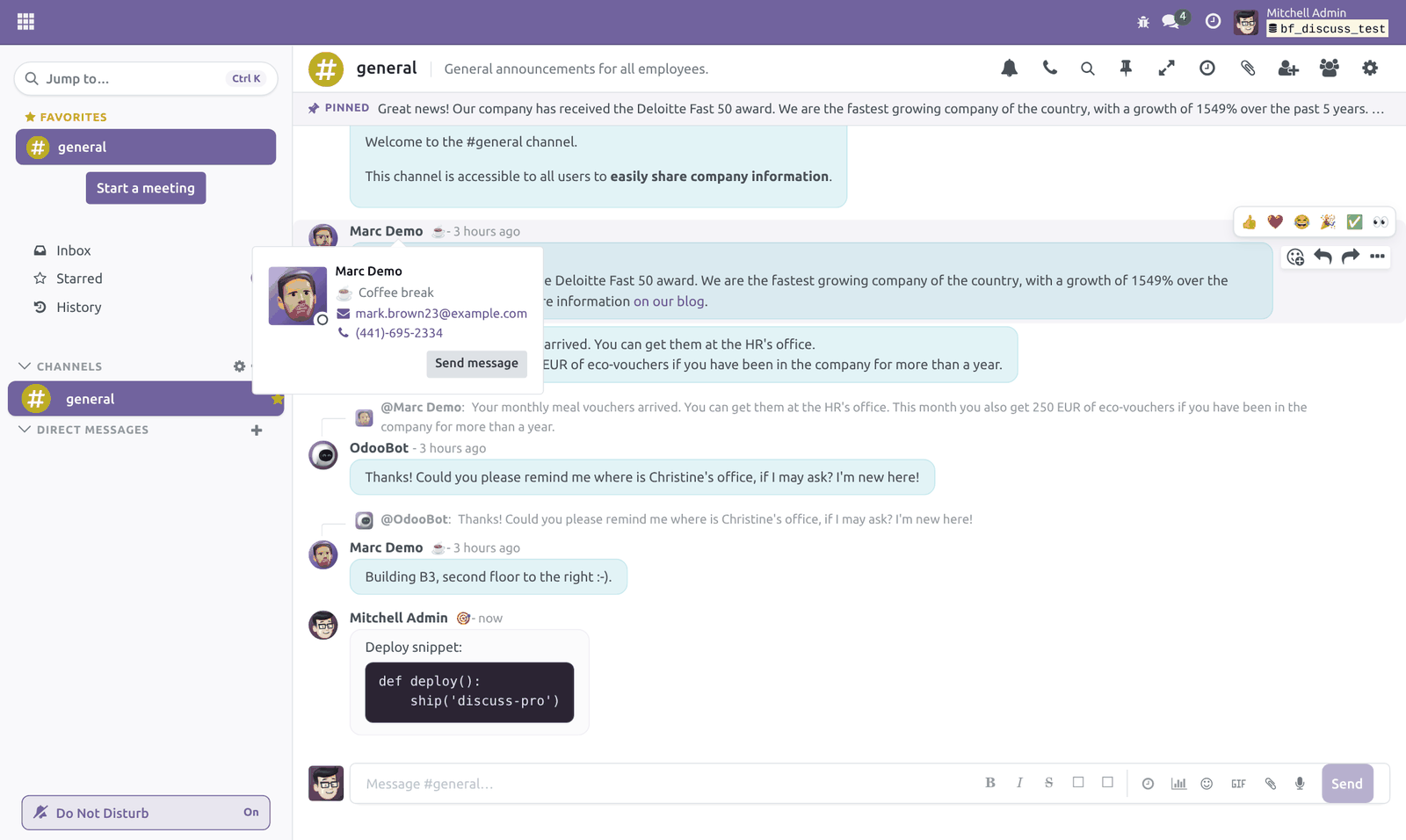
It uses Odoo's official extension points only, so it stays compatible with other apps and uninstalls cleanly. Quick reactions. Hover any message and a small bar of frequently used emoji appears at the top-right. Click one to react instantly.
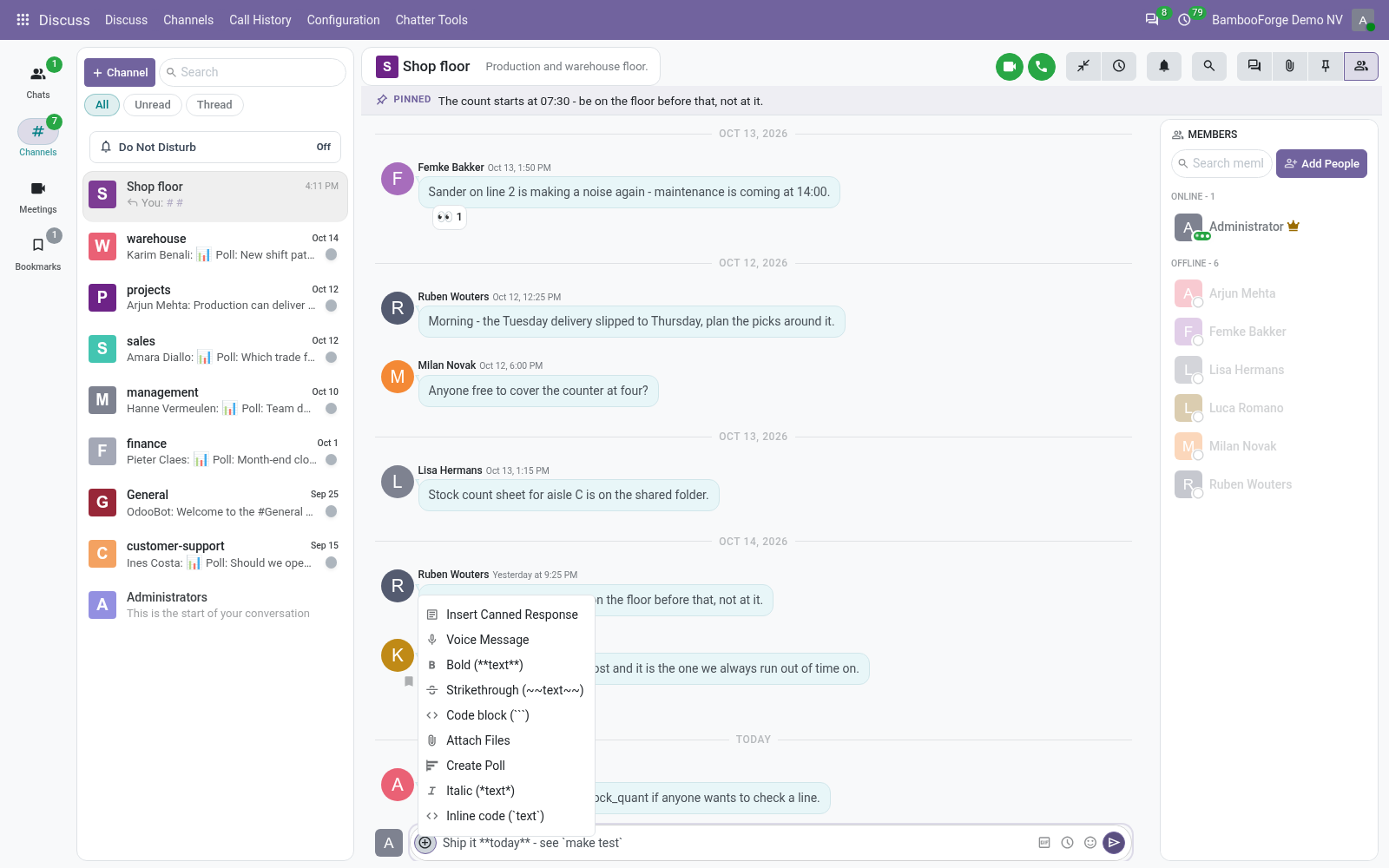
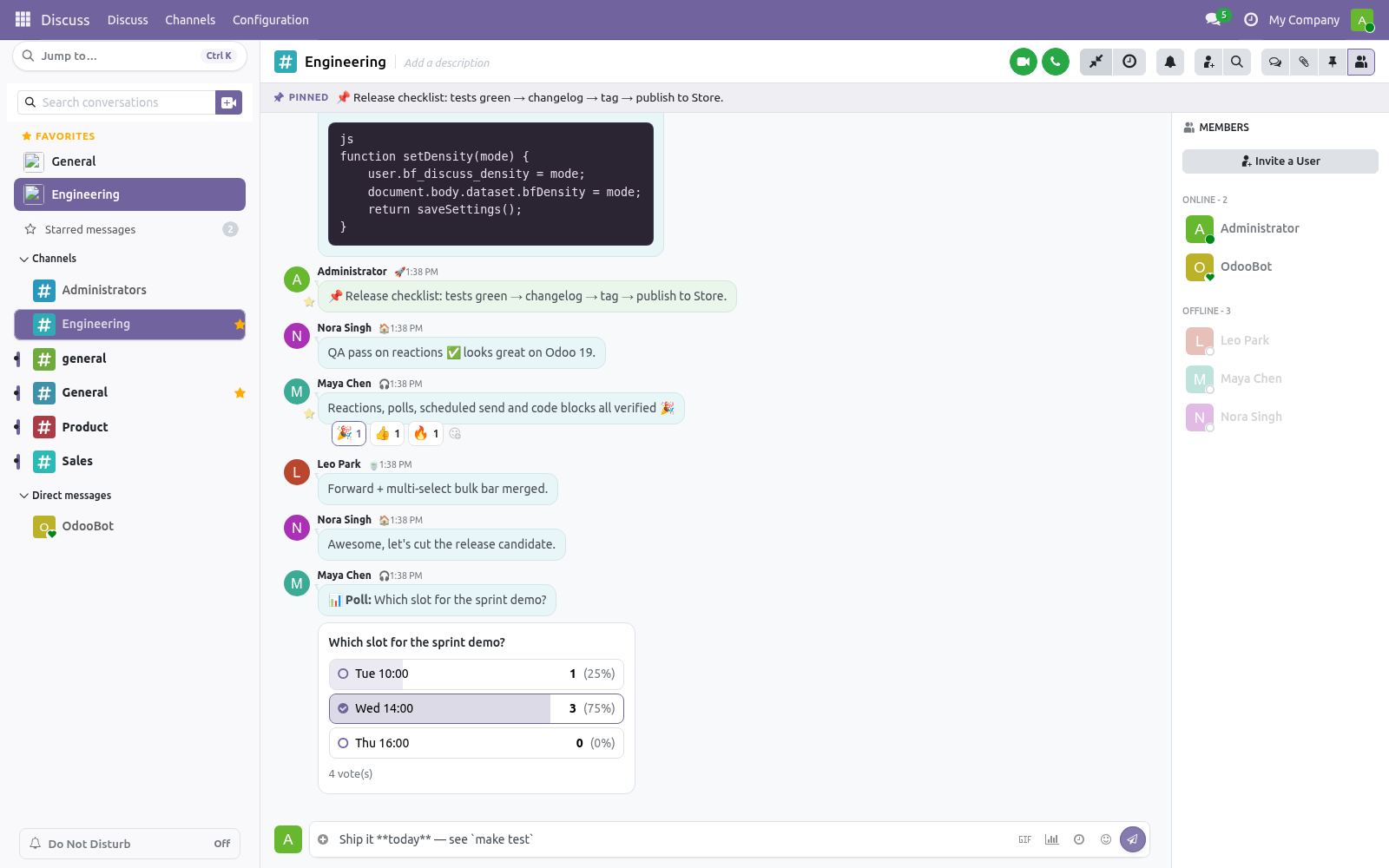
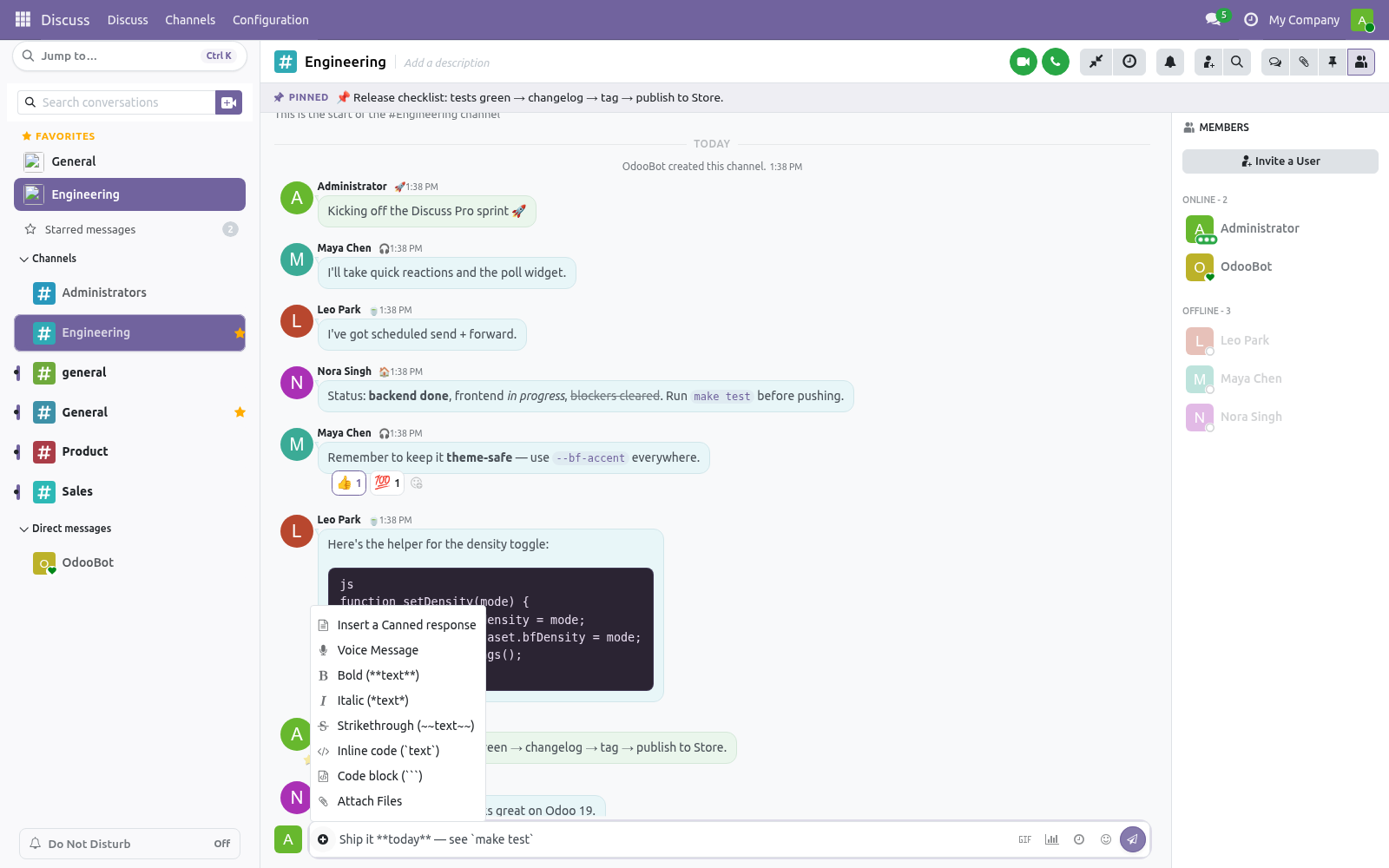
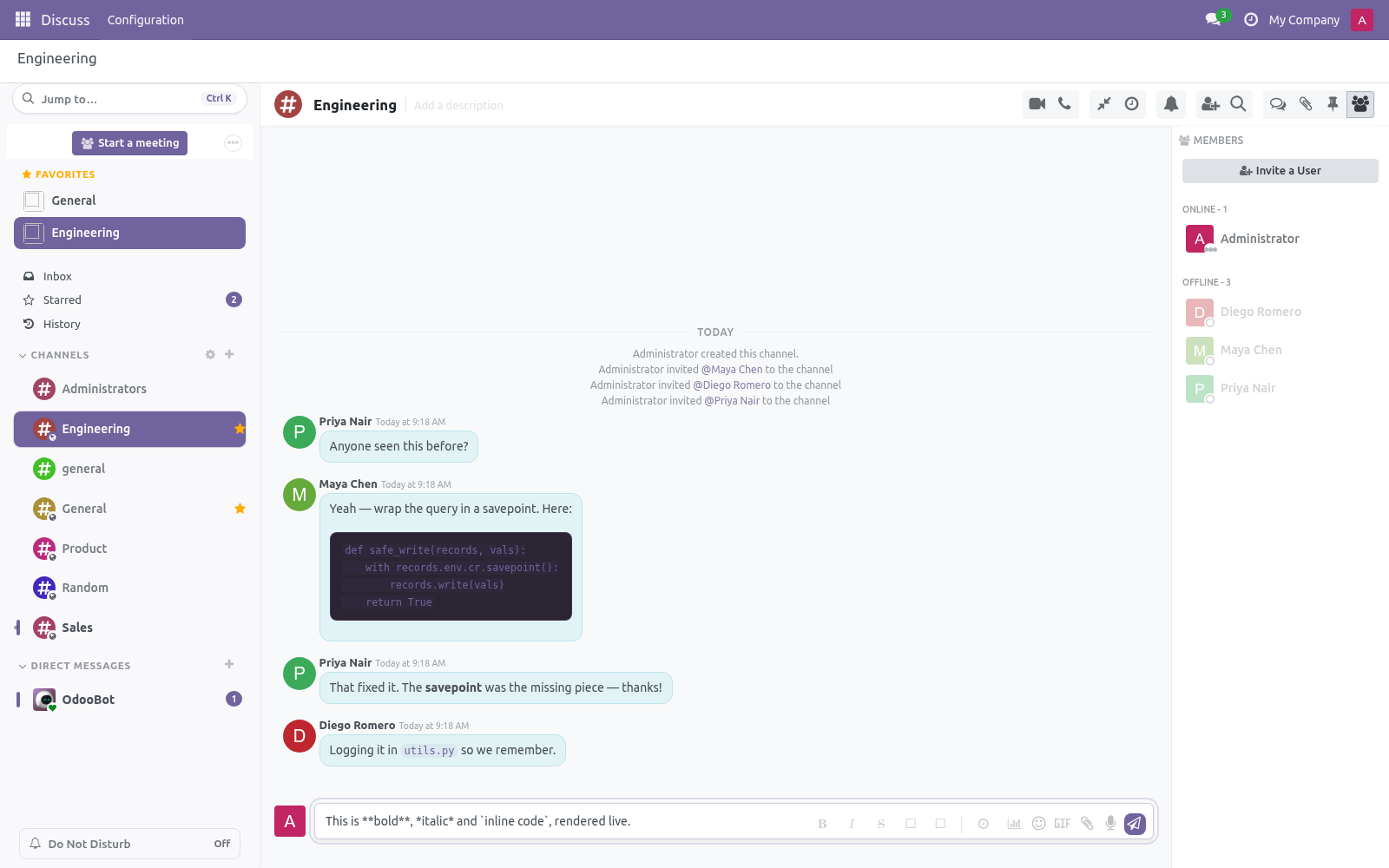
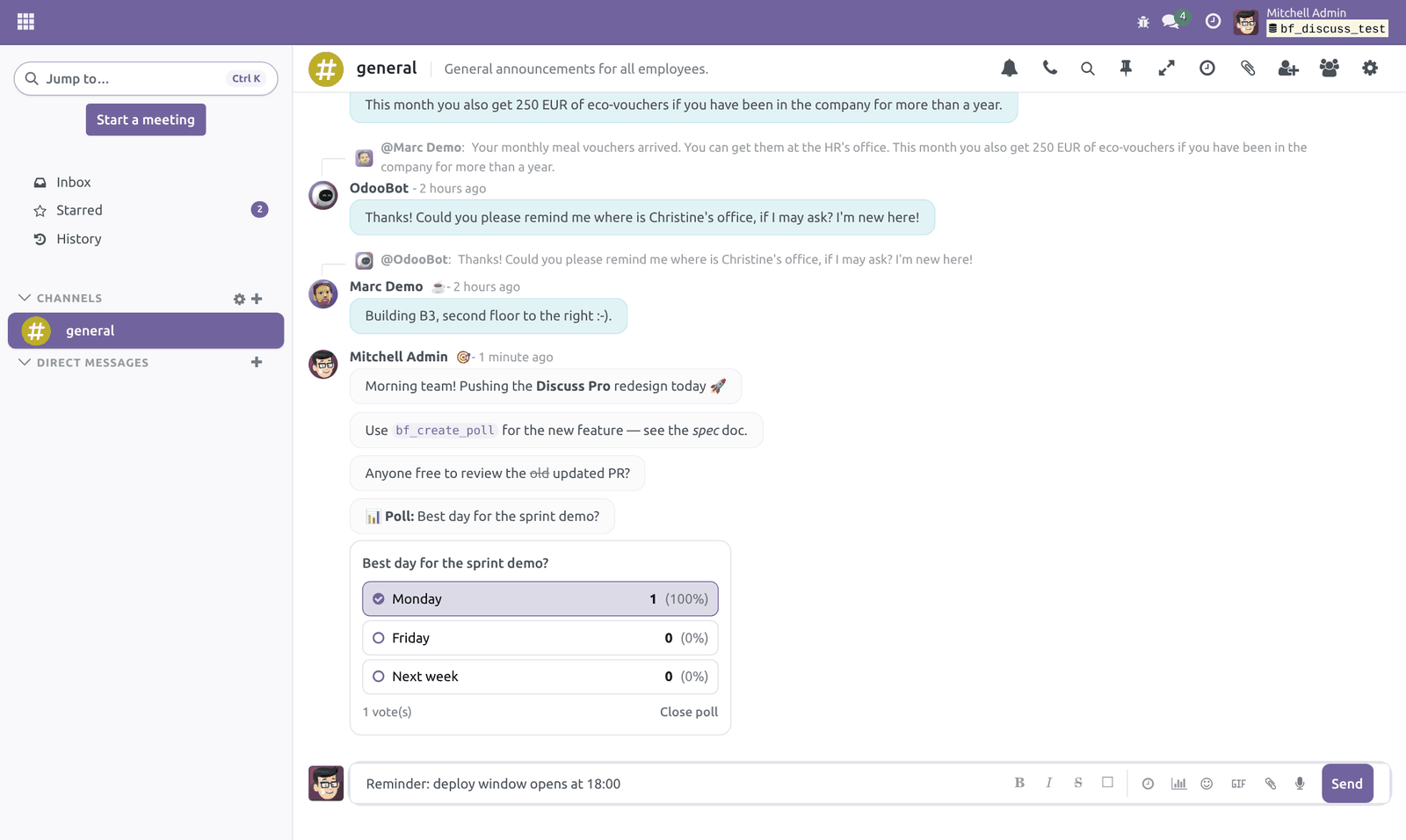
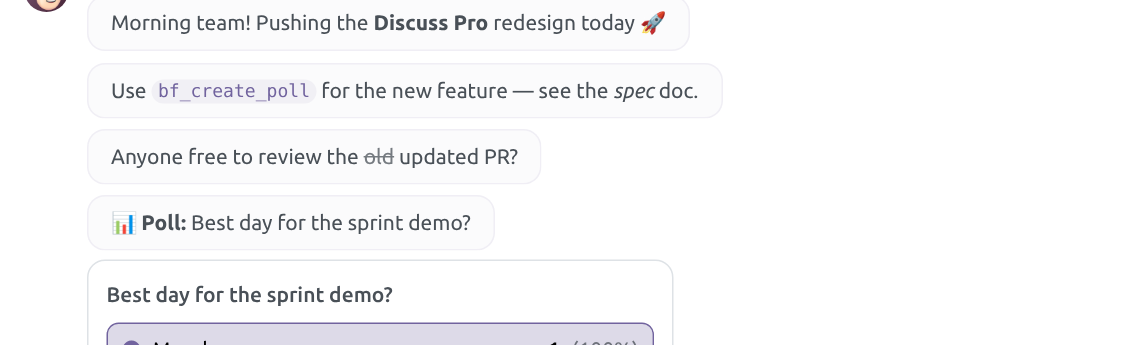
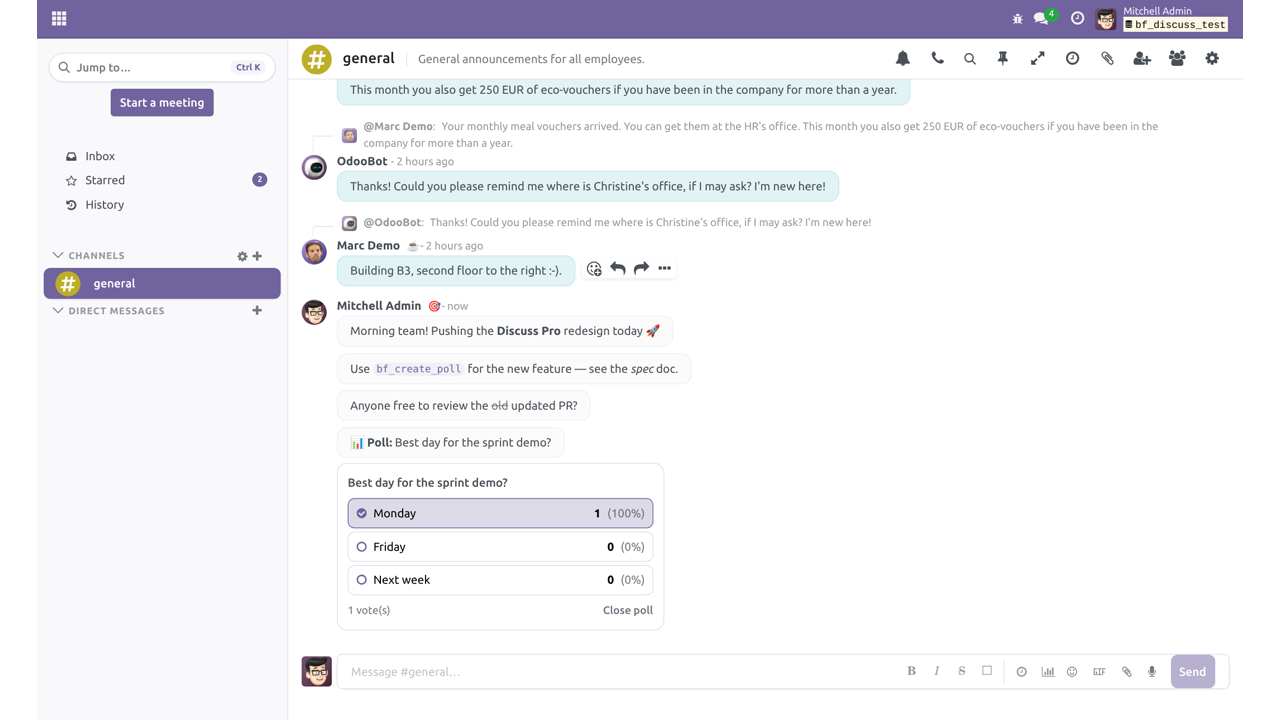
The full emoji picker and the existing reaction tools remain available — this is just a faster path to the common ones. Message formatting. The composer has a small formatting toolbar (Bold, Italic, Strikethrough, Inline code). Select some text and click a button, or type the markers yourself: italic → italic ~~strike~~ → strikethrough a backtick pair around text → inline code Formatting is rendered when the message is displayed.
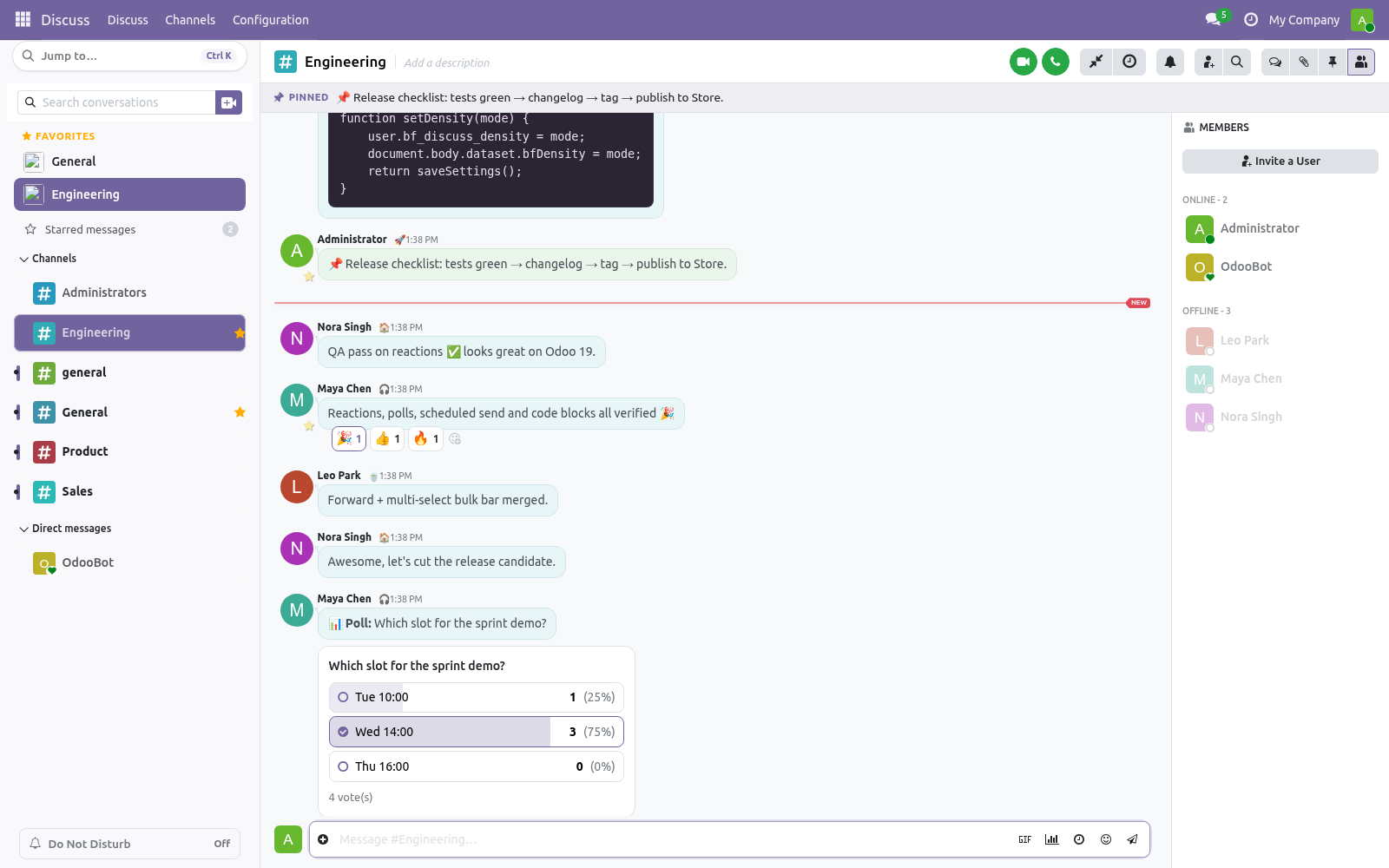
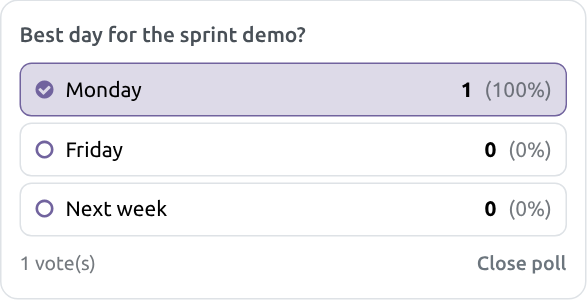
Polls. Odoo 20 ships polls of its own, so on 20 new polls are created with Odoo's Create Poll composer action, in channels and group chats. Polls created with earlier versions of Discuss Pro keep showing in the feed. Anyone in the channel can vote by clicking an option.
Bars and percentages update in real time for everyone. The poll author can Close poll at any time to stop further voting. Scheduled send (send later). 1.
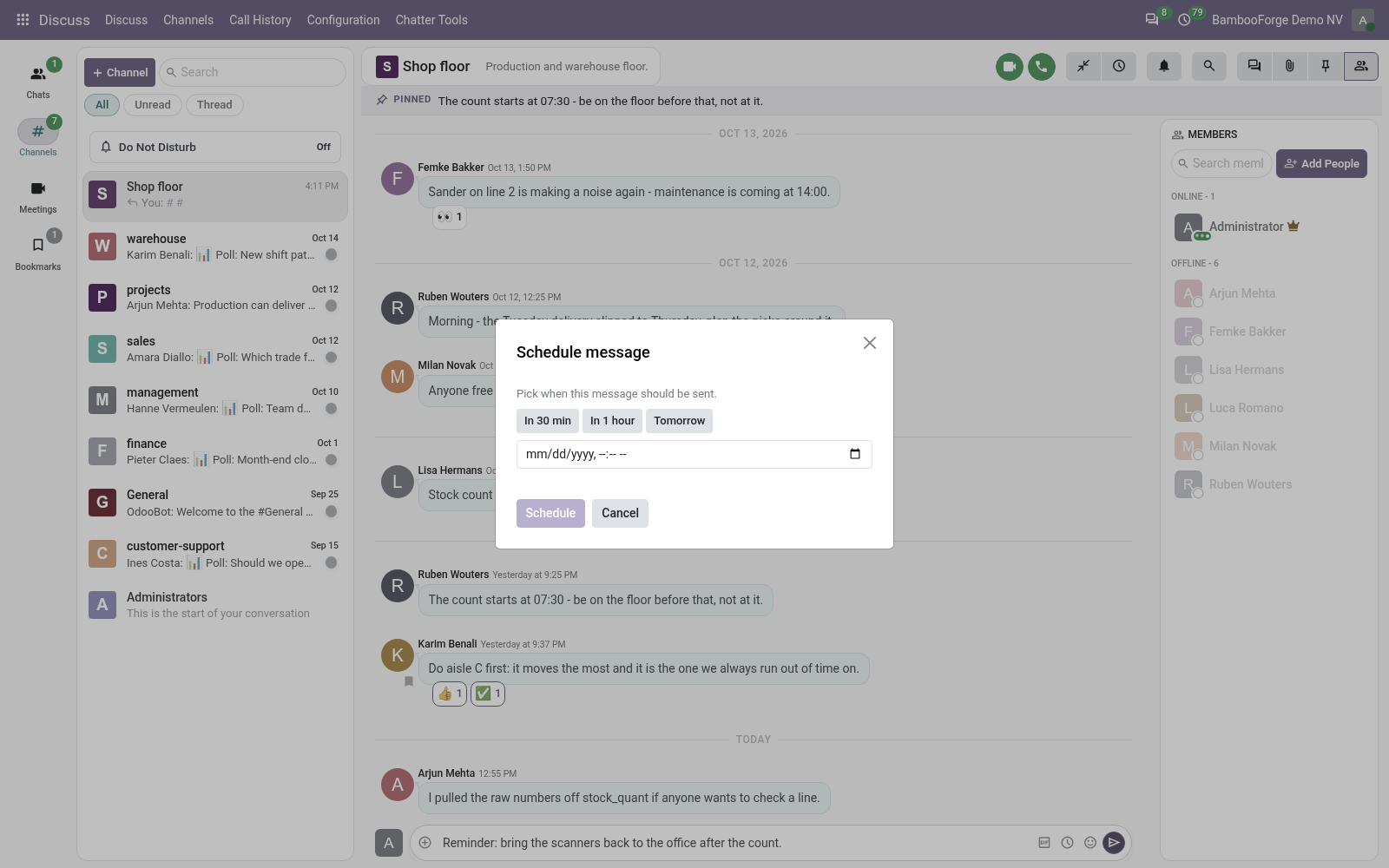
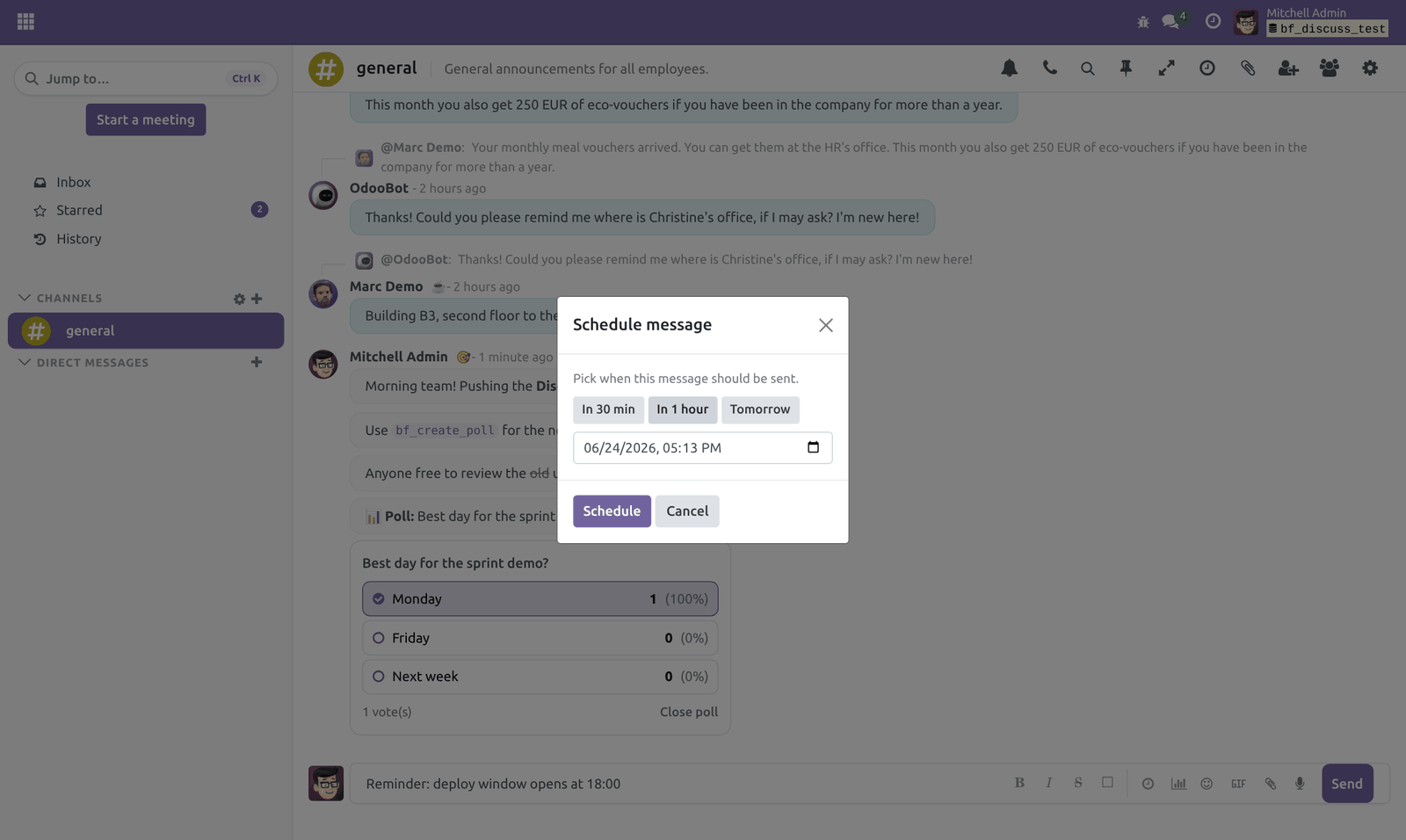
Type your message, then click the clock icon in the composer. 2. Pick a time (or use a quick preset) and click Schedule. 3.
The message is delivered automatically at that time. To review or cancel pending messages, open the Scheduled messages panel from the channel header (clock icon). A background job posts due messages every couple of minutes. Forward a message.
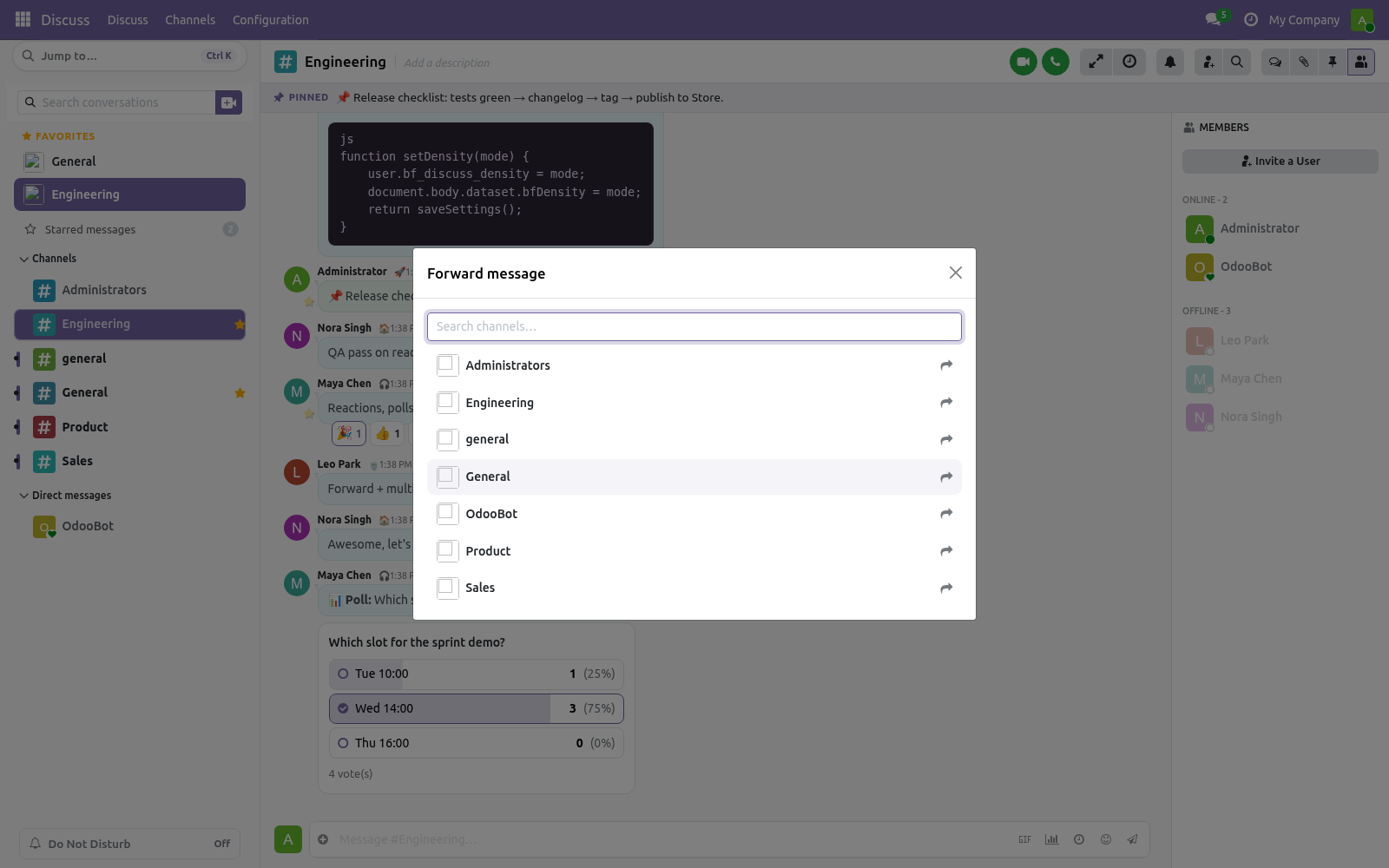
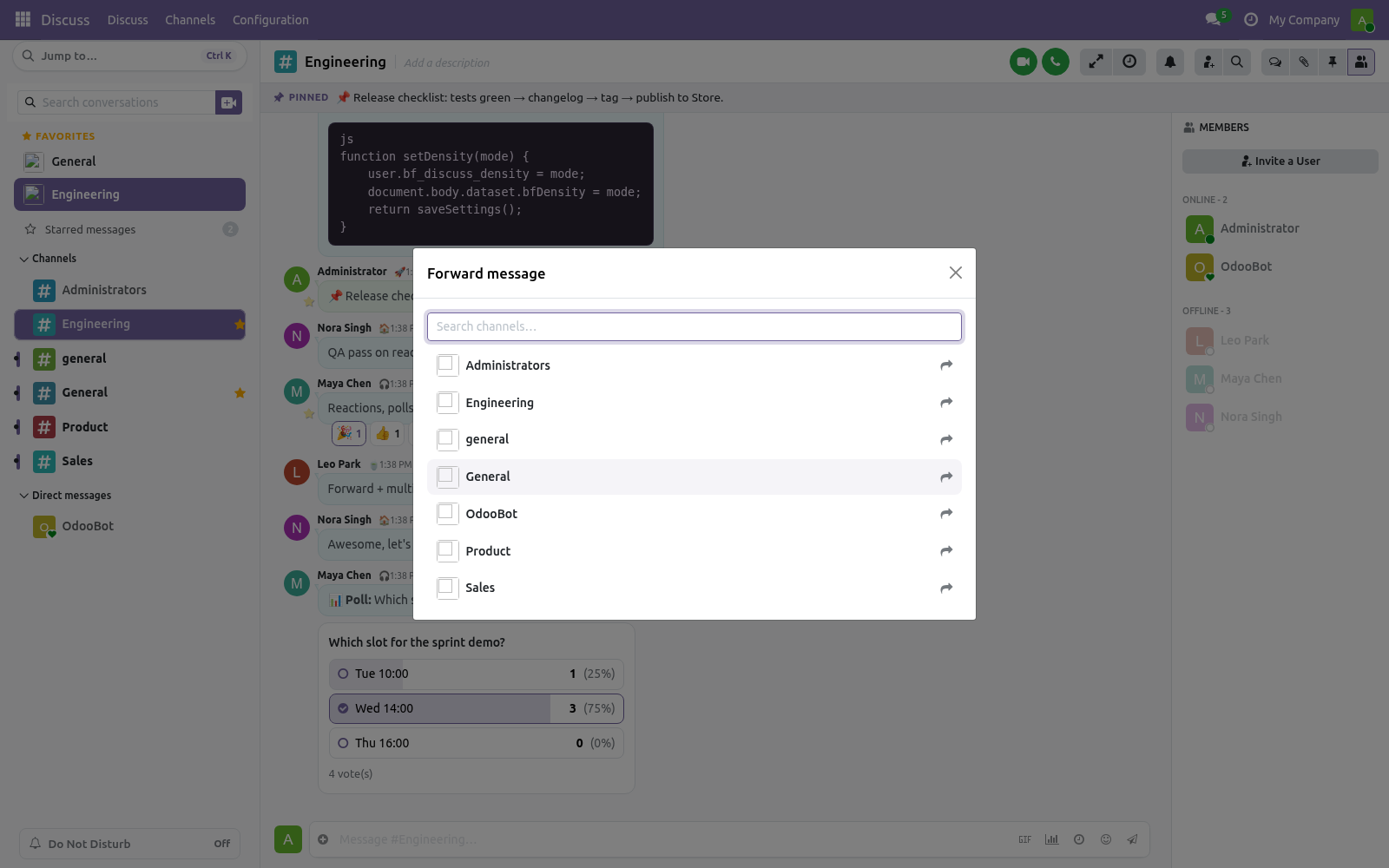
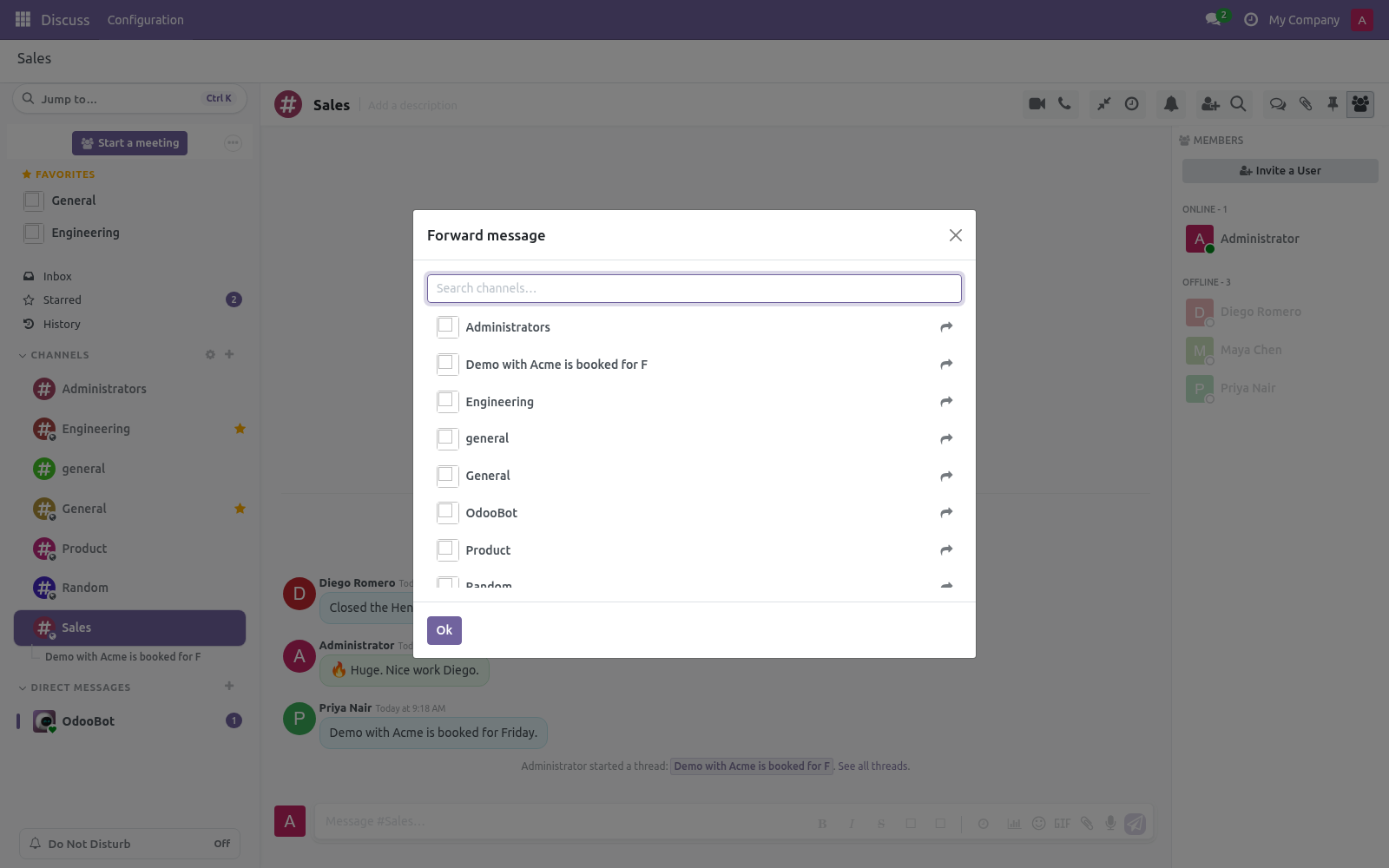
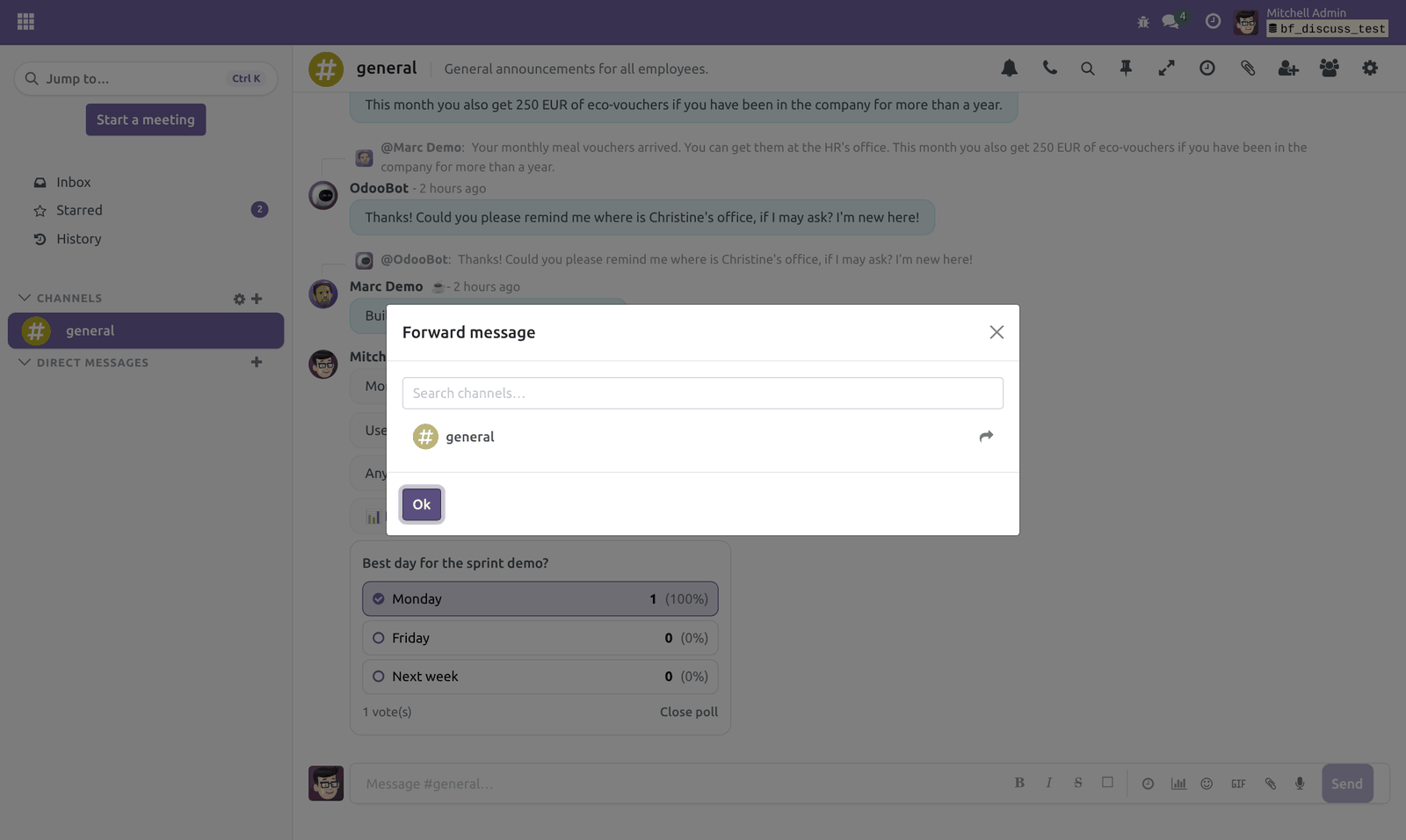
Open a message's action menu and choose Forward, pick a destination channel, and the message is reposted there with the original author kept as attribution. Custom status. Set a personal emoji and short status text under Preferences (avatar menu → Preferences). Your emoji then appears next to your name in Discuss, with the full text shown on hover.
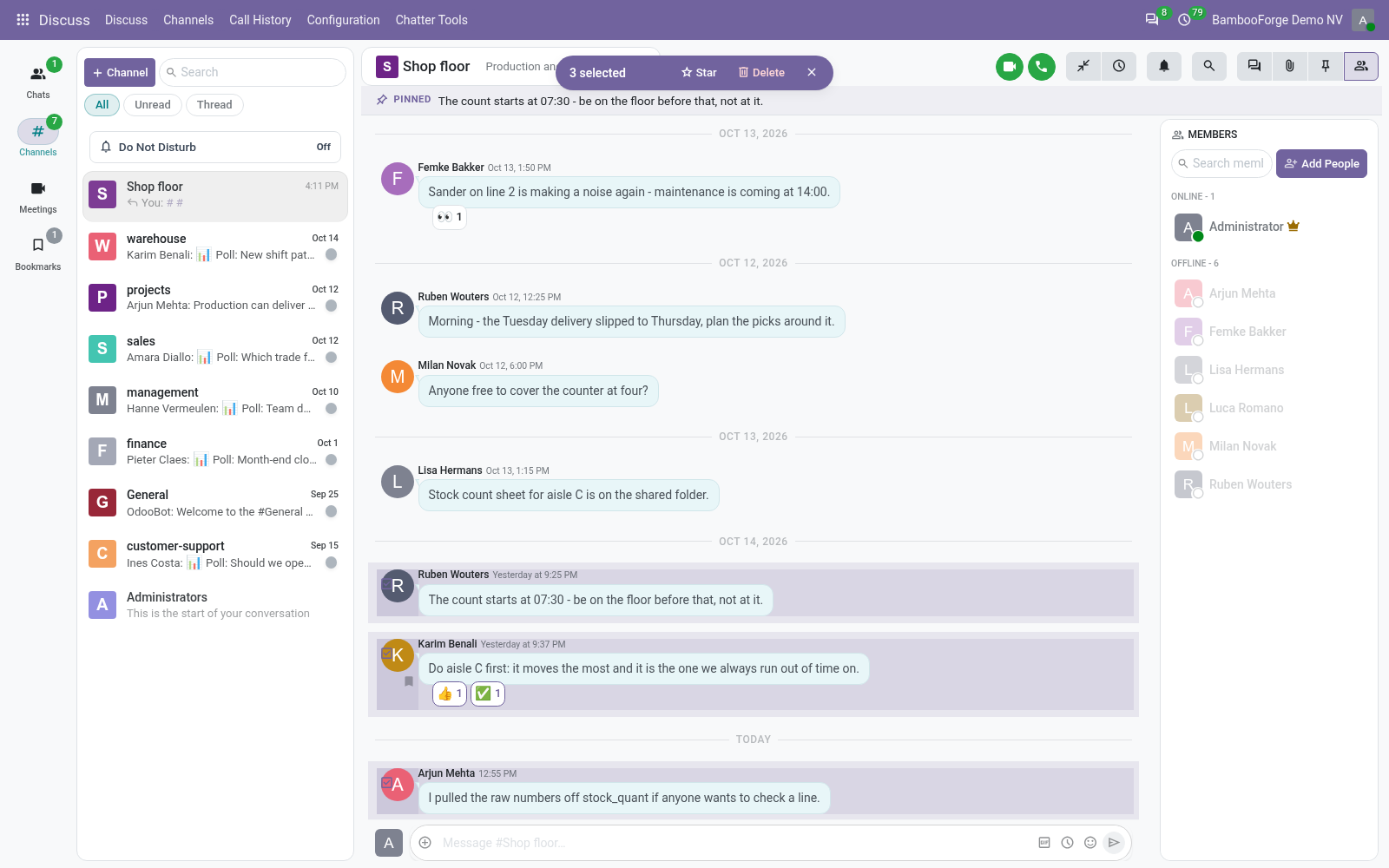
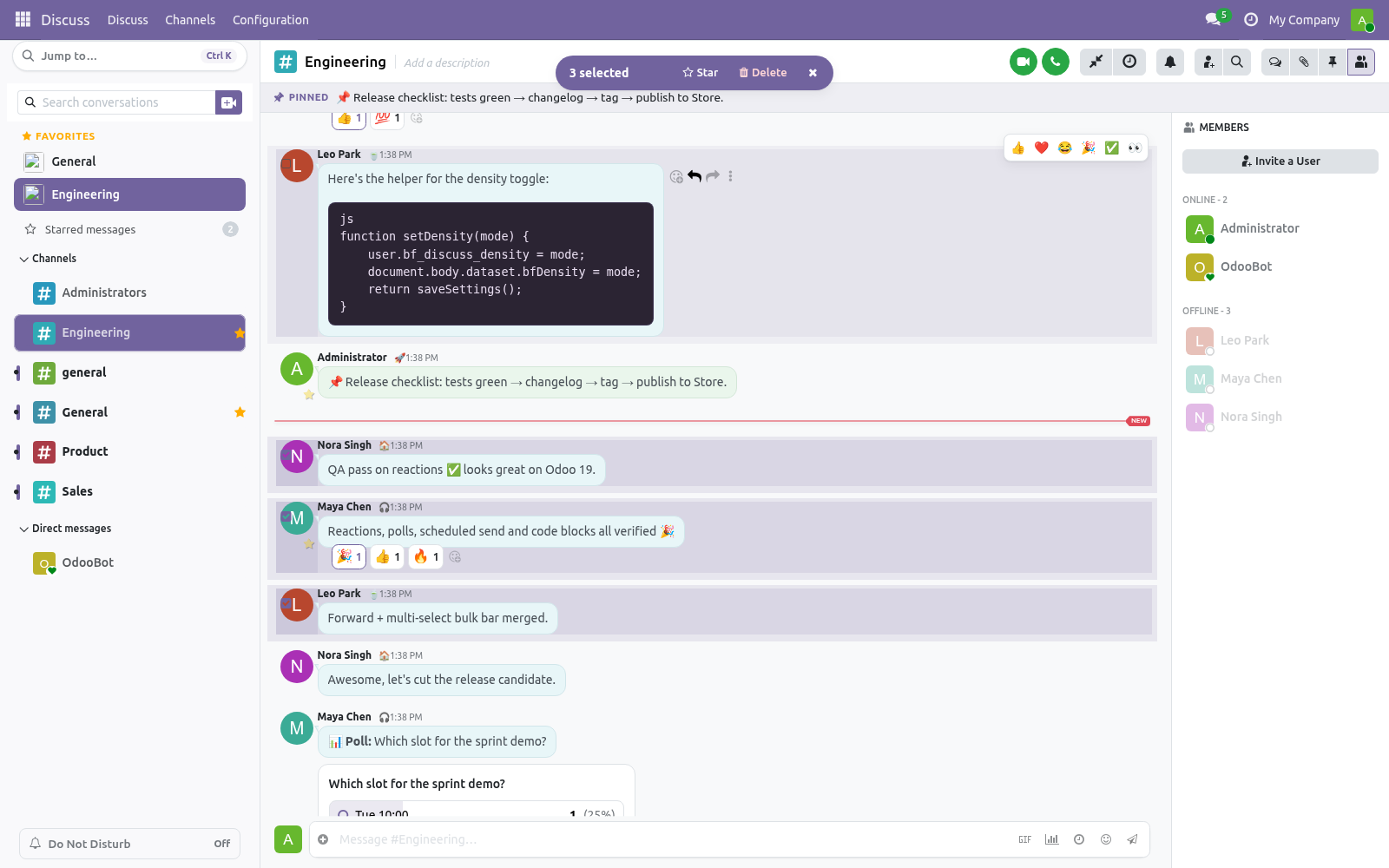
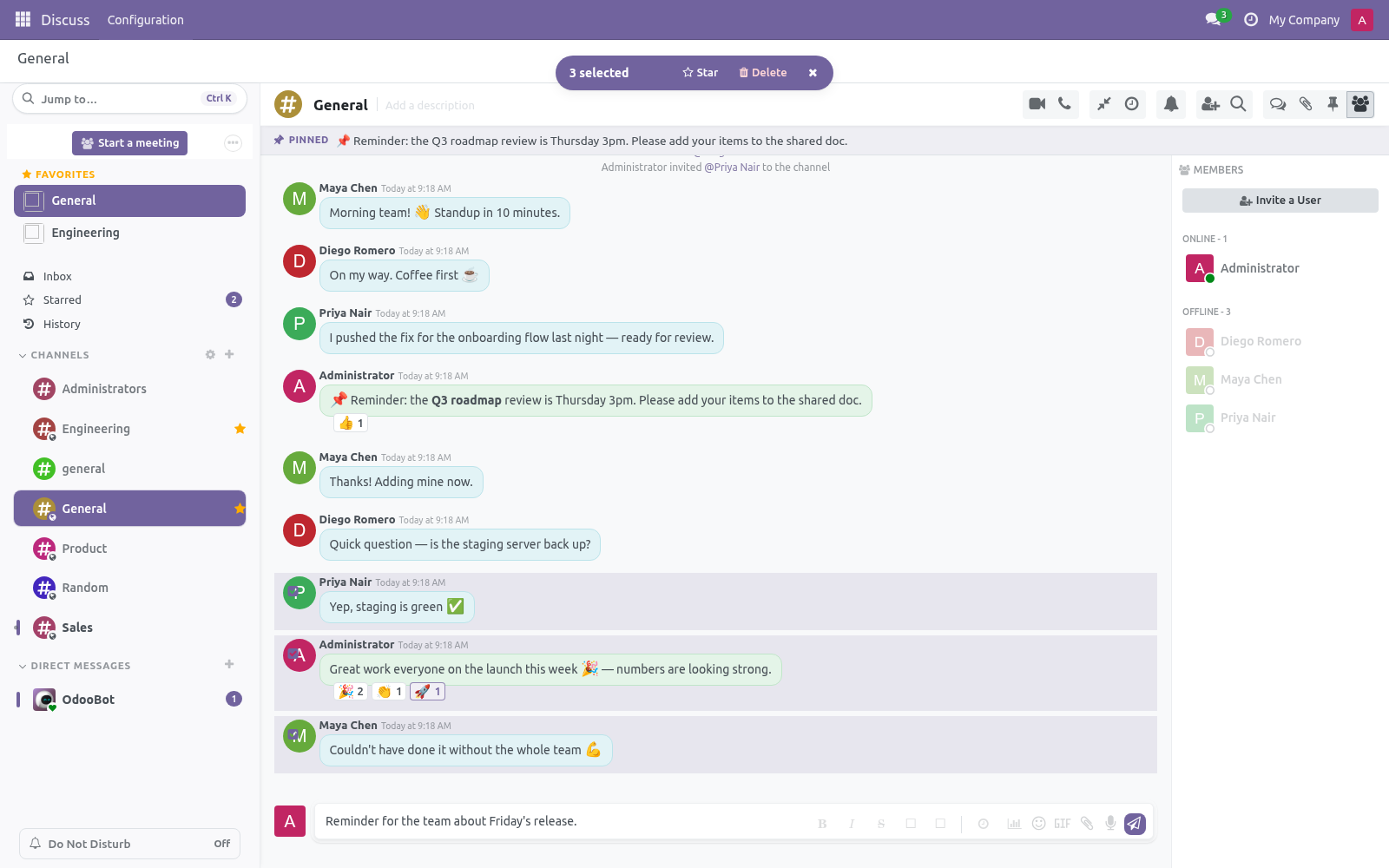
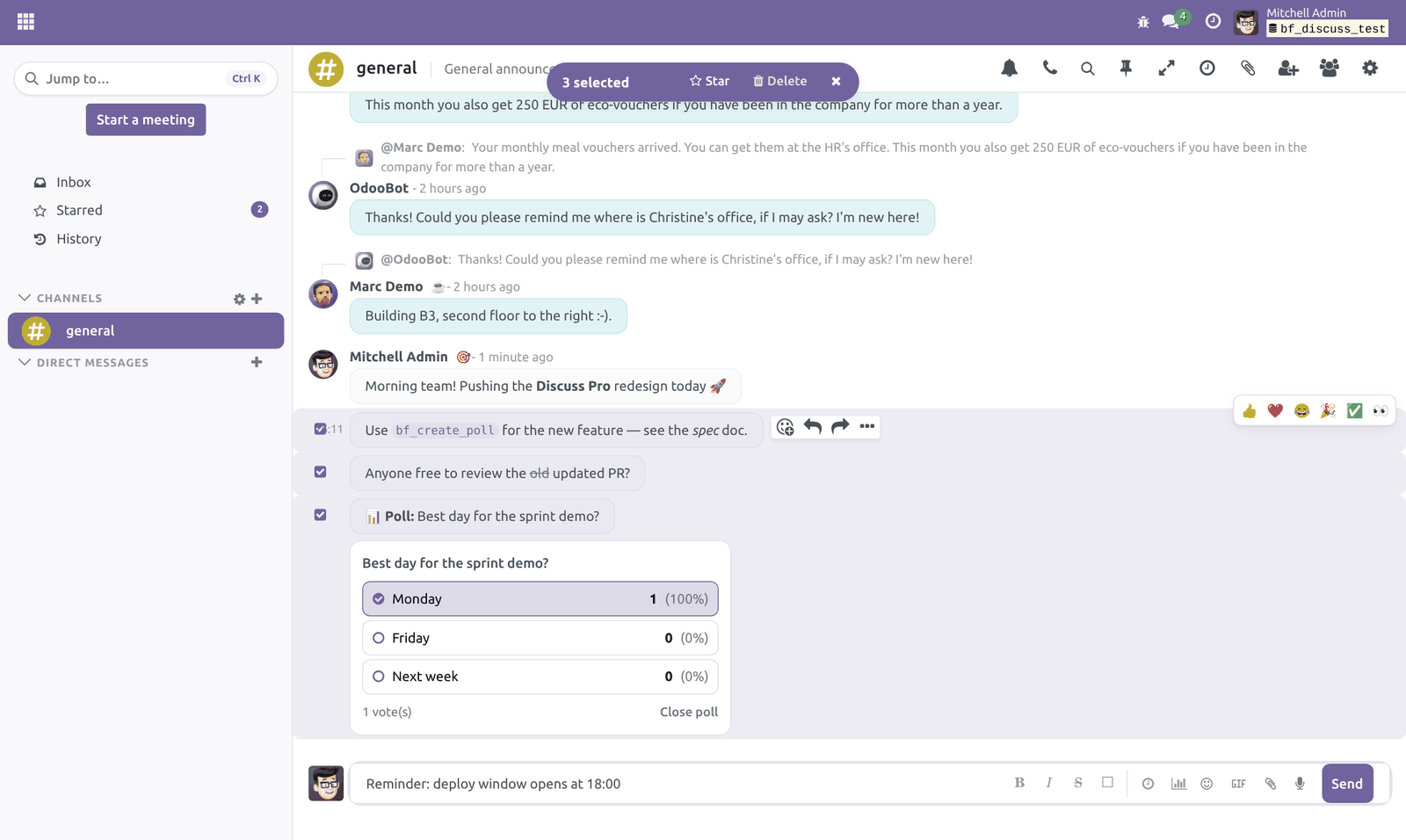
Multi-select and bulk actions. Hover a message and click the checkbox on its left to select it. Select as many as you like; a floating bar appears with Star, Delete and Clear. Useful for cleaning up or bookmarking several messages at once.
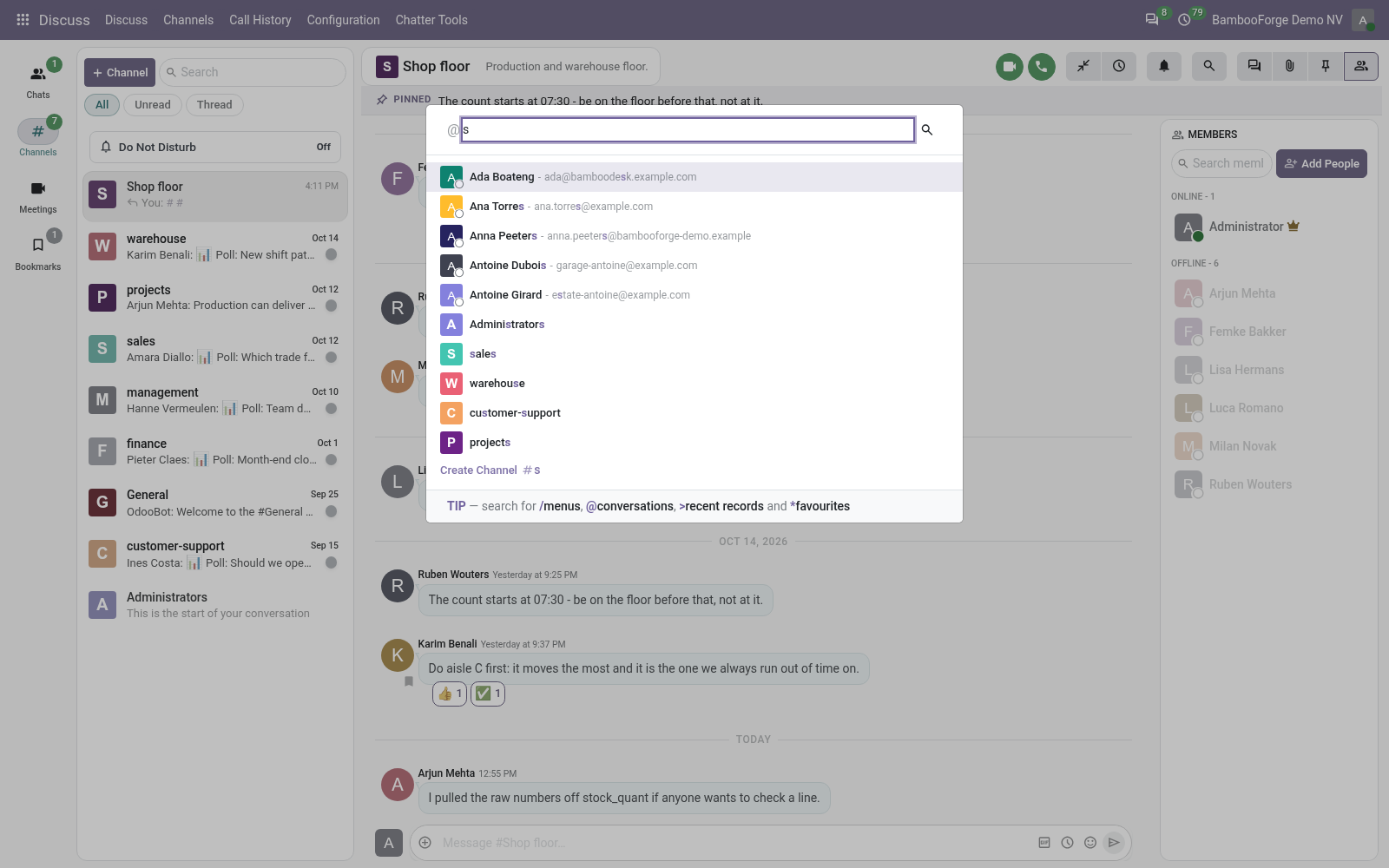
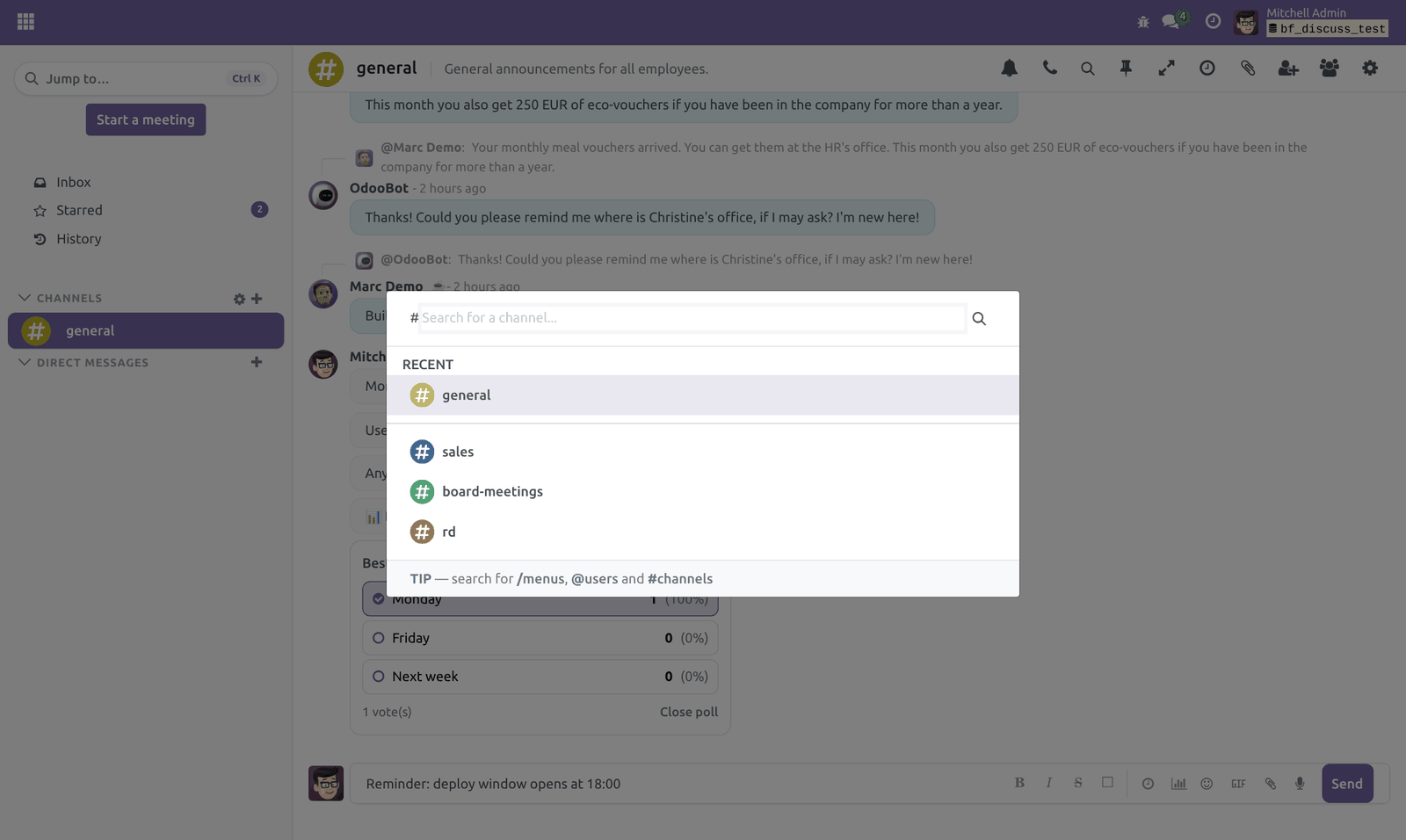
Quick switcher. Click Jump to… at the top of the sidebar (or press Ctrl+K) to open the command palette. Type # to find a channel or @ to find a person, then press Enter to jump there. Density.
Toggle Compact / Comfortable spacing from the channel header. Compact fits more messages on screen. Your choice is saved on your own account. The complete manual is at docs dot bambooforge dot dev, the demo database is linked from the store page, and support answers within twenty-four hours.
Links are in the description.
Transcript of the walkthrough (Odoo 19)
Discuss Pro: Modern Chat UI. A modern, professional redesign of Odoo Discuss: quick reactions, compact density and brand-aware styling, built on Odoo's own theme colours. A modern, feature-rich redesign of Odoo 19 Discuss. It adds the chat features your team expects — quick reactions, polls, scheduled messages, formatting, forwarding, custom statuses and more — on top of a refined interface that follows your backend theme's colors.
In the next few minutes: discuss pro: modern chat ui, then quick reactions, then message formatting, then polls, then scheduled send (send later). Then what this app deliberately does not do, so you can tell before you buy whether it fits. 1. Copy bambooforge_discuss_pro into your addons path (or install from the Apps store).
2. Go to Apps, click Update Apps List, search for Discuss Pro and install. 3. That's it — open Discuss and the new interface is live for every user.
Discuss Pro: Modern Chat UI. A modern, feature-rich redesign of Odoo 19 Discuss. It adds the chat features your team expects — quick reactions, polls, scheduled messages, formatting, forwarding, custom statuses and more — on top of a refined interface that follows your backend theme's colors. This module does not fork the mail module.
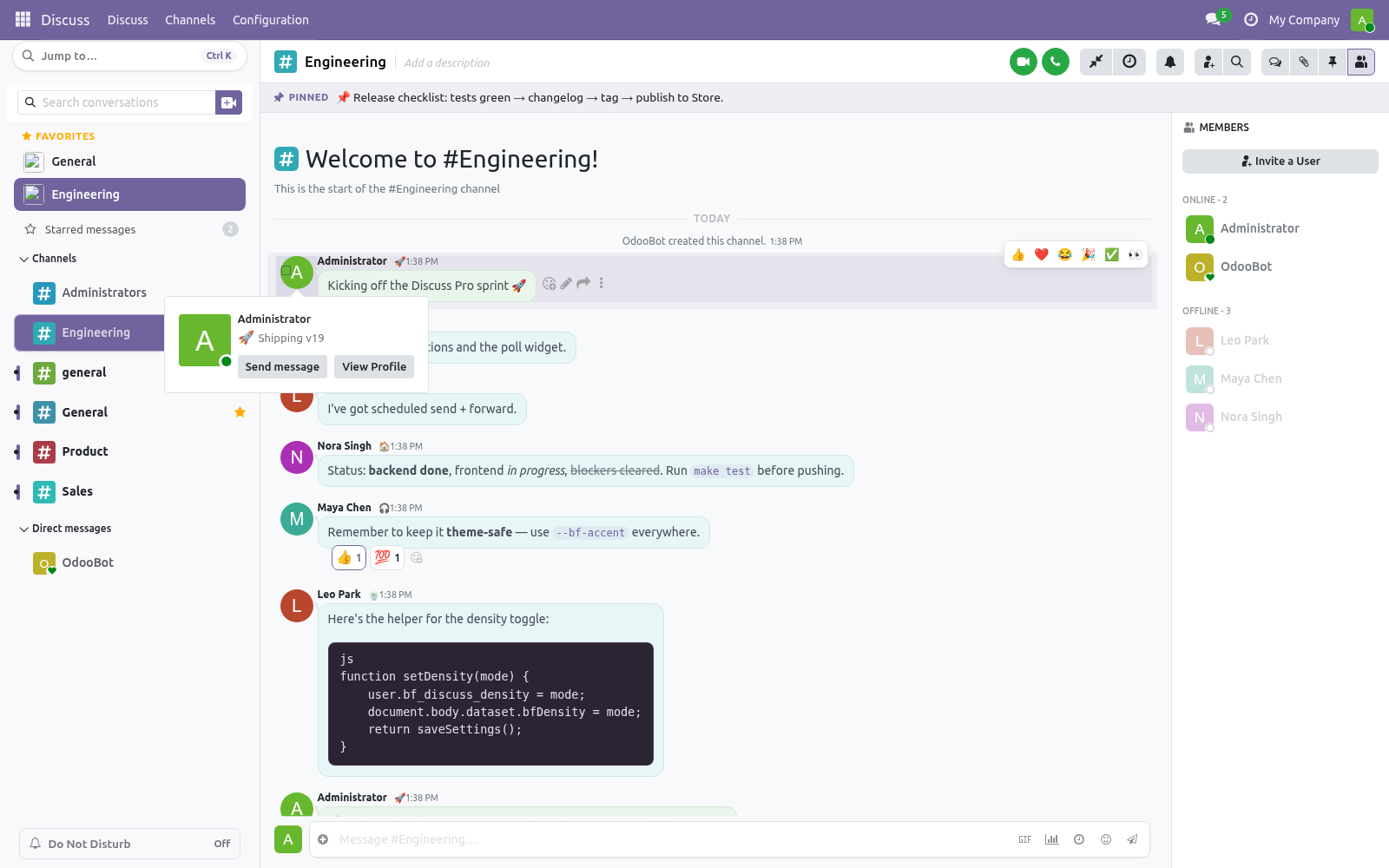
It uses Odoo's official extension points only, so it stays compatible with other apps and uninstalls cleanly. Quick reactions. Hover any message and a small bar of frequently used emoji appears at the top-right. Click one to react instantly.
The full emoji picker and the existing reaction tools remain available — this is just a faster path to the common ones. Message formatting. The composer has a small formatting toolbar (Bold, Italic, Strikethrough, Inline code). Select some text and click a button, or type the markers yourself: italic → italic ~~strike~~ → strikethrough a backtick pair around text → inline code Formatting is rendered when the message is displayed.
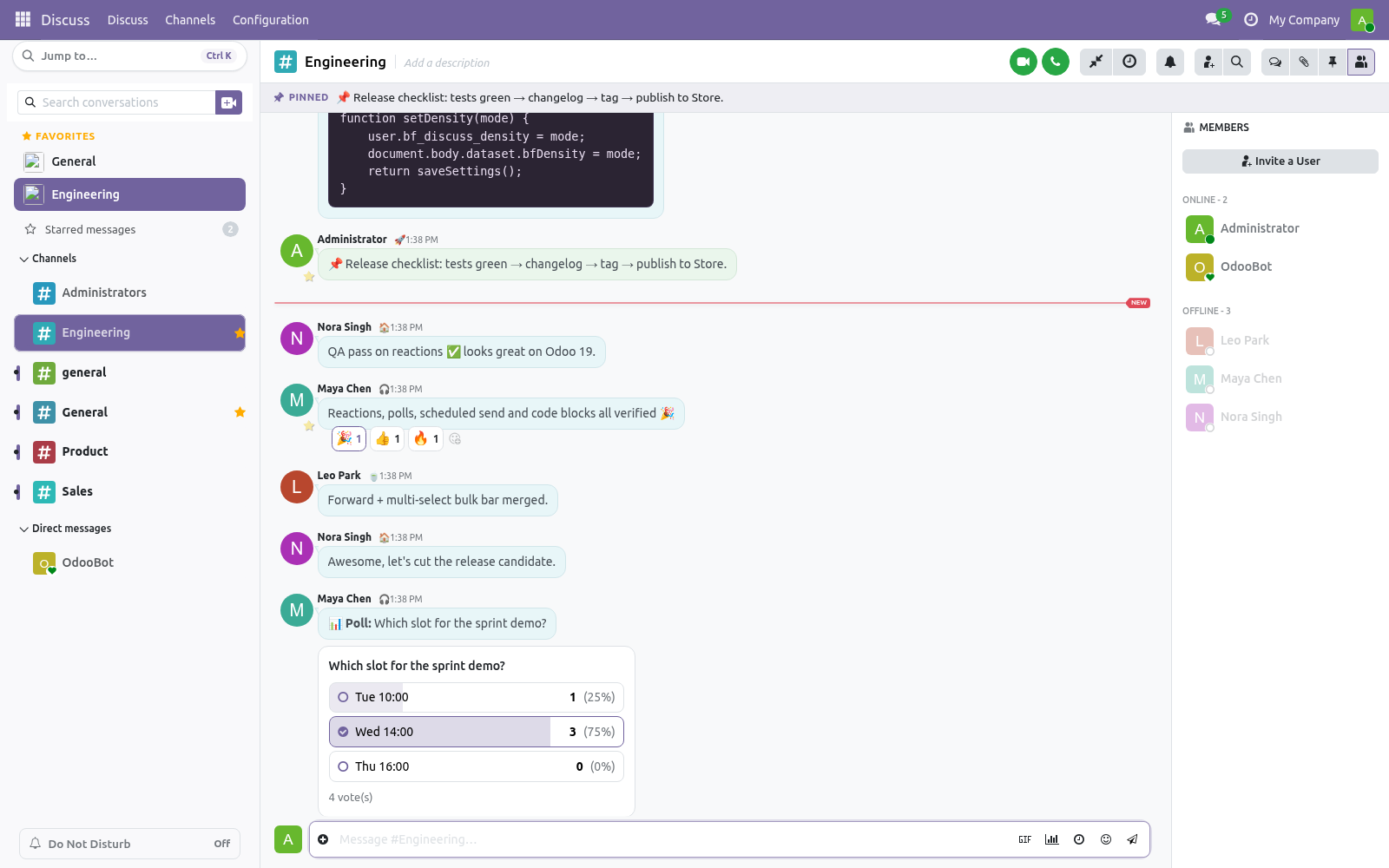
Polls. 1. Click the chart icon in the composer. 2.
Enter a question and at least two options (add as many as you like). 3. Optionally tick Allow multiple answers. 4.
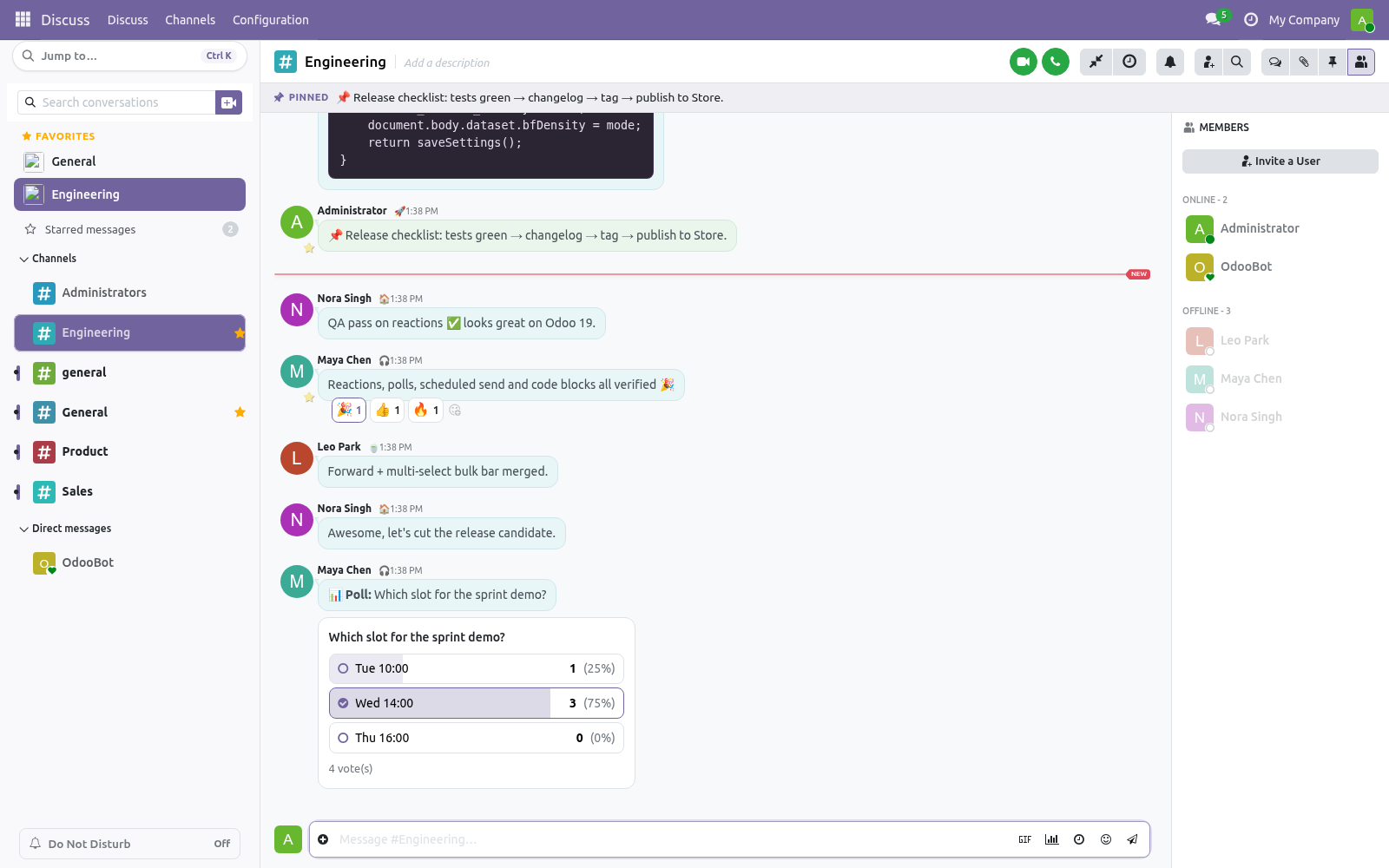
Click Create poll — the poll is posted to the channel. Anyone in the channel can vote by clicking an option. Bars and percentages update in real time for everyone. The poll author can Close poll at any time to stop further voting.
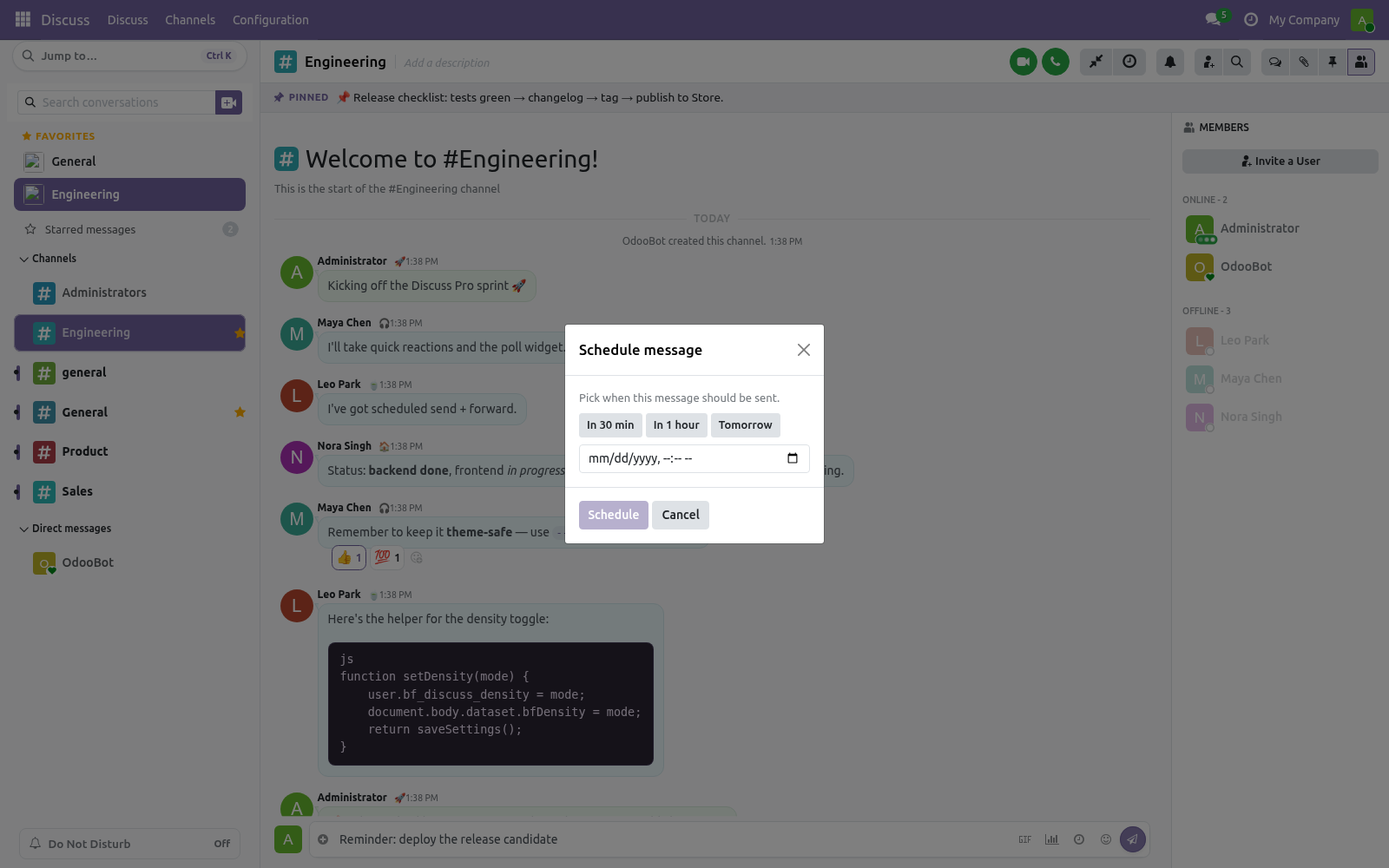
Scheduled send (send later). 1. Type your message, then click the clock icon in the composer. 2.
Pick a time (or use a quick preset) and click Schedule. 3. The message is delivered automatically at that time. To review or cancel pending messages, open the Scheduled messages panel from the channel header (clock icon).
A background job posts due messages every couple of minutes. Forward a message. Open a message's action menu and choose Forward, pick a destination channel, and the message is reposted there with the original author kept as attribution. Custom status.
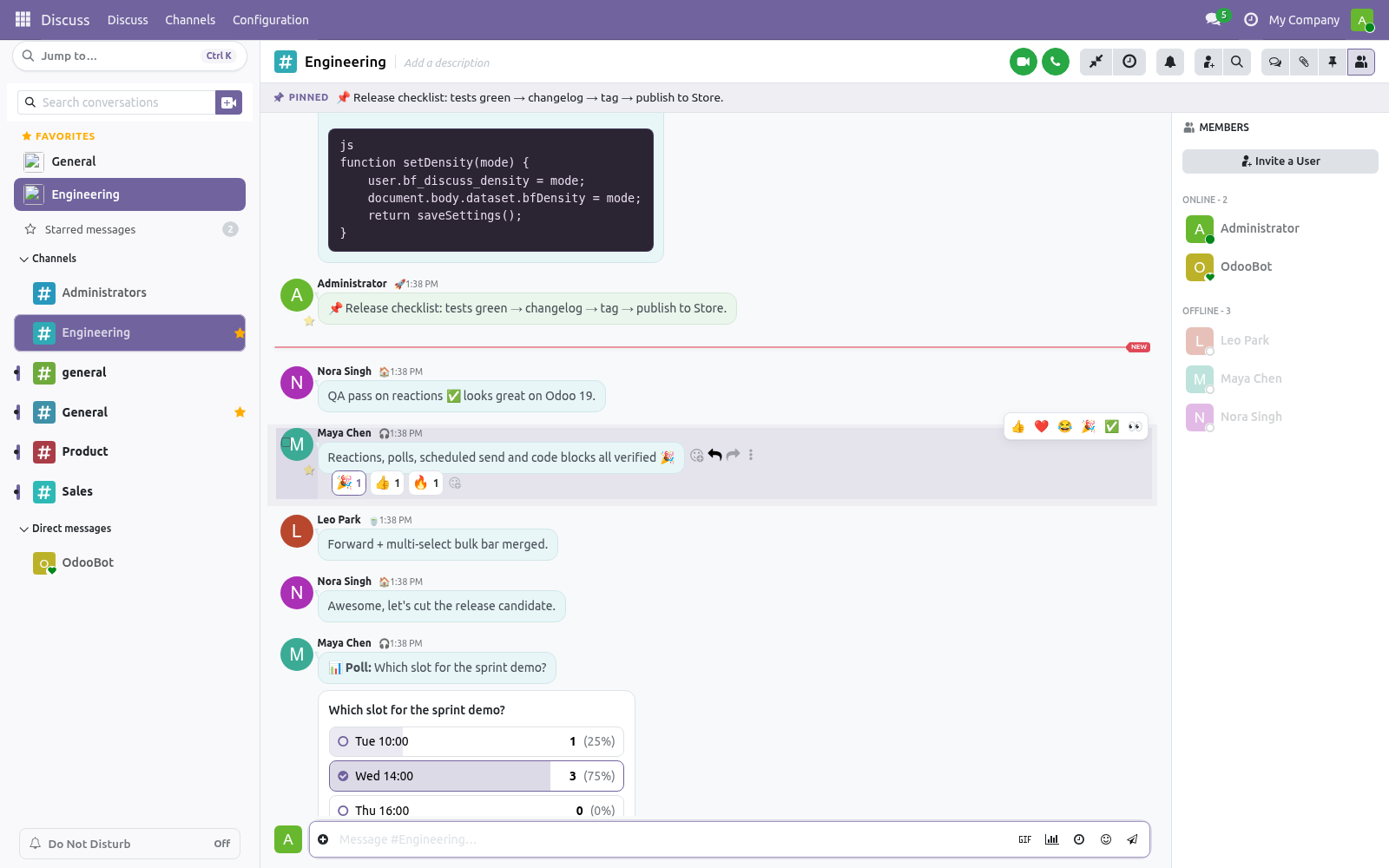
Set a personal emoji and short status text under Preferences (avatar menu → Preferences). Your emoji then appears next to your name in Discuss, with the full text shown on hover. Multi-select and bulk actions. Hover a message and click the checkbox on its left to select it.
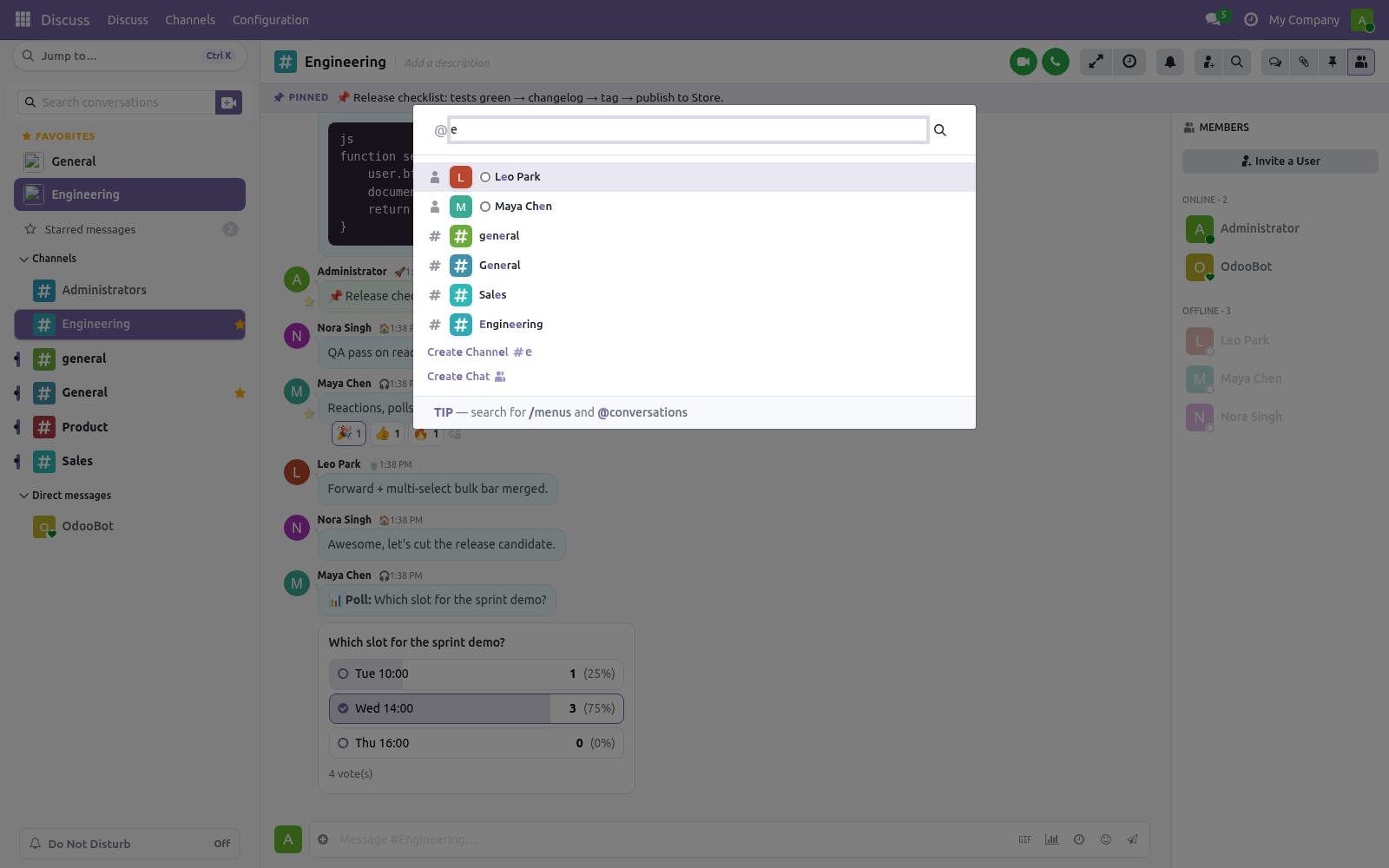
Select as many as you like; a floating bar appears with Star, Delete and Clear. Useful for cleaning up or bookmarking several messages at once. Quick switcher. Click Jump to… at the top of the sidebar (or press Ctrl+K) to open the command palette.
Type # to find a channel or @ to find a person, then press Enter to jump there. Density. Toggle Compact / Comfortable spacing from the channel header. Compact fits more messages on screen.
Your choice is saved on your own account. The complete manual is at docs dot bambooforge dot dev, the demo database is linked from the store page, and support answers within twenty-four hours. Links are in the description.
Transcript of the walkthrough (Odoo 18)
Discuss Pro: Modern Chat UI. A modern, professional redesign of Odoo Discuss: quick reactions, compact density and brand-aware styling, built on Odoo's own theme colours. A modern, feature-rich redesign of Odoo 18 Discuss. It adds the chat features your team expects — quick reactions, polls, scheduled messages, formatting, forwarding, custom statuses and more — on top of a refined interface that follows your backend theme's colors.
In the next few minutes: discuss pro: modern chat ui, then quick reactions, then message formatting, then polls, then scheduled send (send later). Then what this app deliberately does not do, so you can tell before you buy whether it fits. 1. Copy bambooforge_discuss_pro into your addons path (or install from the Apps store).
2. Go to Apps, click Update Apps List, search for Discuss Pro and install. 3. That's it — open Discuss and the new interface is live for every user.
Discuss Pro: Modern Chat UI. A modern, feature-rich redesign of Odoo 18 Discuss. It adds the chat features your team expects — quick reactions, polls, scheduled messages, formatting, forwarding, custom statuses and more — on top of a refined interface that follows your backend theme's colors. This module does not fork the mail module.
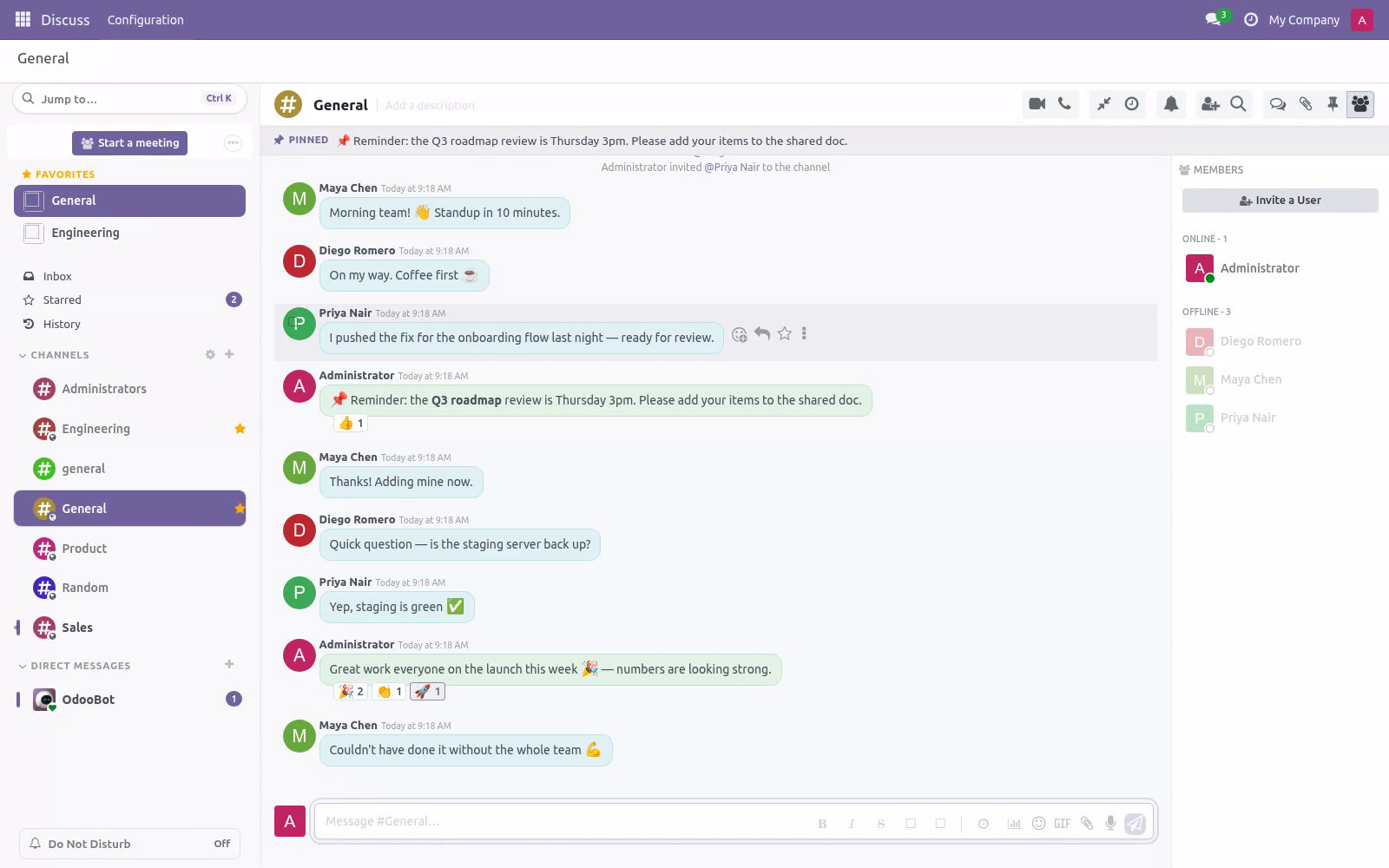
It uses Odoo's official extension points only, so it stays compatible with other apps and uninstalls cleanly. Quick reactions. Hover any message and a small bar of frequently used emoji appears at the top-right. Click one to react instantly.
The full emoji picker and the existing reaction tools remain available — this is just a faster path to the common ones. Message formatting. The composer has a small formatting toolbar (Bold, Italic, Strikethrough, Inline code). Select some text and click a button, or type the markers yourself: italic → italic ~~strike~~ → strikethrough a backtick pair around text → inline code Formatting is rendered when the message is displayed.
Polls. 1. Click the chart icon in the composer. 2.
Enter a question and at least two options (add as many as you like). 3. Optionally tick Allow multiple answers. 4.
Click Create poll — the poll is posted to the channel. Anyone in the channel can vote by clicking an option. Bars and percentages update in real time for everyone. The poll author can Close poll at any time to stop further voting.
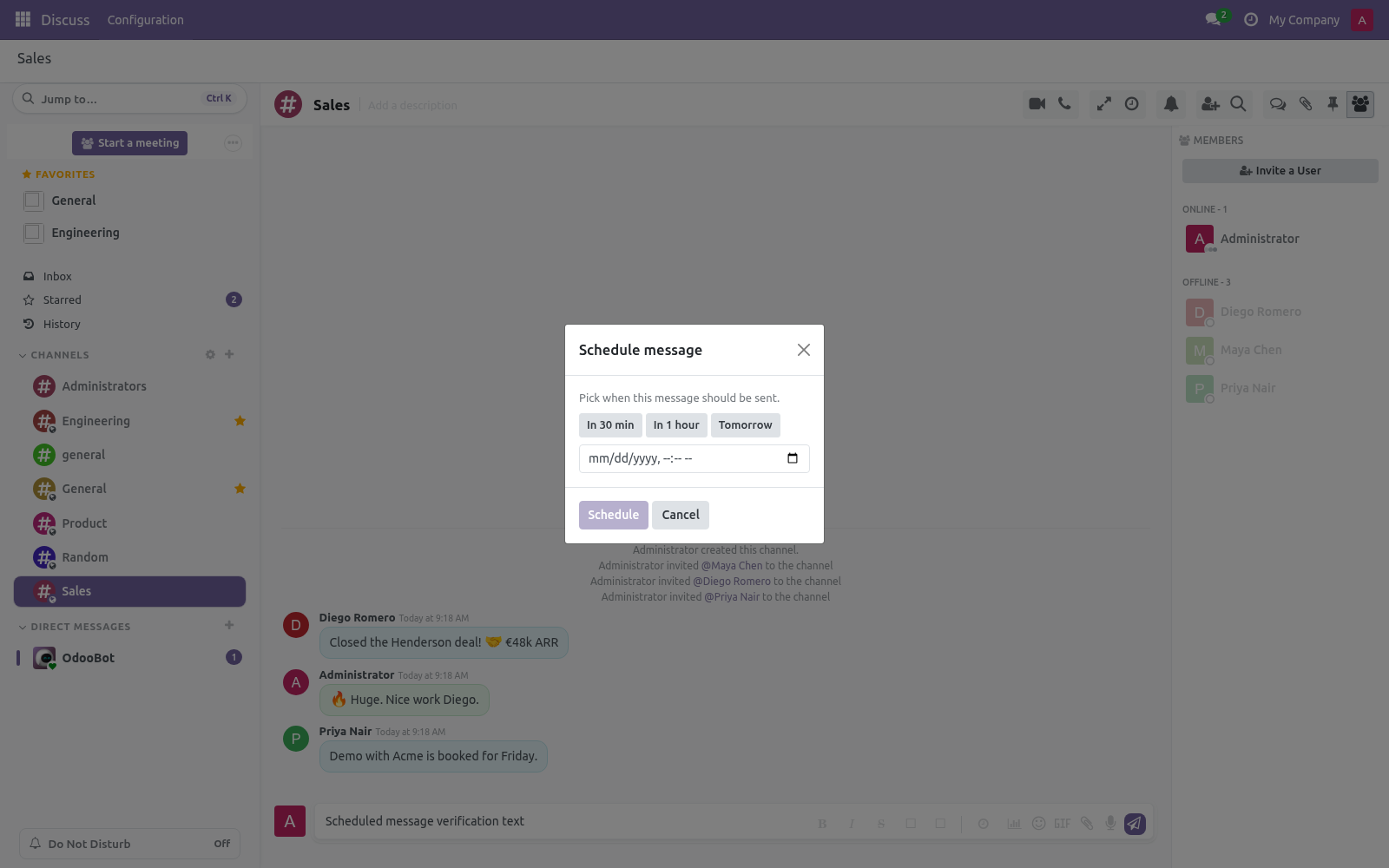
Scheduled send (send later). 1. Type your message, then click the clock icon in the composer. 2.
Pick a time (or use a quick preset) and click Schedule. 3. The message is delivered automatically at that time. To review or cancel pending messages, open the Scheduled messages panel from the channel header (clock icon).
A background job posts due messages every couple of minutes. Forward a message. Open a message's action menu and choose Forward, pick a destination channel, and the message is reposted there with the original author kept as attribution. Custom status.
Set a personal emoji and short status text under Preferences (avatar menu → Preferences). Your emoji then appears next to your name in Discuss, with the full text shown on hover. Multi-select and bulk actions. Hover a message and click the checkbox on its left to select it.
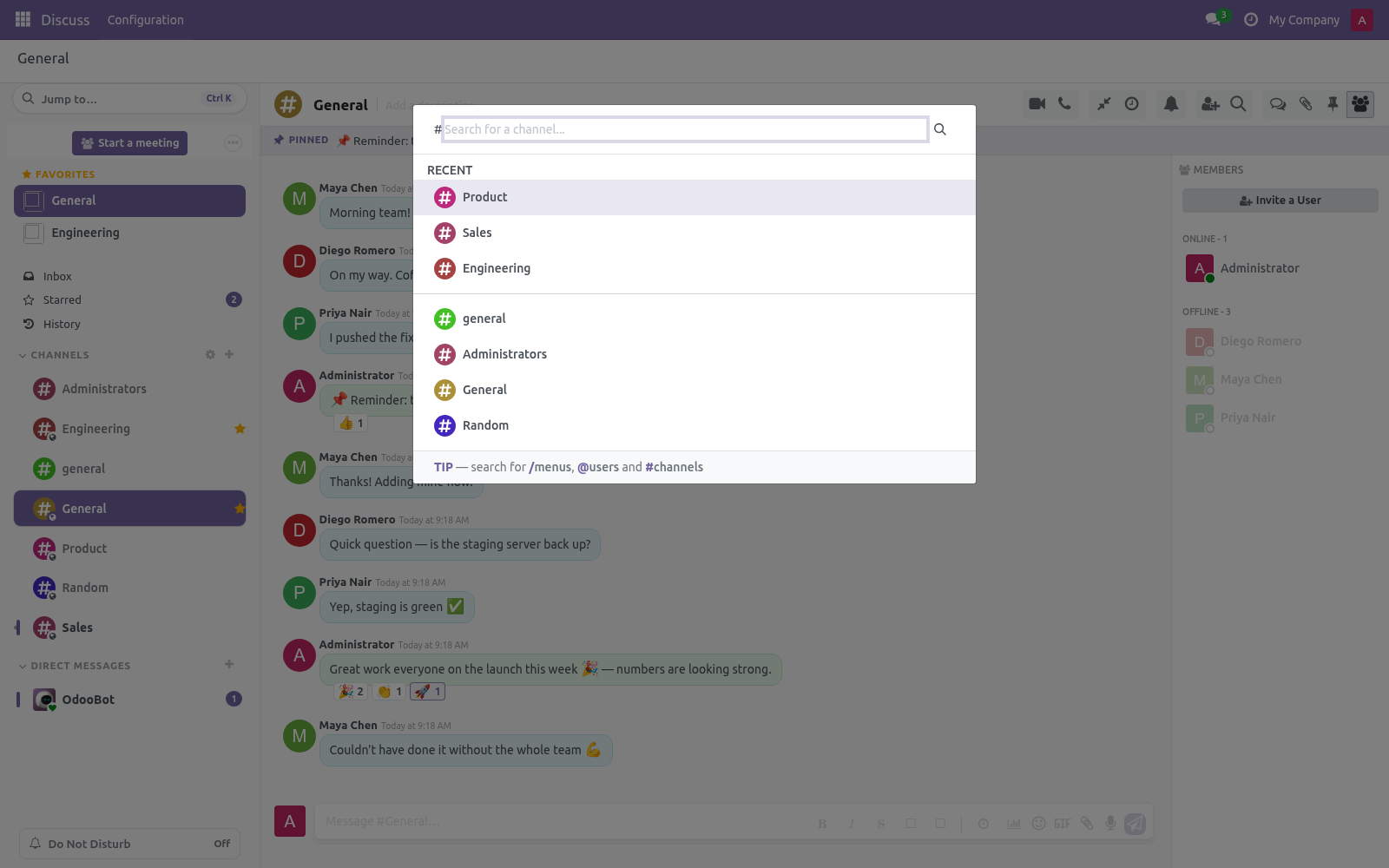
Select as many as you like; a floating bar appears with Star, Delete and Clear. Useful for cleaning up or bookmarking several messages at once. Quick switcher. Click Jump to… at the top of the sidebar (or press Ctrl+K) to open the command palette.
Type # to find a channel or @ to find a person, then press Enter to jump there. Density. Toggle Compact / Comfortable spacing from the channel header. Compact fits more messages on screen.
Your choice is saved on your own account. The complete manual is at docs dot bambooforge dot dev, the demo database is linked from the store page, and support answers within twenty-four hours. Links are in the description.
Transcript of the walkthrough (Odoo 17)
Discuss Pro: Modern Chat UI. A modern, professional redesign of Odoo Discuss: quick reactions, compact density and brand-aware styling, built on Odoo's own theme colours. A modern, feature-rich redesign of Odoo 17 Discuss. It adds the chat features your team expects — quick reactions, polls, scheduled messages, formatting, forwarding, custom statuses and more — on top of a refined interface that follows your backend theme's colors.
In the next few minutes: discuss pro: modern chat ui, then quick reactions, then message formatting, then polls, then scheduled send (send later). Then what this app deliberately does not do, so you can tell before you buy whether it fits. 1. Copy bambooforge_discuss_pro into your addons path (or install from the Apps store).
2. Go to Apps, click Update Apps List, search for Discuss Pro and install. 3. That's it — open Discuss and the new interface is live for every user.
Discuss Pro: Modern Chat UI. A modern, feature-rich redesign of Odoo 17 Discuss. It adds the chat features your team expects — quick reactions, polls, scheduled messages, formatting, forwarding, custom statuses and more — on top of a refined interface that follows your backend theme's colors. This module does not fork the mail module.
It uses Odoo's official extension points only, so it stays compatible with other apps and uninstalls cleanly. Quick reactions. Hover any message and a small bar of frequently used emoji appears at the top-right. Click one to react instantly.
The full emoji picker and the existing reaction tools remain available — this is just a faster path to the common ones. Message formatting. The composer has a small formatting toolbar (Bold, Italic, Strikethrough, Inline code). Select some text and click a button, or type the markers yourself: italic → italic ~~strike~~ → strikethrough a backtick pair around text → inline code Formatting is rendered when the message is displayed.
Polls. 1. Click the chart icon in the composer. 2.
Enter a question and at least two options (add as many as you like). 3. Optionally tick Allow multiple answers. 4.
Click Create poll — the poll is posted to the channel. Anyone in the channel can vote by clicking an option. Bars and percentages update in real time for everyone. The poll author can Close poll at any time to stop further voting.
Scheduled send (send later). 1. Type your message, then click the clock icon in the composer. 2.
Pick a time (or use a quick preset) and click Schedule. 3. The message is delivered automatically at that time. To review or cancel pending messages, open the Scheduled messages panel from the channel header (clock icon).
A background job posts due messages every couple of minutes. Forward a message. Open a message's action menu and choose Forward, pick a destination channel, and the message is reposted there with the original author kept as attribution. Custom status.
Set a personal emoji and short status text under Preferences (avatar menu → Preferences). Your emoji then appears next to your name in Discuss, with the full text shown on hover. Multi-select and bulk actions. Hover a message and click the checkbox on its left to select it.
Select as many as you like; a floating bar appears with Star, Delete and Clear. Useful for cleaning up or bookmarking several messages at once. Quick switcher. Click Jump to… at the top of the sidebar (or press Ctrl+K) to open the command palette.
Type # to find a channel or @ to find a person, then press Enter to jump there. Density. Toggle Compact / Comfortable spacing from the channel header. Compact fits more messages on screen.
Your choice is saved on your own account. The complete manual is at docs dot bambooforge dot dev, the demo database is linked from the store page, and support answers within twenty-four hours. Links are in the description.


Key facts
- What it is
- A modern, professional redesign of Odoo Discuss: quick reactions, compact density and brand-aware styling, built on Odoo's own theme colours.
- For
- Discuss
- Odoo versions
- 17.0, 18.0, 19.0, 20.0 - Community and Enterprise
- Runs on
- Odoo.sh or Odoo you host yourself - not Odoo Online, which accepts no third-party apps
- Price
- 69 EUR, one-time, on the Odoo Apps Store
- Technical name
- bambooforge_discuss_pro
- Manual last updated
- 2026-10-15
Discuss Pro: Modern Chat UI
A modern, feature-rich redesign of Odoo 20 Discuss. It adds the chat features your team expects — quick reactions, polls, scheduled messages, formatting, forwarding, custom statuses and more — on top of a refined interface that follows your backend theme's colors.
This module does not fork the mail module. It uses Odoo's official extension points only, so it stays compatible with other apps and uninstalls cleanly.
Installation
Copy bambooforge_discuss_pro into your addons path (or install from the Apps store).
Go to Apps, click Update Apps List, search for Discuss Pro and install.
That's it — open Discuss and the new interface is live for every user.
No configuration is required. A couple of preferences are available per user (see Preferences below).
Features and how to use them
Quick reactions
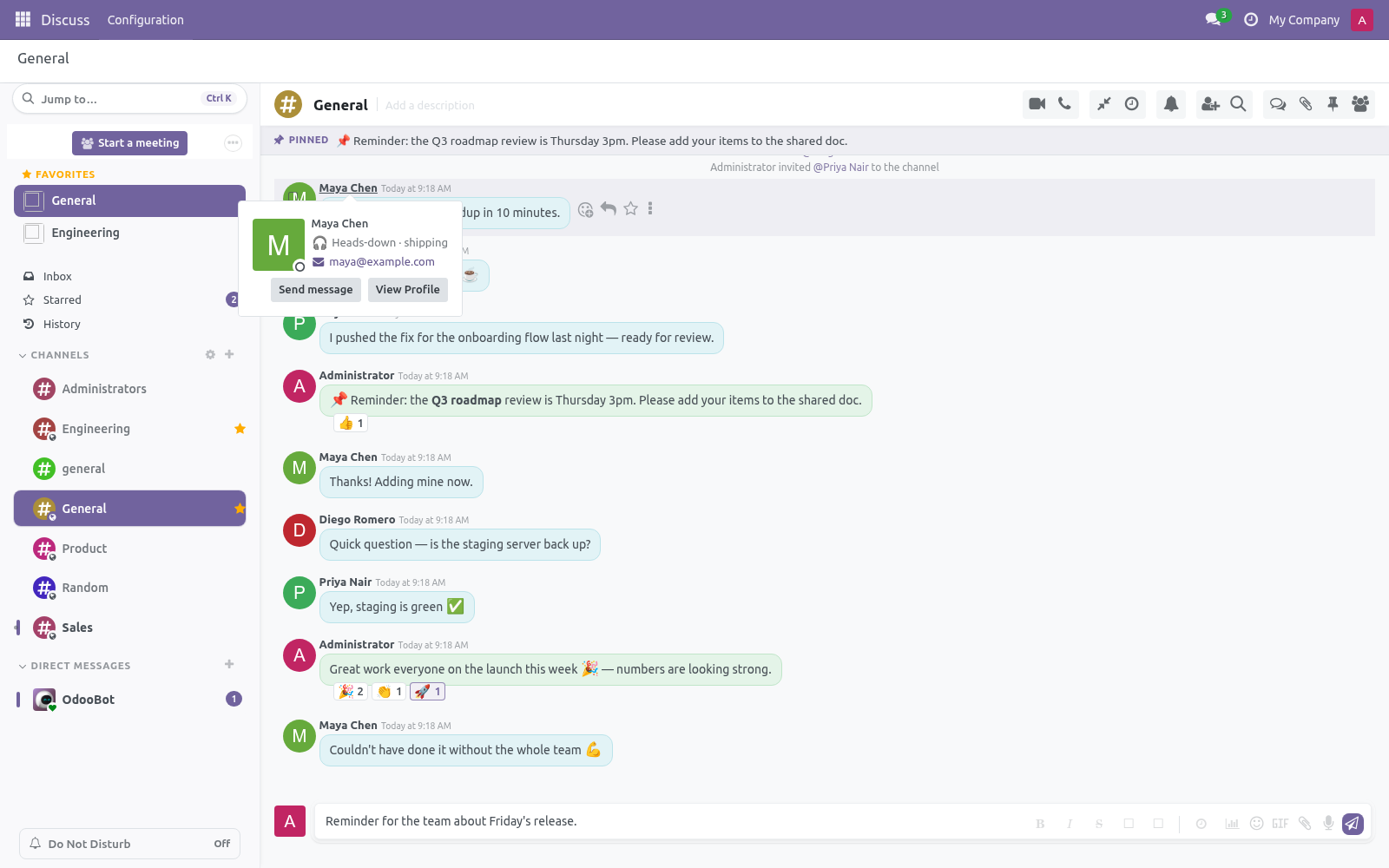
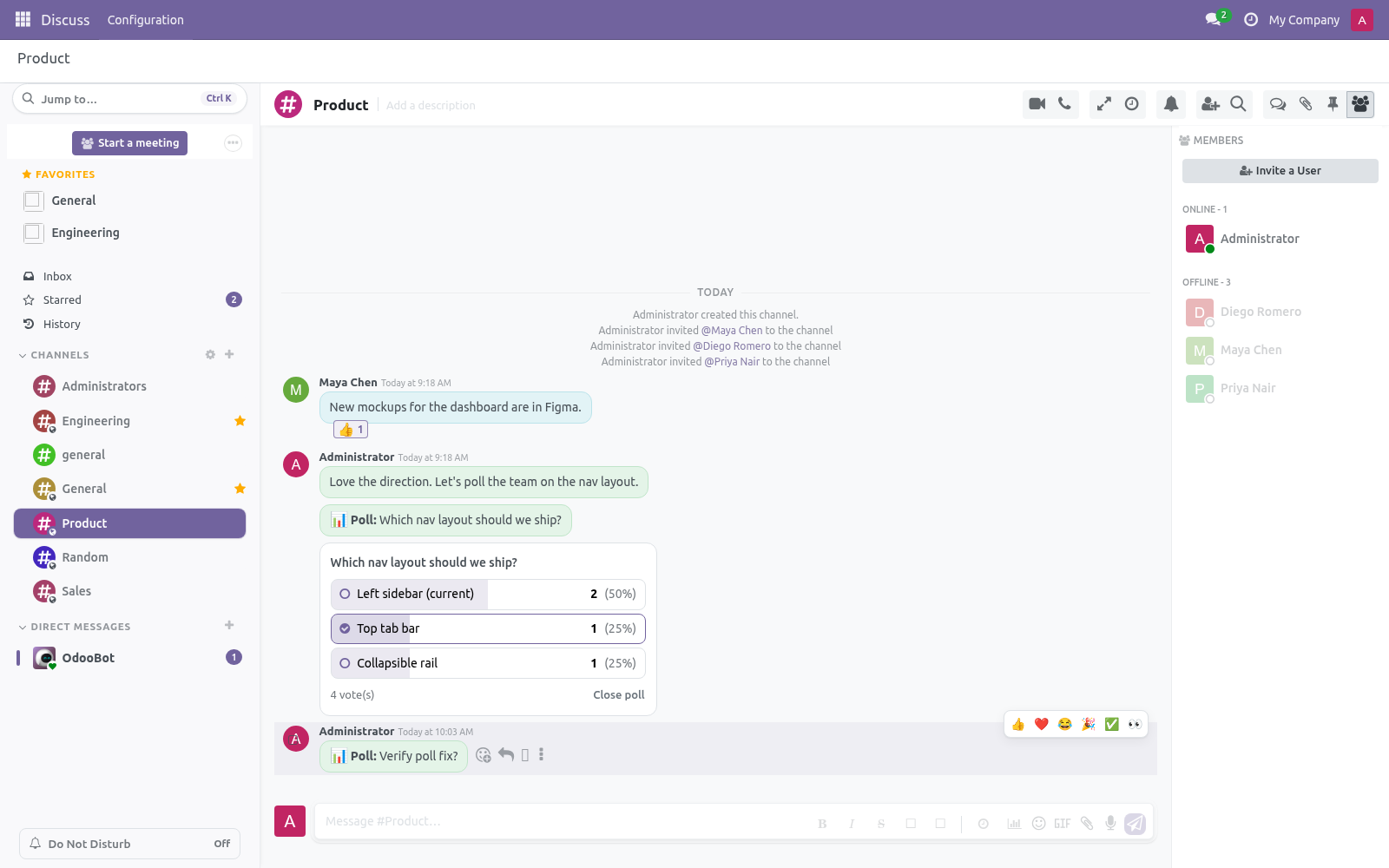
Hover any message and a small bar of frequently used emoji appears at the top-right. Click one to react instantly. The full emoji picker and the existing reaction tools remain available — this is just a faster path to the common ones.
Message formatting
The composer has a small formatting toolbar (Bold, Italic, Strikethrough, Inline code). Select some text and click a button, or type the markers yourself:
**bold** → bold
*italic* → italic
~~strike~~ → strikethrough
a backtick pair around text → inline code
Formatting is rendered when the message is displayed.
Polls
Odoo 20 ships polls of its own, so on 20 new polls are created with Odoo's Create Poll composer action, in channels and group chats.
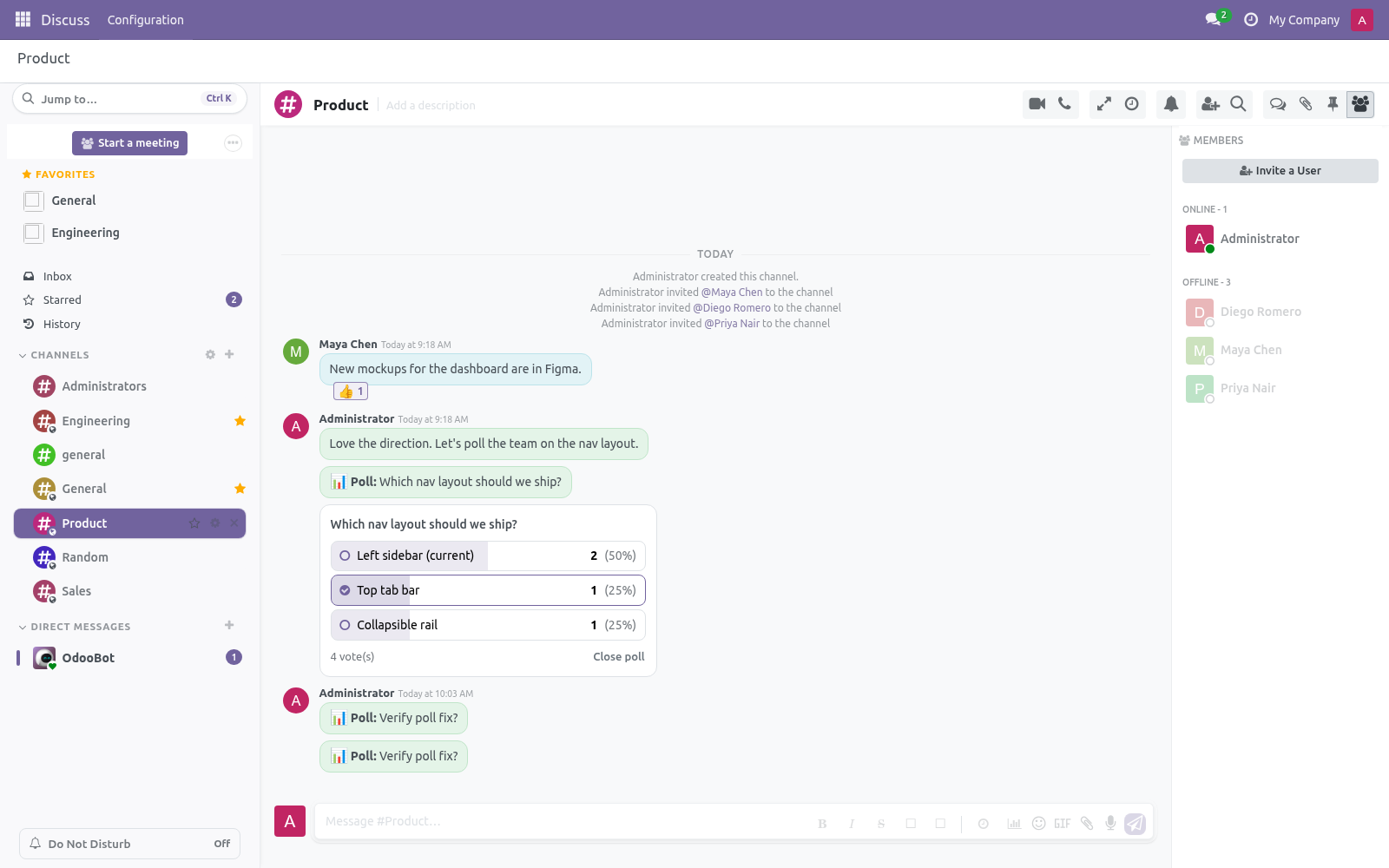
Polls created with earlier versions of Discuss Pro keep showing in the feed. Anyone in the channel can vote by clicking an option. Bars and percentages update in real time for everyone. The poll author can Close poll at any time to stop further voting.
Scheduled send (send later)
Type your message, then click the clock icon in the composer.
Pick a time (or use a quick preset) and click Schedule.
The message is delivered automatically at that time.
To review or cancel pending messages, open the Scheduled messages panel from the channel header (clock icon). A background job posts due messages every couple of minutes.
Forward a message
Open a message's action menu and choose Forward, pick a destination channel, and the message is reposted there with the original author kept as attribution.
Custom status
Set a personal emoji and short status text under Preferences (avatar menu → Preferences). Your emoji then appears next to your name in Discuss, with the full text shown on hover.
Multi-select and bulk actions
Hover a message and click the checkbox on its left to select it. Select as many as you like; a floating bar appears with Star, Delete and Clear. Useful for cleaning up or bookmarking several messages at once.
Quick switcher
Click Jump to… at the top of the sidebar (or press Ctrl+K) to open the command palette. Type # to find a channel or @ to find a person, then press Enter to jump there.
Density
Toggle Compact / Comfortable spacing from the channel header. Compact fits more messages on screen. Your choice is saved on your own account.
Pinned bar
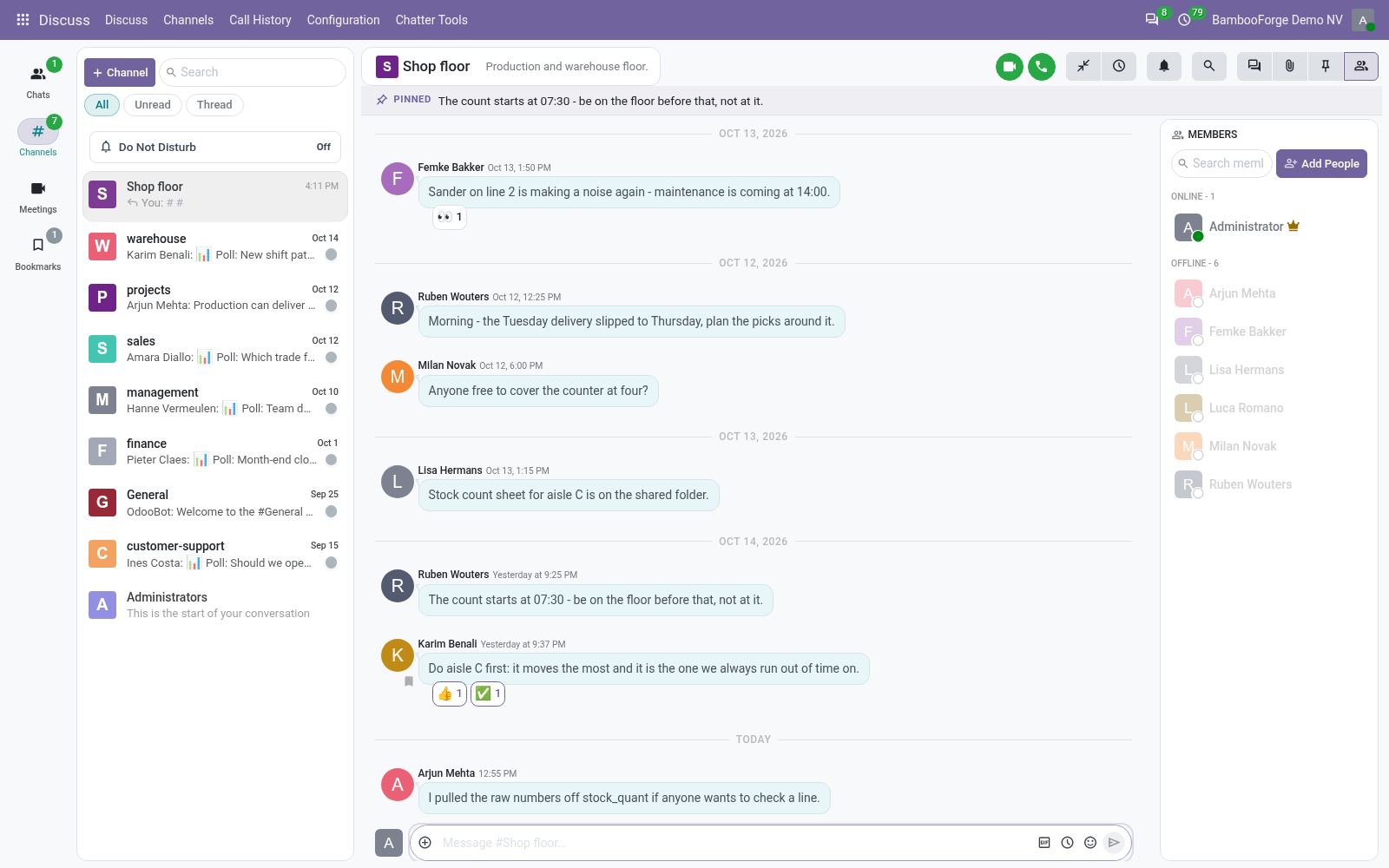
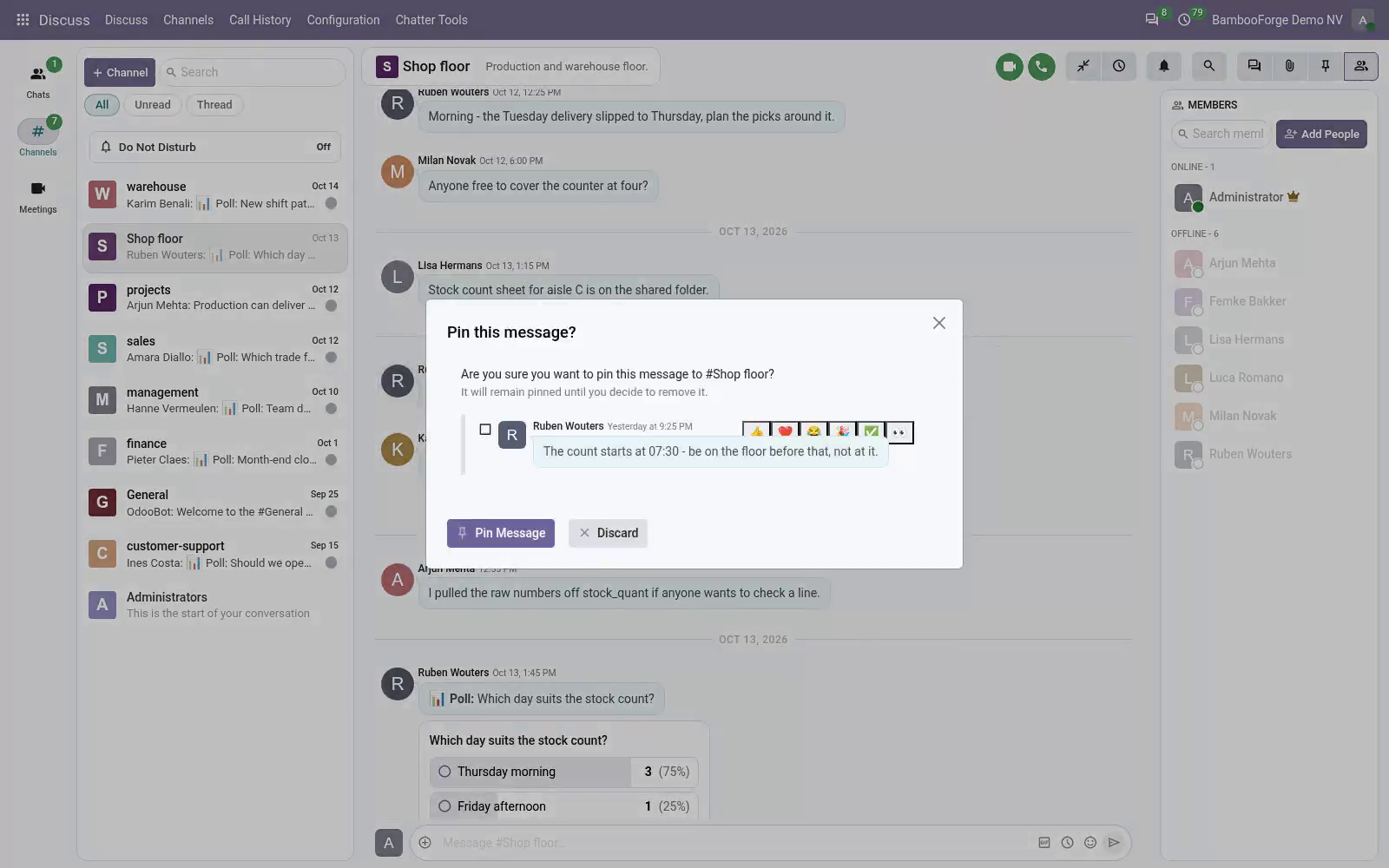
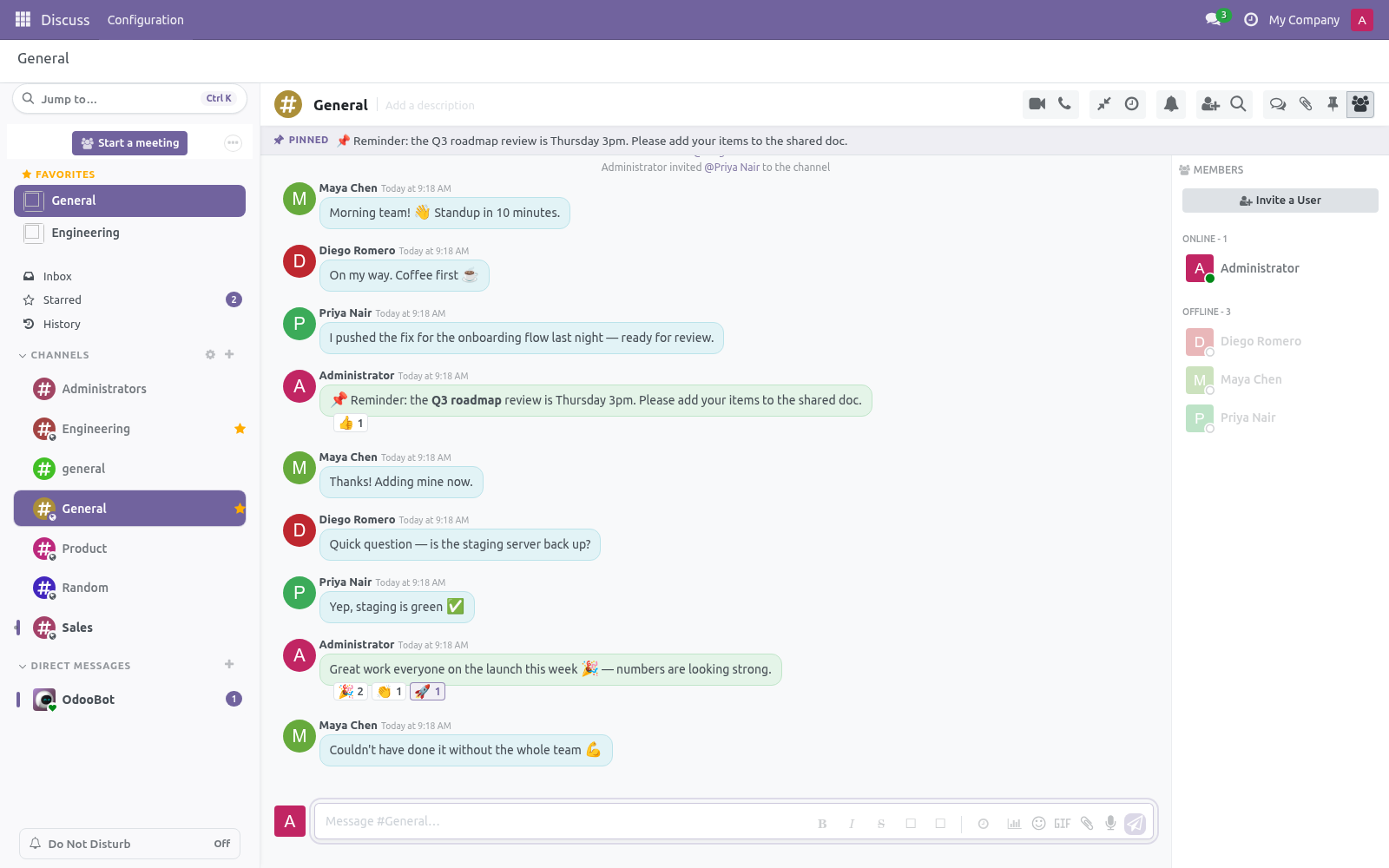
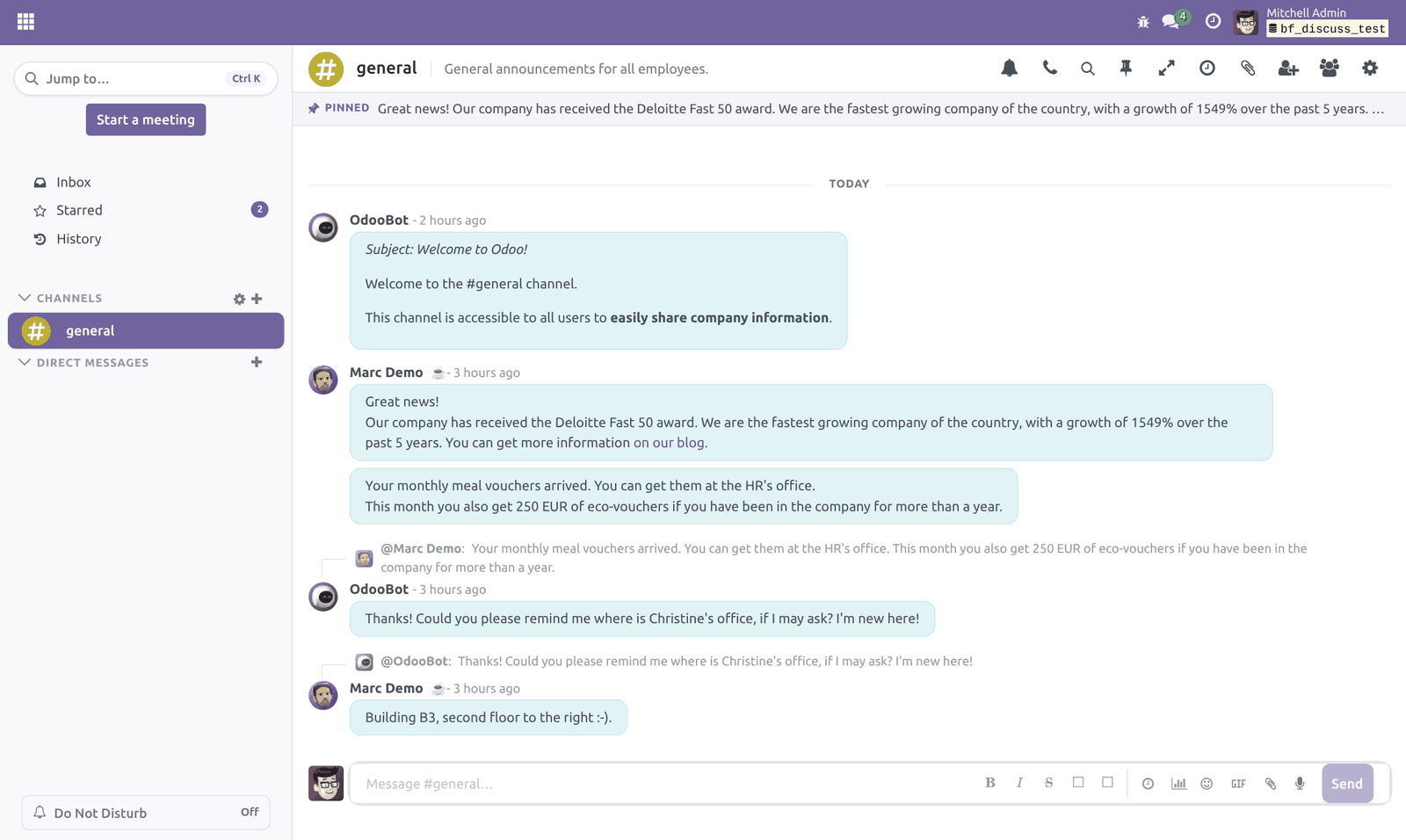
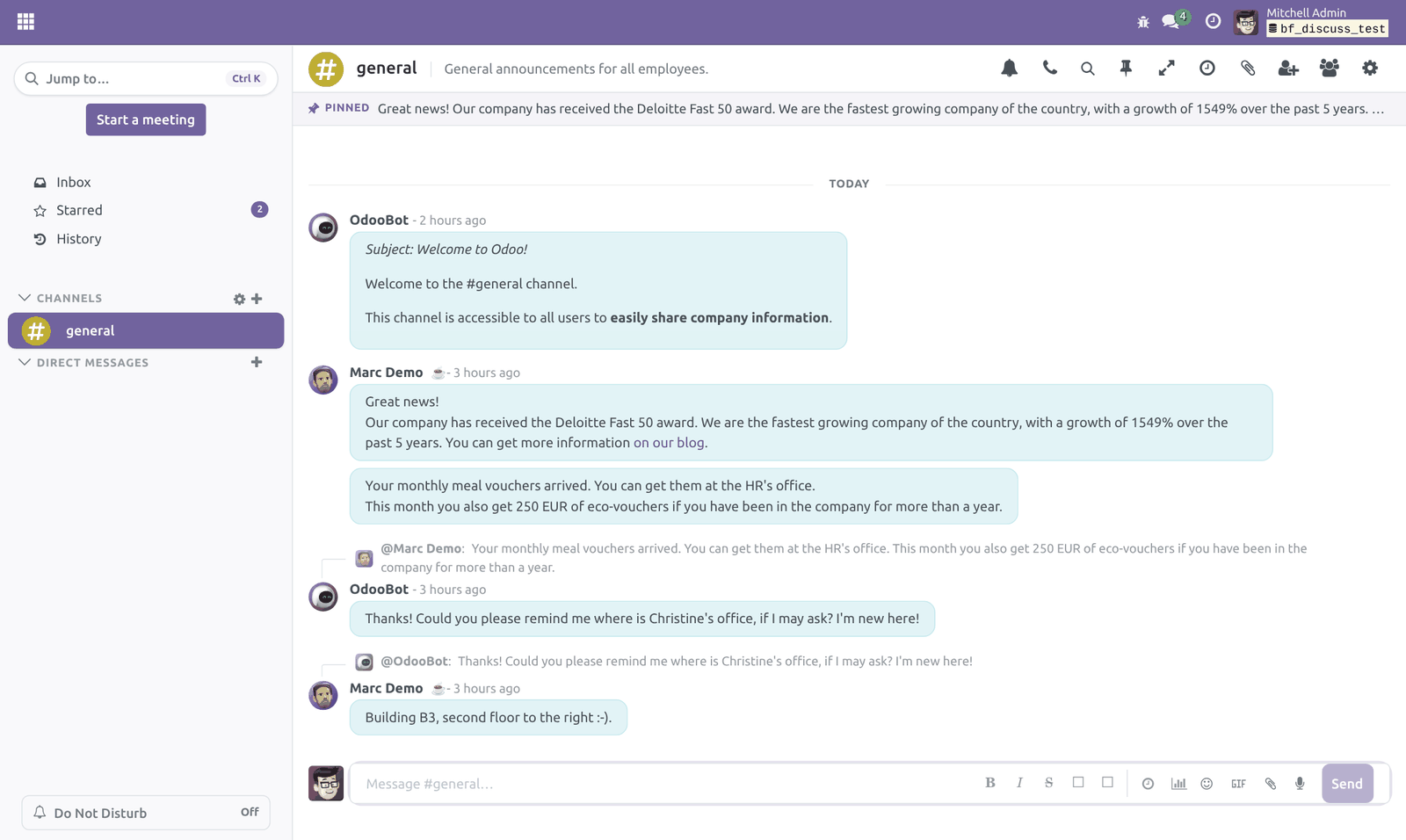
When a channel has pinned messages, a bar at the top shows the most recent one. Click the bar to jump straight to that message in the conversation. (Use the stock Pinned Messages panel in the channel header to pin or unpin.)
Favorite channels
Hover a channel in the sidebar and click the star to mark it a favorite. Favorites are grouped into a Favorites section at the top of the sidebar, saved on your account. Click the star again to remove it.
Code blocks
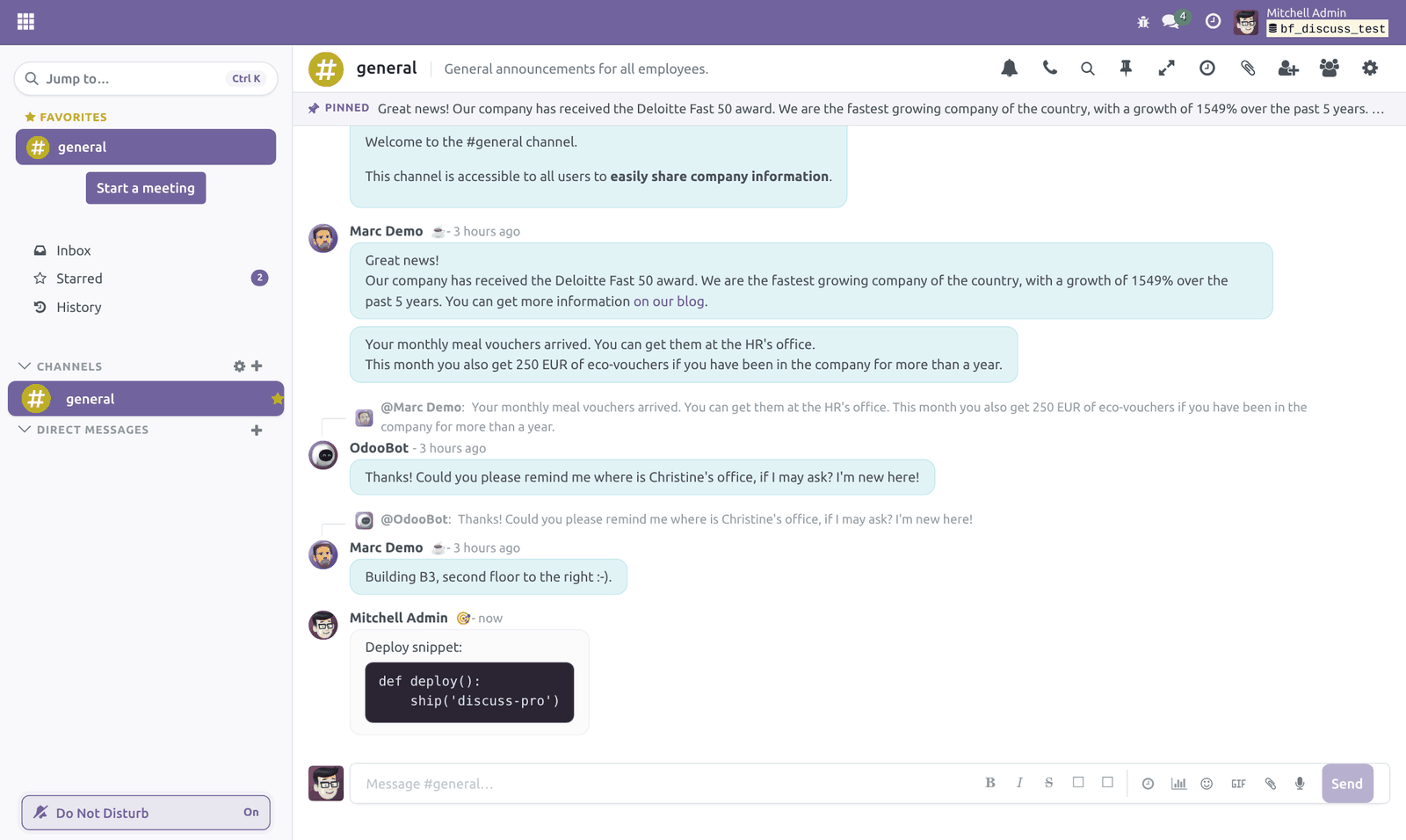
Wrap text in triple backticks to post a multi-line code block:
```
your code here
```
It renders as a dark, monospaced block with a one-click Copy button. Use the code-block button in the composer toolbar to insert the markers.
Search filters
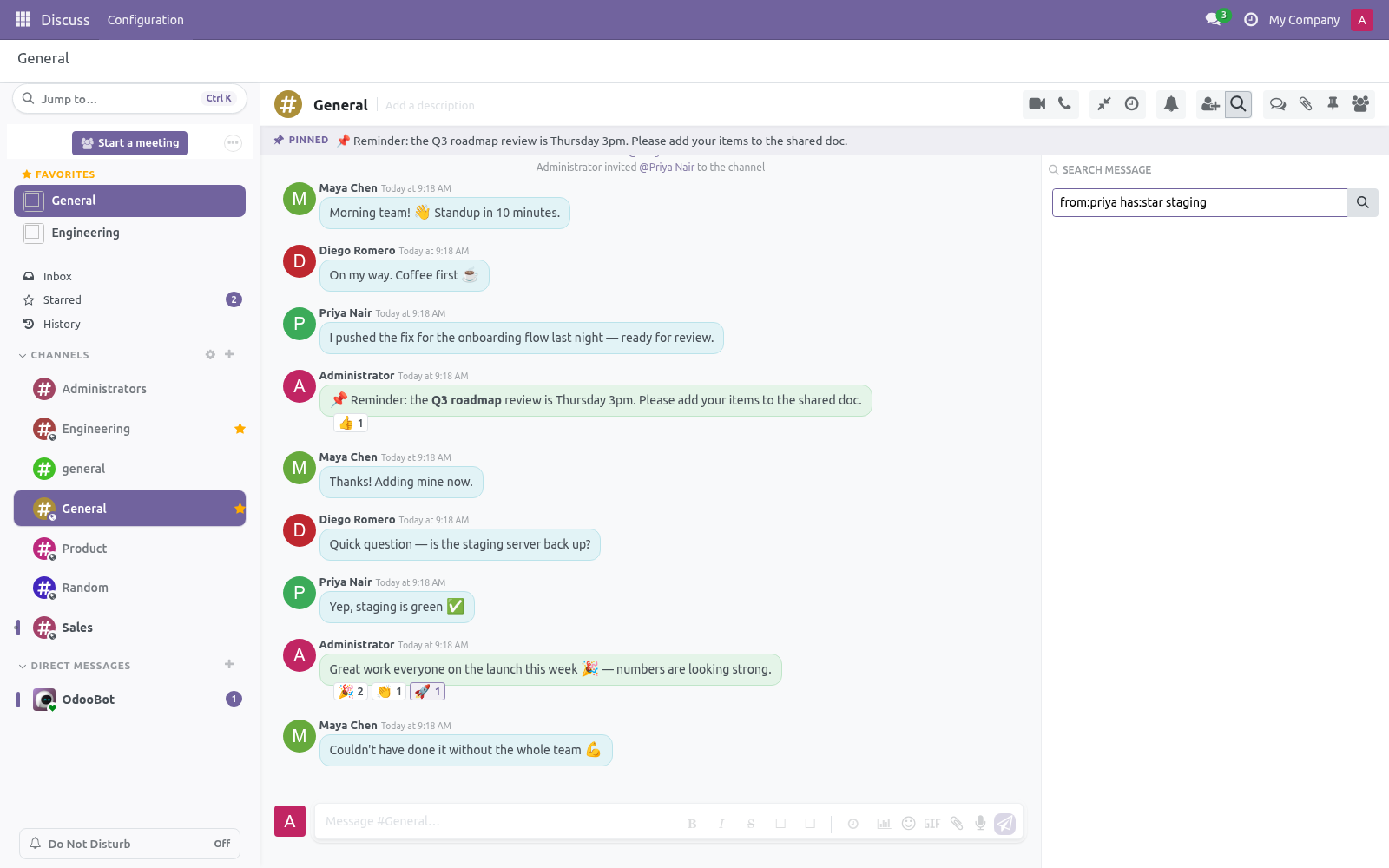
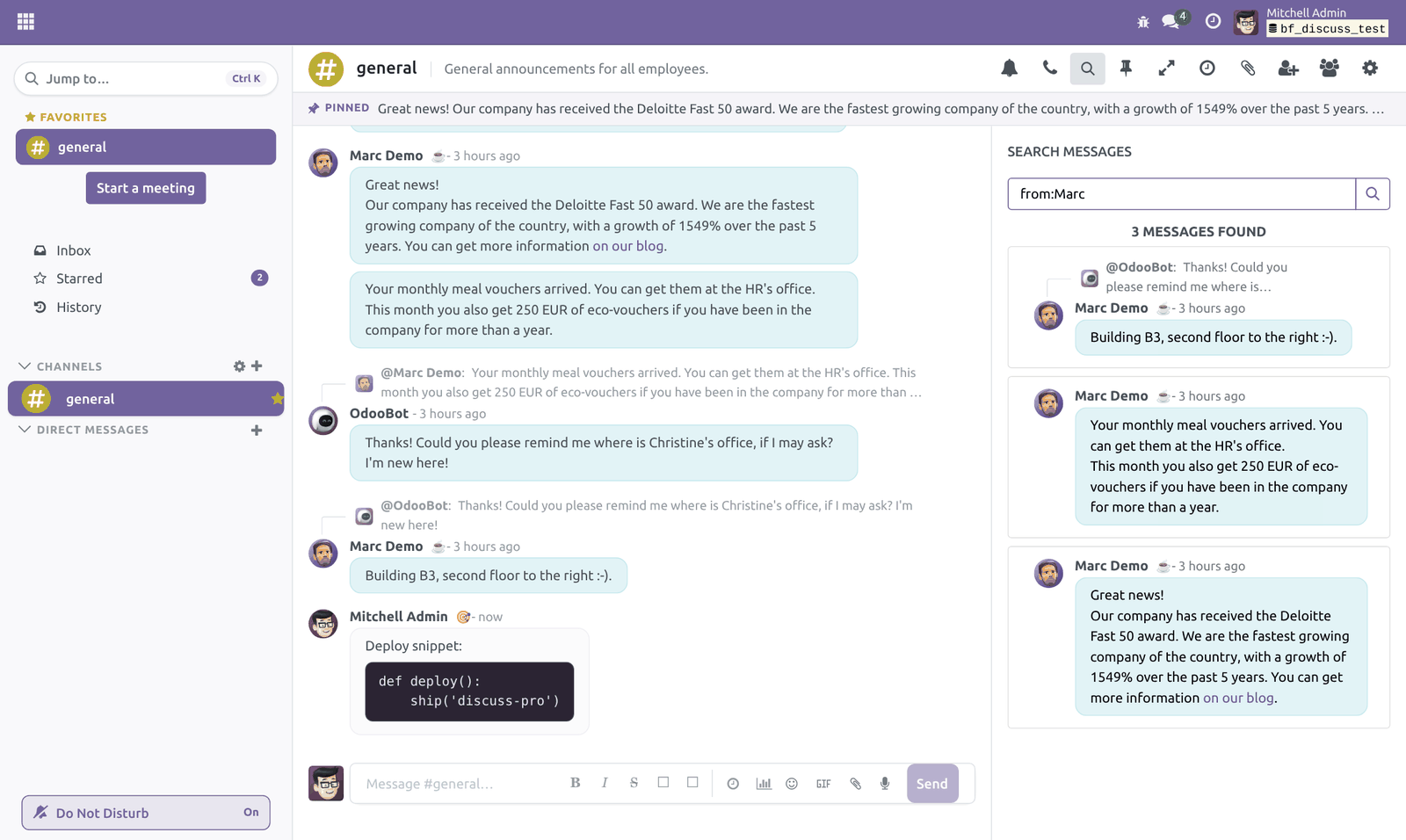
In the message search, combine free text with filters:
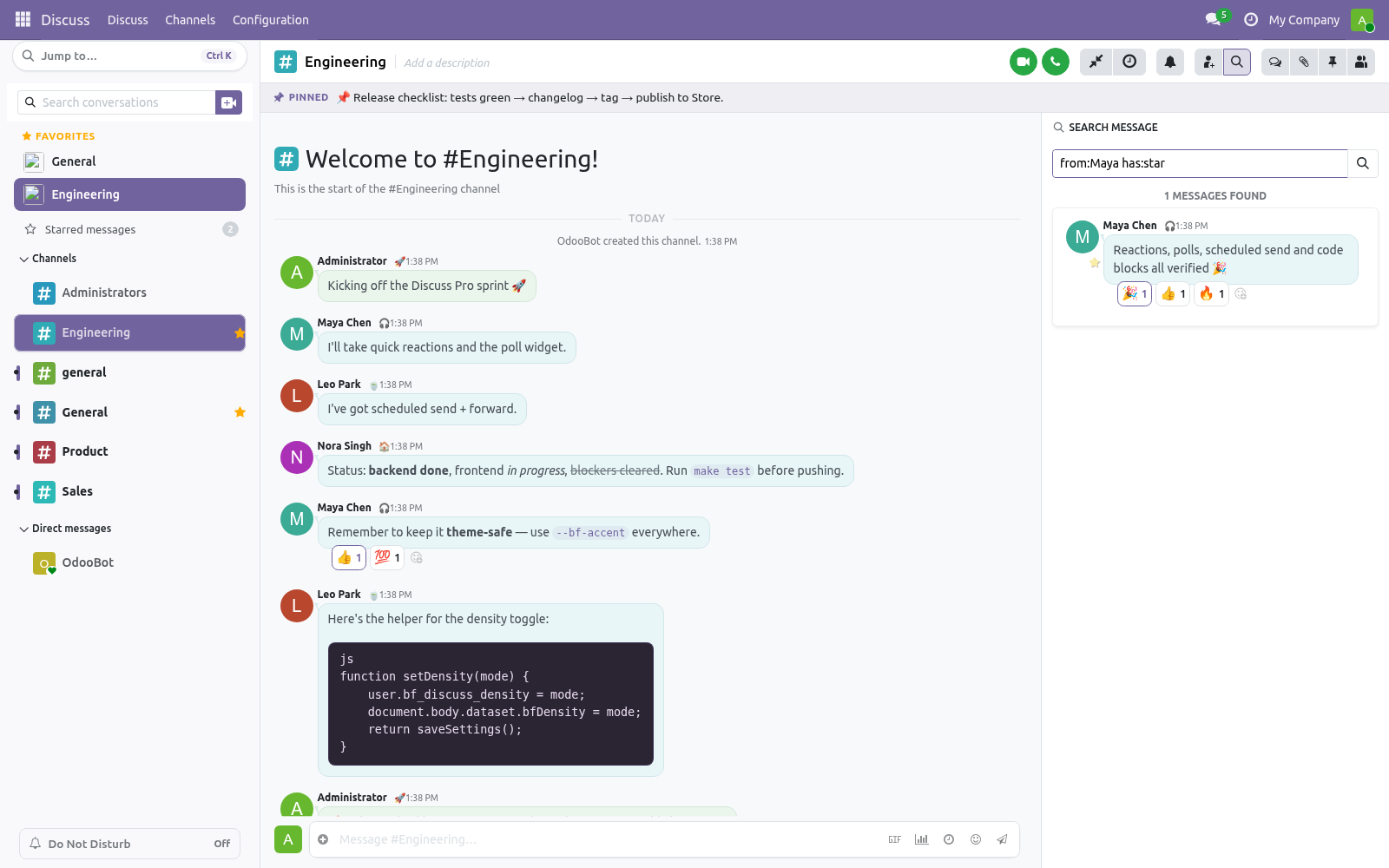
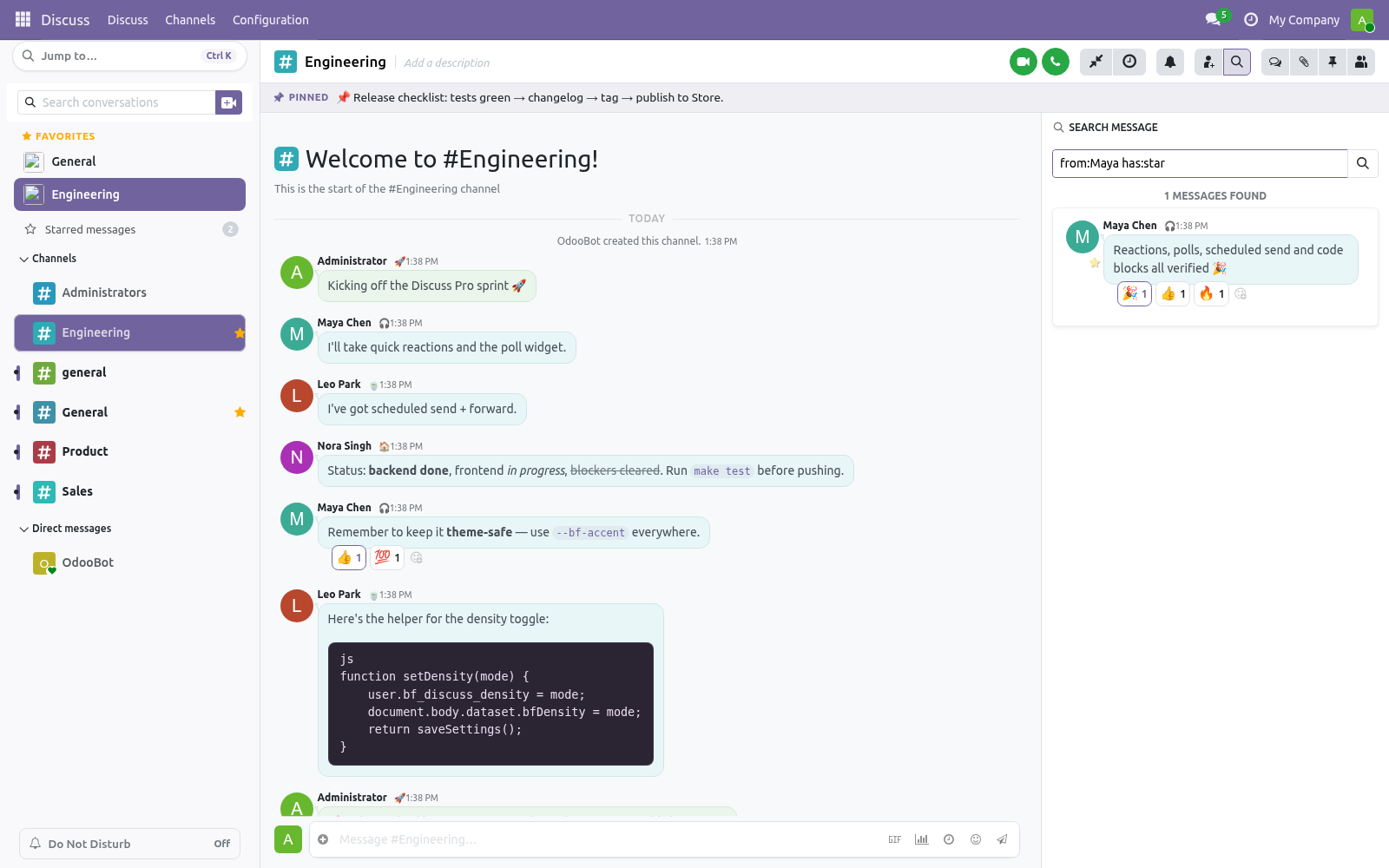
from:name — only messages from a given author.
has:link — messages that contain a link.
has:file — messages with an attachment.
has:star — messages you starred.
For example, from:alice has:file report finds attachments shared by Alice that mention "report".
Do Not Disturb
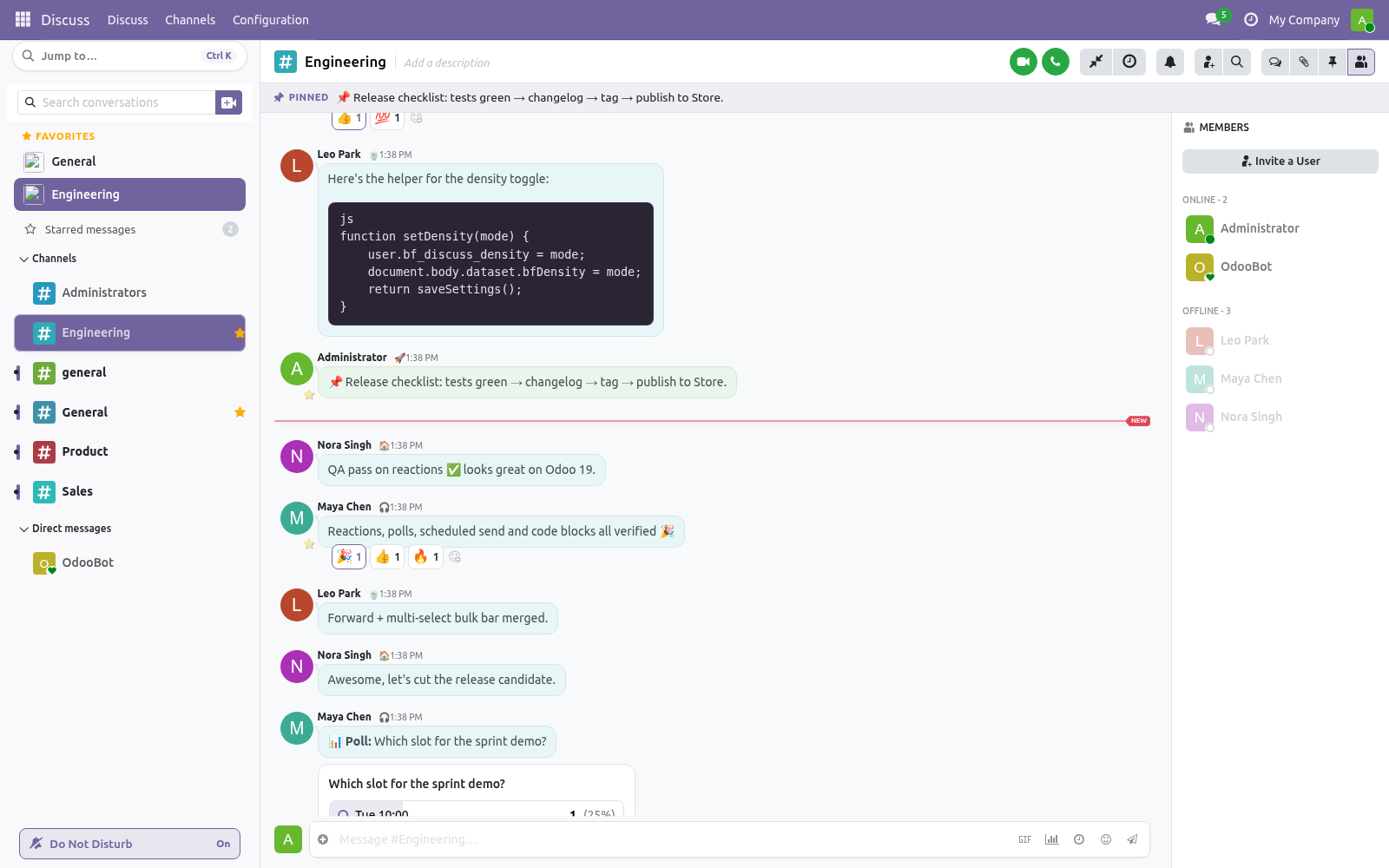
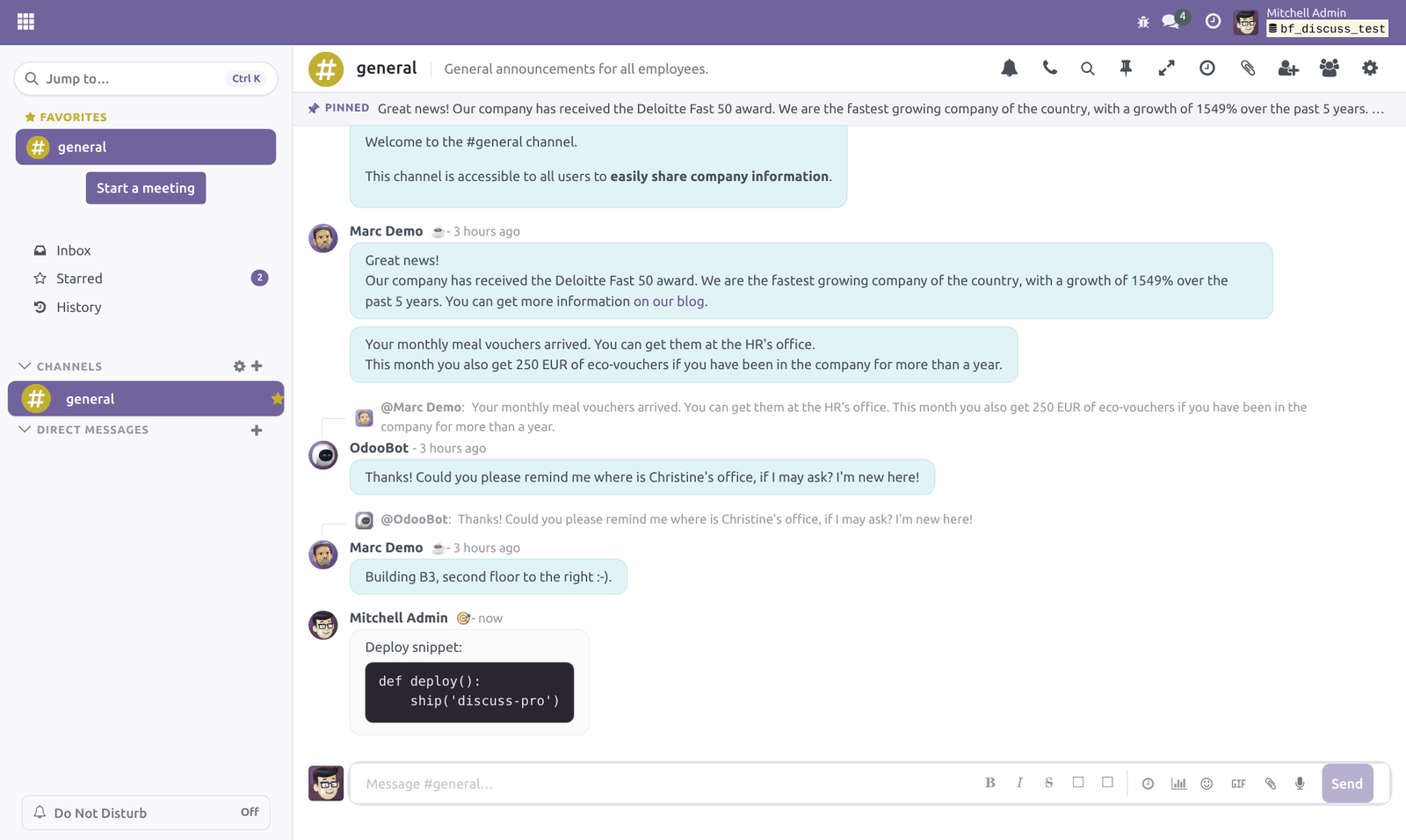
Click Do Not Disturb at the bottom of the sidebar to silence notification sounds and desktop alerts across Discuss. It stays on (saved to your account) until you turn it off, and can also be set in Preferences.
Profile cards
Click a person's name or avatar to open their profile card. It now shows their custom status — the personal emoji and text they set in Preferences.
Preferences
Each user can set, under Preferences:
Discuss Density — Comfortable (default) or Compact.
Status Emoji and Status Text — your personal status shown in Discuss.
Do Not Disturb — silence notification sounds and desktop alerts.
Density can also be toggled from the Discuss channel header, Do Not Disturb from the bottom of the sidebar, and favorites via the star on each channel.
Theme compatibility
Every color used by Discuss Pro is derived from Odoo's own theme variables (the primary color, grays and semantic colors) and exposed as --bf-discuss-* CSS custom properties. No color is hardcoded.
If you install a backend theme that changes the primary color, Discuss Pro recolors to match automatically, with no configuration. The screenshots in the store listing use Odoo's default accent; your installation follows yours.
Technical notes
Discuss Pro is implemented entirely through Odoo's supported extension points:
mail.message/actions and mail.thread/actions registries (forward action, density toggle, scheduled-messages panel).
Owl component patches and template inheritance for the message, composer and sidebar enhancements.
A small set of backend models for the server-side features:
bf.discuss.poll / bf.discuss.poll.option / bf.discuss.poll.vote
bf.discuss.scheduled.message (with a scheduled job to post due messages)
additive fields on res.partner / res.users (custom status, density, favorite channels, Do Not Disturb) and mail.message (poll link)
A dedicated search route (/bambooforge_discuss_pro/search) powers the from: / has: filters, so the stock message routes are not overridden.
The pinned bar and favorites reuse Odoo's own pinned-messages store and sidebar registries; Do Not Disturb patches the out-of-focus notification service.
Real-time poll updates use the standard Odoo bus. The mail module itself is never modified, so upgrades remain clean.
Uninstall
Uninstalling the module removes its assets, models and the few additive fields, and Discuss returns to stock Odoo. No database residue is left behind.
How we make sure it works
Before every release, 20 automated checks run against this app on Odoo 17, 18, 19 and 20. Among them:
Cannot schedule message into foreign channel.
Non author cannot close via method.
Non author cannot close via write.
Cannot vote as another partner.
Non author cannot unlink poll.
The complete list is in the source you receive.
Support
Email: support@bambooforge.dev
License: OPL-1 (full source included)
Tested on Odoo 20.0.
Frequently asked questions
Which features are turned on by default?
All of them. Once installed, the redesigned interface and every feature are live with no configuration. The only per-user preferences are Density (Comfortable by default), your status emoji/text and Do Not Disturb.
Does it work on mobile and small screens?
Yes. It runs in the standard Odoo web client, so it works anywhere Discuss does, including mobile browsers, and Compact density helps on narrow screens. Hover-only affordances (quick-react bar, select checkbox) surface on tap on touch devices.
If a colleague does not have the module, does it affect them?
The module is installed per database, not per user, so everyone on that database gets the new interface. Content degrades gracefully: a poll, forward or scheduled message posts as an ordinary channel message, readable by any Odoo user.
Do polls and scheduled messages persist?
Yes. Polls (bf.discuss.poll) and pending scheduled messages (bf.discuss.scheduled.message) are stored in your database and survive reloads and restarts. A scheduled message leaves the queue once posted; a poll lives with its channel.
Is any external or third-party service used?
No. Everything runs inside your own Odoo instance — no external API calls, no third-party servers, no telemetry. Live poll and reaction updates use Odoo's built-in bus; scheduled sending uses a standard Odoo scheduled action (cron).
What is the performance impact?
Minimal. The features are lightweight client components plus a few small backend models queried only when you open a poll or the scheduled panel. The scheduled-send cron runs every two minutes and processes only messages that are due.
Does it change or migrate core Discuss data?
No. The mail module is never forked. It adds its own models and a few additive fields (custom status, density, favorite channels, Do Not Disturb, and a poll link on mail.message). Existing data is untouched, so it uninstalls cleanly.
Questions people ask
- Which Odoo versions does it run on?
Odoo 17.0, 18.0, 19.0, 20.0, on the series you buy it for; each series is its own listing.
- Community or Enterprise?
Both. It needs no Enterprise app.
- What does it need?
The standard Discuss app. No extra Python package.
- Does anything leave my server?
No. It makes no call outside your Odoo server: no telemetry, no licence check, no third-party service.
- What happens if I uninstall it?
Odoo drops the app's own tables and fields; the standard records it worked on (contacts, orders, products) stay as they are.
Troubleshooting
The new interface or a feature does not appear
Cause. The browser is serving cached JavaScript/SCSS assets from before the install or update.
Diagnosis. Confirm the module is Installed under Apps, then test whether a hard refresh restores the missing element.
Resolution. Hard-refresh (Ctrl+F5 / Cmd+Shift+R). If it persists, in Developer mode use Settings → Technical → Regenerate Assets Bundles and reload.
Scheduled messages are not being sent
Cause. The scheduled action is inactive, or the cron scheduler is not running.
Diagnosis. In Developer mode open Settings → Technical → Scheduled Actions, find Discuss Pro: Post scheduled messages, and confirm it is active with an advancing next-execution date. Pending items show in the Scheduled messages panel.
Resolution. Ensure a cron worker is enabled (max_cron_threads > 0 or a dedicated cron process) and reactivate the action if disabled. Messages post on the next run after their send time, so allow up to the two-minute interval.
Markdown or code blocks are not rendered
Cause. Formatting is applied by the client at display time, so a cached client shows raw markers, or the markers are malformed.
Diagnosis. Check whether the message renders after a hard refresh, and verify balanced markers: **bold**, *italic*, ~~strike~~, a backtick pair for inline code, and triple backticks for a code block.
Resolution. Hard-refresh to load current assets and fix unmatched markers. Formatting is presentational only — the stored body is unchanged, so older messages format as soon as they re-render.
Poll results or reactions do not update live
Cause. Live updates rely on Odoo's bus (long-polling / websocket); if it is blocked, clients update only on reload.
Diagnosis. Check whether reloading shows the correct counts. If it does, the live channel — not the stored data — is the issue.
Resolution. Ensure the longpolling/websocket endpoint is reachable; behind a reverse proxy the /websocket and longpolling routes must be forwarded. Stored votes are always correct; only the live push is affected.
Upgrading & version compatibility
This build targets Odoo 20.0. Each Odoo major series (17.0, 18.0, 19.0, 20.0) has its own dedicated build of this module — always install the build that matches your Odoo version. Mixing a build with a different Odoo series is not supported.
Patch upgrades (same series, e.g. 20.0.1.0.0 → later)
Back up your database and filestore first.
Replace the module folder with the newer build.
Restart Odoo with the module updated:
./odoo-bin -c your.conf -u bambooforge_discuss_pro -d your_db
Odoo applies any schema/data changes automatically. Your existing records and configuration are preserved.
Cross-version migration (moving to a newer Odoo)
Upgrading Odoo itself is a database migration handled by Odoo's standard upgrade tooling. When you migrate the database to the next Odoo series, install the matching build of this module for that series. Data created by this module carries over with the database migration.
After any upgrade the module's scheduled actions resume on their normal cadence — no manual re-activation is required.
Uninstallation
You can remove this module at any time from Apps → (this module) → Uninstall, or from the command line. Uninstalling is clean and reversible by reinstalling — but note what is and is not deleted.
What is removed
The module's own tables and every record in them (4 models, prefixed bf.*) — this is the data this module created.
The menus, actions, views and reports this module installed.
Its scheduled actions (cron jobs) — they stop immediately on uninstall.
What is preserved
Your standard Odoo data (partners, products, sales, invoices, inventory moves) is not deleted — this module only reads and annotates it; the underlying records stay.
Attachments and chatter messages on standard records are kept.
As always, take a database backup before uninstalling in production.
Changelog
20.0.1.1.2
Built for Odoo 20: record rules and access rights rewritten onto Odoo 20's single ir.access model, the screens rebuilt on Owl 3, and every icon moved to the icon set Odoo 20 ships.
20.0.1.0.0
Current release for Odoo 20.0. This build includes:
A modern, professional redesign of Odoo Discuss.
Quick reactions, compact density, brand-aware styling.
Built entirely on Odoo's own theme colors.
Feature additions and fixes ship as new builds on the Odoo Apps store; this page and the module's version reflect the current published release. Always keep the build matched to your Odoo series (see Upgrading & version compatibility).