 BambooForge Labs
Discount Approval on Sales Orders
Require manager approval when an order's margin falls below a floor or a line is priced below cost - a clean request, approve or refuse trail.
Available for Odoo 16.0, Odoo 17.0, Odoo 18.0, Odoo 19.0, Odoo 20.0. Technical name bambooforge_discount_approval.
Transcript of the walkthrough (Odoo 20)
Discount Approval on Sales Orders. Require manager approval when an order's margin falls below a floor or a line is priced below cost - a clean request, approve or refuse trail. Stop margin erosion from over-discounting. Set the maximum discount your salespeople can give on their own — anything above it must be approved by a sales manager before the order can be confirmed.
In the next few minutes: discount approval on sales orders, then setting the threshold, then the workflow, then frequently asked questions, then how we make sure it works. Then what this app deliberately does not do, so you can tell before you buy whether it fits. No Enterprise modules and no external Python libraries are required. Discount Approval on Sales Orders.
Stop margin erosion from over-discounting. Set the maximum discount your salespeople can give on their own — anything above it must be approved by a sales manager before the order can be confirmed. This page is the complete manual. Follow it top to bottom and you can install, set your threshold and run the workflow without contacting support.
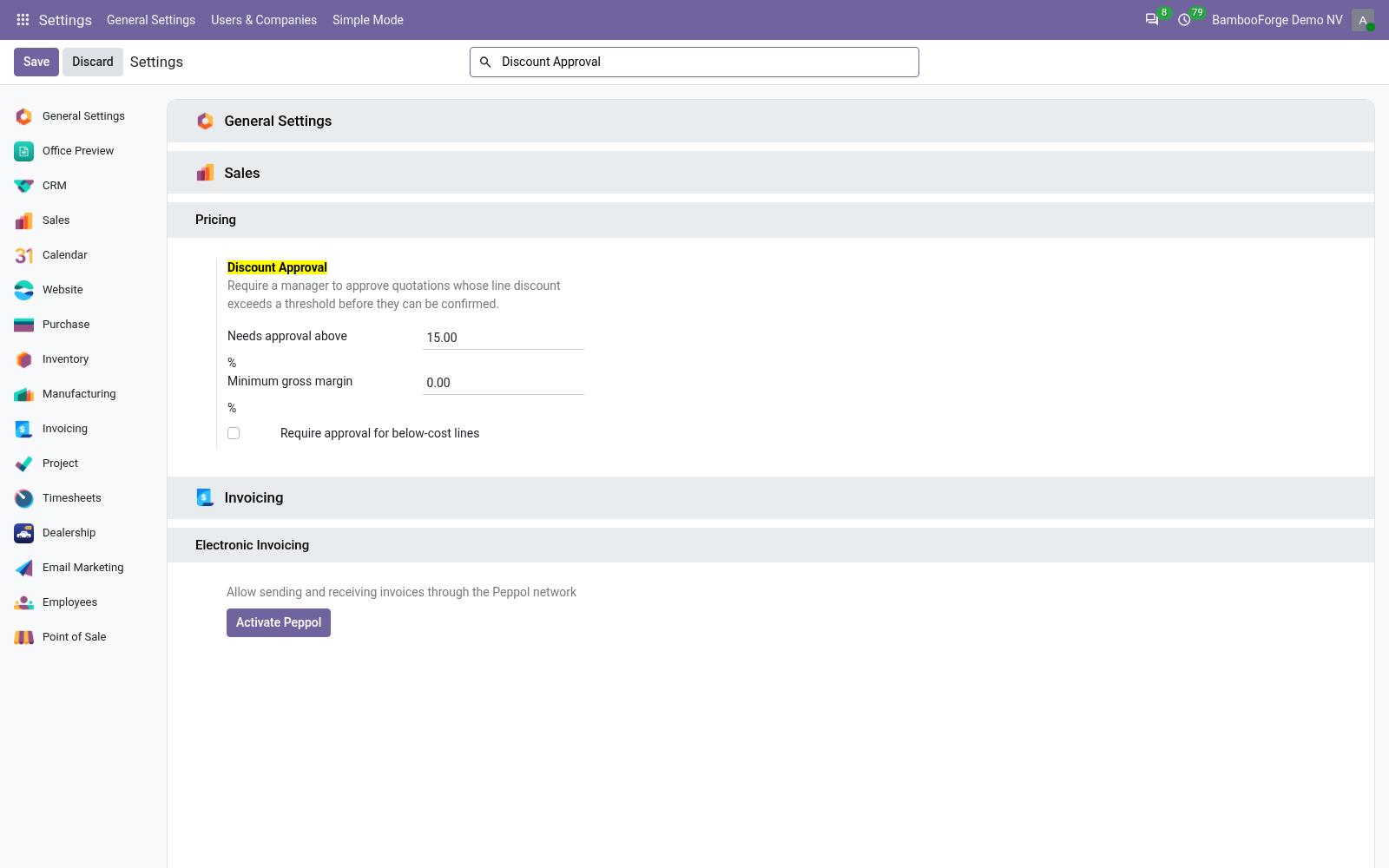
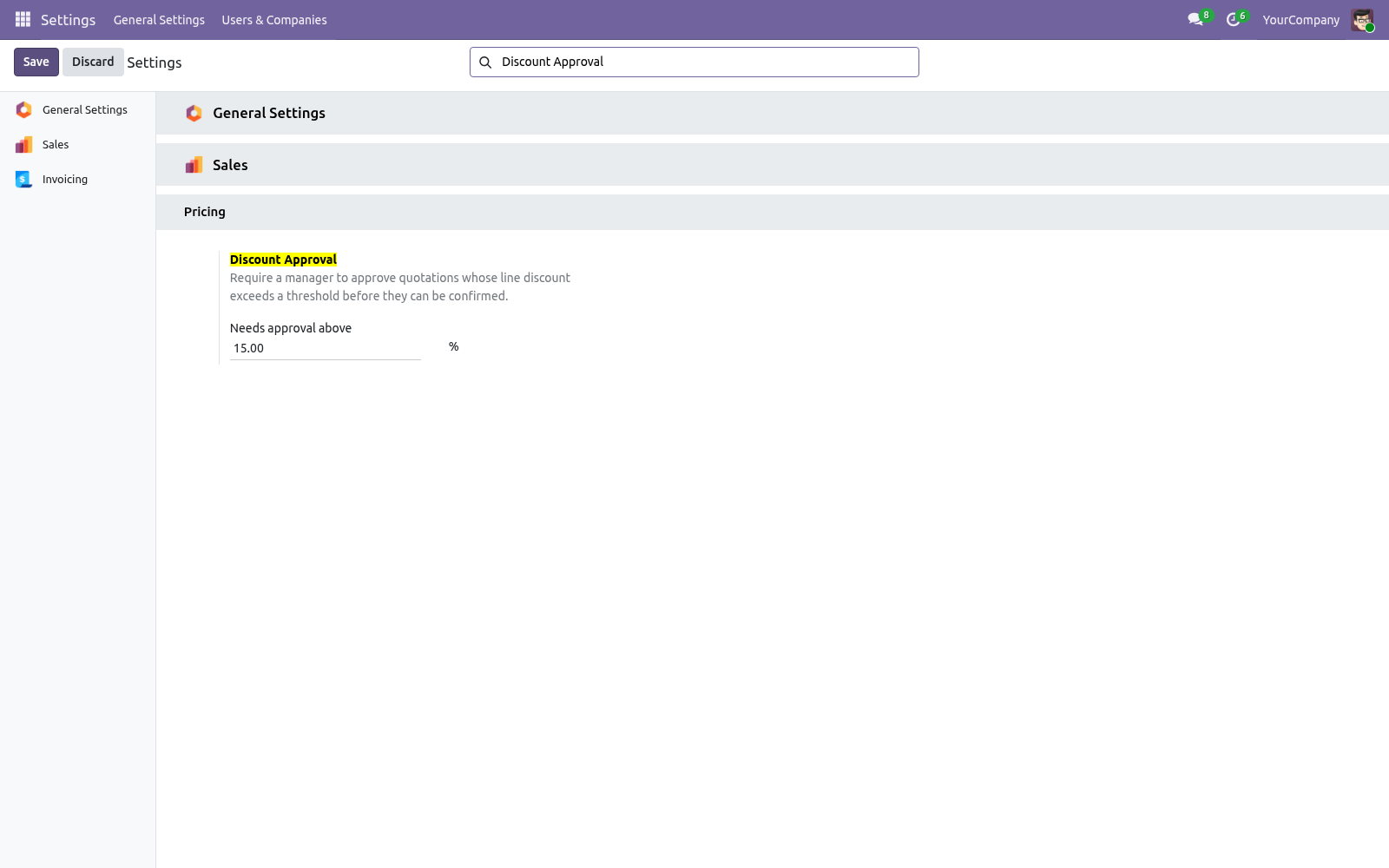
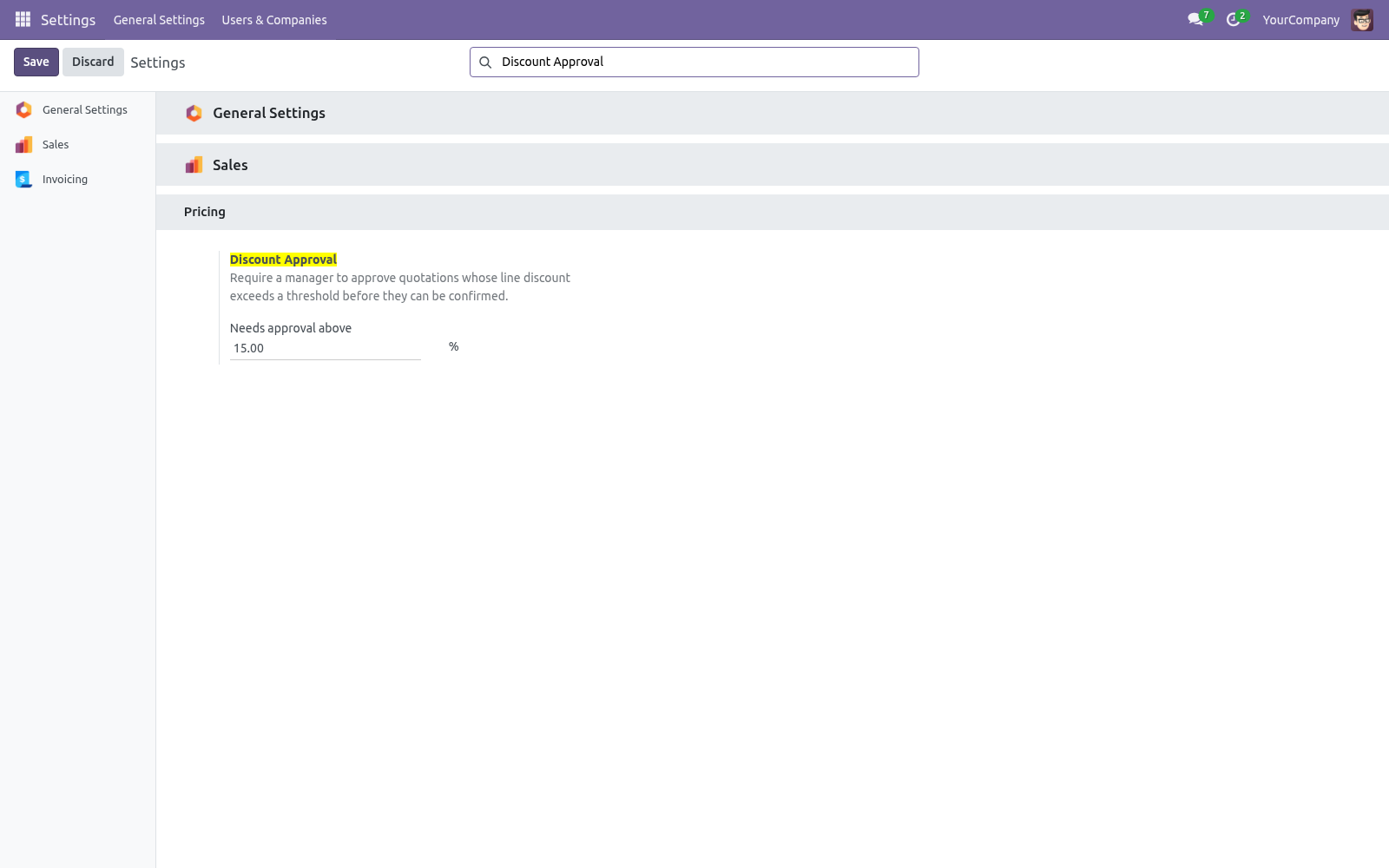
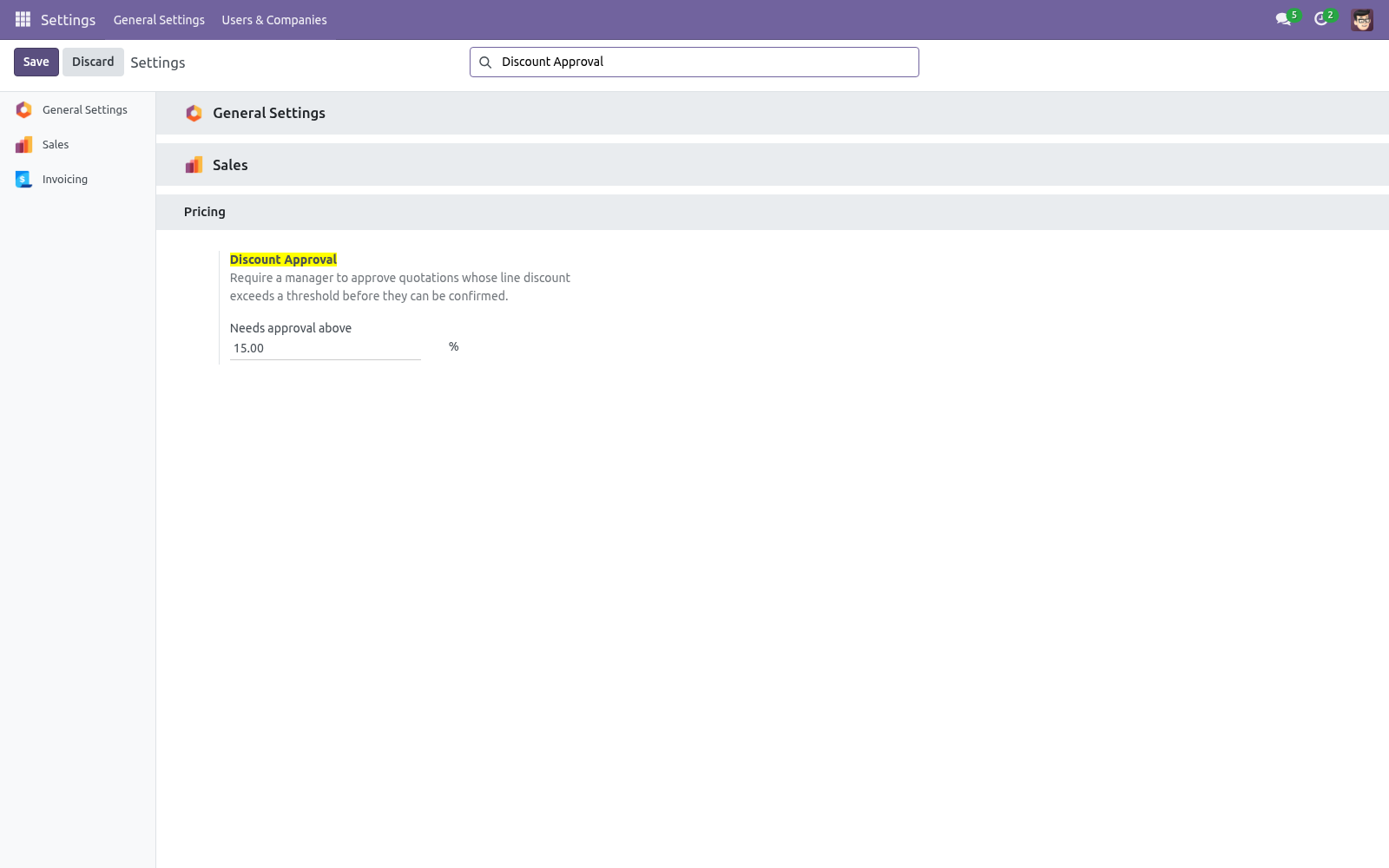
Setting the threshold. Go to Settings > Sales > Pricing > Discount Approval and set Needs approval above to the maximum self-service discount (for example 15%). The threshold is per company. The workflow.
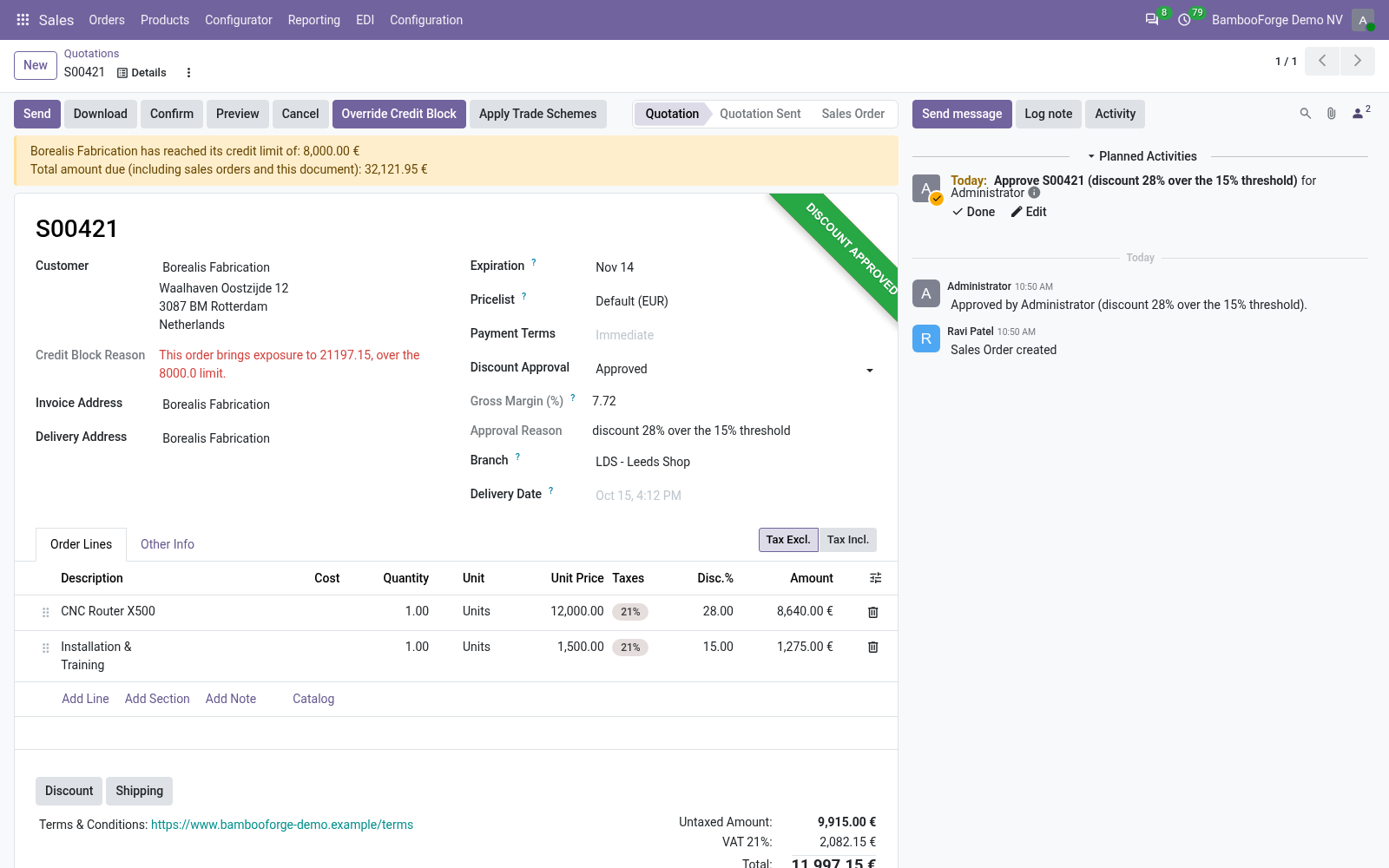
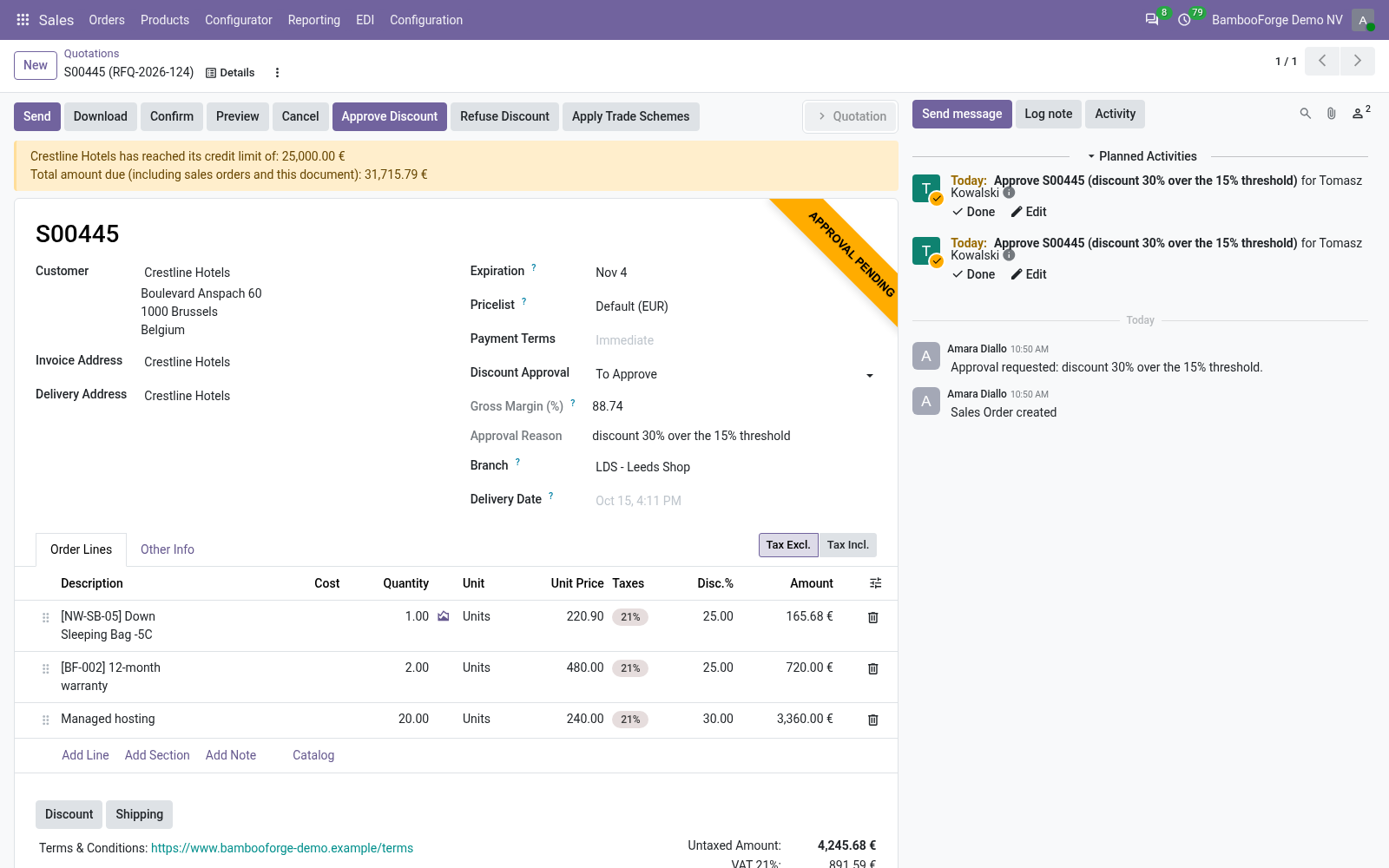
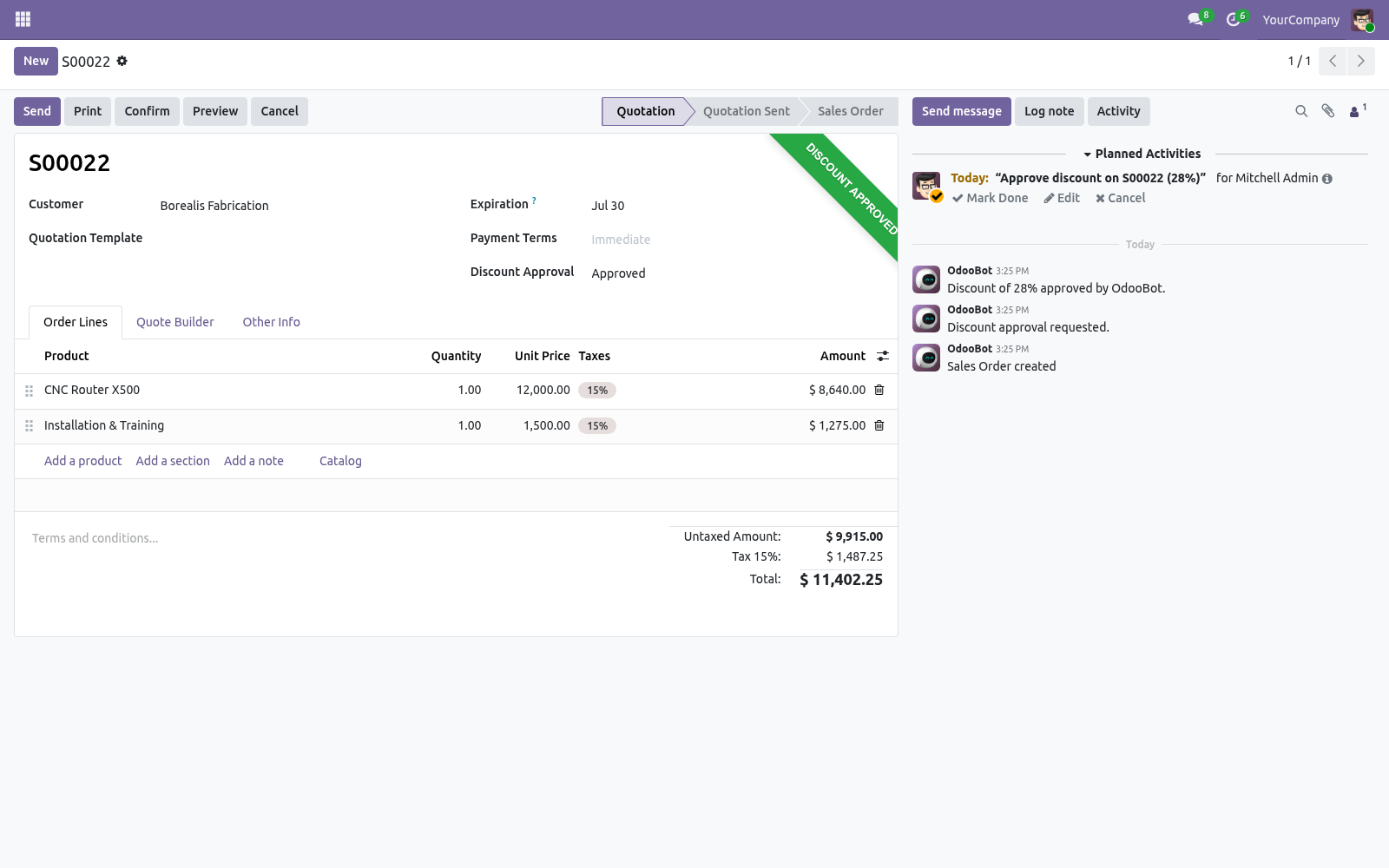
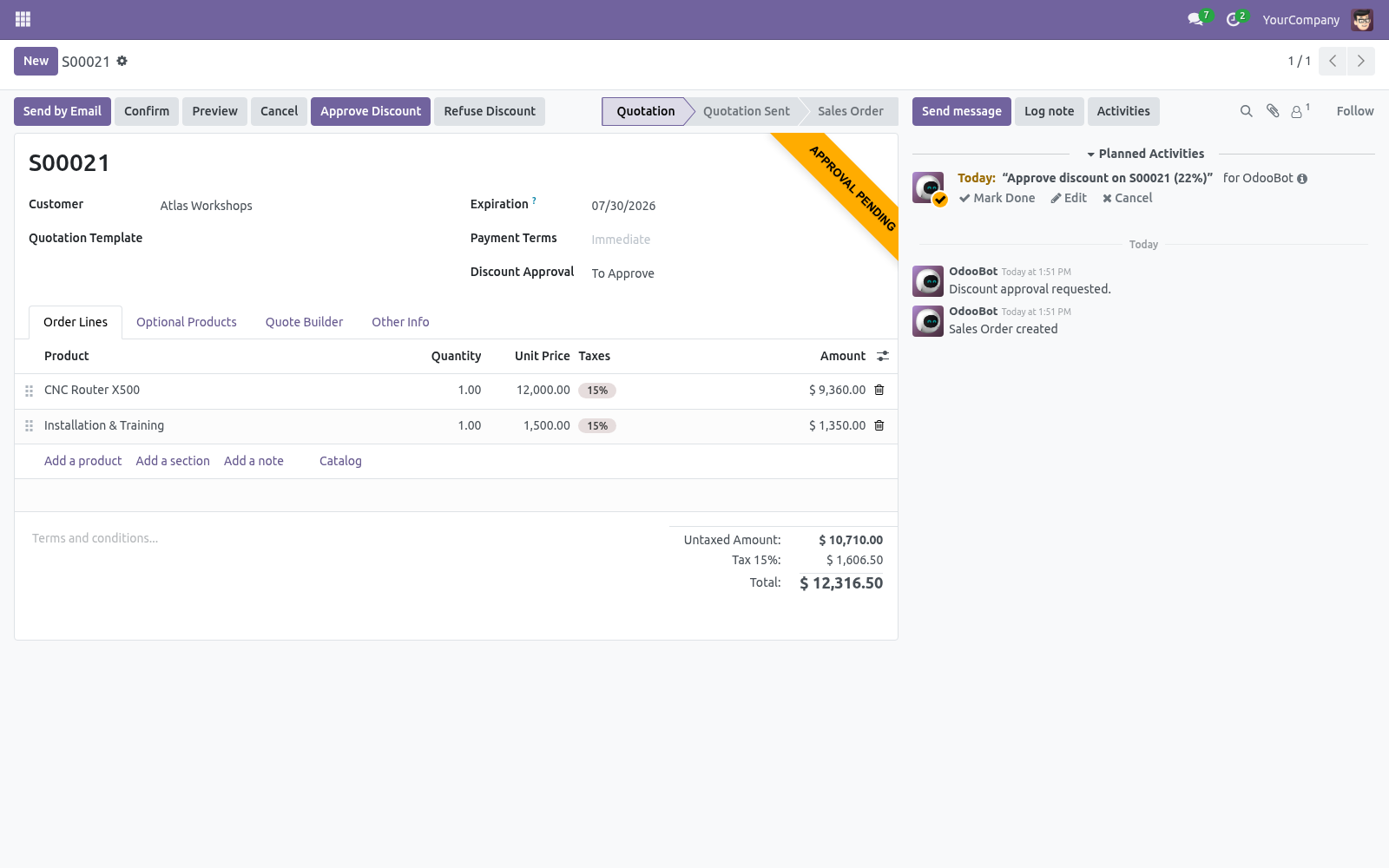
1. A salesperson builds a quotation. If any line's discount exceeds the threshold, an Approval Pending state applies and confirming is blocked. 2.
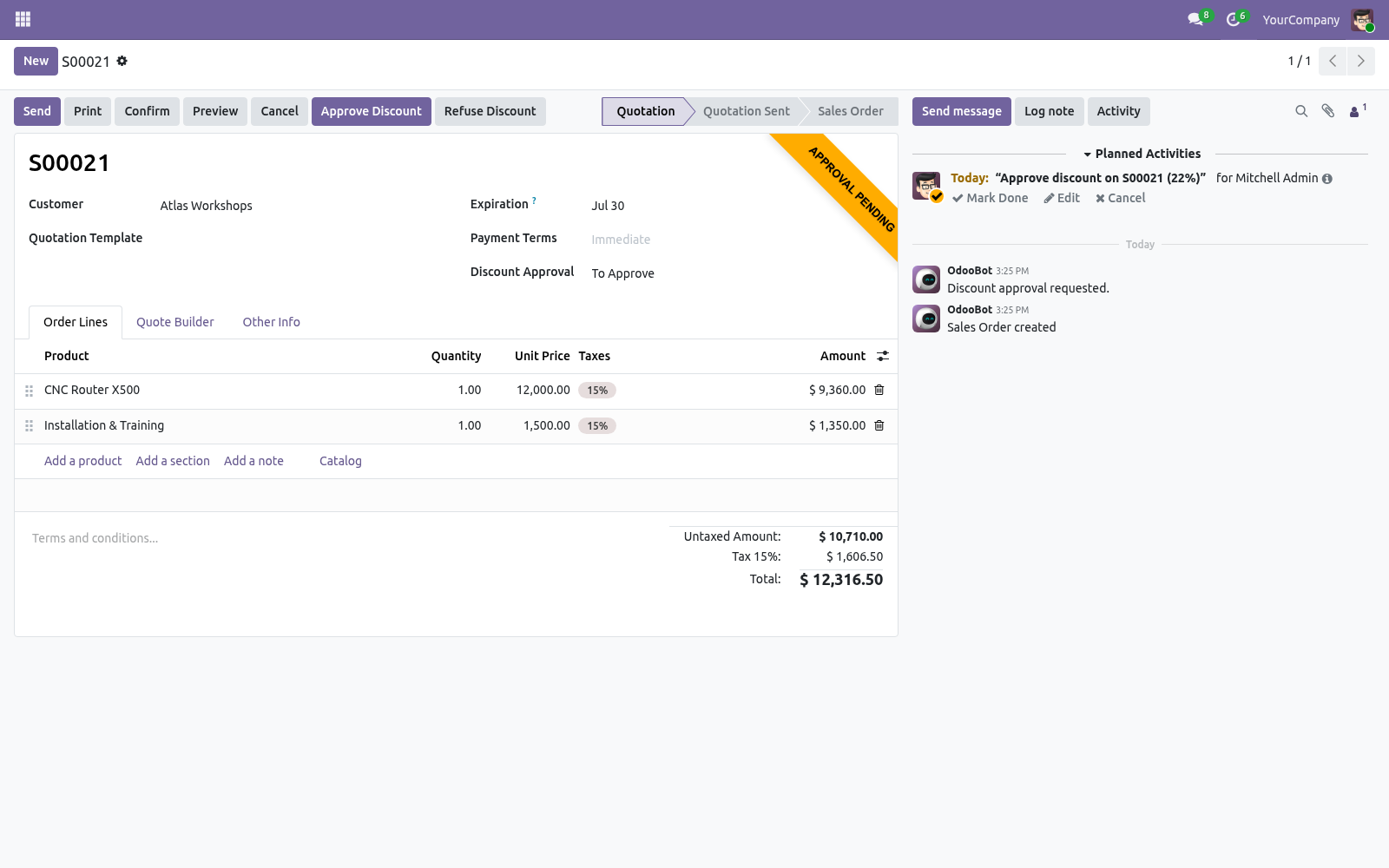
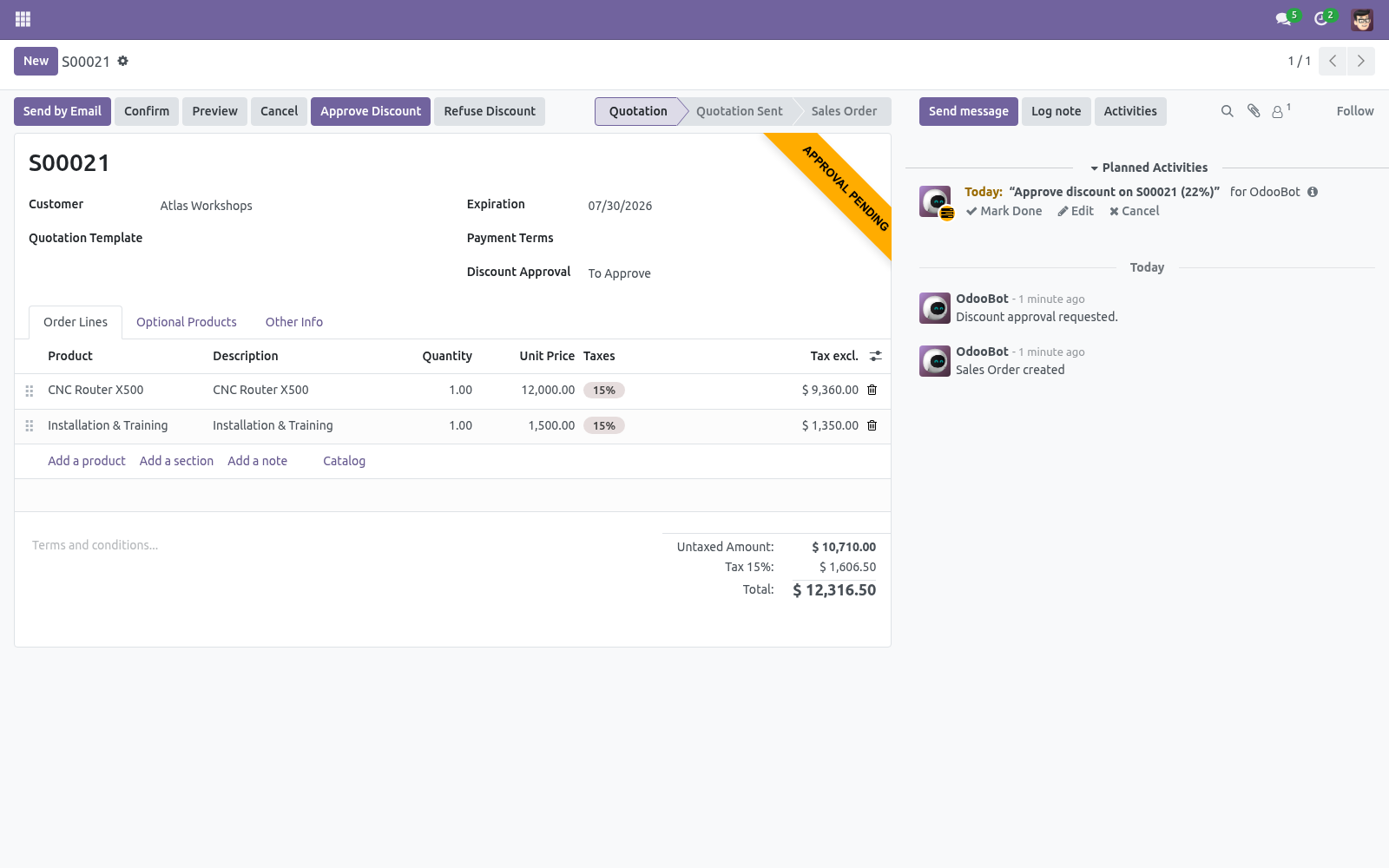
The salesperson clicks Request Discount Approval — a to-do activity is raised for the team leader and the order shows To Approve. 3. A Sales Manager opens the order and clicks Approve Discount (or Refuse Discount). Both are logged on the chatter.
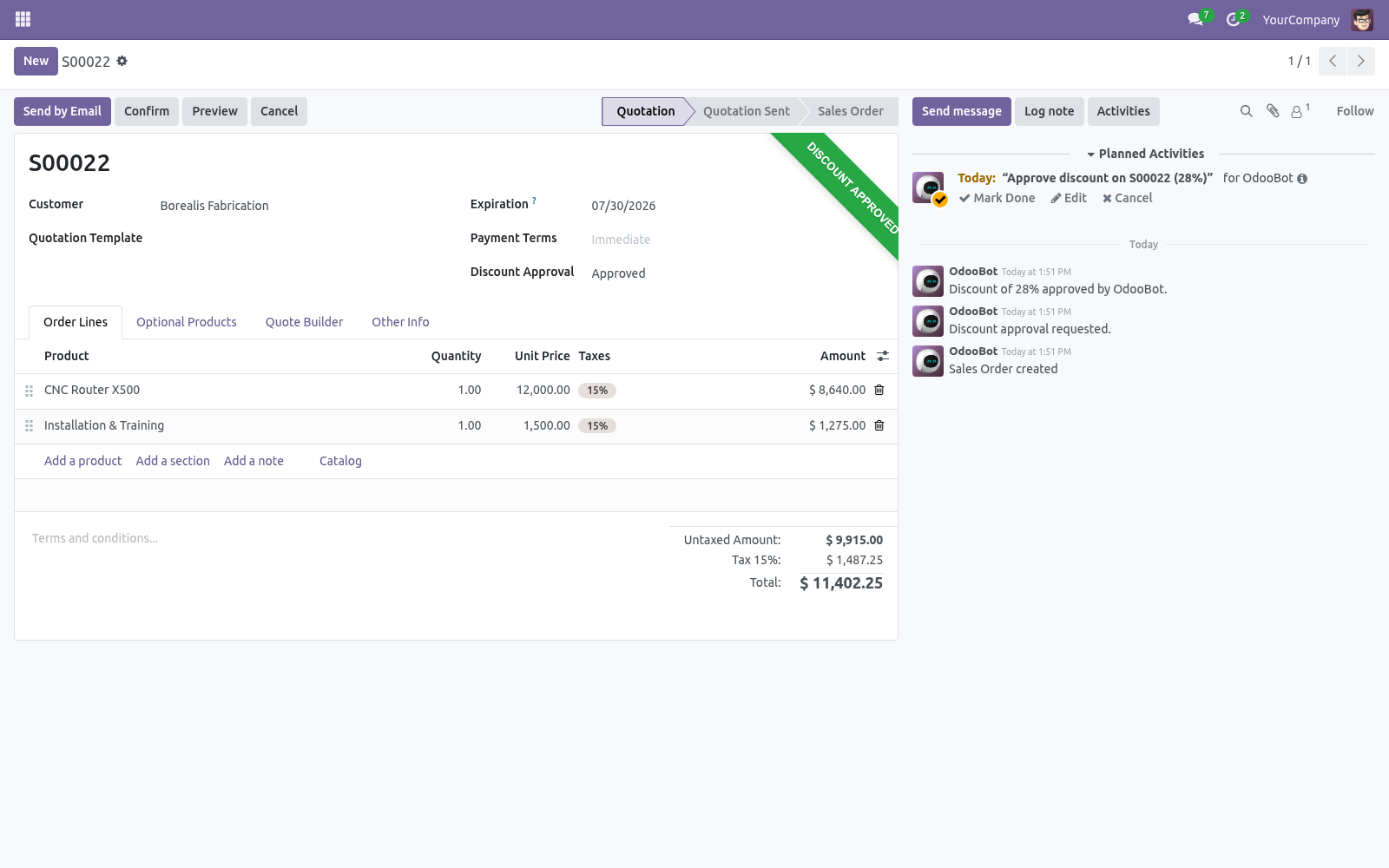
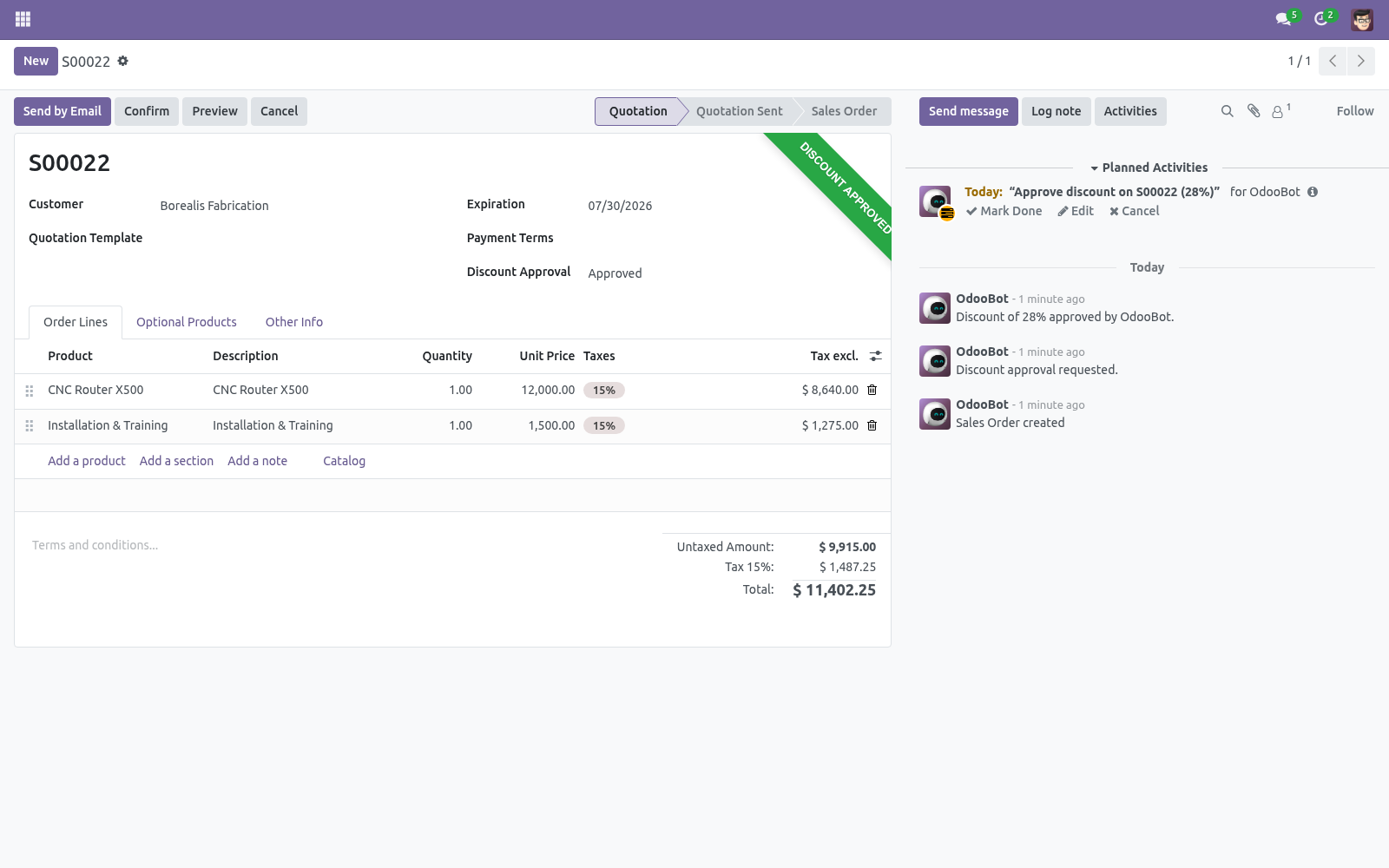
4. Once approved, the order confirms normally. If refused, it stays blocked until the discount is reduced or re-approved. If the discount is lowered below the threshold at any point, the block clears automatically.
Frequently asked questions. Who can approve? Any user in the Sales / Administrator (Sales Manager) group. Salespeople cannot approve their own discounts.
Does it look at the order's overall discount or each line? It uses the highest line discount on the order, so a single deep-discounted line still triggers approval. How we make sure it works. Before every release, 20 automated checks run against this app on Odoo 16, 17, 18, 19 and 20.
Among them: Rep cannot self approve via create. Rep cannot self refuse via create. Salesperson cannot self approve margin hold. Non manager cannot approve directly.
Non manager cannot approve. The complete list is in the source you receive. Support. Questions or ideas: support@bambooforge.dev.
What it does not do. Said before you buy, because it is the half that decides whether the app fits: Let a salesperson approve their own discount, through the button or by creating the order approved. Change prices: it holds confirmation until a Sales Manager approves a discount above the threshold. Order stuck at "To Approve" with no one to approve it.
Cause Requesting approval schedules a to-do activity for the sales team leader (team_id.user_id) or, failing that, the salesperson — but only a user in the Sales / Administrator group (sales_team.group_sale_manager) can actually approve. If the team has no leader, or the leader is not a Sales Manager, the activity lands on someone who cannot press Approve Discount. Diagnosis Open the order: the Approval Pending ribbon shows and Discount Approval reads To Approve. Check the activity assignee against the members of the Sales / Administrator group.
"Only a Sales Manager can approve or refuse a discount". Cause The Approve Discount / Refuse Discount buttons are visible only to the Sales / Administrator group, and both the action and the underlying write are guarded — a salesperson (or an RPC call) attempting to set the state to approved or refused is rejected with this error. Diagnosis Confirm the acting user's groups under Settings > Users. Salespeople hold Sales / User only.
Confirmation blocked: "needs sales-manager approval". Cause action_confirm refuses to confirm while approval_required is set and the order is not yet approved. This fires on every confirm path (back office and portal), listing the trigger in the Approval Reason. Resolution Either reduce what triggered it (bring the top line discount back under the threshold, or lift the margin), or click Request Discount Approval and have a Sales Manager approve.
Reducing the discount below the threshold clears the block automatically. Now the part most videos leave out: what this does not do. The complete manual is at docs dot bambooforge dot dev, the demo database is linked from the store page, and support answers within twenty-four hours. Links are in the description.
Transcript of the walkthrough (Odoo 19)
Discount Approval on Sales Orders. Require manager approval when an order's margin falls below a floor or a line is priced below cost - a clean request, approve or refuse trail. Stop margin erosion from over-discounting. Set the maximum discount your salespeople can give on their own — anything above it must be approved by a sales manager before the order can be confirmed.
In the next few minutes: discount approval on sales orders, then setting the threshold, then the workflow, then frequently asked questions, then support. Then what this app deliberately does not do, so you can tell before you buy whether it fits. No Enterprise modules and no external Python libraries are required. Discount Approval on Sales Orders.
Stop margin erosion from over-discounting. Set the maximum discount your salespeople can give on their own — anything above it must be approved by a sales manager before the order can be confirmed. This page is the complete manual. Follow it top to bottom and you can install, set your threshold and run the workflow without contacting support.
Setting the threshold. Go to Settings > Sales > Pricing > Discount Approval and set Needs approval above to the maximum self-service discount (for example 15%). The threshold is per company. The workflow.
1. A salesperson builds a quotation. If any line's discount exceeds the threshold, an Approval Pending state applies and confirming is blocked. 2.
The salesperson clicks Request Discount Approval — a to-do activity is raised for the team leader and the order shows To Approve. 3. A Sales Manager opens the order and clicks Approve Discount (or Refuse Discount). Both are logged on the chatter.
4. Once approved, the order confirms normally. If refused, it stays blocked until the discount is reduced or re-approved. If the discount is lowered below the threshold at any point, the block clears automatically.
Frequently asked questions. Who can approve? Any user in the Sales / Administrator (Sales Manager) group. Salespeople cannot approve their own discounts.
Does it look at the order's overall discount or each line? It uses the highest line discount on the order, so a single deep-discounted line still triggers approval. Support. Questions or ideas: support@bambooforge.dev.
.. BAMBOOFORGE-DOC-APPENDIX (auto-generated: Upgrade/Uninstall/Changelog + bespoke) Order stuck at "To Approve" with no one to approve it. Cause Requesting approval schedules a to-do activity for the sales team leader (team_id.user_id) or, failing that, the salesperson — but only a user in the Sales / Administrator group (sales_team.group_sale_manager) can actually approve. If the team has no leader, or the leader is not a Sales Manager, the activity lands on someone who cannot press Approve Discount.
Diagnosis Open the order: the Approval Pending ribbon shows and Discount Approval reads To Approve. Check the activity assignee against the members of the Sales / Administrator group. "Only a Sales Manager can approve or refuse a discount". Cause The Approve Discount / Refuse Discount buttons are visible only to the Sales / Administrator group, and both the action and the underlying write are guarded — a salesperson (or an RPC call) attempting to set the state to approved or refused is rejected with this error.
Diagnosis Confirm the acting user's groups under Settings > Users. Salespeople hold Sales / User only. Confirmation blocked: "needs sales-manager approval". Cause action_confirm refuses to confirm while approval_required is set and the order is not yet approved.
This fires on every confirm path (back office and portal), listing the trigger in the Approval Reason. Resolution Either reduce what triggered it (bring the top line discount back under the threshold, or lift the margin), or click Request Discount Approval and have a Sales Manager approve. Reducing the discount below the threshold clears the block automatically. Margin floor or below-cost check never triggers.
Cause Gross margin is computed from each product's cost (standard price) in the company currency. When no line carries a cost, the order is treated as full (100%) margin and gives no signal, so neither the Minimum Gross Margin floor nor Block Below-Cost Lines can fire. A Minimum Gross Margin left at 0 also disables the floor check entirely. Diagnosis Check bf_margin_percent and bf_below_cost on the order, and confirm the products have a non-zero Cost.
Confirm Minimum Gross Margin and Block Below-Cost Lines are set for the company. Approval clears itself after the order is edited. Cause Changing the order lines revisits the decision: if the edit removes the trigger, the state falls back to No Approval Needed; if an already-approved order still needs approval, it drops back to To Approve so it is reviewed again. Resolution This is intended — margin and discount are re-evaluated on every line change.
Re-request and re-approve after material edits. Now the part most videos leave out: what this does not do. The complete manual is at docs dot bambooforge dot dev, the demo database is linked from the store page, and support answers within twenty-four hours. Links are in the description.
Transcript of the walkthrough (Odoo 18)
Discount Approval on Sales Orders. Require manager approval when an order's margin falls below a floor or a line is priced below cost - a clean request, approve or refuse trail. Stop margin erosion from over-discounting. Set the maximum discount your salespeople can give on their own — anything above it must be approved by a sales manager before the order can be confirmed.
In the next few minutes: discount approval on sales orders, then setting the threshold, then the workflow, then frequently asked questions, then support. Then what this app deliberately does not do, so you can tell before you buy whether it fits. No Enterprise modules and no external Python libraries are required. Discount Approval on Sales Orders.
Stop margin erosion from over-discounting. Set the maximum discount your salespeople can give on their own — anything above it must be approved by a sales manager before the order can be confirmed. This page is the complete manual. Follow it top to bottom and you can install, set your threshold and run the workflow without contacting support.
Setting the threshold. Go to Settings > Sales > Pricing > Discount Approval and set Needs approval above to the maximum self-service discount (for example 15%). The threshold is per company. The workflow.
1. A salesperson builds a quotation. If any line's discount exceeds the threshold, an Approval Pending state applies and confirming is blocked. 2.
The salesperson clicks Request Discount Approval — a to-do activity is raised for the team leader and the order shows To Approve. 3. A Sales Manager opens the order and clicks Approve Discount (or Refuse Discount). Both are logged on the chatter.
4. Once approved, the order confirms normally. If refused, it stays blocked until the discount is reduced or re-approved. If the discount is lowered below the threshold at any point, the block clears automatically.
Frequently asked questions. Who can approve? Any user in the Sales / Administrator (Sales Manager) group. Salespeople cannot approve their own discounts.
Does it look at the order's overall discount or each line? It uses the highest line discount on the order, so a single deep-discounted line still triggers approval. Support. Questions or ideas: support@bambooforge.dev.
.. BAMBOOFORGE-DOC-APPENDIX (auto-generated: Upgrade/Uninstall/Changelog + bespoke) Order stuck at "To Approve" with no one to approve it. Cause Requesting approval schedules a to-do activity for the sales team leader (team_id.user_id) or, failing that, the salesperson — but only a user in the Sales / Administrator group (sales_team.group_sale_manager) can actually approve. If the team has no leader, or the leader is not a Sales Manager, the activity lands on someone who cannot press Approve Discount.
Diagnosis Open the order: the Approval Pending ribbon shows and Discount Approval reads To Approve. Check the activity assignee against the members of the Sales / Administrator group. "Only a Sales Manager can approve or refuse a discount". Cause The Approve Discount / Refuse Discount buttons are visible only to the Sales / Administrator group, and both the action and the underlying write are guarded — a salesperson (or an RPC call) attempting to set the state to approved or refused is rejected with this error.
Diagnosis Confirm the acting user's groups under Settings > Users. Salespeople hold Sales / User only. Confirmation blocked: "needs sales-manager approval". Cause action_confirm refuses to confirm while approval_required is set and the order is not yet approved.
This fires on every confirm path (back office and portal), listing the trigger in the Approval Reason. Resolution Either reduce what triggered it (bring the top line discount back under the threshold, or lift the margin), or click Request Discount Approval and have a Sales Manager approve. Reducing the discount below the threshold clears the block automatically. Margin floor or below-cost check never triggers.
Cause Gross margin is computed from each product's cost (standard price) in the company currency. When no line carries a cost, the order is treated as full (100%) margin and gives no signal, so neither the Minimum Gross Margin floor nor Block Below-Cost Lines can fire. A Minimum Gross Margin left at 0 also disables the floor check entirely. Diagnosis Check bf_margin_percent and bf_below_cost on the order, and confirm the products have a non-zero Cost.
Confirm Minimum Gross Margin and Block Below-Cost Lines are set for the company. Approval clears itself after the order is edited. Cause Changing the order lines revisits the decision: if the edit removes the trigger, the state falls back to No Approval Needed; if an already-approved order still needs approval, it drops back to To Approve so it is reviewed again. Resolution This is intended — margin and discount are re-evaluated on every line change.
Re-request and re-approve after material edits. Now the part most videos leave out: what this does not do. The complete manual is at docs dot bambooforge dot dev, the demo database is linked from the store page, and support answers within twenty-four hours. Links are in the description.
Transcript of the walkthrough (Odoo 17)
Discount Approval on Sales Orders. Require manager approval when an order's margin falls below a floor or a line is priced below cost - a clean request, approve or refuse trail. Stop margin erosion from over-discounting. Set the maximum discount your salespeople can give on their own — anything above it must be approved by a sales manager before the order can be confirmed.
In the next few minutes: discount approval on sales orders, then setting the threshold, then the workflow, then frequently asked questions, then support. Then what this app deliberately does not do, so you can tell before you buy whether it fits. No Enterprise modules and no external Python libraries are required. Discount Approval on Sales Orders.
Stop margin erosion from over-discounting. Set the maximum discount your salespeople can give on their own — anything above it must be approved by a sales manager before the order can be confirmed. This page is the complete manual. Follow it top to bottom and you can install, set your threshold and run the workflow without contacting support.
Setting the threshold. Go to Settings > Sales > Pricing > Discount Approval and set Needs approval above to the maximum self-service discount (for example 15%). The threshold is per company. The workflow.
1. A salesperson builds a quotation. If any line's discount exceeds the threshold, an Approval Pending state applies and confirming is blocked. 2.
The salesperson clicks Request Discount Approval — a to-do activity is raised for the team leader and the order shows To Approve. 3. A Sales Manager opens the order and clicks Approve Discount (or Refuse Discount). Both are logged on the chatter.
4. Once approved, the order confirms normally. If refused, it stays blocked until the discount is reduced or re-approved. If the discount is lowered below the threshold at any point, the block clears automatically.
Frequently asked questions. Who can approve? Any user in the Sales / Administrator (Sales Manager) group. Salespeople cannot approve their own discounts.
Does it look at the order's overall discount or each line? It uses the highest line discount on the order, so a single deep-discounted line still triggers approval. Support. Questions or ideas: support@bambooforge.dev.
.. BAMBOOFORGE-DOC-APPENDIX (auto-generated: Upgrade/Uninstall/Changelog + bespoke) Order stuck at "To Approve" with no one to approve it. Cause Requesting approval schedules a to-do activity for the sales team leader (team_id.user_id) or, failing that, the salesperson — but only a user in the Sales / Administrator group (sales_team.group_sale_manager) can actually approve. If the team has no leader, or the leader is not a Sales Manager, the activity lands on someone who cannot press Approve Discount.
Diagnosis Open the order: the Approval Pending ribbon shows and Discount Approval reads To Approve. Check the activity assignee against the members of the Sales / Administrator group. "Only a Sales Manager can approve or refuse a discount". Cause The Approve Discount / Refuse Discount buttons are visible only to the Sales / Administrator group, and both the action and the underlying write are guarded — a salesperson (or an RPC call) attempting to set the state to approved or refused is rejected with this error.
Diagnosis Confirm the acting user's groups under Settings > Users. Salespeople hold Sales / User only. Confirmation blocked: "needs sales-manager approval". Cause action_confirm refuses to confirm while approval_required is set and the order is not yet approved.
This fires on every confirm path (back office and portal), listing the trigger in the Approval Reason. Resolution Either reduce what triggered it (bring the top line discount back under the threshold, or lift the margin), or click Request Discount Approval and have a Sales Manager approve. Reducing the discount below the threshold clears the block automatically. Margin floor or below-cost check never triggers.
Cause Gross margin is computed from each product's cost (standard price) in the company currency. When no line carries a cost, the order is treated as full (100%) margin and gives no signal, so neither the Minimum Gross Margin floor nor Block Below-Cost Lines can fire. A Minimum Gross Margin left at 0 also disables the floor check entirely. Diagnosis Check bf_margin_percent and bf_below_cost on the order, and confirm the products have a non-zero Cost.
Confirm Minimum Gross Margin and Block Below-Cost Lines are set for the company. Approval clears itself after the order is edited. Cause Changing the order lines revisits the decision: if the edit removes the trigger, the state falls back to No Approval Needed; if an already-approved order still needs approval, it drops back to To Approve so it is reviewed again. Resolution This is intended — margin and discount are re-evaluated on every line change.
Re-request and re-approve after material edits. Now the part most videos leave out: what this does not do. The complete manual is at docs dot bambooforge dot dev, the demo database is linked from the store page, and support answers within twenty-four hours. Links are in the description.
Transcript of the walkthrough (Odoo 16)
Discount Approval on Sales Orders. Require manager approval when an order's margin falls below a floor or a line is priced below cost - a clean request, approve or refuse trail. Stop margin erosion from over-discounting. Set the maximum discount your salespeople can give on their own — anything above it must be approved by a sales manager before the order can be confirmed.
In the next few minutes: discount approval on sales orders, then setting the threshold, then the workflow, then frequently asked questions, then support. Then what this app deliberately does not do, so you can tell before you buy whether it fits. No Enterprise modules and no external Python libraries are required. Discount Approval on Sales Orders.
Stop margin erosion from over-discounting. Set the maximum discount your salespeople can give on their own — anything above it must be approved by a sales manager before the order can be confirmed. This page is the complete manual. Follow it top to bottom and you can install, set your threshold and run the workflow without contacting support.
Setting the threshold. Go to Settings > Sales > Pricing > Discount Approval and set Needs approval above to the maximum self-service discount (for example 15%). The threshold is per company. The workflow.
1. A salesperson builds a quotation. If any line's discount exceeds the threshold, an Approval Pending state applies and confirming is blocked. 2.
The salesperson clicks Request Discount Approval — a to-do activity is raised for the team leader and the order shows To Approve. 3. A Sales Manager opens the order and clicks Approve Discount (or Refuse Discount). Both are logged on the chatter.
4. Once approved, the order confirms normally. If refused, it stays blocked until the discount is reduced or re-approved. If the discount is lowered below the threshold at any point, the block clears automatically.
Frequently asked questions. Who can approve? Any user in the Sales / Administrator (Sales Manager) group. Salespeople cannot approve their own discounts.
Does it look at the order's overall discount or each line? It uses the highest line discount on the order, so a single deep-discounted line still triggers approval. Support. Questions or ideas: support@bambooforge.dev.
.. BAMBOOFORGE-DOC-APPENDIX (auto-generated: Upgrade/Uninstall/Changelog + bespoke) Order stuck at "To Approve" with no one to approve it. Cause Requesting approval schedules a to-do activity for the sales team leader (team_id.user_id) or, failing that, the salesperson — but only a user in the Sales / Administrator group (sales_team.group_sale_manager) can actually approve. If the team has no leader, or the leader is not a Sales Manager, the activity lands on someone who cannot press Approve Discount.
Diagnosis Open the order: the Approval Pending ribbon shows and Discount Approval reads To Approve. Check the activity assignee against the members of the Sales / Administrator group. "Only a Sales Manager can approve or refuse a discount". Cause The Approve Discount / Refuse Discount buttons are visible only to the Sales / Administrator group, and both the action and the underlying write are guarded — a salesperson (or an RPC call) attempting to set the state to approved or refused is rejected with this error.
Diagnosis Confirm the acting user's groups under Settings > Users. Salespeople hold Sales / User only. Confirmation blocked: "needs sales-manager approval". Cause action_confirm refuses to confirm while approval_required is set and the order is not yet approved.
This fires on every confirm path (back office and portal), listing the trigger in the Approval Reason. Resolution Either reduce what triggered it (bring the top line discount back under the threshold, or lift the margin), or click Request Discount Approval and have a Sales Manager approve. Reducing the discount below the threshold clears the block automatically. Margin floor or below-cost check never triggers.
Cause Gross margin is computed from each product's cost (standard price) in the company currency. When no line carries a cost, the order is treated as full (100%) margin and gives no signal, so neither the Minimum Gross Margin floor nor Block Below-Cost Lines can fire. A Minimum Gross Margin left at 0 also disables the floor check entirely. Diagnosis Check bf_margin_percent and bf_below_cost on the order, and confirm the products have a non-zero Cost.
Confirm Minimum Gross Margin and Block Below-Cost Lines are set for the company. Approval clears itself after the order is edited. Cause Changing the order lines revisits the decision: if the edit removes the trigger, the state falls back to No Approval Needed; if an already-approved order still needs approval, it drops back to To Approve so it is reviewed again. Resolution This is intended — margin and discount are re-evaluated on every line change.
Re-request and re-approve after material edits. Now the part most videos leave out: what this does not do. The complete manual is at docs dot bambooforge dot dev, the demo database is linked from the store page, and support answers within twenty-four hours. Links are in the description.
Key facts
- What it is
- Require manager approval when an order's margin falls below a floor or a line is priced below cost - a clean request, approve or refuse trail.
- For
- Sales
- Odoo versions
- 16.0, 17.0, 18.0, 19.0, 20.0 - Community and Enterprise
- Runs on
- Odoo.sh or Odoo you host yourself - not Odoo Online, which accepts no third-party apps
- Price
- 89 EUR, one-time, on the Odoo Apps Store
- Technical name
- bambooforge_discount_approval
- Not for
- Said before you buy, because it is the half that decides whether the app fits:; Let a salesperson approve their own discount, through the button or by creating the order approved.; Change prices: it holds confirmation until a Sales Manager approves a discount above the threshold.
- Manual last updated
- 2026-10-15
Discount Approval on Sales Orders
Stop margin erosion from over-discounting. Set the maximum discount your salespeople can give on their own — anything above it must be approved by a sales manager before the order can be confirmed.
This page is the complete manual. Follow it top to bottom and you can install, set your threshold and run the workflow without contacting support.
Overview
You set a discount threshold (a percentage) per company.
When a quotation has a line discount above that threshold, it cannot be confirmed until a Sales Manager approves it.
Salespeople request approval; managers approve or refuse, with the whole decision logged on the order's chatter.
Lower the discount back under the threshold and the order confirms normally — no approval needed.
Requirements
Odoo 20.0 with Sales (sale_management). Installing this app pulls it in automatically.
No Enterprise modules and no external Python libraries are required.
Installation
Copy bambooforge_discount_approval into your addons path.
Update the apps list (Apps > Update Apps List).
Search for Discount Approval and click Install.
Setting the threshold
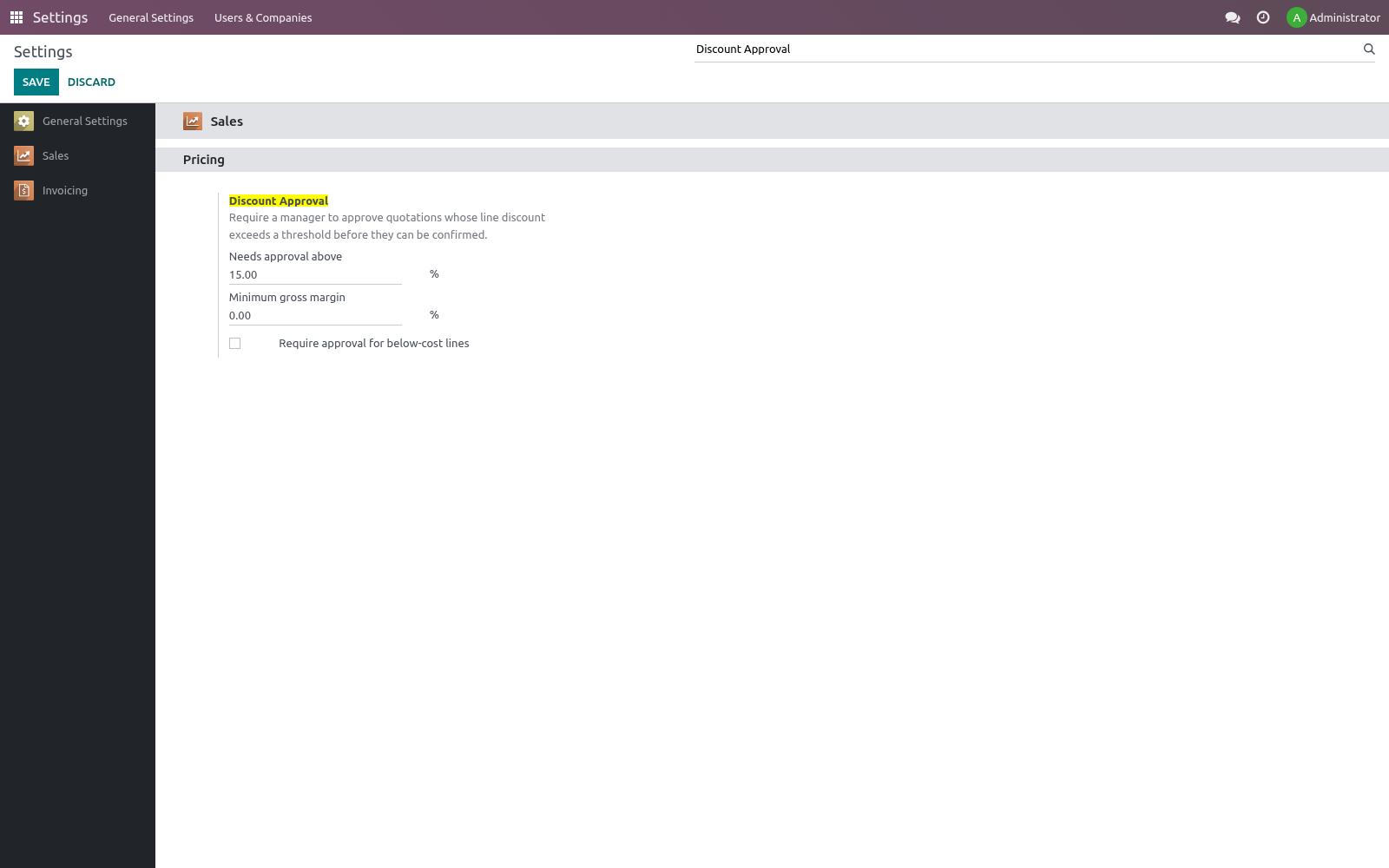
Go to Settings > Sales > Pricing > Discount Approval and set Needs approval above to the maximum self-service discount (for example 15%). The threshold is per company.
The workflow
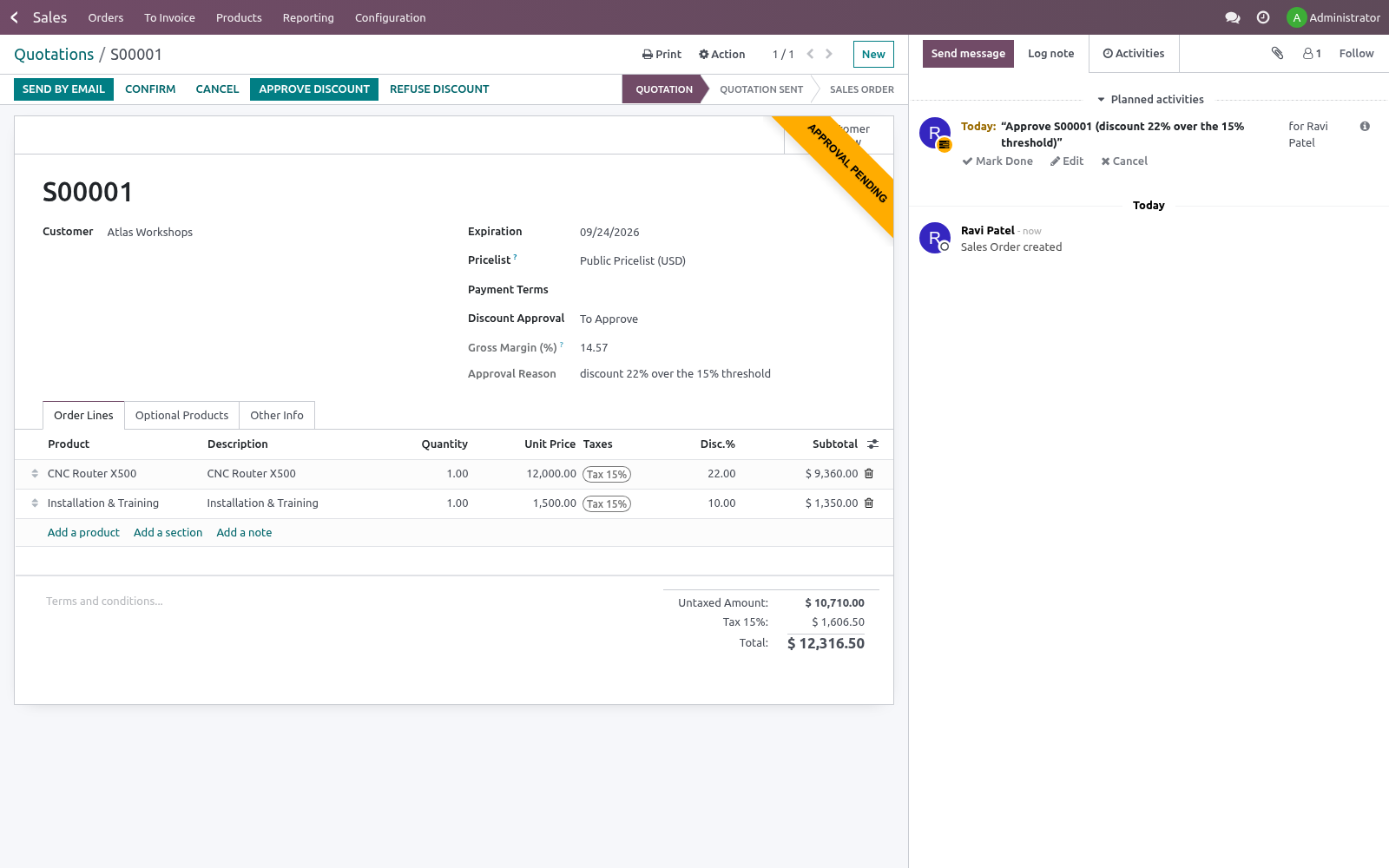
A salesperson builds a quotation. If any line's discount exceeds the threshold, an Approval Pending state applies and confirming is blocked.
The salesperson clicks Request Discount Approval — a to-do activity is raised for the team leader and the order shows To Approve.
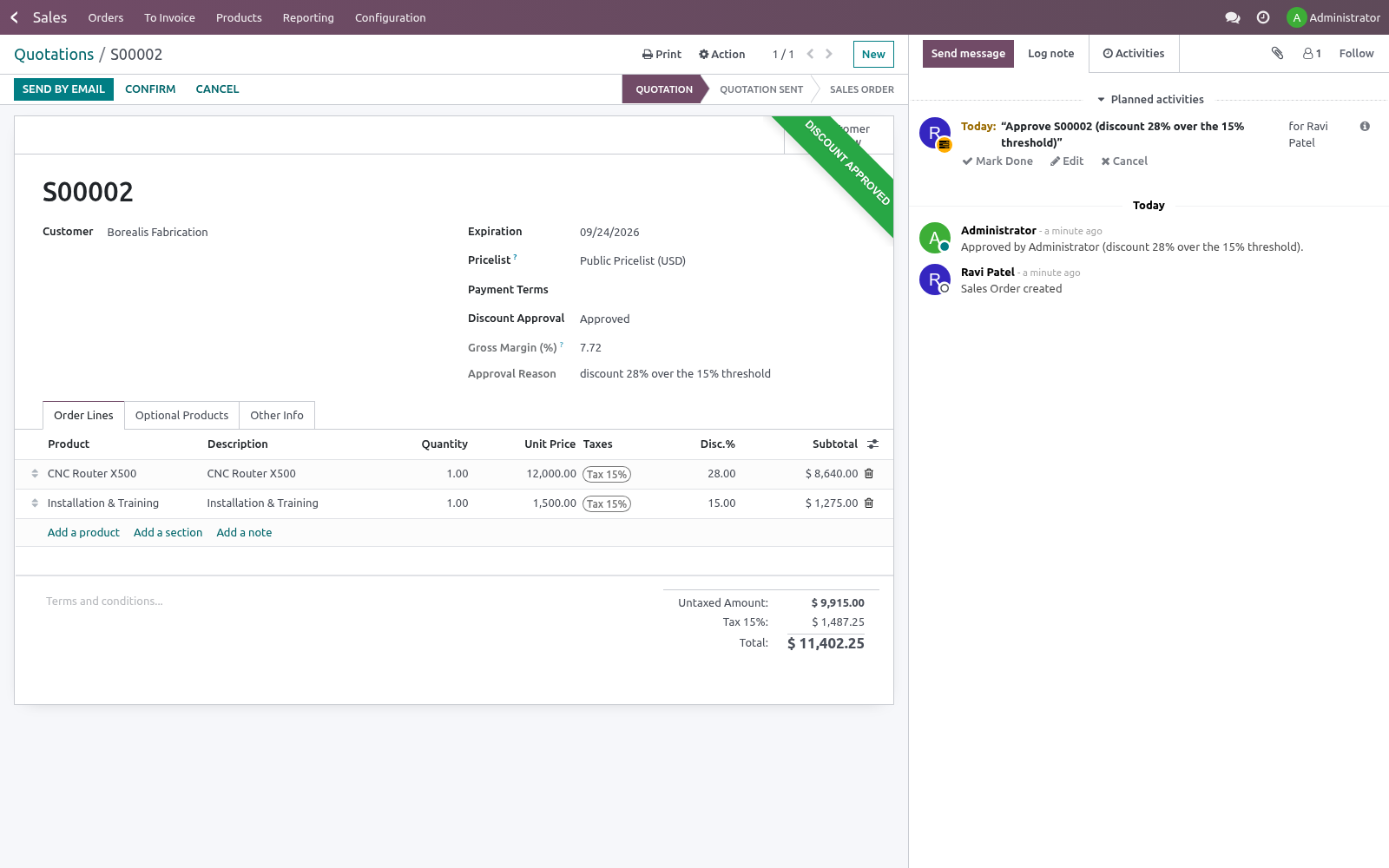
A Sales Manager opens the order and clicks Approve Discount (or Refuse Discount). Both are logged on the chatter.
Once approved, the order confirms normally. If refused, it stays blocked until the discount is reduced or re-approved.
If the discount is lowered below the threshold at any point, the block clears automatically.
Frequently asked questions
- Who can approve?
Any user in the Sales / Administrator (Sales Manager) group. Salespeople cannot approve their own discounts.
- Does it look at the order's overall discount or each line?
It uses the highest line discount on the order, so a single deep-discounted line still triggers approval.
- Can I set different thresholds per company?
Yes — the threshold is stored per company.
- What if a manager builds the quotation?
A manager can approve and confirm in one go, since they hold the approval right.
- Does it block other ways of confirming?
Confirmation is blocked wherever it runs, including the portal and back-office, because the check is on the confirm action itself.
How we make sure it works
Before every release, 20 automated checks run against this app on Odoo 16, 17, 18, 19 and 20. Among them:
Rep cannot self approve via create.
Rep cannot self refuse via create.
Salesperson cannot self approve margin hold.
Non manager cannot approve directly.
Non manager cannot approve.
The complete list is in the source you receive.
Support
Questions or ideas: support@bambooforge.dev.
What it does not do
Said before you buy, because it is the half that decides whether the app fits:
Let a salesperson approve their own discount, through the button or by creating the order approved.
Change prices: it holds confirmation until a Sales Manager approves a discount above the threshold.
Troubleshooting
Order stuck at "To Approve" with no one to approve it
- Cause
Requesting approval schedules a to-do activity for the sales team leader (team_id.user_id) or, failing that, the salesperson — but only a user in the Sales / Administrator group (sales_team.group_sale_manager) can actually approve. If the team has no leader, or the leader is not a Sales Manager, the activity lands on someone who cannot press Approve Discount.
- Diagnosis
Open the order: the Approval Pending ribbon shows and Discount Approval reads To Approve. Check the activity assignee against the members of the Sales / Administrator group.
- Resolution
Have any Sales Manager open the order and click Approve Discount (or Refuse Discount) — the buttons are visible only to that group. Optionally set the team's Team Leader to a Sales Manager so future requests route to the right person.
"Only a Sales Manager can approve or refuse a discount"
- Cause
The Approve Discount / Refuse Discount buttons are visible only to the Sales / Administrator group, and both the action and the underlying write are guarded — a salesperson (or an RPC call) attempting to set the state to approved or refused is rejected with this error.
- Diagnosis
Confirm the acting user's groups under Settings > Users. Salespeople hold Sales / User only.
- Resolution
Grant the approver the Sales / Administrator group, or route the approval to an existing Sales Manager. This is by design: it prevents self-approval by a salesperson.
Confirmation blocked: "needs sales-manager approval"
- Cause
action_confirm refuses to confirm while approval_required is set and the order is not yet approved. This fires on every confirm path (back office and portal), listing the trigger in the Approval Reason.
- Resolution
Either reduce what triggered it (bring the top line discount back under the threshold, or lift the margin), or click Request Discount Approval and have a Sales Manager approve. Reducing the discount below the threshold clears the block automatically.
Discount is over the limit but no approval is requested
- Cause
Approval keys off the highest single line discount versus the per-company Discount Approval Threshold. An order-level discount spread across lines, a threshold set too high, or a threshold of 0 (which approves everything above 0%) can all leave approval_required unset.
- Diagnosis
In developer mode inspect max_line_discount, discount_approval_threshold and approval_required on the order. Verify the threshold under Settings > Sales > Pricing for the order's company.
- Resolution
Set the threshold on the correct company (it is per company) and apply discounts on the lines so max_line_discount reflects them.
Margin floor or below-cost check never triggers
- Cause
Gross margin is computed from each product's cost (standard price) in the company currency. When no line carries a cost, the order is treated as full (100%) margin and gives no signal, so neither the Minimum Gross Margin floor nor Block Below-Cost Lines can fire. A Minimum Gross Margin left at 0 also disables the floor check entirely.
- Diagnosis
Check bf_margin_percent and bf_below_cost on the order, and confirm the products have a non-zero Cost. Confirm Minimum Gross Margin and Block Below-Cost Lines are set for the company.
- Resolution
Maintain product costs, set the margin floor above 0, and enable Block Below-Cost Lines if below-cost deals should require approval.
Approval clears itself after the order is edited
- Cause
Changing the order lines revisits the decision: if the edit removes the trigger, the state falls back to No Approval Needed; if an already-approved order still needs approval, it drops back to To Approve so it is reviewed again.
- Resolution
This is intended — margin and discount are re-evaluated on every line change. Re-request and re-approve after material edits.
Upgrading & version compatibility
This build targets Odoo 20.0. Each Odoo major series (16.0, 17.0, 18.0, 19.0, 20.0) has its own dedicated build of this module — always install the build that matches your Odoo version. Mixing a build with a different Odoo series is not supported.
Patch upgrades (same series, e.g. 20.0.1.0.0 → later)
Back up your database and filestore first.
Replace the module folder with the newer build.
Restart Odoo with the module updated:
./odoo-bin -c your.conf -u bambooforge_discount_approval -d your_db
Odoo applies any schema/data changes automatically. Your existing records and configuration are preserved.
Cross-version migration (moving to a newer Odoo)
Upgrading Odoo itself is a database migration handled by Odoo's standard upgrade tooling. When you migrate the database to the next Odoo series, install the matching build of this module for that series. Data created by this module carries over with the database migration.
Uninstallation
You can remove this module at any time from Apps → (this module) → Uninstall, or from the command line. Uninstalling is clean and reversible by reinstalling — but note what is and is not deleted.
What is removed
The fields, views and analysis definitions this module added.
The menus, actions, views and reports this module installed.
What is preserved
Your standard Odoo data (partners, products, sales, invoices, inventory moves) is not deleted — this module only reads and annotates it; the underlying records stay.
Attachments and chatter messages on standard records are kept.
As always, take a database backup before uninstalling in production.
Changelog
20.0.1.2.2
Built for Odoo 20: record rules and access rights rewritten onto Odoo 20's single ir.access model, the screens rebuilt on Owl 3, and every icon moved to the icon set Odoo 20 ships.
20.0.1.2.2
A line another app says is already approved - a trade scheme's free units or scheme discount, from Field Sales Trade Schemes - no longer counts towards the order's maximum discount, so the scheme's order can be confirmed without a second approval. A discount raised above what the scheme gives still counts.
20.0.1.0.0
Current release for Odoo 20.0. This build includes:
Require manager approval when an order's gross margin falls below a configurable floor or a line is priced below cost.
On top of your existing discount-percentage threshold. Stop margin erosion, with a clean request-approve-refuse workflow and a guard against self-approval.
Feature additions and fixes ship as new builds on the Odoo Apps store; this page and the module's version reflect the current published release. Always keep the build matched to your Odoo series (see Upgrading & version compatibility).