 BambooForge Labs
Direct Print All in One with POS Receipts
The receipt of every paid Point of Sale order printed on an ESC/POS receipt printer by the Odoo server - over the network or through QZ Tray on the cashier's PC. No IoT Box, no browser print dialog, no cloud print service. A receipt per shop, a Print receipt button on the order, every receipt in the print queue.
Available for Odoo 16.0, Odoo 17.0, Odoo 18.0, Odoo 19.0, Odoo 20.0. Technical name bambooforge_direct_print_pos.
Transcript of the walkthrough (Odoo 20)
Direct Print All in One with POS Receipts. The receipt of every paid Point of Sale order printed on an ESC/POS receipt printer by the Odoo server - over the network or through QZ Tray on the cashier's PC. No IoT Box, no browser print dialog, no cloud print service. A receipt per shop, a Print receipt button on the order, every receipt in the print queue.
Said before you buy, because it is the half that decides whether the app fits: In the next few minutes: direct print all in one with pos receipts, then why this exists, then set it up per shop, then what comes out, then in the back office. Then what this app deliberately does not do, so you can tell before you buy whether it fits. 1. Install Direct Print and add the receipt printer there (Direct Print → Printers, kind Receipts (ESC/POS)): raw TCP for a printer on the network, IPP for a CUPS queue, QZ Tray for a USB printer on a PC.
Press Print a test page - a test receipt comes out. 2. Install Direct Print: POS Receipts. When Point of Sale is already installed, it installs by itself with Direct Print.
Direct Print All in One with POS Receipts. The receipt of every paid Point of Sale order, printed by the Odoo server on an ESC/POS receipt printer the moment the order is paid. No IoT Box, no browser print dialog, no preview screen to click through, no cloud print service. The printer is on the network, on a CUPS server, or plugged into the till's PC through QZ Tray.
Every receipt is a job in Direct Print's queue: retried when the printer is down, reprinted exactly from the order. This add-on needs Direct Print (bambooforge_direct_print) and installs itself when Point of Sale is present. Why this exists. Odoo Community prints a POS receipt through the browser: the cashier presses Print, the browser's dialog opens, the right printer has to be chosen, and a preview screen sits between every sale and the next one.
The IoT Box that removes those steps is Enterprise-only and a device to buy. Receipt printers themselves have spoken the same language for thirty years - ESC/POS - and most of them have a network port that accepts it on port 9100. This add-on renders that language on the server and sends it there. Set it up per shop.
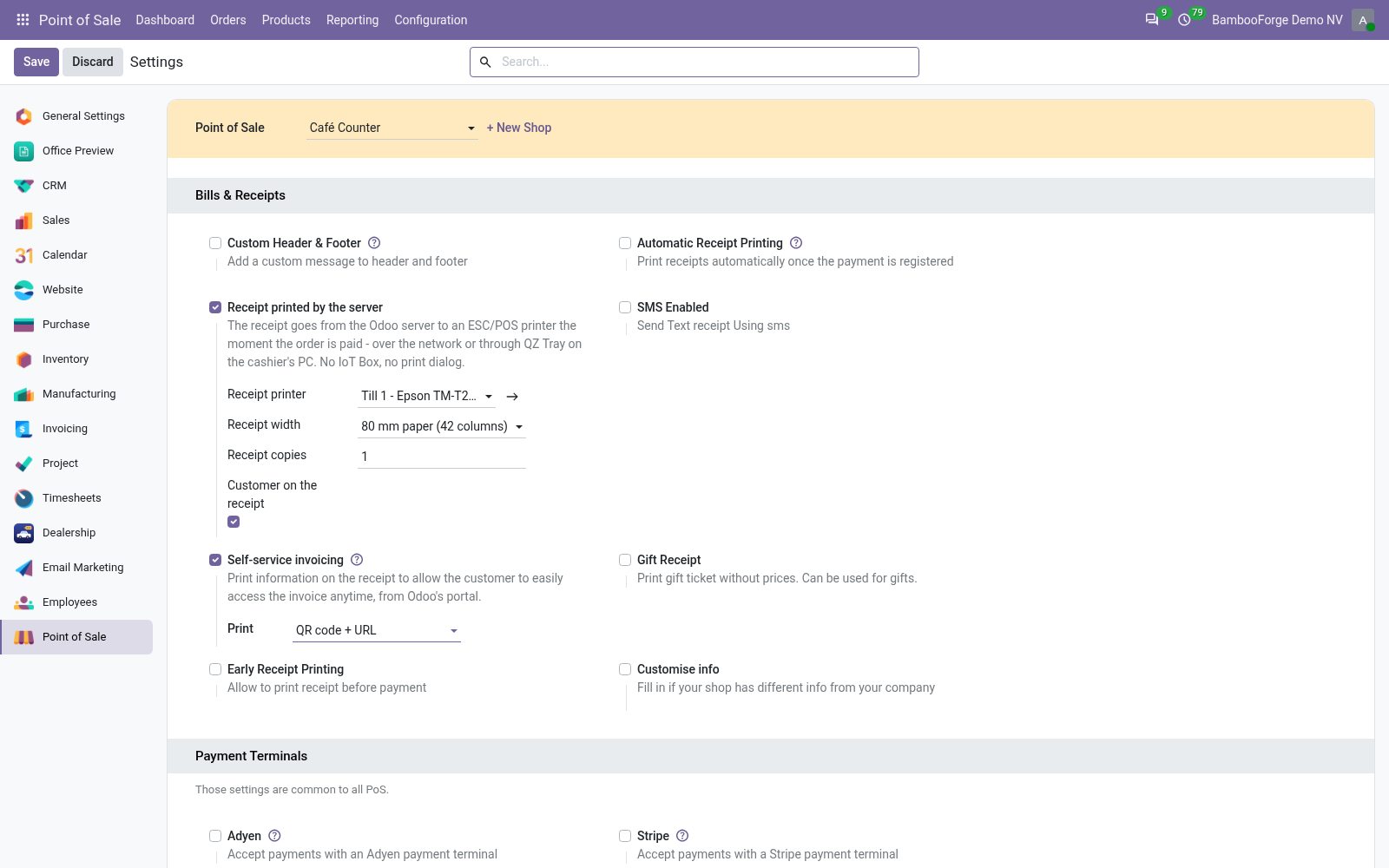
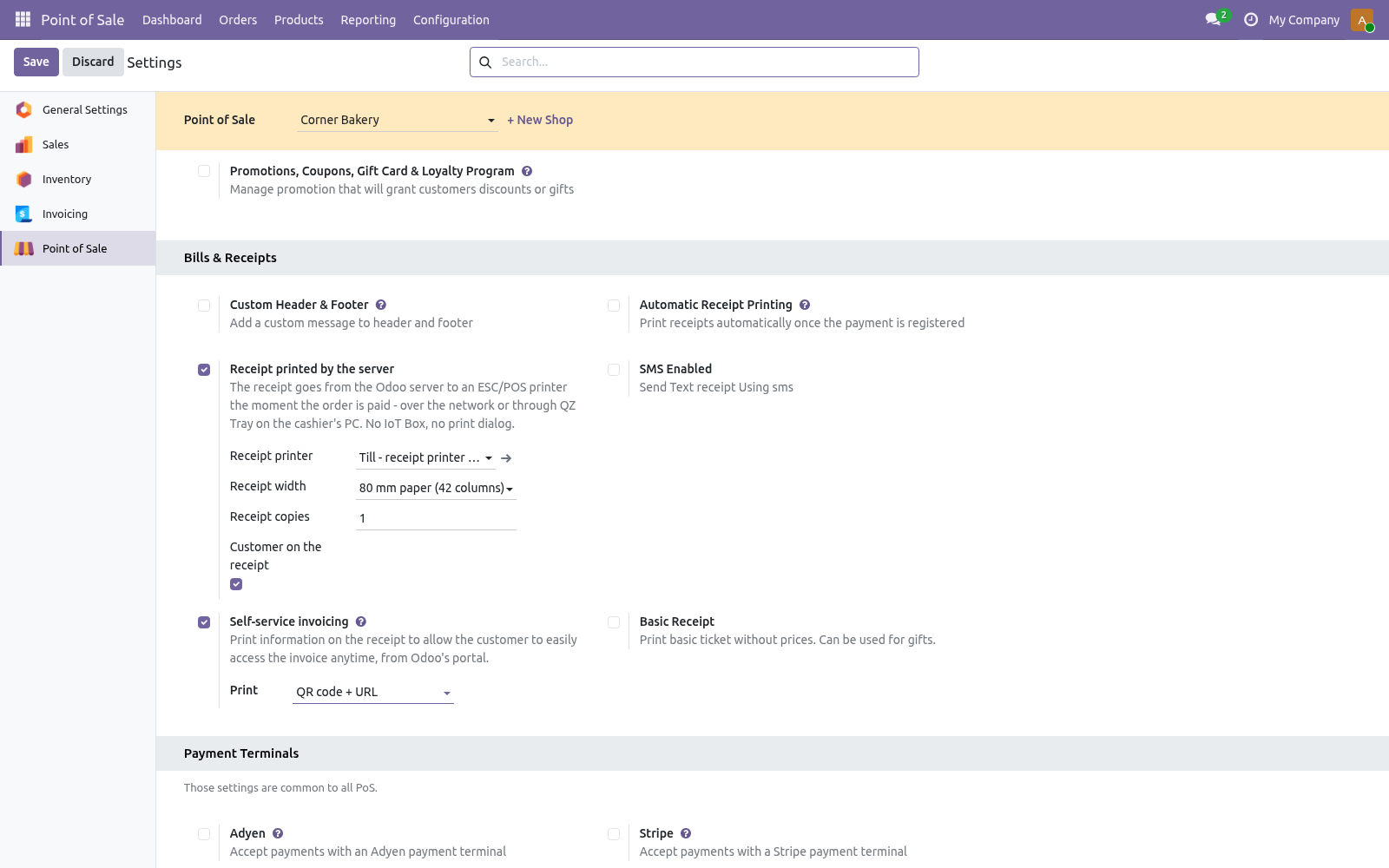
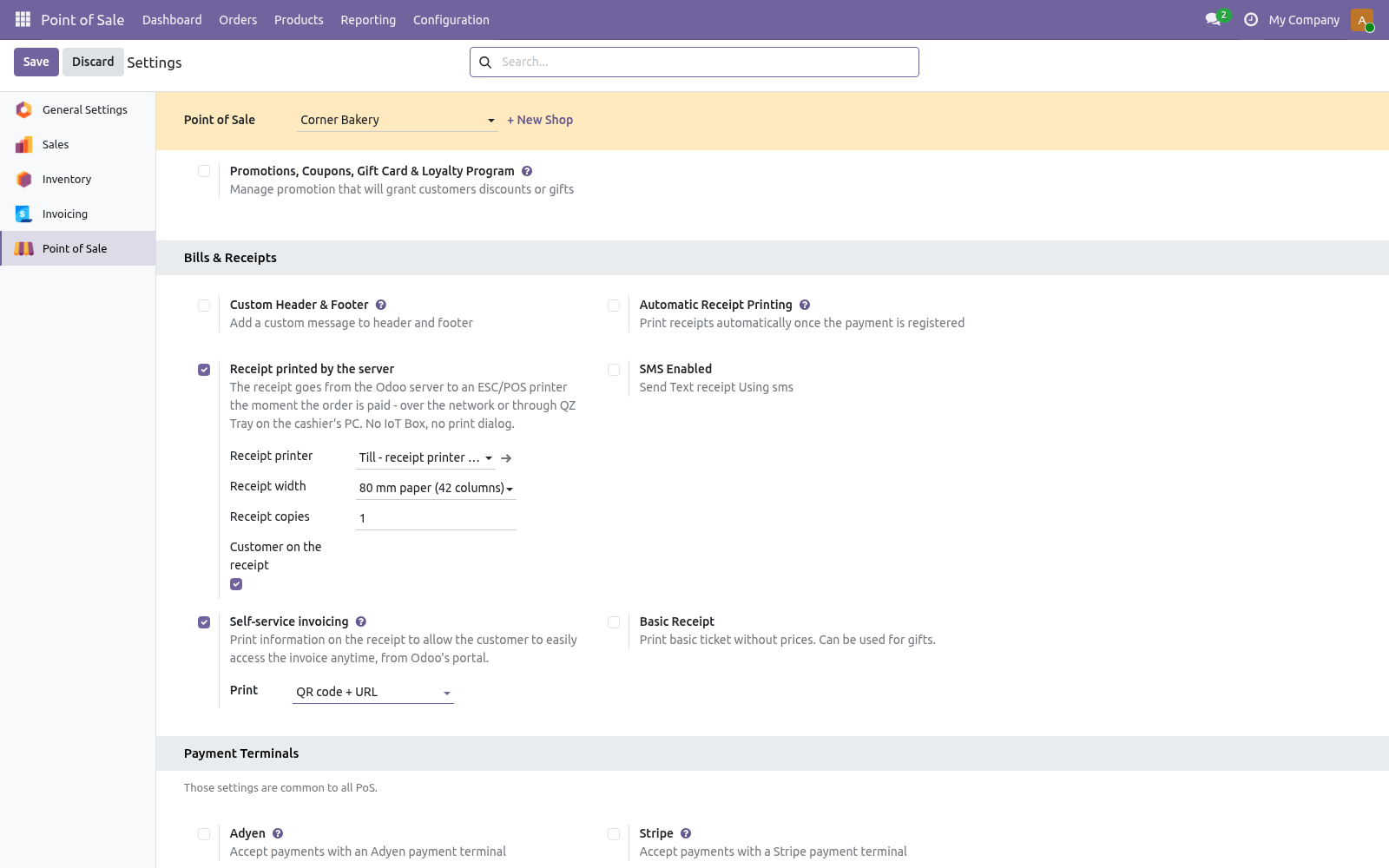
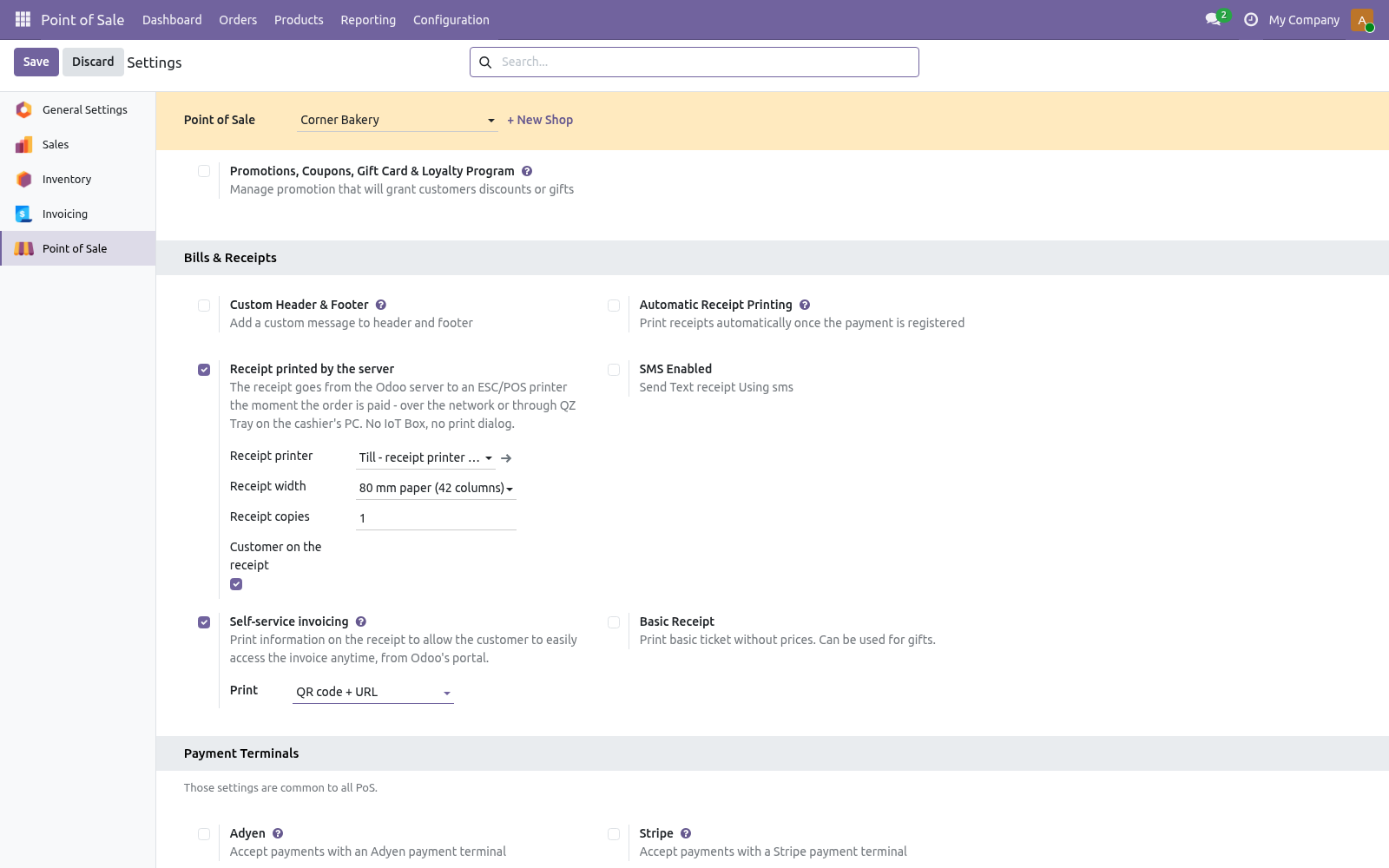
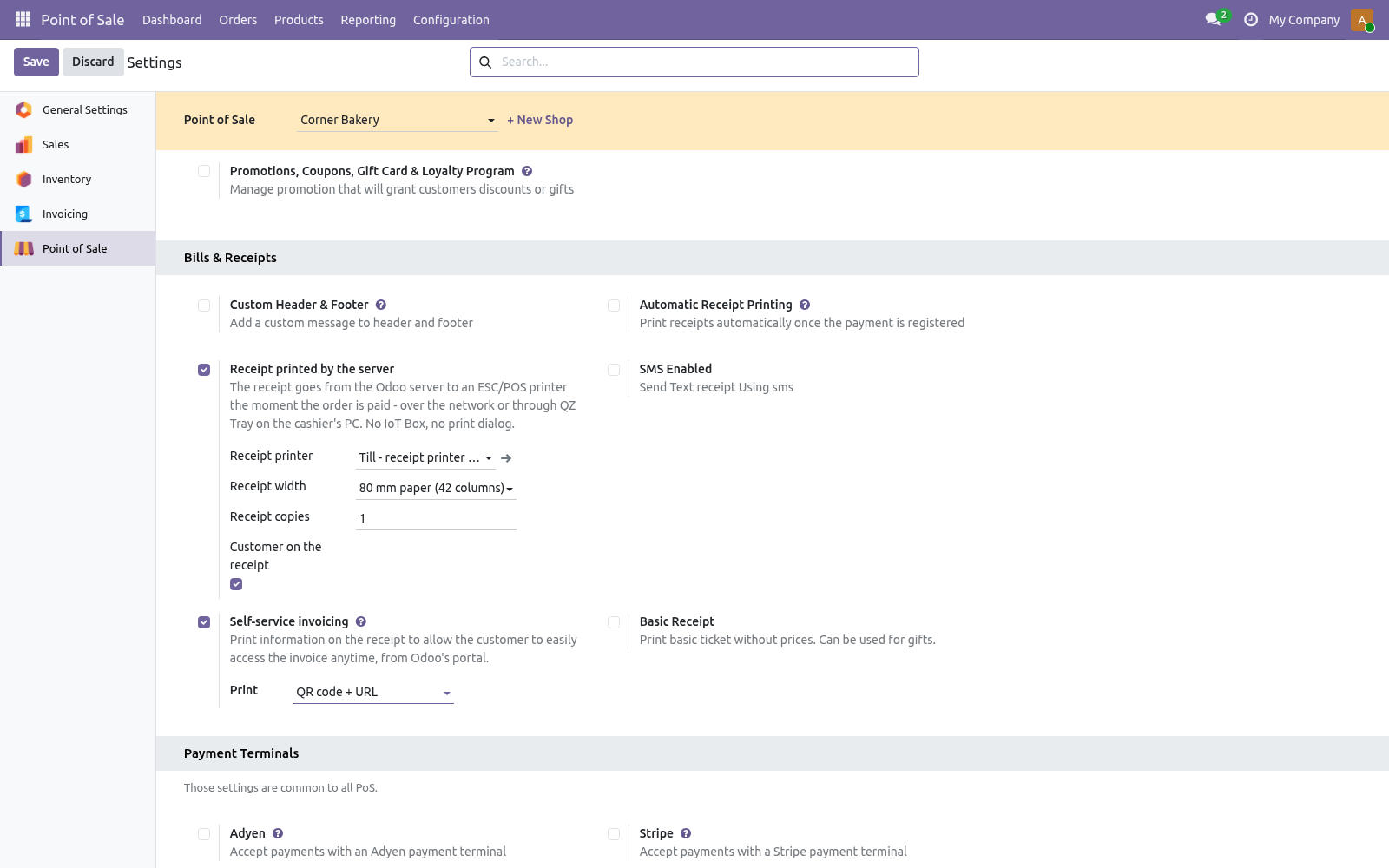
Point of Sale → Configuration → Settings, pick the shop, section Bills & Receipts: Receipt printed by the server Tick it. From then on, every paid order of this shop prints its receipt on the server side. What comes out. Company name in double size, address, phone, VAT and website; the header text; receipt number, date, cashier (the employee when POS uses cashiers, else the user) and customer; one line per product with quantity, unit price and discount when they matter; subtotal, taxes and total; every payment and the change; the footer text; the receipt number again; four blank lines and a partial cut.
Accents are folded to the printer's character set unless the printer is given one: with the default CP437 Café crème prints as Cafe creme; with Windows-1252 it prints as written. The bytes are ESC/POS with only the commands every receipt printer honours: initialise, alignment, emphasis, double size, feed, cut. Epson, Star, Bixolon, Citizen, Xprinter and the rest print them. In the back office.
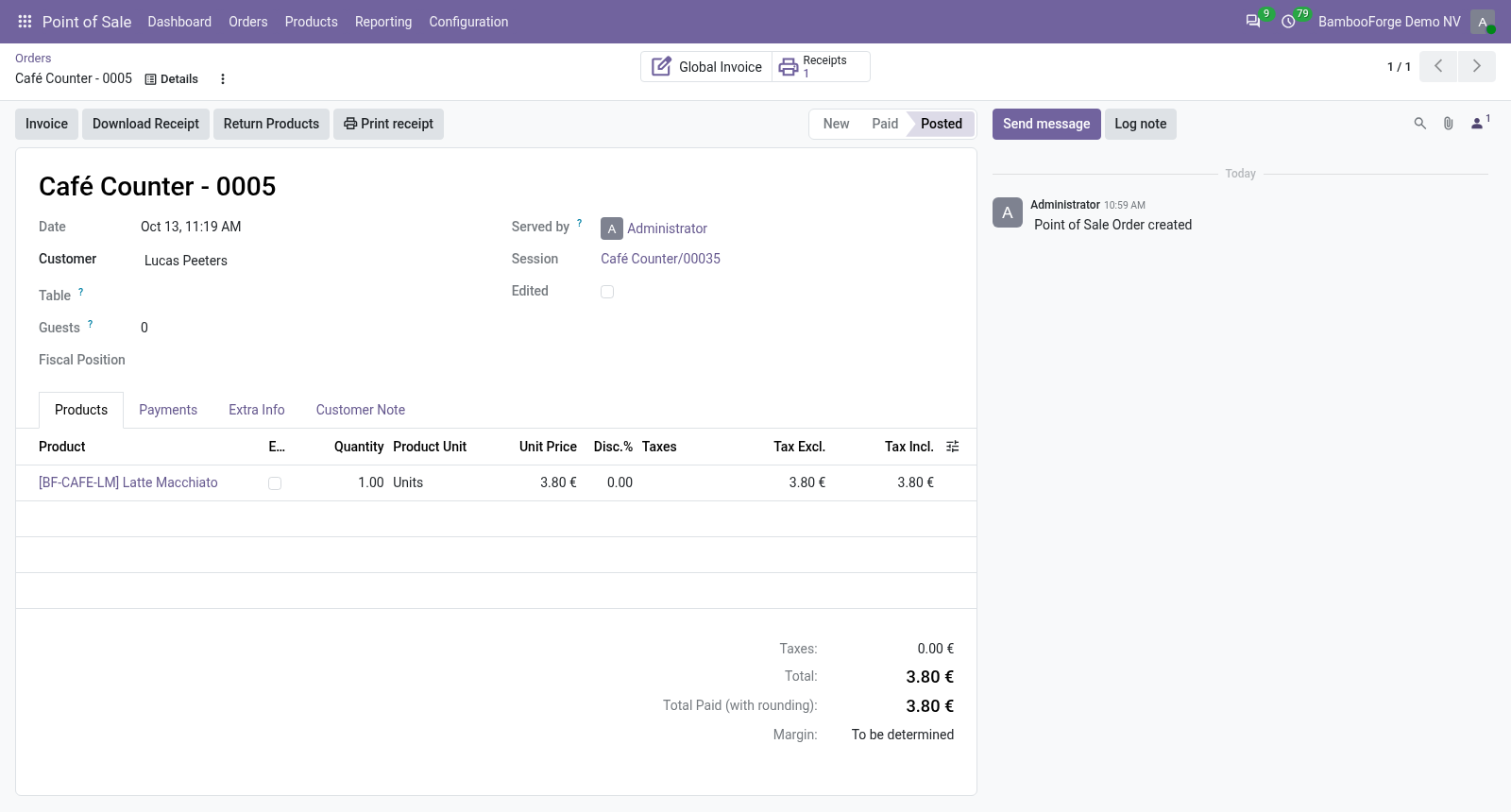
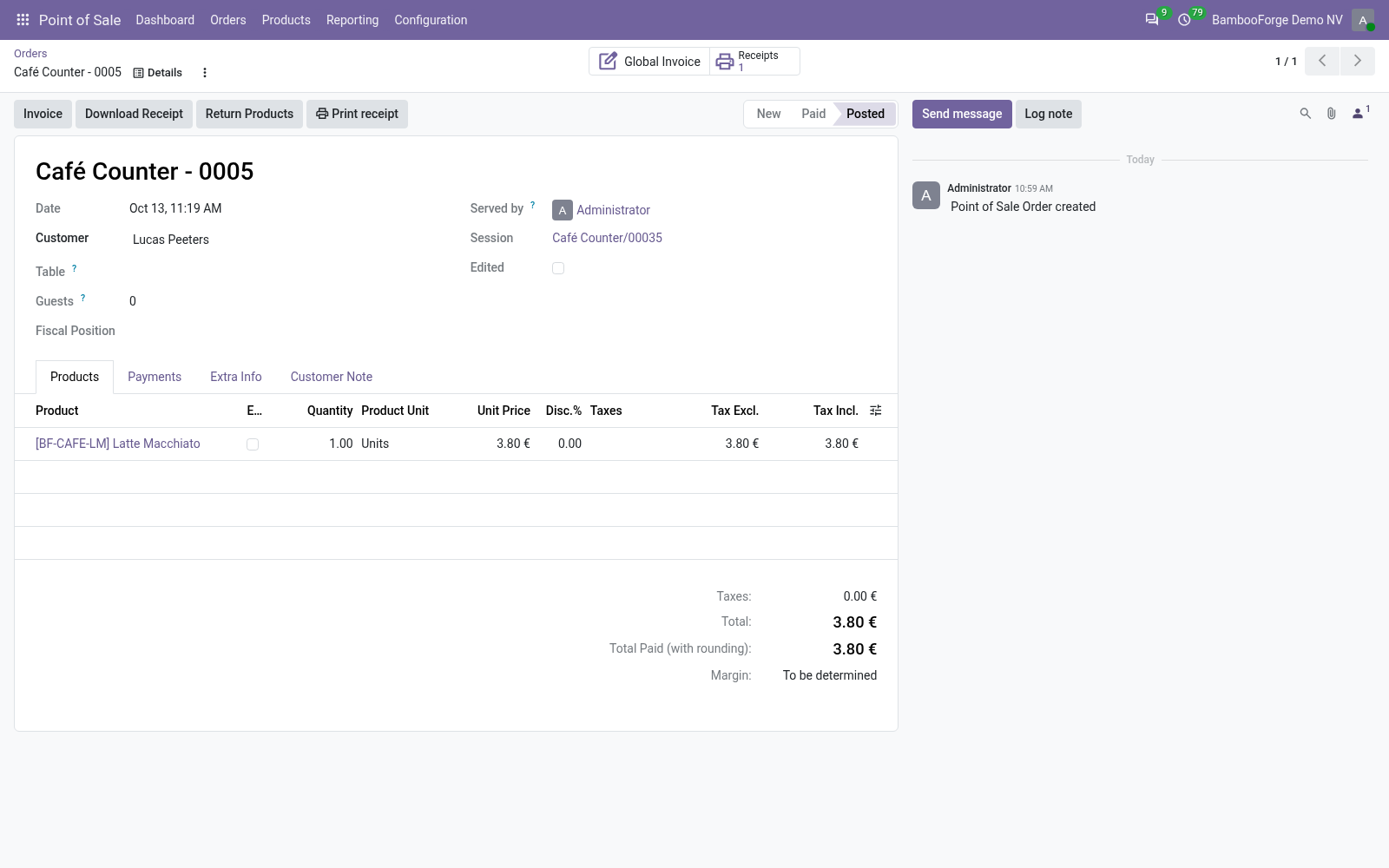
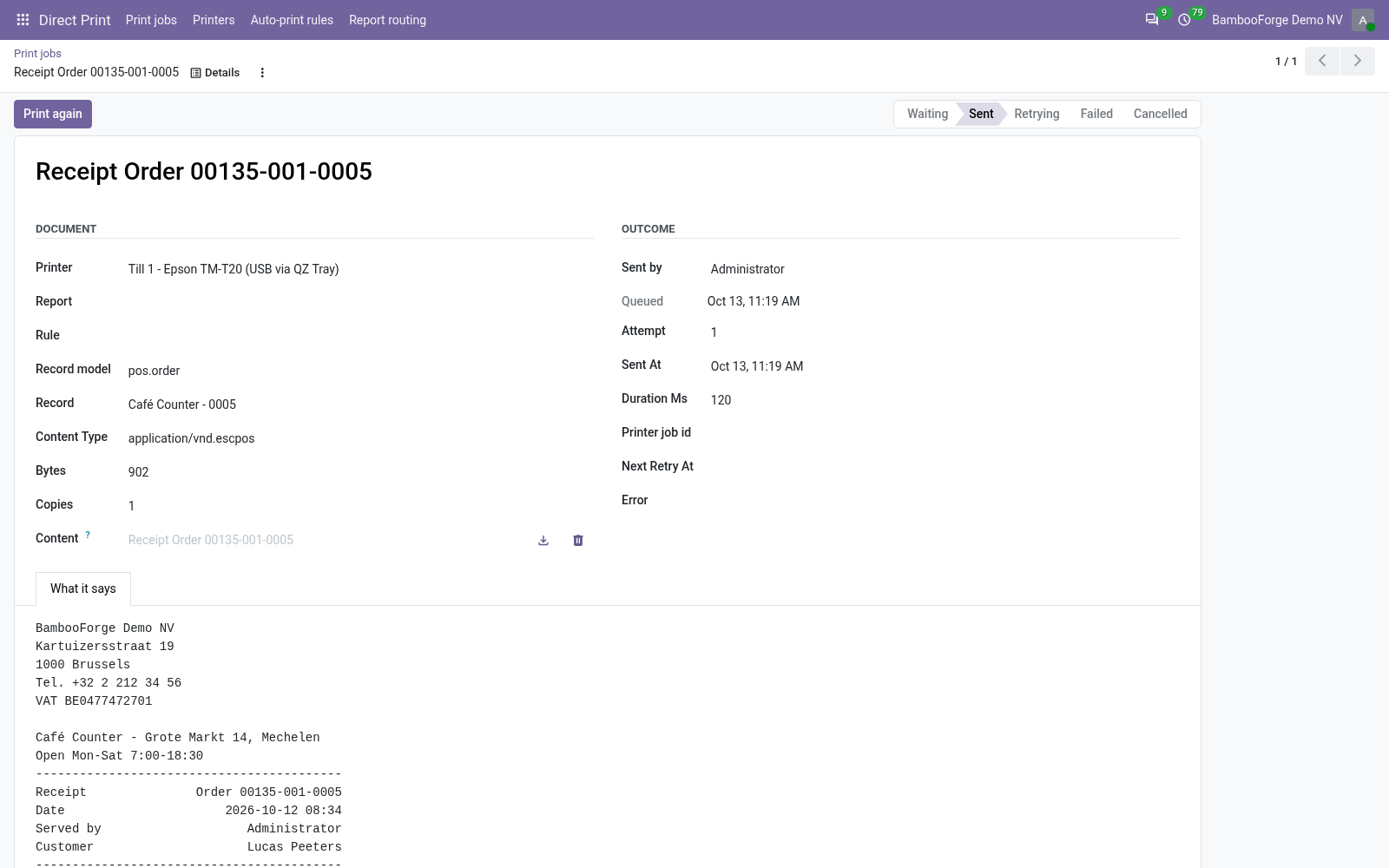
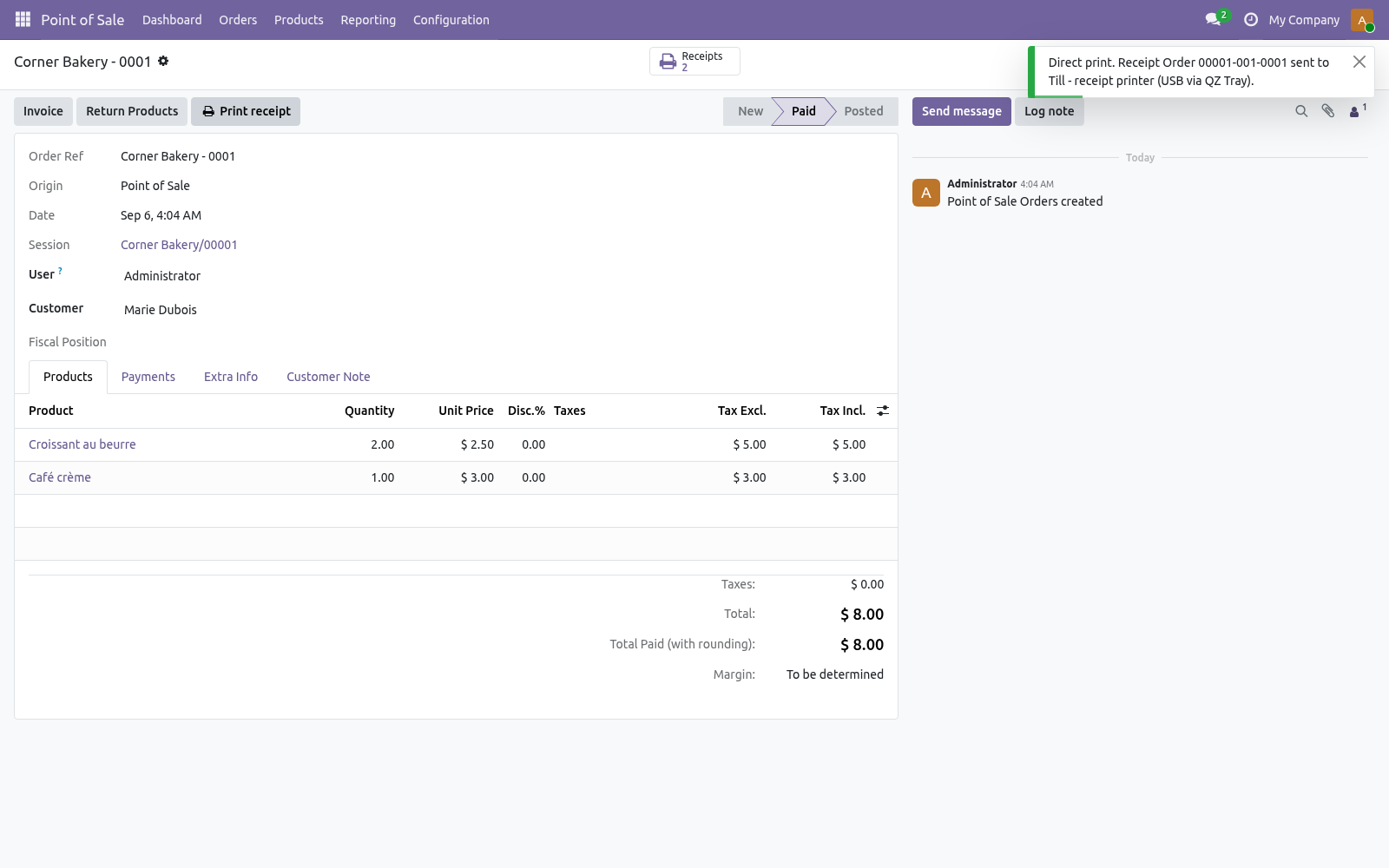
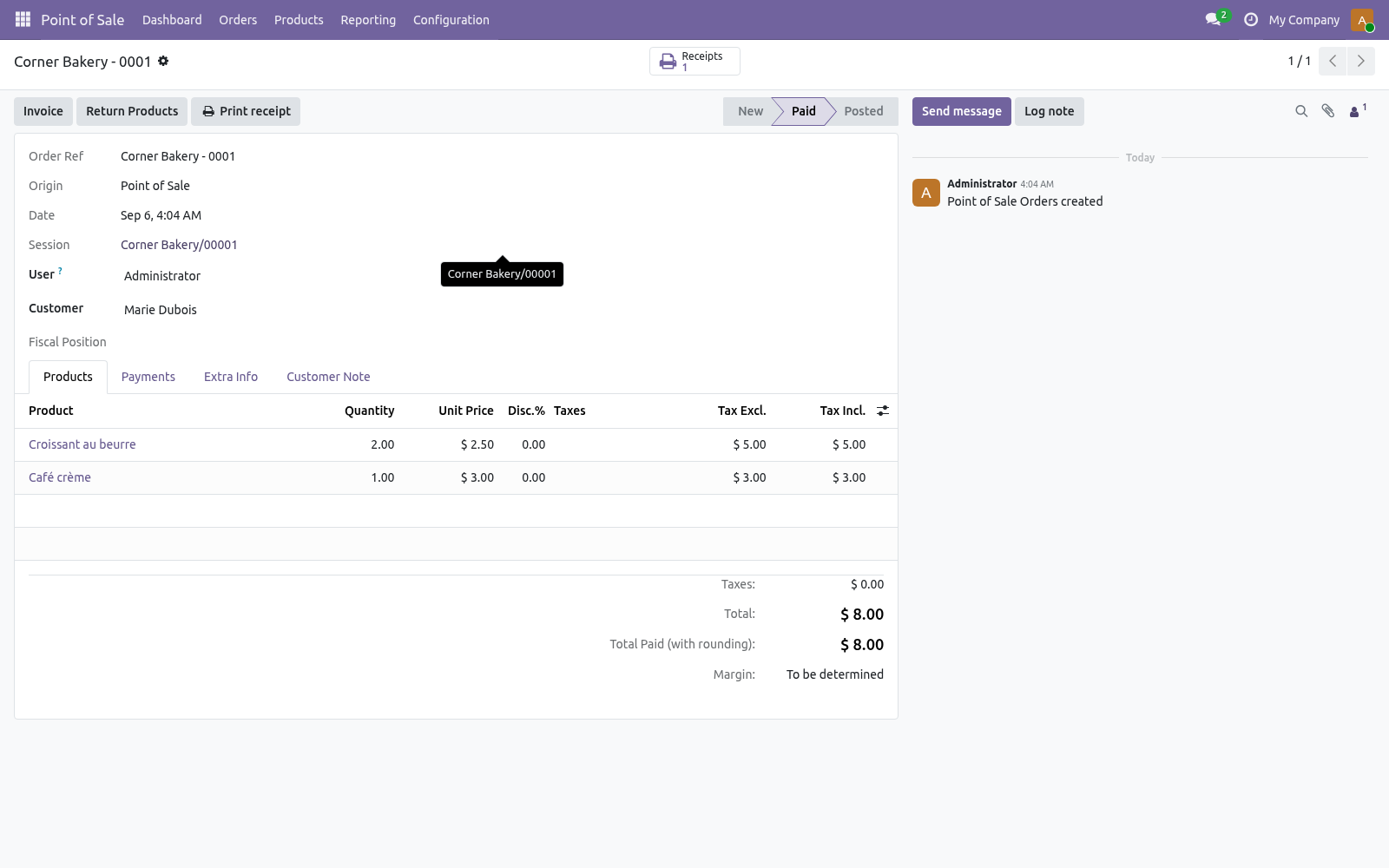
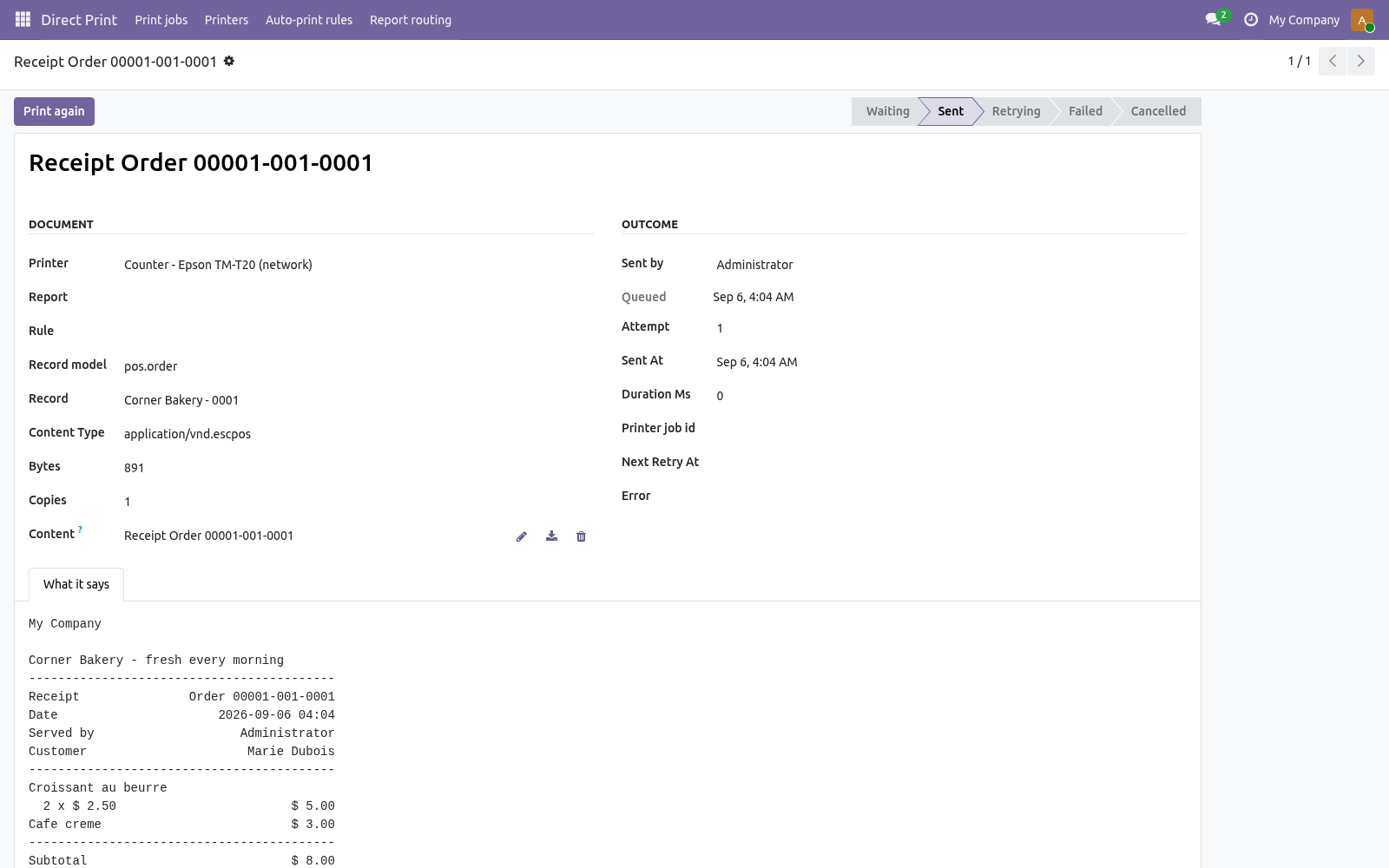
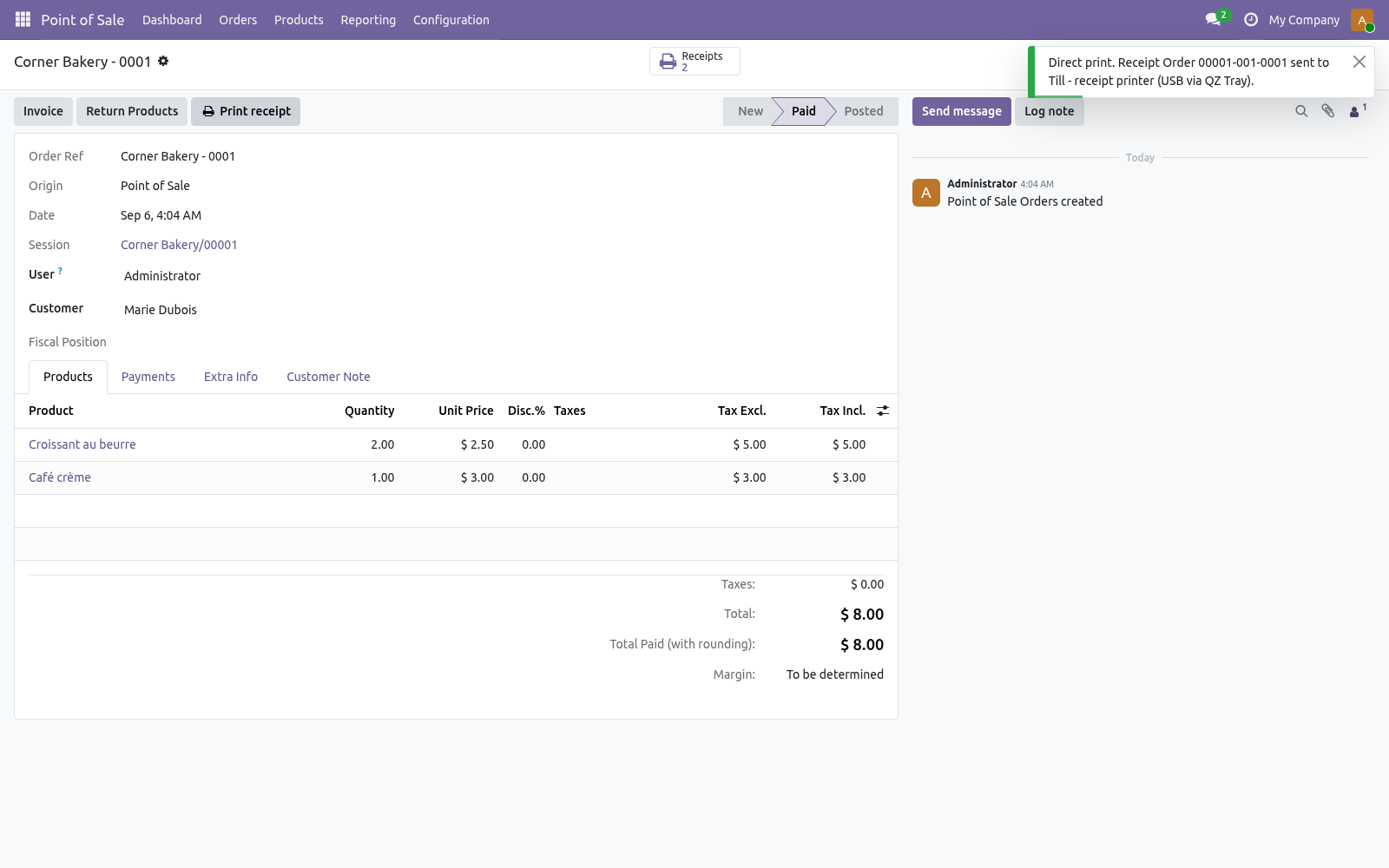
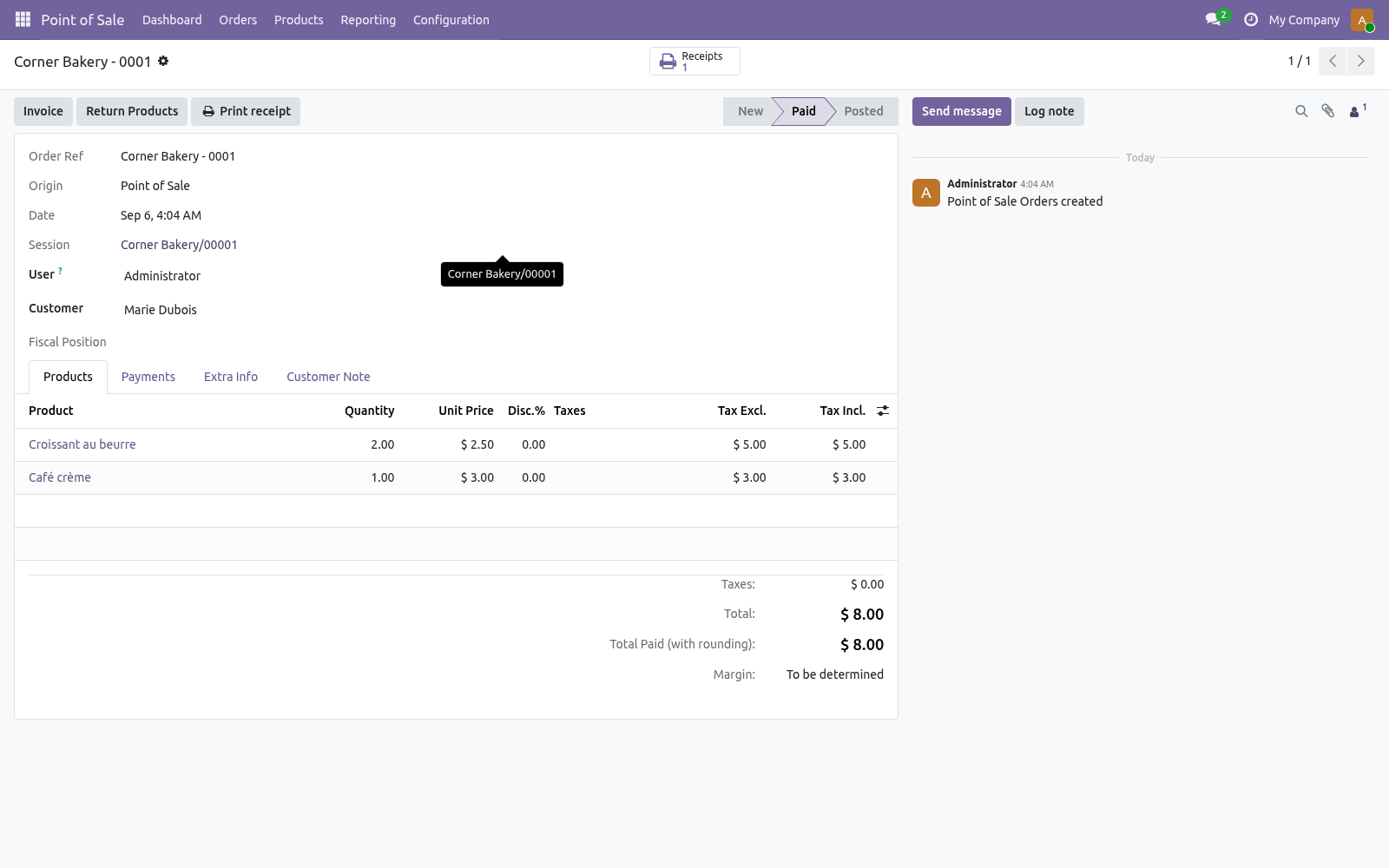
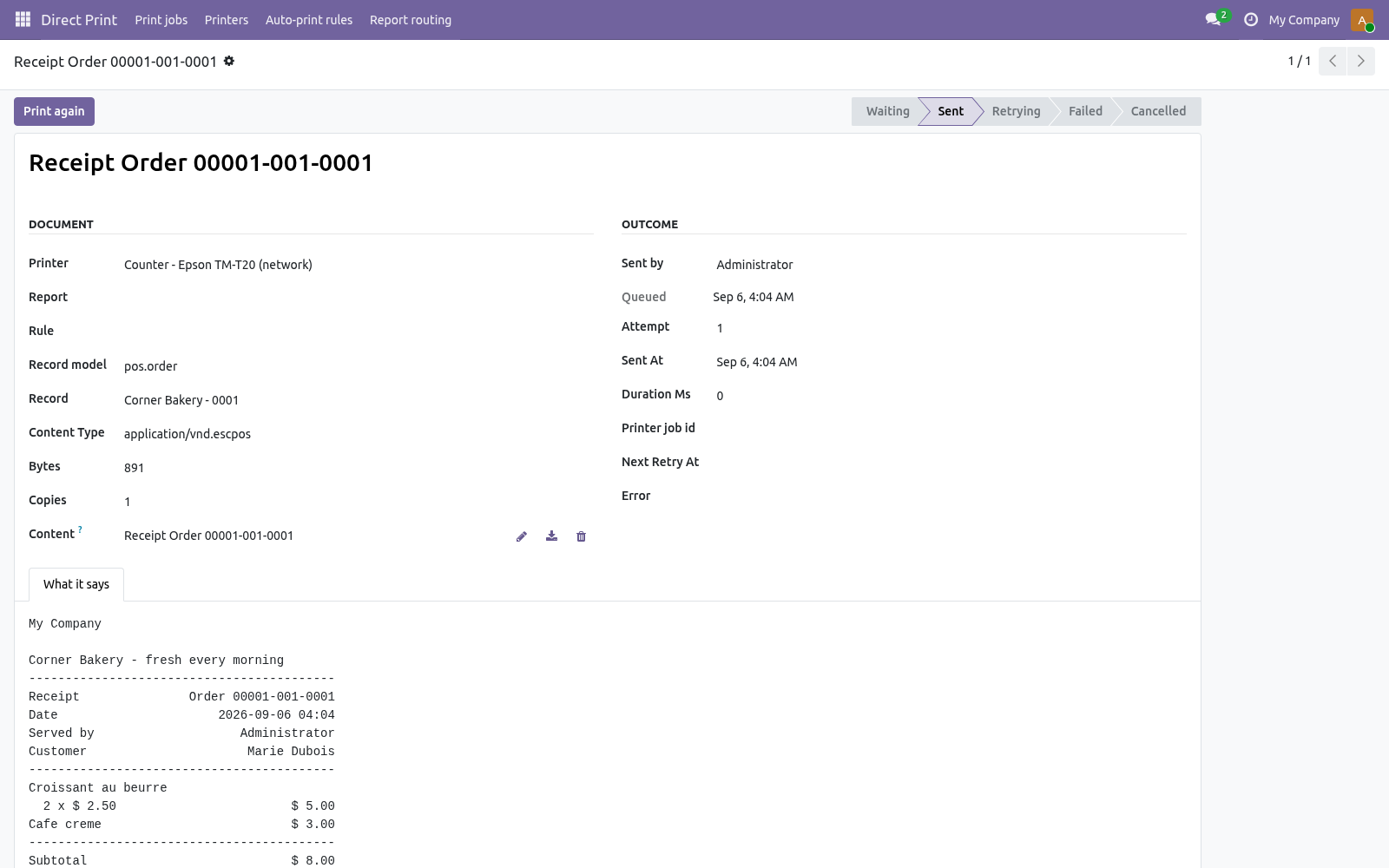
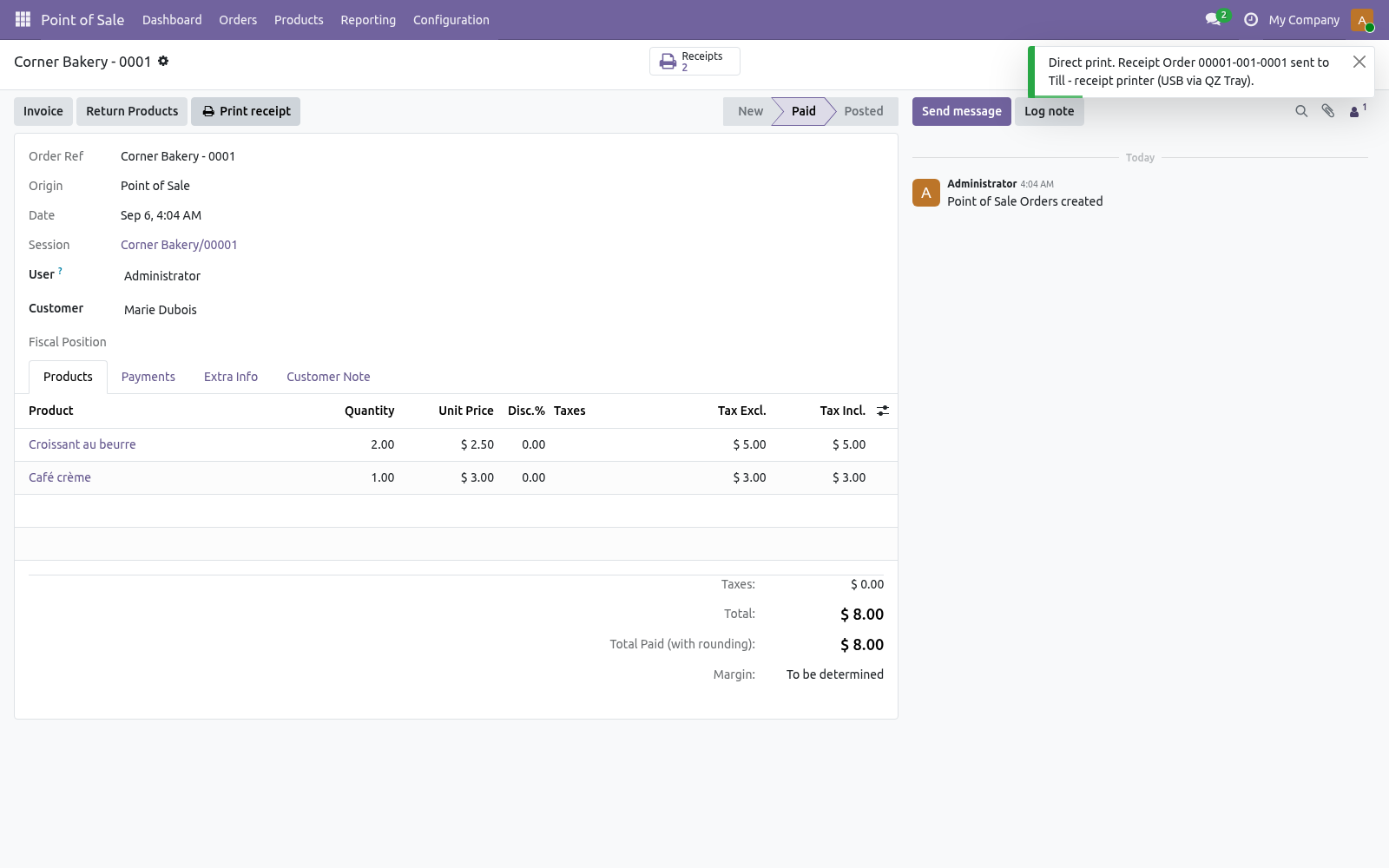
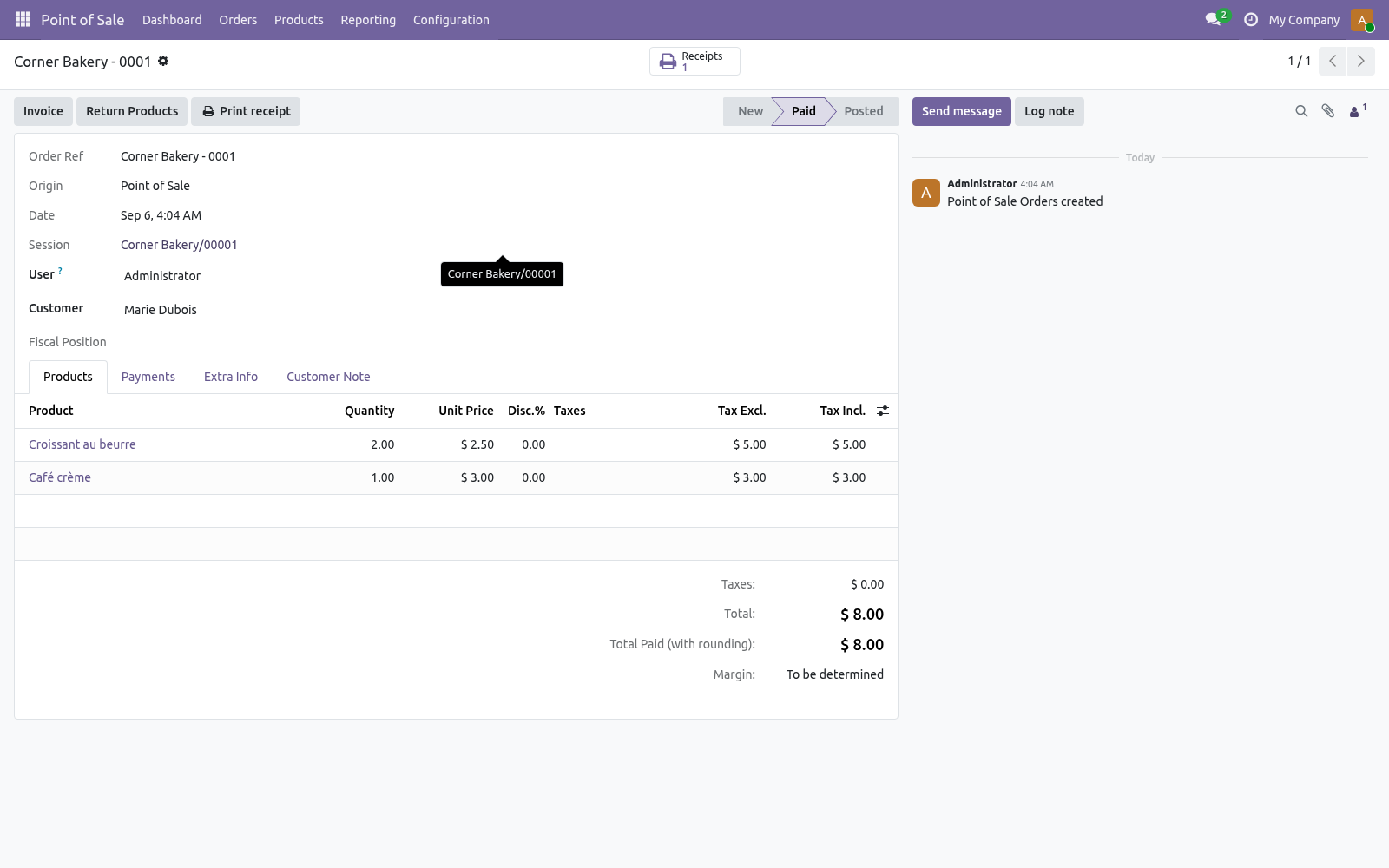
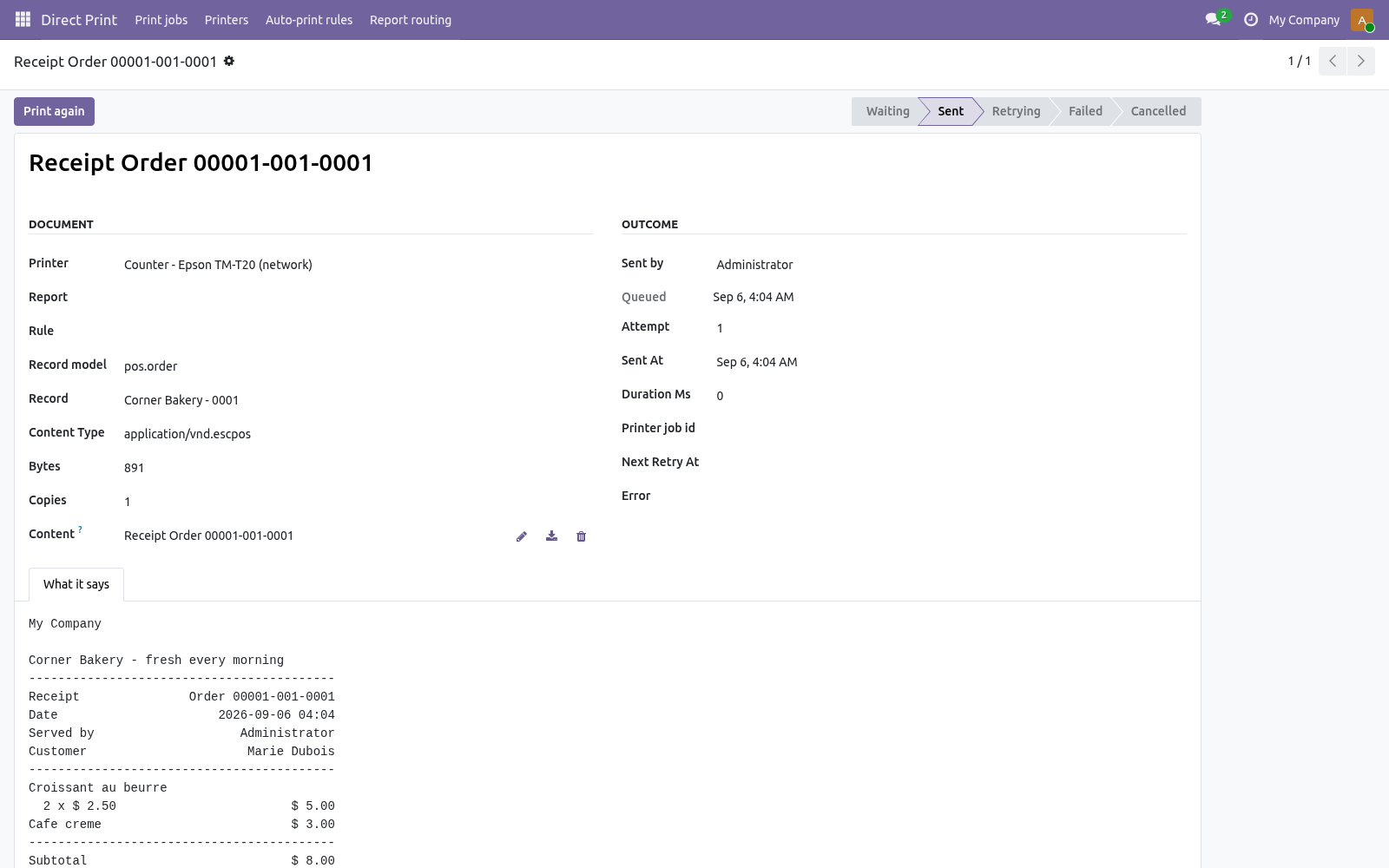
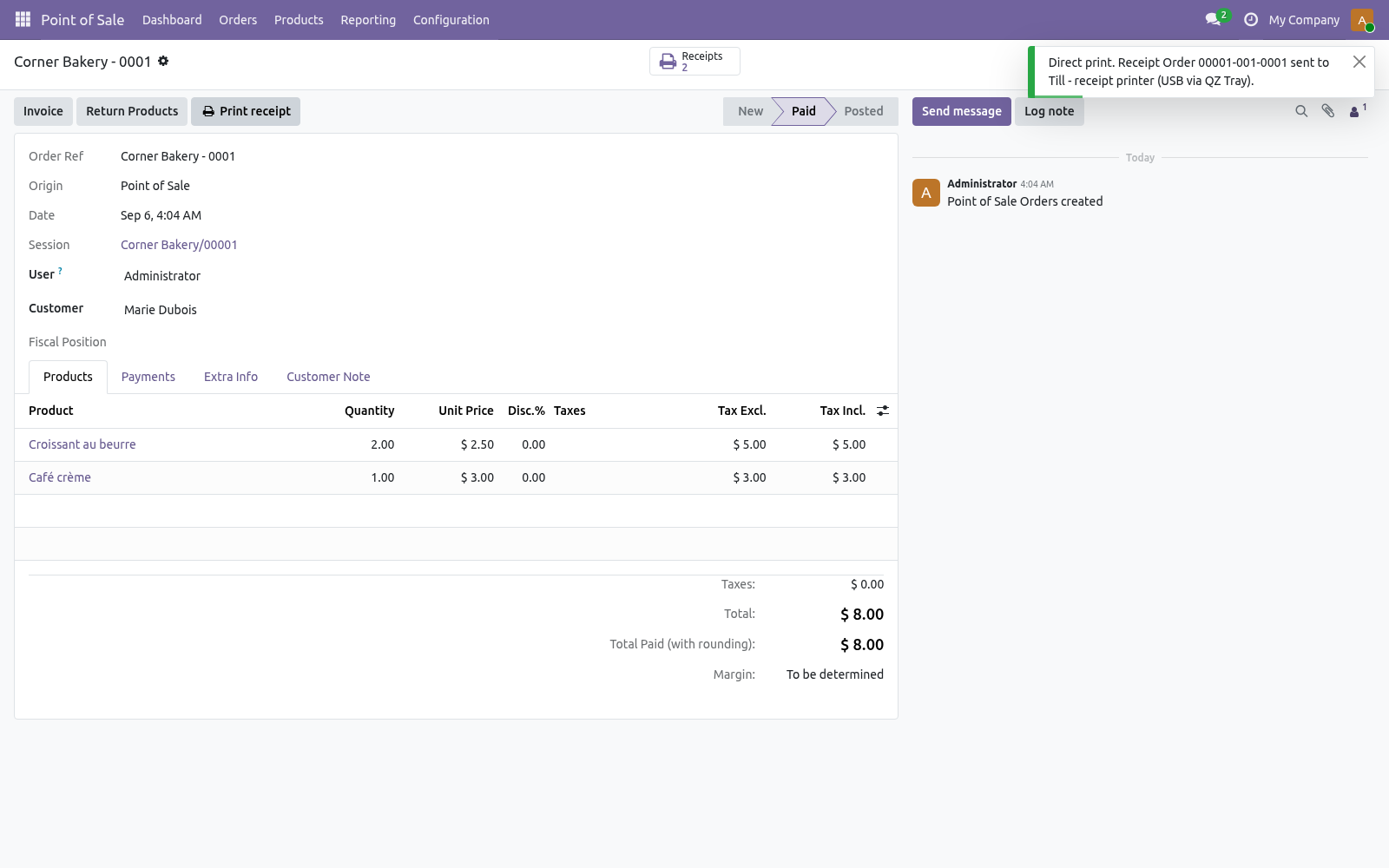
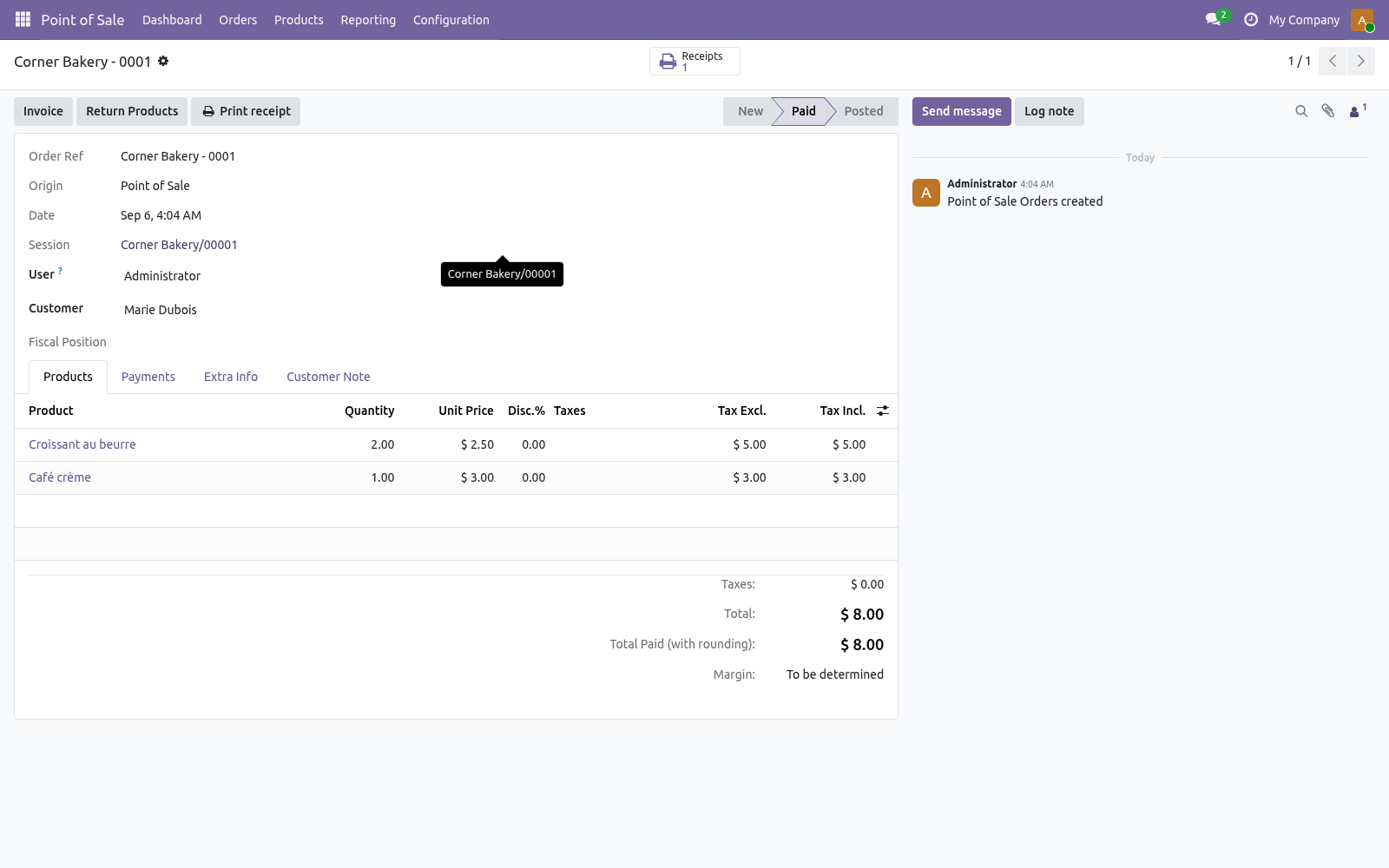
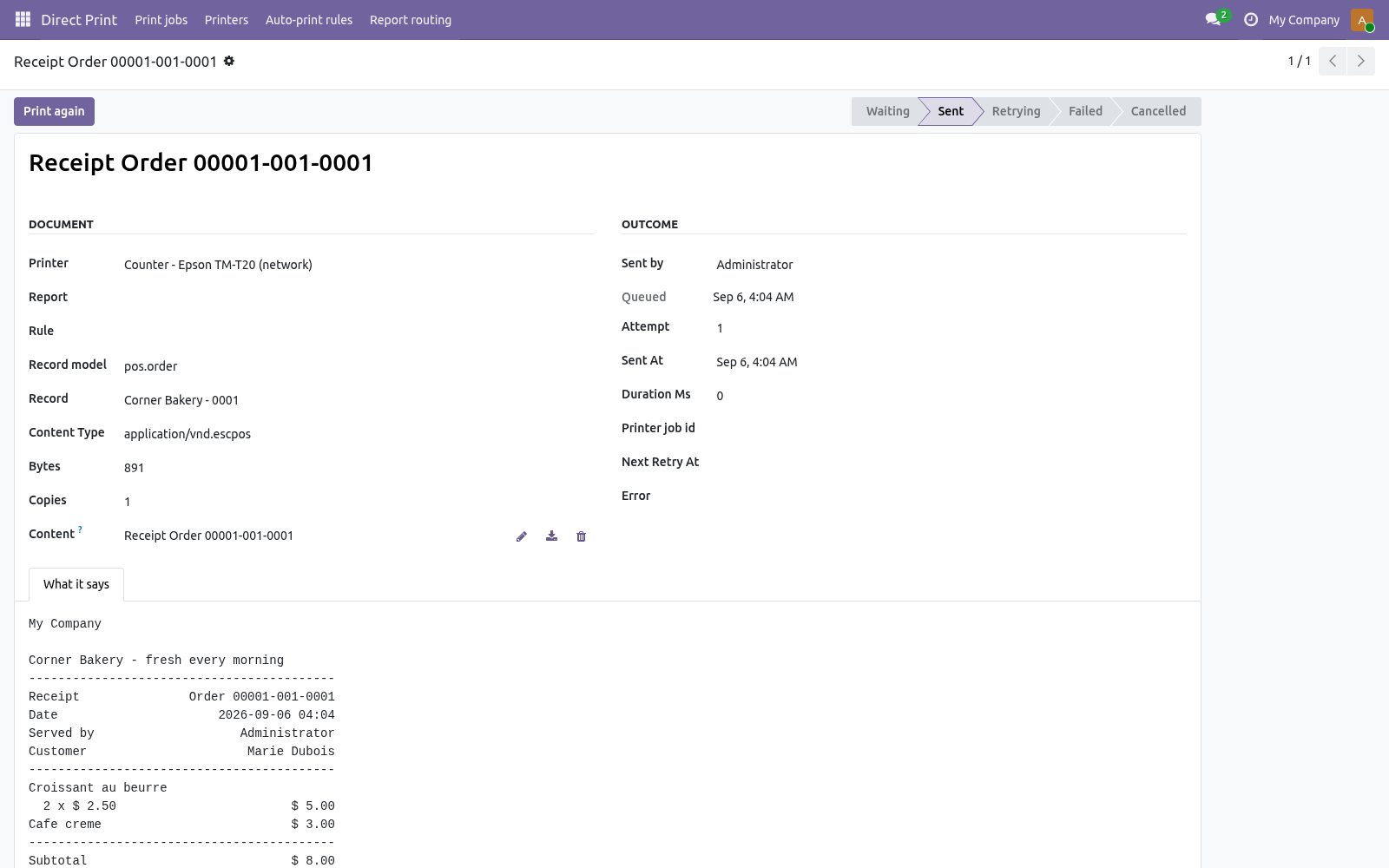
Point of Sale → Orders → Orders: a paid order shows Print receipt in its header and a Receipts counter that opens its print jobs. The job carries the bytes sent and a What it says tab with the receipt as text - the receipt can be reprinted exactly, weeks later. When the printer is down. The sale goes through.
The receipt is a job in Direct Print → Print jobs in state Retrying, with the printer's answer, and is retried after 1, 5, 15 and 60 minutes; Print again sends it now. A printer behind QZ Tray prints as soon as the till's Odoo tab is open again. Compared with the other ways to print a receipt. The store price quoted is the one shown on the Odoo Apps Store at the time of writing; check the listing for today's figure.
Security notes Receipts are rendered on the server from the order's stored lines and payments; nothing is taken from the browser. The job records who paid the order and what was sent. Printers are per company; cashiers see their own jobs. Troubleshooting.
Nothing prints when the order is paid The shop's Receipt printed by the server is off, or no printer is named on the shop or as the company default for receipts. Open the order: a Receipts counter with a Retrying job means the printer refused - the job's error says why. The receipt prints twice Odoo's Automatic Receipt Printing is on as well. Tested against the real thing.
Automated tests run against a fake printer on every release; the sentence below is the part no fake can give you. Tested for real against an ESC/POS raw listener on port 9100 and QZ Tray 2.2.6 on the till's PC: two paid orders printed their receipts by themselves - header, lines with quantity and a 10% discount, total, cash and change, footer, cut - one straight to the network printer and one picked up by the cashier's browser and handed to QZ Tray; a reprint from the order matched the first byte for byte. The complete manual is at docs dot bambooforge dot dev, the demo database is linked from the store page, and support answers within twenty-four hours. Links are in the description.
Transcript of the walkthrough (Odoo 19)
Direct Print: POS Receipts / Auto-Print Receipts Without IoT Box. The receipt of every paid Point of Sale order printed on an ESC/POS receipt printer by the Odoo server - over the network or through QZ Tray on the cashier's PC. No IoT Box, no browser print dialog, no cloud print service. A receipt per shop, a Print receipt button on the order, every receipt in the print queue.
The receipt of every paid Point of Sale order, printed by the Odoo server on an ESC/POS receipt printer the moment the order is paid. No IoT Box, no browser print dialog, no preview screen to click through, no cloud print service. The printer is on the network, on a CUPS server, or plugged into the till's PC through QZ Tray. Every receipt is a job in Direct Print's queue: retried when the printer is down, reprinted exactly from the order.
In the next few minutes: why this exists, then set it up per shop, then what comes out, then in the back office, then when the printer is down. Then what this app deliberately does not do, so you can tell before you buy whether it fits. 1. Install Direct Print and add the receipt printer there (Direct Print → Printers, kind Receipts (ESC/POS)): raw TCP for a printer on the network, IPP for a CUPS queue, QZ Tray for a USB printer on a PC.
Press Print a test page - a test receipt comes out. 2. Install Direct Print: POS Receipts. When Point of Sale is already installed, it installs by itself with Direct Print.
Why this exists. Odoo Community prints a POS receipt through the browser: the cashier presses Print, the browser's dialog opens, the right printer has to be chosen, and a preview screen sits between every sale and the next one. The IoT Box that removes those steps is Enterprise-only and a device to buy. Receipt printers themselves have spoken the same language for thirty years - ESC/POS - and most of them have a network port that accepts it on port 9100.
This add-on renders that language on the server and sends it there. Set it up per shop. Point of Sale → Configuration → Settings, pick the shop, section Bills & Receipts: Receipt printed by the server Tick it. From then on, every paid order of this shop prints its receipt on the server side.
What comes out. Company name in double size, address, phone, VAT and website; the header text; receipt number, date, cashier (the employee when POS uses cashiers, else the user) and customer; one line per product with quantity, unit price and discount when they matter; subtotal, taxes and total; every payment and the change; the footer text; the receipt number again; four blank lines and a partial cut. Accents are folded to the printer's character set (Café crème prints as Cafe creme). The bytes are ESC/POS with only the commands every receipt printer honours: initialise, alignment, emphasis, double size, feed, cut.
Epson, Star, Bixolon, Citizen, Xprinter and the rest print them. In the back office. Point of Sale → Orders → Orders: a paid order shows Print receipt in its header and a Receipts counter that opens its print jobs. The job carries the bytes sent and a What it says tab with the receipt as text - the receipt can be reprinted exactly, weeks later.
When the printer is down. The sale goes through. The receipt is a job in Direct Print → Print jobs in state Retrying, with the printer's answer, and is retried after 1, 5, 15 and 60 minutes; Print again sends it now. A printer behind QZ Tray prints as soon as the till's Odoo tab is open again.
Security notes Receipts are rendered on the server from the order's stored lines and payments; nothing is taken from the browser. The job records who paid the order and what was sent. Printers are per company; cashiers see their own jobs. Troubleshooting.
Nothing prints when the order is paid The shop's Receipt printed by the server is off, or no printer is named on the shop or as the company default for receipts. Open the order: a Receipts counter with a Retrying job means the printer refused - the job's error says why. The receipt prints twice Odoo's Automatic Receipt Printing is on as well. Tested against the real thing.
Automated tests run against a fake printer on every release; the sentence below is the part no fake can give you. Tested for real against an ESC/POS raw listener on port 9100 and QZ Tray 2.2.6 on the till's PC: two paid orders printed their receipts by themselves - header, lines with quantity and a 10% discount, total, cash and change, footer, cut - one straight to the network printer and one picked up by the cashier's browser and handed to QZ Tray; a reprint from the order matched the first byte for byte. 1.0.0 A receipt printer, width, copies and customer line per shop. The receipt printed by the server when the order is paid; Print receipt and a Receipts counter on the order.
How we make sure it works. Before every release, 7 automated checks run against this app on Odoo 16, 17, 18 and 19. Among them: A printer that is down does not break the sale. No printer says so only when asked.
The receipt says what the order says. A paid order prints its receipt. Copies and width follow the shop. Tested for real against an ESC/POS raw listener on port 9100 and QZ Tray 2.2.6 on the till's PC: two paid orders printed their receipts by themselves - header, lines with quantity and a 10% discount, total, cash and change, footer, cut - one straight to the network printer and one picked up by the cashier's browser and handed to QZ Tray; a reprint from the order matched the first byte for byte.
The complete manual is at docs dot bambooforge dot dev, the demo database is linked from the store page, and support answers within twenty-four hours. Links are in the description.
Transcript of the walkthrough (Odoo 18)
Direct Print: POS Receipts / Auto-Print Receipts Without IoT Box. The receipt of every paid Point of Sale order printed on an ESC/POS receipt printer by the Odoo server - over the network or through QZ Tray on the cashier's PC. No IoT Box, no browser print dialog, no cloud print service. A receipt per shop, a Print receipt button on the order, every receipt in the print queue.
The receipt of every paid Point of Sale order, printed by the Odoo server on an ESC/POS receipt printer the moment the order is paid. No IoT Box, no browser print dialog, no preview screen to click through, no cloud print service. The printer is on the network, on a CUPS server, or plugged into the till's PC through QZ Tray. Every receipt is a job in Direct Print's queue: retried when the printer is down, reprinted exactly from the order.
In the next few minutes: why this exists, then set it up per shop, then what comes out, then in the back office, then when the printer is down. Then what this app deliberately does not do, so you can tell before you buy whether it fits. 1. Install Direct Print and add the receipt printer there (Direct Print → Printers, kind Receipts (ESC/POS)): raw TCP for a printer on the network, IPP for a CUPS queue, QZ Tray for a USB printer on a PC.
Press Print a test page - a test receipt comes out. 2. Install Direct Print: POS Receipts. When Point of Sale is already installed, it installs by itself with Direct Print.
Why this exists. Odoo Community prints a POS receipt through the browser: the cashier presses Print, the browser's dialog opens, the right printer has to be chosen, and a preview screen sits between every sale and the next one. The IoT Box that removes those steps is Enterprise-only and a device to buy. Receipt printers themselves have spoken the same language for thirty years - ESC/POS - and most of them have a network port that accepts it on port 9100.
This add-on renders that language on the server and sends it there. Set it up per shop. Point of Sale → Configuration → Settings, pick the shop, section Bills & Receipts: Receipt printed by the server Tick it. From then on, every paid order of this shop prints its receipt on the server side.
What comes out. Company name in double size, address, phone, VAT and website; the header text; receipt number, date, cashier (the employee when POS uses cashiers, else the user) and customer; one line per product with quantity, unit price and discount when they matter; subtotal, taxes and total; every payment and the change; the footer text; the receipt number again; four blank lines and a partial cut. Accents are folded to the printer's character set (Café crème prints as Cafe creme). The bytes are ESC/POS with only the commands every receipt printer honours: initialise, alignment, emphasis, double size, feed, cut.
Epson, Star, Bixolon, Citizen, Xprinter and the rest print them. In the back office. Point of Sale → Orders → Orders: a paid order shows Print receipt in its header and a Receipts counter that opens its print jobs. The job carries the bytes sent and a What it says tab with the receipt as text - the receipt can be reprinted exactly, weeks later.
When the printer is down. The sale goes through. The receipt is a job in Direct Print → Print jobs in state Retrying, with the printer's answer, and is retried after 1, 5, 15 and 60 minutes; Print again sends it now. A printer behind QZ Tray prints as soon as the till's Odoo tab is open again.
Security notes Receipts are rendered on the server from the order's stored lines and payments; nothing is taken from the browser. The job records who paid the order and what was sent. Printers are per company; cashiers see their own jobs. Troubleshooting.
Nothing prints when the order is paid The shop's Receipt printed by the server is off, or no printer is named on the shop or as the company default for receipts. Open the order: a Receipts counter with a Retrying job means the printer refused - the job's error says why. The receipt prints twice Odoo's Automatic Receipt Printing is on as well. Tested against the real thing.
Automated tests run against a fake printer on every release; the sentence below is the part no fake can give you. Tested for real against an ESC/POS raw listener on port 9100 and QZ Tray 2.2.6 on the till's PC: two paid orders printed their receipts by themselves - header, lines with quantity and a 10% discount, total, cash and change, footer, cut - one straight to the network printer and one picked up by the cashier's browser and handed to QZ Tray; a reprint from the order matched the first byte for byte. 1.0.0 A receipt printer, width, copies and customer line per shop. The receipt printed by the server when the order is paid; Print receipt and a Receipts counter on the order.
How we make sure it works. Before every release, 7 automated checks run against this app on Odoo 16, 17, 18 and 19. Among them: A printer that is down does not break the sale. No printer says so only when asked.
The receipt says what the order says. A paid order prints its receipt. Copies and width follow the shop. Tested for real against an ESC/POS raw listener on port 9100 and QZ Tray 2.2.6 on the till's PC: two paid orders printed their receipts by themselves - header, lines with quantity and a 10% discount, total, cash and change, footer, cut - one straight to the network printer and one picked up by the cashier's browser and handed to QZ Tray; a reprint from the order matched the first byte for byte.
The complete manual is at docs dot bambooforge dot dev, the demo database is linked from the store page, and support answers within twenty-four hours. Links are in the description.
Transcript of the walkthrough (Odoo 17)
Direct Print: POS Receipts / Auto-Print Receipts Without IoT Box. The receipt of every paid Point of Sale order printed on an ESC/POS receipt printer by the Odoo server - over the network or through QZ Tray on the cashier's PC. No IoT Box, no browser print dialog, no cloud print service. A receipt per shop, a Print receipt button on the order, every receipt in the print queue.
The receipt of every paid Point of Sale order, printed by the Odoo server on an ESC/POS receipt printer the moment the order is paid. No IoT Box, no browser print dialog, no preview screen to click through, no cloud print service. The printer is on the network, on a CUPS server, or plugged into the till's PC through QZ Tray. Every receipt is a job in Direct Print's queue: retried when the printer is down, reprinted exactly from the order.
In the next few minutes: why this exists, then set it up per shop, then what comes out, then in the back office, then when the printer is down. Then what this app deliberately does not do, so you can tell before you buy whether it fits. 1. Install Direct Print and add the receipt printer there (Direct Print → Printers, kind Receipts (ESC/POS)): raw TCP for a printer on the network, IPP for a CUPS queue, QZ Tray for a USB printer on a PC.
Press Print a test page - a test receipt comes out. 2. Install Direct Print: POS Receipts. When Point of Sale is already installed, it installs by itself with Direct Print.
Why this exists. Odoo Community prints a POS receipt through the browser: the cashier presses Print, the browser's dialog opens, the right printer has to be chosen, and a preview screen sits between every sale and the next one. The IoT Box that removes those steps is Enterprise-only and a device to buy. Receipt printers themselves have spoken the same language for thirty years - ESC/POS - and most of them have a network port that accepts it on port 9100.
This add-on renders that language on the server and sends it there. Set it up per shop. Point of Sale → Configuration → Settings, pick the shop, section Bills & Receipts: Receipt printed by the server Tick it. From then on, every paid order of this shop prints its receipt on the server side.
What comes out. Company name in double size, address, phone, VAT and website; the header text; receipt number, date, cashier (the employee when POS uses cashiers, else the user) and customer; one line per product with quantity, unit price and discount when they matter; subtotal, taxes and total; every payment and the change; the footer text; the receipt number again; four blank lines and a partial cut. Accents are folded to the printer's character set (Café crème prints as Cafe creme). The bytes are ESC/POS with only the commands every receipt printer honours: initialise, alignment, emphasis, double size, feed, cut.
Epson, Star, Bixolon, Citizen, Xprinter and the rest print them. In the back office. Point of Sale → Orders → Orders: a paid order shows Print receipt in its header and a Receipts counter that opens its print jobs. The job carries the bytes sent and a What it says tab with the receipt as text - the receipt can be reprinted exactly, weeks later.
When the printer is down. The sale goes through. The receipt is a job in Direct Print → Print jobs in state Retrying, with the printer's answer, and is retried after 1, 5, 15 and 60 minutes; Print again sends it now. A printer behind QZ Tray prints as soon as the till's Odoo tab is open again.
Security notes Receipts are rendered on the server from the order's stored lines and payments; nothing is taken from the browser. The job records who paid the order and what was sent. Printers are per company; cashiers see their own jobs. Troubleshooting.
Nothing prints when the order is paid The shop's Receipt printed by the server is off, or no printer is named on the shop or as the company default for receipts. Open the order: a Receipts counter with a Retrying job means the printer refused - the job's error says why. The receipt prints twice Odoo's Automatic Receipt Printing is on as well. Tested against the real thing.
Automated tests run against a fake printer on every release; the sentence below is the part no fake can give you. Tested for real against an ESC/POS raw listener on port 9100 and QZ Tray 2.2.6 on the till's PC: two paid orders printed their receipts by themselves - header, lines with quantity and a 10% discount, total, cash and change, footer, cut - one straight to the network printer and one picked up by the cashier's browser and handed to QZ Tray; a reprint from the order matched the first byte for byte. 1.0.0 A receipt printer, width, copies and customer line per shop. The receipt printed by the server when the order is paid; Print receipt and a Receipts counter on the order.
How we make sure it works. Before every release, 7 automated checks run against this app on Odoo 16, 17, 18 and 19. Among them: A printer that is down does not break the sale. No printer says so only when asked.
The receipt says what the order says. A paid order prints its receipt. Copies and width follow the shop. Tested for real against an ESC/POS raw listener on port 9100 and QZ Tray 2.2.6 on the till's PC: two paid orders printed their receipts by themselves - header, lines with quantity and a 10% discount, total, cash and change, footer, cut - one straight to the network printer and one picked up by the cashier's browser and handed to QZ Tray; a reprint from the order matched the first byte for byte.
The complete manual is at docs dot bambooforge dot dev, the demo database is linked from the store page, and support answers within twenty-four hours. Links are in the description.
Transcript of the walkthrough (Odoo 16)
Direct Print: POS Receipts / Auto-Print Receipts Without IoT Box. The receipt of every paid Point of Sale order printed on an ESC/POS receipt printer by the Odoo server - over the network or through QZ Tray on the cashier's PC. No IoT Box, no browser print dialog, no cloud print service. A receipt per shop, a Print receipt button on the order, every receipt in the print queue.
The receipt of every paid Point of Sale order, printed by the Odoo server on an ESC/POS receipt printer the moment the order is paid. No IoT Box, no browser print dialog, no preview screen to click through, no cloud print service. The printer is on the network, on a CUPS server, or plugged into the till's PC through QZ Tray. Every receipt is a job in Direct Print's queue: retried when the printer is down, reprinted exactly from the order.
In the next few minutes: why this exists, then set it up per shop, then what comes out, then in the back office, then when the printer is down. Then what this app deliberately does not do, so you can tell before you buy whether it fits. 1. Install Direct Print and add the receipt printer there (Direct Print → Printers, kind Receipts (ESC/POS)): raw TCP for a printer on the network, IPP for a CUPS queue, QZ Tray for a USB printer on a PC.
Press Print a test page - a test receipt comes out. 2. Install Direct Print: POS Receipts. When Point of Sale is already installed, it installs by itself with Direct Print.
Why this exists. Odoo Community prints a POS receipt through the browser: the cashier presses Print, the browser's dialog opens, the right printer has to be chosen, and a preview screen sits between every sale and the next one. The IoT Box that removes those steps is Enterprise-only and a device to buy. Receipt printers themselves have spoken the same language for thirty years - ESC/POS - and most of them have a network port that accepts it on port 9100.
This add-on renders that language on the server and sends it there. Set it up per shop. Point of Sale → Configuration → Settings, pick the shop, section Bills & Receipts: Receipt printed by the server Tick it. From then on, every paid order of this shop prints its receipt on the server side.
What comes out. Company name in double size, address, phone, VAT and website; the header text; receipt number, date, cashier (the employee when POS uses cashiers, else the user) and customer; one line per product with quantity, unit price and discount when they matter; subtotal, taxes and total; every payment and the change; the footer text; the receipt number again; four blank lines and a partial cut. Accents are folded to the printer's character set (Café crème prints as Cafe creme). The bytes are ESC/POS with only the commands every receipt printer honours: initialise, alignment, emphasis, double size, feed, cut.
Epson, Star, Bixolon, Citizen, Xprinter and the rest print them. In the back office. Point of Sale → Orders → Orders: a paid order shows Print receipt in its header and a Receipts counter that opens its print jobs. The job carries the bytes sent and a What it says tab with the receipt as text - the receipt can be reprinted exactly, weeks later.
When the printer is down. The sale goes through. The receipt is a job in Direct Print → Print jobs in state Retrying, with the printer's answer, and is retried after 1, 5, 15 and 60 minutes; Print again sends it now. A printer behind QZ Tray prints as soon as the till's Odoo tab is open again.
Security notes Receipts are rendered on the server from the order's stored lines and payments; nothing is taken from the browser. The job records who paid the order and what was sent. Printers are per company; cashiers see their own jobs. Troubleshooting.
Nothing prints when the order is paid The shop's Receipt printed by the server is off, or no printer is named on the shop or as the company default for receipts. Open the order: a Receipts counter with a Retrying job means the printer refused - the job's error says why. The receipt prints twice Odoo's Automatic Receipt Printing is on as well. Tested against the real thing.
Automated tests run against a fake printer on every release; the sentence below is the part no fake can give you. Tested for real against an ESC/POS raw listener on port 9100 and QZ Tray 2.2.6 on the till's PC: two paid orders printed their receipts by themselves - header, lines with quantity and a 10% discount, total, cash and change, footer, cut - one straight to the network printer and one picked up by the cashier's browser and handed to QZ Tray; a reprint from the order matched the first byte for byte. 1.0.0 A receipt printer, width, copies and customer line per shop. The receipt printed by the server when the order is paid; Print receipt and a Receipts counter on the order.
How we make sure it works. Before every release, 7 automated checks run against this app on Odoo 16, 17, 18 and 19. Among them: A printer that is down does not break the sale. No printer says so only when asked.
The receipt says what the order says. A paid order prints its receipt. Copies and width follow the shop. Tested for real against an ESC/POS raw listener on port 9100 and QZ Tray 2.2.6 on the till's PC: two paid orders printed their receipts by themselves - header, lines with quantity and a 10% discount, total, cash and change, footer, cut - one straight to the network printer and one picked up by the cashier's browser and handed to QZ Tray; a reprint from the order matched the first byte for byte.
The complete manual is at docs dot bambooforge dot dev, the demo database is linked from the store page, and support answers within twenty-four hours. Links are in the description.
Key facts
- What it is
- The receipt of every paid Point of Sale order printed on an ESC/POS receipt printer by the Odoo server - over the network or through QZ Tray on the cashier's PC. No IoT Box, no browser print dialog, no cloud print service. A receipt per shop, a Print receipt button on the order, every receipt in the print queue.
- For
- Sales/Point of Sale
- Odoo versions
- 16.0, 17.0, 18.0, 19.0, 20.0 - Community and Enterprise
- Runs on
- Odoo.sh or Odoo you host yourself - not Odoo Online, which accepts no third-party apps
- Price
- 178 EUR, one-time, on the Odoo Apps Store
- Technical name
- bambooforge_direct_print_pos
- Run for real
- Tested for real against an ESC/POS raw listener on port 9100 and QZ Tray 2.2.6 on the till's PC: two paid orders printed their receipts by themselves - header, lines with quantity and a 10% discount, total, cash and change, footer, cut - one straight to the network printer and one picked up by the cashier's browser and handed to QZ Tray; a reprint from the order matched the first byte for byte.
- Not for
- Said before you buy, because it is the half that decides whether the app fits:; Change the Point of Sale screen or its own receipt printing: it renders the receipt on the server after the order is paid.; Print scripts outside CP437: accents are folded, other symbols print as question marks.
- Manual last updated
- 2026-10-15
Direct Print All in One with POS Receipts
The receipt of every paid Point of Sale order, printed by the Odoo server on an ESC/POS receipt printer the moment the order is paid. No IoT Box, no browser print dialog, no preview screen to click through, no cloud print service. The printer is on the network, on a CUPS server, or plugged into the till's PC through QZ Tray. Every receipt is a job in Direct Print's queue: retried when the printer is down, reprinted exactly from the order.
This add-on needs Direct Print (bambooforge_direct_print) and installs itself when Point of Sale is present.
Why this exists
Odoo Community prints a POS receipt through the browser: the cashier presses Print, the browser's dialog opens, the right printer has to be chosen, and a preview screen sits between every sale and the next one. Only an Epson printer that speaks ePOS is reached without the dialog, from the till's browser by its IP address; for any other printer the IoT Box that removes those steps is Enterprise-only and a device to buy. Receipt printers themselves have spoken the same language for thirty years - ESC/POS - and most of them have a network port that accepts it on port 9100. This add-on renders that language on the server and sends it there.
Install
Install Direct Print and add the receipt printer there (Direct Print → Printers, kind Receipts (ESC/POS)): raw TCP for a printer on the network, IPP for a CUPS queue, QZ Tray for a USB printer on a PC. Press Print a test page - a test receipt comes out.
Install Direct Print: POS Receipts. When Point of Sale is already installed, it installs by itself with Direct Print.
Set it up per shop
Point of Sale → Configuration → Settings, pick the shop, section Bills & Receipts:
- Receipt printed by the server
Tick it. From then on, every paid order of this shop prints its receipt on the server side.
- Receipt printer
The printer from Direct Print. Empty: the company's default receipt printer.
- Receipt width
58 mm paper (32 columns), 80 mm paper (42 columns) or 80 mm paper, small font (48 columns).
- Receipt copies
Two for a shop that keeps one.
- Customer on the receipt
The customer's name under the cashier, when the order has one.
The receipt uses the Header and Footer texts of the same settings page, so what the browser receipt said, this one says too.
Turn Odoo's own Automatic Receipt Printing off in the same section, or the browser prints a second copy.
What comes out
Company name in double size, address, phone, VAT and website; the header text; receipt number, date, cashier (the employee when POS uses cashiers, else the user) and customer; one line per product with quantity, unit price and discount when they matter; subtotal, taxes and total; every payment and the change; the footer text; the receipt number again; four blank lines and a partial cut. Accents are folded to the printer's character set unless the printer is given one: with the default CP437 Café crème prints as Cafe creme; with Windows-1252 it prints as written.
The bytes are ESC/POS with only the commands every receipt printer honours: initialise, alignment, emphasis, double size, feed, cut. Epson, Star, Bixolon, Citizen, Xprinter and the rest print them.
In the back office
Point of Sale → Orders → Orders: a paid order shows Print receipt in its header and a Receipts counter that opens its print jobs. The job carries the bytes sent and a What it says tab with the receipt as text - the receipt can be reprinted exactly, weeks later.
When the printer is down
The sale goes through. The receipt is a job in Direct Print → Print jobs in state Retrying, with the printer's answer, and is retried after 1, 5, 15 and 60 minutes; Print again sends it now. A printer behind QZ Tray prints as soon as the till's Odoo tab is open again.
Compared with the other ways to print a receipt
Way |
What it means for you |
|---|---|
Odoo's own receipt printing |
The browser prints, through its print dialog; an Epson ePOS printer is reached from the till's browser by its IP address; any other printer through the Enterprise-only IoT Box. |
"POS direct print" apps on the store |
Print from the POS screen through the browser or a desktop program; the one with the most purchases at the time of writing is listed at about 208 EUR. |
This add-on |
The Odoo server renders ESC/POS from the paid order and sends it to the printer - network, CUPS, or USB through QZ Tray - so the cashier presses nothing and the receipt is in the print queue with retries and exact reprints. 49 EUR on top of Direct Print. |
The store price quoted is the one shown on the Odoo Apps Store at the time of writing; check the listing for today's figure.
What it does not do
Said before you buy, because it is the half that decides whether the app fits:
Change the Point of Sale screen or its own receipt printing: it renders the receipt on the server after the order is paid.
Print scripts outside CP437: accents are folded, other symbols print as question marks.
Security notes
Receipts are rendered on the server from the order's stored lines and payments; nothing is taken from the browser.
The job records who paid the order and what was sent.
Printers are per company; cashiers see their own jobs.
Troubleshooting
- Nothing prints when the order is paid
The shop's Receipt printed by the server is off, or no printer is named on the shop or as the company default for receipts. Open the order: a Receipts counter with a Retrying job means the printer refused - the job's error says why.
- The receipt prints twice
Odoo's Automatic Receipt Printing is on as well.
- Question marks instead of letters
Pick the printer's Receipt character set on the printer in Direct Print (CP437, CP850/858, Windows-1252, 1250, 1251, 1254, 1258 ...); the receipt is encoded in it and the printer switched to it. Letters the chosen page cannot show are folded to plain letters, symbols print as ?.
- The lines wrap in the wrong place
Pick the width that matches the paper - 32 columns for 58 mm, 42 for 80 mm.
Tested against the real thing
Automated tests run against a fake printer on every release; the sentence below is the part no fake can give you.
Tested for real against an ESC/POS raw listener on port 9100 and QZ Tray 2.2.6 on the till's PC: two paid orders printed their receipts by themselves - header, lines with quantity and a 10% discount, total, cash and change, footer, cut - one straight to the network printer and one picked up by the cashier's browser and handed to QZ Tray; a reprint from the order matched the first byte for byte.
Changelog
20.0.1.0.1
Built for Odoo 20: record rules and access rights rewritten onto Odoo 20's single ir.access model, the screens rebuilt on Owl 3, and every icon moved to the icon set Odoo 20 ships.
1.0.0
A receipt printer, width, copies and customer line per shop.
The receipt printed by the server when the order is paid; Print receipt and a Receipts counter on the order.
How we make sure it works
Before every release, 8 automated checks run against this app on Odoo 16, 17, 18, 19 and 20. Among them:
A printer that is down does not break the sale.
No printer says so only when asked.
The printer's code page keeps the accents.
The receipt says what the order says.
A paid order prints its receipt.
Tested for real against an ESC/POS raw listener on port 9100 and QZ Tray 2.2.6 on the till's PC: two paid orders printed their receipts by themselves - header, lines with quantity and a 10% discount, total, cash and change, footer, cut - one straight to the network printer and one picked up by the cashier's browser and handed to QZ Tray; a reprint from the order matched the first byte for byte.
The complete list is in the source you receive.
Support
support@bambooforge.dev - questions, bug reports and feature requests are answered by the developers who wrote the module.