 BambooForge Labs
Direct Print | Print to Network Printers Without IoT Box
Send any report, label or receipt straight from Odoo to a network printer - IPP, CUPS, AirPrint, Zebra and ESC/POS over raw TCP - with no IoT Box, no print-server subscription and no agent on a desktop. Auto-print rules, a print queue with retries, one printer per user, warehouse or report.
Available for Odoo 16.0, Odoo 17.0, Odoo 18.0, Odoo 19.0, Odoo 20.0. Technical name bambooforge_direct_print.
Transcript of the walkthrough (Odoo 20)
Direct Print / Print to Network Printers Without IoT Box. Send any report, label or receipt straight from Odoo to a network printer - IPP, CUPS, AirPrint, Zebra and ESC/POS over raw TCP - with no IoT Box, no print-server subscription and no agent on a desktop. Auto-print rules, a print queue with retries, one printer per user, warehouse or report. Said before you buy, because it is the half that decides whether the app fits: In the next few minutes: why this exists, then add a printer, then print from the print menu, then auto-print rules, then the print queue.
Then what this app deliberately does not do, so you can tell before you buy whether it fits. Everything lives under Direct Print then Print jobs then Printers then Auto-print rules. 1. Copy bambooforge_direct_print into your addons path and update the app list, or install the ZIP from the Odoo Apps store.
2. Install Direct Print. Every internal user becomes a Direct Print / User (may send documents to the printers, sees their own jobs); the administrator is a Manager (sets up printers, rules and report routing). 3.
The menu Direct Print appears with Print jobs, Printers, Auto-print rules and Report routing. Why this exists. Odoo Community prints to the browser: every report is a PDF the user downloads and sends to a printer by hand - five clicks and a wrong-printer dialog, forty times a day at a packing bench. Odoo's answer is the IoT Box, which is Enterprise-only and a device to buy.
The "direct print" apps on the store route your documents through a paid cloud print service or install an agent on a Windows desktop that has to stay on. A network printer already speaks a protocol the Odoo server can speak: IPP, the standard behind CUPS and AirPrint. A label printer listens on port 9100 for raw ZPL. This app uses exactly that - the document goes from the database to the printer, and nowhere else.
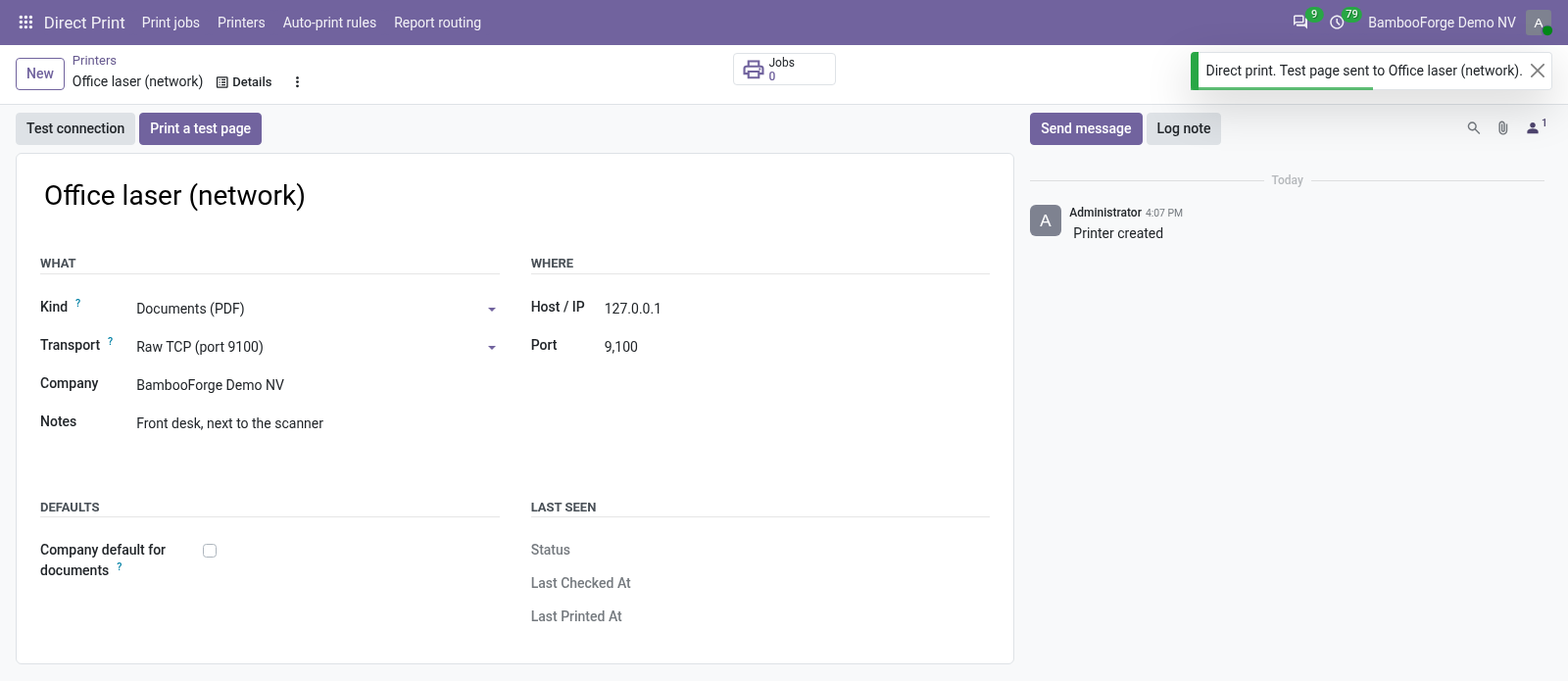
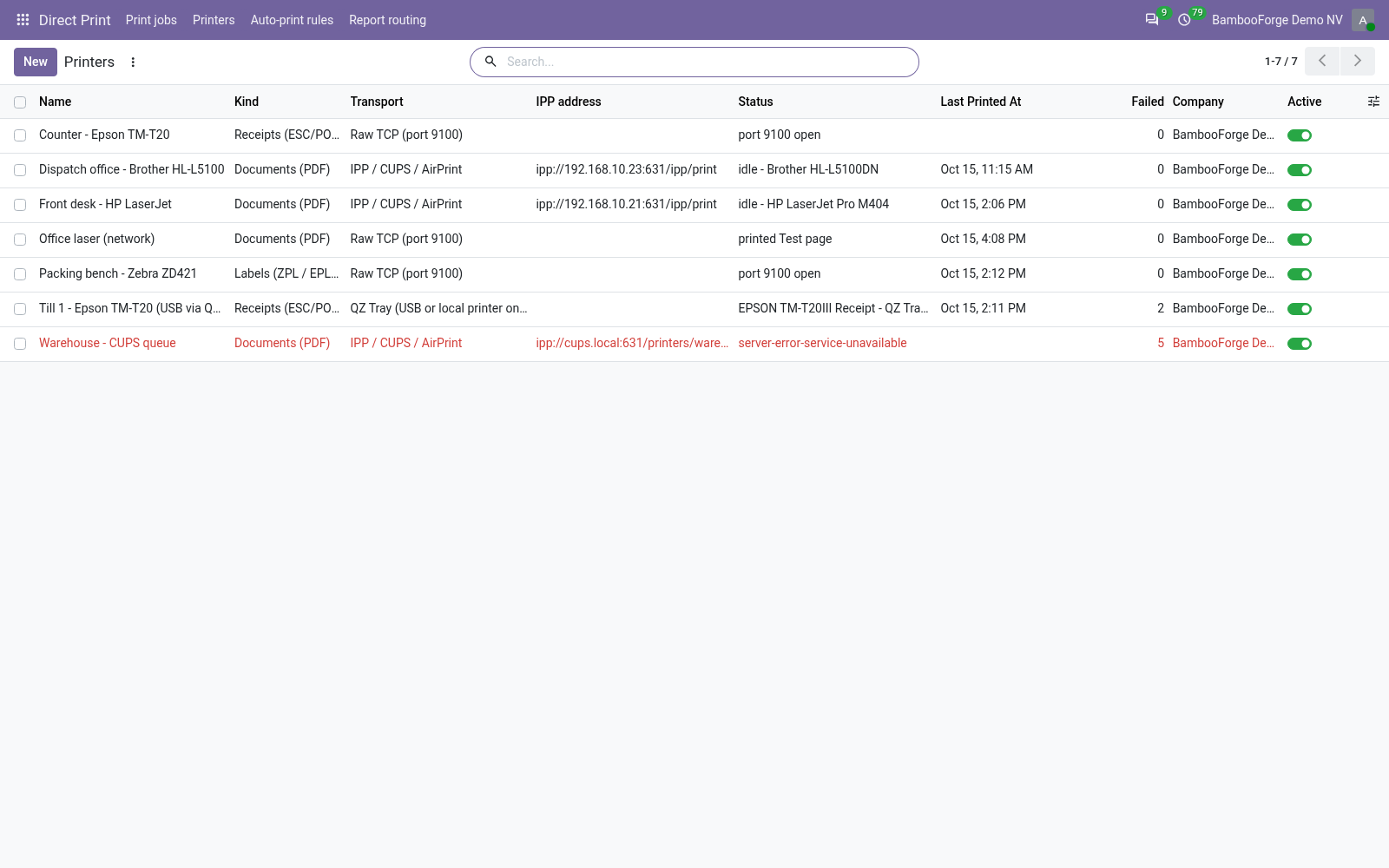
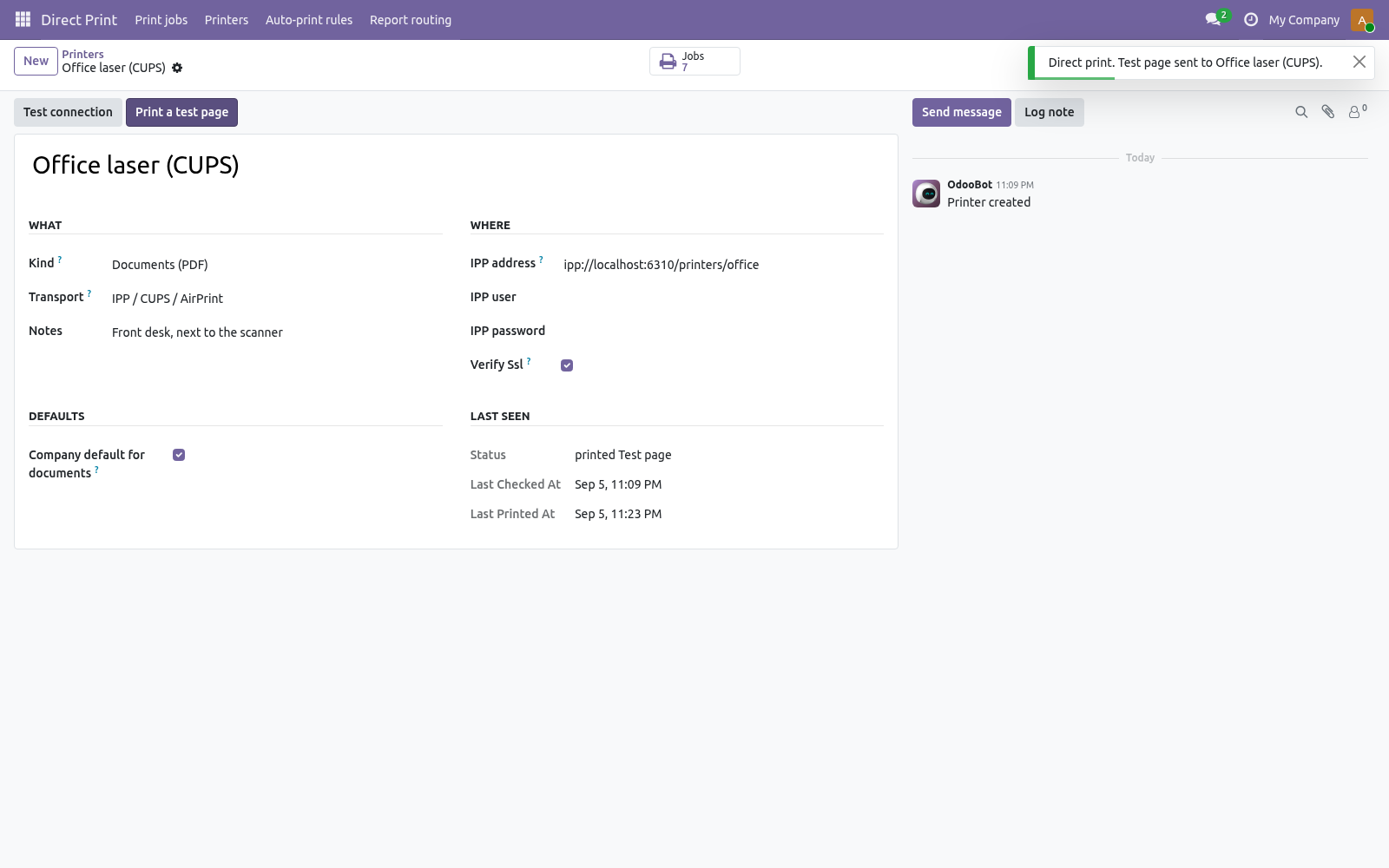
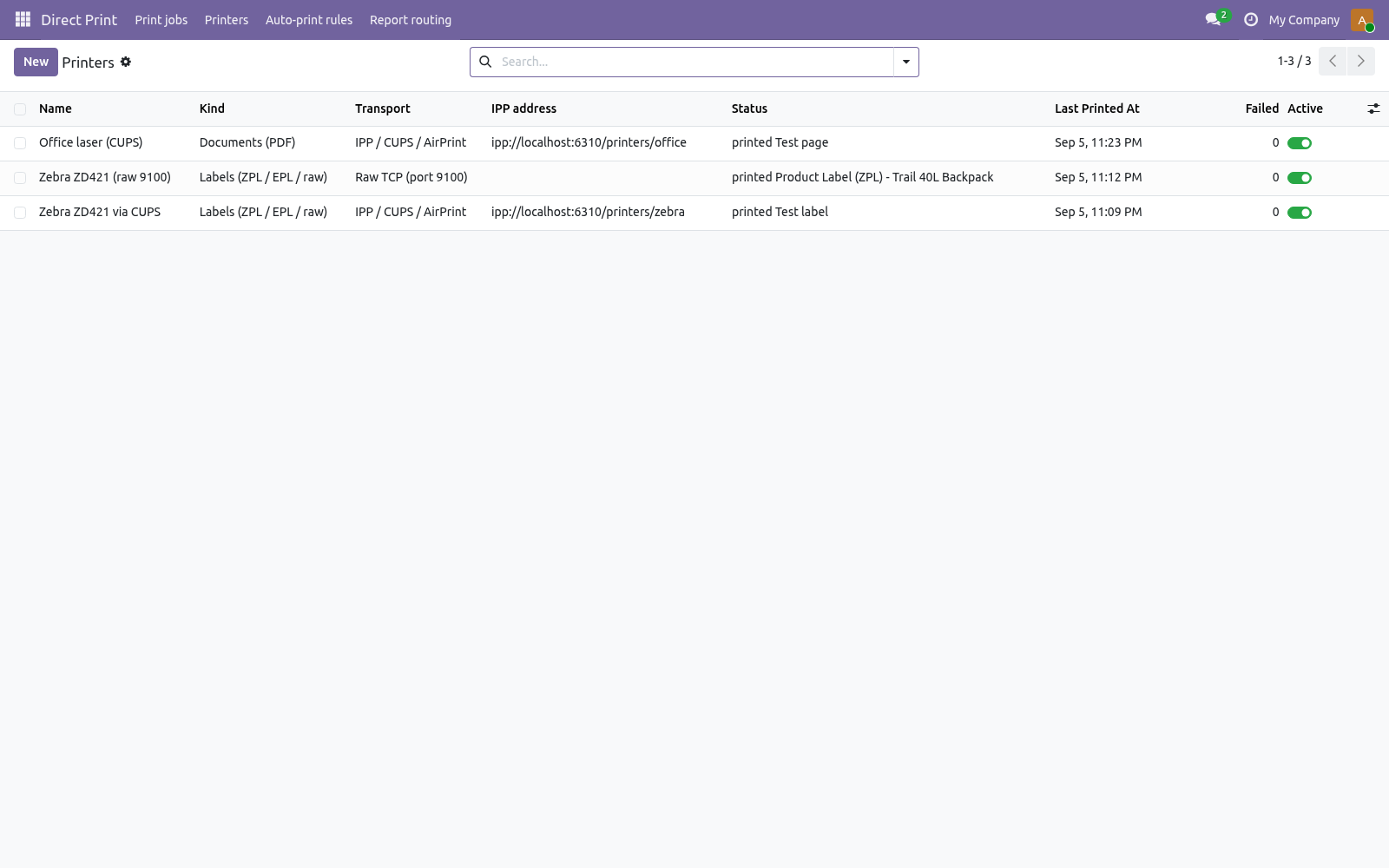
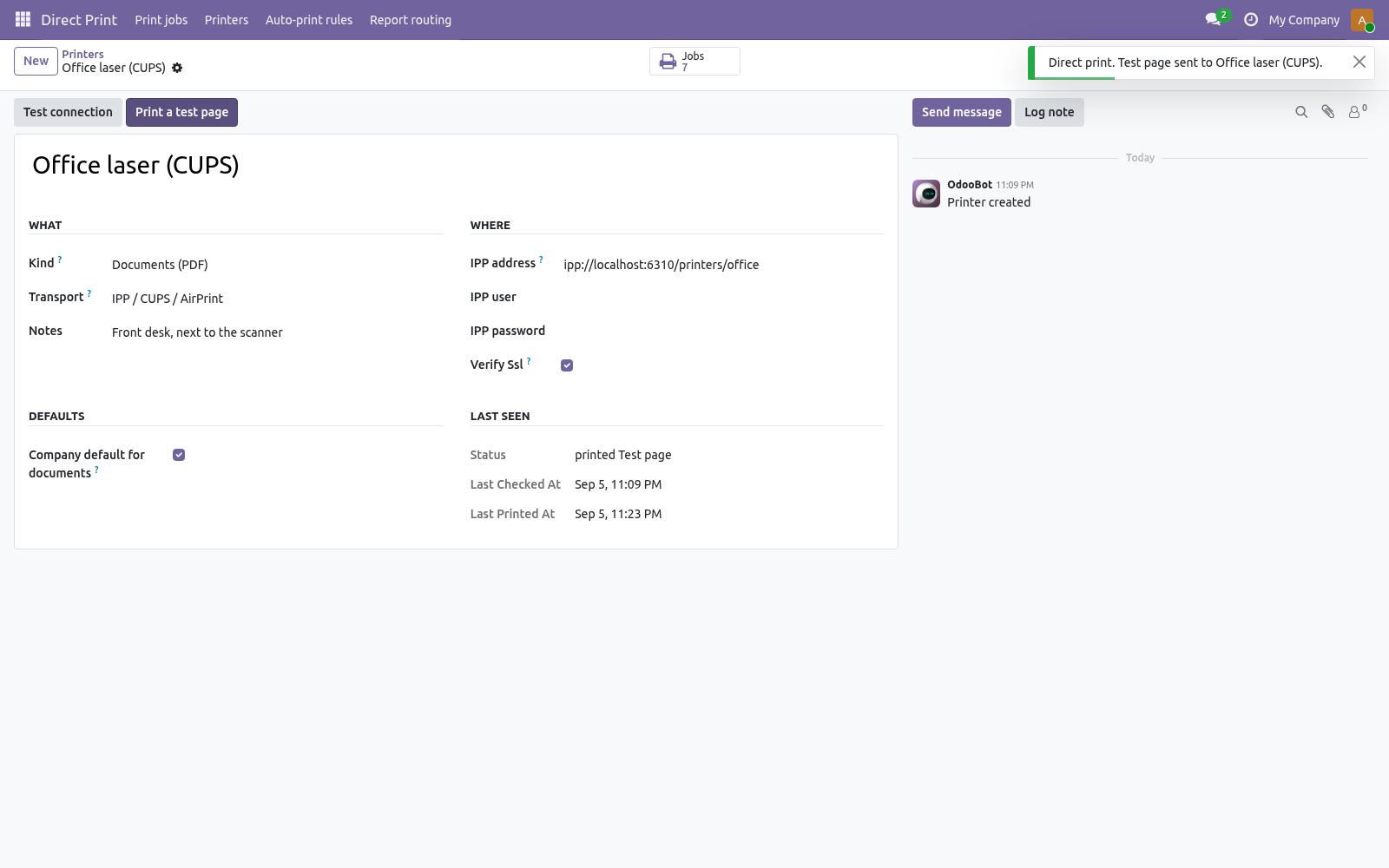
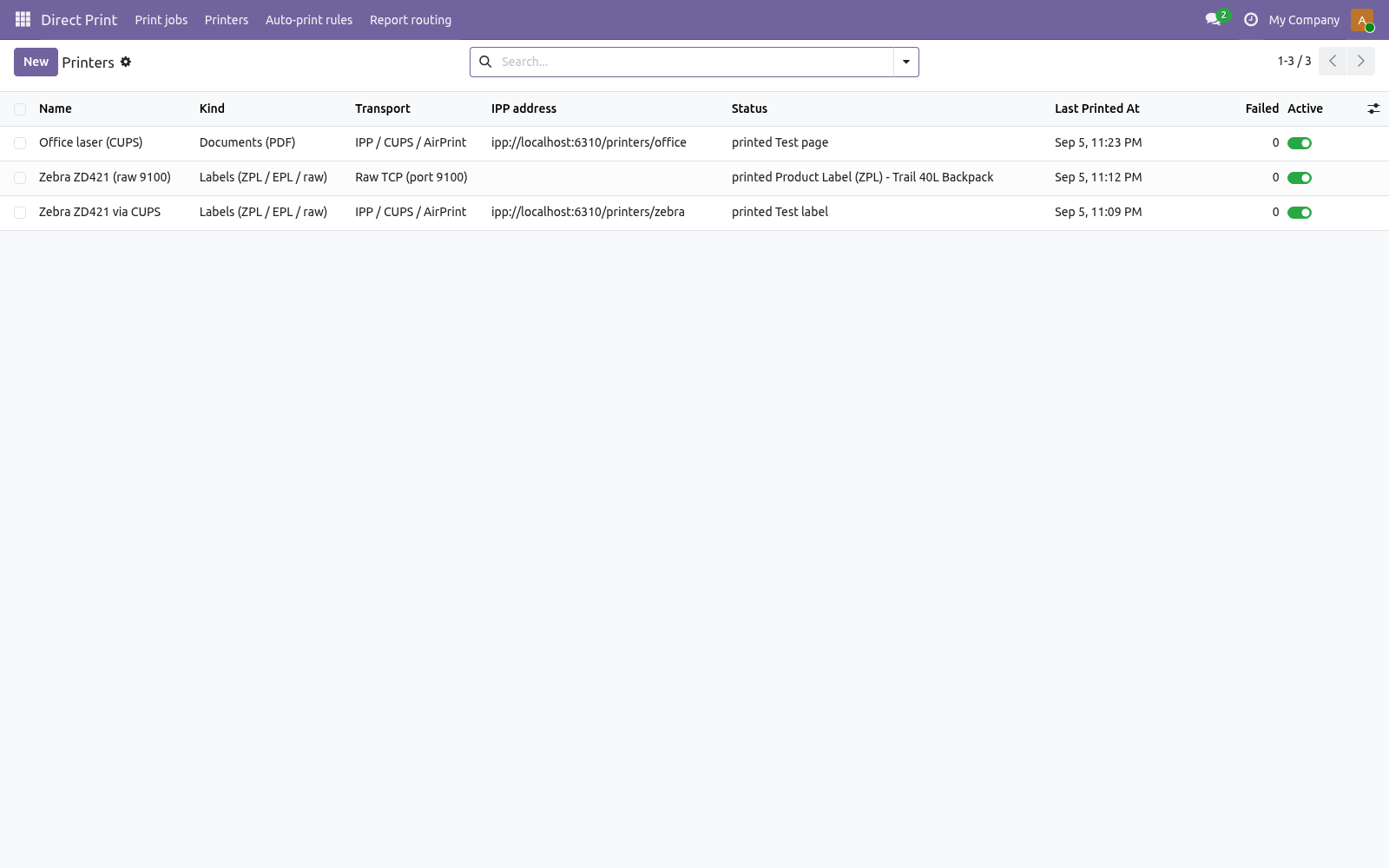
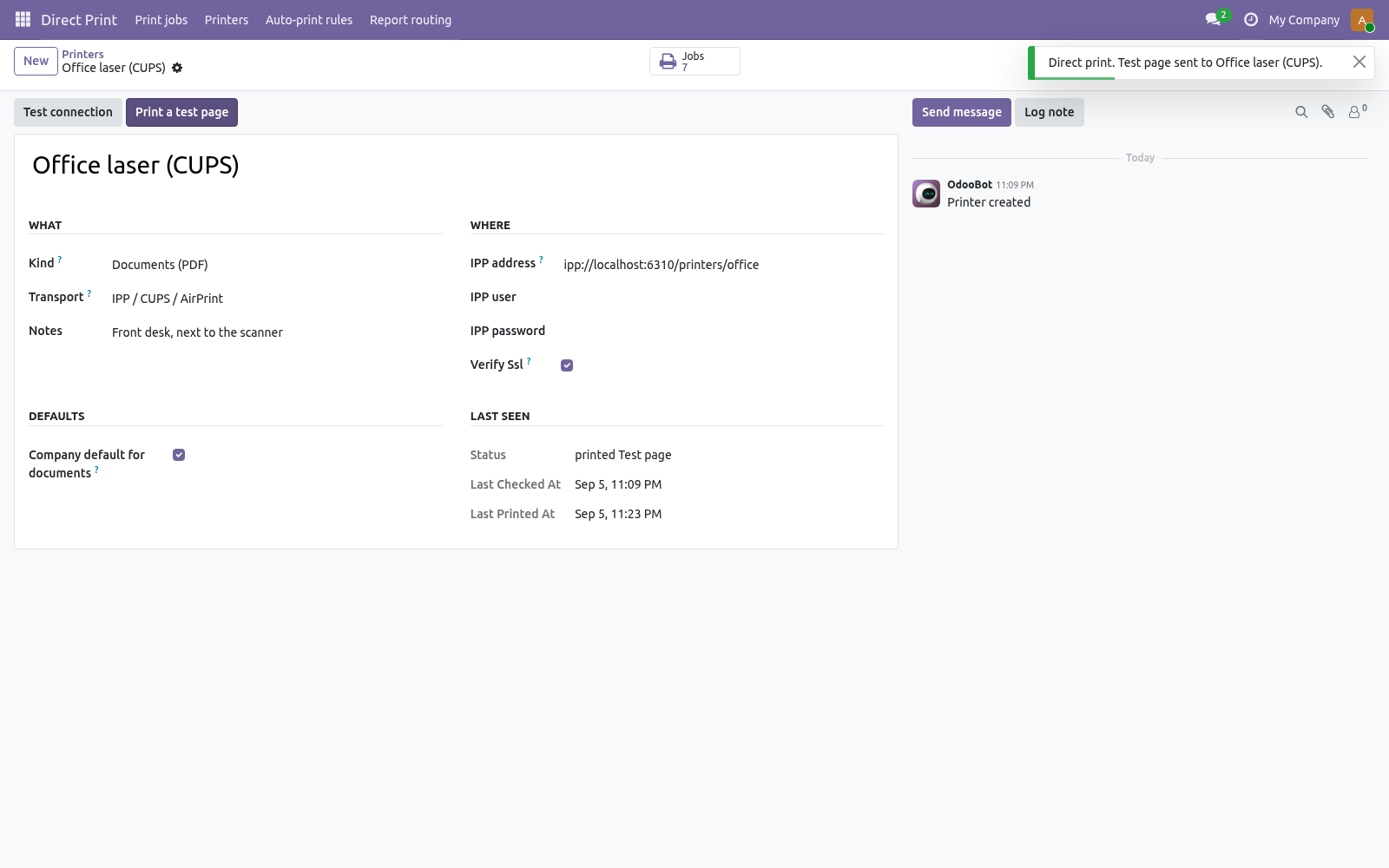
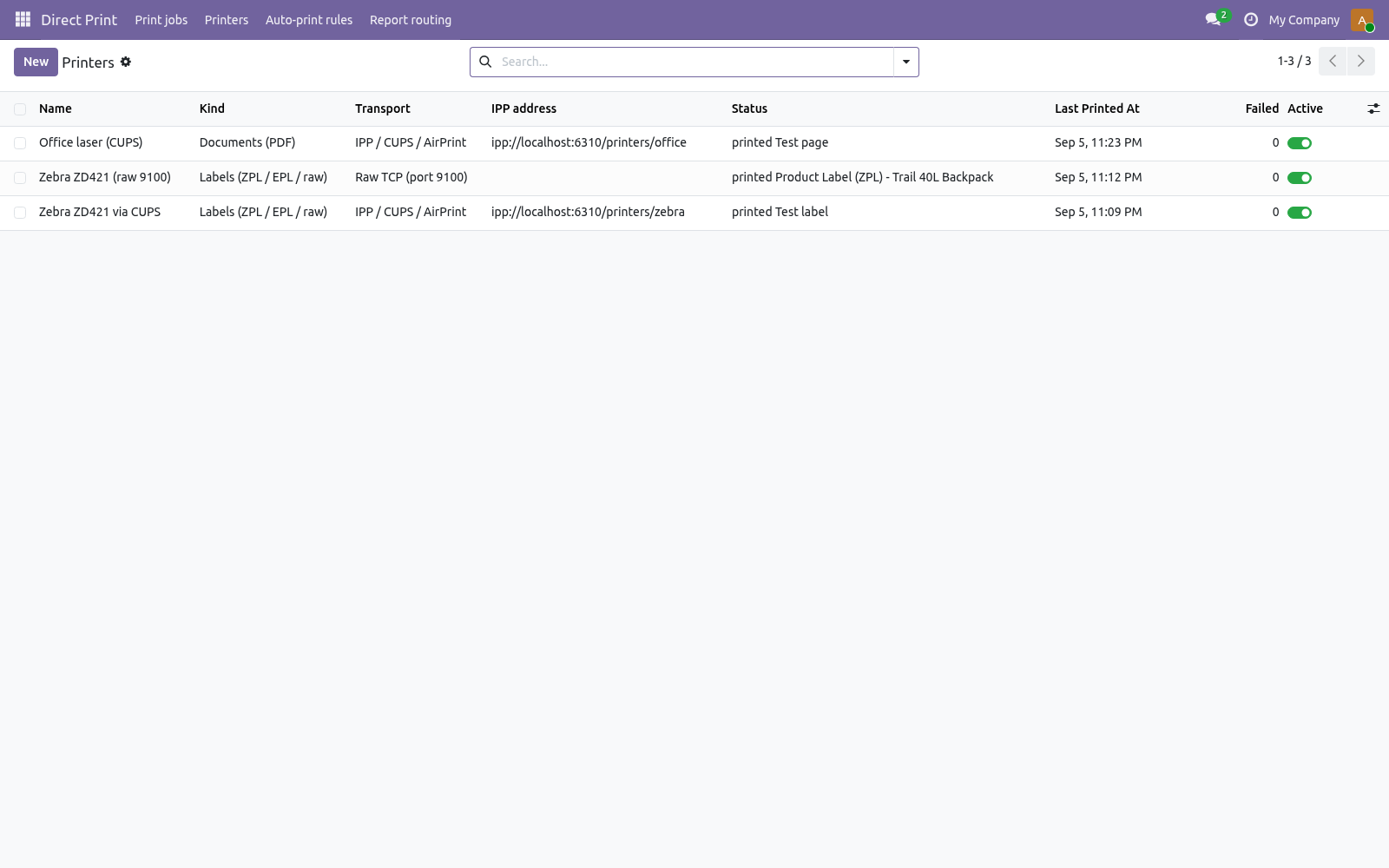
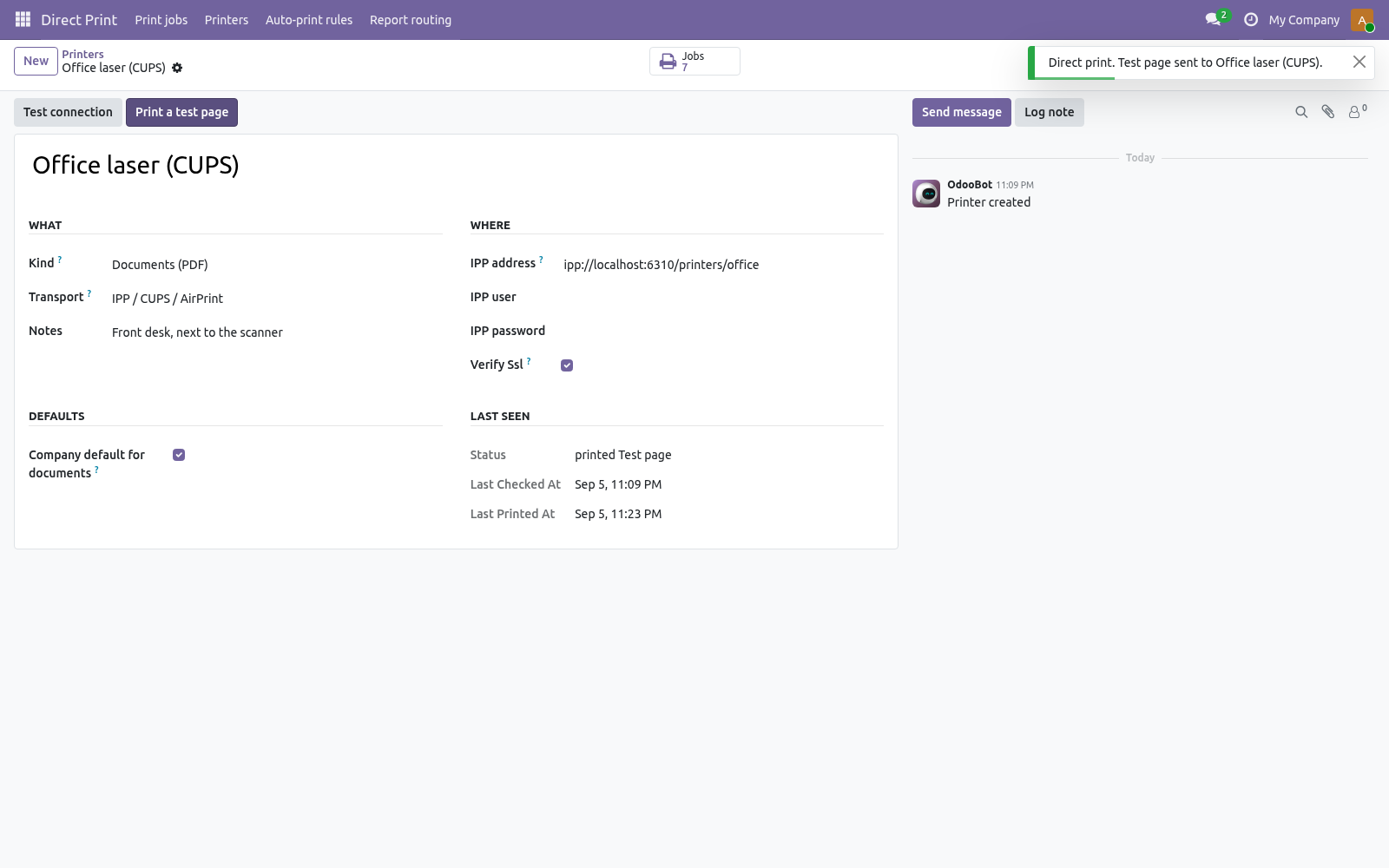
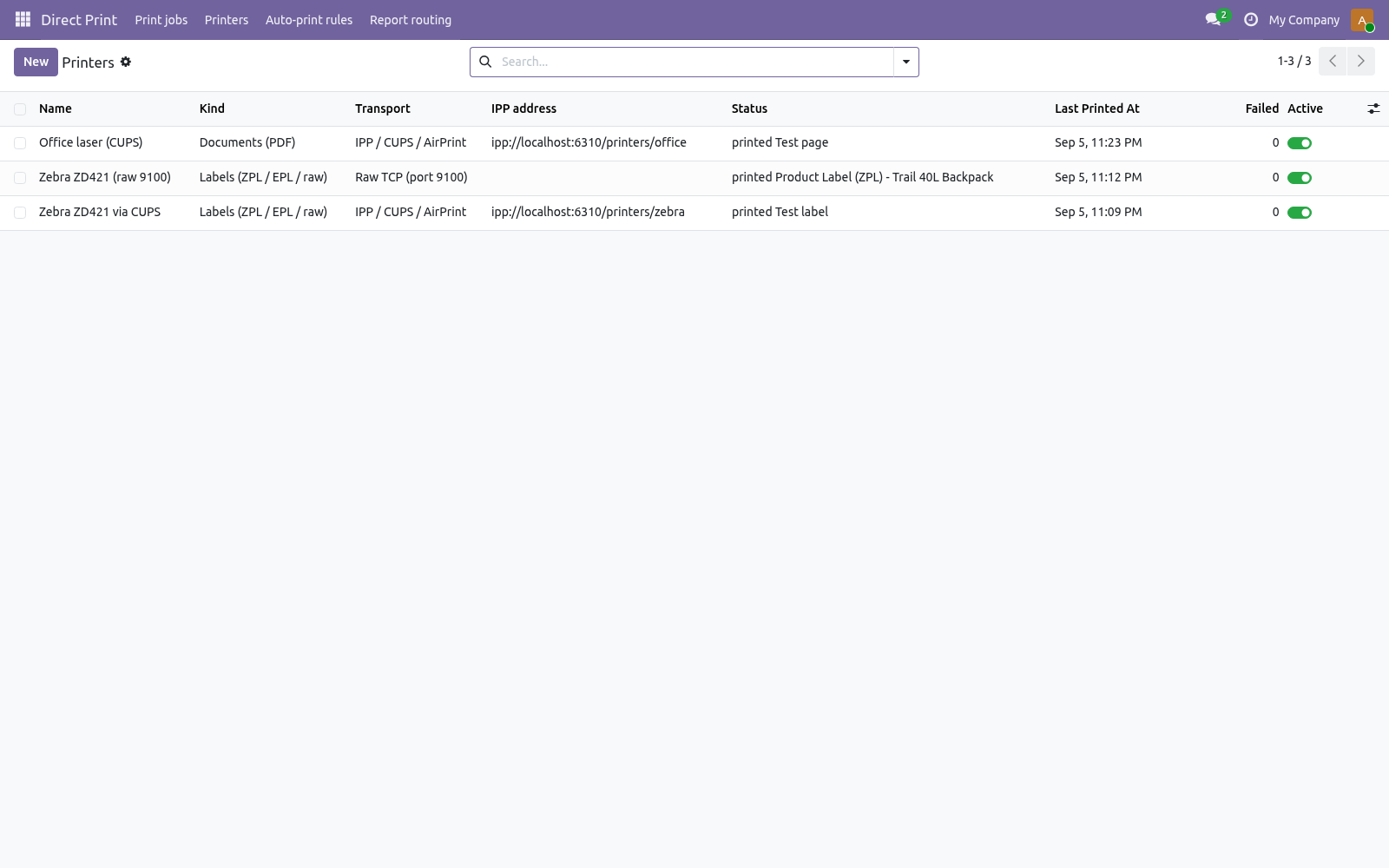
Add a printer. Kind Documents (PDF), Labels (ZPL / raw) or Receipts (ESC/POS). A PDF report is only ever sent to a document printer; a ZPL label only to a label printer. Transport IPP / CUPS / AirPrint for network printers and print servers; Raw TCP for Zebra, TSC, Godex, Bixolon, Epson receipt printers.
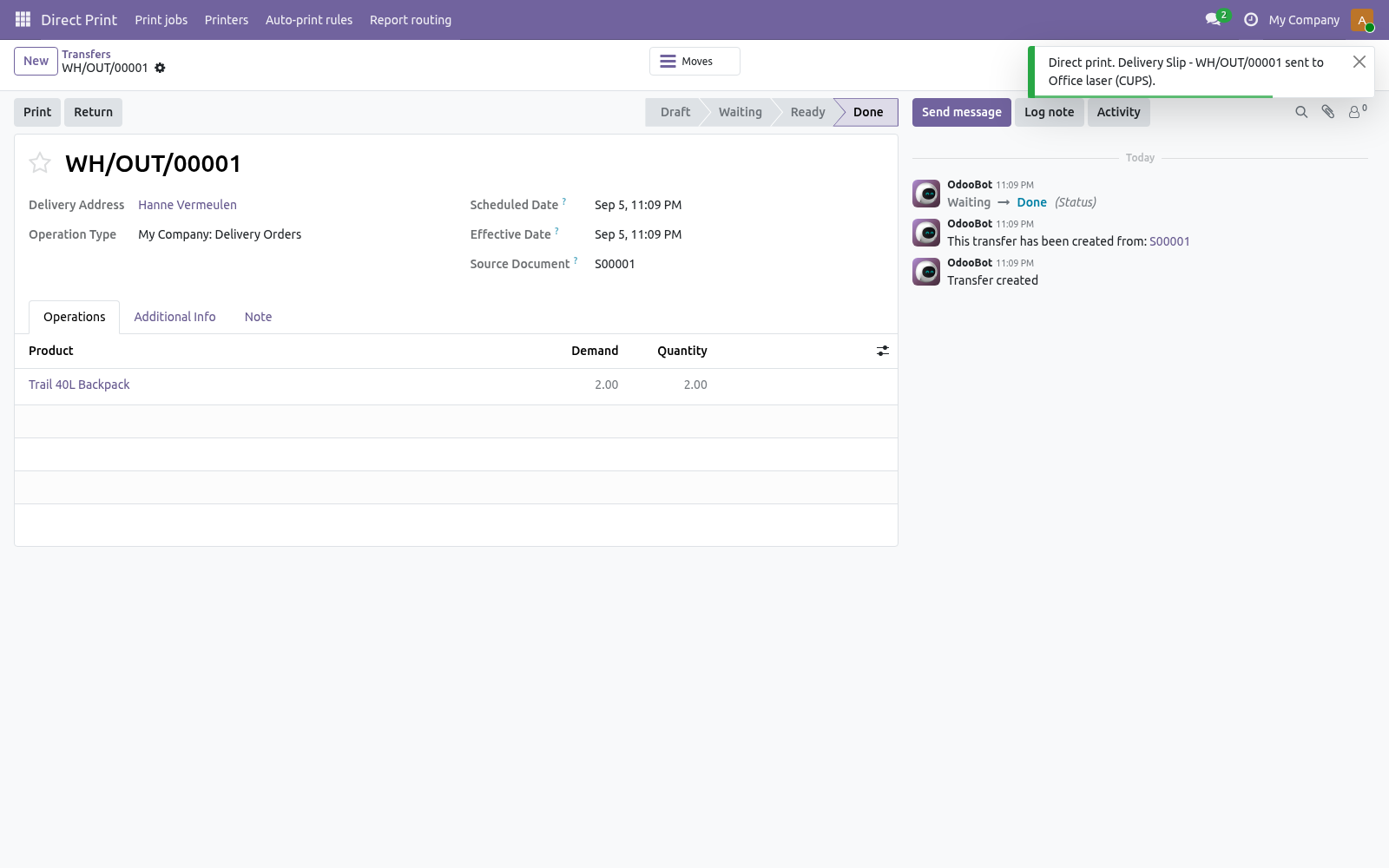
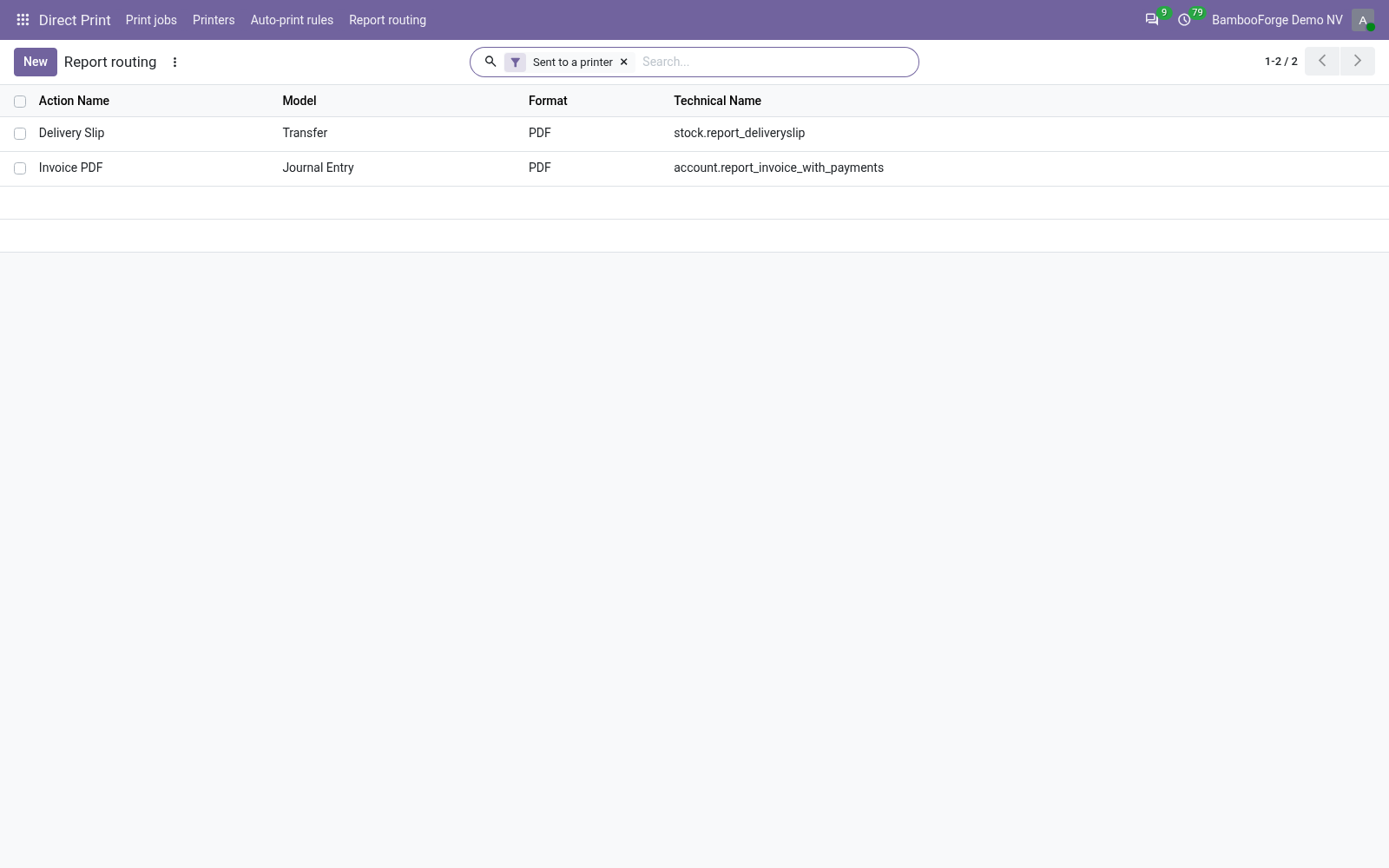
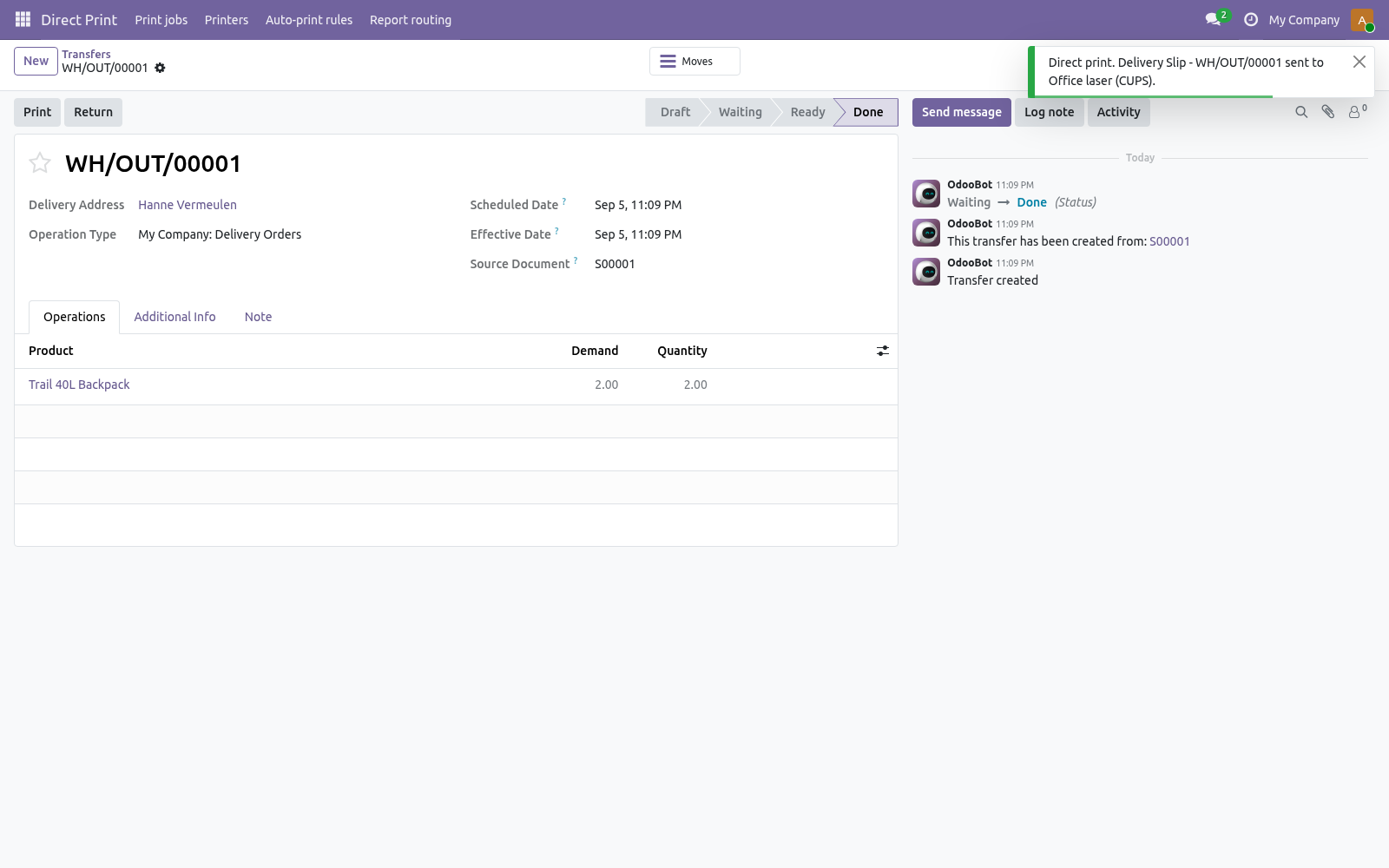
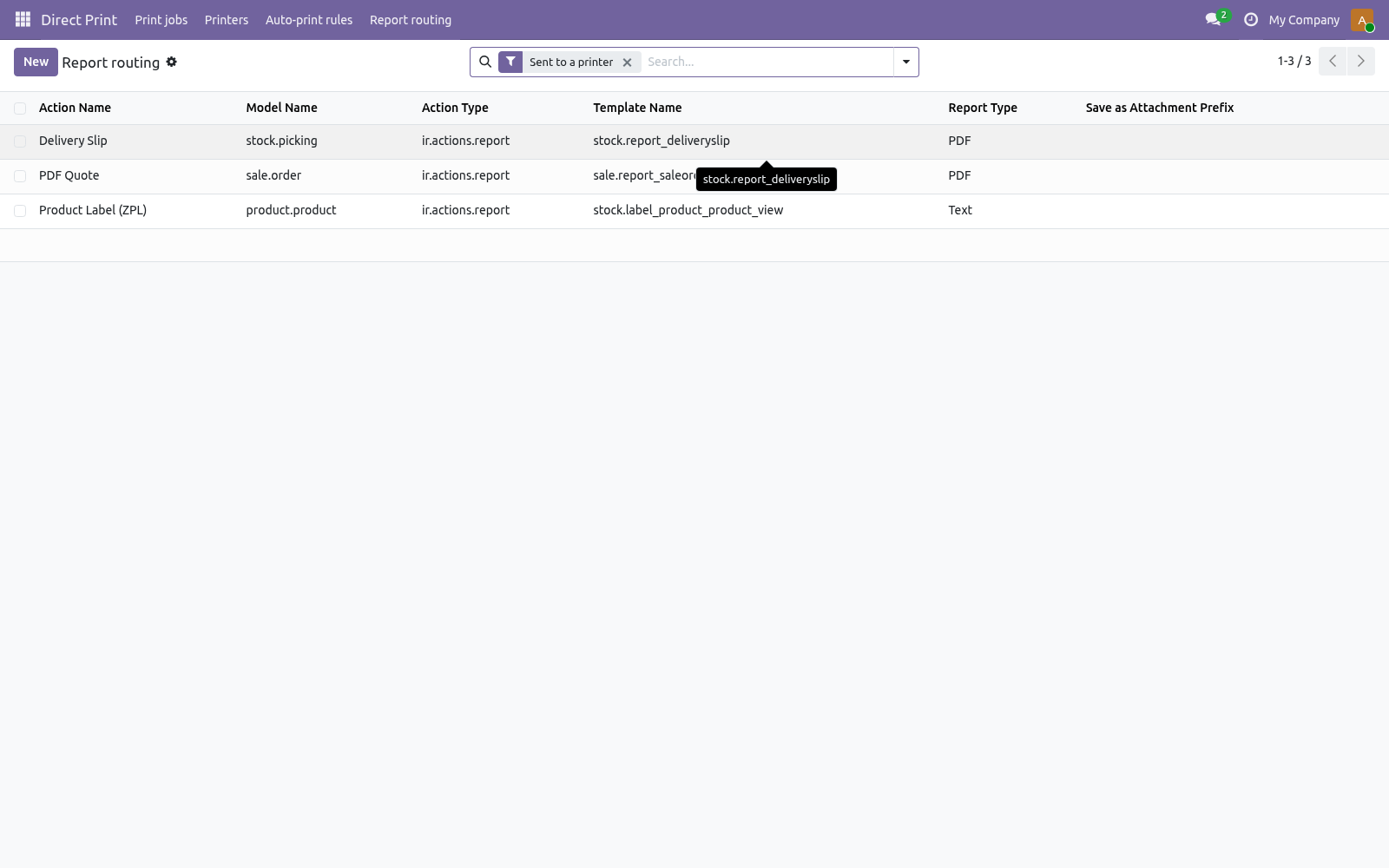
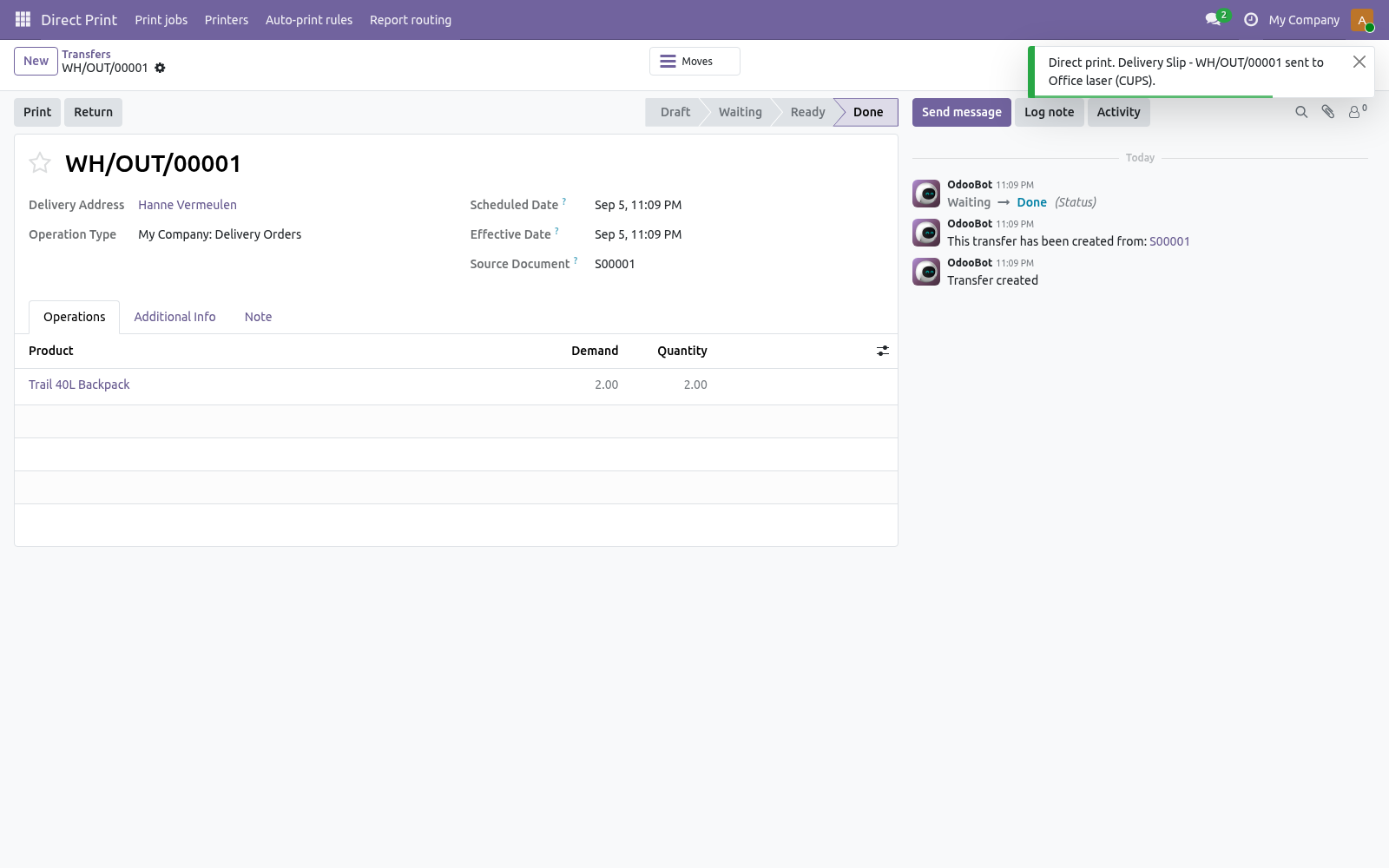
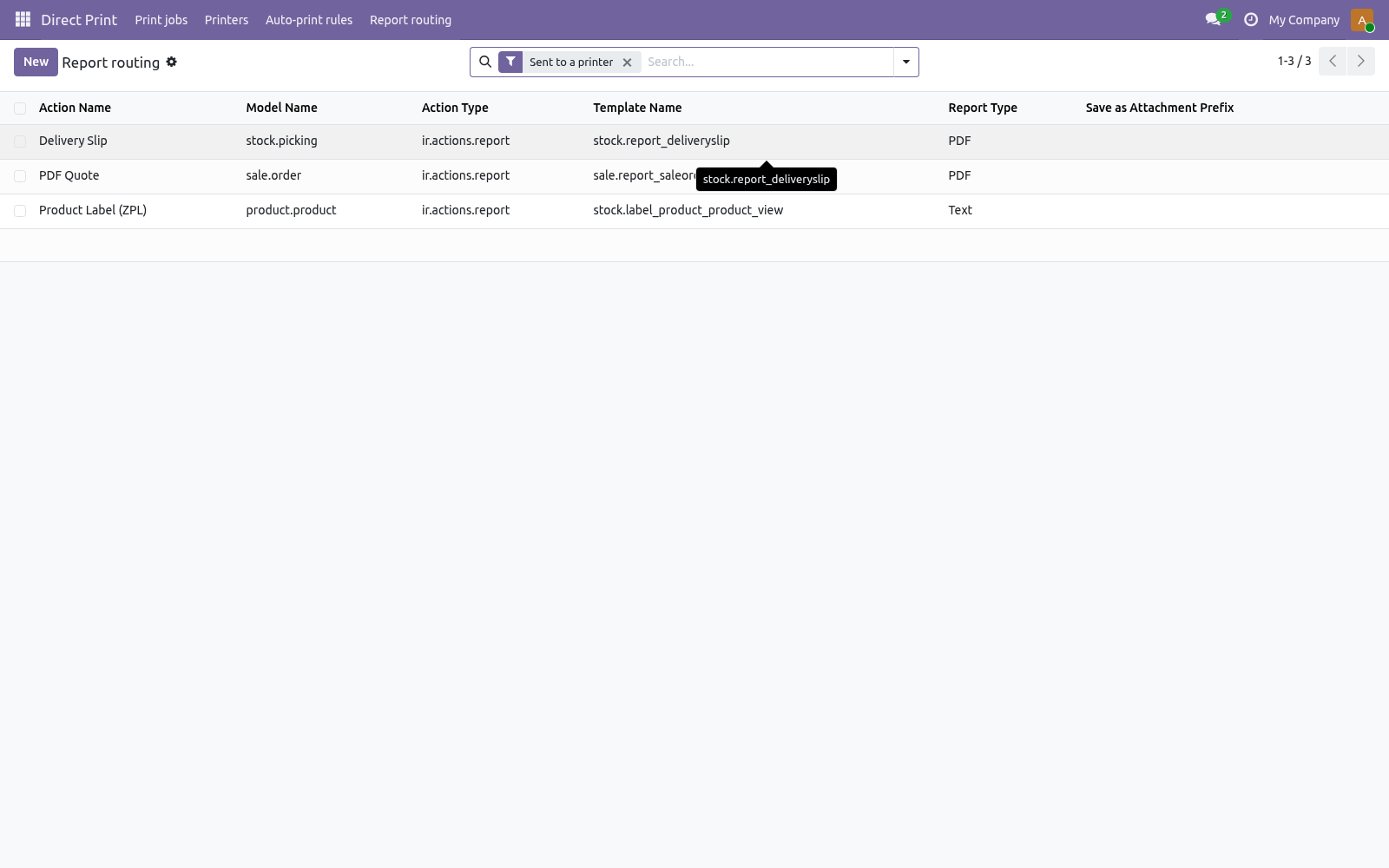
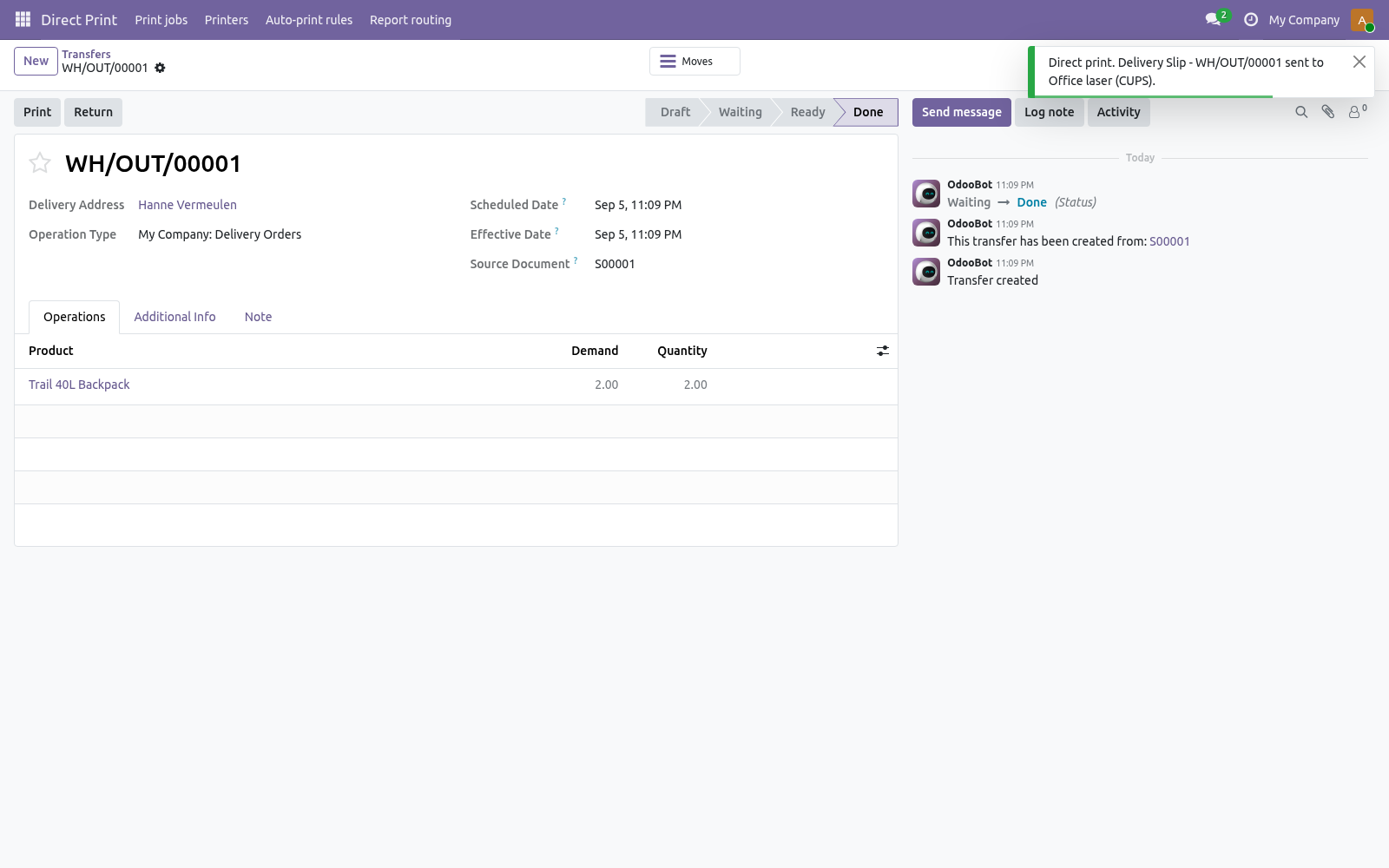
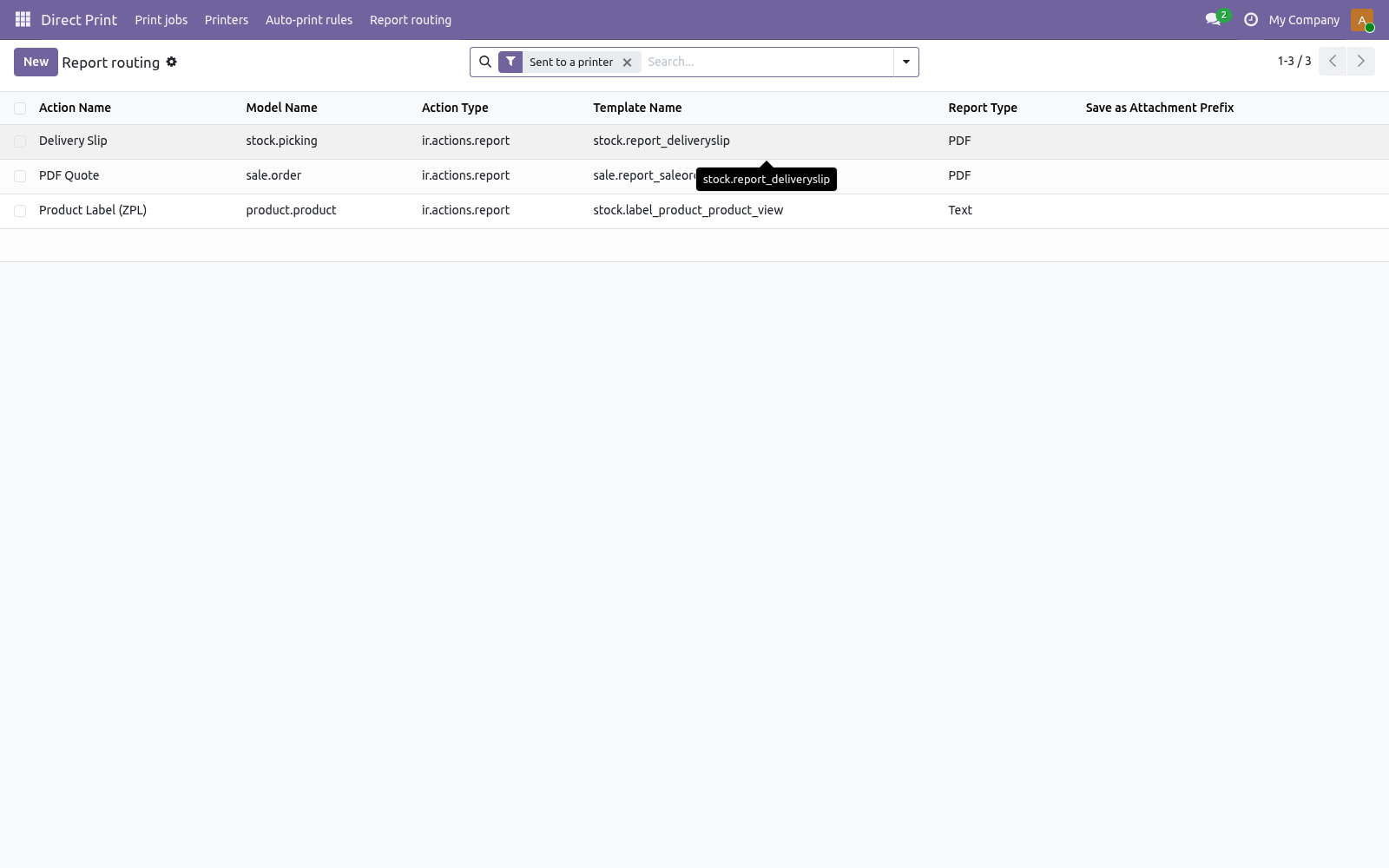
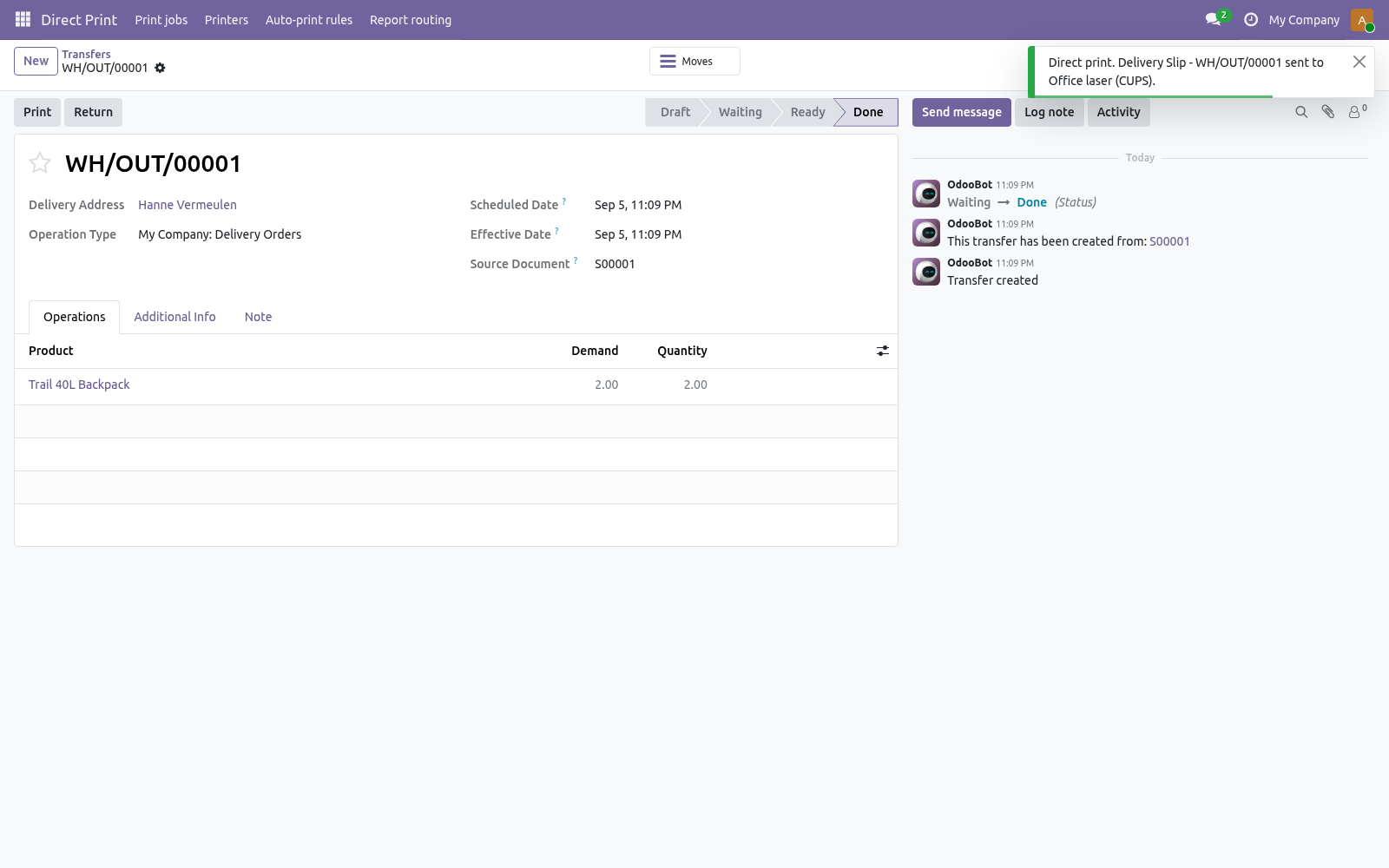
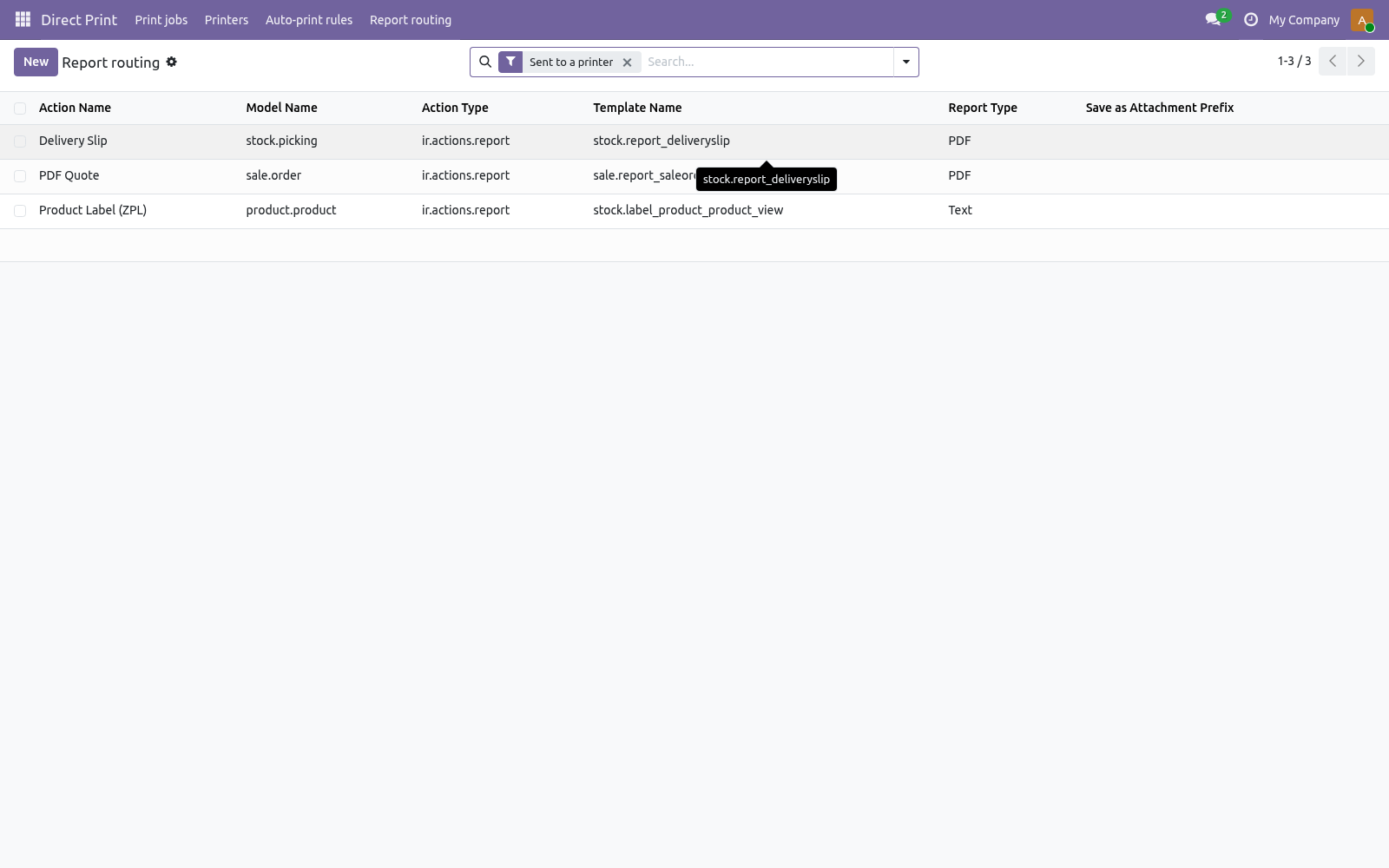
Print from the Print menu. Direct Print → Report routing lists every PDF and text report. Open one and set When printed: Open in the browser - Odoo's default, unchanged. Send to the printer - the Print menu sends the document and shows "Delivery Slip - WH/OUT/00012 sent to Office laser"; nothing downloads.
Send to the printer and open in the browser - both. Name a Printer on the report, or leave it empty: then the user's own printer is used (Preferences → My printers), and failing that the company default of the right kind. Copies applies to every send. Auto-print rules.
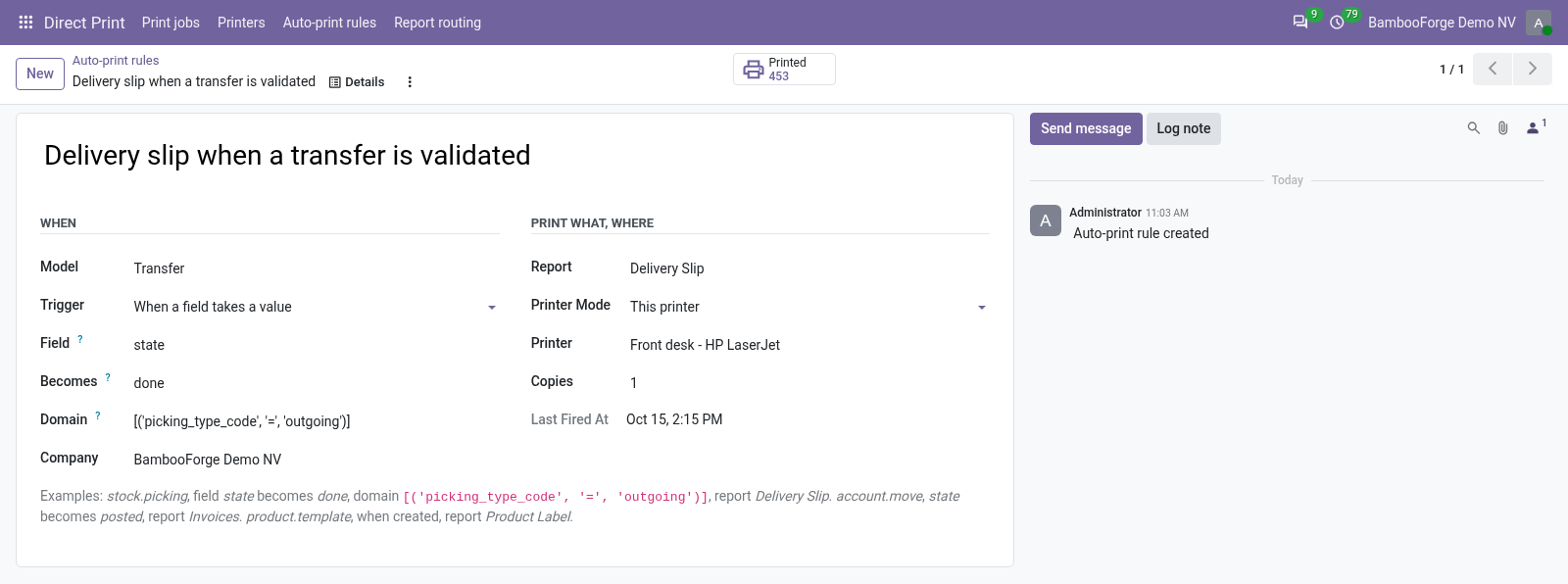
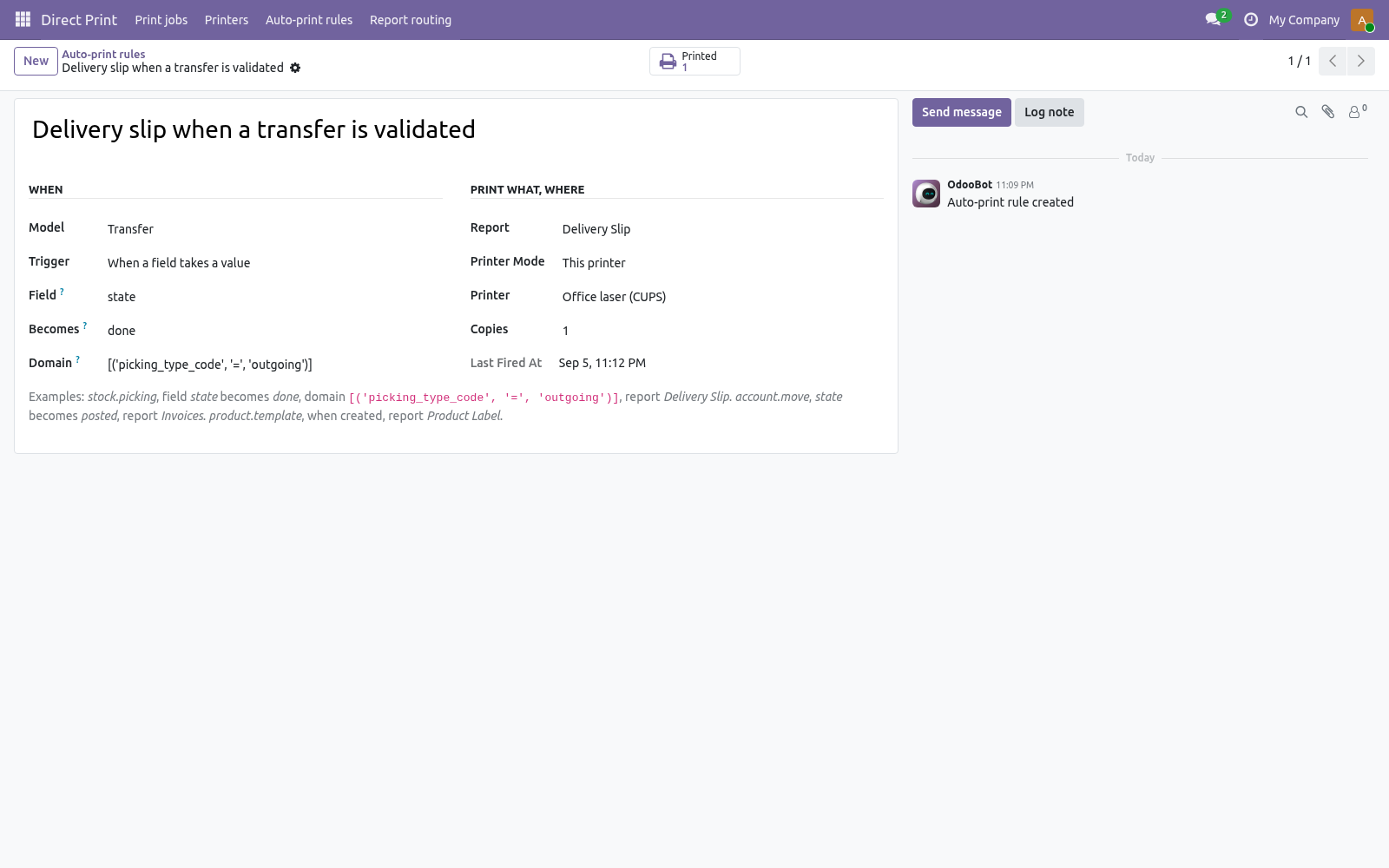
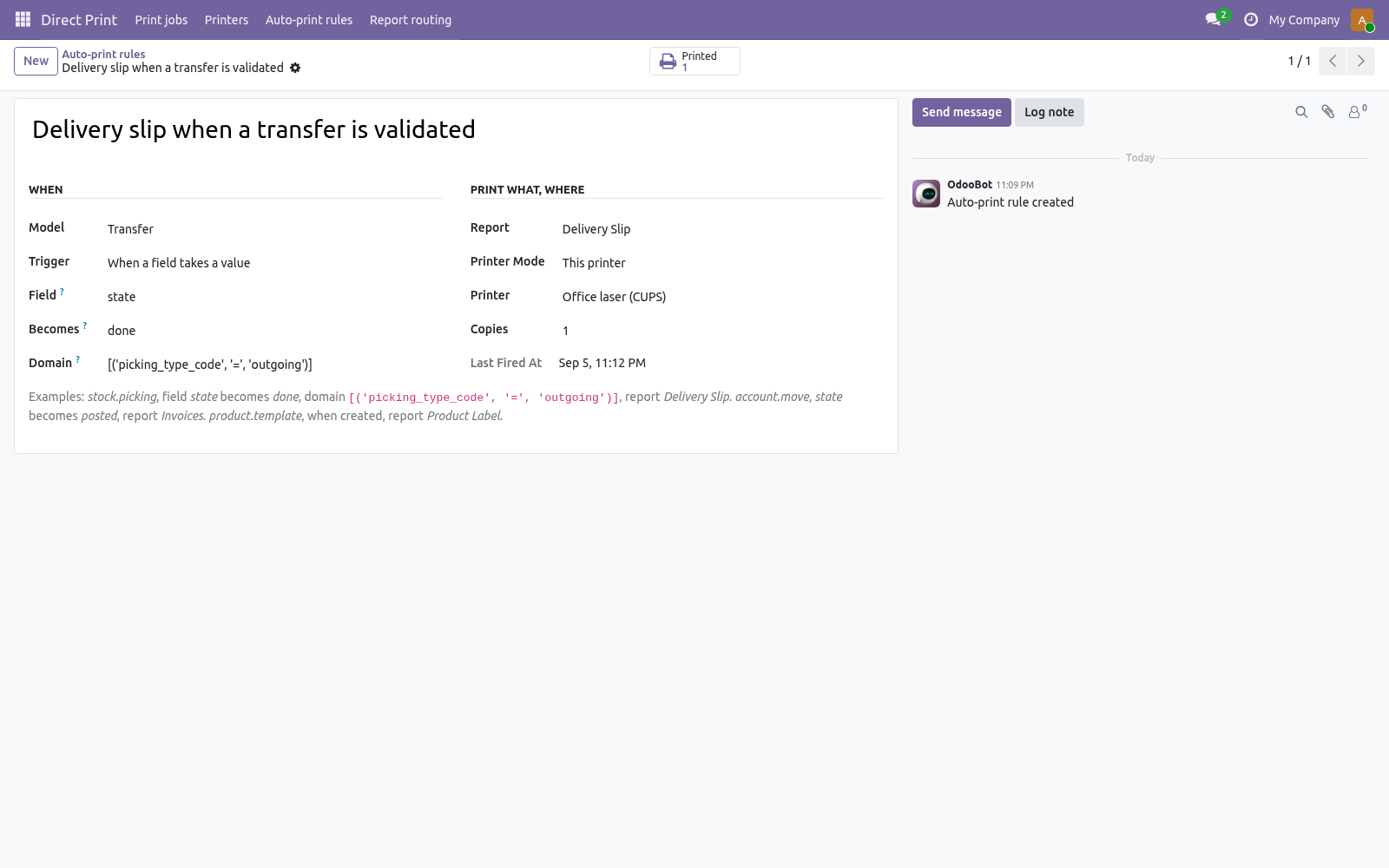
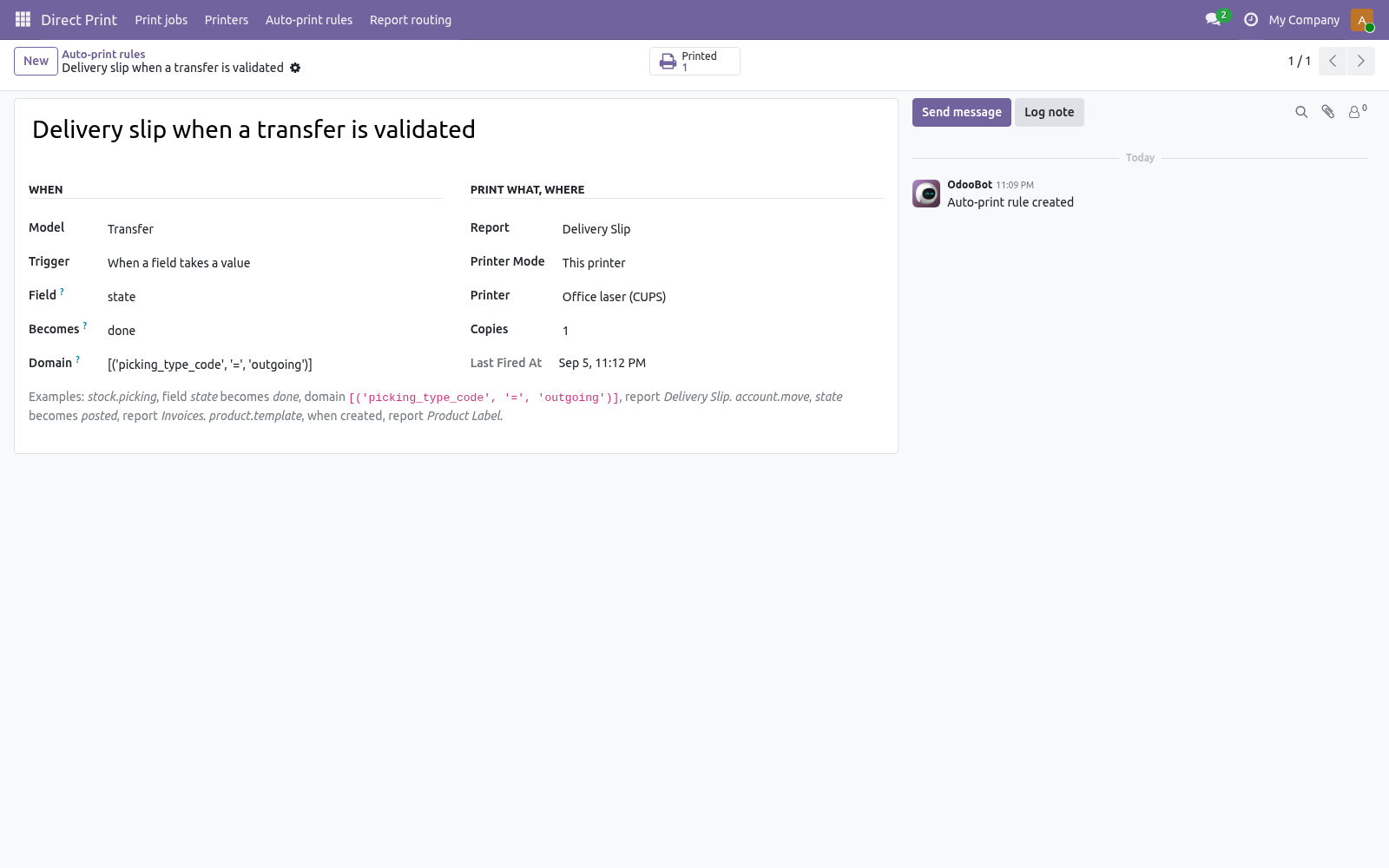
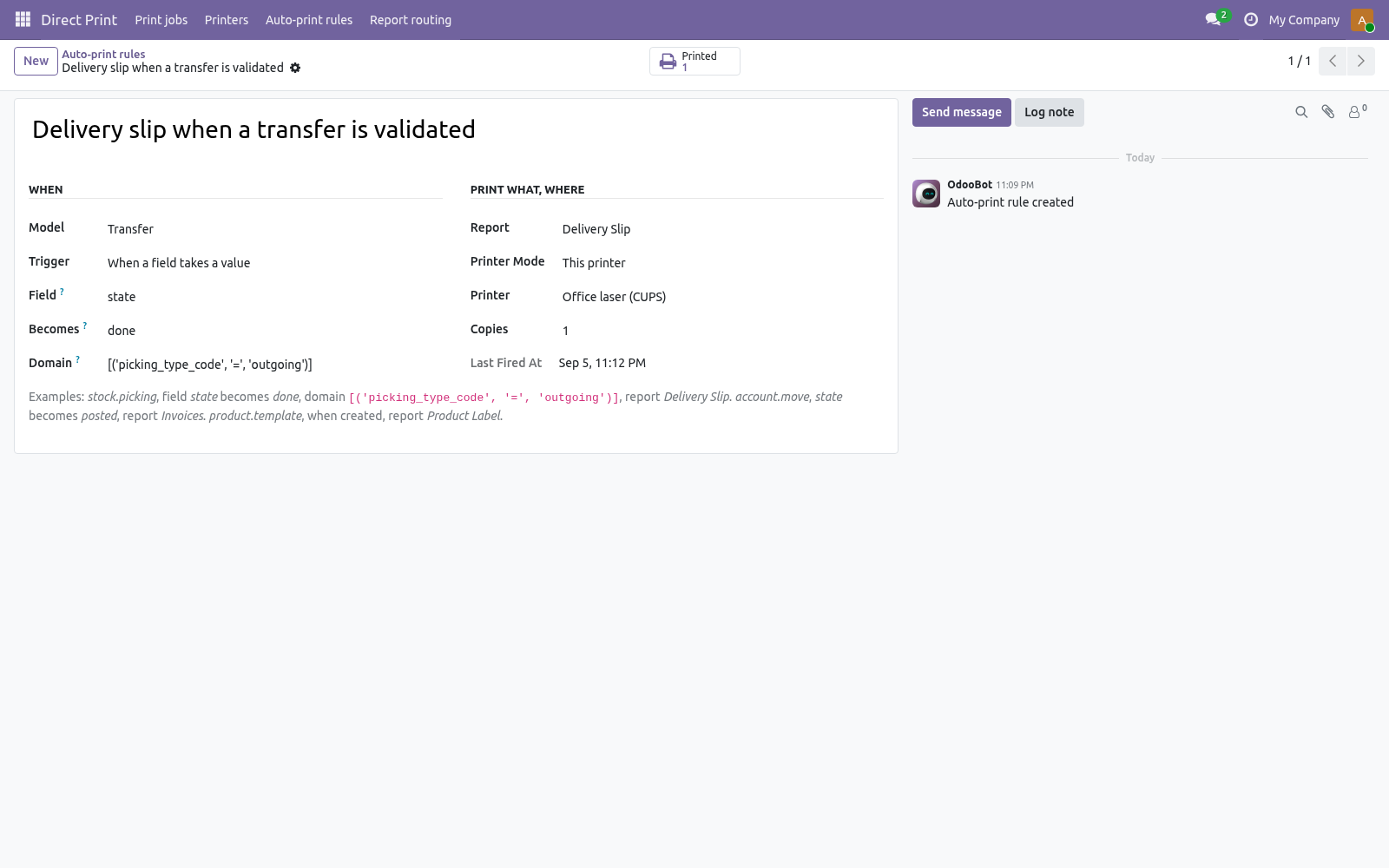
Model What to watch: Transfer, Journal Entry, Sales Order, Product ... Transfer, state becomes done, domain outgoing, report Delivery Slip, the packing-bench printer. Journal Entry, state becomes posted, domain [('move_type', '=', 'out_invoice')], report Invoices, the office printer. Product, when created, report Product Label (ZPL), the Zebra.
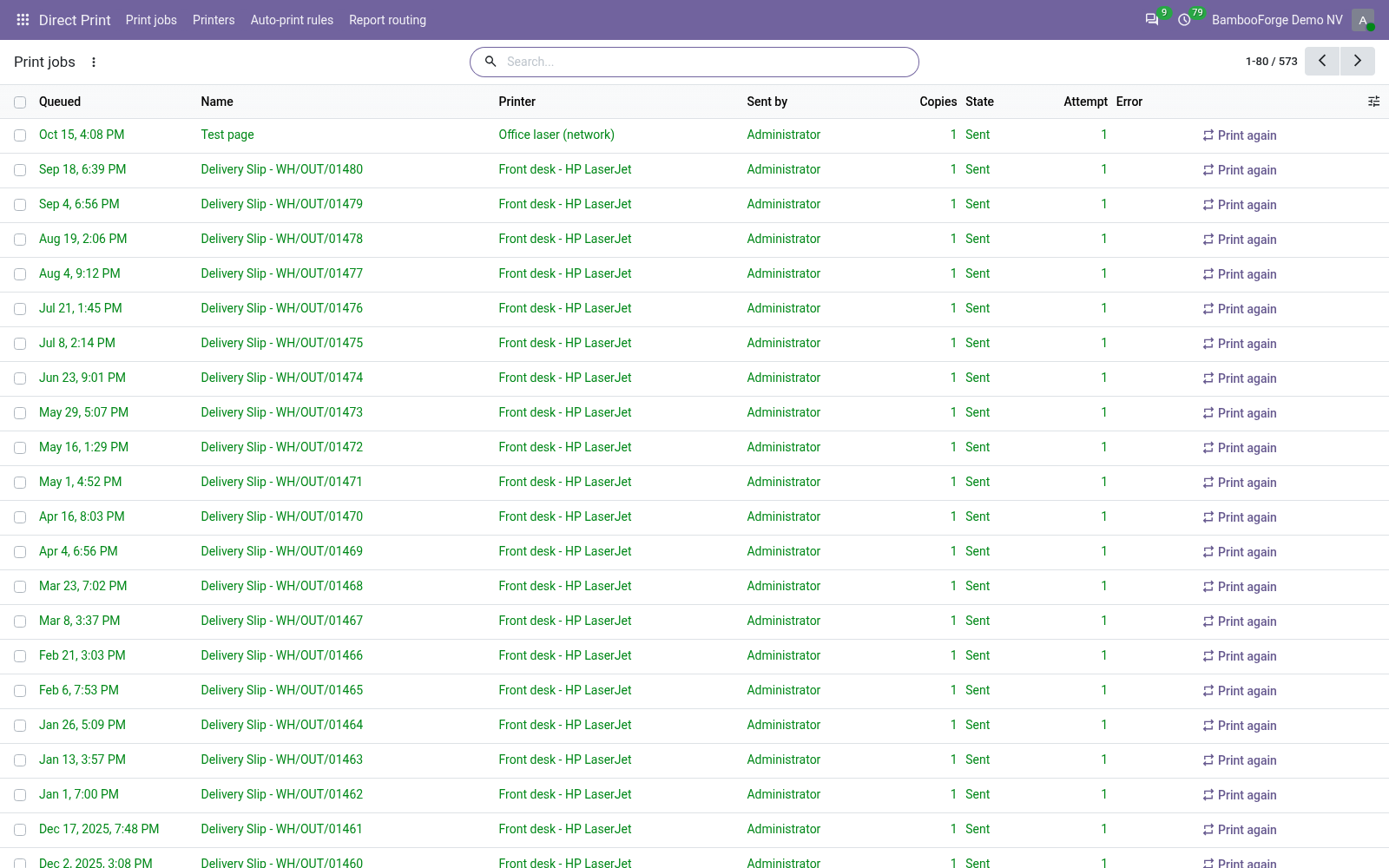
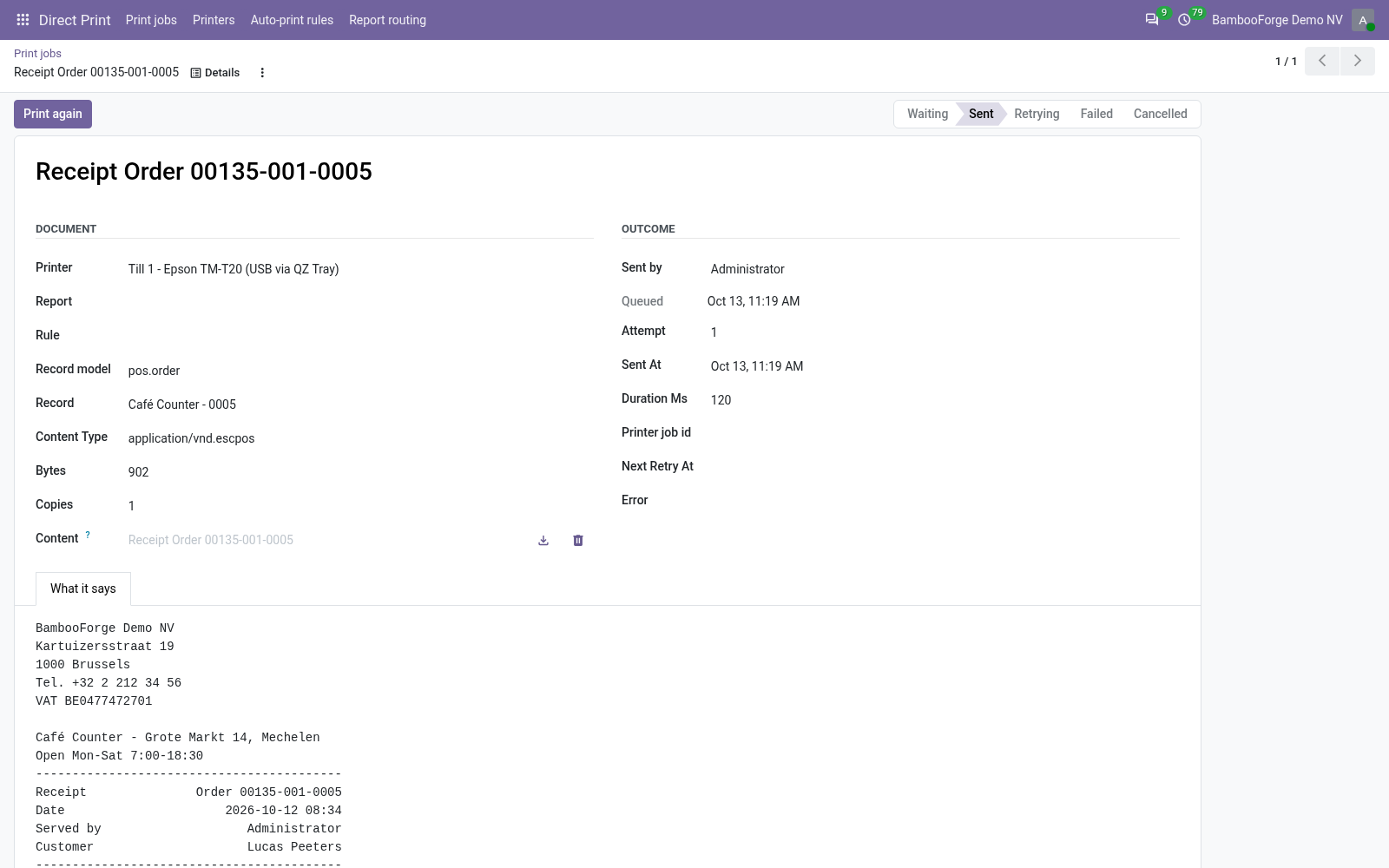
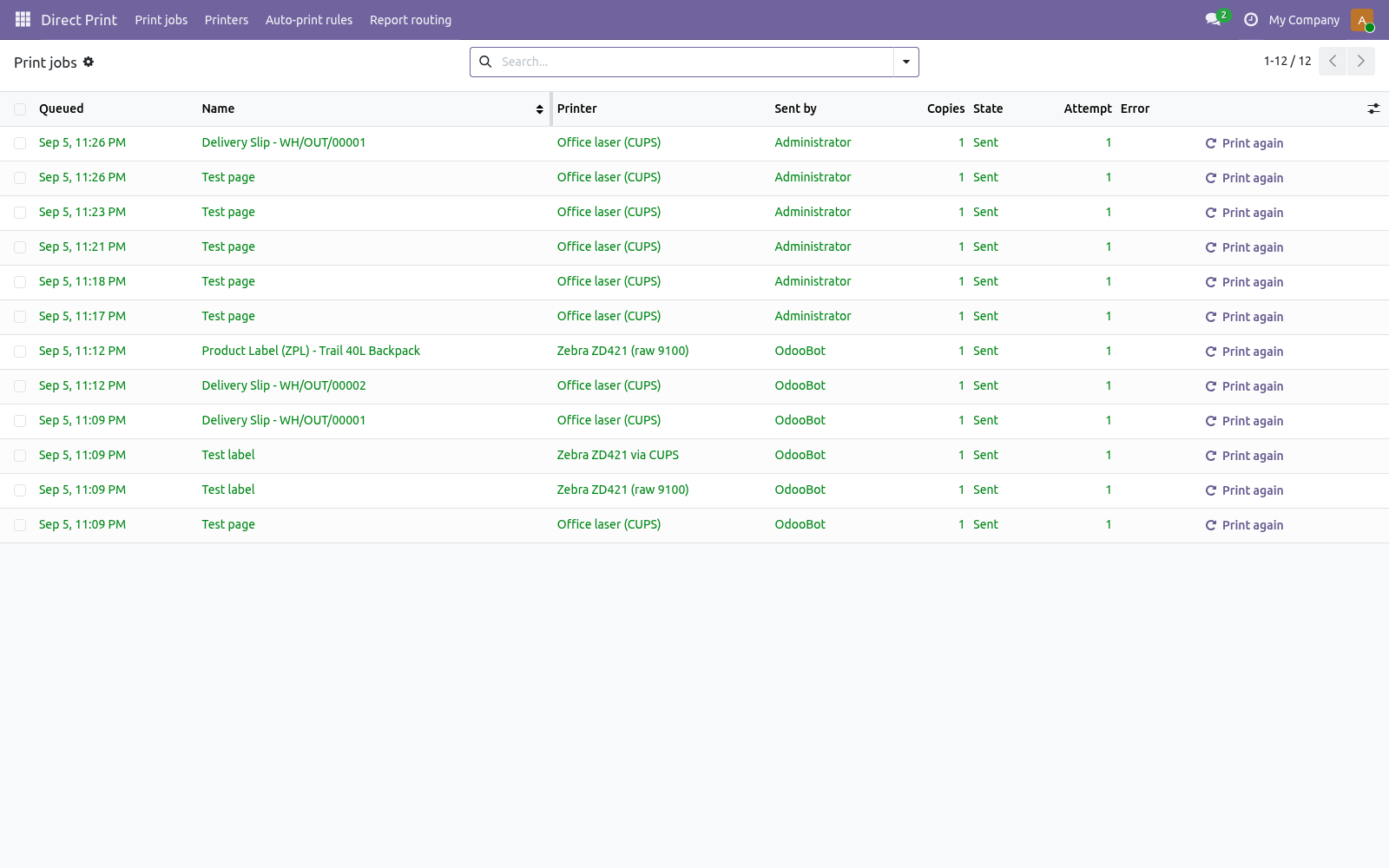
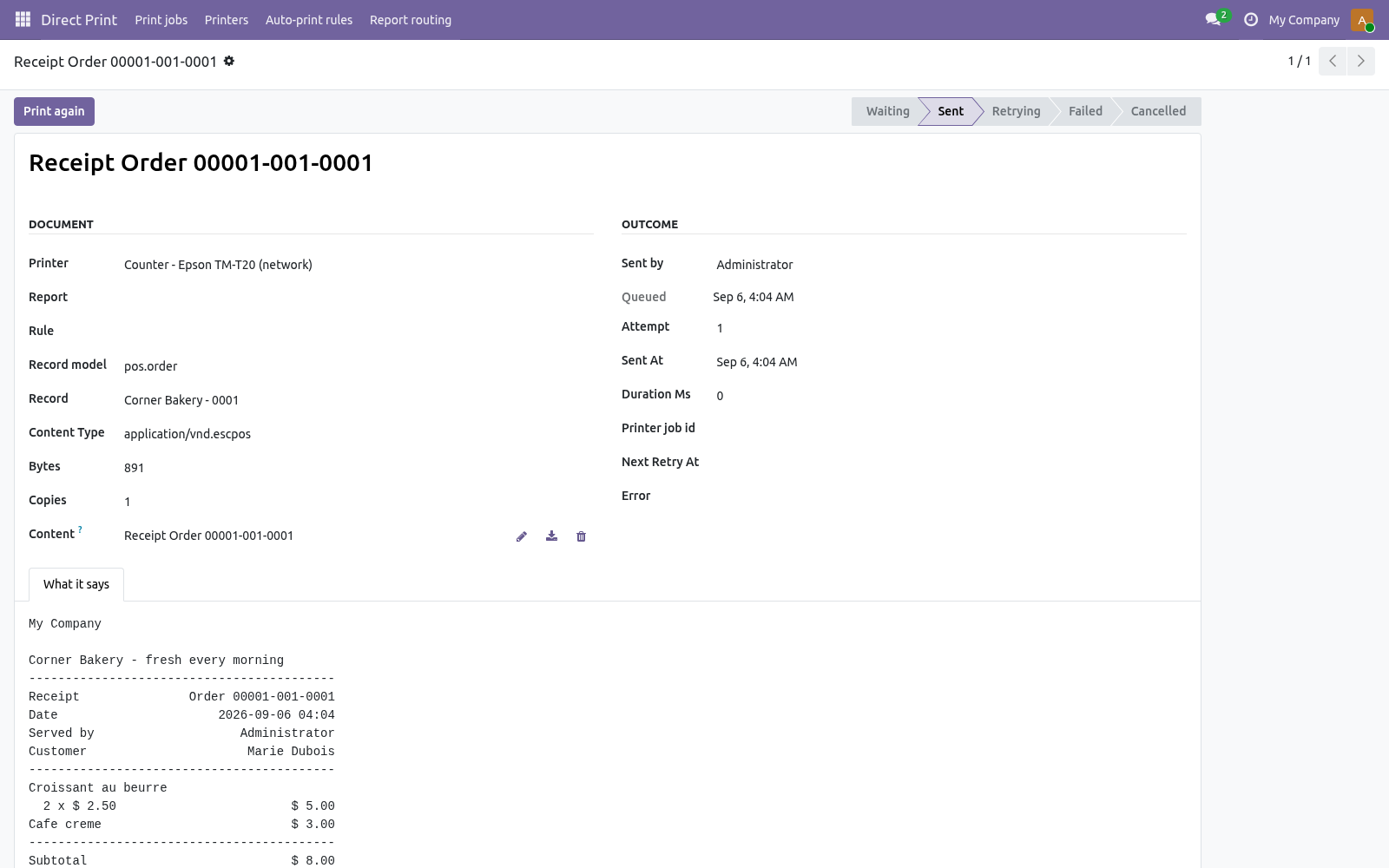
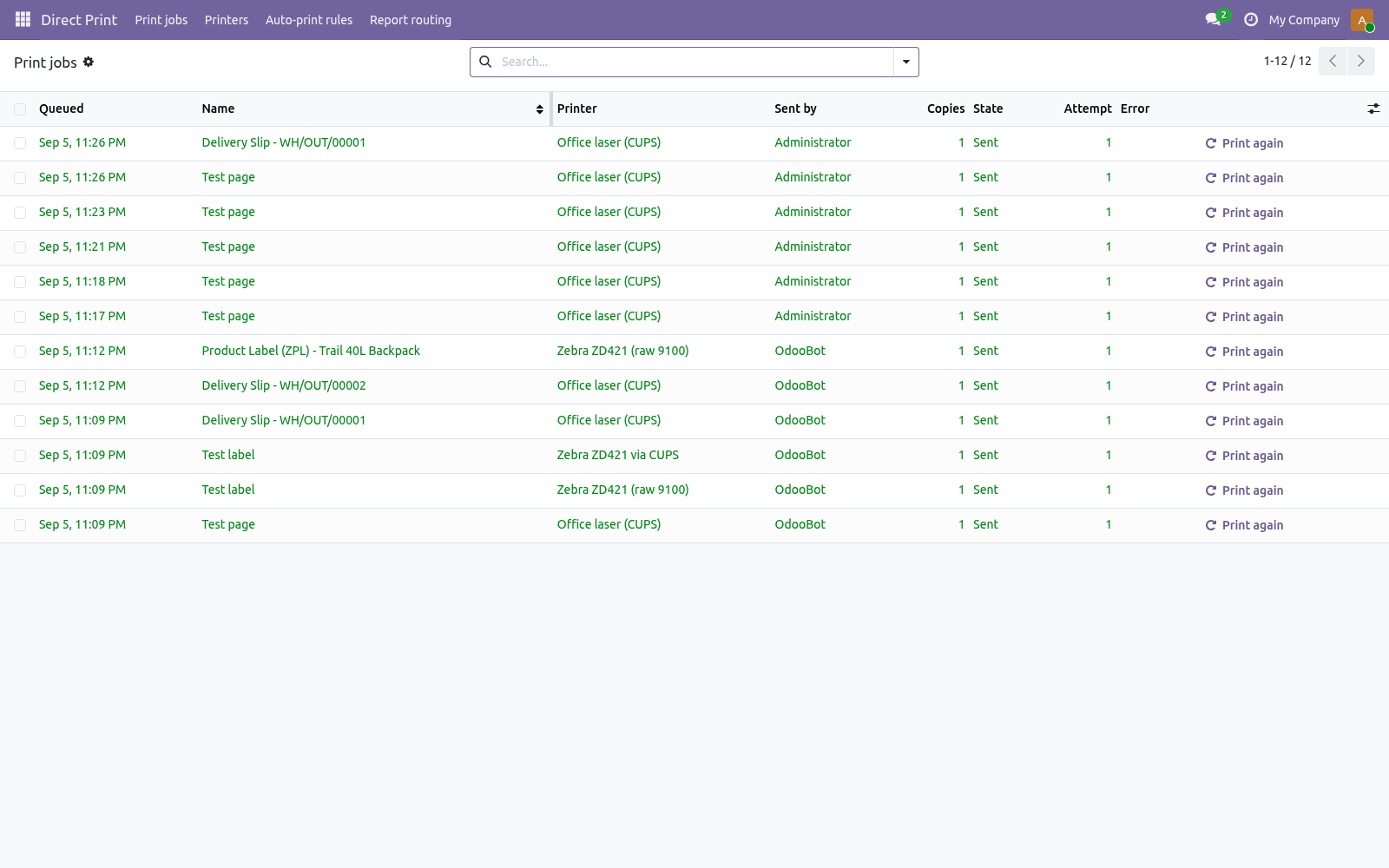
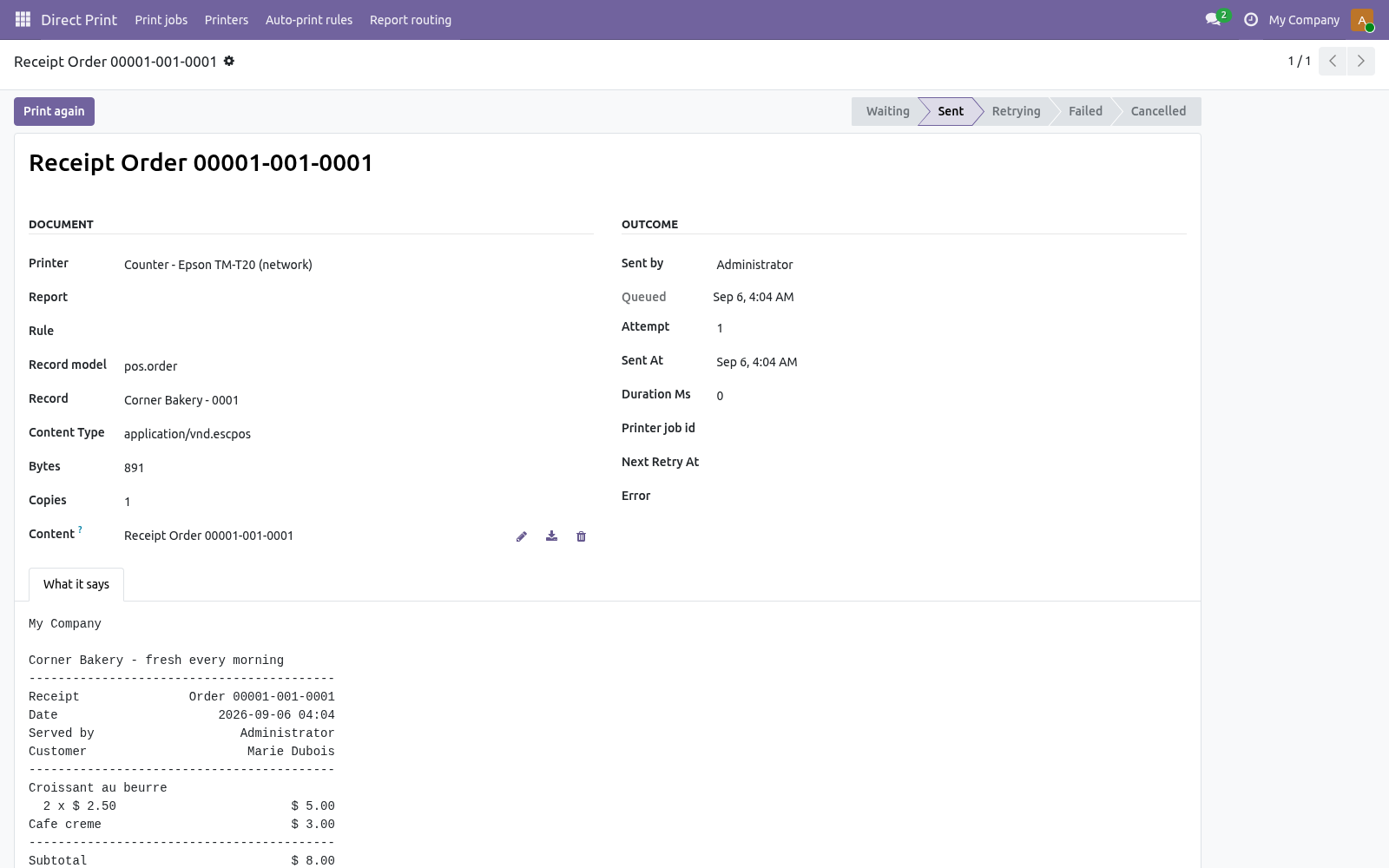
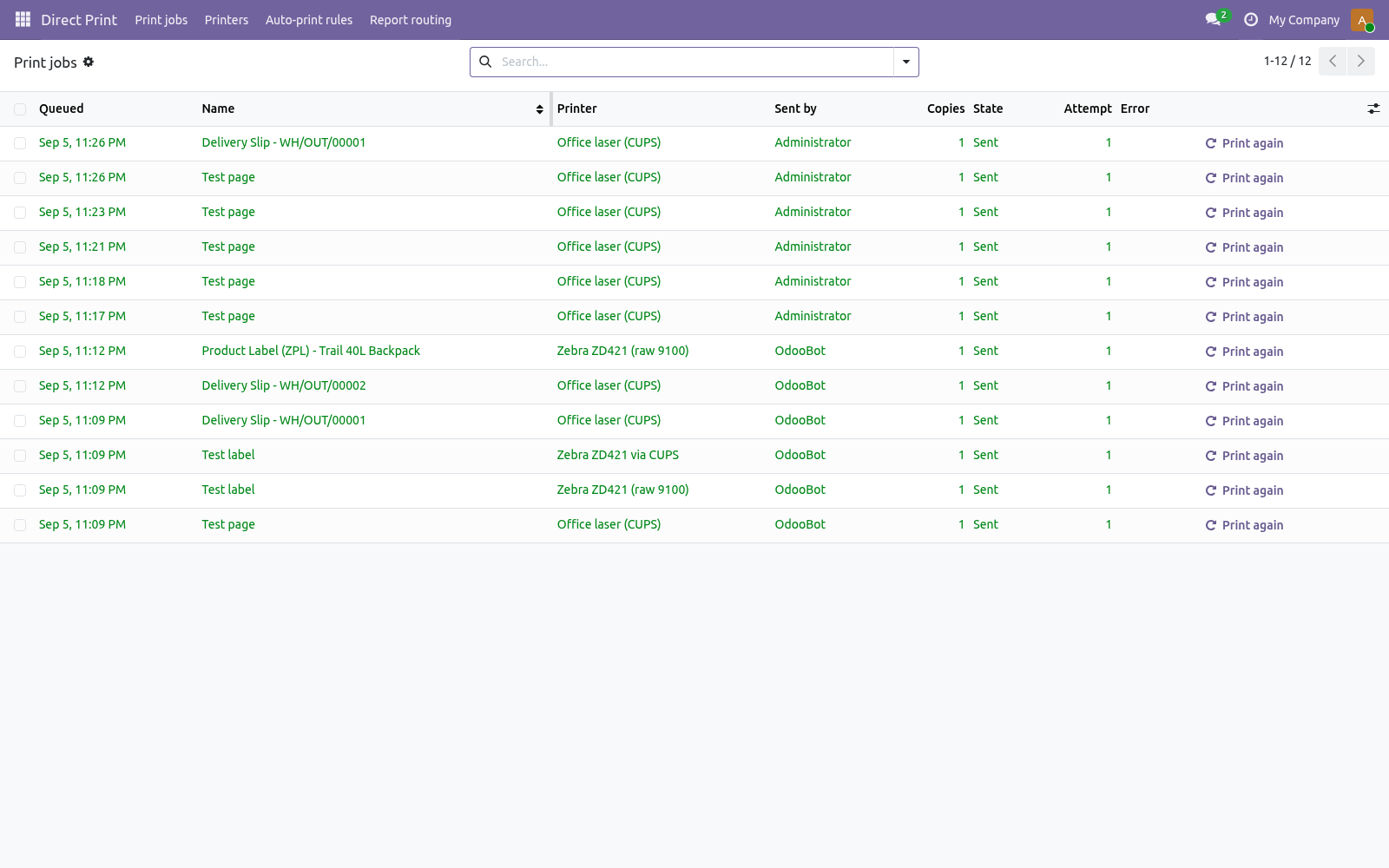
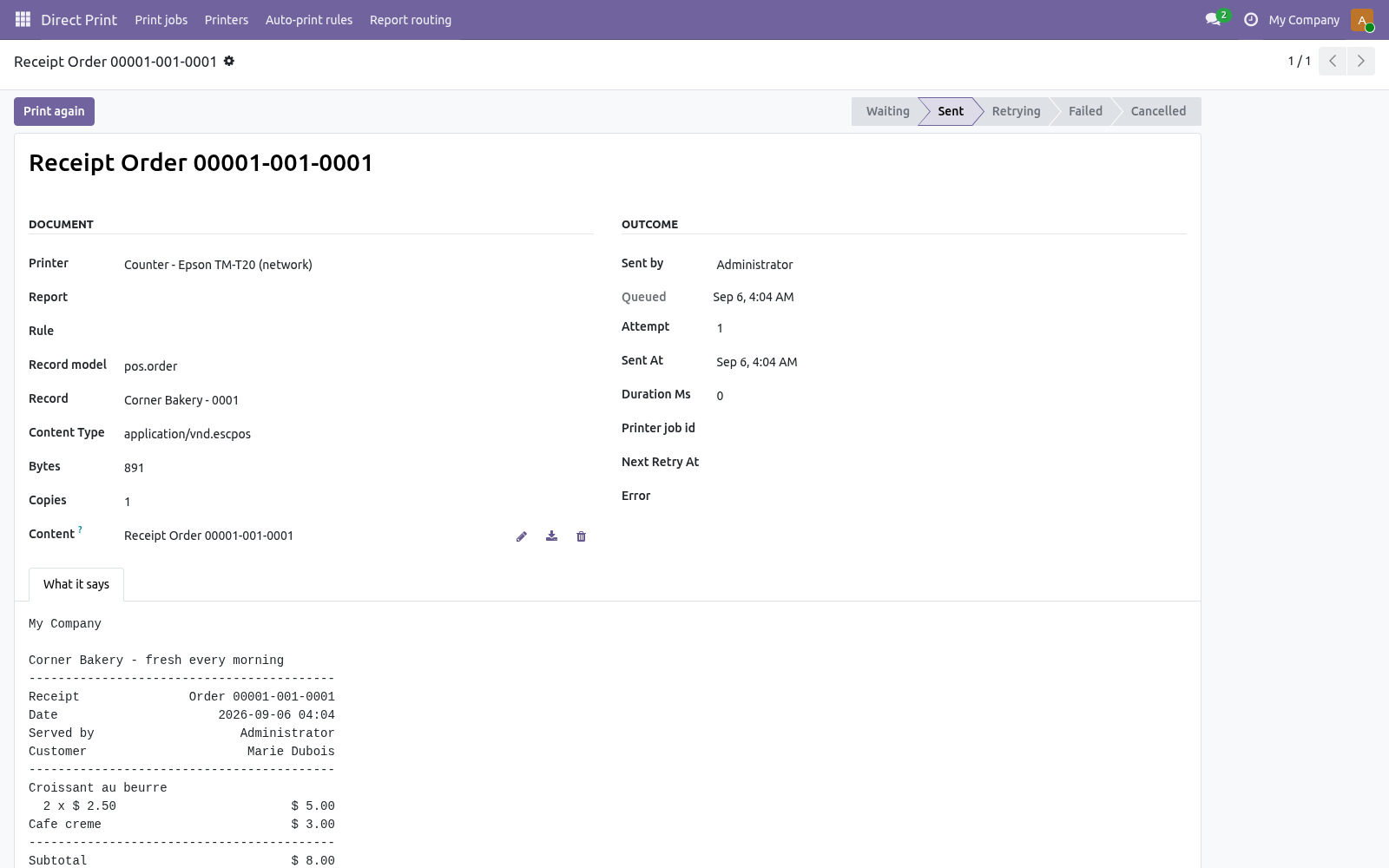
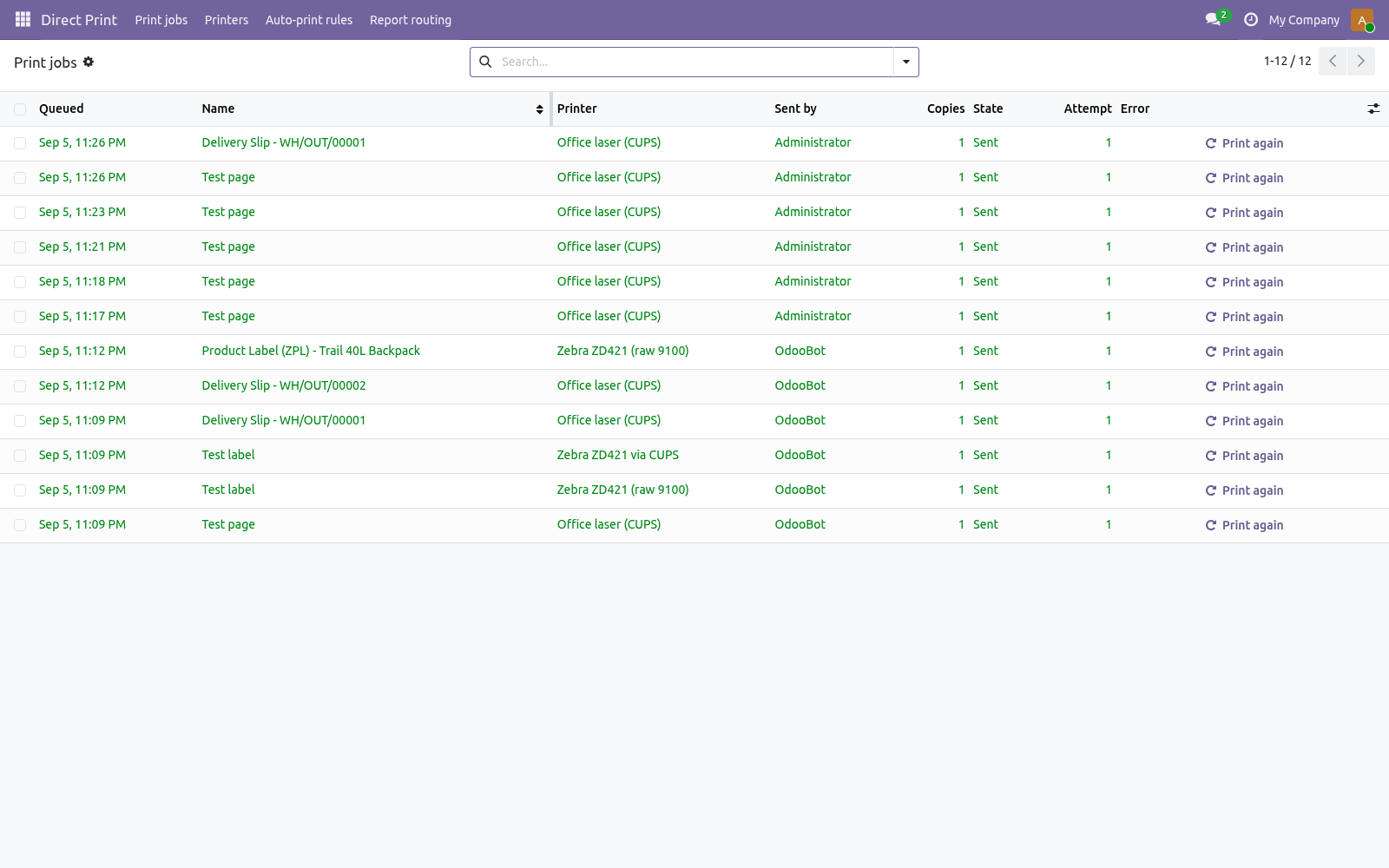
When When a record is created, or When a field takes a value - name the field and the value: state becomes done. The print queue. Direct Print → Print jobs is every document that went to a printer: queued, sent, retrying, failed or cancelled, with the printer, the user, the copies, the attempt count, how long the printer took, the printer's job id and, when something went wrong, the printer's words. A job the printer refuses is retried after 1, 5, 15 and 60 minutes, then marked failed; Print again sends it once more, now.
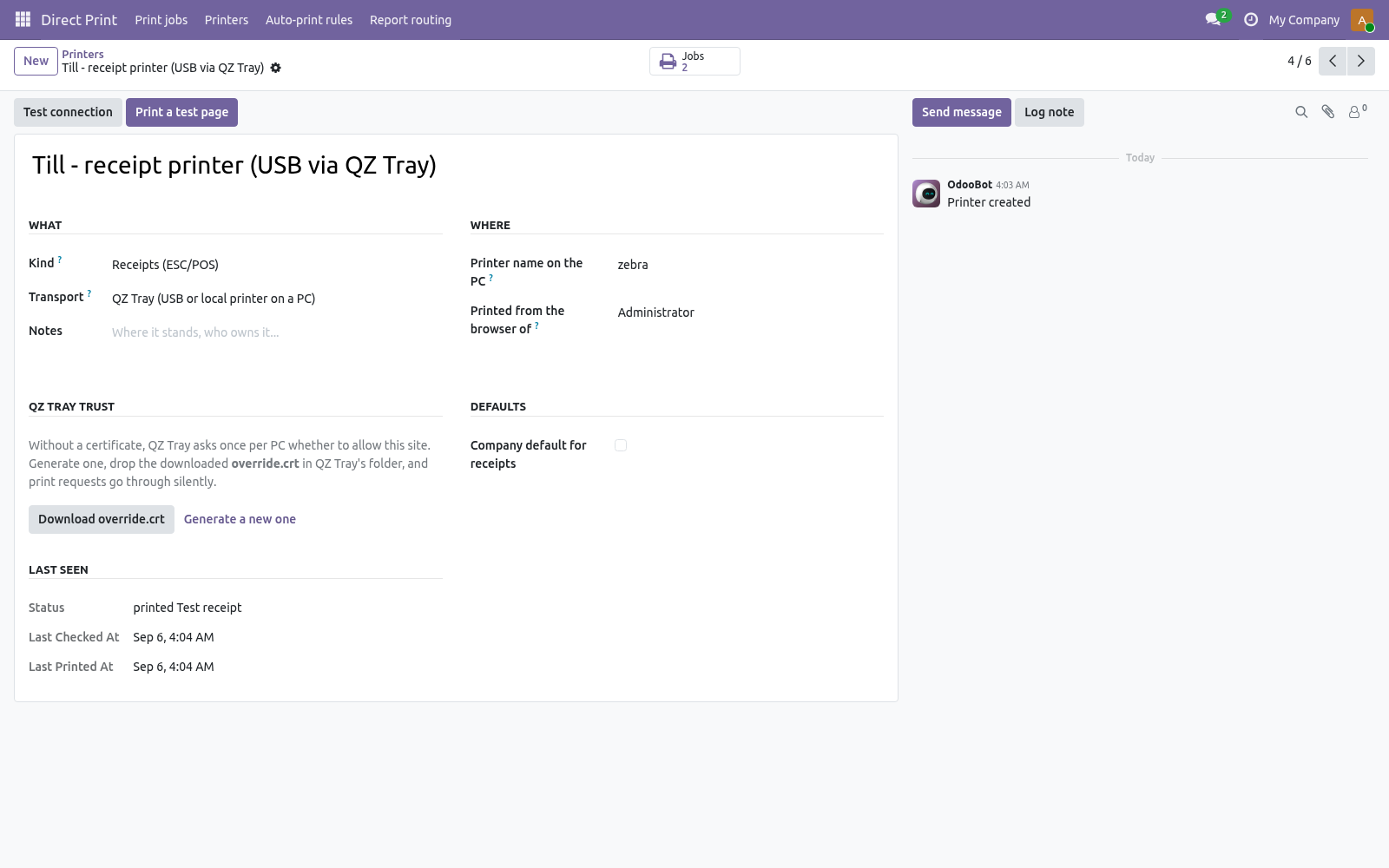
Cancel stops a job that has not gone out. The bytes that were sent are attached to the job, so a disputed label can be reprinted exactly. A USB printer on a PC: QZ Tray. A printer with no network port - the receipt printer under the till, the label printer on a desk - is reached through QZ Tray <https://qz.io>, a free, open-source program that runs on Windows, macOS and Linux and prints what a web page hands it.
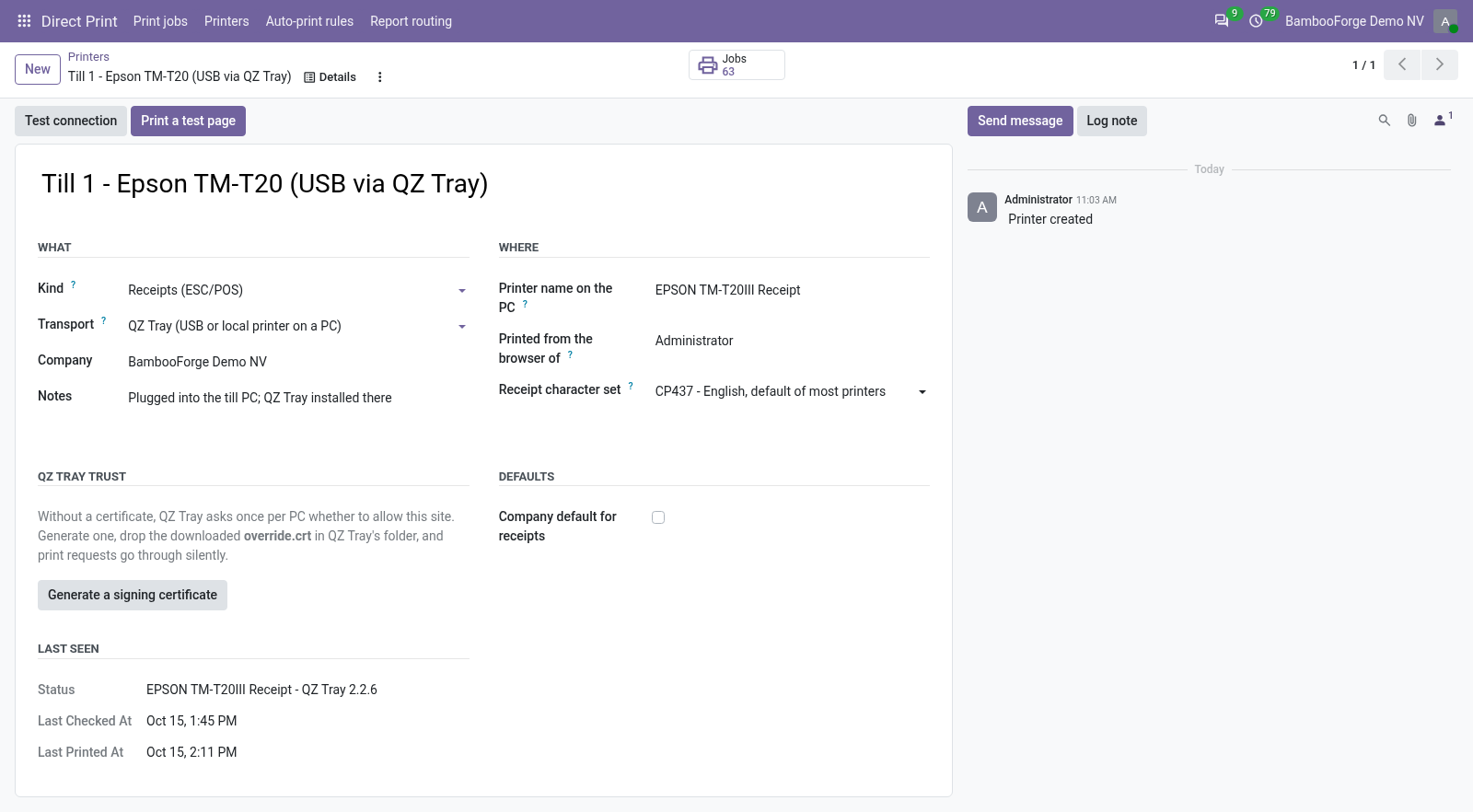
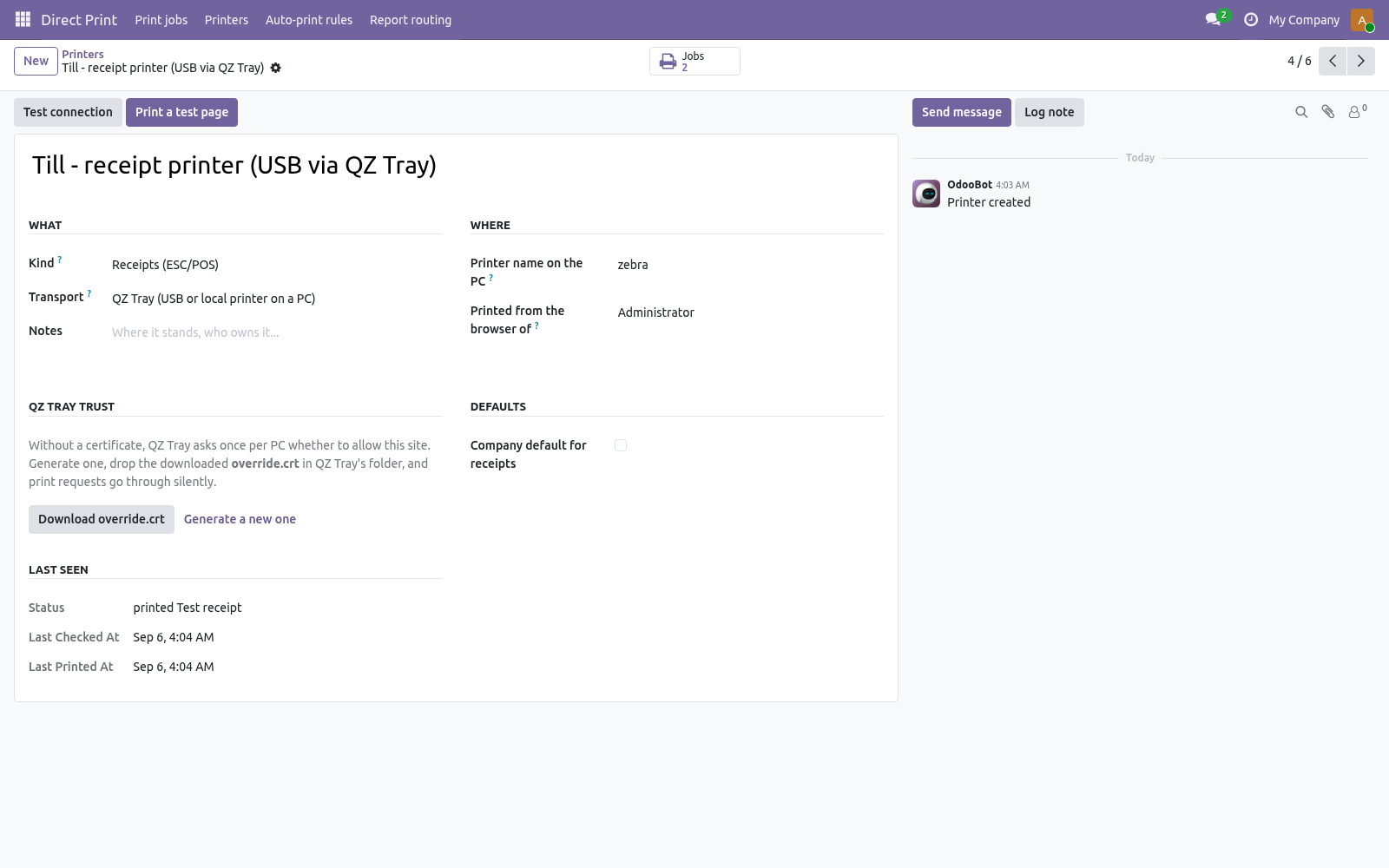
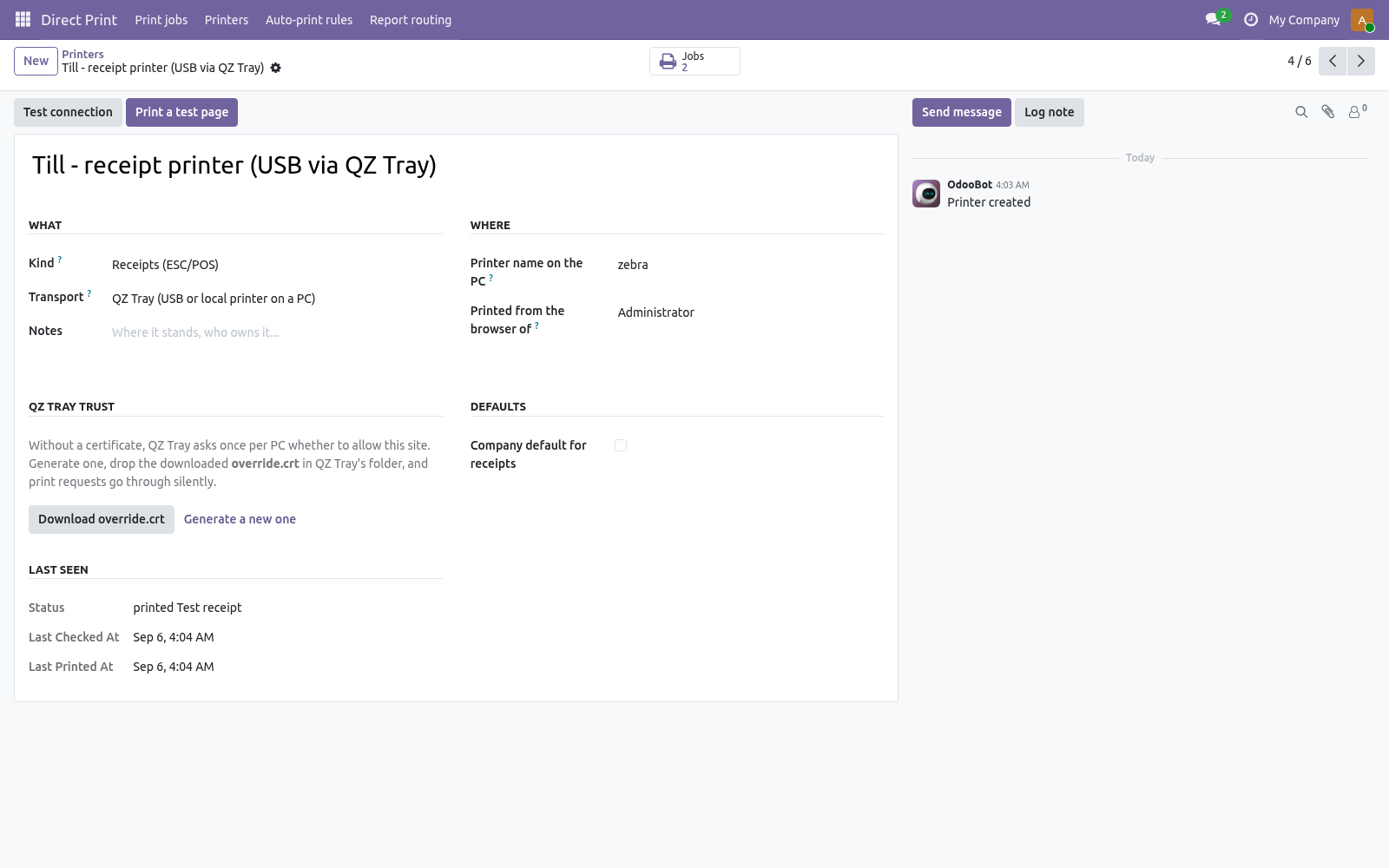
The Odoo server never sees that printer; the user's browser does the handing over. Allow or sign. The first time a site talks to QZ Tray, QZ Tray asks the user whether to allow it; Remember this decision keeps it quiet from then on. For an installation with many tills, sign the requests instead: on the printer form, under QZ Tray trust, Generate a signing certificate, then drop the downloaded override.crt into QZ Tray's program folder on each PC (C:\Program Files\QZ Tray on Windows, /opt/qz-tray on Linux, the app bundle on macOS) and restart QZ Tray.
Signed requests print with no prompt at all. The private key stays in Odoo; administrators see it on the printer form and nowhere else. Point of Sale receipts. Install Direct Print: POS Receipts (bambooforge_direct_print_pos, installed by itself when Point of Sale is present).
Then, per shop, under Point of Sale → Configuration → Settings → Bills & Receipts: Receipt printed by the server Tick it. The moment an order is paid, the server renders the receipt as ESC/POS and sends it to the shop's receipt printer - no print dialog, no IoT Box, no preview screen to click through. What it prints. Sending ZPL to an IPP printer needs the printer, or the CUPS queue, to accept raw data (application/octet-stream); on CUPS that is a queue created with -m raw.
PDF reports of any model - through IPP, the printer or CUPS converts them. ZPL / EPL / raw labels from qweb-text reports (Odoo's own product and lot labels, the BambooForge Label Designer's ZPL) - straight to a label printer over port 9100 or a raw CUPS queue. ESC/POS receipts as raw bytes, for receipt printers on the network or on a PC through QZ Tray; the POS Receipts add-on renders them from Point of Sale orders. Compared with the other ways to print from Odoo.
The store prices quoted are those shown on the Odoo Apps Store at the time of writing; check the listings for today's figures and for what each app actually installs. Security notes The Odoo server talks to network printers; browsers, desktops and third parties are not involved and no document leaves your network. A QZ Tray printer is the exception by design: the document goes from the server to the user's browser to QZ Tray on the same PC, still inside your network. QZ Tray requests are signed with the company's own key when a certificate is generated; the key is readable by administrators only and never sent to the browser.
IPP credentials, when a printer or CUPS server asks for them, are stored on the printer record and visible to administrators only. Every job records who sent it and what was sent. Printers and rules are per company; users see their own jobs. The complete manual is at docs dot bambooforge dot dev, the demo database is linked from the store page, and support answers within twenty-four hours.
Links are in the description.
Transcript of the walkthrough (Odoo 19)
Direct Print / Print to Network Printers Without IoT Box. Send any report, label or receipt straight from Odoo to a network printer - IPP, CUPS, AirPrint, Zebra and ESC/POS over raw TCP - with no IoT Box, no print-server subscription and no agent on a desktop. Auto-print rules, a print queue with retries, one printer per user, warehouse or report. Send any report, label or receipt straight from Odoo to a printer.
No IoT Box, no print-server subscription, no agent on a desktop: the Odoo server speaks IPP to network printers, CUPS servers and AirPrint devices, and raw TCP to Zebra and ESC/POS printers. A printer plugged into a PC by USB is reached through the free QZ Tray program on that PC. Every job is on record, with retries and a Print again button; auto-print rules print a delivery slip when a transfer is validated or an invoice when it is posted, before anyone reaches a desk. With the POS Receipts add-on, the receipt of every paid Point of Sale order prints itself.
In the next few minutes: why this exists, then add a printer, then print from the print menu, then auto-print rules, then the print queue. Then what this app deliberately does not do, so you can tell before you buy whether it fits. Everything lives under Direct Print then Print jobs then Printers then Auto-print rules. 1.
Copy bambooforge_direct_print into your addons path and update the app list, or install the ZIP from the Odoo Apps store. 2. Install Direct Print. Every internal user becomes a Direct Print / User (may send documents to the printers, sees their own jobs); the administrator is a Manager (sets up printers, rules and report routing).
3. The menu Direct Print appears with Print jobs, Printers, Auto-print rules and Report routing. Why this exists. Odoo Community prints to the browser: every report is a PDF the user downloads and sends to a printer by hand - five clicks and a wrong-printer dialog, forty times a day at a packing bench.
Odoo's answer is the IoT Box, which is Enterprise-only and a device to buy. The "direct print" apps on the store route your documents through a paid cloud print service or install an agent on a Windows desktop that has to stay on. A network printer already speaks a protocol the Odoo server can speak: IPP, the standard behind CUPS and AirPrint. A label printer listens on port 9100 for raw ZPL.
This app uses exactly that - the document goes from the database to the printer, and nowhere else. Add a printer. Kind Documents (PDF), Labels (ZPL / raw) or Receipts (ESC/POS). A PDF report is only ever sent to a document printer; a ZPL label only to a label printer.
Transport IPP / CUPS / AirPrint for network printers and print servers; Raw TCP for Zebra, TSC, Godex, Bixolon, Epson receipt printers. Print from the Print menu. Direct Print → Report routing lists every PDF and text report. Open one and set When printed: Open in the browser - Odoo's default, unchanged.
Send to the printer - the Print menu sends the document and shows "Delivery Slip - WH/OUT/00012 sent to Office laser"; nothing downloads. Send to the printer and open in the browser - both. Name a Printer on the report, or leave it empty: then the user's own printer is used (Preferences → My printers), and failing that the company default of the right kind. Copies applies to every send.
Auto-print rules. Model What to watch: Transfer, Journal Entry, Sales Order, Product ... Transfer, state becomes done, domain outgoing, report Delivery Slip, the packing-bench printer. Journal Entry, state becomes posted, domain [('move_type', '=', 'out_invoice')], report Invoices, the office printer.
Product, when created, report Product Label (ZPL), the Zebra. When When a record is created, or When a field takes a value - name the field and the value: state becomes done. The print queue. Direct Print → Print jobs is every document that went to a printer: queued, sent, retrying, failed or cancelled, with the printer, the user, the copies, the attempt count, how long the printer took, the printer's job id and, when something went wrong, the printer's words.
A job the printer refuses is retried after 1, 5, 15 and 60 minutes, then marked failed; Print again sends it once more, now. Cancel stops a job that has not gone out. The bytes that were sent are attached to the job, so a disputed label can be reprinted exactly. A USB printer on a PC: QZ Tray.
A printer with no network port - the receipt printer under the till, the label printer on a desk - is reached through QZ Tray <https://qz.io>, a free, open-source program that runs on Windows, macOS and Linux and prints what a web page hands it. The Odoo server never sees that printer; the user's browser does the handing over. Allow or sign. The first time a site talks to QZ Tray, QZ Tray asks the user whether to allow it; Remember this decision keeps it quiet from then on.
For an installation with many tills, sign the requests instead: on the printer form, under QZ Tray trust, Generate a signing certificate, then drop the downloaded override.crt into QZ Tray's program folder on each PC (C:\Program Files\QZ Tray on Windows, /opt/qz-tray on Linux, the app bundle on macOS) and restart QZ Tray. Signed requests print with no prompt at all. The private key stays in Odoo; administrators see it on the printer form and nowhere else. Point of Sale receipts.
Install Direct Print: POS Receipts (bambooforge_direct_print_pos, installed by itself when Point of Sale is present). Then, per shop, under Point of Sale → Configuration → Settings → Bills & Receipts: Receipt printed by the server Tick it. The moment an order is paid, the server renders the receipt as ESC/POS and sends it to the shop's receipt printer - no print dialog, no IoT Box, no preview screen to click through. What it prints.
Sending ZPL to an IPP printer needs the printer, or the CUPS queue, to accept raw data (application/octet-stream); on CUPS that is a queue created with -m raw. PDF reports of any model - through IPP, the printer or CUPS converts them. ZPL / EPL / raw labels from qweb-text reports (Odoo's own product and lot labels, the BambooForge Label Designer's ZPL) - straight to a label printer over port 9100 or a raw CUPS queue. ESC/POS receipts as raw bytes, for receipt printers on the network or on a PC through QZ Tray; the POS Receipts add-on renders them from Point of Sale orders.
Security notes The Odoo server talks to network printers; browsers, desktops and third parties are not involved and no document leaves your network. A QZ Tray printer is the exception by design: the document goes from the server to the user's browser to QZ Tray on the same PC, still inside your network. QZ Tray requests are signed with the company's own key when a certificate is generated; the key is readable by administrators only and never sent to the browser. IPP credentials, when a printer or CUPS server asks for them, are stored on the printer record and visible to administrators only.
Every job records who sent it and what was sent. Printers and rules are per company; users see their own jobs. Troubleshooting. Test connection fails with "Connection refused" The Odoo server cannot reach the printer's port.
Check the address, the port (631 for IPP, 9100 for raw) and that no firewall sits between the server and the printer. "client-error-document-format-not-supported" The printer does not take the format sent. For a PDF printer, try application/octet-stream as document format (under debug mode on the printer form); for ZPL on CUPS, make the queue raw. The complete manual is at docs dot bambooforge dot dev, the demo database is linked from the store page, and support answers within twenty-four hours.
Links are in the description.
Transcript of the walkthrough (Odoo 18)
Direct Print / Print to Network Printers Without IoT Box. Send any report, label or receipt straight from Odoo to a network printer - IPP, CUPS, AirPrint, Zebra and ESC/POS over raw TCP - with no IoT Box, no print-server subscription and no agent on a desktop. Auto-print rules, a print queue with retries, one printer per user, warehouse or report. Send any report, label or receipt straight from Odoo to a printer.
No IoT Box, no print-server subscription, no agent on a desktop: the Odoo server speaks IPP to network printers, CUPS servers and AirPrint devices, and raw TCP to Zebra and ESC/POS printers. A printer plugged into a PC by USB is reached through the free QZ Tray program on that PC. Every job is on record, with retries and a Print again button; auto-print rules print a delivery slip when a transfer is validated or an invoice when it is posted, before anyone reaches a desk. With the POS Receipts add-on, the receipt of every paid Point of Sale order prints itself.
In the next few minutes: why this exists, then add a printer, then print from the print menu, then auto-print rules, then the print queue. Then what this app deliberately does not do, so you can tell before you buy whether it fits. Everything lives under Direct Print then Print jobs then Printers then Auto-print rules. 1.
Copy bambooforge_direct_print into your addons path and update the app list, or install the ZIP from the Odoo Apps store. 2. Install Direct Print. Every internal user becomes a Direct Print / User (may send documents to the printers, sees their own jobs); the administrator is a Manager (sets up printers, rules and report routing).
3. The menu Direct Print appears with Print jobs, Printers, Auto-print rules and Report routing. Why this exists. Odoo Community prints to the browser: every report is a PDF the user downloads and sends to a printer by hand - five clicks and a wrong-printer dialog, forty times a day at a packing bench.
Odoo's answer is the IoT Box, which is Enterprise-only and a device to buy. The "direct print" apps on the store route your documents through a paid cloud print service or install an agent on a Windows desktop that has to stay on. A network printer already speaks a protocol the Odoo server can speak: IPP, the standard behind CUPS and AirPrint. A label printer listens on port 9100 for raw ZPL.
This app uses exactly that - the document goes from the database to the printer, and nowhere else. Add a printer. Kind Documents (PDF), Labels (ZPL / raw) or Receipts (ESC/POS). A PDF report is only ever sent to a document printer; a ZPL label only to a label printer.
Transport IPP / CUPS / AirPrint for network printers and print servers; Raw TCP for Zebra, TSC, Godex, Bixolon, Epson receipt printers. Print from the Print menu. Direct Print → Report routing lists every PDF and text report. Open one and set When printed: Open in the browser - Odoo's default, unchanged.
Send to the printer - the Print menu sends the document and shows "Delivery Slip - WH/OUT/00012 sent to Office laser"; nothing downloads. Send to the printer and open in the browser - both. Name a Printer on the report, or leave it empty: then the user's own printer is used (Preferences → My printers), and failing that the company default of the right kind. Copies applies to every send.
Auto-print rules. Model What to watch: Transfer, Journal Entry, Sales Order, Product ... Transfer, state becomes done, domain outgoing, report Delivery Slip, the packing-bench printer. Journal Entry, state becomes posted, domain [('move_type', '=', 'out_invoice')], report Invoices, the office printer.
Product, when created, report Product Label (ZPL), the Zebra. When When a record is created, or When a field takes a value - name the field and the value: state becomes done. The print queue. Direct Print → Print jobs is every document that went to a printer: queued, sent, retrying, failed or cancelled, with the printer, the user, the copies, the attempt count, how long the printer took, the printer's job id and, when something went wrong, the printer's words.
A job the printer refuses is retried after 1, 5, 15 and 60 minutes, then marked failed; Print again sends it once more, now. Cancel stops a job that has not gone out. The bytes that were sent are attached to the job, so a disputed label can be reprinted exactly. A USB printer on a PC: QZ Tray.
A printer with no network port - the receipt printer under the till, the label printer on a desk - is reached through QZ Tray <https://qz.io>, a free, open-source program that runs on Windows, macOS and Linux and prints what a web page hands it. The Odoo server never sees that printer; the user's browser does the handing over. Allow or sign. The first time a site talks to QZ Tray, QZ Tray asks the user whether to allow it; Remember this decision keeps it quiet from then on.
For an installation with many tills, sign the requests instead: on the printer form, under QZ Tray trust, Generate a signing certificate, then drop the downloaded override.crt into QZ Tray's program folder on each PC (C:\Program Files\QZ Tray on Windows, /opt/qz-tray on Linux, the app bundle on macOS) and restart QZ Tray. Signed requests print with no prompt at all. The private key stays in Odoo; administrators see it on the printer form and nowhere else. Point of Sale receipts.
Install Direct Print: POS Receipts (bambooforge_direct_print_pos, installed by itself when Point of Sale is present). Then, per shop, under Point of Sale → Configuration → Settings → Bills & Receipts: Receipt printed by the server Tick it. The moment an order is paid, the server renders the receipt as ESC/POS and sends it to the shop's receipt printer - no print dialog, no IoT Box, no preview screen to click through. What it prints.
Sending ZPL to an IPP printer needs the printer, or the CUPS queue, to accept raw data (application/octet-stream); on CUPS that is a queue created with -m raw. PDF reports of any model - through IPP, the printer or CUPS converts them. ZPL / EPL / raw labels from qweb-text reports (Odoo's own product and lot labels, the BambooForge Label Designer's ZPL) - straight to a label printer over port 9100 or a raw CUPS queue. ESC/POS receipts as raw bytes, for receipt printers on the network or on a PC through QZ Tray; the POS Receipts add-on renders them from Point of Sale orders.
Security notes The Odoo server talks to network printers; browsers, desktops and third parties are not involved and no document leaves your network. A QZ Tray printer is the exception by design: the document goes from the server to the user's browser to QZ Tray on the same PC, still inside your network. QZ Tray requests are signed with the company's own key when a certificate is generated; the key is readable by administrators only and never sent to the browser. IPP credentials, when a printer or CUPS server asks for them, are stored on the printer record and visible to administrators only.
Every job records who sent it and what was sent. Printers and rules are per company; users see their own jobs. Troubleshooting. Test connection fails with "Connection refused" The Odoo server cannot reach the printer's port.
Check the address, the port (631 for IPP, 9100 for raw) and that no firewall sits between the server and the printer. "client-error-document-format-not-supported" The printer does not take the format sent. For a PDF printer, try application/octet-stream as document format (under debug mode on the printer form); for ZPL on CUPS, make the queue raw. The complete manual is at docs dot bambooforge dot dev, the demo database is linked from the store page, and support answers within twenty-four hours.
Links are in the description.
Transcript of the walkthrough (Odoo 17)
Direct Print / Print to Network Printers Without IoT Box. Send any report, label or receipt straight from Odoo to a network printer - IPP, CUPS, AirPrint, Zebra and ESC/POS over raw TCP - with no IoT Box, no print-server subscription and no agent on a desktop. Auto-print rules, a print queue with retries, one printer per user, warehouse or report. Send any report, label or receipt straight from Odoo to a printer.
No IoT Box, no print-server subscription, no agent on a desktop: the Odoo server speaks IPP to network printers, CUPS servers and AirPrint devices, and raw TCP to Zebra and ESC/POS printers. A printer plugged into a PC by USB is reached through the free QZ Tray program on that PC. Every job is on record, with retries and a Print again button; auto-print rules print a delivery slip when a transfer is validated or an invoice when it is posted, before anyone reaches a desk. With the POS Receipts add-on, the receipt of every paid Point of Sale order prints itself.
In the next few minutes: why this exists, then add a printer, then print from the print menu, then auto-print rules, then the print queue. Then what this app deliberately does not do, so you can tell before you buy whether it fits. Everything lives under Direct Print then Print jobs then Printers then Auto-print rules. 1.
Copy bambooforge_direct_print into your addons path and update the app list, or install the ZIP from the Odoo Apps store. 2. Install Direct Print. Every internal user becomes a Direct Print / User (may send documents to the printers, sees their own jobs); the administrator is a Manager (sets up printers, rules and report routing).
3. The menu Direct Print appears with Print jobs, Printers, Auto-print rules and Report routing. Why this exists. Odoo Community prints to the browser: every report is a PDF the user downloads and sends to a printer by hand - five clicks and a wrong-printer dialog, forty times a day at a packing bench.
Odoo's answer is the IoT Box, which is Enterprise-only and a device to buy. The "direct print" apps on the store route your documents through a paid cloud print service or install an agent on a Windows desktop that has to stay on. A network printer already speaks a protocol the Odoo server can speak: IPP, the standard behind CUPS and AirPrint. A label printer listens on port 9100 for raw ZPL.
This app uses exactly that - the document goes from the database to the printer, and nowhere else. Add a printer. Kind Documents (PDF), Labels (ZPL / raw) or Receipts (ESC/POS). A PDF report is only ever sent to a document printer; a ZPL label only to a label printer.
Transport IPP / CUPS / AirPrint for network printers and print servers; Raw TCP for Zebra, TSC, Godex, Bixolon, Epson receipt printers. Print from the Print menu. Direct Print → Report routing lists every PDF and text report. Open one and set When printed: Open in the browser - Odoo's default, unchanged.
Send to the printer - the Print menu sends the document and shows "Delivery Slip - WH/OUT/00012 sent to Office laser"; nothing downloads. Send to the printer and open in the browser - both. Name a Printer on the report, or leave it empty: then the user's own printer is used (Preferences → My printers), and failing that the company default of the right kind. Copies applies to every send.
Auto-print rules. Model What to watch: Transfer, Journal Entry, Sales Order, Product ... Transfer, state becomes done, domain outgoing, report Delivery Slip, the packing-bench printer. Journal Entry, state becomes posted, domain [('move_type', '=', 'out_invoice')], report Invoices, the office printer.
Product, when created, report Product Label (ZPL), the Zebra. When When a record is created, or When a field takes a value - name the field and the value: state becomes done. The print queue. Direct Print → Print jobs is every document that went to a printer: queued, sent, retrying, failed or cancelled, with the printer, the user, the copies, the attempt count, how long the printer took, the printer's job id and, when something went wrong, the printer's words.
A job the printer refuses is retried after 1, 5, 15 and 60 minutes, then marked failed; Print again sends it once more, now. Cancel stops a job that has not gone out. The bytes that were sent are attached to the job, so a disputed label can be reprinted exactly. A USB printer on a PC: QZ Tray.
A printer with no network port - the receipt printer under the till, the label printer on a desk - is reached through QZ Tray <https://qz.io>, a free, open-source program that runs on Windows, macOS and Linux and prints what a web page hands it. The Odoo server never sees that printer; the user's browser does the handing over. Allow or sign. The first time a site talks to QZ Tray, QZ Tray asks the user whether to allow it; Remember this decision keeps it quiet from then on.
For an installation with many tills, sign the requests instead: on the printer form, under QZ Tray trust, Generate a signing certificate, then drop the downloaded override.crt into QZ Tray's program folder on each PC (C:\Program Files\QZ Tray on Windows, /opt/qz-tray on Linux, the app bundle on macOS) and restart QZ Tray. Signed requests print with no prompt at all. The private key stays in Odoo; administrators see it on the printer form and nowhere else. Point of Sale receipts.
Install Direct Print: POS Receipts (bambooforge_direct_print_pos, installed by itself when Point of Sale is present). Then, per shop, under Point of Sale → Configuration → Settings → Bills & Receipts: Receipt printed by the server Tick it. The moment an order is paid, the server renders the receipt as ESC/POS and sends it to the shop's receipt printer - no print dialog, no IoT Box, no preview screen to click through. What it prints.
Sending ZPL to an IPP printer needs the printer, or the CUPS queue, to accept raw data (application/octet-stream); on CUPS that is a queue created with -m raw. PDF reports of any model - through IPP, the printer or CUPS converts them. ZPL / EPL / raw labels from qweb-text reports (Odoo's own product and lot labels, the BambooForge Label Designer's ZPL) - straight to a label printer over port 9100 or a raw CUPS queue. ESC/POS receipts as raw bytes, for receipt printers on the network or on a PC through QZ Tray; the POS Receipts add-on renders them from Point of Sale orders.
Security notes The Odoo server talks to network printers; browsers, desktops and third parties are not involved and no document leaves your network. A QZ Tray printer is the exception by design: the document goes from the server to the user's browser to QZ Tray on the same PC, still inside your network. QZ Tray requests are signed with the company's own key when a certificate is generated; the key is readable by administrators only and never sent to the browser. IPP credentials, when a printer or CUPS server asks for them, are stored on the printer record and visible to administrators only.
Every job records who sent it and what was sent. Printers and rules are per company; users see their own jobs. Troubleshooting. Test connection fails with "Connection refused" The Odoo server cannot reach the printer's port.
Check the address, the port (631 for IPP, 9100 for raw) and that no firewall sits between the server and the printer. "client-error-document-format-not-supported" The printer does not take the format sent. For a PDF printer, try application/octet-stream as document format (under debug mode on the printer form); for ZPL on CUPS, make the queue raw. The complete manual is at docs dot bambooforge dot dev, the demo database is linked from the store page, and support answers within twenty-four hours.
Links are in the description.
Transcript of the walkthrough (Odoo 16)
Direct Print / Print to Network Printers Without IoT Box. Send any report, label or receipt straight from Odoo to a network printer - IPP, CUPS, AirPrint, Zebra and ESC/POS over raw TCP - with no IoT Box, no print-server subscription and no agent on a desktop. Auto-print rules, a print queue with retries, one printer per user, warehouse or report. Send any report, label or receipt straight from Odoo to a printer.
No IoT Box, no print-server subscription, no agent on a desktop: the Odoo server speaks IPP to network printers, CUPS servers and AirPrint devices, and raw TCP to Zebra and ESC/POS printers. A printer plugged into a PC by USB is reached through the free QZ Tray program on that PC. Every job is on record, with retries and a Print again button; auto-print rules print a delivery slip when a transfer is validated or an invoice when it is posted, before anyone reaches a desk. With the POS Receipts add-on, the receipt of every paid Point of Sale order prints itself.
In the next few minutes: why this exists, then add a printer, then print from the print menu, then auto-print rules, then the print queue. Then what this app deliberately does not do, so you can tell before you buy whether it fits. Everything lives under Direct Print then Print jobs then Printers then Auto-print rules. 1.
Copy bambooforge_direct_print into your addons path and update the app list, or install the ZIP from the Odoo Apps store. 2. Install Direct Print. Every internal user becomes a Direct Print / User (may send documents to the printers, sees their own jobs); the administrator is a Manager (sets up printers, rules and report routing).
3. The menu Direct Print appears with Print jobs, Printers, Auto-print rules and Report routing. Why this exists. Odoo Community prints to the browser: every report is a PDF the user downloads and sends to a printer by hand - five clicks and a wrong-printer dialog, forty times a day at a packing bench.
Odoo's answer is the IoT Box, which is Enterprise-only and a device to buy. The "direct print" apps on the store route your documents through a paid cloud print service or install an agent on a Windows desktop that has to stay on. A network printer already speaks a protocol the Odoo server can speak: IPP, the standard behind CUPS and AirPrint. A label printer listens on port 9100 for raw ZPL.
This app uses exactly that - the document goes from the database to the printer, and nowhere else. Add a printer. Kind Documents (PDF), Labels (ZPL / raw) or Receipts (ESC/POS). A PDF report is only ever sent to a document printer; a ZPL label only to a label printer.
Transport IPP / CUPS / AirPrint for network printers and print servers; Raw TCP for Zebra, TSC, Godex, Bixolon, Epson receipt printers. Print from the Print menu. Direct Print → Report routing lists every PDF and text report. Open one and set When printed: Open in the browser - Odoo's default, unchanged.
Send to the printer - the Print menu sends the document and shows "Delivery Slip - WH/OUT/00012 sent to Office laser"; nothing downloads. Send to the printer and open in the browser - both. Name a Printer on the report, or leave it empty: then the user's own printer is used (Preferences → My printers), and failing that the company default of the right kind. Copies applies to every send.
Auto-print rules. Model What to watch: Transfer, Journal Entry, Sales Order, Product ... Transfer, state becomes done, domain outgoing, report Delivery Slip, the packing-bench printer. Journal Entry, state becomes posted, domain [('move_type', '=', 'out_invoice')], report Invoices, the office printer.
Product, when created, report Product Label (ZPL), the Zebra. When When a record is created, or When a field takes a value - name the field and the value: state becomes done. The print queue. Direct Print → Print jobs is every document that went to a printer: queued, sent, retrying, failed or cancelled, with the printer, the user, the copies, the attempt count, how long the printer took, the printer's job id and, when something went wrong, the printer's words.
A job the printer refuses is retried after 1, 5, 15 and 60 minutes, then marked failed; Print again sends it once more, now. Cancel stops a job that has not gone out. The bytes that were sent are attached to the job, so a disputed label can be reprinted exactly. A USB printer on a PC: QZ Tray.
A printer with no network port - the receipt printer under the till, the label printer on a desk - is reached through QZ Tray <https://qz.io>, a free, open-source program that runs on Windows, macOS and Linux and prints what a web page hands it. The Odoo server never sees that printer; the user's browser does the handing over. Allow or sign. The first time a site talks to QZ Tray, QZ Tray asks the user whether to allow it; Remember this decision keeps it quiet from then on.
For an installation with many tills, sign the requests instead: on the printer form, under QZ Tray trust, Generate a signing certificate, then drop the downloaded override.crt into QZ Tray's program folder on each PC (C:\Program Files\QZ Tray on Windows, /opt/qz-tray on Linux, the app bundle on macOS) and restart QZ Tray. Signed requests print with no prompt at all. The private key stays in Odoo; administrators see it on the printer form and nowhere else. Point of Sale receipts.
Install Direct Print: POS Receipts (bambooforge_direct_print_pos, installed by itself when Point of Sale is present). Then, per shop, under Point of Sale → Configuration → Settings → Bills & Receipts: Receipt printed by the server Tick it. The moment an order is paid, the server renders the receipt as ESC/POS and sends it to the shop's receipt printer - no print dialog, no IoT Box, no preview screen to click through. What it prints.
Sending ZPL to an IPP printer needs the printer, or the CUPS queue, to accept raw data (application/octet-stream); on CUPS that is a queue created with -m raw. PDF reports of any model - through IPP, the printer or CUPS converts them. ZPL / EPL / raw labels from qweb-text reports (Odoo's own product and lot labels, the BambooForge Label Designer's ZPL) - straight to a label printer over port 9100 or a raw CUPS queue. ESC/POS receipts as raw bytes, for receipt printers on the network or on a PC through QZ Tray; the POS Receipts add-on renders them from Point of Sale orders.
Security notes The Odoo server talks to network printers; browsers, desktops and third parties are not involved and no document leaves your network. A QZ Tray printer is the exception by design: the document goes from the server to the user's browser to QZ Tray on the same PC, still inside your network. QZ Tray requests are signed with the company's own key when a certificate is generated; the key is readable by administrators only and never sent to the browser. IPP credentials, when a printer or CUPS server asks for them, are stored on the printer record and visible to administrators only.
Every job records who sent it and what was sent. Printers and rules are per company; users see their own jobs. Troubleshooting. Test connection fails with "Connection refused" The Odoo server cannot reach the printer's port.
Check the address, the port (631 for IPP, 9100 for raw) and that no firewall sits between the server and the printer. "client-error-document-format-not-supported" The printer does not take the format sent. For a PDF printer, try application/octet-stream as document format (under debug mode on the printer form); for ZPL on CUPS, make the queue raw. The complete manual is at docs dot bambooforge dot dev, the demo database is linked from the store page, and support answers within twenty-four hours.
Links are in the description.
Key facts
- What it is
- Send any report, label or receipt straight from Odoo to a network printer - IPP, CUPS, AirPrint, Zebra and ESC/POS over raw TCP - with no IoT Box, no print-server subscription and no agent on a desktop. Auto-print rules, a print queue with retries, one printer per user, warehouse or report.
- For
- Extra Tools
- Odoo versions
- 16.0, 17.0, 18.0, 19.0, 20.0 - Community and Enterprise
- Runs on
- Odoo.sh or Odoo you host yourself - not Odoo Online, which accepts no third-party apps
- Price
- 129 EUR, one-time, on the Odoo Apps Store
- Technical name
- bambooforge_direct_print
- Run for real
- Tested for real against CUPS 2.4 (a Generic PostScript queue and a raw Zebra queue), a Zebra-style raw listener on port 9100 and QZ Tray 2.2.6: a delivery slip rendered by Odoo went through IPP and came out of the queue as PostScript, an Odoo ZPL product label printed from the label wizard reached the label printer byte for byte, a validated transfer fired its auto-print rule and printed without anyone pressing Print, a test page and a queued POS receipt went from the browser through QZ Tray's signed websocket to the PC's printers, and the printers' refusals came back as the job's error text - 0 lost jobs.
- Not for
- Said before you buy, because it is the half that decides whether the app fits:; Print from a browser to a printer the server cannot reach - a printer with no network port is reached through QZ Tray on its PC, and only while an Odoo tab is open there.; Convert documents: a PDF goes to a document printer, ZPL to a label printer, ESC/POS to a receipt printer, as they are.; Print Point of Sale receipts on its own - that is the POS Receipts add-on.
- Compared with the alternatives
- https://docs.bambooforge.dev/bambooforge_direct_print/compare/
- Live demo
- https://demo20.bambooforge.dev/odoo/action-bambooforge_direct_print.action_bf_print_printer
- Manual last updated
- 2026-10-15
Direct Print | Print to Network Printers Without IoT Box
Send any report, label or receipt straight from Odoo to a printer. No IoT Box, no print-server subscription, no agent on a desktop: the Odoo server speaks IPP to network printers, CUPS servers and AirPrint devices, and raw TCP to Zebra and ESC/POS printers. A printer plugged into a PC by USB is reached through the free QZ Tray program on that PC. Every job is on record, with retries and a Print again button; auto-print rules print a delivery slip when a transfer is validated or an invoice when it is posted, before anyone reaches a desk. With the POS Receipts add-on, the receipt of every paid Point of Sale order prints itself.
This page is the complete manual. Follow it top to bottom and you can install the app, add a printer, print a test page, route a report and set up an auto-print rule without contacting support.
Why this exists
Odoo Community prints to the browser: a report is a PDF the user downloads and sends to a printer by hand - five clicks and a wrong-printer dialog, forty times a day at a packing bench. Odoo 20 added a Printer module to Community: the user's browser sends ZPL labels to a Zebra printer and an image of a report to an Epson receipt printer - those two kinds of printer only, with no queue and no record of what was printed. For the rest Odoo's answer is the IoT Box, which is Enterprise-only and a device to buy. Most "direct print" apps on the store route your documents through a paid cloud print service or install an agent on a Windows desktop that has to stay on.
A network printer already speaks a protocol the Odoo server can speak: IPP, the standard behind CUPS and AirPrint. A label printer listens on port 9100 for raw ZPL. This app uses exactly that - the document goes from the database to the printer, and nowhere else.
Install
Copy bambooforge_direct_print into your addons path and update the app list, or install the ZIP from the Odoo Apps store.
Install Direct Print. Every internal user becomes a Direct Print / User (may send documents to the printers, sees their own jobs); the administrator is a Manager (sets up printers, rules and report routing).
The menu Direct Print appears with Print jobs, Printers, Auto-print rules and Report routing.
Nothing else to install. The Odoo server needs to reach the printer over the network - the printer's port 631 (IPP) or 9100 (raw).
Add a printer
Direct Print → Printers → New
- Kind
Documents (PDF), Labels (ZPL / raw) or Receipts (ESC/POS). A PDF report is only ever sent to a document printer; a ZPL label only to a label printer.
- Transport
IPP / CUPS / AirPrint for network printers and print servers; Raw TCP for Zebra, TSC, Godex, Bixolon, Epson receipt printers.
- IPP address
ipp://192.168.1.20:631/ipp/print for a printer, ipp://cups.local:631/printers/q for a CUPS queue, ipps:// for TLS.
- Host / Port
The printer's IP and 9100 for raw printers.
- Company default for …
Where a document goes when neither the report nor the user names a printer. One per kind.
Press Test connection: an IPP printer answers with its state and its model; a raw printer with an open port. Then Print a test page - a one-page PDF, a test label or a test receipt, according to the kind. The answer lands on the printer's form (Last seen) and as a job under Print jobs.
Auto-print rules
Direct Print → Auto-print rules → New
- Model
What to watch: Transfer, Journal Entry, Sales Order, Product ...
- When
When a record is created, or When a field takes a value - name the field and the value: state becomes done.
- Domain
Only matching records print, e.g. [('picking_type_code', '=', 'outgoing')].
- Report / Printer
What to print and where: a fixed printer, or the user's own then the company default.
The value is watched where Odoo writes it, which includes stored computed fields: a transfer's state is computed from its moves, and the rule fires the moment the last move is done. A rule fires once per record when the value is reached, not again when the record is saved with the same value.
Three rules most warehouses set up on day one:
Transfer, state becomes done, domain outgoing, report Delivery Slip, the packing-bench printer.
Journal Entry, state becomes posted, domain [('move_type', '=', 'out_invoice')], report Invoices, the office printer.
Product, when created, report Product Label (ZPL), the Zebra.
Auto-printed jobs are rendered when they are sent, by the queue, so a validation never waits for a PDF.
The print queue
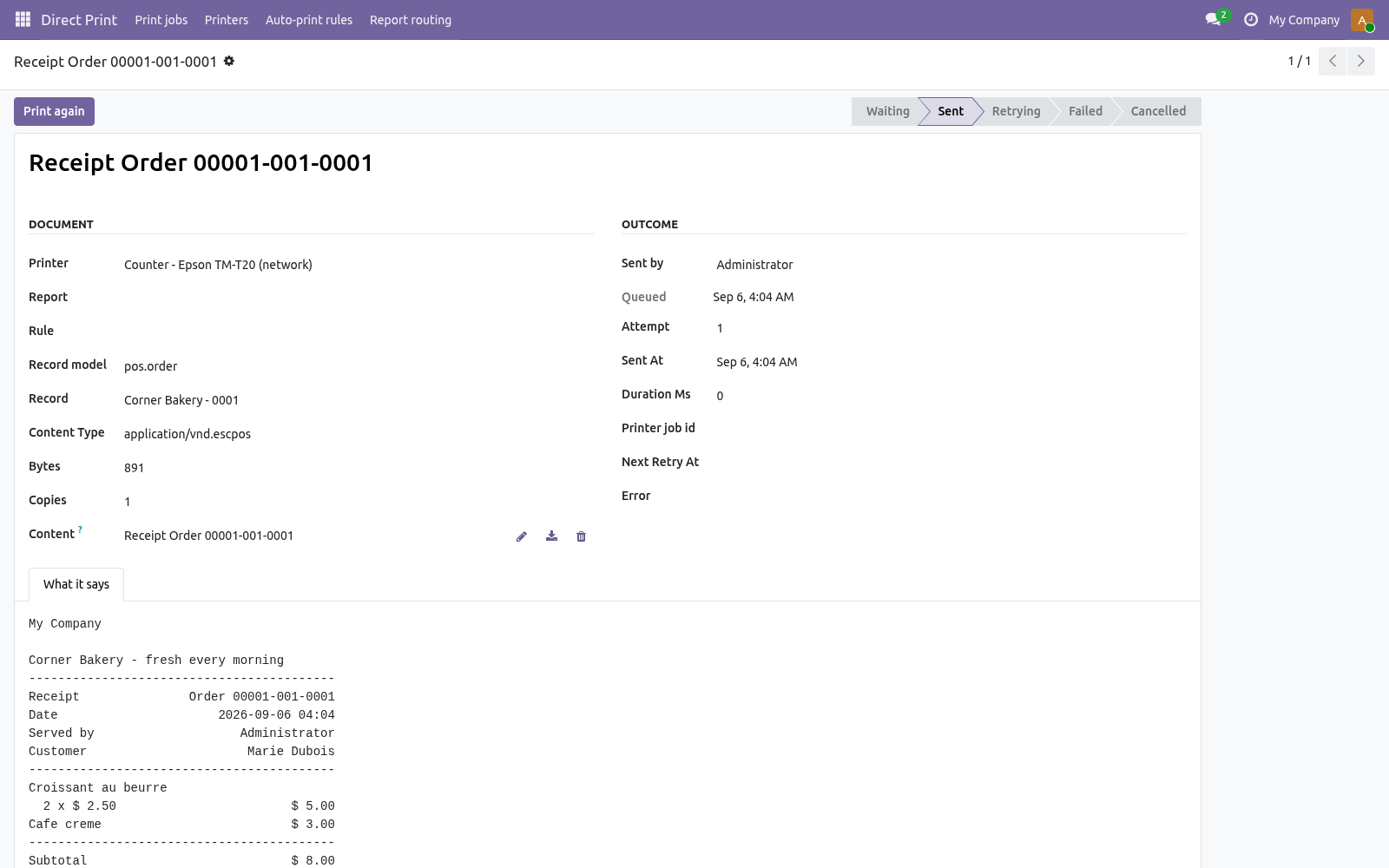
Direct Print → Print jobs is every document that went to a printer: queued, sent, retrying, failed or cancelled, with the printer, the user, the copies, the attempt count, how long the printer took, the printer's job id and, when something went wrong, the printer's words.
A job the printer refuses is retried after 1, 5, 15 and 60 minutes, then marked failed; Print again sends it once more, now. Cancel stops a job that has not gone out. The bytes that were sent are attached to the job, so a disputed label can be reprinted exactly.
Users see their own jobs; managers see every job of their companies. Sent, failed and cancelled jobs are swept after 30 days (bambooforge_direct_print.job_retention_days, 0 keeps them).
A USB printer on a PC: QZ Tray
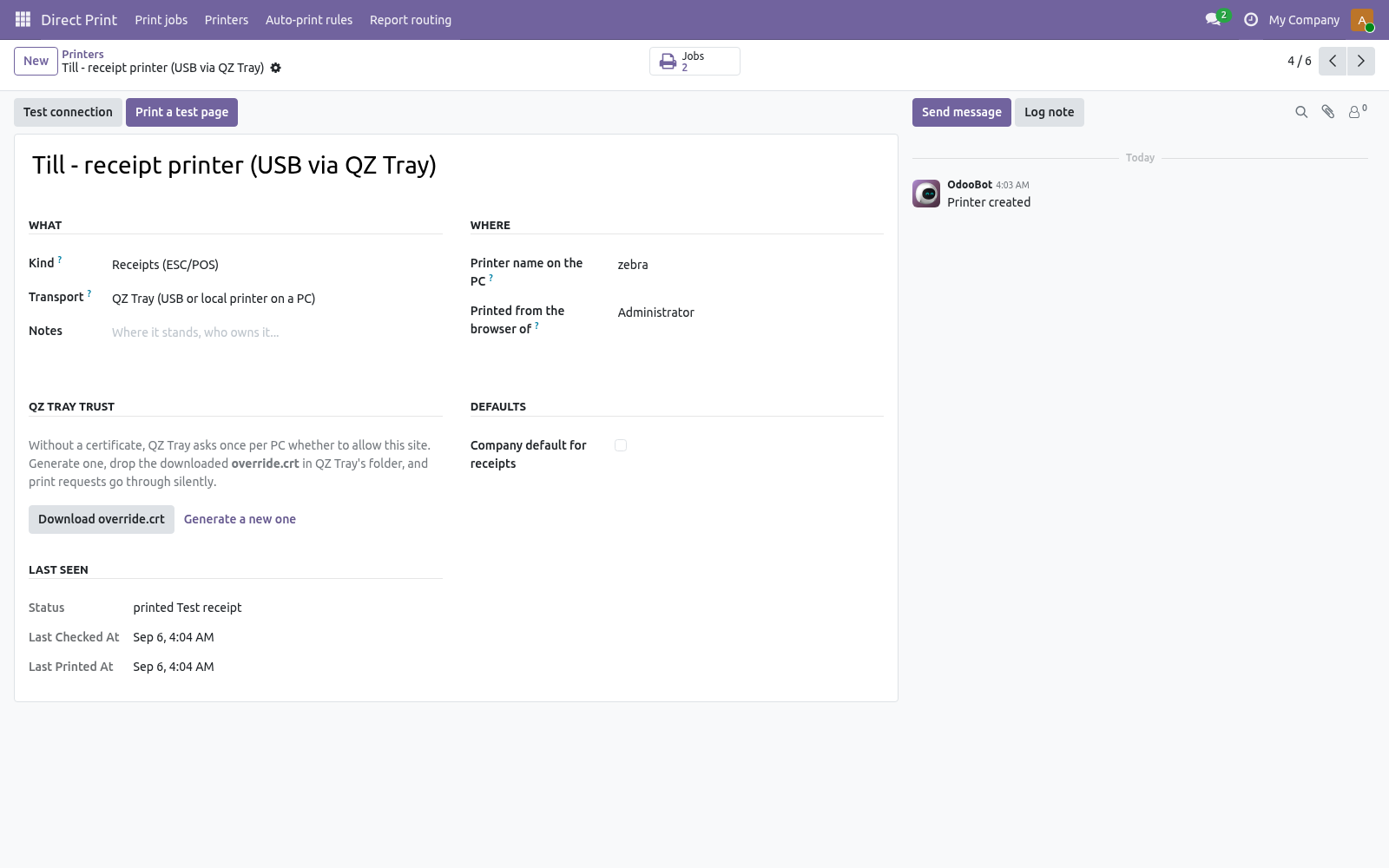
A printer with no network port - the receipt printer under the till, the label printer on a desk - is reached through QZ Tray, a free, open-source program that runs on Windows, macOS and Linux and prints what a web page hands it. The Odoo server never sees that printer; the user's browser does the handing over.
Install QZ Tray on the PC the printer is plugged into, and make sure the printer is installed there as a normal printer (it appears in the PC's printer list).
Direct Print → Printers → New: transport QZ Tray, and the printer name on the PC exactly as that list shows it.
Printed from the browser of: the user who works on that PC. Their Odoo tab picks up queued jobs for this printer every fifteen seconds - auto-print rules and Print again reach the printer through it. A document printed from the Print menu goes through the browser that printed it, whoever that is.
Press Test connection on that PC: the browser asks QZ Tray for the printer and records the answer on the form. Print a test page works the same way.
Allow or sign. The first time a site talks to QZ Tray, QZ Tray asks the user whether to allow it; Remember this decision keeps it quiet from then on. For an installation with many tills, sign the requests instead: on the printer form, under QZ Tray trust, Generate a signing certificate, then drop the downloaded override.crt into QZ Tray's program folder on each PC (C:\Program Files\QZ Tray on Windows, /opt/qz-tray on Linux, the app bundle on macOS) and restart QZ Tray. Signed requests print with no prompt at all. The private key stays in Odoo; administrators see it on the printer form and nowhere else.
PDF or raw. A PDF report is sent in pixel mode - QZ Tray renders it and the printer's driver prints it, right for a laser or inkjet. ZPL labels and ESC/POS receipts go as raw bytes. A label or receipt printer whose driver expects raw bytes for everything can take PDFs raw too: tick Send PDFs as raw bytes.
What the browser must be. Any current Chrome, Edge, Firefox or Safari on the PC; the Odoo tab has to be open for queued jobs to move - a printer behind a browser cannot print while nobody is logged in there. For a printer that must print with nobody around, plug it into the network or into a CUPS server instead.
Point of Sale receipts
Install Direct Print: POS Receipts (bambooforge_direct_print_pos, installed by itself when Point of Sale is present). Then, per shop, under Point of Sale → Configuration → Settings → Bills & Receipts:
- Receipt printed by the server
Tick it. The moment an order is paid, the server renders the receipt as ESC/POS and sends it to the shop's receipt printer - no print dialog, no IoT Box, no preview screen to click through.
- Receipt printer
A printer of kind Receipts: an Epson, Star, Bixolon or other ESC/POS printer on the network (raw, port 9100), a CUPS queue, or a USB printer on the till's PC through QZ Tray. Empty: the company default for receipts.
- Receipt width
58 mm paper (32 columns) or 80 mm paper (42 columns, or 48 in the small font).
- Copies, Customer on the receipt
As they say.
The receipt carries the company name and address, the POS receipt header and footer from the same settings page, the receipt number, date, cashier and customer, every line with quantity, unit price and discount, subtotal, taxes, total, each payment and the change. Accents are folded to what a receipt printer's character set can show.
In the back office, a paid order has a Print receipt button (reprints exactly) and a Receipts counter that opens its jobs. A printer that is down never blocks a sale: the job waits in the queue and retries.
Odoo's own receipt printing in the Point of Sale screen is untouched; turn its Automatic Receipt Printing off to stop the browser printing a second copy.
What it prints
PDF reports of any model - through IPP, the printer or CUPS converts them.
ZPL / EPL / raw labels from qweb-text reports (Odoo's own product and lot labels, the BambooForge Label Designer's ZPL) - straight to a label printer over port 9100 or a raw CUPS queue.
ESC/POS receipts as raw bytes, for receipt printers on the network or on a PC through QZ Tray; the POS Receipts add-on renders them from Point of Sale orders.
Sending ZPL to an IPP printer needs the printer, or the CUPS queue, to accept raw data (application/octet-stream); on CUPS that is a queue created with -m raw.
Compared with the other ways to print from Odoo
Way |
What it means for you |
|---|---|
Odoo's IoT Box |
Enterprise only, and a device to buy and keep running. Prints from the browser through the box. |
Odoo 20's Printer module |
Free, in Community. The user's browser sends ZPL to a Zebra printer and an image of a report to an Epson ePOS receipt printer, for the reports linked to that printer. No office printers, no queue or retries, no record of what was printed. |
Cloud print services |
A subscription, and every document leaves your network to come back to a printer a few metres away. Nothing prints when the service is down. |
Desktop-agent apps |
A program on a Windows PC that must stay on; the store lists several at roughly 12 to 150 EUR. The PC becomes the print server. |
This app |
The Odoo server speaks IPP and raw TCP to the printers itself, so nothing sits in between and nothing leaves; a USB printer is reached through QZ Tray on the PC it is plugged into. Auto-print rules and a queue with retries are included. 129 EUR per Odoo series, source included, no subscription. |
The store prices quoted are those shown on the Odoo Apps Store at the time of writing; check the listings for today's figures and for what each app actually installs.
What it does not do
Said before you buy, because it is the half that decides whether the app fits:
Print from a browser to a printer the server cannot reach - a printer with no network port is reached through QZ Tray on its PC, and only while an Odoo tab is open there.
Convert documents: a PDF goes to a document printer, ZPL to a label printer, ESC/POS to a receipt printer, as they are.
Print Point of Sale receipts on its own - that is the POS Receipts add-on.
Security notes
The Odoo server talks to network printers; browsers, desktops and third parties are not involved and no document leaves your network. A QZ Tray printer is the exception by design: the document goes from the server to the user's browser to QZ Tray on the same PC, still inside your network.
QZ Tray requests are signed with the company's own key when a certificate is generated; the key is readable by administrators only and never sent to the browser.
IPP credentials, when a printer or CUPS server asks for them, are stored on the printer record and visible to administrators only.
Every job records who sent it and what was sent.
Printers and rules are per company; users see their own jobs.
Troubleshooting
- Test connection fails with "Connection refused"
The Odoo server cannot reach the printer's port. Check the address, the port (631 for IPP, 9100 for raw) and that no firewall sits between the server and the printer.
- "client-error-document-format-not-supported"
The printer does not take the format sent. For a PDF printer, try application/octet-stream as document format (under debug mode on the printer form); for ZPL on CUPS, make the queue raw.
- "server-error-not-accepting-jobs"
The queue is paused on the printer or the CUPS server; resume it there.
- Print sent to the printer, nothing came out
Open the job: Sent means the printer accepted it and it is in the printer's own queue - look at the printer's display. Retrying shows the printer's answer.
- The Print menu still downloads
The report's When printed is Open in the browser, or the browser has an old page open - reload after changing report routing.
- No printer
"No printer: name one on the report, on your preferences, or as the company default." Do one of the three.
- QZ Tray: "QZ Tray is not running on this PC"
Start QZ Tray on that PC (its icon sits in the system tray). The browser reaches it on localhost; a browser on another PC cannot.
- QZ Tray: "Cannot find printer"
The printer name on the PC differs from what the PC calls it. Open the PC's printer list and copy the name exactly.
- QZ Tray keeps asking to allow the site
Tick Remember this decision, or install the signing certificate as override.crt (see A USB printer on a PC).
- A queued job for a QZ Tray printer stays "Waiting"
Nobody has an Odoo tab open on that PC as the printer's user. Log in there, or give the printer to the user who is.
- The POS receipt prints twice
Odoo's own Automatic Receipt Printing is on as well; turn one of the two off.
Tested against the real thing
Automated tests run against a fake printer on every release; the sentence below is the part no fake can give you.
Tested for real against CUPS 2.4 (a Generic PostScript queue and a raw Zebra queue), a Zebra-style raw listener on port 9100 and QZ Tray 2.2.6: a delivery slip rendered by Odoo went through IPP and came out of the queue as PostScript, an Odoo ZPL product label printed from the label wizard reached the label printer byte for byte, a validated transfer fired its auto-print rule and printed without anyone pressing Print, a test page and a queued POS receipt went from the browser through QZ Tray's signed websocket to the PC's printers, and the printers' refusals came back as the job's error text - 0 lost jobs.
Changelog
20.0.1.1.1
Built for Odoo 20: record rules and access rights rewritten onto Odoo 20's single ir.access model, the screens rebuilt on Owl 3, and every icon moved to the icon set Odoo 20 ships.
1.1.0
QZ Tray transport: a USB or local printer on a PC, printed through the user's browser; test connection and test page from the browser; queued jobs picked up by the printer's user; signed requests with a generated certificate and override.crt.
What it says: labels and receipts are shown as text on the job.
The POS Receipts add-on: the receipt of every paid order rendered as ESC/POS and printed by the server.
1.0.0
Printers over IPP / CUPS / AirPrint and raw TCP; test connection and test page.
Report routing: Send to the printer from the Print menu, per report, with a printer per report, per user or per company.
Auto-print rules on creation or on a field value, including stored computed fields.
A print queue with retries, print again, cancel and retention.
How we make sure it works
Before every release, 42 automated checks run against this app on Odoo 16, 17, 18, 19 and 20. Among them:
A pdf cannot go to a label printer.
The host's browser sees the queue and others do not.
No printer is an explanation not a crash.
A user sees their own jobs and no printer settings.
A raw job sends the bytes once per copy.
Tested for real against CUPS 2.4 (a Generic PostScript queue and a raw Zebra queue), a Zebra-style raw listener on port 9100 and QZ Tray 2.2.6: a delivery slip rendered by Odoo went through IPP and came out of the queue as PostScript, an Odoo ZPL product label printed from the label wizard reached the label printer byte for byte, a validated transfer fired its auto-print rule and printed without anyone pressing Print, a test page and a queued POS receipt went from the browser through QZ Tray's signed websocket to the PC's printers, and the printers' refusals came back as the job's error text - 0 lost jobs.
The complete list is in the source you receive.
Support
support@bambooforge.dev - questions, bug reports and feature requests are answered by the developers who wrote the module.