 BambooForge Labs
Dealer & Distributor Management
Dealer and distributor network management: onboarding, automatic tiers from sales, exclusive territories, credit blocking and sales targets.
Available for Odoo 16.0, Odoo 17.0, Odoo 18.0, Odoo 19.0, Odoo 20.0. Technical name bambooforge_dealer_management.
Transcript of the walkthrough (Odoo 20)
Dealer & Distributor Management. Dealer and distributor network management: onboarding, automatic tiers from sales, exclusive territories, credit blocking and sales targets. A dealer is a business partner who resells your products. This app turns the standard Odoo contact into a managed dealer record and adds the tooling a distribution business actually needs: In the next few minutes: dealer & distributor management, then onboarding your first dealer, then tiers, then territories, then credit control.
Then what this app deliberately does not do, so you can tell before you buy whether it fits. Everything lives under Dealers then Dealers then Targets then Reporting. No Enterprise modules and no external Python libraries are required. Dealer & Distributor Management.
Run your whole reseller network from inside Odoo 20: onboard dealers and distributors, rank them into automatic tiers from their sales, assign exclusive territories, cap their credit exposure (and block orders that would break the limit), and set sales targets with live achievement tracking. This page is the complete manual. Follow it top to bottom and you can install, onboard your first dealer, configure tiers and territories, manage credit and targets, and fix the common issues without contacting support. Onboarding your first dealer.
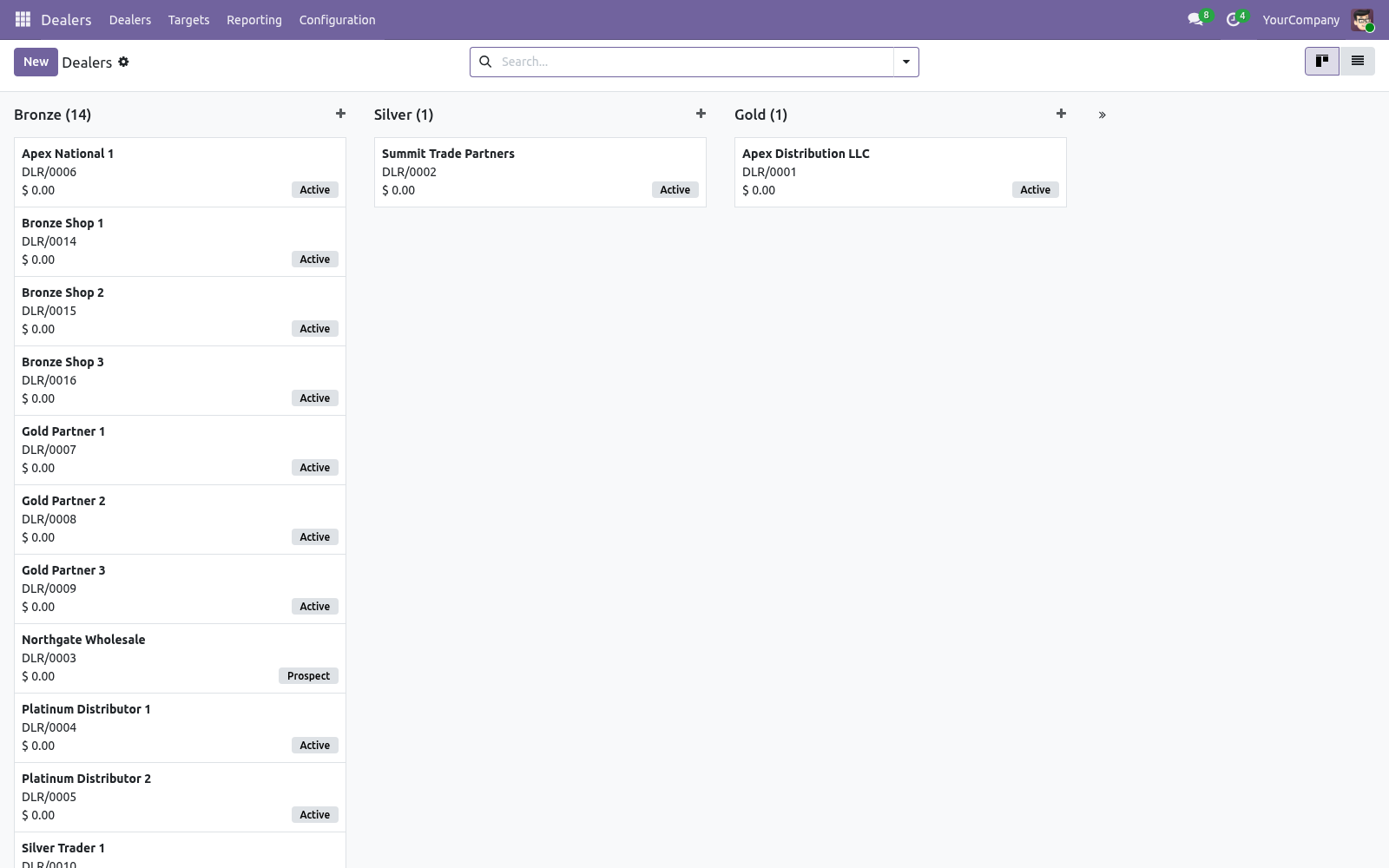
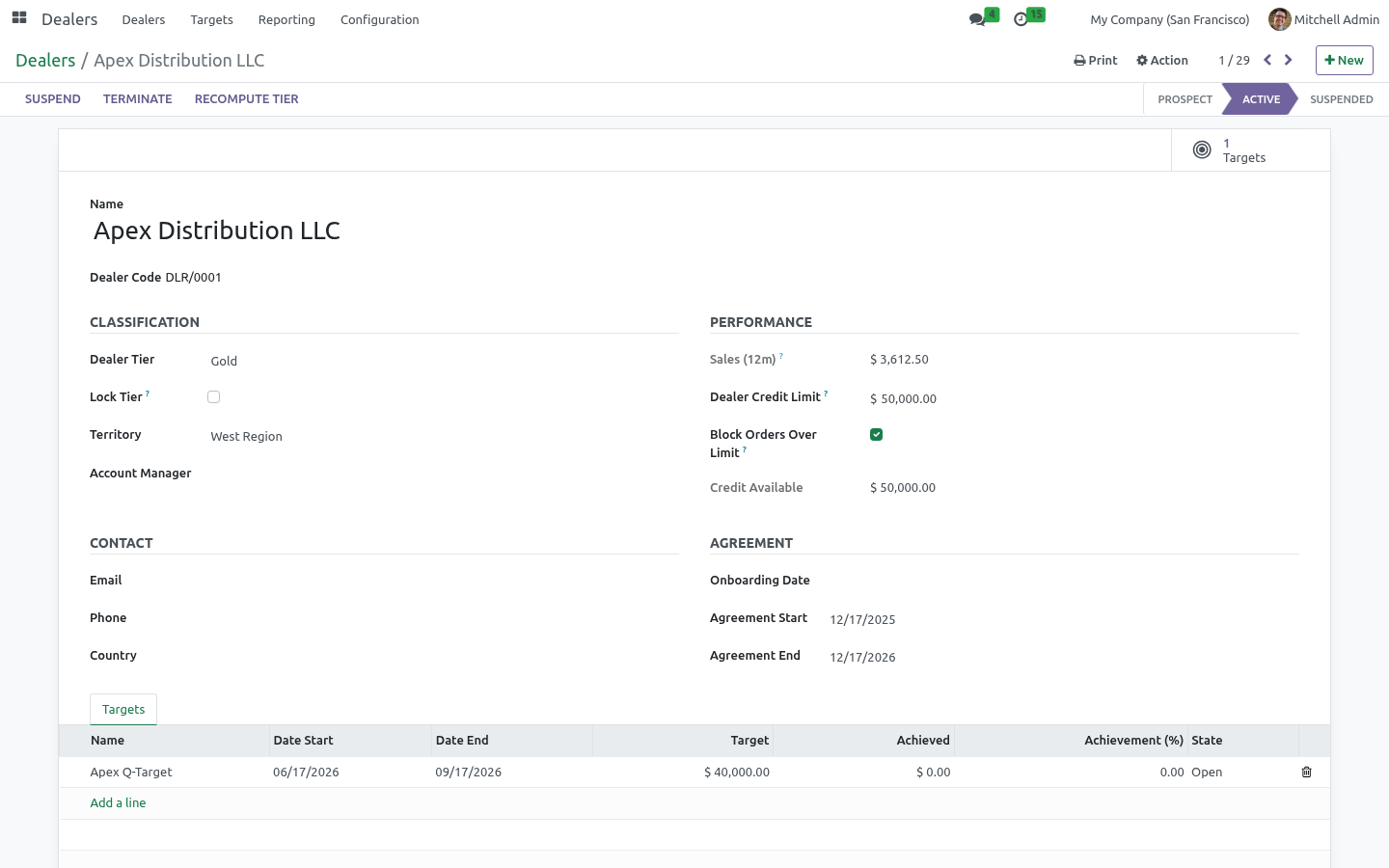
1. Open Dealers > Dealers and click New. 2. Enter the dealer's name.
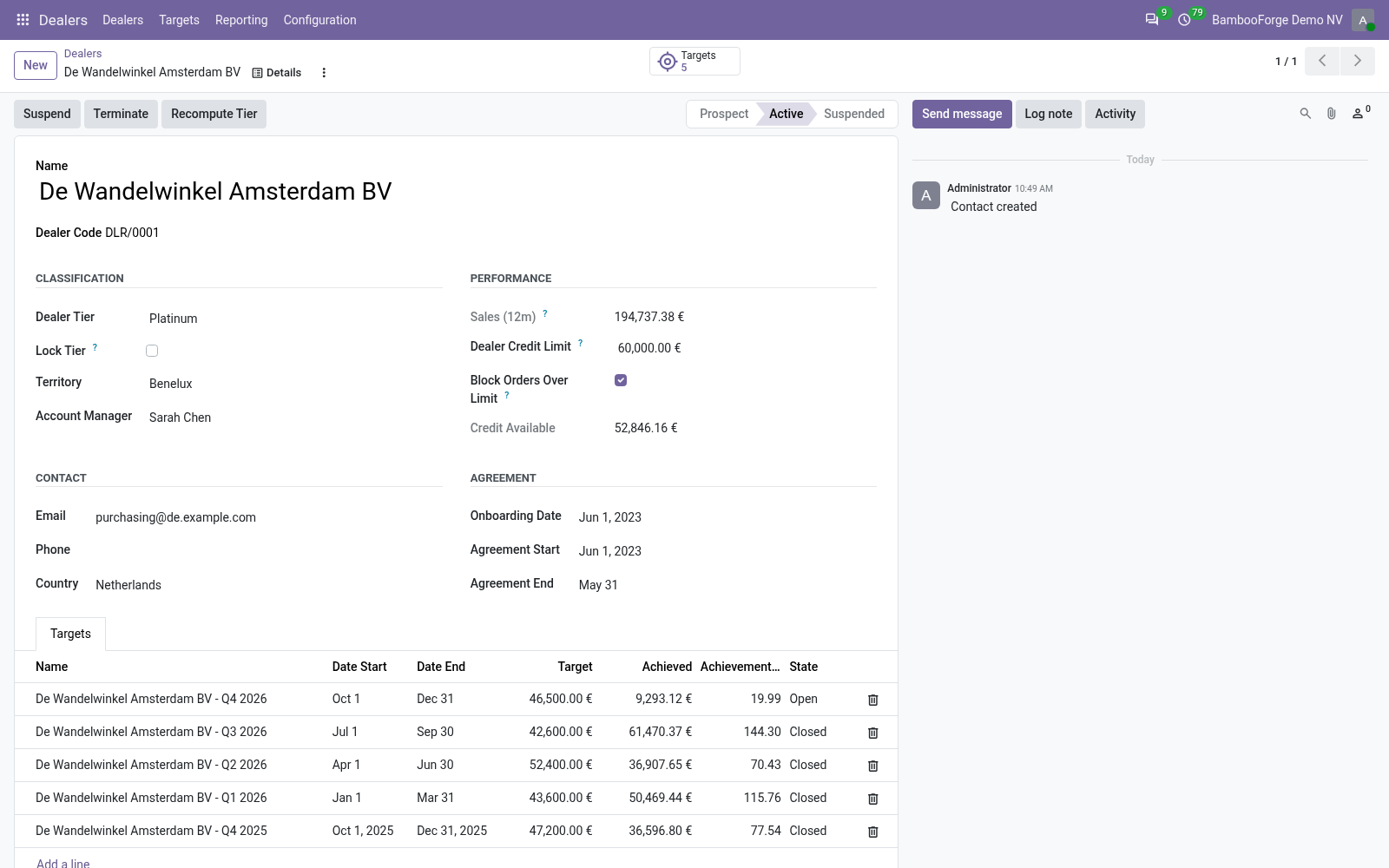
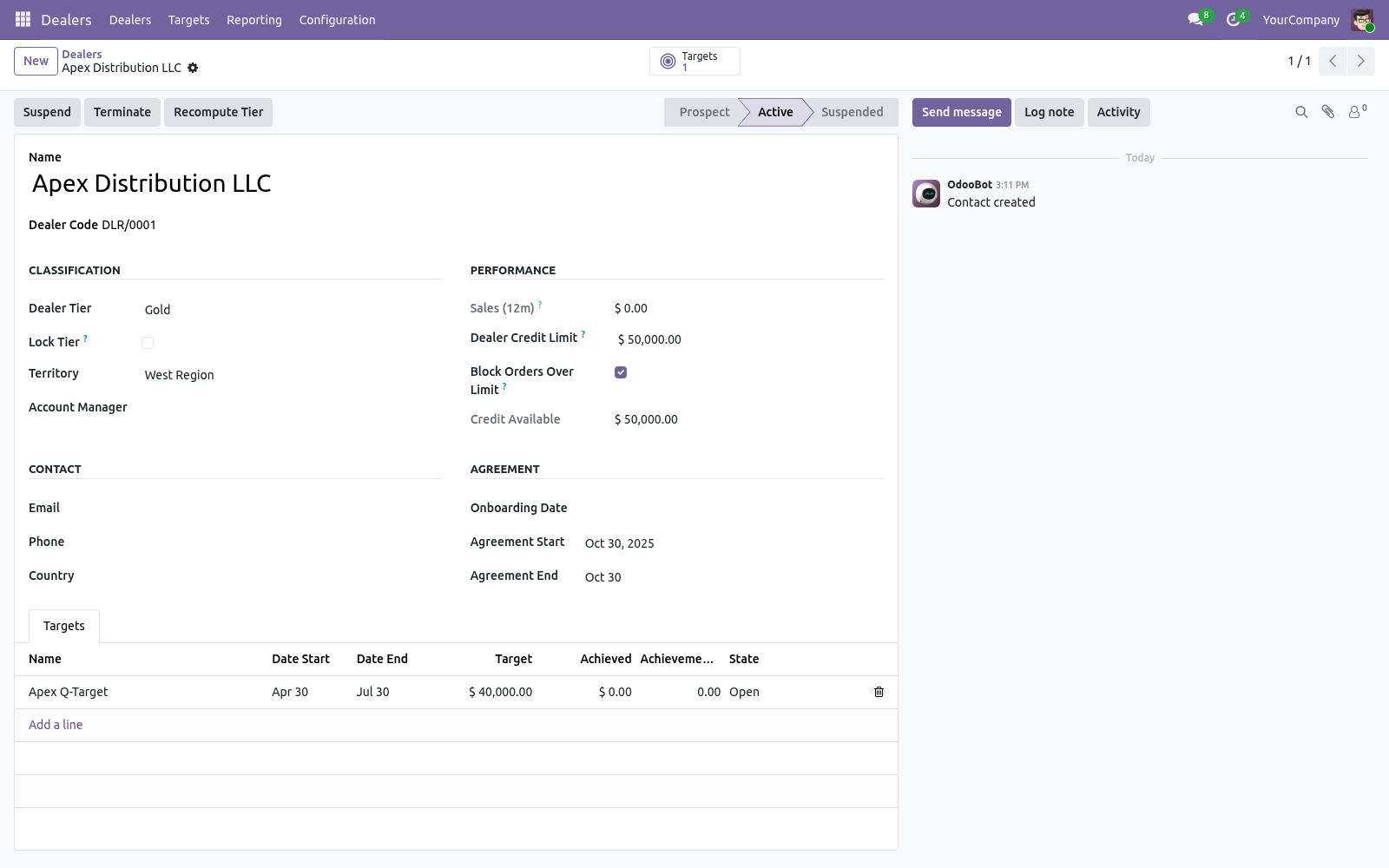
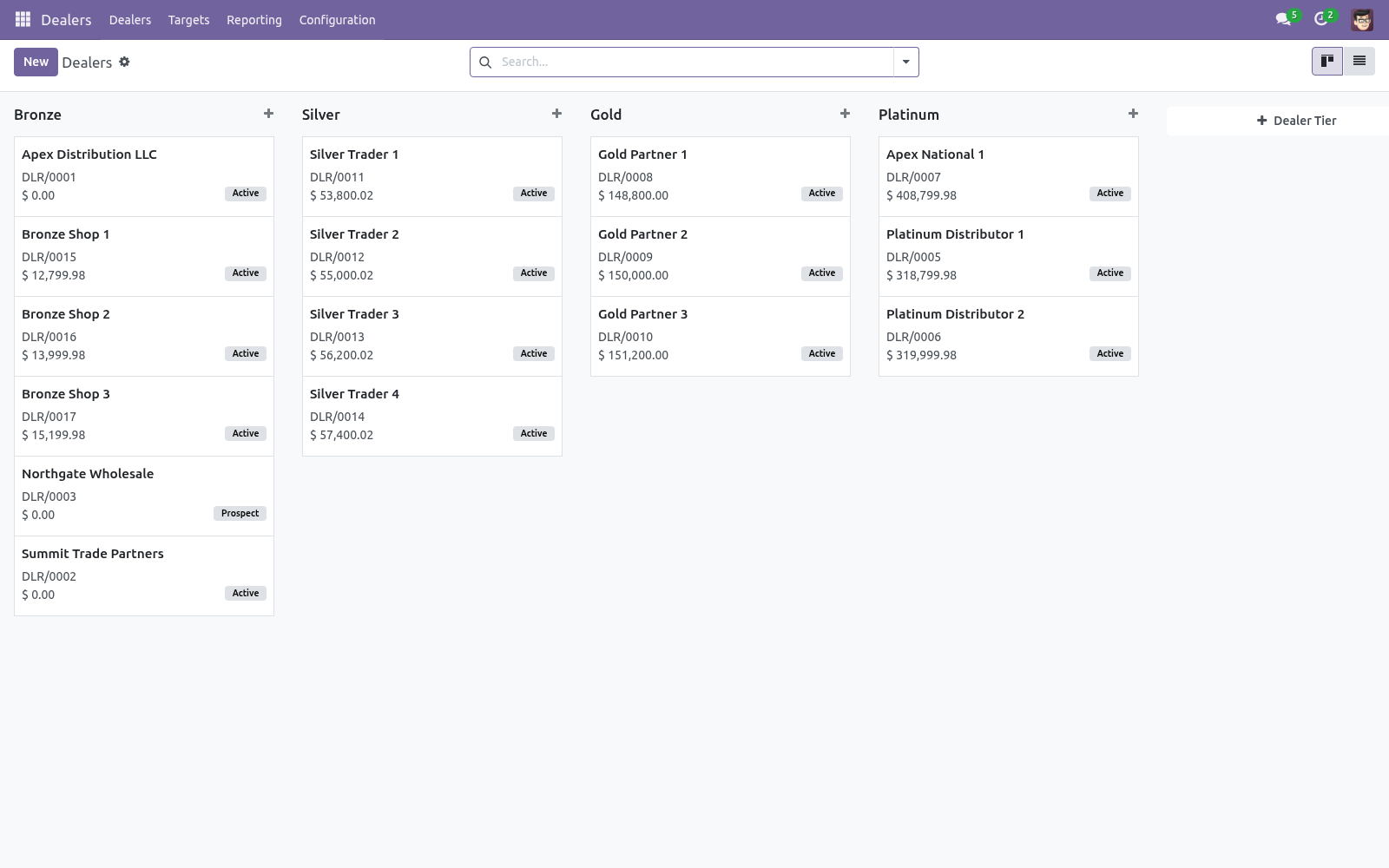
A Dealer Code (DLR/0001...) is assigned automatically. 3. Optionally set a Territory, Account Manager and Credit Limit. 4.
Click Activate. The dealer becomes Active, an onboarding date is stamped, and — if no tier is set yet — a tier is assigned from their sales. Use Suspend, Terminate and Set to Prospect to move the dealer through its lifecycle. Every change is recorded in the chatter.
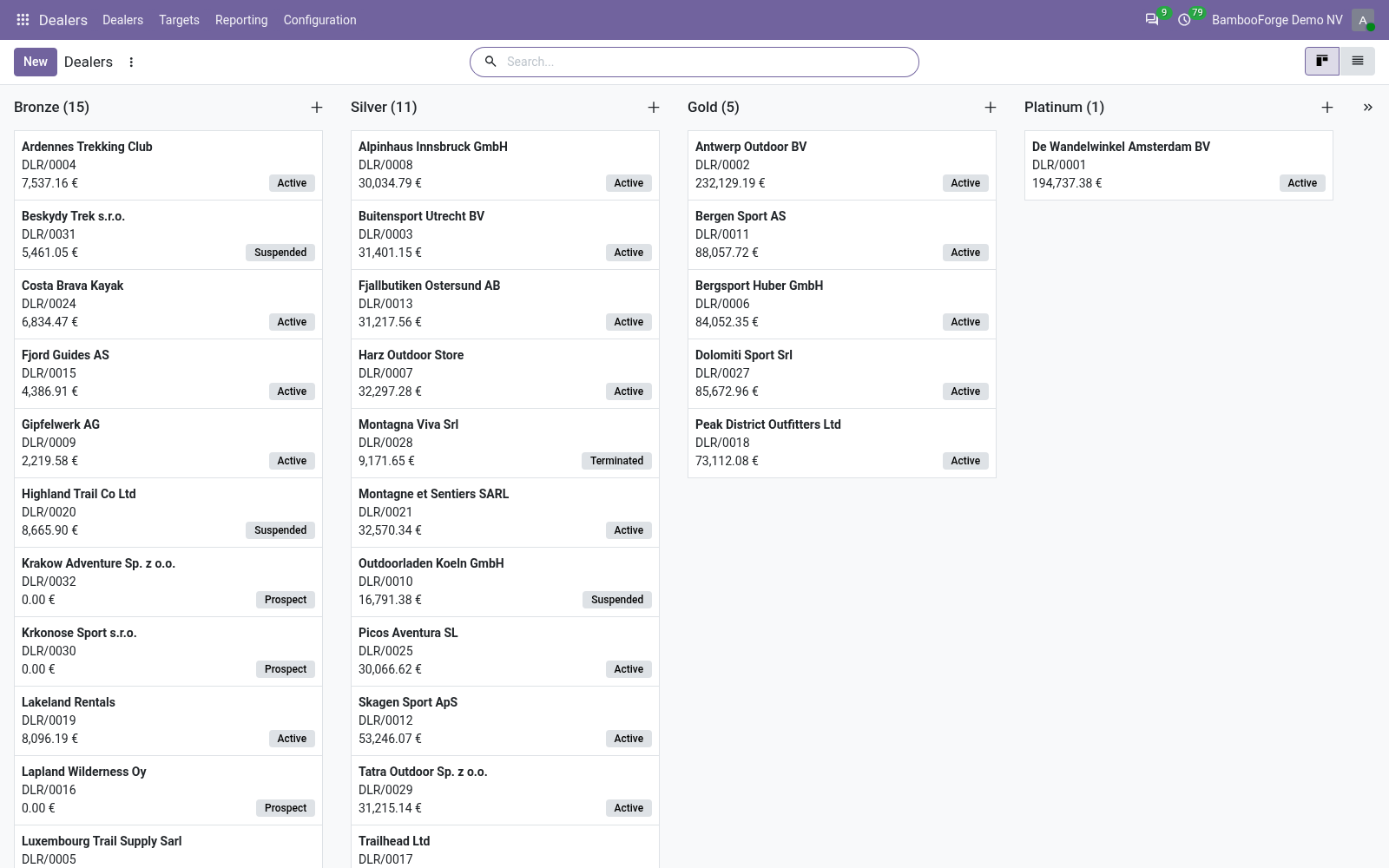
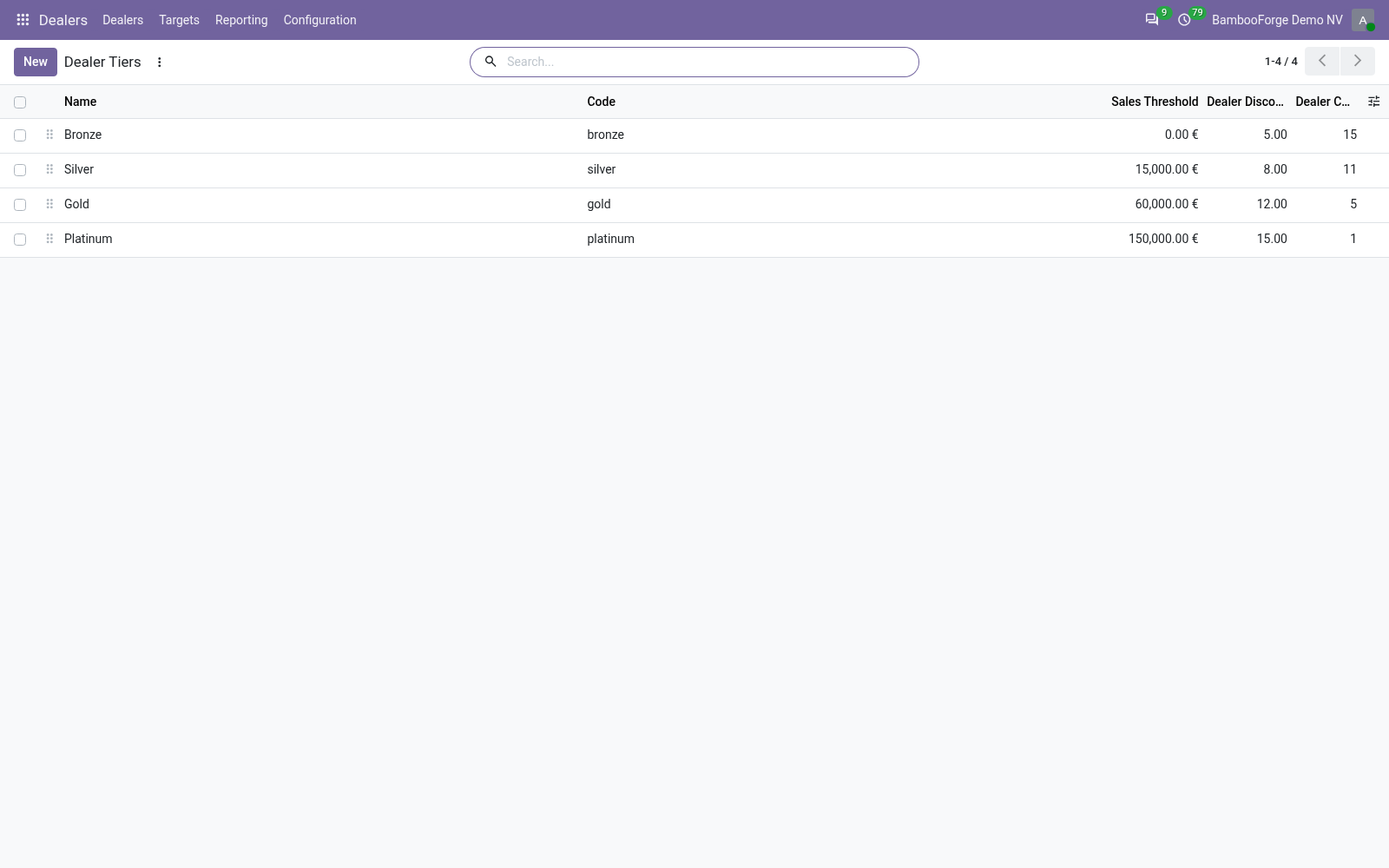
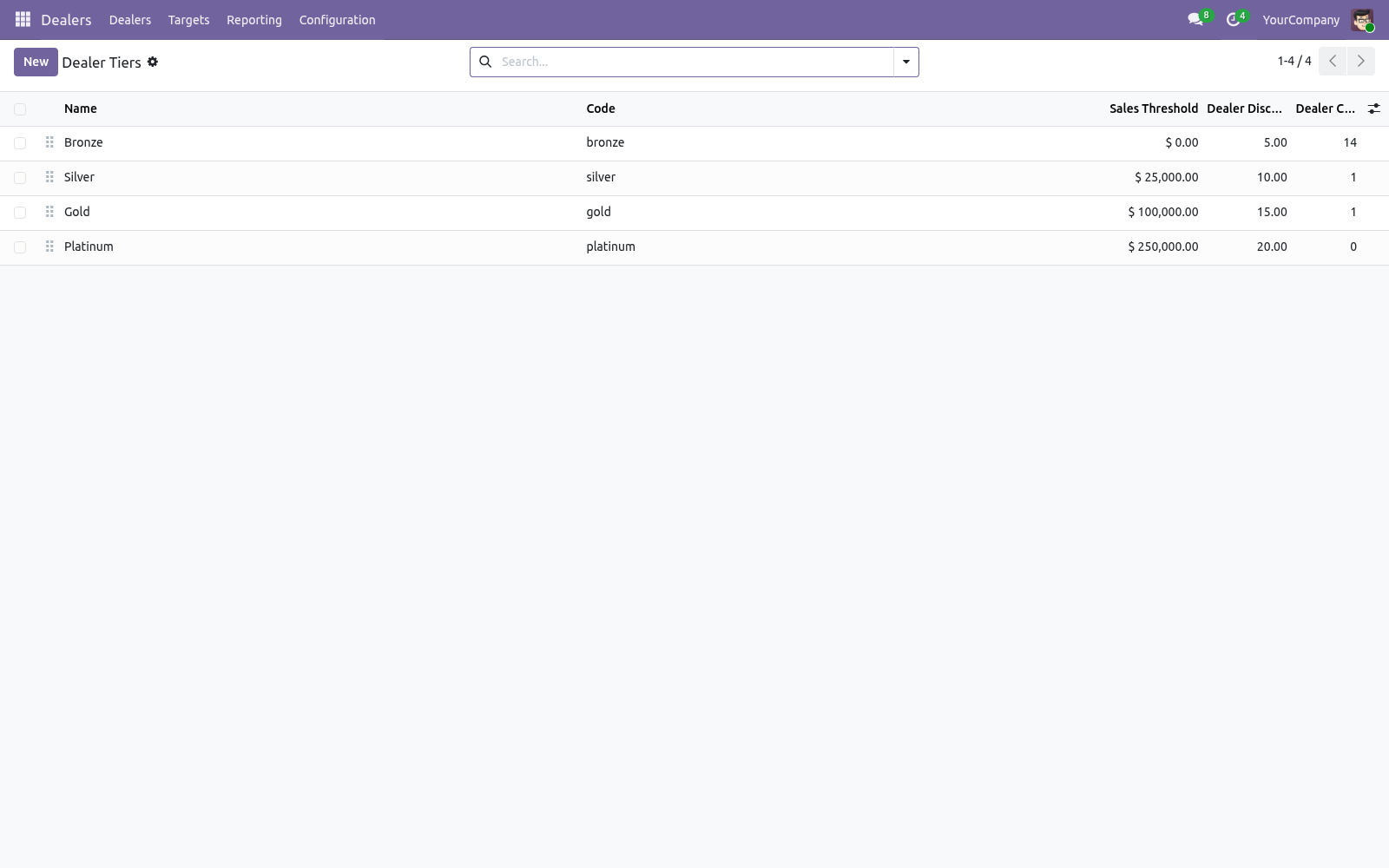
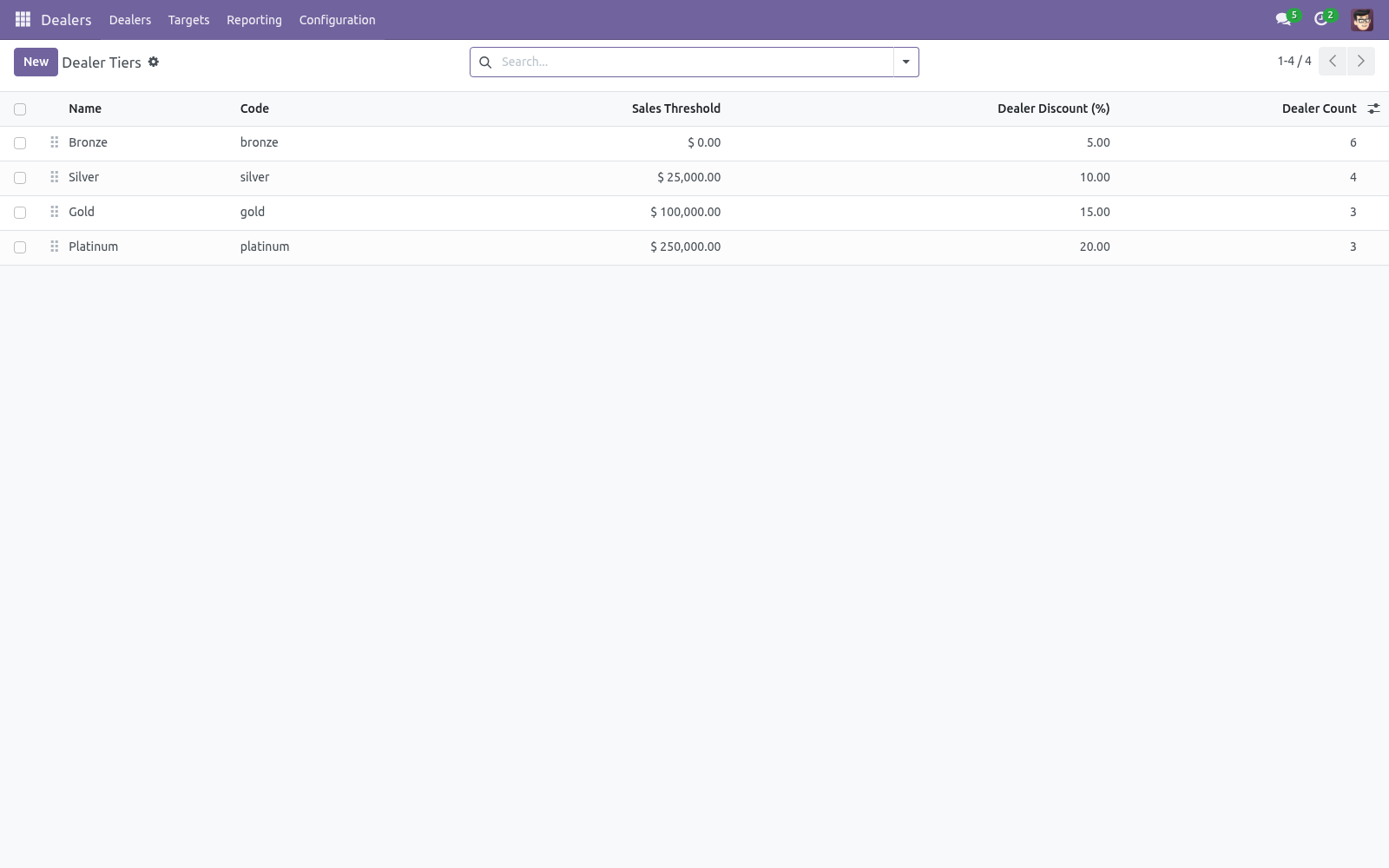
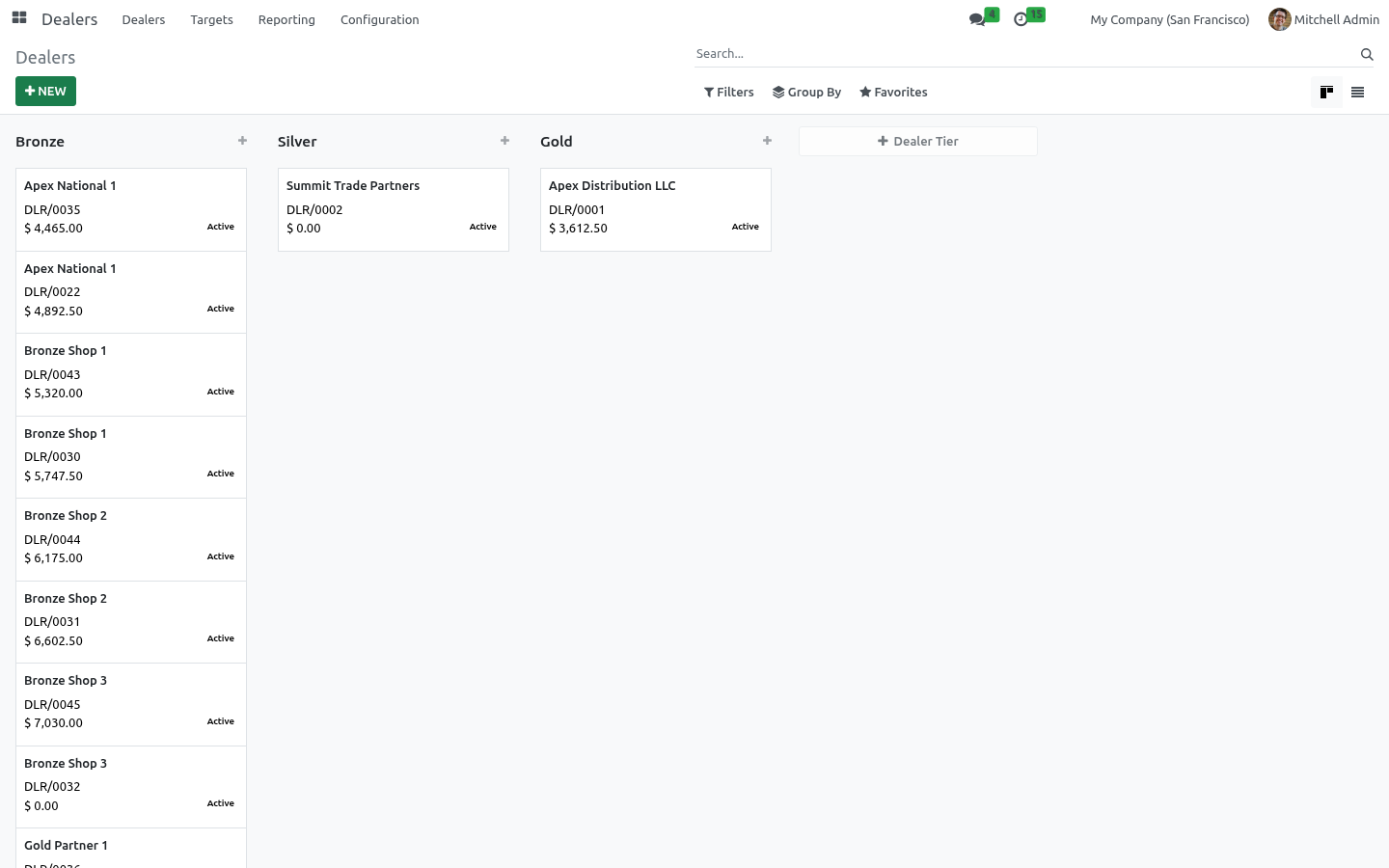
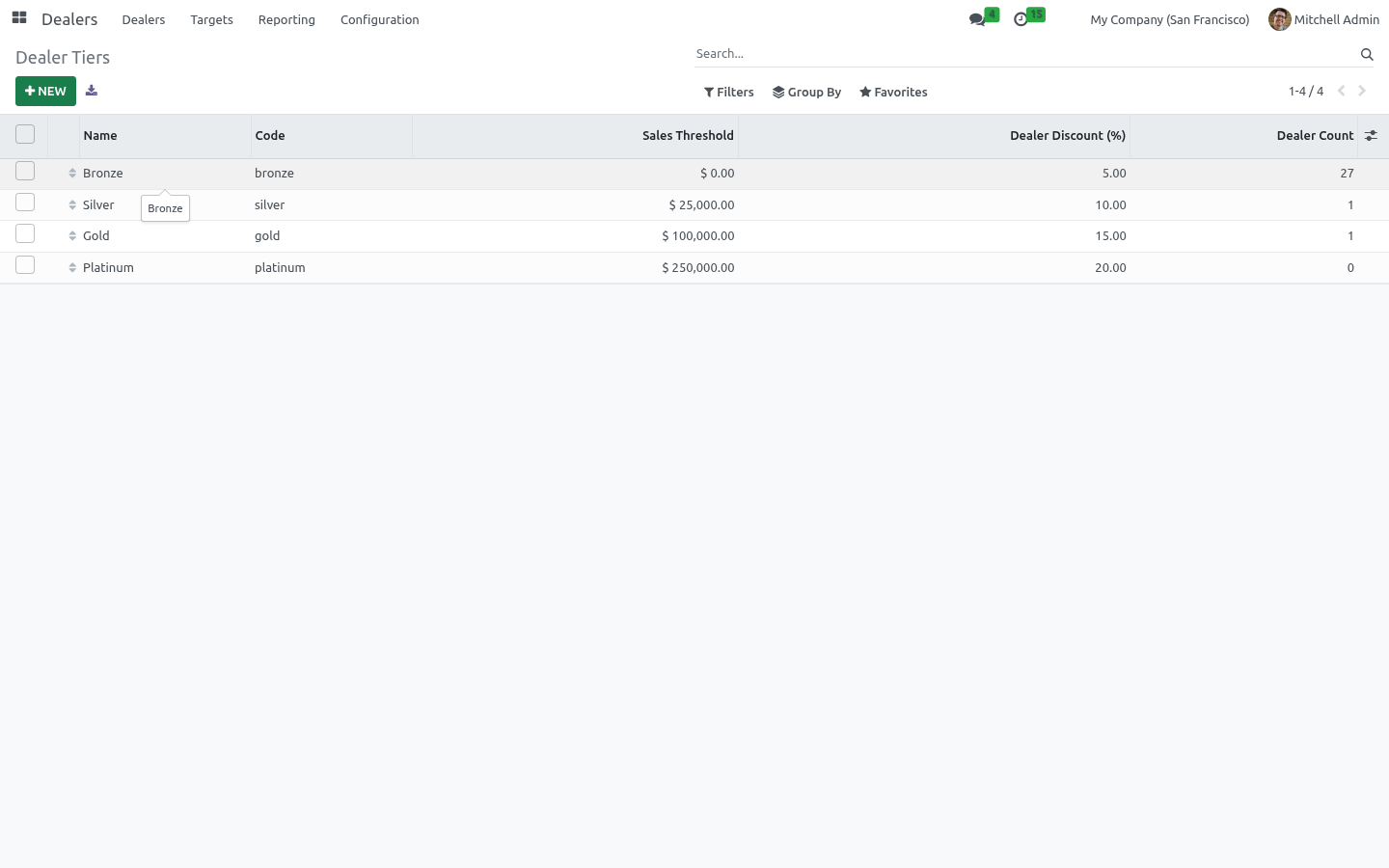
Tiers. Go to Dealers > Configuration > Tiers. Each tier has: a Sales Threshold — the minimum trailing 12-month sales (company currency) to reach the tier automatically, an indicative Dealer Discount (%) and an optional Pricelist, a colour and a description. the Recompute Tier button on a dealer, the scheduled action Dealers: Recompute Tiers (ships disabled — enable it under Settings > Technical > Scheduled Actions to run weekly), automatically on first activation.
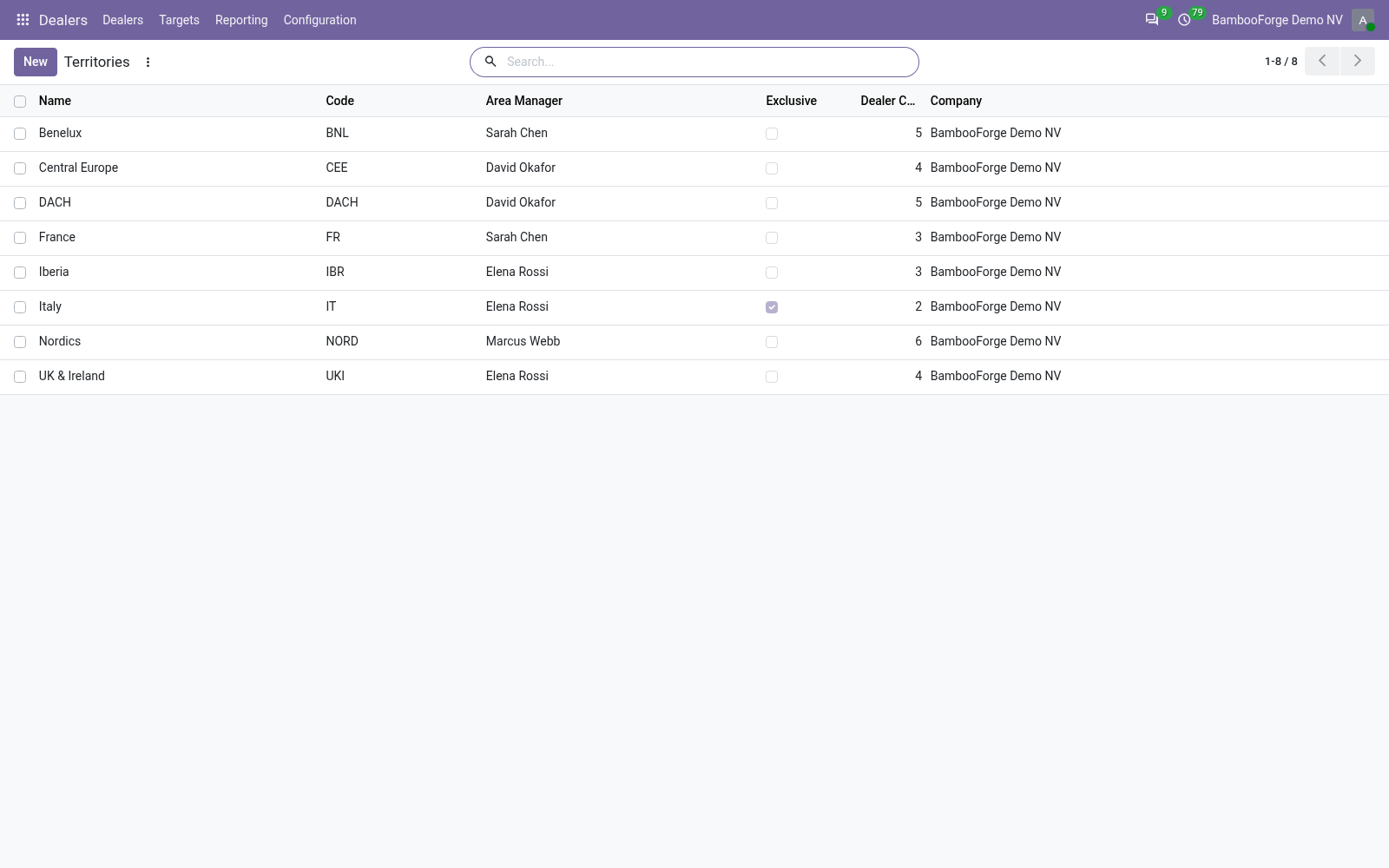
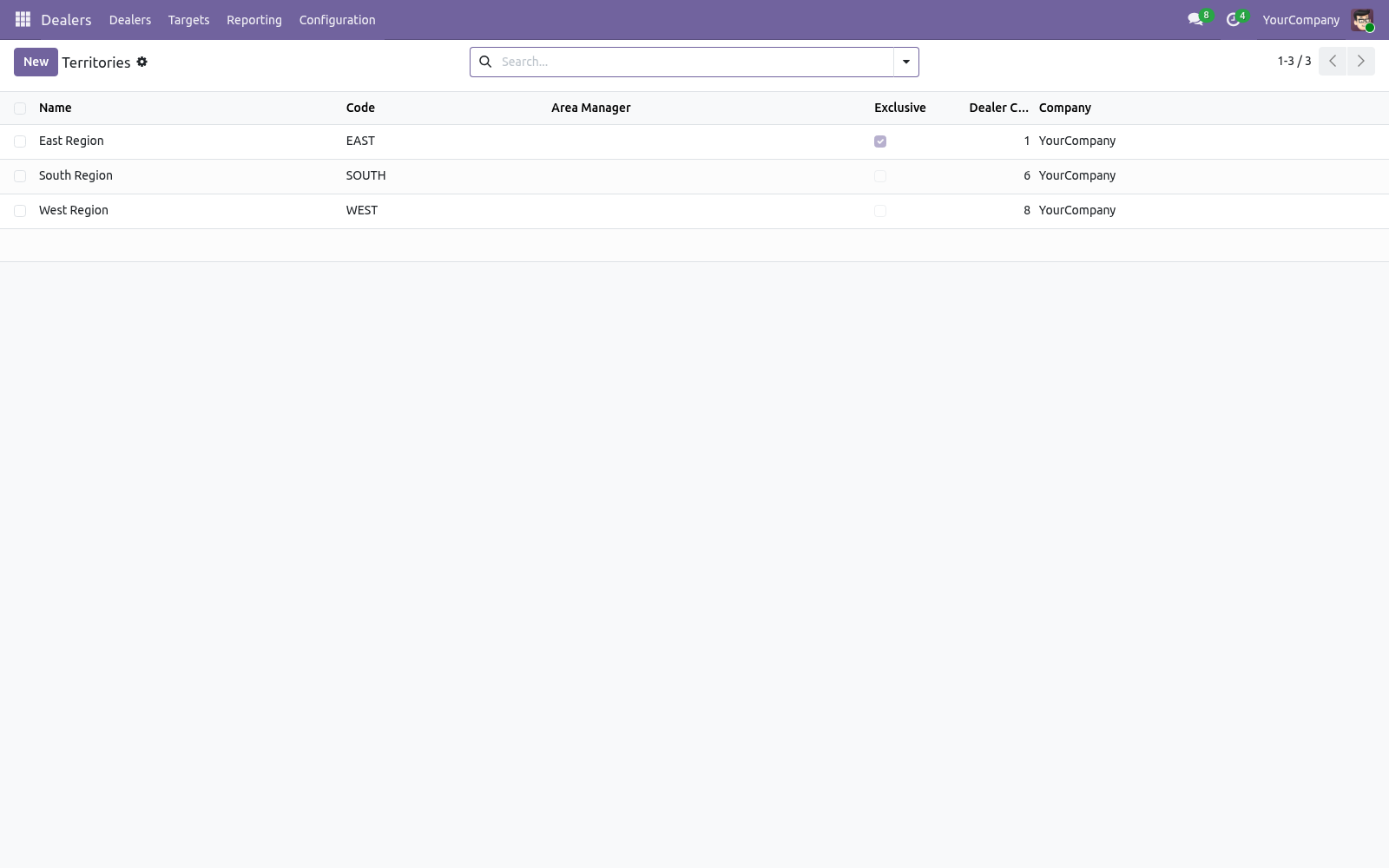
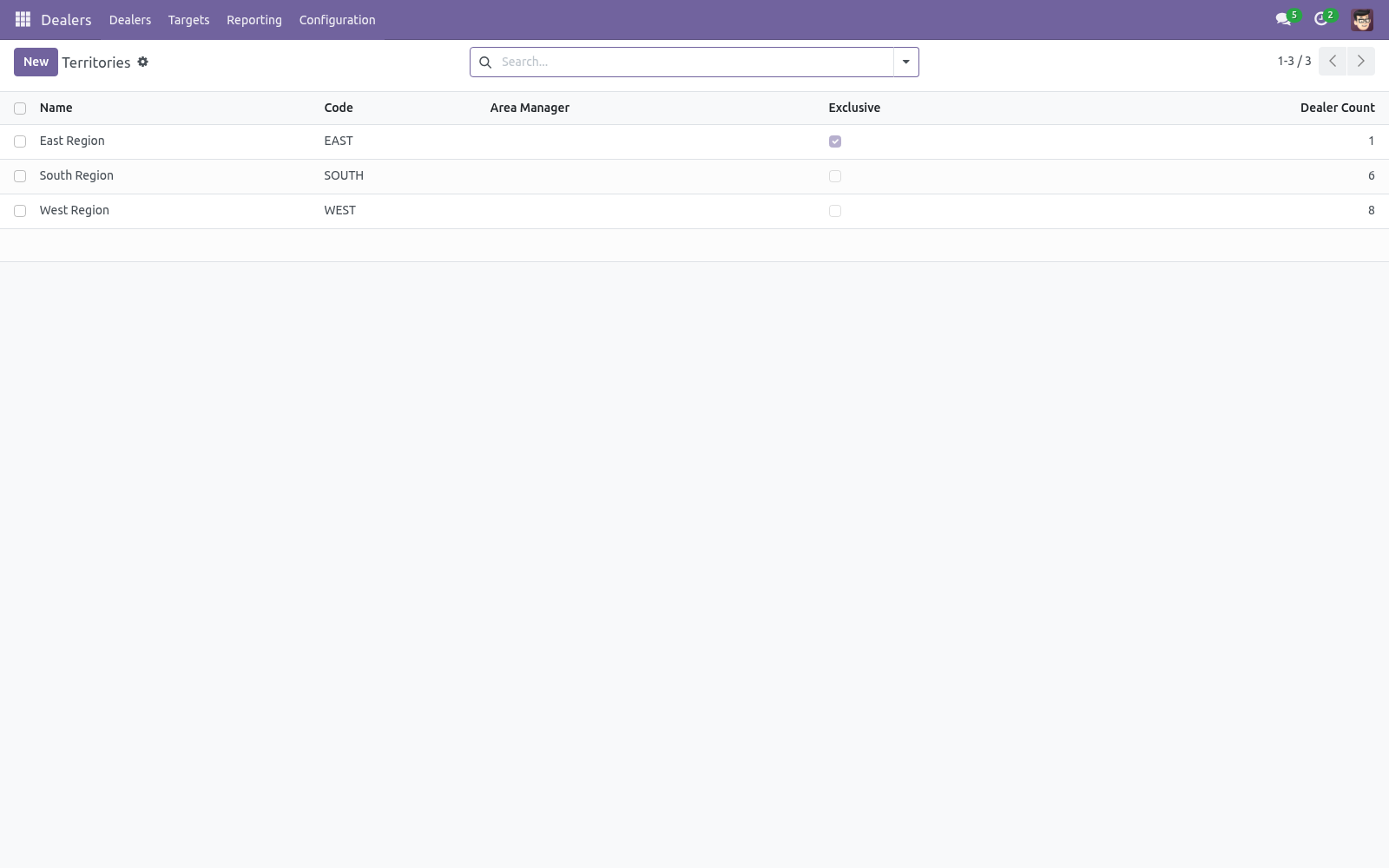
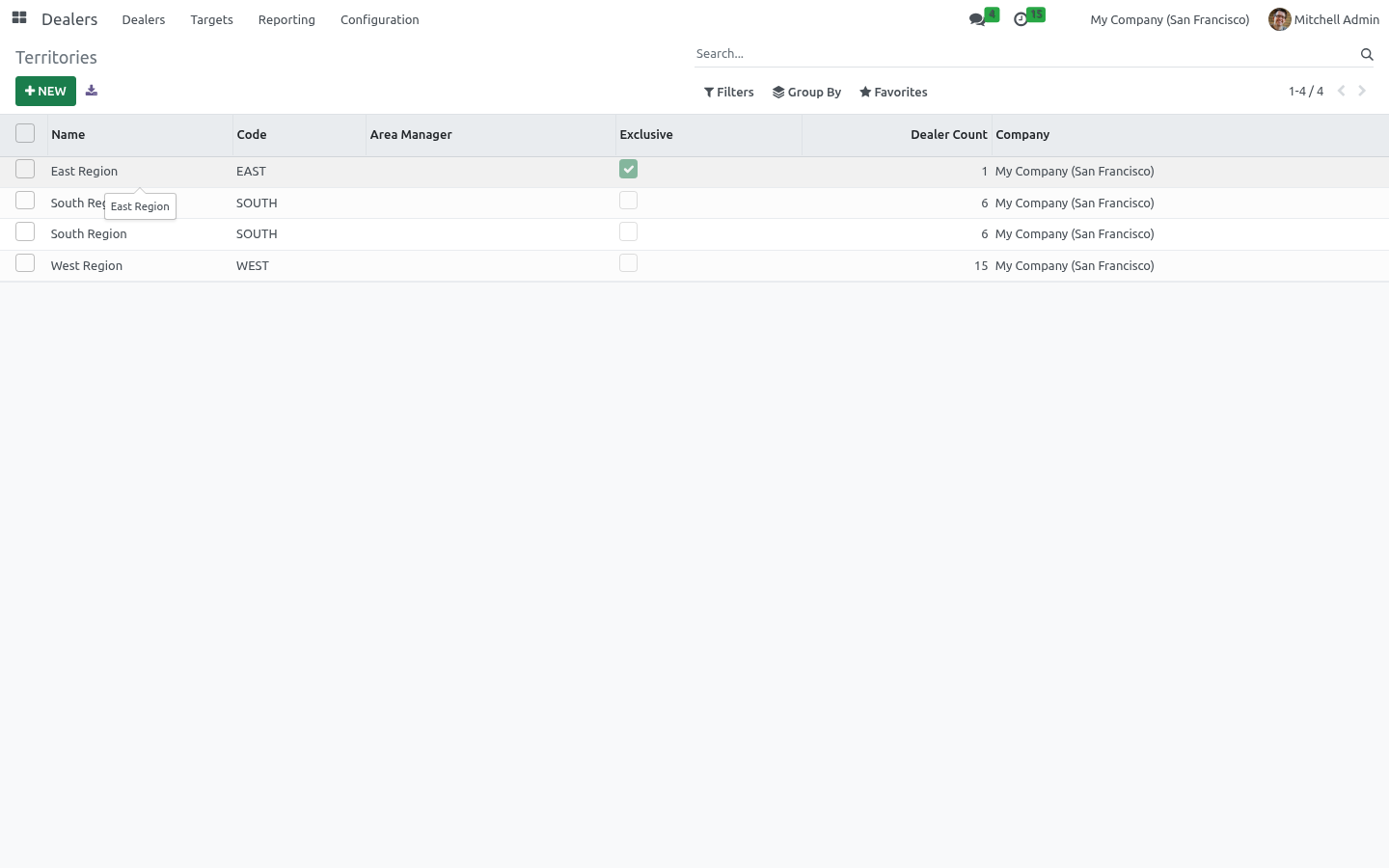
The four shipped tiers (Bronze, Silver, Gold, Platinum) are a starting point — rename them, change thresholds, add or remove tiers freely. Territories. Go to Dealers > Configuration > Territories. A territory groups dealers by area and can list the countries and regions it covers, plus an area manager.
Tick Exclusive to enforce that only one active dealer may hold the territory. Trying to activate a second dealer in an exclusive territory is blocked with a clear message. Credit control. Set a Dealer Credit Limit on a dealer (zero means no limit).
The Credit Available field shows the limit minus the dealer's current receivable exposure (Odoo's standard credit figure). When Block Orders Over Limit is on, confirming a sales order that would push the dealer's exposure past the limit is blocked with a message telling you by how much. Users in the Dealer Manager group can confirm anyway, so you keep an override path for approved exceptions. Sales targets.
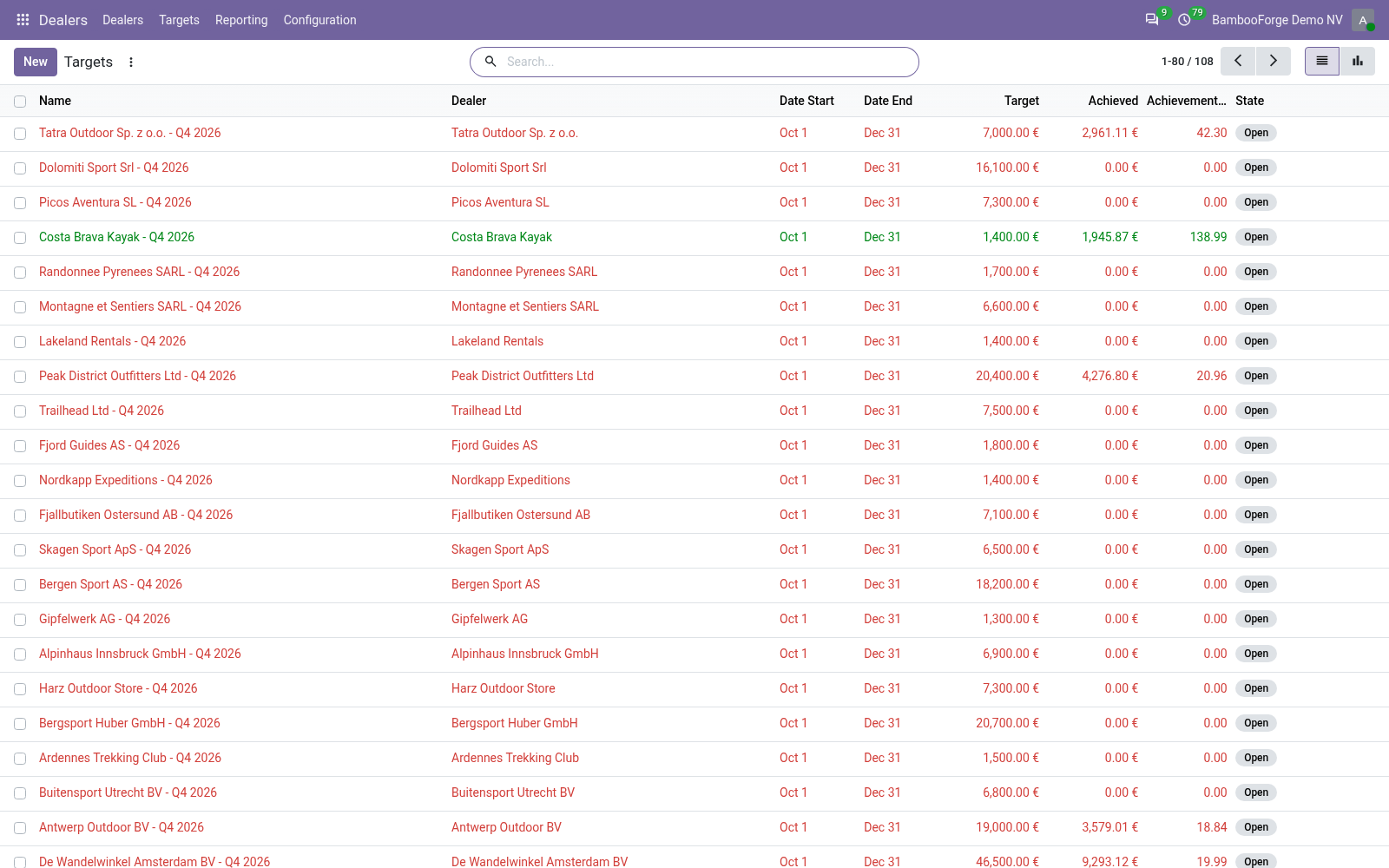
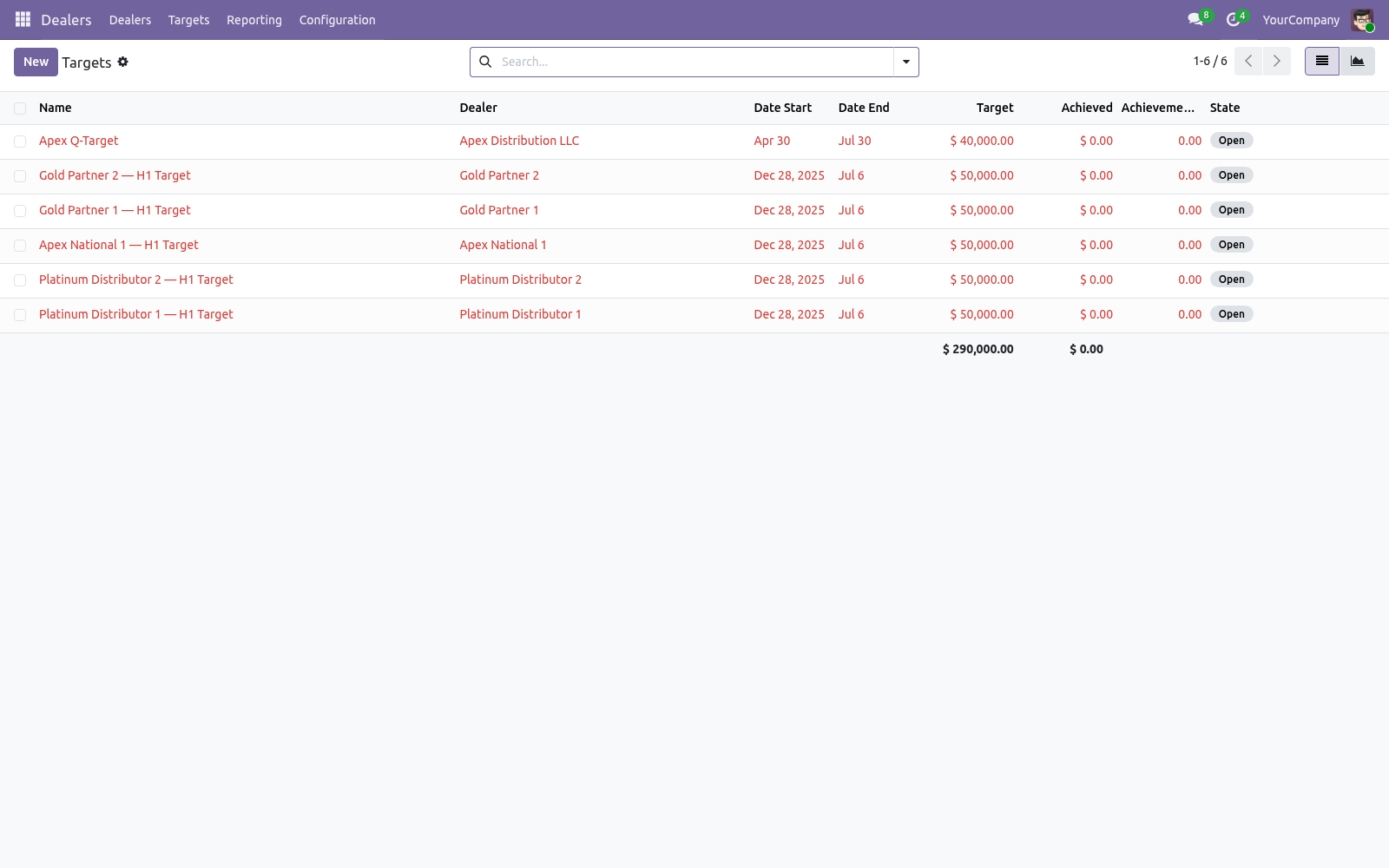
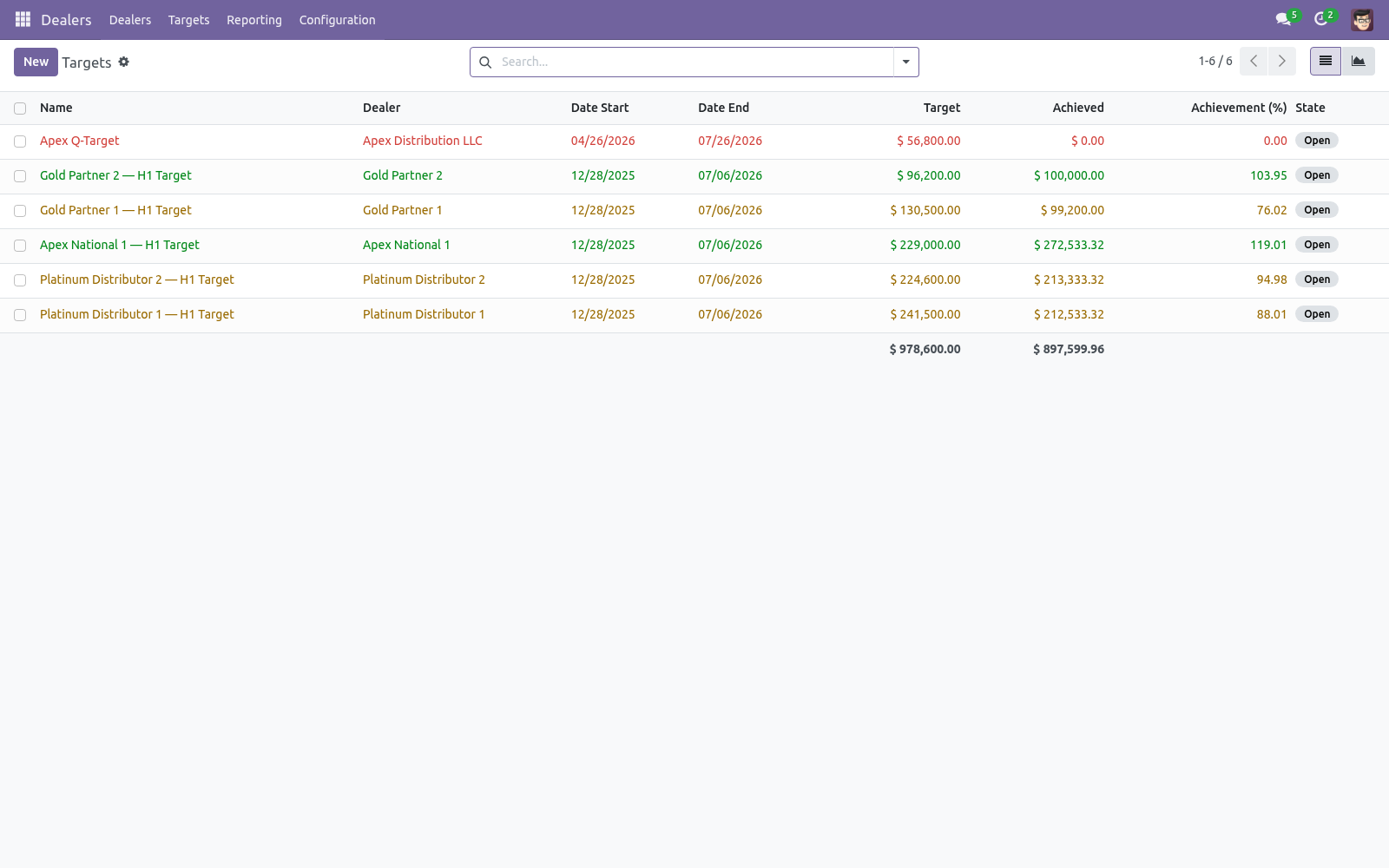
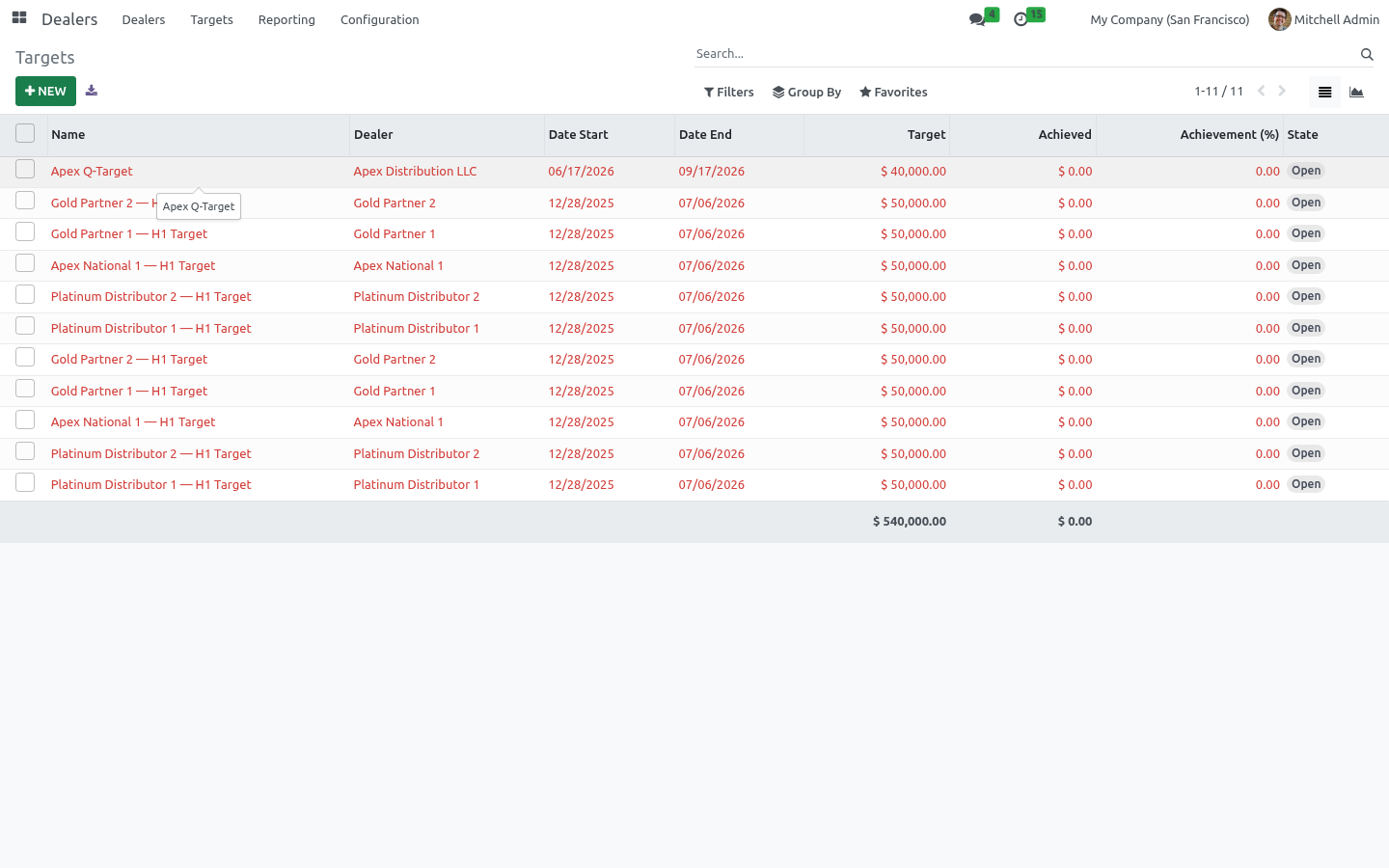
Open a dealer's Targets tab, or Dealers > Targets, and create a target with a period (start/end) and an amount. The Achieved amount and Achievement (%) are computed from the dealer's confirmed orders in the period and colour-coded in the list (green at or above target, red well below). Targets refresh when edited; to keep open targets current as new orders arrive, enable the scheduled action Dealers: Recompute Open Targets (ships disabled), or hit Recompute on a target. Reporting.
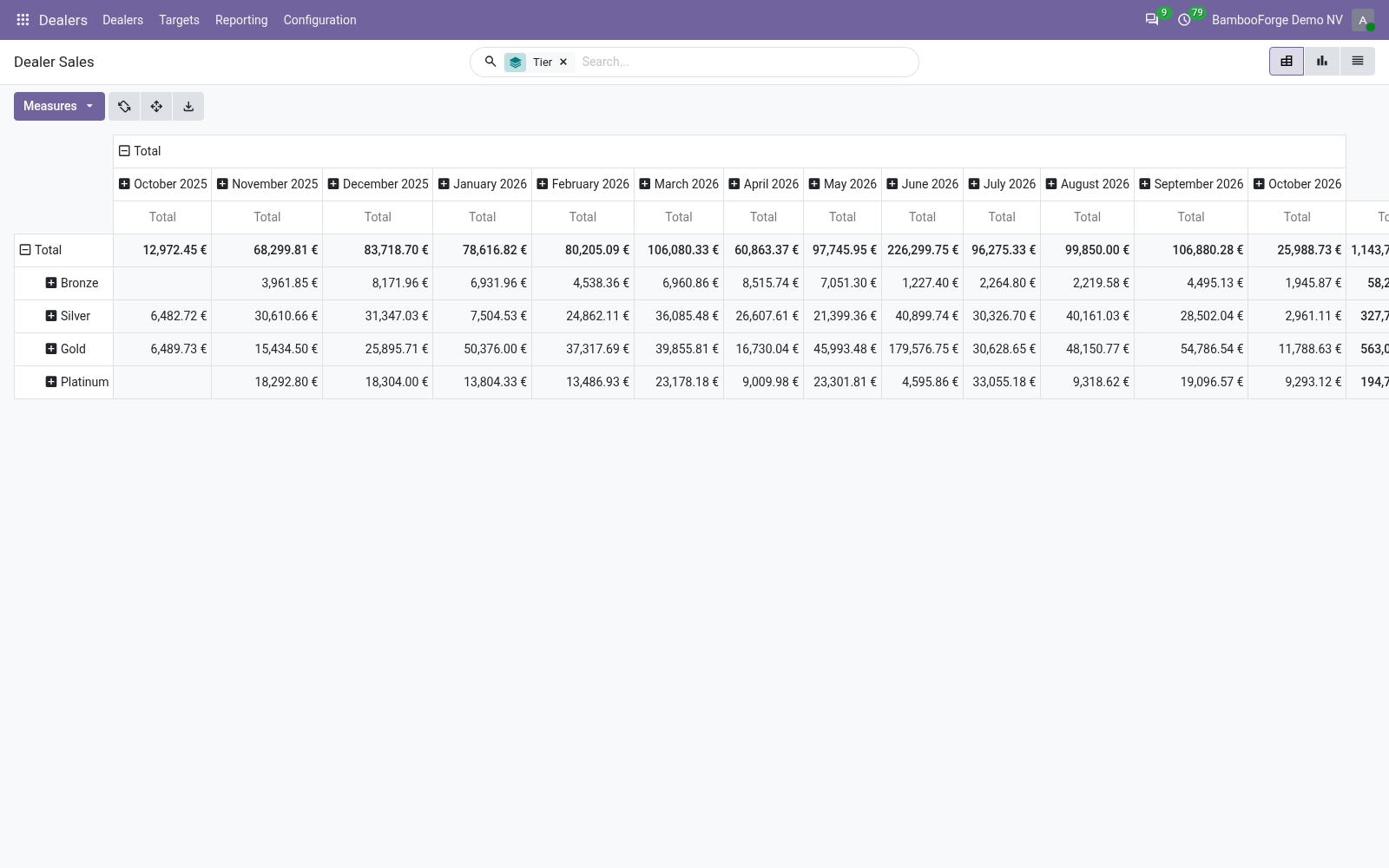
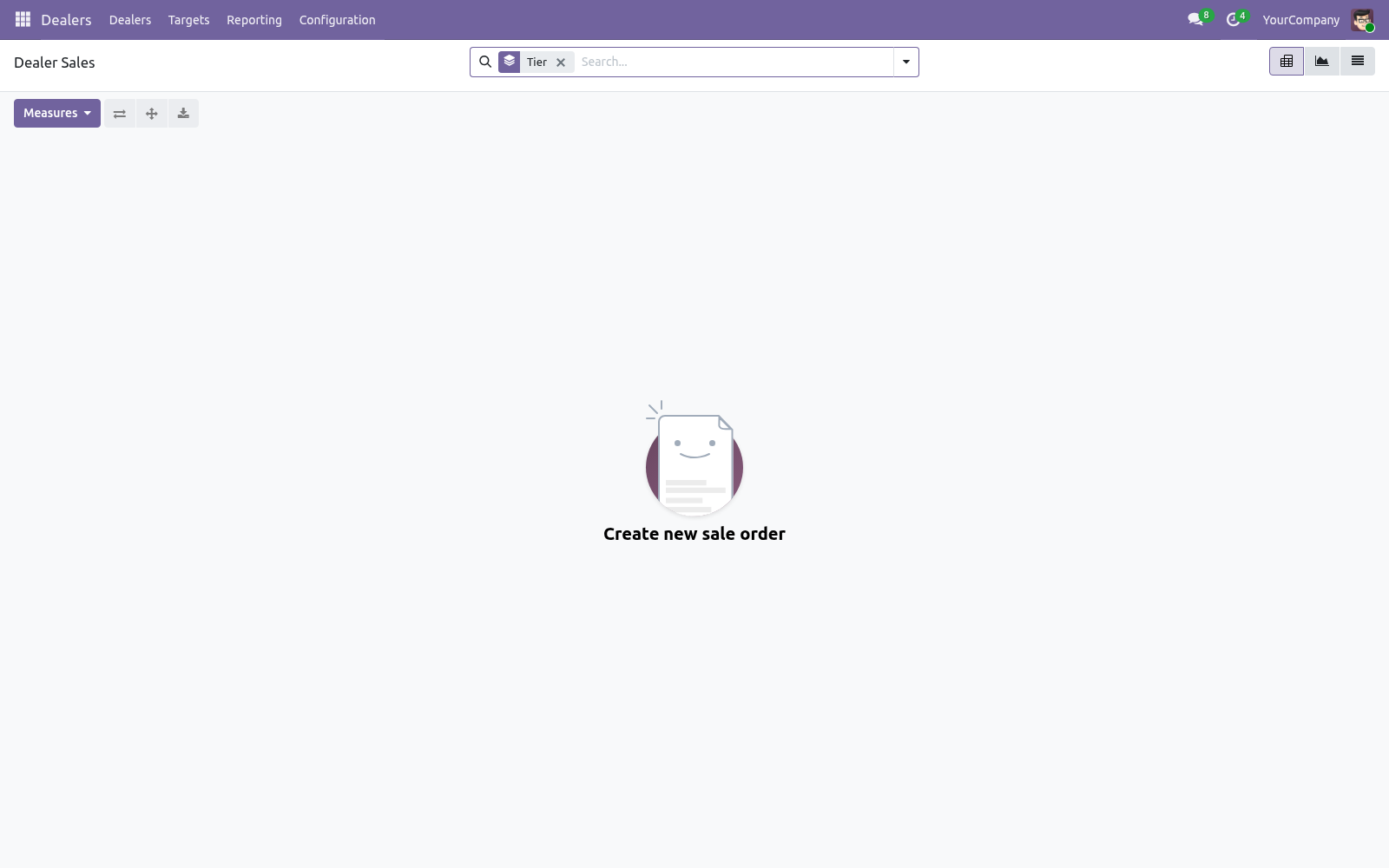
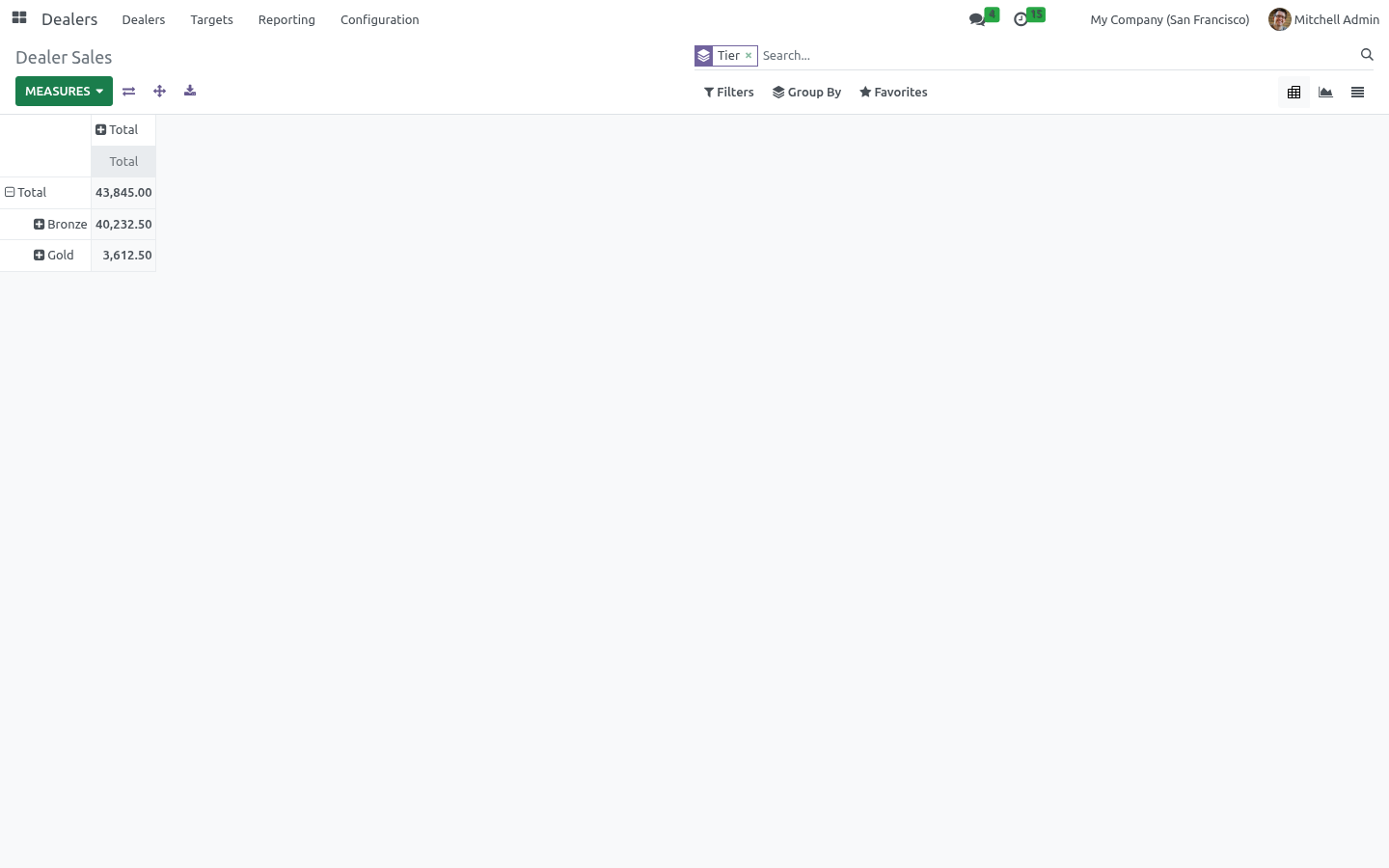
Dealers > Reporting > Dealer Sales opens a pivot of confirmed dealer orders grouped by tier (add territory or dealer as you like). It answers "which tier and territory drives my revenue" at a glance, and you can switch to a graph or export. Security. Territories and targets are company-scoped via record rules for multi-company databases.
Dealer User — can see dealers, tiers, territories, targets and reports, and manage targets. Implies the Salesperson role. Dealer Manager — full configuration of tiers and territories, and the ability to override the credit block on order confirmation. Implies the Sales Manager role.
Frequently asked questions. A dealer's tier won't change when I recompute. Check whether Lock Tier is ticked — locked dealers are skipped. Otherwise confirm the dealer has confirmed sales orders in the trailing 12 months.
Credit Available shows a number but orders aren't blocked. Blocking only applies when the dealer has a non-zero credit limit and Block Orders Over Limit is on, and the confirming user is not a Dealer Manager. How we make sure it works. Before every release, 24 automated checks run against this app on Odoo 16, 17, 18, 19 and 20.
Among them: Scale refuses without a rate. Preset discount not overwritten. A rep without accounting confirms within the limit. Credit block enforced for non manager.
Pricelist tier no discount stacking. The complete list is in the source you receive. The complete manual is at docs dot bambooforge dot dev, the demo database is linked from the store page, and support answers within twenty-four hours. Links are in the description.
Transcript of the walkthrough (Odoo 19)
Dealer & Distributor Management. Dealer and distributor network management: onboarding, automatic tiers from sales, exclusive territories, credit blocking and sales targets. A dealer is a business partner who resells your products. This app turns the standard Odoo contact into a managed dealer record and adds the tooling a distribution business actually needs: In the next few minutes: dealer & distributor management, then onboarding your first dealer, then tiers, then territories, then credit control.
Then what this app deliberately does not do, so you can tell before you buy whether it fits. Everything lives under Dealers then Dealers then Targets then Reporting. No Enterprise modules and no external Python libraries are required. Dealer & Distributor Management.
Run your whole reseller network from inside Odoo 17: onboard dealers and distributors, rank them into automatic tiers from their sales, assign exclusive territories, cap their credit exposure (and block orders that would break the limit), and set sales targets with live achievement tracking. This page is the complete manual. Follow it top to bottom and you can install, onboard your first dealer, configure tiers and territories, manage credit and targets, and fix the common issues without contacting support. Onboarding your first dealer.
1. Open Dealers > Dealers and click New. 2. Enter the dealer's name.
A Dealer Code (DLR/0001...) is assigned automatically. 3. Optionally set a Territory, Account Manager and Credit Limit. 4.
Click Activate. The dealer becomes Active, an onboarding date is stamped, and — if no tier is set yet — a tier is assigned from their sales. Use Suspend, Terminate and Set to Prospect to move the dealer through its lifecycle. Every change is recorded in the chatter.
Tiers. Go to Dealers > Configuration > Tiers. Each tier has: a Sales Threshold — the minimum trailing 12-month sales (company currency) to reach the tier automatically, an indicative Dealer Discount (%) and an optional Pricelist, a colour and a description. the Recompute Tier button on a dealer, the scheduled action Dealers: Recompute Tiers (ships disabled — enable it under Settings > Technical > Scheduled Actions to run weekly), automatically on first activation.
The four shipped tiers (Bronze, Silver, Gold, Platinum) are a starting point — rename them, change thresholds, add or remove tiers freely. Territories. Go to Dealers > Configuration > Territories. A territory groups dealers by area and can list the countries and regions it covers, plus an area manager.
Tick Exclusive to enforce that only one active dealer may hold the territory. Trying to activate a second dealer in an exclusive territory is blocked with a clear message. Credit control. Set a Dealer Credit Limit on a dealer (zero means no limit).
The Credit Available field shows the limit minus the dealer's current receivable exposure (Odoo's standard credit figure). When Block Orders Over Limit is on, confirming a sales order that would push the dealer's exposure past the limit is blocked with a message telling you by how much. Users in the Dealer Manager group can confirm anyway, so you keep an override path for approved exceptions. Sales targets.
Open a dealer's Targets tab, or Dealers > Targets, and create a target with a period (start/end) and an amount. The Achieved amount and Achievement (%) are computed from the dealer's confirmed orders in the period and colour-coded in the list (green at or above target, red well below). Targets refresh when edited; to keep open targets current as new orders arrive, enable the scheduled action Dealers: Recompute Open Targets (ships disabled), or hit Recompute on a target. Reporting.
Dealers > Reporting > Dealer Sales opens a pivot of confirmed dealer orders grouped by tier (add territory or dealer as you like). It answers "which tier and territory drives my revenue" at a glance, and you can switch to a graph or export. Security. Territories and targets are company-scoped via record rules for multi-company databases.
Dealer User — can see dealers, tiers, territories, targets and reports, and manage targets. Implies the Salesperson role. Dealer Manager — full configuration of tiers and territories, and the ability to override the credit block on order confirmation. Implies the Sales Manager role.
Frequently asked questions. A dealer's tier won't change when I recompute. Check whether Lock Tier is ticked — locked dealers are skipped. Otherwise confirm the dealer has confirmed sales orders in the trailing 12 months.
Credit Available shows a number but orders aren't blocked. Blocking only applies when the dealer has a non-zero credit limit and Block Orders Over Limit is on, and the confirming user is not a Dealer Manager. Support. Questions or ideas: support@bambooforge.dev.
.. BAMBOOFORGE-DOC-APPENDIX (auto-generated: Upgrade/Uninstall/Changelog + bespoke) The complete manual is at docs dot bambooforge dot dev, the demo database is linked from the store page, and support answers within twenty-four hours. Links are in the description.
Transcript of the walkthrough (Odoo 18)
Dealer & Distributor Management. Dealer and distributor network management: onboarding, automatic tiers from sales, exclusive territories, credit blocking and sales targets. A dealer is a business partner who resells your products. This app turns the standard Odoo contact into a managed dealer record and adds the tooling a distribution business actually needs: In the next few minutes: dealer & distributor management, then onboarding your first dealer, then tiers, then territories, then credit control.
Then what this app deliberately does not do, so you can tell before you buy whether it fits. Everything lives under Dealers then Dealers then Targets then Reporting. No Enterprise modules and no external Python libraries are required. Dealer & Distributor Management.
Run your whole reseller network from inside Odoo 17: onboard dealers and distributors, rank them into automatic tiers from their sales, assign exclusive territories, cap their credit exposure (and block orders that would break the limit), and set sales targets with live achievement tracking. This page is the complete manual. Follow it top to bottom and you can install, onboard your first dealer, configure tiers and territories, manage credit and targets, and fix the common issues without contacting support. Onboarding your first dealer.
1. Open Dealers > Dealers and click New. 2. Enter the dealer's name.
A Dealer Code (DLR/0001...) is assigned automatically. 3. Optionally set a Territory, Account Manager and Credit Limit. 4.
Click Activate. The dealer becomes Active, an onboarding date is stamped, and — if no tier is set yet — a tier is assigned from their sales. Use Suspend, Terminate and Set to Prospect to move the dealer through its lifecycle. Every change is recorded in the chatter.
Tiers. Go to Dealers > Configuration > Tiers. Each tier has: a Sales Threshold — the minimum trailing 12-month sales (company currency) to reach the tier automatically, an indicative Dealer Discount (%) and an optional Pricelist, a colour and a description. the Recompute Tier button on a dealer, the scheduled action Dealers: Recompute Tiers (ships disabled — enable it under Settings > Technical > Scheduled Actions to run weekly), automatically on first activation.
The four shipped tiers (Bronze, Silver, Gold, Platinum) are a starting point — rename them, change thresholds, add or remove tiers freely. Territories. Go to Dealers > Configuration > Territories. A territory groups dealers by area and can list the countries and regions it covers, plus an area manager.
Tick Exclusive to enforce that only one active dealer may hold the territory. Trying to activate a second dealer in an exclusive territory is blocked with a clear message. Credit control. Set a Dealer Credit Limit on a dealer (zero means no limit).
The Credit Available field shows the limit minus the dealer's current receivable exposure (Odoo's standard credit figure). When Block Orders Over Limit is on, confirming a sales order that would push the dealer's exposure past the limit is blocked with a message telling you by how much. Users in the Dealer Manager group can confirm anyway, so you keep an override path for approved exceptions. Sales targets.
Open a dealer's Targets tab, or Dealers > Targets, and create a target with a period (start/end) and an amount. The Achieved amount and Achievement (%) are computed from the dealer's confirmed orders in the period and colour-coded in the list (green at or above target, red well below). Targets refresh when edited; to keep open targets current as new orders arrive, enable the scheduled action Dealers: Recompute Open Targets (ships disabled), or hit Recompute on a target. Reporting.
Dealers > Reporting > Dealer Sales opens a pivot of confirmed dealer orders grouped by tier (add territory or dealer as you like). It answers "which tier and territory drives my revenue" at a glance, and you can switch to a graph or export. Security. Territories and targets are company-scoped via record rules for multi-company databases.
Dealer User — can see dealers, tiers, territories, targets and reports, and manage targets. Implies the Salesperson role. Dealer Manager — full configuration of tiers and territories, and the ability to override the credit block on order confirmation. Implies the Sales Manager role.
Frequently asked questions. A dealer's tier won't change when I recompute. Check whether Lock Tier is ticked — locked dealers are skipped. Otherwise confirm the dealer has confirmed sales orders in the trailing 12 months.
Credit Available shows a number but orders aren't blocked. Blocking only applies when the dealer has a non-zero credit limit and Block Orders Over Limit is on, and the confirming user is not a Dealer Manager. Support. Questions or ideas: support@bambooforge.dev.
.. BAMBOOFORGE-DOC-APPENDIX (auto-generated: Upgrade/Uninstall/Changelog + bespoke) The complete manual is at docs dot bambooforge dot dev, the demo database is linked from the store page, and support answers within twenty-four hours. Links are in the description.
Transcript of the walkthrough (Odoo 17)
Dealer & Distributor Management. Dealer and distributor network management: onboarding, automatic tiers from sales, exclusive territories, credit blocking and sales targets. A dealer is a business partner who resells your products. This app turns the standard Odoo contact into a managed dealer record and adds the tooling a distribution business actually needs: In the next few minutes: dealer & distributor management, then onboarding your first dealer, then tiers, then territories, then credit control.
Then what this app deliberately does not do, so you can tell before you buy whether it fits. Everything lives under Dealers then Dealers then Targets then Reporting. No Enterprise modules and no external Python libraries are required. Dealer & Distributor Management.
Run your whole reseller network from inside Odoo 17: onboard dealers and distributors, rank them into automatic tiers from their sales, assign exclusive territories, cap their credit exposure (and block orders that would break the limit), and set sales targets with live achievement tracking. This page is the complete manual. Follow it top to bottom and you can install, onboard your first dealer, configure tiers and territories, manage credit and targets, and fix the common issues without contacting support. Onboarding your first dealer.
1. Open Dealers > Dealers and click New. 2. Enter the dealer's name.
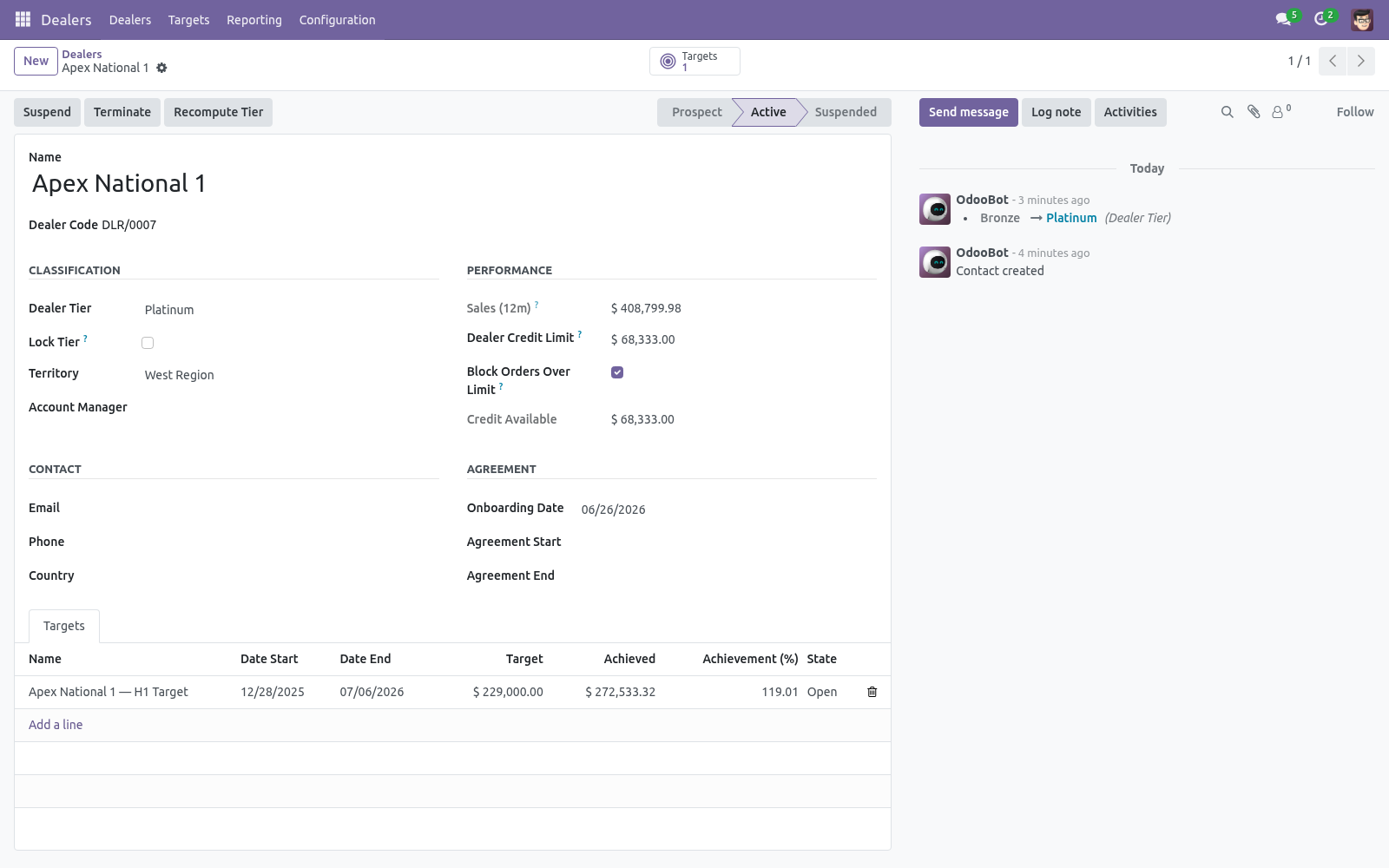
A Dealer Code (DLR/0001...) is assigned automatically. 3. Optionally set a Territory, Account Manager and Credit Limit. 4.
Click Activate. The dealer becomes Active, an onboarding date is stamped, and — if no tier is set yet — a tier is assigned from their sales. Use Suspend, Terminate and Set to Prospect to move the dealer through its lifecycle. Every change is recorded in the chatter.
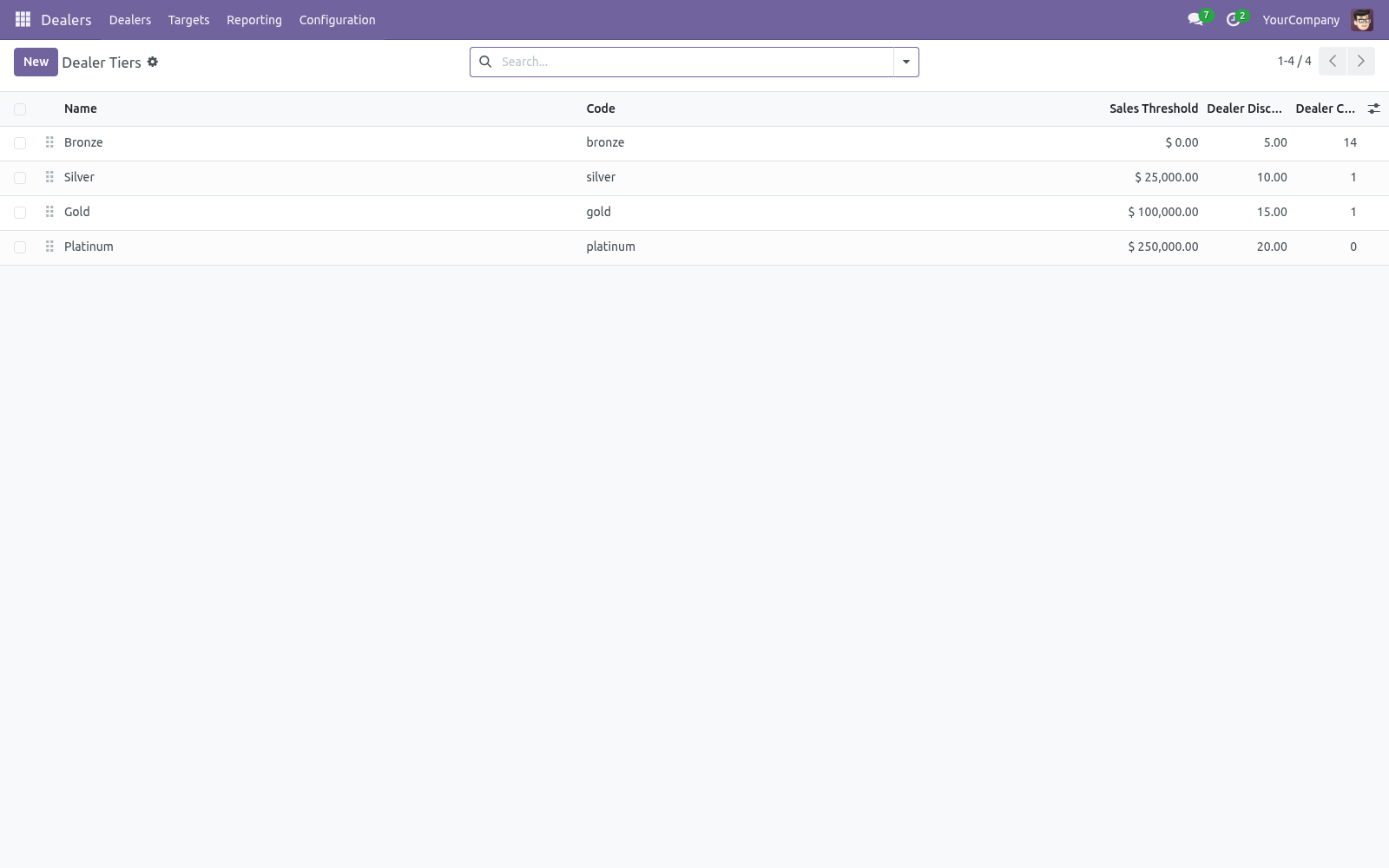
Tiers. Go to Dealers > Configuration > Tiers. Each tier has: a Sales Threshold — the minimum trailing 12-month sales (company currency) to reach the tier automatically, an indicative Dealer Discount (%) and an optional Pricelist, a colour and a description. the Recompute Tier button on a dealer, the scheduled action Dealers: Recompute Tiers (ships disabled — enable it under Settings > Technical > Scheduled Actions to run weekly), automatically on first activation.
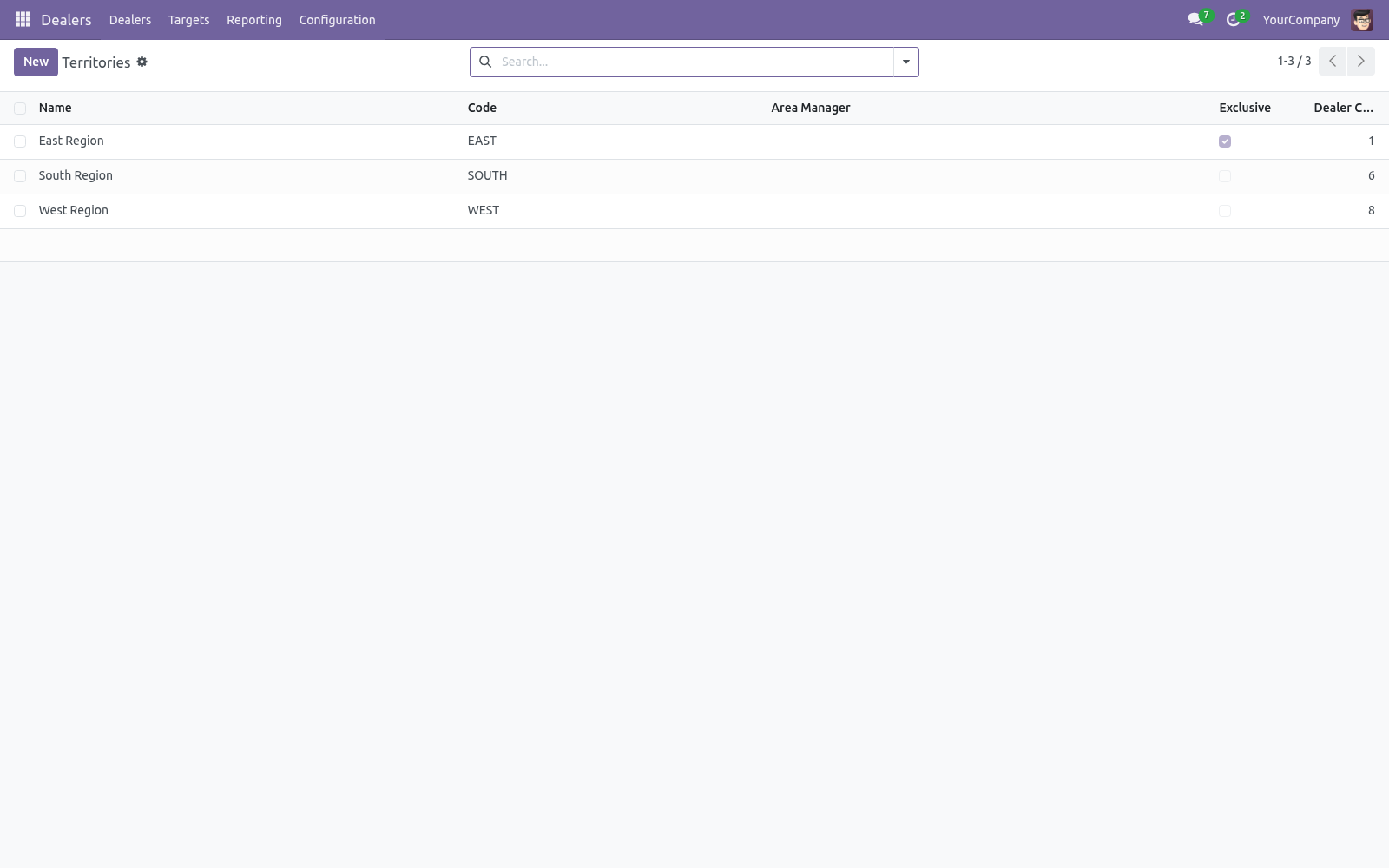
The four shipped tiers (Bronze, Silver, Gold, Platinum) are a starting point — rename them, change thresholds, add or remove tiers freely. Territories. Go to Dealers > Configuration > Territories. A territory groups dealers by area and can list the countries and regions it covers, plus an area manager.
Tick Exclusive to enforce that only one active dealer may hold the territory. Trying to activate a second dealer in an exclusive territory is blocked with a clear message. Credit control. Set a Dealer Credit Limit on a dealer (zero means no limit).
The Credit Available field shows the limit minus the dealer's current receivable exposure (Odoo's standard credit figure). When Block Orders Over Limit is on, confirming a sales order that would push the dealer's exposure past the limit is blocked with a message telling you by how much. Users in the Dealer Manager group can confirm anyway, so you keep an override path for approved exceptions. Sales targets.
Open a dealer's Targets tab, or Dealers > Targets, and create a target with a period (start/end) and an amount. The Achieved amount and Achievement (%) are computed from the dealer's confirmed orders in the period and colour-coded in the list (green at or above target, red well below). Targets refresh when edited; to keep open targets current as new orders arrive, enable the scheduled action Dealers: Recompute Open Targets (ships disabled), or hit Recompute on a target. Reporting.
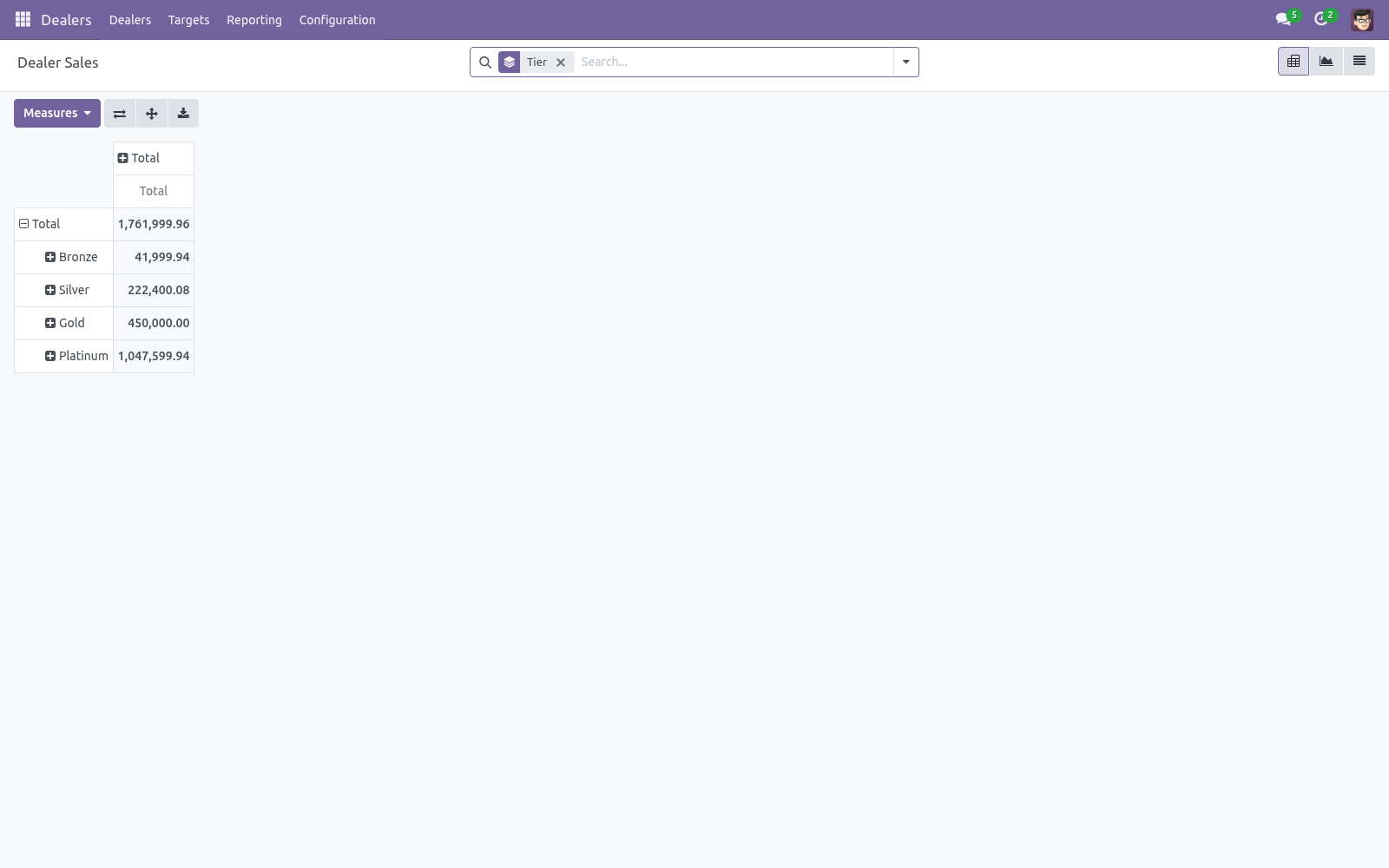
Dealers > Reporting > Dealer Sales opens a pivot of confirmed dealer orders grouped by tier (add territory or dealer as you like). It answers "which tier and territory drives my revenue" at a glance, and you can switch to a graph or export. Security. Territories and targets are company-scoped via record rules for multi-company databases.
Dealer User — can see dealers, tiers, territories, targets and reports, and manage targets. Implies the Salesperson role. Dealer Manager — full configuration of tiers and territories, and the ability to override the credit block on order confirmation. Implies the Sales Manager role.
Frequently asked questions. A dealer's tier won't change when I recompute. Check whether Lock Tier is ticked — locked dealers are skipped. Otherwise confirm the dealer has confirmed sales orders in the trailing 12 months.
Credit Available shows a number but orders aren't blocked. Blocking only applies when the dealer has a non-zero credit limit and Block Orders Over Limit is on, and the confirming user is not a Dealer Manager. Support. Questions or ideas: support@bambooforge.dev.
.. BAMBOOFORGE-DOC-APPENDIX (auto-generated: Upgrade/Uninstall/Changelog + bespoke) The complete manual is at docs dot bambooforge dot dev, the demo database is linked from the store page, and support answers within twenty-four hours. Links are in the description.
Transcript of the walkthrough (Odoo 16)
Dealer & Distributor Management. Dealer and distributor network management: onboarding, automatic tiers from sales, exclusive territories, credit blocking and sales targets. A dealer is a business partner who resells your products. This app turns the standard Odoo contact into a managed dealer record and adds the tooling a distribution business actually needs: In the next few minutes: dealer & distributor management, then onboarding your first dealer, then tiers, then territories, then credit control.
Then what this app deliberately does not do, so you can tell before you buy whether it fits. Everything lives under Dealers then Dealers then Targets then Reporting. No Enterprise modules and no external Python libraries are required. Dealer & Distributor Management.
Run your whole reseller network from inside Odoo 17: onboard dealers and distributors, rank them into automatic tiers from their sales, assign exclusive territories, cap their credit exposure (and block orders that would break the limit), and set sales targets with live achievement tracking. This page is the complete manual. Follow it top to bottom and you can install, onboard your first dealer, configure tiers and territories, manage credit and targets, and fix the common issues without contacting support. Onboarding your first dealer.
1. Open Dealers > Dealers and click New. 2. Enter the dealer's name.
A Dealer Code (DLR/0001...) is assigned automatically. 3. Optionally set a Territory, Account Manager and Credit Limit. 4.
Click Activate. The dealer becomes Active, an onboarding date is stamped, and — if no tier is set yet — a tier is assigned from their sales. Use Suspend, Terminate and Set to Prospect to move the dealer through its lifecycle. Every change is recorded in the chatter.
Tiers. Go to Dealers > Configuration > Tiers. Each tier has: a Sales Threshold — the minimum trailing 12-month sales (company currency) to reach the tier automatically, an indicative Dealer Discount (%) and an optional Pricelist, a colour and a description. the Recompute Tier button on a dealer, the scheduled action Dealers: Recompute Tiers (ships disabled — enable it under Settings > Technical > Scheduled Actions to run weekly), automatically on first activation.
The four shipped tiers (Bronze, Silver, Gold, Platinum) are a starting point — rename them, change thresholds, add or remove tiers freely. Territories. Go to Dealers > Configuration > Territories. A territory groups dealers by area and can list the countries and regions it covers, plus an area manager.
Tick Exclusive to enforce that only one active dealer may hold the territory. Trying to activate a second dealer in an exclusive territory is blocked with a clear message. Credit control. Set a Dealer Credit Limit on a dealer (zero means no limit).
The Credit Available field shows the limit minus the dealer's current receivable exposure (Odoo's standard credit figure). When Block Orders Over Limit is on, confirming a sales order that would push the dealer's exposure past the limit is blocked with a message telling you by how much. Users in the Dealer Manager group can confirm anyway, so you keep an override path for approved exceptions. Sales targets.
Open a dealer's Targets tab, or Dealers > Targets, and create a target with a period (start/end) and an amount. The Achieved amount and Achievement (%) are computed from the dealer's confirmed orders in the period and colour-coded in the list (green at or above target, red well below). Targets refresh when edited; to keep open targets current as new orders arrive, enable the scheduled action Dealers: Recompute Open Targets (ships disabled), or hit Recompute on a target. Reporting.
Dealers > Reporting > Dealer Sales opens a pivot of confirmed dealer orders grouped by tier (add territory or dealer as you like). It answers "which tier and territory drives my revenue" at a glance, and you can switch to a graph or export. Security. Territories and targets are company-scoped via record rules for multi-company databases.
Dealer User — can see dealers, tiers, territories, targets and reports, and manage targets. Implies the Salesperson role. Dealer Manager — full configuration of tiers and territories, and the ability to override the credit block on order confirmation. Implies the Sales Manager role.
Frequently asked questions. A dealer's tier won't change when I recompute. Check whether Lock Tier is ticked — locked dealers are skipped. Otherwise confirm the dealer has confirmed sales orders in the trailing 12 months.
Credit Available shows a number but orders aren't blocked. Blocking only applies when the dealer has a non-zero credit limit and Block Orders Over Limit is on, and the confirming user is not a Dealer Manager. Support. Questions or ideas: support@bambooforge.dev.
.. BAMBOOFORGE-DOC-APPENDIX (auto-generated: Upgrade/Uninstall/Changelog + bespoke) The complete manual is at docs dot bambooforge dot dev, the demo database is linked from the store page, and support answers within twenty-four hours. Links are in the description.
Key facts
- What it is
- Dealer and distributor network management: onboarding, automatic tiers from sales, exclusive territories, credit blocking and sales targets.
- For
- Sales
- Odoo versions
- 16.0, 17.0, 18.0, 19.0, 20.0 - Community and Enterprise
- Runs on
- Odoo.sh or Odoo you host yourself - not Odoo Online, which accepts no third-party apps
- Price
- 149 EUR, one-time, on the Odoo Apps Store
- Technical name
- bambooforge_dealer_management
- Not for
- Said before you buy, because it is the half that decides whether the app fits:; Let two active dealers hold an exclusive territory.; Move a tier you locked - Lock Tier pins it and excludes it from recomputation.
- Manual last updated
- 2026-10-15
Dealer & Distributor Management
Run your whole reseller network from inside Odoo 20: onboard dealers and distributors, rank them into automatic tiers from their sales, assign exclusive territories, cap their credit exposure (and block orders that would break the limit), and set sales targets with live achievement tracking.
This page is the complete manual. Follow it top to bottom and you can install, onboard your first dealer, configure tiers and territories, manage credit and targets, and fix the common issues without contacting support.
Overview
A dealer is a business partner who resells your products. This app turns the standard Odoo contact into a managed dealer record and adds the tooling a distribution business actually needs:
Onboarding workflow — every dealer moves through Prospect, Active, Suspended and Terminated, with the status tracked in the chatter.
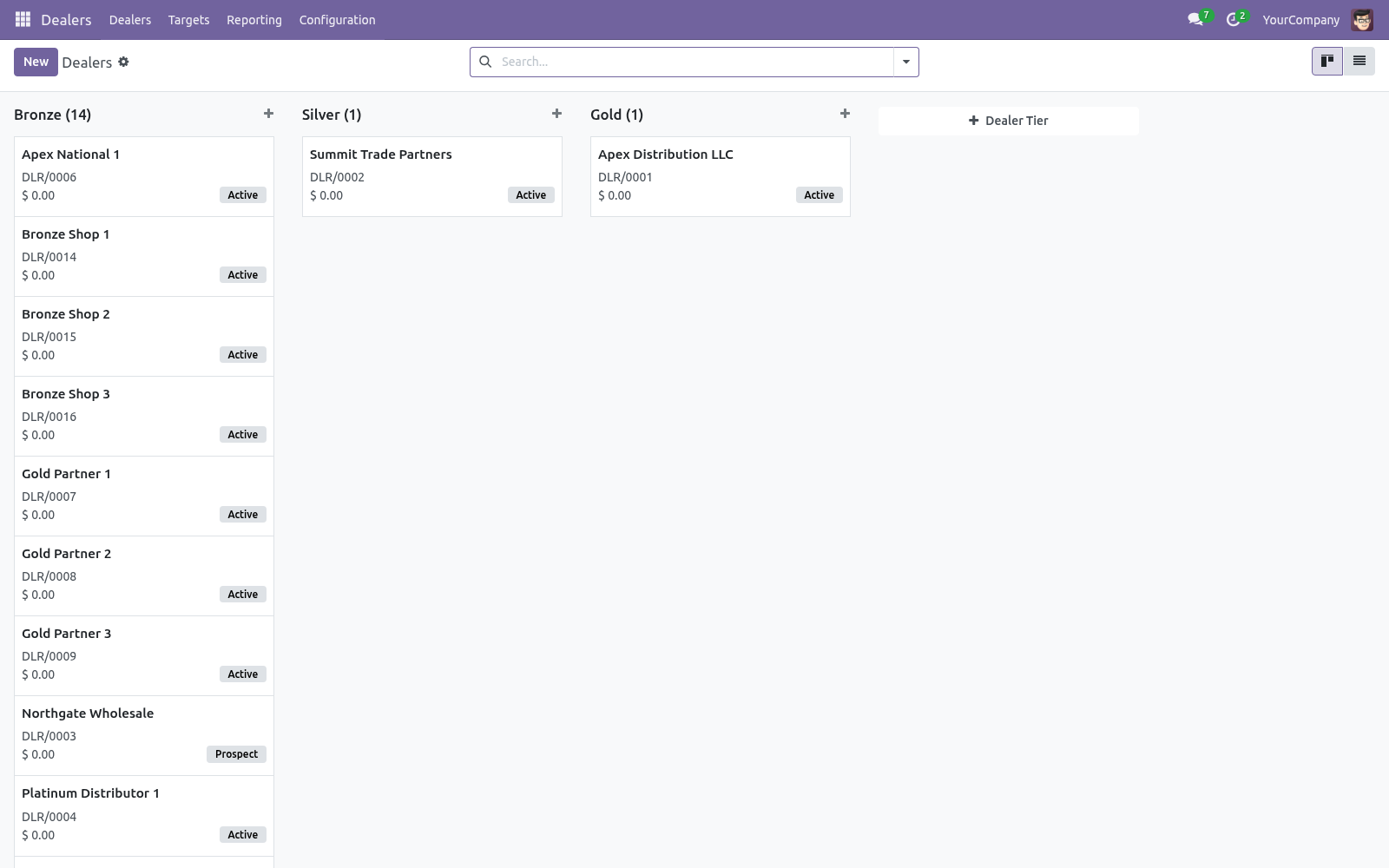
Automatic tiers — Bronze, Silver, Gold and Platinum (fully editable), assigned automatically from each dealer's trailing 12-month sales.
Territories — group dealers by area, optionally exclusive so only one active dealer can hold a territory.
Credit control — set a credit limit per dealer; orders that would push their receivable past the limit are blocked (managers can override).
Sales targets — set a target per dealer per period and watch the achieved amount and percentage update from real orders.
Reporting — a pivot of dealer sales by tier, territory and dealer.
Requirements
Odoo 20.0.
The Sales app (sale). Installing this app pulls it in automatically.
No Enterprise modules and no external Python libraries are required.
Installation
Copy bambooforge_dealer_management into your addons path.
Update the apps list (Apps > Update Apps List).
Search for Dealer Management and click Install.
A new top-level Dealers app appears in the main menu.
Onboarding your first dealer
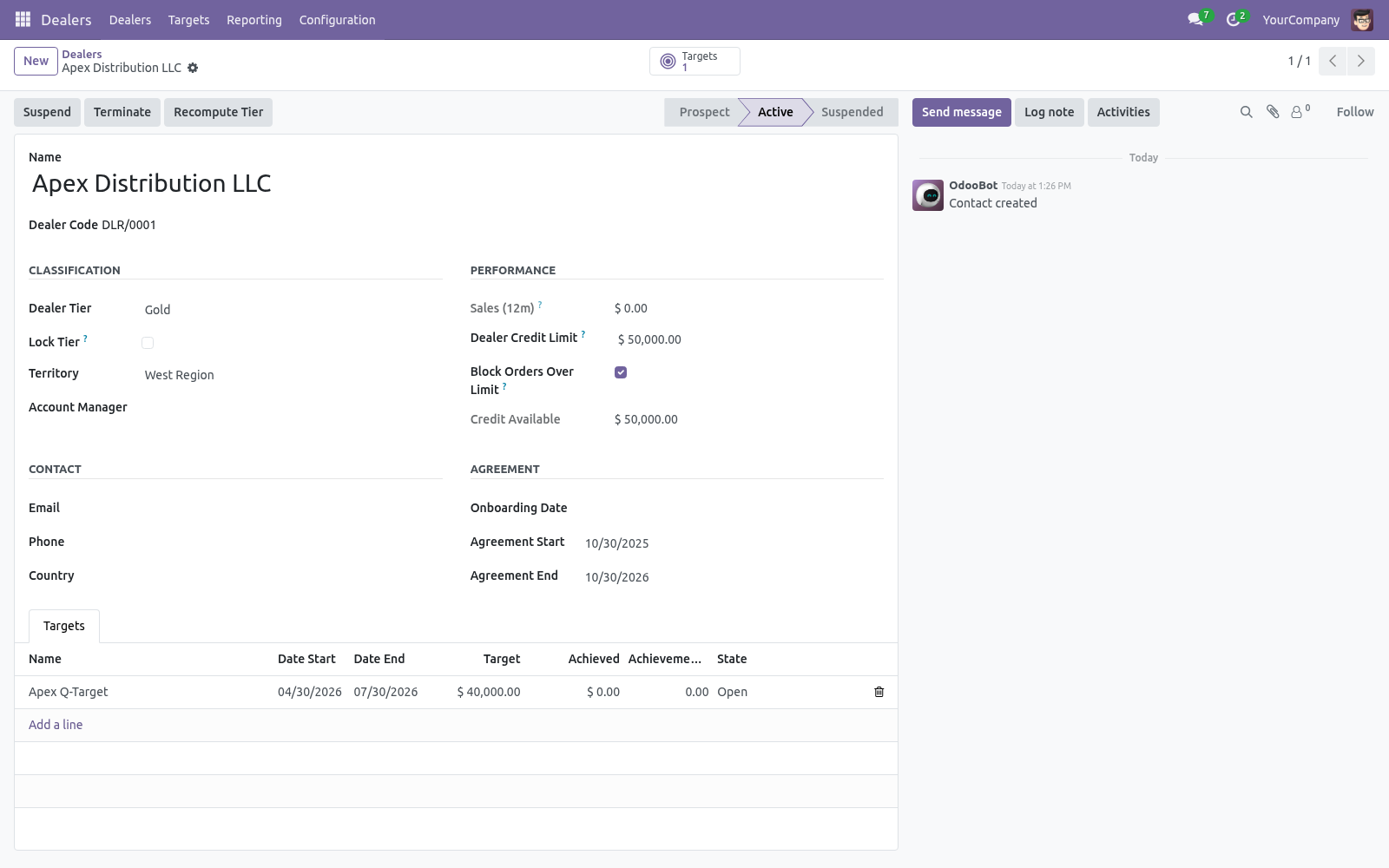
Open Dealers > Dealers and click New.
Enter the dealer's name. A Dealer Code (DLR/0001...) is assigned automatically.
Optionally set a Territory, Account Manager and Credit Limit.
Click Activate. The dealer becomes Active, an onboarding date is stamped, and — if no tier is set yet — a tier is assigned from their sales.
Use Suspend, Terminate and Set to Prospect to move the dealer through its lifecycle. Every change is recorded in the chatter.
Tiers
Go to Dealers > Configuration > Tiers. Each tier has:
a Sales Threshold — the minimum trailing 12-month sales (company currency) to reach the tier automatically,
an indicative Dealer Discount (%) and an optional Pricelist,
a colour and a description.
The four shipped tiers (Bronze, Silver, Gold, Platinum) are a starting point — rename them, change thresholds, add or remove tiers freely.
Automatic assignment. A dealer's tier is the highest tier whose threshold is met by their trailing 12-month confirmed sales. Recompute it three ways:
the Recompute Tier button on a dealer,
the scheduled action Dealers: Recompute Tiers (ships disabled — enable it under Settings > Technical > Scheduled Actions to run weekly),
automatically on first activation.
Tick Lock Tier on a dealer to pin it manually and exclude it from automatic recomputation.
Territories
Go to Dealers > Configuration > Territories. A territory groups dealers by area and can list the countries and regions it covers, plus an area manager.
Tick Exclusive to enforce that only one active dealer may hold the territory. Trying to activate a second dealer in an exclusive territory is blocked with a clear message.
Credit control
Set a Dealer Credit Limit on a dealer (zero means no limit). The Credit Available field shows the limit minus the dealer's current receivable exposure (Odoo's standard credit figure).
When Block Orders Over Limit is on, confirming a sales order that would push the dealer's exposure past the limit is blocked with a message telling you by how much. Users in the Dealer Manager group can confirm anyway, so you keep an override path for approved exceptions.
Sales targets
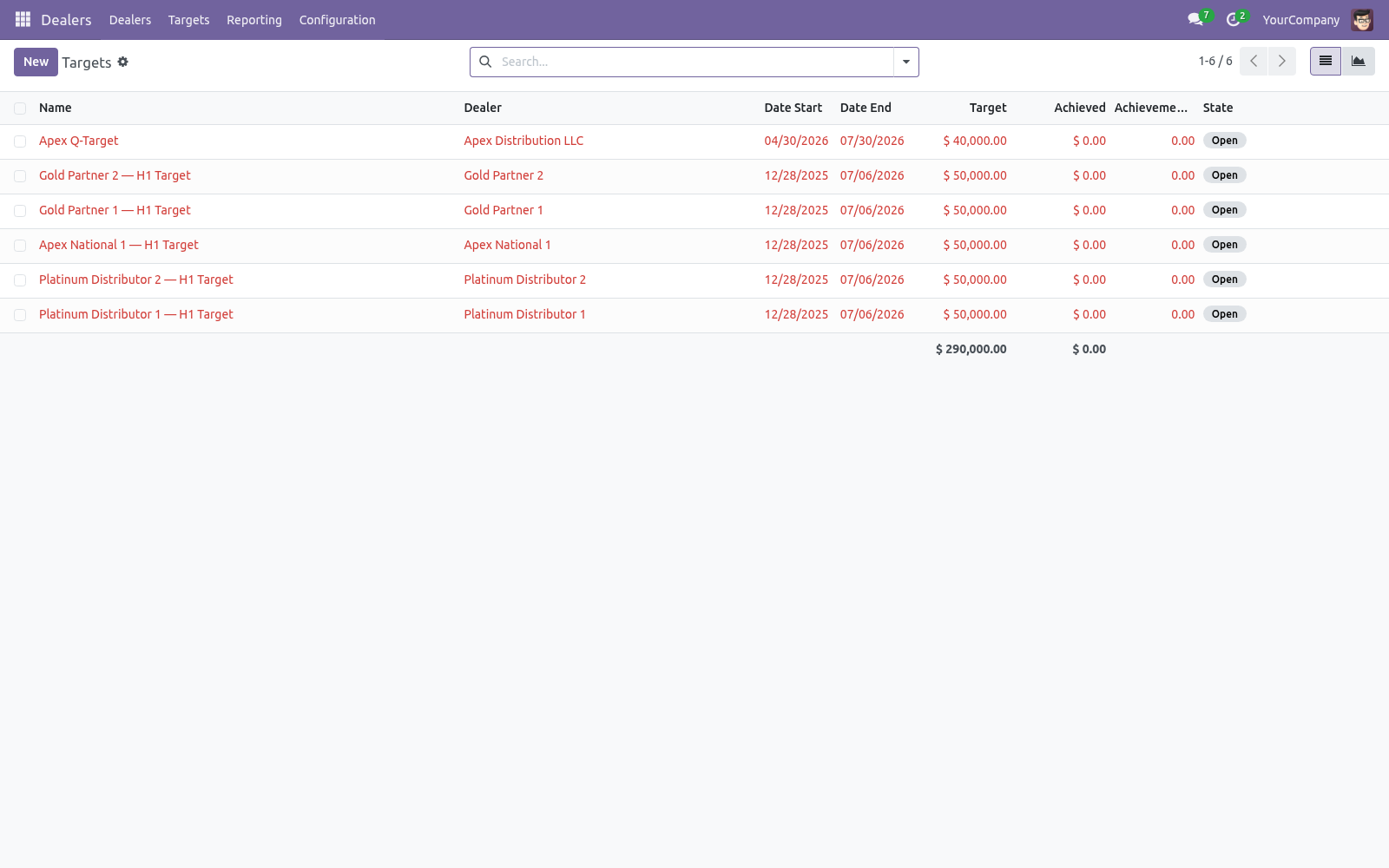
Open a dealer's Targets tab, or Dealers > Targets, and create a target with a period (start/end) and an amount. The Achieved amount and Achievement (%) are computed from the dealer's confirmed orders in the period and colour-coded in the list (green at or above target, red well below).
Targets refresh when edited; to keep open targets current as new orders arrive, enable the scheduled action Dealers: Recompute Open Targets (ships disabled), or hit Recompute on a target.
Reporting
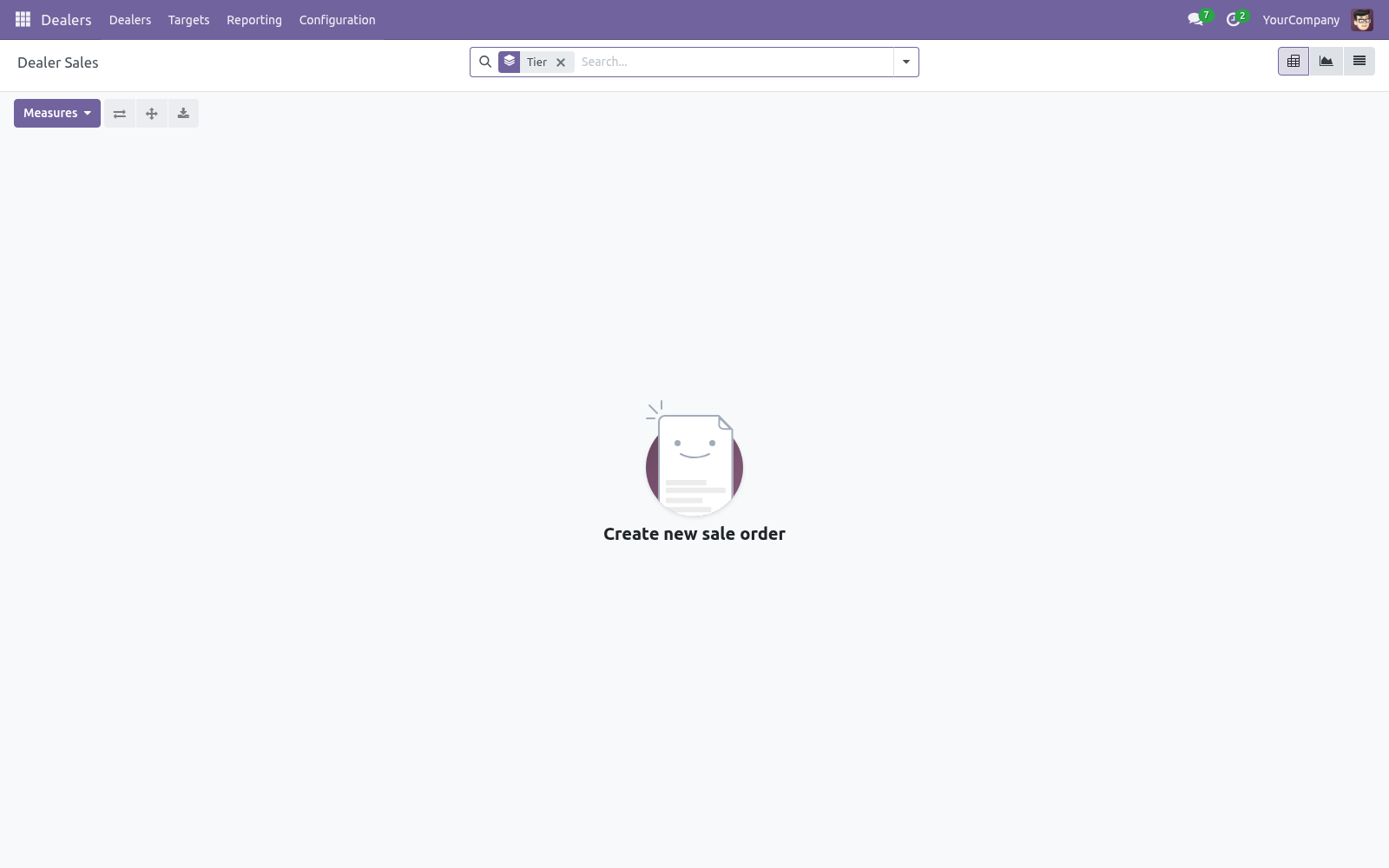
Dealers > Reporting > Dealer Sales opens a pivot of confirmed dealer orders grouped by tier (add territory or dealer as you like). It answers "which tier and territory drives my revenue" at a glance, and you can switch to a graph or export.
Security
Two groups are provided:
Dealer User — can see dealers, tiers, territories, targets and reports, and manage targets. Implies the Salesperson role.
Dealer Manager — full configuration of tiers and territories, and the ability to override the credit block on order confirmation. Implies the Sales Manager role.
Territories and targets are company-scoped via record rules for multi-company databases.
Frequently asked questions
- A dealer's tier won't change when I recompute.
Check whether Lock Tier is ticked — locked dealers are skipped. Otherwise confirm the dealer has confirmed sales orders in the trailing 12 months.
- Credit Available shows a number but orders aren't blocked.
Blocking only applies when the dealer has a non-zero credit limit and Block Orders Over Limit is on, and the confirming user is not a Dealer Manager.
- Sales figures look empty.
Only confirmed sales orders (state "Sales Order") in the dealer's company count. Quotations are ignored.
- Can a dealer belong to several territories?
No — a dealer holds one territory at a time, which keeps exclusivity and reporting unambiguous.
- Does it work with multiple companies?
Yes. Targets and territories are company-scoped, and sales are read per the dealer's company.
How we make sure it works
Before every release, 24 automated checks run against this app on Odoo 16, 17, 18, 19 and 20. Among them:
Scale refuses without a rate.
Preset discount not overwritten.
A rep without accounting confirms within the limit.
Credit block enforced for non manager.
Pricelist tier no discount stacking.
The complete list is in the source you receive.
Support
Questions or ideas: support@bambooforge.dev.
Upgrading & version compatibility
This build targets Odoo 20.0. Each Odoo major series (16.0, 17.0, 18.0, 19.0, 20.0) has its own dedicated build of this module — always install the build that matches your Odoo version. Mixing a build with a different Odoo series is not supported.
Patch upgrades (same series, e.g. 20.0.1.0.0 → later)
Back up your database and filestore first.
Replace the module folder with the newer build.
Restart Odoo with the module updated:
./odoo-bin -c your.conf -u bambooforge_dealer_management -d your_db
Odoo applies any schema/data changes automatically. Your existing records and configuration are preserved.
Cross-version migration (moving to a newer Odoo)
Upgrading Odoo itself is a database migration handled by Odoo's standard upgrade tooling. When you migrate the database to the next Odoo series, install the matching build of this module for that series. Data created by this module carries over with the database migration.
After any upgrade the module's scheduled actions resume on their normal cadence — no manual re-activation is required.
Uninstallation
You can remove this module at any time from Apps → (this module) → Uninstall, or from the command line. Uninstalling is clean and reversible by reinstalling — but note what is and is not deleted.
What is removed
The module's own tables and every record in them (3 models, prefixed dealer.*) — this is the data this module created.
The menus, actions, views and reports this module installed.
Its scheduled actions (cron jobs) — they stop immediately on uninstall.
The security groups this module defined (user assignments to them are dropped).
What is preserved
Your standard Odoo data (partners, products, sales, invoices, inventory moves) is not deleted — this module only reads and annotates it; the underlying records stay.
Attachments and chatter messages on standard records are kept.
As always, take a database backup before uninstalling in production.
What it does not do
Said before you buy, because it is the half that decides whether the app fits:
Let two active dealers hold an exclusive territory.
Move a tier you locked - Lock Tier pins it and excludes it from recomputation.
Questions people ask
- Which Odoo versions does it run on?
Odoo 16.0, 17.0, 18.0, 19.0, 20.0, on the series you buy it for; each series is its own listing.
- Community or Enterprise?
Both. It needs no Enterprise app.
- What does it need?
The standard Sales app. No extra Python package.
- Where does it show up?
Under the Dealers menu (Dealers, Targets, Reporting, Configuration).
- Does anything leave my server?
No. It makes no call outside your Odoo server: no telemetry, no licence check, no third-party service.
- What happens if I uninstall it?
Odoo drops the app's own tables and fields; the standard records it worked on (contacts, orders, products) stay as they are.
Changelog
20.0.1.2.2
Built for Odoo 20: record rules and access rights rewritten onto Odoo 20's single ir.access model, the screens rebuilt on Owl 3, and every icon moved to the icon set Odoo 20 ships.
20.0.1.0.0
Current release for Odoo 20.0. This build includes:
Manage a dealer/distributor network: onboarding workflow, automatic tiers from sales, exclusive territories, credit limits with order blocking, and sales targets with achievement tracking.
Feature additions and fixes ship as new builds on the Odoo Apps store; this page and the module's version reflect the current published release. Always keep the build matched to your Odoo series (see Upgrading & version compatibility).