 BambooForge Labs
Customer Statement of Account & Aging Report
Statement of account with a running balance and aging (current / 30 / 60 / 90+), printed, previewed or emailed - one at a time or scheduled.
Available for Odoo 16.0, Odoo 17.0, Odoo 18.0, Odoo 19.0, Odoo 20.0. Technical name bambooforge_customer_statement.
Transcript of the walkthrough (Odoo 20)
Customer Statement of Account & Aging Report. Statement of account with a running balance and aging (current / 30 / 60 / 90+), printed, previewed or emailed - one at a time or scheduled. Chasing overdue receivables starts with showing the customer what they owe. This app builds that statement from your posted invoices and payments: In the next few minutes: customer statement of account & aging report, then quick start, then open items vs all transactions, then emailing statements, then dunning: the ladder, the signer, the hold.
Then what this app deliberately does not do, so you can tell before you buy whether it fits. Everything lives under Customer Statements then Statement Schedules then Send Dunning Now then Dunning Levels. No Enterprise modules and no external Python libraries are required. Customer Statement of Account & Aging Report.
Send your customers a clean statement of account: open items or the full ledger over a period, with a running balance and an aging breakdown (current / 1-30 / 31-60 / 61-90 / 90+). Print it, preview it or email it — one customer or hundreds at once, straight from Odoo. This page is the complete manual. Follow it top to bottom and you can install, print and email statements, and fix the common issues without contacting support.
Quick start. 1. Open a customer and click Customer Statement (or open Customers > Customer Statements). 2.
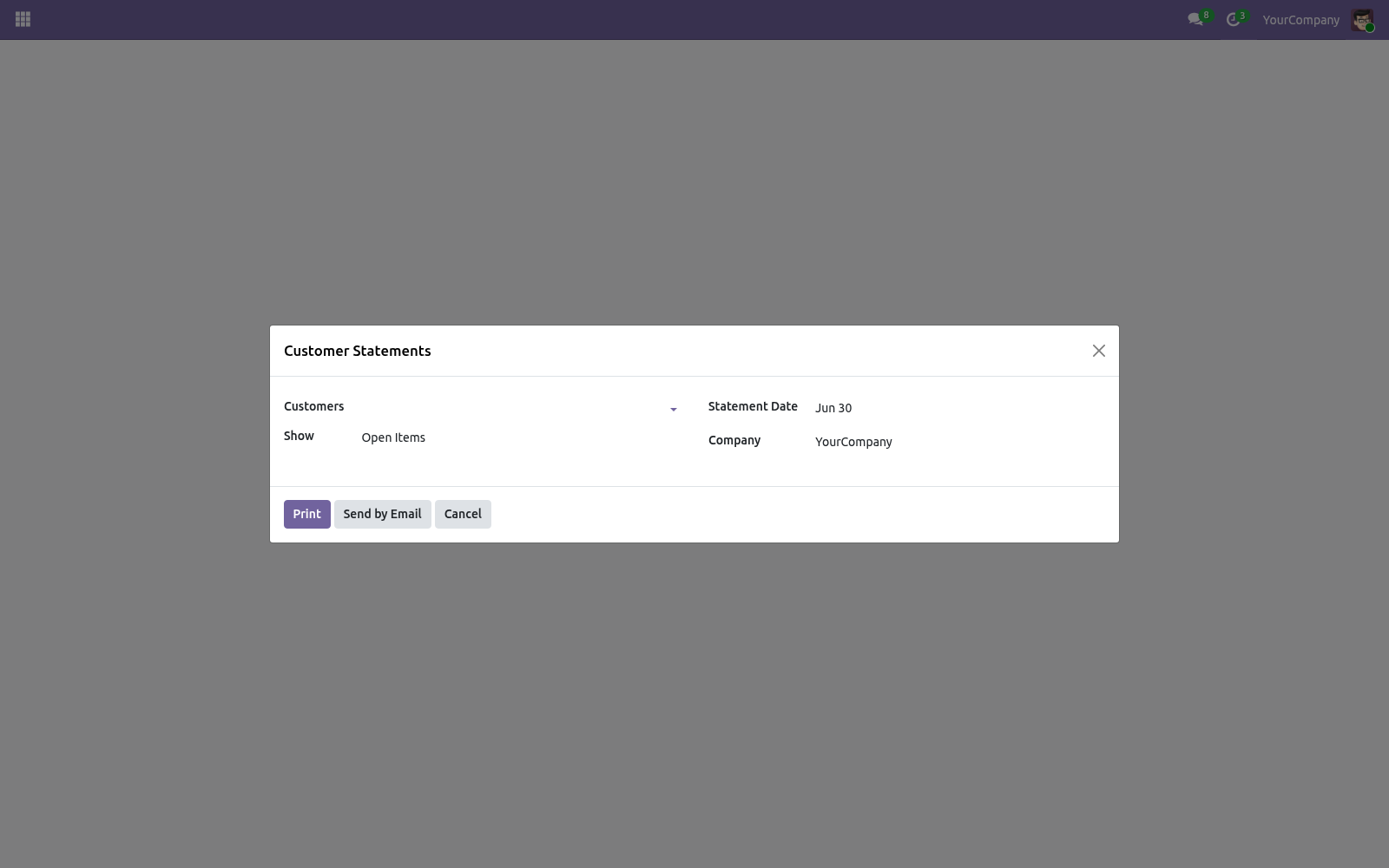
Choose the Statement Date, what to Show (open items or all transactions) and, for a full ledger, an optional From date. 3. Click Print to get the PDF, or Send by Email to deliver it to the selected customers with the statement attached. Open items vs all transactions.
The aging summary is always based on the open (unreconciled) amounts, bucketed by each entry's due date against the statement date. Open items lists only unreconciled receivable entries — what the customer still owes. This is the usual collection statement. All transactions lists every receivable entry in the period (invoices, credit notes and payments), giving a full ledger with the running balance.
Emailing statements. Send by Email renders each selected customer's statement as a PDF and emails it using the built-in Customer Statement mail template, with the PDF attached. Customers without an email address are skipped. You can edit the email wording under Settings > Technical > Email > Templates.
Dunning: the ladder, the signer, the hold. Configuration -> Dunning Levels is the ladder the scheduled statements climb: each level names the age of the oldest overdue invoice it applies from, the template it sends, and now: Signed by - the notice goes out as this user, whose name and address fill the template's signature and sender; the credit controller signs the second notice, not the robot; Also warn the salesperson - a to-do on the customer's salesperson; Put the customer on credit hold - with Credit Limit & Credit Hold installed, reaching the level blocks new sales orders until the overdue balance is settled, and releases them the day it is. A hold or a release a credit manager set by hand is never touched. The level only ever moves up inside a collection cycle; paying off the overdue balance resets it.
Batch statements. Select several customers in the Customers list, then use Print > Customer Statement (or the wizard's multi-customer field) to produce or email all their statements in one go — each customer on its own page. Frequently asked questions. The statement shows no logo / wrong address.
The statement uses your company's document layout. Set your logo and details under Settings > Companies (or Settings > General Settings > Document Layout). A paid invoice still shows. In All transactions every entry shows, including settled ones.
Switch to Open items to see only what is still outstanding. How we make sure it works. Before every release, 37 automated checks run against this app on Odoo 16, 17, 18, 19 and 20. Among them: Below the first level is listed but not ticked.
Sending again is a chase not an escalation. Second notice puts a human on it. Archived customer not targeted. Nobody due nobody mailed.
The complete list is in the source you receive. Support. Questions or ideas: support@bambooforge.dev. Usage.
The app works in two ways: on-demand statements you print or email from the wizard, and scheduled statements the module emails automatically. Both build the same PDF from your posted receivable entries. The complete manual is at docs dot bambooforge dot dev, the demo database is linked from the store page, and support answers within twenty-four hours. Links are in the description.
Transcript of the walkthrough (Odoo 19)
Customer Statement of Account & Aging Report. Statement of account with a running balance and aging (current / 30 / 60 / 90+), printed, previewed or emailed - one at a time or scheduled. Chasing overdue receivables starts with showing the customer what they owe. This app builds that statement from your posted invoices and payments: In the next few minutes: customer statement of account & aging report, then quick start, then open items vs all transactions, then emailing statements, then dunning: the ladder, the signer, the hold.
Then what this app deliberately does not do, so you can tell before you buy whether it fits. Everything lives under Customer Statements then Statement Schedules then Send Dunning Now then Dunning Levels. No Enterprise modules and no external Python libraries are required. Customer Statement of Account & Aging Report.
Send your customers a clean statement of account: open items or the full ledger over a period, with a running balance and an aging breakdown (current / 1-30 / 31-60 / 61-90 / 90+). Print it, preview it or email it — one customer or hundreds at once, straight from Odoo. This page is the complete manual. Follow it top to bottom and you can install, print and email statements, and fix the common issues without contacting support.
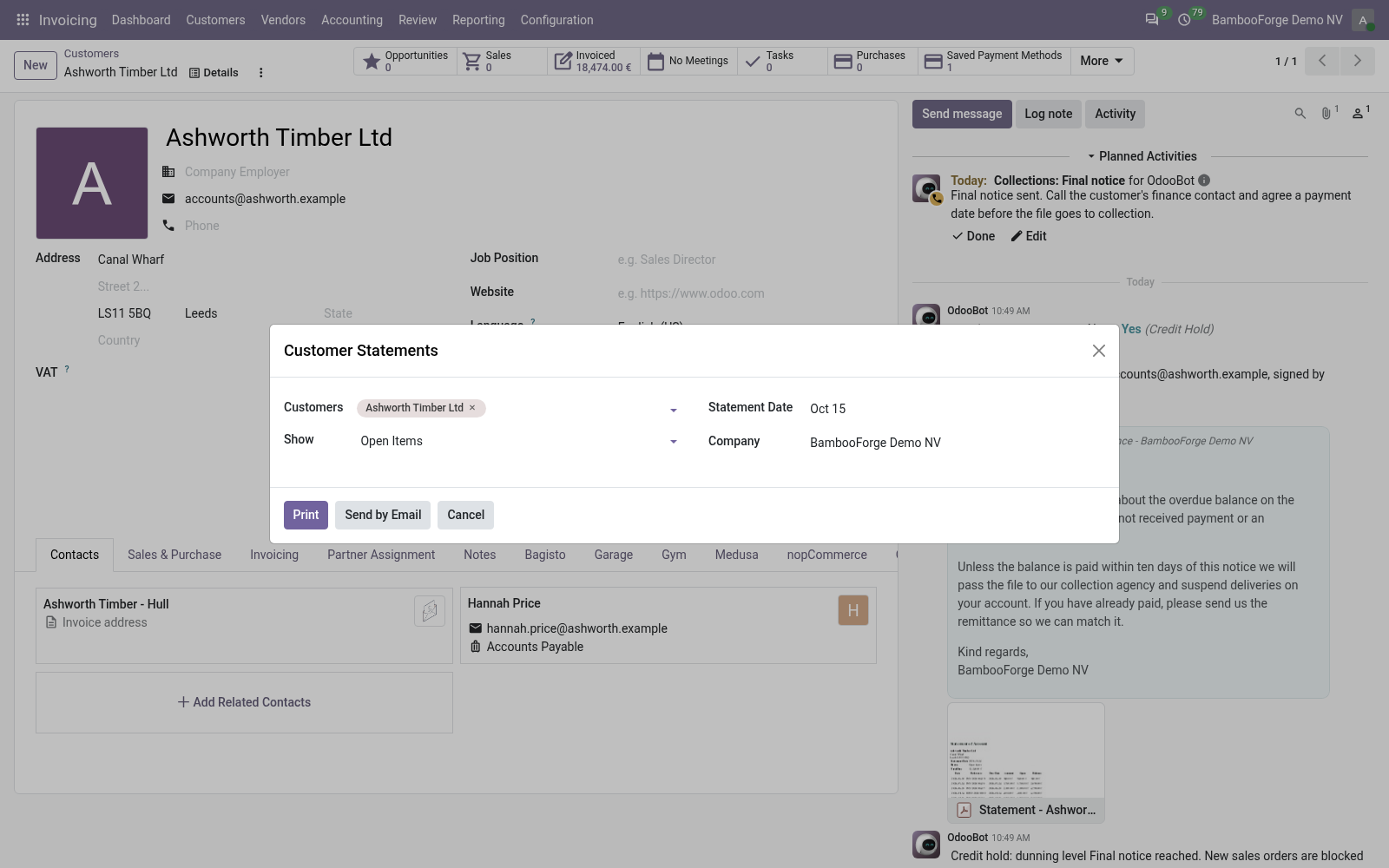
Quick start. 1. Open a customer and click Customer Statement (or open Customers > Customer Statements). 2.
Choose the Statement Date, what to Show (open items or all transactions) and, for a full ledger, an optional From date. 3. Click Print to get the PDF, or Send by Email to deliver it to the selected customers with the statement attached. Open items vs all transactions.
The aging summary is always based on the open (unreconciled) amounts, bucketed by each entry's due date against the statement date. Open items lists only unreconciled receivable entries — what the customer still owes. This is the usual collection statement. All transactions lists every receivable entry in the period (invoices, credit notes and payments), giving a full ledger with the running balance.
Emailing statements. Send by Email renders each selected customer's statement as a PDF and emails it using the built-in Customer Statement mail template, with the PDF attached. Customers without an email address are skipped. You can edit the email wording under Settings > Technical > Email > Templates.
Dunning: the ladder, the signer, the hold. Configuration -> Dunning Levels is the ladder the scheduled statements climb: each level names the age of the oldest overdue invoice it applies from, the template it sends, and now: Signed by - the notice goes out as this user, whose name and address fill the template's signature and sender; the credit controller signs the second notice, not the robot; Also warn the salesperson - a to-do on the customer's salesperson; Put the customer on credit hold - with Credit Limit & Credit Hold installed, reaching the level blocks new sales orders until the overdue balance is settled, and releases them the day it is. A hold or a release a credit manager set by hand is never touched. The level only ever moves up inside a collection cycle; paying off the overdue balance resets it.
Batch statements. Select several customers in the Customers list, then use Print > Customer Statement (or the wizard's multi-customer field) to produce or email all their statements in one go — each customer on its own page. Frequently asked questions. The statement shows no logo / wrong address.
The statement uses your company's document layout. Set your logo and details under Settings > Companies (or Settings > General Settings > Document Layout). A paid invoice still shows. In All transactions every entry shows, including settled ones.
Switch to Open items to see only what is still outstanding. How we make sure it works. Before every release, 35 automated checks run against this app on Odoo 16, 17, 18 and 19. Among them: Below the first level is listed but not ticked.
Sending again is a chase not an escalation. Second notice puts a human on it. Archived customer not targeted. Nobody due nobody mailed.
The complete list is in the source you receive. Support. Questions or ideas: support@bambooforge.dev. ..
BAMBOOFORGE-DOC-APPENDIX (auto-generated: Upgrade/Uninstall/Changelog + bespoke) Usage. The app works in two ways: on-demand statements you print or email from the wizard, and scheduled statements the module emails automatically. Both build the same PDF from your posted receivable entries. The complete manual is at docs dot bambooforge dot dev, the demo database is linked from the store page, and support answers within twenty-four hours.
Links are in the description.
Transcript of the walkthrough (Odoo 18)
Customer Statement of Account & Aging Report. Statement of account with a running balance and aging (current / 30 / 60 / 90+), printed, previewed or emailed - one at a time or scheduled. Chasing overdue receivables starts with showing the customer what they owe. This app builds that statement from your posted invoices and payments: In the next few minutes: customer statement of account & aging report, then quick start, then open items vs all transactions, then emailing statements, then dunning: the ladder, the signer, the hold.
Then what this app deliberately does not do, so you can tell before you buy whether it fits. Everything lives under Customer Statements then Statement Schedules then Send Dunning Now then Dunning Levels. No Enterprise modules and no external Python libraries are required. Customer Statement of Account & Aging Report.
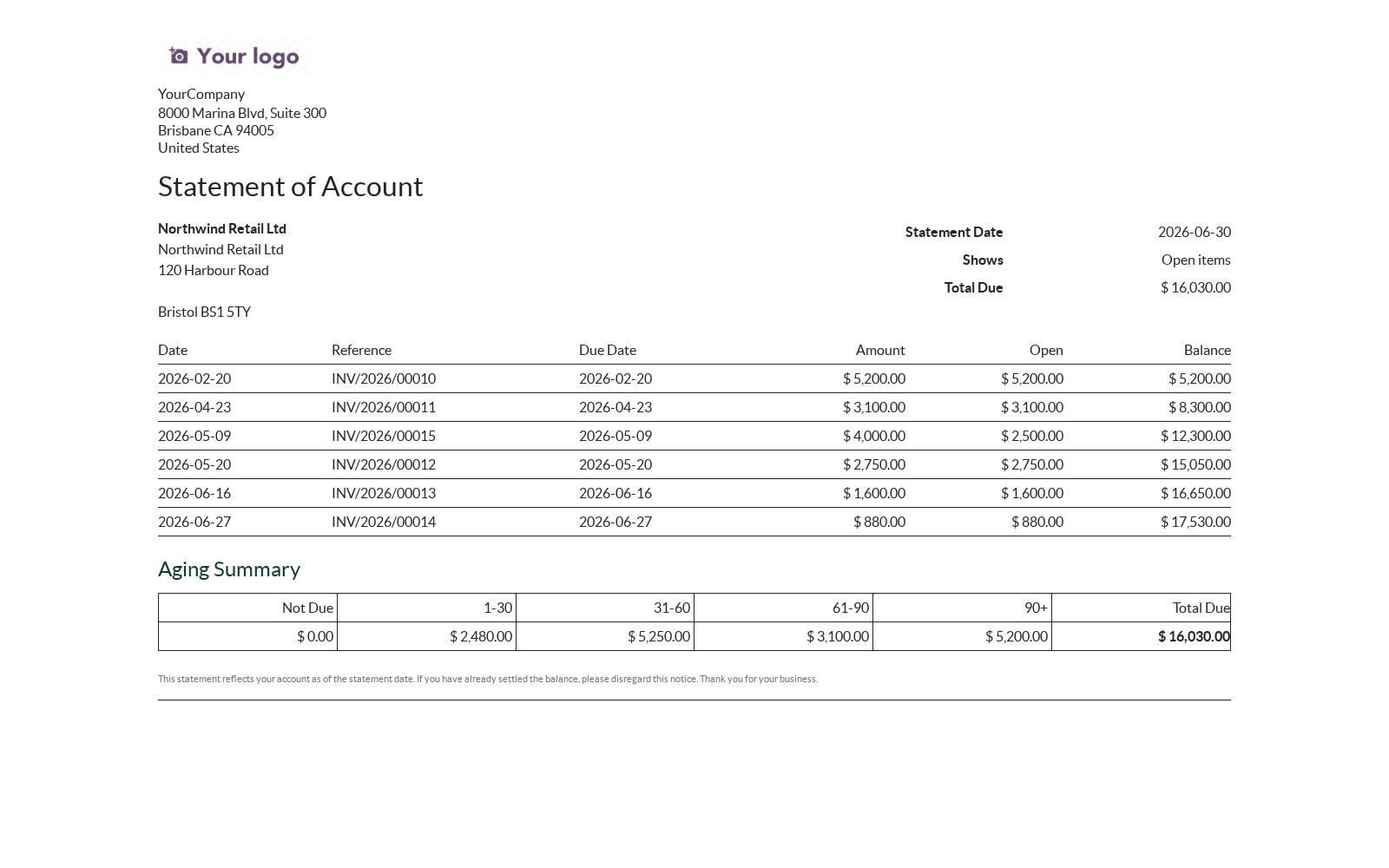
Send your customers a clean statement of account: open items or the full ledger over a period, with a running balance and an aging breakdown (current / 1-30 / 31-60 / 61-90 / 90+). Print it, preview it or email it — one customer or hundreds at once, straight from Odoo. This page is the complete manual. Follow it top to bottom and you can install, print and email statements, and fix the common issues without contacting support.
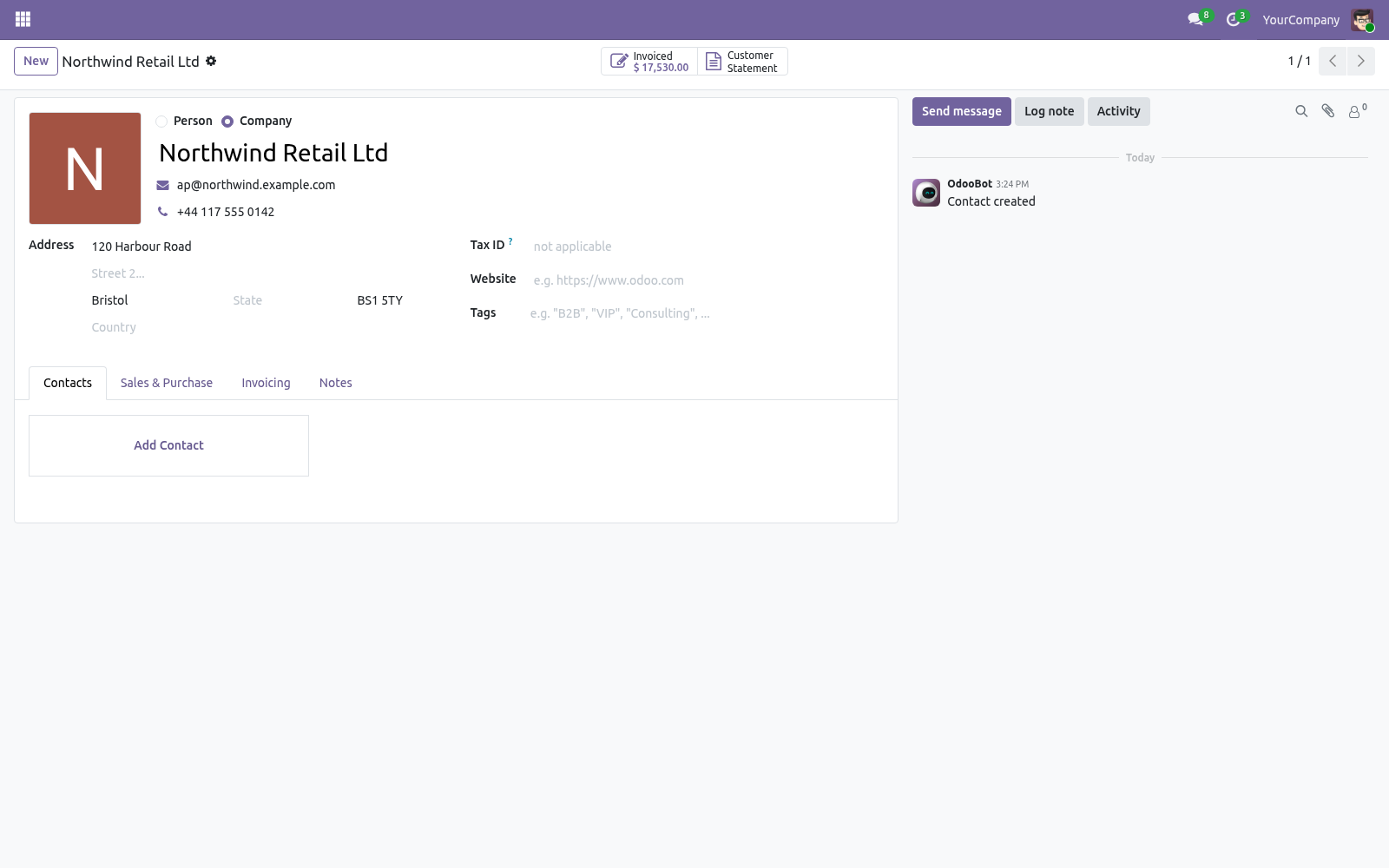
Quick start. 1. Open a customer and click Customer Statement (or open Customers > Customer Statements). 2.
Choose the Statement Date, what to Show (open items or all transactions) and, for a full ledger, an optional From date. 3. Click Print to get the PDF, or Send by Email to deliver it to the selected customers with the statement attached. Open items vs all transactions.
The aging summary is always based on the open (unreconciled) amounts, bucketed by each entry's due date against the statement date. Open items lists only unreconciled receivable entries — what the customer still owes. This is the usual collection statement. All transactions lists every receivable entry in the period (invoices, credit notes and payments), giving a full ledger with the running balance.
Emailing statements. Send by Email renders each selected customer's statement as a PDF and emails it using the built-in Customer Statement mail template, with the PDF attached. Customers without an email address are skipped. You can edit the email wording under Settings > Technical > Email > Templates.
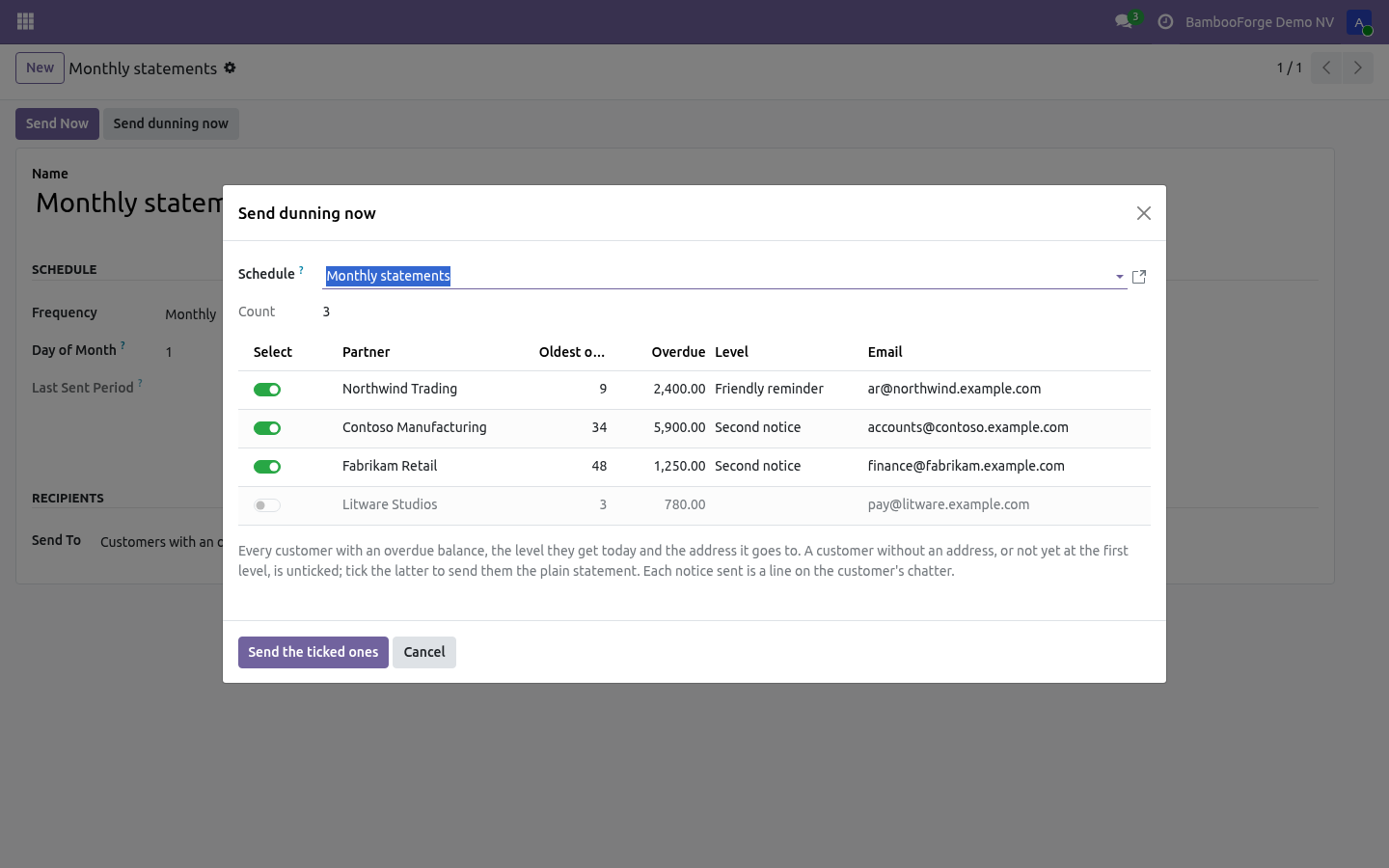
Dunning: the ladder, the signer, the hold. Configuration -> Dunning Levels is the ladder the scheduled statements climb: each level names the age of the oldest overdue invoice it applies from, the template it sends, and now: Signed by - the notice goes out as this user, whose name and address fill the template's signature and sender; the credit controller signs the second notice, not the robot; Also warn the salesperson - a to-do on the customer's salesperson; Put the customer on credit hold - with Credit Limit & Credit Hold installed, reaching the level blocks new sales orders until the overdue balance is settled, and releases them the day it is. A hold or a release a credit manager set by hand is never touched. The level only ever moves up inside a collection cycle; paying off the overdue balance resets it.
Batch statements. Select several customers in the Customers list, then use Print > Customer Statement (or the wizard's multi-customer field) to produce or email all their statements in one go — each customer on its own page. Frequently asked questions. The statement shows no logo / wrong address.
The statement uses your company's document layout. Set your logo and details under Settings > Companies (or Settings > General Settings > Document Layout). A paid invoice still shows. In All transactions every entry shows, including settled ones.
Switch to Open items to see only what is still outstanding. How we make sure it works. Before every release, 35 automated checks run against this app on Odoo 16, 17, 18 and 19. Among them: Below the first level is listed but not ticked.
Sending again is a chase not an escalation. Second notice puts a human on it. Archived customer not targeted. Nobody due nobody mailed.
The complete list is in the source you receive. Support. Questions or ideas: support@bambooforge.dev. ..
BAMBOOFORGE-DOC-APPENDIX (auto-generated: Upgrade/Uninstall/Changelog + bespoke) Usage. The app works in two ways: on-demand statements you print or email from the wizard, and scheduled statements the module emails automatically. Both build the same PDF from your posted receivable entries. The complete manual is at docs dot bambooforge dot dev, the demo database is linked from the store page, and support answers within twenty-four hours.
Links are in the description.
Transcript of the walkthrough (Odoo 17)
Customer Statement of Account & Aging Report. Statement of account with a running balance and aging (current / 30 / 60 / 90+), printed, previewed or emailed - one at a time or scheduled. Chasing overdue receivables starts with showing the customer what they owe. This app builds that statement from your posted invoices and payments: In the next few minutes: customer statement of account & aging report, then quick start, then open items vs all transactions, then emailing statements, then dunning: the ladder, the signer, the hold.
Then what this app deliberately does not do, so you can tell before you buy whether it fits. Everything lives under Customer Statements then Statement Schedules then Send Dunning Now then Dunning Levels. No Enterprise modules and no external Python libraries are required. Customer Statement of Account & Aging Report.
Send your customers a clean statement of account: open items or the full ledger over a period, with a running balance and an aging breakdown (current / 1-30 / 31-60 / 61-90 / 90+). Print it, preview it or email it — one customer or hundreds at once, straight from Odoo. This page is the complete manual. Follow it top to bottom and you can install, print and email statements, and fix the common issues without contacting support.
Quick start. 1. Open a customer and click Customer Statement (or open Customers > Customer Statements). 2.
Choose the Statement Date, what to Show (open items or all transactions) and, for a full ledger, an optional From date. 3. Click Print to get the PDF, or Send by Email to deliver it to the selected customers with the statement attached. Open items vs all transactions.
The aging summary is always based on the open (unreconciled) amounts, bucketed by each entry's due date against the statement date. Open items lists only unreconciled receivable entries — what the customer still owes. This is the usual collection statement. All transactions lists every receivable entry in the period (invoices, credit notes and payments), giving a full ledger with the running balance.
Emailing statements. Send by Email renders each selected customer's statement as a PDF and emails it using the built-in Customer Statement mail template, with the PDF attached. Customers without an email address are skipped. You can edit the email wording under Settings > Technical > Email > Templates.
Dunning: the ladder, the signer, the hold. Configuration -> Dunning Levels is the ladder the scheduled statements climb: each level names the age of the oldest overdue invoice it applies from, the template it sends, and now: Signed by - the notice goes out as this user, whose name and address fill the template's signature and sender; the credit controller signs the second notice, not the robot; Also warn the salesperson - a to-do on the customer's salesperson; Put the customer on credit hold - with Credit Limit & Credit Hold installed, reaching the level blocks new sales orders until the overdue balance is settled, and releases them the day it is. A hold or a release a credit manager set by hand is never touched. The level only ever moves up inside a collection cycle; paying off the overdue balance resets it.
Batch statements. Select several customers in the Customers list, then use Print > Customer Statement (or the wizard's multi-customer field) to produce or email all their statements in one go — each customer on its own page. Frequently asked questions. The statement shows no logo / wrong address.
The statement uses your company's document layout. Set your logo and details under Settings > Companies (or Settings > General Settings > Document Layout). A paid invoice still shows. In All transactions every entry shows, including settled ones.
Switch to Open items to see only what is still outstanding. How we make sure it works. Before every release, 35 automated checks run against this app on Odoo 16, 17, 18 and 19. Among them: Below the first level is listed but not ticked.
Sending again is a chase not an escalation. Second notice puts a human on it. Archived customer not targeted. Nobody due nobody mailed.
The complete list is in the source you receive. Support. Questions or ideas: support@bambooforge.dev. ..
BAMBOOFORGE-DOC-APPENDIX (auto-generated: Upgrade/Uninstall/Changelog + bespoke) Usage. The app works in two ways: on-demand statements you print or email from the wizard, and scheduled statements the module emails automatically. Both build the same PDF from your posted receivable entries. The complete manual is at docs dot bambooforge dot dev, the demo database is linked from the store page, and support answers within twenty-four hours.
Links are in the description.
Transcript of the walkthrough (Odoo 16)
Customer Statement of Account & Aging Report. Statement of account with a running balance and aging (current / 30 / 60 / 90+), printed, previewed or emailed - one at a time or scheduled. Chasing overdue receivables starts with showing the customer what they owe. This app builds that statement from your posted invoices and payments: In the next few minutes: customer statement of account & aging report, then quick start, then open items vs all transactions, then emailing statements, then dunning: the ladder, the signer, the hold.
Then what this app deliberately does not do, so you can tell before you buy whether it fits. Everything lives under Customer Statements then Statement Schedules then Send Dunning Now then Dunning Levels. No Enterprise modules and no external Python libraries are required. Customer Statement of Account & Aging Report.
Send your customers a clean statement of account: open items or the full ledger over a period, with a running balance and an aging breakdown (current / 1-30 / 31-60 / 61-90 / 90+). Print it, preview it or email it — one customer or hundreds at once, straight from Odoo. This page is the complete manual. Follow it top to bottom and you can install, print and email statements, and fix the common issues without contacting support.
Quick start. 1. Open a customer and click Customer Statement (or open Customers > Customer Statements). 2.
Choose the Statement Date, what to Show (open items or all transactions) and, for a full ledger, an optional From date. 3. Click Print to get the PDF, or Send by Email to deliver it to the selected customers with the statement attached. Open items vs all transactions.
The aging summary is always based on the open (unreconciled) amounts, bucketed by each entry's due date against the statement date. Open items lists only unreconciled receivable entries — what the customer still owes. This is the usual collection statement. All transactions lists every receivable entry in the period (invoices, credit notes and payments), giving a full ledger with the running balance.
Emailing statements. Send by Email renders each selected customer's statement as a PDF and emails it using the built-in Customer Statement mail template, with the PDF attached. Customers without an email address are skipped. You can edit the email wording under Settings > Technical > Email > Templates.
Dunning: the ladder, the signer, the hold. Configuration -> Dunning Levels is the ladder the scheduled statements climb: each level names the age of the oldest overdue invoice it applies from, the template it sends, and now: Signed by - the notice goes out as this user, whose name and address fill the template's signature and sender; the credit controller signs the second notice, not the robot; Also warn the salesperson - a to-do on the customer's salesperson; Put the customer on credit hold - with Credit Limit & Credit Hold installed, reaching the level blocks new sales orders until the overdue balance is settled, and releases them the day it is. A hold or a release a credit manager set by hand is never touched. The level only ever moves up inside a collection cycle; paying off the overdue balance resets it.
Batch statements. Select several customers in the Customers list, then use Print > Customer Statement (or the wizard's multi-customer field) to produce or email all their statements in one go — each customer on its own page. Frequently asked questions. The statement shows no logo / wrong address.
The statement uses your company's document layout. Set your logo and details under Settings > Companies (or Settings > General Settings > Document Layout). A paid invoice still shows. In All transactions every entry shows, including settled ones.
Switch to Open items to see only what is still outstanding. How we make sure it works. Before every release, 35 automated checks run against this app on Odoo 16, 17, 18 and 19. Among them: Below the first level is listed but not ticked.
Sending again is a chase not an escalation. Second notice puts a human on it. Archived customer not targeted. Nobody due nobody mailed.
The complete list is in the source you receive. Support. Questions or ideas: support@bambooforge.dev. ..
BAMBOOFORGE-DOC-APPENDIX (auto-generated: Upgrade/Uninstall/Changelog + bespoke) Usage. The app works in two ways: on-demand statements you print or email from the wizard, and scheduled statements the module emails automatically. Both build the same PDF from your posted receivable entries. The complete manual is at docs dot bambooforge dot dev, the demo database is linked from the store page, and support answers within twenty-four hours.
Links are in the description.
Key facts
- What it is
- Statement of account with a running balance and aging (current / 30 / 60 / 90+), printed, previewed or emailed - one at a time or scheduled.
- For
- Accounting
- Odoo versions
- 16.0, 17.0, 18.0, 19.0, 20.0 - Community and Enterprise
- Runs on
- Odoo.sh or Odoo you host yourself - not Odoo Online, which accepts no third-party apps
- Price
- 79 EUR, one-time, on the Odoo Apps Store
- Technical name
- bambooforge_customer_statement
- Manual last updated
- 2026-10-15
Customer Statement of Account & Aging Report
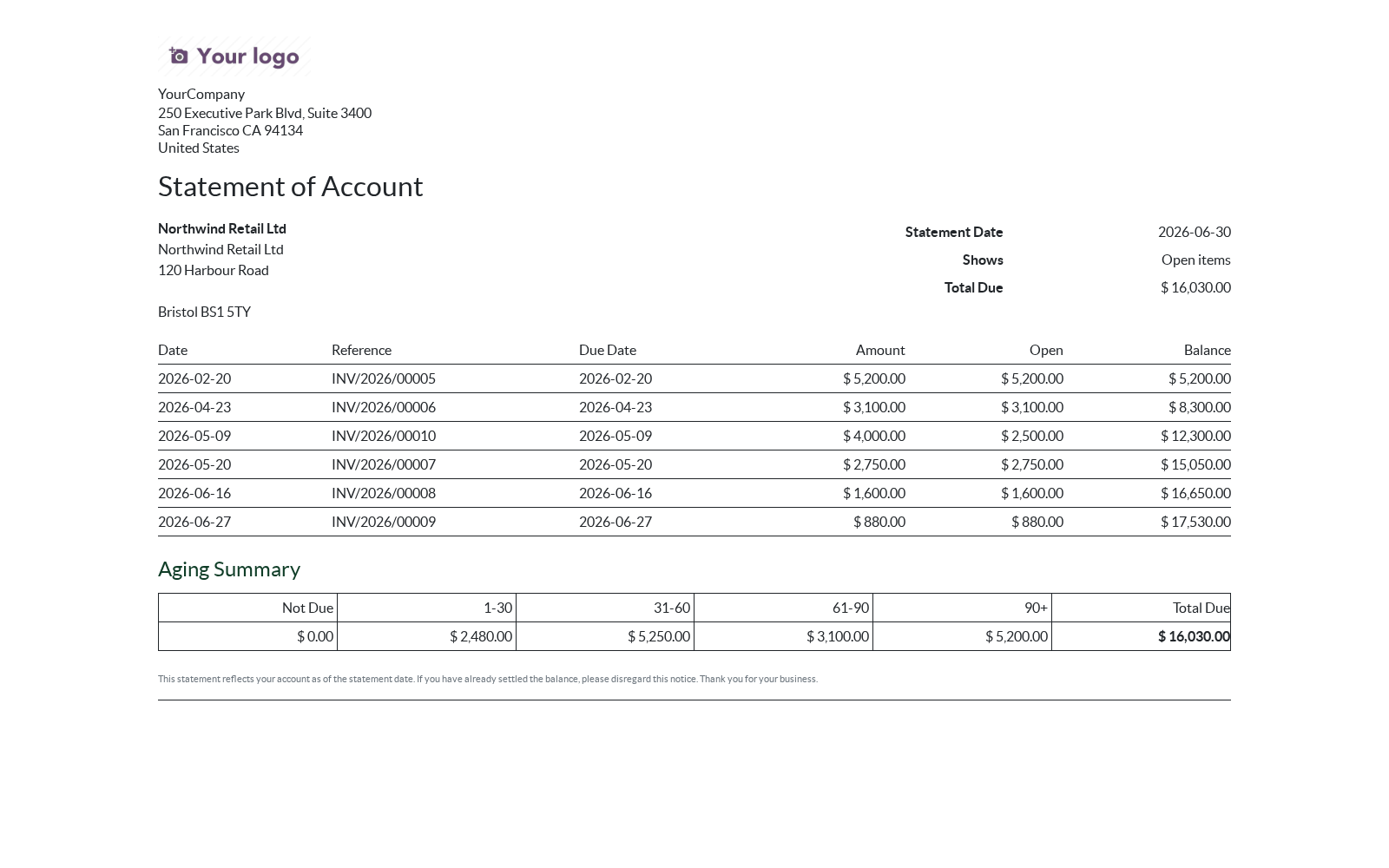
Send your customers a clean statement of account: open items or the full ledger over a period, with a running balance and an aging breakdown (current / 1-30 / 31-60 / 61-90 / 90+). Print it, preview it or email it — one customer or hundreds at once, straight from Odoo.
This page is the complete manual. Follow it top to bottom and you can install, print and email statements, and fix the common issues without contacting support.
Overview
Chasing overdue receivables starts with showing the customer what they owe. This app builds that statement from your posted invoices and payments:
Open items or all transactions — show only what is still outstanding, or the full ledger over a date range.
Running balance — every line carries the cumulative balance.
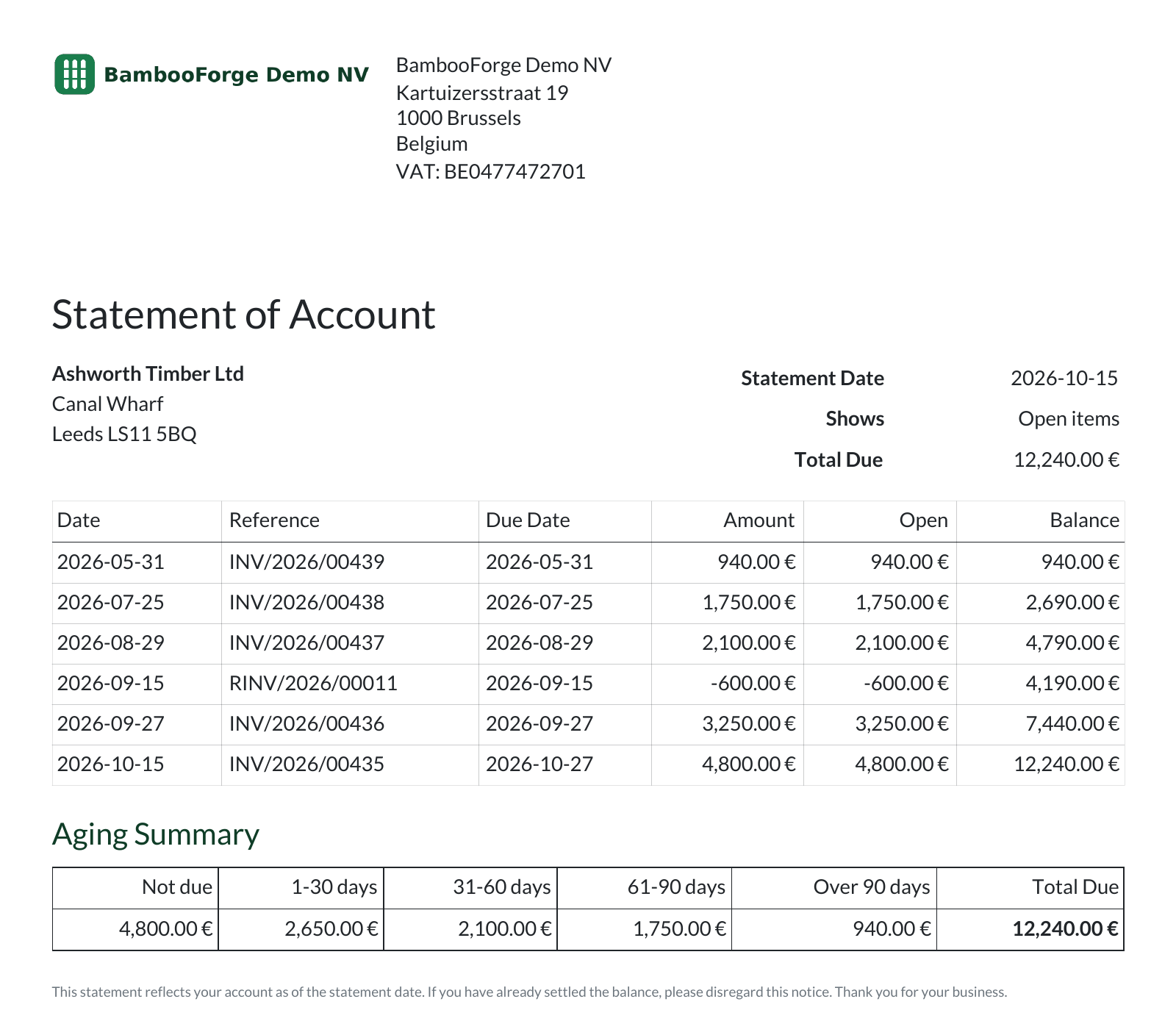
Aging summary — outstanding amounts split into current, 1-30, 31-60, 61-90 and 90+ day buckets.
Print, preview or email — a professional PDF on your company letterhead, for one customer or a whole batch.
One-click from the customer — a Customer Statement button on every customer.
Requirements
Odoo 20.0.
The Invoicing/Accounting app (account). Installing this app pulls it in automatically.
No Enterprise modules and no external Python libraries are required.
Installation
Copy bambooforge_customer_statement into your addons path.
Update the apps list (Apps > Update Apps List).
Search for Customer Statements and click Install.
A Customer Statements entry appears under Accounting / Invoicing > Customers, a Customer Statement button is added to every customer, and a Customer Statement option appears in the Print menu of the customer list.
Quick start
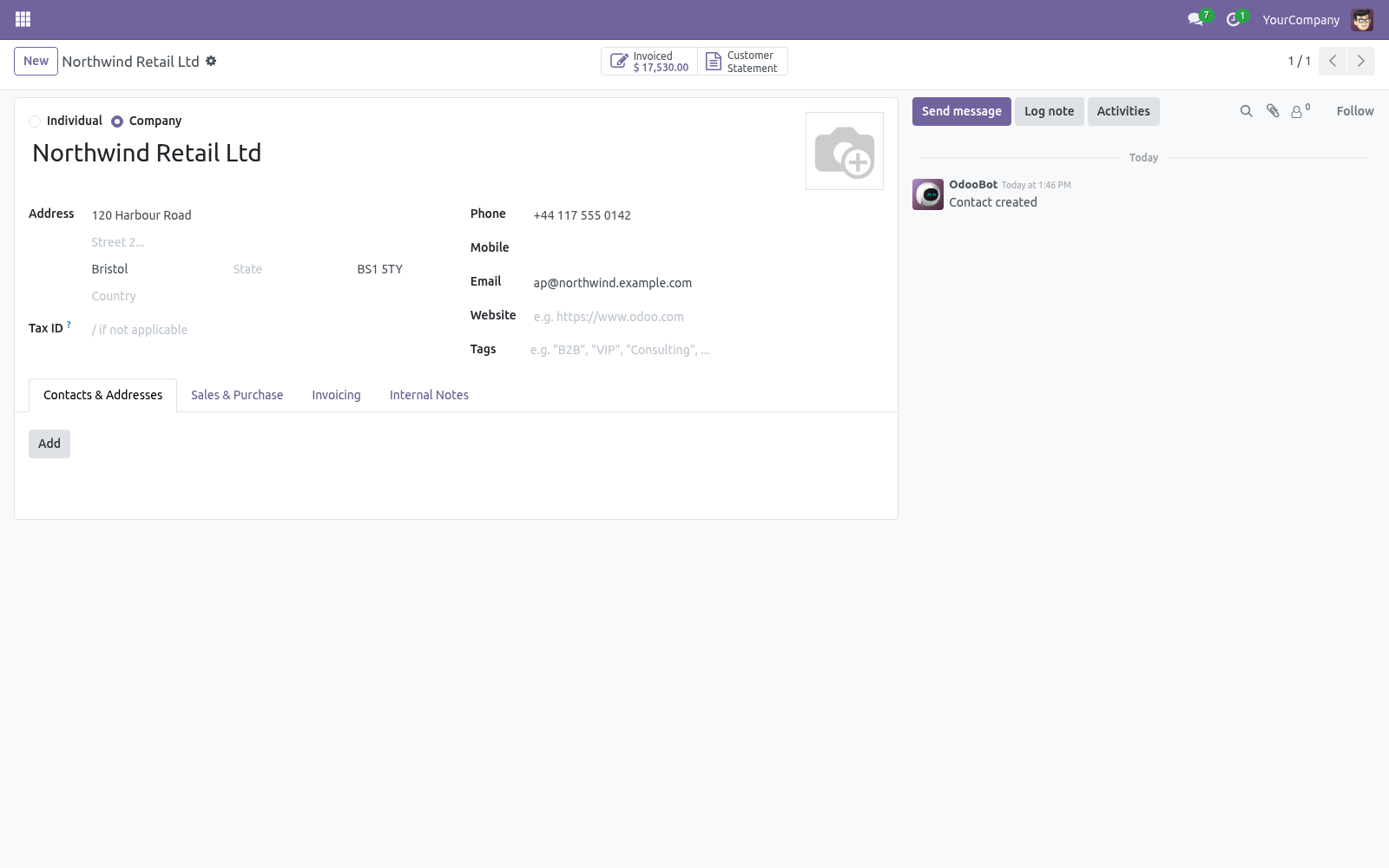
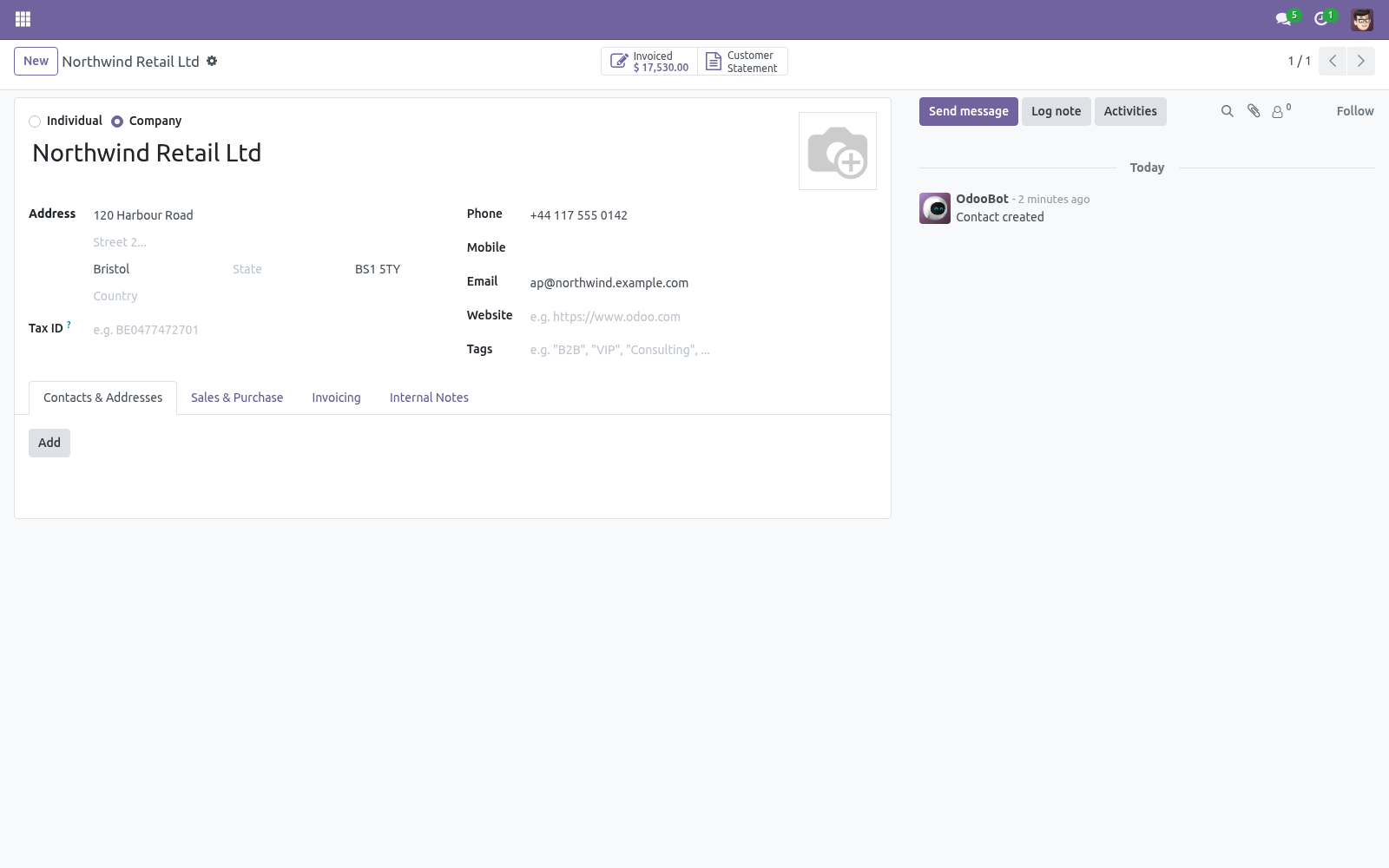
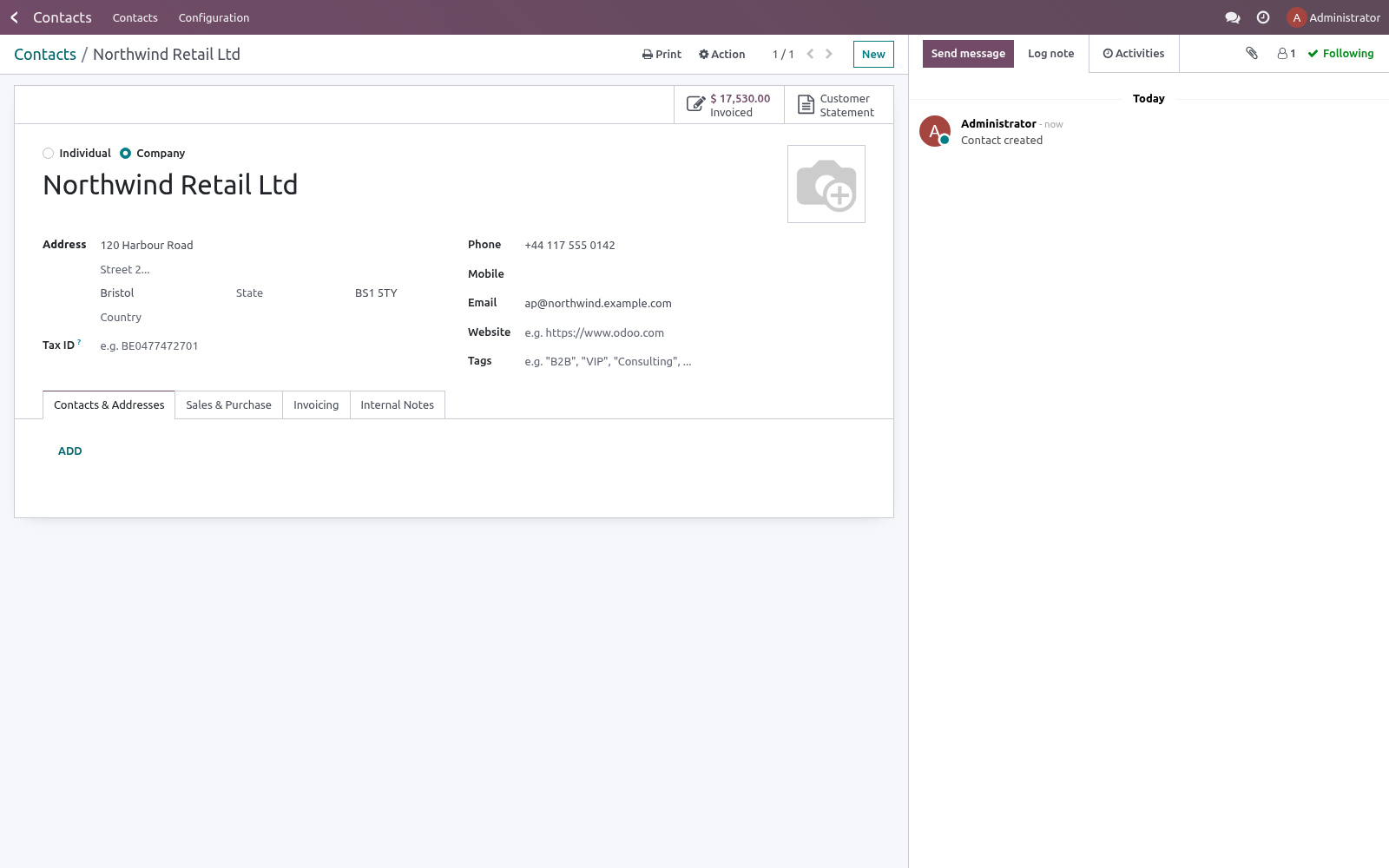
Open a customer and click Customer Statement (or open Customers > Customer Statements).
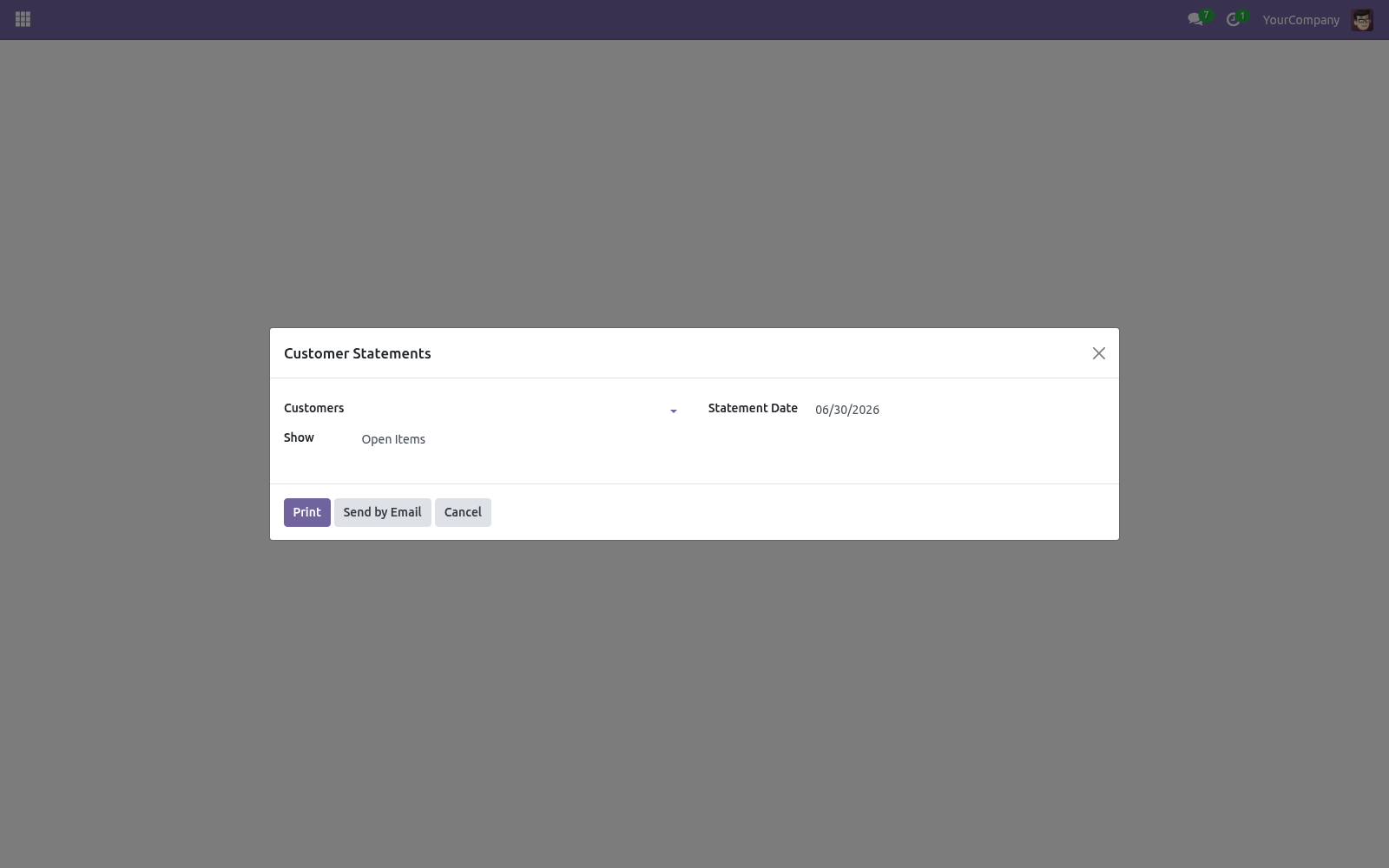
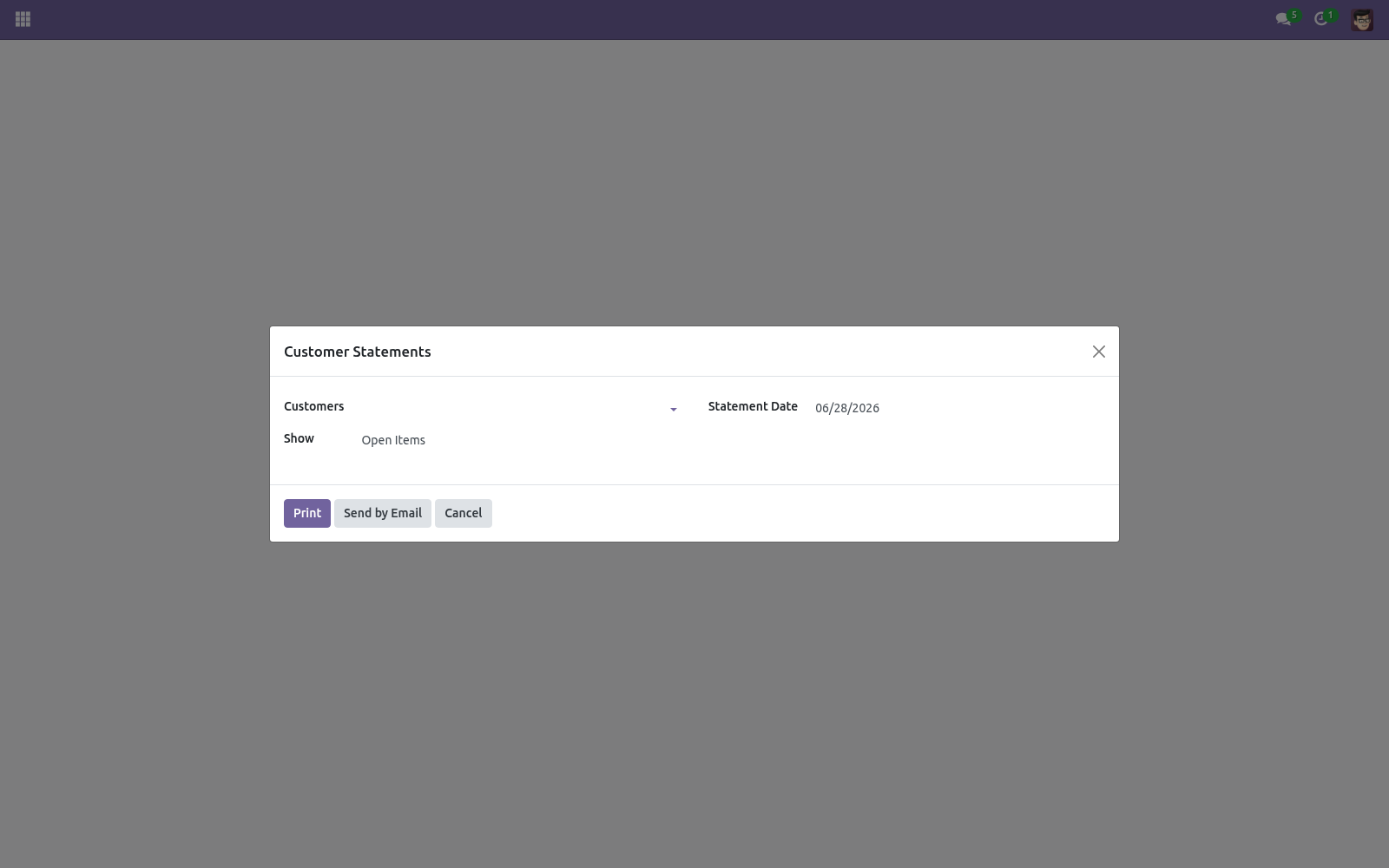
Choose the Statement Date, what to Show (open items or all transactions) and, for a full ledger, an optional From date.
Click Print to get the PDF, or Send by Email to deliver it to the selected customers with the statement attached.
Open items vs all transactions
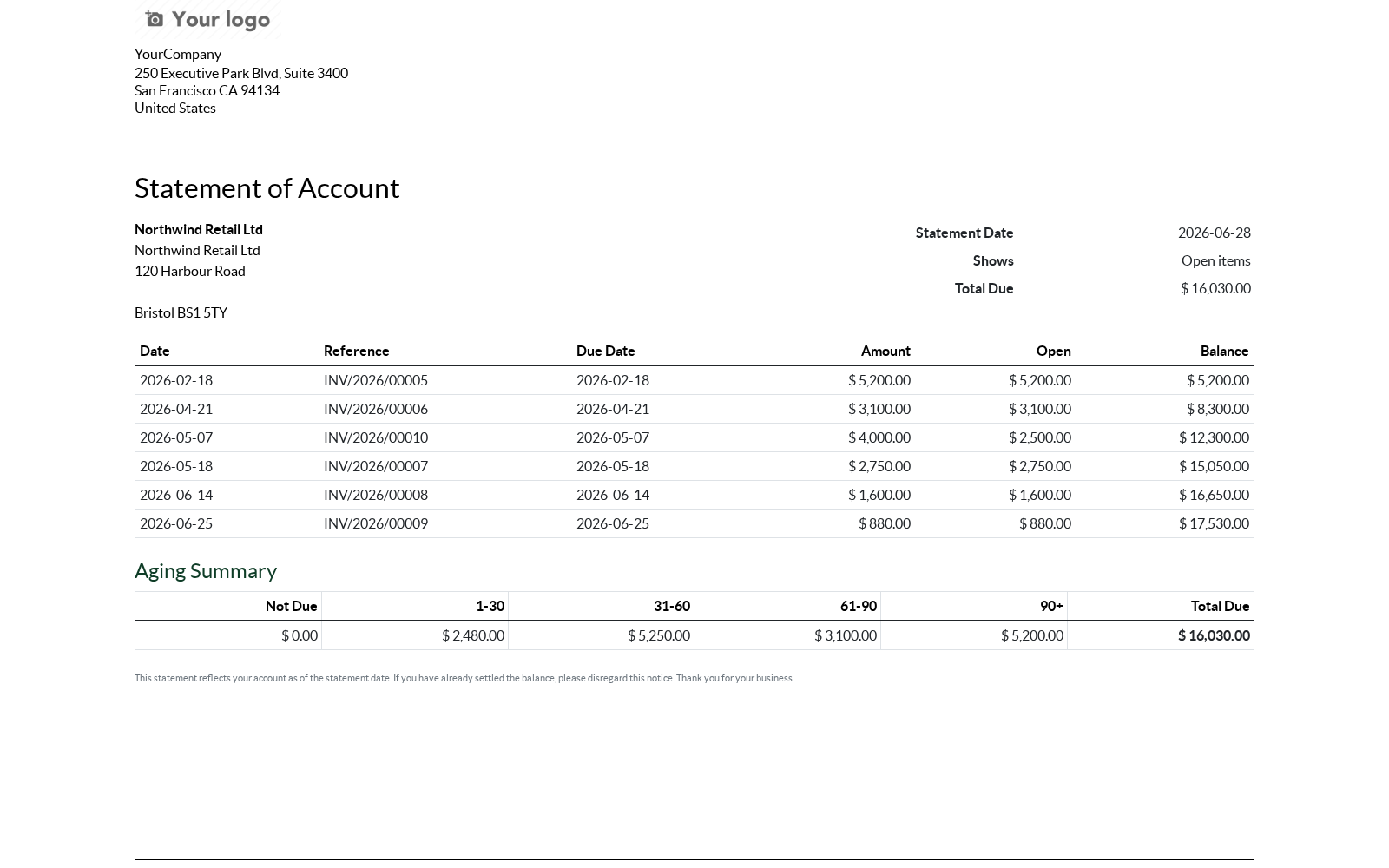
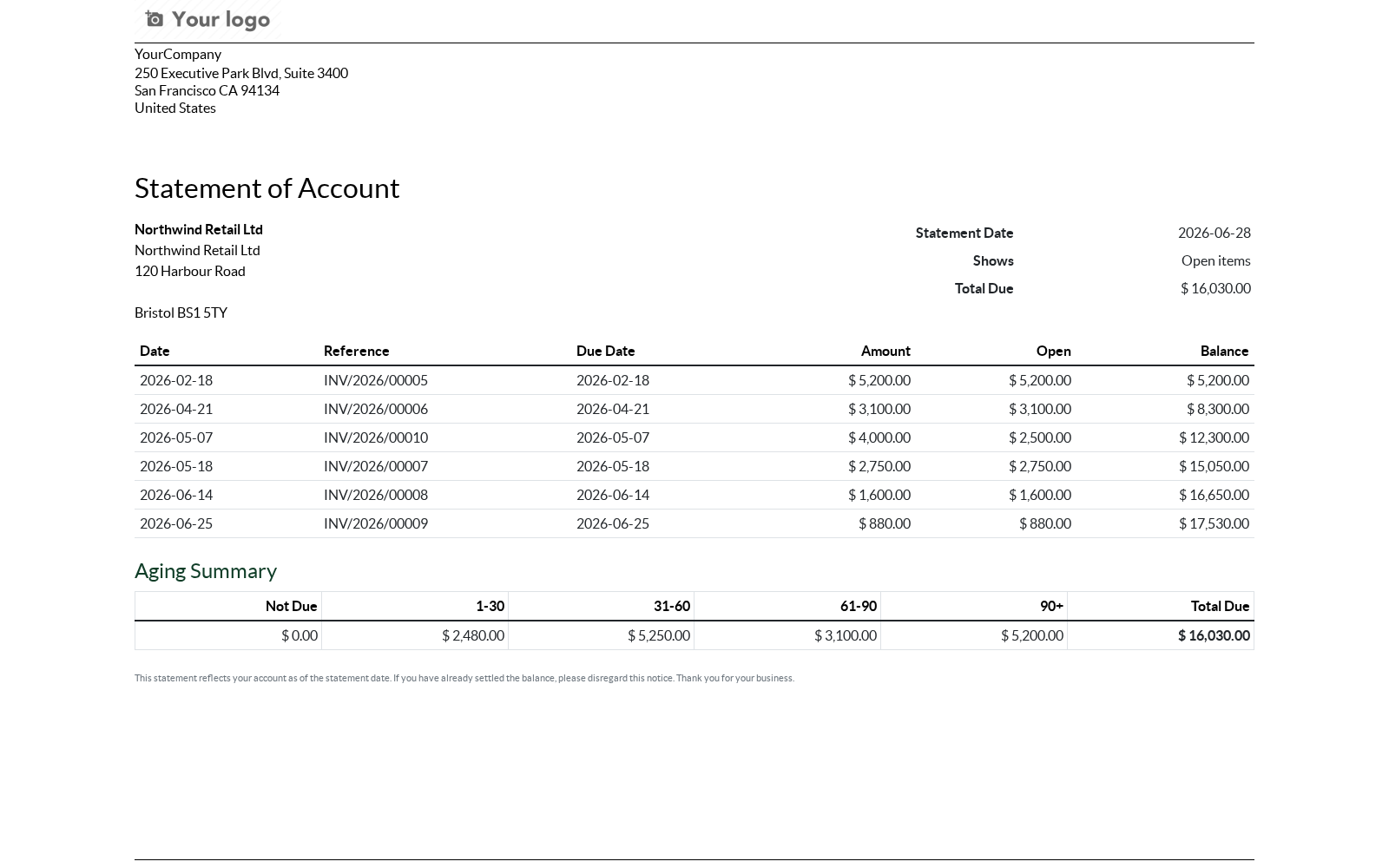
Open items lists only unreconciled receivable entries — what the customer still owes. This is the usual collection statement.
All transactions lists every receivable entry in the period (invoices, credit notes and payments), giving a full ledger with the running balance.
The aging summary is always based on the open (unreconciled) amounts, bucketed by each entry's due date against the statement date.
Emailing statements
Send by Email renders each selected customer's statement as a PDF and emails it using the built-in Customer Statement mail template, with the PDF attached. Customers without an email address are skipped. You can edit the email wording under Settings > Technical > Email > Templates.
Dunning: the ladder, the signer, the hold
Configuration -> Dunning Levels is the ladder the scheduled statements climb: each level names the age of the oldest overdue invoice it applies from, the template it sends, and now:
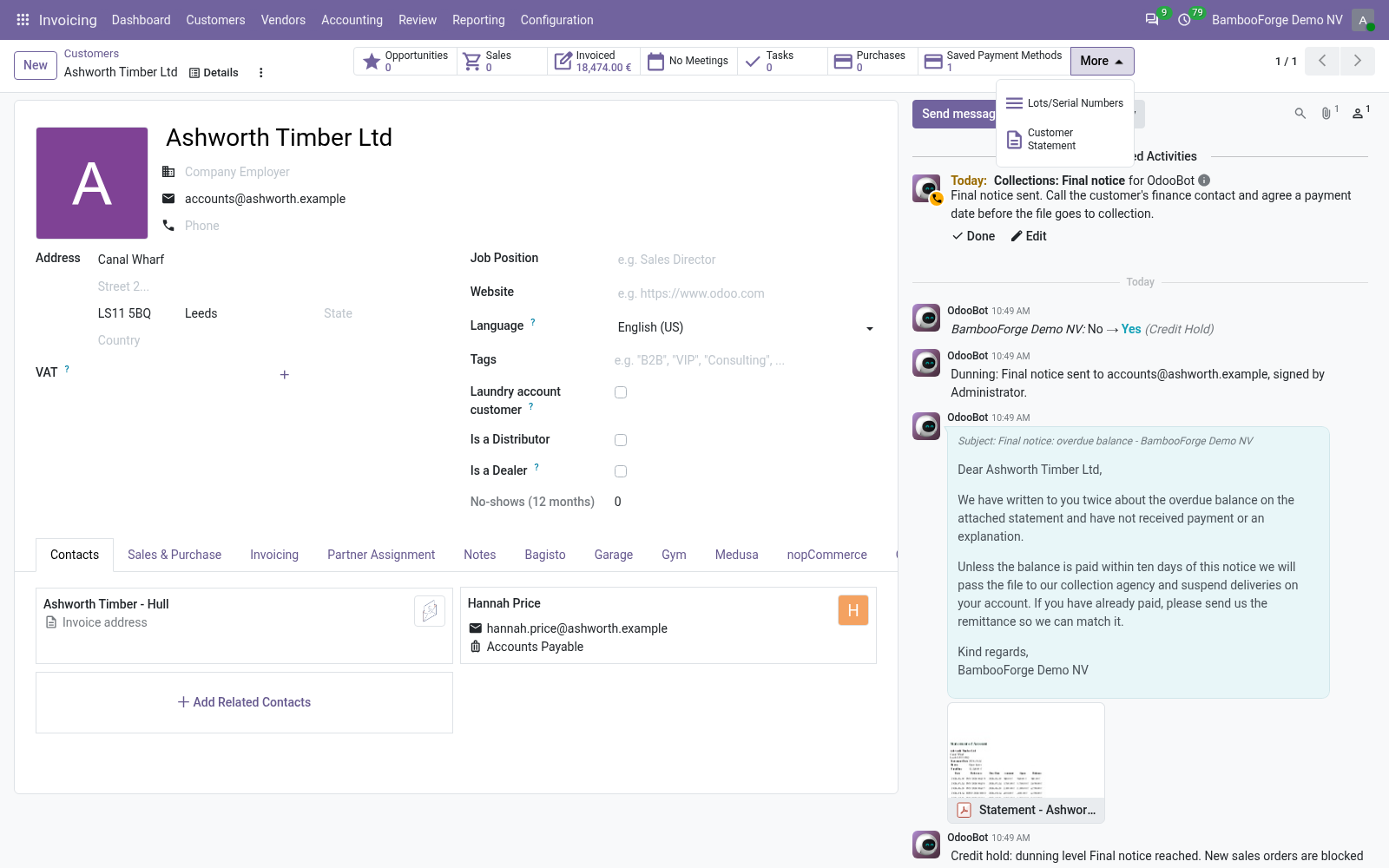
Signed by - the notice goes out as this user, whose name and address fill the template's signature and sender; the credit controller signs the second notice, not the robot;
Also warn the salesperson - a to-do on the customer's salesperson;
Put the customer on credit hold - with Credit Limit & Credit Hold installed, reaching the level blocks new sales orders until the overdue balance is settled, and releases them the day it is. A hold or a release a credit manager set by hand is never touched.
The level only ever moves up inside a collection cycle; paying off the overdue balance resets it.
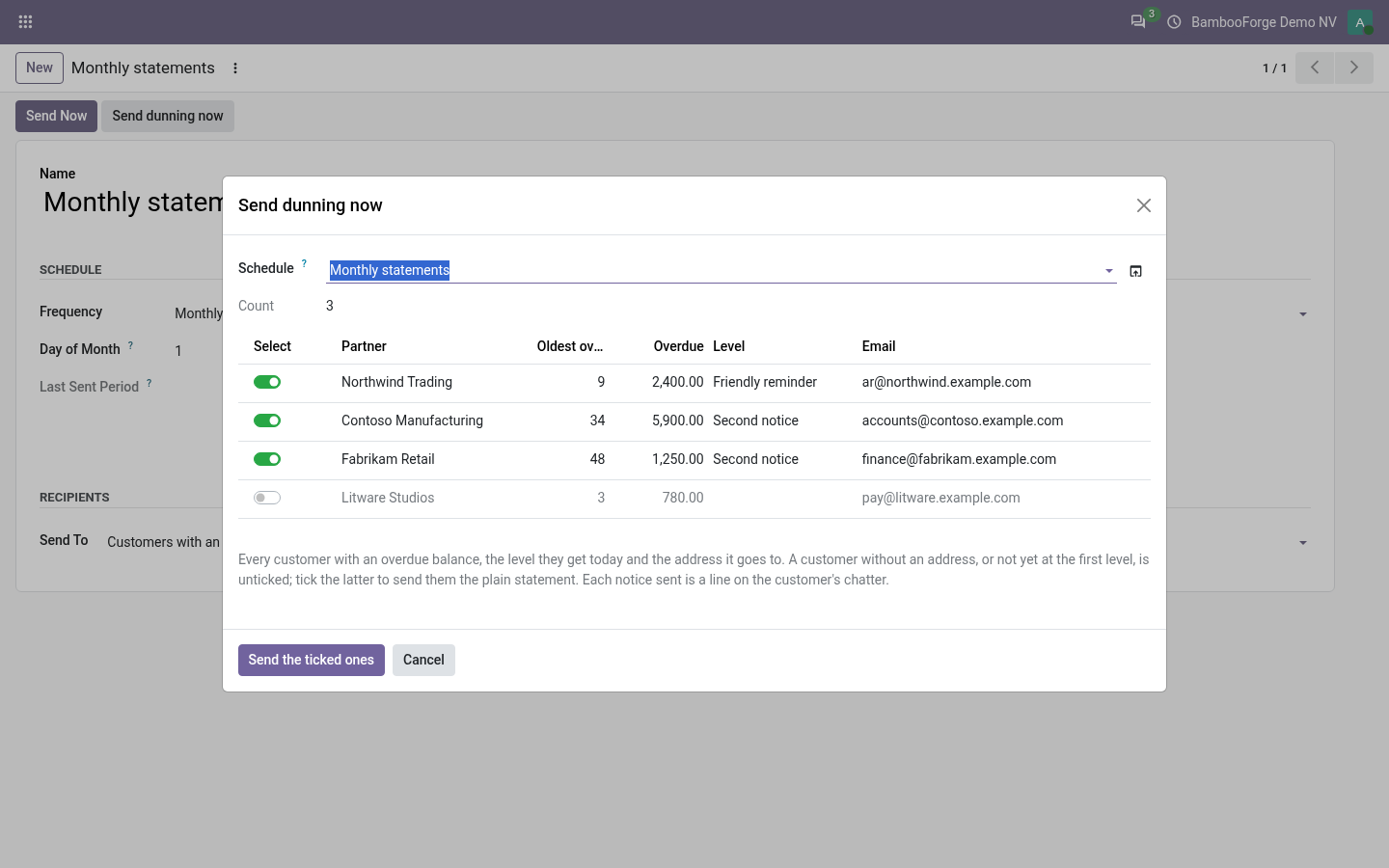
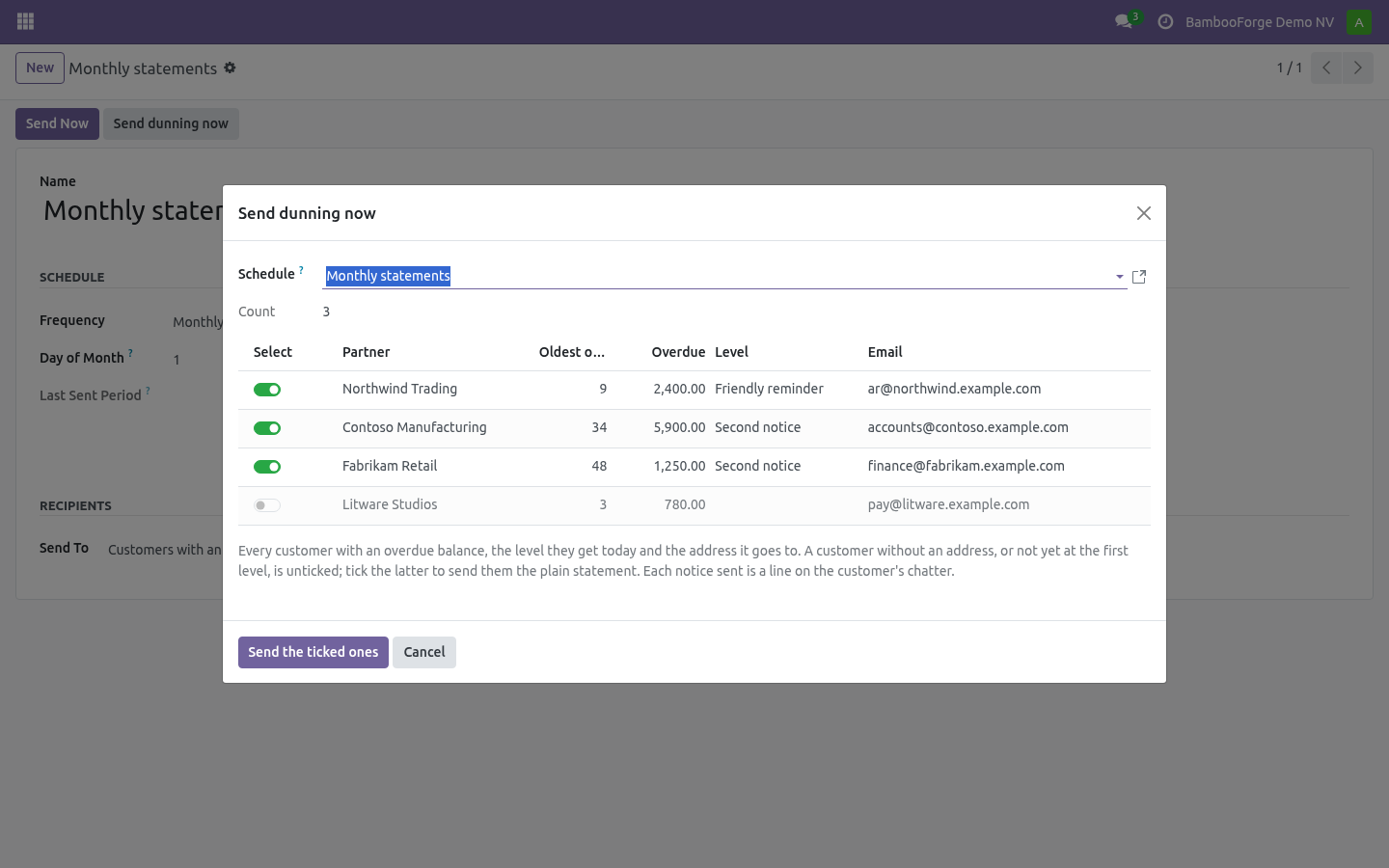
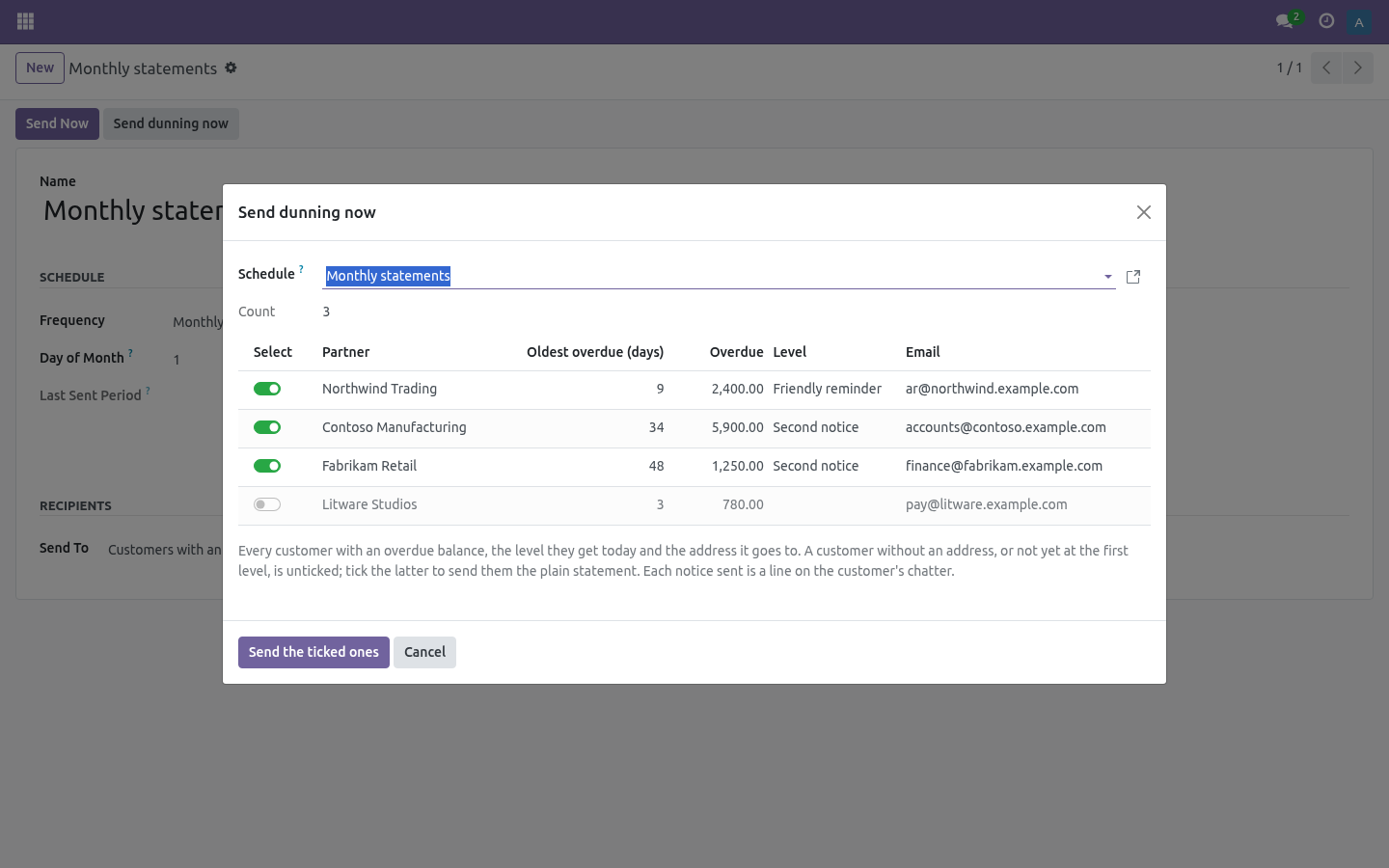
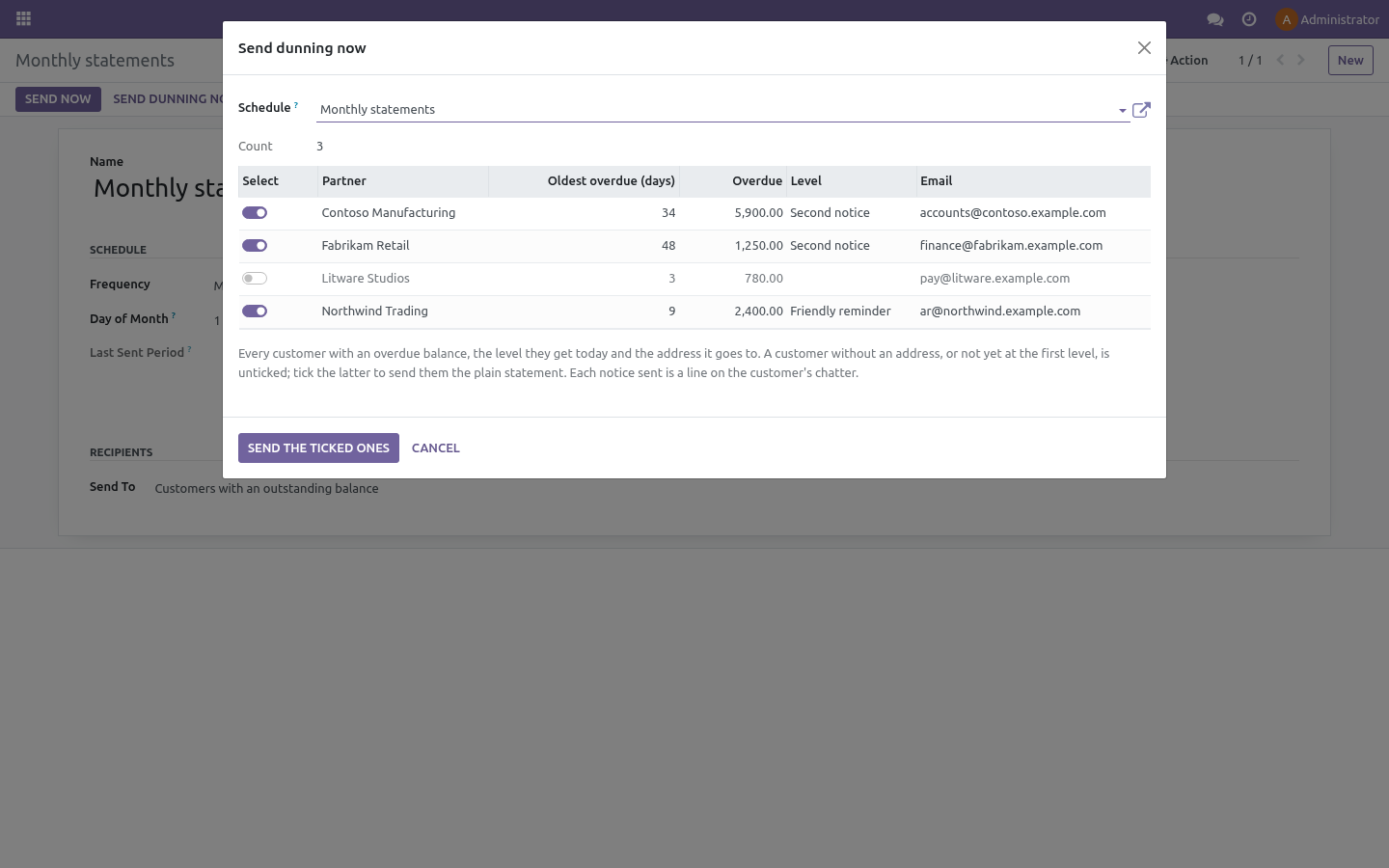
Send Dunning Now (Receivables, or the button on a schedule) lists every customer with an overdue balance, the level they get today, the amount and the address, ticked when there is an address and a level reached. A customer still below the first level shows greyed and unticked; tick them to send the plain statement. Press Send and the notices go out at once, whatever the schedule's calendar says - the chase a controller does on a Friday afternoon. Sending the same level again is a chase, not an escalation.
Every notice sent - by the schedule or by hand - is a line on the customer's chatter: the level, the address, who signed it. The customer form shows how many notices went out in the current cycle and when the last one did; both reset with the cycle. "Did we chase them?" has an answer.
Batch statements
Select several customers in the Customers list, then use Print > Customer Statement (or the wizard's multi-customer field) to produce or email all their statements in one go — each customer on its own page.
Frequently asked questions
- The statement shows no logo / wrong address.
The statement uses your company's document layout. Set your logo and details under Settings > Companies (or Settings > General Settings > Document Layout).
- A paid invoice still shows.
In All transactions every entry shows, including settled ones. Switch to Open items to see only what is still outstanding.
- Aging looks off.
Aging buckets use each entry's due date versus the statement date. Make sure your invoices carry the right due dates (from their payment terms).
- Can I send statements automatically?
The wizard is manual by design (you choose the date and scope), but the email action can be triggered from a server action or scheduled job if you need automation.
- Does it work with multiple companies?
Yes. Each statement is computed for the selected company's receivable entries.
How we make sure it works
Before every release, 37 automated checks run against this app on Odoo 16, 17, 18, 19 and 20. Among them:
Below the first level is listed but not ticked.
Sending again is a chase not an escalation.
Second notice puts a human on it.
Archived customer not targeted.
Nobody due nobody mailed.
The complete list is in the source you receive.
Support
Questions or ideas: support@bambooforge.dev.
Usage
The app works in two ways: on-demand statements you print or email from the wizard, and scheduled statements the module emails automatically. Both build the same PDF from your posted receivable entries.
On-demand statement for one customer
Open a customer (Accounting / Invoicing > Customers > Customers) and click the Customer Statement stat button. The button appears only on records that are actually customers (customer_rank > 0).
The Customer Statement wizard opens with that customer already filled in the Customers field.
Set the options:
Statement Date — the cut-off date (date_to); defaults to today.
Show — Open Items (only unreconciled receivables still owed) or All Transactions (the full ledger with a running balance).
From — a start date (date_from); shown only when Show is All Transactions. Leave it empty for the complete history.
Click Print for the PDF, or Send by Email to deliver it. The aging summary (current / 1-30 / 31-60 / 61-90 / 90+) is always computed from the open amounts against the Statement Date.
On-demand statements for many customers
Open Accounting / Invoicing > Customers > Customer Statements, then add several names to the Customers field, or
select several rows in the Customers list and use Print > Customer Statement (the report is bound to the customer list).
Print produces one PDF with each customer on its own page. Send by Email renders each customer's statement separately and emails it with the PDF attached, using the Customer Statement mail template. Customers without an email address are skipped; if none of the selected customers has an email, the wizard warns you.
Automatic scheduled statements
Set up a schedule once and let the module email statements for you.
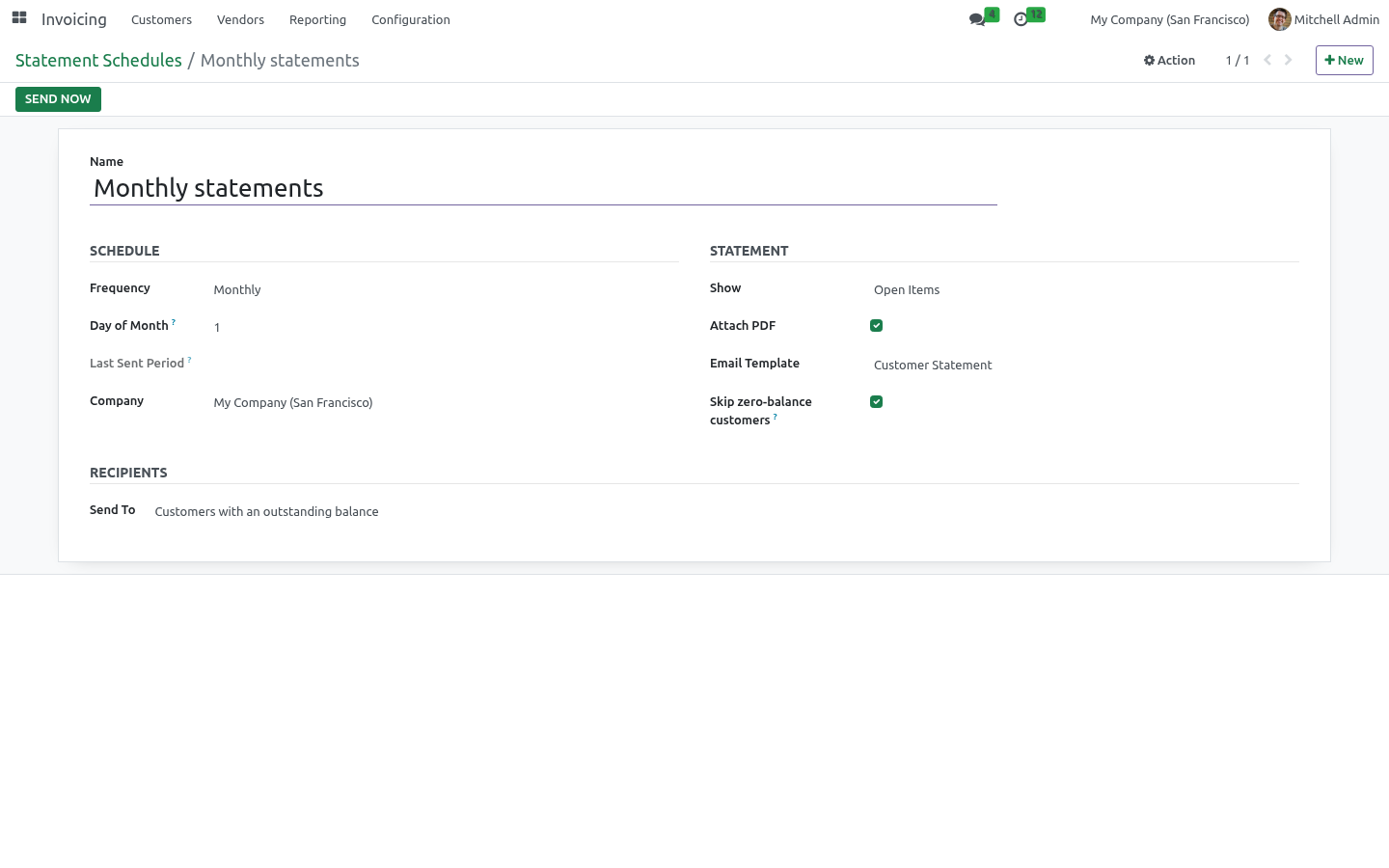
Go to Accounting / Invoicing > Customers > Statement Schedules (visible to the Accounting Manager) and create a schedule.
Schedule — pick a Frequency (Daily, Weekly, Monthly or Quarterly). For Weekly, choose the Day of Week; for Monthly/Quarterly, set the Day of Month (values past the end of a short month fall back to its last day).
Statement — choose Show (Open Items or All Transactions), whether to Attach PDF, the Email Template, and Skip zero-balance customers (on by default).
Recipients — set Send To:
Customers with an outstanding balance — anyone with unreconciled, non-zero posted receivables.
Customers in selected tags — pick the Customer Tags.
All customers.
Custom filter — an Odoo domain on res.partner, e.g. [('country_id.code', '=', 'BE')].
Leave active ticked. Each statement goes to the customer's Invoicing contact (falling back to the customer) in that customer's own language.
A daily scheduled action (Customer Statements: send scheduled statements) runs every active schedule that is due on the current day. Sending is idempotent per period — a monthly schedule sends at most once per month — so the cron can safely run daily. Use the Send Now button on the schedule form to send the current period immediately (it still respects the once-per-period rule recorded in Last Sent Period). With no active schedule, the module stays fully manual.
Worked example
You want an open-item statement emailed on the 1st of every month to every customer that still owes you money:
Customers > Statement Schedules > New.
Name: Monthly open-item statements; Frequency = Monthly, Day of Month = 1.
Show = Open Items, Attach PDF on, Skip zero-balance customers on.
Send To = Customers with an outstanding balance. Save.
On the next 1st of the month the cron emails each qualifying customer a PDF of their open items with the aging breakdown, and stamps Last Sent Period so no one is emailed twice that month.
Upgrading & version compatibility
This build targets Odoo 20.0. Each Odoo major series (16.0, 17.0, 18.0, 19.0, 20.0) has its own dedicated build of this module — always install the build that matches your Odoo version. Mixing a build with a different Odoo series is not supported.
Patch upgrades (same series, e.g. 20.0.1.0.0 → later)
Back up your database and filestore first.
Replace the module folder with the newer build.
Restart Odoo with the module updated:
./odoo-bin -c your.conf -u bambooforge_customer_statement -d your_db
Odoo applies any schema/data changes automatically. Your existing records and configuration are preserved.
Cross-version migration (moving to a newer Odoo)
Upgrading Odoo itself is a database migration handled by Odoo's standard upgrade tooling. When you migrate the database to the next Odoo series, install the matching build of this module for that series. Data created by this module carries over with the database migration.
After any upgrade the module's scheduled actions resume on their normal cadence — no manual re-activation is required.
Uninstallation
You can remove this module at any time from Apps → (this module) → Uninstall, or from the command line. Uninstalling is clean and reversible by reinstalling — but note what is and is not deleted.
What is removed
The module's own tables and every record in them (1 model, prefixed customer.*) — this is the data this module created.
The menus, actions, views and reports this module installed.
Its scheduled actions (cron jobs) — they stop immediately on uninstall.
What is preserved
Your standard Odoo data (partners, products, sales, invoices, inventory moves) is not deleted — this module only reads and annotates it; the underlying records stay.
Attachments and chatter messages on standard records are kept.
As always, take a database backup before uninstalling in production.
Questions people ask
- Which Odoo versions does it run on?
Odoo 16.0, 17.0, 18.0, 19.0, 20.0, on the series you buy it for; each series is its own listing.
- Community or Enterprise?
Both. It needs no Enterprise app.
- What does it need?
The standard Invoicing app. No extra Python package.
- Where does it show up?
Under the Customer Statements menu (Statement Schedules).
- Does anything leave my server?
No. It makes no call outside your Odoo server: no telemetry, no licence check, no third-party service.
- What happens if I uninstall it?
Odoo drops the app's own tables and fields; the standard records it worked on (contacts, orders, products) stay as they are.
Changelog
20.0.1.2.0
Built for Odoo 20: record rules and access rights rewritten onto Odoo 20's single ir.access model, the screens rebuilt on Owl 3, and every icon moved to the icon set Odoo 20 ships.
20.0.1.2.0
Dunning levels have a form: who signs, whether the salesperson is warned, whether the customer goes on credit hold.
Send Dunning Now: every customer due, at today's level, sent at once.
Every notice is a line on the customer's chatter, with a count and a last date on the form.
The credit-hold bridge, installed by itself with Credit Limit & Credit Hold.
20.0.1.0.0
Current release for Odoo 20.0. This build includes:
Scheduled, segmented automatic customer statements.
Plus professional on-demand statements of account with a running balance and an aging summary (current / 30 / 60 / 90+). Print, preview or email in one click, single, in batch, or on a schedule.
Feature additions and fixes ship as new builds on the Odoo Apps store; this page and the module's version reflect the current published release. Always keep the build matched to your Odoo series (see Upgrading & version compatibility).