 BambooForge Labs
Appointment Booking & Online Scheduling
Online appointment booking for Odoo Community: services on staff hours or bookable resources, timezone-aware slot picker, buffers and capacity.
Available for Odoo 16.0, Odoo 17.0, Odoo 18.0, Odoo 19.0, Odoo 20.0. Technical name bambooforge_booking_pro.
Transcript of the walkthrough (Odoo 20)
Appointment Booking & Online Scheduling. Online appointment booking for Odoo Community: services on staff hours or bookable resources, timezone-aware slot picker, buffers and capacity. Calendly-class online booking for the Odoo 20 website, running entirely on Community: bookable services scheduled on staff with real working hours or on resources (tables, meeting rooms, courts…) with seat capacities and combinable tables, a timezone-aware month-grid slot picker on /booking, buffers and group capacity, custom questions per service, optional online prepayment and CRM leads, instant or manual confirmation, e-mail confirmations and reminders with .ics files, self-service cancellation and staff calendar sync — with the staff's other calendar events (including externally synced ones) blocking slots. In the next few minutes: appointment booking & online scheduling, then the booking flow, then working with bookings, then group classes, then resource mode (tables, rooms, courts…).
Then what this app deliberately does not do, so you can tell before you buy whether it fits. Everything lives under Booking Pro then Bookings then Services then Staff. #. Install BambooForge Booking Pro.
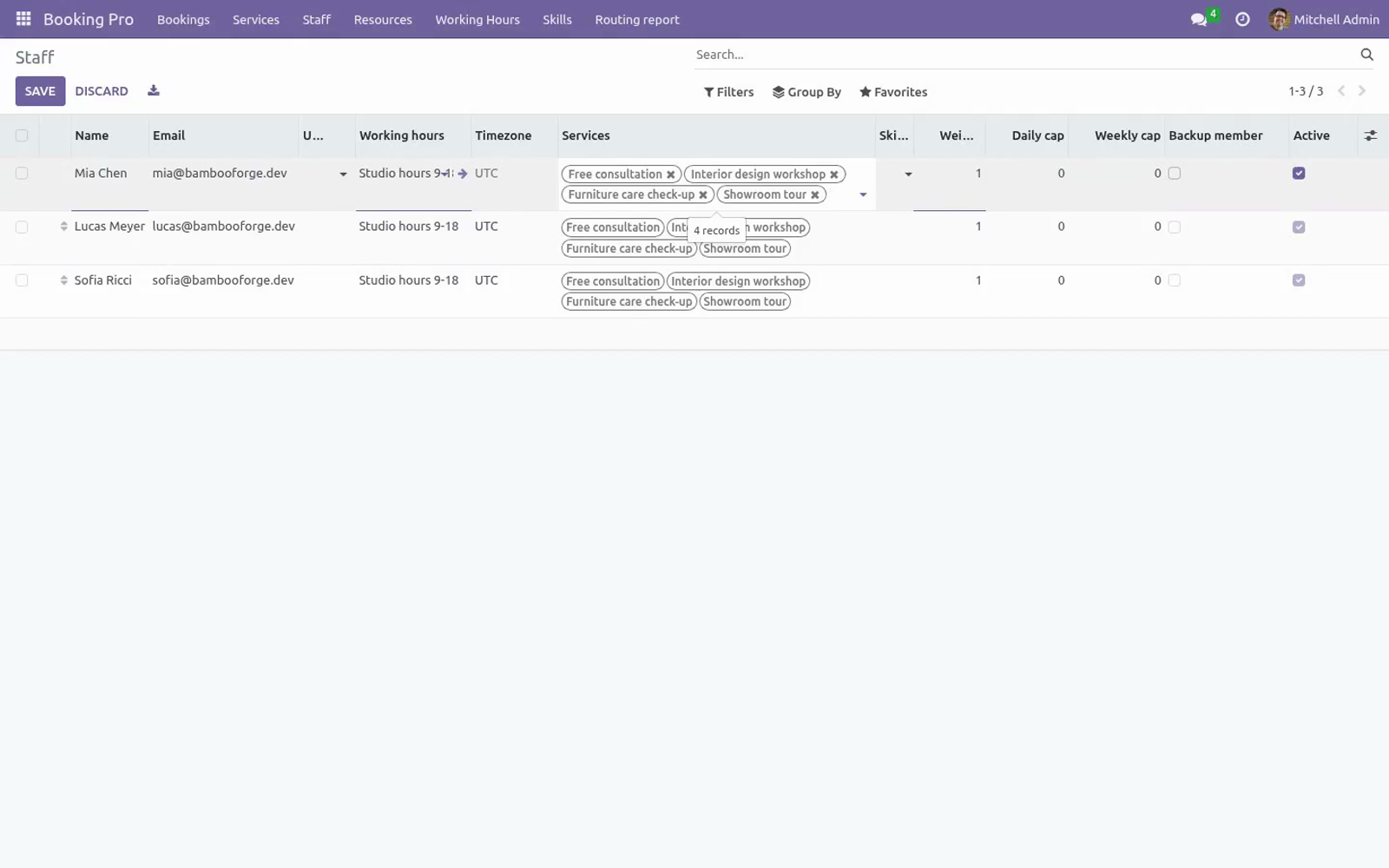
#. Open Booking Pro ▸ Staff and create your staff members. Pick the Working hours for each — create dedicated calendars under Booking Pro ▸ Working Hours if bookable hours differ from company hours. Link the Odoo user if the person should see bookings in their own calendar.
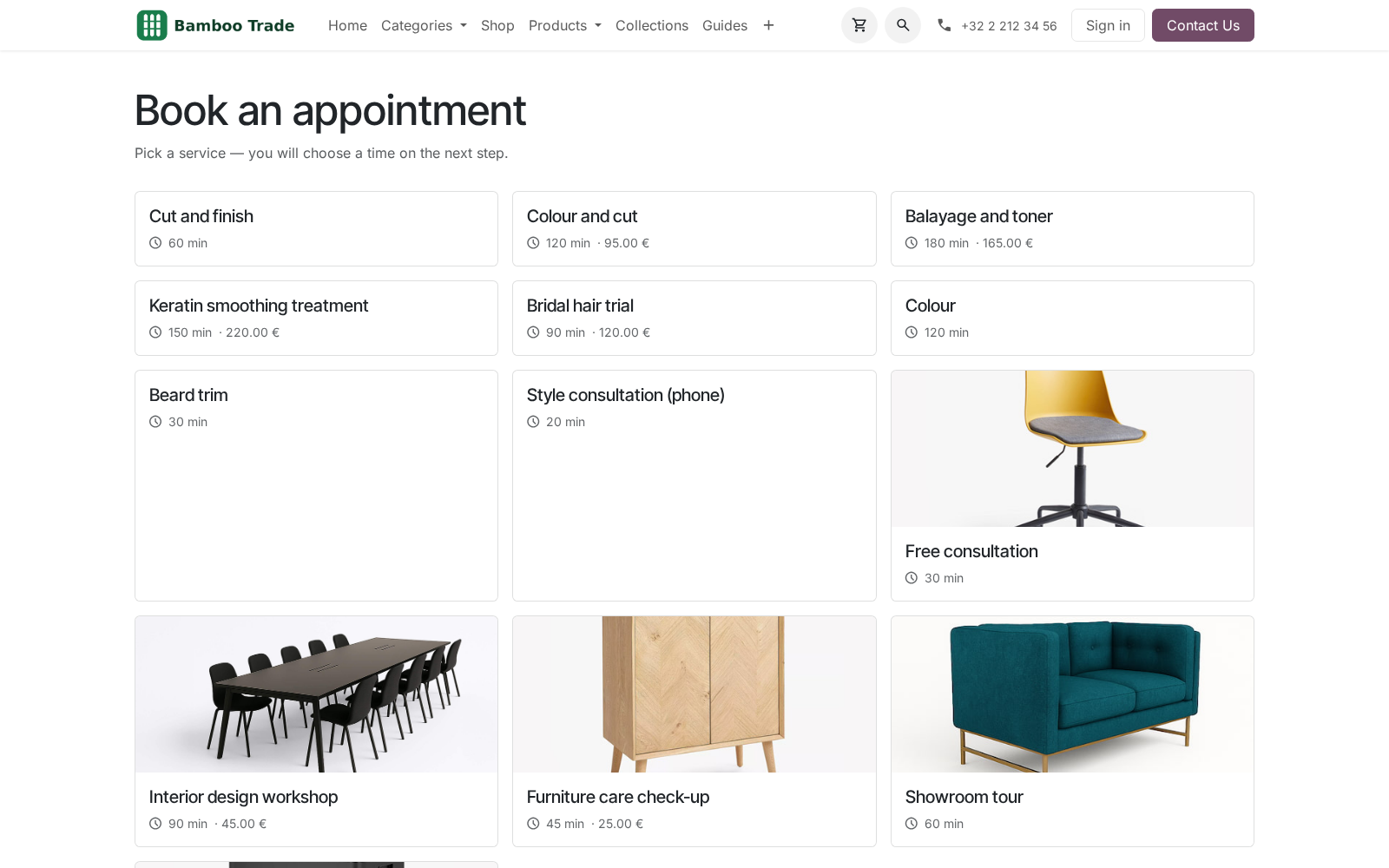
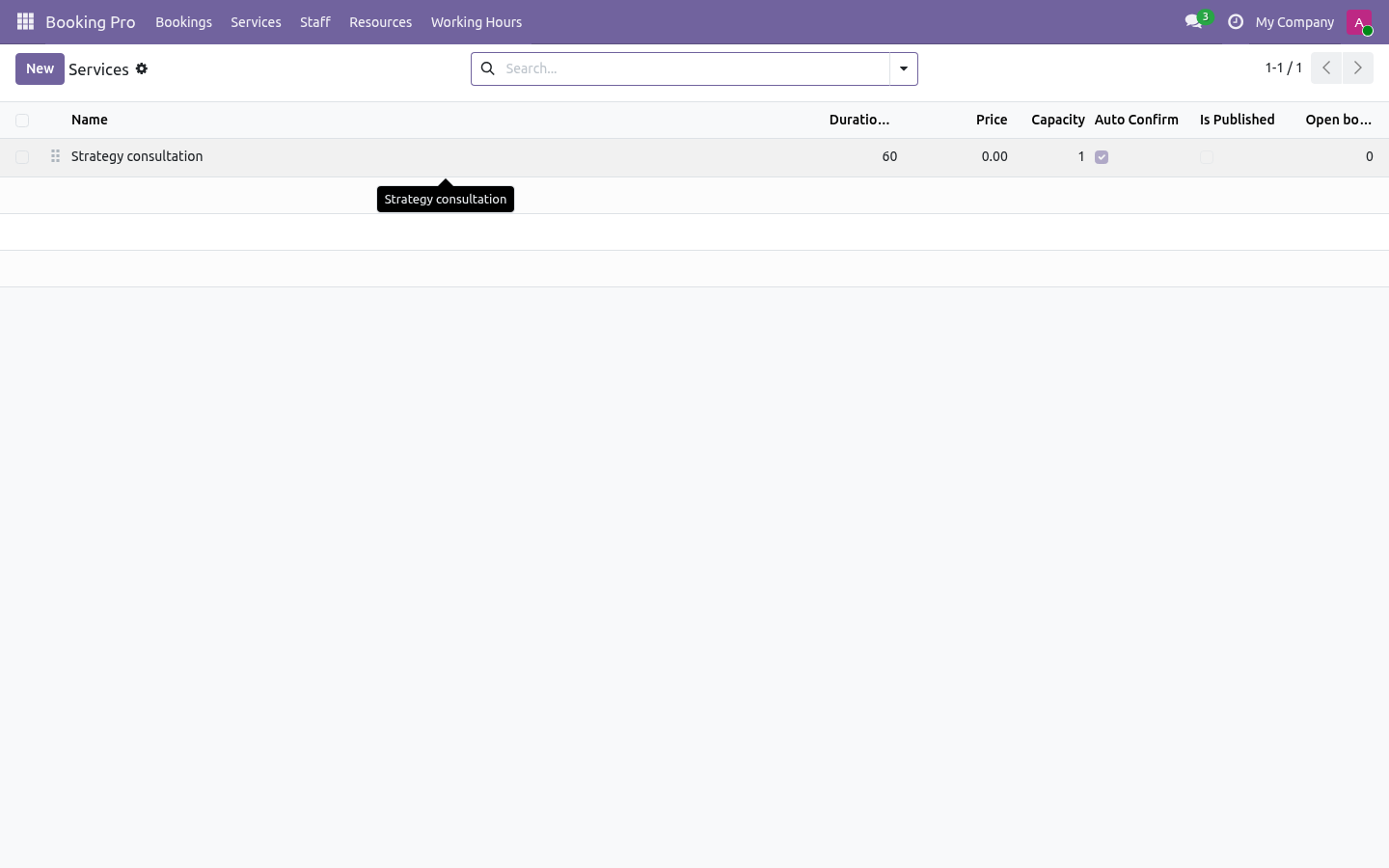
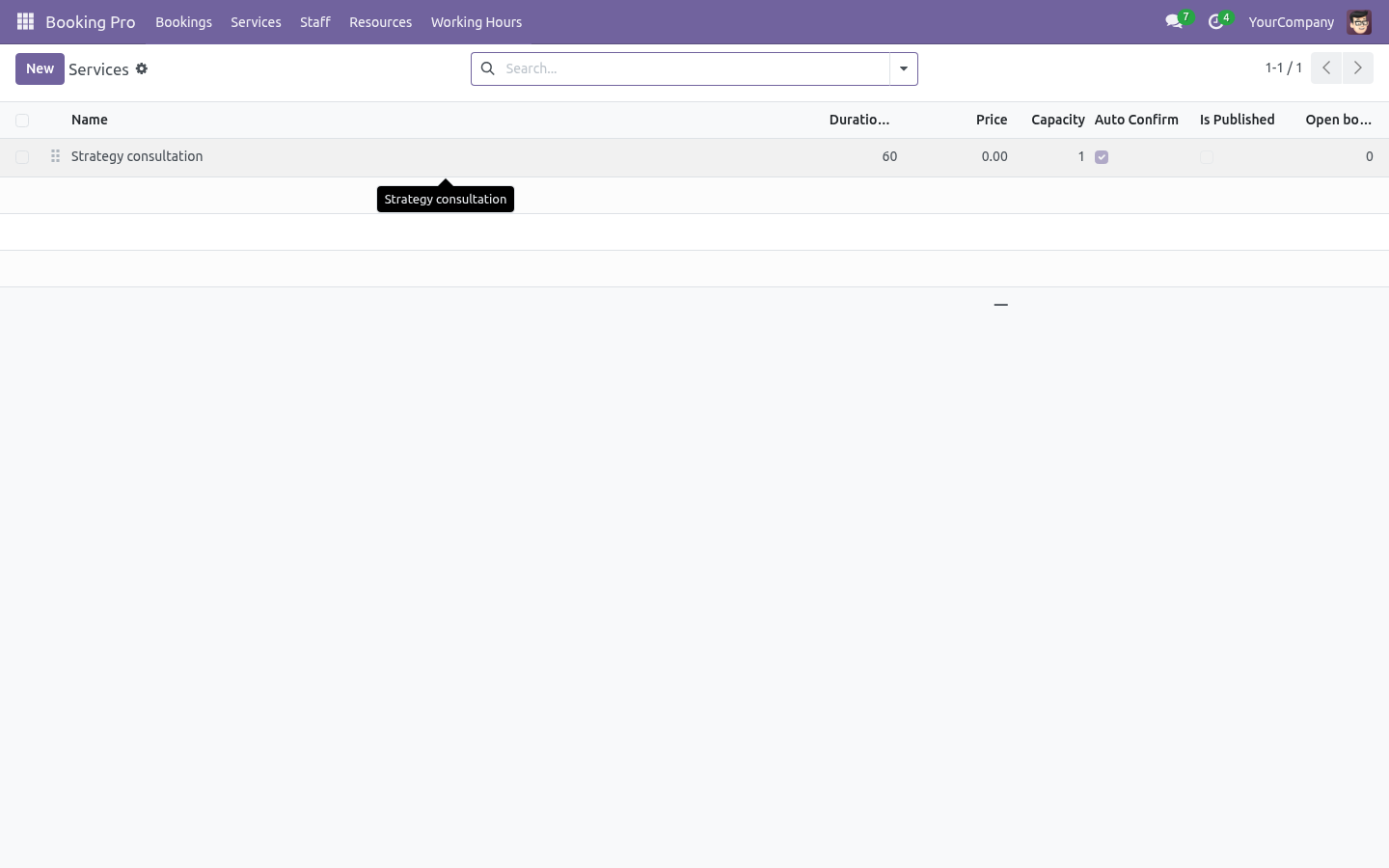
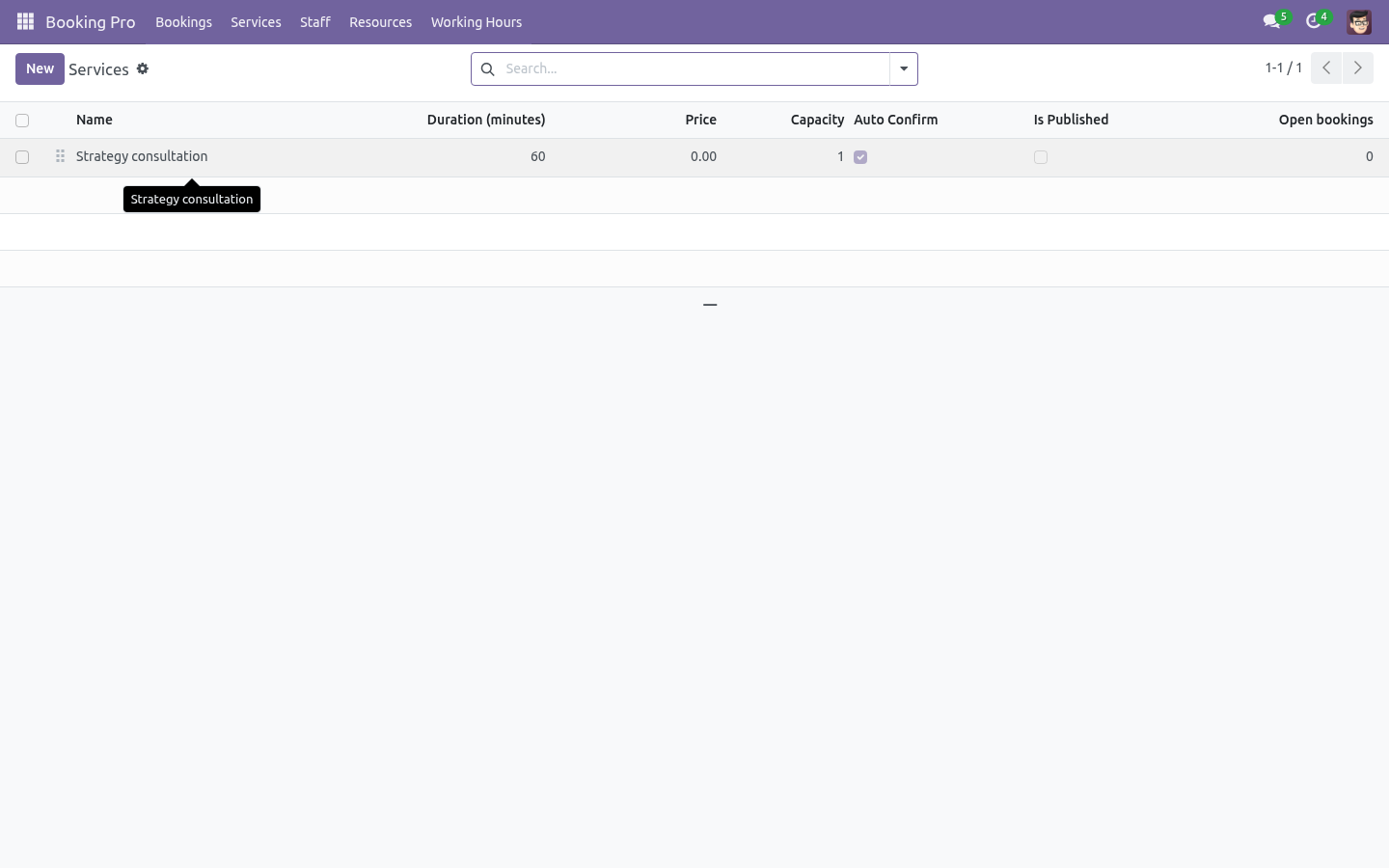
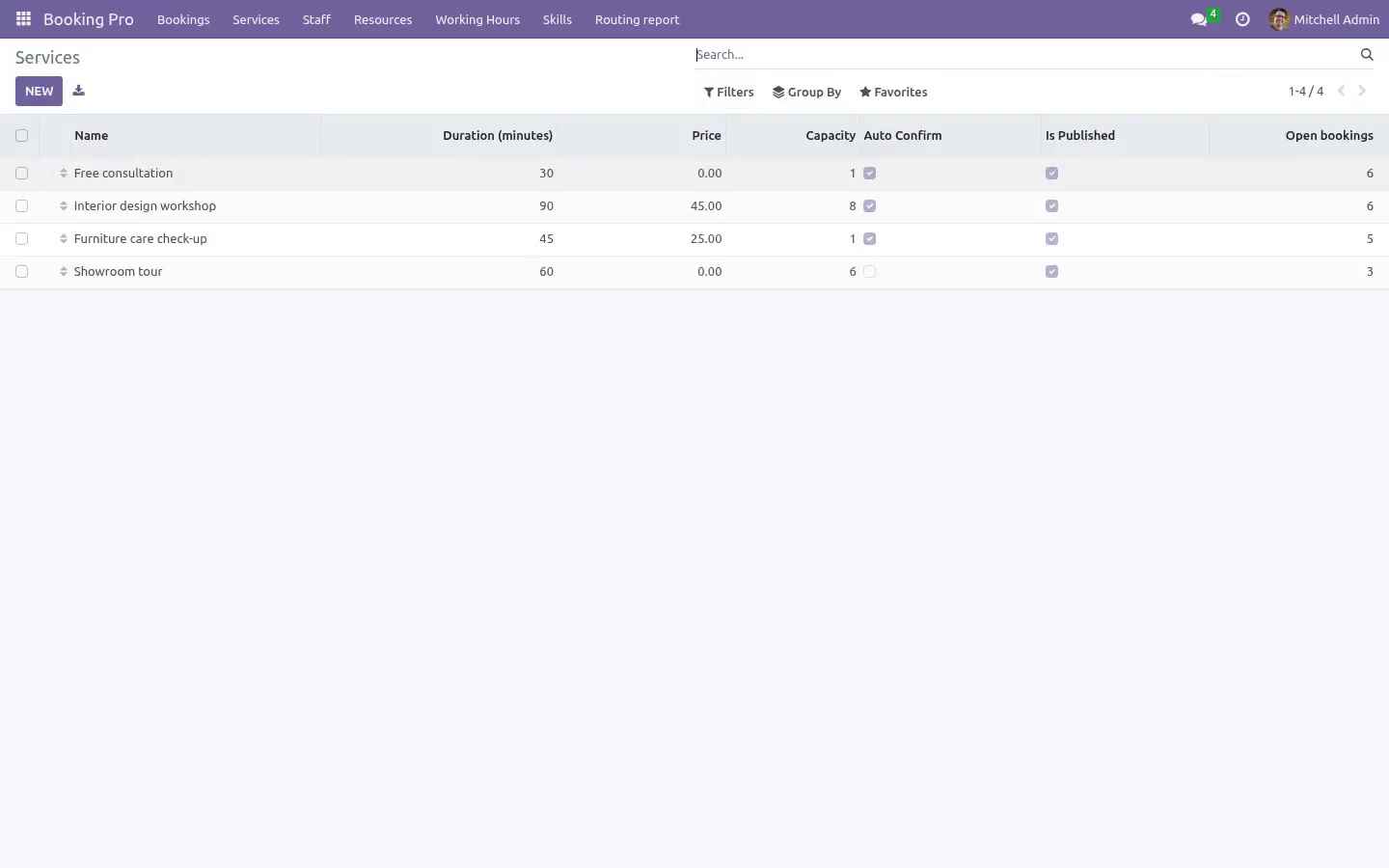
#. Open Booking Pro ▸ Services, create a service (duration, slot step, price, staff…) and publish it (website Published toggle). #. Visit /booking on your website: the service is listed, the slot picker shows free times.
Make a test booking — the confirmation e-mail arrives with a .ics file and the booking shows in Booking Pro ▸ Bookings. Appointment Booking & Online Scheduling. Calendly-class online booking for the Odoo 20 website, running entirely on Community: bookable services scheduled on staff with real working hours or on resources (tables, meeting rooms, courts…) with seat capacities and combinable tables, a timezone-aware month-grid slot picker on /booking, buffers and group capacity, custom questions per service, optional online prepayment and CRM leads, instant or manual confirmation, e-mail confirmations and reminders with .ics files, self-service cancellation and staff calendar sync — with the staff's other calendar events (including externally synced ones) blocking slots. This page is the complete manual.
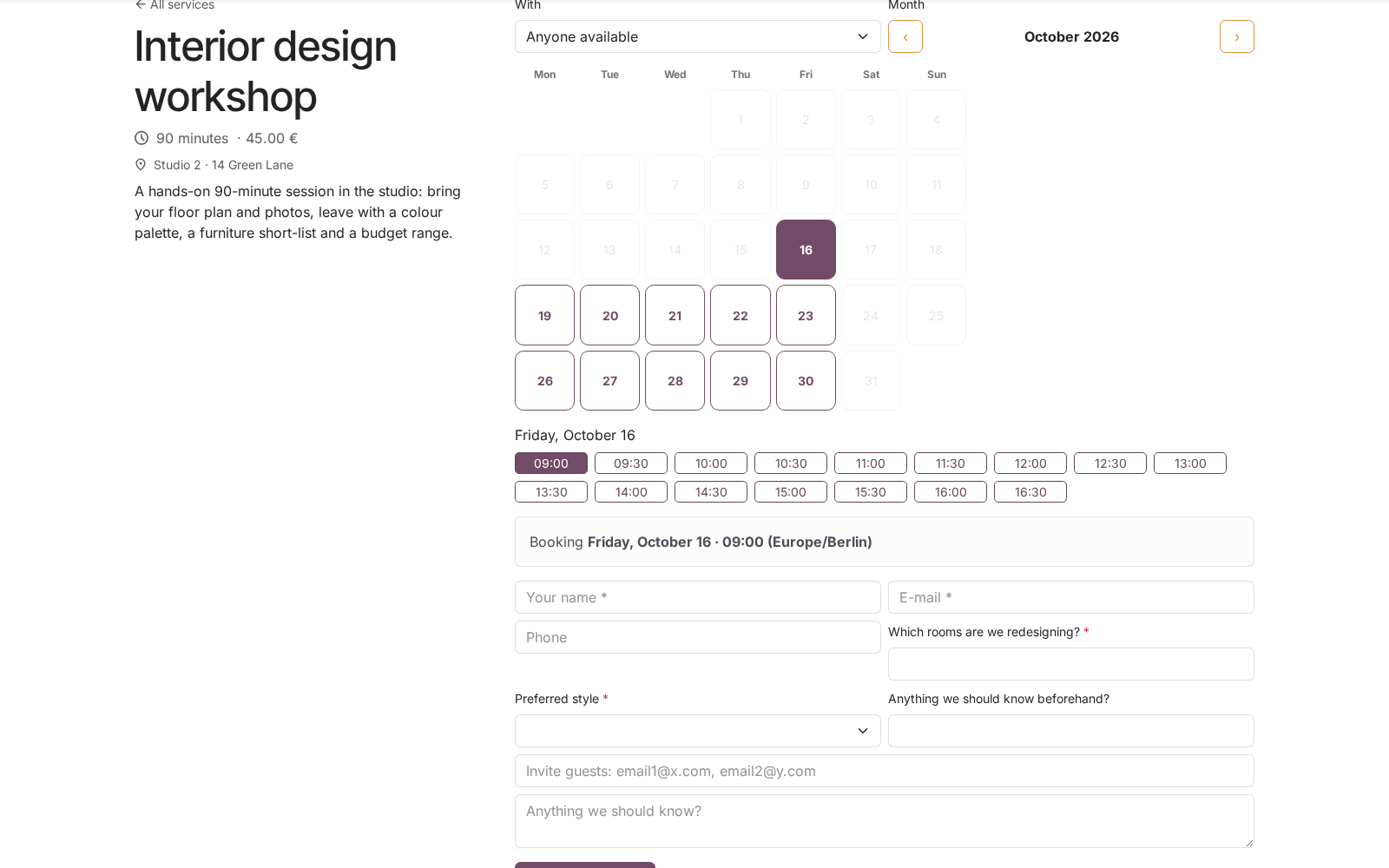
Follow it top to bottom and you can install, publish your first service, take real bookings and fix the common issues without contacting support. The booking flow. Visitors open /booking (add it to your website menu), pick a service, then a day in a month-grid calendar: days with free slots are highlighted, the first free day is pre-selected and the arrows move month by month. The day's slots are labelled in the visitor's timezone (detected from the browser).
With several staff on the service, a With selector offers each person plus Anyone available — in that case the engine assigns a staff member who is actually free. The short form asks for name, e-mail, phone and notes, plus the service's custom questions (required questions are enforced in the browser and re-validated server-side; dropdown answers are checked against the configured choices) and, when Allow guests is on, guest e-mail addresses — guests are invited to the calendar event. After submitting, the visitor is redirected to their private manage page. Depending on the service's Auto-confirm setting the booking is confirmed immediately (confirmation e-mail + .ics) or arrives as Pending confirmation for you to confirm with one click.
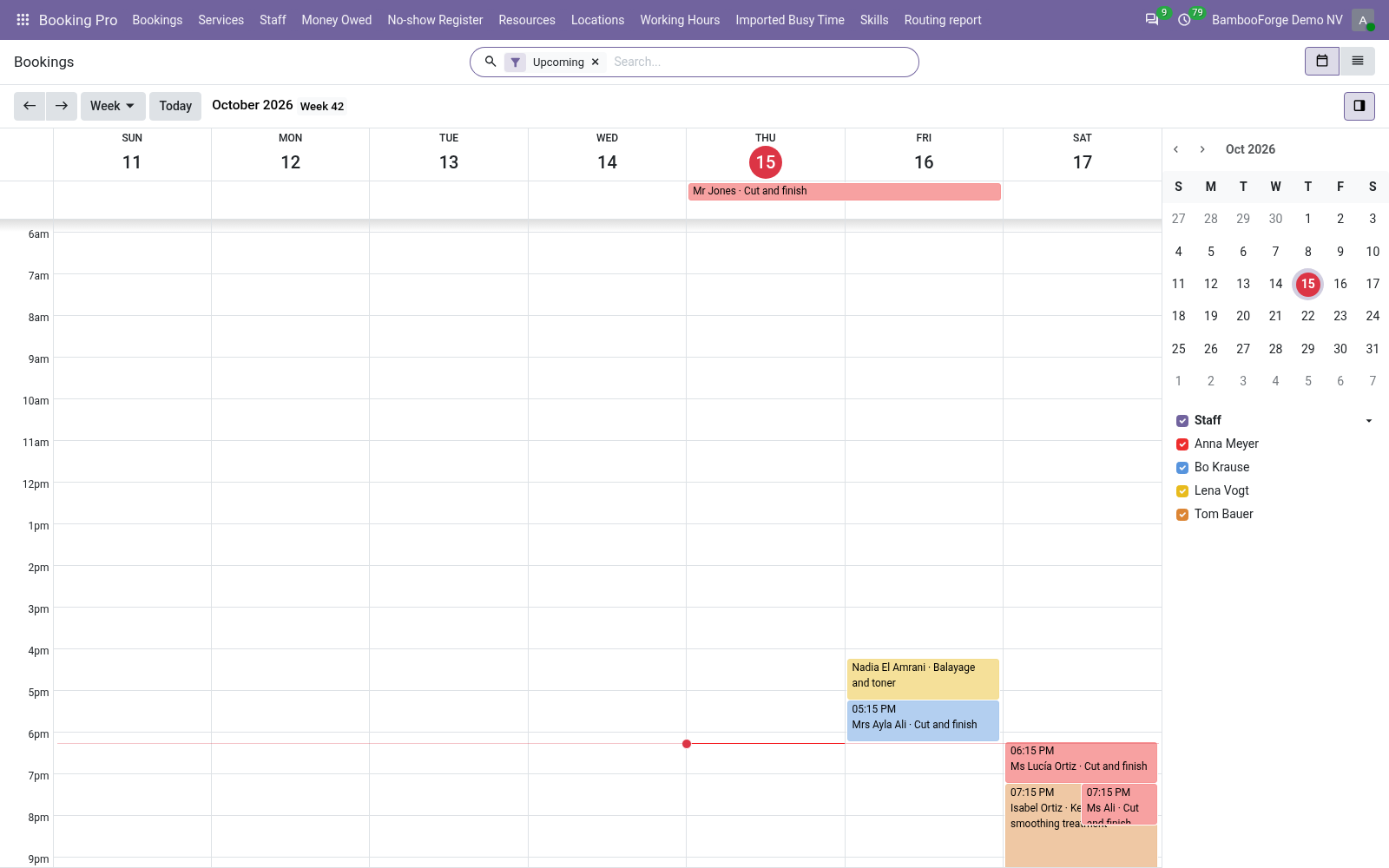
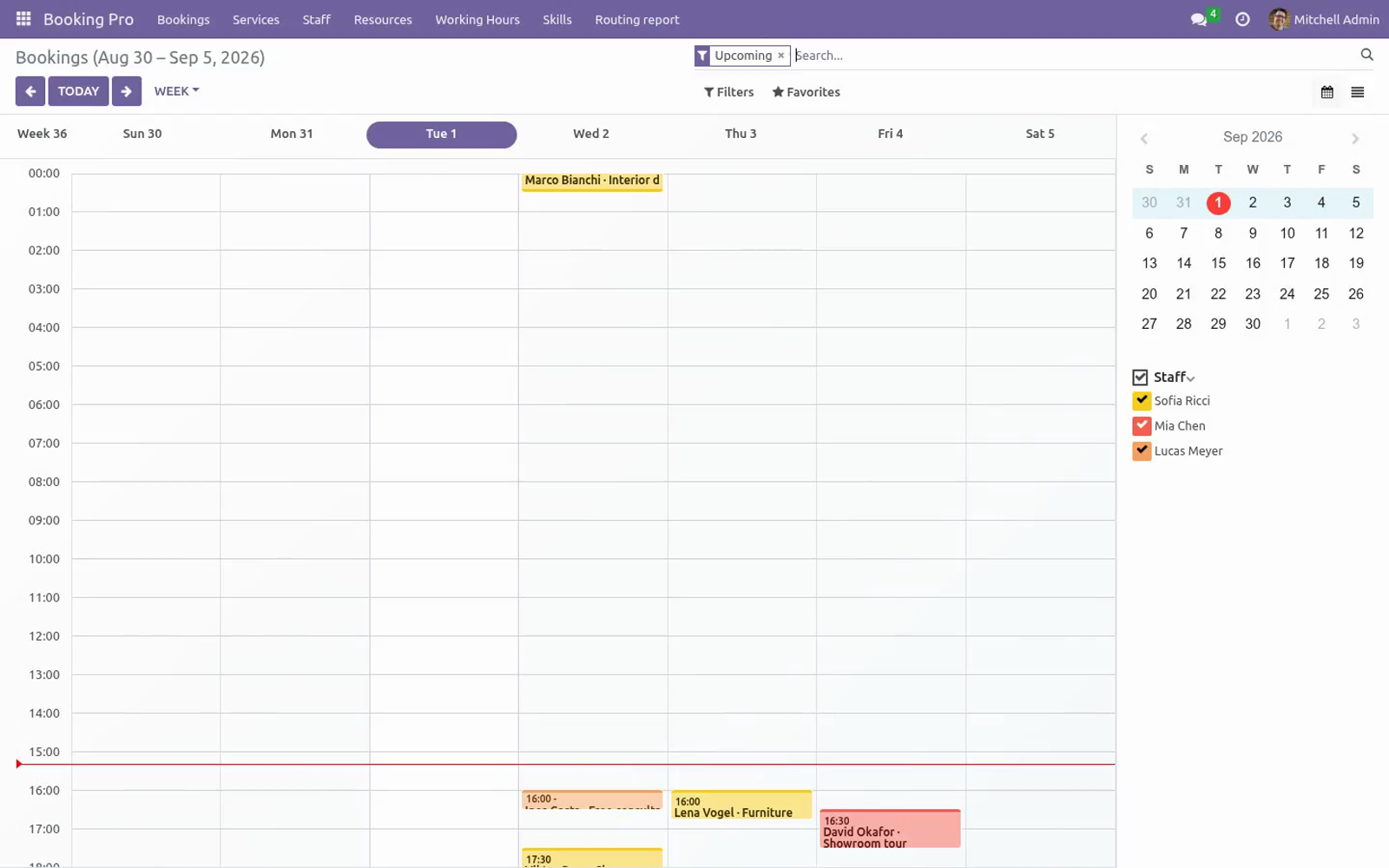
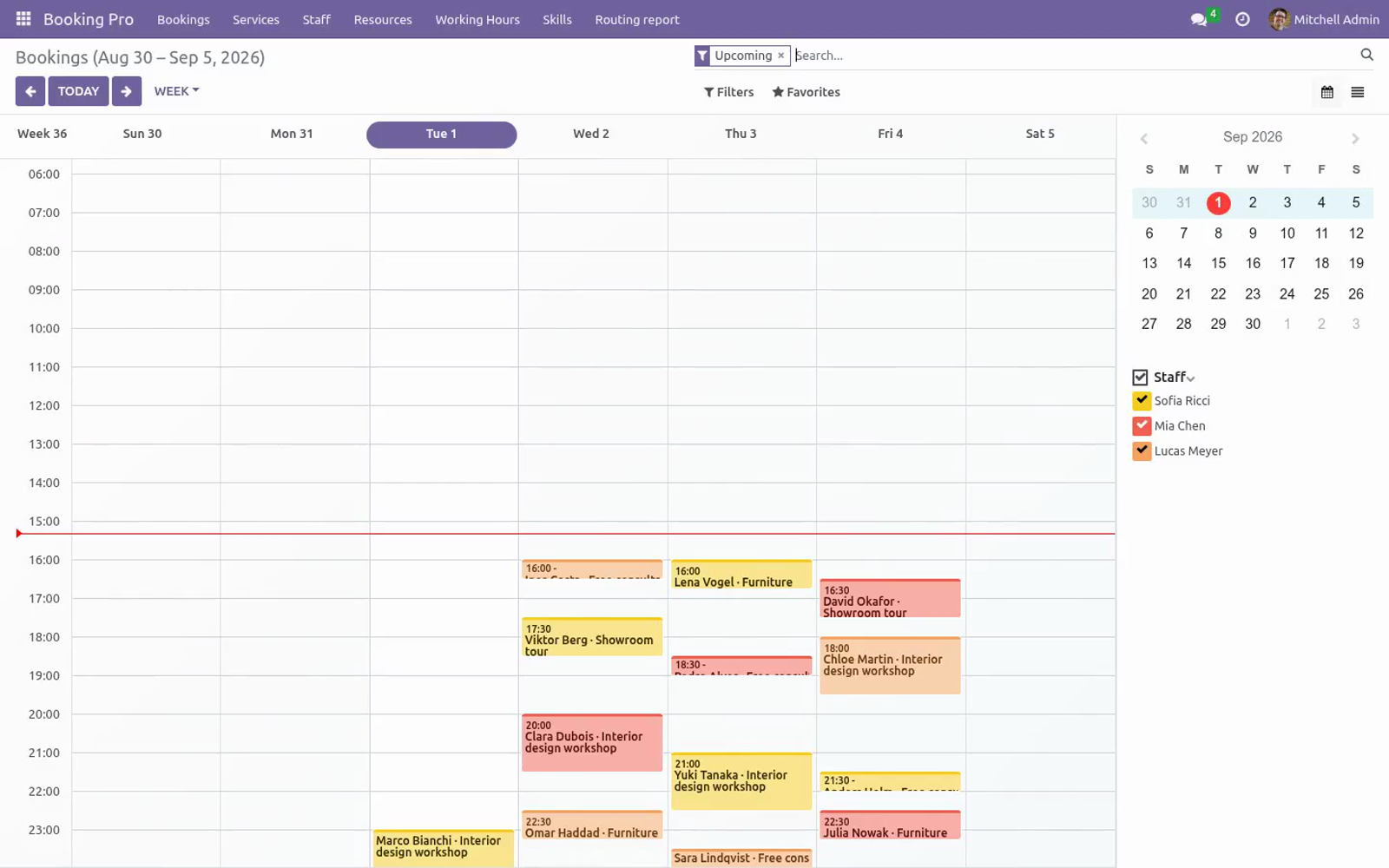
Working with bookings. Booking Pro ▸ Bookings opens a calendar view (week mode, coloured and filterable per staff member); list and form views are one click away. On each booking you can Confirm, mark Done, No-show, or Cancel (the customer is notified). The visitor's answers to the custom questions are shown on the booking form.
The chatter tracks state changes. Bookings created in the backend obey the same overlap and capacity rules as the website. Three scheduled actions run automatically: Booking Pro: send reminders (every 15 minutes, sends every configured reminder offset per service), Booking Pro: mark past bookings done (hourly) and Booking Pro: confirm paid bookings (every 10 minutes, confirms prepayment bookings whose transaction succeeded). Group classes.
Set the service Capacity above 1: the same slot accepts several bookings for the same service and start time until the seats are gone. Any overlapping booking of a different service or start time still blocks the slot outright. Resource mode (tables, rooms, courts…). Some businesses do not book people — they book tables, meeting rooms or courts.
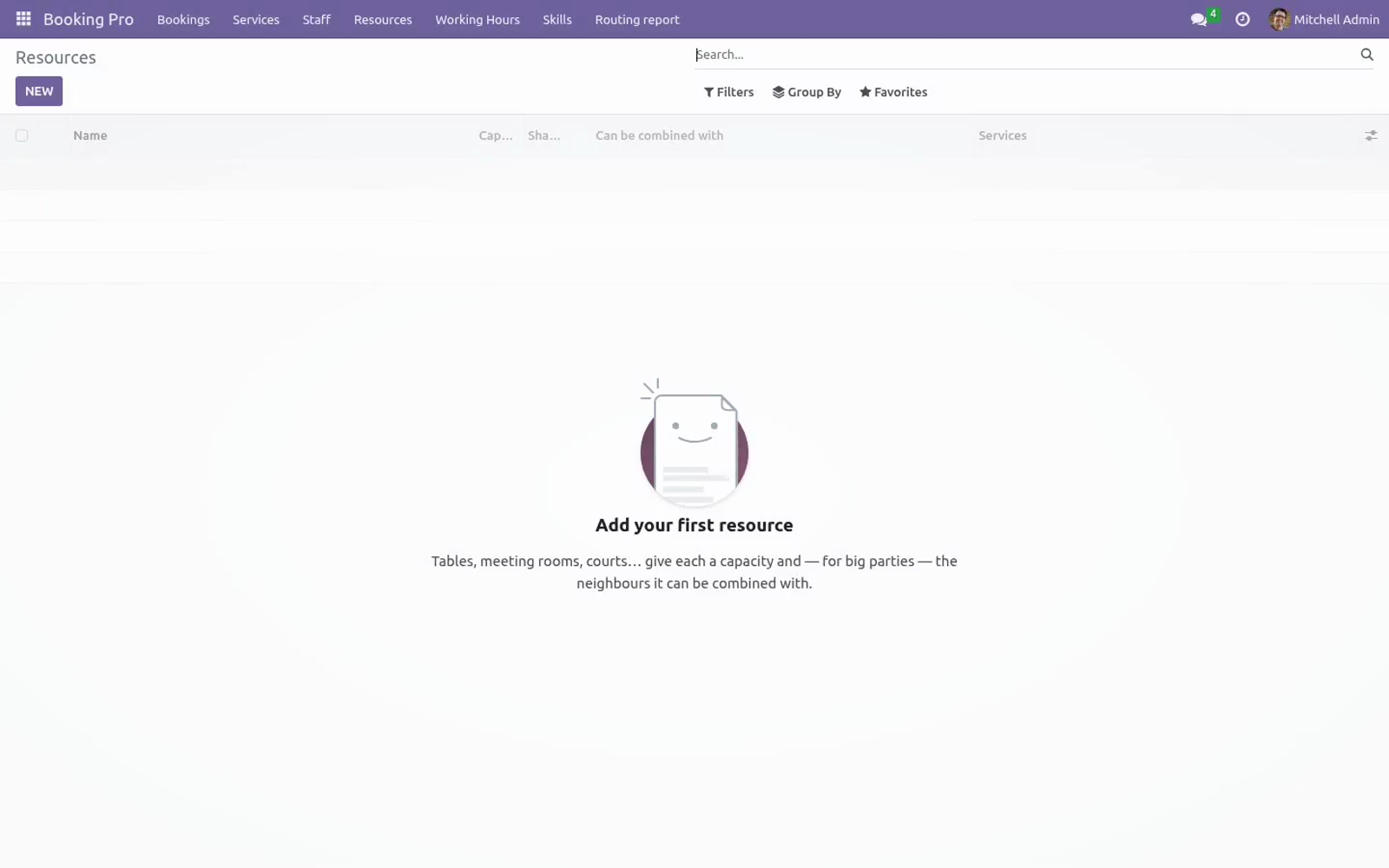
Set the service's Schedule mode to Resources and configure: Capacity — the seats it offers (a table for 4, a room for 10…). Shareable — on: several bookings can share this resource at the same time until the capacity is reached (a large shared table). Off: one booking takes the whole resource, whatever the party size. Can be combined with — resources that can be merged with this one when a party is too big for it alone (adjacent tables).
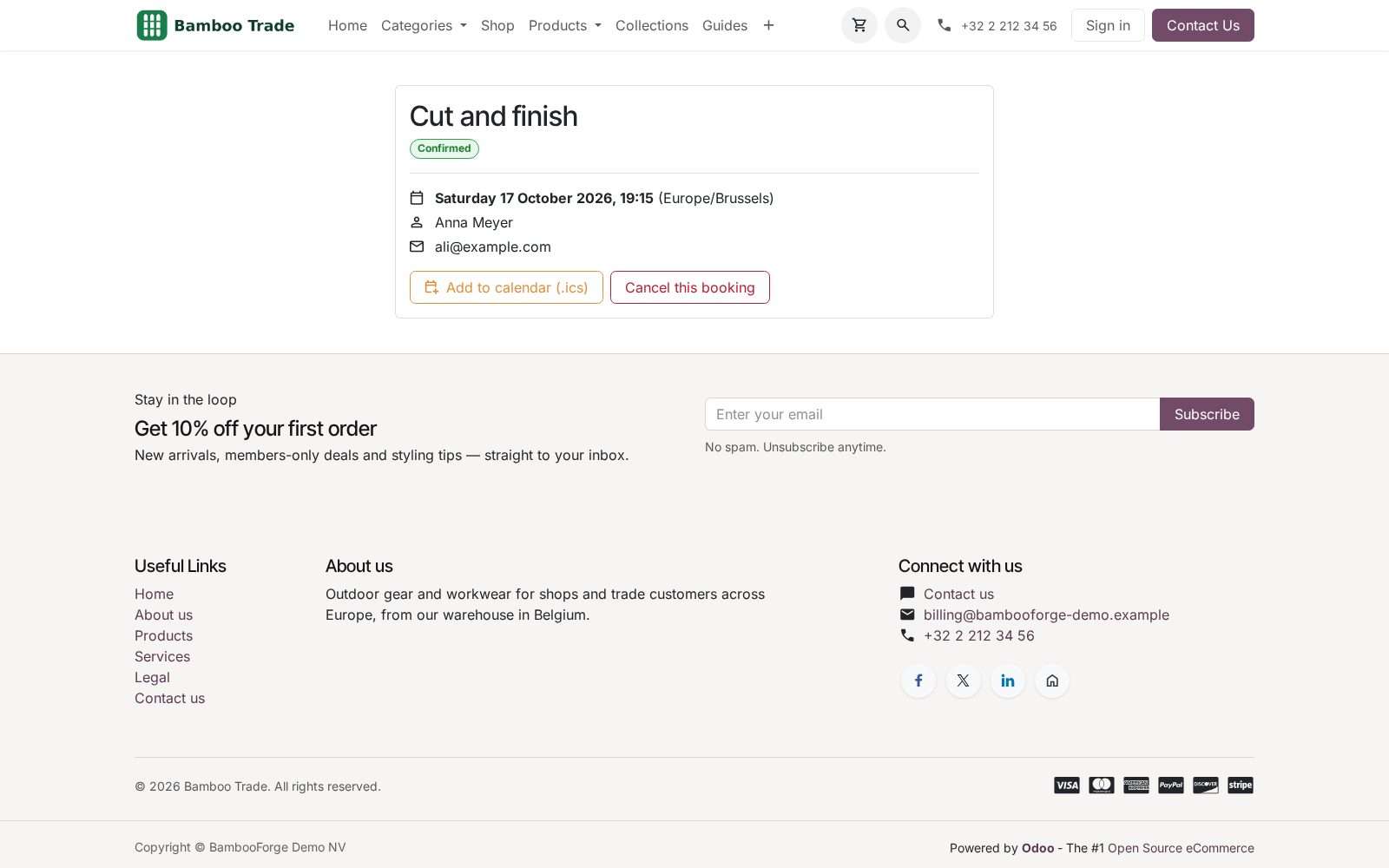
A resource cannot be combined with itself. #. Resources (Booking Pro ▸ Resources, manager only) — one record per table / room / court with: Self-service manage page. Every confirmation e-mail links to /booking/manage/<token> — a private page (unguessable token, not indexed) where the customer sees the appointment in their own timezone, downloads the .ics file and can cancel until the service's cancellation deadline.
Cancellation frees the slot immediately and removes the staff calendar event. Rescheduling. A customer who cannot make the slot can move the booking from the same manage page they use to cancel — set Let customers reschedule on the service and a Reschedule notice (hours) window. Past slots and slots already taken are refused; the calendar entry follows the new time and the reminder is armed again.
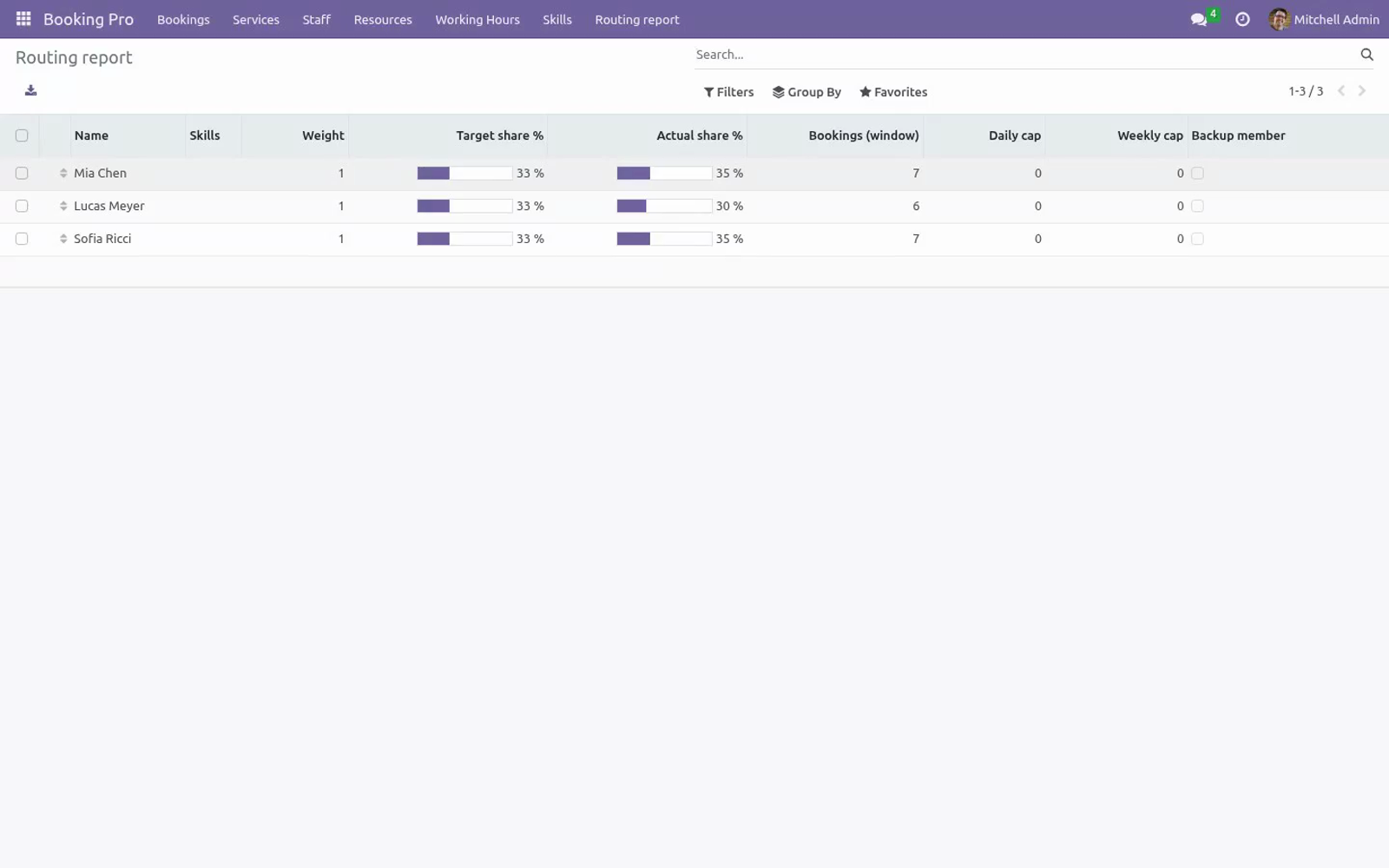
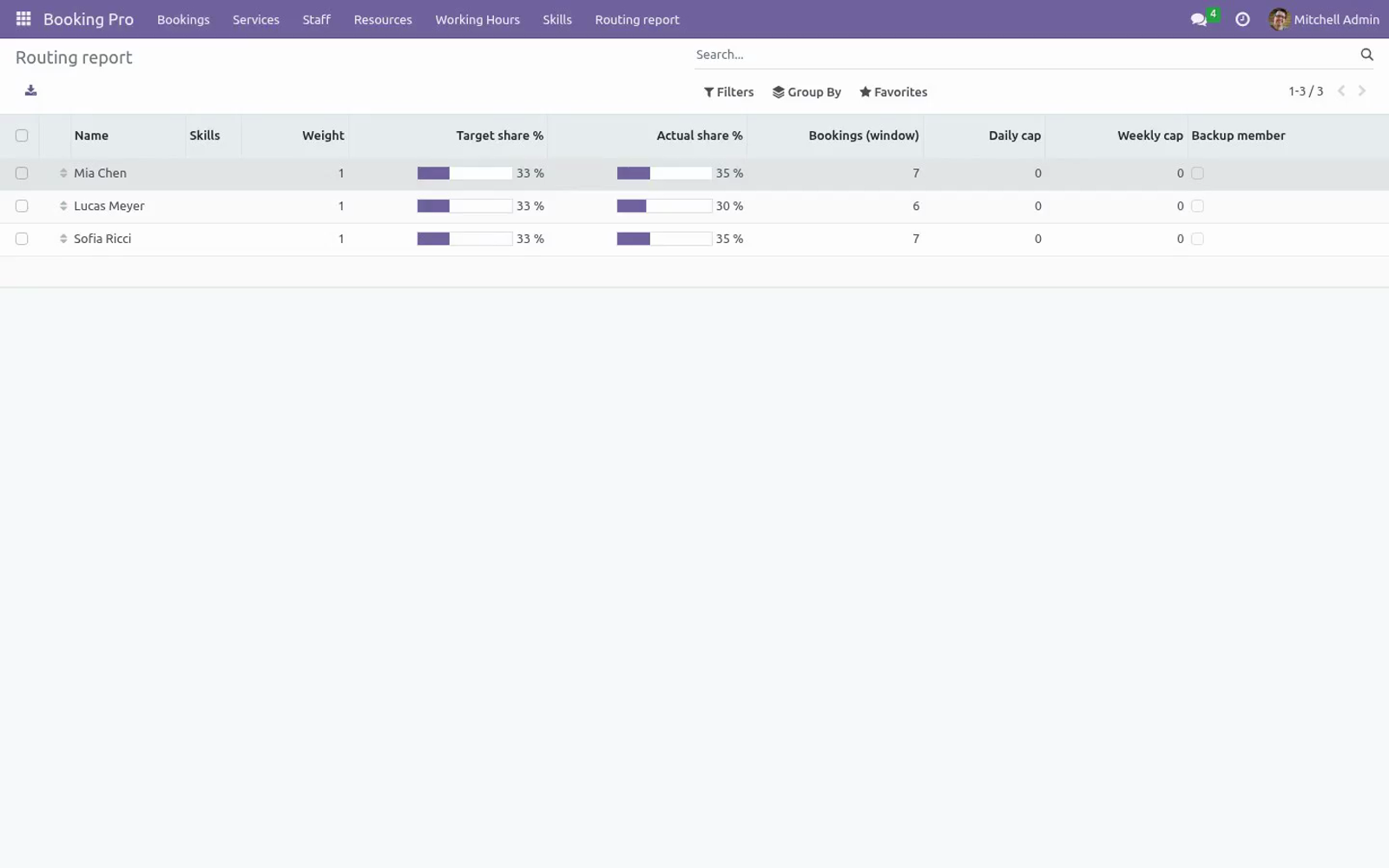
After the customer window closes, staff can still move the booking from the backend. Staff assignment. A service with several people offers three strategies under Assign staff by: First free member (default) — the person highest in the list takes it. Round robin — bookings rotate through the team.
Least busy member — the member with the fewest upcoming bookings takes it; past and cancelled bookings do not count as load. Configuration. All rules live on the service form (Booking Pro ▸ Services): Access rights: Booking Pro / User sees and manages bookings; Booking Pro / Manager additionally configures services, staff, resources and working hours. Troubleshooting.
The slot picker shows no free times. Check, in order: the service has active staff assigned; the staff working hours contain attendance lines on those weekdays; the Minimum notice and Bookable days ahead window is not empty (e.g. notice 48 h + horizon 1 day = nothing); existing bookings plus buffers are not filling the calendar; and the staff user's own calendar events (synced ones included) are not blocking the whole period. The service is not listed on /booking.
It must be published (website toggle) and, with multiple websites, available on the current one. An unpublished service is also unreachable through its direct /booking/<id> link and cannot be booked — drafts stay private until you publish them. The complete manual is at docs dot bambooforge dot dev, the demo database is linked from the store page, and support answers within twenty-four hours. Links are in the description.
Transcript of the walkthrough (Odoo 19)
Appointment Booking & Online Scheduling. Online appointment booking for Odoo Community: services on staff hours or bookable resources, timezone-aware slot picker, buffers and capacity. Calendly-class online booking for the Odoo 19 website, running entirely on Community: bookable services scheduled on staff with real working hours or on resources (tables, meeting rooms, courts…) with seat capacities and combinable tables, a timezone-aware month-grid slot picker on /booking, buffers and group capacity, custom questions per service, optional online prepayment and CRM leads, instant or manual confirmation, e-mail confirmations and reminders with .ics files, self-service cancellation and staff calendar sync — with the staff's other calendar events (including externally synced ones) blocking slots. In the next few minutes: appointment booking & online scheduling, then the booking flow, then working with bookings, then group classes, then resource mode (tables, rooms, courts…).
Then what this app deliberately does not do, so you can tell before you buy whether it fits. Everything lives under Booking Pro then Bookings then Services then Staff. Appointment Booking & Online Scheduling. Calendly-class online booking for the Odoo 19 website, running entirely on Community: bookable services scheduled on staff with real working hours or on resources (tables, meeting rooms, courts…) with seat capacities and combinable tables, a timezone-aware month-grid slot picker on /booking, buffers and group capacity, custom questions per service, optional online prepayment and CRM leads, instant or manual confirmation, e-mail confirmations and reminders with .ics files, self-service cancellation and staff calendar sync — with the staff's other calendar events (including externally synced ones) blocking slots.
This page is the complete manual. Follow it top to bottom and you can install, publish your first service, take real bookings and fix the common issues without contacting support. The booking flow. Visitors open /booking (add it to your website menu), pick a service, then a day in a month-grid calendar: days with free slots are highlighted, the first free day is pre-selected and the arrows move month by month.
The day's slots are labelled in the visitor's timezone (detected from the browser). With several staff on the service, a With selector offers each person plus Anyone available — in that case the engine assigns a staff member who is actually free. The short form asks for name, e-mail, phone and notes, plus the service's custom questions (required questions are enforced in the browser and re-validated server-side; dropdown answers are checked against the configured choices) and, when Allow guests is on, guest e-mail addresses — guests are invited to the calendar event. After submitting, the visitor is redirected to their private manage page.
Depending on the service's Auto-confirm setting the booking is confirmed immediately (confirmation e-mail + .ics) or arrives as Pending confirmation for you to confirm with one click. Working with bookings. Booking Pro ▸ Bookings opens a calendar view (week mode, coloured and filterable per staff member); list and form views are one click away. On each booking you can Confirm, mark Done, No-show, or Cancel (the customer is notified).
The visitor's answers to the custom questions are shown on the booking form. The chatter tracks state changes. Bookings created in the backend obey the same overlap and capacity rules as the website. Three scheduled actions run automatically: Booking Pro: send reminders (every 15 minutes, sends every configured reminder offset per service), Booking Pro: mark past bookings done (hourly) and Booking Pro: confirm paid bookings (every 10 minutes, confirms prepayment bookings whose transaction succeeded).
Group classes. Set the service Capacity above 1: the same slot accepts several bookings for the same service and start time until the seats are gone. Any overlapping booking of a different service or start time still blocks the slot outright. Resource mode (tables, rooms, courts…).
Some businesses do not book people — they book tables, meeting rooms or courts. Set the service's Schedule mode to Resources and configure: Capacity — the seats it offers (a table for 4, a room for 10…). Shareable — on: several bookings can share this resource at the same time until the capacity is reached (a large shared table). Off: one booking takes the whole resource, whatever the party size.
Can be combined with — resources that can be merged with this one when a party is too big for it alone (adjacent tables). A resource cannot be combined with itself. #. Resources (Booking Pro ▸ Resources, manager only) — one record per table / room / court with: Self-service manage page.
Every confirmation e-mail links to /booking/manage/<token> — a private page (unguessable token, not indexed) where the customer sees the appointment in their own timezone, downloads the .ics file and can cancel until the service's cancellation deadline. Cancellation frees the slot immediately and removes the staff calendar event. Rescheduling. A customer who cannot make the slot can move the booking from the same manage page they use to cancel — set Let customers reschedule on the service and a Reschedule notice (hours) window.
Past slots and slots already taken are refused; the calendar entry follows the new time and the reminder is armed again. After the customer window closes, staff can still move the booking from the backend. Staff assignment. A service with several people offers three strategies under Assign staff by: First free member (default) — the person highest in the list takes it.
Round robin — bookings rotate through the team. Least busy member — the member with the fewest upcoming bookings takes it; past and cancelled bookings do not count as load. Configuration. All rules live on the service form (Booking Pro ▸ Services): - Setting (per service) - Duration / Slot every Appointment length and the grid of proposed start times (e.g.
60-minute sessions offered every 30 minutes). - Buffer before / after Preparation and wrap-up time blocked around each booking. Seats per slot and staff member. 1 = individual appointments, more = group classes.
- Minimum notice / Bookable days ahead Visitors cannot book sooner than the notice or beyond the horizon. Access rights: Booking Pro / User sees and manages bookings; Booking Pro / Manager additionally configures services, staff, resources and working hours. Troubleshooting. The slot picker shows no free times.
Check, in order: the service has active staff assigned; the staff working hours contain attendance lines on those weekdays; the Minimum notice and Bookable days ahead window is not empty (e.g. notice 48 h + horizon 1 day = nothing); existing bookings plus buffers are not filling the calendar; and the staff user's own calendar events (synced ones included) are not blocking the whole period. The service is not listed on /booking. It must be published (website toggle) and, with multiple websites, available on the current one.
An unpublished service is also unreachable through its direct /booking/<id> link and cannot be booked — drafts stay private until you publish them. The complete manual is at docs dot bambooforge dot dev, the demo database is linked from the store page, and support answers within twenty-four hours. Links are in the description.
Transcript of the walkthrough (Odoo 18)
Appointment Booking & Online Scheduling. Online appointment booking for Odoo Community: services on staff hours or bookable resources, timezone-aware slot picker, buffers and capacity. Calendly-class online booking for the Odoo 18 website, running entirely on Community: bookable services scheduled on staff with real working hours or on resources (tables, meeting rooms, courts…) with seat capacities and combinable tables, a timezone-aware month-grid slot picker on /booking, buffers and group capacity, custom questions per service, optional online prepayment and CRM leads, instant or manual confirmation, e-mail confirmations and reminders with .ics files, self-service cancellation and staff calendar sync — with the staff's other calendar events (including externally synced ones) blocking slots. In the next few minutes: appointment booking & online scheduling, then the booking flow, then working with bookings, then group classes, then resource mode (tables, rooms, courts…).
Then what this app deliberately does not do, so you can tell before you buy whether it fits. Everything lives under Booking Pro then Bookings then Services then Staff. Appointment Booking & Online Scheduling. Calendly-class online booking for the Odoo 18 website, running entirely on Community: bookable services scheduled on staff with real working hours or on resources (tables, meeting rooms, courts…) with seat capacities and combinable tables, a timezone-aware month-grid slot picker on /booking, buffers and group capacity, custom questions per service, optional online prepayment and CRM leads, instant or manual confirmation, e-mail confirmations and reminders with .ics files, self-service cancellation and staff calendar sync — with the staff's other calendar events (including externally synced ones) blocking slots.
This page is the complete manual. Follow it top to bottom and you can install, publish your first service, take real bookings and fix the common issues without contacting support. The booking flow. Visitors open /booking (add it to your website menu), pick a service, then a day in a month-grid calendar: days with free slots are highlighted, the first free day is pre-selected and the arrows move month by month.
The day's slots are labelled in the visitor's timezone (detected from the browser). With several staff on the service, a With selector offers each person plus Anyone available — in that case the engine assigns a staff member who is actually free. The short form asks for name, e-mail, phone and notes, plus the service's custom questions (required questions are enforced in the browser and re-validated server-side; dropdown answers are checked against the configured choices) and, when Allow guests is on, guest e-mail addresses — guests are invited to the calendar event. After submitting, the visitor is redirected to their private manage page.
Depending on the service's Auto-confirm setting the booking is confirmed immediately (confirmation e-mail + .ics) or arrives as Pending confirmation for you to confirm with one click. Working with bookings. Booking Pro ▸ Bookings opens a calendar view (week mode, coloured and filterable per staff member); list and form views are one click away. On each booking you can Confirm, mark Done, No-show, or Cancel (the customer is notified).
The visitor's answers to the custom questions are shown on the booking form. The chatter tracks state changes. Bookings created in the backend obey the same overlap and capacity rules as the website. Three scheduled actions run automatically: Booking Pro: send reminders (every 15 minutes, sends every configured reminder offset per service), Booking Pro: mark past bookings done (hourly) and Booking Pro: confirm paid bookings (every 10 minutes, confirms prepayment bookings whose transaction succeeded).
Group classes. Set the service Capacity above 1: the same slot accepts several bookings for the same service and start time until the seats are gone. Any overlapping booking of a different service or start time still blocks the slot outright. Resource mode (tables, rooms, courts…).
Some businesses do not book people — they book tables, meeting rooms or courts. Set the service's Schedule mode to Resources and configure: Capacity — the seats it offers (a table for 4, a room for 10…). Shareable — on: several bookings can share this resource at the same time until the capacity is reached (a large shared table). Off: one booking takes the whole resource, whatever the party size.
Can be combined with — resources that can be merged with this one when a party is too big for it alone (adjacent tables). A resource cannot be combined with itself. #. Resources (Booking Pro ▸ Resources, manager only) — one record per table / room / court with: Self-service manage page.
Every confirmation e-mail links to /booking/manage/<token> — a private page (unguessable token, not indexed) where the customer sees the appointment in their own timezone, downloads the .ics file and can cancel until the service's cancellation deadline. Cancellation frees the slot immediately and removes the staff calendar event. Rescheduling. A customer who cannot make the slot can move the booking from the same manage page they use to cancel — set Let customers reschedule on the service and a Reschedule notice (hours) window.
Past slots and slots already taken are refused; the calendar entry follows the new time and the reminder is armed again. After the customer window closes, staff can still move the booking from the backend. Staff assignment. A service with several people offers three strategies under Assign staff by: First free member (default) — the person highest in the list takes it.
Round robin — bookings rotate through the team. Least busy member — the member with the fewest upcoming bookings takes it; past and cancelled bookings do not count as load. Configuration. All rules live on the service form (Booking Pro ▸ Services): - Setting (per service) - Duration / Slot every Appointment length and the grid of proposed start times (e.g.
60-minute sessions offered every 30 minutes). - Buffer before / after Preparation and wrap-up time blocked around each booking. Seats per slot and staff member. 1 = individual appointments, more = group classes.
- Minimum notice / Bookable days ahead Visitors cannot book sooner than the notice or beyond the horizon. Access rights: Booking Pro / User sees and manages bookings; Booking Pro / Manager additionally configures services, staff, resources and working hours. Troubleshooting. The slot picker shows no free times.
Check, in order: the service has active staff assigned; the staff working hours contain attendance lines on those weekdays; the Minimum notice and Bookable days ahead window is not empty (e.g. notice 48 h + horizon 1 day = nothing); existing bookings plus buffers are not filling the calendar; and the staff user's own calendar events (synced ones included) are not blocking the whole period. The service is not listed on /booking. It must be published (website toggle) and, with multiple websites, available on the current one.
An unpublished service is also unreachable through its direct /booking/<id> link and cannot be booked — drafts stay private until you publish them. The complete manual is at docs dot bambooforge dot dev, the demo database is linked from the store page, and support answers within twenty-four hours. Links are in the description.
Transcript of the walkthrough (Odoo 17)
Appointment Booking & Online Scheduling. Online appointment booking for Odoo Community: services on staff hours or bookable resources, timezone-aware slot picker, buffers and capacity. Calendly-class online booking for the Odoo 17 website, running entirely on Community: bookable services scheduled on staff with real working hours or on resources (tables, meeting rooms, courts…) with seat capacities and combinable tables, a timezone-aware month-grid slot picker on /booking, buffers and group capacity, custom questions per service, optional online prepayment and CRM leads, instant or manual confirmation, e-mail confirmations and reminders with .ics files, self-service cancellation and staff calendar sync — with the staff's other calendar events (including externally synced ones) blocking slots. In the next few minutes: appointment booking & online scheduling, then the booking flow, then working with bookings, then group classes, then resource mode (tables, rooms, courts…).
Then what this app deliberately does not do, so you can tell before you buy whether it fits. Everything lives under Booking Pro then Bookings then Services then Staff. Appointment Booking & Online Scheduling. Calendly-class online booking for the Odoo 17 website, running entirely on Community: bookable services scheduled on staff with real working hours or on resources (tables, meeting rooms, courts…) with seat capacities and combinable tables, a timezone-aware month-grid slot picker on /booking, buffers and group capacity, custom questions per service, optional online prepayment and CRM leads, instant or manual confirmation, e-mail confirmations and reminders with .ics files, self-service cancellation and staff calendar sync — with the staff's other calendar events (including externally synced ones) blocking slots.
This page is the complete manual. Follow it top to bottom and you can install, publish your first service, take real bookings and fix the common issues without contacting support. The booking flow. Visitors open /booking (add it to your website menu), pick a service, then a day in a month-grid calendar: days with free slots are highlighted, the first free day is pre-selected and the arrows move month by month.
The day's slots are labelled in the visitor's timezone (detected from the browser). With several staff on the service, a With selector offers each person plus Anyone available — in that case the engine assigns a staff member who is actually free. The short form asks for name, e-mail, phone and notes, plus the service's custom questions (required questions are enforced in the browser and re-validated server-side; dropdown answers are checked against the configured choices) and, when Allow guests is on, guest e-mail addresses — guests are invited to the calendar event. After submitting, the visitor is redirected to their private manage page.
Depending on the service's Auto-confirm setting the booking is confirmed immediately (confirmation e-mail + .ics) or arrives as Pending confirmation for you to confirm with one click. Working with bookings. Booking Pro ▸ Bookings opens a calendar view (week mode, coloured and filterable per staff member); list and form views are one click away. On each booking you can Confirm, mark Done, No-show, or Cancel (the customer is notified).
The visitor's answers to the custom questions are shown on the booking form. The chatter tracks state changes. Bookings created in the backend obey the same overlap and capacity rules as the website. Three scheduled actions run automatically: Booking Pro: send reminders (every 15 minutes, sends every configured reminder offset per service), Booking Pro: mark past bookings done (hourly) and Booking Pro: confirm paid bookings (every 10 minutes, confirms prepayment bookings whose transaction succeeded).
Group classes. Set the service Capacity above 1: the same slot accepts several bookings for the same service and start time until the seats are gone. Any overlapping booking of a different service or start time still blocks the slot outright. Resource mode (tables, rooms, courts…).
Some businesses do not book people — they book tables, meeting rooms or courts. Set the service's Schedule mode to Resources and configure: Capacity — the seats it offers (a table for 4, a room for 10…). Shareable — on: several bookings can share this resource at the same time until the capacity is reached (a large shared table). Off: one booking takes the whole resource, whatever the party size.
Can be combined with — resources that can be merged with this one when a party is too big for it alone (adjacent tables). A resource cannot be combined with itself. #. Resources (Booking Pro ▸ Resources, manager only) — one record per table / room / court with: Self-service manage page.
Every confirmation e-mail links to /booking/manage/<token> — a private page (unguessable token, not indexed) where the customer sees the appointment in their own timezone, downloads the .ics file and can cancel until the service's cancellation deadline. Cancellation frees the slot immediately and removes the staff calendar event. Rescheduling. A customer who cannot make the slot can move the booking from the same manage page they use to cancel — set Let customers reschedule on the service and a Reschedule notice (hours) window.
Past slots and slots already taken are refused; the calendar entry follows the new time and the reminder is armed again. After the customer window closes, staff can still move the booking from the backend. Staff assignment. A service with several people offers three strategies under Assign staff by: First free member (default) — the person highest in the list takes it.
Round robin — bookings rotate through the team. Least busy member — the member with the fewest upcoming bookings takes it; past and cancelled bookings do not count as load. Configuration. All rules live on the service form (Booking Pro ▸ Services): - Setting (per service) - Duration / Slot every Appointment length and the grid of proposed start times (e.g.
60-minute sessions offered every 30 minutes). - Buffer before / after Preparation and wrap-up time blocked around each booking. Seats per slot and staff member. 1 = individual appointments, more = group classes.
- Minimum notice / Bookable days ahead Visitors cannot book sooner than the notice or beyond the horizon. Access rights: Booking Pro / User sees and manages bookings; Booking Pro / Manager additionally configures services, staff, resources and working hours. Troubleshooting. The slot picker shows no free times.
Check, in order: the service has active staff assigned; the staff working hours contain attendance lines on those weekdays; the Minimum notice and Bookable days ahead window is not empty (e.g. notice 48 h + horizon 1 day = nothing); existing bookings plus buffers are not filling the calendar; and the staff user's own calendar events (synced ones included) are not blocking the whole period. The service is not listed on /booking. It must be published (website toggle) and, with multiple websites, available on the current one.
An unpublished service is also unreachable through its direct /booking/<id> link and cannot be booked — drafts stay private until you publish them. The complete manual is at docs dot bambooforge dot dev, the demo database is linked from the store page, and support answers within twenty-four hours. Links are in the description.
Transcript of the walkthrough (Odoo 16)
Appointment Booking & Online Scheduling. Online appointment booking for Odoo Community: services on staff hours or bookable resources, timezone-aware slot picker, buffers and capacity. Calendly-class online booking for the Odoo 16 website, running entirely on Community: bookable services scheduled on staff with real working hours or on resources (tables, meeting rooms, courts…) with seat capacities and combinable tables, a timezone-aware month-grid slot picker on /booking, buffers and group capacity, custom questions per service, optional online prepayment and CRM leads, instant or manual confirmation, e-mail confirmations and reminders with .ics files, self-service cancellation and staff calendar sync — with the staff's other calendar events (including externally synced ones) blocking slots. In the next few minutes: appointment booking & online scheduling, then the booking flow, then working with bookings, then group classes, then resource mode (tables, rooms, courts…).
Then what this app deliberately does not do, so you can tell before you buy whether it fits. Everything lives under Booking Pro then Bookings then Services then Staff. Appointment Booking & Online Scheduling. Calendly-class online booking for the Odoo 16 website, running entirely on Community: bookable services scheduled on staff with real working hours or on resources (tables, meeting rooms, courts…) with seat capacities and combinable tables, a timezone-aware month-grid slot picker on /booking, buffers and group capacity, custom questions per service, optional online prepayment and CRM leads, instant or manual confirmation, e-mail confirmations and reminders with .ics files, self-service cancellation and staff calendar sync — with the staff's other calendar events (including externally synced ones) blocking slots.
This page is the complete manual. Follow it top to bottom and you can install, publish your first service, take real bookings and fix the common issues without contacting support. The booking flow. Visitors open /booking (add it to your website menu), pick a service, then a day in a month-grid calendar: days with free slots are highlighted, the first free day is pre-selected and the arrows move month by month.
The day's slots are labelled in the visitor's timezone (detected from the browser). With several staff on the service, a With selector offers each person plus Anyone available — in that case the engine assigns a staff member who is actually free. The short form asks for name, e-mail, phone and notes, plus the service's custom questions (required questions are enforced in the browser and re-validated server-side; dropdown answers are checked against the configured choices) and, when Allow guests is on, guest e-mail addresses — guests are invited to the calendar event. After submitting, the visitor is redirected to their private manage page.
Depending on the service's Auto-confirm setting the booking is confirmed immediately (confirmation e-mail + .ics) or arrives as Pending confirmation for you to confirm with one click. Working with bookings. Booking Pro ▸ Bookings opens a calendar view (week mode, coloured and filterable per staff member); list and form views are one click away. On each booking you can Confirm, mark Done, No-show, or Cancel (the customer is notified).
The visitor's answers to the custom questions are shown on the booking form. The chatter tracks state changes. Bookings created in the backend obey the same overlap and capacity rules as the website. Three scheduled actions run automatically: Booking Pro: send reminders (every 15 minutes, sends every configured reminder offset per service), Booking Pro: mark past bookings done (hourly) and Booking Pro: confirm paid bookings (every 10 minutes, confirms prepayment bookings whose transaction succeeded).
Group classes. Set the service Capacity above 1: the same slot accepts several bookings for the same service and start time until the seats are gone. Any overlapping booking of a different service or start time still blocks the slot outright. Resource mode (tables, rooms, courts…).
Some businesses do not book people — they book tables, meeting rooms or courts. Set the service's Schedule mode to Resources and configure: Capacity — the seats it offers (a table for 4, a room for 10…). Shareable — on: several bookings can share this resource at the same time until the capacity is reached (a large shared table). Off: one booking takes the whole resource, whatever the party size.
Can be combined with — resources that can be merged with this one when a party is too big for it alone (adjacent tables). A resource cannot be combined with itself. #. Resources (Booking Pro ▸ Resources, manager only) — one record per table / room / court with: Self-service manage page.
Every confirmation e-mail links to /booking/manage/<token> — a private page (unguessable token, not indexed) where the customer sees the appointment in their own timezone, downloads the .ics file and can cancel until the service's cancellation deadline. Cancellation frees the slot immediately and removes the staff calendar event. Rescheduling. A customer who cannot make the slot can move the booking from the same manage page they use to cancel — set Let customers reschedule on the service and a Reschedule notice (hours) window.
Past slots and slots already taken are refused; the calendar entry follows the new time and the reminder is armed again. After the customer window closes, staff can still move the booking from the backend. Staff assignment. A service with several people offers three strategies under Assign staff by: First free member (default) — the person highest in the list takes it.
Round robin — bookings rotate through the team. Least busy member — the member with the fewest upcoming bookings takes it; past and cancelled bookings do not count as load. Configuration. All rules live on the service form (Booking Pro ▸ Services): - Setting (per service) - Duration / Slot every Appointment length and the grid of proposed start times (e.g.
60-minute sessions offered every 30 minutes). - Buffer before / after Preparation and wrap-up time blocked around each booking. Seats per slot and staff member. 1 = individual appointments, more = group classes.
- Minimum notice / Bookable days ahead Visitors cannot book sooner than the notice or beyond the horizon. Access rights: Booking Pro / User sees and manages bookings; Booking Pro / Manager additionally configures services, staff, resources and working hours. Troubleshooting. The slot picker shows no free times.
Check, in order: the service has active staff assigned; the staff working hours contain attendance lines on those weekdays; the Minimum notice and Bookable days ahead window is not empty (e.g. notice 48 h + horizon 1 day = nothing); existing bookings plus buffers are not filling the calendar; and the staff user's own calendar events (synced ones included) are not blocking the whole period. The service is not listed on /booking. It must be published (website toggle) and, with multiple websites, available on the current one.
An unpublished service is also unreachable through its direct /booking/<id> link and cannot be booked — drafts stay private until you publish them. The complete manual is at docs dot bambooforge dot dev, the demo database is linked from the store page, and support answers within twenty-four hours. Links are in the description.
Key facts
- What it is
- Online appointment booking for Odoo Community: services on staff hours or bookable resources, timezone-aware slot picker, buffers and capacity.
- For
- Website
- Odoo versions
- 16.0, 17.0, 18.0, 19.0, 20.0 - Community and Enterprise
- Runs on
- Odoo.sh or Odoo you host yourself - not Odoo Online, which accepts no third-party apps
- Price
- 179 EUR, one-time, on the Odoo Apps Store
- Technical name
- bambooforge_booking_pro
- Manual last updated
- 2026-10-15
Appointment Booking & Online Scheduling
Calendly-class online booking for the Odoo 20 website, running entirely on Community: bookable services scheduled on staff with real working hours or on resources (tables, meeting rooms, courts…) with seat capacities and combinable tables, a timezone-aware month-grid slot picker on /booking, buffers and group capacity, custom questions per service, optional online prepayment and CRM leads, instant or manual confirmation, e-mail confirmations and reminders with .ics files, self-service cancellation and staff calendar sync — with the staff's other calendar events (including externally synced ones) blocking slots.
This page is the complete manual. Follow it top to bottom and you can install, publish your first service, take real bookings and fix the common issues without contacting support.
Overview
Services — each service defines duration, slot granularity (Slot every), buffers before/after, capacity (group seats), price, location (on site / online meeting / phone call), minimum notice, booking horizon, cancellation deadline, one or several reminder offsets, auto-confirmation, optional online prepayment and optional custom confirmation/cancellation templates. Name, description and location are translatable, and the module ships its .pot template so any language can be added.
Custom questions — per service, free text or dropdown, with a required flag. Answers are validated server-side (required and dropdown choices), stored on the booking and echoed into the CRM lead description.
Staff — booking staff members with their own working hours (standard resource.calendar records) and timezone, optionally linked to an Odoo user so confirmed bookings appear in that user's calendar.
Schedule mode — each service is scheduled either on staff members (the default, everything below applies unchanged) or on resources: tables, meeting rooms, courts… In resource mode the visitor books seats instead of a person.
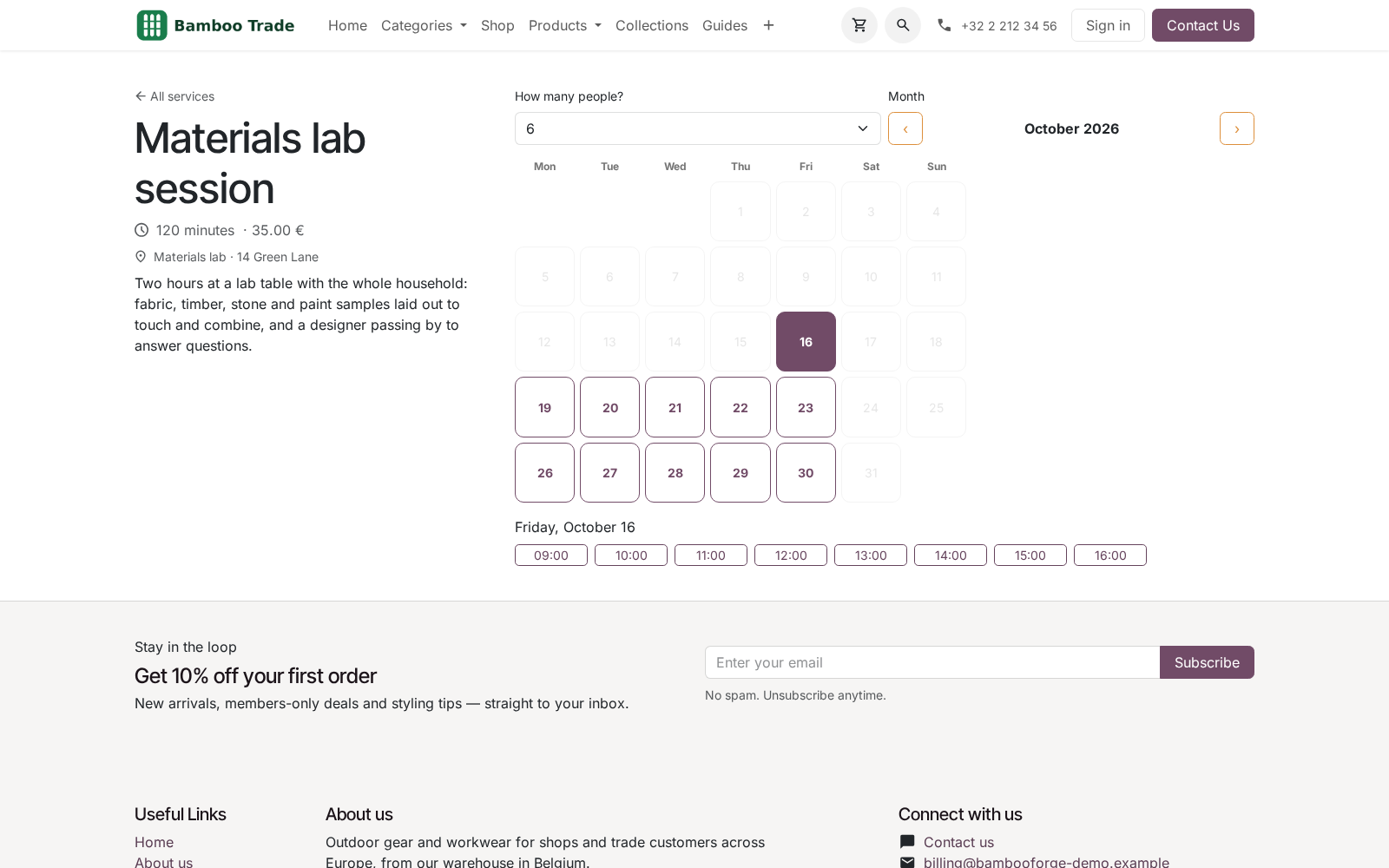
Resources — bookable resources with a seat capacity, a shareable flag (several bookings share the resource at the same time until the capacity is reached — a large shared table; off = one booking takes the whole resource) and Can be combined with links (adjacent tables merged for big parties). The website asks the visitor how many people, proposes only slots where the party fits, and automatically assigns the smallest free resource — or the smallest combination of combinable resources when no single one fits. Opening hours come from a working-hours calendar on the service; capacity double-booking is blocked server-side.
Slot engine — free slots are computed from the staff working hours minus existing bookings (with buffers), aligned to the slot step, filtered by minimum notice and booking horizon, and labelled in the visitor's timezone (validated — an unknown zone name falls back to UTC instead of breaking the page). When the staff member is linked to a user, the user's other calendar events — including events fed by the Google / Outlook calendar synchronisation apps — block slots outright.
Booking page — /booking lists published services; /booking/<id> shows a month-grid slot picker (free days highlighted, first free day pre-selected, month navigation), a staff selector including Anyone available, and a short form (name, e-mail, phone, notes, the service's custom questions and, when enabled, guest e-mails). Every submit is re-validated server-side, so a stale browser can never double-book — and the re-check plus the booking are atomic per slot, so two visitors clicking the same slot at the same instant cannot both take it: the second one is told Sorry, that slot has just been taken. Drafts stay private — an unpublished service is refused by /booking, by /booking/<id>, by the slot endpoint and by submit alike, so nobody can book it by guessing its id.
Prepayment — optionally require online payment per service (needs the standard Payment app): the booking stays Pending with a Pay-now link through the standard payment flow and a cron confirms it once the transaction succeeds.
Lifecycle — pending → confirmed → done, plus cancelled and no-show. Auto-confirm per service, or receive requests and confirm by hand. A database constraint rejects overlapping bookings beyond capacity even when created from the backend.
E-mails — confirmation (with .ics attachment), cancellation and reminder templates; per service you can substitute your own confirmation and cancellation templates and add extra reminder offsets. A cron sends reminders; another marks past bookings Done. The reminder and payment-confirmation crons isolate failures per booking, so one odd record cannot stop the reminders for everybody else.
Self-service — every booking has a private tokenised manage page with the details, an Add to calendar (.ics) download and a cancel button active until the per-service deadline.
Contacts & calendar — the customer is matched to an existing contact by e-mail or a contact is created; each confirmed booking creates a calendar.event for the staff member's user. When the service allows guests, the visitor's guest e-mails are invited to that event as attendees.
CRM — optionally create a lead per website booking (needs the CRM app), carrying the service, slot, staff member and the visitor's answers.
Requirements
Item |
Detail |
|---|---|
Odoo |
20.0, Community or Enterprise. Only the standard website, calendar and resource apps are required — the Enterprise Appointments app is not needed. |
Optional apps |
Require online prepayment needs the standard Payment app with an enabled provider; Create a CRM lead per booking needs the free CRM app. External-calendar awareness works with any calendar.event of the staff user — including events created by the Google / Outlook calendar synchronisation apps when they are installed. |
Python / JS |
No extra libraries. The slot picker is framework-free vanilla JS, so it renders on any website theme. |
Outgoing e-mail |
Confirmations, cancellations and reminders use standard mail templates — configure an outgoing mail server as usual. |
External services |
None. No SaaS scheduler, no external calls; everything runs and stays in your database. |
Getting started
Install BambooForge Booking Pro.
Open Booking Pro ▸ Staff and create your staff members. Pick the Working hours for each — create dedicated calendars under Booking Pro ▸ Working Hours if bookable hours differ from company hours. Link the Odoo user if the person should see bookings in their own calendar.
Open Booking Pro ▸ Services, create a service (duration, slot step, price, staff…) and publish it (website Published toggle).
Visit /booking on your website: the service is listed, the slot picker shows free times. Make a test booking — the confirmation e-mail arrives with a .ics file and the booking shows in Booking Pro ▸ Bookings.
For a table / room / court service, the staff step is replaced by resources: create them under Booking Pro ▸ Resources, set the service's Schedule mode to Resources and pick the resources and the Opening hours calendar — see the Resource mode section below.
Usage
The booking flow
Visitors open /booking (add it to your website menu), pick a service, then a day in a month-grid calendar: days with free slots are highlighted, the first free day is pre-selected and the arrows move month by month. The day's slots are labelled in the visitor's timezone (detected from the browser). With several staff on the service, a With selector offers each person plus Anyone available — in that case the engine assigns a staff member who is actually free.
The short form asks for name, e-mail, phone and notes, plus the service's custom questions (required questions are enforced in the browser and re-validated server-side; dropdown answers are checked against the configured choices) and, when Allow guests is on, guest e-mail addresses — guests are invited to the calendar event. After submitting, the visitor is redirected to their private manage page. Depending on the service's Auto-confirm setting the booking is confirmed immediately (confirmation e-mail + .ics) or arrives as Pending confirmation for you to confirm with one click.
On services with Require online prepayment the booking always starts as Pending: the manage page shows a Pay now link through Odoo's standard payment flow (/payment/pay), and the cron Booking Pro: confirm paid bookings (every 10 minutes) confirms the booking as soon as the payment transaction is done.
With Create a CRM lead per booking on, every website booking also creates a lead carrying the service, slot, staff member and the visitor's answers.
Working with bookings
Booking Pro ▸ Bookings opens a calendar view (week mode, coloured and filterable per staff member); list and form views are one click away. On each booking you can Confirm, mark Done, No-show, or Cancel (the customer is notified). The visitor's answers to the custom questions are shown on the booking form. The chatter tracks state changes. Bookings created in the backend obey the same overlap and capacity rules as the website.
Three scheduled actions run automatically: Booking Pro: send reminders (every 15 minutes, sends every configured reminder offset per service), Booking Pro: mark past bookings done (hourly) and Booking Pro: confirm paid bookings (every 10 minutes, confirms prepayment bookings whose transaction succeeded).
Group classes
Set the service Capacity above 1: the same slot accepts several bookings for the same service and start time until the seats are gone. Any overlapping booking of a different service or start time still blocks the slot outright.
Resource mode (tables, rooms, courts…)
Some businesses do not book people — they book tables, meeting rooms or courts. Set the service's Schedule mode to Resources and configure:
Resources (Booking Pro ▸ Resources, manager only) — one record per table / room / court with:
Capacity — the seats it offers (a table for 4, a room for 10…).
Shareable — on: several bookings can share this resource at the same time until the capacity is reached (a large shared table). Off: one booking takes the whole resource, whatever the party size.
Can be combined with — resources that can be merged with this one when a party is too big for it alone (adjacent tables). A resource cannot be combined with itself.
On the service — pick the participating Resources and the Opening hours (resource mode): a standard working-hours calendar (resource.calendar) that generates the slots — resource mode does not use staff working hours.
On the website the flow gains one field: How many people? — a seats selector up to the largest party a single booking can seat (combinations included). The engine proposes only slots where the party fits and, on submit, automatically assigns the smallest free resource — or the smallest combination of combinable resources when no single one fits. Double-booking beyond capacity is blocked server-side, exactly like in staff mode.
The assigned resources and the party size are visible everywhere: on the booking form in the backend, in the confirmation and reminder e-mails and on the self-service manage page.
Staff mode is completely unchanged — you can run staff-scheduled and resource-scheduled services side by side.
Self-service manage page
Every confirmation e-mail links to /booking/manage/<token> — a private page (unguessable token, not indexed) where the customer sees the appointment in their own timezone, downloads the .ics file and can cancel until the service's cancellation deadline. Cancellation frees the slot immediately and removes the staff calendar event.
Rescheduling
A customer who cannot make the slot can move the booking from the same manage page they use to cancel — set Let customers reschedule on the service and a Reschedule notice (hours) window. Past slots and slots already taken are refused; the calendar entry follows the new time and the reminder is armed again. After the customer window closes, staff can still move the booking from the backend.
Staff assignment
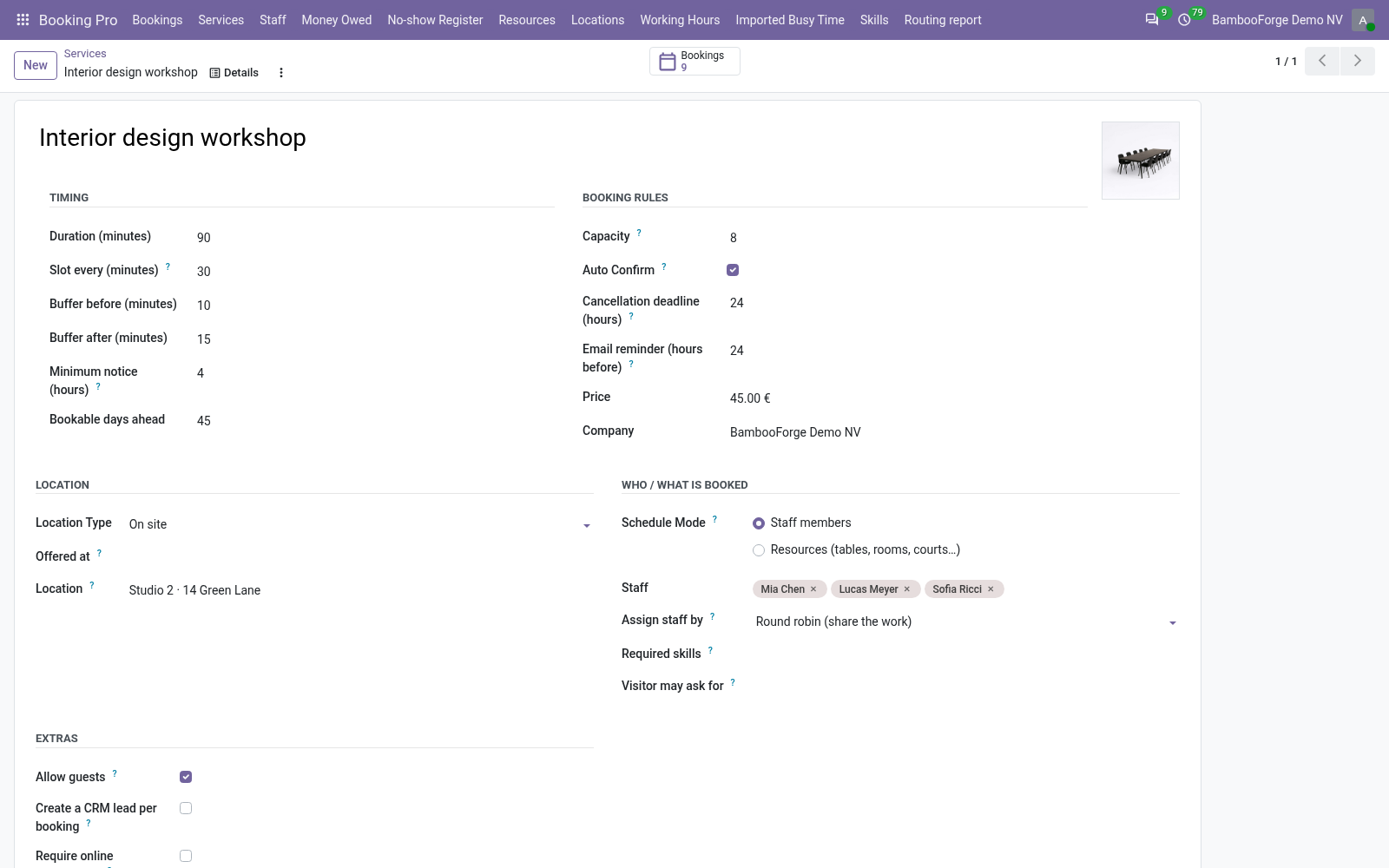
A service with several people offers three strategies under Assign staff by:
First free member (default) — the person highest in the list takes it.
Round robin — bookings rotate through the team.
Least busy member — the member with the fewest upcoming bookings takes it; past and cancelled bookings do not count as load.
Configuration
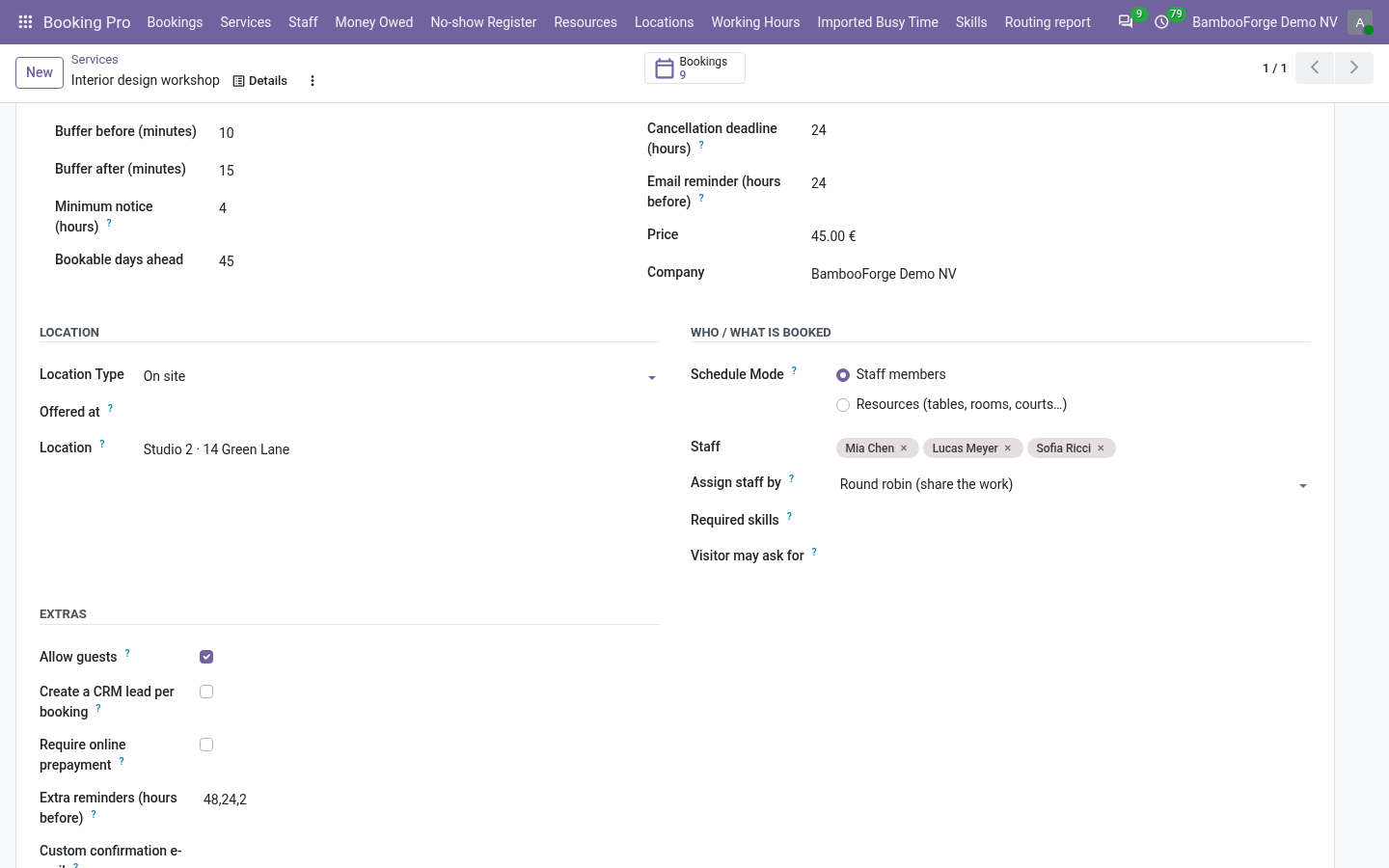
All rules live on the service form (Booking Pro ▸ Services):
Setting (per service) |
Effect |
|---|---|
Duration / Slot every |
Appointment length and the grid of proposed start times (e.g. 60-minute sessions offered every 30 minutes). |
Buffer before / after |
Preparation and wrap-up time blocked around each booking. |
Capacity |
Seats per slot and staff member. 1 = individual appointments, more = group classes. |
Minimum notice / Bookable days ahead |
Visitors cannot book sooner than the notice or beyond the horizon. |
Auto-confirm |
On: instant confirmation. Off: bookings arrive as requests. |
Cancellation deadline |
How long before the start customers may self-cancel online. |
Email reminder (hours before) |
Main reminder delay; 0 disables the reminder for this service. |
Extra reminders (hours before) |
Comma-separated additional offsets (e.g. 48, 2) — each booking gets one reminder per offset, on top of the main one. |
Require online prepayment |
The booking stays Pending with a Pay-now link until the payment is confirmed. Needs the Payment app with an enabled provider. |
Custom confirmation / cancellation e-mail |
Optional mail.template records (on model bf.booking.booking) that replace the standard templates for this service. |
Custom questions |
Ordered list of per-service questions — free text or dropdown (one choice per line), each optionally required. Answers are stored on the booking and echoed into the CRM lead. |
Allow guests |
Visitors may add guest e-mails (up to 10); guests are invited to the calendar event. |
Create a CRM lead per booking |
Every website booking also creates a lead with the service, slot and answers. Needs the CRM app. |
Price / Location |
Shown on the booking page; the price is recorded on each booking, the location (address or meeting link) is included in the confirmation. |
Company |
The company this service belongs to. |
Staff |
Who can be booked; each staff member brings their own working hours and timezone. Link the Odoo user to sync bookings into their calendar and to let their other calendar events block slots. |
Schedule mode |
Staff members (default): the visitor books a person, whose working hours and calendar rule the slots. Resources: the visitor books seats and the engine assigns tables / rooms / courts. |
Resources |
Resource mode only: the resources this service can book — each with its capacity, shareable flag and combinable links (Booking Pro ▸ Resources). |
Opening hours (resource mode) |
Resource mode only: the working-hours calendar that generates the slots. |
Access rights: Booking Pro / User sees and manages bookings; Booking Pro / Manager additionally configures services, staff, resources and working hours.
Install
Copy bambooforge_booking_pro into your addons path and update the app list, or install the ZIP from the Odoo Apps Store.
Install Appointment Booking & Online Scheduling.
Open Booking Pro - its menus are Bookings, Services, Staff, Resources.
Troubleshooting
- The slot picker shows no free times.
Check, in order: the service has active staff assigned; the staff working hours contain attendance lines on those weekdays; the Minimum notice and Bookable days ahead window is not empty (e.g. notice 48 h + horizon 1 day = nothing); existing bookings plus buffers are not filling the calendar; and the staff user's own calendar events (synced ones included) are not blocking the whole period.
- The service is not listed on /booking.
It must be published (website toggle) and, with multiple websites, available on the current one. An unpublished service is also unreachable through its direct /booking/<id> link and cannot be booked — drafts stay private until you publish them.
- Slots are shifted by a few hours.
Slot labels are correct for the visitor's browser timezone — open the page from another machine and you will see other labels, by design. If the underlying times are wrong, fix the timezone of the staff working hours calendar: it defines when the staff member actually works.
- No confirmation e-mail arrives.
Configure an outgoing mail server and check Settings ▸ Technical ▸ Emails for the message. Bookings on services with Auto-confirm off only send the confirmation once you confirm them.
- No reminder was sent.
The reminder delay is per service (0 disables it), the booking must be Confirmed, and the cron Booking Pro: send reminders must be active (it runs every 15 minutes).
- Visitors book a colleague who is busy elsewhere.
The engine blocks slots for its own bookings and for the staff user's other Odoo calendar events — link the staff member to a user, and install the Google / Outlook calendar synchronisation apps if the busy times live in an external calendar, so they feed calendar.event records. Appointments that exist nowhere in Odoo remain invisible — block those times with a backend booking or calendar event.
FAQ
- Does it need Odoo Enterprise or the Appointments app?
No. It runs on Community with only website, calendar and resource — that is the reason it exists. It works unchanged on Enterprise too.
- Can customers pay online while booking?
Yes — enable Require online prepayment on the service (needs the standard Payment app with an enabled provider). The booking stays Pending with a Pay now link on the manage page, routed through Odoo's standard /payment/pay flow, and the cron Booking Pro: confirm paid bookings confirms it once the transaction is done. The price is recorded on every booking either way, so you can still invoice the auto-created contact with standard Odoo.
- Can visitors book a table or a room instead of a person?
Yes — set the service's Schedule mode to Resources and define tables / rooms / courts with seat capacities, optionally shareable and optionally combinable for big parties. The visitor picks the party size and the engine assigns the smallest free resource or combination. Staff-based services are unaffected.
- Can two people book the same slot?
Only when you allow it: capacity above 1 sells group seats for the same service and start time. Otherwise buffers, the database overlap constraint and the server-side re-validation of every submit guarantee zero double bookings. Even the classic race — two visitors clicking the same last slot in the same second — is handled: the availability check and the booking are atomic per slot, so exactly one of them wins and the other is told Sorry, that slot has just been taken.
- Is it tested?
Yes: unit tests for the slot engine and booking flow, an HTTP suite for the controllers, and a real-browser frontend tour.
- Multi-website?
Yes. Services are published per website and each booking records the website it came from.
- Which languages?
All visitor-facing texts are translatable. English ships with the module, and the exportable .pot template is there for any other.
- Does any data leave my server?
No. No external scheduler, no CDN, no API calls — bookings, contacts and calendar events live only in your database.
Upgrade
Back up the database.
Replace the module folder, restart, then:
odoo-bin -d <db> -u bambooforge_booking_pro --stop-after-init
Review the Changelog below for new settings worth enabling.
Uninstall
Export Booking Pro ▸ Bookings first if you need the history — bookings, services and staff records are removed with the module (standard Odoo behaviour).
Apps ▸ BambooForge Booking Pro ▸ Uninstall.
Contacts and calendar events created from bookings remain in your database. Remove the /booking link from your website menu if you added one.
Changelog
20.0.1.5.7
Built for Odoo 20: record rules and access rights rewritten onto Odoo 20's single ir.access model, the screens rebuilt on Owl 3, and every icon moved to the icon set Odoo 20 ships. A staff member's timezone is their own setting, falling back to the company: Odoo 20 took the timezone off working-hours calendars.
20.0.1.3.1 (2026-08-15)
Concurrency: the availability re-check and the booking that follows are now atomic per slot. Two visitors clicking the same slot at the same instant can no longer both take it — the second one gets Sorry, that slot has just been taken — please pick another one.
Only published services are bookable: /booking/<id>, the slot endpoint and submit all refuse an unpublished service, so a draft can no longer be booked by guessing its id. Drafts stay private.
Visitor timezones are validated — an unknown zone name falls back to UTC instead of breaking the slot list or the crons.
The reminder and payment-confirmation crons isolate failures per booking, so one odd record cannot stop the reminders for everyone else.
New Company on the service.
20.0.1.3.0 (2026-08-14)
Resource scheduling: a service can now be scheduled on resources (tables, meeting rooms, courts…) instead of staff. Resources carry a seat capacity, a shareable flag (several bookings share the resource until the capacity is reached) and Can be combined with links (adjacent tables merged for big parties).
Website flow in resource mode: the visitor picks the party size (How many people?), the engine proposes only slots where the party fits and automatically assigns the smallest free resource — or the smallest combination of combinable resources when no single one fits.
Opening hours in resource mode come from a working-hours calendar on the service; capacity double-booking is blocked server-side; the backend gains a Resources menu (manager), bookings show the assigned resources and seats, and the confirmation / reminder e-mails and the manage page include the reserved resources and party size. Staff mode is unchanged.
20.0.1.2.0 (2026-08-14)
Month-grid slot picker: a calendar month view with available days highlighted, first free day auto-selected, month navigation.
Online prepayment (optional, needs the Payment app): the booking holds as Pending with a Pay-now link through the standard payment flow and confirms automatically once the transaction succeeds.
Multiple reminder offsets per service and optional custom confirmation/cancellation templates.
20.0.1.1.0 (2026-08-14)
Custom questions per service (free text or dropdown, required flag), answered on the booking page, stored on the booking, echoed into the CRM lead description.
External-calendar awareness: the staff user's other calendar events (including those fed by the Google/Outlook synchronisation apps) now block slots.
Optional CRM lead per website booking.
Guest invitees: visitors can add guest e-mails; guests join the calendar event.
20.0.1.0.0 (2026-08-14)
Initial release: bookable services with duration, slot step, buffers, capacity (group seats), price, location types, minimum notice, booking horizon, cancellation deadline and per-service reminder delay; staff with resource-calendar working hours and optional user link; timezone-aware slot engine and public booking pages (/booking, slot picker with week navigation and Anyone available); server-side slot re-validation and overlap/capacity constraint; booking lifecycle pending / confirmed / done / cancelled / no-show with auto or manual confirmation; automatic contact creation and calendar.event sync; confirmation, cancellation and reminder mail templates with .ics attachment; tokenised self-service manage page with .ics download and cancellation deadline; reminder and mark-done crons; backend calendar / list / form views with staff colours; user and manager access groups; multi-website support; exportable translation template; browser-tested (frontend tour) with unit and HTTP test suites.
How we make sure it works
Before every release, 85 automated checks run against this app on Odoo 16, 17, 18, 19 and 20. Among them:
Cancelled booking cannot be moved by the customer.
A plain employee does not see the menu.
Own booking event not double counted.
Customer reschedule respects the notice.
The user configures nothing.
The complete list is in the source you receive.