 BambooForge Labs
Backend Theme All in One with Website Styling
The apps button on your website opens the Home Menu you arranged, instead of a dropdown list of every app.
Available for Odoo 16.0, Odoo 17.0, Odoo 18.0, Odoo 19.0, Odoo 20.0. Technical name bambooforge_backend_theme_website.
Transcript of the walkthrough (Odoo 20)
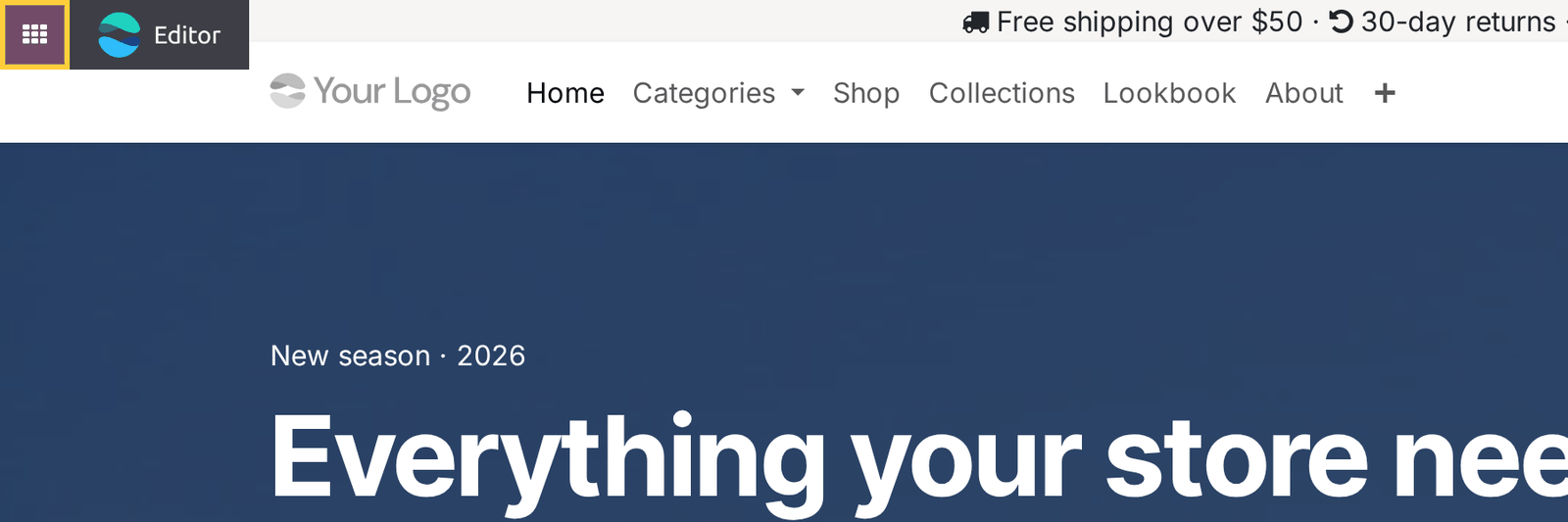
Backend Theme All in One with Website Styling. The apps button on your website opens the Home Menu you arranged, instead of a dropdown list of every app. While you are logged in, Odoo draws a small grid button on every page of your website, titled Go to your Odoo Apps. Clicking it opens a dropdown that lists every root menu on the database.
In the next few minutes: backend theme all in one with website styling, then what you get, then uninstalling, then how it works, then how we make sure it works. Then what this app deliberately does not do, so you can tell before you buy whether it fits. The module installs itself once both are present and does nothing at all before that, which is why it is a separate module: a backend theme should not drag the Website app in behind it. Backend Theme All in One with Website Styling.
While you are logged in, Odoo draws a small grid button on every page of your website, titled Go to your Odoo Apps. Clicking it opens a dropdown that lists every root menu on the database. With eight apps that is a menu. With eighty it is a single column taller than the screen, in no order you chose, with no icons and no search — and the Home Menu you already arranged is one navigation away, unused.
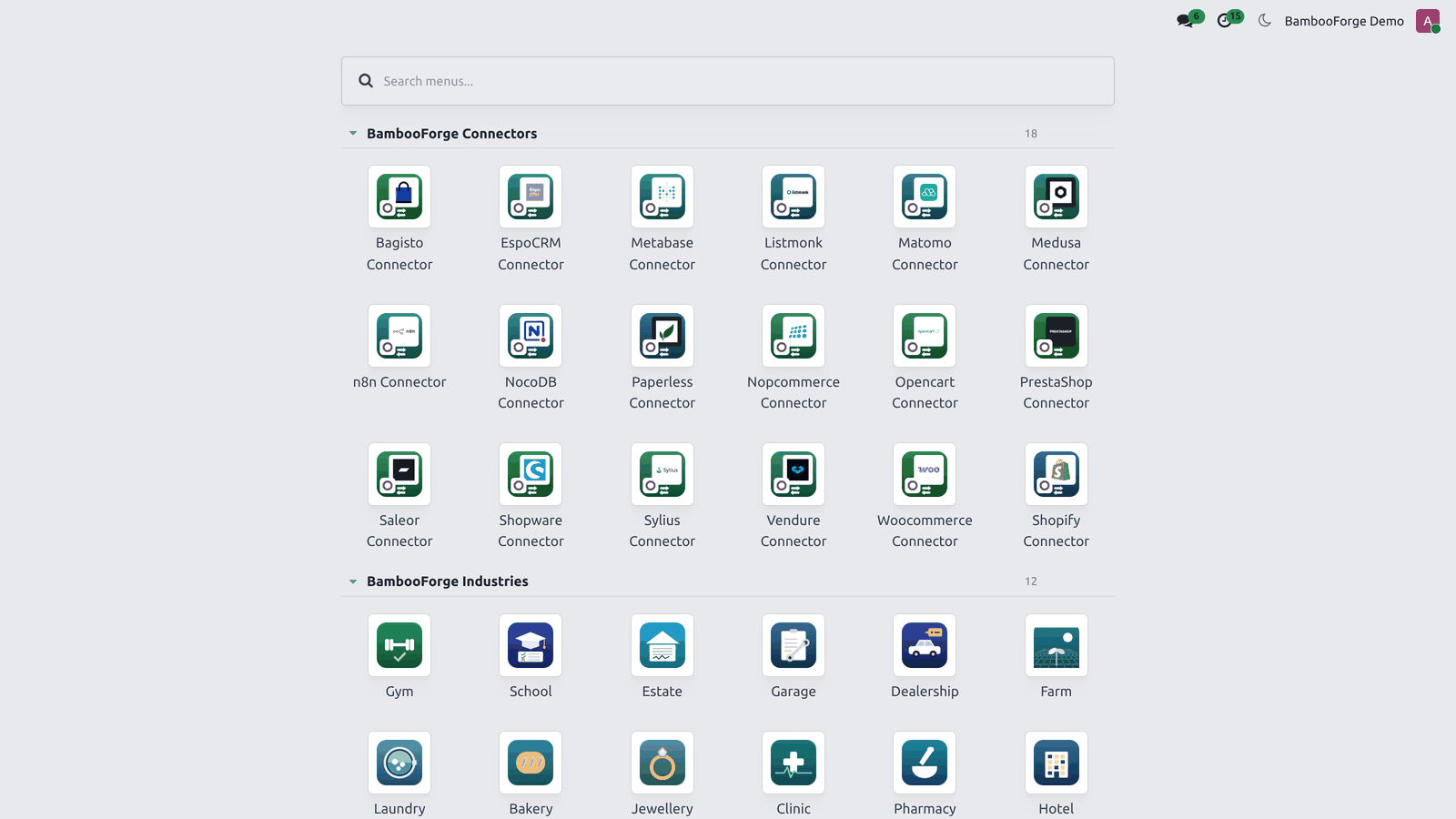
What you get. Nothing else changes. No JavaScript is added to the website, no model is created, and nothing runs on a page a customer sees — the button this adjusts is rendered only for logged-in staff. The grid button on any website page opens the Home Menu.
You land on your own arrangement: your app order, your named sections, your pinned apps at the top, and the search box. Odoo's dropdown of every root menu is gone from that button. Uninstalling. Odoo's dropdown comes back exactly as it was.
The module stores nothing and changes no data, so there is nothing to clean up. How it works. One inherited view over website.layout. It sets the button's href to the backend, removes the data-bs-toggle that made it a dropdown toggler, and drops the generated list of menus.
That is the whole module, and you can read it in views/website_templates.xml. How we make sure it works. Before every release, 8 automated checks run against this app on Odoo 16, 17, 18, 19 and 20. Among them: It owns one view and nothing else.
It adds no javascript to the website. It installs itself only with both apps. The button no longer opens a dropdown. The public never sees the button.
The complete list is in the source you receive. Questions people ask. Which Odoo versions does it run on? Odoo 16.0, 17.0, 18.0, 19.0, 20.0, on the series you buy it for; each series is its own listing.
Community or Enterprise? Both. It needs no Enterprise app. Support The complete manual is at docs dot bambooforge dot dev, the demo database is linked from the store page, and support answers within twenty-four hours.
Links are in the description.
Transcript of the walkthrough (Odoo 19)
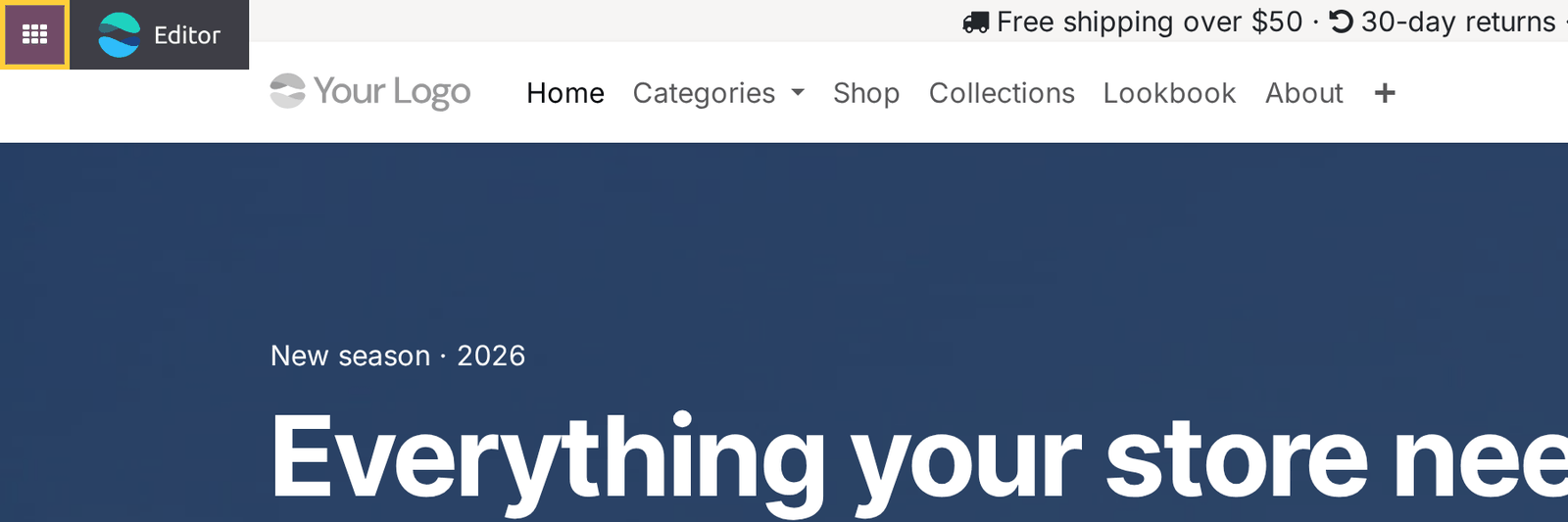
Backend Theme: Website Bridge. The apps button on your website opens the Home Menu you arranged, instead of a dropdown list of every app. While you are logged in, Odoo draws a small grid button on every page of your website, titled Go to your Odoo Apps. Clicking it opens a dropdown that lists every root menu on the database.
In the next few minutes: backend theme: website bridge, then what you get, then uninstalling, then how it works, then support. Then what this app deliberately does not do, so you can tell before you buy whether it fits. The module installs itself once both are present and does nothing at all before that, which is why it is a separate module: a backend theme should not drag the Website app in behind it. Backend Theme: Website Bridge.
While you are logged in, Odoo draws a small grid button on every page of your website, titled Go to your Odoo Apps. Clicking it opens a dropdown that lists every root menu on the database. With eight apps that is a menu. With eighty it is a single column taller than the screen, in no order you chose, with no icons and no search — and the Home Menu you already arranged is one navigation away, unused.
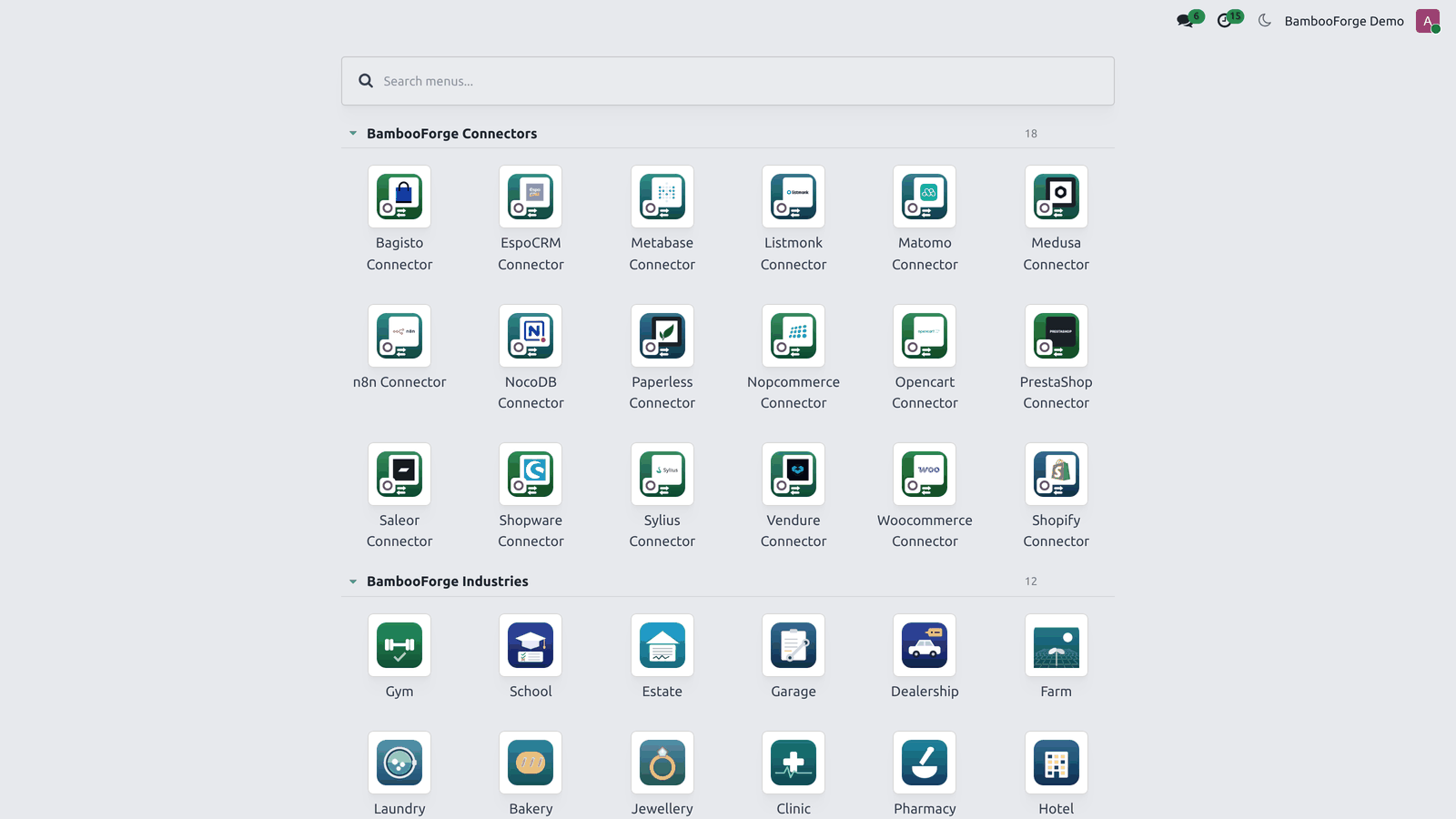
What you get. Nothing else changes. No JavaScript is added to the website, no model is created, and nothing runs on a page a customer sees — the button this adjusts is rendered only for logged-in staff. The grid button on any website page opens the Home Menu.
You land on your own arrangement: your app order, your named sections, your pinned apps at the top, and the search box. Odoo's dropdown of every root menu is gone from that button. Uninstalling. Odoo's dropdown comes back exactly as it was.
The module stores nothing and changes no data, so there is nothing to clean up. How it works. One inherited view over website.layout. It sets the button's href to the backend, removes the data-bs-toggle that made it a dropdown toggler, and drops the generated list of menus.
That is the whole module, and you can read it in views/website_templates.xml. Support The complete manual is at docs dot bambooforge dot dev, the demo database is linked from the store page, and support answers within twenty-four hours. Links are in the description.
Transcript of the walkthrough (Odoo 18)
Backend Theme: Website Bridge. The apps button on your website opens the Home Menu you arranged, instead of a dropdown list of every app. While you are logged in, Odoo draws a small grid button on every page of your website, titled Go to your Odoo Apps. Clicking it opens a dropdown that lists every root menu on the database.
In the next few minutes: backend theme: website bridge, then what you get, then uninstalling, then how it works, then support. Then what this app deliberately does not do, so you can tell before you buy whether it fits. The module installs itself once both are present and does nothing at all before that, which is why it is a separate module: a backend theme should not drag the Website app in behind it. Backend Theme: Website Bridge.
While you are logged in, Odoo draws a small grid button on every page of your website, titled Go to your Odoo Apps. Clicking it opens a dropdown that lists every root menu on the database. With eight apps that is a menu. With eighty it is a single column taller than the screen, in no order you chose, with no icons and no search — and the Home Menu you already arranged is one navigation away, unused.
What you get. Nothing else changes. No JavaScript is added to the website, no model is created, and nothing runs on a page a customer sees — the button this adjusts is rendered only for logged-in staff. The grid button on any website page opens the Home Menu.
You land on your own arrangement: your app order, your named sections, your pinned apps at the top, and the search box. Odoo's dropdown of every root menu is gone from that button. Uninstalling. Odoo's dropdown comes back exactly as it was.
The module stores nothing and changes no data, so there is nothing to clean up. How it works. One inherited view over website.layout. It sets the button's href to the backend, removes the data-bs-toggle that made it a dropdown toggler, and drops the generated list of menus.
That is the whole module, and you can read it in views/website_templates.xml. Support The complete manual is at docs dot bambooforge dot dev, the demo database is linked from the store page, and support answers within twenty-four hours. Links are in the description.

Transcript of the walkthrough (Odoo 17)
Backend Theme: Website Bridge. The apps button on your website opens the Home Menu you arranged, instead of a dropdown list of every app. While you are logged in, Odoo draws a small grid button on every page of your website, titled Go to your Odoo Apps. Clicking it opens a dropdown that lists every root menu on the database.
In the next few minutes: backend theme: website bridge, then what you get, then uninstalling, then how it works, then support. Then what this app deliberately does not do, so you can tell before you buy whether it fits. The module installs itself once both are present and does nothing at all before that, which is why it is a separate module: a backend theme should not drag the Website app in behind it. Backend Theme: Website Bridge.
While you are logged in, Odoo draws a small grid button on every page of your website, titled Go to your Odoo Apps. Clicking it opens a dropdown that lists every root menu on the database. With eight apps that is a menu. With eighty it is a single column taller than the screen, in no order you chose, with no icons and no search — and the Home Menu you already arranged is one navigation away, unused.
What you get. Nothing else changes. No JavaScript is added to the website, no model is created, and nothing runs on a page a customer sees — the button this adjusts is rendered only for logged-in staff. The grid button on any website page opens the Home Menu.
You land on your own arrangement: your app order, your named sections, your pinned apps at the top, and the search box. Odoo's dropdown of every root menu is gone from that button. Uninstalling. Odoo's dropdown comes back exactly as it was.
The module stores nothing and changes no data, so there is nothing to clean up. How it works. One inherited view over website.layout. It sets the button's href to the backend, removes the data-bs-toggle that made it a dropdown toggler, and drops the generated list of menus.
That is the whole module, and you can read it in views/website_templates.xml. Support The complete manual is at docs dot bambooforge dot dev, the demo database is linked from the store page, and support answers within twenty-four hours. Links are in the description.
Transcript of the walkthrough (Odoo 16)
Backend Theme: Website Bridge. The apps button on your website opens the Home Menu you arranged, instead of a dropdown list of every app. While you are logged in, Odoo draws a small grid button on every page of your website, titled Go to your Odoo Apps. Clicking it opens a dropdown that lists every root menu on the database.
In the next few minutes: backend theme: website bridge, then what you get, then uninstalling, then how it works, then support. Then what this app deliberately does not do, so you can tell before you buy whether it fits. The module installs itself once both are present and does nothing at all before that, which is why it is a separate module: a backend theme should not drag the Website app in behind it. Backend Theme: Website Bridge.
While you are logged in, Odoo draws a small grid button on every page of your website, titled Go to your Odoo Apps. Clicking it opens a dropdown that lists every root menu on the database. With eight apps that is a menu. With eighty it is a single column taller than the screen, in no order you chose, with no icons and no search — and the Home Menu you already arranged is one navigation away, unused.
What you get. Nothing else changes. No JavaScript is added to the website, no model is created, and nothing runs on a page a customer sees — the button this adjusts is rendered only for logged-in staff. The grid button on any website page opens the Home Menu.
You land on your own arrangement: your app order, your named sections, your pinned apps at the top, and the search box. Odoo's dropdown of every root menu is gone from that button. Uninstalling. Odoo's dropdown comes back exactly as it was.
The module stores nothing and changes no data, so there is nothing to clean up. How it works. One inherited view over website.layout. It sets the button's href to the backend, removes the data-bs-toggle that made it a dropdown toggler, and drops the generated list of menus.
That is the whole module, and you can read it in views/website_templates.xml. Support The complete manual is at docs dot bambooforge dot dev, the demo database is linked from the store page, and support answers within twenty-four hours. Links are in the description.

Key facts
- What it is
- The apps button on your website opens the Home Menu you arranged, instead of a dropdown list of every app.
- For
- Website
- Odoo versions
- 16.0, 17.0, 18.0, 19.0, 20.0 - Community and Enterprise
- Runs on
- Odoo.sh or Odoo you host yourself - not Odoo Online, which accepts no third-party apps
- Price
- 89 EUR, one-time, on the Odoo Apps Store
- Technical name
- bambooforge_backend_theme_website
- Manual last updated
- 2026-10-15
Backend Theme All in One with Website Styling
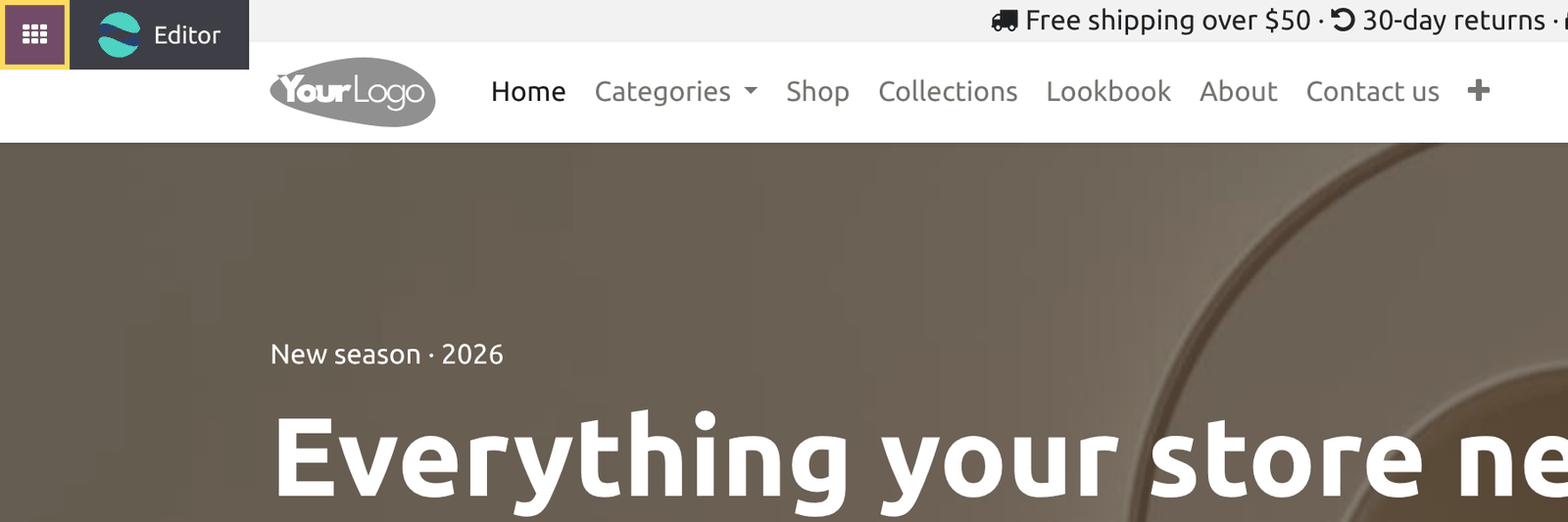
While you are logged in, Odoo draws a small grid button on every page of your website, titled Go to your Odoo Apps. Clicking it opens a dropdown that lists every root menu on the database.
With eight apps that is a menu. With eighty it is a single column taller than the screen, in no order you chose, with no icons and no search — and the Home Menu you already arranged is one navigation away, unused.
This module makes the button do what its title says: it takes you to the Home Menu.
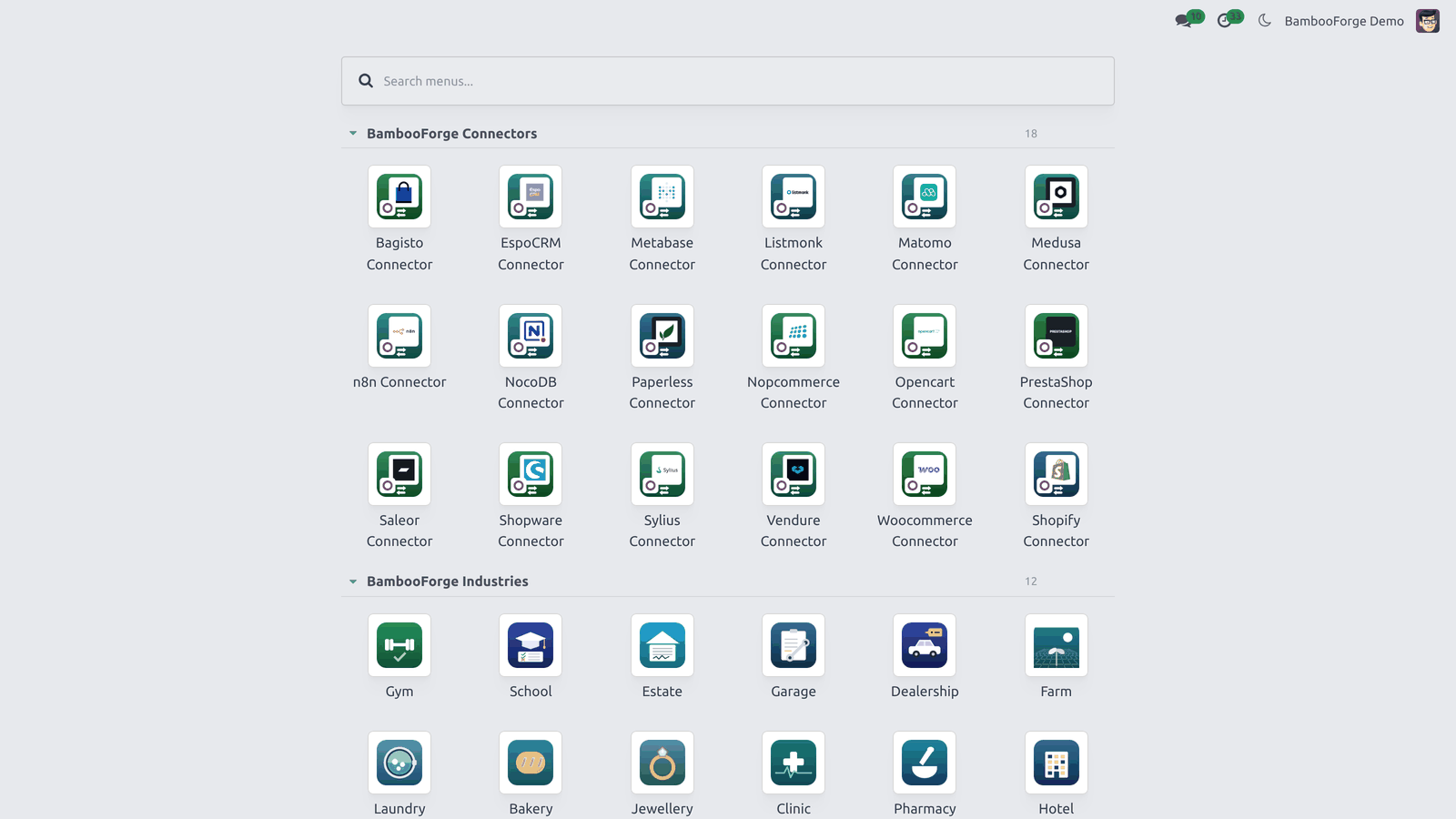
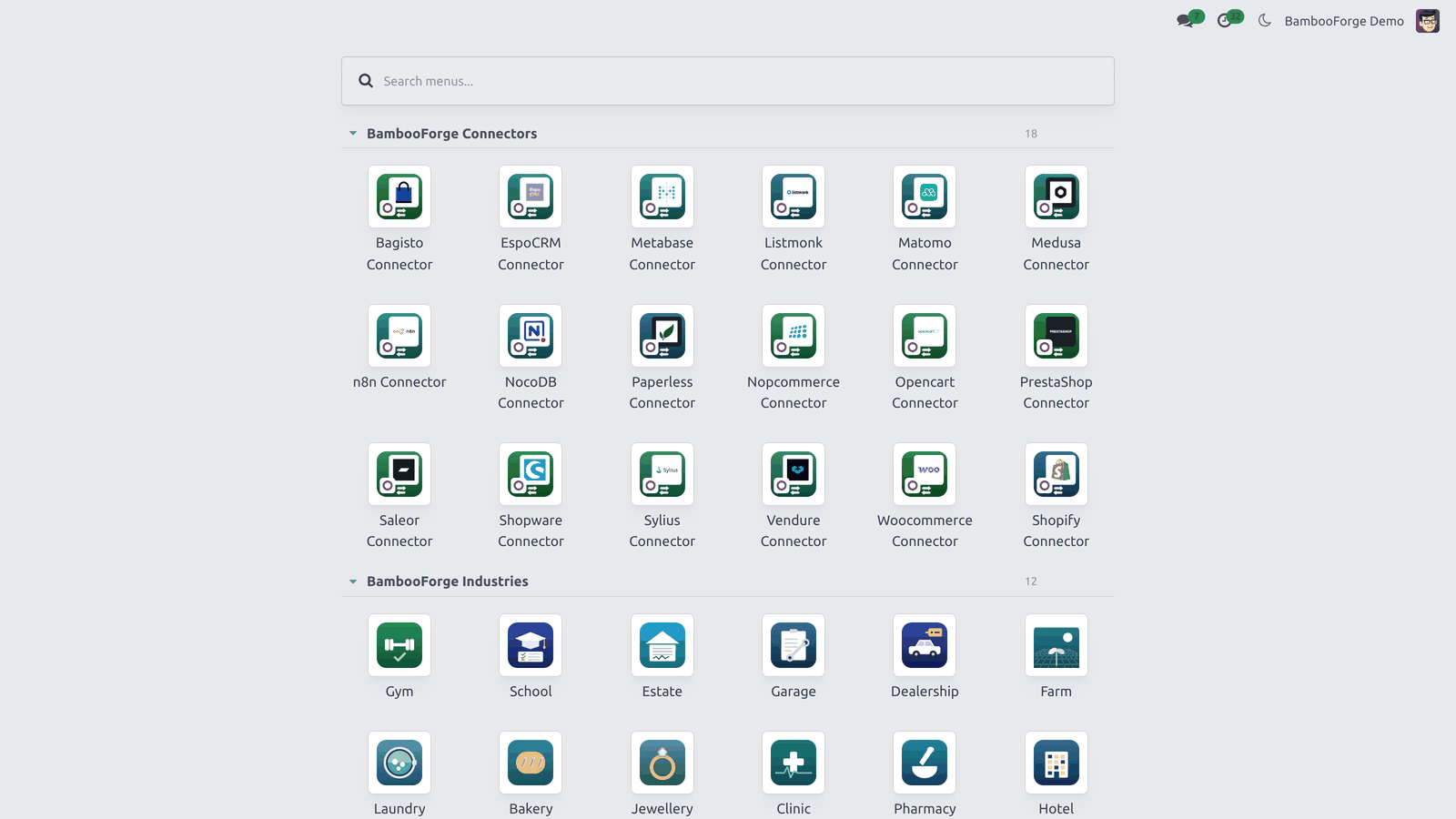
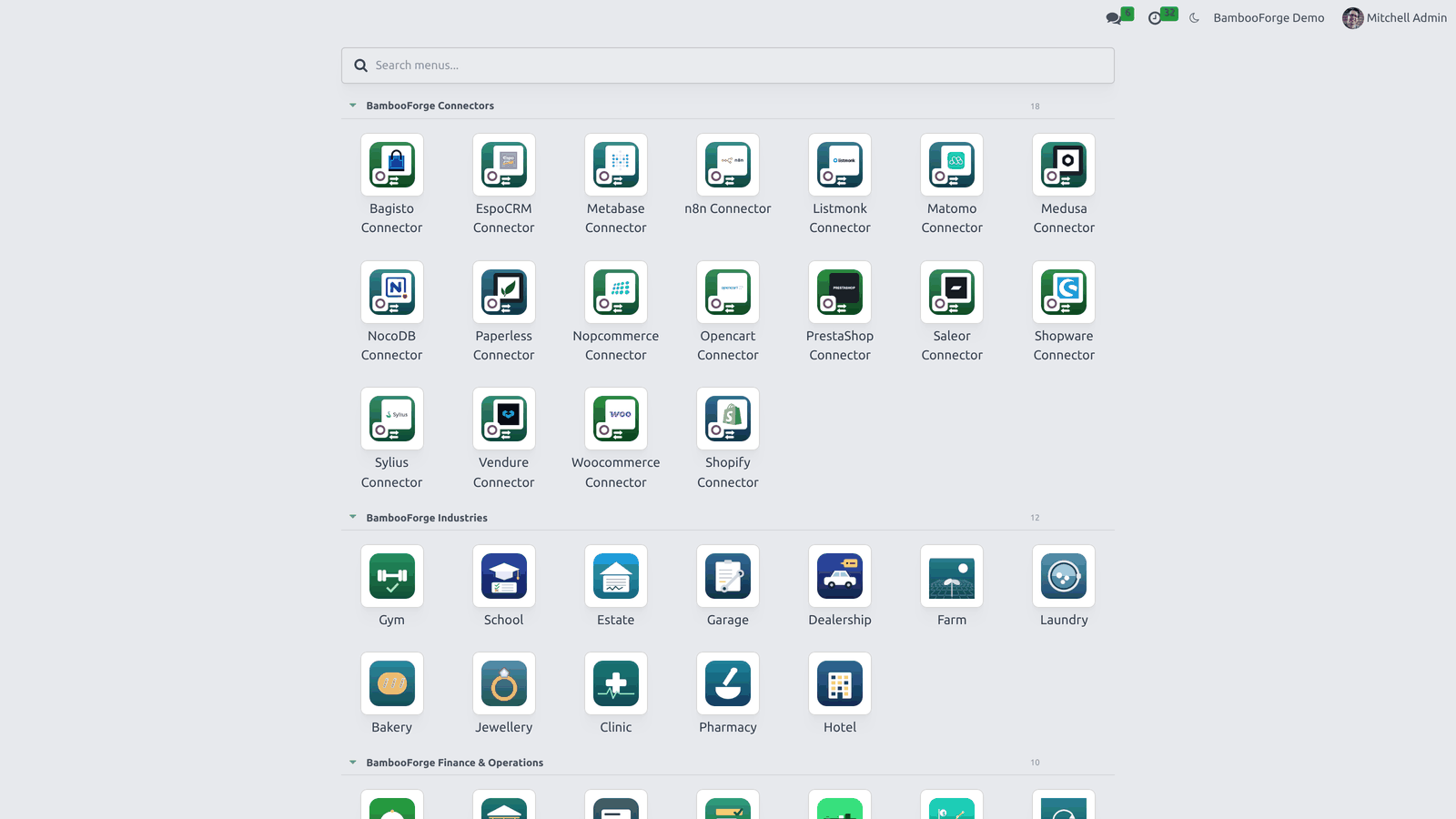
Clicking it lands you on the Home Menu, the grid you already arranged:
What you get
The grid button on any website page opens the Home Menu.
You land on your own arrangement: your app order, your named sections, your pinned apps at the top, and the search box.
Odoo's dropdown of every root menu is gone from that button.
Nothing else changes. No JavaScript is added to the website, no model is created, and nothing runs on a page a customer sees — the button this adjusts is rendered only for logged-in staff.
Requirements
BambooForge Backend Theme — the Home Menu, the sections and the pinned shelf live there.
Odoo's Website app.
The module installs itself once both are present and does nothing at all before that, which is why it is a separate module: a backend theme should not drag the Website app in behind it.
Installing
Copy the module into your addons path.
Update the apps list.
It installs on its own if Backend Theme and Website are both installed; otherwise it waits.
Uninstalling
Odoo's dropdown comes back exactly as it was. The module stores nothing and changes no data, so there is nothing to clean up.
How it works
One inherited view over website.layout. It sets the button's href to the backend, removes the data-bs-toggle that made it a dropdown toggler, and drops the generated list of menus. That is the whole module, and you can read it in views/website_templates.xml.
How we make sure it works
Before every release, 8 automated checks run against this app on Odoo 16, 17, 18, 19 and 20. Among them:
It owns one view and nothing else.
It adds no javascript to the website.
It installs itself only with both apps.
The button no longer opens a dropdown.
The public never sees the button.
The complete list is in the source you receive.
Install
Copy bambooforge_backend_theme_website into your addons path and update the app list, or install the ZIP from the Odoo Apps Store.
Install Backend Theme: Website Bridge.
Questions people ask
- Which Odoo versions does it run on?
Odoo 16.0, 17.0, 18.0, 19.0, 20.0, on the series you buy it for; each series is its own listing.
- Community or Enterprise?
Both. It needs no Enterprise app.
- What does it need?
The standard Website; backend theme (BambooForge) must be installed first app. No extra Python package.
- Does anything leave my server?
No. It makes no call outside your Odoo server: no telemetry, no licence check, no third-party service.
- What happens if I uninstall it?
Odoo drops the app's own tables and fields; the standard records it worked on (contacts, orders, products) stay as they are.