 BambooForge Labs
ChatGPT for Odoo | AI Assistant in Discuss
ChatGPT inside Odoo Discuss - or a model on your own server with Ollama: a private assistant per employee, with conversation history and as many separate chats as they need.
Available for Odoo 16.0, Odoo 17.0, Odoo 18.0, Odoo 19.0, Odoo 20.0. Technical name bambooforge_ai_assistant.
Transcript of the walkthrough (Odoo 20)
ChatGPT for Odoo / AI Assistant in Discuss. ChatGPT inside Odoo Discuss - or a model on your own server with Ollama: a private assistant per employee, with conversation history and as many separate chats as they need. The app connects Odoo Discuss to the OpenAI API so your employees can use ChatGPT inside the tools they already work in. It covers: In the next few minutes: configuration, then step 1 — get an openai api key, then step 2 — enter the key and pick a model in odoo, then step 3 (optional) — run it on your own server with ollama, then usage.
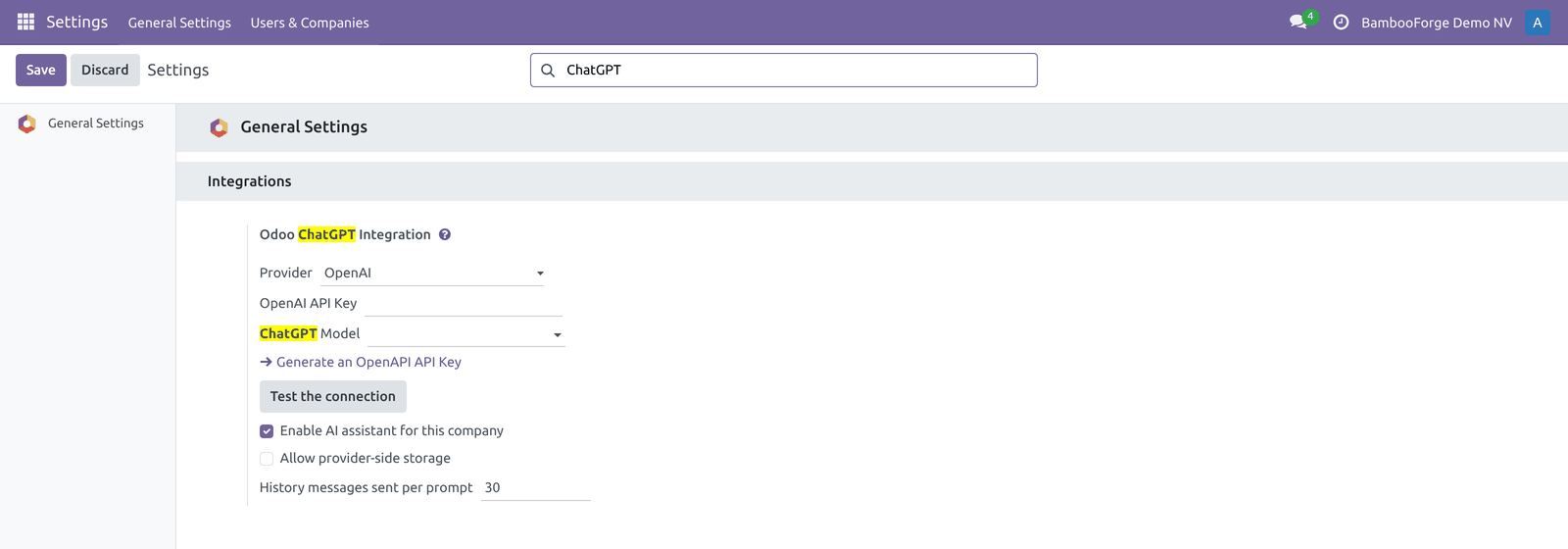
Then what this app deliberately does not do, so you can tell before you buy whether it fits. Configuration. All settings live on one screen: Settings ▸ General Settings ▸ Integrations ▸ Odoo ChatGPT Integration. There is no separate menu — the two fields are added to the standard General Settings page.
Step 1 — Get an OpenAI API key. 1. Sign in at https://platform.openai.com. 2.
Go to API keys (https://platform.openai.com/account/api-keys). The settings screen also has a Generate an OpenAPI API Key link that opens this page. Step 2 — Enter the key and pick a model in Odoo. 1.
Open Settings ▸ General Settings, scroll to the Integrations section, and find Odoo ChatGPT Integration. 2. Paste your key into the OpenAI API Key field. Step 3 (optional) — Run it on your own server with Ollama.
The assistant speaks the OpenAI chat API, and so do Ollama and most local model servers. Pick Ollama / local server as the provider, give the URL (Ollama's default is http://localhost:11434/v1), the model name as the server knows it (ollama pull llama3.1 first), and press Test the connection. From then on the conversation never leaves your network, and the provider-storage switch does not apply - there is no provider. Any other OpenAI-compatible server (vLLM, LM Studio, a hosted gateway) is the third option, with a key if it asks for one.
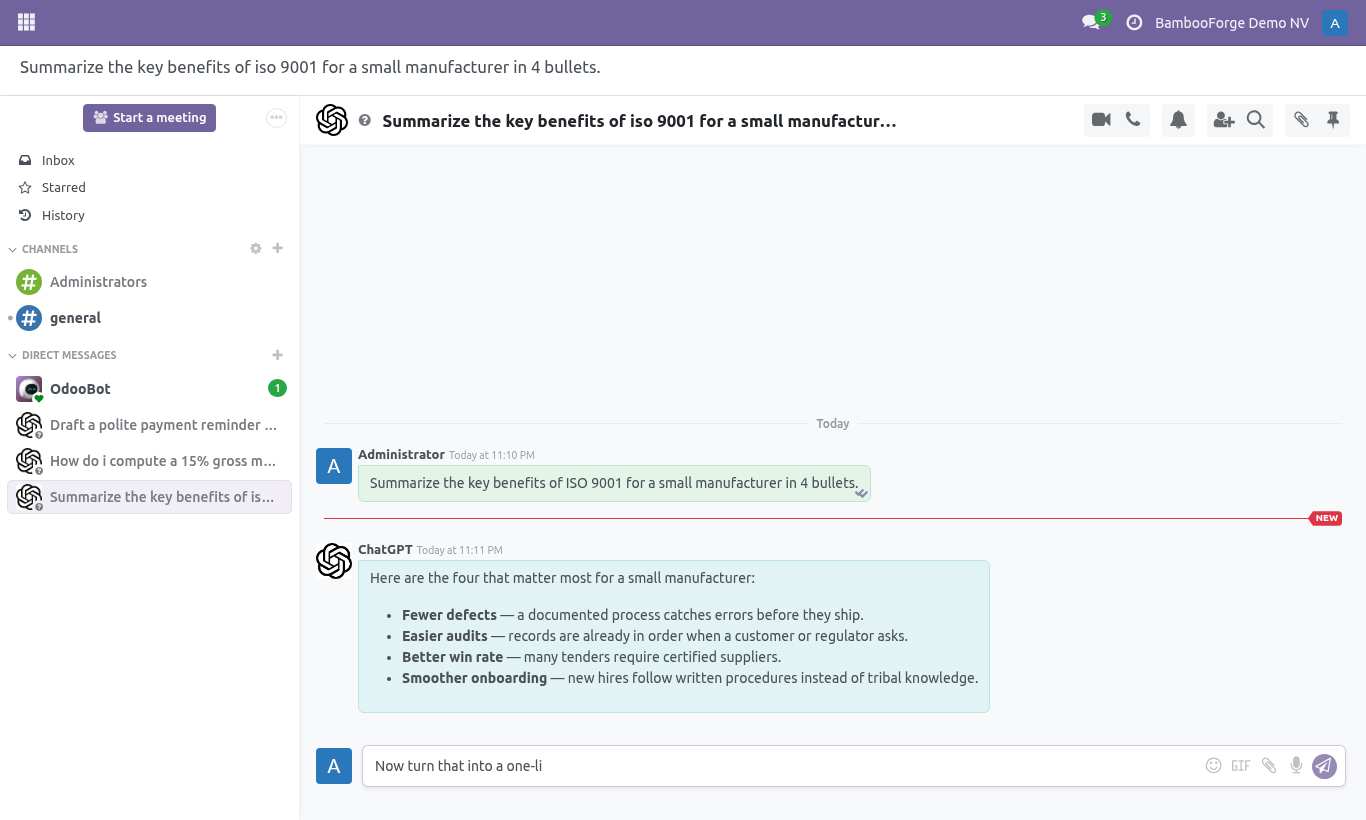
Usage. Once a key and model are saved, any internal user can use the assistant: 2. In the Direct messages search (the + next to Direct messages, or the New message search), type ChatGPT and select the ChatGPT contact. It appears as online.
Customization. This is a deliberately small module. The pieces you can change: There is no per-user API key: the whole database shares the single key entered in Settings, and all OpenAI usage is billed to that one account. Frequently asked questions.
Do I need my own OpenAI account? Yes. The module talks to OpenAI on your behalf using your API key, and every request is billed to your OpenAI account. The module itself does not include any OpenAI usage.
Where do I put the API key? Settings ▸ General Settings ▸ Integrations ▸ Odoo ChatGPT Integration ▸ OpenAI API Key. Only an administrator can set it; it applies to the whole database. Support & updates Support: support@bambooforge.dev — answered within 24 hours, setup help included.
Refund: report a bug within 2 months of purchase; if unresolved within 15 days, full refund. Full source is included. Updates track the supported Odoo 20 line and the OpenAI API. Upgrading & version compatibility.
This build targets Odoo 20.0. Each Odoo major series (17.0, 18.0, 19.0) has its own dedicated build of this module — always install the build that matches your Odoo version. Mixing a build with a different Odoo series is not supported. Patch upgrades (same series, e.g.
20.0.1.0.0 → later). 1. Back up your database and filestore first. 2.
Replace the module folder with the newer build. 3. Restart Odoo with the module updated. 4.
Odoo applies any schema/data changes automatically. Your existing records and configuration are preserved. Now the part most videos leave out: what this does not do. What is sent to OpenAI: the text of the messages in the current conversation.
When you send a message, the whole thread of that conversation is transmitted to OpenAI's chat completion API so it can answer in context. Nothing else from your Odoo database is sent. Where the key lives: the API key is stored in Odoo's system parameters and is readable only by administrators. Costs are yours: usage is billed to your own OpenAI account at OpenAI's rates for the model you choose.
BambooForge does not resell or mark up OpenAI usage. OpenAI's terms apply: data you send is processed by OpenAI under OpenAI's data and privacy policies. Do not send secrets or regulated data you are not allowed to share with a third-party API. The complete manual is at docs dot bambooforge dot dev, the demo database is linked from the store page, and support answers within twenty-four hours.
Links are in the description.

Transcript of the walkthrough (Odoo 19)
ChatGPT for Odoo / AI Assistant in Discuss. ChatGPT inside Odoo Discuss - or a model on your own server with Ollama: a private assistant per employee, with conversation history and as many separate chats as they need. The app connects Odoo Discuss to the OpenAI API so your employees can use ChatGPT inside the tools they already work in. It covers: In the next few minutes: configuration, then step 1 — get an openai api key, then step 2 — enter the key and pick a model in odoo, then step 3 (optional) — run it on your own server with ollama, then usage.
Then what this app deliberately does not do, so you can tell before you buy whether it fits. Configuration. All settings live on one screen: Settings ▸ General Settings ▸ Integrations ▸ Odoo ChatGPT Integration. There is no separate menu — the two fields are added to the standard General Settings page.
Step 1 — Get an OpenAI API key. 1. Sign in at https://platform.openai.com. 2.
Go to API keys (https://platform.openai.com/account/api-keys). The settings screen also has a Generate an OpenAPI API Key link that opens this page. Step 2 — Enter the key and pick a model in Odoo. 1.
Open Settings ▸ General Settings, scroll to the Integrations section, and find Odoo ChatGPT Integration. 2. Paste your key into the OpenAI API Key field. Step 3 (optional) — Run it on your own server with Ollama.
The assistant speaks the OpenAI chat API, and so do Ollama and most local model servers. Pick Ollama / local server as the provider, give the URL (Ollama's default is http://localhost:11434/v1), the model name as the server knows it (ollama pull llama3.1 first), and press Test the connection. From then on the conversation never leaves your network, and the provider-storage switch does not apply - there is no provider. Any other OpenAI-compatible server (vLLM, LM Studio, a hosted gateway) is the third option, with a key if it asks for one.
Usage. Once a key and model are saved, any internal user can use the assistant: 2. In the Direct messages search (the + next to Direct messages, or the New message search), type ChatGPT and select the ChatGPT contact. It appears as online.
Customization. This is a deliberately small module. The pieces you can change: There is no per-user API key: the whole database shares the single key entered in Settings, and all OpenAI usage is billed to that one account. Troubleshooting Frequently asked questions.
Do I need my own OpenAI account? Yes. The module talks to OpenAI on your behalf using your API key, and every request is billed to your OpenAI account. The module itself does not include any OpenAI usage.
Where do I put the API key? Settings ▸ General Settings ▸ Integrations ▸ Odoo ChatGPT Integration ▸ OpenAI API Key. Only an administrator can set it; it applies to the whole database. Support & updates.
.. BAMBOOFORGE-DOC-APPENDIX (auto-generated: Upgrade/Uninstall/Changelog + bespoke) Support: support@bambooforge.dev — answered within 24 hours, setup help included. Refund: report a bug within 2 months of purchase; if unresolved within 15 days, full refund. Full source is included.
Updates track the supported Odoo 19 line and the OpenAI API. Upgrading & version compatibility. This build targets Odoo 19.0. Each Odoo major series (17.0, 18.0, 19.0) has its own dedicated build of this module — always install the build that matches your Odoo version.
Mixing a build with a different Odoo series is not supported. Now the part most videos leave out: what this does not do. What is sent to OpenAI: the text of the messages in the current conversation. When you send a message, the whole thread of that conversation is transmitted to OpenAI's chat completion API so it can answer in context.
Nothing else from your Odoo database is sent. Where the key lives: the API key is stored in Odoo's system parameters and is readable only by administrators. Costs are yours: usage is billed to your own OpenAI account at OpenAI's rates for the model you choose. BambooForge does not resell or mark up OpenAI usage.
OpenAI's terms apply: data you send is processed by OpenAI under OpenAI's data and privacy policies. Do not send secrets or regulated data you are not allowed to share with a third-party API. The complete manual is at docs dot bambooforge dot dev, the demo database is linked from the store page, and support answers within twenty-four hours. Links are in the description.

Transcript of the walkthrough (Odoo 18)
ChatGPT for Odoo / AI Assistant in Discuss. ChatGPT inside Odoo Discuss - or a model on your own server with Ollama: a private assistant per employee, with conversation history and as many separate chats as they need. The app connects Odoo Discuss to the OpenAI API so your employees can use ChatGPT inside the tools they already work in. It covers: In the next few minutes: configuration, then step 1 — get an openai api key, then step 2 — enter the key and pick a model in odoo, then step 3 (optional) — run it on your own server with ollama, then usage.
Then what this app deliberately does not do, so you can tell before you buy whether it fits. Configuration. All settings live on one screen: Settings ▸ General Settings ▸ Integrations ▸ Odoo ChatGPT Integration. There is no separate menu — the two fields are added to the standard General Settings page.
Step 1 — Get an OpenAI API key. 1. Sign in at https://platform.openai.com. 2.
Go to API keys (https://platform.openai.com/account/api-keys). The settings screen also has a Generate an OpenAPI API Key link that opens this page. Step 2 — Enter the key and pick a model in Odoo. 1.
Open Settings ▸ General Settings, scroll to the Integrations section, and find Odoo ChatGPT Integration. 2. Paste your key into the OpenAI API Key field. Step 3 (optional) — Run it on your own server with Ollama.
The assistant speaks the OpenAI chat API, and so do Ollama and most local model servers. Pick Ollama / local server as the provider, give the URL (Ollama's default is http://localhost:11434/v1), the model name as the server knows it (ollama pull llama3.1 first), and press Test the connection. From then on the conversation never leaves your network, and the provider-storage switch does not apply - there is no provider. Any other OpenAI-compatible server (vLLM, LM Studio, a hosted gateway) is the third option, with a key if it asks for one.
Usage. Once a key and model are saved, any internal user can use the assistant: 2. In the Direct messages search (the + next to Direct messages, or the New message search), type ChatGPT and select the ChatGPT contact. It appears as online.
Customization. This is a deliberately small module. The pieces you can change: There is no per-user API key: the whole database shares the single key entered in Settings, and all OpenAI usage is billed to that one account. Troubleshooting Frequently asked questions.
Do I need my own OpenAI account? Yes. The module talks to OpenAI on your behalf using your API key, and every request is billed to your OpenAI account. The module itself does not include any OpenAI usage.
Where do I put the API key? Settings ▸ General Settings ▸ Integrations ▸ Odoo ChatGPT Integration ▸ OpenAI API Key. Only an administrator can set it; it applies to the whole database. Support & updates.
.. BAMBOOFORGE-DOC-APPENDIX (auto-generated: Upgrade/Uninstall/Changelog + bespoke) Support: support@bambooforge.dev — answered within 24 hours, setup help included. Refund: report a bug within 2 months of purchase; if unresolved within 15 days, full refund. Full source is included.
Updates track the supported Odoo 18 line and the OpenAI API. Upgrading & version compatibility. This build targets Odoo 18.0. Each Odoo major series (17.0, 18.0, 19.0) has its own dedicated build of this module — always install the build that matches your Odoo version.
Mixing a build with a different Odoo series is not supported. Now the part most videos leave out: what this does not do. What is sent to OpenAI: the text of the messages in the current conversation. When you send a message, the whole thread of that conversation is transmitted to OpenAI's chat completion API so it can answer in context.
Nothing else from your Odoo database is sent. Where the key lives: the API key is stored in Odoo's system parameters and is readable only by administrators. Costs are yours: usage is billed to your own OpenAI account at OpenAI's rates for the model you choose. BambooForge does not resell or mark up OpenAI usage.
OpenAI's terms apply: data you send is processed by OpenAI under OpenAI's data and privacy policies. Do not send secrets or regulated data you are not allowed to share with a third-party API. The complete manual is at docs dot bambooforge dot dev, the demo database is linked from the store page, and support answers within twenty-four hours. Links are in the description.

Transcript of the walkthrough (Odoo 17)
ChatGPT for Odoo / AI Assistant in Discuss. ChatGPT inside Odoo Discuss - or a model on your own server with Ollama: a private assistant per employee, with conversation history and as many separate chats as they need. The app connects Odoo Discuss to the OpenAI API so your employees can use ChatGPT inside the tools they already work in. It covers: In the next few minutes: configuration, then step 1 — get an openai api key, then step 2 — enter the key and pick a model in odoo, then step 3 (optional) — run it on your own server with ollama, then usage.
Then what this app deliberately does not do, so you can tell before you buy whether it fits. Configuration. All settings live on one screen: Settings ▸ General Settings ▸ Integrations ▸ Odoo ChatGPT Integration. There is no separate menu — the two fields are added to the standard General Settings page.
Step 1 — Get an OpenAI API key. 1. Sign in at https://platform.openai.com. 2.
Go to API keys (https://platform.openai.com/account/api-keys). The settings screen also has a Generate an OpenAPI API Key link that opens this page. Step 2 — Enter the key and pick a model in Odoo. 1.
Open Settings ▸ General Settings, scroll to the Integrations section, and find Odoo ChatGPT Integration. 2. Paste your key into the OpenAI API Key field. Step 3 (optional) — Run it on your own server with Ollama.
The assistant speaks the OpenAI chat API, and so do Ollama and most local model servers. Pick Ollama / local server as the provider, give the URL (Ollama's default is http://localhost:11434/v1), the model name as the server knows it (ollama pull llama3.1 first), and press Test the connection. From then on the conversation never leaves your network, and the provider-storage switch does not apply - there is no provider. Any other OpenAI-compatible server (vLLM, LM Studio, a hosted gateway) is the third option, with a key if it asks for one.
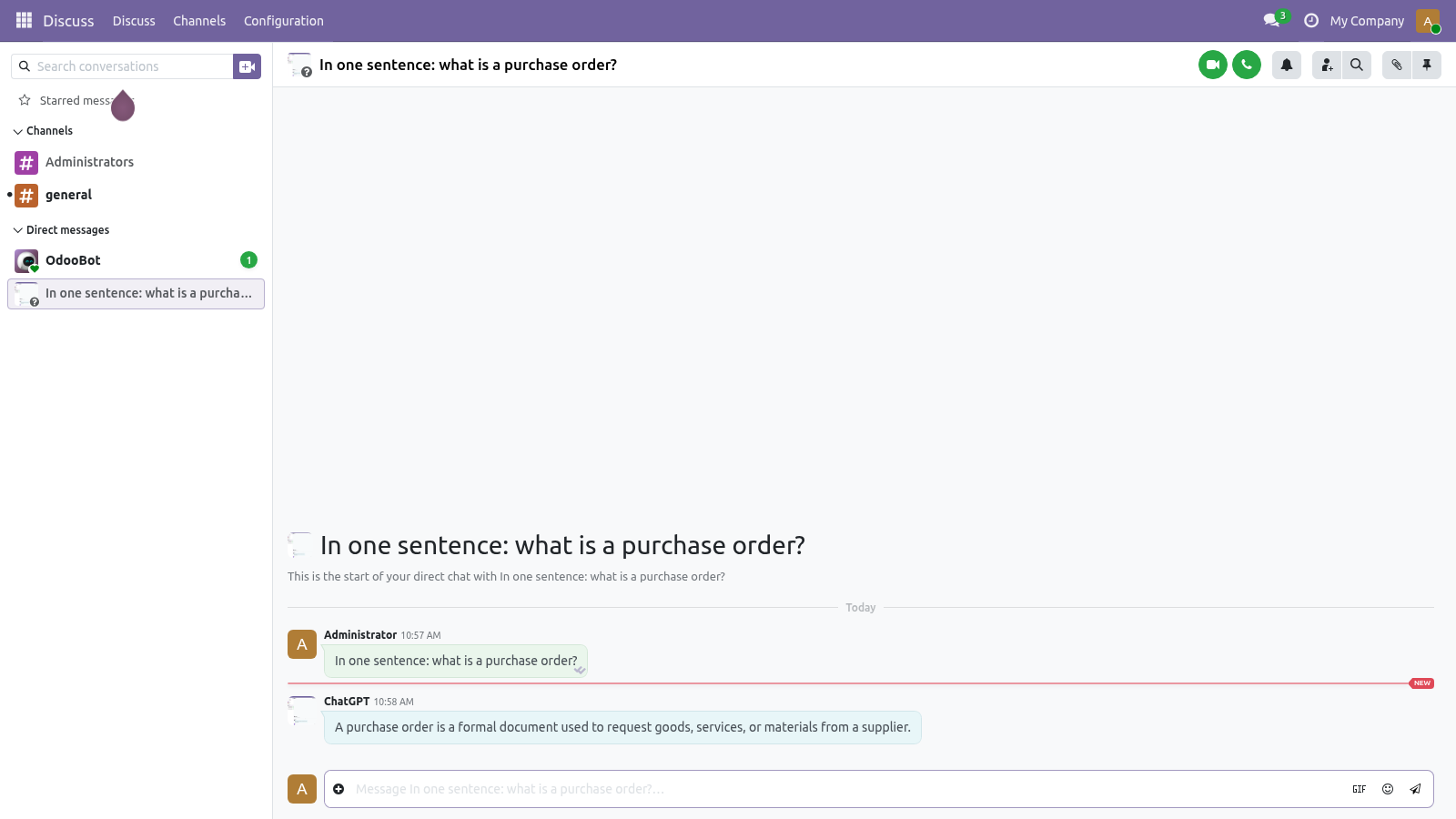
Usage. Once a key and model are saved, any internal user can use the assistant: 2. In the Direct messages search (the + next to Direct messages, or the New message search), type ChatGPT and select the ChatGPT contact. It appears as online.
Customization. This is a deliberately small module. The pieces you can change: There is no per-user API key: the whole database shares the single key entered in Settings, and all OpenAI usage is billed to that one account. Troubleshooting Frequently asked questions.
Do I need my own OpenAI account? Yes. The module talks to OpenAI on your behalf using your API key, and every request is billed to your OpenAI account. The module itself does not include any OpenAI usage.
Where do I put the API key? Settings ▸ General Settings ▸ Integrations ▸ Odoo ChatGPT Integration ▸ OpenAI API Key. Only an administrator can set it; it applies to the whole database. Support & updates.
.. BAMBOOFORGE-DOC-APPENDIX (auto-generated: Upgrade/Uninstall/Changelog + bespoke) Support: support@bambooforge.dev — answered within 24 hours, setup help included. Refund: report a bug within 2 months of purchase; if unresolved within 15 days, full refund. Full source is included.
Updates track the supported Odoo 17 line and the OpenAI API. Upgrading & version compatibility. This build targets Odoo 17.0. Each Odoo major series (17.0, 18.0, 19.0) has its own dedicated build of this module — always install the build that matches your Odoo version.
Mixing a build with a different Odoo series is not supported. Now the part most videos leave out: what this does not do. What is sent to OpenAI: the text of the messages in the current conversation. When you send a message, the whole thread of that conversation is transmitted to OpenAI's chat completion API so it can answer in context.
Nothing else from your Odoo database is sent. Where the key lives: the API key is stored in Odoo's system parameters and is readable only by administrators. Costs are yours: usage is billed to your own OpenAI account at OpenAI's rates for the model you choose. BambooForge does not resell or mark up OpenAI usage.
OpenAI's terms apply: data you send is processed by OpenAI under OpenAI's data and privacy policies. Do not send secrets or regulated data you are not allowed to share with a third-party API. The complete manual is at docs dot bambooforge dot dev, the demo database is linked from the store page, and support answers within twenty-four hours. Links are in the description.

Transcript of the walkthrough (Odoo 16)
ChatGPT for Odoo / AI Assistant in Discuss. ChatGPT inside Odoo Discuss - or a model on your own server with Ollama: a private assistant per employee, with conversation history and as many separate chats as they need. The app connects Odoo Discuss to the OpenAI API so your employees can use ChatGPT inside the tools they already work in. It covers: In the next few minutes: configuration, then step 1 — get an openai api key, then step 2 — enter the key and pick a model in odoo, then step 3 (optional) — run it on your own server with ollama, then usage.
Then what this app deliberately does not do, so you can tell before you buy whether it fits. Configuration. All settings live on one screen: Settings ▸ General Settings ▸ Integrations ▸ Odoo ChatGPT Integration. There is no separate menu — the two fields are added to the standard General Settings page.
Step 1 — Get an OpenAI API key. 1. Sign in at https://platform.openai.com. 2.
Go to API keys (https://platform.openai.com/account/api-keys). The settings screen also has a Generate an OpenAPI API Key link that opens this page. Step 2 — Enter the key and pick a model in Odoo. 1.
Open Settings ▸ General Settings, scroll to the Integrations section, and find Odoo ChatGPT Integration. 2. Paste your key into the OpenAI API Key field. Step 3 (optional) — Run it on your own server with Ollama.
The assistant speaks the OpenAI chat API, and so do Ollama and most local model servers. Pick Ollama / local server as the provider, give the URL (Ollama's default is http://localhost:11434/v1), the model name as the server knows it (ollama pull llama3.1 first), and press Test the connection. From then on the conversation never leaves your network, and the provider-storage switch does not apply - there is no provider. Any other OpenAI-compatible server (vLLM, LM Studio, a hosted gateway) is the third option, with a key if it asks for one.
Usage. Once a key and model are saved, any internal user can use the assistant: 2. In the Direct messages search (the + next to Direct messages, or the New message search), type ChatGPT and select the ChatGPT contact. It appears as online.
Customization. This is a deliberately small module. The pieces you can change: There is no per-user API key: the whole database shares the single key entered in Settings, and all OpenAI usage is billed to that one account. Troubleshooting Frequently asked questions.
Do I need my own OpenAI account? Yes. The module talks to OpenAI on your behalf using your API key, and every request is billed to your OpenAI account. The module itself does not include any OpenAI usage.
Where do I put the API key? Settings ▸ General Settings ▸ Integrations ▸ Odoo ChatGPT Integration ▸ OpenAI API Key. Only an administrator can set it; it applies to the whole database. Support & updates.
.. BAMBOOFORGE-DOC-APPENDIX (auto-generated: Upgrade/Uninstall/Changelog + bespoke) Support: support@bambooforge.dev — answered within 24 hours, setup help included. Refund: report a bug within 2 months of purchase; if unresolved within 15 days, full refund. Full source is included.
Updates track the supported Odoo 17 line and the OpenAI API. Upgrading & version compatibility. This build targets Odoo 17.0. Each Odoo major series (17.0, 18.0, 19.0) has its own dedicated build of this module — always install the build that matches your Odoo version.
Mixing a build with a different Odoo series is not supported. Now the part most videos leave out: what this does not do. What is sent to OpenAI: the text of the messages in the current conversation. When you send a message, the whole thread of that conversation is transmitted to OpenAI's chat completion API so it can answer in context.
Nothing else from your Odoo database is sent. Where the key lives: the API key is stored in Odoo's system parameters and is readable only by administrators. Costs are yours: usage is billed to your own OpenAI account at OpenAI's rates for the model you choose. BambooForge does not resell or mark up OpenAI usage.
OpenAI's terms apply: data you send is processed by OpenAI under OpenAI's data and privacy policies. Do not send secrets or regulated data you are not allowed to share with a third-party API. The complete manual is at docs dot bambooforge dot dev, the demo database is linked from the store page, and support answers within twenty-four hours. Links are in the description.

Key facts
- What it is
- ChatGPT inside Odoo Discuss - or a model on your own server with Ollama: a private assistant per employee, with conversation history and as many separate chats as they need.
- For
- Discuss
- Odoo versions
- 16.0, 17.0, 18.0, 19.0, 20.0 - Community and Enterprise
- Runs on
- Odoo.sh or Odoo you host yourself - not Odoo Online, which accepts no third-party apps
- Price
- 69 EUR, one-time, on the Odoo Apps Store
- Technical name
- bambooforge_ai_assistant
- Run for real
- Tested for real against Ollama 0.33.3 (model qwen2.5:0.5b): the Settings button reported the model's answer, and a question typed in Discuss came back answered by the local model, with both requests visible in the Ollama log and none leaving the network.
- Not for
- What is sent to OpenAI: the text of the messages in the current conversation. When you send a message, the whole thread of that conversation is transmitted to OpenAI's chat completion API so it can answer in context. Nothing else from your Odoo database is sent.; Where the key lives: the API key is stored in Odoo's system parameters and is readable only by administrators.; Costs are yours: usage is billed to your own OpenAI account at OpenAI's rates for the model you choose. BambooForge does not resell or mark up OpenAI usage.; OpenAI's terms apply: data you send is processed by OpenAI under OpenAI's data and privacy policies. Do not send secrets or regulated data you are not allowed to share with a third-party API.; Out of scope: the assistant does not query Odoo records, does not perform Odoo actions, has no per-user keys, and provides one shared model selection for the whole database.
- Manual last updated
- 2026-10-15
ChatGPT for Odoo | AI Assistant in Discuss
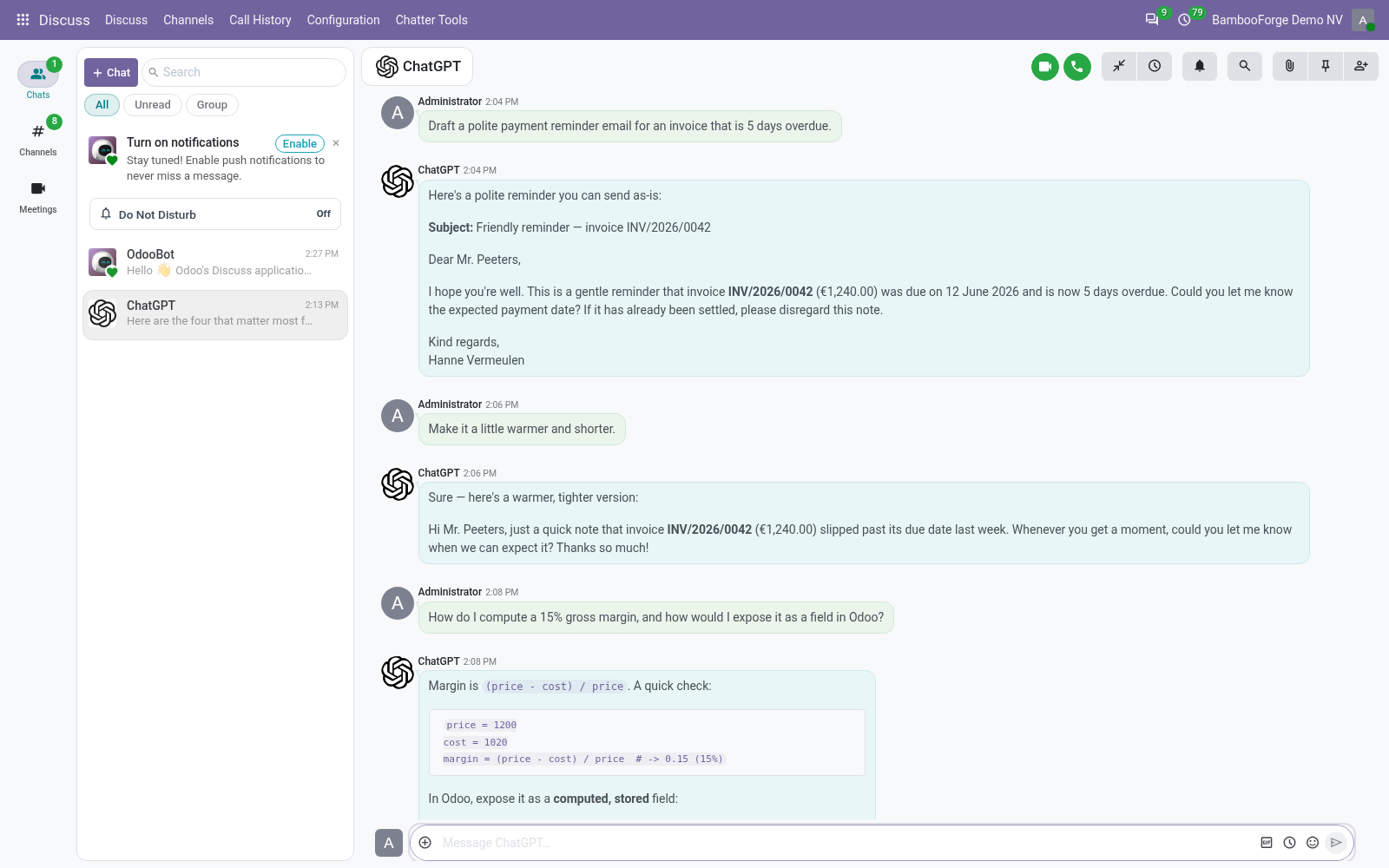
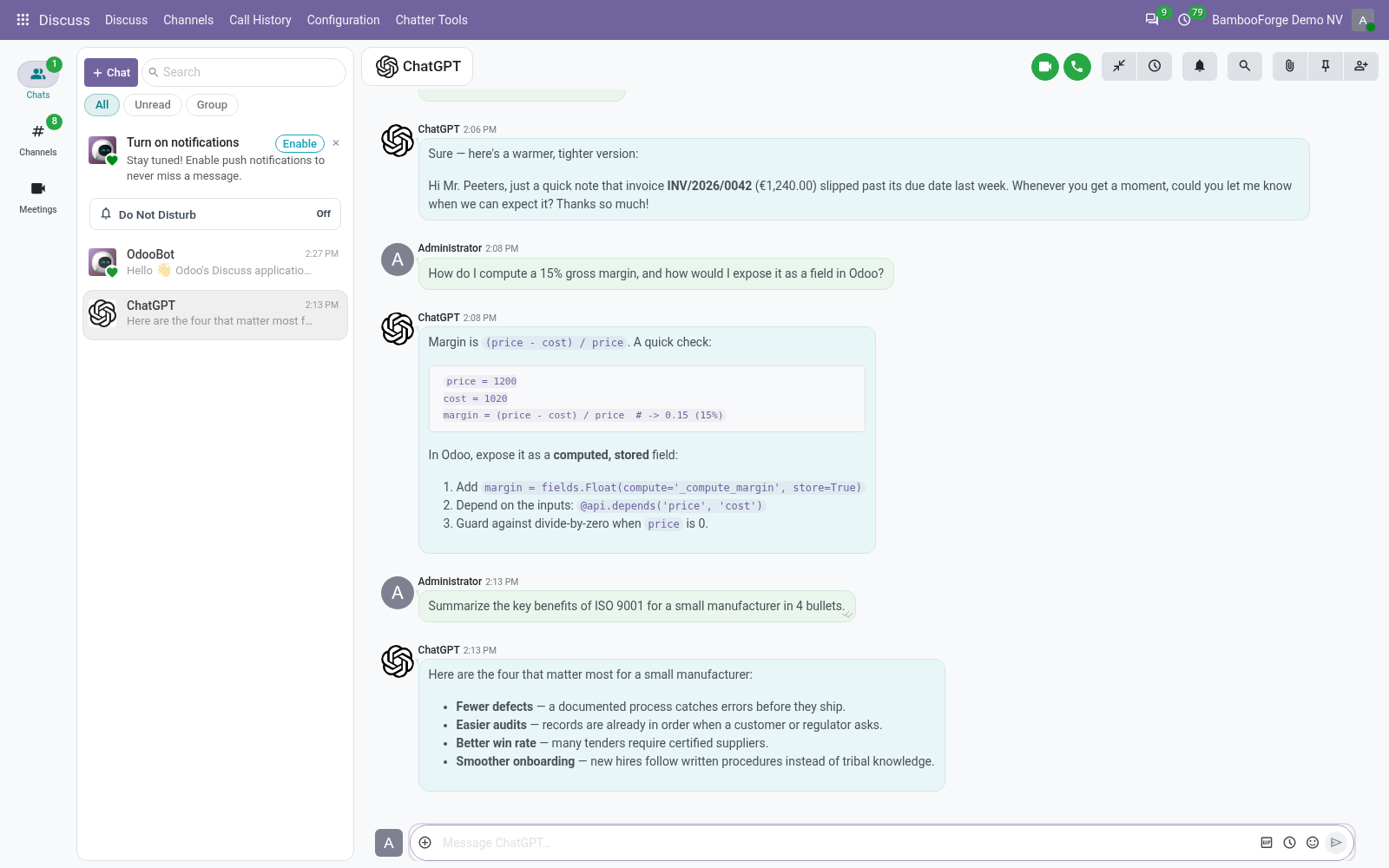
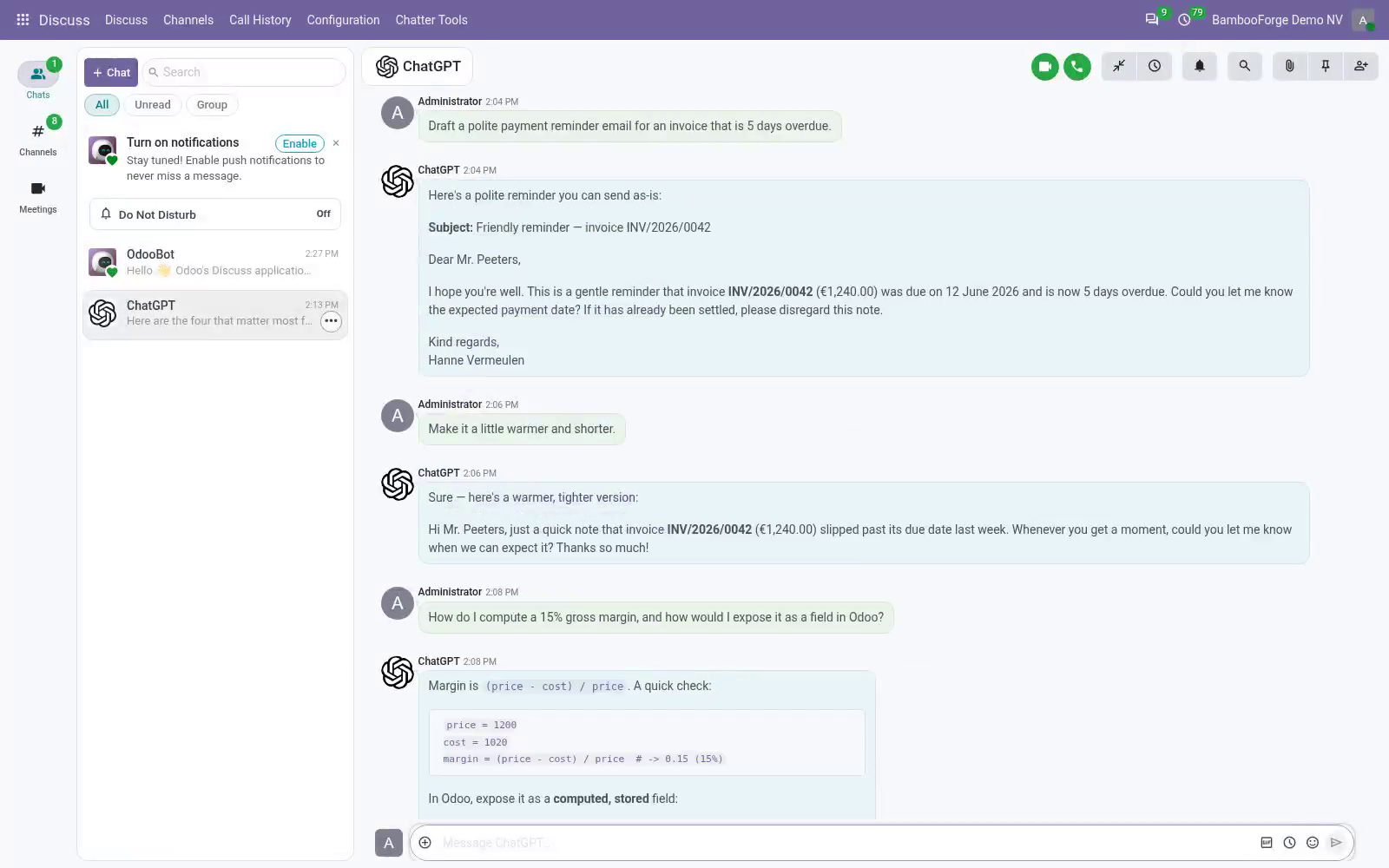
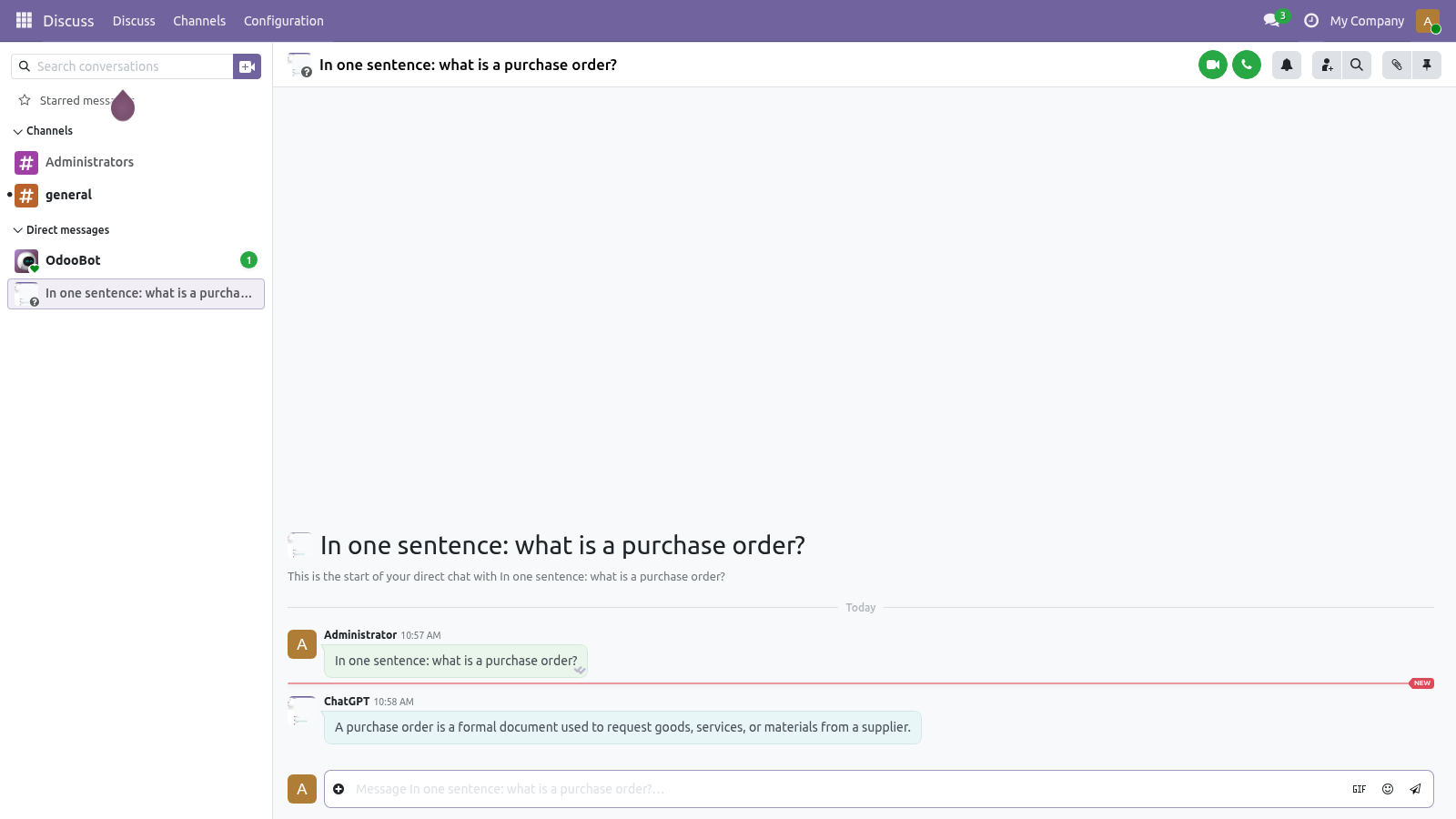
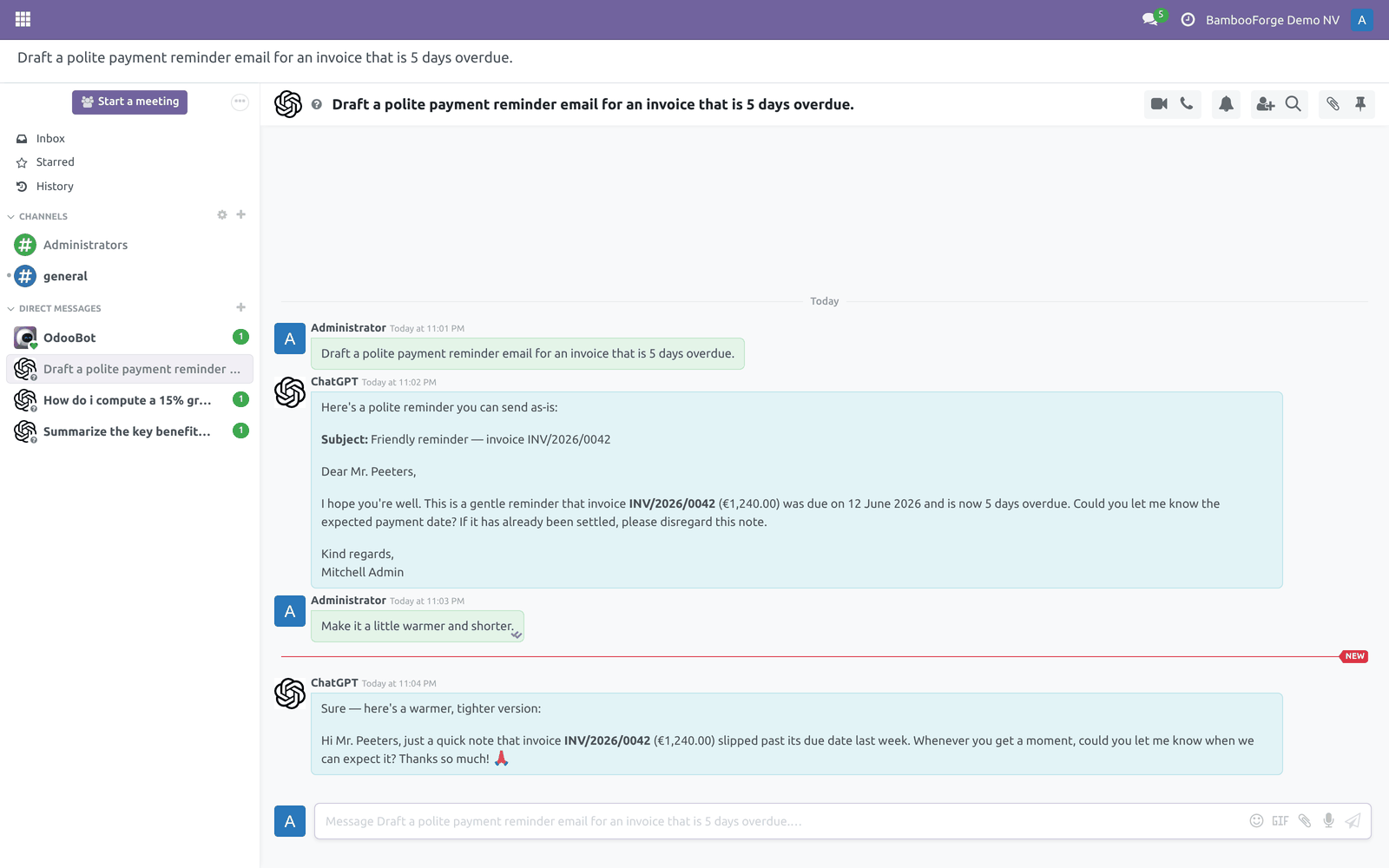
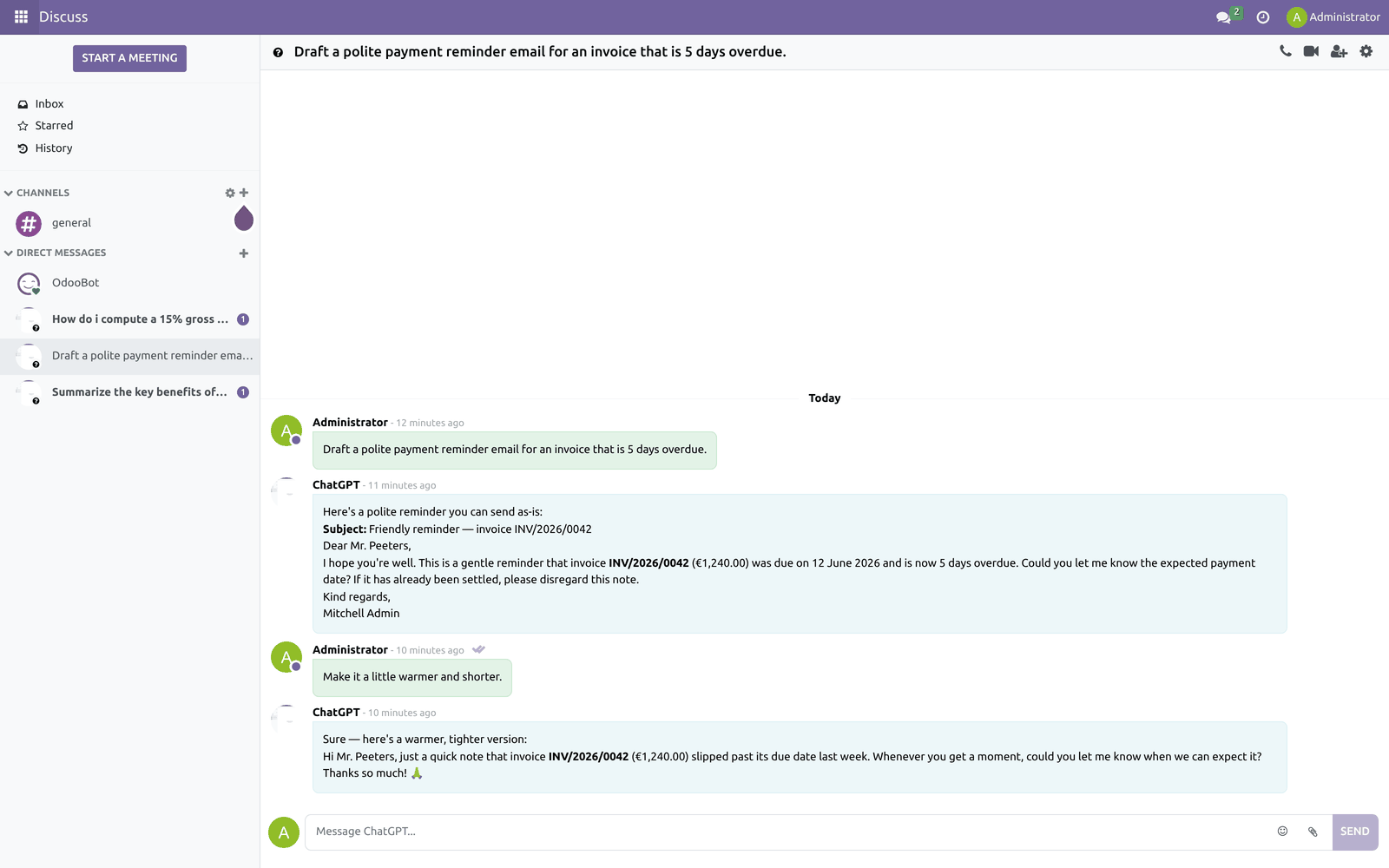
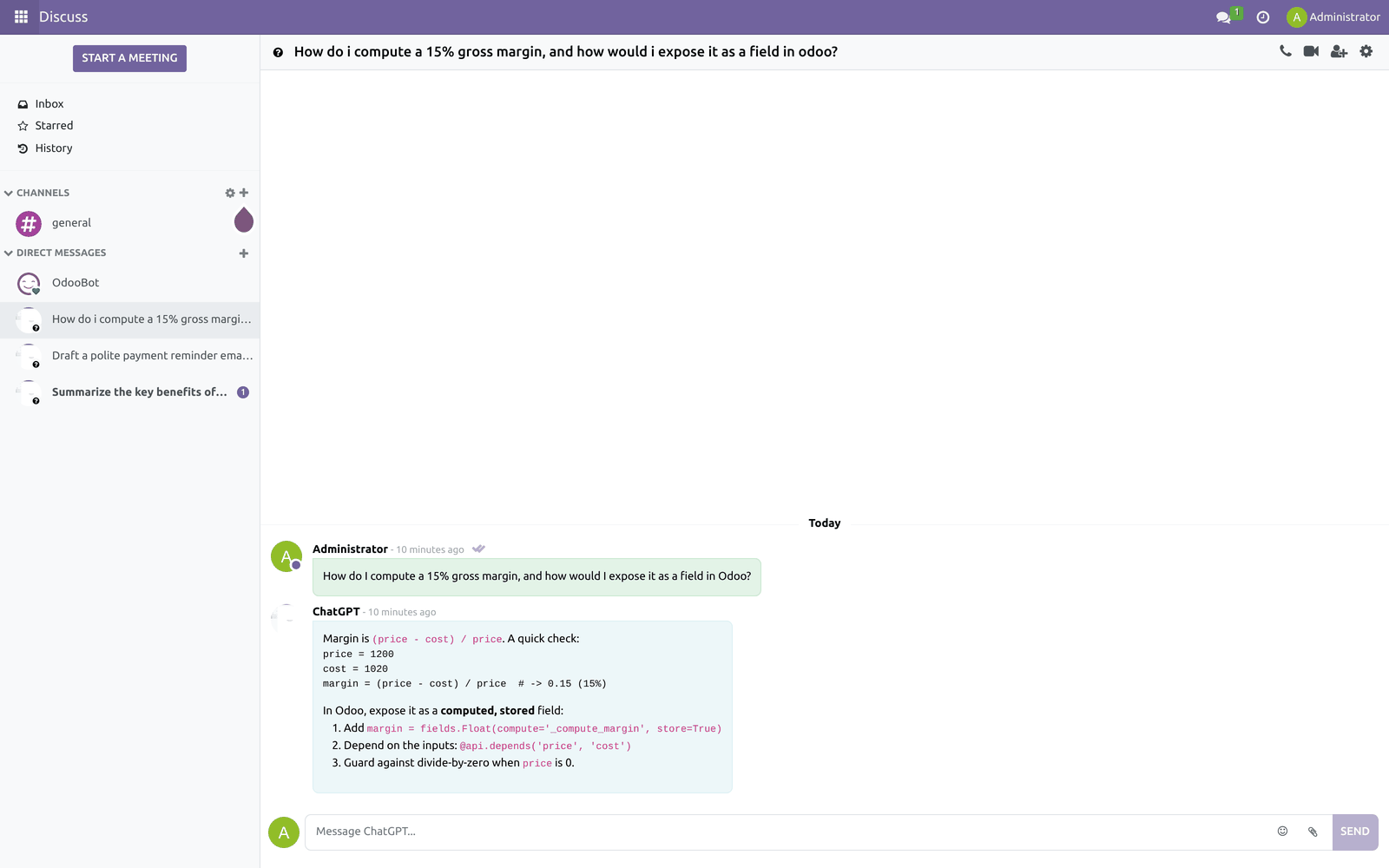
Chat with ChatGPT without leaving Odoo. This module adds a ChatGPT contact to your Discuss app: open a conversation, type a question, and the answer comes back as a normal Discuss message. Each chat keeps its own history, and you can run several separate conversations at once — just like talking to a colleague.
This page is the complete manual. If you follow it top to bottom you can install, configure, use, and fix the common issues without contacting support.
Overview
The app connects Odoo Discuss to the OpenAI API so your employees can use ChatGPT inside the tools they already work in. It covers:
A ChatGPT contact in Discuss — search for ChatGPT in Discuss and start a direct message with it, the same way you message a coworker. It always shows as online.
Real answers from OpenAI — each message you send is forwarded to OpenAI's chat completion API and the reply is posted back into the conversation.
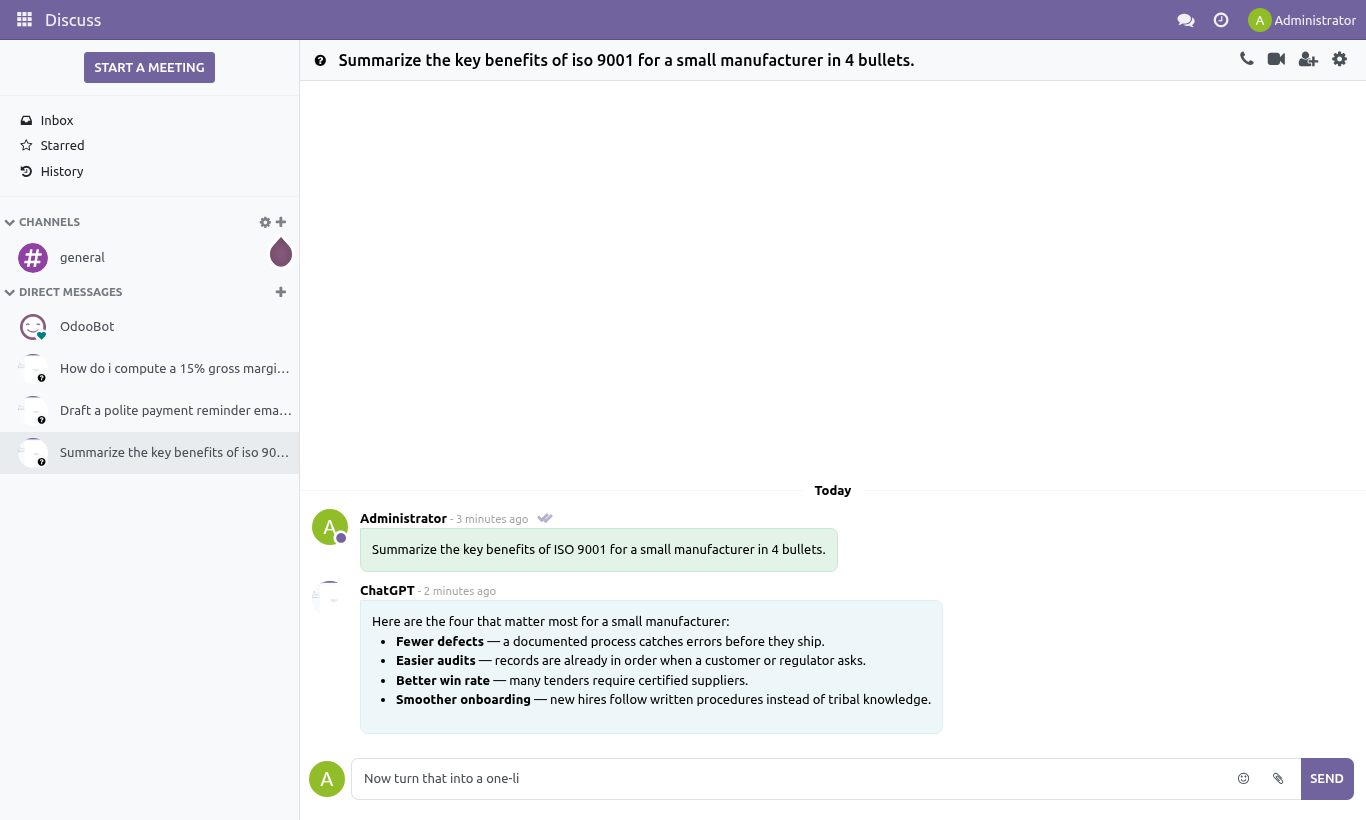
Conversation memory — the whole thread is sent with every new message, so ChatGPT remembers the earlier turns of that conversation.
Multiple separate chats — start as many ChatGPT conversations as you like; each is named automatically after its first message and kept in your Discuss history.
What it is not: it does not read your Odoo business records, does not run actions in Odoo, and is not an "agent". It is a chat window to ChatGPT, wired into Discuss.
Requirements
Odoo: 20.0, Community or Enterprise.
OpenAI account: an OpenAI API key from https://platform.openai.com with available credit or billing enabled. The cost of every request is charged to your OpenAI account (see Data, privacy & limits).
Python libraries: openai and markdown must be installed in the same environment as Odoo (pip install openai markdown). Odoo will refuse to install the module until both are present.
Network: outbound HTTPS from the Odoo server to api.openai.com.
Odoo access: any internal user can chat with the ChatGPT contact in Discuss. Only a Settings / Administration user can enter the OpenAI API key and pick the model.
Installation
Install the Python dependencies on the Odoo server:
pip install openai markdown
Copy bambooforge_ai_assistant into your Odoo addons path.
Restart the Odoo service.
Open Apps, click Update Apps List, search for ChatGPT (or BambooForge AI Assistant), and press Activate / Install. The base dependencies (General Settings / base_setup and Discuss / mail) install automatically.
Installing the module also creates a hidden internal account named ChatGPT. This is the "author" of the assistant's replies in Discuss; it is inactive and is not a person you pay for.
Configuration
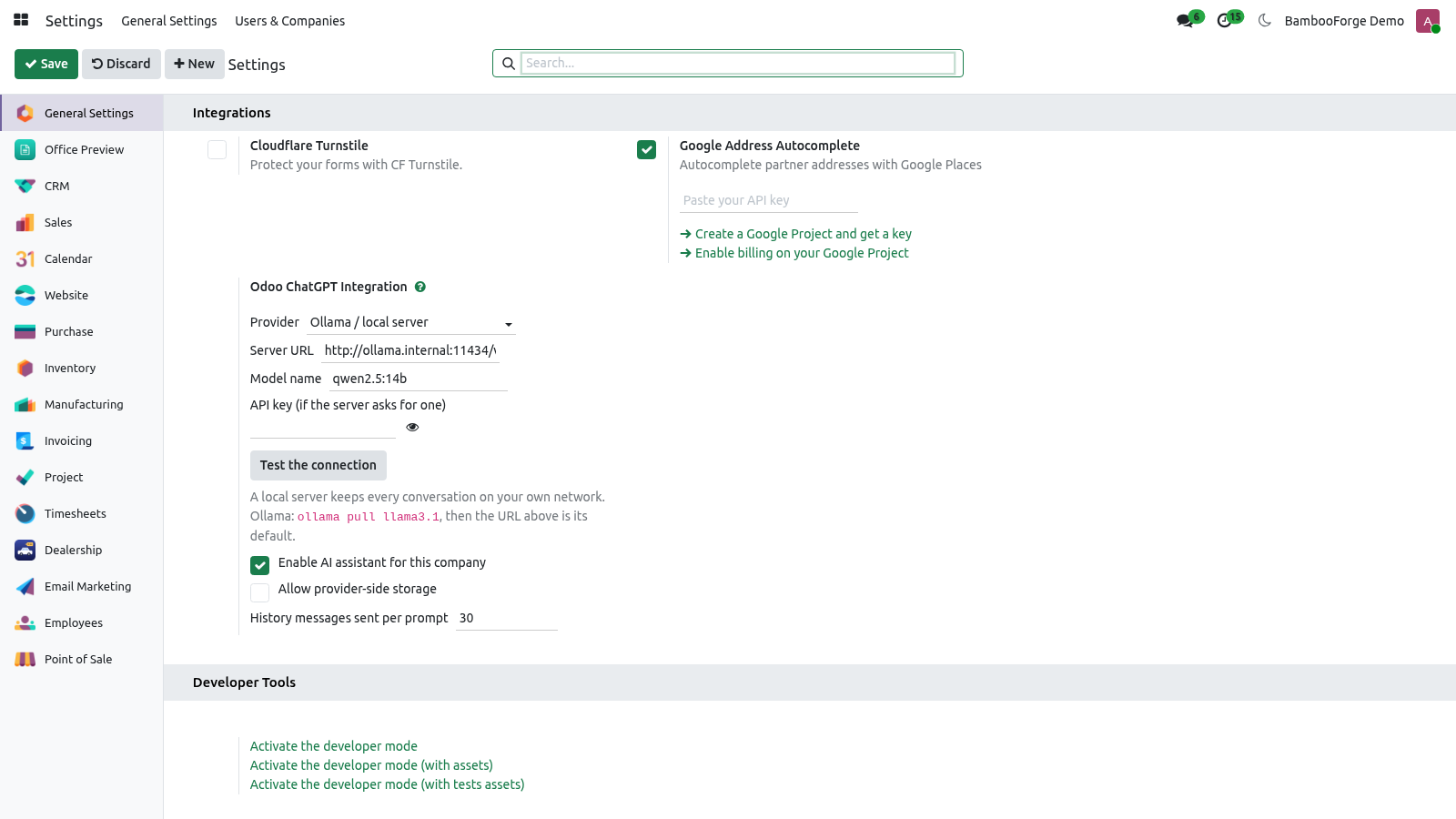
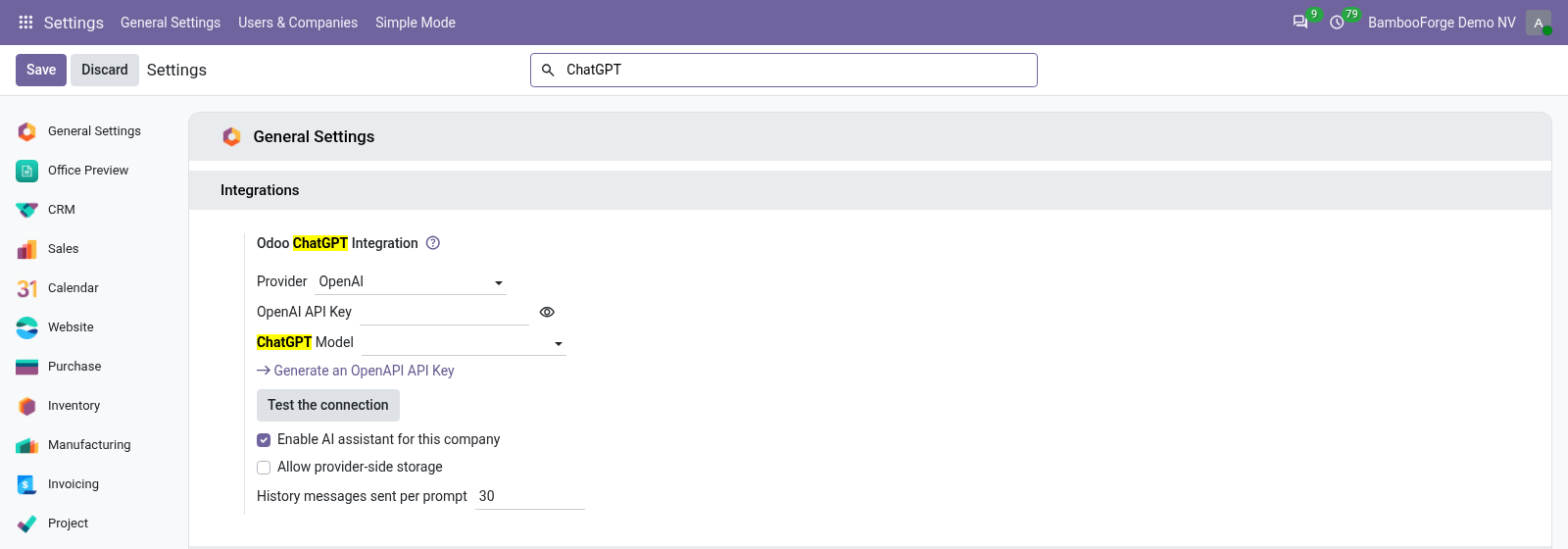
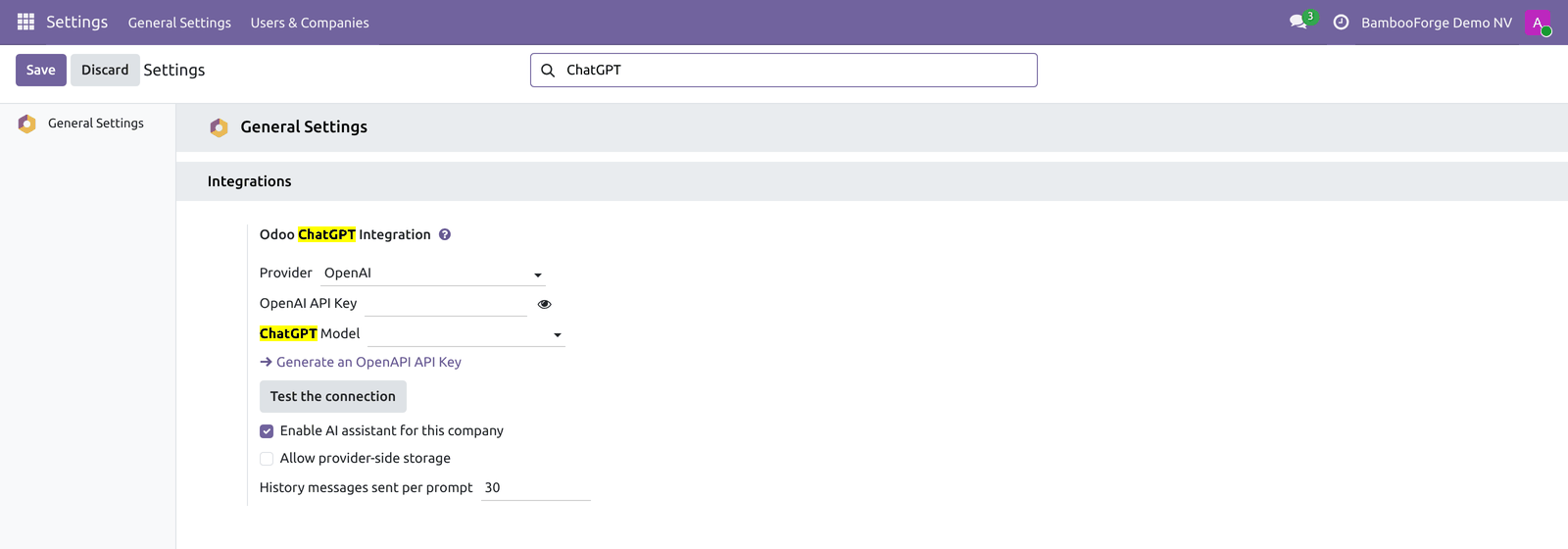
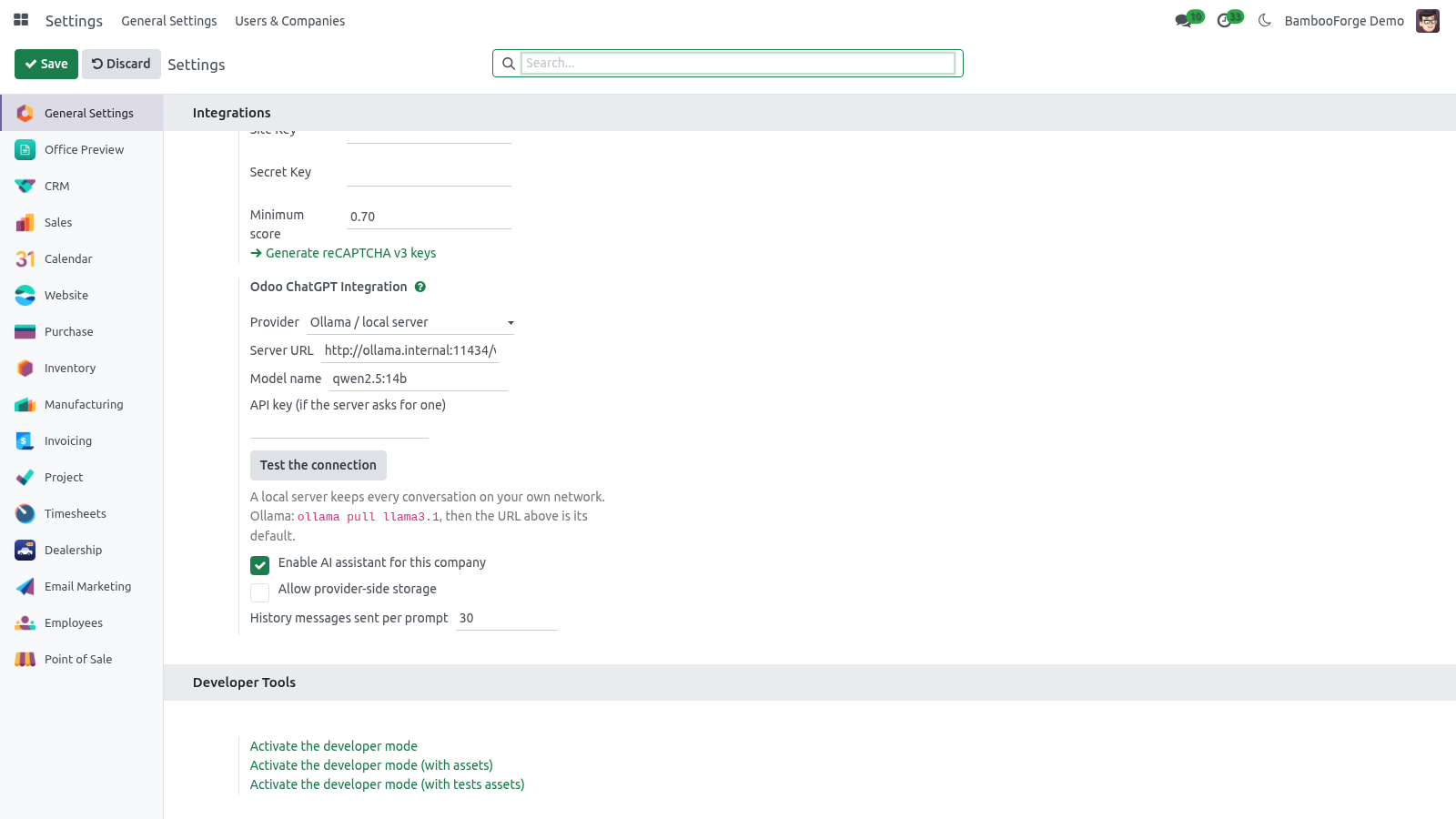
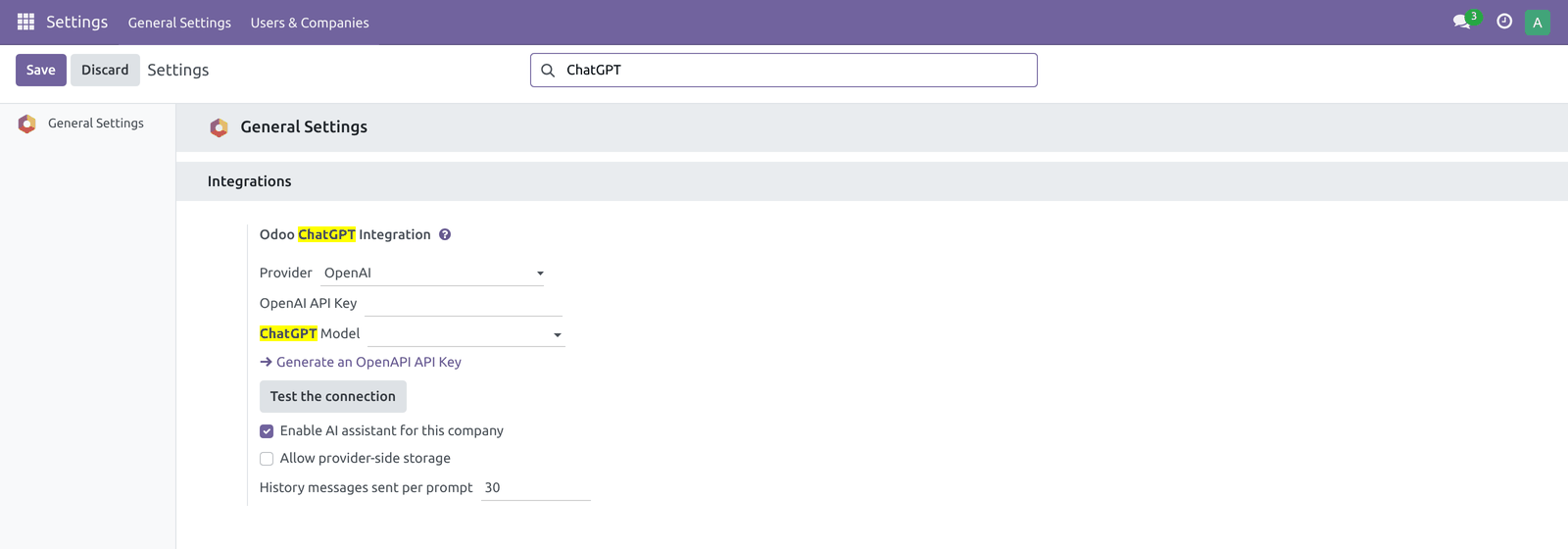
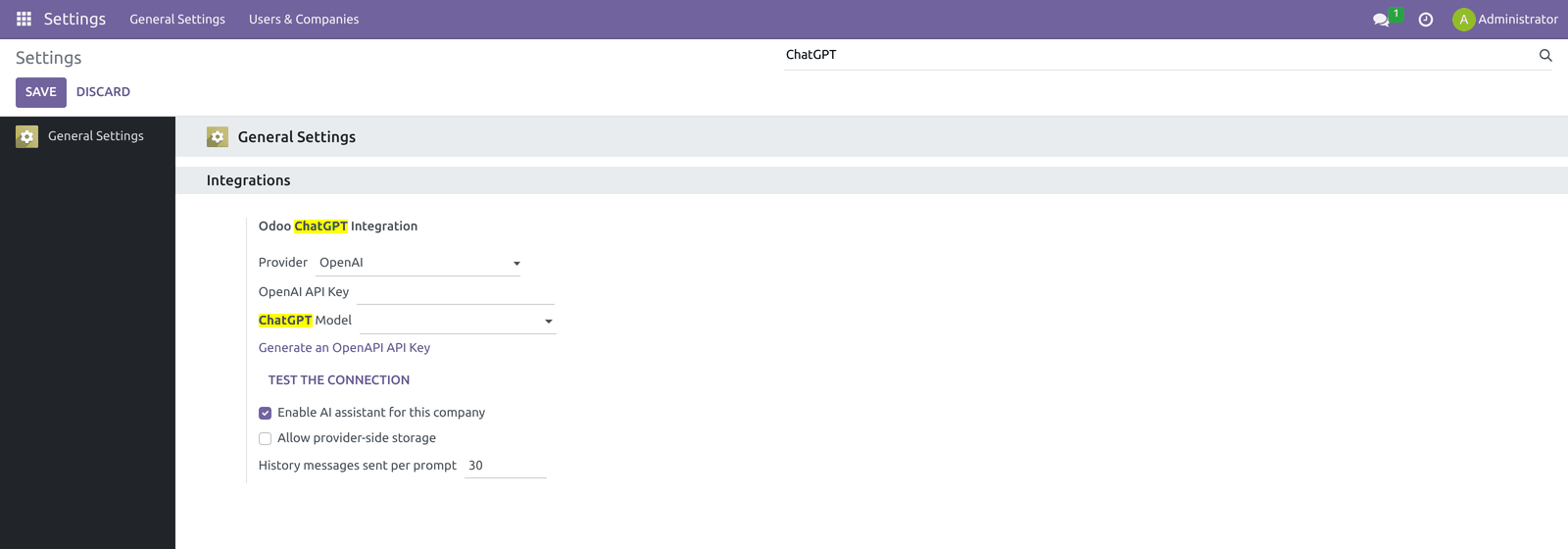
All settings live on one screen: Settings ▸ General Settings ▸ Integrations ▸ Odoo ChatGPT Integration. There is no separate menu — the two fields are added to the standard General Settings page.
Step 1 — Get an OpenAI API key
Sign in at https://platform.openai.com.
Go to API keys (https://platform.openai.com/account/api-keys). The settings screen also has a Generate an OpenAPI API Key link that opens this page.
Click Create new secret key, copy the value (it starts with sk-) — it is shown only once.
Make sure your OpenAI account has billing set up or available credit, otherwise requests will fail with a quota error (see Troubleshooting).
Step 2 — Enter the key and pick a model in Odoo
Open Settings ▸ General Settings, scroll to the Integrations section, and find Odoo ChatGPT Integration.
Paste your key into the OpenAI API Key field.
As soon as you enter a valid key, the app contacts OpenAI, validates the key, and fills the ChatGPT Model dropdown with the models your account can use. It also pre-selects a sensible default if available (it tries chatgpt-4o-latest, then gpt-4o, gpt-4o-mini, then gpt-3.5-turbo).
Pick the model you want from ChatGPT Model. Pricing and capability differ per model — see OpenAI's pricing page.
Click Save.
Field |
What it does |
|---|---|
OpenAI API Key |
The sk-… secret key used for every request. Stored as the system parameter bambooforge_ai_assistant.openapi_api_key. There is one key for the whole database (system-wide, not per user). |
ChatGPT Model |
The OpenAI model used to answer. The list is refreshed from your account when you enter the key. Stored as bambooforge_ai_assistant.chatgp_model_id. If no model is chosen, the app falls back to gpt-3.5-turbo. |
If the key is wrong, Odoo shows the warning "The OpenAI API Key is not valid" and does not fill the model list. Re-check the key and try again.
Step 3 (optional) — Run it on your own server with Ollama
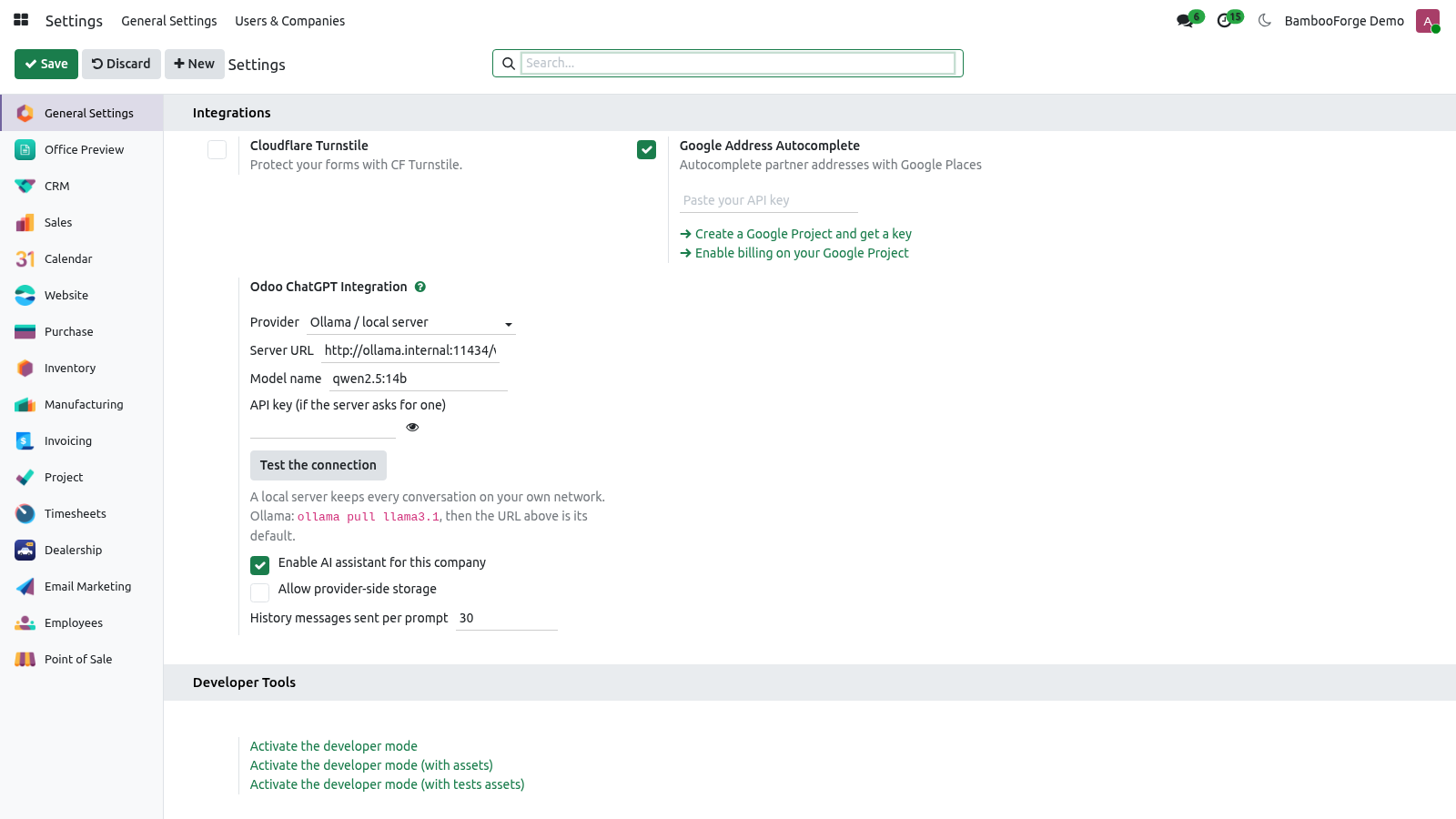
The assistant speaks the OpenAI chat API, and so do Ollama and most local model servers. Pick Ollama / local server as the provider, give the URL (Ollama's default is http://localhost:11434/v1), the model name as the server knows it (ollama pull llama3.1 first), and press Test the connection. From then on the conversation never leaves your network, and the provider-storage switch does not apply - there is no provider.
Any other OpenAI-compatible server (vLLM, LM Studio, a hosted gateway) is the third option, with a key if it asks for one.
Tested for real against Ollama 0.33.3 (model qwen2.5:0.5b): the Settings button reported the model's answer, and a question typed in Discuss came back answered by the local model, with both requests visible in the Ollama log and none leaving the network.
Usage
Once a key and model are saved, any internal user can use the assistant:
Open the Discuss app.
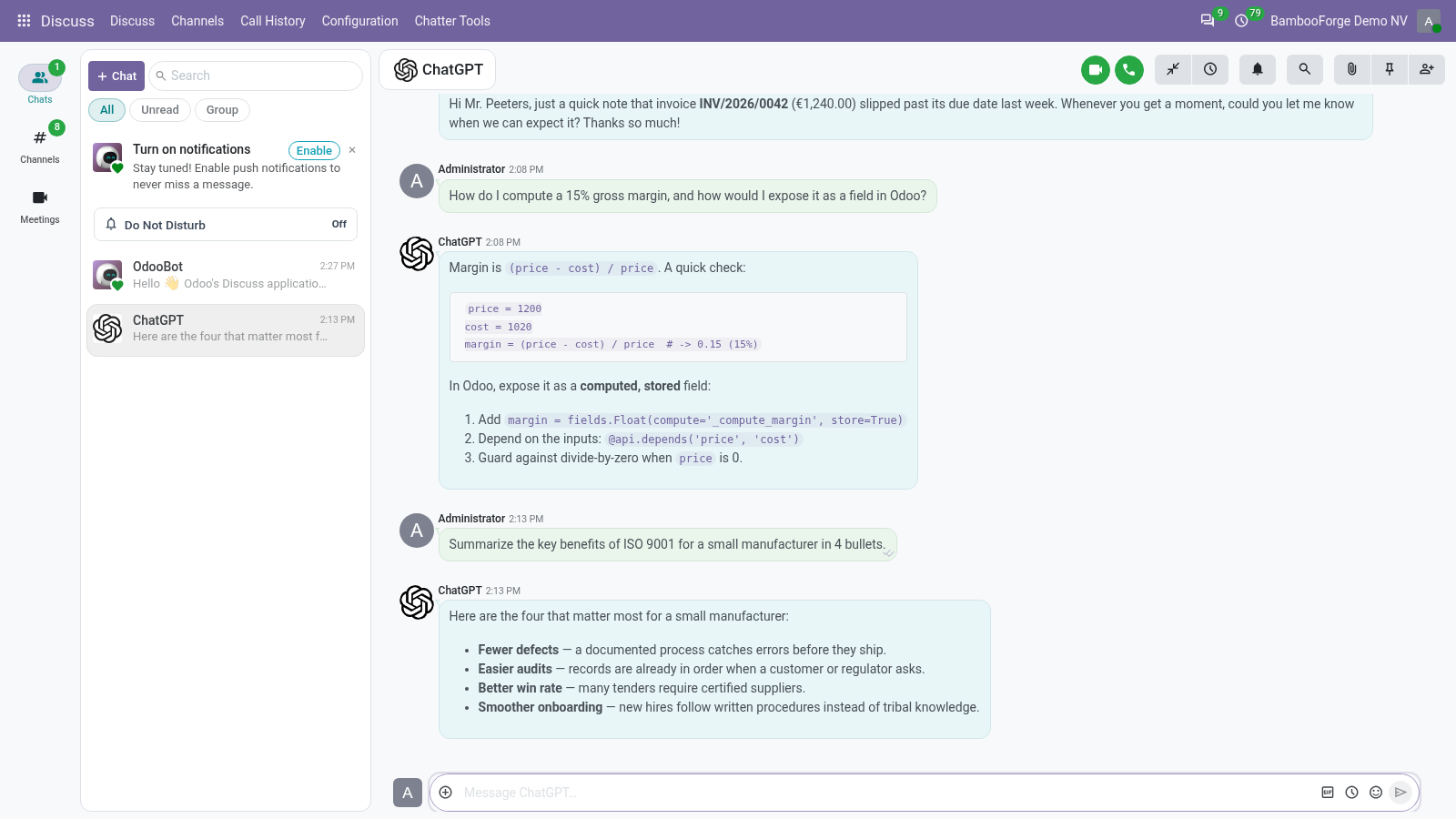
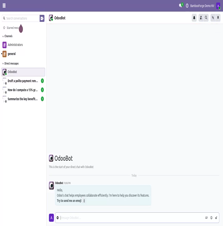
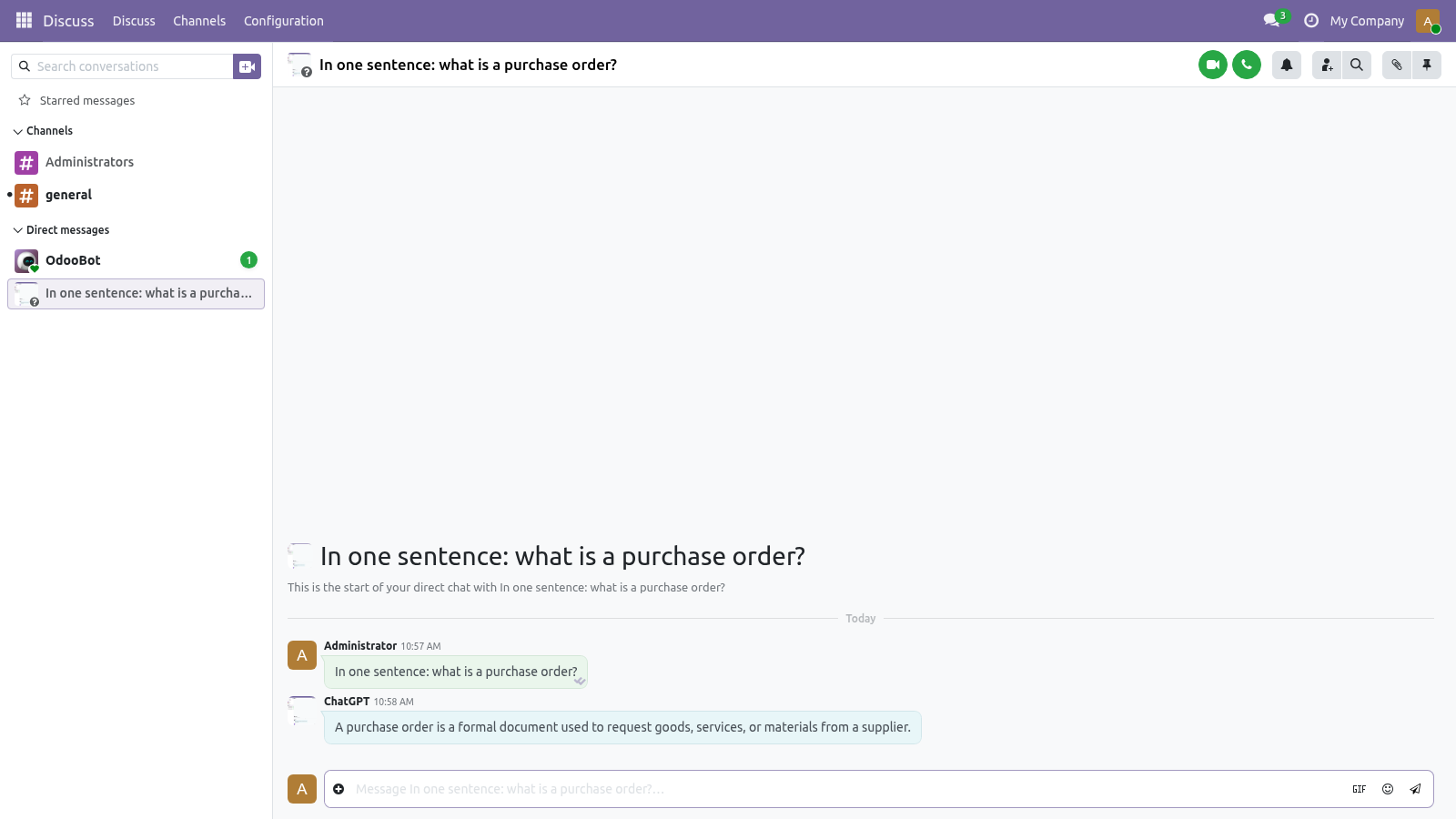
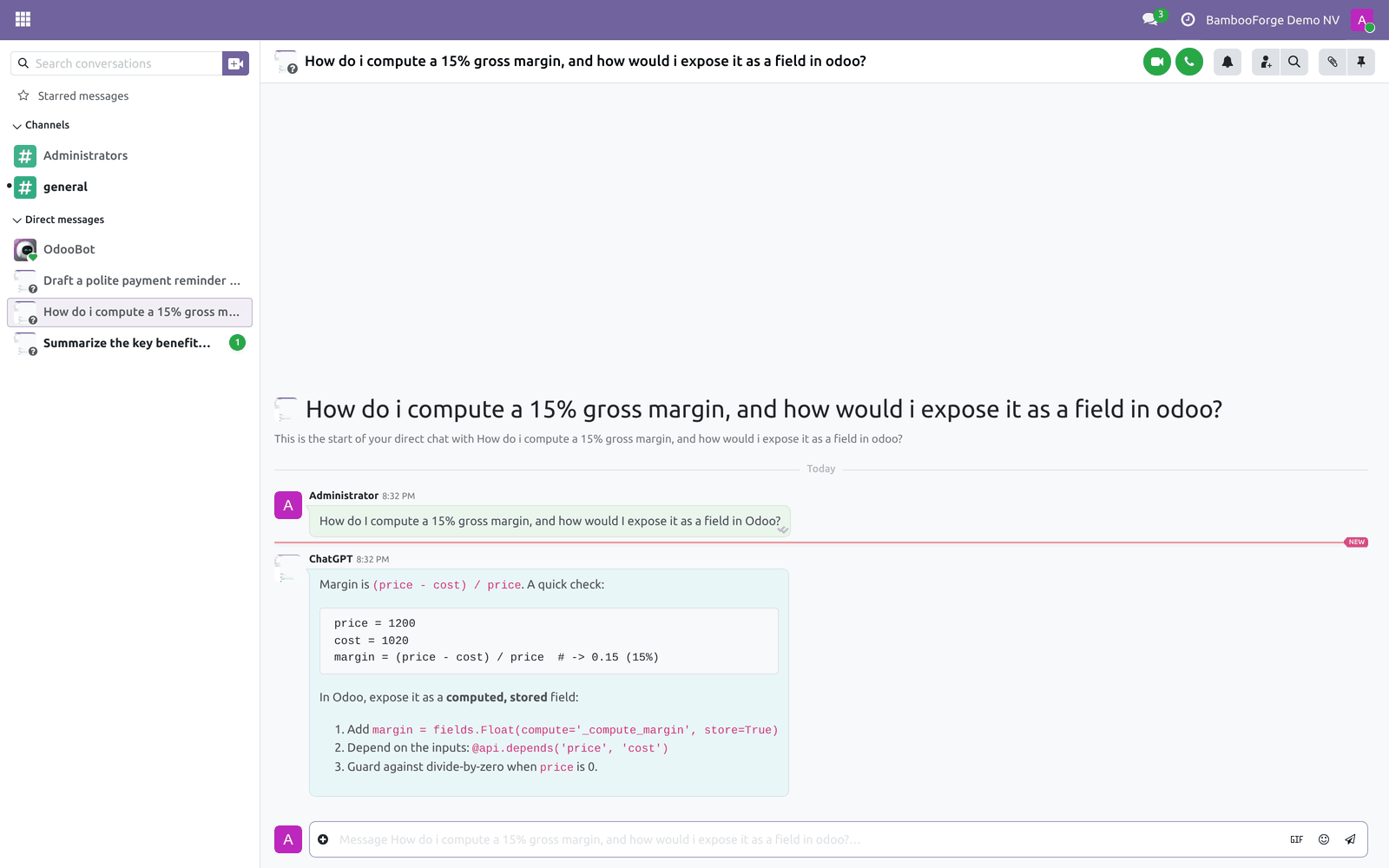
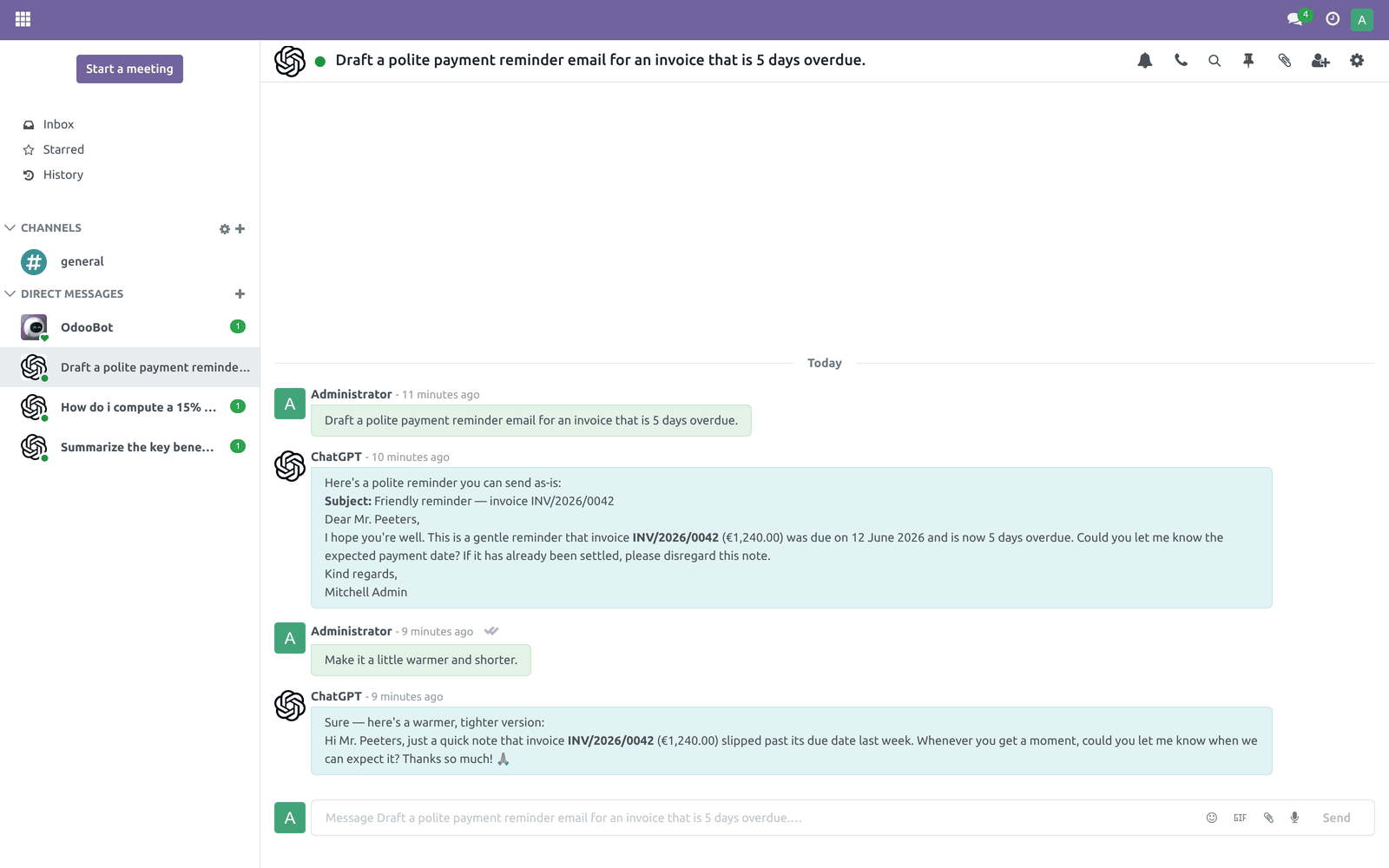
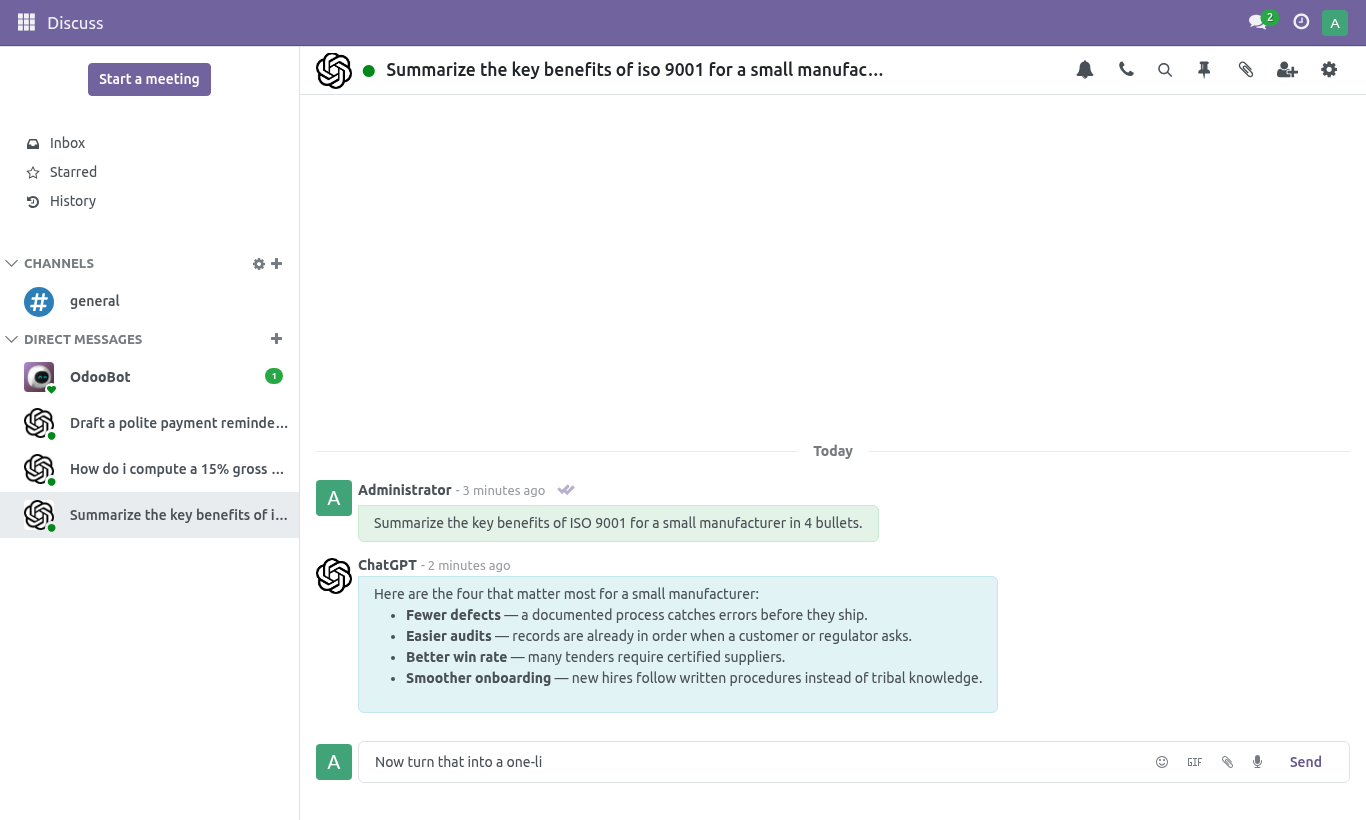
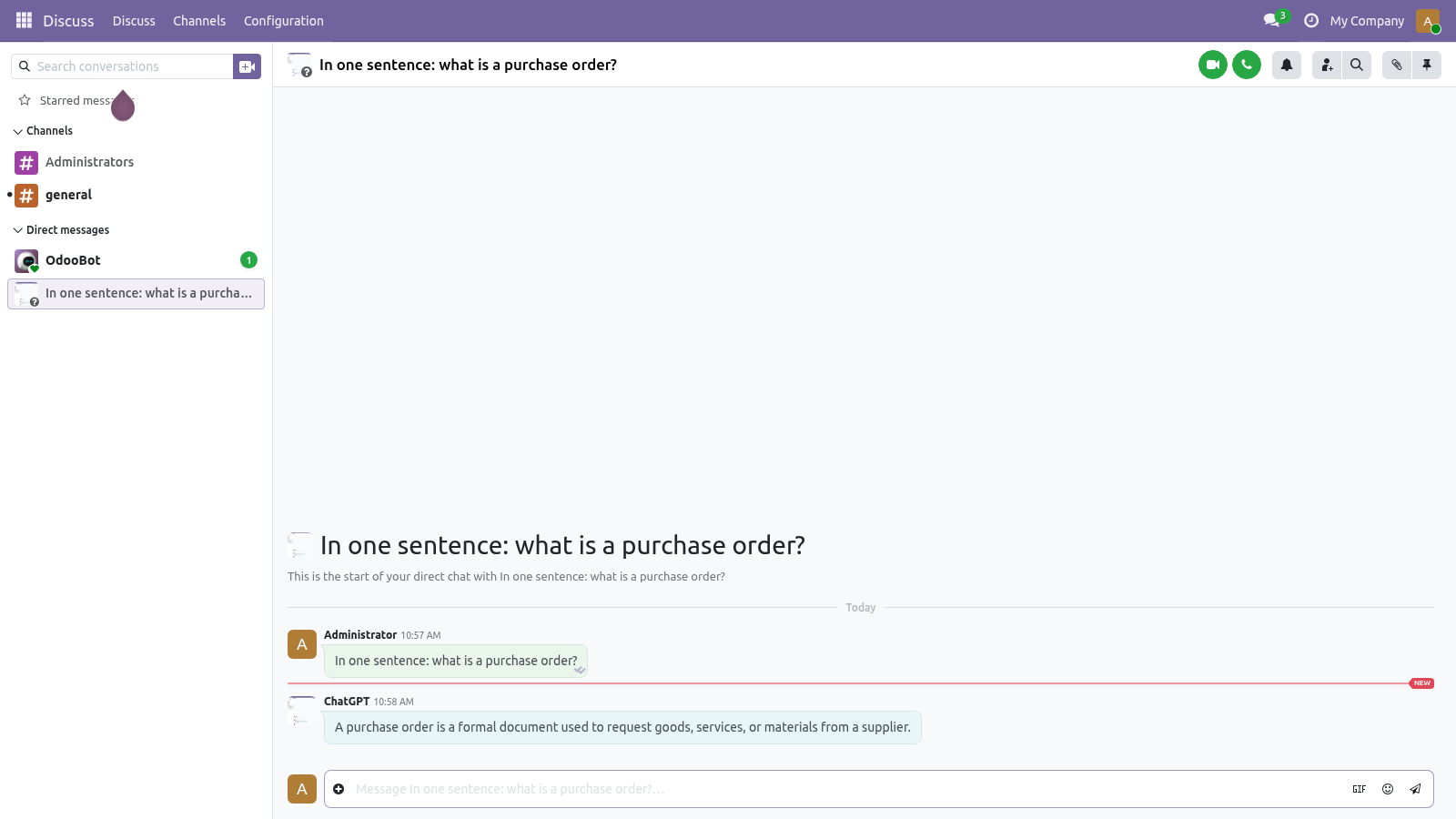
In the Direct messages search (the + next to Direct messages, or the New message search), type ChatGPT and select the ChatGPT contact. It appears as online.
A conversation opens. Type your question and send it like any Discuss message.
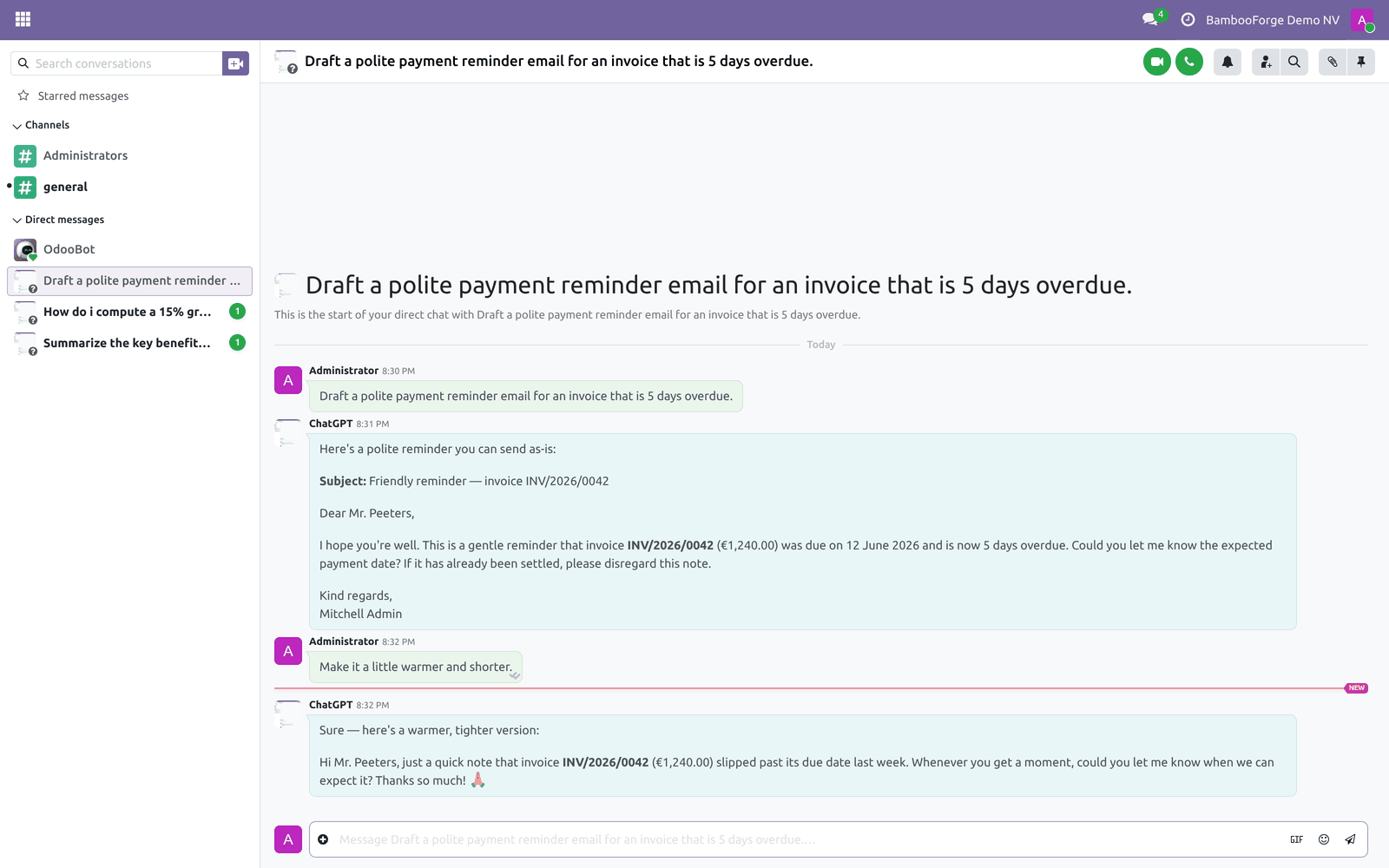
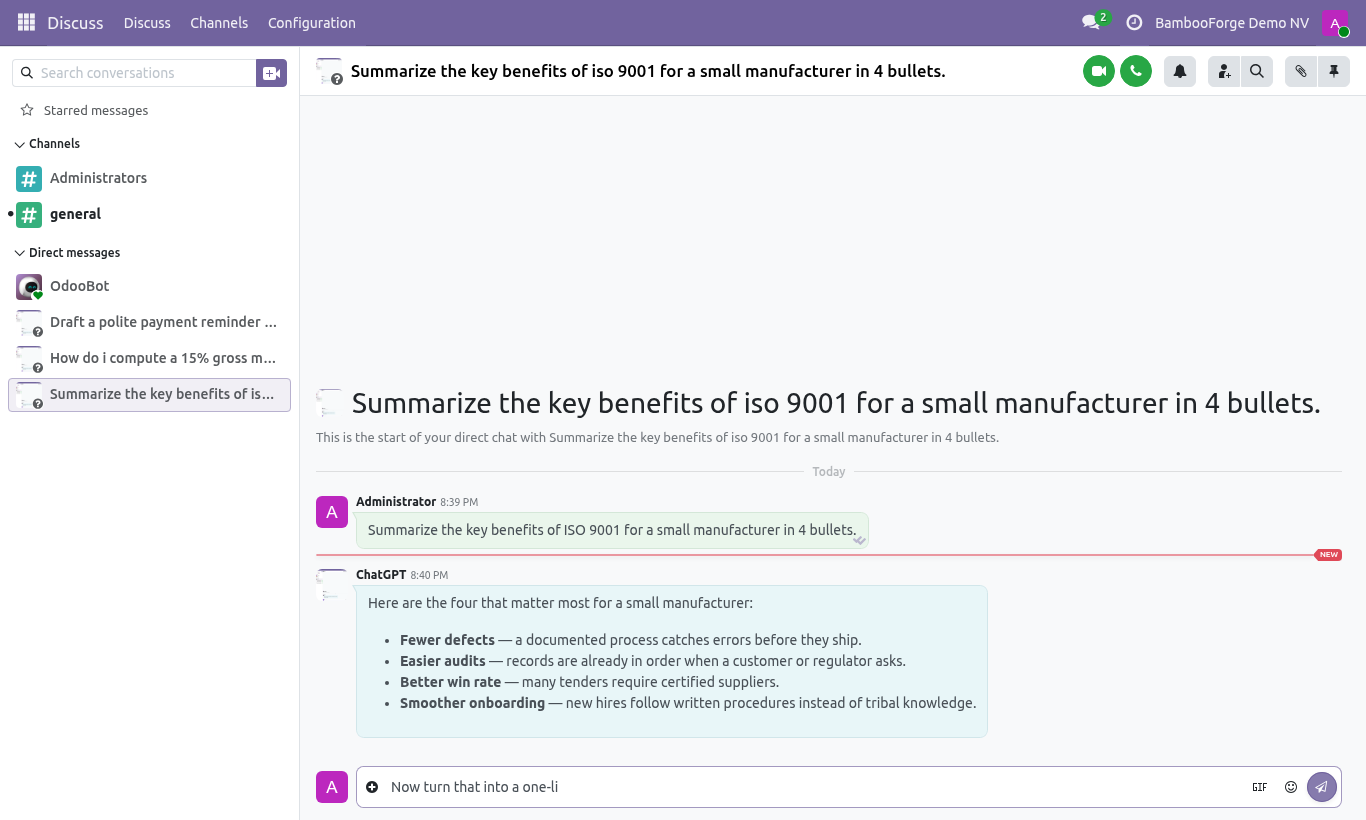
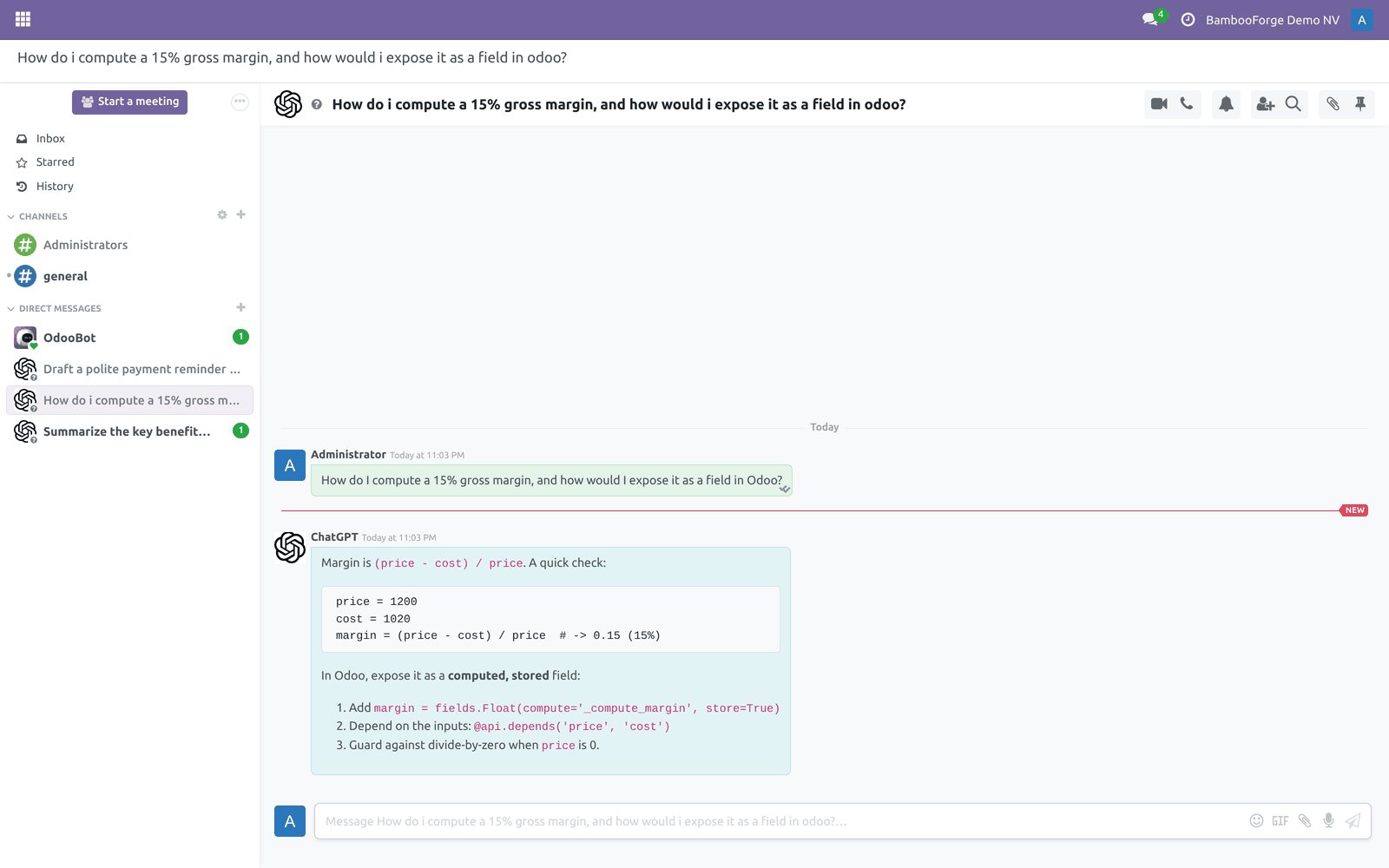
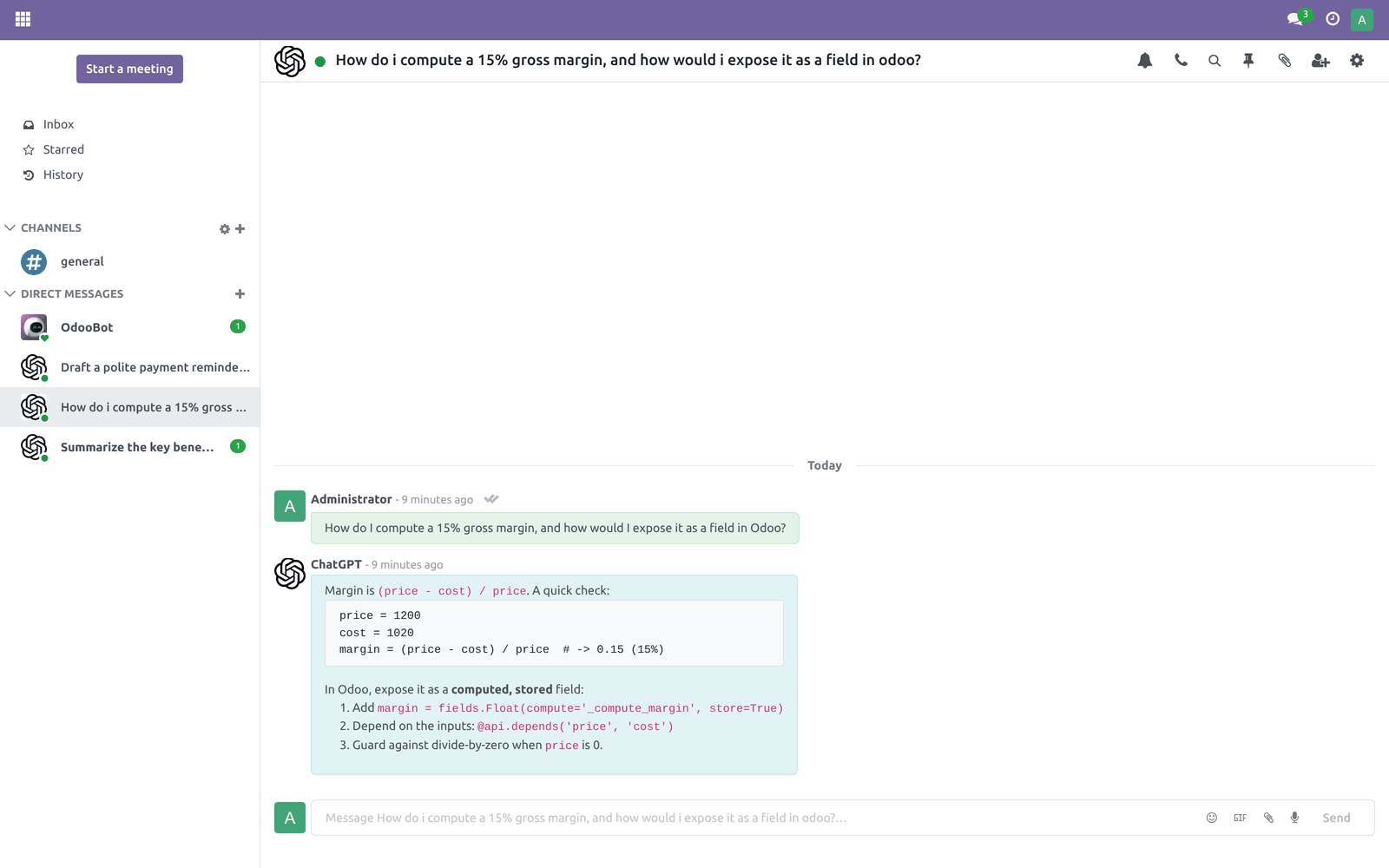
The reply from ChatGPT is posted back into the same conversation, formatted from Markdown (lists, code blocks and bold text render properly).
Multiple conversations. Start a new chat with the ChatGPT contact whenever you want a fresh, separate thread. Each conversation is named automatically after its first message, so you can tell them apart in your Discuss sidebar.
History & context. Every message in a conversation is kept in Discuss. When you send a new message, the entire current conversation is sent to OpenAI so the assistant answers with the earlier turns in mind. Different conversations do not share context with each other.
Deleting a conversation. Unpinning (closing) a ChatGPT conversation removes it — the chat and its history are deleted from your Discuss. Start a new chat to begin again.
Customization
This is a deliberately small module. The pieces you can change:
Item |
Where / how |
|---|---|
API key |
Settings ▸ General Settings ▸ Integrations ▸ Odoo ChatGPT Integration. One key per database, set by an administrator. |
Model |
Same screen, ChatGPT Model. Switch models any time; the change applies to the next message in every conversation. |
Available models |
The model list (model chatgpt.model) is rebuilt from OpenAI each time you enter the API key. Internal users can read it but not edit it. |
Who can chat |
Any internal user (group Internal User). The assistant is a Discuss contact, so Discuss access is all that is required. |
There is no per-user API key: the whole database shares the single key entered in Settings, and all OpenAI usage is billed to that one account.
Troubleshooting
Symptom |
Cause and fix |
|---|---|
"The OpenAI API Key is not valid" when saving Settings |
The key is wrong, revoked, or copied with extra spaces. Re-copy it from https://platform.openai.com/account/api-keys and paste it again. |
The model list stays empty after entering the key |
The key could not reach OpenAI (invalid key or the server cannot make outbound HTTPS calls to api.openai.com). Verify the key, then check the server's network and firewall. |
I send a message but get no reply |
No model is selected, the key is blank/invalid, or OpenAI returned an error. Open Settings ▸ General Settings and confirm both OpenAI API Key and ChatGPT Model are set. If they are, the error text from OpenAI is usually posted back into the conversation — read it for the exact cause. |
Reply says "insufficient quota" / billing error |
Your OpenAI account has no credit or no active billing. Add a payment method or credit at https://platform.openai.com — costs are charged to your OpenAI account, not to BambooForge. |
Reply says "rate limit" / 429 |
You are sending requests faster than your OpenAI plan allows, or the model is momentarily overloaded. Wait a moment and resend; consider a higher OpenAI tier for heavy use. |
"model not found" / the chosen model errors |
Your OpenAI account cannot access that model, or the model id changed on OpenAI's side. Open Settings, re-enter the key to refresh the list, and pick a model your account can use (e.g. gpt-4o-mini or gpt-3.5-turbo). |
ChatGPT does not appear when I search in Discuss |
The module is not fully installed, or you are not an internal user. Confirm the app is installed and that you log in as an internal (not portal/public) user. |
The app will not install |
The Python libraries are missing. Run pip install openai markdown in the Odoo environment and restart, then install again. |
I can see Settings but the fields are read-only / missing |
You are not a Settings administrator. Only Settings / Administration users can enter the API key and model. |
Frequently asked questions
Do I need my own OpenAI account? Yes. The module talks to OpenAI on your behalf using your API key, and every request is billed to your OpenAI account. The module itself does not include any OpenAI usage.
Where do I put the API key? Settings ▸ General Settings ▸ Integrations ▸ Odoo ChatGPT Integration ▸ OpenAI API Key. Only an administrator can set it; it applies to the whole database.
Which model does it use? Whatever you pick in ChatGPT Model on the same screen. The list is populated from your OpenAI account. If nothing is selected, it falls back to gpt-3.5-turbo.
Can each user use their own key? No. There is a single, database-wide key. All conversations from all users use it.
Does it remember my previous chats? Within one conversation, yes — the full thread is sent to OpenAI each time. Separate conversations are independent and do not share context.
Can it read or edit my Odoo data? No. It only sends the text you type in the conversation. It does not access records, reports or actions in Odoo.
How do I start a new, clean conversation? Start a new direct message with the ChatGPT contact in Discuss. Each one is a separate thread with its own history.
What support and refund policy do I get? Every request is answered within 24 hours, setup help included. If you report a bug within 2 months of purchase and it is not resolved within 15 days, you are entitled to a full money-back refund.
Data, privacy & limits
What is sent to OpenAI: the text of the messages in the current conversation. When you send a message, the whole thread of that conversation is transmitted to OpenAI's chat completion API so it can answer in context. Nothing else from your Odoo database is sent.
Where the key lives: the API key is stored in Odoo's system parameters and is readable only by administrators.
Costs are yours: usage is billed to your own OpenAI account at OpenAI's rates for the model you choose. BambooForge does not resell or mark up OpenAI usage.
OpenAI's terms apply: data you send is processed by OpenAI under OpenAI's data and privacy policies. Do not send secrets or regulated data you are not allowed to share with a third-party API.
Out of scope: the assistant does not query Odoo records, does not perform Odoo actions, has no per-user keys, and provides one shared model selection for the whole database.
Support & updates
Support: support@bambooforge.dev — answered within 24 hours, setup help included.
Refund: report a bug within 2 months of purchase; if unresolved within 15 days, full refund.
Full source is included. Updates track the supported Odoo 20 line and the OpenAI API.
Upgrading & version compatibility
This build targets Odoo 20.0. Each Odoo major series (16.0, 17.0, 18.0, 19.0, 20.0) has its own dedicated build of this module — always install the build that matches your Odoo version. Mixing a build with a different Odoo series is not supported.
Patch upgrades (same series, e.g. 20.0.1.0.0 → later)
Back up your database and filestore first.
Replace the module folder with the newer build.
Restart Odoo with the module updated:
./odoo-bin -c your.conf -u bambooforge_ai_assistant -d your_db
Odoo applies any schema/data changes automatically. Your existing records and configuration are preserved.
Cross-version migration (moving to a newer Odoo)
Upgrading Odoo itself is a database migration handled by Odoo's standard upgrade tooling. When you migrate the database to the next Odoo series, install the matching build of this module for that series. Data created by this module carries over with the database migration.
Uninstallation
You can remove this module at any time from Apps → (this module) → Uninstall, or from the command line. Uninstalling is clean and reversible by reinstalling — but note what is and is not deleted.
What is removed
The module's own tables and every record in them (1 model, prefixed chatgpt.*) — this is the data this module created.
The menus, actions, views and reports this module installed.
What is preserved
Your standard Odoo data (partners, products, sales, invoices, inventory moves) is not deleted — this module only reads and annotates it; the underlying records stay.
Attachments and chatter messages on standard records are kept.
As always, take a database backup before uninstalling in production.
Changelog
20.0.1.3.1
Built for Odoo 20: record rules and access rights rewritten onto Odoo 20's single ir.access model, the screens rebuilt on Owl 3, and every icon moved to the icon set Odoo 20 ships.
20.0.1.0.1
Current release for Odoo 20.0. This build includes:
Boost Employee Productivity with ChatGPT Integrated into Odoo. With conversation history tracking and the ability to create multiple separate chats, employees get a virtual assistant that supports them in handling tasks quickly and effectively.
Feature additions and fixes ship as new builds on the Odoo Apps store; this page and the module's version reflect the current published release. Always keep the build matched to your Odoo series (see Upgrading & version compatibility).
How we make sure it works
Before every release, 13 automated checks run against this app on Odoo 16, 17, 18, 19 and 20. Among them:
The bot partner exists and is not a person.
Channel get twice is one chat.
Ollama points the client at the local server.
The history limit is configurable and defaults sanely.
The settings button reports the answer.
Tested for real against Ollama 0.33.3 (model qwen2.5:0.5b): the Settings button reported the model's answer, and a question typed in Discuss came back answered by the local model, with both requests visible in the Ollama log and none leaving the network.
The complete list is in the source you receive.