 BambooForge Labs
User Access Management & Access Rights Manager
Grant access by named role instead of by guesswork, copy one user's rights to another, hide the menus, fields, buttons, tabs and reports a role should not see - no code - and get told exactly which rule blocked someone.
Available for Odoo 16.0, Odoo 17.0, Odoo 18.0, Odoo 19.0, Odoo 20.0. Technical name bambooforge_access_manager.
Transcript of the walkthrough (Odoo 20)
User Access Management & Access Rights Manager. Grant access by named role instead of by guesswork, copy one user's rights to another, hide the menus, fields, buttons, tabs and reports a role should not see - no code - and get told exactly which rule blocked someone. Odoo's access rights are precise and unreadable. This app makes them manageable — roles instead of guesswork, a preview before anything is written, an explainer that says which rule blocked a user, and a log of every change.
In the next few minutes: user access management & access rights, then roles, then applying, copying, bulk editing, then explain access, then change log. Then what this app deliberately does not do, so you can tell before you buy whether it fits. Everything lives under Access Manager then Roles then Interface Restrictions then Tools. 1.
Install BambooForge Access Rights Manager (depends on base only). 2. The Access Manager menu appears for users in the Access Manager group, which implies Settings — the people who already manage users. User Access Management & Access Rights.
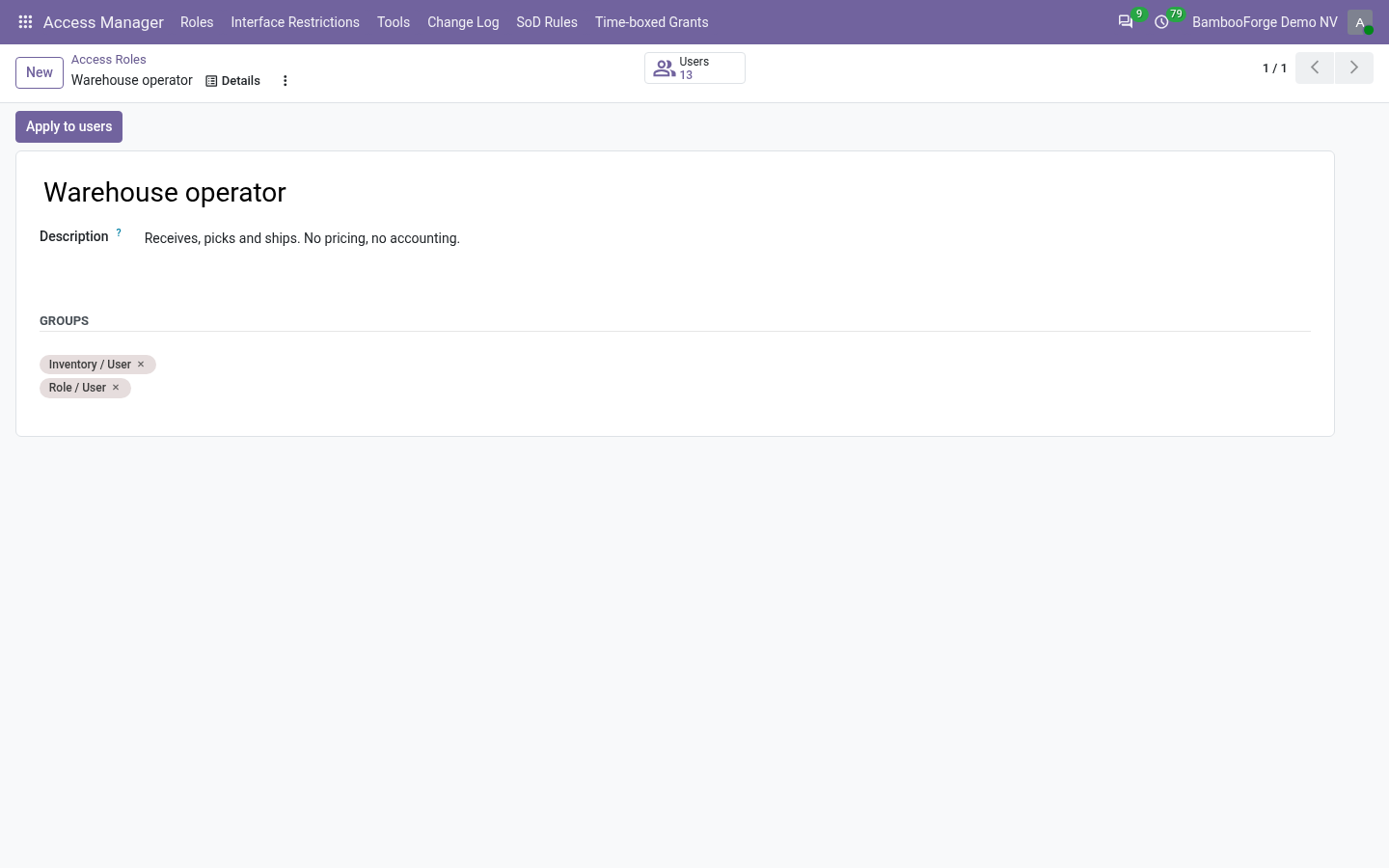
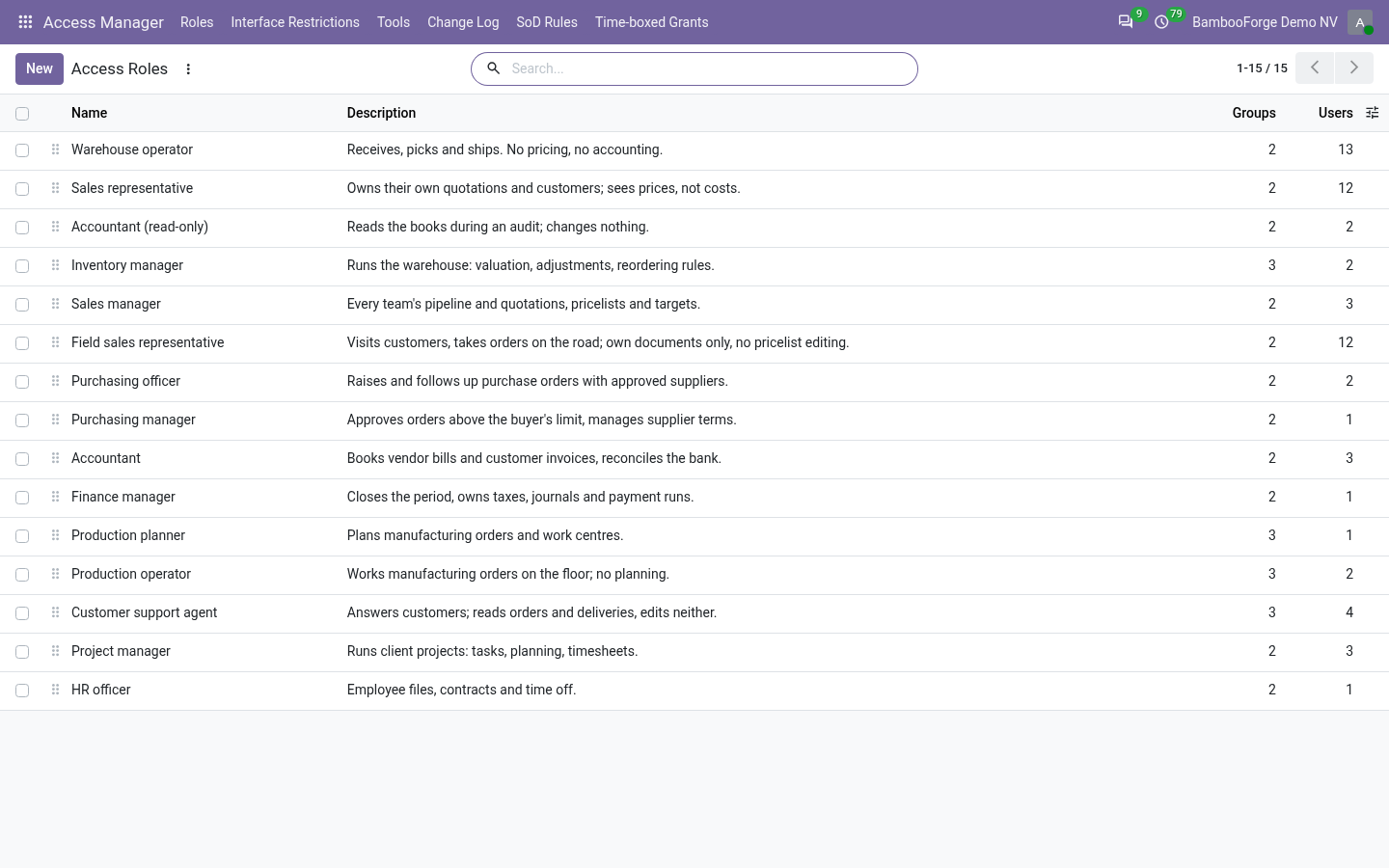
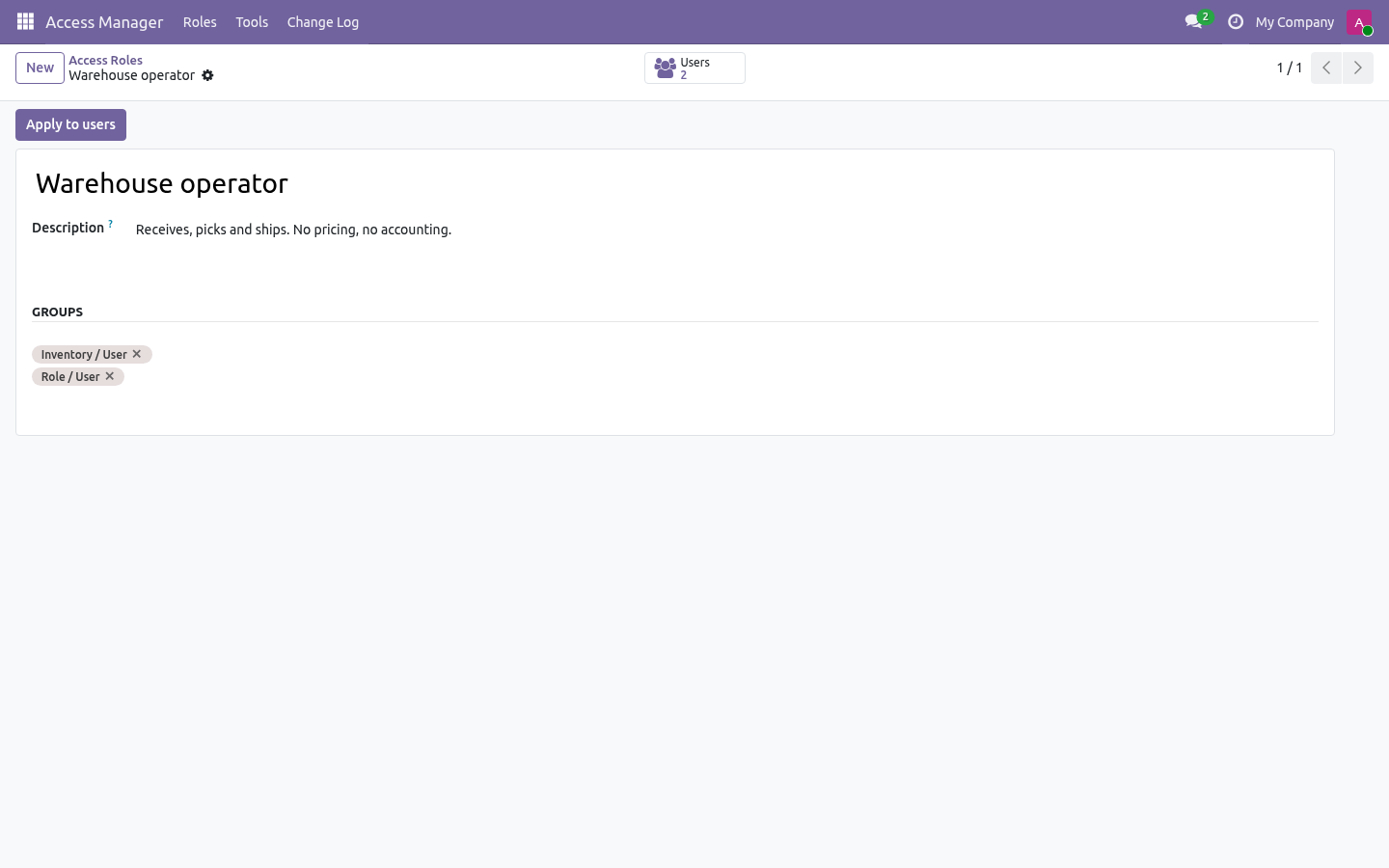
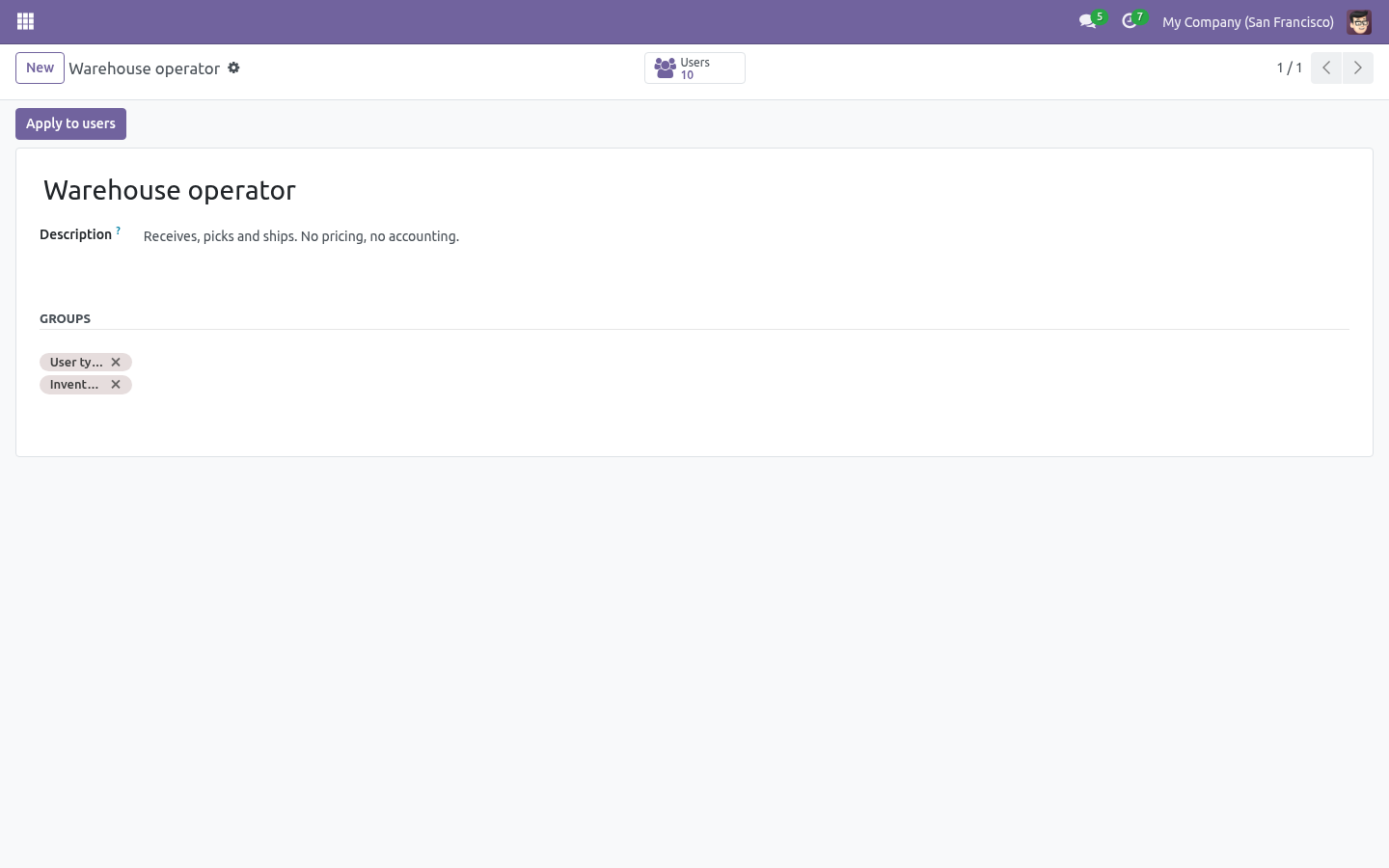
Odoo's access rights are precise and unreadable. This app makes them manageable — roles instead of guesswork, a preview before anything is written, an explainer that says which rule blocked a user, and a log of every change. Roles. A role is a named bundle of groups: "Warehouse operator", "Accountant, read-only", "Field sales".
Give it a description in the words the person doing the hiring uses, and put the groups in. The role card shows how many users currently hold every group of the role, and the button opens that list — so "who is a warehouse operator?" has an answer again. Applying, copying, bulk editing. All three tools work the same way: pick the targets, read the preview, apply.
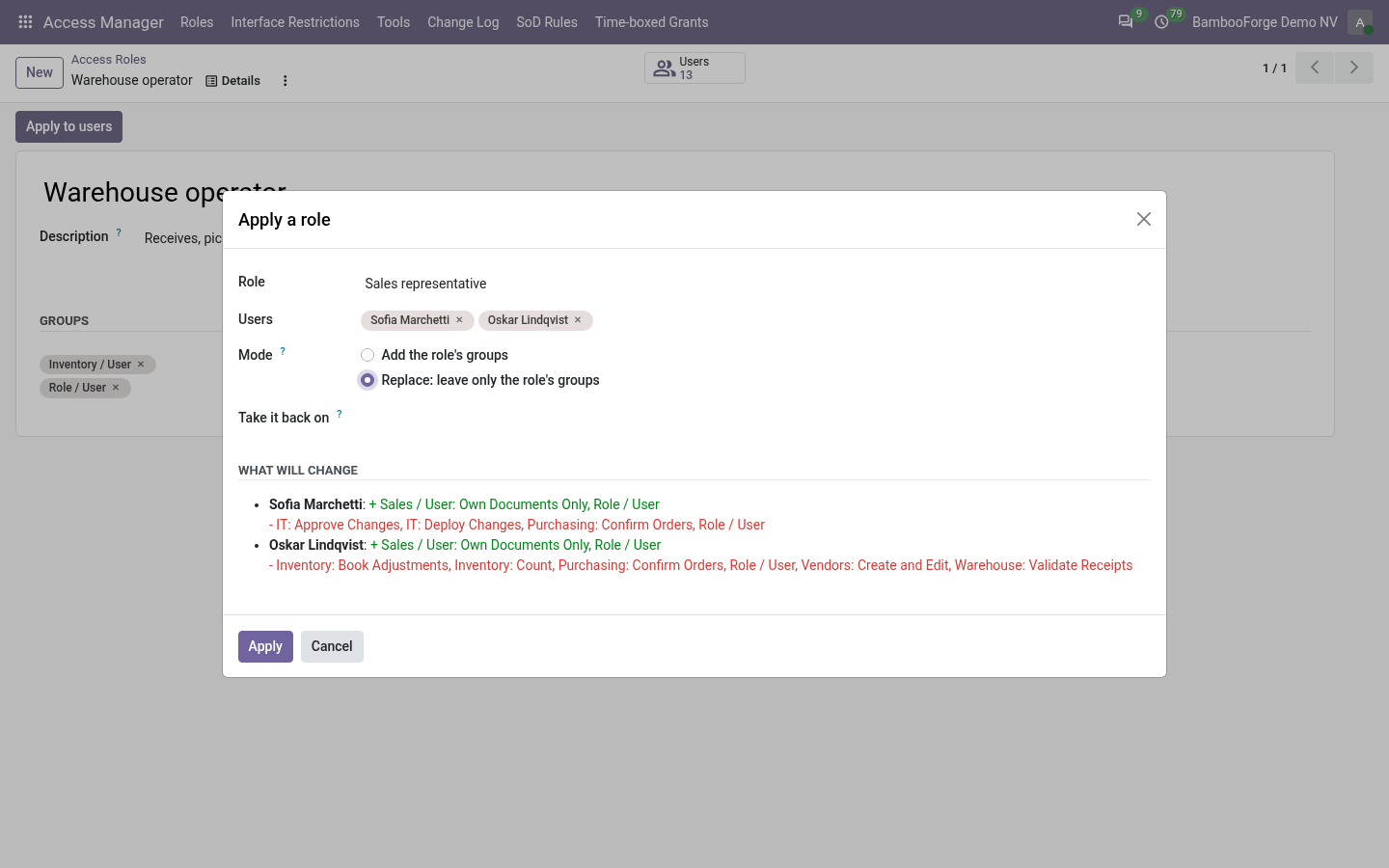
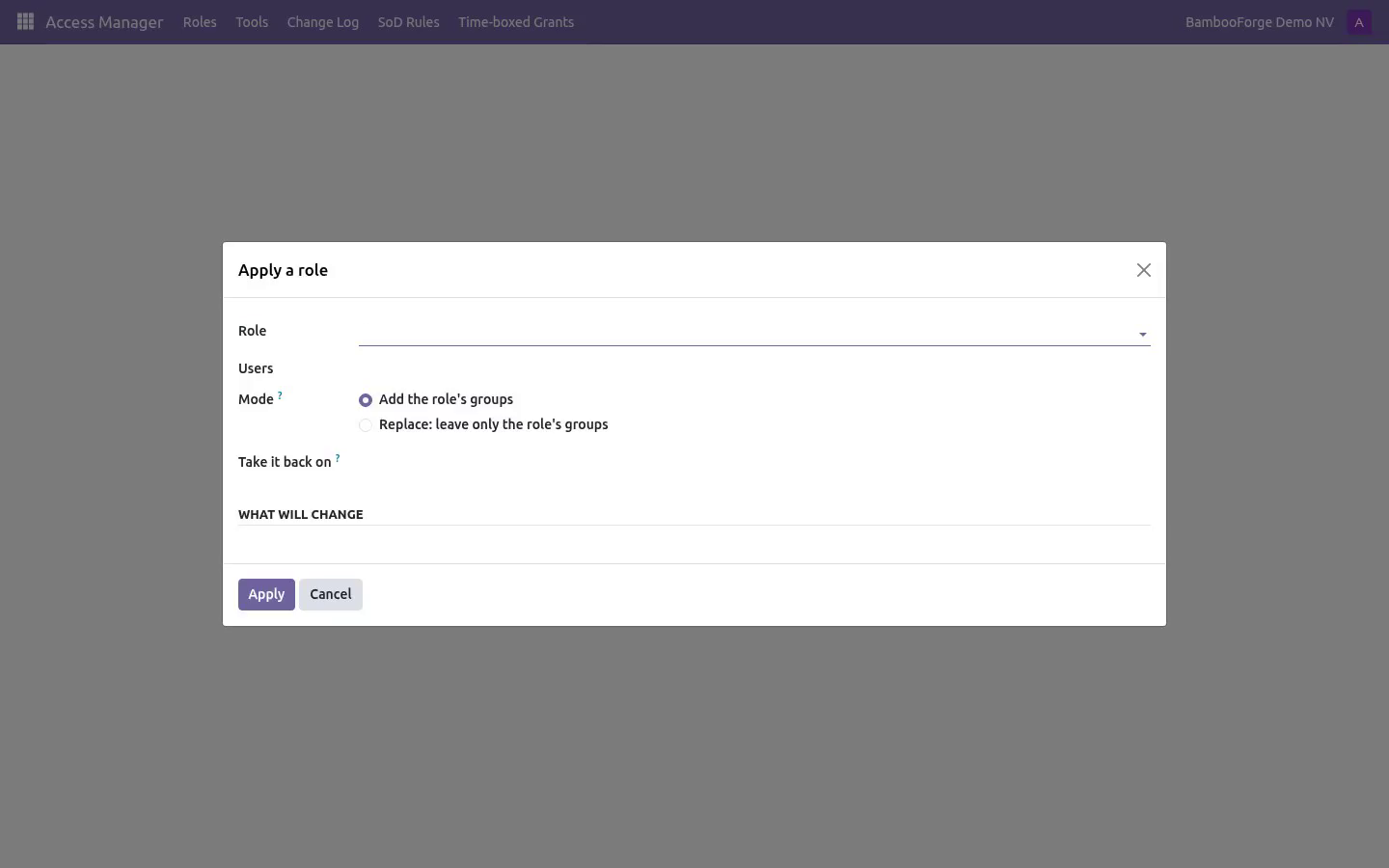
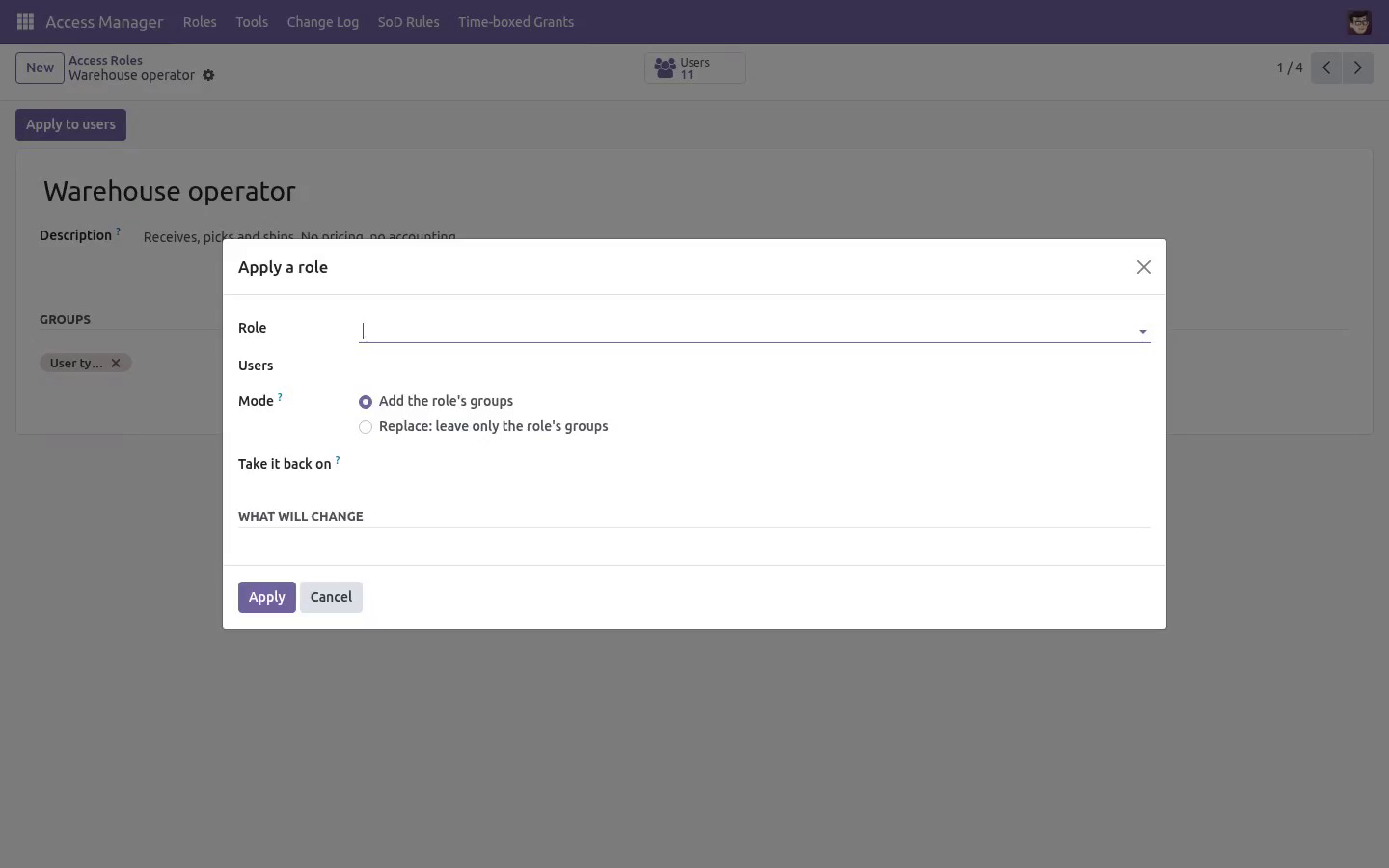
Nothing is written until you press the button, and everything that is written lands in the change log. Apply a role — Add leaves the user's other groups alone; Replace strips everything the role does not contain. Replace is right when a role is the whole job, and dangerous otherwise: the preview shows exactly what it would take away, in red. Explain access.
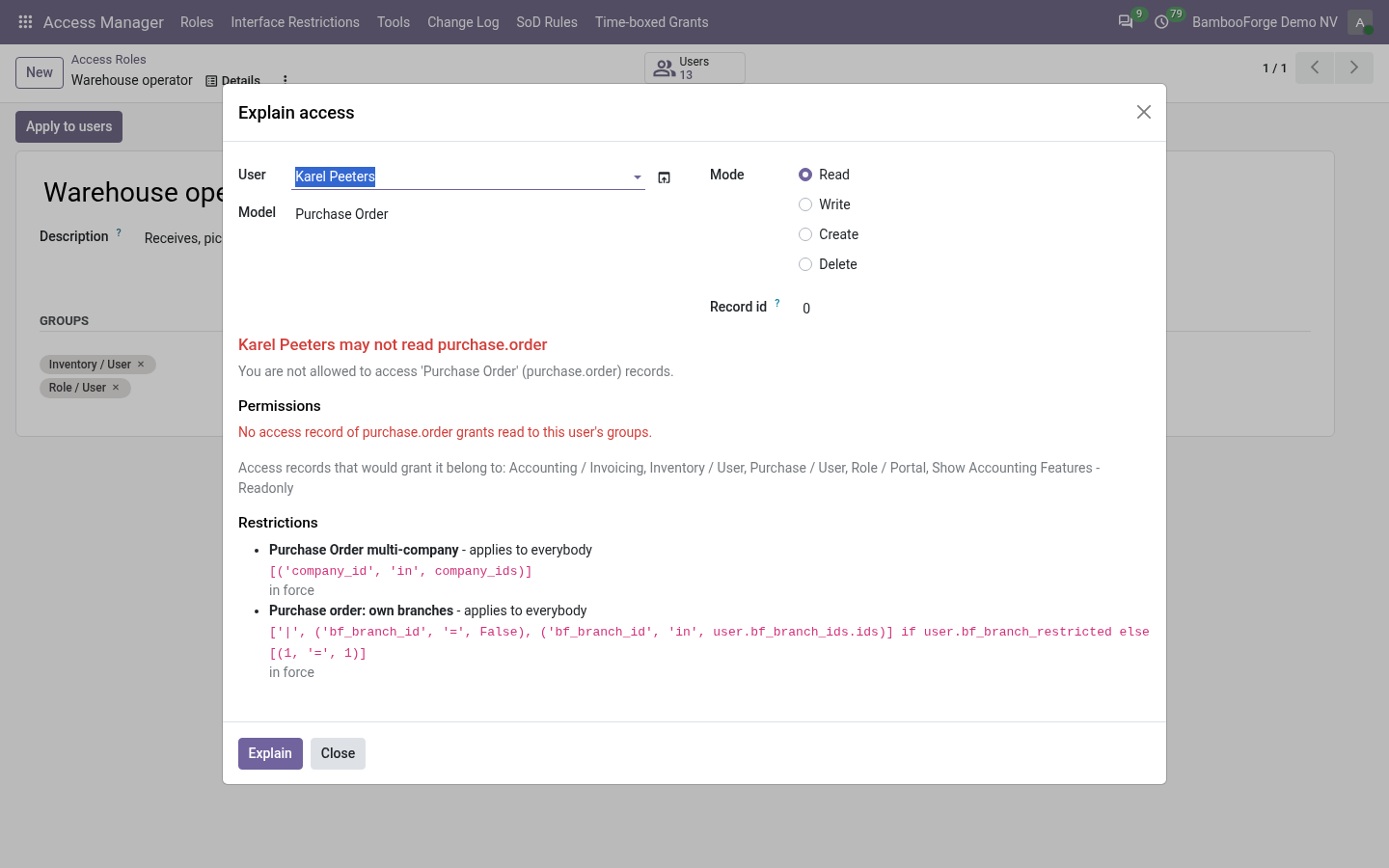
The feature the "Access Error" dialog never gives you. Pick: User — whose access is in question. Model — what they are trying to reach. Operation — read, write, create or delete.
Record id (optional) — the exact record, when the problem is "everything works except this one". Model access — the access-control lines that apply to this user's groups and grant the operation, named with their group. When none do, it says so, and lists the groups whose lines would grant it — which is usually the answer to "what should I give them?". Change log.
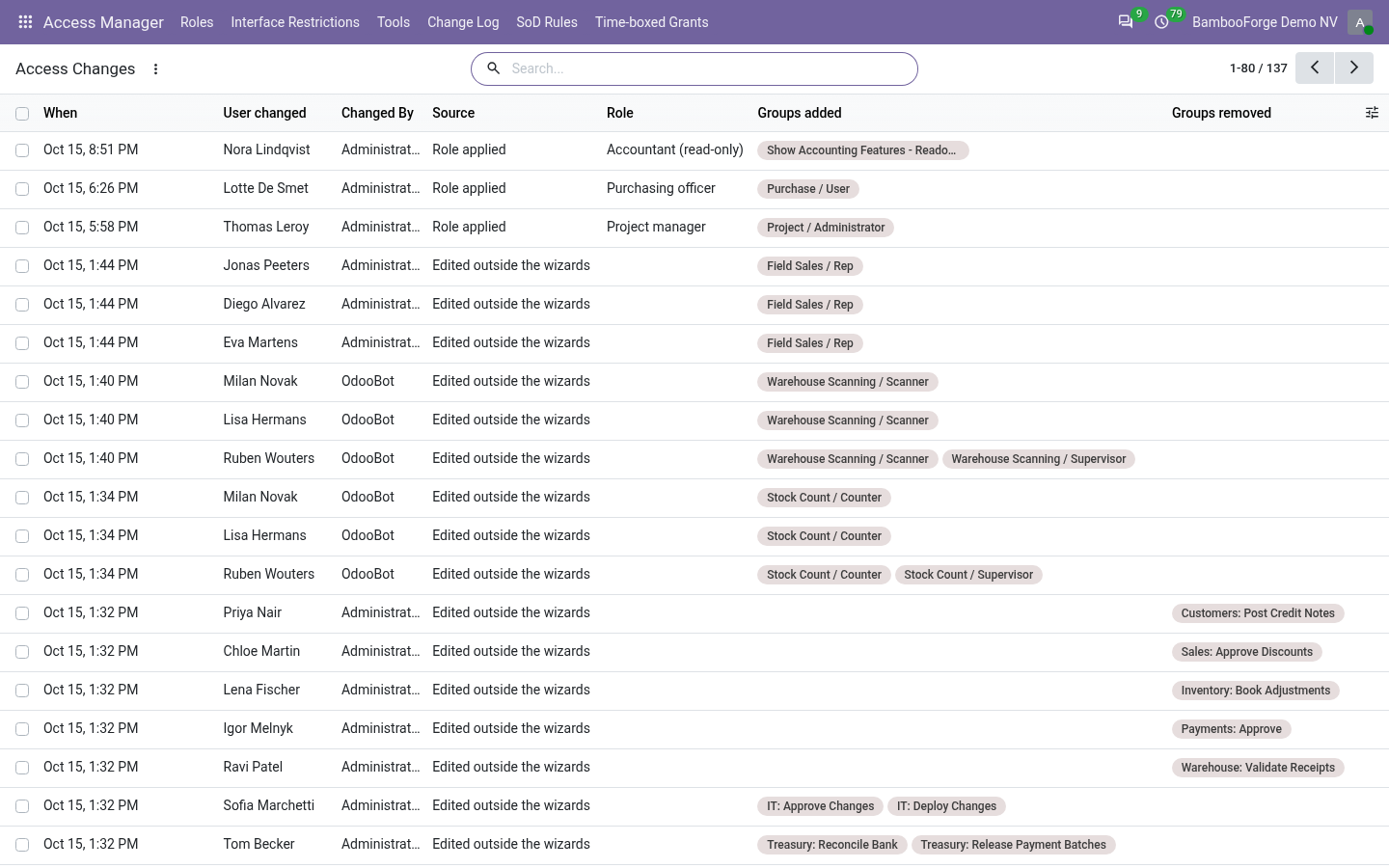
Access Manager → Change Log records, for every change made through this module: who was changed, who changed them, how (role, copy, bulk), which role or source user was involved, and the exact groups added and removed. Changes made elsewhere — the user form, a data file, a script — are not in this log; it is a log of what this module did, not an audit of the whole database. Interface restrictions. Access Manager -> Interface Restrictions Roles - every user holding every group of the role; Groups - every user in any of them; Users - named one by one; Except - users the rule never touches, whatever their groups.
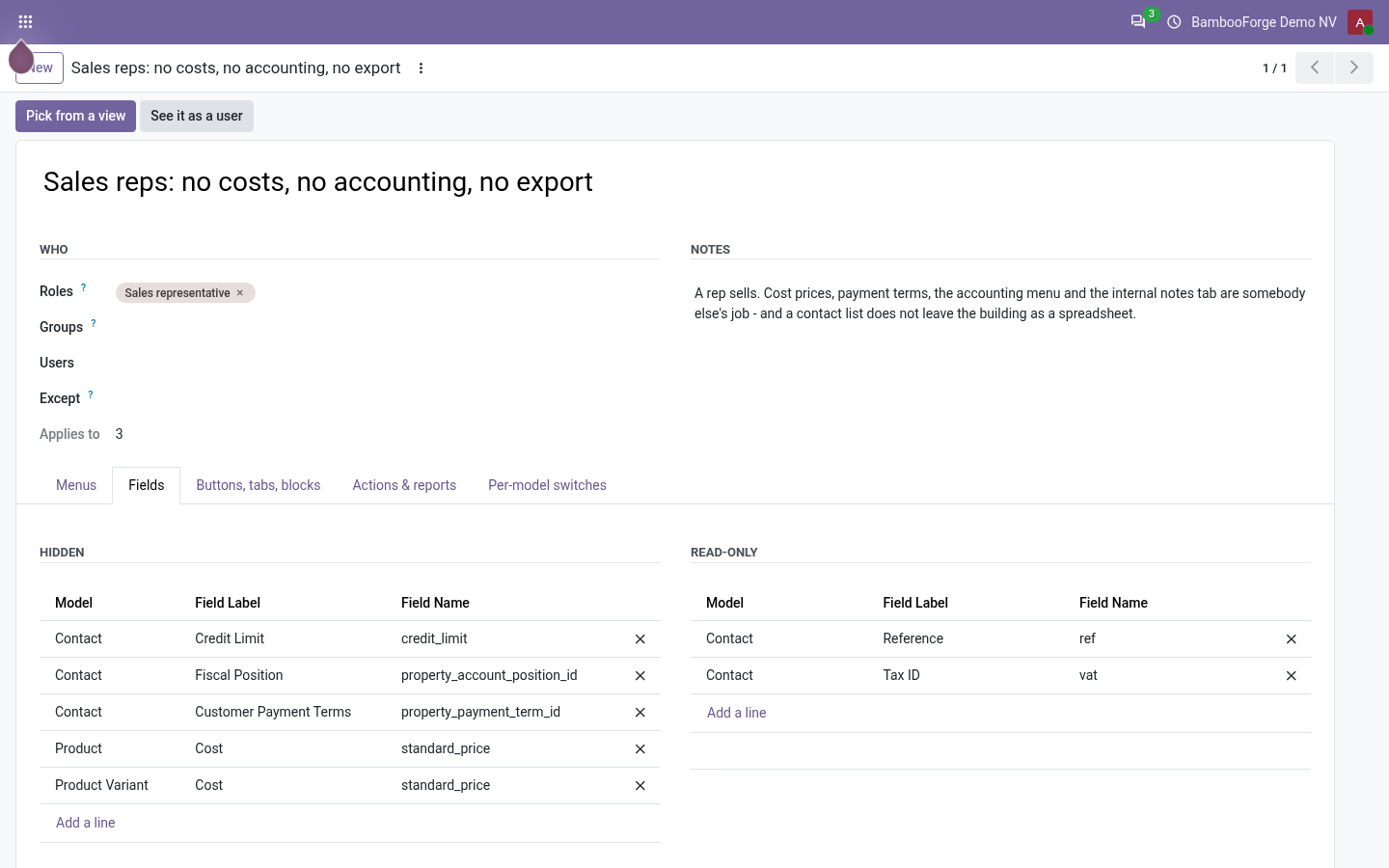
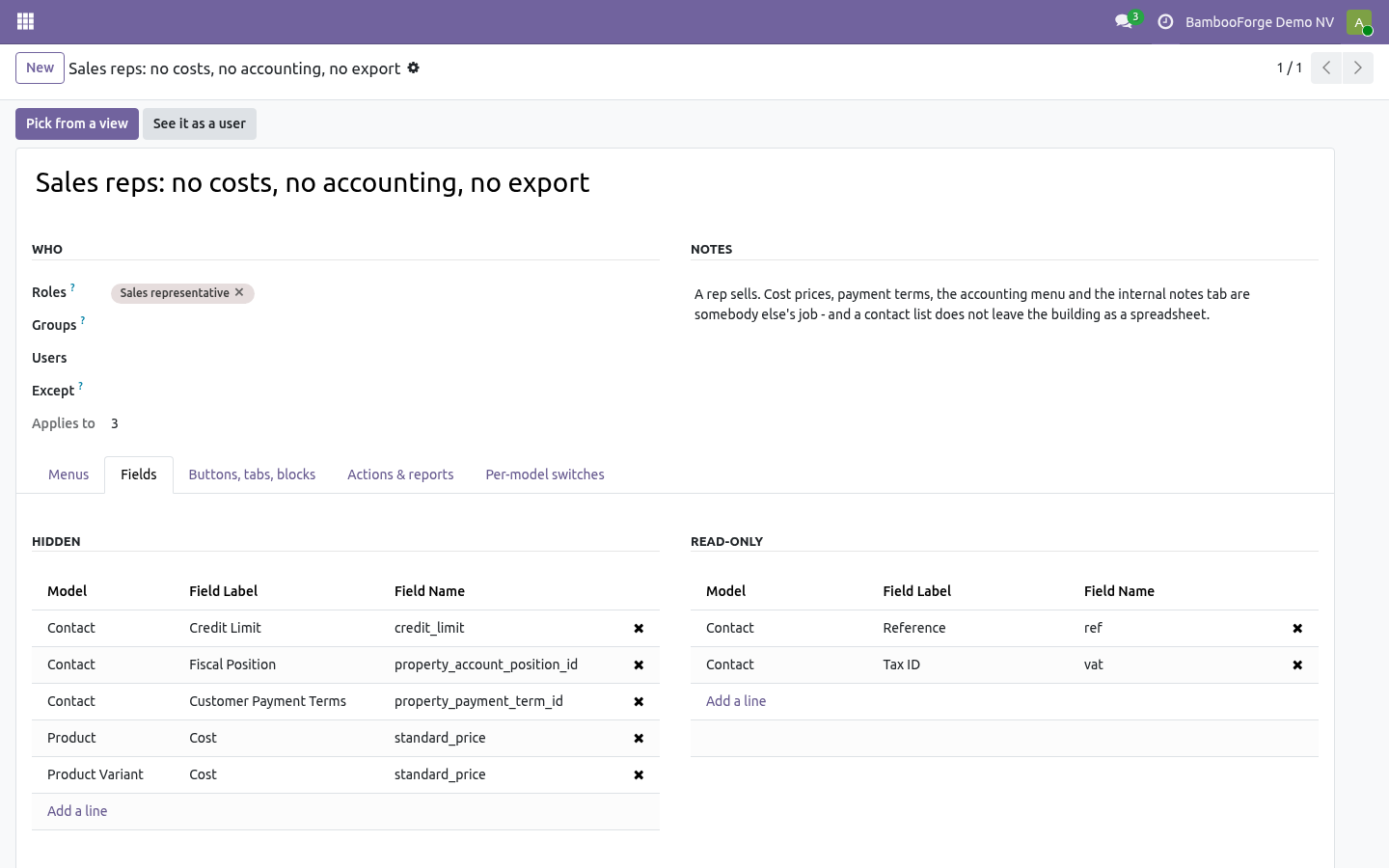
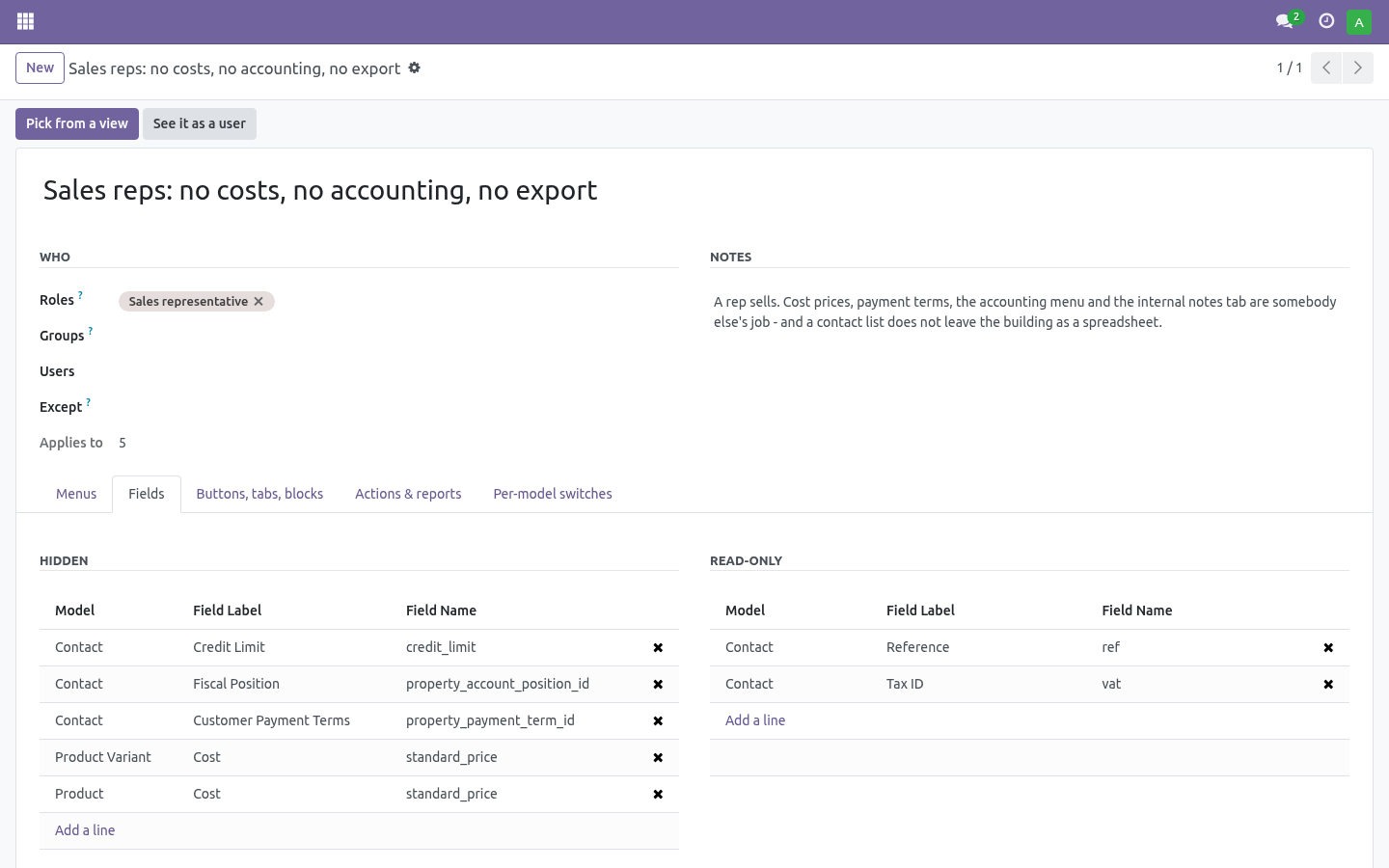
Menus - a hidden menu takes every menu under it along, apps included. Fields - Hidden fields leave every form, list, kanban and search view the user opens, embedded lists and kanbans included, and are refused on export. Read-only fields stay visible and cannot be edited on screen. Buttons, tabs, blocks - a button (by its method or action name), a notebook tab (by name or title), any named block, or the chatter.
Press Pick from a view, choose the model and the view, read it, tick the ones to hide: no XML to read. Actions & reports - entries removed from the Action and Print menus of their model. Groups decide what a user may do. This decides what a user sees.
The two are kept apart on purpose, and the difference is stated on every screen of it: a hidden field is not a secret, it is a tidier screen for somebody whose job never touches it. Troubleshooting. A role shows zero users though people clearly have those groups The count is users holding every group of the role. A role with a group almost nobody has will count almost nobody.
Replace removed more than expected Replace leaves only the role's groups. Check the preview before applying; the change log has the exact list, so the groups can be put back. What changed in 1.1 The log cannot be walked around. Group changes made outside the wizards are captured too, and the log itself became append-only - nobody edits or deletes history, deleting a user keeps their trail.
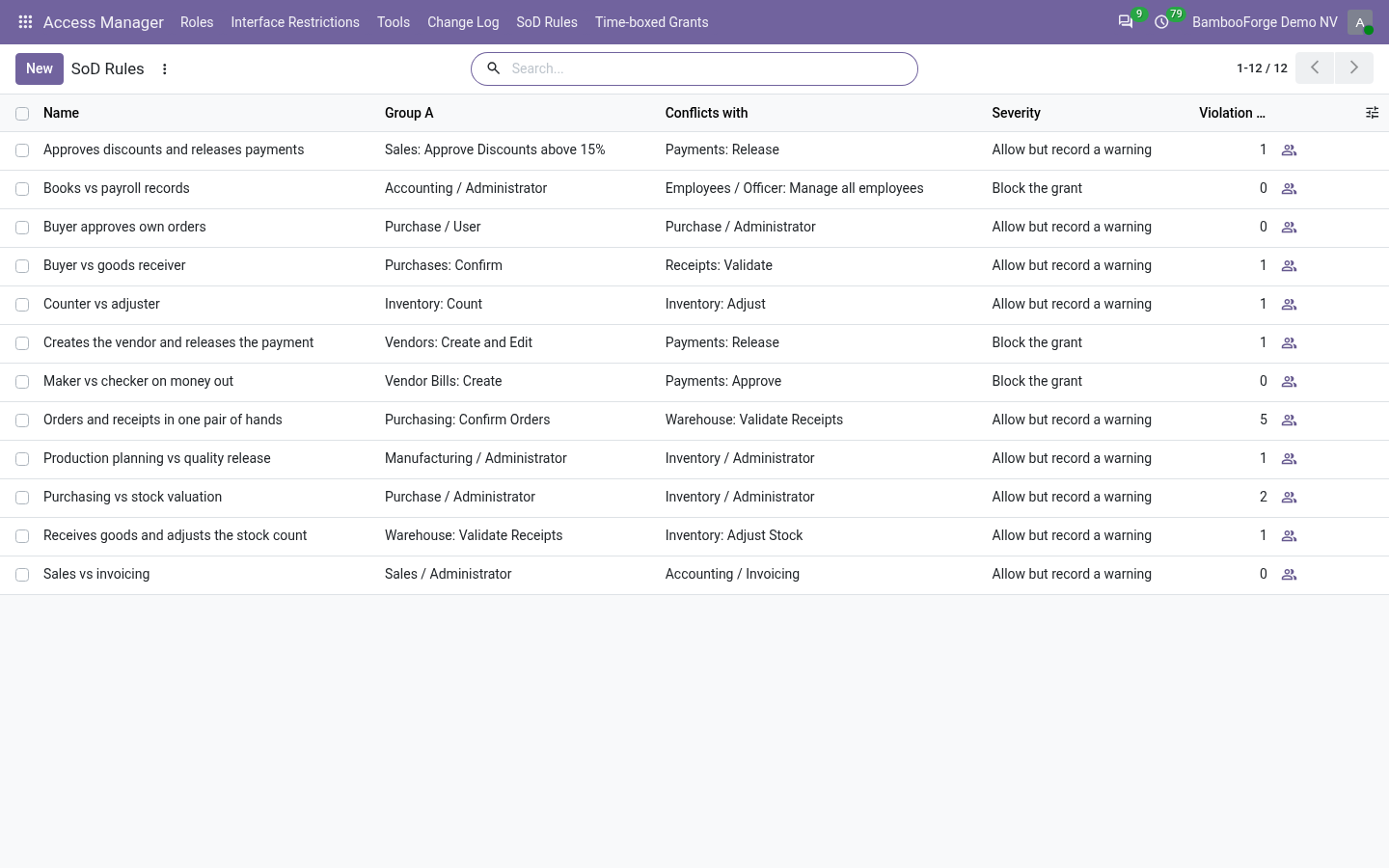
Names are escaped everywhere the wizards render previews. What changed in 1.2 Time-boxed grants. The Apply and Bulk wizards take an optional end date: every group granted with it is revoked automatically on that day by a daily job, and the change log says the clock did it. Revoke early from Access Manager -> Time-boxed Grants.
How we make sure it works. Before every release, 77 automated checks run against this app on Odoo 16, 17, 18, 19 and 20. Among them: Explain refuses an id that does not exist. Explain survives a domain that cannot be parsed.
Explain reports a restriction it cannot evaluate. Log cannot be edited or deleted. Preview says what the user does not see. The complete list is in the source you receive.
The complete manual is at docs dot bambooforge dot dev, the demo database is linked from the store page, and support answers within twenty-four hours. Links are in the description.
Transcript of the walkthrough (Odoo 19)
User Access Management & Access Rights. Grant access by named role instead of by guesswork, copy one user's rights to another, and get told exactly which rule blocked someone. Odoo's access rights are precise and unreadable. This app makes them manageable — roles instead of guesswork, a preview before anything is written, an explainer that says which rule blocked a user, and a log of every change.
In the next few minutes: user access management & access rights, then roles, then applying, copying, bulk editing, then explain access, then change log. Then what this app deliberately does not do, so you can tell before you buy whether it fits. Everything lives under Access Manager then Roles then Tools then Change Log. 1.
Install BambooForge Access Rights Manager (depends on base only). 2. The Access Manager menu appears for users in the Access Manager group, which implies Settings — the people who already manage users. User Access Management & Access Rights.
Odoo's access rights are precise and unreadable. This app makes them manageable — roles instead of guesswork, a preview before anything is written, an explainer that says which rule blocked a user, and a log of every change. Roles. A role is a named bundle of groups: "Warehouse operator", "Accountant, read-only", "Field sales".
Give it a description in the words the person doing the hiring uses, and put the groups in. The role card shows how many users currently hold every group of the role, and the button opens that list — so "who is a warehouse operator?" has an answer again. Applying, copying, bulk editing. All three tools work the same way: pick the targets, read the preview, apply.
Nothing is written until you press the button, and everything that is written lands in the change log. Apply a role — Add leaves the user's other groups alone; Replace strips everything the role does not contain. Replace is right when a role is the whole job, and dangerous otherwise: the preview shows exactly what it would take away, in red. Explain access.
The feature the "Access Error" dialog never gives you. Pick: User — whose access is in question. Model — what they are trying to reach. Operation — read, write, create or delete.
Record id (optional) — the exact record, when the problem is "everything works except this one". Model access — the access-control lines that apply to this user's groups and grant the operation, named with their group. When none do, it says so, and lists the groups whose lines would grant it — which is usually the answer to "what should I give them?". Change log.
Access Manager → Change Log records, for every change made through this module: who was changed, who changed them, how (role, copy, bulk), which role or source user was involved, and the exact groups added and removed. Changes made elsewhere — the user form, a data file, a script — are not in this log; it is a log of what this module did, not an audit of the whole database. Troubleshooting. A role shows zero users though people clearly have those groups The count is users holding every group of the role.
A role with a group almost nobody has will count almost nobody. Replace removed more than expected Replace leaves only the role's groups. Check the preview before applying; the change log has the exact list, so the groups can be put back. What changed in 1.1 The log cannot be walked around.
Group changes made outside the wizards are captured too, and the log itself became append-only - nobody edits or deletes history, deleting a user keeps their trail. Names are escaped everywhere the wizards render previews. What changed in 1.2 Time-boxed grants. The Apply and Bulk wizards take an optional end date: every group granted with it is revoked automatically on that day by a daily job, and the change log says the clock did it.
Revoke early from Access Manager -> Time-boxed Grants. Support. support@bambooforge.dev — questions, bug reports and feature requests are answered by the developers who wrote the module. \n What changed in 1.3 The complete manual is at docs dot bambooforge dot dev, the demo database is linked from the store page, and support answers within twenty-four hours.
Links are in the description.
Transcript of the walkthrough (Odoo 18)
User Access Management & Access Rights. Grant access by named role instead of by guesswork, copy one user's rights to another, and get told exactly which rule blocked someone. Odoo's access rights are precise and unreadable. This app makes them manageable — roles instead of guesswork, a preview before anything is written, an explainer that says which rule blocked a user, and a log of every change.
In the next few minutes: user access management & access rights, then roles, then applying, copying, bulk editing, then explain access, then change log. Then what this app deliberately does not do, so you can tell before you buy whether it fits. Everything lives under Access Manager then Roles then Tools then Change Log. 1.
Install BambooForge Access Rights Manager (depends on base only). 2. The Access Manager menu appears for users in the Access Manager group, which implies Settings — the people who already manage users. User Access Management & Access Rights.
Odoo's access rights are precise and unreadable. This app makes them manageable — roles instead of guesswork, a preview before anything is written, an explainer that says which rule blocked a user, and a log of every change. Roles. A role is a named bundle of groups: "Warehouse operator", "Accountant, read-only", "Field sales".
Give it a description in the words the person doing the hiring uses, and put the groups in. The role card shows how many users currently hold every group of the role, and the button opens that list — so "who is a warehouse operator?" has an answer again. Applying, copying, bulk editing. All three tools work the same way: pick the targets, read the preview, apply.
Nothing is written until you press the button, and everything that is written lands in the change log. Apply a role — Add leaves the user's other groups alone; Replace strips everything the role does not contain. Replace is right when a role is the whole job, and dangerous otherwise: the preview shows exactly what it would take away, in red. Explain access.
The feature the "Access Error" dialog never gives you. Pick: User — whose access is in question. Model — what they are trying to reach. Operation — read, write, create or delete.
Record id (optional) — the exact record, when the problem is "everything works except this one". Model access — the access-control lines that apply to this user's groups and grant the operation, named with their group. When none do, it says so, and lists the groups whose lines would grant it — which is usually the answer to "what should I give them?". Change log.
Access Manager → Change Log records, for every change made through this module: who was changed, who changed them, how (role, copy, bulk), which role or source user was involved, and the exact groups added and removed. Changes made elsewhere — the user form, a data file, a script — are not in this log; it is a log of what this module did, not an audit of the whole database. Troubleshooting. A role shows zero users though people clearly have those groups The count is users holding every group of the role.
A role with a group almost nobody has will count almost nobody. Replace removed more than expected Replace leaves only the role's groups. Check the preview before applying; the change log has the exact list, so the groups can be put back. What changed in 1.1 The log cannot be walked around.
Group changes made outside the wizards are captured too, and the log itself became append-only - nobody edits or deletes history, deleting a user keeps their trail. Names are escaped everywhere the wizards render previews. What changed in 1.2 Time-boxed grants. The Apply and Bulk wizards take an optional end date: every group granted with it is revoked automatically on that day by a daily job, and the change log says the clock did it.
Revoke early from Access Manager -> Time-boxed Grants. Support. support@bambooforge.dev — questions, bug reports and feature requests are answered by the developers who wrote the module. \n What changed in 1.3 The complete manual is at docs dot bambooforge dot dev, the demo database is linked from the store page, and support answers within twenty-four hours.
Links are in the description.
Transcript of the walkthrough (Odoo 17)
User Access Management & Access Rights. Grant access by named role instead of by guesswork, copy one user's rights to another, and get told exactly which rule blocked someone. Odoo's access rights are precise and unreadable. This app makes them manageable — roles instead of guesswork, a preview before anything is written, an explainer that says which rule blocked a user, and a log of every change.
In the next few minutes: user access management & access rights, then roles, then applying, copying, bulk editing, then explain access, then change log. Then what this app deliberately does not do, so you can tell before you buy whether it fits. Everything lives under Access Manager then Roles then Tools then Change Log. 1.
Install BambooForge Access Rights Manager (depends on base only). 2. The Access Manager menu appears for users in the Access Manager group, which implies Settings — the people who already manage users. User Access Management & Access Rights.
Odoo's access rights are precise and unreadable. This app makes them manageable — roles instead of guesswork, a preview before anything is written, an explainer that says which rule blocked a user, and a log of every change. Roles. A role is a named bundle of groups: "Warehouse operator", "Accountant, read-only", "Field sales".
Give it a description in the words the person doing the hiring uses, and put the groups in. The role card shows how many users currently hold every group of the role, and the button opens that list — so "who is a warehouse operator?" has an answer again. Applying, copying, bulk editing. All three tools work the same way: pick the targets, read the preview, apply.
Nothing is written until you press the button, and everything that is written lands in the change log. Apply a role — Add leaves the user's other groups alone; Replace strips everything the role does not contain. Replace is right when a role is the whole job, and dangerous otherwise: the preview shows exactly what it would take away, in red. Explain access.
The feature the "Access Error" dialog never gives you. Pick: User — whose access is in question. Model — what they are trying to reach. Operation — read, write, create or delete.
Record id (optional) — the exact record, when the problem is "everything works except this one". Model access — the access-control lines that apply to this user's groups and grant the operation, named with their group. When none do, it says so, and lists the groups whose lines would grant it — which is usually the answer to "what should I give them?". Change log.
Access Manager → Change Log records, for every change made through this module: who was changed, who changed them, how (role, copy, bulk), which role or source user was involved, and the exact groups added and removed. Changes made elsewhere — the user form, a data file, a script — are not in this log; it is a log of what this module did, not an audit of the whole database. Troubleshooting. A role shows zero users though people clearly have those groups The count is users holding every group of the role.
A role with a group almost nobody has will count almost nobody. Replace removed more than expected Replace leaves only the role's groups. Check the preview before applying; the change log has the exact list, so the groups can be put back. What changed in 1.1 The log cannot be walked around.
Group changes made outside the wizards are captured too, and the log itself became append-only - nobody edits or deletes history, deleting a user keeps their trail. Names are escaped everywhere the wizards render previews. What changed in 1.2 Time-boxed grants. The Apply and Bulk wizards take an optional end date: every group granted with it is revoked automatically on that day by a daily job, and the change log says the clock did it.
Revoke early from Access Manager -> Time-boxed Grants. Support. support@bambooforge.dev — questions, bug reports and feature requests are answered by the developers who wrote the module. \n What changed in 1.3 The complete manual is at docs dot bambooforge dot dev, the demo database is linked from the store page, and support answers within twenty-four hours.
Links are in the description.
Transcript of the walkthrough (Odoo 16)
User Access Management & Access Rights. Grant access by named role instead of by guesswork, copy one user's rights to another, and get told exactly which rule blocked someone. Odoo's access rights are precise and unreadable. This app makes them manageable — roles instead of guesswork, a preview before anything is written, an explainer that says which rule blocked a user, and a log of every change.
In the next few minutes: user access management & access rights, then roles, then applying, copying, bulk editing, then explain access, then change log. Then what this app deliberately does not do, so you can tell before you buy whether it fits. Everything lives under Access Manager then Roles then Tools then Change Log. 1.
Install BambooForge Access Rights Manager (depends on base only). 2. The Access Manager menu appears for users in the Access Manager group, which implies Settings — the people who already manage users. User Access Management & Access Rights.
Odoo's access rights are precise and unreadable. This app makes them manageable — roles instead of guesswork, a preview before anything is written, an explainer that says which rule blocked a user, and a log of every change. Roles. A role is a named bundle of groups: "Warehouse operator", "Accountant, read-only", "Field sales".
Give it a description in the words the person doing the hiring uses, and put the groups in. The role card shows how many users currently hold every group of the role, and the button opens that list — so "who is a warehouse operator?" has an answer again. Applying, copying, bulk editing. All three tools work the same way: pick the targets, read the preview, apply.
Nothing is written until you press the button, and everything that is written lands in the change log. Apply a role — Add leaves the user's other groups alone; Replace strips everything the role does not contain. Replace is right when a role is the whole job, and dangerous otherwise: the preview shows exactly what it would take away, in red. Explain access.
The feature the "Access Error" dialog never gives you. Pick: User — whose access is in question. Model — what they are trying to reach. Operation — read, write, create or delete.
Record id (optional) — the exact record, when the problem is "everything works except this one". Model access — the access-control lines that apply to this user's groups and grant the operation, named with their group. When none do, it says so, and lists the groups whose lines would grant it — which is usually the answer to "what should I give them?". Change log.
Access Manager → Change Log records, for every change made through this module: who was changed, who changed them, how (role, copy, bulk), which role or source user was involved, and the exact groups added and removed. Changes made elsewhere — the user form, a data file, a script — are not in this log; it is a log of what this module did, not an audit of the whole database. Troubleshooting. A role shows zero users though people clearly have those groups The count is users holding every group of the role.
A role with a group almost nobody has will count almost nobody. Replace removed more than expected Replace leaves only the role's groups. Check the preview before applying; the change log has the exact list, so the groups can be put back. What changed in 1.1 The log cannot be walked around.
Group changes made outside the wizards are captured too, and the log itself became append-only - nobody edits or deletes history, deleting a user keeps their trail. Names are escaped everywhere the wizards render previews. What changed in 1.2 Time-boxed grants. The Apply and Bulk wizards take an optional end date: every group granted with it is revoked automatically on that day by a daily job, and the change log says the clock did it.
Revoke early from Access Manager -> Time-boxed Grants. Support. support@bambooforge.dev — questions, bug reports and feature requests are answered by the developers who wrote the module. \n What changed in 1.3 The complete manual is at docs dot bambooforge dot dev, the demo database is linked from the store page, and support answers within twenty-four hours.
Links are in the description.
Key facts
- What it is
- Grant access by named role instead of by guesswork, copy one user's rights to another, hide the menus, fields, buttons, tabs and reports a role should not see - no code - and get told exactly which rule blocked someone.
- For
- Extra Tools
- Odoo versions
- 16.0, 17.0, 18.0, 19.0, 20.0 - Community and Enterprise
- Runs on
- Odoo.sh or Odoo you host yourself - not Odoo Online, which accepts no third-party apps
- Price
- 229 EUR, one-time, on the Odoo Apps Store
- Technical name
- bambooforge_access_manager
- Compared with the alternatives
- https://docs.bambooforge.dev/bambooforge_access_manager/compare/
- Live demo
- https://demo20.bambooforge.dev/odoo/action-bambooforge_access_manager.action_bf_access_role
- Manual last updated
- 2026-10-15
User Access Management & Access Rights
Odoo's access rights are precise and unreadable. This app makes them manageable — roles instead of guesswork, a preview before anything is written, an explainer that says which rule blocked a user, and a log of every change.
This page is the complete manual.
Install
Install BambooForge Access Rights Manager (depends on base only).
The Access Manager menu appears for users in the Access Manager group, which implies Settings — the people who already manage users.
Roles
Access Manager → Roles
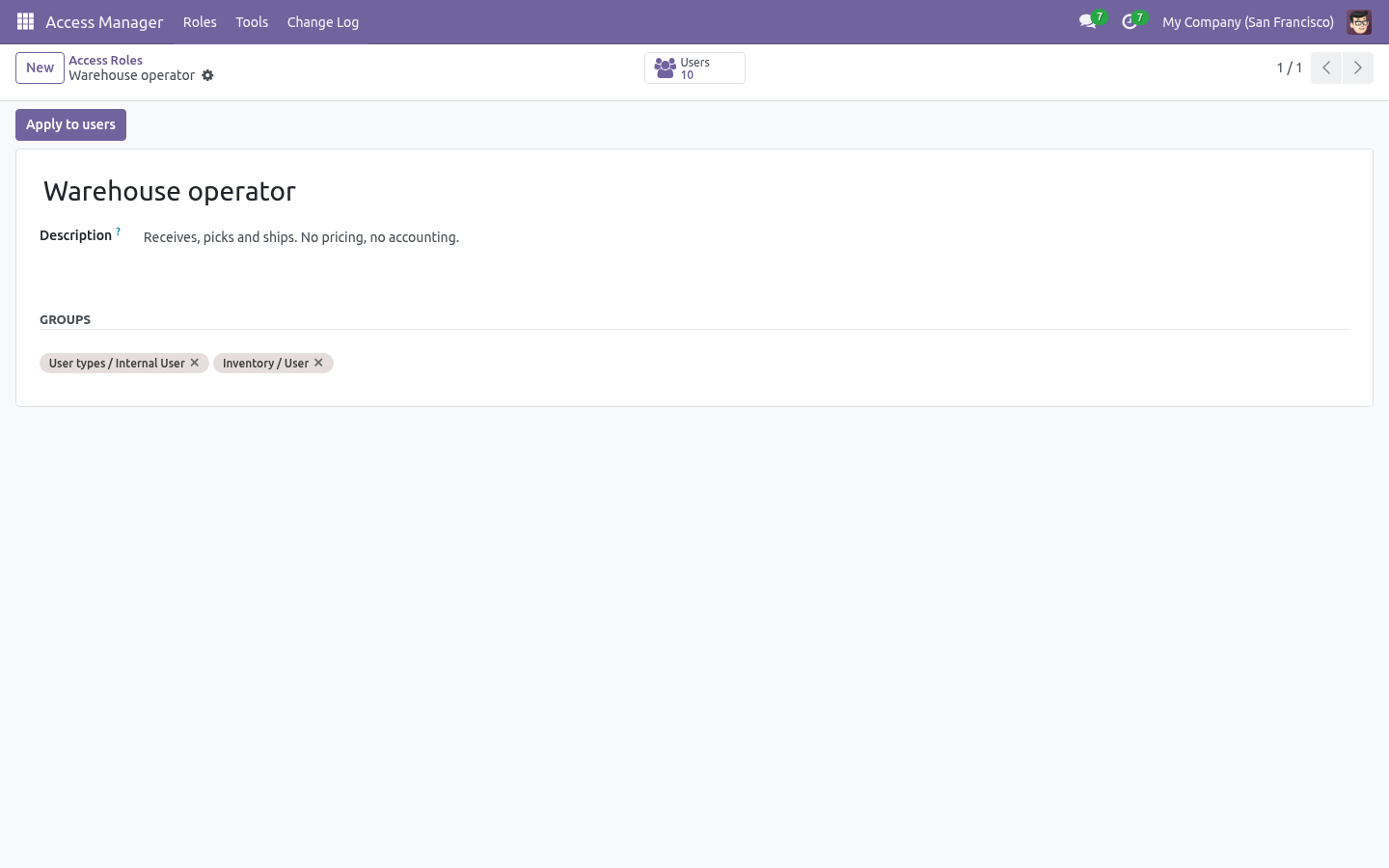
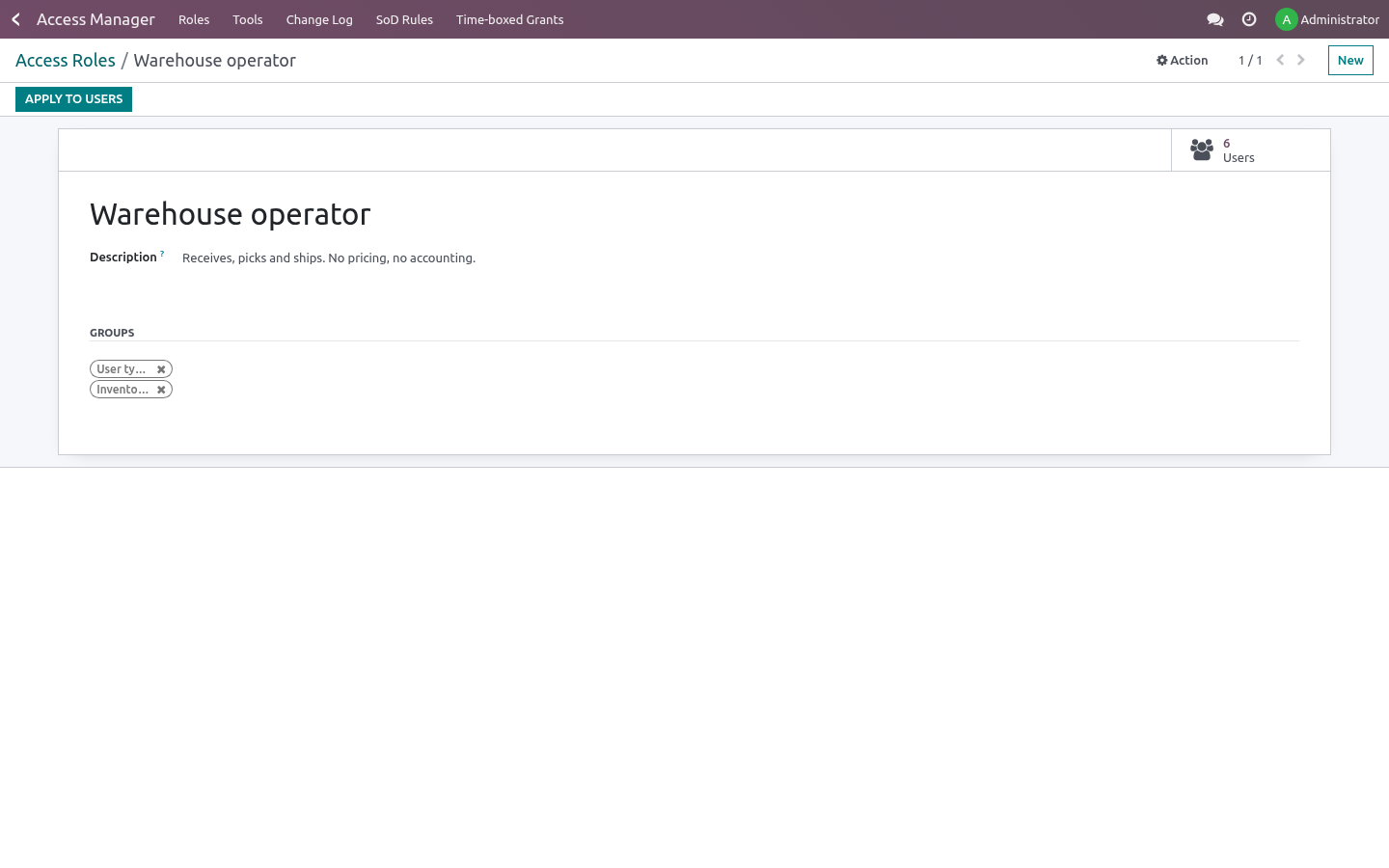
A role is a named bundle of groups: "Warehouse operator", "Accountant, read-only", "Field sales". Give it a description in the words the person doing the hiring uses, and put the groups in.
The role card shows how many users currently hold every group of the role, and the button opens that list — so "who is a warehouse operator?" has an answer again.
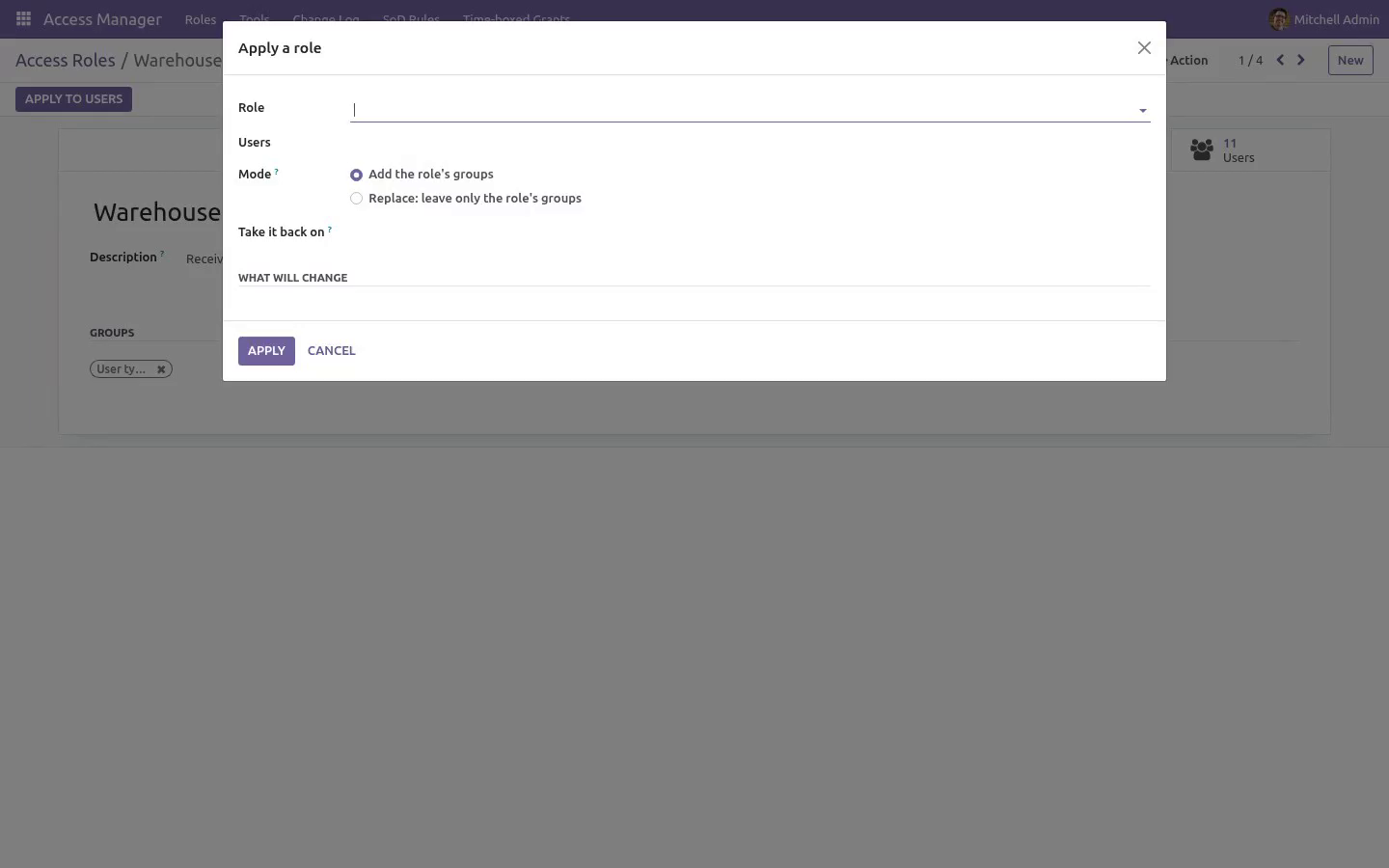
Apply to users opens the preview.
Applying, copying, bulk editing
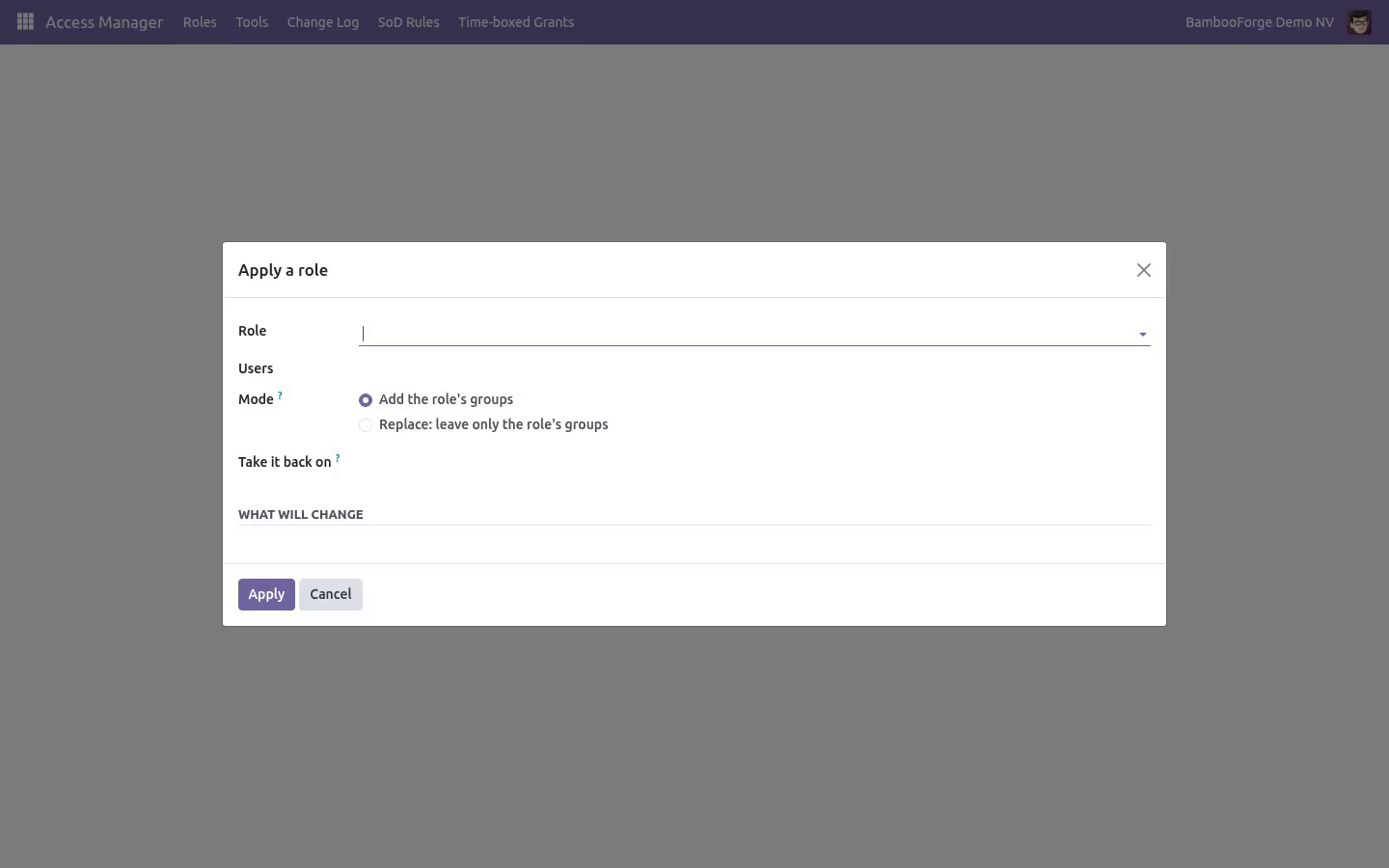
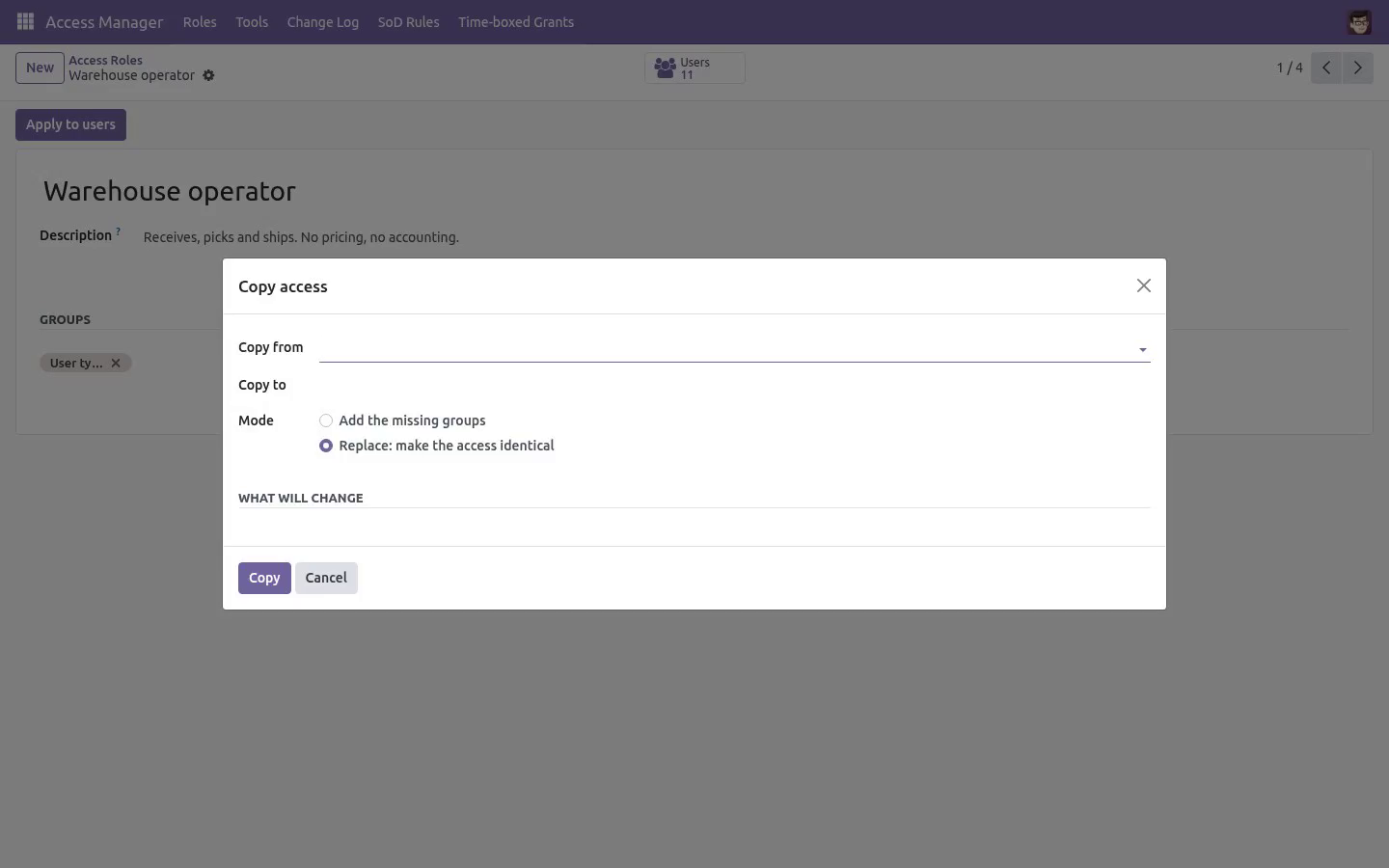
All three tools work the same way: pick the targets, read the preview, apply. Nothing is written until you press the button, and everything that is written lands in the change log.
Apply a role — Add leaves the user's other groups alone; Replace strips everything the role does not contain. Replace is right when a role is the whole job, and dangerous otherwise: the preview shows exactly what it would take away, in red.
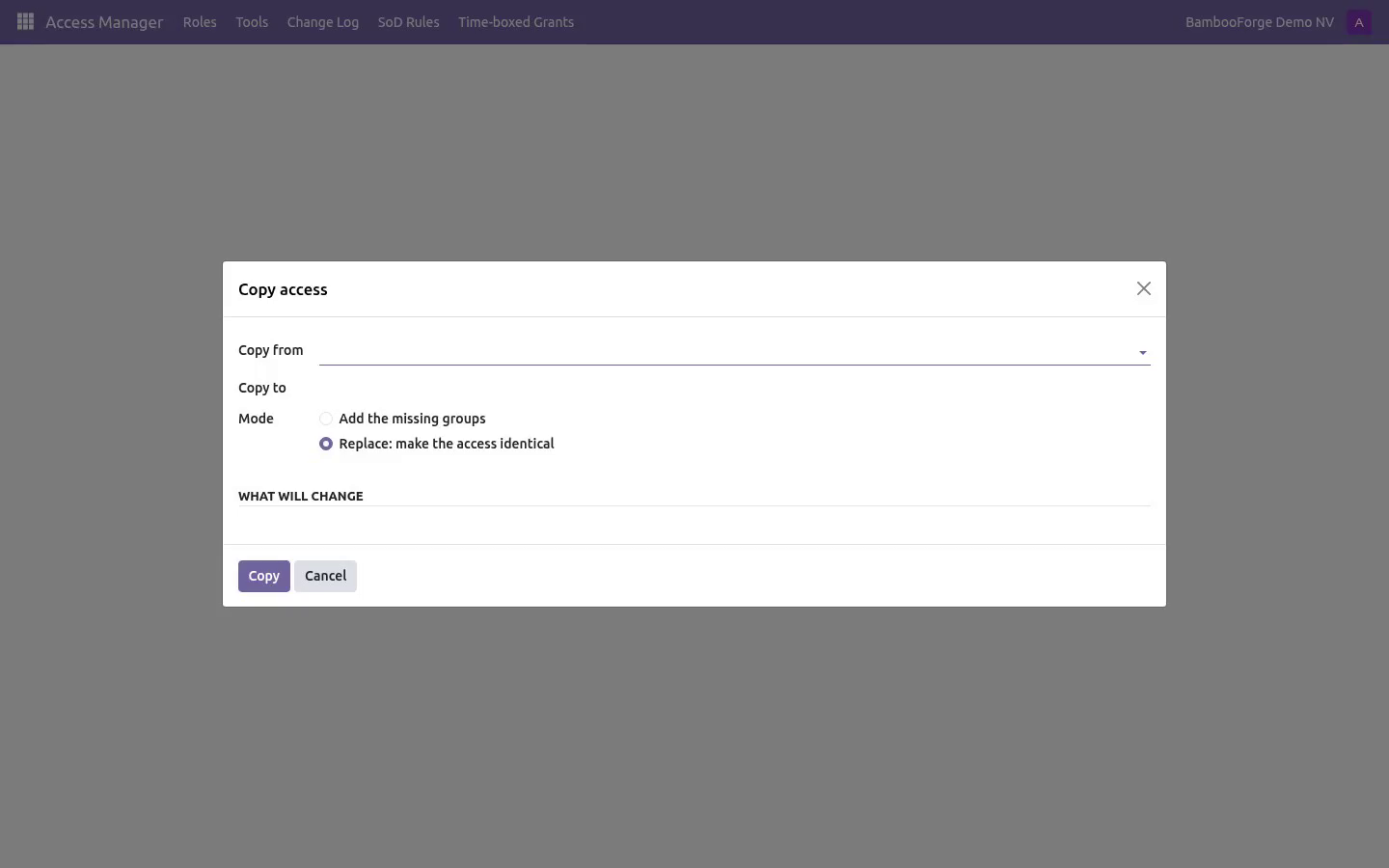
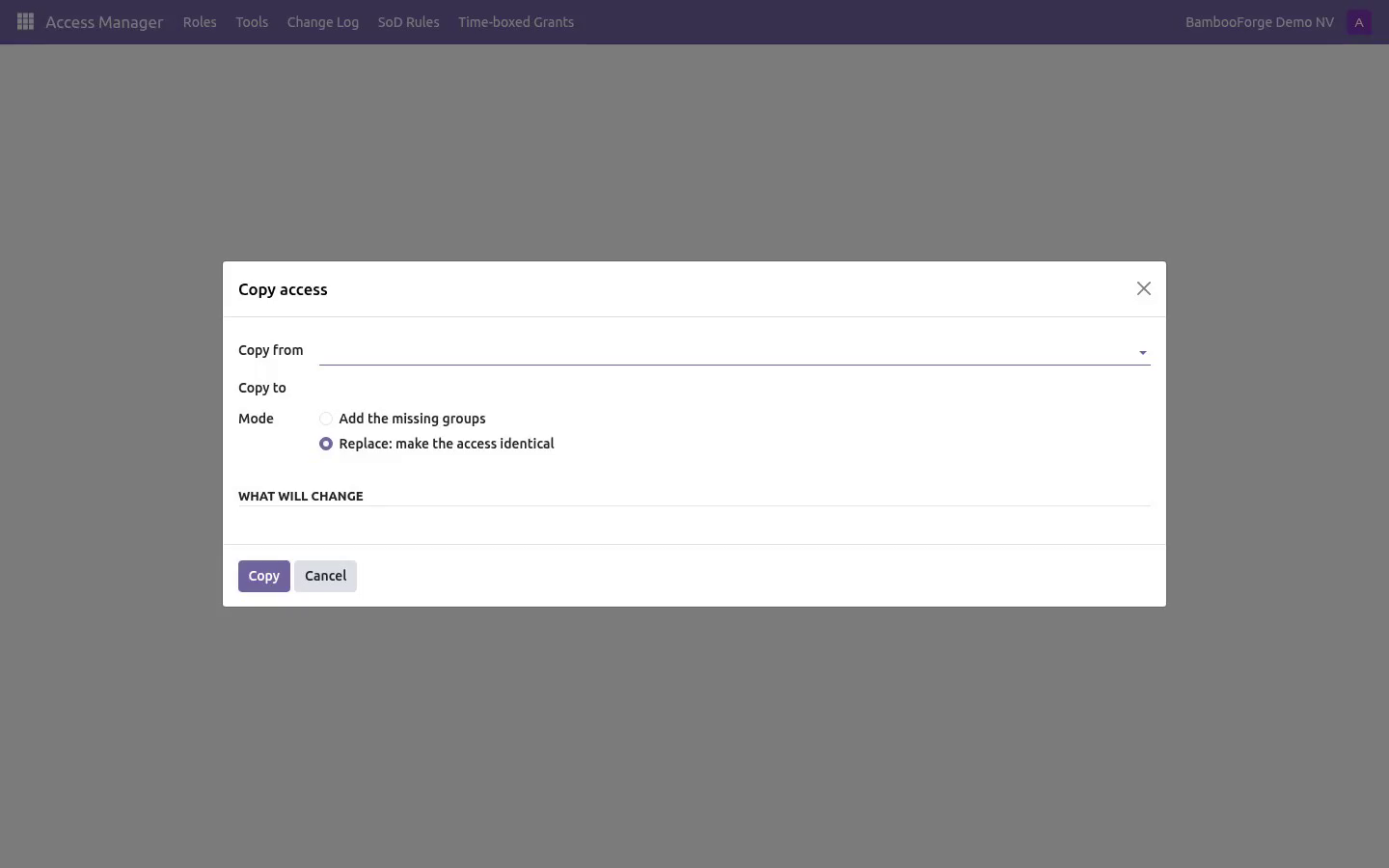
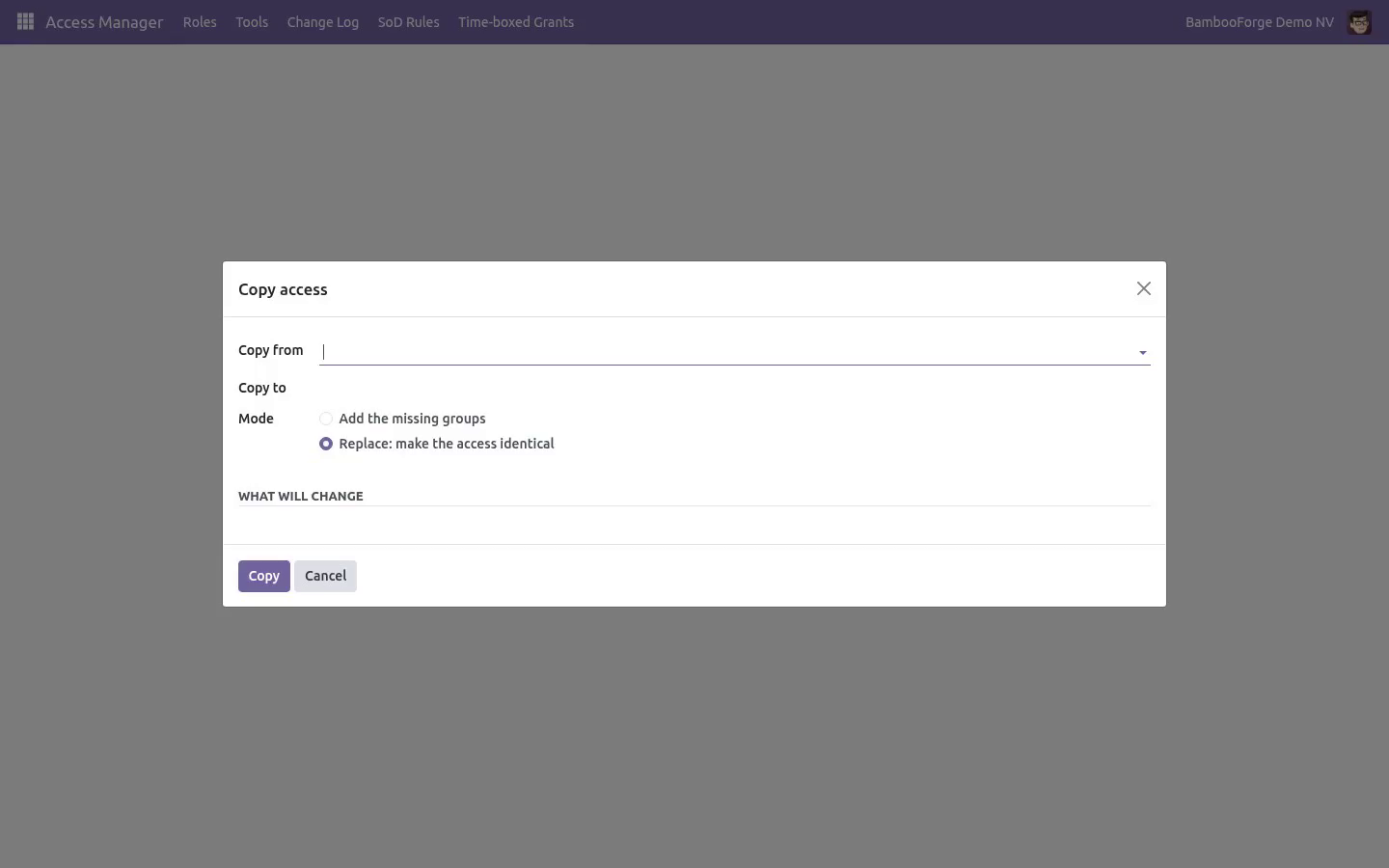
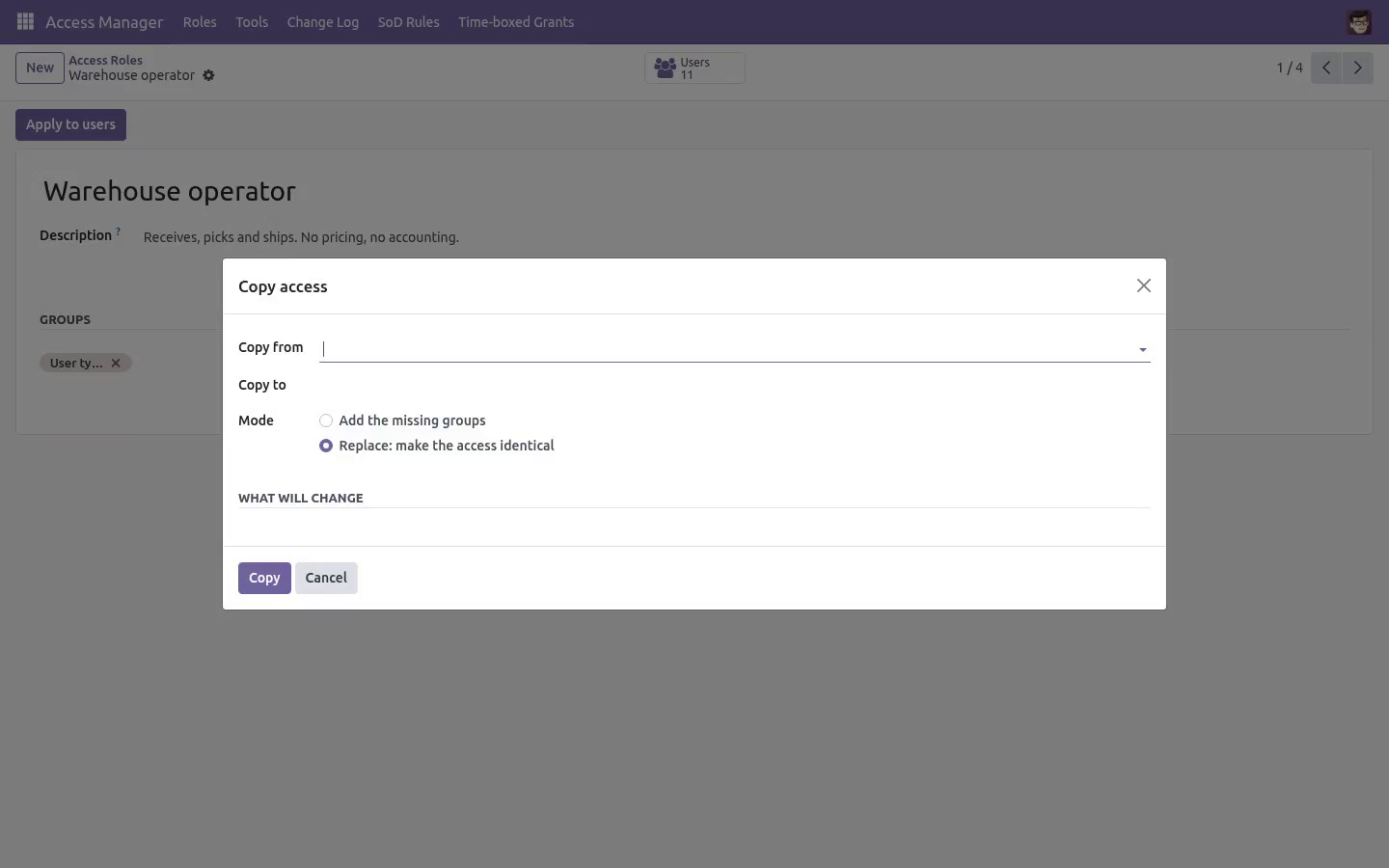
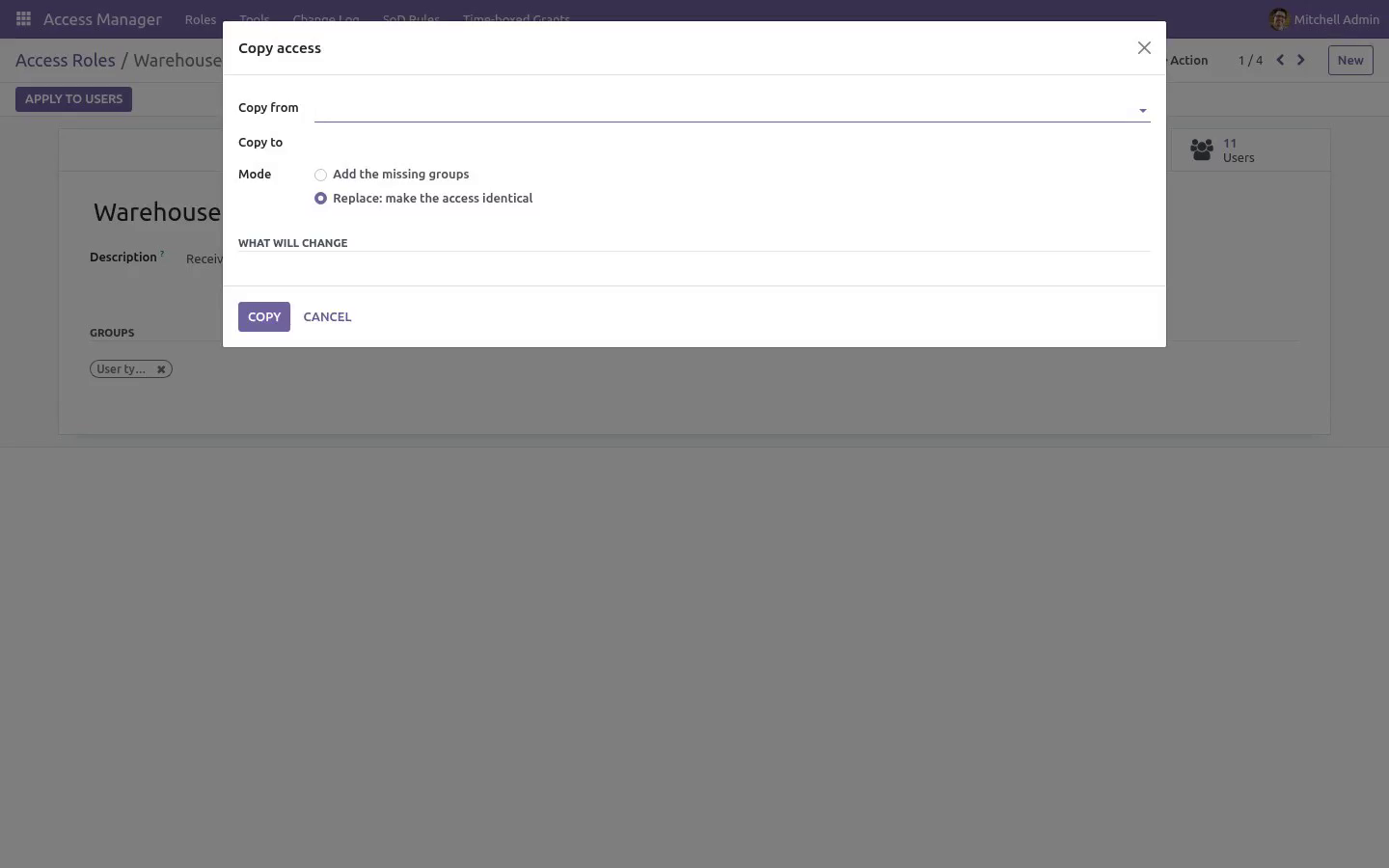
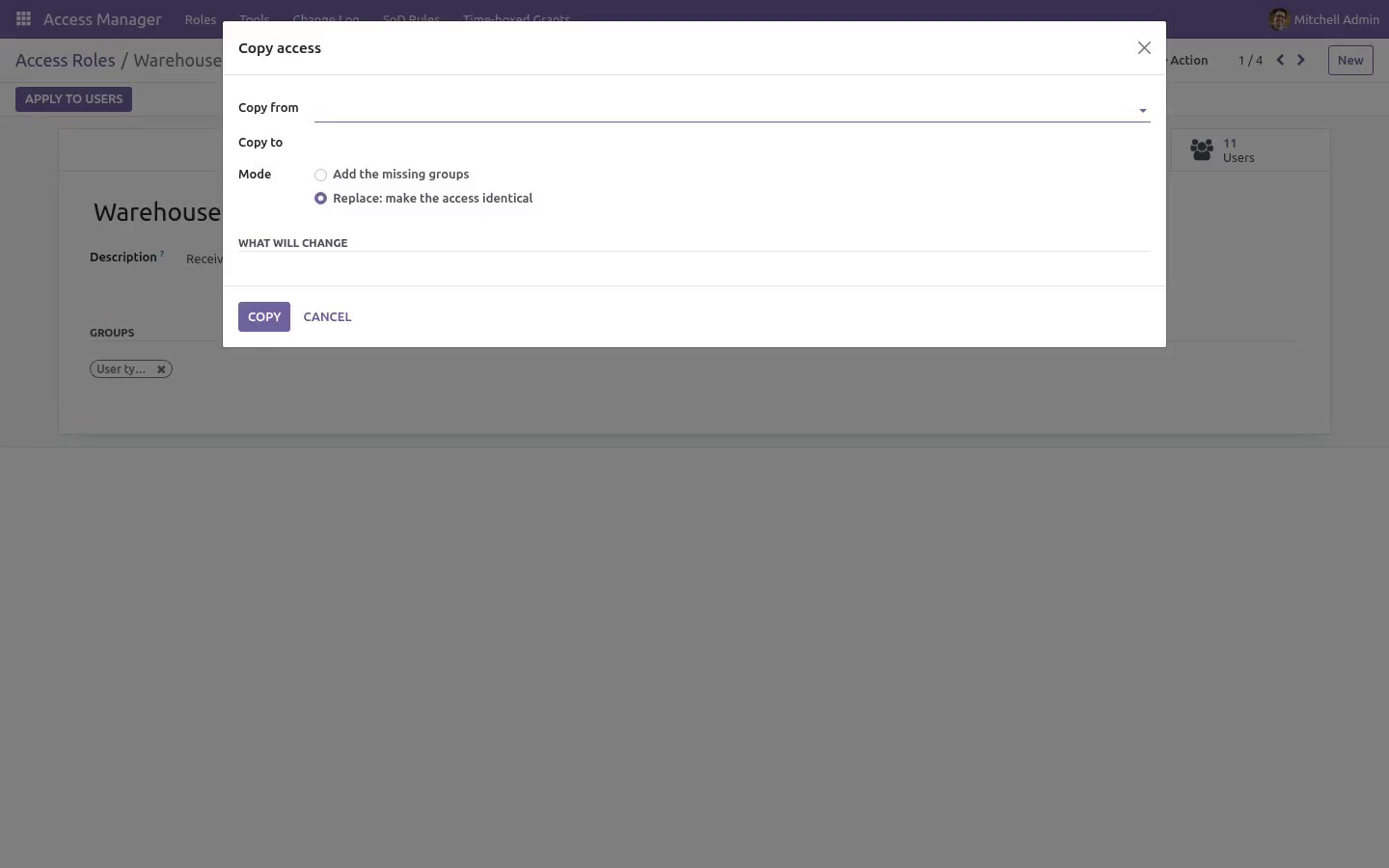
Copy access — the day-one task. Point at somebody who already works, copy to the new hire. Replace makes the access identical; Add only fills the gaps. The source user is skipped if they are also in the target list.
Bulk edit — add or remove a few groups across a selection of users. It is also bound to the Users list: select users, Action → Bulk access edit.
Each preview lists, per user, the groups gained in green and the groups lost in red — or says plainly that nothing changes.
Explain access
Access Manager → Tools → Explain access
The feature the "Access Error" dialog never gives you. Pick:
User — whose access is in question.
Model — what they are trying to reach.
Operation — read, write, create or delete.
Record id (optional) — the exact record, when the problem is "everything works except this one".
The verdict comes back in words:
Model access — the access-control lines that apply to this user's groups and grant the operation, named with their group. When none do, it says so, and lists the groups whose lines would grant it — which is usually the answer to "what should I give them?".
Record rules — every rule in force for this user on this model, with its scope (global, or the groups it belongs to) and its domain. With a record id, each rule is marked as allows this record or excludes this record — the one in red is the reason.
If a rule's domain cannot be parsed at all — a bad module data file, a hand-edited row — the verdict says the check could not run and points at the rule instead of failing silently.
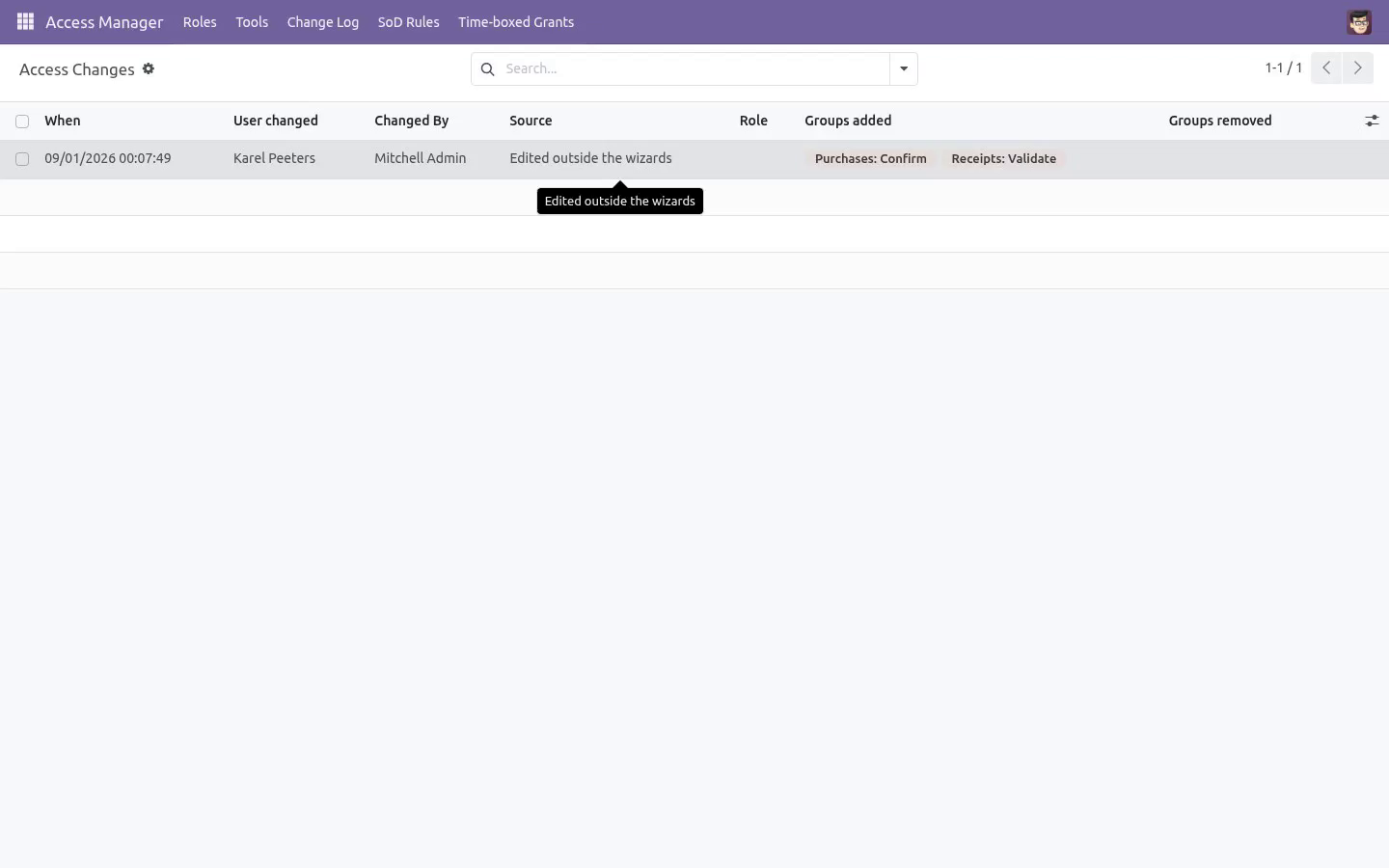
Change log
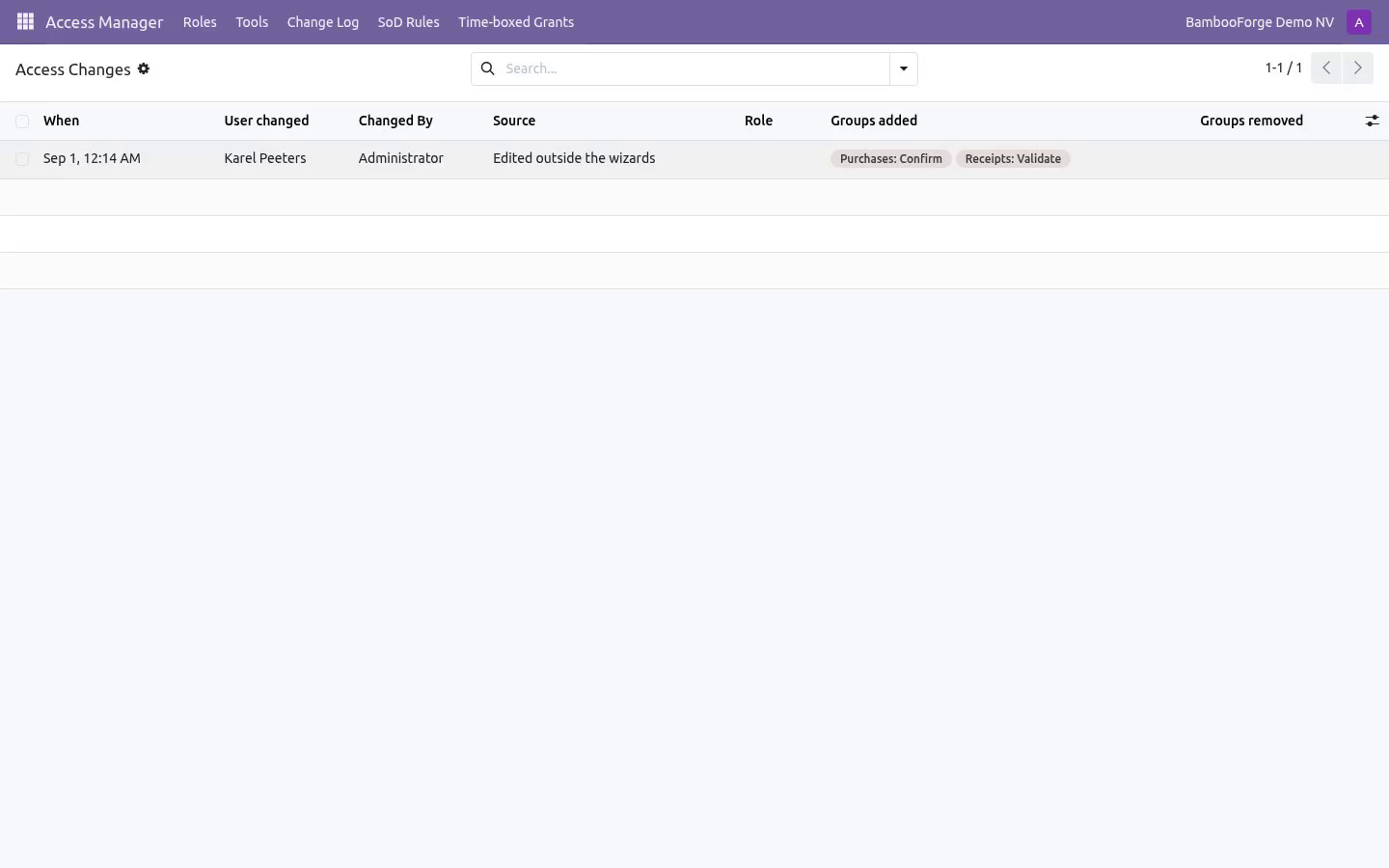
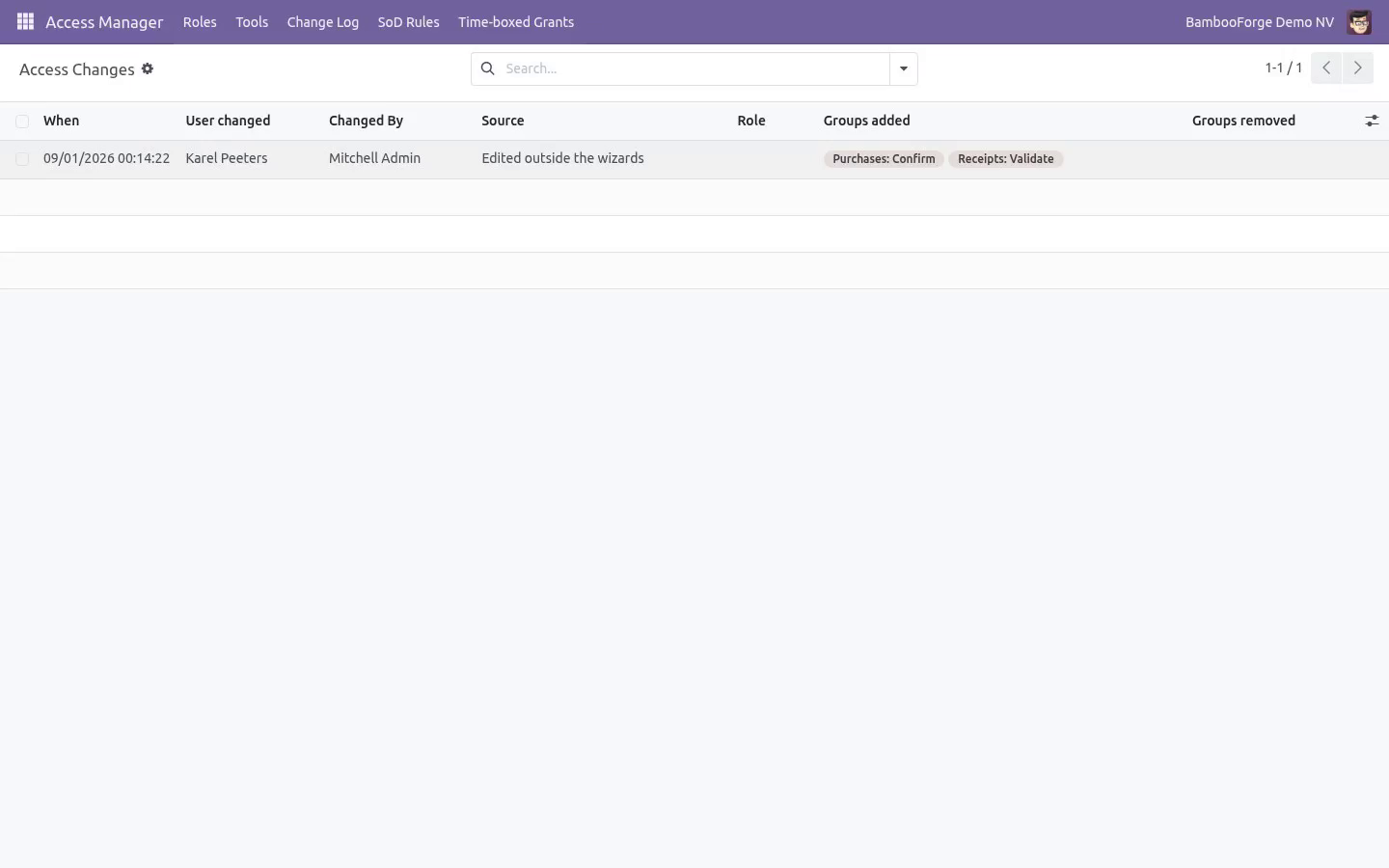
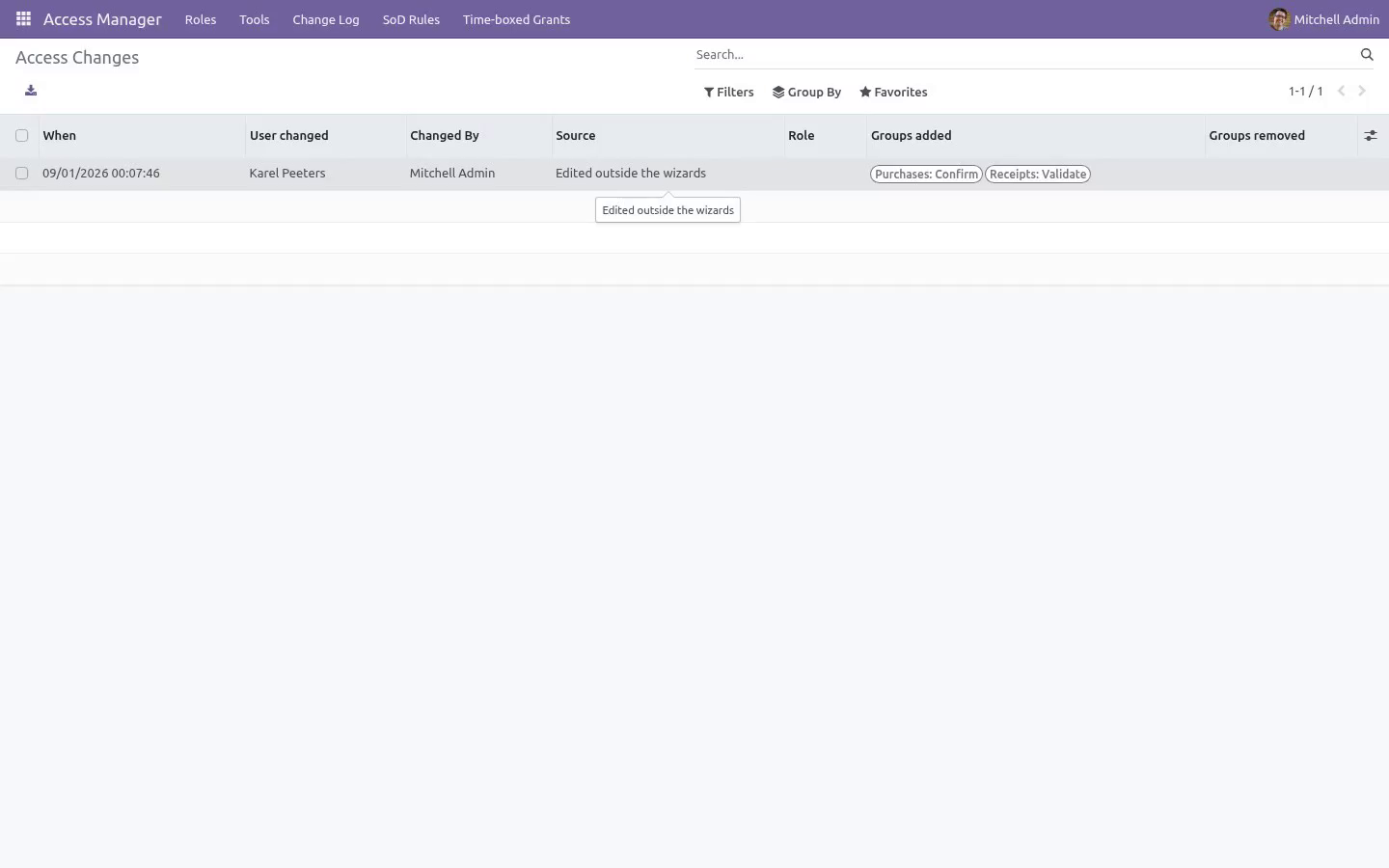
Access Manager → Change Log records every change to a user's groups: who was changed, who changed them, how, and the exact groups added and removed. A change made through this module's wizards says which (role, copy, bulk) and names the role or source user involved. Since 1.1 a change made anywhere else that writes the user - the Users form, RPC, a script, another module - is logged too, as "Edited outside the wizards", unless the module names its own road (an access review decision, a time-boxed grant ending). Nobody can edit or delete a line.
Three roads stay outside it: a user created with groups already set, groups changed from the group's side (its Users tab, or a group made to imply another) and SQL run on the database. It is a log of users' rights, not an audit of the whole database.
Interface restrictions
Access Manager -> Interface Restrictions
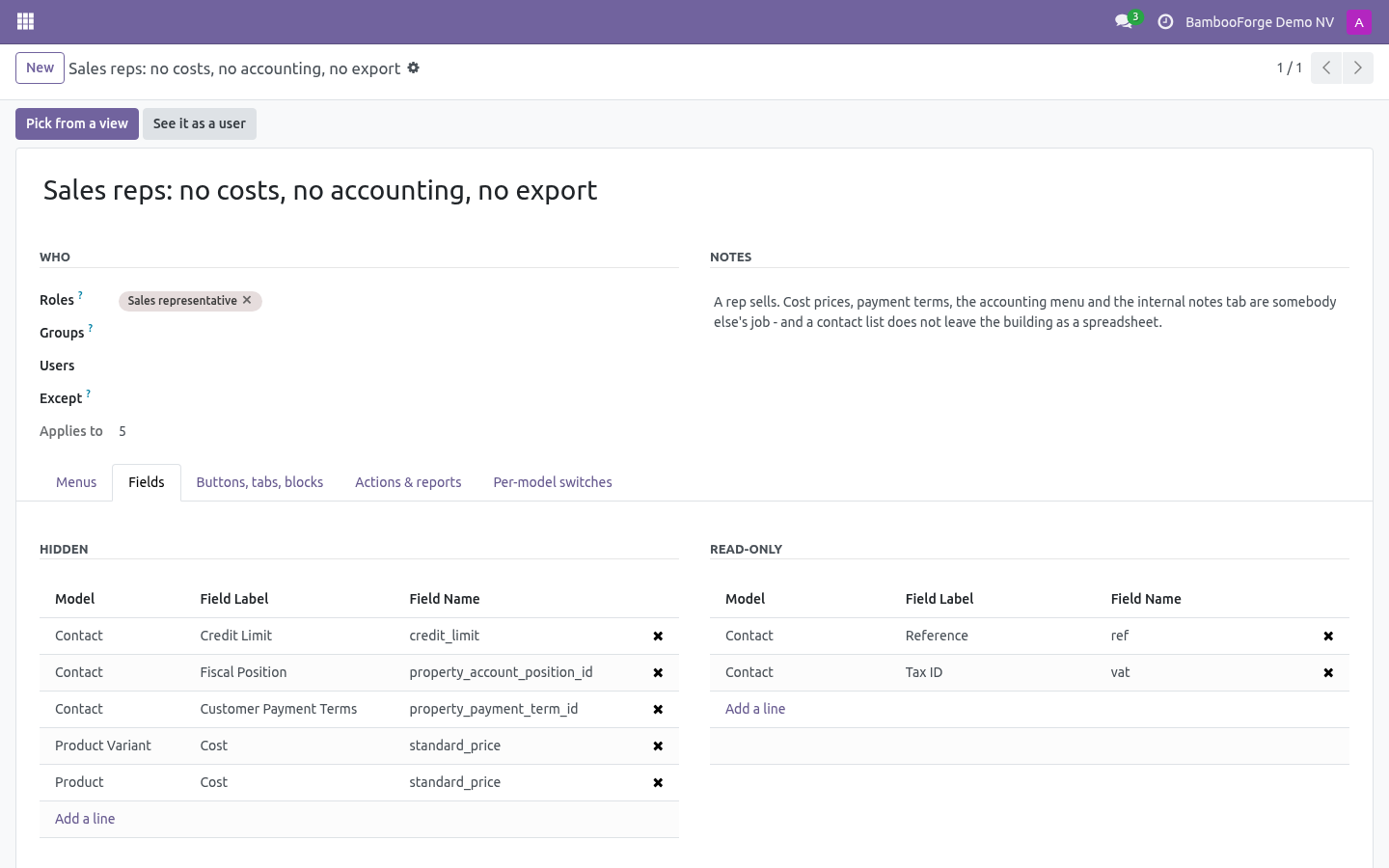
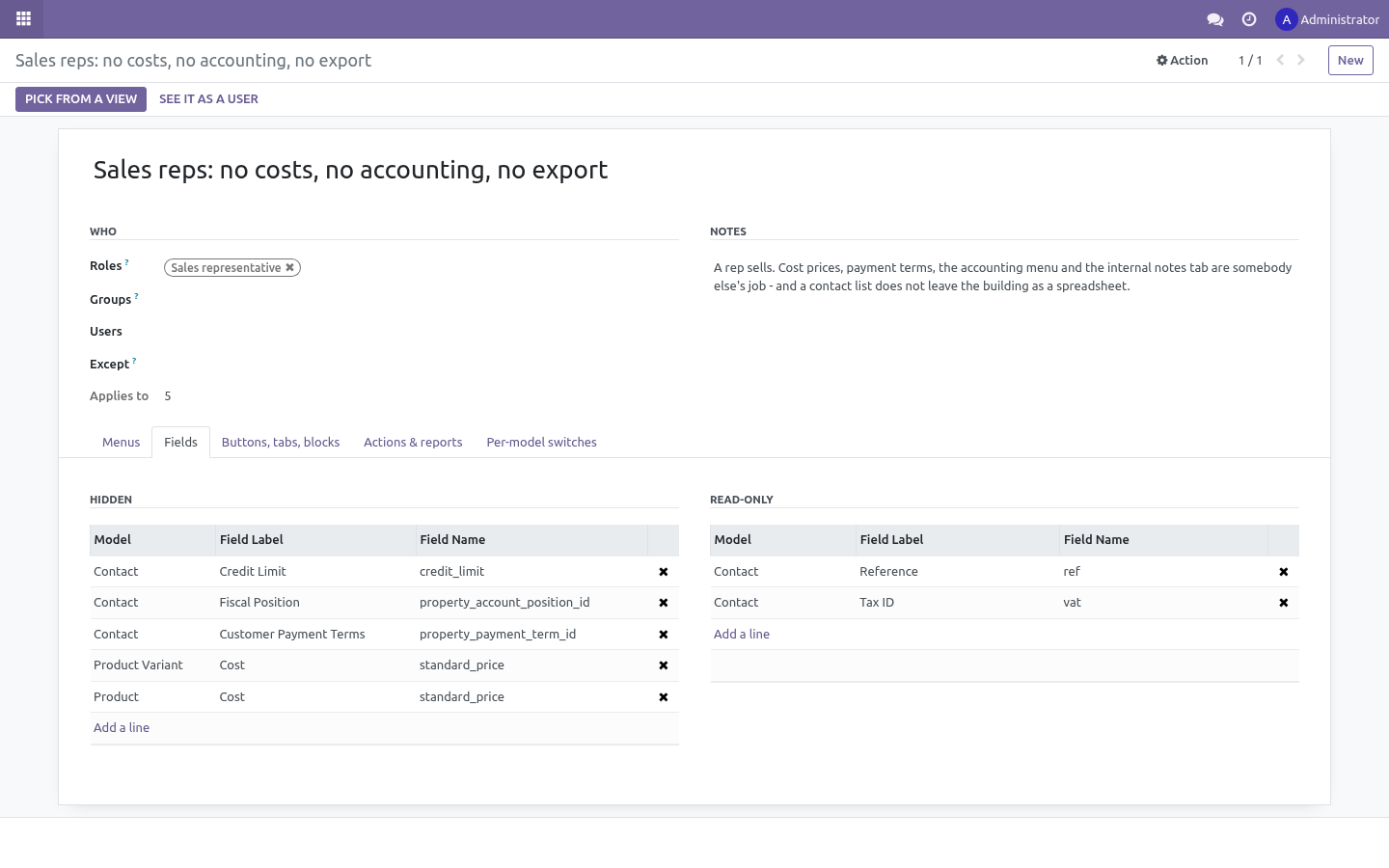
Groups decide what a user may do. This decides what a user sees. The two are kept apart on purpose, and the difference is stated on every screen of it: a hidden field is not a secret, it is a tidier screen for somebody whose job never touches it.
A rule names who and what.
Who - any mix of:
Roles - every user holding every group of the role;
Groups - every user in any of them;
Users - named one by one;
Except - users the rule never touches, whatever their groups.
The superuser is never restricted, so an administrator cannot lock the database.
What - one tab each:
Menus - a hidden menu takes every menu under it along, apps included.
Fields - Hidden fields leave every form, list, kanban and search view the user opens, embedded lists and kanbans included, and are refused on export. Read-only fields stay visible and cannot be edited on screen.
Buttons, tabs, blocks - a button (by its method or action name), a notebook tab (by name or title), any named block, or the chatter. Press Pick from a view, choose the model and the view, read it, tick the ones to hide: no XML to read.
Actions & reports - entries removed from the Action and Print menus of their model.
Per-model switches - no create, no edit, no delete, no duplicate, no export, no import, or the whole model read-only.
What is enforced where. Menus, fields, buttons, tabs and the create / edit / delete switches shape the screen. A user who knows the model name can still reach the record over RPC with whatever their groups allow - use groups for that, and Explain access to check them. Three switches are refused on the server as well, because they are the roads a screen cannot close: export (of a locked model, or of any hidden field), import and duplicate.
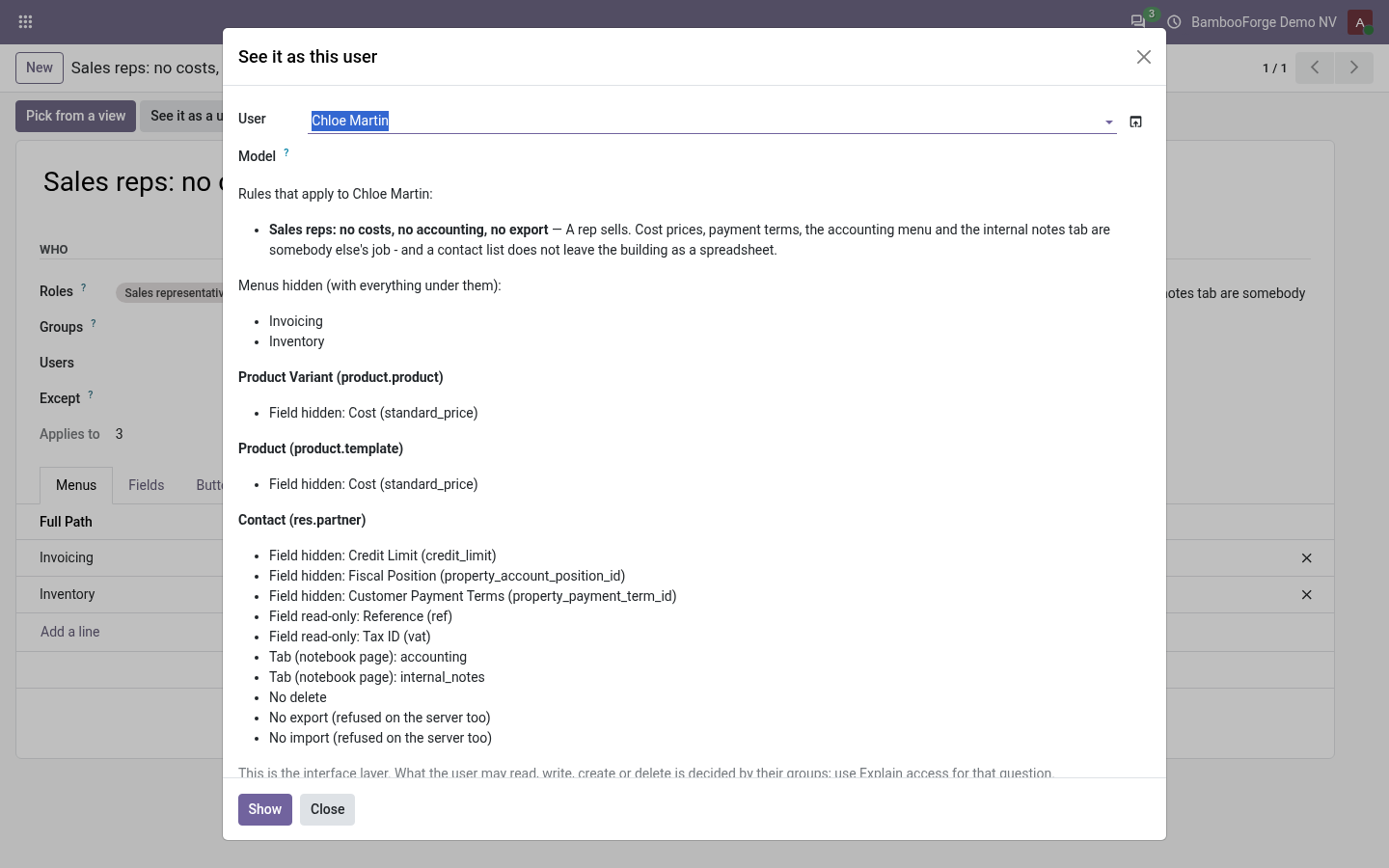
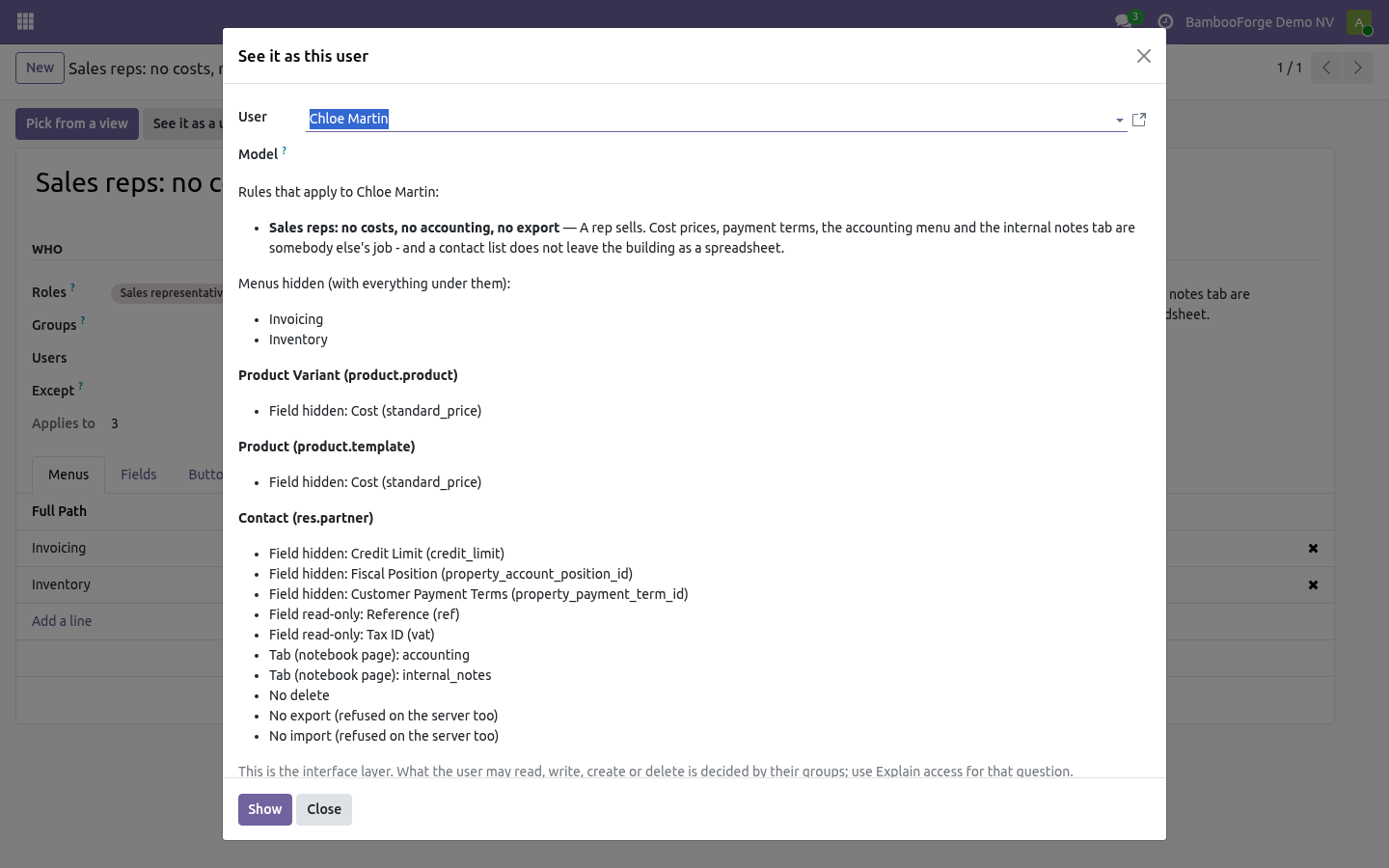
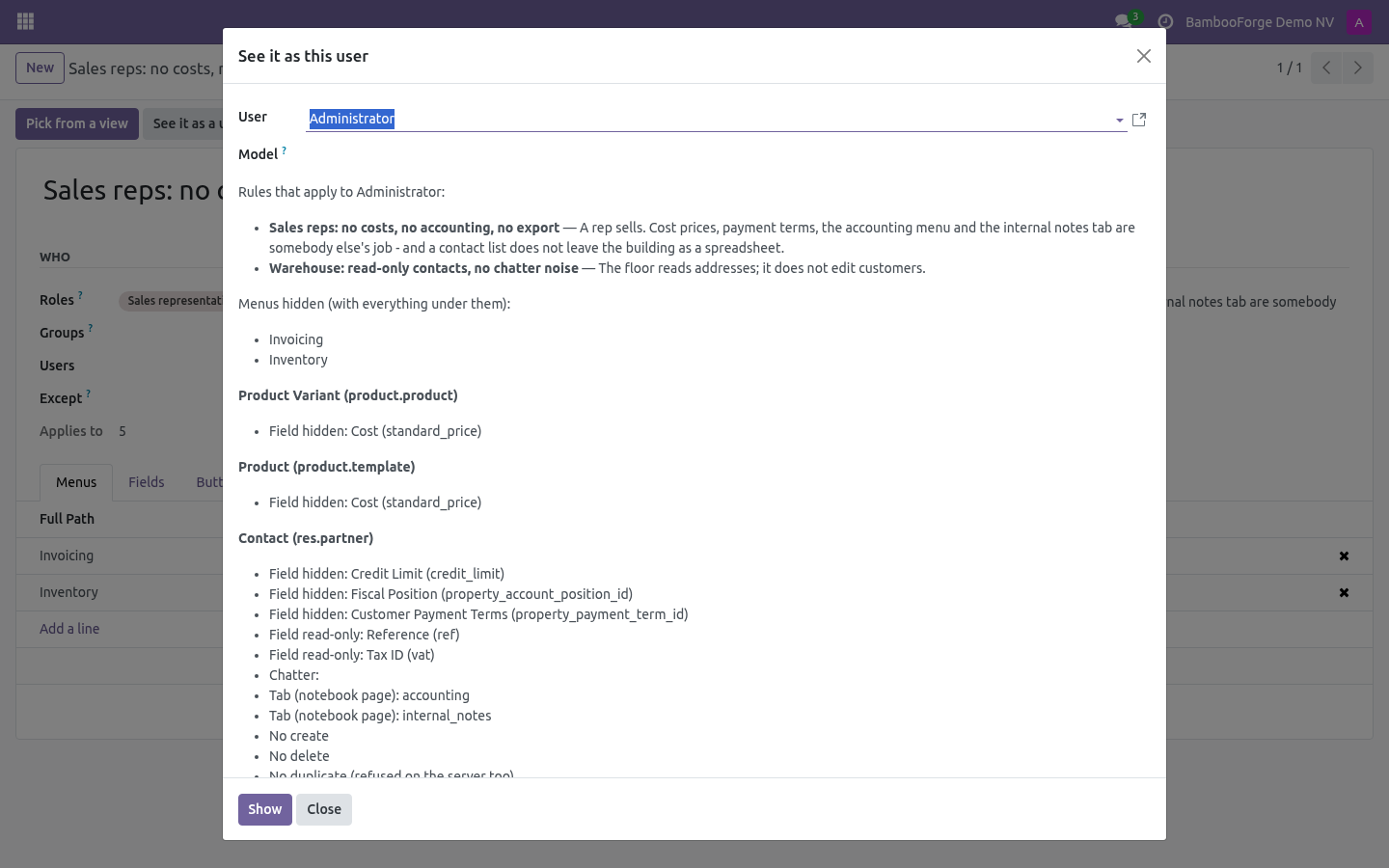
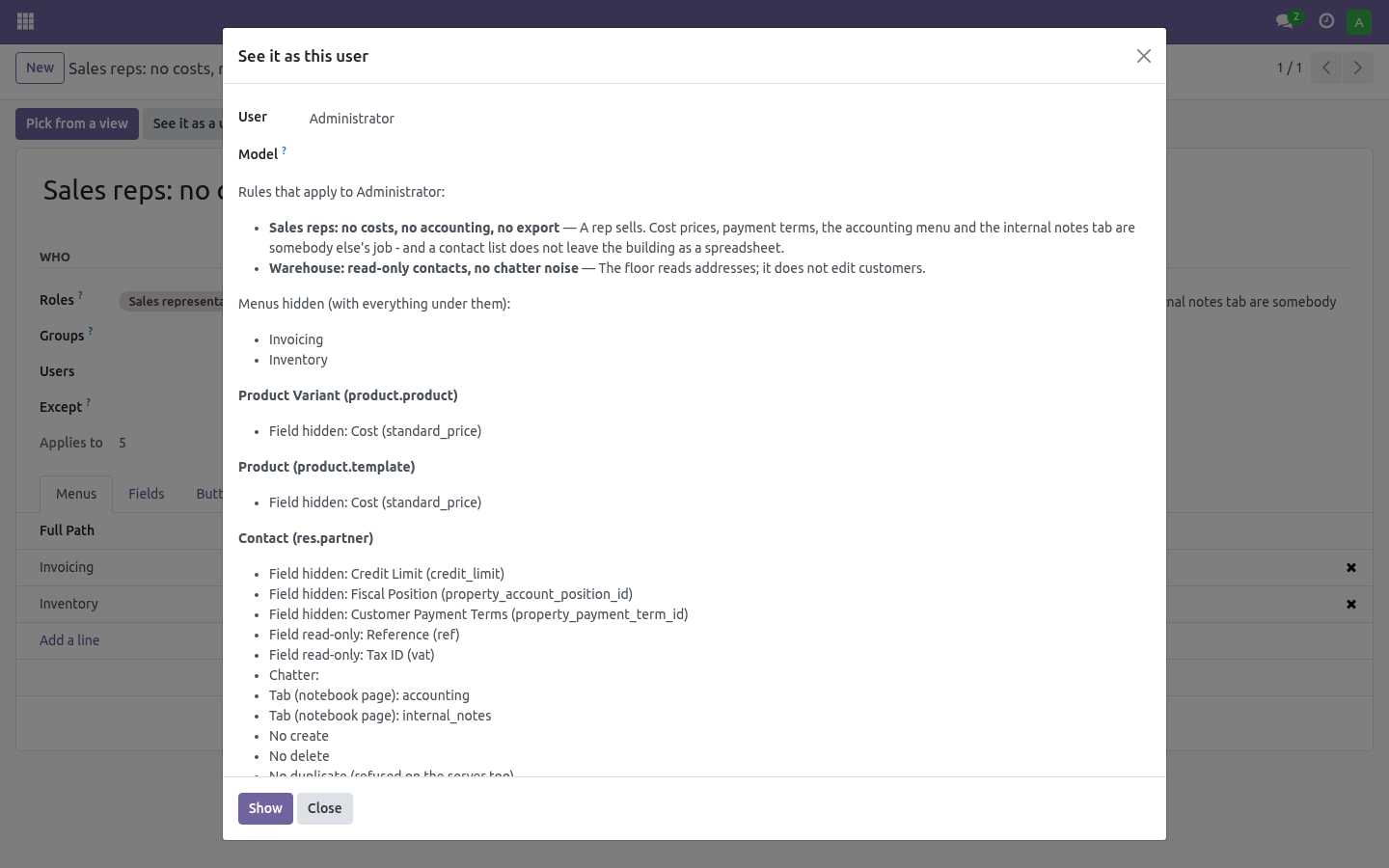
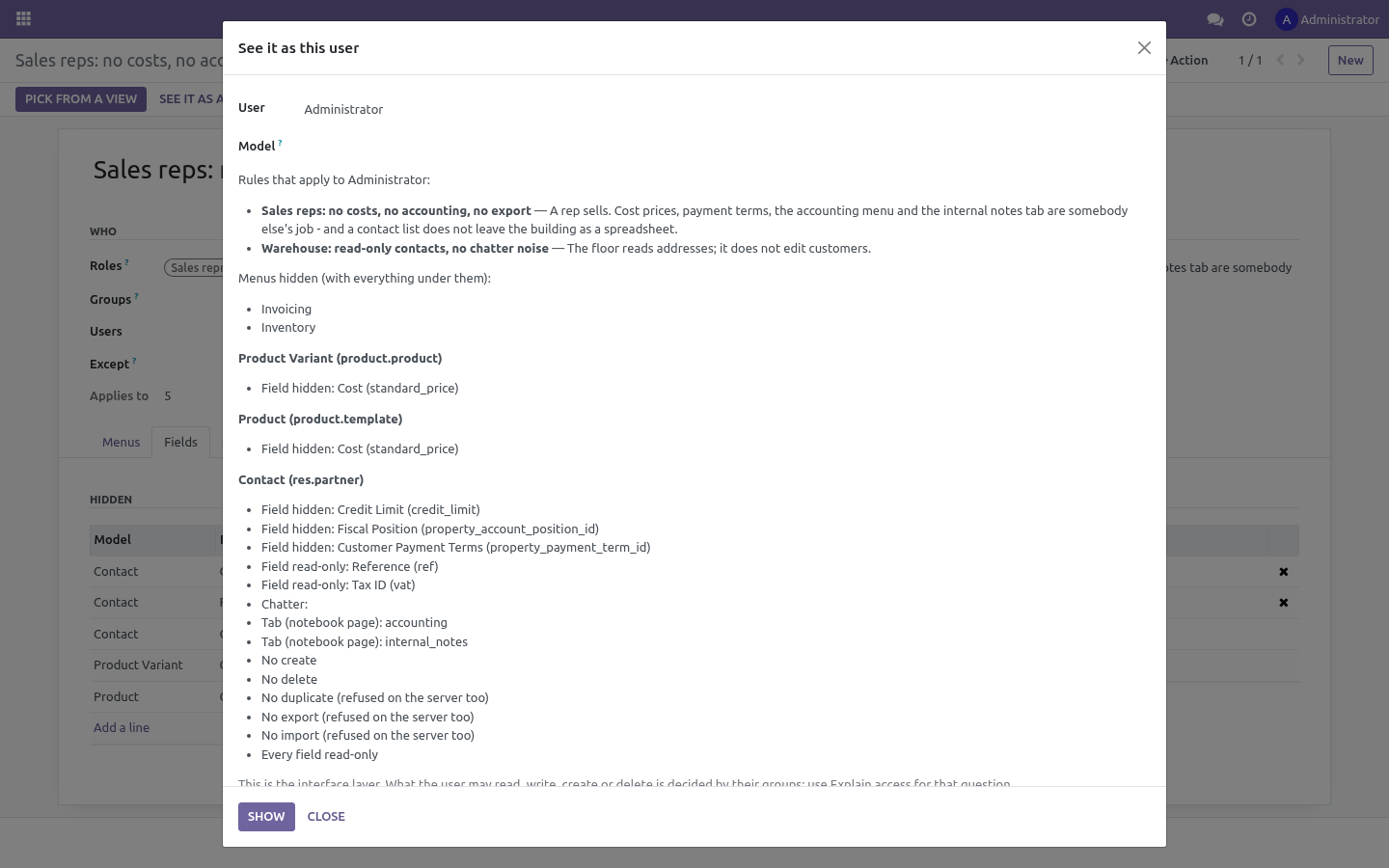
See it as a user (Tools, or the button on the rule) answers the question every administrator asks after saving: what does this person actually see now? Pick the user and, optionally, a model: the rules that reach them, the menus gone, and per model the fields, elements and switches in force.
Rules take effect the moment they are saved, for every user, without a restart; the next screen the user opens is the restricted one. Menus refresh on the user's next page load.
Troubleshooting
- A role shows zero users though people clearly have those groups
The count is users holding every group of the role. A role with a group almost nobody has will count almost nobody.
- Replace removed more than expected
Replace leaves only the role's groups. Check the preview before applying; the change log has the exact list, so the groups can be put back.
- Explain says the user may read, but they still see an error
Check the record id: model access can be fine while a record rule excludes that one record. That is what the record-level answer is for.
- Explain says a rule "excludes this record" but the user sees it
Rules of the same group are OR-ed together in Odoo, and rules of different groups are AND-ed. The wizard reports each rule on its own; one red line among several green ones of the same group is not a block.
- Nothing appears in the change log
The log sees changes made to a user: the wizards, the Users form, RPC, another module. A user created with groups already set, groups changed from the group's own form and SQL run on the database leave no line.
- A hidden field is still in the export dialog
The dialog lists what the model has; the export itself is refused for a hidden field. Hide the export entirely with the model switch.
- A user still sees the menu after the rule was saved
Menus are loaded once per page; the user reloads the page.
- The administrator cannot see something either
Administrators are ordinary users to a rule that names their group. Put them in Except, or write the rule against a role instead of against a group every administrator happens to hold.
What changed in 1.1
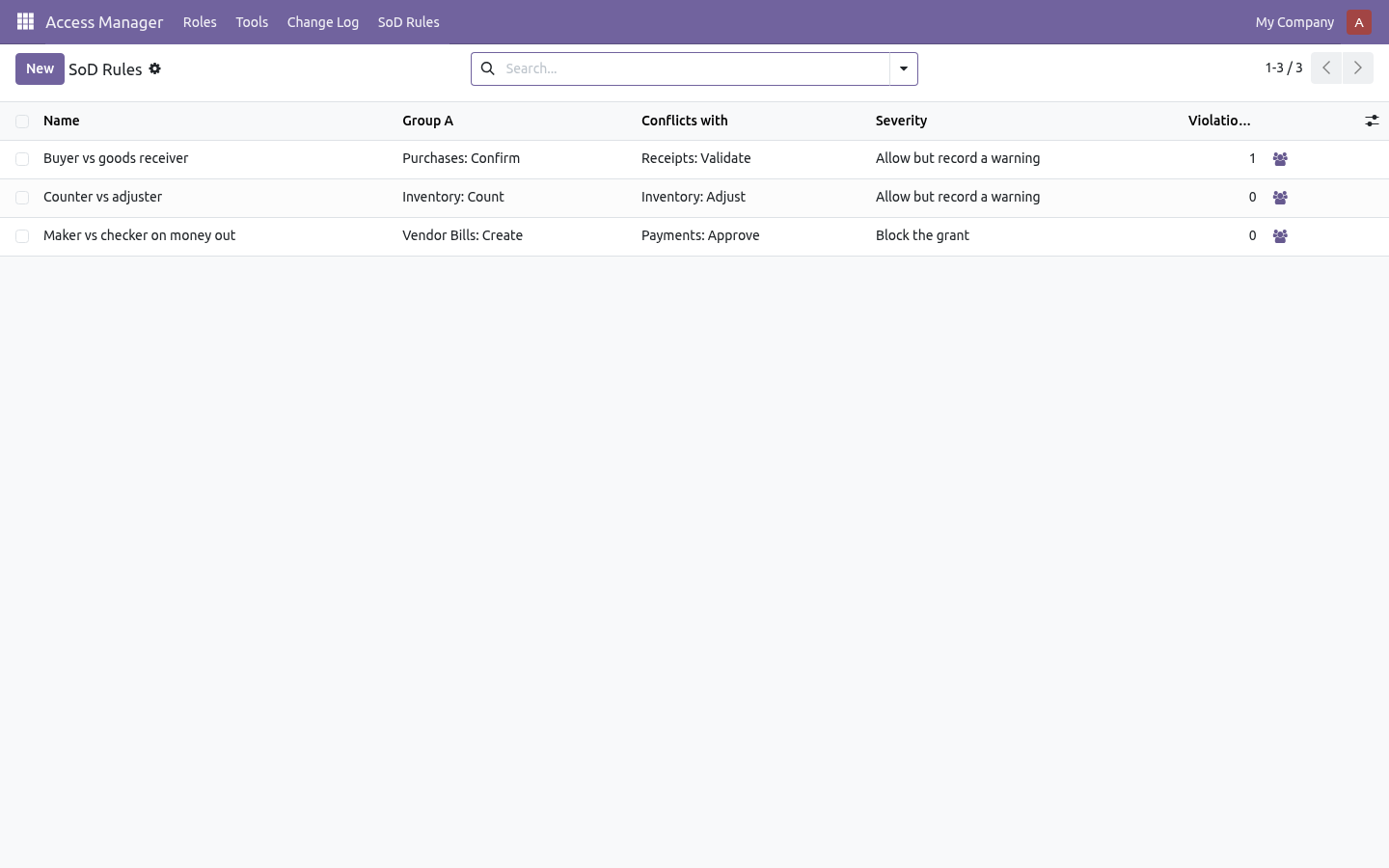
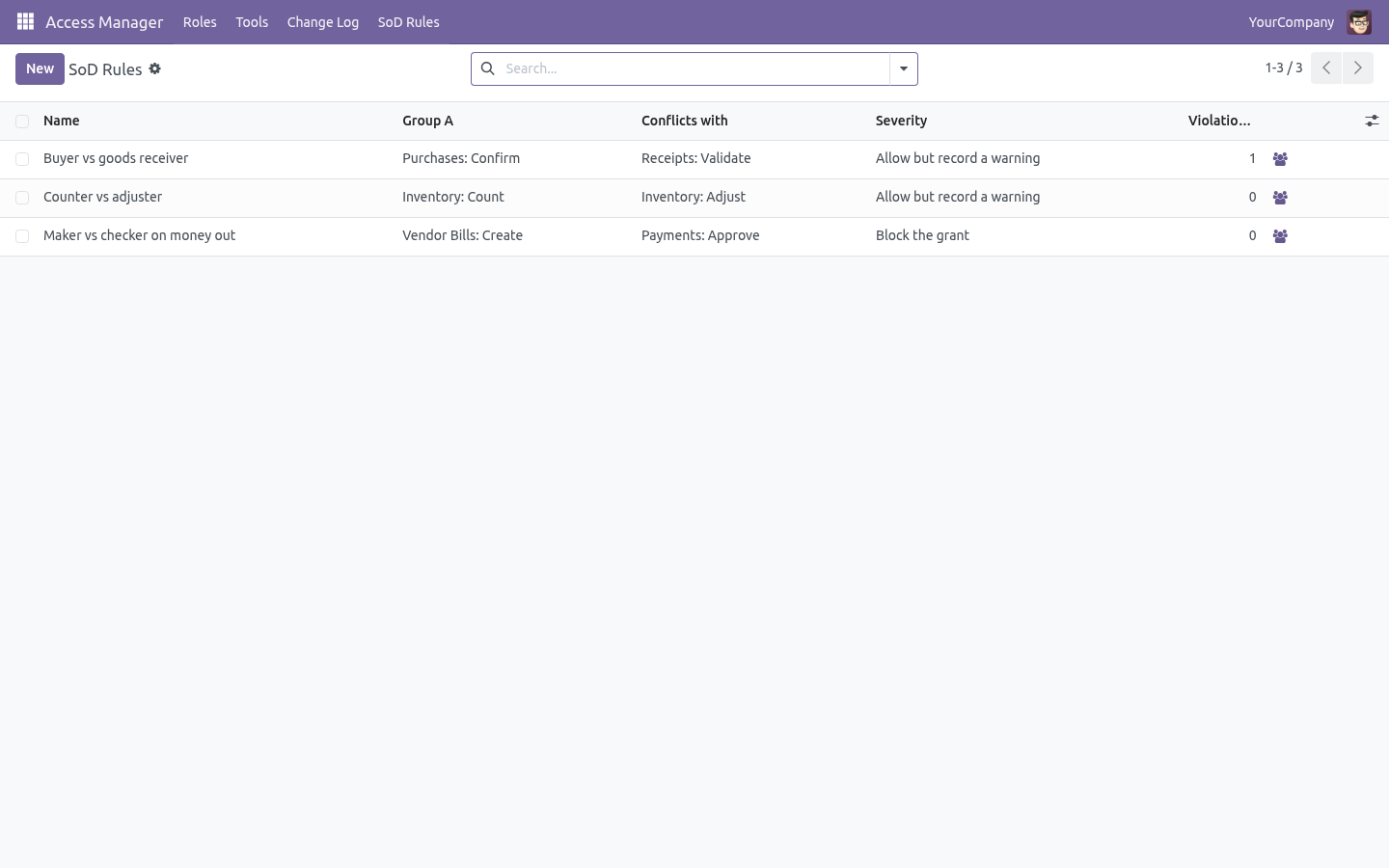
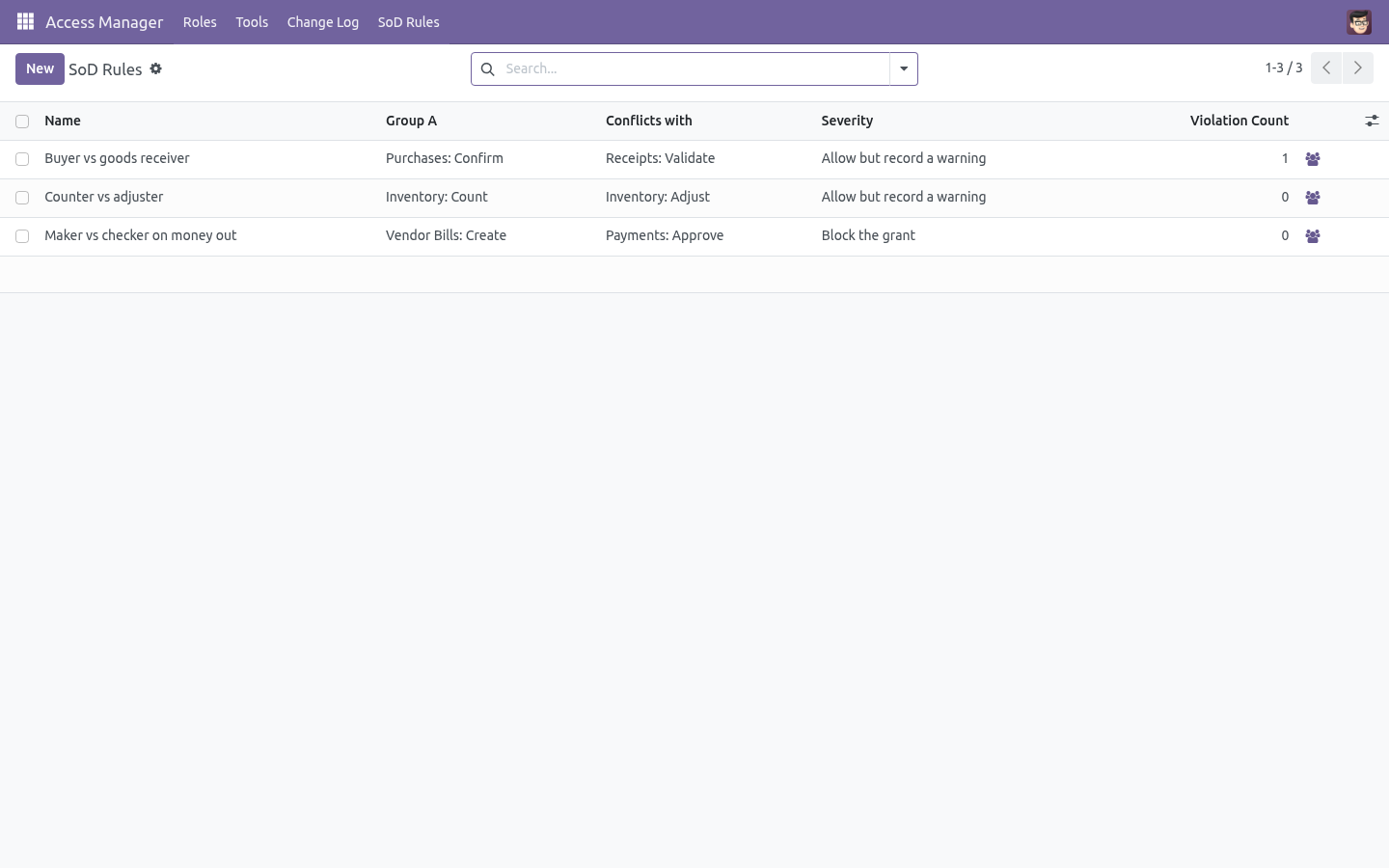
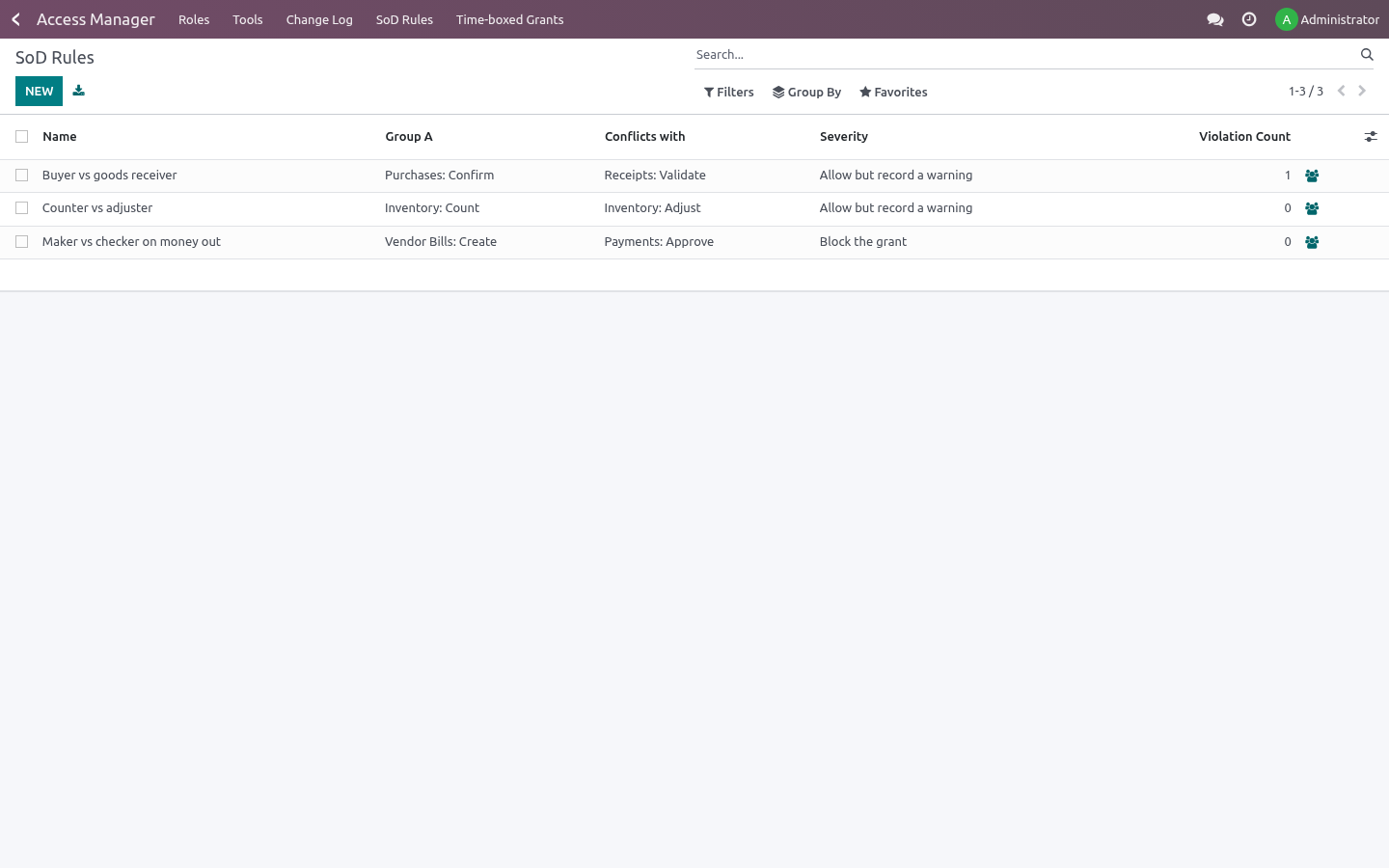
Segregation of duties. Name the pairs of groups one person must never hold together (create vendor bills / approve payments). Blocking rules refuse the grant whatever road it takes - wizards, the Users form, RPC; warning rules let it through but keep the person on the violation list. Access Manager -> SoD Rules, plus a one-click scan of everybody already in violation.
The log cannot be walked around. Group changes made outside the wizards are captured too, and the log itself became append-only - nobody edits or deletes history, deleting a user keeps their trail.
Names are escaped everywhere the wizards render previews.
What changed in 1.2
Time-boxed grants. The Apply and Bulk wizards take an optional end date: every group granted with it is revoked automatically on that day by a daily job, and the change log says the clock did it. Revoke early from Access Manager -> Time-boxed Grants.
How we make sure it works
Before every release, 78 automated checks run against this app on Odoo 16, 17, 18, 19 and 20. Among them:
Explain refuses an id that does not exist.
Explain survives a domain that cannot be parsed.
Explain reports a restriction it cannot evaluate.
Log cannot be edited or deleted.
Preview says what the user does not see.
The complete list is in the source you receive.
Support
support@bambooforge.dev — questions, bug reports and feature requests are answered by the developers who wrote the module.
What changed in 1.3
The change log can be told where a change came from. Another module (the Audit Pro bridge, for one) can set bf_access_source in the context, and rights changes it makes are filed under that source instead of "edited outside the wizards" - the entry nobody can reconcile at audit time. Unknown sources still fall back to a plain direct edit, so the log cannot be spoofed into a value it does not define.
What changed in 1.4
Interface restrictions. Hide menus, fields, buttons, tabs, blocks, the chatter, Action and Print entries per role, group or user; make fields or whole models read-only; switch off create, edit, delete, duplicate, export and import. Elements are picked from the view, not typed. Export, import and duplicate are refused on the server as well.
See it as a user. The screen as one person will find it, in words, before they open it.